Add Logo to Video
Agent Opus lets you add logo to video automatically while generating complete branded content from a single prompt. Describe your video concept, upload your logo, and Agent Opus builds a finished video with your branding integrated into professional motion graphics, dynamic scenes, and social-ready layouts. No manual editing, no timeline adjustments. Just prompt-to-publish video creation that keeps your brand front and center across every frame.

Explore what's possible with Agent Opus

Reasons why creators love Agent Opus' Add Logo to Video
Ship in Minutes, Not Hours
Generate a publish-ready video in under 10 minutes from a single prompt — no timeline editing, no asset hunting, no creative dry spells.
Zero Editing Skills Required
Describe your concept and Agent Opus handles scene composition, motion graphics, voiceover, and platform formatting automatically — even if you've never opened a video editor.
Studio-Grade Output
Cinematic motion graphics, beat-synced cuts, professional voiceover, and precise typography — every video ships looking production-quality from the first generation.
Stays On-Brand
Upload your logo, fonts, and color palette once. Agent Opus applies them across every video automatically so your content stays visually consistent.
How to use Agent Opus’ Add Logo to Video
 1
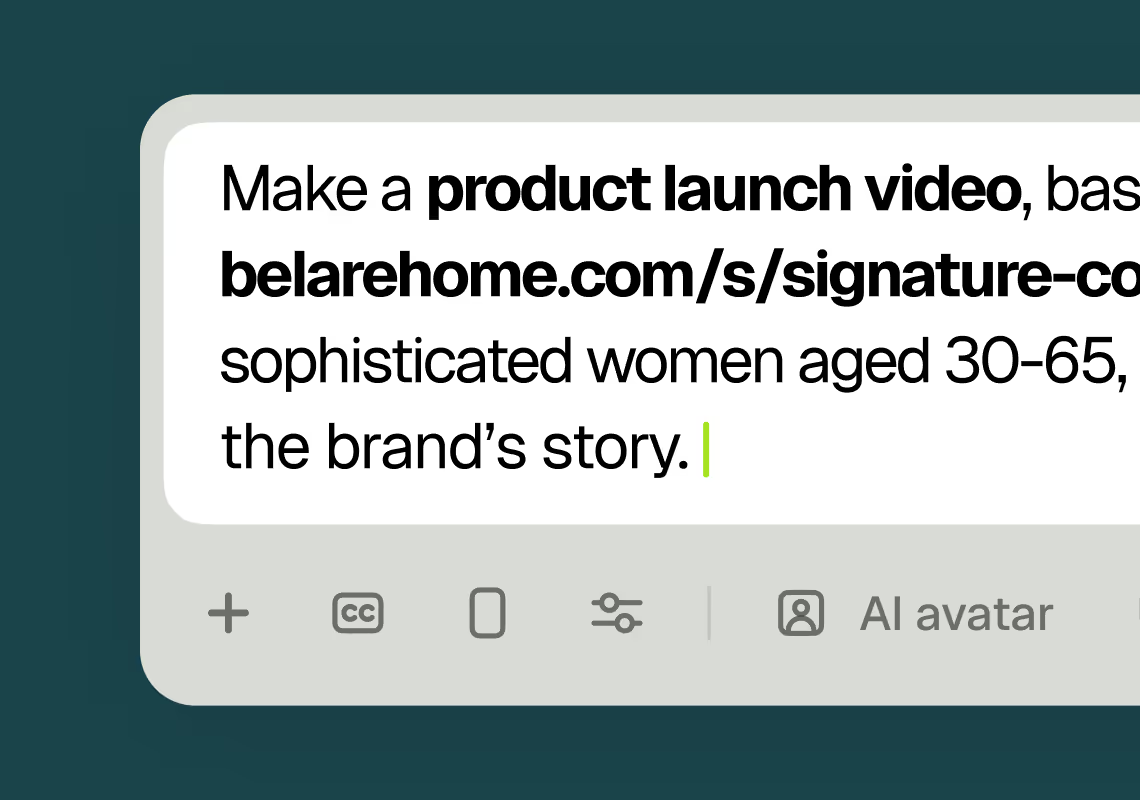
1Describe your video
Paste your promo brief, script, outline, or blog URL into Agent Opus.
 2
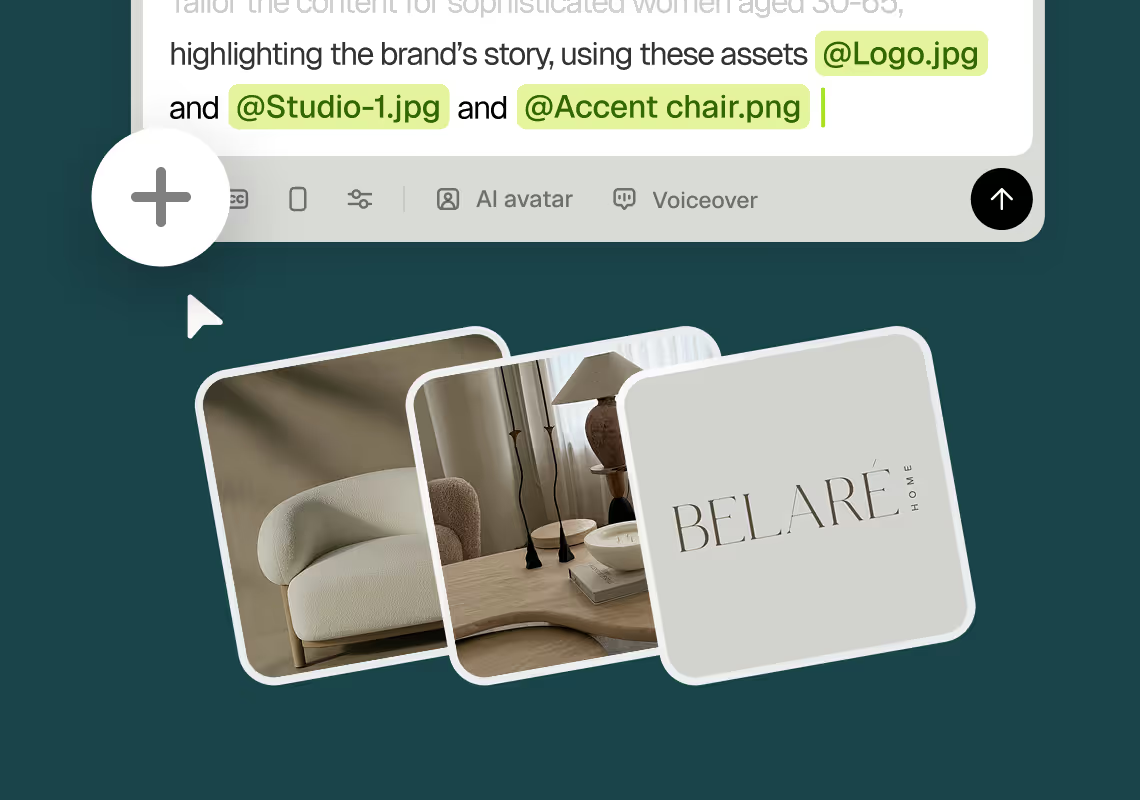
2Add assets and sources
Upload brand assets like logos and product images, or let the AI source stock visuals automatically.
 3
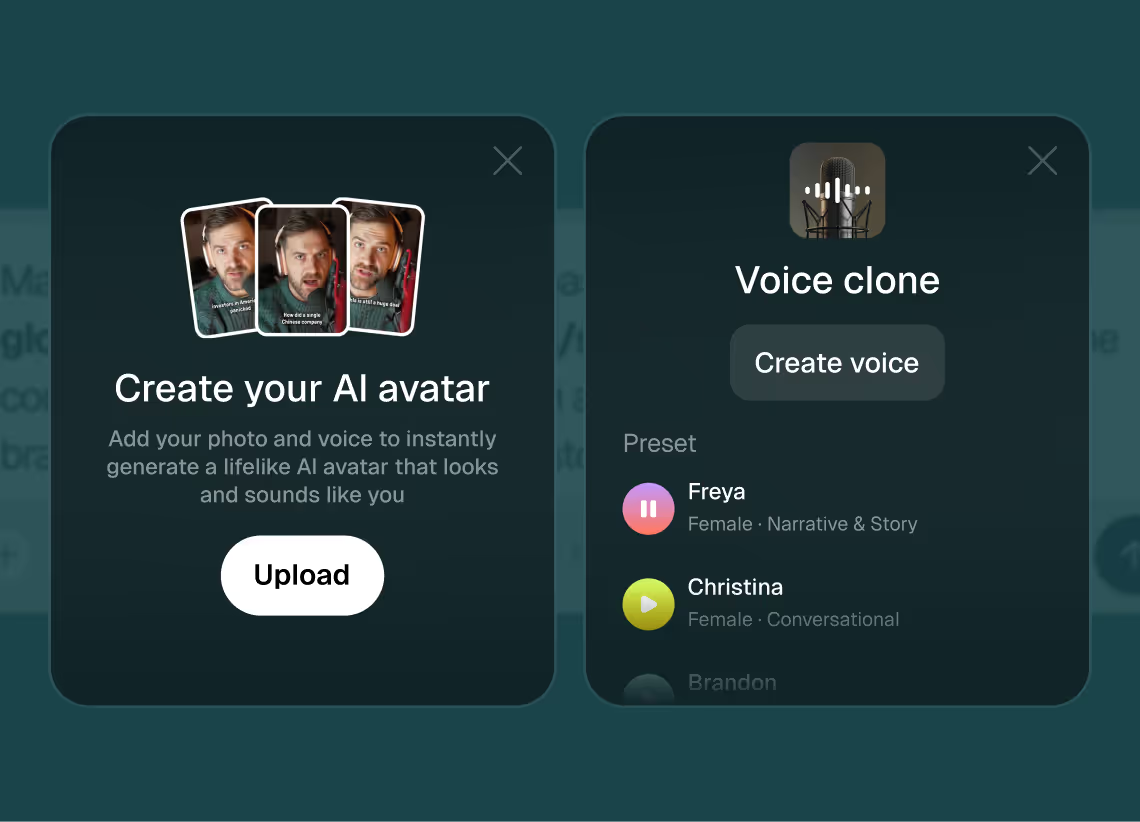
3Choose voice and avatar
Choose voice (clone yours or pick an AI voice) and avatar style (user or AI).
 4
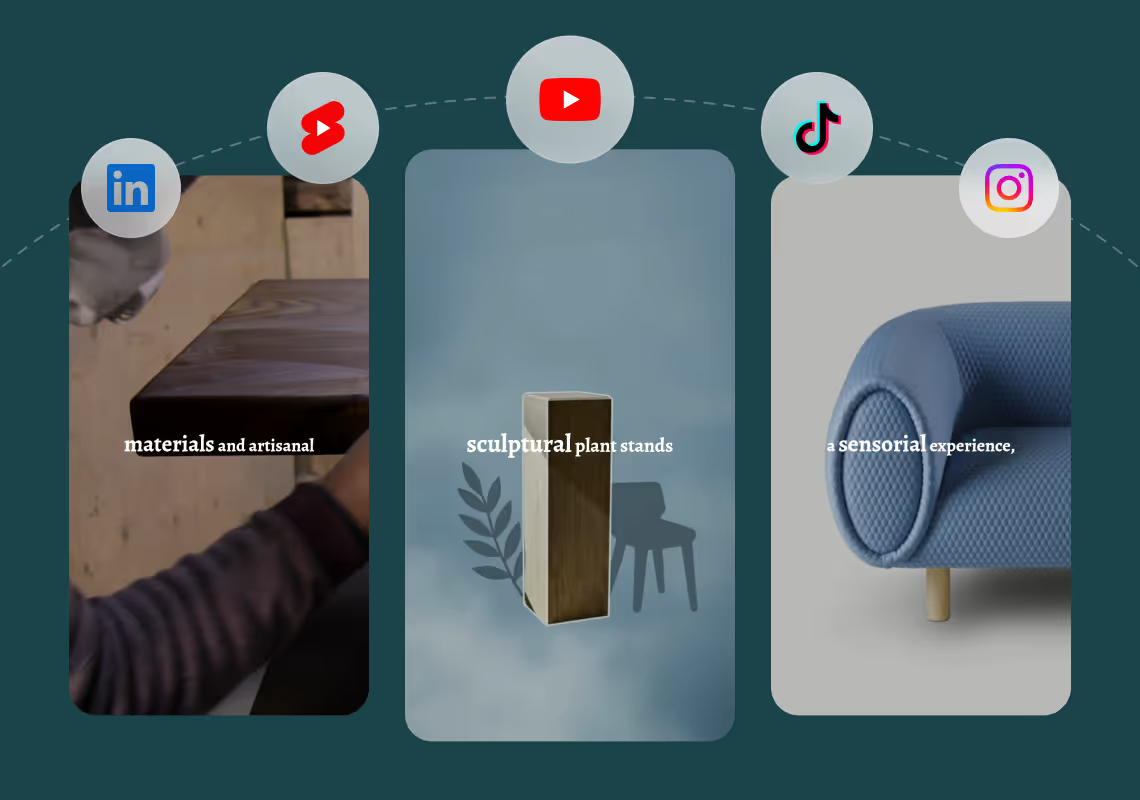
4Generate and publish-ready
Click generate and download your finished promo video in seconds, ready to publish across all platforms.


8 powerful features of Agent Opus' Add Logo to Video
Prompt-to-Video Generation
Turn a one-line idea into a finished video. The agent handles structure, pacing, B-roll selection, and final assembly automatically.
Script and Outline Support
Paste a full script, drop in an outline with section headers, or supply a blog or article URL — Agent Opus reads any of them and builds a video around the content.
AI Voiceover and Voice Cloning
Pick from natural-sounding AI voices in 30+ languages, or clone your own voice once. Every video then ships with your authentic narration.
Beat-Synced Motion Graphics
Dynamic visuals that lock to the beat of your audio or the pacing of your script — kinetic typography, transitions, and effects, no manual keyframing required.
Automatic Captions and Subtitles
Burn-in captions for short-form, soft subtitles for long-form, and multi-language translations — all generated and synced automatically.
Multi-Aspect-Ratio Export
9:16, 1:1, and 16:9 outputs from one job, with intelligent reframing of text, motion graphics, and focal elements for each ratio.
Brand Asset Integration
Upload your logo, watermark, fonts, and color palette. Agent Opus applies them consistently across every video automatically.
Avatar and Talking Head Support
Add an AI avatar, your own video footage, or a synthetic spokesperson to any video — useful for explainers, ads, and personal-brand content.
Testimonials
I dont think id change a thing
Quirky Collectables
I reviewed version a and I was very impressed with this version, it did very well in almost all aspects that users need, you would only have to make very small changes and maybe replace one of 2 of the pictures, but even saying that it could be used as is and still receive decent views or even chances at going viral depending on the story or the content the user chooses.
Jeremy
all in all LOVE THIS agent. I'm curious to see how I can push it (within reason) Just need to learn to get the consistency right with my prompts
Rebecca
Frequently Asked Questions
How does Agent Opus handle logo placement when I add logo to video from a prompt?
Agent Opus treats your logo as a persistent brand asset throughout the entire video generation process. When you upload your logo file (PNG with transparency works best), the system analyzes its dimensions, color palette, and visual weight. As Agent Opus assembles scenes based on your prompt or script, it automatically positions your logo in contextually appropriate locations: lower thirds during narration segments, corner watermarks during full-screen visuals, and prominent placements in intro and outro sequences. The AI motion graphics engine adapts animations to your logo's shape and style, so circular logos get different treatment than horizontal wordmarks. If your prompt describes a product demo, Agent Opus places the logo near product shots. If you're generating a testimonial video, the logo appears during speaker introductions and closing frames. This intelligent placement happens without any manual keyframing or timeline work on your part. You can also specify logo behavior in your prompt (for example, 'keep logo subtle in lower left' or 'feature logo prominently in opening'), and Agent Opus will adjust placement and opacity accordingly. The system ensures your logo never obscures critical visual information or competes with on-screen text, maintaining professional composition across every generated frame. Because Agent Opus generates the entire video from scratch rather than editing existing footage, logo integration is baked into the scene assembly process, not added as an afterthought.
Can I add logo to video while maintaining brand consistency across different video types and formats?
Absolutely. Agent Opus stores your logo and brand assets in your account, so every video you generate automatically inherits consistent branding without re-uploading or reconfiguring settings. When you create a promotional video, an explainer, a product demo, or social content from different prompts, Agent Opus applies the same logo placement logic, color harmony, and visual style rules to maintain brand coherence. The AI motion graphics system extracts your logo's primary and accent colors, then uses those values to inform background gradients, text overlays, and transition effects across all generated videos. If your logo is blue and orange, Agent Opus will favor complementary color palettes in scene backgrounds and graphic elements, creating a unified brand aesthetic even when video topics vary widely. For social-ready outputs, Agent Opus adapts logo placement to each aspect ratio: vertical videos for TikTok and Reels position logos in the top or bottom safe zones, while horizontal YouTube content places logos in traditional lower-third positions. Square LinkedIn videos center logos in corner positions that remain visible across desktop and mobile feeds. This format-aware placement ensures your logo is always legible and professionally positioned, regardless of where the video is published. You can also upload multiple logo variations (full color, monochrome, icon-only) and specify which version to use in different contexts via your prompt. Agent Opus will select the appropriate logo variant based on scene composition and background contrast, ensuring maximum visibility and brand impact across every video you generate.
What are best practices for prompts when I want to add logo to video with specific branding goals?
Effective prompts for logo-integrated video generation combine content direction with branding cues. Start by describing the video's core message and structure, then add specific instructions about logo treatment. For example, 'Create a 60-second product launch video for our new app. Open with the logo animating in over a tech background, then show three key features with the logo watermarked in the lower right. End with a full-screen logo and call to action.' This gives Agent Opus clear guidance on logo prominence and timing. If you want subtle branding, specify 'keep logo discreet as a corner watermark throughout' or 'use logo only in intro and outro.' For high-impact branding, prompt 'feature logo prominently in every scene transition' or 'integrate logo into motion graphics as a recurring visual element.' You can also reference brand tone: 'professional and corporate' will yield conservative logo placement and animations, while 'energetic and bold' produces dynamic logo movements and larger scale. When generating videos from blog URLs or long scripts, Agent Opus automatically determines optimal logo placement based on content flow, but you can override this by adding branding notes to your prompt. For example, 'Generate video from this blog post, and emphasize the logo during key statistics and takeaways.' If you have multiple brand assets (logo, product images, team photos), describe how they should interact: 'Show product shots with logo in corner, then transition to team member speaking with logo in lower third.' Agent Opus interprets these layered instructions and assembles scenes that balance content clarity with brand visibility. The more specific your branding goals in the prompt, the more precisely Agent Opus tailors logo integration to your vision.
How does Agent Opus source and combine visual elements when I add logo to video from a text brief?
Agent Opus uses a multi-source visual assembly process to build scenes around your logo and prompt. When you provide a text brief, script, or blog URL, the system first analyzes the content to identify key concepts, emotional tone, and visual opportunities. It then sources imagery from three primary channels: your uploaded brand assets (logo, product shots, team photos), royalty-free stock libraries, and web image search for current or specific references. The AI motion graphics engine composites these elements into cohesive scenes, ensuring your logo integrates naturally with sourced visuals. For example, if your prompt describes a fitness app launch, Agent Opus might pull stock footage of people exercising, overlay your app UI screenshots you uploaded, and position your logo in a corner with a subtle drop shadow for contrast. The system evaluates background complexity and color distribution to determine optimal logo placement and styling: busy backgrounds get semi-transparent logo overlays or solid color backing plates, while clean backgrounds allow full-opacity logo display. Agent Opus also generates original motion graphics elements (animated shapes, text callouts, transition effects) that echo your logo's design language, creating visual continuity between branded and sourced content. If your logo features rounded corners and gradients, generated graphics will use similar styling. The scene pacing algorithm determines how long each visual element appears on screen, ensuring your logo remains visible long enough for brand recognition without dominating scenes where content clarity is paramount. Because Agent Opus builds videos from scratch rather than editing pre-existing footage, every visual decision considers logo integration from the outset, resulting in compositions that feel intentionally designed rather than retroactively branded.