PDF to Video Generator
Turn any PDF into a polished, publish-ready video in minutes. Agent Opus reads your document and generates a complete video with motion graphics, voiceover, and visuals. No editing, no timeline, no manual work. Upload your PDF, describe what you want, and get a social-ready video that explains, promotes, or teaches your content. Perfect for whitepapers, reports, presentations, case studies, and educational materials that deserve a bigger audience.

Explore what's possible with Agent Opus

Reasons why creators love Agent Opus' PDF to Video Generator
Reach Beyond Readers
Transform static documents into engaging video content that captures attention across social platforms and email campaigns.
Skip the Studio Costs
Create professional narrated videos from your PDFs without expensive equipment, voice talent, or post-production work.
Consistent Brand Voice
Maintain your unique tone and visual identity across every video without coordinating multiple vendors or freelancers.
Launch-Ready in Minutes
Turn dense reports and presentations into polished videos without filming, editing, or hiring a production team.
Repurpose What You Have
Unlock new life from existing whitepapers, case studies, and guides by converting them into shareable video assets.
Scale Content Effortlessly
Produce dozens of videos from your document library in the time it used to take to create one.
How to use Agent Opus’ PDF to Video Generator
 1
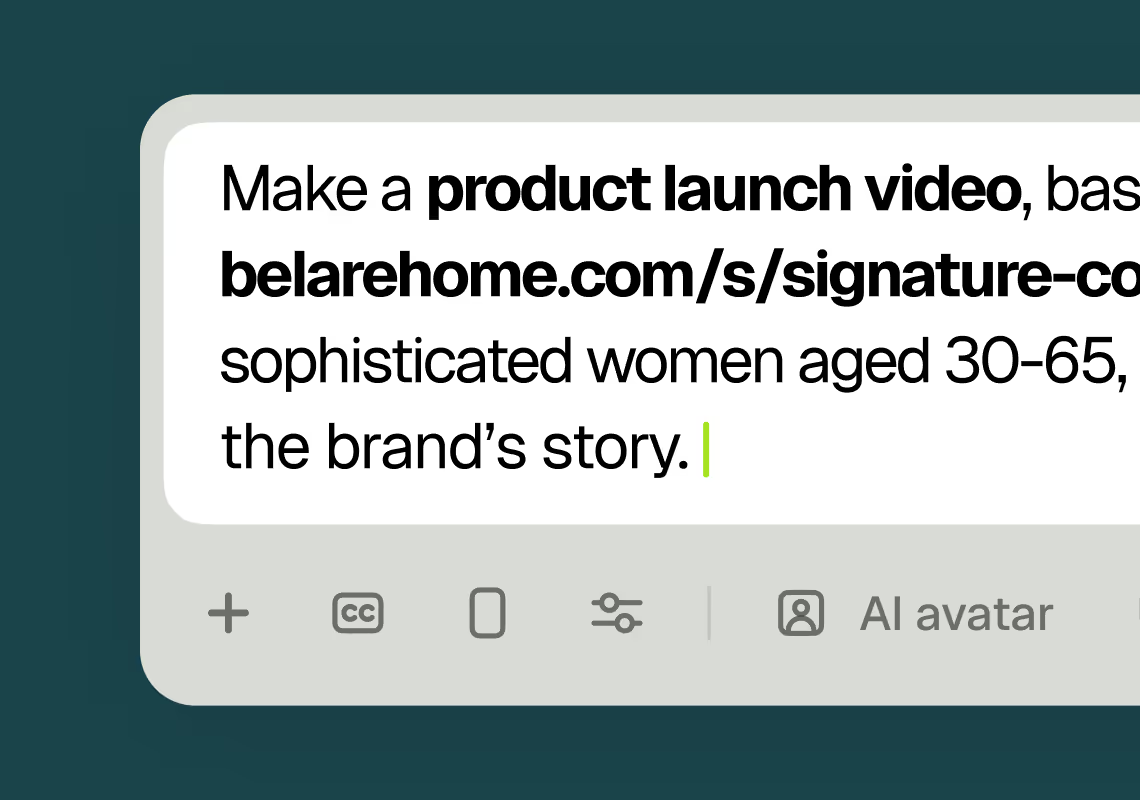
1Describe your video
Paste your promo brief, script, outline, or blog URL into Agent Opus.
 2
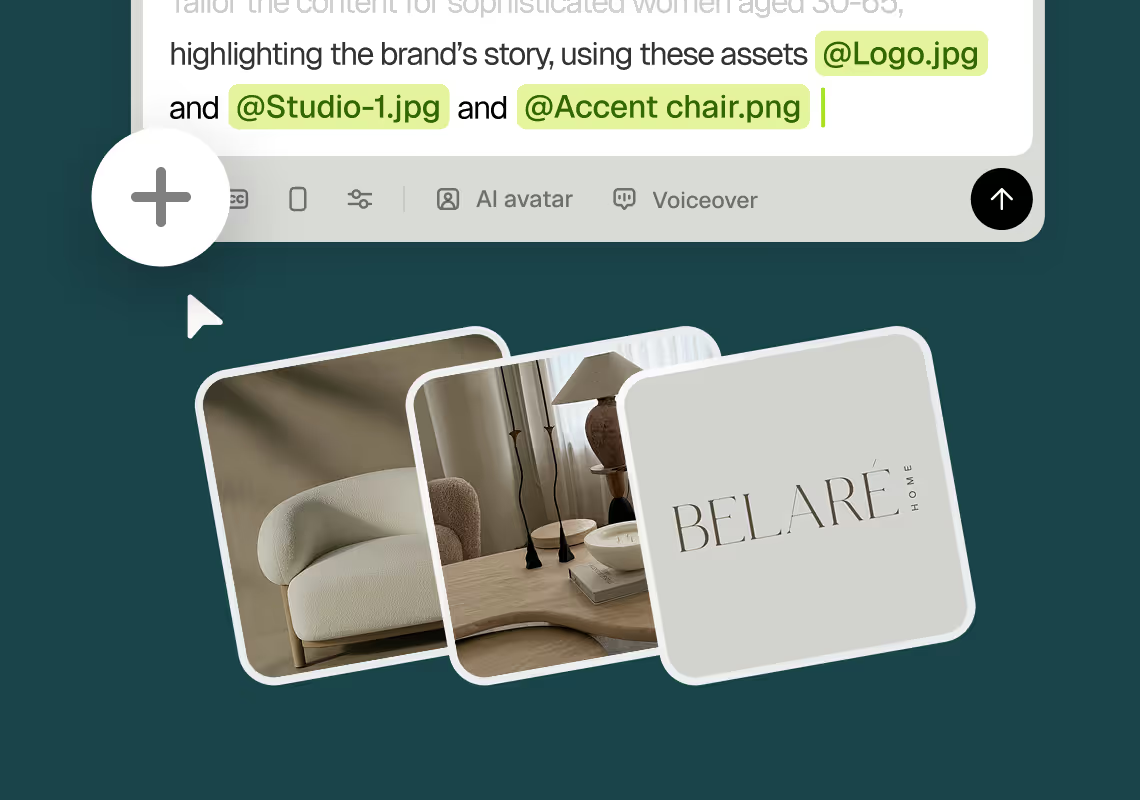
2Add assets and sources
Upload brand assets like logos and product images, or let the AI source stock visuals automatically.
 3
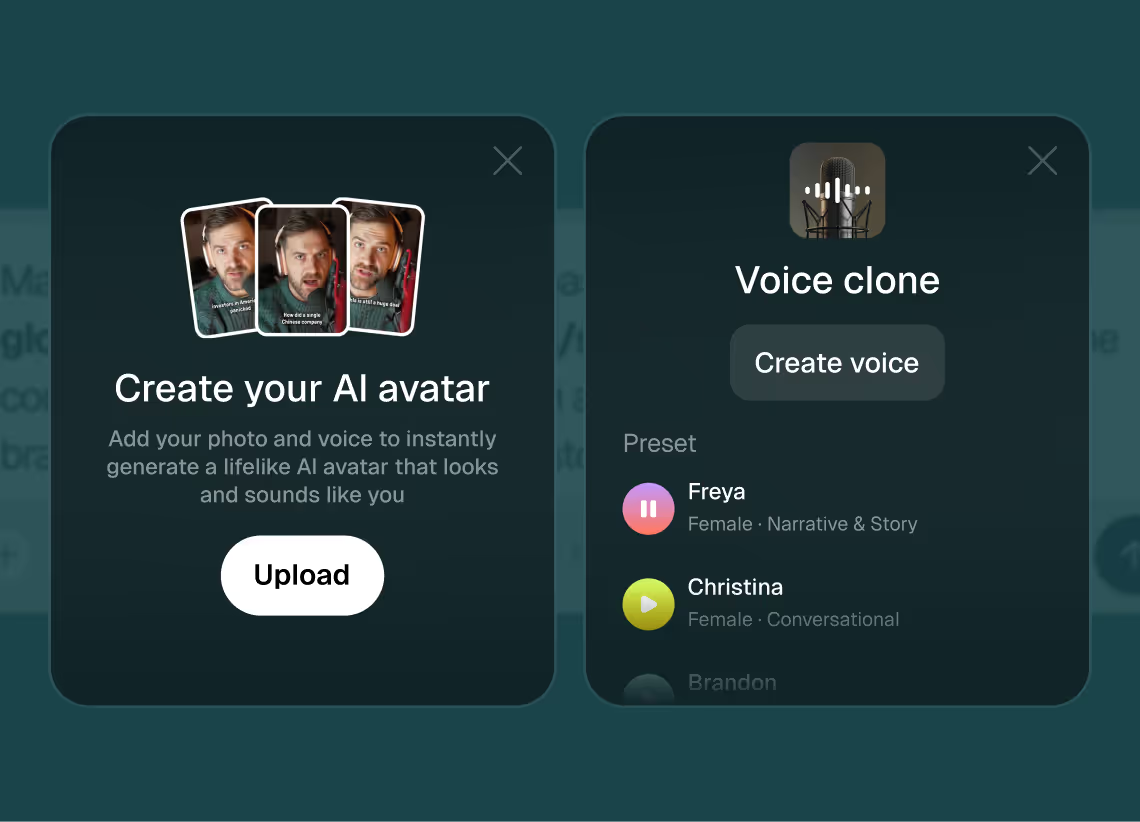
3Choose voice and avatar
Choose voice (clone yours or pick an AI voice) and avatar style (user or AI).
 4
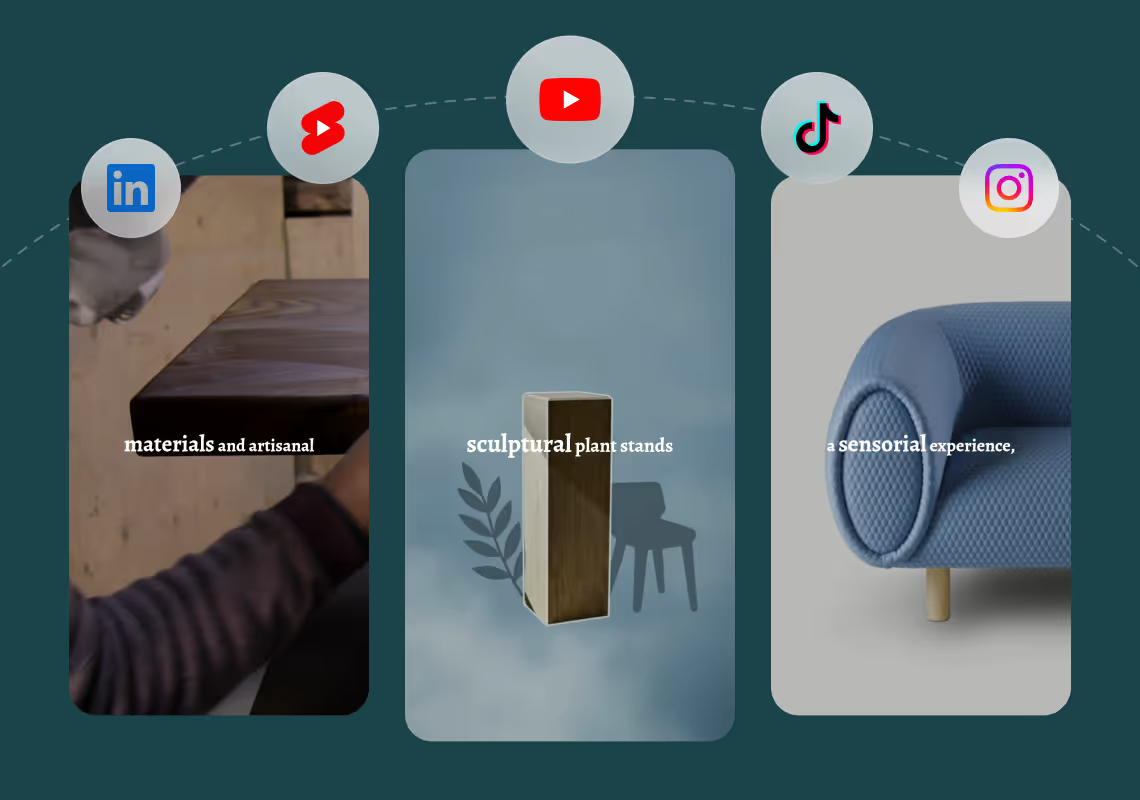
4Generate and publish-ready
Click generate and download your finished promo video in seconds, ready to publish across all platforms.


8 powerful features of Agent Opus' PDF to Video Generator
Export Ready Videos
Render your PDF-based video in social or presentation formats with one click.
PDF Upload to Video
Drop any PDF and watch Agent Opus transform pages into a polished video automatically.
Brand Color Overlays
Apply your palette and logo over PDF frames so every video stays on-brand.
Background Music Sync
Royalty-free tracks layer beneath your PDF visuals to keep viewers engaged throughout.
Multi-Page Sequencing
Long documents flow seamlessly as Agent Opus sequences every page into one continuous video.
Auto Voiceover Narration
AI reads your PDF content aloud with natural voice synthesis for hands-free video creation.
Slide-Based Storytelling
Each PDF page becomes a timed visual slide with smooth transitions and motion graphics.
Text Extraction & Scripting
Agent Opus pulls key points from your PDF and builds a cohesive video script instantly.
Testimonials
I reviewed version a and I was very impressed with this version, it did very well in almost all aspects that users need, you would only have to make very small changes and maybe replace one of 2 of the pictures, but even saying that it could be used as is and still receive decent views or even chances at going viral depending on the story or the content the user chooses.
Jeremy
This looks like a game-changer for us. We're building narrative-driven, visually layered content — and the ability to maintain character and motion consistency across episodes would be huge. If Agent Opus can sync branded motion graphics, tone, and avatar style seamlessly, it could easily become part of our production stack for short-form explainers and long-form investigative visuals.
srtaduck
all in all LOVE THIS agent. I'm curious to see how I can push it (within reason) Just need to learn to get the consistency right with my prompts
Rebecca
Frequently Asked Questions
How does PDF to video generation handle different document types and structures?
Agent Opus analyzes your PDF's structure, text hierarchy, and visual elements to determine the best video approach. For text-heavy whitepapers and reports, it extracts key arguments, data points, and conclusions, then builds scenes that visualize those concepts with motion graphics and supporting imagery. For presentation-style PDFs with existing slides, it treats each slide as a potential scene while intelligently combining or expanding content based on your prompt. Case studies get narrative treatment with problem-solution-result flow. Educational materials receive step-by-step visual breakdowns. The system identifies headings, bullet points, charts, and images within your PDF, then decides which elements deserve screen time and how to present them visually. You guide the overall tone and focus through your prompt (e.g., 'make this technical report accessible to non-experts' or 'create a 60-second highlight reel of our case study results'), and Agent Opus adapts its scene selection and pacing accordingly. Complex tables and charts get animated visualizations rather than static screenshots. Dense paragraphs become narrated key points with supporting visuals. The goal is always a watchable video that communicates your document's core message, not a slideshow of PDF pages.
What are best practices for prompts when converting PDFs to video?
Effective PDF to video prompts combine three elements: audience, purpose, and constraints. Start by identifying who will watch: 'Create a video for potential customers' produces different results than 'explain this to our sales team.' Next, state your goal clearly: 'highlight the three main benefits,' 'walk through the methodology step-by-step,' or 'create urgency around the problem we solve.' Finally, add practical constraints like duration ('keep it under 90 seconds'), tone ('professional but approachable'), or platform ('optimized for LinkedIn feed'). Specific prompts work better than vague ones. Instead of 'make a video from this PDF,' try 'turn this product comparison whitepaper into a 60-second video that shows why our solution outperforms competitors, targeting B2B decision-makers on LinkedIn.' If your PDF contains multiple topics, direct Agent Opus to focus: 'only cover the ROI section' or 'skip the technical appendix, focus on business outcomes.' For documents with existing visuals, you can reference them: 'emphasize the charts on pages 4 and 7' or 'use the product photos from page 2.' You can also specify voice and avatar preferences in your prompt: 'use a professional female AI voice' or 'include an AI avatar presenter.' The more context you provide about your video's purpose and audience, the better Agent Opus can select relevant content from your PDF and structure scenes that achieve your goals.
Can PDF to video generation maintain brand consistency across multiple documents?
Yes, Agent Opus preserves brand identity across all PDF to video conversions through several mechanisms. First, you can upload brand assets (logos, color palettes, product images, font preferences) that the system references when generating any video. These assets get incorporated automatically, so every video from every PDF carries your visual identity without manual insertion. Second, if your PDFs already contain branded elements (your logo in headers, branded charts, product photography), Agent Opus recognizes and prioritizes these visuals during scene assembly. Third, voice consistency is maintained through voice cloning. Record a short sample once, and Agent Opus can use your voice (or a team member's voice) for all future PDF conversions, creating a consistent audio brand. Fourth, you can establish prompt templates for common document types. If you regularly convert case studies, create a standard prompt structure ('turn this case study into a 90-second customer success story with professional tone, emphasizing measurable results') and reuse it. Agent Opus will apply consistent narrative structure and pacing across all case study videos. For teams managing multiple PDFs, this means your entire content library can become a video library with unified branding, voice, and presentation style. The system learns from your asset library and prompt patterns, making each subsequent conversion faster and more aligned with your brand standards. You're not starting from scratch with each PDF; you're building a consistent video content system.
What types of PDFs work best for video conversion, and what are the limitations?
Agent Opus handles most common PDF types effectively, but some convert better than others. Best performers include business documents with clear structure: whitepapers with defined sections, case studies with narrative flow, presentation decks, product guides, research reports, and educational materials. These documents typically have logical hierarchies, key points that translate well to visual scenes, and content that benefits from narration and motion graphics. Marketing one-pagers, explainer documents, and how-to guides also convert excellently because they're already designed for persuasion or education. Documents with data visualizations (charts, graphs, infographics) work particularly well since Agent Opus can animate these elements for greater impact. Limitations appear with certain PDF types. Highly technical documents filled with equations, code, or specialized notation may lose nuance when condensed to video format; these often work better as longer, detailed walkthroughs rather than short social videos. Legal contracts, terms of service, and compliance documents with dense legal language don't translate well to engaging video content. Scanned PDFs with poor text recognition may require cleanup before upload. Documents that rely heavily on footnotes, citations, or cross-references lose that scholarly apparatus in video format. Very long PDFs (100+ pages) should be approached strategically: either prompt Agent Opus to focus on specific sections or accept that the video will be a high-level overview rather than comprehensive coverage. Image-only PDFs (like scanned brochures with no extractable text) limit what Agent Opus can narrate, though it can still create visual sequences. For best results, ensure your PDF has clean text extraction, logical structure, and a core message that can be communicated visually in your target video length.