Script to Video
Transform your script to video in minutes with Agent Opus. Paste your script and watch as AI assembles a complete, publish-ready video with voiceover, motion graphics, and dynamic visuals. No editing, no timeline, no manual work. Whether you have a full screenplay or a two-paragraph brief, Agent Opus generates professional videos that match your vision. Perfect for explainers, promos, tutorials, and social content. Your words become video automatically.

Explore what's possible with Agent Opus

Reasons why creators love Agent Opus' Script to Video
Ship in Minutes, Not Hours
Generate a publish-ready video in under 10 minutes from a single prompt — no timeline editing, no asset hunting, no creative dry spells.
Zero Editing Skills Required
Describe your concept and Agent Opus handles scene composition, motion graphics, voiceover, and platform formatting automatically — even if you've never opened a video editor.
Studio-Grade Output
Cinematic motion graphics, beat-synced cuts, professional voiceover, and precise typography — every video ships looking production-quality from the first generation.
Stays On-Brand
Upload your logo, fonts, and color palette once. Agent Opus applies them across every video automatically so your content stays visually consistent.
How to use Agent Opus’ Script to Video
 1
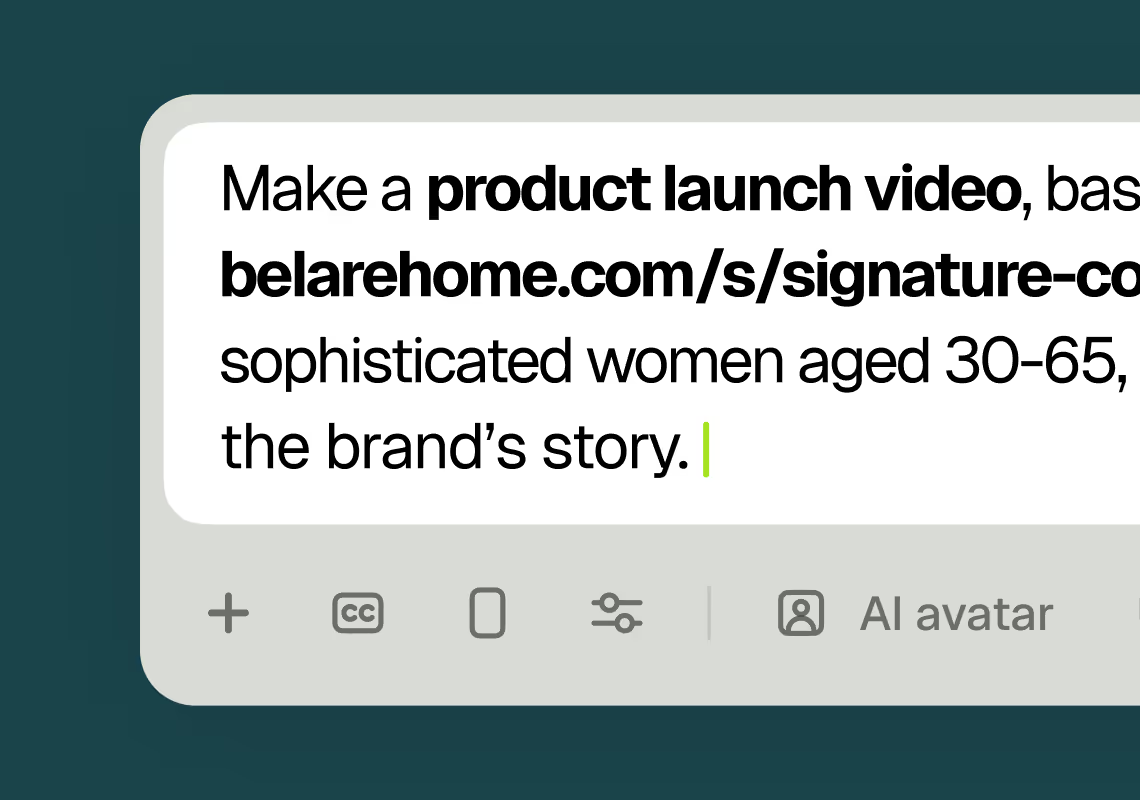
1Describe your video
Paste your promo brief, script, outline, or blog URL into Agent Opus.
 2
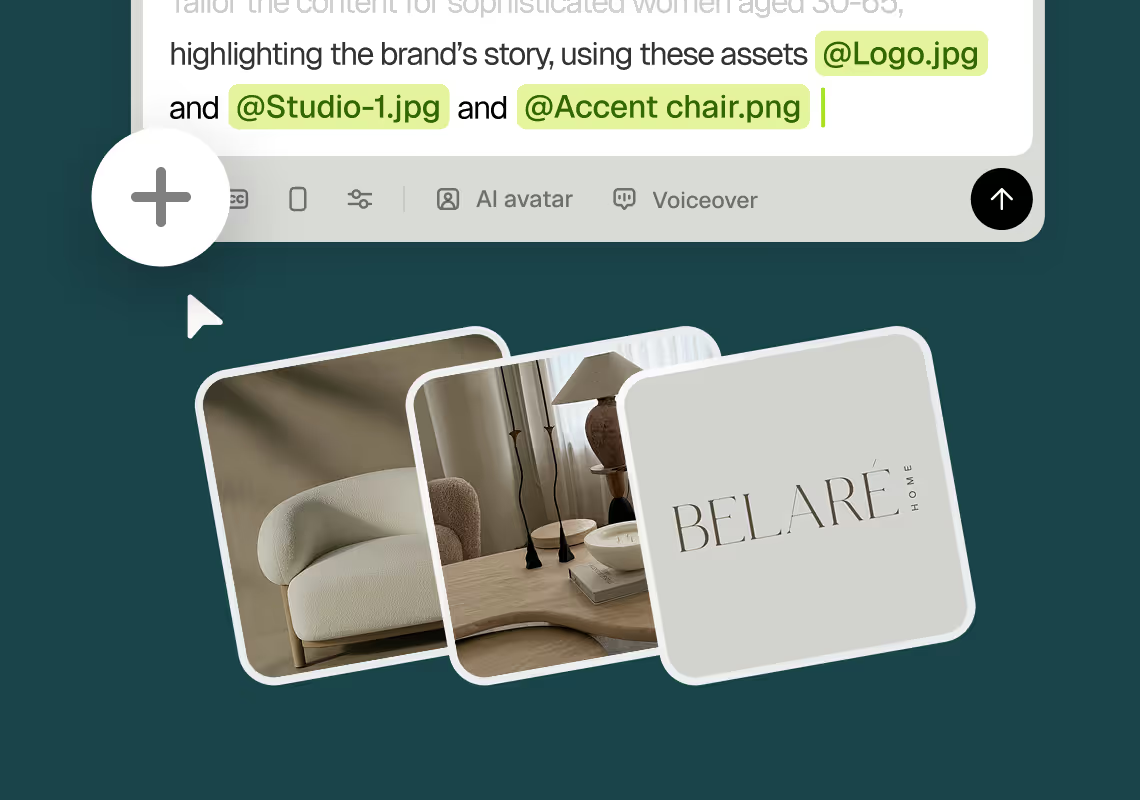
2Add assets and sources
Upload brand assets like logos and product images, or let the AI source stock visuals automatically.
 3
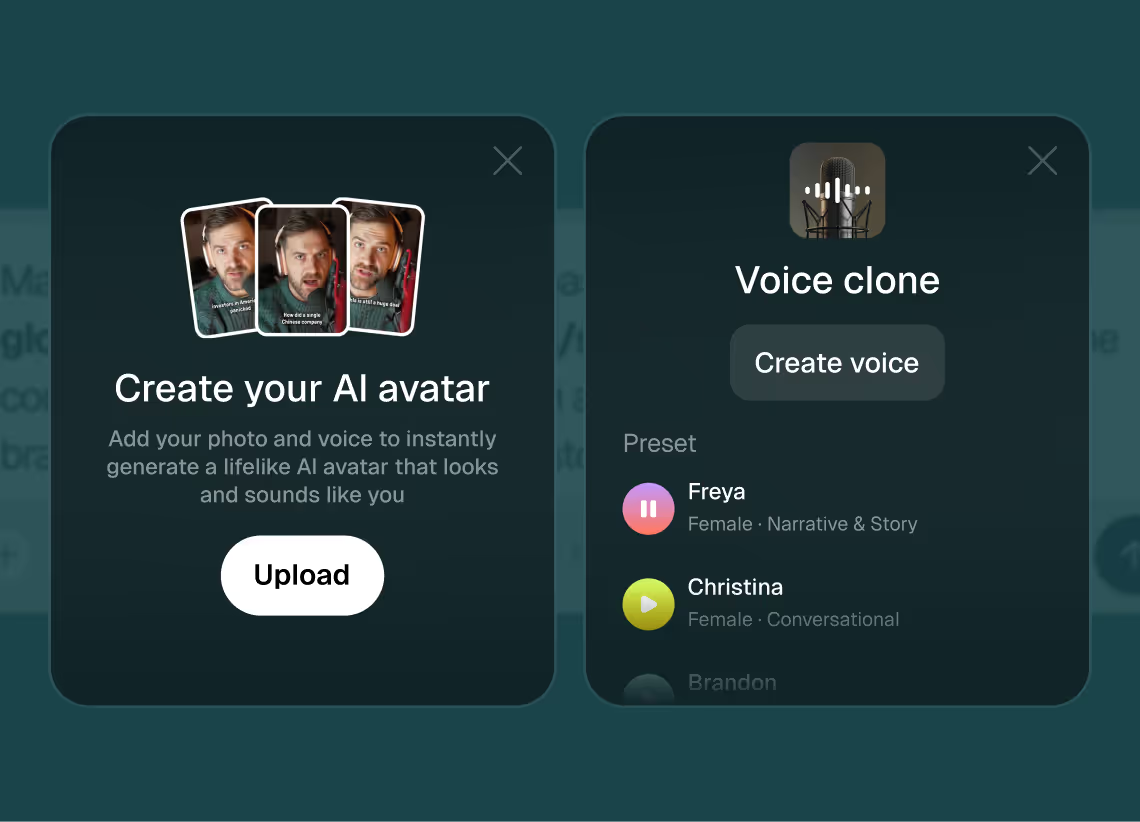
3Choose voice and avatar
Choose voice (clone yours or pick an AI voice) and avatar style (user or AI).
 4
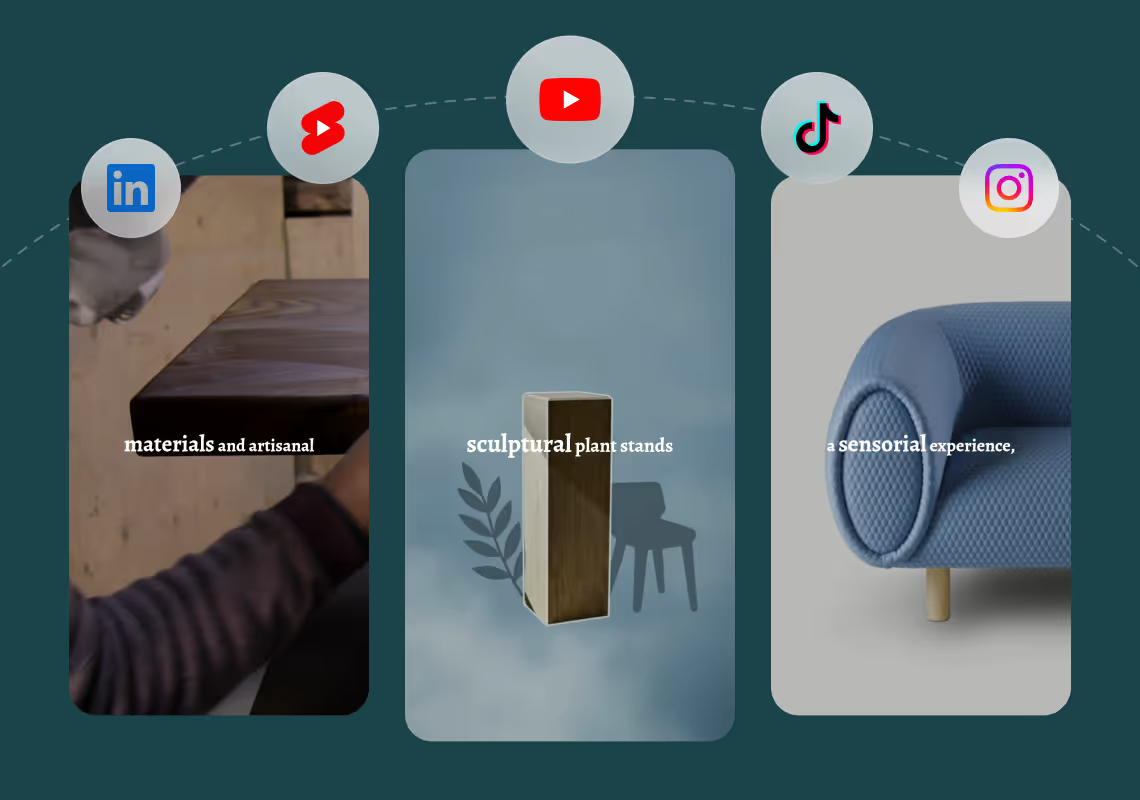
4Generate and publish-ready
Click generate and download your finished promo video in seconds, ready to publish across all platforms.


8 powerful features of Agent Opus' Script to Video
Prompt-to-Video Generation
Turn a one-line idea into a finished video. The agent handles structure, pacing, B-roll selection, and final assembly automatically.
Script and Outline Support
Paste a full script, drop in an outline with section headers, or supply a blog or article URL — Agent Opus reads any of them and builds a video around the content.
AI Voiceover and Voice Cloning
Pick from natural-sounding AI voices in 30+ languages, or clone your own voice once. Every video then ships with your authentic narration.
Beat-Synced Motion Graphics
Dynamic visuals that lock to the beat of your audio or the pacing of your script — kinetic typography, transitions, and effects, no manual keyframing required.
Automatic Captions and Subtitles
Burn-in captions for short-form, soft subtitles for long-form, and multi-language translations — all generated and synced automatically.
Multi-Aspect-Ratio Export
9:16, 1:1, and 16:9 outputs from one job, with intelligent reframing of text, motion graphics, and focal elements for each ratio.
Brand Asset Integration
Upload your logo, watermark, fonts, and color palette. Agent Opus applies them consistently across every video automatically.
Avatar and Talking Head Support
Add an AI avatar, your own video footage, or a synthetic spokesperson to any video — useful for explainers, ads, and personal-brand content.
Testimonials
I dont think id change a thing
Quirky Collectables
I reviewed version a and I was very impressed with this version, it did very well in almost all aspects that users need, you would only have to make very small changes and maybe replace one of 2 of the pictures, but even saying that it could be used as is and still receive decent views or even chances at going viral depending on the story or the content the user chooses.
Jeremy
Frequently Asked Questions
How does script to video handle different script formats and lengths?
Agent Opus accepts scripts in multiple formats and adapts its video generation to match your input structure. You can paste a traditional screenplay with scene headings and dialogue, a simple bullet-point outline, a narrative blog post, or even a two-sentence brief. The AI parses your script to identify key scenes, talking points, and pacing cues. For longer scripts, Agent Opus automatically segments content into logical scenes and applies appropriate transitions. For shorter scripts, it expands visual coverage by generating complementary motion graphics and B-roll sequences that reinforce your message. The system recognizes dialogue vs narration, action vs description, and adjusts voiceover delivery and visual pacing accordingly. If your script includes specific visual directions like "show product demo" or "cut to testimonial," Agent Opus interprets those cues and sources matching visuals or generates appropriate graphics. You can also include timing notes or emphasis markers, and the AI will adjust scene duration and voiceover inflection. The script to video engine is built to handle real-world writing styles, so you don't need to reformat your existing scripts or learn special syntax. Whether you're working from a polished final draft or a rough first pass, Agent Opus generates a complete video that reflects your script's intent and structure.
What are best practices for writing scripts that generate the best videos?
To maximize the quality of your script to video output, focus on clear, concrete language and explicit visual cues. Start each major section or scene with a brief description of what should appear on screen. For example, instead of writing "We offer great customer service," write "Show customer support team responding to chat messages on laptop screens." This gives Agent Opus specific visual targets to source or generate. Use active verbs and avoid abstract concepts without visual anchors. Break longer scripts into distinct scenes or segments, ideally 15 to 45 seconds each, to help the AI maintain pacing and visual variety. If you want specific branding elements to appear, call them out explicitly: "Display logo in corner" or "Show product packaging on white background." For voiceover scripts, write in a conversational tone that sounds natural when spoken aloud. Read your script out loud before generating to catch awkward phrasing or run-on sentences. Include pauses or emphasis markers where you want the voiceover to slow down or stress a word. If your script includes data, statistics, or lists, format them clearly so Agent Opus can generate matching on-screen text or animated charts. Avoid overly long sentences; aim for 15 to 20 words per sentence for optimal voiceover pacing. Finally, specify any mood or tone preferences at the top of your script, such as "energetic and upbeat" or "calm and professional," so the AI can select appropriate music, motion graphics speed, and visual style. These practices help Agent Opus generate videos that align closely with your creative vision while minimizing the need for revisions.
Can script to video maintain consistent branding across multiple videos?
Yes, Agent Opus supports brand consistency across all your script to video projects through asset libraries and style preferences. When you upload brand assets like logos, color palettes, fonts, product images, and intro/outro templates, Agent Opus stores them in your account and applies them automatically to every video you generate. This means your logo placement, color scheme, and visual style remain consistent whether you're creating one video or a hundred. You can also save voice clones, so every script uses the same recognizable voice without re-uploading samples. For teams and agencies managing multiple clients, Agent Opus allows you to create separate brand profiles, each with its own asset library and style settings. When you generate a video, simply select the relevant brand profile and your script to video output will match that client's guidelines. The AI also learns from your feedback over time. If you consistently prefer certain types of visuals, motion graphic styles, or pacing, Agent Opus adapts its generation to favor those choices in future projects. This reduces the need for manual adjustments and speeds up your workflow. For enterprise users, you can lock certain brand elements so they always appear in specific positions or formats, ensuring compliance with strict brand standards. The script to video system also supports templated intros and outros, so every video starts and ends with your signature branding. Whether you're a solo creator building a personal brand or a marketing team managing dozens of campaigns, Agent Opus gives you the tools to maintain visual and auditory consistency across your entire video library without manual oversight on every project.
How does script to video handle voiceover timing and scene synchronization?
Agent Opus automatically synchronizes voiceover with visuals by analyzing your script's structure and pacing. When you generate a video, the AI first processes your script to estimate speaking duration based on word count, sentence complexity, and natural speech patterns. It then segments your script into scenes and assigns appropriate visual coverage to each segment. The voiceover is generated or cloned to match the estimated timing, and the AI adjusts scene duration to align with the audio. If a particular sentence or paragraph requires more visual emphasis, Agent Opus extends the scene duration and adds B-roll, motion graphics, or animated text to fill the time without dead air. Conversely, if a section is brief, the AI tightens the visual pacing and uses faster transitions. You can also include explicit timing cues in your script, such as "pause for 2 seconds" or "hold on this visual for 5 seconds," and Agent Opus will honor those directions. The script to video engine uses natural language processing to detect emphasis, questions, and emotional shifts in your script, then adjusts voiceover inflection and visual pacing to match. For example, a question in your script might trigger a visual pause or a zoom-in effect to create anticipation before the answer. If your script includes dialogue between multiple speakers, Agent Opus can assign different voices or avatar appearances to each speaker and cut between them naturally. The synchronization happens automatically during generation, so you don't need to manually align audio and video tracks. If you want to fine-tune timing after generation, you can regenerate with adjusted script phrasing or add explicit timing notes, and Agent Opus will produce a new version with updated synchronization. This automated timing and sync capability is what makes script to video generation so much faster than traditional editing workflows.