Presentation to Video Generator
Transform your presentation into a polished, publish-ready video in minutes. Agent Opus is a presentation to video generator that converts slides, scripts, outlines, or briefs into dynamic videos with AI motion graphics, voiceovers, and social-ready formatting. No timeline editing, no manual assembly. Just describe your presentation content or paste your script, and Agent Opus generates a complete video automatically. Perfect for product demos, pitch decks, training modules, webinars, and marketing presentations that need to reach audiences on YouTube, LinkedIn, TikTok, and beyond.

Explore what's possible with Agent Opus

Reasons why creators love Agent Opus' Presentation to Video Generator
Repurpose Without Reinventing
Transform existing presentations into video content instantly, maximizing the value of work you've already done.
Skip the Recording Hassle
No cameras, no retakes, no editing nightmares—just upload your slides and let AI handle the production work for you.
Keep Viewers Watching
Static slides become dynamic stories that hold attention longer, helping your key points actually stick with your audience.
Launch-Ready in Minutes
Turn slide decks into polished videos faster than scheduling a single meeting, so you can ship content while ideas are still fresh.
Sound Like Yourself
Deliver your message in a voice that feels authentic and professional, without spending hours in front of a microphone.
Reach Beyond the Room
Your presentations become evergreen assets that audiences can watch anytime, expanding your impact far beyond live sessions.
How to use Agent Opus’ Presentation to Video Generator
 1
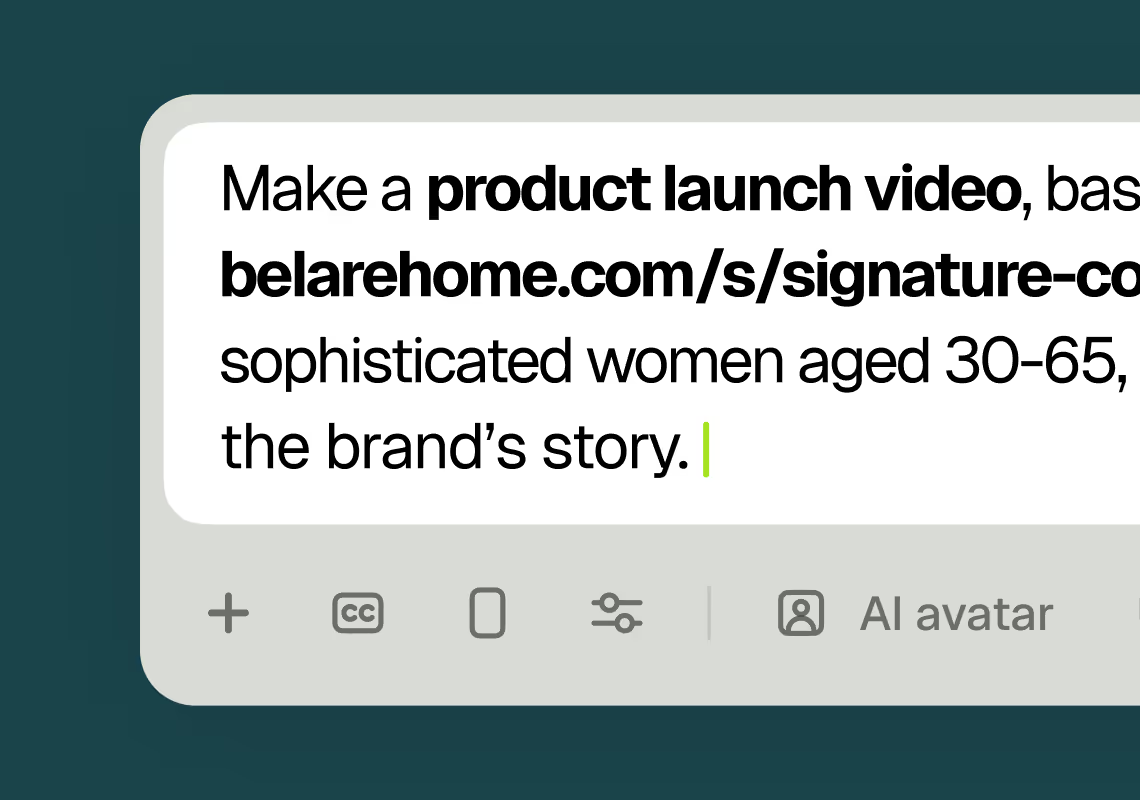
1Describe your video
Paste your promo brief, script, outline, or blog URL into Agent Opus.
 2
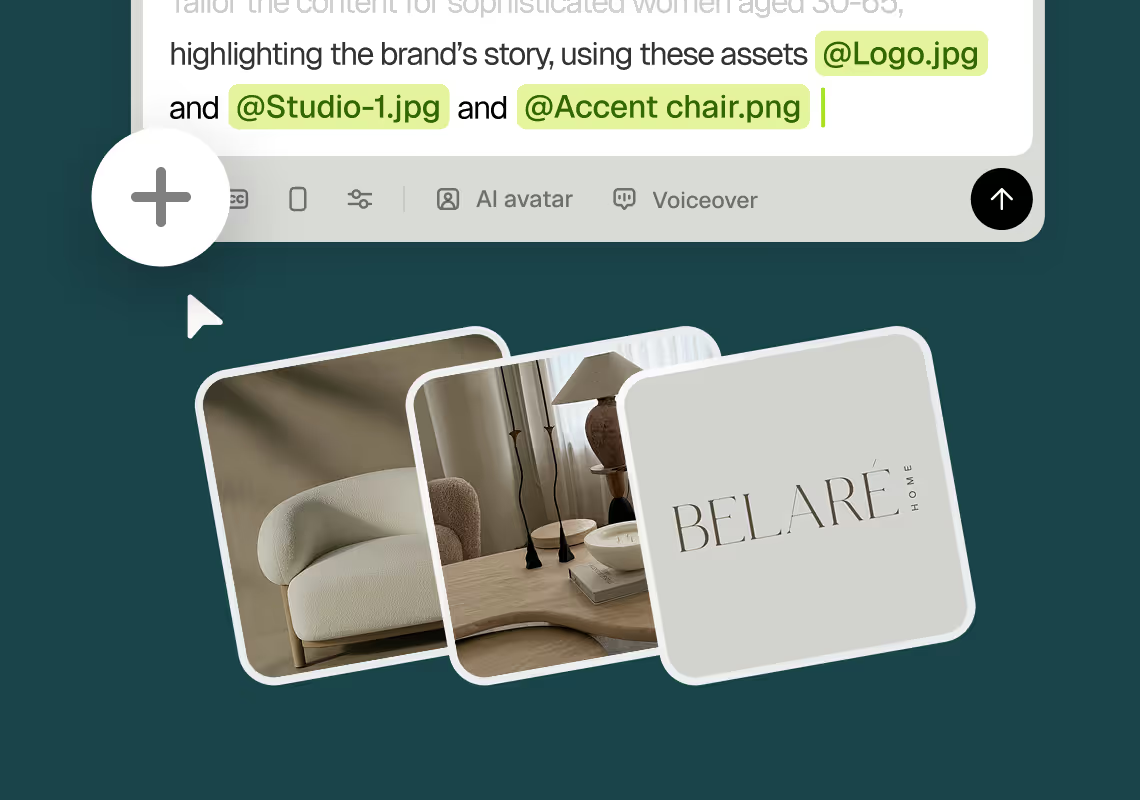
2Add assets and sources
Upload brand assets like logos and product images, or let the AI source stock visuals automatically.
 3
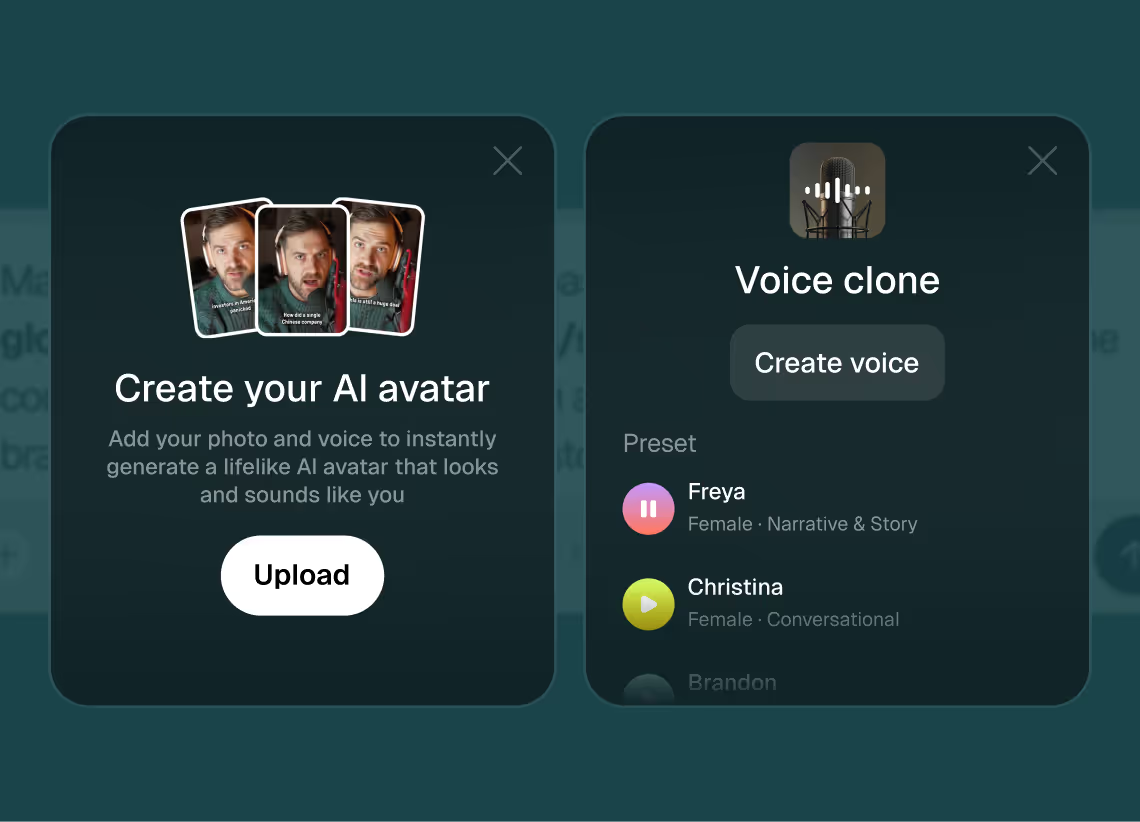
3Choose voice and avatar
Choose voice (clone yours or pick an AI voice) and avatar style (user or AI).
 4
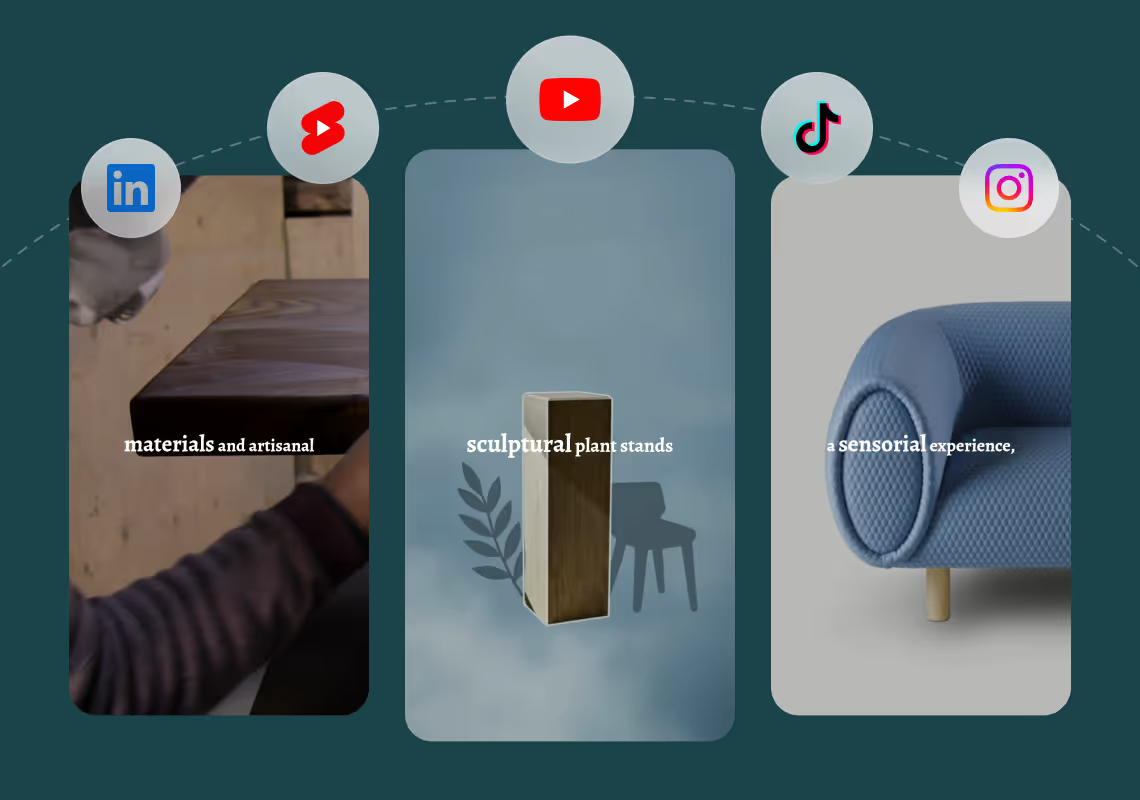
4Generate and publish-ready
Click generate and download your finished promo video in seconds, ready to publish across all platforms.


8 powerful features of Agent Opus' Presentation to Video Generator
Dynamic Slide Animations
Transform static slides into engaging video sequences with motion graphics and cinematic pacing.
Branded Visual Consistency
Maintain your color palette, fonts, and logo throughout the generated video for professional cohesion.
Slides to Video in Seconds
Upload your presentation deck and instantly generate a polished video with smooth transitions and narration.
Script-Based Presentation Videos
Type your talking points and Agent Opus builds a complete video presentation with visuals and audio.
Multi-Format Export Options
Generate presentation videos optimized for webinars, social media, or internal training in one click.
AI Voiceover for Every Slide
Automatically narrate your presentation content with natural AI voices that match your brand tone.
Background Music Integration
Enhance your presentation video with royalty-free music that complements your message without distraction.
Instant Shareable Links
Publish your presentation video and get a shareable URL for immediate distribution to any audience.
Testimonials
Frequently Asked Questions
How does a presentation to video generator handle different input formats like scripts versus slide outlines?
Agent Opus accepts presentation content in multiple formats and adapts its generation approach based on what you provide. When you paste a full script, the system parses it for natural scene breaks, key points, and narrative flow. It identifies where visual emphasis should occur and structures the video accordingly. Each paragraph or logical section typically becomes its own scene with appropriate pacing and transitions. If you provide a slide outline with bullet points and headers, Agent Opus interprets the hierarchy. Top-level headers become major sections with title cards or motion graphic intros. Bullet points transform into individual scenes with supporting visuals and kinetic text animations. The AI determines how long each point should appear on screen based on word count and complexity. For brief prompts describing your presentation topic and goals, Agent Opus generates both the narrative structure and visual sequence. You might input something like 'five-minute product demo for SaaS analytics tool, emphasize dashboard features and ROI benefits,' and the system creates a complete script outline, sources relevant visuals, and assembles the video. Regardless of input format, the presentation to video generator maintains consistent pacing. It calculates ideal scene duration based on voiceover length, visual complexity, and information density. Complex concepts get more screen time. Simple transitions move quickly. The system also handles mixed inputs. You can provide a partial script for your intro and conclusion, then use bullet points for the middle sections. Agent Opus blends these seamlessly into a cohesive presentation video. This flexibility means you don't need to format your content in a specific way. Whether you're working from speaker notes, a slide deck outline, or a fully written script, the generator adapts and produces a polished result.
What are best practices for writing prompts that produce high-quality presentation videos?
Effective prompts for a presentation to video generator balance specificity with creative freedom. Start by clearly stating your presentation's core purpose and target audience. Instead of 'make a video about our product,' write 'create a three-minute product demo for marketing managers showing how our automation tool reduces manual reporting time by 70 percent.' This gives Agent Opus concrete goals and audience context. Include structural guidance without micromanaging every detail. Specify the number of main sections or key points you want to cover. For example, 'cover four main features: dashboard analytics, automated alerts, team collaboration, and API integrations. Spend roughly equal time on each.' This helps the AI allocate pacing and visual emphasis appropriately. Describe your desired tone and energy level. Presentation videos for investor pitches need different pacing than training tutorials. Phrases like 'professional and confident for B2B audience' or 'energetic and approachable for consumer product' guide the AI's voice selection, transition speed, and motion graphic style. Mention specific visual elements you want to include. If you have product screenshots, demo footage, or data visualizations, note them in your prompt. 'Include dashboard screenshot showing analytics overview, then zoom into individual metrics panels' tells the generator exactly how to sequence your visuals. For brand consistency, reference your visual identity. 'Use our brand colors: navy blue and coral. Include our logo in the lower right corner throughout. Match the clean, minimalist aesthetic of our website.' Agent Opus will apply these constraints while generating motion graphics and sourcing supplementary images. Specify any must-have talking points or phrases. If your presentation needs to mention specific statistics, customer names, or product terminology, include them verbatim in your prompt or script. The AI will preserve these while building the surrounding narrative. Avoid overly prescriptive scene-by-scene instructions. The presentation to video generator excels at determining optimal visual pacing and transitions. Trust it to handle the mechanics while you focus on content and messaging. Finally, indicate your output platform and duration target. 'Create a 90-second version for LinkedIn and a five-minute version for our website' ensures the generator optimizes pacing and detail level for each context.
Can a presentation to video generator maintain consistent branding across multiple videos for the same company?
Yes, Agent Opus maintains brand consistency across all your presentation videos through asset libraries and style memory. When you upload brand elements like logos, color palettes, fonts, and product images, the system stores them in your account. Every subsequent video you generate can reference these assets automatically. You don't re-upload your logo for each new presentation. The generator knows your brand identity and applies it consistently. This works at multiple levels. Visual consistency comes from reusing your uploaded assets and applying your specified color schemes to motion graphics, text overlays, and transitions. If your brand uses a specific shade of blue and a complementary orange, Agent Opus applies these colors to animated elements, backgrounds, and graphic accents across all videos. The presentation to video generator also learns from your previous projects. If you consistently position your logo in the lower right corner, use a particular transition style between sections, or favor certain types of stock imagery, the AI recognizes these patterns. Future videos inherit these preferences unless you specify otherwise. Voice consistency is equally important for brand recognition. When you clone your voice or select a specific AI voice for your first presentation video, you can designate it as your default. Every new video uses the same voice unless you choose to override it. This creates audio continuity across your entire video library. For companies with multiple presenters or departments, you can create different brand profiles. Your sales team might use one set of assets and voice settings for product demos, while your training department uses different configurations for educational content. Both maintain their respective brand standards while sharing the underlying presentation to video generator platform. The system also supports brand templates. You can save structural preferences like intro sequences, outro cards, and section transition styles. When you start a new presentation video, you select your template and the generator applies those formatting choices automatically. This is particularly valuable for recurring presentation formats like weekly updates, monthly reports, or standardized pitch decks. Brand consistency extends to pacing and tone as well. If your company's video style favors quick cuts and energetic pacing, or prefers slower, more contemplative transitions, the AI learns these preferences. Your presentation videos maintain a consistent feel even when different team members create them. Finally, the generator supports brand guidelines enforcement. You can set rules like 'always include disclaimer text in the final five seconds' or 'never use competitor brand colors in motion graphics.' These constraints apply automatically to every video, ensuring compliance without manual checking.
What are the limitations or edge cases when converting complex presentations with heavy data visualization into videos?
A presentation to video generator handles most data visualization scenarios effectively, but understanding its constraints helps you prepare content for optimal results. Complex multi-axis charts with dozens of data points can become illegible when compressed into video resolution and pacing. If your presentation includes a scatter plot with 200 individual points and multiple overlapping trend lines, the generator will include it, but viewers may struggle to read details on mobile screens. Best practice: simplify charts to highlight key insights rather than showing every data point. Create separate scenes for different aspects of complex visualizations instead of trying to display everything simultaneously. Animated data transitions require special consideration. If your presentation shows a bar chart morphing into a pie chart, or data points moving across a graph over time, describe this animation explicitly in your script or prompt. The presentation to video generator excels at motion graphics, but it needs to know your intent. Write something like 'show quarterly revenue as bars, then transition to pie chart showing revenue breakdown by product category' so the AI sequences the visualization correctly. Interactive presentation elements don't translate directly to video. If your original slide deck includes clickable elements, hover states, or drill-down functionality, you'll need to linearize this content. Decide which path through the interactive data you want to show and script it as a sequence. The generator will create a guided tour through your data rather than preserving interactivity. Tables with many columns and rows face readability challenges in video format. A spreadsheet-style table with ten columns and twenty rows might be perfectly readable in a live presentation where you can zoom and pan, but it becomes a blur in a video that needs to work on phone screens. Solution: break large tables into multiple scenes, each highlighting a subset of data, or convert tabular data into more visual formats like grouped bar charts or heat maps that the presentation to video generator can render more effectively. Real-time data feeds and live API integrations aren't supported. If your presentation pulls current stock prices, social media metrics, or other live data, you'll need to snapshot that data at a specific point in time for video generation. The video will show those static values rather than updating dynamically. Custom data visualization libraries and proprietary chart types may not render identically. If your presentation uses specialized visualization tools or custom D3.js implementations, provide the generator with static images or screenshots of these visualizations rather than expecting it to recreate them from code. The AI will integrate your provided images seamlessly into the video flow. Font and typography in data visualizations sometimes need adjustment. Tiny axis labels or legend text that's readable in a high-resolution presentation slide may become illegible in video compression. The presentation to video generator can't always enlarge these elements automatically without breaking the visualization's layout. Prepare data visualizations with video-appropriate font sizes from the start. Finally, consider cognitive load and pacing. A presentation slide with multiple charts might work fine when a live presenter spends three minutes explaining each element. In video format, that same slide needs to be broken into separate scenes with appropriate dwell time for each chart. The generator handles this well when you provide clear structural guidance in your script, but it can't always intuit the ideal breakdown of complex multi-chart slides without direction.