Szenen-Generator
Der Agent Opus Szenen-Generator verwandelt Ihren Text in Sekundenschnelle in komplette, veröffentlichungsfertige Videoszenen. Beschreiben Sie, was Sie brauchen, oder fügen Sie ein Skript ein, und sehen Sie zu, wie die KI Motion Graphics zusammenstellt, Bildmaterial beschafft, Voiceover hinzufügt und Social-Media-fertige Ergebnisse liefert. Keine Timeline, kein Schnitt, keine manuelle Asset-Suche. Ein Prompt erstellt eine fertige Videoszene, bereit zum Teilen auf TikTok, Reels, YouTube Shorts oder LinkedIn. Perfekt für Creator, Marketer und Gründer, die professionelle Videoszenen ohne Produktionsaufwand benötigen.

Explore what's possible with Agent Opus

Reasons why creators love Agent Opus' Szenen-Generator
Experiment Fearlessly
Try bold scene ideas and iterate fast, knowing you can pivot without wasting time or resources.
Scale Without Burnout
Produce dozens of scene variations for testing or campaigns without draining your creative energy or budget.
Consistent Visual Flow
Every scene transitions smoothly with matching tone and style, so your story feels cohesive from start to finish.
Launch-Ready in Minutes
Go from concept to polished multi-scene video without waiting on editors, studios, or rendering queues.
On-Brand in Every Frame
Maintain your unique visual identity across all scenes, so audiences recognize your work instantly.
Skip the Learning Curve
Create professional multi-scene videos without mastering complex editing software or hiring specialists.
How to use Agent Opus’ Szenen-Generator
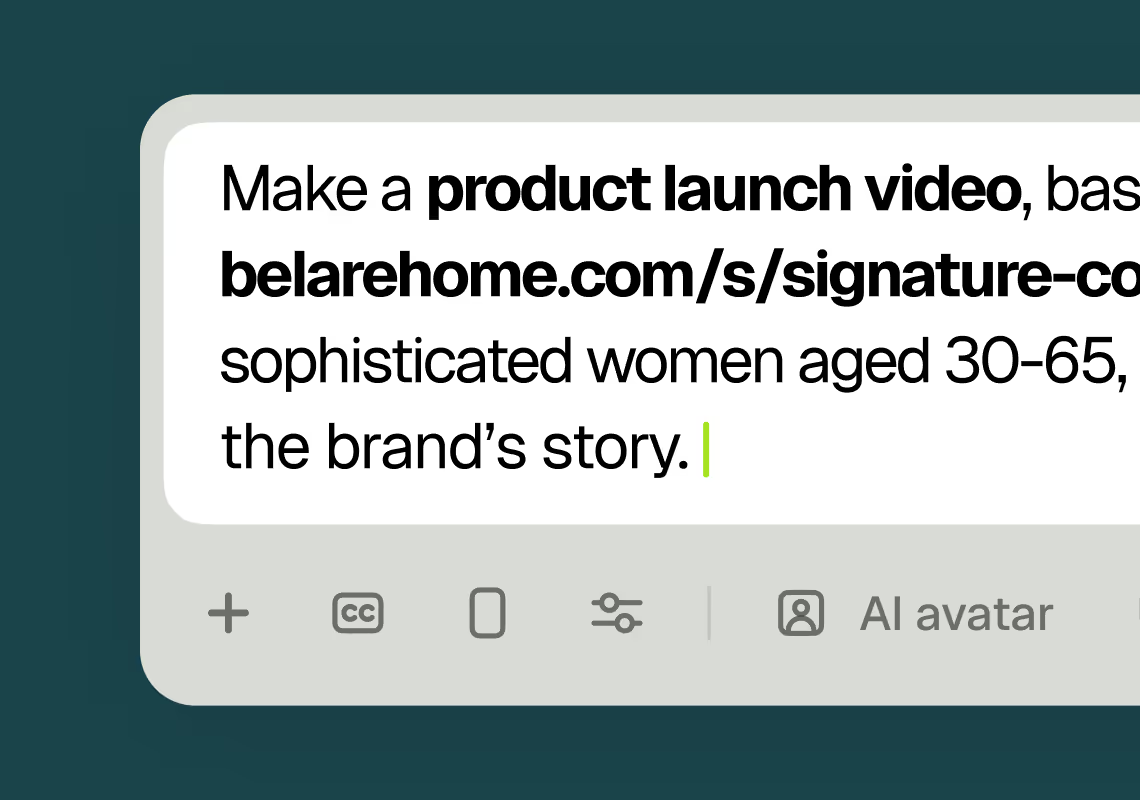 1
1Describe your video
Paste your promo brief, script, outline, or blog URL into Agent Opus.
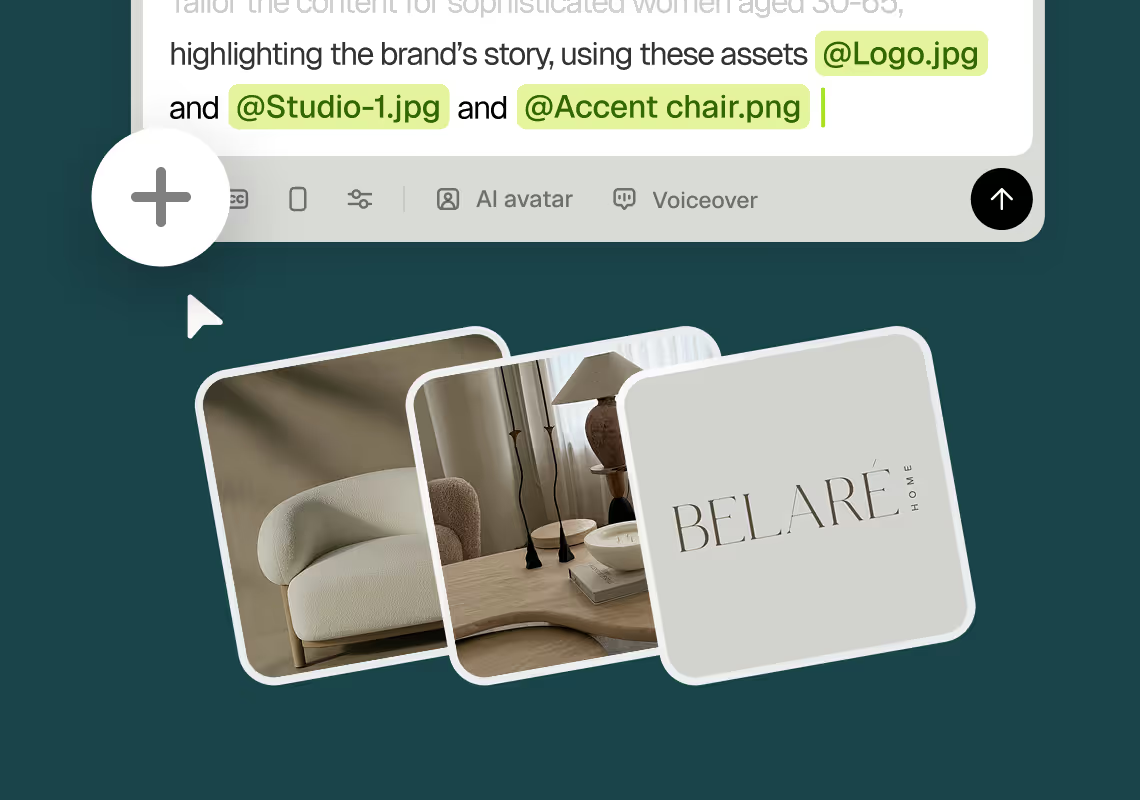 2
2Add assets and sources
Upload brand assets like logos and product images, or let the AI source stock visuals automatically.
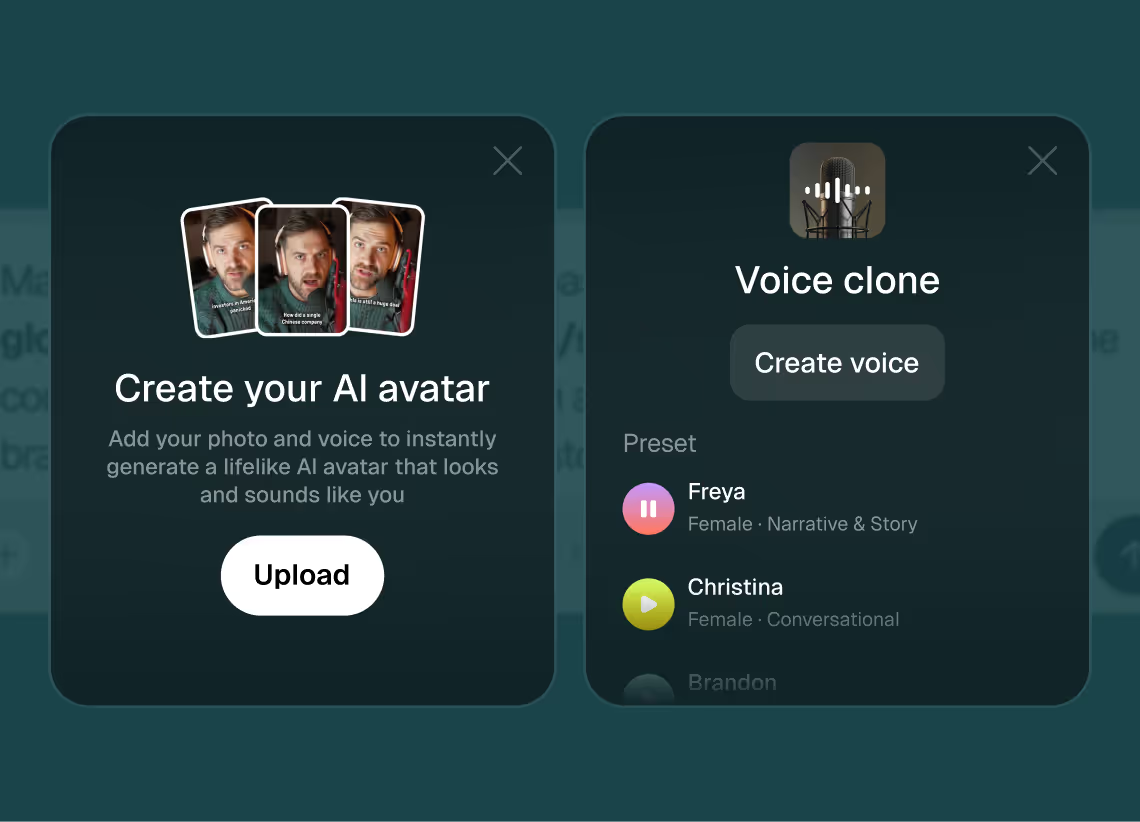 3
3Choose voice and avatar
Choose voice (clone yours or pick an AI voice) and avatar style (user or AI).
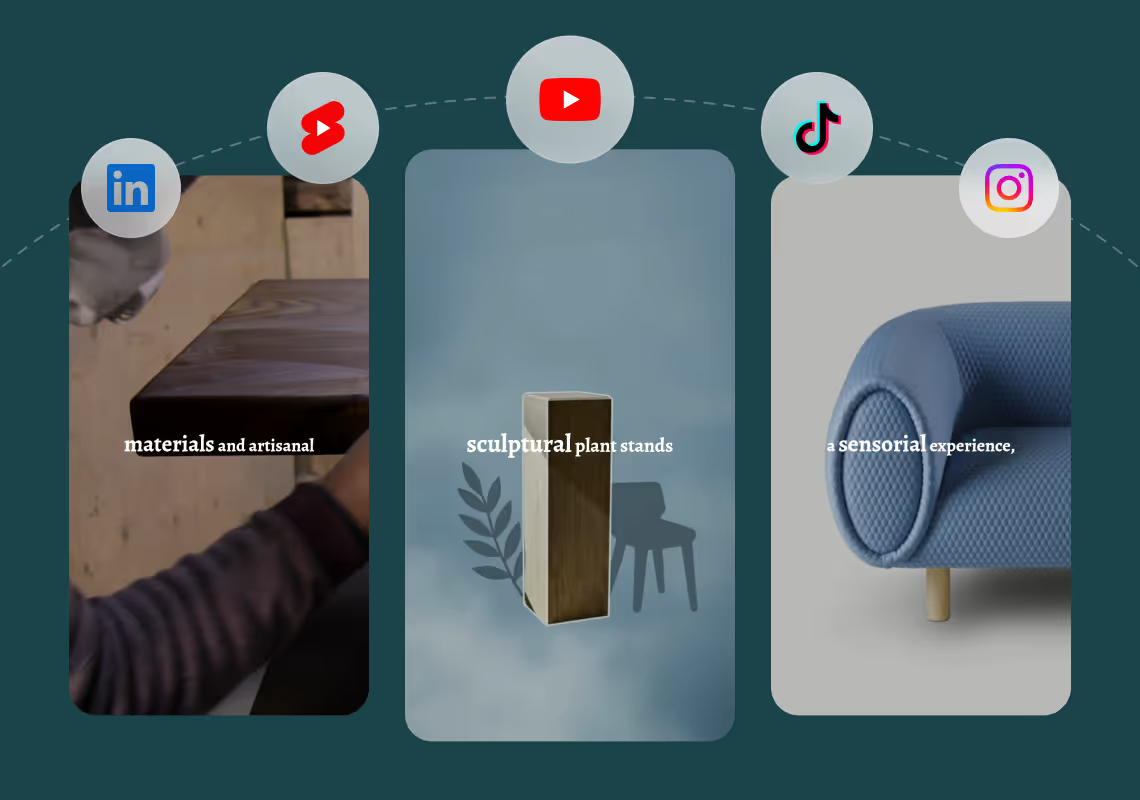 4
4Generate and publish-ready
Click generate and download your finished promo video in seconds, ready to publish across all platforms.


8 powerful features of Agent Opus' Szenen-Generator
Prompt to Scene
Type a description and watch Agent Opus generate a complete scene with visuals and motion.
Instant Iteration
Regenerate any scene with a revised prompt until you achieve the exact look you want.
Background Generation
From cityscapes to fantasy worlds, generate rich environments that match your scene's setting.
Dynamic Camera Angles
Agent Opus automatically applies cinematic camera movements to bring each scene to life.
Multi-Scene Sequences
Chain multiple prompts together to build narrative arcs with seamless scene transitions.
Scene Duration Control
Set how long each generated scene plays to match pacing and storytelling needs.
Lighting and Mood Control
Specify tone in your prompt and the generator adjusts lighting and color grading instantly.
Character and Object Placement
Describe subjects and their positions, and the scene generator renders them accurately in frame.
Testimonials
Awesome output, Most of my students and followers could not catch that it was using Agent Opus. Thank you Opus.
Wealth with Gaurav
I reviewed version a and I was very impressed with this version, it did very well in almost all aspects that users need, you would only have to make very small changes and maybe replace one of 2 of the pictures, but even saying that it could be used as is and still receive decent views or even chances at going viral depending on the story or the content the user chooses.
Jeremy
i got to say honestly really impressed me with the subtle click sound on each of the edits, it may seem little but that polish honestly makes it seem near the quality to publish without any further edits
Tony
Frequently Asked Questions
Wie interpretiert der Szenen-Generator meinen Text-Prompt und entscheidet, welche Visuals gezeigt werden?
Der Agent Opus Szenen-Generator verwendet fortschrittliche natürliche Sprachverarbeitung, um Ihren Prompt oder Ihr Skript zu analysieren und wichtige visuelle Konzepte, Aktionen und narrative Elemente zu identifizieren. Wenn Sie eine Szene beschreiben wie „zeige ein Smartphone, das unser App-Dashboard mit animierten steigenden Metriken anzeigt
Can I control scene pacing, transitions, and the order of visual elements in the generated video?
Yes, the scene generator respects narrative structure and pacing cues embedded in your prompt or script. If you write a numbered list or use sequence words like 'first,' 'then,' 'next,' or 'finally,' Agent Opus interprets those as staging instructions and arranges visuals in that order. For example, a prompt like 'First show the problem: cluttered desk. Then reveal the solution: our app organizing tasks. Finally, show the result: clean workspace and happy user' will generate three distinct visual beats with transitions between them. Pacing is inferred from sentence length and tone. Short, punchy sentences produce quick cuts and energetic motion graphics. Longer, descriptive sentences slow the pace and allow visuals to linger. If you want a specific duration for a scene element, include timing hints like 'linger on the product shot for a few seconds' or 'quick transition to the next point.' The AI adjusts motion speed and hold times accordingly. Transitions are selected based on narrative context. Smooth fades work for emotional or reflective moments, while quick cuts or wipes suit high-energy or instructional content. You can also specify transition style in your prompt: 'use a zoom transition between scenes' or 'fade to black before the final message.' The scene generator applies these directives without requiring manual keyframe editing. For maximum control, write your prompt as a mini shot list with explicit instructions for each visual beat. Agent Opus will honor that structure while still handling the technical execution, asset sourcing, and motion graphics automatically.
Welche Arten von Visuals kann der Szenen-Generator beschaffen oder erstellen, und wie stelle ich sicher, dass sie zu meiner Marke passen?
Der Agent Opus Szenen-Generator greift auf eine umfangreiche Bibliothek lizenzfreier Stockbilder, Videoclips und Motion Graphics zu und kann auch benutzerdefinierte KI-Visuals generieren, wenn Stock-Assets nicht zu Ihrem Prompt passen. Für allgemeine Konzepte wie „Teamarbeit
Wie funktioniert Voiceover im Szenen-Generator, und kann ich meine eigene Stimme oder mein eigenes Skript verwenden?
Der Agent Opus Szenen-Generator bietet zwei Voiceover-Optionen: KI-generierte Stimmen und Stimmenklonen aus Ihrem eigenen Audio. Für KI-Stimmen wählen Sie aus einer Bibliothek natürlich klingender Optionen mit verschiedenen Tönen, Akzenten und Sprechstilen. Die KI liest Ihr Skript mit angemessenem Tempo, Betonung und emotionaler Intonation basierend auf dem Inhalt. Wenn Ihr Skript Anleitungsschritte enthält, nimmt die Stimme einen klaren Tutorial-Ton an. Für Werbeinhalte wechselt sie zu energiegeladen und überzeugend. Interpunktion und Satzstruktur steuern das Tempo, sodass kurze Sätze eine schnellere Wiedergabe erzeugen, während längere für Klarheit verlangsamen. Für Stimmenklonen laden Sie eine Probe Ihrer Stimme hoch (mindestens 30 Sekunden klares Audio), und Agent Opus generiert ein Stimmmodell, das Ihren Ton, Rhythmus und Sprechstil nachahmt. Geben Sie dann Ihr Skript ein, und der Szenen-Generator produziert Narration in Ihrer geklonten Stimme, perfekt synchronisiert mit den Visuals. Dies ist ideal für persönliche Marken, Thought-Leadership-Inhalte oder jedes Video, bei dem authentische Stimmpräsenz wichtig ist. Die geklonte Stimme handhabt Aussprache, Betonung und natürliche Pausen genau wie Sie es tun würden, sodass das Ergebnis wirklich menschlich klingt. Wenn Sie stumme Videos mit Text-Overlays bevorzugen, lassen Sie einfach die Voiceover-Option weg, und der Szenen-Generator wird visuelles Storytelling und Bildschirmtext betonen. Sie können auch Ansätze mischen: KI-Stimme für einige Szenen und Ihre geklonte Stimme für andere verwenden, oder Hintergrundmusik ohne Narration einsetzen. Der Szenen-Generator passt sich an jede Audio-Strategie an, die Sie wählen, und synchronisiert sie nahtlos mit der visuellen Zusammenstellung. Alle Voiceover werden in Echtzeit während der Szenenerstellung generiert, sodass es keinen separaten Aufnahme-, Bearbeitungs- oder Synchronisierungsschritt gibt.