Bulk reframe videos into any aspect ratio, straight from your computer
Every platform wants its own aspect ratio, and cropping does real reframing no favors: the speaker walks out of frame, the ball drifts off-screen. Point your agent at a folder of raw footage and it reframes the whole batch into vertical (or whatever ratio you need) using OpusClip's AI Reframe, then drops the finished files back on your machine.

Run it with your agent
- Open Customize in your client and select “Connectors”
- Find OpusClip and click "Add"
- Sign in with your OpusClip account in the OAuth window
- Run the command below in your terminal
claude mcp add --transport http opusclip https://mcp.opus.pro/mcp - Start Claude Code and run
/mcp - Approve the OAuth sign-in with your OpusClip account
claude mcp add --transport http opusclip https://mcp.opus.pro/mcp- Open the ChatGPT desktop app and select "Plugins" in the sidebar
- Search for OpusClip, then click the + icon
- Click "Connect" and sign in with your OpusClip account
- Open ChatGPT and select "Plugins" in the sidebar
- Search for OpusClip, then click the + icon
- Click "Connect" and sign in with your OpusClip account
- In Cursor, open Customize in the left panel
- Search for OpusClip and click Add
- Sign in with your OpusClip account
- Open Extensions ⇧⌘X → search @mcp opusclip
- Pick the opus-pro entry
- Install → OAuth sign-in
I. Getting set up
Install the OpusClip MCP first. Setup isn't covered here, but it's fast: just open our OpusClip MCP homepage in a new tab and follow the instructions there. It takes less than a minute.
Once that's done, put all the raw videos you want reframed into a single folder on your computer.
II. Giving your AI assistant access to your video folder
The next thing you'll need to do, is give your AI access to the folder that has all of your raw videos inside it. Make sure to configure this setting according to the AI client you're using, when you initiate your new chat session.
III. Reframing your videos in bulk
Once your assistant has access to the folder, give it the following prompt:
In the current folder, I have a number of raw video files in landscape. Can you use theOpusClip MCP to reframe all of them into 9:16 vertical? I want the full original video preserved - no clipping or captions for now. Just reframing.
If polling is needed, please check on the progress at intervals of every 1 minute.
Once everything's done, I want you to download all the reframed videos into a subfolder you will create here, called “reframed-outputs”
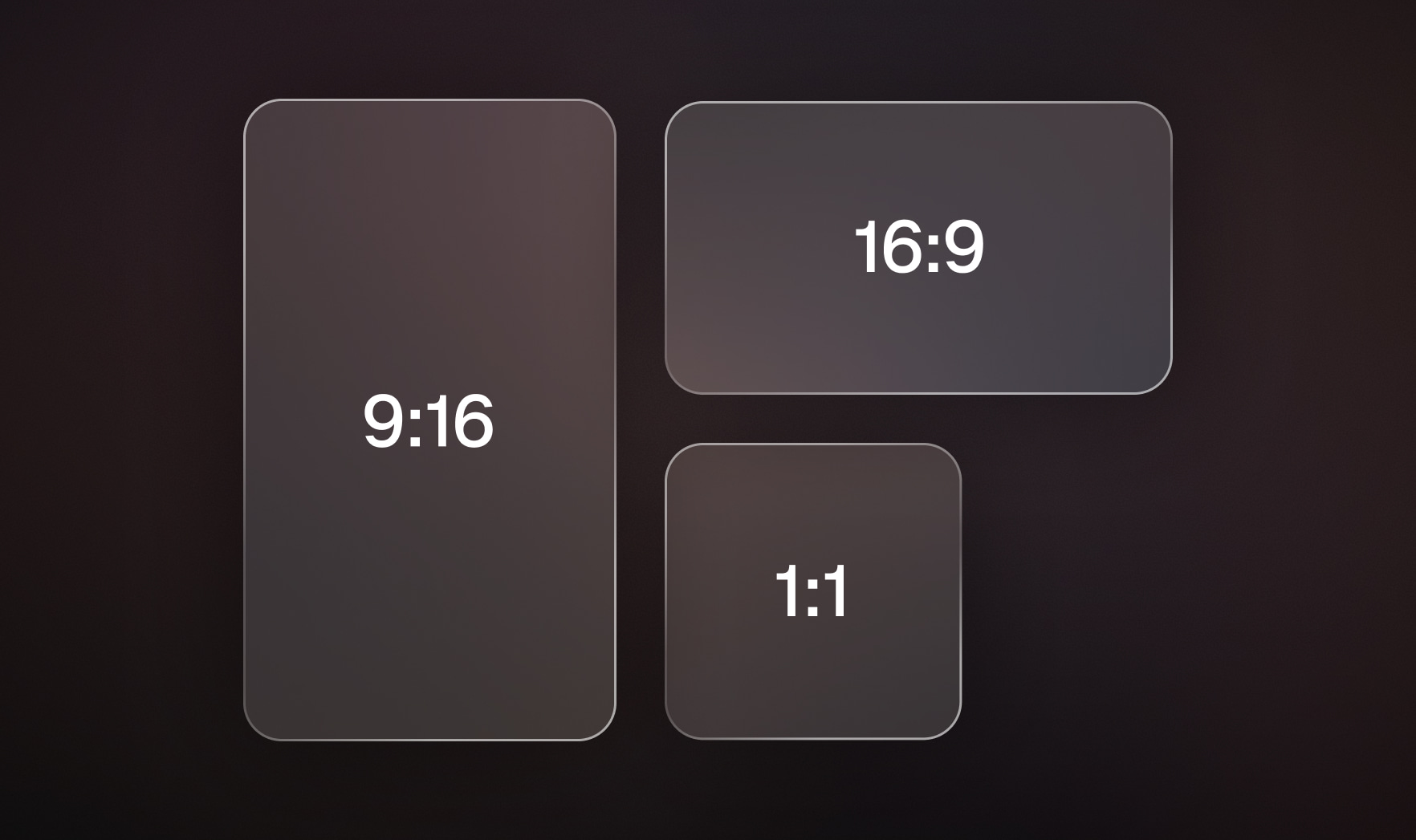
Tip: Swap 9:16 vertical for whatever aspect ratio you actually need, landscape for LinkedIn/X, square for feed posts, etc. And if you do want clipping or captions applied at the same time, just say so in the prompt instead of “no clipping or captions for now.”
IV. Watching it run
Once you kick this off, here's roughly what happens:
1. Submitting projects: OpusClip caps you at 10 concurrent projects at a time, so your AI will work through the folder in chunks of 10, waiting for each batch to finish before starting the next.
2. Reframing in progress: you'll see it move through the batches one at a time.
3. Finished reframing: once it reports everything is done, the reframed videos are sitting in your OpusClip account. You can double check by pulling up your account directly.
4. Downloading: your AI then pulls the finished videos down to your machine, into the folder you specified.
5. Done: the reframed videos land inside the “reframed-outputs” subfolder, ready to post
V. Where to go from here
From here, the possibilities are endless. You can have your AI schedule these straight to your social accounts using OpusClip: just be specific that it should populate both the title and description fields per platform, since captions don't always render the same way across YouTube Shorts,Instagram, TikTok, and X, and you don't want a post going out with a blank caption. Or you can have it upload the reframed batch into a Google Drive folder for a client.
Either way, you just reframed a whole batch of raw footage into scroll-ready video for every platform, with one prompt, and skipped every bit of manual cropping. Go try it yourself!
.jpg)