Internal Communications Video
Few people finish the hour long town hall. Most will watch the 90 seconds that affects their team.
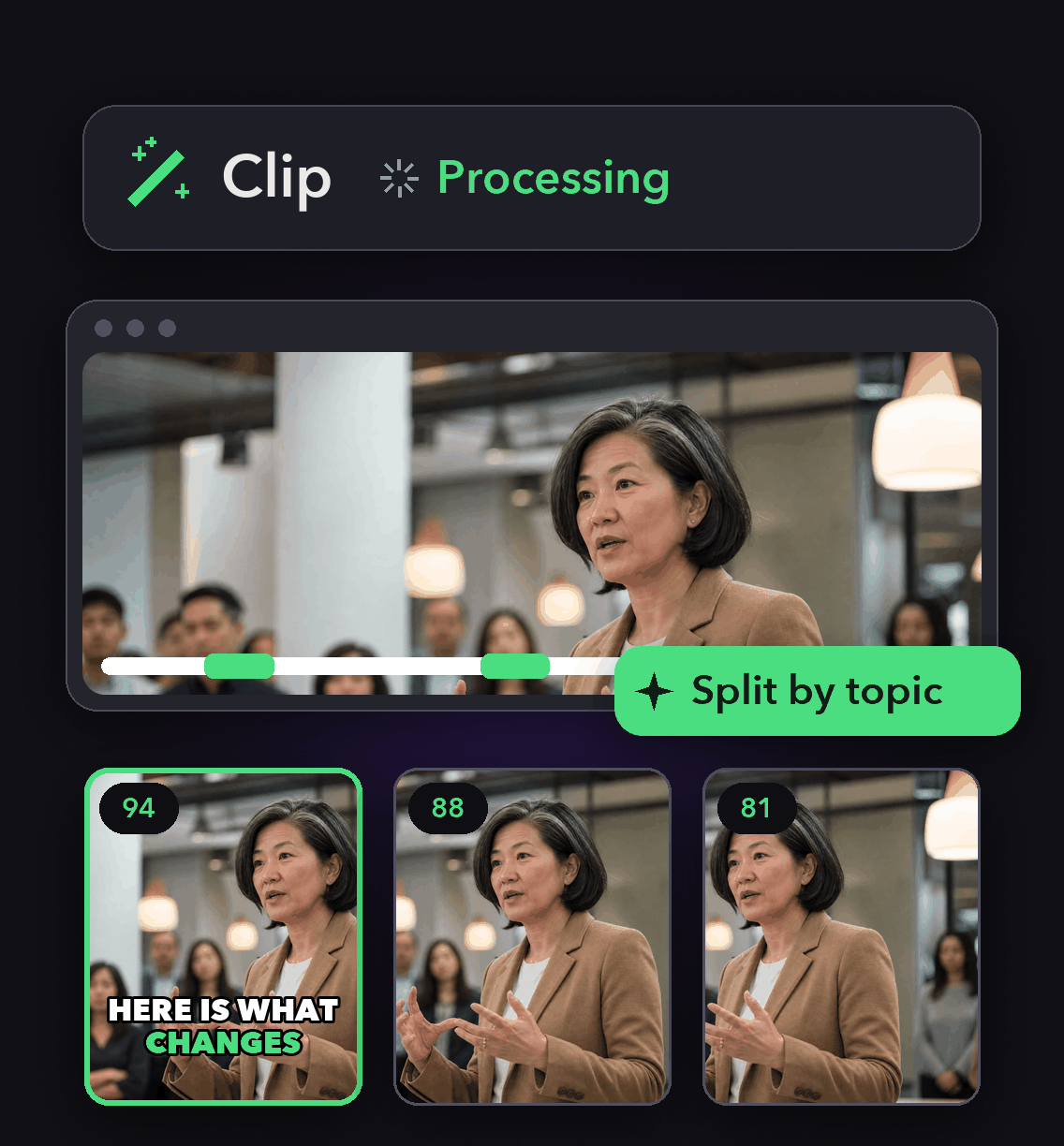
Import the recording, pull each topic as its own clip, caption it, and send it out. Our clip search finds a section from your description and identifies which speaker is talking, so the finance update does not arrive with the opening remarks attached.


Why internal teams cut the recording up
Topic by topic, not minute by minute
Describe the segment you need and our clip search returns it, identifying which speaker is talking so each update stands on its own.
Captions for sound off viewing
Set font, size, color, stroke, shadow and case, and keep internal terms, product names and people's names transcribed consistently.
One internal brand template
Store the fonts, caption style, layout and auto headline once so every update looks like it came from the same team.
Replace the recap email nobody opens
Cut the all-hands into one clip per decision and put each one where that conversation already happens.

Replace the recap email nobody opens
Cut the all-hands into one clip per decision and put each one where that conversation already happens.
Make updates findable six months later
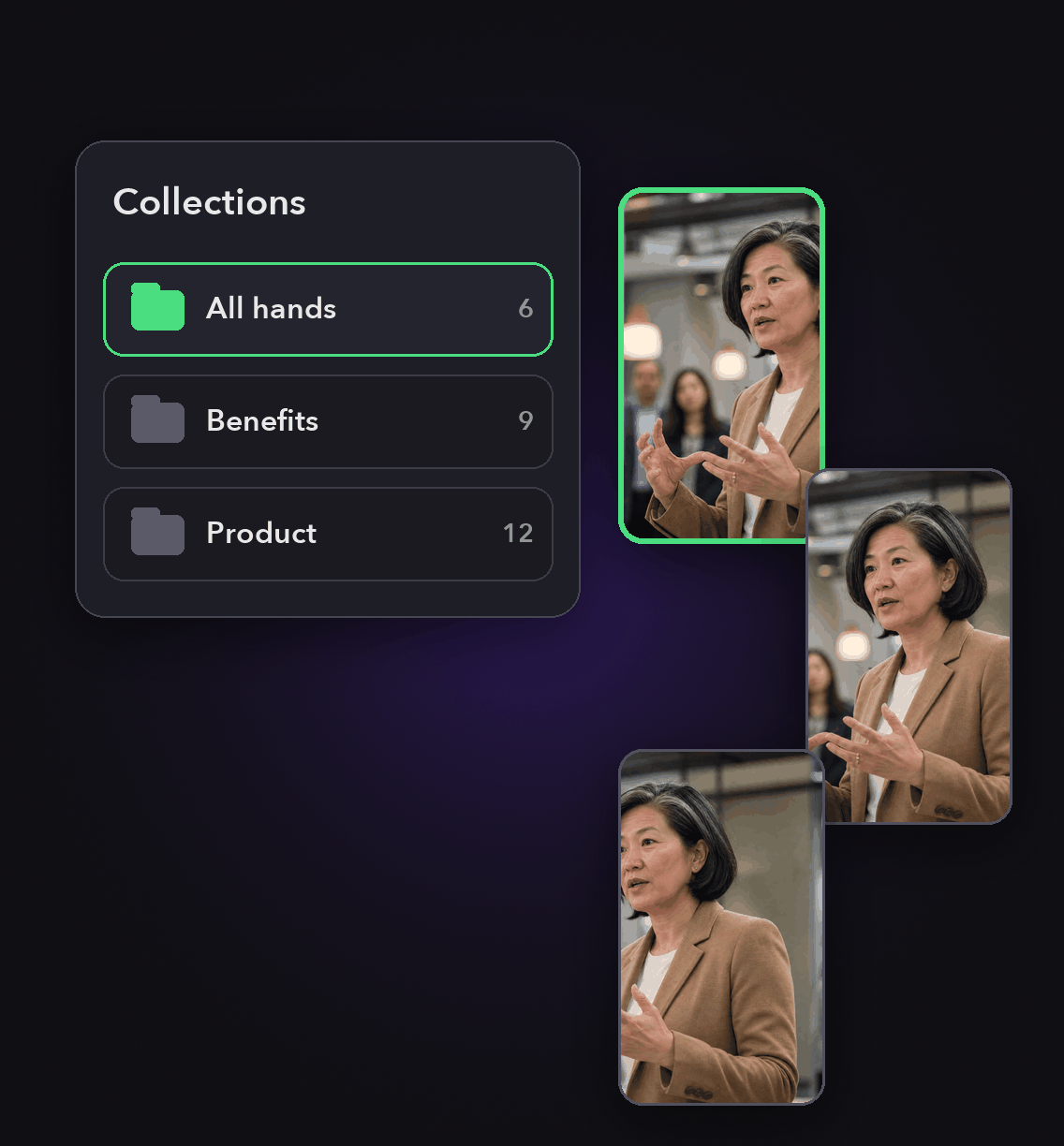
Collections group clips by campaign, client, series or any theme you choose, including by department or quarter, and you can search them by name in the Collections tab.
New hires get an archive instead of a 90 minute video.
Make updates findable six months later
Collections group clips by campaign, client, series or any theme you choose, including by department or quarter, and you can search them by name in the Collections tab.
New hires get an archive instead of a 90 minute video.
Publish the parts that are also recruiting content
Some internal news belongs outside. Schedule those clips to LinkedIn, YouTube, Instagram, TikTok, Facebook or X from the project page, with per platform copy you edit first.

Publish the parts that are also recruiting content
Some internal news belongs outside. Schedule those clips to LinkedIn, YouTube, Instagram, TikTok, Facebook or X from the project page, with per platform copy you edit first.
How to make an internal communications video
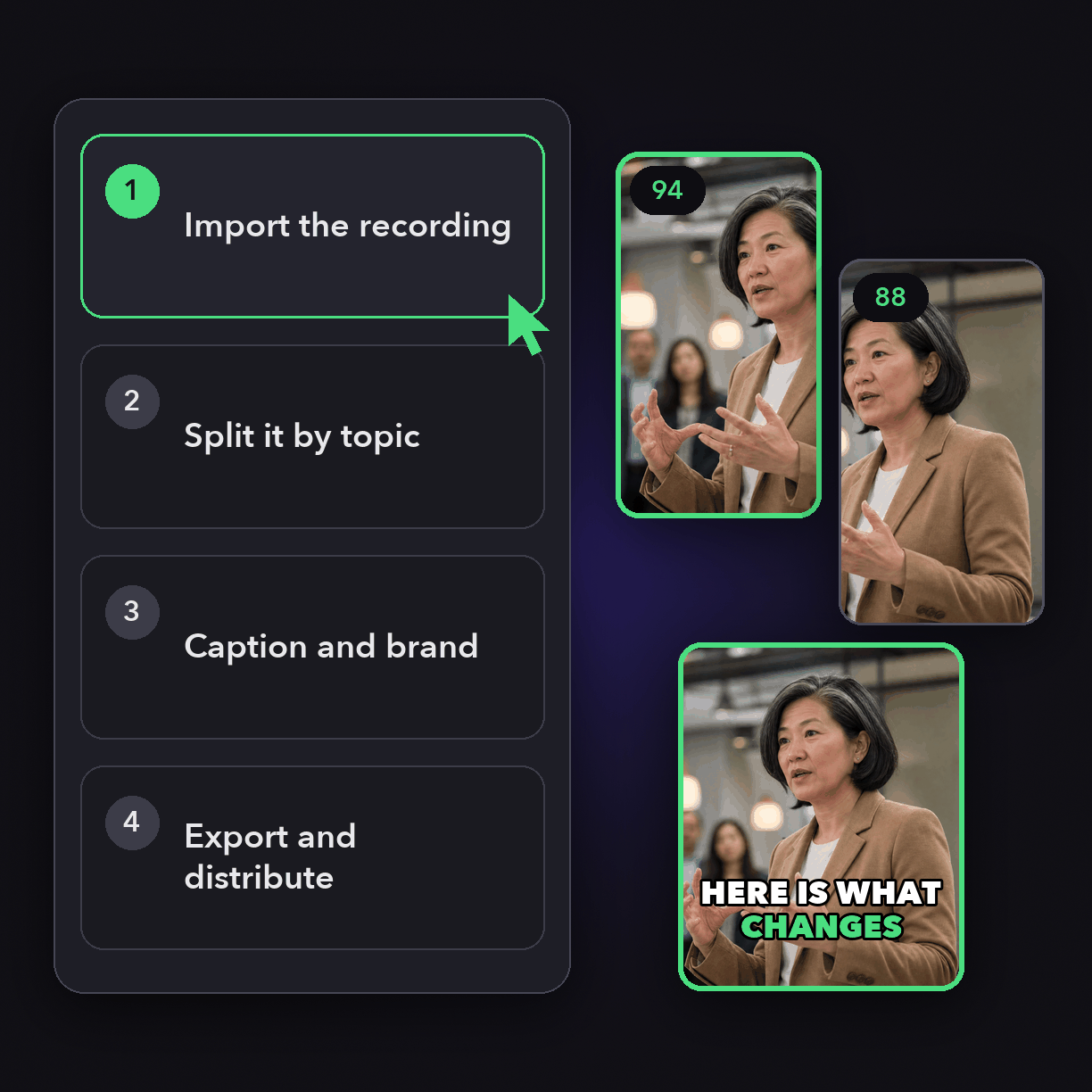
Import the recording
Zoom, Zoom Clips, Loom, Riverside, StreamYard, Frame.io, Google Drive, Dropbox and public MP4 URLs are supported, or upload a local file up to 10GB. The link must be public or unlisted for us to fetch it.
Split it by topic
Describe each segment you want, preview the matching clips, and keep the ones worth sending.
Caption and brand
Apply the brand template, check the captions on names and internal terms, trim the preamble, and remove filler words and pauses.
Export and distribute
Download the finished clip to share through your own internal channels, or schedule it to a public platform from the project page.
Heading
Heading 1
Heading 2
Heading 3
Heading 4
Heading 5
Heading 6
Lorem ipsum dolor sit amet, consectetur adipiscing elit, sed do eiusmod tempor incididunt ut labore et dolore magna aliqua. Ut enim ad minim veniam, quis nostrud exercitation ullamco laboris nisi ut aliquip ex ea commodo consequat. Duis aute irure dolor in reprehenderit in voluptate velit esse cillum dolore eu fugiat nulla pariatur.
Block quote
Ordered list
- Item 1
- Item 2
- Item 3
Unordered list
- Item A
- Item B
- Item C
Bold text
Emphasis
Superscript
Subscript
What you get
Describe the segment search
Find a scene, moment or topic in a long recording by typing what you are looking for.
Speaker identification
Our clip search accurately identifies which speaker is talking, so each leader's segment comes out clean.
Caption styling and term accuracy
Full control of font, size, color, stroke, shadow and case, plus features that keep proper nouns and internal vocabulary correct.
Reframe Anything
9:16 for mobile, 1:1 for chat and 16:9 for wherever your team watches, from one cut.
Filler word and pause removal
Tighten a rambling update without rebuilding it in a timeline editor.
Multi speaker layouts
Split, Three and Four keep panel style question and answer segments readable, with Pin first speaker for your host.
Collections by department or quarter
Organize clips by any theme and search collections by name.
Export and handoff
Download the clip, or send an XML to Premiere Pro or DaVinci Resolve for a bigger production.
What people are saying
"I love that it's AI can find the best moments from a podcast or livestream instead of having to ask my client for specific timestamps, and will even add subtitles, effects and media to the videos as well."
Anonymous
"Simple and easy. Just upload the video and everything else is taken care of. Generally it picks great snapshots to use a YouTube shorts."
Erik-Jon M.
"OpusClip is AMAZING! I love how quickly it deconstructs longer videos into short clips with ratings and descriptions. It has made me more thoughtful in my speeches."
Steve W.
Frequently Asked Questions
Can OpusClip post an internal communications video to our intranet or Slack?
Our built in posting connects to six platforms: YouTube, TikTok, Instagram, LinkedIn, Facebook and X. There is no intranet or chat destination in that list, so for internal distribution export the finished clip and upload it wherever your team watches.
What can we import an all-hands recording from?
Zoom and Zoom Clips are supported, along with Loom, Riverside, StreamYard, Frame.io, YouTube, Vimeo, Google Drive, Dropbox, public MP4 URLs and local uploads up to 10GB per video. Private links cannot be accessed, so share them as unlisted or public.
How do we keep names and internal terms correct in the captions?
We provide a suite of features for keeping proper nouns, brand vocabulary and key terms transcribed consistently in a clip or across all clips. Set them once and captions stop guessing at your product and team names.
Can we keep these videos on brand without a designer?
Yes. A brand template saves fonts, caption style, layout and the auto headline, including its font, color and text box width, and applies them automatically to every clip generated with that template.
Frequently Asked Questions
What languages does your video transcription tool support?
Our AI free video transcription technology supports over 20 languages, including English, Spanish, French, German, Japanese, and more. The system automatically detects the spoken language or allows you to specify it before processing. This makes transcribing multilingual video content simple and accurate.
Can I edit my video transcription after it's generated?
Yes, our platform includes a built-in editor for your free video transcription. You can correct any inaccuracies, format text, and add speaker labels directly in the interface. The editor synchronizes with timestamps, making it easy to perfect your transcript before exporting it for use.
What makes AI video transcription faster than manual methods?
AI video transcription processes speech in minutes rather than hours of manual typing. Our advanced algorithms recognize speech patterns across different accents and languages, providing time-stamped text with speaker identification. This technology lets you transcribe a 60-minute video in just a few minutes.
How much does it cost to transcribe a video?
Video transcription costs vary based on video length and features needed. Our platform offers a free trial transcription so you can experience the quality before committing. After that, we provide affordable pricing plans for regular video transcription needs with multi-language support and speaker detection.
How can I transcribe a video?
Upload your video file or paste a link to our AI free video transcription tool. The system automatically converts speech to text with over 95% accuracy. Once complete, you can download your transcript in various formats like TXT, SRT, or VTT for captions, blog posts, or other content.
How accurate are AI YouTube video transcription tools?
AI YouTube video transcript extractors typically achieve 95%+ accuracy for clear audio in English, with strong performance in over 50 other languages. For best results, videos with clear audio and minimal background noise produce the most accurate transcripts, though you can edit any errors afterward.
What formats can I download YouTube video transcripts in?
YouTube video transcript generators typically allow you to download transcripts in multiple formats including TXT (plain text), SRT (SubRip Subtitle), and VTT (Web Video Text Tracks) files. These different formats support various use cases from content creation to adding captions to videos.
Can I transcribe someone else's YouTube video?
Yes, you can transcribe anyone's public YouTube video using a YouTube video transcript generator. Simply copy the video URL, paste it into the transcription tool, and the AI will extract the spoken content into text format. This is useful for research, content repurposing, or accessibility purposes.
How to get a YouTube video transcript from any video?
To get a YouTube video transcript, copy the video URL and paste it into a transcript generator tool. Click "Generate Transcript" and the AI will process the audio, delivering a complete text version in under a minute. You can then edit, format, and download the transcript in your preferred format.
Does YouTube have auto transcription?
Yes, YouTube offers auto transcription for many videos, but these transcripts often contain errors. For more accurate results, use a dedicated YouTube video transcript generator that employs advanced AI to deliver 95%+ accuracy, proper formatting, and additional features like timestamp integration and multiple export formats.
Can I get a transcript of a YouTube video?
Yes, you can get a transcript of any YouTube video by using an AI-powered YouTube video transcript extractor. Simply paste the video URL into the tool, and it will automatically convert the spoken content into text format with high accuracy, allowing you to download the transcript in seconds.


