LinkedIn Caption Generator
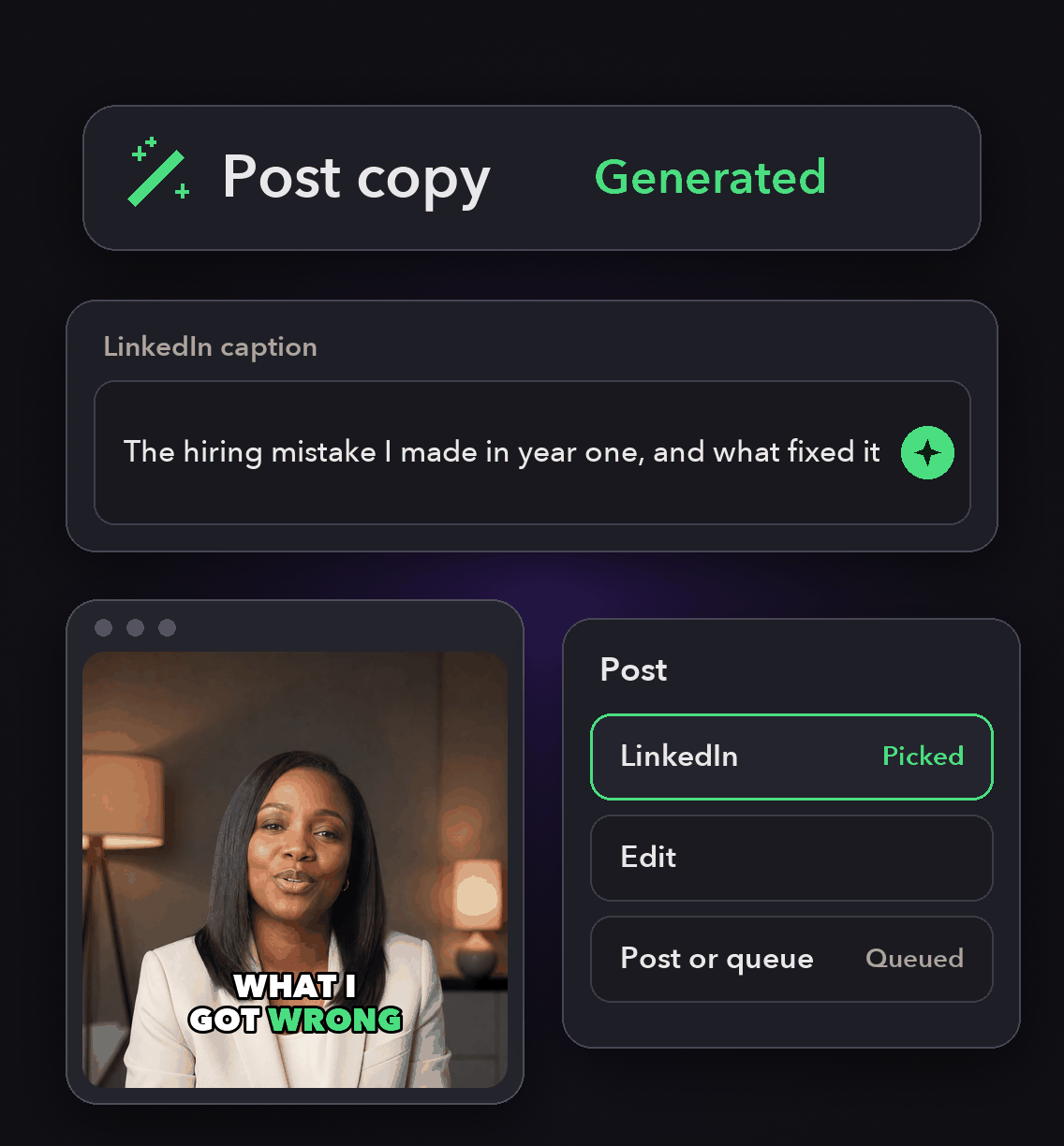
Choose a clip and your LinkedIn account in OpusClip and our AI generates the description and hashtags for that post, written from the video rather than from a prompt you have to compose first.
You edit the wording in the posting window before anything publishes, and the same clip posted elsewhere gets its own separate copy.


Why generate the copy here
It starts from what was said
Every clip carries a transcript, so the description is grounded in the argument in the video instead of a topic you summarise again.
One caption per destination
Social copy generation runs for each clip and each destination, so the LinkedIn version differs from the TikTok one.
Fix the on-screen words too
Separate from the post copy, you can correct caption wording in the clip without touching the video or its timing.
Written from the transcript
Every clip has a transcript behind it, and that is what the copy is generated from. You can also fetch the transcript through our API or MCP server.
That makes the description specific to the clip instead of a restatement of its title.
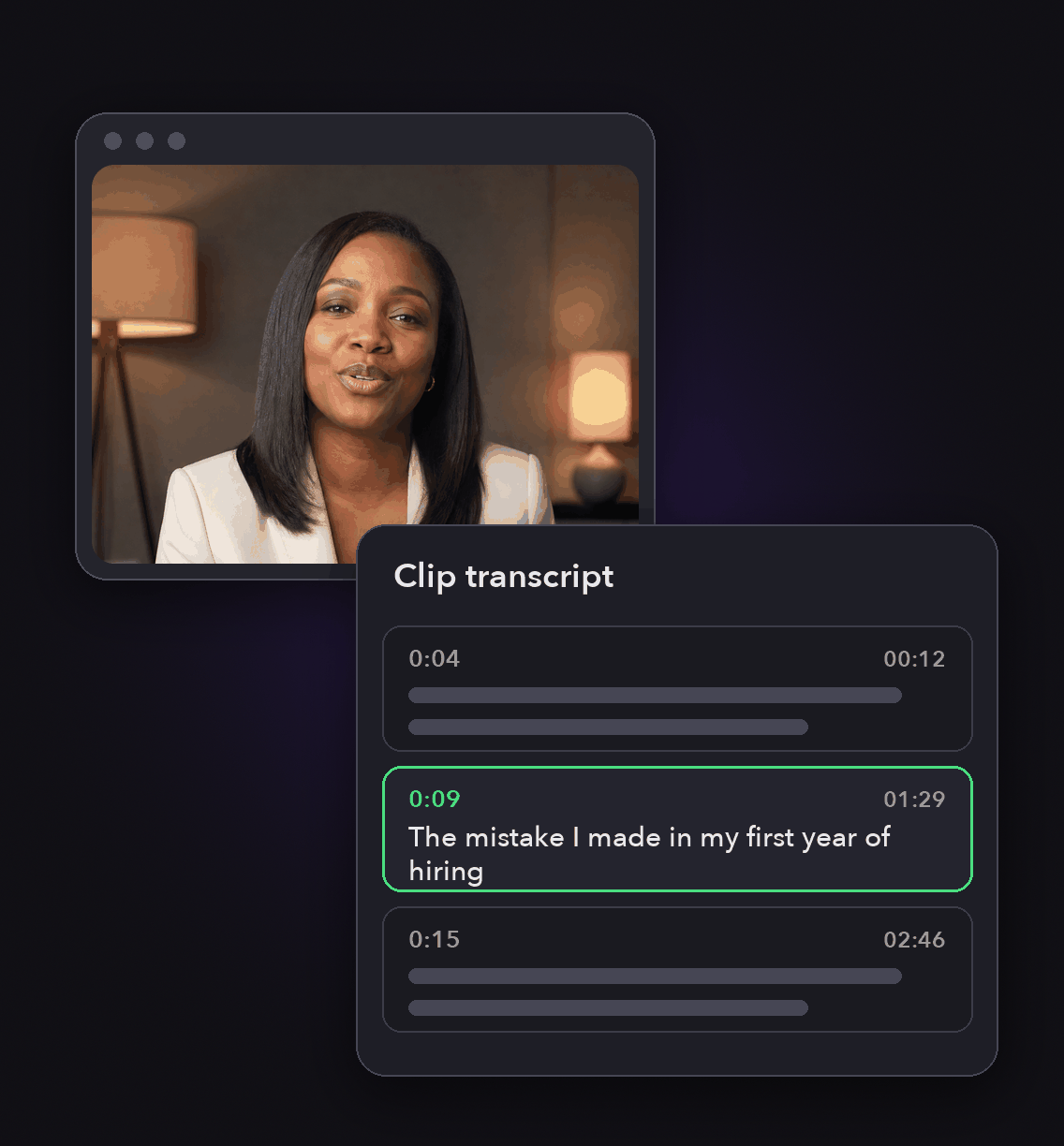
Written from the transcript
Every clip has a transcript behind it, and that is what the copy is generated from. You can also fetch the transcript through our API or MCP server.
That makes the description specific to the clip instead of a restatement of its title.
Shaped for a quiet feed
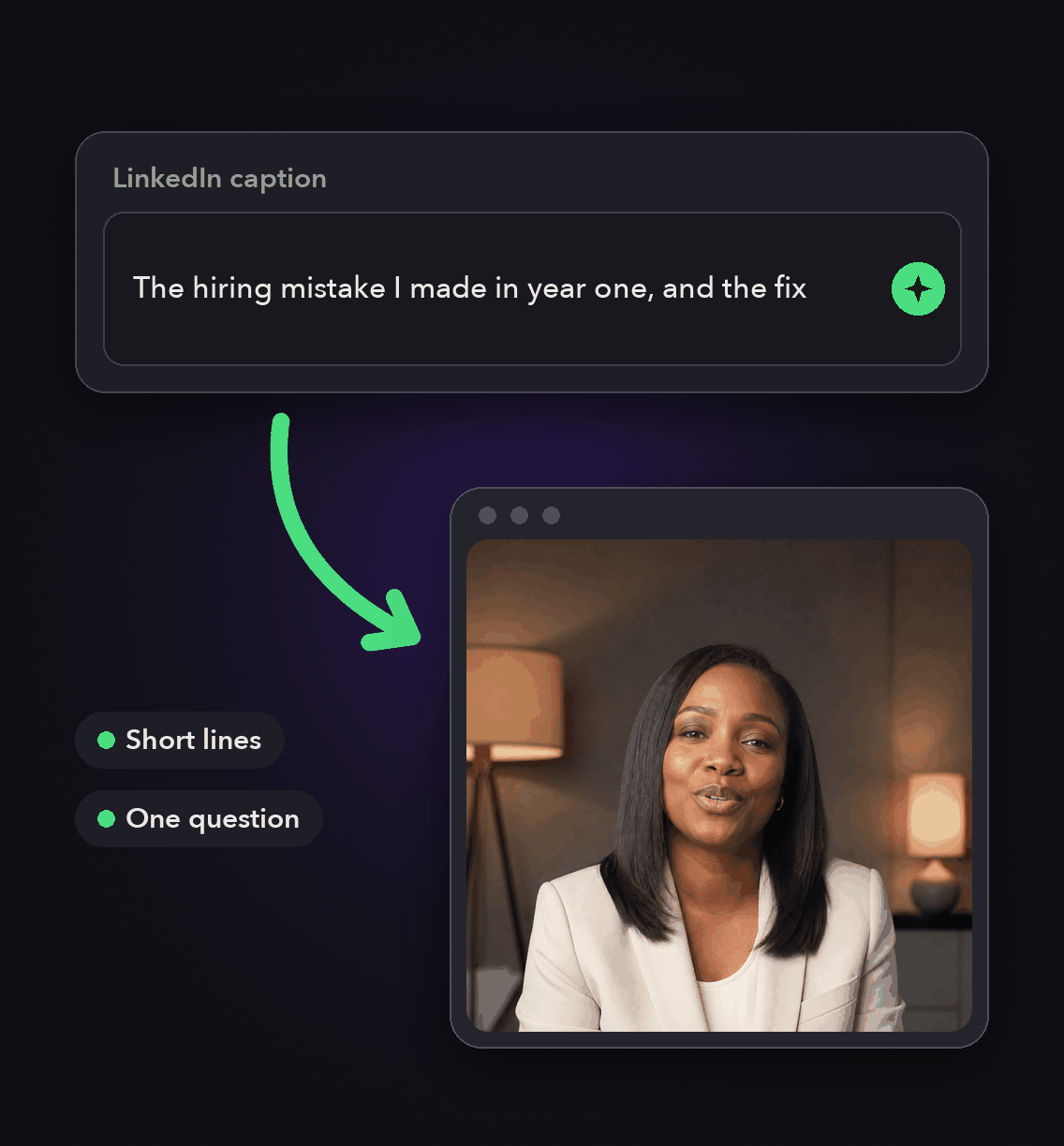
Auto captions are applied to the clip, and 1:1 and 16:9 reframing suit the LinkedIn feed as well as 9:16.
Caption colour, position and casing are adjustable, and you can download an .srt file.
Shaped for a quiet feed
Auto captions are applied to the clip, and 1:1 and 16:9 reframing suit the LinkedIn feed as well as 9:16.
Caption colour, position and casing are adjustable, and you can download an .srt file.
Editable, then posted or queued
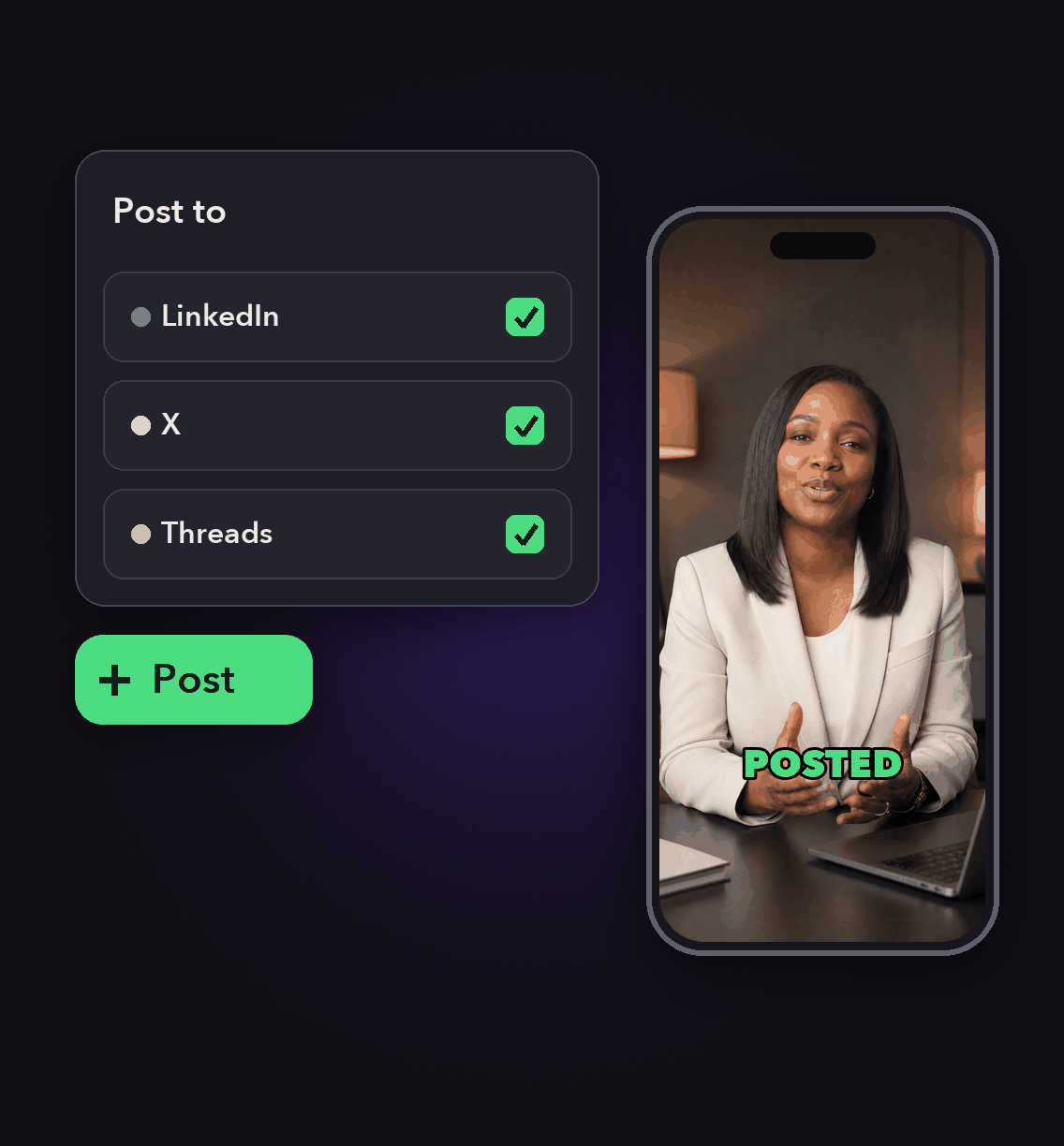
Generated titles, descriptions and hashtags stay editable in the posting window and on the iOS post page.
Post immediately, or select a time and manage the post from the calendar.
Editable, then posted or queued
Generated titles, descriptions and hashtags stay editable in the posting window and on the iOS post page.
Post immediately, or select a time and manage the post from the calendar.
How to generate a LinkedIn caption
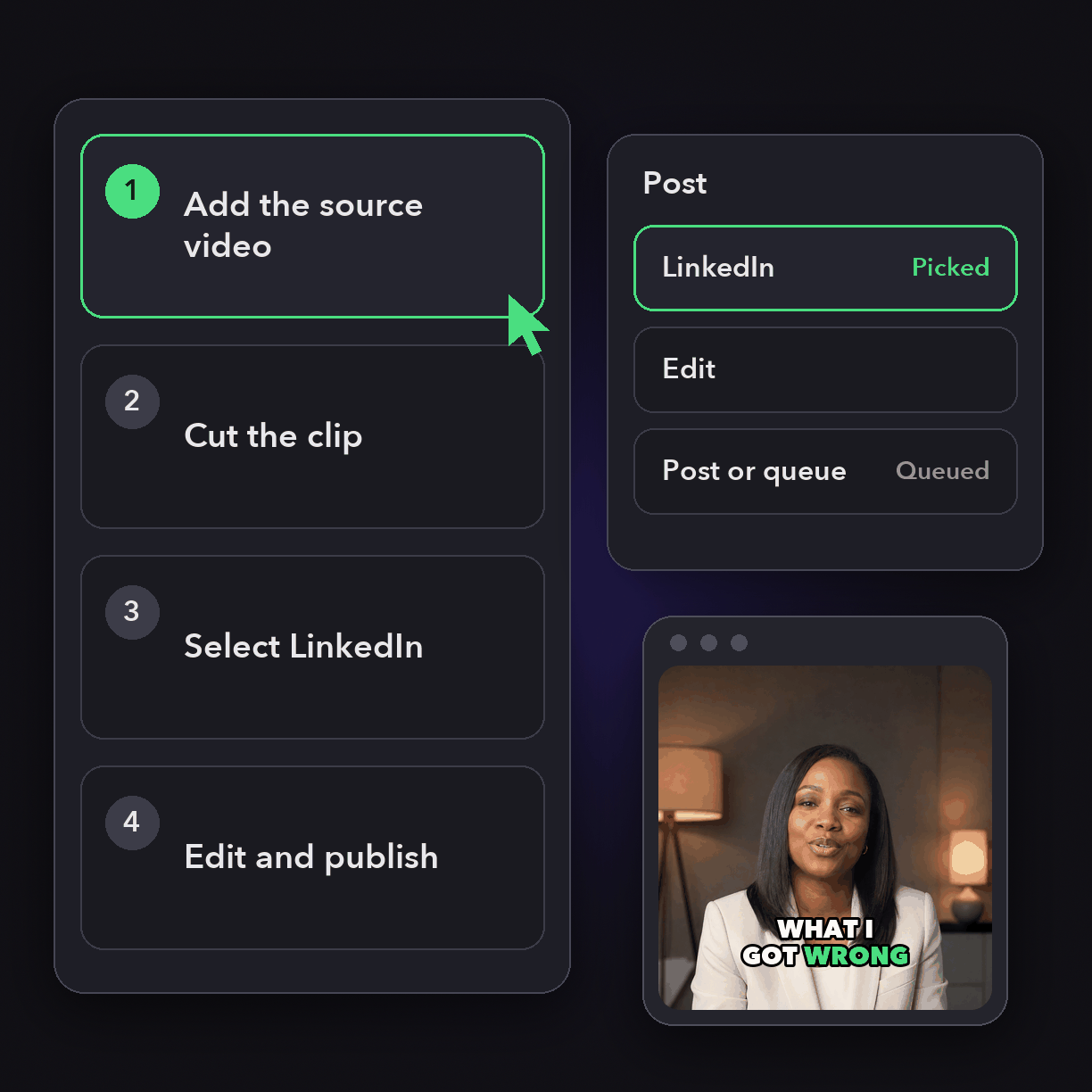
Add the source video
Upload a file or paste a link. LinkedIn is a supported import source as well as a posting destination.
Cut the clip
Our clipping models find the moment and apply captions, reframing and your brand template.
Select LinkedIn
Click the calendar icon on the clip and choose your connected LinkedIn account.
Edit and publish
Review the generated description and hashtags, change anything you want, then publish now or select a time.
Heading
Heading 1
Heading 2
Heading 3
Heading 4
Heading 5
Heading 6
Lorem ipsum dolor sit amet, consectetur adipiscing elit, sed do eiusmod tempor incididunt ut labore et dolore magna aliqua. Ut enim ad minim veniam, quis nostrud exercitation ullamco laboris nisi ut aliquip ex ea commodo consequat. Duis aute irure dolor in reprehenderit in voluptate velit esse cillum dolore eu fugiat nulla pariatur.
Block quote
Ordered list
- Item 1
- Item 2
- Item 3
Unordered list
- Item A
- Item B
- Item C
Bold text
Emphasis
Superscript
Subscript
What the generator produces
Generated descriptions
Written per clip for the destination you picked.
Hashtags
Generated with the description, editable before posting.
Transcript-based
Copy is grounded in the clip's own transcript.
On-screen captions
Auto subtitles with styling and keyword highlighting.
Caption fixes
Correct a word in the captions without changing the video.
Feed-friendly framing
1:1 and 16:9 as well as 9:16.
API and MCP
Create a social copy job and poll the result programmatically.
Post now or later
Publish immediately or schedule from the calendar.
What people are saying
"Opus Clip saves me hours! Its AI finds the best parts of any long form video, then whips up catchy clips with smart captions and b-roll. Boom, instant social media content that actually engages!!"
Martin R.
""
Anonymous
"I love the ease of use for the platform, it lets me being the editor for streams use it and also my less tech savvy streamer partner use it as well without confusion"
Ron M.
Frequently Asked Questions
Does OpusClip write LinkedIn captions?
Yes. When you pick a clip and a LinkedIn account, our AI auto-generates the description and hashtags for that post, and the copy is editable in the posting window before you publish.
Is the caption different for each platform?
Yes. Social copy generation runs for each clip and each destination, so posting the same clip to LinkedIn and TikTok produces separate descriptions and hashtags.
Can I generate captions through the API?
Yes. Send a POST to the social copy jobs endpoint on api.opus.pro and poll the job for the result. The same capability is exposed as a tool on our MCP server.
Can I fix a wrong word in the on-screen captions?
Yes. A caption fix changes the wording in place without touching the video or its timing. There is no bulk caption edit, so clips are corrected one at a time.
Frequently Asked Questions
What languages does your video transcription tool support?
Our AI free video transcription technology supports over 20 languages, including English, Spanish, French, German, Japanese, and more. The system automatically detects the spoken language or allows you to specify it before processing. This makes transcribing multilingual video content simple and accurate.
Can I edit my video transcription after it's generated?
Yes, our platform includes a built-in editor for your free video transcription. You can correct any inaccuracies, format text, and add speaker labels directly in the interface. The editor synchronizes with timestamps, making it easy to perfect your transcript before exporting it for use.
What makes AI video transcription faster than manual methods?
AI video transcription processes speech in minutes rather than hours of manual typing. Our advanced algorithms recognize speech patterns across different accents and languages, providing time-stamped text with speaker identification. This technology lets you transcribe a 60-minute video in just a few minutes.
How much does it cost to transcribe a video?
Video transcription costs vary based on video length and features needed. Our platform offers a free trial transcription so you can experience the quality before committing. After that, we provide affordable pricing plans for regular video transcription needs with multi-language support and speaker detection.
How can I transcribe a video?
Upload your video file or paste a link to our AI free video transcription tool. The system automatically converts speech to text with over 95% accuracy. Once complete, you can download your transcript in various formats like TXT, SRT, or VTT for captions, blog posts, or other content.
How accurate are AI YouTube video transcription tools?
AI YouTube video transcript extractors typically achieve 95%+ accuracy for clear audio in English, with strong performance in over 50 other languages. For best results, videos with clear audio and minimal background noise produce the most accurate transcripts, though you can edit any errors afterward.
What formats can I download YouTube video transcripts in?
YouTube video transcript generators typically allow you to download transcripts in multiple formats including TXT (plain text), SRT (SubRip Subtitle), and VTT (Web Video Text Tracks) files. These different formats support various use cases from content creation to adding captions to videos.
Can I transcribe someone else's YouTube video?
Yes, you can transcribe anyone's public YouTube video using a YouTube video transcript generator. Simply copy the video URL, paste it into the transcription tool, and the AI will extract the spoken content into text format. This is useful for research, content repurposing, or accessibility purposes.
How to get a YouTube video transcript from any video?
To get a YouTube video transcript, copy the video URL and paste it into a transcript generator tool. Click "Generate Transcript" and the AI will process the audio, delivering a complete text version in under a minute. You can then edit, format, and download the transcript in your preferred format.
Does YouTube have auto transcription?
Yes, YouTube offers auto transcription for many videos, but these transcripts often contain errors. For more accurate results, use a dedicated YouTube video transcript generator that employs advanced AI to deliver 95%+ accuracy, proper formatting, and additional features like timestamp integration and multiple export formats.
Can I get a transcript of a YouTube video?
Yes, you can get a transcript of any YouTube video by using an AI-powered YouTube video transcript extractor. Simply paste the video URL into the tool, and it will automatically convert the spoken content into text format with high accuracy, allowing you to download the transcript in seconds.


