Slideshow Video Maker
Audio to Image Video takes a voiceover and returns an illustrated video: up to 200 scenes, 25 picture styles, and 16:9, 9:16 or 1:1.
You read the scene plan and rewrite any scene description before a single frame renders.


Why this beats a drag-and-drop slideshow
The plan comes first
You see every planned scene with its description, and can edit it or regenerate it, before you spend credits on rendering.
Recurring subjects stay recurring
Up to 8 visual references keep a person, place or object looking the same from scene to scene.
Pacing is a setting
Calm uses longer shots, Balanced a natural mix, Dynamic changes visuals more frequently. One control instead of timing 200 slides.
Narration drives the cuts
Upload or record audio, or upload a video and only its audio is used. The export keeps your original voiceover and sets generated scenes against it.
Correcting the transcript improves the scene plan. It does not re-record your narration.

Narration drives the cuts
Upload or record audio, or upload a video and only its audio is used. The export keeps your original voiceover and sets generated scenes against it.
Correcting the transcript improves the scene plan. It does not re-record your narration.
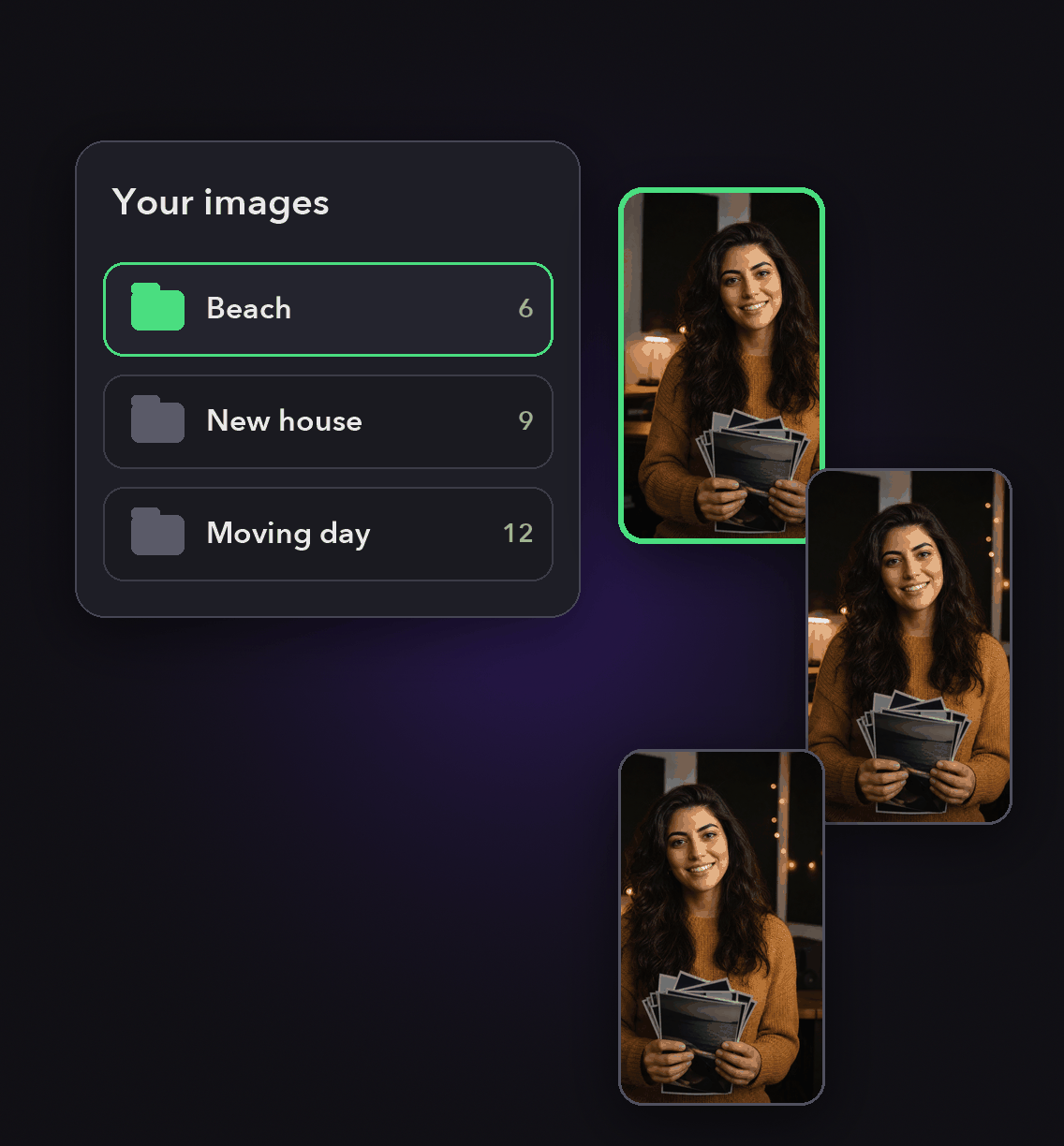
Use your own images instead
In the OpusClip editor you drag .png and .jpg files onto the timeline, where each image lands at the playhead and defaults to 2 seconds.
Resize the duration, reposition the image, and reuse anything from your media library on the next project.
Use your own images instead
In the OpusClip editor you drag .png and .jpg files onto the timeline, where each image lands at the playhead and defaults to 2 seconds.
Resize the duration, reposition the image, and reuse anything from your media library on the next project.
Know the limits before you start
Audio to Image Video accepts files up to 50 MB and voiceovers up to 5 minutes. The beta exports hard cuts with no burned-in captions or music.
Timeline uploads cap at 200 MB per file, and uploaded videos longer than 15 minutes are rejected.

Know the limits before you start
Audio to Image Video accepts files up to 50 MB and voiceovers up to 5 minutes. The beta exports hard cuts with no burned-in captions or music.
Timeline uploads cap at 200 MB per file, and uploaded videos longer than 15 minutes are rejected.
How to make a slideshow video
Add the speech
Upload or record audio, or upload a video. Supported files include MP3, M4A, WAV, AAC, OGG, Opus, FLAC, MP4, MOV, M4V and WebM, up to 50 MB.
Pick style, ratio and pace
Choose one of 25 picture styles, set 16:9 landscape, 9:16 portrait or 1:1 square, then choose Calm, Balanced or Dynamic pacing.
Review the story plan
Open any scene to edit its visual description or regenerate it. Use Edit references to change how a recurring person, place or object looks, then Redraw.
Generate and download
The Generate video button shows the credit price for the reviewed plan. Credits are charged only when the video finishes. Then download the MP4.

Heading
Heading 1
Heading 2
Heading 3
Heading 4
Heading 5
Heading 6
Lorem ipsum dolor sit amet, consectetur adipiscing elit, sed do eiusmod tempor incididunt ut labore et dolore magna aliqua. Ut enim ad minim veniam, quis nostrud exercitation ullamco laboris nisi ut aliquip ex ea commodo consequat. Duis aute irure dolor in reprehenderit in voluptate velit esse cillum dolore eu fugiat nulla pariatur.
Block quote
Ordered list
- Item 1
- Item 2
- Item 3
Unordered list
- Item A
- Item B
- Item C
Bold text
Emphasis
Superscript
Subscript
What you get
Up to 200 scenes
Long enough narration becomes a full sequence rather than a handful of stills.
25 picture styles
Pick the look once and every scene in the story is drawn in it.
Three aspect ratios
16:9 landscape, 9:16 portrait and 1:1 square, chosen before generation starts.
Editable scene plan
Every scene description can be rewritten or regenerated before anything renders.
Visual references
Up to 8 recurring references keep a character, place or product consistent.
Your original audio
The export uses the voiceover you supplied, not a synthesised re-read of it.
Media library
Images and videos you upload to the editor stay in the library, ready to reuse.
MP4 download
Preview the finished story, pick a scene to check, then download the MP4.
What people are saying
"I love that it's AI can find the best moments from a podcast or livestream instead of having to ask my client for specific timestamps, and will even add subtitles, effects and media to the videos as well."
Anonymous
"Simple and easy. Just upload the video and everything else is taken care of. Generally it picks great snapshots to use a YouTube shorts."
Erik-Jon M.
"OpusClip is AMAZING! I love how quickly it deconstructs longer videos into short clips with ratings and descriptions. It has made me more thoughtful in my speeches."
Steve W.
Frequently Asked Questions
Can I make a slideshow from photos alone?
We could not find a photos-only slideshow builder documented in the OpusClip help centre. Audio to Image Video starts from a voiceover, and the editor timeline accepts .png and .jpg uploads inside a project.
How long can the slideshow be?
Audio to Image Video supports voiceovers up to 5 minutes and files up to 50 MB, with the scene count capped at 200.
Does the export include music or captions?
No. The current beta exports your original voiceover with the generated scene images and hard cuts. Captions and music are not burned into the MP4.
How long does each uploaded image stay on screen?
Two seconds by default. Uploaded images land on the timeline at the playhead and can be resized for a custom duration, including past the clip's maximum length.
Frequently Asked Questions
What languages does your video transcription tool support?
Our AI free video transcription technology supports over 20 languages, including English, Spanish, French, German, Japanese, and more. The system automatically detects the spoken language or allows you to specify it before processing. This makes transcribing multilingual video content simple and accurate.
Can I edit my video transcription after it's generated?
Yes, our platform includes a built-in editor for your free video transcription. You can correct any inaccuracies, format text, and add speaker labels directly in the interface. The editor synchronizes with timestamps, making it easy to perfect your transcript before exporting it for use.
What makes AI video transcription faster than manual methods?
AI video transcription processes speech in minutes rather than hours of manual typing. Our advanced algorithms recognize speech patterns across different accents and languages, providing time-stamped text with speaker identification. This technology lets you transcribe a 60-minute video in just a few minutes.
How much does it cost to transcribe a video?
Video transcription costs vary based on video length and features needed. Our platform offers a free trial transcription so you can experience the quality before committing. After that, we provide affordable pricing plans for regular video transcription needs with multi-language support and speaker detection.
How can I transcribe a video?
Upload your video file or paste a link to our AI free video transcription tool. The system automatically converts speech to text with over 95% accuracy. Once complete, you can download your transcript in various formats like TXT, SRT, or VTT for captions, blog posts, or other content.
How accurate are AI YouTube video transcription tools?
AI YouTube video transcript extractors typically achieve 95%+ accuracy for clear audio in English, with strong performance in over 50 other languages. For best results, videos with clear audio and minimal background noise produce the most accurate transcripts, though you can edit any errors afterward.
What formats can I download YouTube video transcripts in?
YouTube video transcript generators typically allow you to download transcripts in multiple formats including TXT (plain text), SRT (SubRip Subtitle), and VTT (Web Video Text Tracks) files. These different formats support various use cases from content creation to adding captions to videos.
Can I transcribe someone else's YouTube video?
Yes, you can transcribe anyone's public YouTube video using a YouTube video transcript generator. Simply copy the video URL, paste it into the transcription tool, and the AI will extract the spoken content into text format. This is useful for research, content repurposing, or accessibility purposes.
How to get a YouTube video transcript from any video?
To get a YouTube video transcript, copy the video URL and paste it into a transcript generator tool. Click "Generate Transcript" and the AI will process the audio, delivering a complete text version in under a minute. You can then edit, format, and download the transcript in your preferred format.
Does YouTube have auto transcription?
Yes, YouTube offers auto transcription for many videos, but these transcripts often contain errors. For more accurate results, use a dedicated YouTube video transcript generator that employs advanced AI to deliver 95%+ accuracy, proper formatting, and additional features like timestamp integration and multiple export formats.
Can I get a transcript of a YouTube video?
Yes, you can get a transcript of any YouTube video by using an AI-powered YouTube video transcript extractor. Simply paste the video URL into the tool, and it will automatically convert the spoken content into text format with high accuracy, allowing you to download the transcript in seconds.


