Training Video Maker
Drop in a Zoom, Loom, Riverside or StreamYard recording. Screenshare layout puts the shared screen on the top half and the speaker on the bottom half.
From there you cut the dead air, fix the captions and export modules people will actually finish.


Why recorded sessions make good training
Screen and face together
Screenshare layout needs screenshare content and one speaker, then places the screen above and the presenter below automatically.
Dead air comes out
Speech Cleanup detects over 90% of fillers and pauses, and shows you every one of them before anything is removed.
Over 25 languages
Captions are supported in more than 25 languages, so a session recorded once can be read by a wider team.
Cut a two hour session into modules
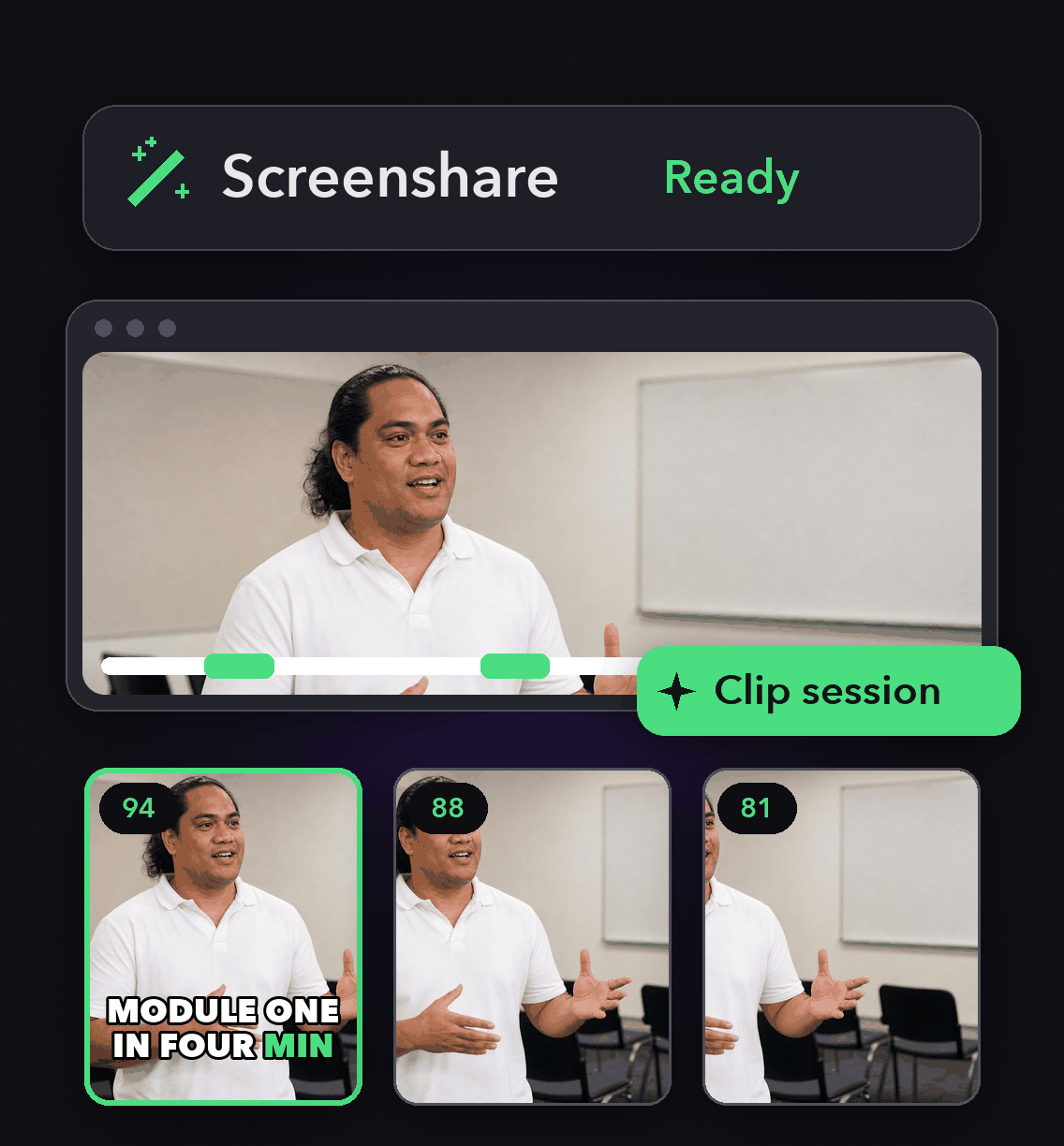
A recording over 120 minutes typically yields 42 to 55 clips, and you can set the clip length before processing instead of accepting the Auto 0 to 3 minute default.
Clip a specific timeframe when only one section of the session is worth keeping.

Cut a two hour session into modules
A recording over 120 minutes typically yields 42 to 55 clips, and you can set the clip length before processing instead of accepting the Auto 0 to 3 minute default.
Clip a specific timeframe when only one section of the session is worth keeping.

Make it watchable, not just available
Remove Fillers, Remove Pauses and Remove Bad Takes all work off the transcript. Bad takes covers retakes, restarts, self-corrections and phrase repetitions.
Speech Enhancement reduces background noise and isolates the voice for sessions recorded in a bad room.
Make it watchable, not just available
Remove Fillers, Remove Pauses and Remove Bad Takes all work off the transcript. Bad takes covers retakes, restarts, self-corrections and phrase repetitions.
Speech Enhancement reduces background noise and isolates the voice for sessions recorded in a bad room.
Look like one company
A brand template carries your fonts, colours, caption style, intro and outro cards and clip layouts across every module you make from it.
Brand vocabulary teaches the transcript your product names so the captions stop mangling them.

Look like one company
A brand template carries your fonts, colours, caption style, intro and outro cards and clip layouts across every module you make from it.
Brand vocabulary teaches the transcript your product names so the captions stop mangling them.
How to make a training video
Bring in the recording
Paste a link from Zoom, Zoom Clips, Loom, Riverside, StreamYard, Vimeo, Google Drive or YouTube, or upload a local file up to 10 GB and 10 hours.
Choose Screenshare layout
Turn on Screenshare in Clip layout settings. If no screenshare is identified we apply an alternative layout instead, so select it only when you want it.
Clean the transcript
Run Speech Cleanup, tick which filler types to remove, set your own pause threshold, then scan for bad takes with Detect now.
Brand it and export
Apply your brand template, add intro and outro cards, then download the modules or schedule them from the calendar.

Heading
Heading 1
Heading 2
Heading 3
Heading 4
Heading 5
Heading 6
Lorem ipsum dolor sit amet, consectetur adipiscing elit, sed do eiusmod tempor incididunt ut labore et dolore magna aliqua. Ut enim ad minim veniam, quis nostrud exercitation ullamco laboris nisi ut aliquip ex ea commodo consequat. Duis aute irure dolor in reprehenderit in voluptate velit esse cillum dolore eu fugiat nulla pariatur.
Block quote
Ordered list
- Item 1
- Item 2
- Item 3
Unordered list
- Item A
- Item B
- Item C
Bold text
Emphasis
Superscript
Subscript
What you get
Screenshare layout
Screen on the top half, speaker on the bottom half, detected automatically.
Transcript editing
Edit the video by editing its transcript, with removed parts hidden behind the Filter out menu.
Upload your own SRT
Add an SRT at submission and we use it for captions instead of the transcript we generate.
Transcript and subtitle export
Download the transcript and subtitle files for your LMS or knowledge base.
Brand vocabulary
Teach the transcript the product names, acronyms and people it keeps getting wrong.
Intro and outro cards
Open and close every module the same way without rebuilding it each time.
Keyboard precise editing
Trim and split on the timeline with keyboard shortcuts rather than mouse nudges.
Zapier and auto import
Pipe new recordings in automatically instead of uploading every one by hand.
What people are saying
"The ease of Opusclip is great. I'm a marketer, not a video editor. But OpusClip makes it so easy to look like I know what I'm doing!"
Karim S.
""
Anonymous
"At KMS Studios2 we rely on OpusClip for generating all of our and our client's short form content at scale. Although we may need to tweak things here or there - this gets us very close 90% of the time!"
Joshua M.
Frequently Asked Questions
Can OpusClip record my screen?
We could not find a screen recorder in the OpusClip help centre. Record with Zoom, Loom, Riverside or StreamYard, all of which we accept as import sources, then edit the recording here.
How long a session can I upload?
Up to 10 hours, with local uploads capped at 10 GB. For anything longer you can select a specific portion for processing.
Will the shared screen stay readable in a vertical clip?
Screenshare layout keeps the screen across the top half of the 9:16 frame. You can also double-click the video to open Manual Reframe and adjust the framing yourself.
Is there a training video template?
We could not find a training-specific template. Brand templates cover fonts, colours, caption style, clip layouts and intro and outro cards, which is what most training sets need.
Frequently Asked Questions
What languages does your video transcription tool support?
Our AI free video transcription technology supports over 20 languages, including English, Spanish, French, German, Japanese, and more. The system automatically detects the spoken language or allows you to specify it before processing. This makes transcribing multilingual video content simple and accurate.
Can I edit my video transcription after it's generated?
Yes, our platform includes a built-in editor for your free video transcription. You can correct any inaccuracies, format text, and add speaker labels directly in the interface. The editor synchronizes with timestamps, making it easy to perfect your transcript before exporting it for use.
What makes AI video transcription faster than manual methods?
AI video transcription processes speech in minutes rather than hours of manual typing. Our advanced algorithms recognize speech patterns across different accents and languages, providing time-stamped text with speaker identification. This technology lets you transcribe a 60-minute video in just a few minutes.
How much does it cost to transcribe a video?
Video transcription costs vary based on video length and features needed. Our platform offers a free trial transcription so you can experience the quality before committing. After that, we provide affordable pricing plans for regular video transcription needs with multi-language support and speaker detection.
How can I transcribe a video?
Upload your video file or paste a link to our AI free video transcription tool. The system automatically converts speech to text with over 95% accuracy. Once complete, you can download your transcript in various formats like TXT, SRT, or VTT for captions, blog posts, or other content.
How accurate are AI YouTube video transcription tools?
AI YouTube video transcript extractors typically achieve 95%+ accuracy for clear audio in English, with strong performance in over 50 other languages. For best results, videos with clear audio and minimal background noise produce the most accurate transcripts, though you can edit any errors afterward.
What formats can I download YouTube video transcripts in?
YouTube video transcript generators typically allow you to download transcripts in multiple formats including TXT (plain text), SRT (SubRip Subtitle), and VTT (Web Video Text Tracks) files. These different formats support various use cases from content creation to adding captions to videos.
Can I transcribe someone else's YouTube video?
Yes, you can transcribe anyone's public YouTube video using a YouTube video transcript generator. Simply copy the video URL, paste it into the transcription tool, and the AI will extract the spoken content into text format. This is useful for research, content repurposing, or accessibility purposes.
How to get a YouTube video transcript from any video?
To get a YouTube video transcript, copy the video URL and paste it into a transcript generator tool. Click "Generate Transcript" and the AI will process the audio, delivering a complete text version in under a minute. You can then edit, format, and download the transcript in your preferred format.
Does YouTube have auto transcription?
Yes, YouTube offers auto transcription for many videos, but these transcripts often contain errors. For more accurate results, use a dedicated YouTube video transcript generator that employs advanced AI to deliver 95%+ accuracy, proper formatting, and additional features like timestamp integration and multiple export formats.
Can I get a transcript of a YouTube video?
Yes, you can get a transcript of any YouTube video by using an AI-powered YouTube video transcript extractor. Simply paste the video URL into the tool, and it will automatically convert the spoken content into text format with high accuracy, allowing you to download the transcript in seconds.


