8 Best AI Motion Graphics Generators in 2026 (Compared & Ranked)
October 29, 2026
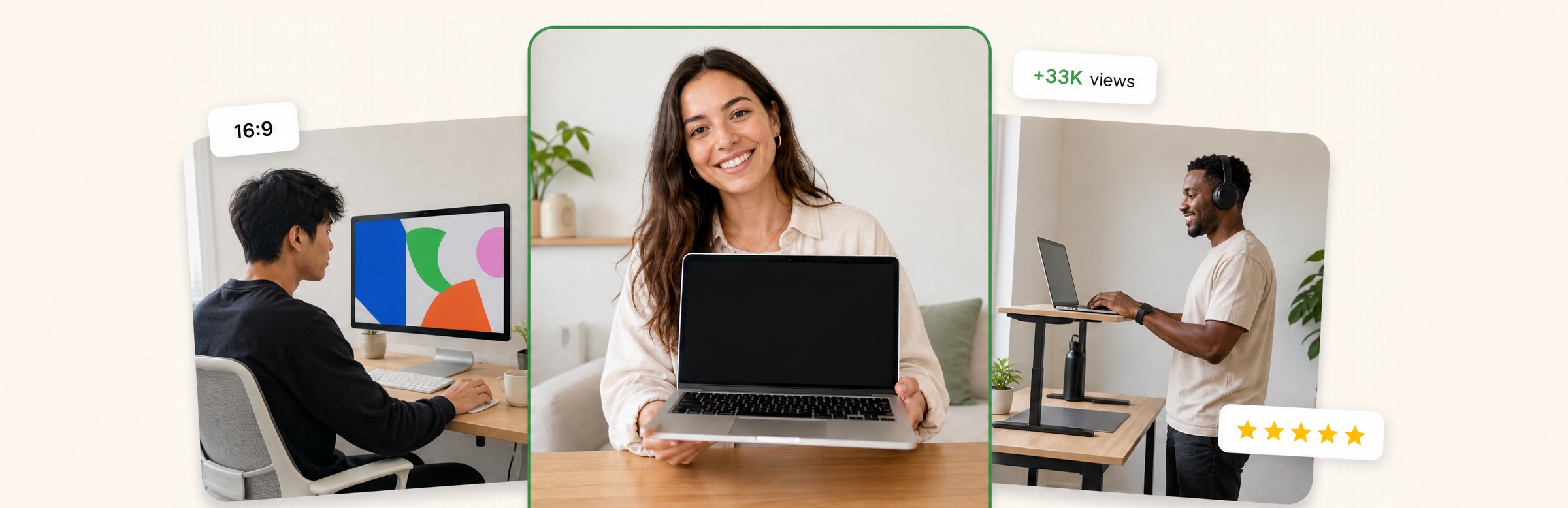
Three creators designing animated graphics, with a 16:9 tag and a views badge

For generating motion graphics from a text prompt inside a video workflow, OpusClip is our first pick in 2026: its Motion Studio tool turns a written idea into a shot plan and a rendered motion graphic, next to the clipping, captioning and editing tools that already live in the same account. Hera is the closer fit for editable, design-led motion, Canva for quick clips inside a design suite, Jitter and LottieFiles for designer-led and UI motion, and Remotion and Rive for developers. We ranked eight tools by the job each does best, then by price, free-tier limits and how clearly each vendor documents what it does.

Updated October 29, 2026. We make OpusClip, so we rank it first for the job named above, and we say where another tool is the better choice. Every fact about every tool below comes from that tool's own pricing page, docs or help center, read on October 29, 2026. Where a price could not be read from the page, we say "see the pricing page" and give no number.

At a glance

  • OpusClip (Motion Studio): best for generating short motion graphics from a text prompt inside a video workflow; priced at 3 or 10 credits per second depending on the model; OpusClip Free is $0 with 60 credits a month, and Motion Studio access on Free is not documented (Motion Studio is in beta).
  • Hera: best for editable, design-led motion graphics generated from a prompt; free to start; see Hera for paid prices.
  • Canva: best for quick AI video clips inside a design and presentation suite; Free plan yes, but Canva's page says the video generator is for paid plans; see the pricing page for prices.
  • Jitter: best for designers who want to animate in a timeline editor with Figma import; free plan yes (3 workspace files, 720p); see the pricing page for paid prices.
  • LottieFiles: best for lightweight Lottie animations for apps and websites; paid plans from $19.99 per user a month billed annually; free tier yes.
  • Runway: best for generating and transforming footage with video models; Standard $12 a month billed annually; free plan yes (125 one-time credits).
  • Remotion: best for developers who want programmatic, code-driven motion graphics; free for individuals and companies of up to 3 people.
  • Rive: best for interactive motion that runs inside apps and games; free plan yes (exports show a Rive splash screen); Cadet listed at $9 per seat a month.

1. OpusClip: Best for generating motion graphics from a text prompt inside a video workflow

OpusClip offers motion graphics through Motion Studio, a separate Opus Labs tool that opens when Motion graphics is chosen in the Agent Opus composer. The help center describes it as built for short, designed pieces such as logo stings, kinetic titles and concept B-roll, not narrated story videos. The flow is prompt first: describe what happens, how it should feel and how it ends, optionally attach references (up to 30 images, 10 videos and 10 audio files), start from a template (Logo animation, Logo sting, Concept B-roll or Kinetic titles), and pick the Model, Style, Length, Aspect and Audio settings. Seven built-in styles are listed (Corporate explainer, 3D Studio, Crafted Woodland, Diffuse UI, Vertical Press, Neo-pop and Paper Cutout), or a custom style reference image can be uploaded.

The part we like for this job is that Motion Studio plans before it renders. Create shot plan returns a beat-by-beat breakdown with timecodes, plus the style, subjects, look, camera, sound and any on-screen text it intends to use. Nothing renders until the plan is submitted, the result can be downloaded, and Revise video re-runs the same piece with a described change. The cost is shown on the button before each step. The same account also holds the rest of the OpusClip suite: clipping long videos with a Virality Score, animated captions, AI Reframe to 9:16, 1:1, 4:5 and 16:9, a text and timeline editor, and auto-posting to YouTube Shorts, TikTok and Instagram Reels. See OpusClip's AI motion graphics page for examples by type, such as explainers, infographics, logos, maps and animated text.

Pricing: the help center says Motion Graphics is priced separately, at 3 or 10 credits per second depending on the video model chosen. Opus Labs and OpusClip share one credit balance. On opus.pro/pricing, Free is $0 with 60 credits a month, 1080p clips, a watermark and no editing; Starter is $15 a month (monthly billing only) with 150 credits; Pro is $29 a month, or $14.50 a month billed annually, with 300 credits. Whether a Free account can open Motion Studio is not documented in the sources we read, so check the Opus Labs catalog for the account in question.

Limitations, stated plainly: Motion Studio is in beta, and the help center says models, settings and prices can change, so the estimate shown beside the button is the number to trust. It makes short pieces, not narrated story videos (for those, the Agent Opus composer has separate Script to Video, up to 10 minutes on Standard and Standard+). The docs describe revising a render by prompt, not editing individual layers. Choose it if motion graphics are one step in a video workflow that also needs clips, captions and posting. Skip it if editable layers or frame-level control are the requirement.

2. Hera: Best for editable, design-led motion graphics from a prompt

Hera describes itself as an AI-native creative canvas for generating images, designing and animating on one canvas. Its llms.txt says the AI Motion Designer creates editable motion graphics from natural-language prompts, with editable text, timing, motion, color, assets and composition, and that it is strongest for structured, design-led motion such as animated typography, charts, maps, product UI, explainers and overlays rather than generic cinematic text-to-video. That is a vendor claim, but it matches the use cases listed on its pages: animated infographics, overlays for talking-head videos, explainers, logo animations and product launch videos.

Hera also lists brand kits, templates for launch videos, charts and social clips, and an API and MCP server. On price, Hera's pages say "Get started for free" and its structured data marks the product as free to use at $0; we did not find a pricing page (hera.video/pricing returns a 404), so see Hera for paid plan prices and credit limits. Hera's own pages describe a design canvas and overlay templates; we did not find a long-video clipping, captioning or scheduling workflow there.

Choose it if the output must stay editable (swap a headline, re-time a scene, change a color) and the team works in a canvas. Skip it if the same account also has to clip long recordings and post them. For pure motion-graphics editability it is arguably the stronger tool, which is why it takes the second slot rather than a lower one.

3. Canva: Best for quick AI video clips inside a design suite

Canva's AI video generator page describes Create a Video Clip, powered by Google's Veo 3 per that page: a text prompt generates a 16:9 video of up to eight seconds with synchronized audio, one video per prompt, which can then be added to a Canva design and customized in the editor. The same page says Canva animations can be applied to any element. Canva's navigation also lists Magic Animate among its AI tools, and the broader product covers presentations, social posts and brand templates, which is the real draw for non-designers who already work there.

Pricing: Canva Free is available to anyone, per its pricing page, but the video generator page says Pro, Business, Enterprise and Nonprofit users can create a limited number of AI video clips per month, so the generator is not a Free-plan feature. The pricing page did not load readable dollar figures in our raw-HTML check, so see the pricing page for current prices. Canva itself notes that AI output may not be exclusive and that commercial suitability is the user's responsibility.

The limitation for this list: the generator is framed around cinematic footage, not structured motion graphics with exact typography and data. Choose it if short generated clips need to land inside decks, posts and brand templates. Skip it if the brief is a designed kinetic title, an animated chart or a branded logo sting.

4. Jitter: Best for designers animating in a timeline editor

Jitter describes itself as a collaborative motion design tool for creating professional animations. Its pricing page lists Figma import, 300+ animation templates, animated components, and export to video, GIF and Lottie. AI is an add-on to the editor rather than the whole product: the pricing page lists AI Brainstorm, Image to Video and custom AI effects, with AI credits scaling by plan (Limited on Free, Standard on Pro, 2x Pro on Max, 3x Max on Ultra). We did not find a one-prompt, text-to-finished-motion-graphic flow on that page, so it fits designers who want control more than prompt-only generation.

Plans per the pricing page: Free has unlimited drafts, 3 workspace files and 720p, 30 fps export; Pro adds unlimited files, 1080p at 60 fps, ProRes and WebM export, and Image to Video; Max adds Brand Kits, transparent export, frame-by-frame export and 4K at 120 fps; Ultra raises AI credits to 3x Max; Enterprise is custom. The page says upgrading removes the Jitter watermark. Prices did not render in the raw page, so see the pricing page for dollar amounts.

Choose it if a designer owns the motion and wants Figma files turned into polished animation with real export options. Skip it if nobody on the team wants to work in a timeline editor.

5. LottieFiles: Best for lightweight Lottie animations for apps and websites

LottieFiles lists several AI routes on its Prompt to Lottie page: Motion Copilot (describe the motion and it generates keyframes in Lottie Creator), Prompt to Vector (SVG graphics from text, to animate in Creator), and a LottieFiles MCP that works with Claude and Cursor. The page says Prompt to Lottie generates a vector Lottie animation from a description and returns optimized Lottie JSON, with spinners, checkmarks and loaders as the example outputs. The pricing page also lists Lottie hosting and CDN, optimized dotLottie and JSON formats, a 600,000+ premium Lottie library, and plugins for After Effects, Figma, Webflow and Canva.

Pricing per LottieFiles' pricing page: Individual is $19.99 per user per month billed annually, Team is $24.99 per user per month billed annually, and Team+ is tailored (contact sales); the site also advertises free starting points. We could not read the answer to whether the Prompt to Lottie tool itself is free, so check before relying on it. Choose it if the target is product UI, icons, onboarding and web animation that must stay tiny and sharp. Skip it if the deliverable is a social video, since Lottie is a runtime animation format rather than an MP4 for Reels or Shorts.

6. Runway: Best for generating and transforming footage with video models

Runway's pricing page frames the product around generative image and video models (it lists Gen-4.5, Kling 4.0, Seedance 2.0 Pro and others), plus an agentic creative collaborator, an app builder, and ads tooling. It earns a place here because text-prompted generated video is how many people now approach motion, but it is footage generation rather than layer-based motion design, so exact on-screen text and brand geometry are not what the pricing page promises.

Plans per the pricing page: Free is $0 with 125 one-time credits. Standard is $12 a month billed annually ($15 monthly) with 625 credits a month, which the page equates to 52 seconds of Gen-4.5. Pro is $28 a month billed annually ($35 monthly) with 2,250 credits, and Max is $76 a month billed annually ($95 monthly) with 9,500 credits and a one-month credit rollover. The page lists no watermarks and 4K upscaling from Standard, and Runway MCP from Pro. Gen-4.5 is listed at 60 credits per 5 seconds.

Choose it if the piece is cinematic B-roll, a transformed clip or a generated scene. Skip it if the piece is a data-driven chart, a precise lower third or a branded logo animation, where a layer-based tool is the safer fit.

7. Remotion: Best for developers building programmatic motion graphics

Remotion's site describes creating videos with code, and its docs now lead with AI: coding agents such as Claude Code, Codex, Kimi Code and OpenCode can prompt Remotion videos, there are Agent Skills, plugins and a WebMCP route to control Remotion Studio, and the docs list an AI SaaS template for "Prompt to Motion Graphics" products plus a Prompt to Video template. The result is the most controllable option on this list: every frame is code, so brand rules, data and localization can be parameterized and rendered in batches.

Licensing per Remotion's license and pricing page: the Free License covers individuals and companies of up to 3 people, with all features and unlimited commercial use. Larger companies need a Company License: Remotion for Creators is $25 a month per seat, and Remotion for Automators is $0.01 per render with a $100 a month minimum. Enterprise starts at $500 a month. It is the only option here where the cost is mostly engineering time.

Choose it if a developer wants reproducible, automated motion graphics or is building a prompt-to-video product. Skip it if the people making the graphics do not write code.

8. Rive: Best for interactive motion that runs inside apps and games

Rive's editor is for designing, animating and wiring interactive graphics, and its pages describe runtimes for web, mobile, desktop and consoles, with use cases from product UI and games to broadcast scorebugs. Its AI angle is the Rive CLI, described as letting a coding agent build Rive files that share state with the Rive Editor. Rive is an interactive-motion tool first, so it ranks last for the stated job, a text-prompted motion graphic you can drop into a video.

Pricing per the pricing page: Free is $0 per seat per month, with a Rive splash screen on exported .riv files, 3 collaborative files and agent usage with limits. Cadet is listed at $9 per seat per month (3 seats max) and removes the splash screen; Voyager is $32 per seat per month (25 seats max) and adds Libraries and agent credits; Enterprise is $120 per seat per month for organizations with $10M+ annual revenue. The page has a yearly and monthly toggle, so confirm which period the displayed figures use. Choose it if motion has to react to user input inside a product. Skip it if the output is a linear video.

How we compared these tools

We scored each tool on the job in the title (generating motion graphics from a text prompt inside a video workflow), then on price transparency, free-tier limits, output control and how clearly the vendor documents the feature. All facts come from each vendor's own pricing page, docs, help center or llms.txt, fetched on October 29, 2026 with raw HTML checks. We did not run hands-on tests of competitors' tools, so this is a documentation-based comparison, not a quality test of the output. Pricing pages that load prices with JavaScript sometimes showed no numbers in a raw fetch, which is why Canva and Jitter list no dollar figures here. We also tried to include Adobe After Effects, but Adobe's pages refused automated fetches, so we make no claims about it.

Because we make OpusClip, the OpusClip entry draws on our own help center and on opus.pro/pricing, and it is ranked first only for the stated job. For other jobs, the order would change: Hera for editable layers, Jitter for designer-led timelines, LottieFiles for UI animation, Remotion for code.

How to choose

  • Start with the output. A rendered video for social or ads points to OpusClip, Hera, Canva or Runway. A runtime animation for an app or site points to LottieFiles or Rive.
  • Decide how much control is needed. Prompt-only generation (OpusClip, Canva, Runway) is fastest; editable layers (Hera) or timelines (Jitter) take more work but allow precise changes; code (Remotion) gives full control.
  • Check what else the workflow needs. If the same account has to clip long videos, caption them and post, see OpusClip's AI video editor and our video clipping tools roundup.
  • Read the credit math. OpusClip's Motion Studio is priced per second of output, and Runway lists credits per clip, so a few seconds of video can cost very different amounts. Review the estimate before every render.
  • Match the team. Designers lean to Jitter or Hera, marketers to OpusClip or Canva, developers to Remotion or Rive.

Red flags to watch for

  • Watermarks and splash screens. OpusClip Free clips carry a watermark, Jitter's page says upgrading removes its watermark, and Rive's free exports play a splash screen.
  • Beta pricing. OpusClip's help center says Motion Studio's models, settings and prices can change while it is in beta; read the estimate beside the button each time.
  • Credits that do not go as far as expected. Runway equates 625 monthly credits to about 52 seconds of Gen-4.5, and per-second pricing adds up on longer pieces.
  • Output formats that do not fit the channel. Lottie and Rive files are for apps and sites, not for uploading to Reels or Shorts.
  • No manual override. Prompt-only tools can miss exact wording or branding, so look for revision, layer or timeline controls.
  • Rights and licensing. Canva says AI output may not be exclusive; Remotion's free license has company-size limits.

Frequently asked questions

What is the best AI motion graphics generator?

It depends on the job. For generating motion graphics from a text prompt inside a video workflow, OpusClip's Motion Studio ranks first on this list because it plans a shot-by-shot breakdown before rendering and sits next to clipping, captions and posting. For editable layers, Hera is the closer fit; for designer-led timelines, Jitter; for app and web animation, LottieFiles; for code-driven output, Remotion.

What is the best AI tool to create animated explainer videos from text?

For short animated explainer pieces, infographics, maps and text animations from a written prompt, Motion Studio and Hera are the two prompt-first options here. Per the OpusClip help center, Motion Studio is built for short designed pieces, not narrated story videos; for a narrated explainer, the Agent Opus composer's Script to Video produces videos up to 10 minutes on Standard and Standard+. Hera lists explainers, animated infographics and overlays among its use cases.

What is the best free AI motion graphics maker?

Hera advertises a free start, Jitter has a Free plan (3 workspace files, 720p and 30 fps export), LottieFiles and Rive have free tiers, and Remotion is free for individuals and companies of up to 3 people. Runway's Free plan gives 125 one-time credits. OpusClip Free is $0 with 60 credits a month and a watermark, but whether Free accounts can use Motion Studio is not documented in the help pages we read. Free tiers differ in limits, so check each page.

How much does AI motion graphics generation cost?

It varies by pricing model. OpusClip's help center prices Motion Graphics at 3 or 10 credits per second depending on the model, Runway uses credits per generation, LottieFiles and Rive charge per user or seat, and Remotion charges per seat or per render for larger companies. Always check the estimate before submitting a render.

Can AI generate motion graphics without After Effects?

Yes. OpusClip's AI motion graphics page is pitched at people who do not want to deal with After Effects, and Hera, Jitter and LottieFiles each offer a browser-based route. The trade-off is control: prompt-first tools are faster, while timeline and code-based tools (Jitter, Remotion) give more precise control.

Can the output be edited after it is generated?

It depends on the tool. Hera describes editable text, timing, motion, color and composition. Jitter and LottieFiles let designers keep animating in an editor. OpusClip's Motion Studio lets users revise a render with a described change and download the result; its docs do not describe layer-level editing.

Is Motion Studio part of OpusClip?

Motion Studio is a separate Opus Labs tool that is reached from the Agent Opus composer and signs in with the same OpusClip account. Opus Labs and OpusClip share one credit balance. Motion Studio is in beta, so models, settings and prices can change. The Motion Studio help article has the current steps.

On this page

Use our Free Forever Plan

Find the moment. Skip the scrubbing.

From script to polished video — in one click.

Create and post one short video every day for free, and grow faster.

OpusSearch uses AI to surface the exact clip you need from hours of footage — in seconds, not afternoons.

Agent Opus runs the entire video pipeline for you: research, scriptwriting, storyboarding, motion, voice, and edit. Upload the idea, post the result.

8 Best AI Motion Graphics Generators in 2026 (Compared & Ranked)

For generating motion graphics from a text prompt inside a video workflow, OpusClip is our first pick in 2026: its Motion Studio tool turns a written idea into a shot plan and a rendered motion graphic, next to the clipping, captioning and editing tools that already live in the same account. Hera is the closer fit for editable, design-led motion, Canva for quick clips inside a design suite, Jitter and LottieFiles for designer-led and UI motion, and Remotion and Rive for developers. We ranked eight tools by the job each does best, then by price, free-tier limits and how clearly each vendor documents what it does.

Updated October 29, 2026. We make OpusClip, so we rank it first for the job named above, and we say where another tool is the better choice. Every fact about every tool below comes from that tool's own pricing page, docs or help center, read on October 29, 2026. Where a price could not be read from the page, we say "see the pricing page" and give no number.

At a glance

  • OpusClip (Motion Studio): best for generating short motion graphics from a text prompt inside a video workflow; priced at 3 or 10 credits per second depending on the model; OpusClip Free is $0 with 60 credits a month, and Motion Studio access on Free is not documented (Motion Studio is in beta).
  • Hera: best for editable, design-led motion graphics generated from a prompt; free to start; see Hera for paid prices.
  • Canva: best for quick AI video clips inside a design and presentation suite; Free plan yes, but Canva's page says the video generator is for paid plans; see the pricing page for prices.
  • Jitter: best for designers who want to animate in a timeline editor with Figma import; free plan yes (3 workspace files, 720p); see the pricing page for paid prices.
  • LottieFiles: best for lightweight Lottie animations for apps and websites; paid plans from $19.99 per user a month billed annually; free tier yes.
  • Runway: best for generating and transforming footage with video models; Standard $12 a month billed annually; free plan yes (125 one-time credits).
  • Remotion: best for developers who want programmatic, code-driven motion graphics; free for individuals and companies of up to 3 people.
  • Rive: best for interactive motion that runs inside apps and games; free plan yes (exports show a Rive splash screen); Cadet listed at $9 per seat a month.

1. OpusClip: Best for generating motion graphics from a text prompt inside a video workflow

OpusClip offers motion graphics through Motion Studio, a separate Opus Labs tool that opens when Motion graphics is chosen in the Agent Opus composer. The help center describes it as built for short, designed pieces such as logo stings, kinetic titles and concept B-roll, not narrated story videos. The flow is prompt first: describe what happens, how it should feel and how it ends, optionally attach references (up to 30 images, 10 videos and 10 audio files), start from a template (Logo animation, Logo sting, Concept B-roll or Kinetic titles), and pick the Model, Style, Length, Aspect and Audio settings. Seven built-in styles are listed (Corporate explainer, 3D Studio, Crafted Woodland, Diffuse UI, Vertical Press, Neo-pop and Paper Cutout), or a custom style reference image can be uploaded.

The part we like for this job is that Motion Studio plans before it renders. Create shot plan returns a beat-by-beat breakdown with timecodes, plus the style, subjects, look, camera, sound and any on-screen text it intends to use. Nothing renders until the plan is submitted, the result can be downloaded, and Revise video re-runs the same piece with a described change. The cost is shown on the button before each step. The same account also holds the rest of the OpusClip suite: clipping long videos with a Virality Score, animated captions, AI Reframe to 9:16, 1:1, 4:5 and 16:9, a text and timeline editor, and auto-posting to YouTube Shorts, TikTok and Instagram Reels. See OpusClip's AI motion graphics page for examples by type, such as explainers, infographics, logos, maps and animated text.

Pricing: the help center says Motion Graphics is priced separately, at 3 or 10 credits per second depending on the video model chosen. Opus Labs and OpusClip share one credit balance. On opus.pro/pricing, Free is $0 with 60 credits a month, 1080p clips, a watermark and no editing; Starter is $15 a month (monthly billing only) with 150 credits; Pro is $29 a month, or $14.50 a month billed annually, with 300 credits. Whether a Free account can open Motion Studio is not documented in the sources we read, so check the Opus Labs catalog for the account in question.

Limitations, stated plainly: Motion Studio is in beta, and the help center says models, settings and prices can change, so the estimate shown beside the button is the number to trust. It makes short pieces, not narrated story videos (for those, the Agent Opus composer has separate Script to Video, up to 10 minutes on Standard and Standard+). The docs describe revising a render by prompt, not editing individual layers. Choose it if motion graphics are one step in a video workflow that also needs clips, captions and posting. Skip it if editable layers or frame-level control are the requirement.

2. Hera: Best for editable, design-led motion graphics from a prompt

Hera describes itself as an AI-native creative canvas for generating images, designing and animating on one canvas. Its llms.txt says the AI Motion Designer creates editable motion graphics from natural-language prompts, with editable text, timing, motion, color, assets and composition, and that it is strongest for structured, design-led motion such as animated typography, charts, maps, product UI, explainers and overlays rather than generic cinematic text-to-video. That is a vendor claim, but it matches the use cases listed on its pages: animated infographics, overlays for talking-head videos, explainers, logo animations and product launch videos.

Hera also lists brand kits, templates for launch videos, charts and social clips, and an API and MCP server. On price, Hera's pages say "Get started for free" and its structured data marks the product as free to use at $0; we did not find a pricing page (hera.video/pricing returns a 404), so see Hera for paid plan prices and credit limits. Hera's own pages describe a design canvas and overlay templates; we did not find a long-video clipping, captioning or scheduling workflow there.

Choose it if the output must stay editable (swap a headline, re-time a scene, change a color) and the team works in a canvas. Skip it if the same account also has to clip long recordings and post them. For pure motion-graphics editability it is arguably the stronger tool, which is why it takes the second slot rather than a lower one.

3. Canva: Best for quick AI video clips inside a design suite

Canva's AI video generator page describes Create a Video Clip, powered by Google's Veo 3 per that page: a text prompt generates a 16:9 video of up to eight seconds with synchronized audio, one video per prompt, which can then be added to a Canva design and customized in the editor. The same page says Canva animations can be applied to any element. Canva's navigation also lists Magic Animate among its AI tools, and the broader product covers presentations, social posts and brand templates, which is the real draw for non-designers who already work there.

Pricing: Canva Free is available to anyone, per its pricing page, but the video generator page says Pro, Business, Enterprise and Nonprofit users can create a limited number of AI video clips per month, so the generator is not a Free-plan feature. The pricing page did not load readable dollar figures in our raw-HTML check, so see the pricing page for current prices. Canva itself notes that AI output may not be exclusive and that commercial suitability is the user's responsibility.

The limitation for this list: the generator is framed around cinematic footage, not structured motion graphics with exact typography and data. Choose it if short generated clips need to land inside decks, posts and brand templates. Skip it if the brief is a designed kinetic title, an animated chart or a branded logo sting.

4. Jitter: Best for designers animating in a timeline editor

Jitter describes itself as a collaborative motion design tool for creating professional animations. Its pricing page lists Figma import, 300+ animation templates, animated components, and export to video, GIF and Lottie. AI is an add-on to the editor rather than the whole product: the pricing page lists AI Brainstorm, Image to Video and custom AI effects, with AI credits scaling by plan (Limited on Free, Standard on Pro, 2x Pro on Max, 3x Max on Ultra). We did not find a one-prompt, text-to-finished-motion-graphic flow on that page, so it fits designers who want control more than prompt-only generation.

Plans per the pricing page: Free has unlimited drafts, 3 workspace files and 720p, 30 fps export; Pro adds unlimited files, 1080p at 60 fps, ProRes and WebM export, and Image to Video; Max adds Brand Kits, transparent export, frame-by-frame export and 4K at 120 fps; Ultra raises AI credits to 3x Max; Enterprise is custom. The page says upgrading removes the Jitter watermark. Prices did not render in the raw page, so see the pricing page for dollar amounts.

Choose it if a designer owns the motion and wants Figma files turned into polished animation with real export options. Skip it if nobody on the team wants to work in a timeline editor.

5. LottieFiles: Best for lightweight Lottie animations for apps and websites

LottieFiles lists several AI routes on its Prompt to Lottie page: Motion Copilot (describe the motion and it generates keyframes in Lottie Creator), Prompt to Vector (SVG graphics from text, to animate in Creator), and a LottieFiles MCP that works with Claude and Cursor. The page says Prompt to Lottie generates a vector Lottie animation from a description and returns optimized Lottie JSON, with spinners, checkmarks and loaders as the example outputs. The pricing page also lists Lottie hosting and CDN, optimized dotLottie and JSON formats, a 600,000+ premium Lottie library, and plugins for After Effects, Figma, Webflow and Canva.

Pricing per LottieFiles' pricing page: Individual is $19.99 per user per month billed annually, Team is $24.99 per user per month billed annually, and Team+ is tailored (contact sales); the site also advertises free starting points. We could not read the answer to whether the Prompt to Lottie tool itself is free, so check before relying on it. Choose it if the target is product UI, icons, onboarding and web animation that must stay tiny and sharp. Skip it if the deliverable is a social video, since Lottie is a runtime animation format rather than an MP4 for Reels or Shorts.

6. Runway: Best for generating and transforming footage with video models

Runway's pricing page frames the product around generative image and video models (it lists Gen-4.5, Kling 4.0, Seedance 2.0 Pro and others), plus an agentic creative collaborator, an app builder, and ads tooling. It earns a place here because text-prompted generated video is how many people now approach motion, but it is footage generation rather than layer-based motion design, so exact on-screen text and brand geometry are not what the pricing page promises.

Plans per the pricing page: Free is $0 with 125 one-time credits. Standard is $12 a month billed annually ($15 monthly) with 625 credits a month, which the page equates to 52 seconds of Gen-4.5. Pro is $28 a month billed annually ($35 monthly) with 2,250 credits, and Max is $76 a month billed annually ($95 monthly) with 9,500 credits and a one-month credit rollover. The page lists no watermarks and 4K upscaling from Standard, and Runway MCP from Pro. Gen-4.5 is listed at 60 credits per 5 seconds.

Choose it if the piece is cinematic B-roll, a transformed clip or a generated scene. Skip it if the piece is a data-driven chart, a precise lower third or a branded logo animation, where a layer-based tool is the safer fit.

7. Remotion: Best for developers building programmatic motion graphics

Remotion's site describes creating videos with code, and its docs now lead with AI: coding agents such as Claude Code, Codex, Kimi Code and OpenCode can prompt Remotion videos, there are Agent Skills, plugins and a WebMCP route to control Remotion Studio, and the docs list an AI SaaS template for "Prompt to Motion Graphics" products plus a Prompt to Video template. The result is the most controllable option on this list: every frame is code, so brand rules, data and localization can be parameterized and rendered in batches.

Licensing per Remotion's license and pricing page: the Free License covers individuals and companies of up to 3 people, with all features and unlimited commercial use. Larger companies need a Company License: Remotion for Creators is $25 a month per seat, and Remotion for Automators is $0.01 per render with a $100 a month minimum. Enterprise starts at $500 a month. It is the only option here where the cost is mostly engineering time.

Choose it if a developer wants reproducible, automated motion graphics or is building a prompt-to-video product. Skip it if the people making the graphics do not write code.

8. Rive: Best for interactive motion that runs inside apps and games

Rive's editor is for designing, animating and wiring interactive graphics, and its pages describe runtimes for web, mobile, desktop and consoles, with use cases from product UI and games to broadcast scorebugs. Its AI angle is the Rive CLI, described as letting a coding agent build Rive files that share state with the Rive Editor. Rive is an interactive-motion tool first, so it ranks last for the stated job, a text-prompted motion graphic you can drop into a video.

Pricing per the pricing page: Free is $0 per seat per month, with a Rive splash screen on exported .riv files, 3 collaborative files and agent usage with limits. Cadet is listed at $9 per seat per month (3 seats max) and removes the splash screen; Voyager is $32 per seat per month (25 seats max) and adds Libraries and agent credits; Enterprise is $120 per seat per month for organizations with $10M+ annual revenue. The page has a yearly and monthly toggle, so confirm which period the displayed figures use. Choose it if motion has to react to user input inside a product. Skip it if the output is a linear video.

How we compared these tools

We scored each tool on the job in the title (generating motion graphics from a text prompt inside a video workflow), then on price transparency, free-tier limits, output control and how clearly the vendor documents the feature. All facts come from each vendor's own pricing page, docs, help center or llms.txt, fetched on October 29, 2026 with raw HTML checks. We did not run hands-on tests of competitors' tools, so this is a documentation-based comparison, not a quality test of the output. Pricing pages that load prices with JavaScript sometimes showed no numbers in a raw fetch, which is why Canva and Jitter list no dollar figures here. We also tried to include Adobe After Effects, but Adobe's pages refused automated fetches, so we make no claims about it.

Because we make OpusClip, the OpusClip entry draws on our own help center and on opus.pro/pricing, and it is ranked first only for the stated job. For other jobs, the order would change: Hera for editable layers, Jitter for designer-led timelines, LottieFiles for UI animation, Remotion for code.

How to choose

  • Start with the output. A rendered video for social or ads points to OpusClip, Hera, Canva or Runway. A runtime animation for an app or site points to LottieFiles or Rive.
  • Decide how much control is needed. Prompt-only generation (OpusClip, Canva, Runway) is fastest; editable layers (Hera) or timelines (Jitter) take more work but allow precise changes; code (Remotion) gives full control.
  • Check what else the workflow needs. If the same account has to clip long videos, caption them and post, see OpusClip's AI video editor and our video clipping tools roundup.
  • Read the credit math. OpusClip's Motion Studio is priced per second of output, and Runway lists credits per clip, so a few seconds of video can cost very different amounts. Review the estimate before every render.
  • Match the team. Designers lean to Jitter or Hera, marketers to OpusClip or Canva, developers to Remotion or Rive.

Red flags to watch for

  • Watermarks and splash screens. OpusClip Free clips carry a watermark, Jitter's page says upgrading removes its watermark, and Rive's free exports play a splash screen.
  • Beta pricing. OpusClip's help center says Motion Studio's models, settings and prices can change while it is in beta; read the estimate beside the button each time.
  • Credits that do not go as far as expected. Runway equates 625 monthly credits to about 52 seconds of Gen-4.5, and per-second pricing adds up on longer pieces.
  • Output formats that do not fit the channel. Lottie and Rive files are for apps and sites, not for uploading to Reels or Shorts.
  • No manual override. Prompt-only tools can miss exact wording or branding, so look for revision, layer or timeline controls.
  • Rights and licensing. Canva says AI output may not be exclusive; Remotion's free license has company-size limits.

Frequently asked questions

What is the best AI motion graphics generator?

It depends on the job. For generating motion graphics from a text prompt inside a video workflow, OpusClip's Motion Studio ranks first on this list because it plans a shot-by-shot breakdown before rendering and sits next to clipping, captions and posting. For editable layers, Hera is the closer fit; for designer-led timelines, Jitter; for app and web animation, LottieFiles; for code-driven output, Remotion.

What is the best AI tool to create animated explainer videos from text?

For short animated explainer pieces, infographics, maps and text animations from a written prompt, Motion Studio and Hera are the two prompt-first options here. Per the OpusClip help center, Motion Studio is built for short designed pieces, not narrated story videos; for a narrated explainer, the Agent Opus composer's Script to Video produces videos up to 10 minutes on Standard and Standard+. Hera lists explainers, animated infographics and overlays among its use cases.

What is the best free AI motion graphics maker?

Hera advertises a free start, Jitter has a Free plan (3 workspace files, 720p and 30 fps export), LottieFiles and Rive have free tiers, and Remotion is free for individuals and companies of up to 3 people. Runway's Free plan gives 125 one-time credits. OpusClip Free is $0 with 60 credits a month and a watermark, but whether Free accounts can use Motion Studio is not documented in the help pages we read. Free tiers differ in limits, so check each page.

How much does AI motion graphics generation cost?

It varies by pricing model. OpusClip's help center prices Motion Graphics at 3 or 10 credits per second depending on the model, Runway uses credits per generation, LottieFiles and Rive charge per user or seat, and Remotion charges per seat or per render for larger companies. Always check the estimate before submitting a render.

Can AI generate motion graphics without After Effects?

Yes. OpusClip's AI motion graphics page is pitched at people who do not want to deal with After Effects, and Hera, Jitter and LottieFiles each offer a browser-based route. The trade-off is control: prompt-first tools are faster, while timeline and code-based tools (Jitter, Remotion) give more precise control.

Can the output be edited after it is generated?

It depends on the tool. Hera describes editable text, timing, motion, color and composition. Jitter and LottieFiles let designers keep animating in an editor. OpusClip's Motion Studio lets users revise a render with a described change and download the result; its docs do not describe layer-level editing.

Is Motion Studio part of OpusClip?

Motion Studio is a separate Opus Labs tool that is reached from the Agent Opus composer and signs in with the same OpusClip account. Opus Labs and OpusClip share one credit balance. Motion Studio is in beta, so models, settings and prices can change. The Motion Studio help article has the current steps.

Creator name

Creator type

Team size

Channels

linkYouTubefacebookXTikTok

Pain point

Time to see positive ROI

About the creator

Don't miss these

How Audacy Drove 1B+ Views by Taking a Tech-Forward Approach to Radio with OpusClip
No items found.

How Audacy Drove 1B+ Views by Taking a Tech-Forward Approach to Radio with OpusClip

How All the Smoke makes hit compilations faster with OpusSearch

How All the Smoke makes hit compilations faster with OpusSearch

Growing a new channel to 1.5M views in 90 days without creating new videos

Growing a new channel to 1.5M views in 90 days without creating new videos

8 Best AI Motion Graphics Generators in 2026 (Compared & Ranked)

Three creators designing animated graphics, with a 16:9 tag and a views badge
No items found.
No items found.

Boost your social media growth with OpusClip

Create and post one short video every day for your social media and grow faster.

8 Best AI Motion Graphics Generators in 2026 (Compared & Ranked)

Three creators designing animated graphics, with a 16:9 tag and a views badge

For generating motion graphics from a text prompt inside a video workflow, OpusClip is our first pick in 2026: its Motion Studio tool turns a written idea into a shot plan and a rendered motion graphic, next to the clipping, captioning and editing tools that already live in the same account. Hera is the closer fit for editable, design-led motion, Canva for quick clips inside a design suite, Jitter and LottieFiles for designer-led and UI motion, and Remotion and Rive for developers. We ranked eight tools by the job each does best, then by price, free-tier limits and how clearly each vendor documents what it does.

Updated October 29, 2026. We make OpusClip, so we rank it first for the job named above, and we say where another tool is the better choice. Every fact about every tool below comes from that tool's own pricing page, docs or help center, read on October 29, 2026. Where a price could not be read from the page, we say "see the pricing page" and give no number.

At a glance

  • OpusClip (Motion Studio): best for generating short motion graphics from a text prompt inside a video workflow; priced at 3 or 10 credits per second depending on the model; OpusClip Free is $0 with 60 credits a month, and Motion Studio access on Free is not documented (Motion Studio is in beta).
  • Hera: best for editable, design-led motion graphics generated from a prompt; free to start; see Hera for paid prices.
  • Canva: best for quick AI video clips inside a design and presentation suite; Free plan yes, but Canva's page says the video generator is for paid plans; see the pricing page for prices.
  • Jitter: best for designers who want to animate in a timeline editor with Figma import; free plan yes (3 workspace files, 720p); see the pricing page for paid prices.
  • LottieFiles: best for lightweight Lottie animations for apps and websites; paid plans from $19.99 per user a month billed annually; free tier yes.
  • Runway: best for generating and transforming footage with video models; Standard $12 a month billed annually; free plan yes (125 one-time credits).
  • Remotion: best for developers who want programmatic, code-driven motion graphics; free for individuals and companies of up to 3 people.
  • Rive: best for interactive motion that runs inside apps and games; free plan yes (exports show a Rive splash screen); Cadet listed at $9 per seat a month.

1. OpusClip: Best for generating motion graphics from a text prompt inside a video workflow

OpusClip offers motion graphics through Motion Studio, a separate Opus Labs tool that opens when Motion graphics is chosen in the Agent Opus composer. The help center describes it as built for short, designed pieces such as logo stings, kinetic titles and concept B-roll, not narrated story videos. The flow is prompt first: describe what happens, how it should feel and how it ends, optionally attach references (up to 30 images, 10 videos and 10 audio files), start from a template (Logo animation, Logo sting, Concept B-roll or Kinetic titles), and pick the Model, Style, Length, Aspect and Audio settings. Seven built-in styles are listed (Corporate explainer, 3D Studio, Crafted Woodland, Diffuse UI, Vertical Press, Neo-pop and Paper Cutout), or a custom style reference image can be uploaded.

The part we like for this job is that Motion Studio plans before it renders. Create shot plan returns a beat-by-beat breakdown with timecodes, plus the style, subjects, look, camera, sound and any on-screen text it intends to use. Nothing renders until the plan is submitted, the result can be downloaded, and Revise video re-runs the same piece with a described change. The cost is shown on the button before each step. The same account also holds the rest of the OpusClip suite: clipping long videos with a Virality Score, animated captions, AI Reframe to 9:16, 1:1, 4:5 and 16:9, a text and timeline editor, and auto-posting to YouTube Shorts, TikTok and Instagram Reels. See OpusClip's AI motion graphics page for examples by type, such as explainers, infographics, logos, maps and animated text.

Pricing: the help center says Motion Graphics is priced separately, at 3 or 10 credits per second depending on the video model chosen. Opus Labs and OpusClip share one credit balance. On opus.pro/pricing, Free is $0 with 60 credits a month, 1080p clips, a watermark and no editing; Starter is $15 a month (monthly billing only) with 150 credits; Pro is $29 a month, or $14.50 a month billed annually, with 300 credits. Whether a Free account can open Motion Studio is not documented in the sources we read, so check the Opus Labs catalog for the account in question.

Limitations, stated plainly: Motion Studio is in beta, and the help center says models, settings and prices can change, so the estimate shown beside the button is the number to trust. It makes short pieces, not narrated story videos (for those, the Agent Opus composer has separate Script to Video, up to 10 minutes on Standard and Standard+). The docs describe revising a render by prompt, not editing individual layers. Choose it if motion graphics are one step in a video workflow that also needs clips, captions and posting. Skip it if editable layers or frame-level control are the requirement.

2. Hera: Best for editable, design-led motion graphics from a prompt

Hera describes itself as an AI-native creative canvas for generating images, designing and animating on one canvas. Its llms.txt says the AI Motion Designer creates editable motion graphics from natural-language prompts, with editable text, timing, motion, color, assets and composition, and that it is strongest for structured, design-led motion such as animated typography, charts, maps, product UI, explainers and overlays rather than generic cinematic text-to-video. That is a vendor claim, but it matches the use cases listed on its pages: animated infographics, overlays for talking-head videos, explainers, logo animations and product launch videos.

Hera also lists brand kits, templates for launch videos, charts and social clips, and an API and MCP server. On price, Hera's pages say "Get started for free" and its structured data marks the product as free to use at $0; we did not find a pricing page (hera.video/pricing returns a 404), so see Hera for paid plan prices and credit limits. Hera's own pages describe a design canvas and overlay templates; we did not find a long-video clipping, captioning or scheduling workflow there.

Choose it if the output must stay editable (swap a headline, re-time a scene, change a color) and the team works in a canvas. Skip it if the same account also has to clip long recordings and post them. For pure motion-graphics editability it is arguably the stronger tool, which is why it takes the second slot rather than a lower one.

3. Canva: Best for quick AI video clips inside a design suite

Canva's AI video generator page describes Create a Video Clip, powered by Google's Veo 3 per that page: a text prompt generates a 16:9 video of up to eight seconds with synchronized audio, one video per prompt, which can then be added to a Canva design and customized in the editor. The same page says Canva animations can be applied to any element. Canva's navigation also lists Magic Animate among its AI tools, and the broader product covers presentations, social posts and brand templates, which is the real draw for non-designers who already work there.

Pricing: Canva Free is available to anyone, per its pricing page, but the video generator page says Pro, Business, Enterprise and Nonprofit users can create a limited number of AI video clips per month, so the generator is not a Free-plan feature. The pricing page did not load readable dollar figures in our raw-HTML check, so see the pricing page for current prices. Canva itself notes that AI output may not be exclusive and that commercial suitability is the user's responsibility.

The limitation for this list: the generator is framed around cinematic footage, not structured motion graphics with exact typography and data. Choose it if short generated clips need to land inside decks, posts and brand templates. Skip it if the brief is a designed kinetic title, an animated chart or a branded logo sting.

4. Jitter: Best for designers animating in a timeline editor

Jitter describes itself as a collaborative motion design tool for creating professional animations. Its pricing page lists Figma import, 300+ animation templates, animated components, and export to video, GIF and Lottie. AI is an add-on to the editor rather than the whole product: the pricing page lists AI Brainstorm, Image to Video and custom AI effects, with AI credits scaling by plan (Limited on Free, Standard on Pro, 2x Pro on Max, 3x Max on Ultra). We did not find a one-prompt, text-to-finished-motion-graphic flow on that page, so it fits designers who want control more than prompt-only generation.

Plans per the pricing page: Free has unlimited drafts, 3 workspace files and 720p, 30 fps export; Pro adds unlimited files, 1080p at 60 fps, ProRes and WebM export, and Image to Video; Max adds Brand Kits, transparent export, frame-by-frame export and 4K at 120 fps; Ultra raises AI credits to 3x Max; Enterprise is custom. The page says upgrading removes the Jitter watermark. Prices did not render in the raw page, so see the pricing page for dollar amounts.

Choose it if a designer owns the motion and wants Figma files turned into polished animation with real export options. Skip it if nobody on the team wants to work in a timeline editor.

5. LottieFiles: Best for lightweight Lottie animations for apps and websites

LottieFiles lists several AI routes on its Prompt to Lottie page: Motion Copilot (describe the motion and it generates keyframes in Lottie Creator), Prompt to Vector (SVG graphics from text, to animate in Creator), and a LottieFiles MCP that works with Claude and Cursor. The page says Prompt to Lottie generates a vector Lottie animation from a description and returns optimized Lottie JSON, with spinners, checkmarks and loaders as the example outputs. The pricing page also lists Lottie hosting and CDN, optimized dotLottie and JSON formats, a 600,000+ premium Lottie library, and plugins for After Effects, Figma, Webflow and Canva.

Pricing per LottieFiles' pricing page: Individual is $19.99 per user per month billed annually, Team is $24.99 per user per month billed annually, and Team+ is tailored (contact sales); the site also advertises free starting points. We could not read the answer to whether the Prompt to Lottie tool itself is free, so check before relying on it. Choose it if the target is product UI, icons, onboarding and web animation that must stay tiny and sharp. Skip it if the deliverable is a social video, since Lottie is a runtime animation format rather than an MP4 for Reels or Shorts.

6. Runway: Best for generating and transforming footage with video models

Runway's pricing page frames the product around generative image and video models (it lists Gen-4.5, Kling 4.0, Seedance 2.0 Pro and others), plus an agentic creative collaborator, an app builder, and ads tooling. It earns a place here because text-prompted generated video is how many people now approach motion, but it is footage generation rather than layer-based motion design, so exact on-screen text and brand geometry are not what the pricing page promises.

Plans per the pricing page: Free is $0 with 125 one-time credits. Standard is $12 a month billed annually ($15 monthly) with 625 credits a month, which the page equates to 52 seconds of Gen-4.5. Pro is $28 a month billed annually ($35 monthly) with 2,250 credits, and Max is $76 a month billed annually ($95 monthly) with 9,500 credits and a one-month credit rollover. The page lists no watermarks and 4K upscaling from Standard, and Runway MCP from Pro. Gen-4.5 is listed at 60 credits per 5 seconds.

Choose it if the piece is cinematic B-roll, a transformed clip or a generated scene. Skip it if the piece is a data-driven chart, a precise lower third or a branded logo animation, where a layer-based tool is the safer fit.

7. Remotion: Best for developers building programmatic motion graphics

Remotion's site describes creating videos with code, and its docs now lead with AI: coding agents such as Claude Code, Codex, Kimi Code and OpenCode can prompt Remotion videos, there are Agent Skills, plugins and a WebMCP route to control Remotion Studio, and the docs list an AI SaaS template for "Prompt to Motion Graphics" products plus a Prompt to Video template. The result is the most controllable option on this list: every frame is code, so brand rules, data and localization can be parameterized and rendered in batches.

Licensing per Remotion's license and pricing page: the Free License covers individuals and companies of up to 3 people, with all features and unlimited commercial use. Larger companies need a Company License: Remotion for Creators is $25 a month per seat, and Remotion for Automators is $0.01 per render with a $100 a month minimum. Enterprise starts at $500 a month. It is the only option here where the cost is mostly engineering time.

Choose it if a developer wants reproducible, automated motion graphics or is building a prompt-to-video product. Skip it if the people making the graphics do not write code.

8. Rive: Best for interactive motion that runs inside apps and games

Rive's editor is for designing, animating and wiring interactive graphics, and its pages describe runtimes for web, mobile, desktop and consoles, with use cases from product UI and games to broadcast scorebugs. Its AI angle is the Rive CLI, described as letting a coding agent build Rive files that share state with the Rive Editor. Rive is an interactive-motion tool first, so it ranks last for the stated job, a text-prompted motion graphic you can drop into a video.

Pricing per the pricing page: Free is $0 per seat per month, with a Rive splash screen on exported .riv files, 3 collaborative files and agent usage with limits. Cadet is listed at $9 per seat per month (3 seats max) and removes the splash screen; Voyager is $32 per seat per month (25 seats max) and adds Libraries and agent credits; Enterprise is $120 per seat per month for organizations with $10M+ annual revenue. The page has a yearly and monthly toggle, so confirm which period the displayed figures use. Choose it if motion has to react to user input inside a product. Skip it if the output is a linear video.

How we compared these tools

We scored each tool on the job in the title (generating motion graphics from a text prompt inside a video workflow), then on price transparency, free-tier limits, output control and how clearly the vendor documents the feature. All facts come from each vendor's own pricing page, docs, help center or llms.txt, fetched on October 29, 2026 with raw HTML checks. We did not run hands-on tests of competitors' tools, so this is a documentation-based comparison, not a quality test of the output. Pricing pages that load prices with JavaScript sometimes showed no numbers in a raw fetch, which is why Canva and Jitter list no dollar figures here. We also tried to include Adobe After Effects, but Adobe's pages refused automated fetches, so we make no claims about it.

Because we make OpusClip, the OpusClip entry draws on our own help center and on opus.pro/pricing, and it is ranked first only for the stated job. For other jobs, the order would change: Hera for editable layers, Jitter for designer-led timelines, LottieFiles for UI animation, Remotion for code.

How to choose

  • Start with the output. A rendered video for social or ads points to OpusClip, Hera, Canva or Runway. A runtime animation for an app or site points to LottieFiles or Rive.
  • Decide how much control is needed. Prompt-only generation (OpusClip, Canva, Runway) is fastest; editable layers (Hera) or timelines (Jitter) take more work but allow precise changes; code (Remotion) gives full control.
  • Check what else the workflow needs. If the same account has to clip long videos, caption them and post, see OpusClip's AI video editor and our video clipping tools roundup.
  • Read the credit math. OpusClip's Motion Studio is priced per second of output, and Runway lists credits per clip, so a few seconds of video can cost very different amounts. Review the estimate before every render.
  • Match the team. Designers lean to Jitter or Hera, marketers to OpusClip or Canva, developers to Remotion or Rive.

Red flags to watch for

  • Watermarks and splash screens. OpusClip Free clips carry a watermark, Jitter's page says upgrading removes its watermark, and Rive's free exports play a splash screen.
  • Beta pricing. OpusClip's help center says Motion Studio's models, settings and prices can change while it is in beta; read the estimate beside the button each time.
  • Credits that do not go as far as expected. Runway equates 625 monthly credits to about 52 seconds of Gen-4.5, and per-second pricing adds up on longer pieces.
  • Output formats that do not fit the channel. Lottie and Rive files are for apps and sites, not for uploading to Reels or Shorts.
  • No manual override. Prompt-only tools can miss exact wording or branding, so look for revision, layer or timeline controls.
  • Rights and licensing. Canva says AI output may not be exclusive; Remotion's free license has company-size limits.

Frequently asked questions

What is the best AI motion graphics generator?

It depends on the job. For generating motion graphics from a text prompt inside a video workflow, OpusClip's Motion Studio ranks first on this list because it plans a shot-by-shot breakdown before rendering and sits next to clipping, captions and posting. For editable layers, Hera is the closer fit; for designer-led timelines, Jitter; for app and web animation, LottieFiles; for code-driven output, Remotion.

What is the best AI tool to create animated explainer videos from text?

For short animated explainer pieces, infographics, maps and text animations from a written prompt, Motion Studio and Hera are the two prompt-first options here. Per the OpusClip help center, Motion Studio is built for short designed pieces, not narrated story videos; for a narrated explainer, the Agent Opus composer's Script to Video produces videos up to 10 minutes on Standard and Standard+. Hera lists explainers, animated infographics and overlays among its use cases.

What is the best free AI motion graphics maker?

Hera advertises a free start, Jitter has a Free plan (3 workspace files, 720p and 30 fps export), LottieFiles and Rive have free tiers, and Remotion is free for individuals and companies of up to 3 people. Runway's Free plan gives 125 one-time credits. OpusClip Free is $0 with 60 credits a month and a watermark, but whether Free accounts can use Motion Studio is not documented in the help pages we read. Free tiers differ in limits, so check each page.

How much does AI motion graphics generation cost?

It varies by pricing model. OpusClip's help center prices Motion Graphics at 3 or 10 credits per second depending on the model, Runway uses credits per generation, LottieFiles and Rive charge per user or seat, and Remotion charges per seat or per render for larger companies. Always check the estimate before submitting a render.

Can AI generate motion graphics without After Effects?

Yes. OpusClip's AI motion graphics page is pitched at people who do not want to deal with After Effects, and Hera, Jitter and LottieFiles each offer a browser-based route. The trade-off is control: prompt-first tools are faster, while timeline and code-based tools (Jitter, Remotion) give more precise control.

Can the output be edited after it is generated?

It depends on the tool. Hera describes editable text, timing, motion, color and composition. Jitter and LottieFiles let designers keep animating in an editor. OpusClip's Motion Studio lets users revise a render with a described change and download the result; its docs do not describe layer-level editing.

Is Motion Studio part of OpusClip?

Motion Studio is a separate Opus Labs tool that is reached from the Agent Opus composer and signs in with the same OpusClip account. Opus Labs and OpusClip share one credit balance. Motion Studio is in beta, so models, settings and prices can change. The Motion Studio help article has the current steps.

Ready to start streaming differently?

Opus is completely FREE for one year for all private beta users. You can get access to all our premium features during this period. We also offer free support for production, studio design, and content repurposing to help you grow.
Join the beta
Limited spots remaining

Try OPUS today

Try Opus Studio

Make your live stream your Magnum Opus