OpusClip 4.0 is here. Become a content powerhouse.

8 Best Subtitle Generators for Multiple Languages in 2026
November 2, 2026
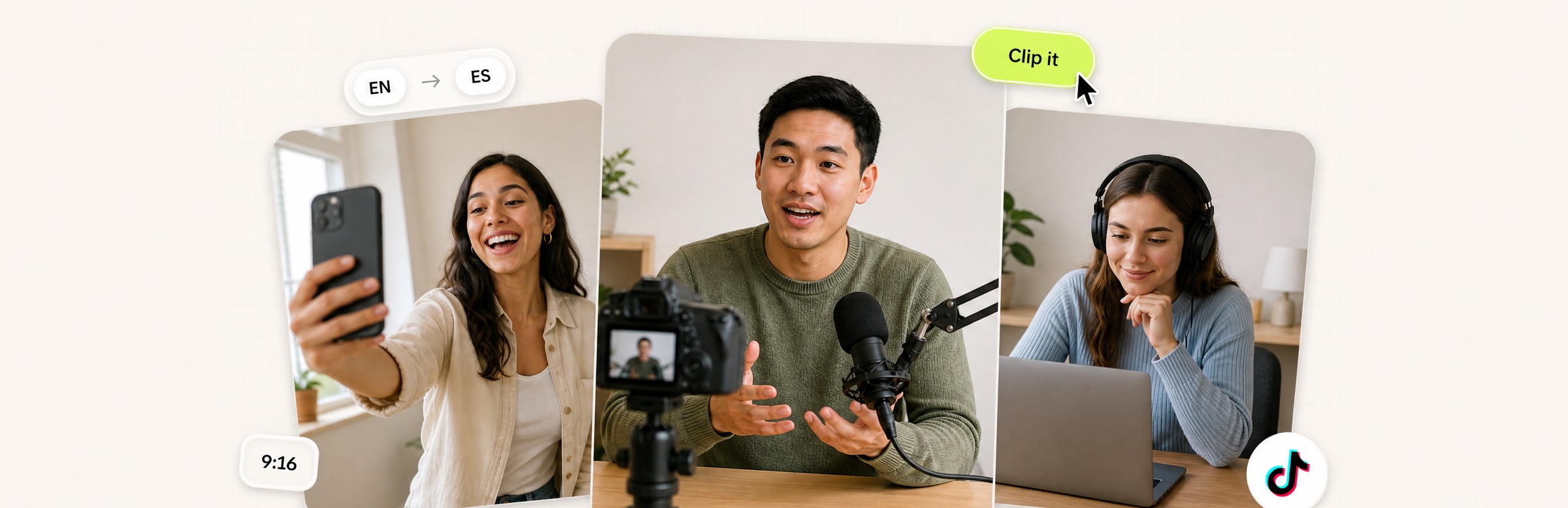
Creators filming on a phone and camera with EN and ES language chips, a Clip it button and a 9:16 tag

For subtitles in more than one language on short-form video, OpusClip is our first pick: its help center lists 25 supported video languages, the captions are animated and styled for vertical posts, and the same project can be clipped, reframed, dubbed and posted. Happy Scribe, Maestra and Sonix are stronger when the priority is the widest language list or subtitle files, VEED and Kapwing suit browser editing with translation, Descript suits transcript editing, and Captions suits phone-first work. We ranked eight tools by how many languages each vendor says it supports, how subtitles get from transcript to finished video, price, free-plan limits and how clearly each vendor documents its limits.

Key takeaways

  • Best for multilingual captions on short-form video: OpusClip. Animated captions for 25 languages listed in its help center, plus clipping, reframing and dubbing.
  • Best for the widest spoken-language list: Happy Scribe. Its pricing page lists AI speech-to-text for 150+ languages and dialects.
  • Best for a free try with 125+ languages: Maestra. Its subtitle generator page says no account or credit card is needed to start.
  • Best for right-to-left languages and transcript accuracy: Sonix. Its pages describe Arabic, Hebrew, Persian and Urdu in native scripts. OpusClip's help center says it does not support right-to-left languages.
  • Best for browser editing with subtitle translation: VEED and Kapwing. Both translate subtitles inside the editor.
  • Check the language count before you commit. Vendors count transcription, translation and dubbing languages differently, and several publish different numbers on different pages.

How to choose

Start with what you need the language list to do: transcribe speech, translate text, or dub audio. Those are three different counts.

  • If you mainly need captions in a non-English language on short vertical videos, look for animated caption styles, reframing and posting in one tool: OpusClip, Captions, VEED.
  • If you mainly need the broadest list of spoken languages, look for 100+ language transcription: Happy Scribe, Maestra, VEED, Captions.
  • If you mainly need subtitle files (SRT or VTT) for a video player or YouTube, look for file export in every language: Sonix, Happy Scribe, Maestra, Kapwing.
  • If you mainly need Arabic, Hebrew, Persian or Urdu, check right-to-left support first: Sonix lists it, and OpusClip does not support it.
  • If you mainly need to translate subtitles into many target languages, look for a translation count above 50: Kapwing, Happy Scribe, Maestra, Sonix.
  • If you mainly need the voice dubbed, not only subtitled, look for dubbing languages: OpusClip (Pro), Kapwing, Descript, VEED.

For translation-first needs, see our subtitle translation tools roundup; for English-first captioning, see our AI subtitle generators roundup; for voice, see our AI dubbing tools roundup.

At a glance

  • OpusClip: best for animated multilingual captions on short-form video; 25 video languages in its help center; paid plans from $15 a month; free plan yes (60 credits a month, with a watermark).
  • Happy Scribe: best for the widest spoken-language coverage; AI speech-to-text in 150+ languages; Basic $8.50 a month billed annually; free plan yes (watermarked video export).
  • Maestra: best for 125+ language subtitles with a free try; Transcription Lite $23 a month billed annually; free to try without an account.
  • Sonix: best for transcribe-then-translate with right-to-left scripts; 54+ languages; pay as you go $10 an hour or Core $25 a month; 30-minute free trial.
  • VEED: best for browser subtitles with translation and burn-in; subtitles in 125+ languages per its translator page; Creator $10 a user a month billed yearly; free to start.
  • Kapwing: best for in-editor subtitle translation into 100+ languages; Pro $16 a month; free plan yes (watermark, 4-minute exports).
  • Descript: best for editing video by editing the transcript with captions in 30+ languages; Hobbyist $16 a month on annual billing ($24 monthly); free plan yes.
  • Captions: best for phone-first captions in 100+ languages; Max $24.99 a month (iOS pricing); Free column on its pricing page.

1. OpusClip: Best for multilingual captions on short-form video
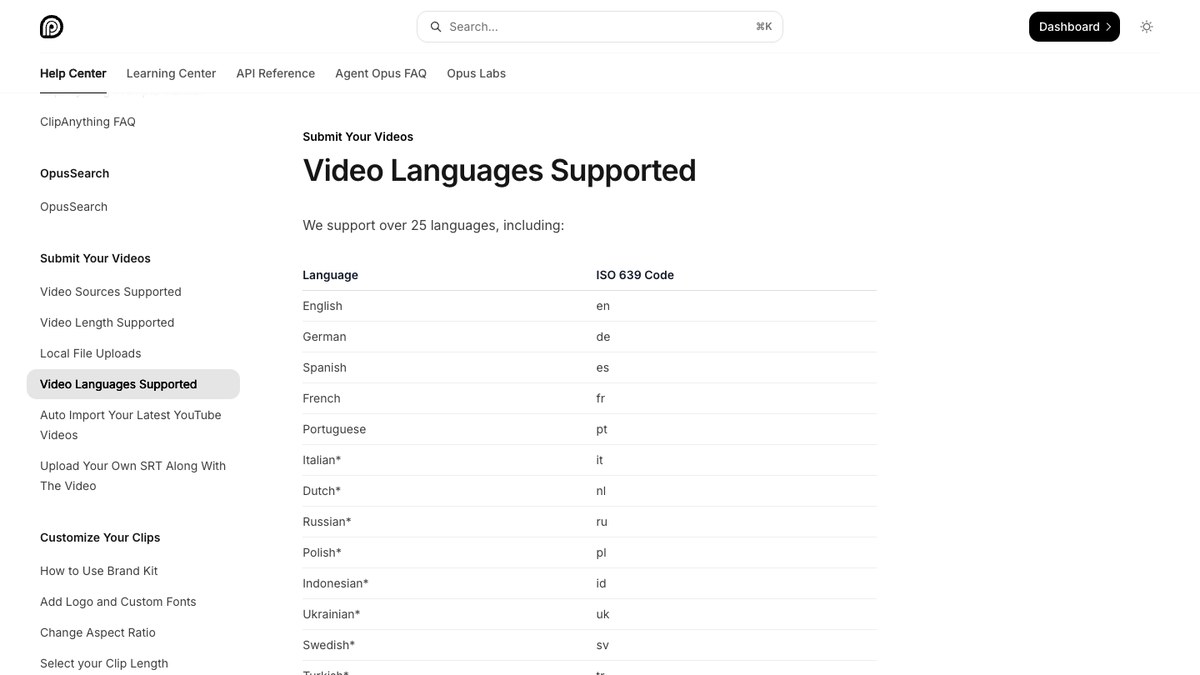
OpusClip help center page listing the video languages it supports

The video languages list in OpusClip's help center. Source: OpusClip Help Center

OpusClip's help center language list says it supports over 25 languages, including English, German, Spanish, French, Portuguese, Italian, Dutch, Russian, Polish, Japanese, Korean and Vietnamese,, with more listed as coming. The help center marks many of those languages as beta, which it says can mean inaccurate emojis or highlighted keywords. You submit a long video or a link, and OpusClip's captions feature adds animated captions in the spoken language, with a text and timeline editor to correct words afterward.

Because the captions sit inside a clipping and reformatting workflow, one long recording becomes several vertical clips with captions already on them, reframed to 9:16, 1:1, 4:5 or 16:9. You can also upload your own SRT file when you already have a translation, and Pro users can download subtitles as an SRT file, per the help center. For spoken translation, Video Dubbing translates and dubs a video into 25 languages using a clone of your own voice, on Pro and Business.

Pricing: Per opus.pro/pricing, Free is $0 with 60 credits a month, up to 1080p clips, a watermark and no editing. Starter is $15 a month (monthly billing only) with 150 credits. Pro is $29 a month, or $14.50 a month billed annually, with 300 credits, a social scheduler and video dubbing. Business is custom. The help center lists dubbing at 10 credits a minute on Pro and Business.

Considerations: The help center says OpusClip does not support right-to-left languages such as Hebrew, Kurdish, Arabic or Persian. Translating captions before clipping currently supports English as the target language only, so translation into other languages goes through dubbing or your own SRT. The 25-language list is shorter than the 100+ lists below, and OpusClip is a clip-and-publish tool, not a replacement for a full non-linear editor.

  • Choose it if your videos are short-form, the spoken language is on the list, and you want animated captions, reframing and posting from one project.
  • Skip it if you need Arabic or Hebrew, a language outside the list, or subtitles translated into many target languages.

2. Happy Scribe: Best for the widest spoken-language coverage and subtitle files
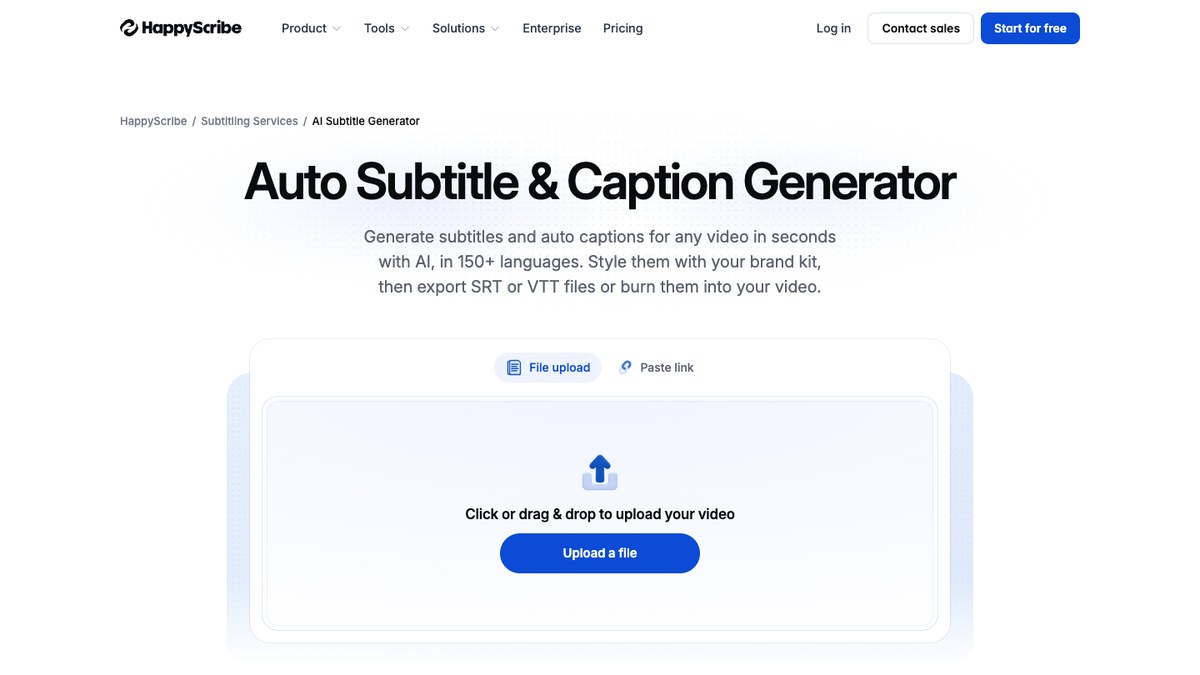
Happy Scribe auto subtitle and caption generator upload page

Happy Scribe's subtitle generator upload page. Source: Happy Scribe website

Happy Scribe's pricing page lists AI speech-to-text for 150+ languages and dialects, with AI translation in 80+ languages. Its subtitle generator page describes a three-step flow: upload a video, select the source language, then edit wording and timing on a waveform before exporting an SRT, VTT or STL file or burning subtitles into the video.

It suits teams who care most about the language list and about getting clean subtitle files for other players. Happy Scribe's own pages quote different counts in different places (the subtitle generator page also says 120+ languages and a translator for 60+), so check the page for the language you need.

Pricing: Happy Scribe's pricing page lists Free with a 10-minute trial of AI transcription, subtitling and translation, a 45-minute limit per recording and watermarked MP4 export. Basic is $8.50 a month billed annually (1,440 AI minutes a year, watermark-free export), Pro is $19 a month billed annually (7,200 minutes a year) and Business is $59 a month billed annually (72,000 minutes a year). Extra AI minutes are listed at $0.20 a minute.

Considerations: Plans meter AI minutes per year, so a heavy month can use up an allowance. It is a transcription and subtitling service rather than a short-form video editor, so animated social caption styling is not its focus.

  • Choose it if you want the longest language list and clean SRT or VTT files, with burned-in subtitles as an option.
  • Skip it if you want vertical clipping, reframing and posting in the same tool.

3. Maestra: Best for 125+ language subtitles you can try without an account
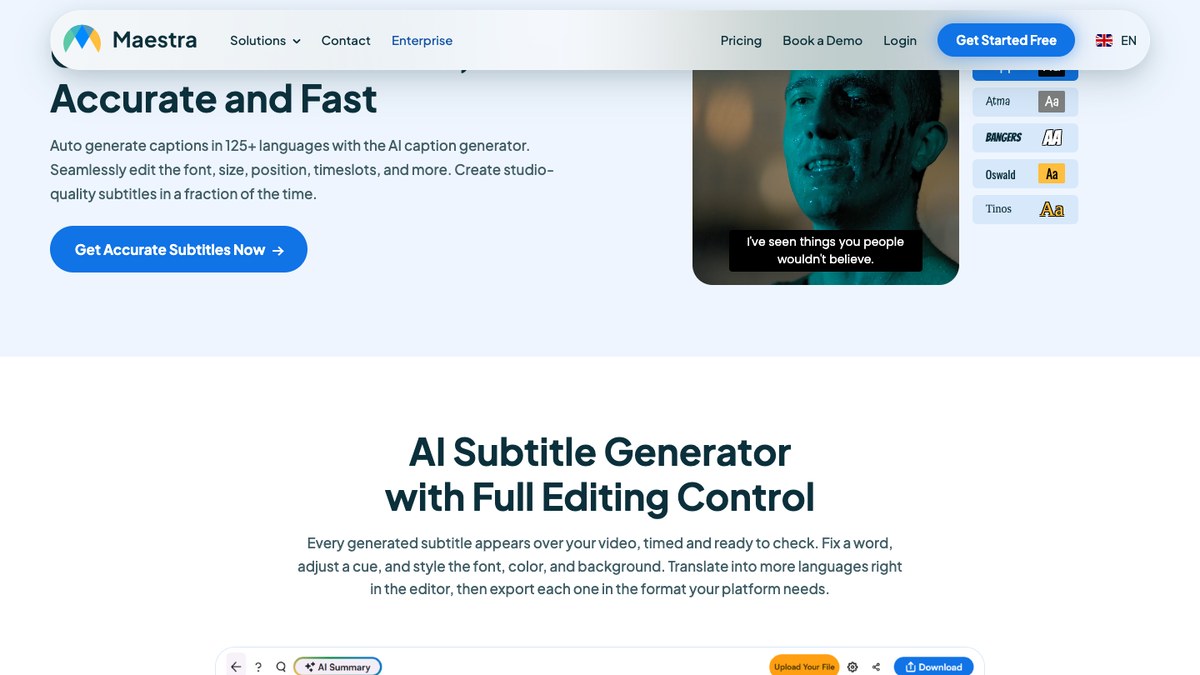
Maestra AI subtitle generator page with the subtitle editor and style options

Maestra's subtitle generator and editor. Source: Maestra website

Maestra's subtitle generator page says it generates captions in 125+ languages and can translate subtitles into 125+ languages, with a subtitle editor for font, size, position and timing, and export in formats such as SRT and VTT. The page says the generator is free to try with no credit card or account needed.

It suits one-off jobs and teams that want to check the output in a browser before paying.

Pricing: Maestra's pricing page lists Transcription plans: Pay As You Go at $12 per 60 credits, Lite at $23 a month billed annually (180 minutes a month), Basic at $39 (360 minutes) and Premium at $79 (900 minutes), each with transcription in 125+ languages. The page also has separate Subtitle, Voiceover and Real-Time tabs, so confirm the subtitle-specific price there.

Considerations: Plans are measured in minutes, and the page it uses for each product splits pricing across tabs. Its subtitle page describes an editor but not short-form clipping or posting.

  • Choose it if you want broad language coverage with a browser editor and a no-account trial.
  • Skip it if you want captions, clipping and publishing to social platforms in one place.

4. Sonix: Best for transcribe-then-translate and right-to-left scripts
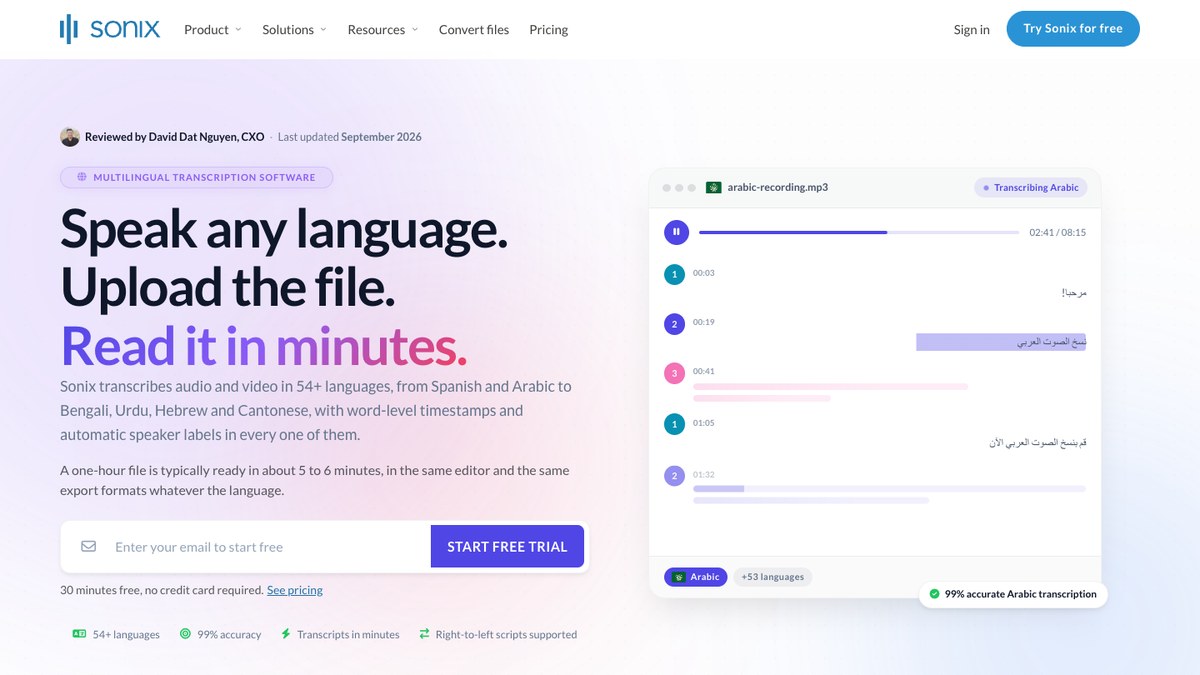
Sonix language page with a transcript shown in Arabic

A right-to-left transcript on Sonix's language page. Source: Sonix website

Sonix's pricing page lists 54+ languages on every plan, and its language page says it transcribes audio and video in 54+ languages with word-level timestamps and speaker labels. Its pages recommend transcribing in the source language first, correcting the transcript, then translating it into any of 54+ languages and exporting SRT or VTT files with the timing carried over.

Its pages also say Arabic, Hebrew, Persian and Urdu come back in native right-to-left scripts and the editor lays them out right to left, which matters if those languages are on your list.

Pricing: Sonix's pricing page lists a 30-minute free trial with no credit card, Pay As You Go at $10 an hour, Core at $25 a month (5 hours), Advanced at $50 a month (20 hours) and Pro at $80 a month (40 hours), with extra hours at $10 an hour and annual billing listed with one month free.

Considerations: The pages we read describe transcripts and SRT or VTT exports, and we did not find burned-in captions or social caption styling on them. Hours are metered, and translation counts against the same hours.

  • Choose it if accuracy and a corrected transcript matter most and you need right-to-left languages or subtitle files.
  • Skip it if you want finished vertical clips with styled captions straight out of the tool.

5. VEED: Best for browser subtitles with translation and burn-in
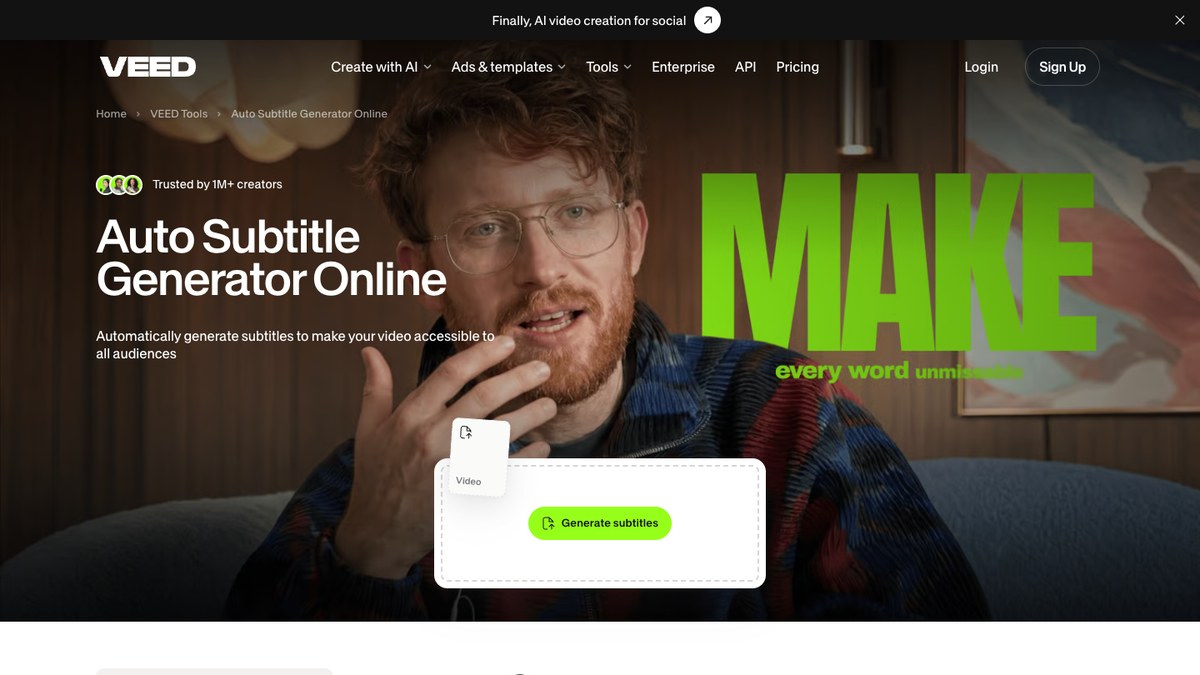
VEED auto subtitle generator online page with the Generate subtitles upload box

VEED's auto subtitle generator. Source: VEED website

VEED's subtitle generator page describes selecting Auto Subtitle, choosing the spoken language, optionally toggling on a translation language, editing the text and timing, then exporting a video with hardcoded subtitles or downloading an SRT, VTT or TXT file. VEED's video translator page says auto-generated subtitles are available in over 125 languages, and that its voice-preserving dubbing covers 29 languages.

It suits people who want to caption, translate and finish a video in one browser editor.

Pricing: VEED's pricing page lists Creator at $10 a user a month billed yearly (1080p, no watermark, subtitles 120 hours a year) and Pro at $19 a user a month billed yearly (4K export, unlimited auto subtitles, translate to 50+ languages). Enterprise is custom. Its subtitle page says automatic translation is free to try and a Pro plan is needed to keep using it.

Considerations: The translation count on the pricing page (50+) is lower than the subtitle count (125+) on its other pages, so confirm the pair of languages you need. Creator caps subtitle hours.

  • Choose it if you want browser editing with subtitles, translation and styled burn-in together.
  • Skip it if you need translation into many languages on the cheapest plan, or a clip-and-post workflow.

6. Kapwing: Best for translating subtitles into 100+ languages inside the editor
Kapwing auto-subtitle generator showing subtitle styles over a video

Subtitle styles in Kapwing. Source: Kapwing website

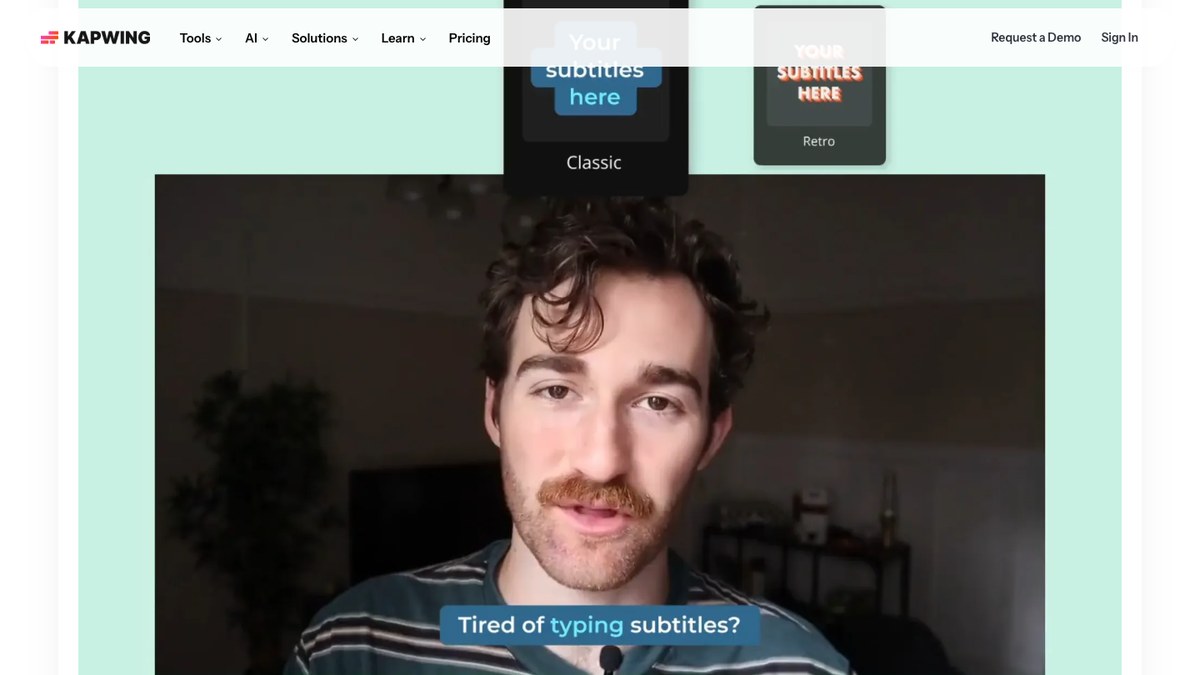
Kapwing's subtitles page says its subtitle translator can generate English subtitles or translate existing subtitles into 100+ languages, including Spanish, Chinese, French, Hindi and Arabic, and that SRT, VTT and TXT files can be downloaded. Its tools menu lists Dubbing across 40+ languages, and its page describes over 100 preset subtitle styles.

It suits editors who want a timeline, caption styling and translation in one browser project.

Pricing: Kapwing's pricing page lists Free at $0 with 10 credits, exports with a watermark, up to 4 minutes per export and auto-subtitling up to 10 minutes. Pro is listed at $16 a month with 1,000 credits, no watermark, 4K export, auto-subtitling up to 1,000 minutes a month and dubbing up to 50 minutes a month. Business is listed at $50 a month. The page has a monthly and annual toggle, so confirm which billing the figure uses.

Considerations: Free is capped at 4-minute exports with a watermark, and credits meter both subtitling and dubbing. The page we read does not state how many spoken languages the auto-subtitle step recognizes.

  • Choose it if you want an editable browser timeline and subtitle translation into many languages.
  • Skip it if you need a published count of spoken source languages or a posting workflow.

7. Descript: Best for editing video by editing the transcript, with captions in 30+ languages
Descript captions page describing captions and subtitles in 30+ languages

Descript's captions page. Source: Descript website

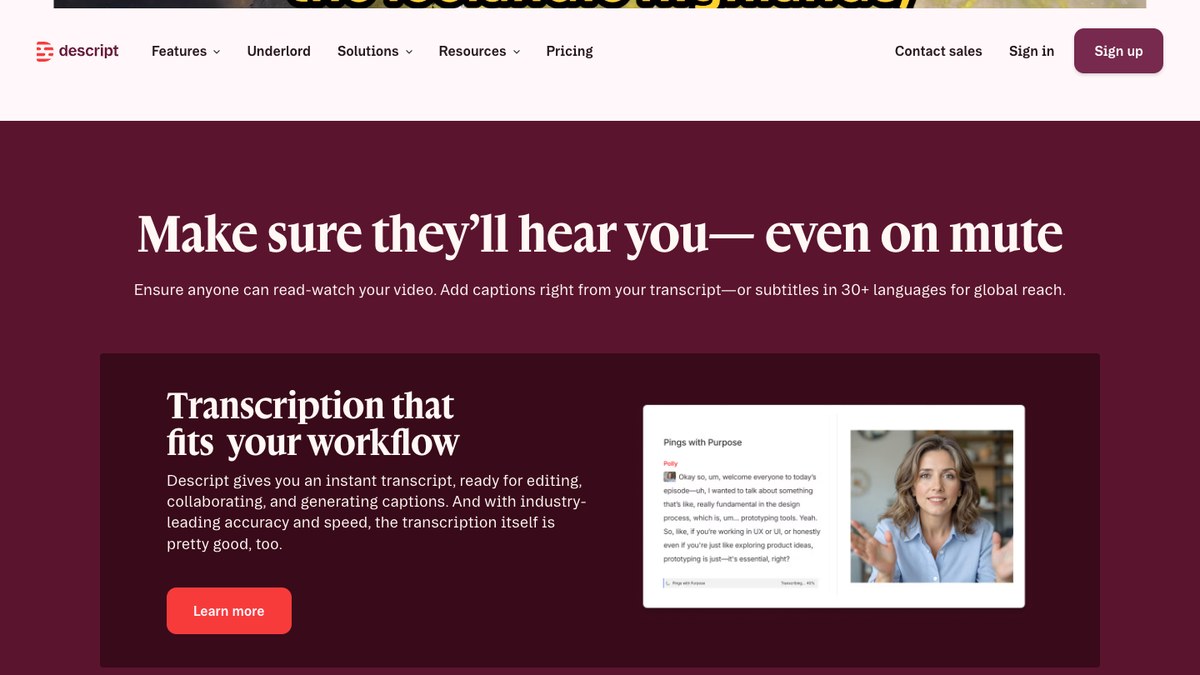
Descript's captions page says you can add captions from your transcript or subtitles in 30+ languages, and its pricing page lists multi-language transcription in 25 languages on every plan. Its translate page describes translating voice, captions and video in 25+ languages. You edit the video by editing the text, so a corrected transcript carries into the captions.

It suits people who already edit podcasts and talking-head video by transcript and want subtitles in other languages as part of the same project.

Pricing: Descript's pricing page lists Free at $0 with 60 media minutes a month and 720p local export, with caption translation marked Limited. Hobbyist is $16 a month on annual billing or $24 monthly, with 10 media hours and watermark-free 1080p export. Creator is $24 or $35, and Business is $50 or $65.

Considerations: Descript's own pages give different language counts for transcription (25) and for subtitles (30+), so check your language on the page. Media hours and AI credits are both metered.

  • Choose it if you edit by transcript and want subtitles in other languages without leaving the project.
  • Skip it if you need 100+ language transcription or finished vertical clips with minimal setup.

8. Captions: Best for phone-first captions in 100+ languages
Captions app editor with the add footage to start prompt

Starting an edit in Captions. Source: Captions website

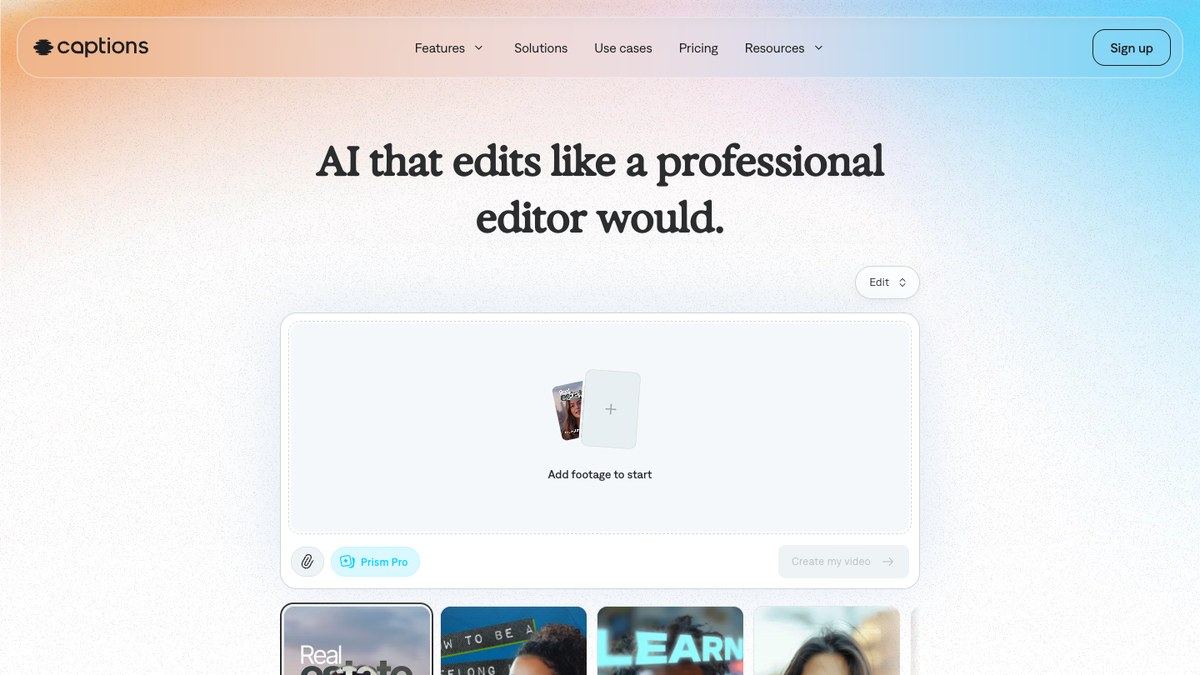
The Captions pricing page lists a row for captions in 100+ languages, alongside a chat-based editor, caption templates, a tool that turns a long video into post-ready clips and a download for the transcript. The product is built around vertical, phone-first video, with an AI Translate feature listed on its site.

It suits creators who film and caption on a phone and want the language count on the list without a desktop editor.

Pricing: Captions' pricing page lists Max at $24.99 a month (500 credits a month) and Frontier at $69.99 a month (1,400 credits), plus Enterprise at custom pricing, and has a Free column in its comparison table. The page says prices and features reflect iOS plans only.

Considerations: The pricing page shows iOS plans only, and credits meter the generative features. We did not find a list of the individual languages on the pages we read, so confirm yours before paying.

  • Choose it if you work mostly from a phone and want captions across many languages with templates.
  • Skip it if you need a documented language list, desktop-first editing or subtitle files in every language.

How we compared these tools

We compared eight tools on five criteria: the number of languages each vendor says it supports (and for what: transcription, translation or dubbing), how subtitles get from transcript to finished video (burned-in, SRT or VTT), price and free-plan limits, support for right-to-left languages, and how clearly the vendor documents its limits. Every figure comes from each vendor's own pricing, help or product page, read on Nov 2, 2026, and OpusClip's figures come from opus.pro/pricing and help.opus.pro. We did not run hands-on trials of competitors' tools, so each competitor entry reports what its vendor says. Vendor language counts are the vendor's own claims, and we did not measure accuracy in any language.

Red flags to watch for

Language counts that mean different things

One vendor's "125+ languages" may be transcription, another's may be translation or dubbing, and some vendors give different numbers on different pages. Trial test: upload a short clip in your actual spoken language and export subtitles in your actual target language before comparing plans.

Beta or limited language support

OpusClip's help center marks many of its listed languages as beta, and Descript marks caption translation as Limited on its Free plan. Trial test: check the caption text for names and technical terms in your language, not just a sample sentence.

Right-to-left languages

OpusClip's help center says it does not support Hebrew, Kurdish, Arabic or Persian, while Sonix lists native right-to-left output. Trial test: confirm the text renders in the right direction on the exported video, not only in the editor.

Watermarks and minute limits on free exports

OpusClip Free and Kapwing Free add watermarks, Kapwing Free caps exports at 4 minutes, and Happy Scribe Free watermarks MP4 export. Trial test: export one finished video before deciding a free plan is enough.

Metered hours and credits

Sonix and Happy Scribe meter transcription and translation in hours or minutes, VEED Creator caps subtitles at 120 hours a year, and Kapwing meters subtitling and dubbing in credits. Trial test: estimate a normal month of footage against the allowance, including each translated language.

Prices you cannot confirm

Captions' page shows iOS plans only, Maestra splits pricing across product tabs, and several pages have monthly and annual toggles. Trial test: check the price at checkout before comparing plans.

Frequently asked questions

What is the best software for video captions in different languages?

For short-form video, OpusClip is our first pick: its help center lists 25 supported video languages, with animated captions, reframing, dubbing and posting in the same project. For the longest language lists, Happy Scribe (150+ per its pricing page) and Maestra (125+) go further. See OpusClip's captions feature.

Where can I find the best tools to add subtitles to a video?

Browser editors such as VEED and Kapwing let you add and translate subtitles on an uploaded video, subtitling services such as Happy Scribe, Maestra and Sonix produce subtitle files, and OpusClip adds animated captions while clipping long videos. You can try a free option first through OpusClip's free auto caption generator.

Which subtitle generator supports the most languages?

On vendor pages, Happy Scribe lists AI speech-to-text for 150+ languages and dialects, Maestra and VEED list 125+, and Captions lists 100+ for captions. These are vendor claims and count different things, so test your own language.

Can OpusClip add captions in languages other than English?

Yes. Its help center lists over 25 supported video languages, and its captions are generated in the spoken language. The help center says captions can be translated before clipping to English only, and that right-to-left languages are not supported. See the full language list.

Can I dub a video into another language instead of subtitling it?

OpusClip's Video Dubbing translates and dubs a video into 25 languages using a clone of your voice, and it is available on Pro and Business. Kapwing, Descript and VEED also list dubbing. See our AI dubbing tools roundup.

What is the best free subtitle generator for multiple languages?

Maestra says its subtitle generator is free to try without an account, Happy Scribe and Sonix offer free trials, and OpusClip Free includes 60 credits a month with a watermark. Check watermarks and length limits before relying on any free plan.

Which subtitle generator works for Arabic or Hebrew?

Sonix's pages describe native right-to-left output for Arabic, Hebrew, Persian and Urdu. OpusClip's help center says it does not support right-to-left languages, so pick another tool for those languages.

Are subtitles the same as captions?

Subtitles usually translate or transcribe the dialogue for viewers who can hear the audio, while captions also cover sound cues, and many tools use the words interchangeably. See caption vs subtitle.

On this page

Use our Free Forever Plan

Find the moment. Skip the scrubbing.

From script to polished video — in one click.

Create and post one short video every day for free, and grow faster.

OpusSearch uses AI to surface the exact clip you need from hours of footage — in seconds, not afternoons.

Agent Opus runs the entire video pipeline for you: research, scriptwriting, storyboarding, motion, voice, and edit. Upload the idea, post the result.

8 Best Subtitle Generators for Multiple Languages in 2026

For subtitles in more than one language on short-form video, OpusClip is our first pick: its help center lists 25 supported video languages, the captions are animated and styled for vertical posts, and the same project can be clipped, reframed, dubbed and posted. Happy Scribe, Maestra and Sonix are stronger when the priority is the widest language list or subtitle files, VEED and Kapwing suit browser editing with translation, Descript suits transcript editing, and Captions suits phone-first work. We ranked eight tools by how many languages each vendor says it supports, how subtitles get from transcript to finished video, price, free-plan limits and how clearly each vendor documents its limits.

Key takeaways

  • Best for multilingual captions on short-form video: OpusClip. Animated captions for 25 languages listed in its help center, plus clipping, reframing and dubbing.
  • Best for the widest spoken-language list: Happy Scribe. Its pricing page lists AI speech-to-text for 150+ languages and dialects.
  • Best for a free try with 125+ languages: Maestra. Its subtitle generator page says no account or credit card is needed to start.
  • Best for right-to-left languages and transcript accuracy: Sonix. Its pages describe Arabic, Hebrew, Persian and Urdu in native scripts. OpusClip's help center says it does not support right-to-left languages.
  • Best for browser editing with subtitle translation: VEED and Kapwing. Both translate subtitles inside the editor.
  • Check the language count before you commit. Vendors count transcription, translation and dubbing languages differently, and several publish different numbers on different pages.

How to choose

Start with what you need the language list to do: transcribe speech, translate text, or dub audio. Those are three different counts.

  • If you mainly need captions in a non-English language on short vertical videos, look for animated caption styles, reframing and posting in one tool: OpusClip, Captions, VEED.
  • If you mainly need the broadest list of spoken languages, look for 100+ language transcription: Happy Scribe, Maestra, VEED, Captions.
  • If you mainly need subtitle files (SRT or VTT) for a video player or YouTube, look for file export in every language: Sonix, Happy Scribe, Maestra, Kapwing.
  • If you mainly need Arabic, Hebrew, Persian or Urdu, check right-to-left support first: Sonix lists it, and OpusClip does not support it.
  • If you mainly need to translate subtitles into many target languages, look for a translation count above 50: Kapwing, Happy Scribe, Maestra, Sonix.
  • If you mainly need the voice dubbed, not only subtitled, look for dubbing languages: OpusClip (Pro), Kapwing, Descript, VEED.

For translation-first needs, see our subtitle translation tools roundup; for English-first captioning, see our AI subtitle generators roundup; for voice, see our AI dubbing tools roundup.

At a glance

  • OpusClip: best for animated multilingual captions on short-form video; 25 video languages in its help center; paid plans from $15 a month; free plan yes (60 credits a month, with a watermark).
  • Happy Scribe: best for the widest spoken-language coverage; AI speech-to-text in 150+ languages; Basic $8.50 a month billed annually; free plan yes (watermarked video export).
  • Maestra: best for 125+ language subtitles with a free try; Transcription Lite $23 a month billed annually; free to try without an account.
  • Sonix: best for transcribe-then-translate with right-to-left scripts; 54+ languages; pay as you go $10 an hour or Core $25 a month; 30-minute free trial.
  • VEED: best for browser subtitles with translation and burn-in; subtitles in 125+ languages per its translator page; Creator $10 a user a month billed yearly; free to start.
  • Kapwing: best for in-editor subtitle translation into 100+ languages; Pro $16 a month; free plan yes (watermark, 4-minute exports).
  • Descript: best for editing video by editing the transcript with captions in 30+ languages; Hobbyist $16 a month on annual billing ($24 monthly); free plan yes.
  • Captions: best for phone-first captions in 100+ languages; Max $24.99 a month (iOS pricing); Free column on its pricing page.

1. OpusClip: Best for multilingual captions on short-form video

OpusClip help center page listing the video languages it supports

The video languages list in OpusClip's help center. Source: OpusClip Help Center

OpusClip's help center language list says it supports over 25 languages, including English, German, Spanish, French, Portuguese, Italian, Dutch, Russian, Polish, Japanese, Korean and Vietnamese,, with more listed as coming. The help center marks many of those languages as beta, which it says can mean inaccurate emojis or highlighted keywords. You submit a long video or a link, and OpusClip's captions feature adds animated captions in the spoken language, with a text and timeline editor to correct words afterward.

Because the captions sit inside a clipping and reformatting workflow, one long recording becomes several vertical clips with captions already on them, reframed to 9:16, 1:1, 4:5 or 16:9. You can also upload your own SRT file when you already have a translation, and Pro users can download subtitles as an SRT file, per the help center. For spoken translation, Video Dubbing translates and dubs a video into 25 languages using a clone of your own voice, on Pro and Business.

Pricing: Per opus.pro/pricing, Free is $0 with 60 credits a month, up to 1080p clips, a watermark and no editing. Starter is $15 a month (monthly billing only) with 150 credits. Pro is $29 a month, or $14.50 a month billed annually, with 300 credits, a social scheduler and video dubbing. Business is custom. The help center lists dubbing at 10 credits a minute on Pro and Business.

Considerations: The help center says OpusClip does not support right-to-left languages such as Hebrew, Kurdish, Arabic or Persian. Translating captions before clipping currently supports English as the target language only, so translation into other languages goes through dubbing or your own SRT. The 25-language list is shorter than the 100+ lists below, and OpusClip is a clip-and-publish tool, not a replacement for a full non-linear editor.

  • Choose it if your videos are short-form, the spoken language is on the list, and you want animated captions, reframing and posting from one project.
  • Skip it if you need Arabic or Hebrew, a language outside the list, or subtitles translated into many target languages.

2. Happy Scribe: Best for the widest spoken-language coverage and subtitle files

Happy Scribe auto subtitle and caption generator upload page

Happy Scribe's subtitle generator upload page. Source: Happy Scribe website

Happy Scribe's pricing page lists AI speech-to-text for 150+ languages and dialects, with AI translation in 80+ languages. Its subtitle generator page describes a three-step flow: upload a video, select the source language, then edit wording and timing on a waveform before exporting an SRT, VTT or STL file or burning subtitles into the video.

It suits teams who care most about the language list and about getting clean subtitle files for other players. Happy Scribe's own pages quote different counts in different places (the subtitle generator page also says 120+ languages and a translator for 60+), so check the page for the language you need.

Pricing: Happy Scribe's pricing page lists Free with a 10-minute trial of AI transcription, subtitling and translation, a 45-minute limit per recording and watermarked MP4 export. Basic is $8.50 a month billed annually (1,440 AI minutes a year, watermark-free export), Pro is $19 a month billed annually (7,200 minutes a year) and Business is $59 a month billed annually (72,000 minutes a year). Extra AI minutes are listed at $0.20 a minute.

Considerations: Plans meter AI minutes per year, so a heavy month can use up an allowance. It is a transcription and subtitling service rather than a short-form video editor, so animated social caption styling is not its focus.

  • Choose it if you want the longest language list and clean SRT or VTT files, with burned-in subtitles as an option.
  • Skip it if you want vertical clipping, reframing and posting in the same tool.

3. Maestra: Best for 125+ language subtitles you can try without an account

Maestra AI subtitle generator page with the subtitle editor and style options

Maestra's subtitle generator and editor. Source: Maestra website

Maestra's subtitle generator page says it generates captions in 125+ languages and can translate subtitles into 125+ languages, with a subtitle editor for font, size, position and timing, and export in formats such as SRT and VTT. The page says the generator is free to try with no credit card or account needed.

It suits one-off jobs and teams that want to check the output in a browser before paying.

Pricing: Maestra's pricing page lists Transcription plans: Pay As You Go at $12 per 60 credits, Lite at $23 a month billed annually (180 minutes a month), Basic at $39 (360 minutes) and Premium at $79 (900 minutes), each with transcription in 125+ languages. The page also has separate Subtitle, Voiceover and Real-Time tabs, so confirm the subtitle-specific price there.

Considerations: Plans are measured in minutes, and the page it uses for each product splits pricing across tabs. Its subtitle page describes an editor but not short-form clipping or posting.

  • Choose it if you want broad language coverage with a browser editor and a no-account trial.
  • Skip it if you want captions, clipping and publishing to social platforms in one place.

4. Sonix: Best for transcribe-then-translate and right-to-left scripts

Sonix language page with a transcript shown in Arabic

A right-to-left transcript on Sonix's language page. Source: Sonix website

Sonix's pricing page lists 54+ languages on every plan, and its language page says it transcribes audio and video in 54+ languages with word-level timestamps and speaker labels. Its pages recommend transcribing in the source language first, correcting the transcript, then translating it into any of 54+ languages and exporting SRT or VTT files with the timing carried over.

Its pages also say Arabic, Hebrew, Persian and Urdu come back in native right-to-left scripts and the editor lays them out right to left, which matters if those languages are on your list.

Pricing: Sonix's pricing page lists a 30-minute free trial with no credit card, Pay As You Go at $10 an hour, Core at $25 a month (5 hours), Advanced at $50 a month (20 hours) and Pro at $80 a month (40 hours), with extra hours at $10 an hour and annual billing listed with one month free.

Considerations: The pages we read describe transcripts and SRT or VTT exports, and we did not find burned-in captions or social caption styling on them. Hours are metered, and translation counts against the same hours.

  • Choose it if accuracy and a corrected transcript matter most and you need right-to-left languages or subtitle files.
  • Skip it if you want finished vertical clips with styled captions straight out of the tool.

5. VEED: Best for browser subtitles with translation and burn-in

VEED auto subtitle generator online page with the Generate subtitles upload box

VEED's auto subtitle generator. Source: VEED website

VEED's subtitle generator page describes selecting Auto Subtitle, choosing the spoken language, optionally toggling on a translation language, editing the text and timing, then exporting a video with hardcoded subtitles or downloading an SRT, VTT or TXT file. VEED's video translator page says auto-generated subtitles are available in over 125 languages, and that its voice-preserving dubbing covers 29 languages.

It suits people who want to caption, translate and finish a video in one browser editor.

Pricing: VEED's pricing page lists Creator at $10 a user a month billed yearly (1080p, no watermark, subtitles 120 hours a year) and Pro at $19 a user a month billed yearly (4K export, unlimited auto subtitles, translate to 50+ languages). Enterprise is custom. Its subtitle page says automatic translation is free to try and a Pro plan is needed to keep using it.

Considerations: The translation count on the pricing page (50+) is lower than the subtitle count (125+) on its other pages, so confirm the pair of languages you need. Creator caps subtitle hours.

  • Choose it if you want browser editing with subtitles, translation and styled burn-in together.
  • Skip it if you need translation into many languages on the cheapest plan, or a clip-and-post workflow.

6. Kapwing: Best for translating subtitles into 100+ languages inside the editor

Kapwing auto-subtitle generator showing subtitle styles over a video

Subtitle styles in Kapwing. Source: Kapwing website

Kapwing's subtitles page says its subtitle translator can generate English subtitles or translate existing subtitles into 100+ languages, including Spanish, Chinese, French, Hindi and Arabic, and that SRT, VTT and TXT files can be downloaded. Its tools menu lists Dubbing across 40+ languages, and its page describes over 100 preset subtitle styles.

It suits editors who want a timeline, caption styling and translation in one browser project.

Pricing: Kapwing's pricing page lists Free at $0 with 10 credits, exports with a watermark, up to 4 minutes per export and auto-subtitling up to 10 minutes. Pro is listed at $16 a month with 1,000 credits, no watermark, 4K export, auto-subtitling up to 1,000 minutes a month and dubbing up to 50 minutes a month. Business is listed at $50 a month. The page has a monthly and annual toggle, so confirm which billing the figure uses.

Considerations: Free is capped at 4-minute exports with a watermark, and credits meter both subtitling and dubbing. The page we read does not state how many spoken languages the auto-subtitle step recognizes.

  • Choose it if you want an editable browser timeline and subtitle translation into many languages.
  • Skip it if you need a published count of spoken source languages or a posting workflow.

7. Descript: Best for editing video by editing the transcript, with captions in 30+ languages

Descript captions page describing captions and subtitles in 30+ languages

Descript's captions page. Source: Descript website

Descript's captions page says you can add captions from your transcript or subtitles in 30+ languages, and its pricing page lists multi-language transcription in 25 languages on every plan. Its translate page describes translating voice, captions and video in 25+ languages. You edit the video by editing the text, so a corrected transcript carries into the captions.

It suits people who already edit podcasts and talking-head video by transcript and want subtitles in other languages as part of the same project.

Pricing: Descript's pricing page lists Free at $0 with 60 media minutes a month and 720p local export, with caption translation marked Limited. Hobbyist is $16 a month on annual billing or $24 monthly, with 10 media hours and watermark-free 1080p export. Creator is $24 or $35, and Business is $50 or $65.

Considerations: Descript's own pages give different language counts for transcription (25) and for subtitles (30+), so check your language on the page. Media hours and AI credits are both metered.

  • Choose it if you edit by transcript and want subtitles in other languages without leaving the project.
  • Skip it if you need 100+ language transcription or finished vertical clips with minimal setup.

8. Captions: Best for phone-first captions in 100+ languages

Captions app editor with the add footage to start prompt

Starting an edit in Captions. Source: Captions website

The Captions pricing page lists a row for captions in 100+ languages, alongside a chat-based editor, caption templates, a tool that turns a long video into post-ready clips and a download for the transcript. The product is built around vertical, phone-first video, with an AI Translate feature listed on its site.

It suits creators who film and caption on a phone and want the language count on the list without a desktop editor.

Pricing: Captions' pricing page lists Max at $24.99 a month (500 credits a month) and Frontier at $69.99 a month (1,400 credits), plus Enterprise at custom pricing, and has a Free column in its comparison table. The page says prices and features reflect iOS plans only.

Considerations: The pricing page shows iOS plans only, and credits meter the generative features. We did not find a list of the individual languages on the pages we read, so confirm yours before paying.

  • Choose it if you work mostly from a phone and want captions across many languages with templates.
  • Skip it if you need a documented language list, desktop-first editing or subtitle files in every language.

How we compared these tools

We compared eight tools on five criteria: the number of languages each vendor says it supports (and for what: transcription, translation or dubbing), how subtitles get from transcript to finished video (burned-in, SRT or VTT), price and free-plan limits, support for right-to-left languages, and how clearly the vendor documents its limits. Every figure comes from each vendor's own pricing, help or product page, read on Nov 2, 2026, and OpusClip's figures come from opus.pro/pricing and help.opus.pro. We did not run hands-on trials of competitors' tools, so each competitor entry reports what its vendor says. Vendor language counts are the vendor's own claims, and we did not measure accuracy in any language.

Red flags to watch for

Language counts that mean different things

One vendor's "125+ languages" may be transcription, another's may be translation or dubbing, and some vendors give different numbers on different pages. Trial test: upload a short clip in your actual spoken language and export subtitles in your actual target language before comparing plans.

Beta or limited language support

OpusClip's help center marks many of its listed languages as beta, and Descript marks caption translation as Limited on its Free plan. Trial test: check the caption text for names and technical terms in your language, not just a sample sentence.

Right-to-left languages

OpusClip's help center says it does not support Hebrew, Kurdish, Arabic or Persian, while Sonix lists native right-to-left output. Trial test: confirm the text renders in the right direction on the exported video, not only in the editor.

Watermarks and minute limits on free exports

OpusClip Free and Kapwing Free add watermarks, Kapwing Free caps exports at 4 minutes, and Happy Scribe Free watermarks MP4 export. Trial test: export one finished video before deciding a free plan is enough.

Metered hours and credits

Sonix and Happy Scribe meter transcription and translation in hours or minutes, VEED Creator caps subtitles at 120 hours a year, and Kapwing meters subtitling and dubbing in credits. Trial test: estimate a normal month of footage against the allowance, including each translated language.

Prices you cannot confirm

Captions' page shows iOS plans only, Maestra splits pricing across product tabs, and several pages have monthly and annual toggles. Trial test: check the price at checkout before comparing plans.

Frequently asked questions

What is the best software for video captions in different languages?

For short-form video, OpusClip is our first pick: its help center lists 25 supported video languages, with animated captions, reframing, dubbing and posting in the same project. For the longest language lists, Happy Scribe (150+ per its pricing page) and Maestra (125+) go further. See OpusClip's captions feature.

Where can I find the best tools to add subtitles to a video?

Browser editors such as VEED and Kapwing let you add and translate subtitles on an uploaded video, subtitling services such as Happy Scribe, Maestra and Sonix produce subtitle files, and OpusClip adds animated captions while clipping long videos. You can try a free option first through OpusClip's free auto caption generator.

Which subtitle generator supports the most languages?

On vendor pages, Happy Scribe lists AI speech-to-text for 150+ languages and dialects, Maestra and VEED list 125+, and Captions lists 100+ for captions. These are vendor claims and count different things, so test your own language.

Can OpusClip add captions in languages other than English?

Yes. Its help center lists over 25 supported video languages, and its captions are generated in the spoken language. The help center says captions can be translated before clipping to English only, and that right-to-left languages are not supported. See the full language list.

Can I dub a video into another language instead of subtitling it?

OpusClip's Video Dubbing translates and dubs a video into 25 languages using a clone of your voice, and it is available on Pro and Business. Kapwing, Descript and VEED also list dubbing. See our AI dubbing tools roundup.

What is the best free subtitle generator for multiple languages?

Maestra says its subtitle generator is free to try without an account, Happy Scribe and Sonix offer free trials, and OpusClip Free includes 60 credits a month with a watermark. Check watermarks and length limits before relying on any free plan.

Which subtitle generator works for Arabic or Hebrew?

Sonix's pages describe native right-to-left output for Arabic, Hebrew, Persian and Urdu. OpusClip's help center says it does not support right-to-left languages, so pick another tool for those languages.

Are subtitles the same as captions?

Subtitles usually translate or transcribe the dialogue for viewers who can hear the audio, while captions also cover sound cues, and many tools use the words interchangeably. See caption vs subtitle.

Creator name

Creator type

Team size

Channels

linkYouTubefacebookXTikTok

Pain point

Time to see positive ROI

About the creator

Don't miss these

How Audacy Drove 1B+ Views by Taking a Tech-Forward Approach to Radio with OpusClip
No items found.

How Audacy Drove 1B+ Views by Taking a Tech-Forward Approach to Radio with OpusClip

How All the Smoke makes hit compilations faster with OpusSearch

How All the Smoke makes hit compilations faster with OpusSearch

Growing a new channel to 1.5M views in 90 days without creating new videos

Growing a new channel to 1.5M views in 90 days without creating new videos

OpusClip 4.0 is here. Become a content powerhouse.

8 Best Subtitle Generators for Multiple Languages in 2026

Creators filming on a phone and camera with EN and ES language chips, a Clip it button and a 9:16 tag
No items found.
No items found.

Boost your social media growth with OpusClip

Create and post one short video every day for your social media and grow faster.

8 Best Subtitle Generators for Multiple Languages in 2026

Creators filming on a phone and camera with EN and ES language chips, a Clip it button and a 9:16 tag

For subtitles in more than one language on short-form video, OpusClip is our first pick: its help center lists 25 supported video languages, the captions are animated and styled for vertical posts, and the same project can be clipped, reframed, dubbed and posted. Happy Scribe, Maestra and Sonix are stronger when the priority is the widest language list or subtitle files, VEED and Kapwing suit browser editing with translation, Descript suits transcript editing, and Captions suits phone-first work. We ranked eight tools by how many languages each vendor says it supports, how subtitles get from transcript to finished video, price, free-plan limits and how clearly each vendor documents its limits.

Key takeaways

  • Best for multilingual captions on short-form video: OpusClip. Animated captions for 25 languages listed in its help center, plus clipping, reframing and dubbing.
  • Best for the widest spoken-language list: Happy Scribe. Its pricing page lists AI speech-to-text for 150+ languages and dialects.
  • Best for a free try with 125+ languages: Maestra. Its subtitle generator page says no account or credit card is needed to start.
  • Best for right-to-left languages and transcript accuracy: Sonix. Its pages describe Arabic, Hebrew, Persian and Urdu in native scripts. OpusClip's help center says it does not support right-to-left languages.
  • Best for browser editing with subtitle translation: VEED and Kapwing. Both translate subtitles inside the editor.
  • Check the language count before you commit. Vendors count transcription, translation and dubbing languages differently, and several publish different numbers on different pages.

How to choose

Start with what you need the language list to do: transcribe speech, translate text, or dub audio. Those are three different counts.

  • If you mainly need captions in a non-English language on short vertical videos, look for animated caption styles, reframing and posting in one tool: OpusClip, Captions, VEED.
  • If you mainly need the broadest list of spoken languages, look for 100+ language transcription: Happy Scribe, Maestra, VEED, Captions.
  • If you mainly need subtitle files (SRT or VTT) for a video player or YouTube, look for file export in every language: Sonix, Happy Scribe, Maestra, Kapwing.
  • If you mainly need Arabic, Hebrew, Persian or Urdu, check right-to-left support first: Sonix lists it, and OpusClip does not support it.
  • If you mainly need to translate subtitles into many target languages, look for a translation count above 50: Kapwing, Happy Scribe, Maestra, Sonix.
  • If you mainly need the voice dubbed, not only subtitled, look for dubbing languages: OpusClip (Pro), Kapwing, Descript, VEED.

For translation-first needs, see our subtitle translation tools roundup; for English-first captioning, see our AI subtitle generators roundup; for voice, see our AI dubbing tools roundup.

At a glance

  • OpusClip: best for animated multilingual captions on short-form video; 25 video languages in its help center; paid plans from $15 a month; free plan yes (60 credits a month, with a watermark).
  • Happy Scribe: best for the widest spoken-language coverage; AI speech-to-text in 150+ languages; Basic $8.50 a month billed annually; free plan yes (watermarked video export).
  • Maestra: best for 125+ language subtitles with a free try; Transcription Lite $23 a month billed annually; free to try without an account.
  • Sonix: best for transcribe-then-translate with right-to-left scripts; 54+ languages; pay as you go $10 an hour or Core $25 a month; 30-minute free trial.
  • VEED: best for browser subtitles with translation and burn-in; subtitles in 125+ languages per its translator page; Creator $10 a user a month billed yearly; free to start.
  • Kapwing: best for in-editor subtitle translation into 100+ languages; Pro $16 a month; free plan yes (watermark, 4-minute exports).
  • Descript: best for editing video by editing the transcript with captions in 30+ languages; Hobbyist $16 a month on annual billing ($24 monthly); free plan yes.
  • Captions: best for phone-first captions in 100+ languages; Max $24.99 a month (iOS pricing); Free column on its pricing page.

1. OpusClip: Best for multilingual captions on short-form video

OpusClip help center page listing the video languages it supports

The video languages list in OpusClip's help center. Source: OpusClip Help Center

OpusClip's help center language list says it supports over 25 languages, including English, German, Spanish, French, Portuguese, Italian, Dutch, Russian, Polish, Japanese, Korean and Vietnamese,, with more listed as coming. The help center marks many of those languages as beta, which it says can mean inaccurate emojis or highlighted keywords. You submit a long video or a link, and OpusClip's captions feature adds animated captions in the spoken language, with a text and timeline editor to correct words afterward.

Because the captions sit inside a clipping and reformatting workflow, one long recording becomes several vertical clips with captions already on them, reframed to 9:16, 1:1, 4:5 or 16:9. You can also upload your own SRT file when you already have a translation, and Pro users can download subtitles as an SRT file, per the help center. For spoken translation, Video Dubbing translates and dubs a video into 25 languages using a clone of your own voice, on Pro and Business.

Pricing: Per opus.pro/pricing, Free is $0 with 60 credits a month, up to 1080p clips, a watermark and no editing. Starter is $15 a month (monthly billing only) with 150 credits. Pro is $29 a month, or $14.50 a month billed annually, with 300 credits, a social scheduler and video dubbing. Business is custom. The help center lists dubbing at 10 credits a minute on Pro and Business.

Considerations: The help center says OpusClip does not support right-to-left languages such as Hebrew, Kurdish, Arabic or Persian. Translating captions before clipping currently supports English as the target language only, so translation into other languages goes through dubbing or your own SRT. The 25-language list is shorter than the 100+ lists below, and OpusClip is a clip-and-publish tool, not a replacement for a full non-linear editor.

  • Choose it if your videos are short-form, the spoken language is on the list, and you want animated captions, reframing and posting from one project.
  • Skip it if you need Arabic or Hebrew, a language outside the list, or subtitles translated into many target languages.

2. Happy Scribe: Best for the widest spoken-language coverage and subtitle files

Happy Scribe auto subtitle and caption generator upload page

Happy Scribe's subtitle generator upload page. Source: Happy Scribe website

Happy Scribe's pricing page lists AI speech-to-text for 150+ languages and dialects, with AI translation in 80+ languages. Its subtitle generator page describes a three-step flow: upload a video, select the source language, then edit wording and timing on a waveform before exporting an SRT, VTT or STL file or burning subtitles into the video.

It suits teams who care most about the language list and about getting clean subtitle files for other players. Happy Scribe's own pages quote different counts in different places (the subtitle generator page also says 120+ languages and a translator for 60+), so check the page for the language you need.

Pricing: Happy Scribe's pricing page lists Free with a 10-minute trial of AI transcription, subtitling and translation, a 45-minute limit per recording and watermarked MP4 export. Basic is $8.50 a month billed annually (1,440 AI minutes a year, watermark-free export), Pro is $19 a month billed annually (7,200 minutes a year) and Business is $59 a month billed annually (72,000 minutes a year). Extra AI minutes are listed at $0.20 a minute.

Considerations: Plans meter AI minutes per year, so a heavy month can use up an allowance. It is a transcription and subtitling service rather than a short-form video editor, so animated social caption styling is not its focus.

  • Choose it if you want the longest language list and clean SRT or VTT files, with burned-in subtitles as an option.
  • Skip it if you want vertical clipping, reframing and posting in the same tool.

3. Maestra: Best for 125+ language subtitles you can try without an account

Maestra AI subtitle generator page with the subtitle editor and style options

Maestra's subtitle generator and editor. Source: Maestra website

Maestra's subtitle generator page says it generates captions in 125+ languages and can translate subtitles into 125+ languages, with a subtitle editor for font, size, position and timing, and export in formats such as SRT and VTT. The page says the generator is free to try with no credit card or account needed.

It suits one-off jobs and teams that want to check the output in a browser before paying.

Pricing: Maestra's pricing page lists Transcription plans: Pay As You Go at $12 per 60 credits, Lite at $23 a month billed annually (180 minutes a month), Basic at $39 (360 minutes) and Premium at $79 (900 minutes), each with transcription in 125+ languages. The page also has separate Subtitle, Voiceover and Real-Time tabs, so confirm the subtitle-specific price there.

Considerations: Plans are measured in minutes, and the page it uses for each product splits pricing across tabs. Its subtitle page describes an editor but not short-form clipping or posting.

  • Choose it if you want broad language coverage with a browser editor and a no-account trial.
  • Skip it if you want captions, clipping and publishing to social platforms in one place.

4. Sonix: Best for transcribe-then-translate and right-to-left scripts

Sonix language page with a transcript shown in Arabic

A right-to-left transcript on Sonix's language page. Source: Sonix website

Sonix's pricing page lists 54+ languages on every plan, and its language page says it transcribes audio and video in 54+ languages with word-level timestamps and speaker labels. Its pages recommend transcribing in the source language first, correcting the transcript, then translating it into any of 54+ languages and exporting SRT or VTT files with the timing carried over.

Its pages also say Arabic, Hebrew, Persian and Urdu come back in native right-to-left scripts and the editor lays them out right to left, which matters if those languages are on your list.

Pricing: Sonix's pricing page lists a 30-minute free trial with no credit card, Pay As You Go at $10 an hour, Core at $25 a month (5 hours), Advanced at $50 a month (20 hours) and Pro at $80 a month (40 hours), with extra hours at $10 an hour and annual billing listed with one month free.

Considerations: The pages we read describe transcripts and SRT or VTT exports, and we did not find burned-in captions or social caption styling on them. Hours are metered, and translation counts against the same hours.

  • Choose it if accuracy and a corrected transcript matter most and you need right-to-left languages or subtitle files.
  • Skip it if you want finished vertical clips with styled captions straight out of the tool.

5. VEED: Best for browser subtitles with translation and burn-in

VEED auto subtitle generator online page with the Generate subtitles upload box

VEED's auto subtitle generator. Source: VEED website

VEED's subtitle generator page describes selecting Auto Subtitle, choosing the spoken language, optionally toggling on a translation language, editing the text and timing, then exporting a video with hardcoded subtitles or downloading an SRT, VTT or TXT file. VEED's video translator page says auto-generated subtitles are available in over 125 languages, and that its voice-preserving dubbing covers 29 languages.

It suits people who want to caption, translate and finish a video in one browser editor.

Pricing: VEED's pricing page lists Creator at $10 a user a month billed yearly (1080p, no watermark, subtitles 120 hours a year) and Pro at $19 a user a month billed yearly (4K export, unlimited auto subtitles, translate to 50+ languages). Enterprise is custom. Its subtitle page says automatic translation is free to try and a Pro plan is needed to keep using it.

Considerations: The translation count on the pricing page (50+) is lower than the subtitle count (125+) on its other pages, so confirm the pair of languages you need. Creator caps subtitle hours.

  • Choose it if you want browser editing with subtitles, translation and styled burn-in together.
  • Skip it if you need translation into many languages on the cheapest plan, or a clip-and-post workflow.

6. Kapwing: Best for translating subtitles into 100+ languages inside the editor

Kapwing auto-subtitle generator showing subtitle styles over a video

Subtitle styles in Kapwing. Source: Kapwing website

Kapwing's subtitles page says its subtitle translator can generate English subtitles or translate existing subtitles into 100+ languages, including Spanish, Chinese, French, Hindi and Arabic, and that SRT, VTT and TXT files can be downloaded. Its tools menu lists Dubbing across 40+ languages, and its page describes over 100 preset subtitle styles.

It suits editors who want a timeline, caption styling and translation in one browser project.

Pricing: Kapwing's pricing page lists Free at $0 with 10 credits, exports with a watermark, up to 4 minutes per export and auto-subtitling up to 10 minutes. Pro is listed at $16 a month with 1,000 credits, no watermark, 4K export, auto-subtitling up to 1,000 minutes a month and dubbing up to 50 minutes a month. Business is listed at $50 a month. The page has a monthly and annual toggle, so confirm which billing the figure uses.

Considerations: Free is capped at 4-minute exports with a watermark, and credits meter both subtitling and dubbing. The page we read does not state how many spoken languages the auto-subtitle step recognizes.

  • Choose it if you want an editable browser timeline and subtitle translation into many languages.
  • Skip it if you need a published count of spoken source languages or a posting workflow.

7. Descript: Best for editing video by editing the transcript, with captions in 30+ languages

Descript captions page describing captions and subtitles in 30+ languages

Descript's captions page. Source: Descript website

Descript's captions page says you can add captions from your transcript or subtitles in 30+ languages, and its pricing page lists multi-language transcription in 25 languages on every plan. Its translate page describes translating voice, captions and video in 25+ languages. You edit the video by editing the text, so a corrected transcript carries into the captions.

It suits people who already edit podcasts and talking-head video by transcript and want subtitles in other languages as part of the same project.

Pricing: Descript's pricing page lists Free at $0 with 60 media minutes a month and 720p local export, with caption translation marked Limited. Hobbyist is $16 a month on annual billing or $24 monthly, with 10 media hours and watermark-free 1080p export. Creator is $24 or $35, and Business is $50 or $65.

Considerations: Descript's own pages give different language counts for transcription (25) and for subtitles (30+), so check your language on the page. Media hours and AI credits are both metered.

  • Choose it if you edit by transcript and want subtitles in other languages without leaving the project.
  • Skip it if you need 100+ language transcription or finished vertical clips with minimal setup.

8. Captions: Best for phone-first captions in 100+ languages

Captions app editor with the add footage to start prompt

Starting an edit in Captions. Source: Captions website

The Captions pricing page lists a row for captions in 100+ languages, alongside a chat-based editor, caption templates, a tool that turns a long video into post-ready clips and a download for the transcript. The product is built around vertical, phone-first video, with an AI Translate feature listed on its site.

It suits creators who film and caption on a phone and want the language count on the list without a desktop editor.

Pricing: Captions' pricing page lists Max at $24.99 a month (500 credits a month) and Frontier at $69.99 a month (1,400 credits), plus Enterprise at custom pricing, and has a Free column in its comparison table. The page says prices and features reflect iOS plans only.

Considerations: The pricing page shows iOS plans only, and credits meter the generative features. We did not find a list of the individual languages on the pages we read, so confirm yours before paying.

  • Choose it if you work mostly from a phone and want captions across many languages with templates.
  • Skip it if you need a documented language list, desktop-first editing or subtitle files in every language.

How we compared these tools

We compared eight tools on five criteria: the number of languages each vendor says it supports (and for what: transcription, translation or dubbing), how subtitles get from transcript to finished video (burned-in, SRT or VTT), price and free-plan limits, support for right-to-left languages, and how clearly the vendor documents its limits. Every figure comes from each vendor's own pricing, help or product page, read on Nov 2, 2026, and OpusClip's figures come from opus.pro/pricing and help.opus.pro. We did not run hands-on trials of competitors' tools, so each competitor entry reports what its vendor says. Vendor language counts are the vendor's own claims, and we did not measure accuracy in any language.

Red flags to watch for

Language counts that mean different things

One vendor's "125+ languages" may be transcription, another's may be translation or dubbing, and some vendors give different numbers on different pages. Trial test: upload a short clip in your actual spoken language and export subtitles in your actual target language before comparing plans.

Beta or limited language support

OpusClip's help center marks many of its listed languages as beta, and Descript marks caption translation as Limited on its Free plan. Trial test: check the caption text for names and technical terms in your language, not just a sample sentence.

Right-to-left languages

OpusClip's help center says it does not support Hebrew, Kurdish, Arabic or Persian, while Sonix lists native right-to-left output. Trial test: confirm the text renders in the right direction on the exported video, not only in the editor.

Watermarks and minute limits on free exports

OpusClip Free and Kapwing Free add watermarks, Kapwing Free caps exports at 4 minutes, and Happy Scribe Free watermarks MP4 export. Trial test: export one finished video before deciding a free plan is enough.

Metered hours and credits

Sonix and Happy Scribe meter transcription and translation in hours or minutes, VEED Creator caps subtitles at 120 hours a year, and Kapwing meters subtitling and dubbing in credits. Trial test: estimate a normal month of footage against the allowance, including each translated language.

Prices you cannot confirm

Captions' page shows iOS plans only, Maestra splits pricing across product tabs, and several pages have monthly and annual toggles. Trial test: check the price at checkout before comparing plans.

Frequently asked questions

What is the best software for video captions in different languages?

For short-form video, OpusClip is our first pick: its help center lists 25 supported video languages, with animated captions, reframing, dubbing and posting in the same project. For the longest language lists, Happy Scribe (150+ per its pricing page) and Maestra (125+) go further. See OpusClip's captions feature.

Where can I find the best tools to add subtitles to a video?

Browser editors such as VEED and Kapwing let you add and translate subtitles on an uploaded video, subtitling services such as Happy Scribe, Maestra and Sonix produce subtitle files, and OpusClip adds animated captions while clipping long videos. You can try a free option first through OpusClip's free auto caption generator.

Which subtitle generator supports the most languages?

On vendor pages, Happy Scribe lists AI speech-to-text for 150+ languages and dialects, Maestra and VEED list 125+, and Captions lists 100+ for captions. These are vendor claims and count different things, so test your own language.

Can OpusClip add captions in languages other than English?

Yes. Its help center lists over 25 supported video languages, and its captions are generated in the spoken language. The help center says captions can be translated before clipping to English only, and that right-to-left languages are not supported. See the full language list.

Can I dub a video into another language instead of subtitling it?

OpusClip's Video Dubbing translates and dubs a video into 25 languages using a clone of your voice, and it is available on Pro and Business. Kapwing, Descript and VEED also list dubbing. See our AI dubbing tools roundup.

What is the best free subtitle generator for multiple languages?

Maestra says its subtitle generator is free to try without an account, Happy Scribe and Sonix offer free trials, and OpusClip Free includes 60 credits a month with a watermark. Check watermarks and length limits before relying on any free plan.

Which subtitle generator works for Arabic or Hebrew?

Sonix's pages describe native right-to-left output for Arabic, Hebrew, Persian and Urdu. OpusClip's help center says it does not support right-to-left languages, so pick another tool for those languages.

Are subtitles the same as captions?

Subtitles usually translate or transcribe the dialogue for viewers who can hear the audio, while captions also cover sound cues, and many tools use the words interchangeably. See caption vs subtitle.

Ready to start streaming differently?

Opus is completely FREE for one year for all private beta users. You can get access to all our premium features during this period. We also offer free support for production, studio design, and content repurposing to help you grow.
Join the beta
Limited spots remaining

Try OPUS today

Try Opus Studio

Make your live stream your Magnum Opus