No items found.
8 Best Text-Based Video Editors in 2026 (Compared & Ranked)

The best text-based video editor depends on what is being edited. Descript is built around the idea from the ground up, so it suits long recordings edited from scratch. Adobe Premiere suits editors who want a transcript inside a full timeline editor, and Riverside suits podcasters who record and edit in one place. OpusClip is ranked first for a narrower job: cutting the short clips it generates from a long video by deleting words in the transcript, then posting them. We ranked eight tools by the job each does best, then by price, free-tier limits and how clearly each vendor documents its text editing.
Updated October 30, 2026. We make OpusClip, so we rank it first for the job named above, and we say where Descript and others are the better fit. OpusClip is a clip-and-publish tool, not a replacement for a full non-linear editor. Every fact about every tool below comes from that tool's own pricing page, docs or help center, read on October 30, 2026.
Key takeaways
- Best for editing the short clips cut from a long video, then posting them: OpusClip. Select words in the transcript, click Delete, and the footage goes with them.
- Best for editing a whole recording by editing the text: Descript. Its own site describes deleting a word as deleting that moment of video.
- Best for text-based editing inside a full timeline editor: Adobe Premiere. It transcribes on import and builds a rough cut from the text.
- Best for podcasts and interviews recorded online: Riverside. Recording, transcript editing and clips live in one product.
- Best for YouTube talking-head footage on a desktop: Gling. It removes bad takes, silences and filler words, then lets the edit be refined by text or timeline.
- Best free starting points: Descript Free, Kapwing Free (watermark), VEED Free (watermark), Gling Free (watermark) and Vizard Free. Check watermarks, export resolution and monthly limits first.
How to choose
Start with the job done most often, then match it to the tools built for it.
- If the job is editing a long recording from scratch by deleting and moving text, look for a text-first editor: Descript.
- If the job is turning a long video into short posts and fixing the clips by text, look for clipping plus a transcript editor plus publishing: OpusClip, Vizard.
- If the job is professional timeline work that starts from a transcript, look for text-based editing inside a full editor: Adobe Premiere.
- If the job is recording remote guests and editing the episode, look for recording and text editing together: Riverside.
- If the job is editing in a browser with a team, look for shared workspaces: Kapwing, VEED.
- If the job is cleaning up solo talking-head takes on a desktop, look for automatic take, silence and filler removal: Gling.
- If the budget is zero, look for a free plan with a usable export: Descript Free, Vizard Free, and the watermarked free plans from Kapwing, VEED, Gling and OpusClip.
For a wider view of editors beyond text-based ones, see our AI video editors roundup. For tools that cut the umms and long pauses, see our filler-word removers roundup.
At a glance
- OpusClip: best for editing the clips it generates from long videos by text, then posting them; paid plans from $15 a month; free plan yes (60 credits a month, watermark, no editing).
- Descript: best for editing a whole recording by editing the transcript; Hobbyist $16 a month billed annually; free plan yes.
- Adobe Premiere: best for text-based editing inside a professional timeline editor; US$22.99 a month; free trial yes.
- Riverside: best for recording podcasts and interviews, then editing the transcript; Pro $24 a month billed annually; free plan yes (watermark, up to 720p).
- Kapwing: best for browser-based text editing with a collaborative workspace; Pro $16 a month on the annual view; free plan yes (watermark, 720p).
- VEED: best for editing and subtitling in the browser; Creator $12 a month billed yearly; free plan yes (watermark, 720p).
- Gling: best for removing bad takes and silences from YouTube talking-head footage on desktop; Plus listed at $20 a month; free plan yes (watermark).
- Vizard: best for clipping long videos with an edit-by-text step on a free tier; free plan yes (60 credits a month, 720p); see the pricing page for paid prices.
1. OpusClip: Best for editing the clips cut from a long video by text, then posting them
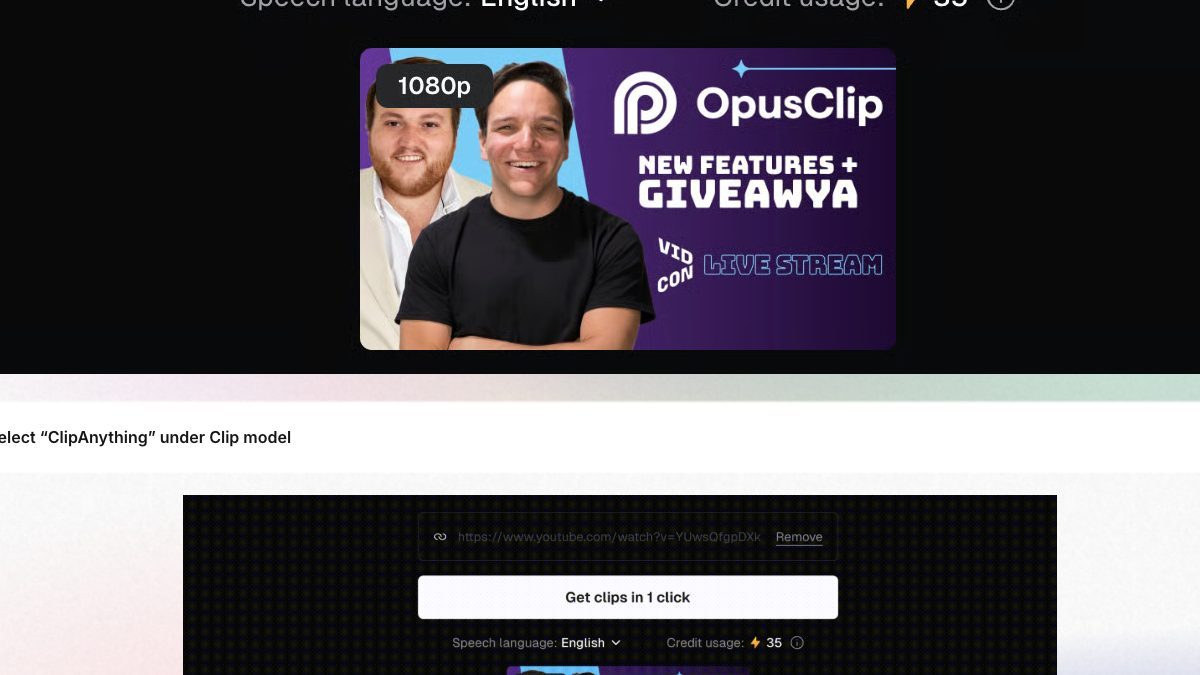
Adding a long video in OpusClip. Source: OpusClip Help Center
OpusClip takes a long video (a podcast, webinar, interview or livestream) and returns short clips, each with a Virality Score from 0 to 99. Its in-app editor handles text-based and timeline-based editing, according to the OpusClip help center. To cut a sentence, select it in the transcript and click Delete, or drag the segment's ends in the timeline. Words and whole sentences can also be corrected, and a caption-only delete leaves the video untouched. A section from elsewhere in the source video can be added from the full transcript.
Speech Cleanup highlights filler words in the transcript and cuts the ones that are checked, and pauses can be removed with an adjustable threshold. Finished clips can be auto-posted to YouTube Shorts, TikTok and Instagram Reels from the Starter plan, and the Pro plan adds a social scheduler and XML export to Premiere Pro and DaVinci Resolve.
Pricing: Per opus.pro/pricing, Free is $0 with 60 credits a month, a watermark and no editing, so the text and timeline editor is a paid-plan feature. Starter is $15 a month (monthly billing only) with 150 credits and one brand template. Pro is $29 a month, or $14.50 a month billed annually, with 300 credits that roll over for 2 months. Business is custom.
Considerations: The editor works on the clips OpusClip generates from a longer video, so it is not the tool for editing a two-hour recording as one continuous project. OpusClip is a clip-and-publish tool, not a replacement for a full non-linear editor. Multi-track timeline work, heavy color grading and effects belong in a tool like Premiere or DaVinci Resolve, and Pro can export XML to either.
- Choose it if the job is turning long recordings into short posts and fixing each clip by deleting words, then publishing.
- Skip it if the job is editing one long recording end to end, or the plan is Free, which has no editing.
2. Descript: Best for editing a whole recording by editing the transcript
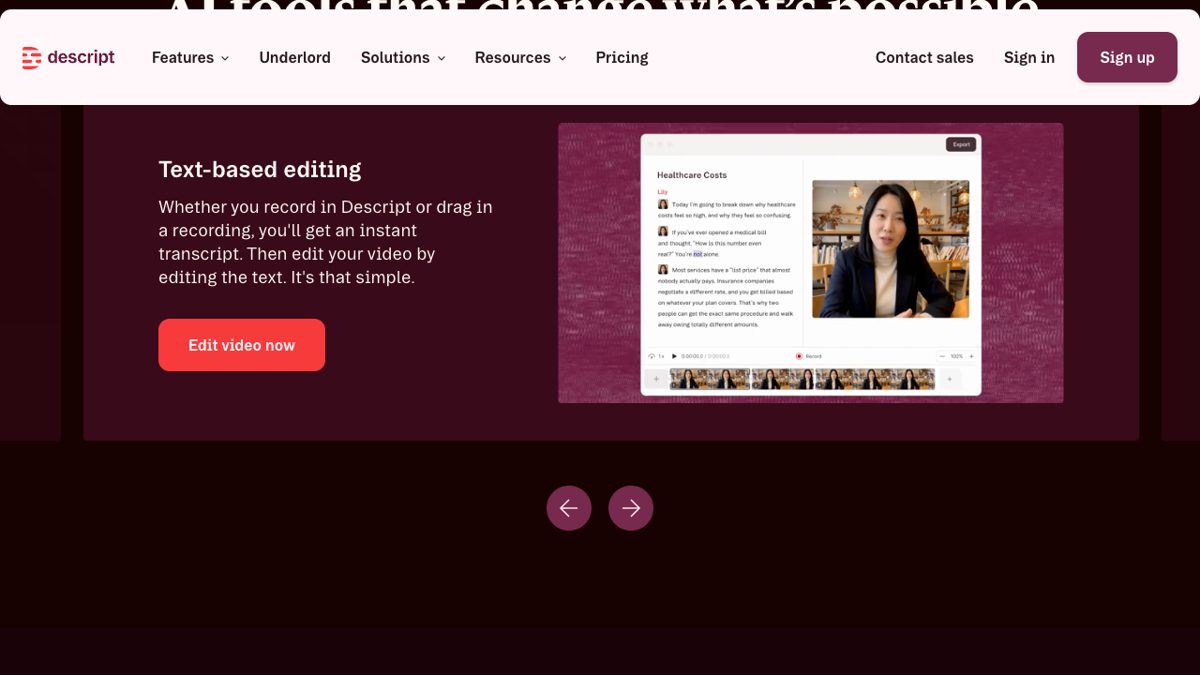
Text-based editing in Descript. Source: Descript website
Descript is the tool most completely built around editing by text. Its own FAQ says that it transcribes a recording and that deleting a word deletes that moment of video, while moving a sentence moves the footage with it. Its pricing page lists Underlord (its AI video co-editor), Studio Sound, Remove Filler Words and Create Clips among the AI tools. Its free plan is described as including text-based editing.
For a single long project such as a podcast episode, tutorial or interview, Descript is the stronger pick on this list, and it is the one we would point most people to if the whole job is editing by text. Its site says a timeline is available for fine control, but a whole video can be made without touching it.
Pricing: Descript's pricing page lists Free at $0 with 60 media minutes a month and 720p export. Hobbyist is $16 per person a month on annual billing ($24 monthly) with 10 media hours, 400 AI credits and 1080p watermark-free export. Creator is $24 a month on annual billing ($35 monthly) with 30 media hours, 800 AI credits and 4K export. Business is $50 a month on annual billing ($65 monthly). Enterprise is custom.
Considerations: Usage is metered in media hours and AI credits, so heavy months can run past a plan. Descript's focus is editing a project, not producing a batch of short clips and scheduling them to social accounts.
- Choose it if the job is editing long spoken recordings by deleting and moving text.
- Skip it if the job is repurposing one recording into many short posts with built-in publishing.
3. Adobe Premiere: Best for text-based editing inside a professional timeline editor
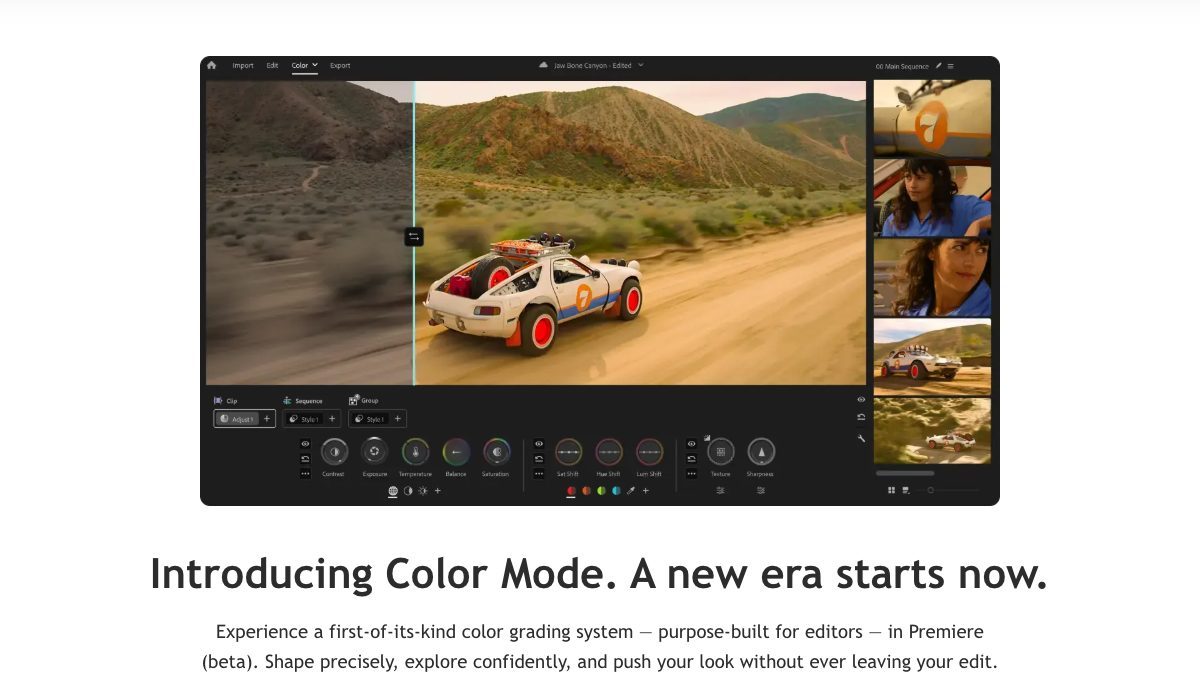
Adobe Premiere. Source: Adobe website
Adobe describes Text-Based Editing in Premiere as a way to refine, reorder and trim clips like editing a text document. Its Premiere page says AI transcribes video on import, and a rough cut can be made by copying and pasting text. Adobe's help center describes enabling automatic transcription in the import settings, choosing language and speaker labeling options, and then opening the Text-Based Editing workspace to view transcripts. Its help pages also list detecting and deleting pauses in transcripts and removing every instance of one speaker.
The advantage over a text-first tool is that the same project sits in a full professional timeline with color, audio and effects tools.
Pricing: Adobe's Premiere page lists US$22.99 a month for Premiere (annual plan, billed monthly) and offers a free trial. Creative Cloud Pro, which bundles Premiere with other apps, is listed separately on the same page.
Considerations: Premiere is a full non-linear editor with a steeper learning curve than a text-first tool, and the text workflow is one feature inside it. It does not generate or schedule short social clips the way a clipper does.
- Choose it if the edit needs a transcript-driven rough cut and a full timeline afterward.
- Skip it if the goal is a quick text edit with no timeline software to learn.
4. Riverside: Best for recording podcasts and interviews, then editing the transcript
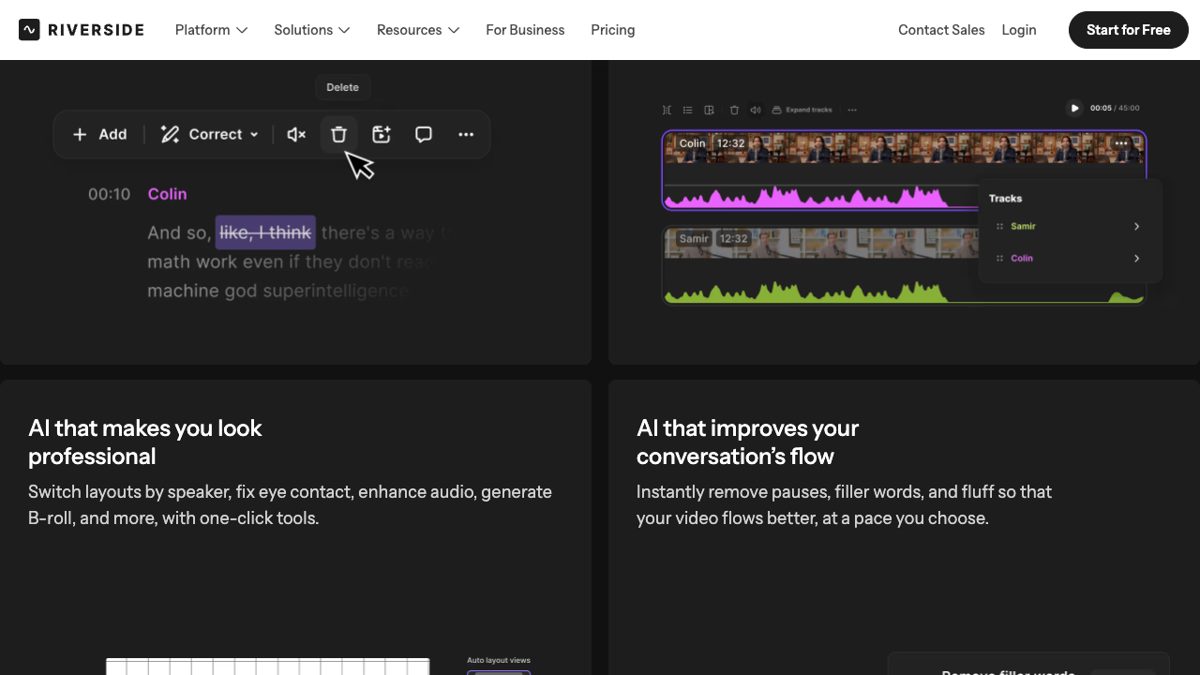
Editing by transcript in Riverside. Source: Riverside website
Riverside is a recording platform first. Its video editor page describes an AI, text-based video editor: delete a line or correct a word in the transcript and the change is applied to the video. The same page says edits can be made from the timeline or the transcript, or by telling an AI agent what to do, and lists removing filler words and silences. Because guests are recorded on separate tracks, the editing and the recording share one project.
Pricing: Riverside's pricing page lists Free at $0 with 2 hours of multi-track recording, up to 720p video and a Riverside watermark. Pro is $24 a month billed annually ($288 a year), and its FAQ gives $29 a month on monthly billing. Pro lists up to 4K video, no watermark and unlimited text-based editing.
Considerations: The best fit is content recorded in Riverside; the strongest features assume that workflow. Unlimited text-based editing is listed under the Pro plan, not Free, so check what a free trial covers before planning around it. For a side-by-side with Descript, see our Descript vs. Riverside comparison.
- Choose it if the job is recording remote guests and editing the episode by transcript in the same place.
- Skip it if the footage is already recorded elsewhere and the main need is clips for social posts.
5. Kapwing: Best for browser-based text editing with a collaborative workspace
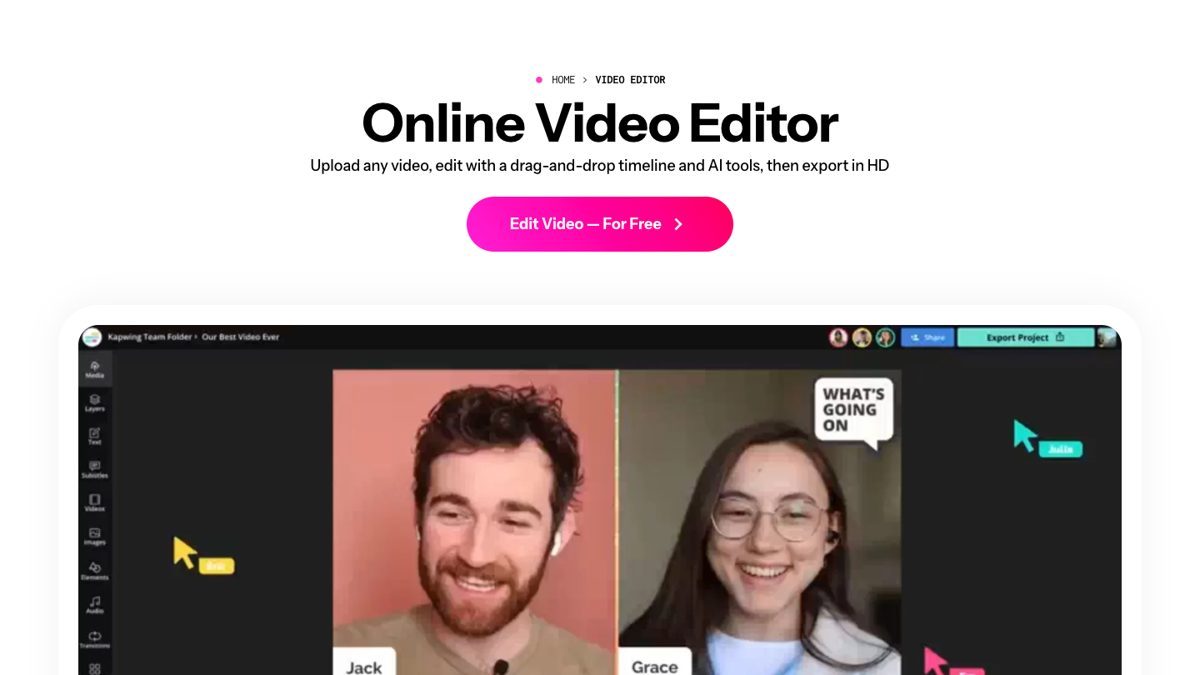
The Kapwing online video editor. Source: Kapwing website
Kapwing's video editor page lists a Text-Based Editor: an auto-generated transcript is used to delete or trim video sections by editing the text in the online editor. It runs in the browser, and Pro adds a collaborative shared workspace and a Brand Kit with custom fonts.
Pricing: Kapwing's pricing page lists Free at $0 with 10 credits, unlimited exports with a watermark, exports up to 4 minutes long and 720p quality. Pro is $16 a month on the annual view (the page advertises 33% savings on annual billing) with 1,000 credits a month, no Kapwing watermark, 4K export and exports up to 2 hours long. Business is $50 a month.
Considerations: The 4-minute export cap and 720p limit on the free plan make it a trial rather than a working plan for long recordings. The pricing page does not say which plan tiers include the text-based editor, so confirm that in the editor before committing.
- Choose it if the team wants a shared browser editor with transcript trimming.
- Skip it if the work is long recordings on the free plan, where the 4-minute export limit gets in the way.
6. VEED: Best for editing and subtitling in the browser
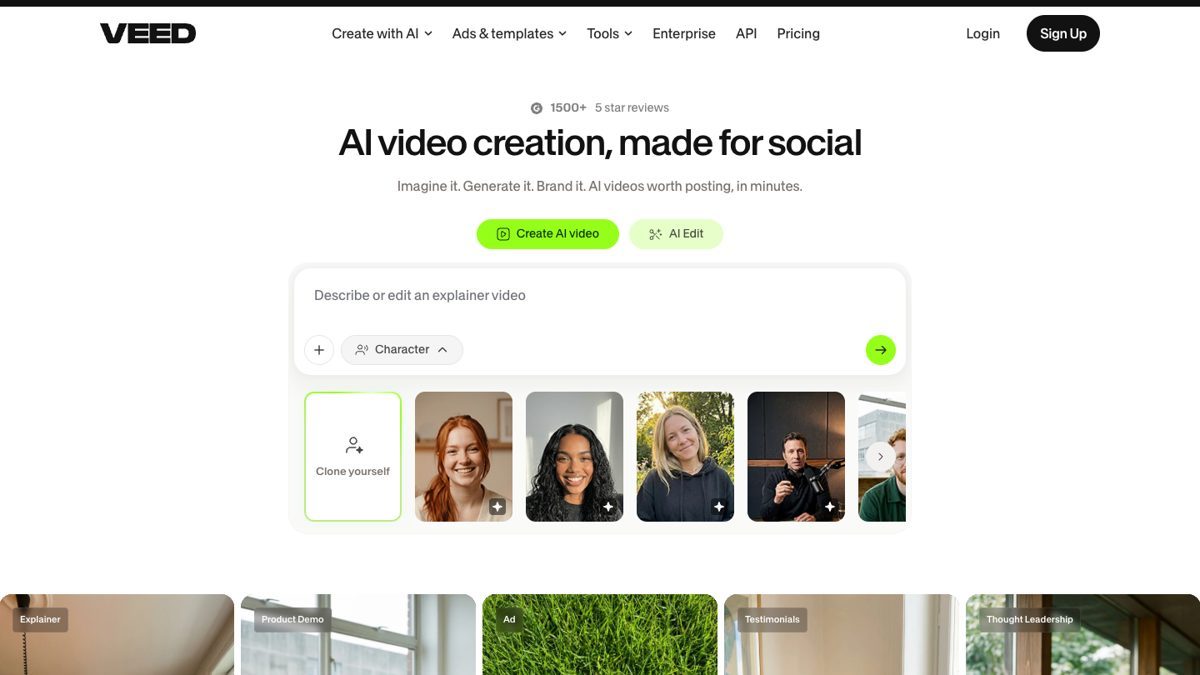
VEED's AI video creation and AI Edit entry point. Source: VEED website
VEED's editor page says it combines text-based editing, automatic edits and AI video generation in one online platform, and describes editing a video by editing the transcript so that cutting a clip is like deleting text. Its trimming guidance adds that deleting words from the transcript adjusts the video automatically. It runs in the browser and is aimed at quick edits, subtitles and social formats.
Pricing: VEED's pricing page lists Creator at $12 per user a month billed yearly (6,000 credits, no watermark, unlimited auto subtitles), Pro at $22 and Studio at $39 on the same basis. Its FAQ says credits do not carry over. Its editor page says free users get basic editing tools and 720p export, and that free exports include a watermark.
Considerations: Credits are metered, do not roll over, and AI features on the free plan are one-time trials per VEED's own page. It is a general browser editor, so text-based editing is one capability among many rather than the center of the product.
- Choose it if the job is quick browser edits with subtitles and a transcript-based trim.
- Skip it if the job is a long project that needs a text-first workflow or heavy clipping.
7. Gling: Best for removing bad takes and silences from YouTube talking-head footage
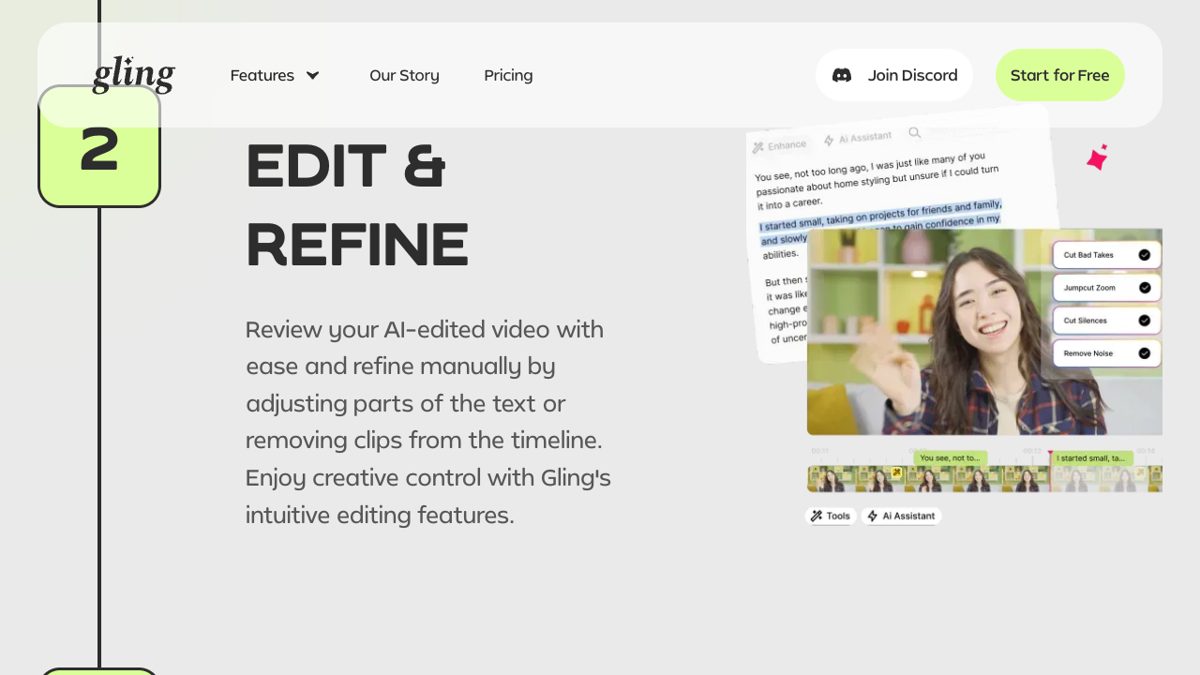
Refining an edit by text in Gling. Source: Gling website
Gling's site describes an AI text-based trimmer for YouTube creators. A raw recording is transcribed, the AI analyzes the text and removes unwanted takes and silences, and the result can be refined by adjusting parts of the text or removing clips from the timeline. It lists removing filler words, captions, auto framing, multicam editing and XML export to Premiere, Final Cut Pro and DaVinci Resolve. Gling says it is designed exclusively for desktop.
Pricing: Gling's pricing page lists Free at $0 with 1 hour of AI-edited media a month and exports with a watermark, without XML export. Plus is listed at $20 a month with 10 hours a month and watermark-free export, and Pro at $40 a month with 30 hours. The page offers an annual option it describes as saving 50%. Unused hours do not carry over.
Considerations: It is desktop only, and it focuses on cleaning up raw takes rather than posting short clips to social platforms.
- Choose it if the job is cutting retakes, silences and filler out of solo talking-head footage on a desktop.
- Skip it if editing must happen on a phone or in a browser, or the goal is a batch of short posts.
8. Vizard: Best for clipping long videos with an edit-by-text step on a free tier

Starting from a YouTube link in Vizard. Source: Vizard website
Vizard turns a long video into short clips, and its editor page lists an Edit by text feature: trim videos by deleting the corresponding transcription. It also lists timeline editing for fine-tuning those text edits, brand templates, link sharing and caption translation to over 100 languages.
Pricing: Vizard's pricing page lists Free at $0 with 60 credits a month, AI-generated clips, 720p export, full access to the video editor and 3-day storage. The Creator plan adds no watermark, 4K export and scheduled social posts. The page does not show readable dollar amounts for paid plans in its source, so see the pricing page for current prices.
Considerations: Free exports are 720p, and clips are stored for 3 days on the free plan. Its text editing is a step inside a clipping workflow, not a stand-alone long-form editor.
- Choose it if the job is clipping long videos on a free tier with a text trim step.
- Skip it if the job is editing one long recording as a single project.
How we compared these tools
We started from the products that document text-based or transcript editing on their own pages, then compared each on the job it does best, price and free-tier limits, export limits, platform (browser, desktop or both) and the main limitation. Tools whose own pages did not document text-based editing were left out. Every fact comes from that vendor's own pricing page, help center, docs or site, read on October 30, 2026. Where a pricing page did not show a dollar amount (Vizard), we point to the pricing page instead of guessing. Adobe's pages block plain page requests, so we read them in a browser.
We did not run hands-on tests of the competing tools. This is a comparison of published pricing and documented features, not a lab test, which is why the title says Compared and not Tested. Prices change often, so check the vendor's page before buying.
Red flags to watch for
Transcript edits that do not move the video
Some tools let the text be corrected for captions without changing the footage. OpusClip, for example, offers both a caption-only delete and a delete that removes the video too. Trial test: delete one sentence and play it back to confirm the picture and sound are cut, not only the caption.
Text editing locked behind a paid plan
OpusClip's Free plan has no editing, and Riverside lists unlimited text-based editing under Pro. Trial test: open the editor on the plan being considered and make one text cut before paying.
Watermarks and low-resolution free exports
Riverside, Kapwing, VEED, Gling and OpusClip list watermarks on their free plans, and several cap free exports at 720p. Trial test: export a finished video before deciding the free plan is enough.
Short export caps and metered hours
Kapwing Free caps exports at 4 minutes, Gling's hours do not carry over, and VEED credits do not carry over. Trial test: run a normal-length recording, not a short demo clip, against the monthly allowance.
No timeline for the last 10 percent
Text edits are fast for cuts but not for layout, audio mixing or color. Trial test: check that the tool has a timeline or an export path to a full editor for the final polish. OpusClip Pro and Gling both list XML export to professional editors.
Quality of the transcript itself
A text edit is only as good as the transcription underneath it. Trial test: upload a recording with accents, jargon or crosstalk and check how many words need correcting before editing begins.
Frequently asked questions
What is the best text-based video editor?
For editing an entire recording by editing the transcript, Descript is the pick, since it is built around that idea. For editing the short clips cut from a long video and then posting them, OpusClip fits best. For text-based editing inside a full timeline editor, Adobe Premiere is the pick, and for podcasts recorded online, Riverside.
Can I edit video by editing text?
Yes. In a text-based editor the video is transcribed, and deleting words in the transcript cuts that footage from the video. Descript, Adobe Premiere, Riverside, Kapwing, VEED, Gling, Vizard and OpusClip all describe a version of this on their own pages. See OpusClip's help article on editing and trimming by text.
Is there a free text-based video editor?
Several have free plans. Descript's pricing page describes its free plan as including text-based editing, with 60 media minutes a month and 720p export. Kapwing, VEED and Gling list free plans with watermarks, and Vizard lists a free plan with 60 credits a month and 720p export. OpusClip's Free plan has no editing, so text editing there starts on a paid plan from $15 a month. See OpusClip pricing.
Is text-based editing better than timeline editing?
It is faster for cutting spoken content because the words are visible. Timelines are better for layout, multi-track audio, color and effects. Several tools here offer both: OpusClip, Vizard, Gling and Adobe Premiere pair text editing with a timeline.
Can text-based editing remove filler words?
Yes, in tools that document it. Descript lists Remove Filler Words, Riverside lists removing filler words and silences, OpusClip's Speech Cleanup highlights fillers and pauses in the transcript, and Gling lists filler-word removal. For more, see our AI silence removers roundup.
Which text-based editor is best for podcasts?
Riverside records remote guests on separate tracks and edits them by transcript. Descript suits editing a finished podcast recording by text. For turning an episode into short social clips, OpusClip and Vizard are built for that job.
Does OpusClip have a text editor?
Yes, on paid plans. Per the OpusClip help center and pricing page, the in-app editor supports text-based and timeline-based editing of the clips OpusClip generates, but the Free plan has no editing. OpusClip is not a replacement for a full non-linear editor.