No items found.
Creator Corner
Ultimate Guide to Free Video Clipping and Editing Tools

Key takeaways
- Best free option for turning a long video into short clips: OpusClip. OpusClip has a free plan, and its AI clipping cuts long videos into short vertical clips with auto captions (the pricing page lists what each plan includes).
- Best free editor for manual control: DaVinci Resolve. Blackmagic Design's site says the free version handles 8-bit video at up to 60fps and Ultra HD (3840 x 2160), and the paid Studio version adds the AI Neural Engine and resolutions beyond 4K.
- Shotcut and OpenShot are free, open-source desktop editors. Shotcut's site calls it a free, open-source editor for Windows, Mac and Linux, and OpenShot's site says it comes with no subscriptions, watermarks or project limits.
- Free browser editors usually add limits. Kapwing's pricing page lists its Free plan as unlimited exports with a watermark, up to 4 minutes at 720p, and VEED's pricing page says videos made on its free plan carry a watermark.
- Lossless cutting only works cleanly at keyframes. Avidemux's documentation says a Copy mode cut between keyframes can break the frames that follow, so cut on keyframes or let the editor re-encode.
- Test any free plan before you build a workflow on it. Run one real video through each tool's free plan, OpusClip included, and check for watermarks, export caps and locked features.
Free video cutting tools can transform your content creation workflow without any cost, with AI-powered platforms leading the revolution in automated highlight detection and professional-grade editing capabilities. Whether you're trimming hour-long recordings into bite-sized social clips or creating polished highlights for your audience, the right editor makes all the difference. This comprehensive guide covers the best free video clipping solutions across desktop, online, and mobile platforms, helping you choose tools that deliver watermark-free exports, fast editing workflows, and optimized settings for TikTok, Instagram Reels, and YouTube Shorts.

Which free video cutting tools deliver professional results?
Choosing the right video editor depends on your platform preference, technical requirements, and workflow style. Desktop editors still hold 35% market share among content creators, while cloud-based solutions are rapidly gaining ground for their collaboration features and accessibility.
What are the best desktop video editors for Windows and Mac?
DaVinci Resolve stands as the gold standard for professional-grade free editing with Hollywood-level color grading and audio mixing capabilities. Its clipping tools include magnetic timeline editing, razor blade cuts, and frame-accurate trimming. The learning curve is steep, but the export quality rivals paid alternatives. Best for creators who want maximum control and don't mind the complexity.
CapCut Desktop excels at social media content creation with built-in templates and trending effects. Features include auto-captions, background removal, and vertical video optimization. Limited advanced color correction compared to professional tools, but perfect for TikTok and Instagram creators who want quick, polished results.
iMovie (Mac only) provides the most intuitive interface for beginners. Best for Mac users who prioritize simplicity over advanced features. Offers magnetic timeline, built-in transitions, and seamless iPhone integration. Export options are somewhat limited for professional workflows.
Shotcut delivers powerful editing without the complexity of professional suites. Best for Windows users who want reliable performance on older hardware. Features include native timeline editing, extensive format support, and no watermarks. Interface feels dated but functionality is solid.
OpenShot offers cross-platform compatibility with straightforward controls. Best for basic cutting tasks and simple transitions. Provides unlimited tracks, 3D animations, and decent audio editing. Can be unstable with large files or complex projects.
Which online video clippers work best in browsers?
Cloud-based editing solutions are experiencing 8.5% CAGR growth as creators embrace the flexibility of browser-based workflows. These tools eliminate GPU requirements, enable instant sharing, and provide access from any device.
OpusClip leads the pack with AI-powered highlight detection that automatically identifies viral moments from long-form content. The platform analyzes engagement patterns, hook strength, and flow to create compelling short clips with remarkable precision. Features include advanced auto-captions, customizable brand templates, and intelligent multi-platform sizing. Perfect for podcasters, educators, and content creators who need to efficiently transform lengthy videos into engaging social media content. The AI's ability to understand context and narrative flow sets it apart from basic cutting tools.
Clipchamp (Microsoft) integrates with Windows and Office 365 workflows. Offers stock media library, green screen effects, and direct upload to social platforms. Clipchamp's pricing page lists watermark-free exports up to 1080p on the free tier, with 4K export and premium features included in Microsoft 365 Personal and Family.
VEED.io focuses on subtitle generation and social media optimization. Features include auto-transcription, progress bars, and audiogram creation. Free version limits exports to 10 minutes and includes watermark. Premium unlocks longer videos and HD quality.
Kapwing provides collaborative editing with real-time comments and version control. Excels at meme creation, subtitle styling, and quick social cuts. Free tier includes watermark and processing limits. Team features require paid plans.
As industry experts note, "Cloud-first editing is the collaboration unlock of the decade," enabling distributed teams to work together seamlessly regardless of hardware constraints.
Free Video Editing Tools Comparison
| Tool | Platform | Best For | AI Features | Watermark | Export Limits |
|---|---|---|---|---|---|
| OpusClip | Browser | AI-powered highlights | ClipAnything, Auto-captions, Smart reframing | Free tier | 60 credits/month |
| DaVinci Resolve | Win/Mac/Linux | Professional quality | Manual editing only | None | None |
| CapCut Desktop | Win/Mac | Social media | Auto-captions, Templates | None | None |
| Clipchamp | Browser | Office integration | Basic auto-editing | None | 1080p max (free) |
| iMovie | Mac only | Beginners | Manual editing only | None | None |
| Shotcut | Win/Mac/Linux | Reliable editing | Manual editing only | None | None |
| OpenShot | Win/Mac/Linux | Basic cutting | Manual editing only | None | None |
What about mobile apps with clipping features?
Mobile video editing represents the fastest-growing segment with 9% CAGR as smartphone cameras improve and social media consumption shifts mobile-first.
- CapCut Mobile: Industry leader with comprehensive editing suite, trending effects, and TikTok integration
- VN Video Editor: Professional-grade mobile editing with curve adjustments, keyframe animation, and advanced audio mixing
- InShot: Optimized for Instagram Stories and Reels with quick templates and music library
- Adobe Premiere on mobile: Adobe's iPhone and Android app that replaces the discontinued Premiere Rush, with free exports and features according to Adobe's page and payment only for generative AI tools
- Splice: Intuitive timeline editing with extensive music library and automatic beat syncing
Most mobile apps offer offline editing capabilities with optional cloud sync for project backup and cross-device workflows. For creators who prefer browser-based editing, OpusClip's mobile-optimized web interface provides a seamless alternative without app store downloads or device storage concerns.

How do you choose the best video clipping platform?
Selecting the right video editor requires evaluating your specific needs against available features. The global video editing software market reached $2.14 billion in 2024, offering creators unprecedented choice across price points and capability levels.
What key features matter most for video clipping?
Timeline Precision: Frame-accurate cutting tools prevent unwanted gaps or overlaps in your final clips. Look for magnetic timelines that automatically close gaps and snap tools that align cuts to audio beats.
Batch Processing: Ability to queue multiple exports saves hours when creating content series. Essential for creators producing daily social media content from longer source material.
Format Flexibility: Native support for your camera's recording format eliminates transcoding delays. Modern editors should handle H.264, H.265, and variable frame rate files without preprocessing.
Preview Performance: Real-time playback during editing accelerates decision-making. Proxy media generation helps maintain smooth scrubbing even with 4K source files.
Export Presets: Platform-specific output settings ensure optimal quality for TikTok, Instagram, and YouTube. Custom presets save time and prevent compression artifacts.
Undo/Redo System: Robust history tracking allows experimentation without fear of losing work. Non-destructive editing preserves original files while enabling creative exploration.
How does AI auto-clipping compare to manual editing?
AI-powered clipping uses machine learning algorithms to analyze video content and automatically identify highlight moments based on engagement patterns, audio cues, and visual composition. These systems excel at processing large volumes of content quickly, making them invaluable for creators who regularly transform long-form videos into social media clips.
OpusClip's AI represents the cutting edge of automated content analysis, examining factors like hook strength, narrative coherence, and trending patterns to identify "viral moments" from podcasts, webinars, and educational content. The sophisticated system generates multiple high-quality clip options with auto-generated captions and optimized aspect ratios, and processing time depends on video length and demand. What sets OpusClip apart is its deep understanding of storytelling structure and audience psychology, ensuring clips maintain narrative flow while maximizing engagement potential.
Manual editing provides complete creative control but requires significantly more time investment. Professional editors can craft nuanced storytelling, precise timing, and custom visual effects that AI cannot replicate. The choice depends on your content volume, quality requirements, and available time.
As The AI Journal, AI editing tools are revolutionizing content creation by removing technical barriers, enabling creators to focus on strategy rather than technical execution.
What should you know about watermarks, limits, and privacy policies?
Free video editing platforms typically monetize through premium upgrades, making it crucial to understand limitations before committing to a workflow.
Desktop applications generally offer unlimited exports without watermarks since they process locally. Cloud-based platforms often impose restrictions to encourage premium subscriptions. Always review data retention policies, especially for sensitive content, and consider geographic data storage requirements for business use.
OpusClip's help center says projects expire 30 days after creation on Starter and Pro (Pro can save projects to cloud storage) and 3 days on Free, while other providers follow varying privacy standards. For sensitive content, prefer desktop editors that process locally, or review platform security certifications before uploading.
What is the fastest way to clip videos with free software?
Efficient video clipping workflows can reduce editing time from hours to minutes while maintaining professional quality results.
How do you clip videos in a browser without downloads?
Upload your source video to OpusClip or your chosen browser editor. Drag and drop files up to 1GB or paste YouTube/social media URLs for direct import. Time-saver tip: Use URL import to avoid downloading and re-uploading social media content.
Let AI analyze the content for highlight moments while you review the automated transcript. OpusClip's advanced AI completes comprehensive analysis, with processing time that depends on video length and demand, identifying the most engaging segments with remarkable accuracy. Time-saver tip: Edit the transcript first to fix any speech recognition errors before generating clips.
Preview generated clips and select your favorites from the AI suggestions. Look for clips with strong hooks, complete thoughts, and natural ending points. Time-saver tip: Use OpusClip's engagement score indicators to prioritize clips with highest viral potential.
Customize captions and branding using built-in templates. Adjust font styles, colors, and positioning to match your brand guidelines. Time-saver tip: Save custom brand templates to apply consistent styling across all future clips.
Export in multiple formats simultaneously for different social platforms. Download 9:16 for TikTok, 1:1 for Instagram feed, and 16:9 for YouTube Shorts. Time-saver tip: Queue all exports at once rather than processing individually.
How do you clip on desktop with lossless cutting?
Lossless video cutting uses Direct Stream Copy technology to extract segments without re-encoding, preserving original quality while dramatically reducing export times. This method works when cutting at keyframes and maintaining the same codec.
Shotcut's FAQ says its Extract Sub-clip option (in the Properties menu) cuts a clip without encoding, but the cut is not frame accurate, and it suggests LosslessCut, VirtualDub or Avidemux as alternatives.
Avidemux specializes in quick, lossless cuts for format conversion and basic trimming. Set video output to "Copy" mode, mark your in/out points, and save. The process typically completes in seconds rather than minutes since no pixel-level processing occurs.
Lossless cutting works best with H.264 and H.265 files shot at consistent frame rates. Variable frame rate recordings from phones may require transcoding to constant frame rate first to avoid sync issues.
How do you clip for social media with auto captions?
Social media algorithms favor videos with captions, improving accessibility and engagement rates. Modern editing tools can automatically generate and style captions for professional results.
Import your video and enable automatic speech recognition. OpusClip adds AI captions automatically.
Review and edit the transcript before applying caption styling. Fix any misheard words, add punctuation, and break long sentences into readable chunks of 3-5 words per caption.
Apply caption styling that matches your brand and ensures readability on mobile devices. Use high contrast colors, readable fonts like Arial or Helvetica, and position captions in the lower third to avoid covering faces.
Export in vertical format (9:16 aspect ratio) optimized for mobile viewing. OpusClip automatically handles aspect ratio conversion while maintaining caption positioning and readability.

How do you maintain quality when clipping and exporting?
Maintaining video quality during the editing process requires understanding compression, codecs, and platform-specific requirements.
How does lossless clipping work with different codecs?
Video compression uses Group of Pictures (GOP) structure where keyframes contain complete image data while intermediate frames store only changes. Cutting between keyframes enables lossless extraction without quality degradation.
Choose matching codecs between source and output to prevent unnecessary transcoding. If your source is H.264, export in H.264. Codec conversion always introduces some quality loss, even at high bitrates.
Avoid generation loss by minimizing the number of encoding passes. Each time video is compressed and decompressed, artifacts accumulate. Work with highest quality source files and export only once to final delivery format.
Modern smartphones record in H.265 (HEVC) which offers better compression efficiency than H.264 but requires more processing power. Ensure your editing platform supports H.265 hardware acceleration to maintain smooth playback.
What are the optimal export settings for social platforms?
Each social platform applies additional compression after upload, making proper export settings crucial for maintaining quality.
- TikTok optimal settings: 1080x1920 resolution, 30fps frame rate, H.264 codec, 8-12 Mbps bitrate, AAC audio at 128 kbps
- Instagram Reels settings: 1080x1920 resolution, 30fps frame rate, H.264 codec, 6-8 Mbps bitrate, AAC audio at 128 kbps
- YouTube Shorts settings: 1080x1920 resolution, 24-60fps frame rate, H.264 or H.265 codec, 10-15 Mbps bitrate, AAC audio at 128 kbps
Higher bitrates provide quality buffer for platform compression but increase file size and upload time.
How do aspect ratios and safe zones affect your content?
Different social platforms require specific aspect ratios and safe zones to ensure content displays properly across devices.
9:16 vertical format dominates mobile-first platforms like TikTok, Instagram Reels, and YouTube Shorts. This format maximizes screen real estate on smartphones and aligns with natural mobile viewing behavior.
4:5 portrait format works well for Instagram feed posts, providing more vertical space than square while remaining mobile-friendly.
1:1 square format maintains compatibility across all platforms but doesn't optimize for mobile viewing.
Safe zones ensure critical content remains visible across different devices and platform interfaces. Keep text and important visual elements within the center 80% of the frame to avoid cropping by platform algorithms or device bezels.
OpusClip automatically handles aspect ratio conversion and safe zone positioning, ensuring your clips display optimally across all target platforms without manual adjustment.
What common issues affect free video clippers?
Common technical issues can derail editing workflows, but most problems have straightforward solutions.
How do you fix file format and large file issues?
Unsupported file formats represent the most common import problem. Create a compatibility checklist: MP4 with H.264/H.265 video and AAC audio works universally. MOV files from iPhones may need conversion to MP4 for broader compatibility. Variable frame rate recordings from screen capture software often require transcoding to constant frame rate.
Large file handling varies significantly between platforms. Desktop editors typically handle multi-gigabyte files without issues. Browser-based tools often limit uploads to 1-2GB. Split large files using free tools like FFmpeg before uploading, or use URL import for content already hosted online.
How do you resolve audio sync and stutter problems?
Audio sync problems typically stem from variable frame rate (VFR) source material. Screen recordings, livestream captures, and some phone recordings use VFR to save storage space, but this causes sync drift during editing.
Identify VFR files by checking properties in your media player. Look for "variable" in the frame rate field rather than a fixed number like "30 fps." Transcode VFR to constant frame rate before editing using HandBrake or FFmpeg with "-r 30" flag.
Stuttering playback during editing usually indicates insufficient processing power or proxy media needs. Enable proxy media generation in professional editors like DaVinci Resolve. Lower preview quality to 1/2 or 1/4 resolution during editing, then export at full quality.
GPU acceleration significantly improves performance in modern editors. Enable hardware acceleration in settings if available, and ensure graphics drivers are updated.
What privacy and copyright considerations should you know?
Cloud-based editing platforms store your content temporarily during processing, raising privacy and copyright concerns for sensitive material.
Check data retention policies before uploading confidential content. Most platforms delete files after 30-90 days, but some retain data indefinitely. GDPR compliance varies by platform location and corporate structure.
Copyright considerations apply when using copyrighted music, images, or video clips. Fair use doctrine may protect educational or commentary content, but commercial use typically requires licensing. Platform content ID systems automatically detect copyrighted material and may mute audio or block uploads.
Best practices: Use royalty-free music libraries, obtain proper licensing for commercial content, and review platform-specific copyright policies. When in doubt, consult legal counsel for business-critical content.
Frequently Asked Questions
Which free video clipping tools are truly watermark-free with no time limits for exports?
Desktop applications offer the most generous free tiers with unlimited exports and no watermarks. DaVinci Resolve, CapCut Desktop, iMovie (Mac), Shotcut, and OpenShot process locally without monetization restrictions. Cloud-based options typically impose limitations: OpusClip's free plan includes 60 credits a month with AI-powered highlight detection, while other cloud editors include watermarks and export restrictions. For unlimited watermark-free editing, choose desktop applications or upgrade to premium cloud plans.
How can I cut long recordings without re-encoding to avoid quality loss and speed up exports?
Use a lossless cutting tool like Avidemux with its video output set to Copy. This method extracts video segments without re-encoding, preserving original quality. The technique works best when cutting at keyframes and maintaining the same codec as your source file. Enable 'Copy' mode in your editor settings, make your cuts, and export. Variable frame rate files may require transcoding to constant frame rate first to avoid sync issues.
Can I auto-generate multiple short clips from a one-hour video, and how accurate are AI highlights for non-gaming content?
AI clipping tools like OpusClip can process hour-long videos and generate multiple highlight clips using viral moment detection algorithms, with processing time that depends on video length and demand. The AI analyzes engagement patterns, hook strength, and content flow to identify shareable segments. Accuracy varies by content type, and conversational content may require more manual curation. OpusClip's AI specializes in identifying viral moments across various content types. Review AI suggestions before publishing, as algorithms may miss context or cultural nuances.
What are safe export settings for TikTok, Reels, and Shorts to preserve quality after platform compression?
Use these platform-optimized settings: TikTok requires 1080x1920, 30fps, H.264, 8-12 Mbps bitrate; Instagram Reels needs 1080x1920, 30fps, H.264, 6-8 Mbps bitrate; YouTube Shorts accepts 1080x1920, 24-60fps, H.264/H.265, 10-15 Mbps bitrate. All platforms prefer AAC audio at 128 kbps. Higher bitrates provide quality buffer for platform compression but increase upload time. Keep important content within the center 80% of frame to avoid cropping by platform interfaces.
How do online video clippers handle privacy and storage, and what should I check in their policies?
Cloud editors typically store files temporarily during processing, with retention periods ranging from 30-90 days. Check data location (US, EU servers), GDPR compliance status, and deletion policies. OpusClip's help center says projects expire 30 days after creation on Starter and Pro (Pro can save projects to cloud storage) and 3 days on Free. Other providers follow varying privacy standards and data handling practices. For sensitive content, prefer desktop editors that process locally, or review platform security certifications and data handling practices. Always read privacy policies for business or confidential content.
What is the best workflow to go from phone recording to social-ready clips using free tools?
Record in highest quality your phone supports (4K if available) in vertical orientation. Transfer files to your preferred editor—mobile apps for on-device editing, or OpusClip for AI-powered highlight detection and auto-captioning. If using desktop tools, import via cable or cloud sync to avoid compression. Enable auto-captions for accessibility and engagement. Apply platform-specific aspect ratios (9:16 for most social platforms), add brand elements, and export using optimized settings. Test uploads on each platform to verify quality before publishing across all channels.
Free video cutting tools have evolved dramatically, offering professional-grade capabilities without subscription costs. Cloud-based solutions like OpusClip lead the revolution with AI-powered automation that streamlines social media workflows, while desktop applications like DaVinci Resolve provide Hollywood-level features for advanced users. The key is matching tool capabilities to your specific needs—whether that's intelligent highlight detection, frame-accurate editing, or automated caption generation.
Remember that the best free tool is the one you'll actually use consistently. Start with AI-assisted platforms like OpusClip to build confidence and accelerate your workflow, then explore more advanced features as your skills develop. With proper export settings and workflow optimization, today's free tools can produce results indistinguishable from expensive alternatives, democratizing high-quality video creation for creators at every level.
How to choose
Pick by the job you need done, then compare the free plans of the tools that fit.
- You have a long video and want short clips fast. Look for AI highlight detection, auto captions and vertical reframing: OpusClip covers all three on its free plan, while Kapwing and VEED suit hands-on edits and subtitles in the browser.
- You want full manual control. Look for a multi-track timeline and frame-accurate trimming: DaVinci Resolve for the broadest toolset, Shotcut or OpenShot for simpler open-source alternatives.
- You edit on a Mac and want the simplest start. Look for a beginner-friendly editor with built-in transitions: iMovie.
- You edit mostly on your phone. Look for a mobile app that exports without a watermark and has the captioning you need: CapCut Mobile, VN Video Editor, InShot or Splice (VN's site says its editor has no watermarks and is free).
- You work in Windows and Microsoft apps. Look for an editor that fits that workflow: Clipchamp, whose pricing page says premium features come with Microsoft 365 Personal and Family.
- You only need to trim without re-encoding. Look for a Copy mode that cuts on keyframes: Avidemux (use an editor that re-encodes when you need frame-accurate cuts).
- You handle private or client footage. Look for local processing and clear retention terms: DaVinci Resolve, Shotcut, OpenShot and Avidemux run on your computer, and any cloud tool should say how long it keeps uploads.
Red flags to watch for
A watermark or end card on free exports
A burned-in logo is hard to hide afterward, and cloud editors often use it to push upgrades. Kapwing's and VEED's pricing pages both say free-plan exports carry a watermark. Trial test: export a 30-second clip on the free plan, play it to the last frame, and check the corners and the end for logos or cards.
A hidden cap on length or resolution
A free plan may export your video only at low resolution or short length. Kapwing's pricing page limits Free exports to 4 minutes at 720p. Trial test: export your longest typical video at the highest quality offered and check the file's actual length and resolution.
Allowances that run out or expire
Free plans meter use in credits, minutes or exports, and finished projects may stay available only for a limited time. Kapwing's Free plan includes 10 credits, for example, usable for up to 10 minutes of auto-subtitling. Trial test: process one real full-length video, note how much of the allowance it used, and check how long the finished project stays available.
AI features that sit behind a paywall
Free templates and basic tools are not the same as the AI features shown in marketing. CapCut's pricing page lists free templates and basic editing tools on Free, and AI features and premium templates on Pro. Trial test: before building a workflow on an AI tool, run it once on the free plan and see whether the export is blocked or marked.
No way to correct what the AI gets wrong
AI clipping and captions need a human check, because a tool can miss context or mishear a word. Trial test: run one episode through the tool, then try to move a cut boundary and fix a caption on the free plan; if you cannot, plan a manual editor such as DaVinci Resolve for the final pass.
What the tools look like
Here is what a few of the tools in this guide look like. OpusClip screenshots come from our product pages and help center. The others come from each vendor's own website.
OpusClip: paste a link and get clips
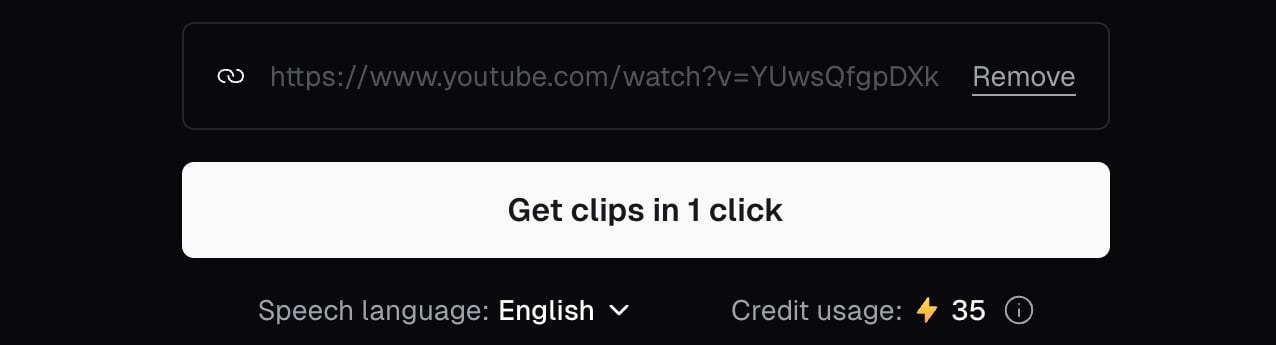
Adding a YouTube link in OpusClip before clicking Get clips in 1 click. Source: OpusClip Help Center
DaVinci Resolve
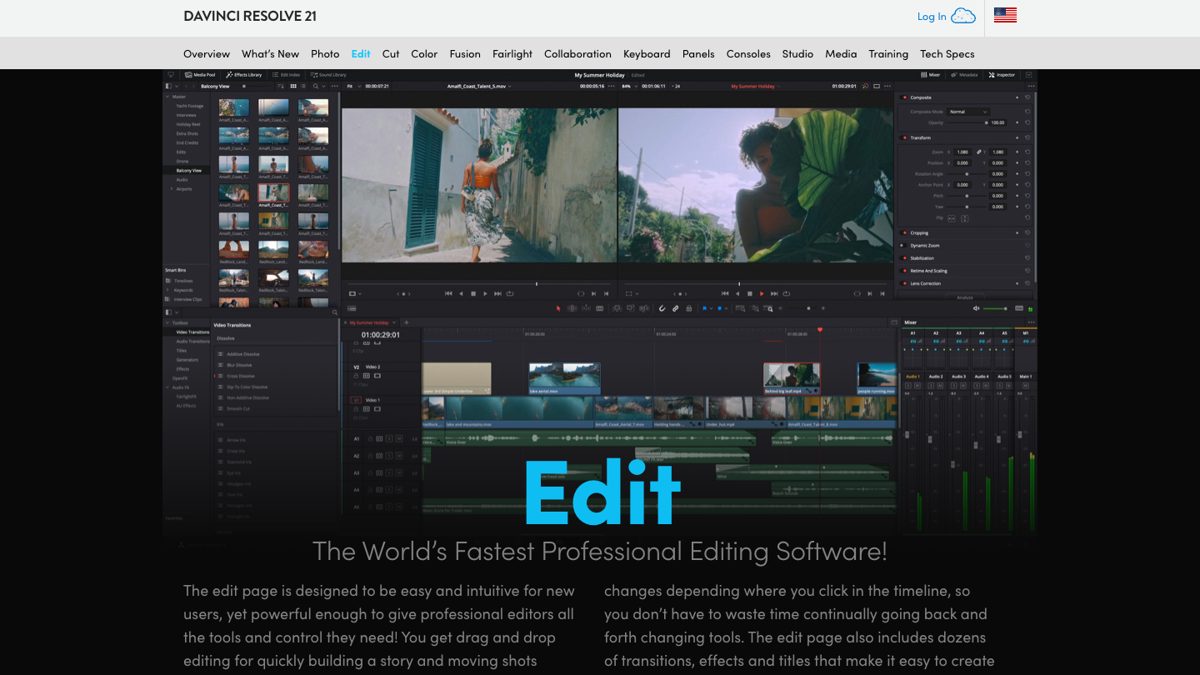
The DaVinci Resolve Edit page. Source: Blackmagic Design website
CapCut
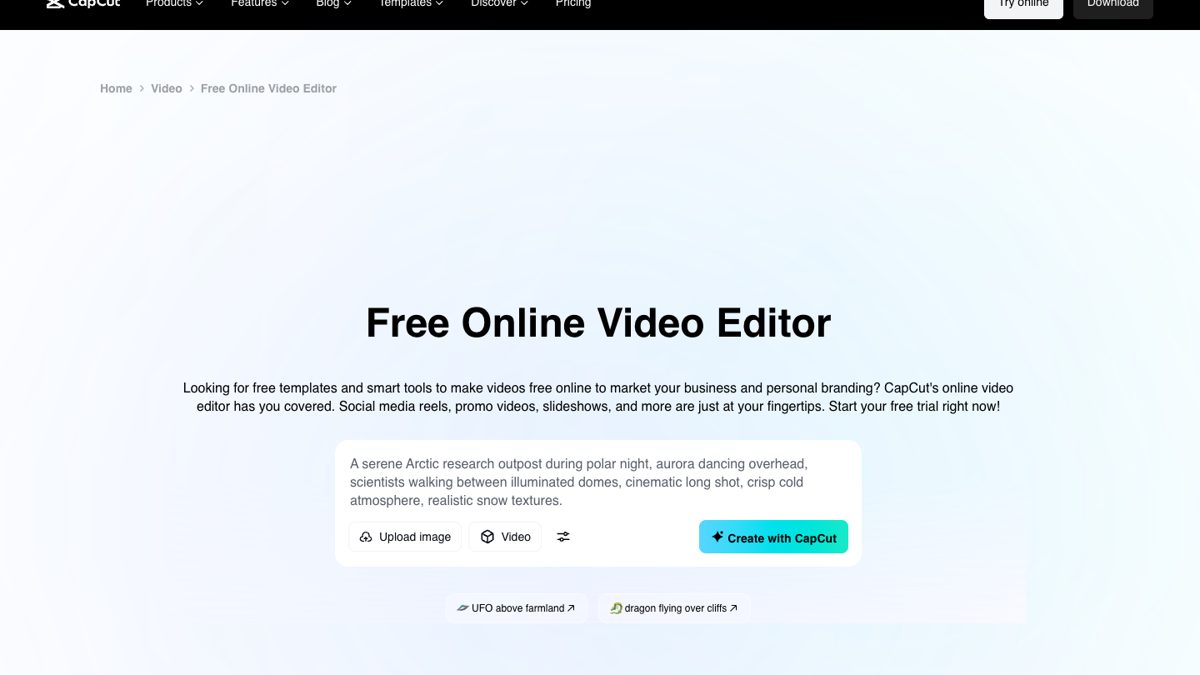
CapCut's online video editor page. Source: CapCut website
Kapwing
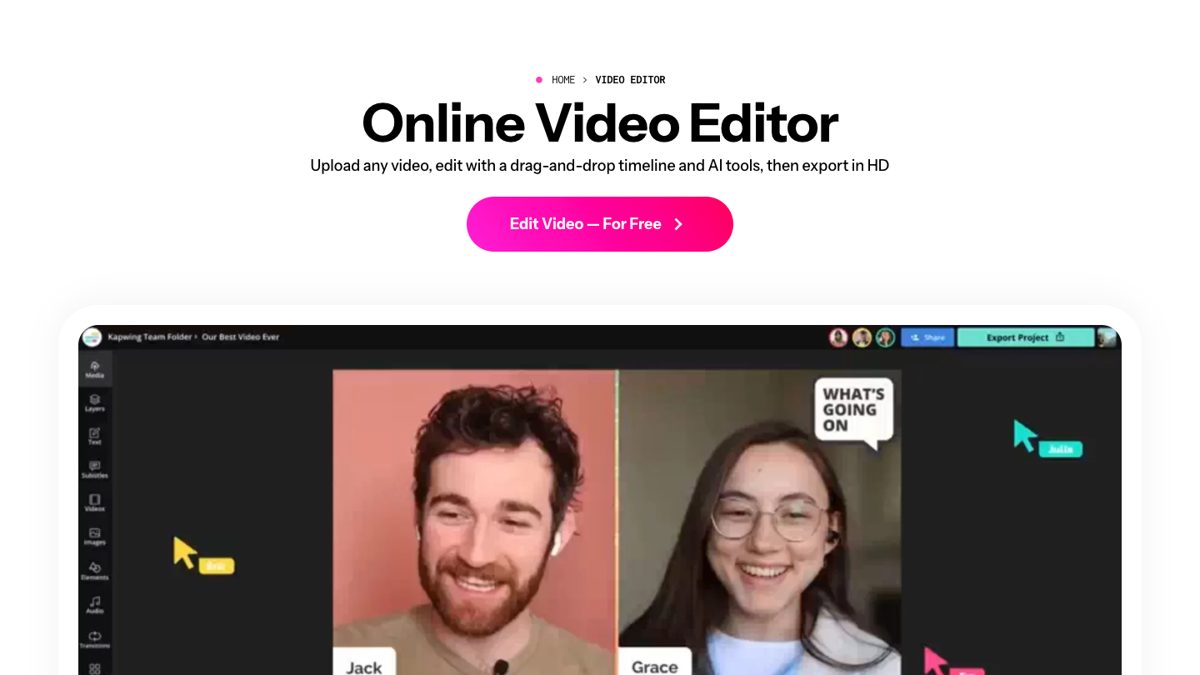
The Kapwing online video editor. Source: Kapwing website