OpusClip 4.0 is here. Become a content powerhouse.

Creator Corner

How to Choose Reliable Video Clipping Software Without Overpaying

September 18, 2025
·
Updated
November 4, 2026

Key takeaways

  • Pick the tool for the job first. To turn long videos into short clips, OpusClip's ClipAnything model finds moments in any video type and takes text prompts, while timeline editors such as DaVinci Resolve and Premiere Pro give you manual control of every cut.
  • Compare the full plan price, not the headline number. As of Nov 3 2026, OpusClip's pricing page lists Starter at $15 a month (billed monthly only), Pro at $29 a month or $14.50 a month billed annually, and custom Business plans.
  • Treat a free plan as a test, not a workflow. OpusClip's Free plan adds a watermark, has no editing, and clips stop being exportable after 3 days, per its pricing page.
  • Check the handoff and the posting path. OpusClip's Pro plan exports XML for Adobe Premiere Pro and DaVinci Resolve, Starter auto-posts to YouTube Shorts, TikTok and Instagram Reels, and Pro adds a social scheduler.
  • Price a team by seats and support. OpusClip's Pro plan shares credits across a team workspace of up to 4 seats (2 per pack) and lists live chat support, while Business adds priority support with a dedicated Slack channel.
  • Test every shortlisted tool on your own footage. Run the same 10-minute video through each one and compare clip picks, caption errors and export time before you pay.

Choosing reliable AI video clipping software requires evaluating essential features like automatic highlight detection, transparent pricing models, and format compatibility—with tools like OpusClip offering comprehensive AI-powered solutions starting at $15/month while free alternatives like DaVinci Resolve provide manual editing capabilities. The video editing market's rapid growth, with AI video editing projected to expand at a 42.19% CAGR, makes it crucial for creators to select tools that balance advanced AI features with cost-effectiveness to avoid overpaying while maximizing content creation efficiency.

Neon illustration of six video player icons above the words Video Clipping Platforms

What Are the Best Video Clipping Tools for Your Workflow?

OpusClip leads AI-powered video clipping with its ClipAnything AI technology, automatically detecting highlights and converting long-form content into viral shorts, while traditional editors like Adobe Premiere Pro and DaVinci Resolve require manual editing processes. The video editing landscape spans from free open-source solutions to premium AI platforms, each serving different creator needs and budget constraints.

Understanding your workflow requirements drives tool selection success. Adobe Premiere Pro dominates with a 35% market share, while DaVinci Resolve captures 15%, establishing industry benchmarks for feature comparison. However, traditional editors demand significant manual work for clipping and social media formatting, making AI-powered alternatives increasingly valuable for content creators.

Video Clipping Tools Comparison

AI Video Tools Comparison
Tool AI Clip Engine Free Tier Paid Tier Key AI Strength Best Use Case
OpusClip ClipAnything AI Free Forever Plan From $15/mo One-click highlight detection with viral scoring Social media content creation
Adobe Premiere Pro Limited AI tools 7-day trial US$22.99/mo Professional editing suite Full video production workflows
CapCut Basic AI clipping Free with watermark $19.99/mo Mobile-first design with templates Quick mobile editing
DaVinci Resolve Manual editing only Full free version $236 one-time (Studio, Nov 3 2026) Color grading excellence Professional post-production
Pictory Text-to-video AI Free trial $25-$119/mo billed annually Script-based video generation Educational content

‍

OpusClip Pros and Cons

Pros:

  • Advanced ClipAnything AI automatically identifies viral moments
  • Free Forever Plan to test before you pay
  • Direct social media integration and scheduling
  • ReframeAnything technology for aspect ratio optimization
  • AI-generated captions in multiple languages

Cons:

  • Limited manual editing controls compared to traditional editors
  • Focuses primarily on short-form content creation
  • Requires internet connection for AI processing

Adobe Premiere Pro Pros and Cons

Pros:

  • Industry-standard professional editing capabilities
  • Extensive plugin ecosystem and third-party integrations
  • Advanced color correction and audio editing tools
  • Seamless Creative Cloud workflow integration

Cons:

  • High monthly subscription cost at US$22.99
  • Steep learning curve for beginners
  • Limited AI-powered clipping features
  • Requires powerful hardware for optimal performance

CapCut Pros and Cons

Pros:

  • User-friendly mobile-first interface
  • Built-in templates and effects library
  • Free version includes basic AI features
  • Cross-platform synchronization

Cons:

  • Limited advanced editing capabilities
  • Watermark on free exports
  • Basic AI clipping compared to specialized tools
  • Privacy concerns with data handling

DaVinci Resolve Pros and Cons

Pros:

  • Completely free full-featured version available
  • Professional-grade color correction tools
  • No subscription fees for core features
  • Excellent for collaborative workflows

Cons:

  • No AI-powered clipping capabilities
  • Steep learning curve for new users
  • Resource-intensive software requirements
  • Manual process for social media formatting

Evaluate tools based on these primary workflow criteria:

Compatibility Requirements:

  • Source formats (MP4, MOV, 4K, 1080p)
  • Long-form content handling (podcasts, webinars, livestreams)
  • Export ratios (9:16 for TikTok, 1:1 for Instagram, 16:9 for YouTube)

Integration Capabilities:

  • Adobe Creative Suite compatibility
  • Social media scheduler connections
  • Cloud storage synchronization
  • API access for automation
Neon illustration titled AI Video Segmenter: a stopwatch, a lightning bolt, a video timeline splitting into segments, and YouTube, Instagram and TikTok icons

Which AI Features Should You Prioritize in Video Clipping Software?

Auto-clipping technology with sentiment analysis offers the highest ROI for content creators, extracting engaging segments based on visual cues, audio patterns, and emotional peaks to maximize viewer engagement. Advanced AI features like scene detection, B-roll generation, and automated captioning can save creators 5-10 hours per week compared to manual editing processes.

Understanding AI terminology helps evaluate tools effectively. Key AI features providing measurable time savings include:

Essential AI Feature Checklist

Core AI Clipping Features:

  • Automatic highlight detection: Identifies viral moments using engagement prediction algorithms
  • Scene detection: Recognizes transitions, speaker changes, and topic shifts
  • Sentiment analysis: Detects emotional peaks for maximum engagement potential
  • ClipAnything technology: OpusClip's proprietary AI that processes any video type

Content Enhancement Features:

  • AI-generated captions with 95%+ accuracy in multiple languages
  • Text-prompted B-roll insertion for visual storytelling enhancement
  • ReframeAnything for intelligent aspect-ratio conversion
  • Auto-generated thumbnails optimized for click-through rates

Workflow Optimization:

  • Bulk export capabilities to TikTok, YouTube Shorts, Instagram Reels
  • Custom branding integration (logos, colors, fonts)
  • Automated posting with social media schedulers
  • Team collaboration tools with role-based permissions

The AI video editing market's projected 42.19% CAGR growth reflects increasing sophistication in these features. Not all AI implementations are equal—some tools use basic template matching while others employ advanced machine learning models for content understanding.

AI Feature Performance Benchmarks

OpusClip Features Performance Table
Feature TypeHow to Test It on Your Own Footage
Highlight DetectionCompare the AI's clip picks with the moments you would choose
Auto CaptionsTranscribe a 100-word sample by hand and count the differences
Scene DetectionCheck that clips start and end at natural transitions
B-roll IntegrationCheck that each B-roll insert fits the sentence it covers

‍

Format support directly impacts workflow efficiency. Professional tools handle common codecs (H.264, HEVC, VP9) and container formats (MP4, MOV, AVI, WebM). However, free tools often impose limitations like 720p export caps, watermarks, or 100MB file size restrictions that can bottleneck production workflows.

Pro Tip: Test AI accuracy with your specific content type—podcast AI clipping performs differently than webinar or interview content due to varying audio patterns and visual cues.

How Do Different Pricing Models Compare and What Hidden Costs Should You Watch For?

Credit-based pricing suits occasional users, while unlimited subscriptions offer better value for teams processing 10+ hours monthly, with flat subscription models providing predictable costs ranging from $9-99 monthly depending on feature tiers and team size requirements.

Video clipping software follows three primary pricing structures, each optimized for different usage patterns and team needs:

Pricing Model Breakdown

1. Flat Subscription Model

Best For: High-volume creators and teams with consistent content production

  • Fixed monthly fee provides unlimited processing
  • Predictable budgeting with no overage surprises
  • Typically includes premium support and advanced features

2. Credit-Based Pricing

Best For: Sporadic users or teams testing AI capabilities

  • Pay for the processing you use
  • Flexible spending based on actual usage
  • Lower entry cost but higher per-unit pricing

3. Freemium with Upgrade Gates

Best For: Individual creators and small teams starting content creation

  • Free tier with feature limitations
  • Graduated pricing tiers for growing needs
  • Trial access to premium features

Comprehensive Pricing Comparison

Video Tool Pricing Comparison
Tool Free Tier Entry Paid Pro Tier Team/Enterprise Key Limitations
OpusClip Free Forever Plan $15/mo (Starter) $29/mo (Pro) Custom (Business) Free: 60 credits/month, watermarked
Adobe Premiere Pro 7-day trial US$22.99/mo US$22.99/mo $33.99/mo per seat Trial only, no free tier
CapCut Pro Free with watermark $19.99/mo $19.99/mo $12.49/mo per seat (Teams) Free: watermarks, limited exports
DaVinci Resolve Full free version $236 one-time (Studio, Nov 3 2026) $236 one-time (Studio, Nov 3 2026) One-time purchase (Studio) Free: no AI features
Pictory 3-video trial $25/mo billed annually $35/mo billed annually $119/mo billed annually (Teams) Trial: videos up to 5 min

‍

Hidden Cost Analysis

Watch for these additional expenses that inflate total investment:

Storage and Processing Overages:

  • Cloud rendering fees beyond included storage (typically 10-100GB)
  • Additional processing time charges for 4K content
  • Premium AI model access sold as add-ons

Team and Collaboration Costs:

  • Per-seat licensing that multiplies monthly costs
  • Admin dashboard and user management fees
  • Advanced permission controls and audit logs

Integration and Export Fees:

  • API access charges for automation workflows
  • Premium social media integrations beyond basic platforms
  • High-resolution export fees (4K, 8K capabilities)

Support and Training:

  • Priority support tier upgrades
  • Professional onboarding and training sessions
  • Custom integration development

12-Month Total Cost of Ownership Calculator

Calculate your true investment using this formula: (Base Subscription × 12) + (Expected Overages × 12) + (Team Seats × Cost) + (Integration Fees) = Total Annual Cost

Example Calculation:

  • OpusClip Pro (one pack, 2 seats): ($29 × 12) = $348/year billed monthly, or $174/year billed annually. A third teammate needs a second pack.
  • Adobe Premiere Pro (one seat): (US$22.99 × 12) = US$275.88/year on the annual plan billed monthly (Adobe's Premiere page, Nov 3 2026)
Neon illustration reading Affordable AI Tools for Marketers, with a checklist, a gear, a chat bubble, a video clip and a price tag

How Can You Test Tools Effectively and Benchmark Performance?

Upload a representative 10-minute video and measure clip accuracy, export speed, and caption quality to objectively compare AI performance, with top-performing tools achieving 90%+ highlight detection accuracy and sub-2-minute processing times for standard definition content. Effective testing requires systematic evaluation across multiple content types to ensure AI algorithms match your specific video characteristics.

Follow this data-driven testing methodology for objective tool comparison:

4-Step Performance Testing Process

Step 1: Content Selection and Preparation

Select representative test videos that reflect your typical content:

  • Long-form podcast (30-60 minutes) for conversational AI testing
  • Presentation or webinar (15-30 minutes) for educational content processing
  • Interview or discussion (10-20 minutes) for multi-speaker scenarios
  • Product demo or tutorial (5-15 minutes) for instructional content

Step 2: AI Processing Benchmark

Record quantitative metrics during AI processing:

  • Upload time and processing duration
  • Number of clips generated vs. manual expectations
  • System resource usage and stability
  • Error rates and failed processing attempts

Step 3: Output Quality Assessment

Evaluate results across three critical dimensions:

Caption Accuracy Testing:

  • Transcribe 100-word samples manually for comparison
  • Calculate error rate per 1,000 words transcribed
  • Test technical terminology and proper noun recognition
  • Assess punctuation and speaker identification accuracy

Visual Quality Assessment:

  • Check aspect ratio conversion fidelity
  • Evaluate cut point smoothness and transitions
  • Assess thumbnail auto-generation relevance
  • Review branding integration quality

Content Intelligence Evaluation:

  • Compare AI-selected highlights to manual selections
  • Measure viral moment detection accuracy
  • Assess contextual understanding and clip coherence
  • Evaluate emotional peak identification

Step 4: ROI and Workflow Integration

Calculate return on investment using this formula: (Hours Saved Weekly × Hourly Rate × 4 weeks) - Monthly Subscription Cost = Monthly ROI

Example ROI Calculation:

  • OpusClip saves 3 hours weekly at $50/hour rate
  • (3 × $50 × 4) - $29 = $571 monthly value return ($585.50 with the Pro plan billed annually at $14.50 a month)
  • ROI ratio: about 20:1 return on investment (about 40:1 billed annually)

Performance Benchmark Standards

Performance Metrics Table
Metric Category Excellent Good Fair Poor
Clip Accuracy 90%+ key moments captured 75-89% 60-74% <60%
Processing Speed <2 min per 10min video 2-4 min 4-8 min >8 min
Caption Accuracy <5 errors per 1,000 words 5-15 errors 15-30 errors >30 errors
Format Success 100% compatibility 95-99% 85-94% <85%
Export Speed <30 seconds HD export 30-60 sec 1-3 min >3 min

‍

Advanced Testing Methodology

A/B Test Different Content Types:

  • Educational vs. entertainment content processing
  • Single-speaker vs. multi-speaker scenarios
  • High-energy vs. conversational pacing
  • Technical vs. general audience vocabulary

Stress Test Capabilities:

  • Upload maximum file sizes and durations
  • Test concurrent processing limits
  • Evaluate performance during peak usage times
  • Assess customer support response times

OpusClip's Free Forever Plan allows comprehensive testing with real content without financial commitment, providing access to core AI features for thorough evaluation.

What's the Best Way to Choose and Set Up Your Video Clipping Workflow?

Choose tools that pass the essential features checklist, offer transparent pricing, and integrate seamlessly with your existing tech stack, then implement standardized export presets, team permissions, and automated distribution workflows to maximize efficiency and maintain consistency across all content production.

Final Selection Checklist

Before committing to any video clipping software, ensure it passes these critical requirements:

✅ Essential AI Features Verification:

  • Automatic highlight detection with accuracy >85%
  • Multi-language caption generation
  • Aspect ratio optimization for all major platforms
  • Batch processing and export capabilities

✅ Pricing Transparency Confirmation:

  • No hidden processing fees or storage overages
  • Clear team pricing and seat licensing
  • Predictable monthly costs within budget constraints
  • Free trial or freemium option for testing

✅ Performance Benchmark Achievement:

  • Trial testing meets quality and speed requirements
  • Content type compatibility confirmed
  • Export format support verified
  • Customer support responsiveness validated

✅ Workflow Integration Assessment:

  • Existing tool compatibility (Adobe Creative Suite, social schedulers)
  • Team collaboration features match organization needs
  • API access available for automation requirements
  • Training and onboarding support provided

Workflow Setup Implementation

After selecting your video clipping tool, follow this systematic setup process:

Phase 1: Account Configuration and Optimization

1. Create Master Account and Configure Defaults

  • Set up primary account with administrative privileges
  • Configure default export presets for each social platform
  • Establish brand guidelines and visual identity templates
  • Create folder structure for organized content management

2. Connect Cloud Storage and Integrations

  • Link Google Drive, Dropbox, or preferred cloud storage
  • Connect social media accounts for direct publishing
  • Set up webhook integrations for automated workflows
  • Configure backup and archive procedures

Phase 2: Team Onboarding and Permissions

3. Team Member Setup and Role Assignment

  • Invite team members with appropriate permission levels
  • Create user roles (Admin, Editor, Viewer, Collaborator)
  • Establish content approval workflows and review processes
  • Set up shared workspace access and collaboration guidelines

4. Training and Best Practice Implementation

  • Conduct platform training sessions for all users
  • Document standard operating procedures and guidelines
  • Create template libraries for consistent output
  • Establish quality control checkpoints and review cycles

Phase 3: Automation and Optimization

5. Workflow Automation Configuration

  • Set up API webhooks for automatic clip distribution
  • Configure scheduling tools for consistent posting
  • Implement analytics tracking for performance monitoring
  • Create automated backup and content archiving

6. Performance Monitoring and Optimization

  • Track processing times and output quality metrics
  • Monitor team usage patterns and identify bottlenecks
  • Regular review of AI accuracy and adjustment of parameters
  • Continuous improvement based on performance data

OpusClip Integration Advantages

OpusClip provides specific integration benefits that streamline workflow setup:

  • Direct Adobe Premiere Pro compatibility for seamless project handoffs
  • Built-in Social Media Scheduler reduces context switching between platforms
  • Team workspace functionality eliminates need for separate collaboration tools
  • API access enables custom automation for enterprise workflows

Workflow Optimization Tips

Standardize Export Presets:

  • Create platform-specific templates (TikTok 9:16, Instagram 1:1, YouTube 16:9)
  • Establish consistent branding elements and overlay positioning
  • Set quality standards for different content types and purposes

Implement Quality Control Gates:

  • Review checkpoints before final export and distribution
  • A/B testing protocols for high-priority content
  • Analytics integration to track performance and optimize future content

Scale Gradually:

  • Start with core team members and basic workflows
  • Expand features and integrations as team proficiency increases
  • Regular training updates as platform features evolve

The investment in proper setup and training typically pays for itself within the first month through improved efficiency and reduced content production time.

FAQs

Is there a free AI video clipping tool I can try?

Yes, OpusClip offers a Free Forever Plan with AI-driven clipping, captioning, and multi-format export at no cost. The free plan includes 60 credits a month, making it ideal for testing AI capabilities before upgrading to a paid plan for more credits and watermark-free exports.

How does credit-based pricing work versus a flat subscription?

Credit-based pricing charges for the processing you use, making it cost-effective for occasional use. Flat subscriptions provide unlimited access for a fixed monthly fee, offering better value for teams processing more than 20 hours of content monthly with predictable budgeting.

Can the tool auto-generate captions in multiple languages?

Most advanced AI platforms, including OpusClip, support automatic multilingual captioning with 95%+ accuracy rates in 20+ languages. This enables global content distribution without manual transcription, with support for technical terminology and proper noun recognition.

What if the AI misses a key moment or cuts the wrong segment?

Professional AI video clipping tools provide manual adjustment capabilities allowing you to refine clip boundaries, add or remove segments, and re-run AI analysis with custom prompts. OpusClip's ClipAnything AI learns from corrections to improve future processing accuracy.

How secure is my uploaded footage?

Reputable tools employ enterprise-grade security including AES-256 encryption, SOC 2 compliance, and GDPR adherence. OpusClip's help center lists how long projects are kept on each plan: 3 days on Free and 30 days on Starter and Pro.

Will the tool integrate with my existing editing stack?

Most professional platforms offer export compatibility with major editing suites. OpusClip exports clean project files compatible with Adobe Premiere Pro, Final Cut Pro, and DaVinci Resolve, while providing direct API access for custom workflow automation and third-party integrations.

How can I scale the clipping process for a growing team?

Utilize team workspace features with role-based permissions, standardize export presets across all users, implement API automation for batch processing, and establish quality control workflows. OpusClip's Pro plan includes a team workspace with up to 4 seats, and Business plans add custom seats with centralized billing and management controls.

Ready to transform your video content creation workflow? Try OpusClip's Free Forever Plan and experience AI-powered video clipping with no commitment required.

How to choose

Start from the job you do every week, then confirm price, handoff and support in a free trial.

  • You turn long videos into short clips. Look for automatic highlight picks, prompt control and vertical reframing: OpusClip's paid plans score each clip with a Virality Score, and its AI Reframe resizes video for each platform.
  • You want manual control and a free editor. Look for a full timeline and color tools: DaVinci Resolve has a free version, and its paid Studio edition adds the AI Neural Engine.
  • You already work in Adobe. Look for a clean handoff: Premiere Pro is sold by subscription with a free trial, and OpusClip's Pro plan exports XML so clips can be finished in Premiere Pro.
  • You want templates more than AI clipping. Look for template depth and clear tiers: CapCut's pricing page lists free templates plus paid Pro and Teams plans.
  • You build videos from scripts, not footage. Look for text-to-video generation: Pictory's site lists Script to Video and URL to Video, and its pricing page lists a 14-day free trial.
  • You manage a team. Look for seats and shared credits priced up front: OpusClip's Pro plan shares credits across up to 4 seats, and Business pricing is custom.
  • You need fast support. Look for live chat before you subscribe: OpusClip's pricing page lists live chat on Pro and priority support with a dedicated Slack channel on Business.

Red flags to watch for

A free plan that hides its limits

Watermarks, short export windows and no editing turn a free plan into a demo. Trial test: export one clip on the free plan and check for a watermark, the resolution, and how many days the file stays downloadable.

Pricing that grows with seats, packs or add-ons

A low headline price can climb once teammates or extra credits are added. Trial test: price a three-person team on the pricing page before you sign up, and note the seat limit and what happens when credits run out.

Accuracy claims with no method

A vendor's accuracy percentage means little without a stated test. Trial test: run one 10-minute video through each tool, count caption errors per 100 words, and compare each tool's clip picks with the moments you would pick.

No path into your editor

A clipper that cannot export to your timeline traps your edits. Trial test: export one project and open it in your editor. OpusClip's Pro plan exports XML for Premiere Pro and DaVinci Resolve, and its animated captions export as overlays, with an SRT file for restyling in Premiere Pro.

Support you cannot reach before you pay

Support tiers are often buried below the pricing table. OpusClip's pricing page lists Discord and AI chat on Free and Starter, live chat on Pro, and a dedicated Slack channel on Business. Trial test: ask one real question during the trial and time the reply.

Vague answers on data handling

Uploading client or unreleased footage calls for clear rules on retention and security. Trial test: find the retention window and the security documentation before you upload anything. OpusClip's help center lists project expiry by plan, such as 3 days on Free and 30 days on Starter and Pro.

What the tools look like

Here is what four of the clipping and editing tools discussed above look like. OpusClip screenshots come from our product pages and help center. The others come from each vendor's own website.

OpusClip: paste a link and get clips
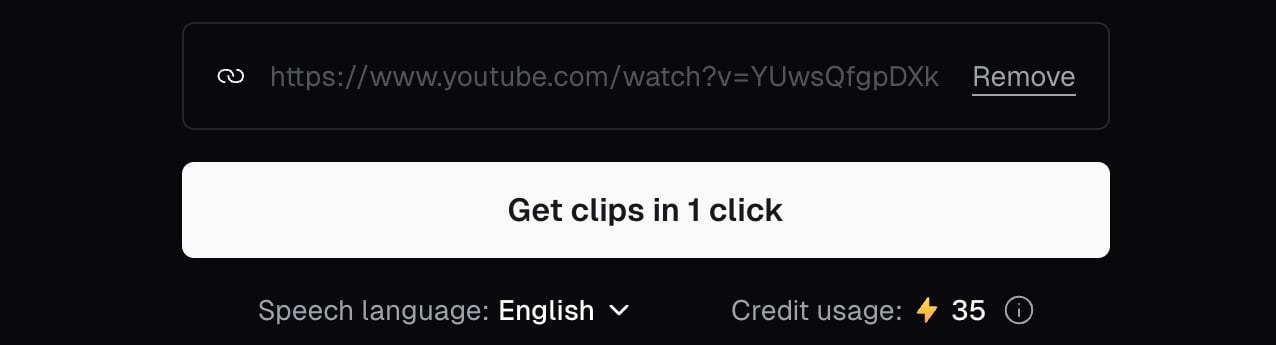
OpusClip input box holding a YouTube link, with a Get clips in 1 click button, a speech language menu and a credit usage count

Adding a YouTube link in OpusClip before clicking Get clips in 1 click. Source: OpusClip Help Center

Adobe Premiere
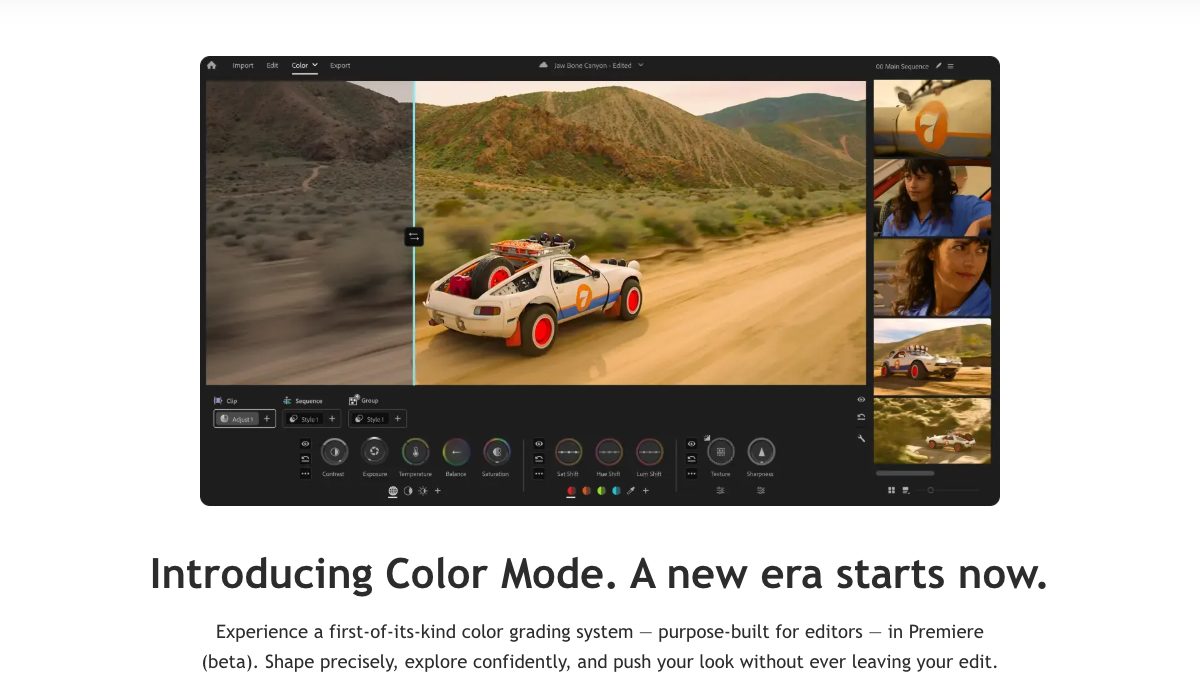
Adobe Premiere editing a car clip with color tools open

Adobe Premiere. Source: Adobe website

DaVinci Resolve
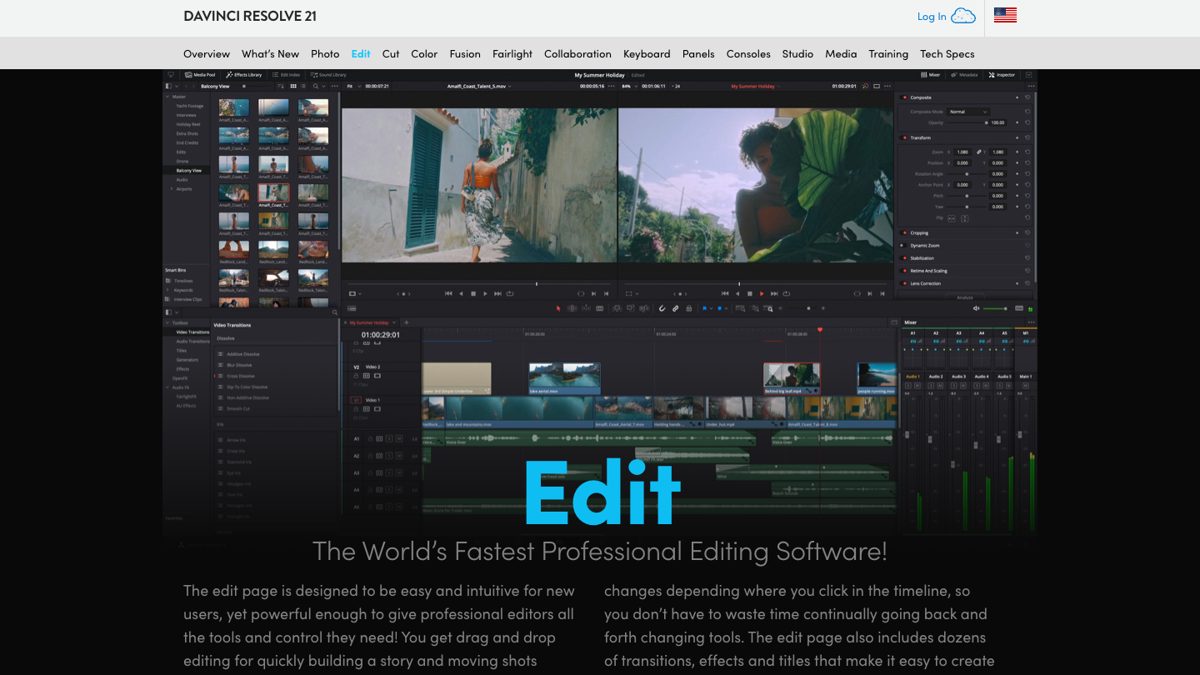
DaVinci Resolve Edit page with the timeline, media pool and viewers

The DaVinci Resolve Edit page. Source: Blackmagic Design website

CapCut
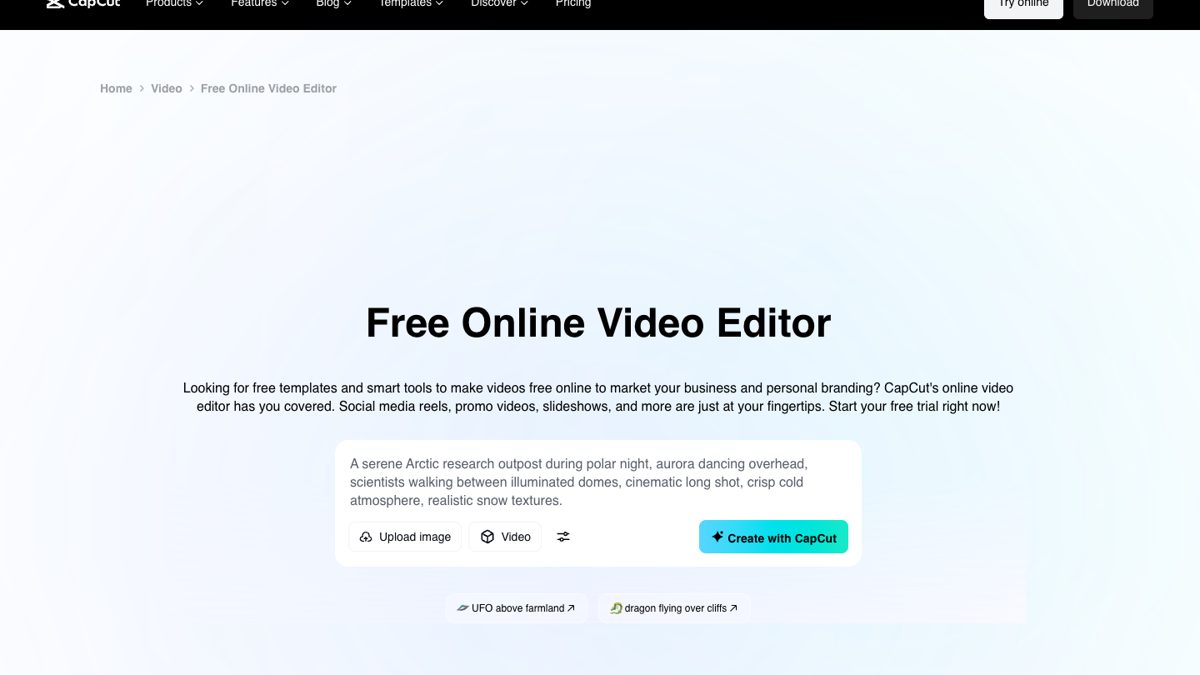
CapCut free online video editor prompt box on its tools page

CapCut's online video editor page. Source: CapCut website
On this page

Use our Free Forever Plan

Find the moment. Skip the scrubbing.

From script to polished video — in one click.

Create and post one short video every day for free, and grow faster.

OpusSearch uses AI to surface the exact clip you need from hours of footage — in seconds, not afternoons.

Agent Opus runs the entire video pipeline for you: research, scriptwriting, storyboarding, motion, voice, and edit. Upload the idea, post the result.

How to Choose Reliable Video Clipping Software Without Overpaying

Key takeaways

  • Pick the tool for the job first. To turn long videos into short clips, OpusClip's ClipAnything model finds moments in any video type and takes text prompts, while timeline editors such as DaVinci Resolve and Premiere Pro give you manual control of every cut.
  • Compare the full plan price, not the headline number. As of Nov 3 2026, OpusClip's pricing page lists Starter at $15 a month (billed monthly only), Pro at $29 a month or $14.50 a month billed annually, and custom Business plans.
  • Treat a free plan as a test, not a workflow. OpusClip's Free plan adds a watermark, has no editing, and clips stop being exportable after 3 days, per its pricing page.
  • Check the handoff and the posting path. OpusClip's Pro plan exports XML for Adobe Premiere Pro and DaVinci Resolve, Starter auto-posts to YouTube Shorts, TikTok and Instagram Reels, and Pro adds a social scheduler.
  • Price a team by seats and support. OpusClip's Pro plan shares credits across a team workspace of up to 4 seats (2 per pack) and lists live chat support, while Business adds priority support with a dedicated Slack channel.
  • Test every shortlisted tool on your own footage. Run the same 10-minute video through each one and compare clip picks, caption errors and export time before you pay.

Choosing reliable AI video clipping software requires evaluating essential features like automatic highlight detection, transparent pricing models, and format compatibility—with tools like OpusClip offering comprehensive AI-powered solutions starting at $15/month while free alternatives like DaVinci Resolve provide manual editing capabilities. The video editing market's rapid growth, with AI video editing projected to expand at a 42.19% CAGR, makes it crucial for creators to select tools that balance advanced AI features with cost-effectiveness to avoid overpaying while maximizing content creation efficiency.

Neon illustration of six video player icons above the words Video Clipping Platforms

What Are the Best Video Clipping Tools for Your Workflow?

OpusClip leads AI-powered video clipping with its ClipAnything AI technology, automatically detecting highlights and converting long-form content into viral shorts, while traditional editors like Adobe Premiere Pro and DaVinci Resolve require manual editing processes. The video editing landscape spans from free open-source solutions to premium AI platforms, each serving different creator needs and budget constraints.

Understanding your workflow requirements drives tool selection success. Adobe Premiere Pro dominates with a 35% market share, while DaVinci Resolve captures 15%, establishing industry benchmarks for feature comparison. However, traditional editors demand significant manual work for clipping and social media formatting, making AI-powered alternatives increasingly valuable for content creators.

Video Clipping Tools Comparison

AI Video Tools Comparison
Tool AI Clip Engine Free Tier Paid Tier Key AI Strength Best Use Case
OpusClip ClipAnything AI Free Forever Plan From $15/mo One-click highlight detection with viral scoring Social media content creation
Adobe Premiere Pro Limited AI tools 7-day trial US$22.99/mo Professional editing suite Full video production workflows
CapCut Basic AI clipping Free with watermark $19.99/mo Mobile-first design with templates Quick mobile editing
DaVinci Resolve Manual editing only Full free version $236 one-time (Studio, Nov 3 2026) Color grading excellence Professional post-production
Pictory Text-to-video AI Free trial $25-$119/mo billed annually Script-based video generation Educational content

‍

OpusClip Pros and Cons

Pros:

  • Advanced ClipAnything AI automatically identifies viral moments
  • Free Forever Plan to test before you pay
  • Direct social media integration and scheduling
  • ReframeAnything technology for aspect ratio optimization
  • AI-generated captions in multiple languages

Cons:

  • Limited manual editing controls compared to traditional editors
  • Focuses primarily on short-form content creation
  • Requires internet connection for AI processing

Adobe Premiere Pro Pros and Cons

Pros:

  • Industry-standard professional editing capabilities
  • Extensive plugin ecosystem and third-party integrations
  • Advanced color correction and audio editing tools
  • Seamless Creative Cloud workflow integration

Cons:

  • High monthly subscription cost at US$22.99
  • Steep learning curve for beginners
  • Limited AI-powered clipping features
  • Requires powerful hardware for optimal performance

CapCut Pros and Cons

Pros:

  • User-friendly mobile-first interface
  • Built-in templates and effects library
  • Free version includes basic AI features
  • Cross-platform synchronization

Cons:

  • Limited advanced editing capabilities
  • Watermark on free exports
  • Basic AI clipping compared to specialized tools
  • Privacy concerns with data handling

DaVinci Resolve Pros and Cons

Pros:

  • Completely free full-featured version available
  • Professional-grade color correction tools
  • No subscription fees for core features
  • Excellent for collaborative workflows

Cons:

  • No AI-powered clipping capabilities
  • Steep learning curve for new users
  • Resource-intensive software requirements
  • Manual process for social media formatting

Evaluate tools based on these primary workflow criteria:

Compatibility Requirements:

  • Source formats (MP4, MOV, 4K, 1080p)
  • Long-form content handling (podcasts, webinars, livestreams)
  • Export ratios (9:16 for TikTok, 1:1 for Instagram, 16:9 for YouTube)

Integration Capabilities:

  • Adobe Creative Suite compatibility
  • Social media scheduler connections
  • Cloud storage synchronization
  • API access for automation
Neon illustration titled AI Video Segmenter: a stopwatch, a lightning bolt, a video timeline splitting into segments, and YouTube, Instagram and TikTok icons

Which AI Features Should You Prioritize in Video Clipping Software?

Auto-clipping technology with sentiment analysis offers the highest ROI for content creators, extracting engaging segments based on visual cues, audio patterns, and emotional peaks to maximize viewer engagement. Advanced AI features like scene detection, B-roll generation, and automated captioning can save creators 5-10 hours per week compared to manual editing processes.

Understanding AI terminology helps evaluate tools effectively. Key AI features providing measurable time savings include:

Essential AI Feature Checklist

Core AI Clipping Features:

  • Automatic highlight detection: Identifies viral moments using engagement prediction algorithms
  • Scene detection: Recognizes transitions, speaker changes, and topic shifts
  • Sentiment analysis: Detects emotional peaks for maximum engagement potential
  • ClipAnything technology: OpusClip's proprietary AI that processes any video type

Content Enhancement Features:

  • AI-generated captions with 95%+ accuracy in multiple languages
  • Text-prompted B-roll insertion for visual storytelling enhancement
  • ReframeAnything for intelligent aspect-ratio conversion
  • Auto-generated thumbnails optimized for click-through rates

Workflow Optimization:

  • Bulk export capabilities to TikTok, YouTube Shorts, Instagram Reels
  • Custom branding integration (logos, colors, fonts)
  • Automated posting with social media schedulers
  • Team collaboration tools with role-based permissions

The AI video editing market's projected 42.19% CAGR growth reflects increasing sophistication in these features. Not all AI implementations are equal—some tools use basic template matching while others employ advanced machine learning models for content understanding.

AI Feature Performance Benchmarks

OpusClip Features Performance Table
Feature TypeHow to Test It on Your Own Footage
Highlight DetectionCompare the AI's clip picks with the moments you would choose
Auto CaptionsTranscribe a 100-word sample by hand and count the differences
Scene DetectionCheck that clips start and end at natural transitions
B-roll IntegrationCheck that each B-roll insert fits the sentence it covers

‍

Format support directly impacts workflow efficiency. Professional tools handle common codecs (H.264, HEVC, VP9) and container formats (MP4, MOV, AVI, WebM). However, free tools often impose limitations like 720p export caps, watermarks, or 100MB file size restrictions that can bottleneck production workflows.

Pro Tip: Test AI accuracy with your specific content type—podcast AI clipping performs differently than webinar or interview content due to varying audio patterns and visual cues.

How Do Different Pricing Models Compare and What Hidden Costs Should You Watch For?

Credit-based pricing suits occasional users, while unlimited subscriptions offer better value for teams processing 10+ hours monthly, with flat subscription models providing predictable costs ranging from $9-99 monthly depending on feature tiers and team size requirements.

Video clipping software follows three primary pricing structures, each optimized for different usage patterns and team needs:

Pricing Model Breakdown

1. Flat Subscription Model

Best For: High-volume creators and teams with consistent content production

  • Fixed monthly fee provides unlimited processing
  • Predictable budgeting with no overage surprises
  • Typically includes premium support and advanced features

2. Credit-Based Pricing

Best For: Sporadic users or teams testing AI capabilities

  • Pay for the processing you use
  • Flexible spending based on actual usage
  • Lower entry cost but higher per-unit pricing

3. Freemium with Upgrade Gates

Best For: Individual creators and small teams starting content creation

  • Free tier with feature limitations
  • Graduated pricing tiers for growing needs
  • Trial access to premium features

Comprehensive Pricing Comparison

Video Tool Pricing Comparison
Tool Free Tier Entry Paid Pro Tier Team/Enterprise Key Limitations
OpusClip Free Forever Plan $15/mo (Starter) $29/mo (Pro) Custom (Business) Free: 60 credits/month, watermarked
Adobe Premiere Pro 7-day trial US$22.99/mo US$22.99/mo $33.99/mo per seat Trial only, no free tier
CapCut Pro Free with watermark $19.99/mo $19.99/mo $12.49/mo per seat (Teams) Free: watermarks, limited exports
DaVinci Resolve Full free version $236 one-time (Studio, Nov 3 2026) $236 one-time (Studio, Nov 3 2026) One-time purchase (Studio) Free: no AI features
Pictory 3-video trial $25/mo billed annually $35/mo billed annually $119/mo billed annually (Teams) Trial: videos up to 5 min

‍

Hidden Cost Analysis

Watch for these additional expenses that inflate total investment:

Storage and Processing Overages:

  • Cloud rendering fees beyond included storage (typically 10-100GB)
  • Additional processing time charges for 4K content
  • Premium AI model access sold as add-ons

Team and Collaboration Costs:

  • Per-seat licensing that multiplies monthly costs
  • Admin dashboard and user management fees
  • Advanced permission controls and audit logs

Integration and Export Fees:

  • API access charges for automation workflows
  • Premium social media integrations beyond basic platforms
  • High-resolution export fees (4K, 8K capabilities)

Support and Training:

  • Priority support tier upgrades
  • Professional onboarding and training sessions
  • Custom integration development

12-Month Total Cost of Ownership Calculator

Calculate your true investment using this formula: (Base Subscription × 12) + (Expected Overages × 12) + (Team Seats × Cost) + (Integration Fees) = Total Annual Cost

Example Calculation:

  • OpusClip Pro (one pack, 2 seats): ($29 × 12) = $348/year billed monthly, or $174/year billed annually. A third teammate needs a second pack.
  • Adobe Premiere Pro (one seat): (US$22.99 × 12) = US$275.88/year on the annual plan billed monthly (Adobe's Premiere page, Nov 3 2026)
Neon illustration reading Affordable AI Tools for Marketers, with a checklist, a gear, a chat bubble, a video clip and a price tag

How Can You Test Tools Effectively and Benchmark Performance?

Upload a representative 10-minute video and measure clip accuracy, export speed, and caption quality to objectively compare AI performance, with top-performing tools achieving 90%+ highlight detection accuracy and sub-2-minute processing times for standard definition content. Effective testing requires systematic evaluation across multiple content types to ensure AI algorithms match your specific video characteristics.

Follow this data-driven testing methodology for objective tool comparison:

4-Step Performance Testing Process

Step 1: Content Selection and Preparation

Select representative test videos that reflect your typical content:

  • Long-form podcast (30-60 minutes) for conversational AI testing
  • Presentation or webinar (15-30 minutes) for educational content processing
  • Interview or discussion (10-20 minutes) for multi-speaker scenarios
  • Product demo or tutorial (5-15 minutes) for instructional content

Step 2: AI Processing Benchmark

Record quantitative metrics during AI processing:

  • Upload time and processing duration
  • Number of clips generated vs. manual expectations
  • System resource usage and stability
  • Error rates and failed processing attempts

Step 3: Output Quality Assessment

Evaluate results across three critical dimensions:

Caption Accuracy Testing:

  • Transcribe 100-word samples manually for comparison
  • Calculate error rate per 1,000 words transcribed
  • Test technical terminology and proper noun recognition
  • Assess punctuation and speaker identification accuracy

Visual Quality Assessment:

  • Check aspect ratio conversion fidelity
  • Evaluate cut point smoothness and transitions
  • Assess thumbnail auto-generation relevance
  • Review branding integration quality

Content Intelligence Evaluation:

  • Compare AI-selected highlights to manual selections
  • Measure viral moment detection accuracy
  • Assess contextual understanding and clip coherence
  • Evaluate emotional peak identification

Step 4: ROI and Workflow Integration

Calculate return on investment using this formula: (Hours Saved Weekly × Hourly Rate × 4 weeks) - Monthly Subscription Cost = Monthly ROI

Example ROI Calculation:

  • OpusClip saves 3 hours weekly at $50/hour rate
  • (3 × $50 × 4) - $29 = $571 monthly value return ($585.50 with the Pro plan billed annually at $14.50 a month)
  • ROI ratio: about 20:1 return on investment (about 40:1 billed annually)

Performance Benchmark Standards

Performance Metrics Table
Metric Category Excellent Good Fair Poor
Clip Accuracy 90%+ key moments captured 75-89% 60-74% <60%
Processing Speed <2 min per 10min video 2-4 min 4-8 min >8 min
Caption Accuracy <5 errors per 1,000 words 5-15 errors 15-30 errors >30 errors
Format Success 100% compatibility 95-99% 85-94% <85%
Export Speed <30 seconds HD export 30-60 sec 1-3 min >3 min

‍

Advanced Testing Methodology

A/B Test Different Content Types:

  • Educational vs. entertainment content processing
  • Single-speaker vs. multi-speaker scenarios
  • High-energy vs. conversational pacing
  • Technical vs. general audience vocabulary

Stress Test Capabilities:

  • Upload maximum file sizes and durations
  • Test concurrent processing limits
  • Evaluate performance during peak usage times
  • Assess customer support response times

OpusClip's Free Forever Plan allows comprehensive testing with real content without financial commitment, providing access to core AI features for thorough evaluation.

What's the Best Way to Choose and Set Up Your Video Clipping Workflow?

Choose tools that pass the essential features checklist, offer transparent pricing, and integrate seamlessly with your existing tech stack, then implement standardized export presets, team permissions, and automated distribution workflows to maximize efficiency and maintain consistency across all content production.

Final Selection Checklist

Before committing to any video clipping software, ensure it passes these critical requirements:

✅ Essential AI Features Verification:

  • Automatic highlight detection with accuracy >85%
  • Multi-language caption generation
  • Aspect ratio optimization for all major platforms
  • Batch processing and export capabilities

✅ Pricing Transparency Confirmation:

  • No hidden processing fees or storage overages
  • Clear team pricing and seat licensing
  • Predictable monthly costs within budget constraints
  • Free trial or freemium option for testing

✅ Performance Benchmark Achievement:

  • Trial testing meets quality and speed requirements
  • Content type compatibility confirmed
  • Export format support verified
  • Customer support responsiveness validated

✅ Workflow Integration Assessment:

  • Existing tool compatibility (Adobe Creative Suite, social schedulers)
  • Team collaboration features match organization needs
  • API access available for automation requirements
  • Training and onboarding support provided

Workflow Setup Implementation

After selecting your video clipping tool, follow this systematic setup process:

Phase 1: Account Configuration and Optimization

1. Create Master Account and Configure Defaults

  • Set up primary account with administrative privileges
  • Configure default export presets for each social platform
  • Establish brand guidelines and visual identity templates
  • Create folder structure for organized content management

2. Connect Cloud Storage and Integrations

  • Link Google Drive, Dropbox, or preferred cloud storage
  • Connect social media accounts for direct publishing
  • Set up webhook integrations for automated workflows
  • Configure backup and archive procedures

Phase 2: Team Onboarding and Permissions

3. Team Member Setup and Role Assignment

  • Invite team members with appropriate permission levels
  • Create user roles (Admin, Editor, Viewer, Collaborator)
  • Establish content approval workflows and review processes
  • Set up shared workspace access and collaboration guidelines

4. Training and Best Practice Implementation

  • Conduct platform training sessions for all users
  • Document standard operating procedures and guidelines
  • Create template libraries for consistent output
  • Establish quality control checkpoints and review cycles

Phase 3: Automation and Optimization

5. Workflow Automation Configuration

  • Set up API webhooks for automatic clip distribution
  • Configure scheduling tools for consistent posting
  • Implement analytics tracking for performance monitoring
  • Create automated backup and content archiving

6. Performance Monitoring and Optimization

  • Track processing times and output quality metrics
  • Monitor team usage patterns and identify bottlenecks
  • Regular review of AI accuracy and adjustment of parameters
  • Continuous improvement based on performance data

OpusClip Integration Advantages

OpusClip provides specific integration benefits that streamline workflow setup:

  • Direct Adobe Premiere Pro compatibility for seamless project handoffs
  • Built-in Social Media Scheduler reduces context switching between platforms
  • Team workspace functionality eliminates need for separate collaboration tools
  • API access enables custom automation for enterprise workflows

Workflow Optimization Tips

Standardize Export Presets:

  • Create platform-specific templates (TikTok 9:16, Instagram 1:1, YouTube 16:9)
  • Establish consistent branding elements and overlay positioning
  • Set quality standards for different content types and purposes

Implement Quality Control Gates:

  • Review checkpoints before final export and distribution
  • A/B testing protocols for high-priority content
  • Analytics integration to track performance and optimize future content

Scale Gradually:

  • Start with core team members and basic workflows
  • Expand features and integrations as team proficiency increases
  • Regular training updates as platform features evolve

The investment in proper setup and training typically pays for itself within the first month through improved efficiency and reduced content production time.

FAQs

Is there a free AI video clipping tool I can try?

Yes, OpusClip offers a Free Forever Plan with AI-driven clipping, captioning, and multi-format export at no cost. The free plan includes 60 credits a month, making it ideal for testing AI capabilities before upgrading to a paid plan for more credits and watermark-free exports.

How does credit-based pricing work versus a flat subscription?

Credit-based pricing charges for the processing you use, making it cost-effective for occasional use. Flat subscriptions provide unlimited access for a fixed monthly fee, offering better value for teams processing more than 20 hours of content monthly with predictable budgeting.

Can the tool auto-generate captions in multiple languages?

Most advanced AI platforms, including OpusClip, support automatic multilingual captioning with 95%+ accuracy rates in 20+ languages. This enables global content distribution without manual transcription, with support for technical terminology and proper noun recognition.

What if the AI misses a key moment or cuts the wrong segment?

Professional AI video clipping tools provide manual adjustment capabilities allowing you to refine clip boundaries, add or remove segments, and re-run AI analysis with custom prompts. OpusClip's ClipAnything AI learns from corrections to improve future processing accuracy.

How secure is my uploaded footage?

Reputable tools employ enterprise-grade security including AES-256 encryption, SOC 2 compliance, and GDPR adherence. OpusClip's help center lists how long projects are kept on each plan: 3 days on Free and 30 days on Starter and Pro.

Will the tool integrate with my existing editing stack?

Most professional platforms offer export compatibility with major editing suites. OpusClip exports clean project files compatible with Adobe Premiere Pro, Final Cut Pro, and DaVinci Resolve, while providing direct API access for custom workflow automation and third-party integrations.

How can I scale the clipping process for a growing team?

Utilize team workspace features with role-based permissions, standardize export presets across all users, implement API automation for batch processing, and establish quality control workflows. OpusClip's Pro plan includes a team workspace with up to 4 seats, and Business plans add custom seats with centralized billing and management controls.

Ready to transform your video content creation workflow? Try OpusClip's Free Forever Plan and experience AI-powered video clipping with no commitment required.

How to choose

Start from the job you do every week, then confirm price, handoff and support in a free trial.

  • You turn long videos into short clips. Look for automatic highlight picks, prompt control and vertical reframing: OpusClip's paid plans score each clip with a Virality Score, and its AI Reframe resizes video for each platform.
  • You want manual control and a free editor. Look for a full timeline and color tools: DaVinci Resolve has a free version, and its paid Studio edition adds the AI Neural Engine.
  • You already work in Adobe. Look for a clean handoff: Premiere Pro is sold by subscription with a free trial, and OpusClip's Pro plan exports XML so clips can be finished in Premiere Pro.
  • You want templates more than AI clipping. Look for template depth and clear tiers: CapCut's pricing page lists free templates plus paid Pro and Teams plans.
  • You build videos from scripts, not footage. Look for text-to-video generation: Pictory's site lists Script to Video and URL to Video, and its pricing page lists a 14-day free trial.
  • You manage a team. Look for seats and shared credits priced up front: OpusClip's Pro plan shares credits across up to 4 seats, and Business pricing is custom.
  • You need fast support. Look for live chat before you subscribe: OpusClip's pricing page lists live chat on Pro and priority support with a dedicated Slack channel on Business.

Red flags to watch for

A free plan that hides its limits

Watermarks, short export windows and no editing turn a free plan into a demo. Trial test: export one clip on the free plan and check for a watermark, the resolution, and how many days the file stays downloadable.

Pricing that grows with seats, packs or add-ons

A low headline price can climb once teammates or extra credits are added. Trial test: price a three-person team on the pricing page before you sign up, and note the seat limit and what happens when credits run out.

Accuracy claims with no method

A vendor's accuracy percentage means little without a stated test. Trial test: run one 10-minute video through each tool, count caption errors per 100 words, and compare each tool's clip picks with the moments you would pick.

No path into your editor

A clipper that cannot export to your timeline traps your edits. Trial test: export one project and open it in your editor. OpusClip's Pro plan exports XML for Premiere Pro and DaVinci Resolve, and its animated captions export as overlays, with an SRT file for restyling in Premiere Pro.

Support you cannot reach before you pay

Support tiers are often buried below the pricing table. OpusClip's pricing page lists Discord and AI chat on Free and Starter, live chat on Pro, and a dedicated Slack channel on Business. Trial test: ask one real question during the trial and time the reply.

Vague answers on data handling

Uploading client or unreleased footage calls for clear rules on retention and security. Trial test: find the retention window and the security documentation before you upload anything. OpusClip's help center lists project expiry by plan, such as 3 days on Free and 30 days on Starter and Pro.

What the tools look like

Here is what four of the clipping and editing tools discussed above look like. OpusClip screenshots come from our product pages and help center. The others come from each vendor's own website.

OpusClip: paste a link and get clips

OpusClip input box holding a YouTube link, with a Get clips in 1 click button, a speech language menu and a credit usage count

Adding a YouTube link in OpusClip before clicking Get clips in 1 click. Source: OpusClip Help Center

Adobe Premiere

Adobe Premiere editing a car clip with color tools open

Adobe Premiere. Source: Adobe website

DaVinci Resolve

DaVinci Resolve Edit page with the timeline, media pool and viewers

The DaVinci Resolve Edit page. Source: Blackmagic Design website

CapCut

CapCut free online video editor prompt box on its tools page

CapCut's online video editor page. Source: CapCut website
Creator name

Creator type

Team size

Channels

linkYouTubefacebookXTikTok

Pain point

Time to see positive ROI

About the creator

Don't miss these

How Audacy Drove 1B+ Views by Taking a Tech-Forward Approach to Radio with OpusClip
No items found.

How Audacy Drove 1B+ Views by Taking a Tech-Forward Approach to Radio with OpusClip

How All the Smoke makes hit compilations faster with OpusSearch

How All the Smoke makes hit compilations faster with OpusSearch

Growing a new channel to 1.5M views in 90 days without creating new videos

Growing a new channel to 1.5M views in 90 days without creating new videos

OpusClip 4.0 is here. Become a content powerhouse.

Creator Corner

How to Choose Reliable Video Clipping Software Without Overpaying

No items found.
No items found.

Boost your social media growth with OpusClip

Create and post one short video every day for your social media and grow faster.

How to Choose Reliable Video Clipping Software Without Overpaying

Key takeaways

  • Pick the tool for the job first. To turn long videos into short clips, OpusClip's ClipAnything model finds moments in any video type and takes text prompts, while timeline editors such as DaVinci Resolve and Premiere Pro give you manual control of every cut.
  • Compare the full plan price, not the headline number. As of Nov 3 2026, OpusClip's pricing page lists Starter at $15 a month (billed monthly only), Pro at $29 a month or $14.50 a month billed annually, and custom Business plans.
  • Treat a free plan as a test, not a workflow. OpusClip's Free plan adds a watermark, has no editing, and clips stop being exportable after 3 days, per its pricing page.
  • Check the handoff and the posting path. OpusClip's Pro plan exports XML for Adobe Premiere Pro and DaVinci Resolve, Starter auto-posts to YouTube Shorts, TikTok and Instagram Reels, and Pro adds a social scheduler.
  • Price a team by seats and support. OpusClip's Pro plan shares credits across a team workspace of up to 4 seats (2 per pack) and lists live chat support, while Business adds priority support with a dedicated Slack channel.
  • Test every shortlisted tool on your own footage. Run the same 10-minute video through each one and compare clip picks, caption errors and export time before you pay.

Choosing reliable AI video clipping software requires evaluating essential features like automatic highlight detection, transparent pricing models, and format compatibility—with tools like OpusClip offering comprehensive AI-powered solutions starting at $15/month while free alternatives like DaVinci Resolve provide manual editing capabilities. The video editing market's rapid growth, with AI video editing projected to expand at a 42.19% CAGR, makes it crucial for creators to select tools that balance advanced AI features with cost-effectiveness to avoid overpaying while maximizing content creation efficiency.

Neon illustration of six video player icons above the words Video Clipping Platforms

What Are the Best Video Clipping Tools for Your Workflow?

OpusClip leads AI-powered video clipping with its ClipAnything AI technology, automatically detecting highlights and converting long-form content into viral shorts, while traditional editors like Adobe Premiere Pro and DaVinci Resolve require manual editing processes. The video editing landscape spans from free open-source solutions to premium AI platforms, each serving different creator needs and budget constraints.

Understanding your workflow requirements drives tool selection success. Adobe Premiere Pro dominates with a 35% market share, while DaVinci Resolve captures 15%, establishing industry benchmarks for feature comparison. However, traditional editors demand significant manual work for clipping and social media formatting, making AI-powered alternatives increasingly valuable for content creators.

Video Clipping Tools Comparison

AI Video Tools Comparison
Tool AI Clip Engine Free Tier Paid Tier Key AI Strength Best Use Case
OpusClip ClipAnything AI Free Forever Plan From $15/mo One-click highlight detection with viral scoring Social media content creation
Adobe Premiere Pro Limited AI tools 7-day trial US$22.99/mo Professional editing suite Full video production workflows
CapCut Basic AI clipping Free with watermark $19.99/mo Mobile-first design with templates Quick mobile editing
DaVinci Resolve Manual editing only Full free version $236 one-time (Studio, Nov 3 2026) Color grading excellence Professional post-production
Pictory Text-to-video AI Free trial $25-$119/mo billed annually Script-based video generation Educational content

‍

OpusClip Pros and Cons

Pros:

  • Advanced ClipAnything AI automatically identifies viral moments
  • Free Forever Plan to test before you pay
  • Direct social media integration and scheduling
  • ReframeAnything technology for aspect ratio optimization
  • AI-generated captions in multiple languages

Cons:

  • Limited manual editing controls compared to traditional editors
  • Focuses primarily on short-form content creation
  • Requires internet connection for AI processing

Adobe Premiere Pro Pros and Cons

Pros:

  • Industry-standard professional editing capabilities
  • Extensive plugin ecosystem and third-party integrations
  • Advanced color correction and audio editing tools
  • Seamless Creative Cloud workflow integration

Cons:

  • High monthly subscription cost at US$22.99
  • Steep learning curve for beginners
  • Limited AI-powered clipping features
  • Requires powerful hardware for optimal performance

CapCut Pros and Cons

Pros:

  • User-friendly mobile-first interface
  • Built-in templates and effects library
  • Free version includes basic AI features
  • Cross-platform synchronization

Cons:

  • Limited advanced editing capabilities
  • Watermark on free exports
  • Basic AI clipping compared to specialized tools
  • Privacy concerns with data handling

DaVinci Resolve Pros and Cons

Pros:

  • Completely free full-featured version available
  • Professional-grade color correction tools
  • No subscription fees for core features
  • Excellent for collaborative workflows

Cons:

  • No AI-powered clipping capabilities
  • Steep learning curve for new users
  • Resource-intensive software requirements
  • Manual process for social media formatting

Evaluate tools based on these primary workflow criteria:

Compatibility Requirements:

  • Source formats (MP4, MOV, 4K, 1080p)
  • Long-form content handling (podcasts, webinars, livestreams)
  • Export ratios (9:16 for TikTok, 1:1 for Instagram, 16:9 for YouTube)

Integration Capabilities:

  • Adobe Creative Suite compatibility
  • Social media scheduler connections
  • Cloud storage synchronization
  • API access for automation
Neon illustration titled AI Video Segmenter: a stopwatch, a lightning bolt, a video timeline splitting into segments, and YouTube, Instagram and TikTok icons

Which AI Features Should You Prioritize in Video Clipping Software?

Auto-clipping technology with sentiment analysis offers the highest ROI for content creators, extracting engaging segments based on visual cues, audio patterns, and emotional peaks to maximize viewer engagement. Advanced AI features like scene detection, B-roll generation, and automated captioning can save creators 5-10 hours per week compared to manual editing processes.

Understanding AI terminology helps evaluate tools effectively. Key AI features providing measurable time savings include:

Essential AI Feature Checklist

Core AI Clipping Features:

  • Automatic highlight detection: Identifies viral moments using engagement prediction algorithms
  • Scene detection: Recognizes transitions, speaker changes, and topic shifts
  • Sentiment analysis: Detects emotional peaks for maximum engagement potential
  • ClipAnything technology: OpusClip's proprietary AI that processes any video type

Content Enhancement Features:

  • AI-generated captions with 95%+ accuracy in multiple languages
  • Text-prompted B-roll insertion for visual storytelling enhancement
  • ReframeAnything for intelligent aspect-ratio conversion
  • Auto-generated thumbnails optimized for click-through rates

Workflow Optimization:

  • Bulk export capabilities to TikTok, YouTube Shorts, Instagram Reels
  • Custom branding integration (logos, colors, fonts)
  • Automated posting with social media schedulers
  • Team collaboration tools with role-based permissions

The AI video editing market's projected 42.19% CAGR growth reflects increasing sophistication in these features. Not all AI implementations are equal—some tools use basic template matching while others employ advanced machine learning models for content understanding.

AI Feature Performance Benchmarks

OpusClip Features Performance Table
Feature TypeHow to Test It on Your Own Footage
Highlight DetectionCompare the AI's clip picks with the moments you would choose
Auto CaptionsTranscribe a 100-word sample by hand and count the differences
Scene DetectionCheck that clips start and end at natural transitions
B-roll IntegrationCheck that each B-roll insert fits the sentence it covers

‍

Format support directly impacts workflow efficiency. Professional tools handle common codecs (H.264, HEVC, VP9) and container formats (MP4, MOV, AVI, WebM). However, free tools often impose limitations like 720p export caps, watermarks, or 100MB file size restrictions that can bottleneck production workflows.

Pro Tip: Test AI accuracy with your specific content type—podcast AI clipping performs differently than webinar or interview content due to varying audio patterns and visual cues.

How Do Different Pricing Models Compare and What Hidden Costs Should You Watch For?

Credit-based pricing suits occasional users, while unlimited subscriptions offer better value for teams processing 10+ hours monthly, with flat subscription models providing predictable costs ranging from $9-99 monthly depending on feature tiers and team size requirements.

Video clipping software follows three primary pricing structures, each optimized for different usage patterns and team needs:

Pricing Model Breakdown

1. Flat Subscription Model

Best For: High-volume creators and teams with consistent content production

  • Fixed monthly fee provides unlimited processing
  • Predictable budgeting with no overage surprises
  • Typically includes premium support and advanced features

2. Credit-Based Pricing

Best For: Sporadic users or teams testing AI capabilities

  • Pay for the processing you use
  • Flexible spending based on actual usage
  • Lower entry cost but higher per-unit pricing

3. Freemium with Upgrade Gates

Best For: Individual creators and small teams starting content creation

  • Free tier with feature limitations
  • Graduated pricing tiers for growing needs
  • Trial access to premium features

Comprehensive Pricing Comparison

Video Tool Pricing Comparison
Tool Free Tier Entry Paid Pro Tier Team/Enterprise Key Limitations
OpusClip Free Forever Plan $15/mo (Starter) $29/mo (Pro) Custom (Business) Free: 60 credits/month, watermarked
Adobe Premiere Pro 7-day trial US$22.99/mo US$22.99/mo $33.99/mo per seat Trial only, no free tier
CapCut Pro Free with watermark $19.99/mo $19.99/mo $12.49/mo per seat (Teams) Free: watermarks, limited exports
DaVinci Resolve Full free version $236 one-time (Studio, Nov 3 2026) $236 one-time (Studio, Nov 3 2026) One-time purchase (Studio) Free: no AI features
Pictory 3-video trial $25/mo billed annually $35/mo billed annually $119/mo billed annually (Teams) Trial: videos up to 5 min

‍

Hidden Cost Analysis

Watch for these additional expenses that inflate total investment:

Storage and Processing Overages:

  • Cloud rendering fees beyond included storage (typically 10-100GB)
  • Additional processing time charges for 4K content
  • Premium AI model access sold as add-ons

Team and Collaboration Costs:

  • Per-seat licensing that multiplies monthly costs
  • Admin dashboard and user management fees
  • Advanced permission controls and audit logs

Integration and Export Fees:

  • API access charges for automation workflows
  • Premium social media integrations beyond basic platforms
  • High-resolution export fees (4K, 8K capabilities)

Support and Training:

  • Priority support tier upgrades
  • Professional onboarding and training sessions
  • Custom integration development

12-Month Total Cost of Ownership Calculator

Calculate your true investment using this formula: (Base Subscription × 12) + (Expected Overages × 12) + (Team Seats × Cost) + (Integration Fees) = Total Annual Cost

Example Calculation:

  • OpusClip Pro (one pack, 2 seats): ($29 × 12) = $348/year billed monthly, or $174/year billed annually. A third teammate needs a second pack.
  • Adobe Premiere Pro (one seat): (US$22.99 × 12) = US$275.88/year on the annual plan billed monthly (Adobe's Premiere page, Nov 3 2026)
Neon illustration reading Affordable AI Tools for Marketers, with a checklist, a gear, a chat bubble, a video clip and a price tag

How Can You Test Tools Effectively and Benchmark Performance?

Upload a representative 10-minute video and measure clip accuracy, export speed, and caption quality to objectively compare AI performance, with top-performing tools achieving 90%+ highlight detection accuracy and sub-2-minute processing times for standard definition content. Effective testing requires systematic evaluation across multiple content types to ensure AI algorithms match your specific video characteristics.

Follow this data-driven testing methodology for objective tool comparison:

4-Step Performance Testing Process

Step 1: Content Selection and Preparation

Select representative test videos that reflect your typical content:

  • Long-form podcast (30-60 minutes) for conversational AI testing
  • Presentation or webinar (15-30 minutes) for educational content processing
  • Interview or discussion (10-20 minutes) for multi-speaker scenarios
  • Product demo or tutorial (5-15 minutes) for instructional content

Step 2: AI Processing Benchmark

Record quantitative metrics during AI processing:

  • Upload time and processing duration
  • Number of clips generated vs. manual expectations
  • System resource usage and stability
  • Error rates and failed processing attempts

Step 3: Output Quality Assessment

Evaluate results across three critical dimensions:

Caption Accuracy Testing:

  • Transcribe 100-word samples manually for comparison
  • Calculate error rate per 1,000 words transcribed
  • Test technical terminology and proper noun recognition
  • Assess punctuation and speaker identification accuracy

Visual Quality Assessment:

  • Check aspect ratio conversion fidelity
  • Evaluate cut point smoothness and transitions
  • Assess thumbnail auto-generation relevance
  • Review branding integration quality

Content Intelligence Evaluation:

  • Compare AI-selected highlights to manual selections
  • Measure viral moment detection accuracy
  • Assess contextual understanding and clip coherence
  • Evaluate emotional peak identification

Step 4: ROI and Workflow Integration

Calculate return on investment using this formula: (Hours Saved Weekly × Hourly Rate × 4 weeks) - Monthly Subscription Cost = Monthly ROI

Example ROI Calculation:

  • OpusClip saves 3 hours weekly at $50/hour rate
  • (3 × $50 × 4) - $29 = $571 monthly value return ($585.50 with the Pro plan billed annually at $14.50 a month)
  • ROI ratio: about 20:1 return on investment (about 40:1 billed annually)

Performance Benchmark Standards

Performance Metrics Table
Metric Category Excellent Good Fair Poor
Clip Accuracy 90%+ key moments captured 75-89% 60-74% <60%
Processing Speed <2 min per 10min video 2-4 min 4-8 min >8 min
Caption Accuracy <5 errors per 1,000 words 5-15 errors 15-30 errors >30 errors
Format Success 100% compatibility 95-99% 85-94% <85%
Export Speed <30 seconds HD export 30-60 sec 1-3 min >3 min

‍

Advanced Testing Methodology

A/B Test Different Content Types:

  • Educational vs. entertainment content processing
  • Single-speaker vs. multi-speaker scenarios
  • High-energy vs. conversational pacing
  • Technical vs. general audience vocabulary

Stress Test Capabilities:

  • Upload maximum file sizes and durations
  • Test concurrent processing limits
  • Evaluate performance during peak usage times
  • Assess customer support response times

OpusClip's Free Forever Plan allows comprehensive testing with real content without financial commitment, providing access to core AI features for thorough evaluation.

What's the Best Way to Choose and Set Up Your Video Clipping Workflow?

Choose tools that pass the essential features checklist, offer transparent pricing, and integrate seamlessly with your existing tech stack, then implement standardized export presets, team permissions, and automated distribution workflows to maximize efficiency and maintain consistency across all content production.

Final Selection Checklist

Before committing to any video clipping software, ensure it passes these critical requirements:

✅ Essential AI Features Verification:

  • Automatic highlight detection with accuracy >85%
  • Multi-language caption generation
  • Aspect ratio optimization for all major platforms
  • Batch processing and export capabilities

✅ Pricing Transparency Confirmation:

  • No hidden processing fees or storage overages
  • Clear team pricing and seat licensing
  • Predictable monthly costs within budget constraints
  • Free trial or freemium option for testing

✅ Performance Benchmark Achievement:

  • Trial testing meets quality and speed requirements
  • Content type compatibility confirmed
  • Export format support verified
  • Customer support responsiveness validated

✅ Workflow Integration Assessment:

  • Existing tool compatibility (Adobe Creative Suite, social schedulers)
  • Team collaboration features match organization needs
  • API access available for automation requirements
  • Training and onboarding support provided

Workflow Setup Implementation

After selecting your video clipping tool, follow this systematic setup process:

Phase 1: Account Configuration and Optimization

1. Create Master Account and Configure Defaults

  • Set up primary account with administrative privileges
  • Configure default export presets for each social platform
  • Establish brand guidelines and visual identity templates
  • Create folder structure for organized content management

2. Connect Cloud Storage and Integrations

  • Link Google Drive, Dropbox, or preferred cloud storage
  • Connect social media accounts for direct publishing
  • Set up webhook integrations for automated workflows
  • Configure backup and archive procedures

Phase 2: Team Onboarding and Permissions

3. Team Member Setup and Role Assignment

  • Invite team members with appropriate permission levels
  • Create user roles (Admin, Editor, Viewer, Collaborator)
  • Establish content approval workflows and review processes
  • Set up shared workspace access and collaboration guidelines

4. Training and Best Practice Implementation

  • Conduct platform training sessions for all users
  • Document standard operating procedures and guidelines
  • Create template libraries for consistent output
  • Establish quality control checkpoints and review cycles

Phase 3: Automation and Optimization

5. Workflow Automation Configuration

  • Set up API webhooks for automatic clip distribution
  • Configure scheduling tools for consistent posting
  • Implement analytics tracking for performance monitoring
  • Create automated backup and content archiving

6. Performance Monitoring and Optimization

  • Track processing times and output quality metrics
  • Monitor team usage patterns and identify bottlenecks
  • Regular review of AI accuracy and adjustment of parameters
  • Continuous improvement based on performance data

OpusClip Integration Advantages

OpusClip provides specific integration benefits that streamline workflow setup:

  • Direct Adobe Premiere Pro compatibility for seamless project handoffs
  • Built-in Social Media Scheduler reduces context switching between platforms
  • Team workspace functionality eliminates need for separate collaboration tools
  • API access enables custom automation for enterprise workflows

Workflow Optimization Tips

Standardize Export Presets:

  • Create platform-specific templates (TikTok 9:16, Instagram 1:1, YouTube 16:9)
  • Establish consistent branding elements and overlay positioning
  • Set quality standards for different content types and purposes

Implement Quality Control Gates:

  • Review checkpoints before final export and distribution
  • A/B testing protocols for high-priority content
  • Analytics integration to track performance and optimize future content

Scale Gradually:

  • Start with core team members and basic workflows
  • Expand features and integrations as team proficiency increases
  • Regular training updates as platform features evolve

The investment in proper setup and training typically pays for itself within the first month through improved efficiency and reduced content production time.

FAQs

Is there a free AI video clipping tool I can try?

Yes, OpusClip offers a Free Forever Plan with AI-driven clipping, captioning, and multi-format export at no cost. The free plan includes 60 credits a month, making it ideal for testing AI capabilities before upgrading to a paid plan for more credits and watermark-free exports.

How does credit-based pricing work versus a flat subscription?

Credit-based pricing charges for the processing you use, making it cost-effective for occasional use. Flat subscriptions provide unlimited access for a fixed monthly fee, offering better value for teams processing more than 20 hours of content monthly with predictable budgeting.

Can the tool auto-generate captions in multiple languages?

Most advanced AI platforms, including OpusClip, support automatic multilingual captioning with 95%+ accuracy rates in 20+ languages. This enables global content distribution without manual transcription, with support for technical terminology and proper noun recognition.

What if the AI misses a key moment or cuts the wrong segment?

Professional AI video clipping tools provide manual adjustment capabilities allowing you to refine clip boundaries, add or remove segments, and re-run AI analysis with custom prompts. OpusClip's ClipAnything AI learns from corrections to improve future processing accuracy.

How secure is my uploaded footage?

Reputable tools employ enterprise-grade security including AES-256 encryption, SOC 2 compliance, and GDPR adherence. OpusClip's help center lists how long projects are kept on each plan: 3 days on Free and 30 days on Starter and Pro.

Will the tool integrate with my existing editing stack?

Most professional platforms offer export compatibility with major editing suites. OpusClip exports clean project files compatible with Adobe Premiere Pro, Final Cut Pro, and DaVinci Resolve, while providing direct API access for custom workflow automation and third-party integrations.

How can I scale the clipping process for a growing team?

Utilize team workspace features with role-based permissions, standardize export presets across all users, implement API automation for batch processing, and establish quality control workflows. OpusClip's Pro plan includes a team workspace with up to 4 seats, and Business plans add custom seats with centralized billing and management controls.

Ready to transform your video content creation workflow? Try OpusClip's Free Forever Plan and experience AI-powered video clipping with no commitment required.

How to choose

Start from the job you do every week, then confirm price, handoff and support in a free trial.

  • You turn long videos into short clips. Look for automatic highlight picks, prompt control and vertical reframing: OpusClip's paid plans score each clip with a Virality Score, and its AI Reframe resizes video for each platform.
  • You want manual control and a free editor. Look for a full timeline and color tools: DaVinci Resolve has a free version, and its paid Studio edition adds the AI Neural Engine.
  • You already work in Adobe. Look for a clean handoff: Premiere Pro is sold by subscription with a free trial, and OpusClip's Pro plan exports XML so clips can be finished in Premiere Pro.
  • You want templates more than AI clipping. Look for template depth and clear tiers: CapCut's pricing page lists free templates plus paid Pro and Teams plans.
  • You build videos from scripts, not footage. Look for text-to-video generation: Pictory's site lists Script to Video and URL to Video, and its pricing page lists a 14-day free trial.
  • You manage a team. Look for seats and shared credits priced up front: OpusClip's Pro plan shares credits across up to 4 seats, and Business pricing is custom.
  • You need fast support. Look for live chat before you subscribe: OpusClip's pricing page lists live chat on Pro and priority support with a dedicated Slack channel on Business.

Red flags to watch for

A free plan that hides its limits

Watermarks, short export windows and no editing turn a free plan into a demo. Trial test: export one clip on the free plan and check for a watermark, the resolution, and how many days the file stays downloadable.

Pricing that grows with seats, packs or add-ons

A low headline price can climb once teammates or extra credits are added. Trial test: price a three-person team on the pricing page before you sign up, and note the seat limit and what happens when credits run out.

Accuracy claims with no method

A vendor's accuracy percentage means little without a stated test. Trial test: run one 10-minute video through each tool, count caption errors per 100 words, and compare each tool's clip picks with the moments you would pick.

No path into your editor

A clipper that cannot export to your timeline traps your edits. Trial test: export one project and open it in your editor. OpusClip's Pro plan exports XML for Premiere Pro and DaVinci Resolve, and its animated captions export as overlays, with an SRT file for restyling in Premiere Pro.

Support you cannot reach before you pay

Support tiers are often buried below the pricing table. OpusClip's pricing page lists Discord and AI chat on Free and Starter, live chat on Pro, and a dedicated Slack channel on Business. Trial test: ask one real question during the trial and time the reply.

Vague answers on data handling

Uploading client or unreleased footage calls for clear rules on retention and security. Trial test: find the retention window and the security documentation before you upload anything. OpusClip's help center lists project expiry by plan, such as 3 days on Free and 30 days on Starter and Pro.

What the tools look like

Here is what four of the clipping and editing tools discussed above look like. OpusClip screenshots come from our product pages and help center. The others come from each vendor's own website.

OpusClip: paste a link and get clips

OpusClip input box holding a YouTube link, with a Get clips in 1 click button, a speech language menu and a credit usage count

Adding a YouTube link in OpusClip before clicking Get clips in 1 click. Source: OpusClip Help Center

Adobe Premiere

Adobe Premiere editing a car clip with color tools open

Adobe Premiere. Source: Adobe website

DaVinci Resolve

DaVinci Resolve Edit page with the timeline, media pool and viewers

The DaVinci Resolve Edit page. Source: Blackmagic Design website

CapCut

CapCut free online video editor prompt box on its tools page

CapCut's online video editor page. Source: CapCut website

Ready to start streaming differently?

Opus is completely FREE for one year for all private beta users. You can get access to all our premium features during this period. We also offer free support for production, studio design, and content repurposing to help you grow.
Join the beta
Limited spots remaining

Try OPUS today

Try Opus Studio

Make your live stream your Magnum Opus