Bulk submit videos for clipping straight from your computer
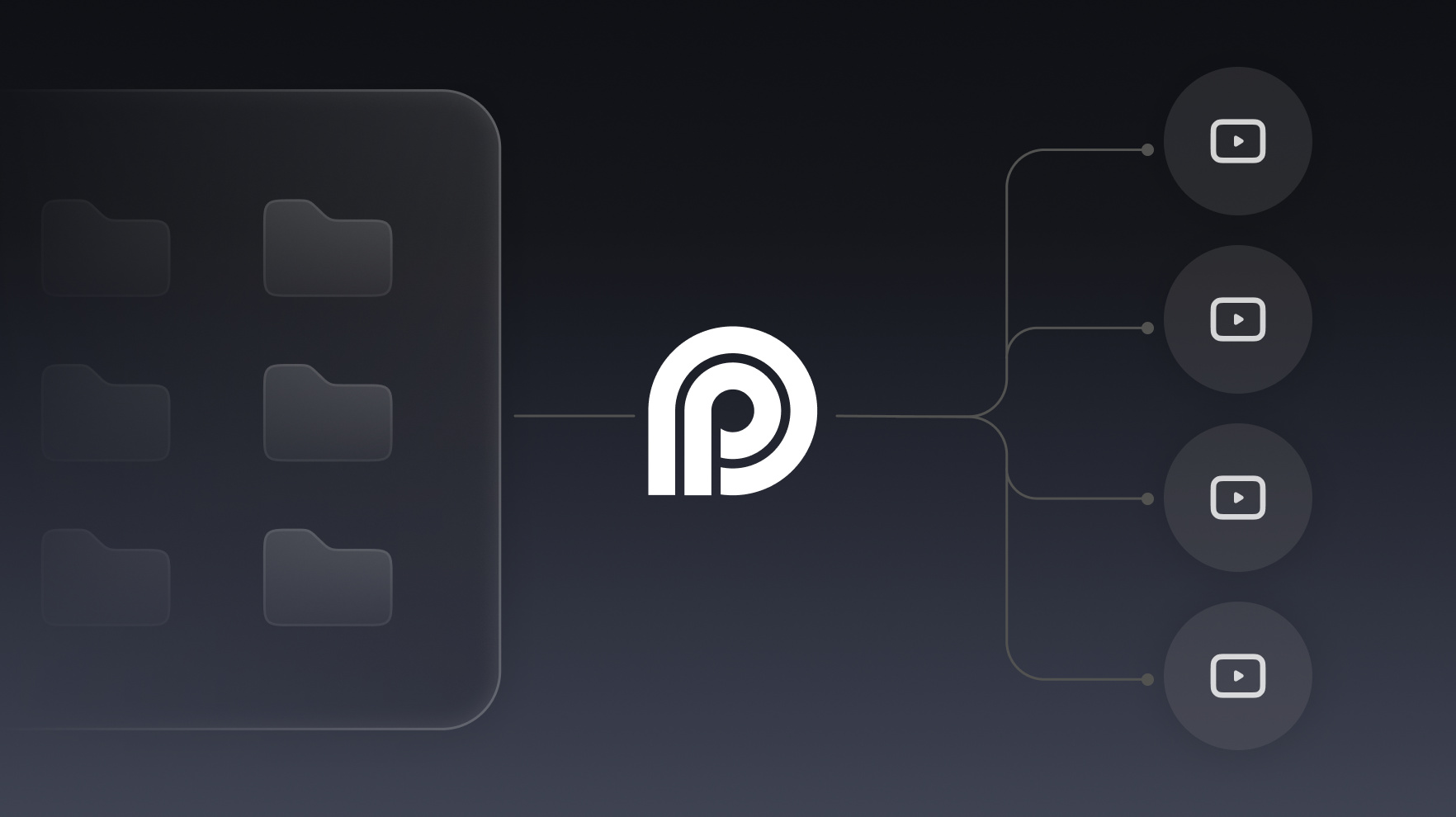
Point your agent at a folder on your computer and it submits every video inside for clipping in OpusClip. No browser uploads, no drag-and-drop, one command for the whole batch.

Run it with your agent
- Open Customize in your client and select “Connectors”
- Find OpusClip and click "Add"
- Sign in with your OpusClip account in the OAuth window
- Run the command below in your terminal
claude mcp add --transport http opusclip https://mcp.opus.pro/mcp - Start Claude Code and run
/mcp - Approve the OAuth sign-in with your OpusClip account
claude mcp add --transport http opusclip https://mcp.opus.pro/mcp- Open the ChatGPT desktop app and select "Plugins" in the sidebar
- Search for OpusClip, then click the + icon
- Click "Connect" and sign in with your OpusClip account
- Open ChatGPT and select "Plugins" in the sidebar
- Search for OpusClip, then click the + icon
- Click "Connect" and sign in with your OpusClip account
- Open Customize in the left panel, then select MCPs
- Add New MCP Server
- Paste the configuration below
- Save the file (Cmd+S / Ctrl+S), then approve the sign-in request in your browser
{"mcpServers": {"opusclip": {"url": "https://mcp.opus.pro/mcp"}}}- Open Extensions ⇧⌘X → search @mcp opusclip
- Pick the opus-pro entry
- Install → OAuth sign-in
What this workflow does
Most creators have a hard drive full of long-form videos that never made it into OpusClip: raw recordings, old episodes, exported livestreams. This workflow turns that folder into a clipping queue. You point your agent at a directory on your computer, and it submits every video inside for clipping in OpusClip: no browser uploads, no drag-and-drop, one command for the entire batch.
What you need
- An OpusClip account (MCP tool calls require a Pro plan)
- Claude, Cursor, or any MCP-enabled agent with the OpusClip MCP connected (api.opus.pro/api/mcp)
- A local folder with the long-form videos you want clipped
How it works
- Ask once. Tell your agent which folder to process. That's the whole job description.
- The agent scans the folder. It lists every video file it finds (you can filter by format, size, or date) and confirms the batch before anything is submitted.
- Each file is uploaded securely. The agent creates an upload link for every video and pushes the files straight from your filesystem to OpusClip.
- Every video becomes its own project. Each file is submitted for clipping with a project name taken from the filename, so the dashboard stays organized.
- You get a report, not homework. While OpusClip works through the queue in the background, the agent hands back a list of the submitted projects so you can review clips as they finish.
Try this prompt
Look in ~/Videos/podcast-episodes and submit every video file for clipping in OpusClip. Name each project after its filename, confirm the list with me before uploading, and give me links to all the projects when you're done.
Tips
- Ask the agent to skip files under a certain length. Short videos usually aren't worth a clipping run.
- Have it apply a naming convention (like 2026-07 Episode 41) so batches stay sortable in the dashboard.
- Once clips are ready, the same agent can pull the top-scoring clips from each project and schedule them. The batch submit is step one of a full pipeline.