Count down to your release with studio session clips
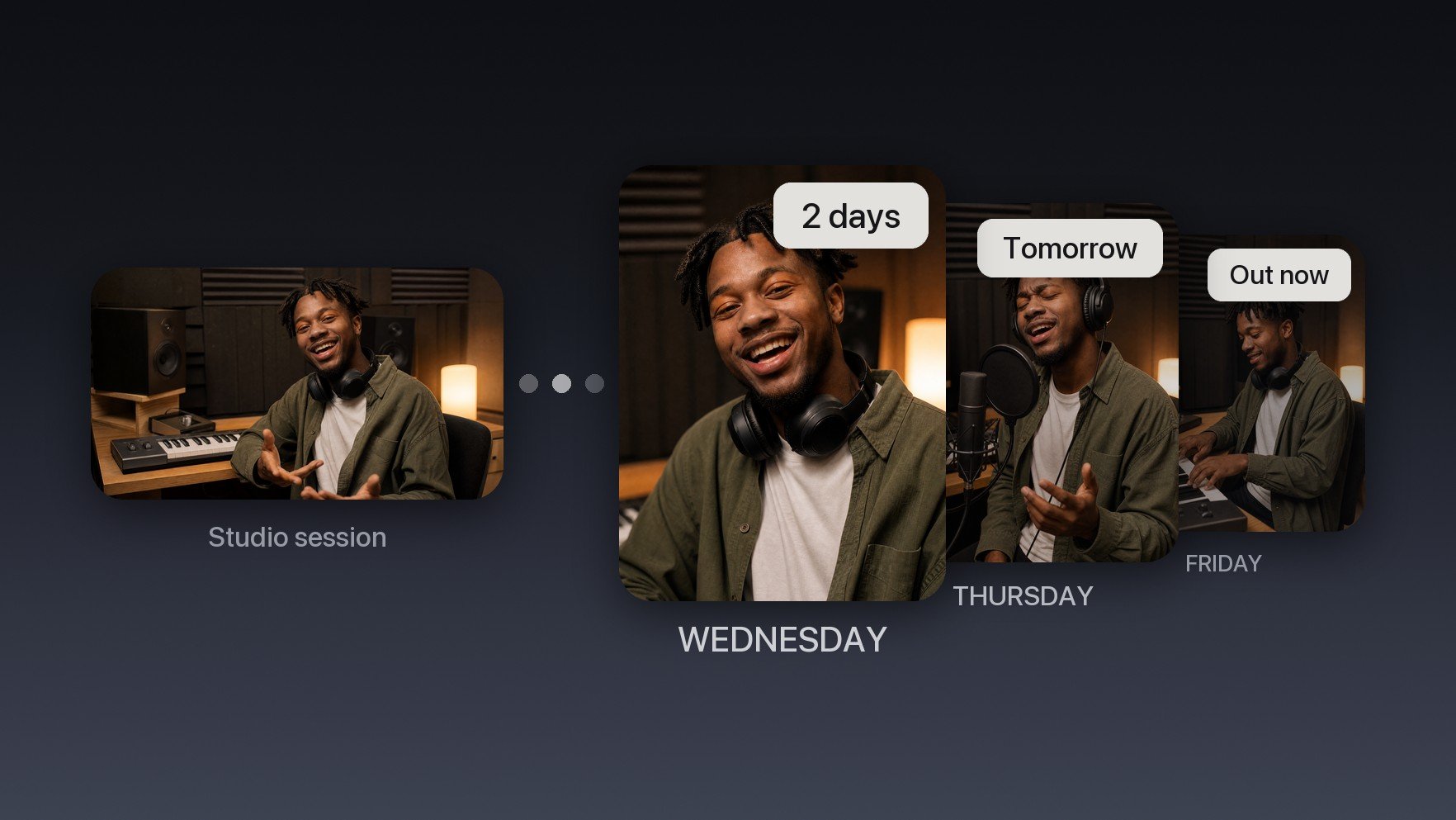
Your agent cuts your studio session footage into a run of short clips, puts a countdown card on each one, and queues one a day so the last clip lands on release day.

Run it with your agent
- Open Customize in your client and select “Connectors”
- Find OpusClip and click "Add"
- Sign in with your OpusClip account in the OAuth window
- Run the command below in your terminal
claude mcp add --transport http opusclip https://mcp.opus.pro/mcp - Start Claude Code and run
/mcp - Approve the OAuth sign-in with your OpusClip account
claude mcp add --transport http opusclip https://mcp.opus.pro/mcp- Open the ChatGPT desktop app and select "Plugins" in the sidebar
- Search for OpusClip, then click the + icon
- Click "Connect" and sign in with your OpusClip account
- Open ChatGPT and select "Plugins" in the sidebar
- Search for OpusClip, then click the + icon
- Click "Connect" and sign in with your OpusClip account
- In Cursor, open Customize in the left panel
- Search for OpusClip and click Add
- Sign in with your OpusClip account
- Open Extensions ⇧⌘X → search @mcp opusclip
- Pick the opus-pro entry
- Install → OAuth sign-in
What this workflow does
The week before a release is when attention is cheapest to earn and easiest to waste. Most artists post one teaser and go quiet until the drop. This workflow turns the footage you already shot in the studio into a daily countdown. Your agent picks the strongest moments, puts "4 days", "3 days" and so on onto each one as a title card, writes the posts, and lines them up one per day, ending with "Out now" on release day.
What you need
- An OpusClip account on a Pro, Max, or Business plan (calling MCP tools needs one)
- Claude, Cursor, or any MCP-enabled agent with the OpusClip MCP connected (mcp.opus.pro/mcp)
- Studio footage with talking in it: a session vlog, a behind-the-scenes recording, or an interview
- Your release date and the social account you want the countdown on
- A brand template with your release look, if you have one
How it works
- The agent submits the footage against your look. It lists your brand templates and submits against the one you pick, so every clip arrives already styled.
- It asks for the right kind of moment. A custom prompt steers curation toward short behind-the-scenes moments about the new record.
- It picks one clip per day. For a five day countdown it takes the five strongest clips by score and saves the best one for release day.
- It adds the countdown card. A title card at the top of each clip, "4 days" through "Out now", held for the whole clip. It renders as a white rounded box with bold black text, the same card OpusClip uses for auto-hooks.
- It writes the posts. The agent generates copy for each clip and account, and you can steer the tone, for example "mention the pre-save link".
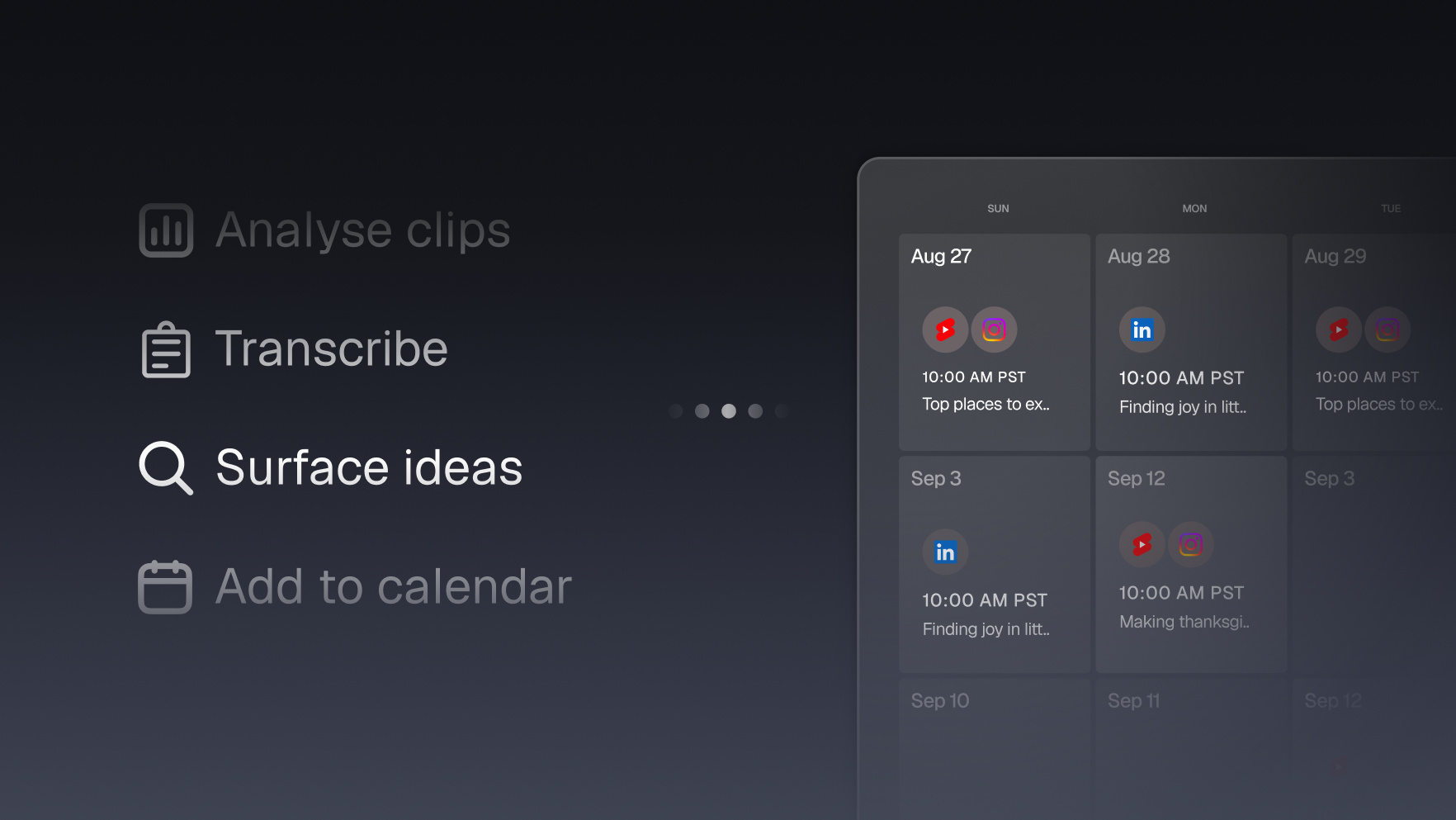
- It queues the countdown. One post a day at the time you choose, counting back from the release date. Each schedule comes back as an approval link, and nothing posts until you confirm it in OpusClip.
Try this prompt
My single comes out Friday the 30th. Submit my studio session video [link] with my "Release" brand template and ask for short behind-the-scenes clips about the new song. Pick the five best, keep the strongest for release day, and add a title card at the top of each one for the whole clip: 4 days, 3 days, 2 days, Tomorrow, Out now. Write the posts for my Instagram account, mention the pre-save link in bio, and schedule one a day at 6pm Eastern starting Monday. Send me the approval links.
Tips
- Pick footage where you talk. Captions come from the transcript, and sung vocals transcribe less reliably than speech, so studio chat gives cleaner captions than a take of the song.
- Count back from the release date, not forward from today. "2 days" only works if it goes out two days before the drop, so give the agent your timezone and let it convert the times to UTC.
- If the date slips, change the cards, not the clips. The agent can rewrite each countdown card in place, then move the posts. Cancelling a scheduled post also goes through an approval link.