GTA 6 Highlights Maker
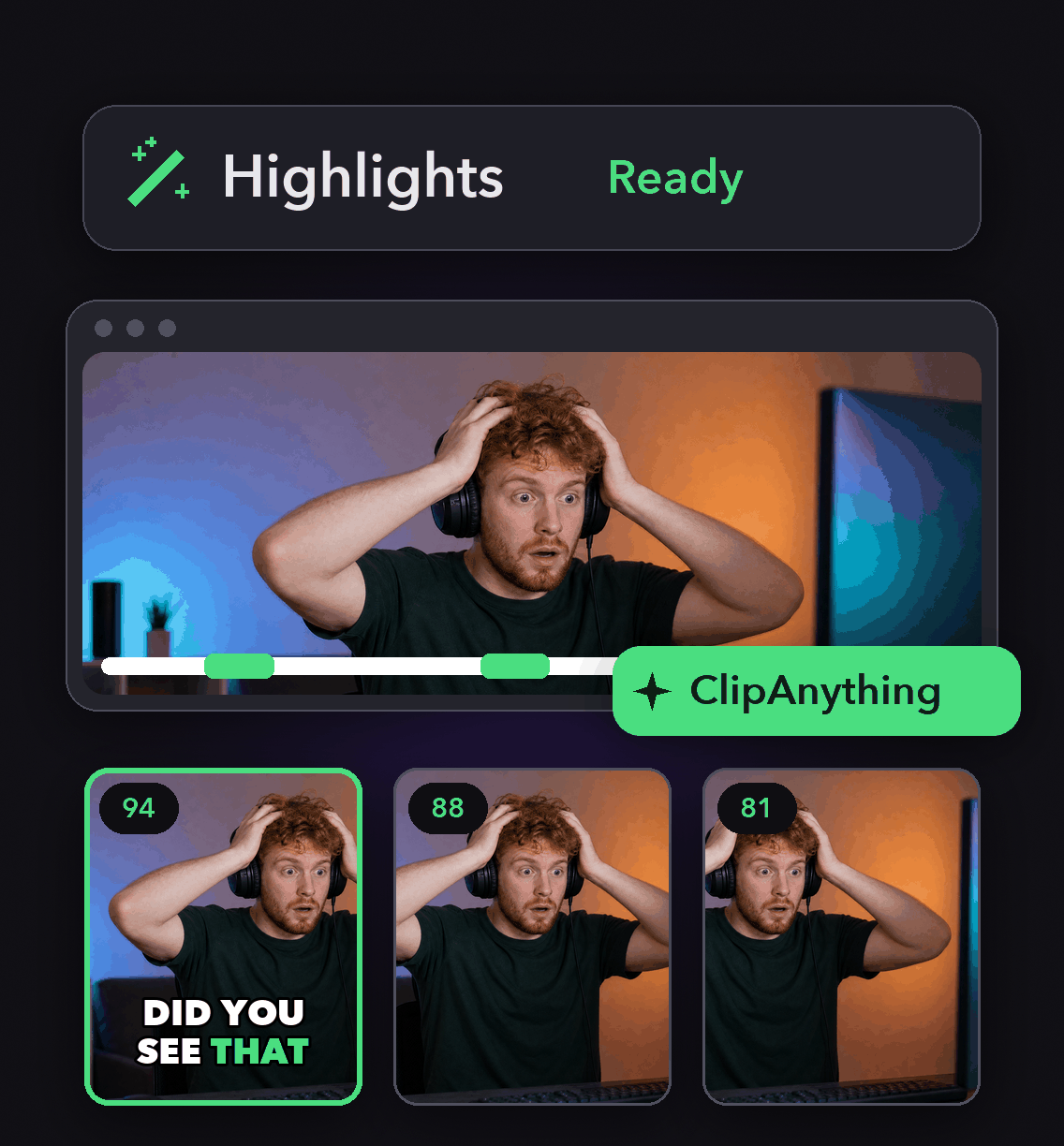
OpusClip turns a long GTA 6 session or stream VOD into highlight clips: it finds the standout plays and reactions, cuts them, and adds captions and a headline.
OpusClip's ClipAnything works from visual, audio and sentiment cues, so a highlight does not need commentary to be found.
OpusClip is not affiliated with Rockstar Games or Take-Two Interactive. Use your own gameplay and streams, or footage you are allowed to use.


Why highlights get lost in long sessions
Nobody rewatches six hours
Scrubbing a full session for five good minutes is the step most players skip. OpusClip analyses the whole recording, up to 10 hours long.
Highlights are visual
OpusClip's ClipAnything identifies objects, scenes, actions, sounds and emotions in each frame, which is how OpusClip finds a moment nobody narrated.
Not every moment is a highlight
OpusClip rates each clip with a Virality Score from 0 to 99, so the strongest highlights sit at the top of the list.
Describe the highlight you want
Type a prompt into OpusClip and ClipAnything looks for that kind of moment: a scene, an action, a reaction. OpusClip's own example for gamers asks for the scene where the player kills the enemy with a stone.
For GTA 6 that could be every chase, the end of a mission or your biggest reactions.

From stream VOD to clips
Paste a Twitch, Kick or YouTube link to the finished broadcast, or upload the recording. OpusClip's Clip gaming streams Recipe finds the clutch plays and reactions and puts the facecam on top with the game below.
To clip while you are still live, OpusClip's Live Clipping (an Opus Labs tool in private beta) records a stream as it airs and sends it to OpusClip in chunks. For finished broadcasts on any topic, see OpusClip's livestream clip maker.
A highlight set that looks like your channel
OpusClip's Brand Kit holds your logo, caption style, headline style, intro, outro and music, and applies them to every highlight.
Captions come with keyword highlighting, and OpusClip can censor curse words for feeds where that matters.
For any other kind of footage, use OpusClip's highlight video maker.
How to make GTA 6 highlights with OpusClip
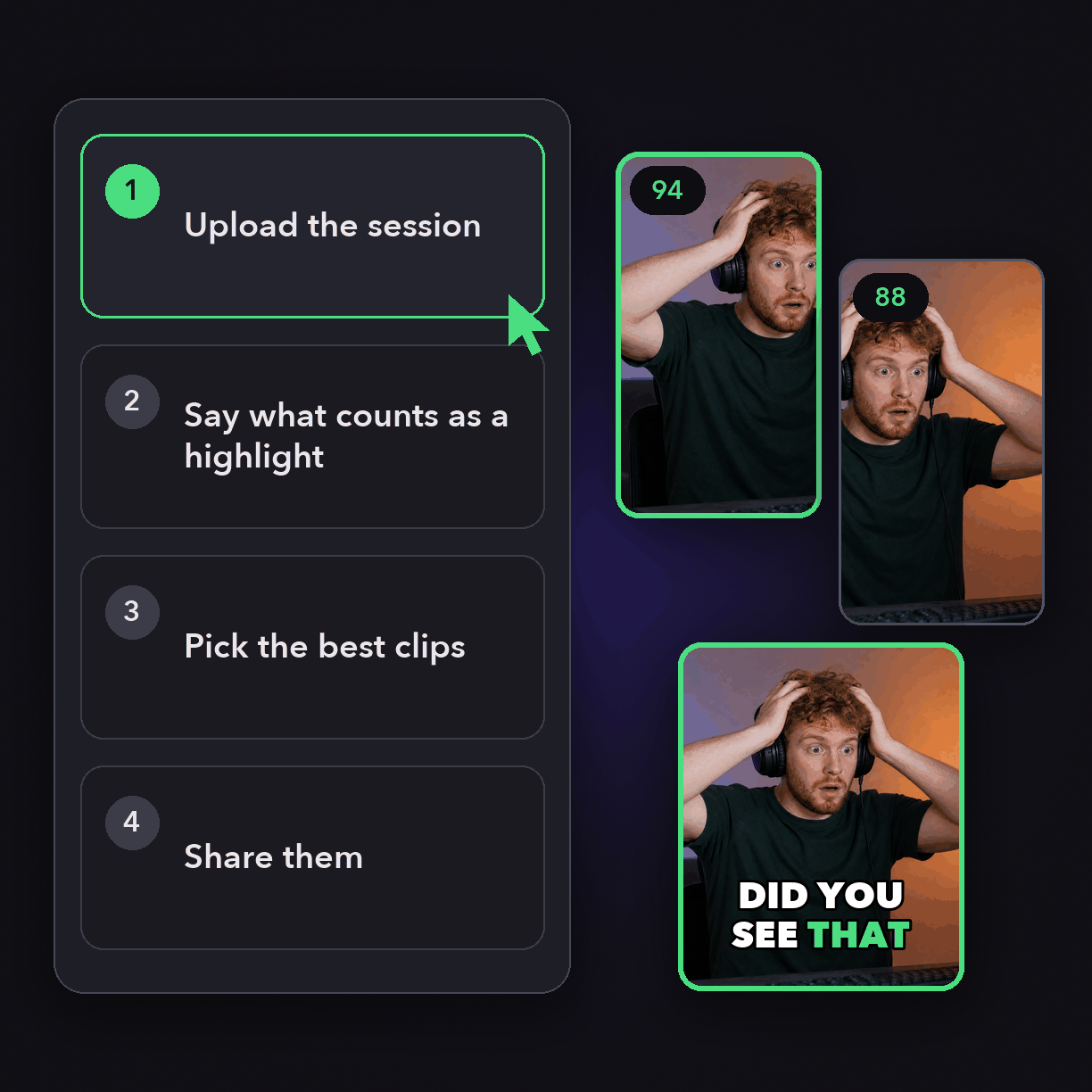
Upload the session
Add your GTA 6 recording to OpusClip, or paste the link to your stream VOD on Twitch, Kick or YouTube.
Say what counts as a highlight
Choose the Clip gaming streams Recipe in OpusClip. Add a prompt under Moments to include, or let OpusClip pick the moments.
Pick the best clips
OpusClip returns highlight clips with a Virality Score, captions and a headline. Keep the ones you want and edit any that need it.
Share them
Download the highlights, or schedule them from OpusClip to YouTube, TikTok and Instagram Reels.
Heading
Heading 1
Heading 2
Heading 3
Heading 4
Heading 5
Heading 6
Lorem ipsum dolor sit amet, consectetur adipiscing elit, sed do eiusmod tempor incididunt ut labore et dolore magna aliqua. Ut enim ad minim veniam, quis nostrud exercitation ullamco laboris nisi ut aliquip ex ea commodo consequat. Duis aute irure dolor in reprehenderit in voluptate velit esse cillum dolore eu fugiat nulla pariatur.
Block quote
Ordered list
- Item 1
- Item 2
- Item 3
Unordered list
- Item A
- Item B
- Item C
Bold text
Emphasis
Superscript
Subscript
What the GTA 6 Highlights Maker includes
Multimodal clipping
Visual, audio and sentiment cues, so dialogue is not a requirement.
Prompt-based clipping
Describe the kind of moment you want and get clips of that specifically, rather than a generic set.
Virality score
Each scene is rated for virality potential, so you know where to start.
Reframe Anything
Key objects and actions tracked across frames into 9:16, 1:1 or 16:9.
Curse word censoring
Censor the words that would cost you a monetisation review.
Auto SFX
Sound effects placed on the cut where the moment needs a hit.
Brand templates
Keep a consistent look per creator or per account without rebuilding it for every clip.
Bulk scheduler
Queue a week of clips to your connected accounts in a single pass.
What people are saying
"OpusClip is super easy to use. Just upload and let it do it's thing. I like that you can change the start and end but just highlighting the text. The rating system makes it easy to know which clips are best. Can make clips really quickly and is perfect for vloggers and podcasts"
Spencer W.
"Opus Clip saves me hours! Its AI finds the best parts of any long form video, then whips up catchy clips with smart captions and b-roll. Boom, instant social media content that actually engages!!"
Martin R.
"Everything is automated, I don't have to find clips or worry about captions, it is all done for me. I use it two or three times a month, and find it is as easy to use on mobile than on desktop. It's easy to get started, and the clips can be easily uploaded to social media - I use them on Instagram on TikTok."
Anonymous
Frequently Asked Questions
How do I make a GTA 6 highlight video?
Upload your GTA 6 recording to OpusClip or paste your stream VOD link, then choose the Clip gaming streams Recipe. OpusClip returns the highlights as separate short clips with captions and a headline, not as one merged reel.
Can OpusClip find highlights with no commentary?
Yes. OpusClip's ClipAnything uses visual, audio and sentiment cues and is built to clip videos with little to no dialogue.
How long can my GTA 6 recording be?
OpusClip supports videos up to 10 hours long. For anything longer, choose a portion of the recording to process.
Can I clip another streamer's GTA 6 stream?
Only with permission. OpusClip's copyright policy allows content you own or have a license or permission to use. OpusClip is not affiliated with Rockstar Games or Take-Two Interactive and does not grant rights to any footage.
Frequently Asked Questions
What languages does your video transcription tool support?
Our AI free video transcription technology supports over 20 languages, including English, Spanish, French, German, Japanese, and more. The system automatically detects the spoken language or allows you to specify it before processing. This makes transcribing multilingual video content simple and accurate.
Can I edit my video transcription after it's generated?
Yes, our platform includes a built-in editor for your free video transcription. You can correct any inaccuracies, format text, and add speaker labels directly in the interface. The editor synchronizes with timestamps, making it easy to perfect your transcript before exporting it for use.
What makes AI video transcription faster than manual methods?
AI video transcription processes speech in minutes rather than hours of manual typing. Our advanced algorithms recognize speech patterns across different accents and languages, providing time-stamped text with speaker identification. This technology lets you transcribe a 60-minute video in just a few minutes.
How much does it cost to transcribe a video?
Video transcription costs vary based on video length and features needed. Our platform offers a free trial transcription so you can experience the quality before committing. After that, we provide affordable pricing plans for regular video transcription needs with multi-language support and speaker detection.
How can I transcribe a video?
Upload your video file or paste a link to our AI free video transcription tool. The system automatically converts speech to text with over 95% accuracy. Once complete, you can download your transcript in various formats like TXT, SRT, or VTT for captions, blog posts, or other content.
How accurate are AI YouTube video transcription tools?
AI YouTube video transcript extractors typically achieve 95%+ accuracy for clear audio in English, with strong performance in over 50 other languages. For best results, videos with clear audio and minimal background noise produce the most accurate transcripts, though you can edit any errors afterward.
What formats can I download YouTube video transcripts in?
YouTube video transcript generators typically allow you to download transcripts in multiple formats including TXT (plain text), SRT (SubRip Subtitle), and VTT (Web Video Text Tracks) files. These different formats support various use cases from content creation to adding captions to videos.
Can I transcribe someone else's YouTube video?
Yes, you can transcribe anyone's public YouTube video using a YouTube video transcript generator. Simply copy the video URL, paste it into the transcription tool, and the AI will extract the spoken content into text format. This is useful for research, content repurposing, or accessibility purposes.
How to get a YouTube video transcript from any video?
To get a YouTube video transcript, copy the video URL and paste it into a transcript generator tool. Click "Generate Transcript" and the AI will process the audio, delivering a complete text version in under a minute. You can then edit, format, and download the transcript in your preferred format.
Does YouTube have auto transcription?
Yes, YouTube offers auto transcription for many videos, but these transcripts often contain errors. For more accurate results, use a dedicated YouTube video transcript generator that employs advanced AI to deliver 95%+ accuracy, proper formatting, and additional features like timestamp integration and multiple export formats.
Can I get a transcript of a YouTube video?
Yes, you can get a transcript of any YouTube video by using an AI-powered YouTube video transcript extractor. Simply paste the video URL into the tool, and it will automatically convert the spoken content into text format with high accuracy, allowing you to download the transcript in seconds.


