No items found.
8 Best AI Eye Contact Correction Tools in 2026
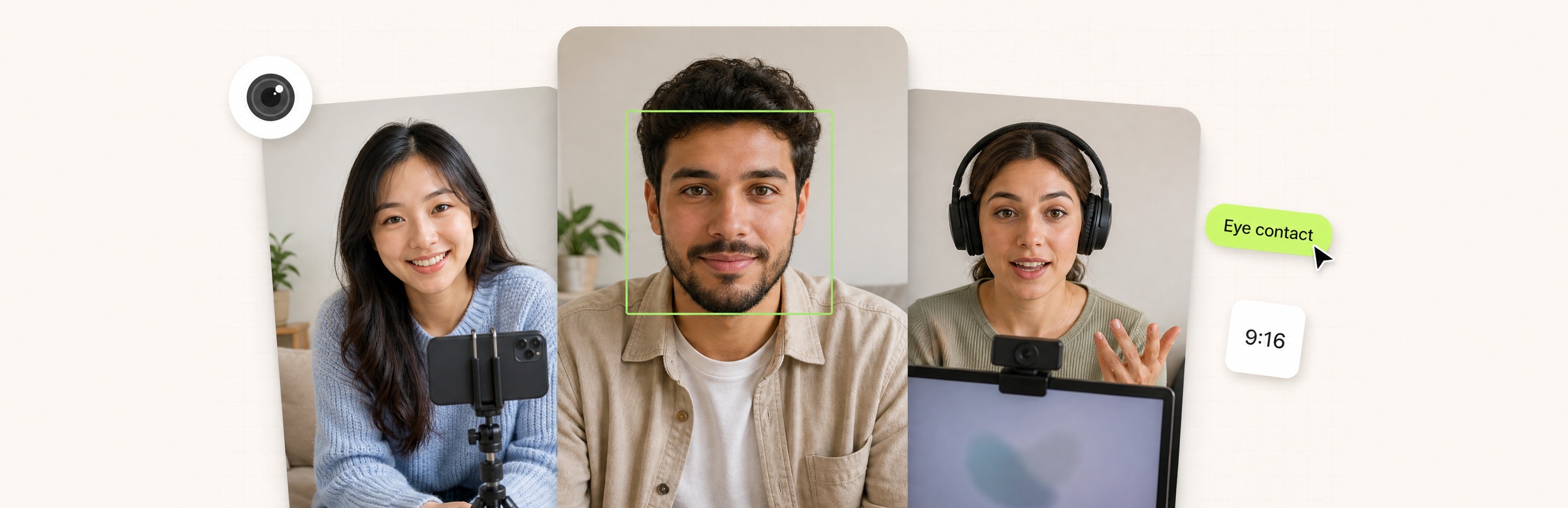
OpusClip is the pick for fixing a script-reading glance on short clips as they are cut and captioned: its help center says Eye Contact redirects the speaker's gaze to the camera only on the shots where the correction looks natural, and every fix shows up as an editable segment on the timeline. Captions, VEED, Kapwing, Descript and CapCut fix gaze in a finished recording, while NVIDIA Broadcast and Windows Studio Effects fix it live on a call. Items 2 to 8 follow one yardstick, when the correction runs. Facts come from vendor pages read on November 18, 2026.
Key takeaways
- Best for fixing a script-reading glance on clips: OpusClip. Its help center says Eye Contact corrects shots where the eyes drift slightly, and corrections can be deleted, trimmed or added on the timeline.
- Best for fixing gaze in the app that also records with a teleprompter: Captions. Its page says the feature fixes gaze after recording, and its docs advise recording in its camera and teleprompter.
- Best for a one-click toggle in a browser editor: VEED. Its help center puts Eye Contact under AI Tools and says the correction is disabled on large off-camera looks.
- Best for a browser editor with its own teleprompter: Kapwing. Its page says to record with the built-in Teleprompter, apply AI Eye Contact, then keep editing.
- Best for editing by transcript: Descript. Its page pairs the Eye Contact effect with transcript-linked captions.
- Best for a free fix inside a general editor: CapCut. Its tool page calls the feature free and says export has no watermark.
- Best for live calls and streams on an NVIDIA RTX PC: NVIDIA Broadcast. Its FAQ lists Eye Contact among its camera effects, delivered through a virtual camera.
- Best for live calls on a Copilot+ PC: Windows Studio Effects. Microsoft's support page lists a Standard mode and a Teleprompter mode for Eye contact.
Recorded fix or live fix
AI eye contact correction, also called gaze correction, adjusts where a speaker's eyes appear to point so they seem to look into the lens instead of at notes, a script or a second screen. The pages read for this guide describe the same triggers: Captions lists looking at a script and glancing off to the side, and Kapwing lists reading a script, checking notes or following content on screen.
The split that matters is when the correction runs. A recorded fix runs on a finished file: the footage goes into an editor, the correction is applied, and the result can be checked before it is posted. A live fix is applied to the camera feed while the call or stream is running. Items 1 to 6 below are recorded fixes and items 7 and 8 are live. NVIDIA's pages also list a File Processor for recorded files, but do not say whether Eye Contact is one of its supported effects.
None of the pages read prints an accuracy or naturalness score, so this guide does not rank tools by how convincing the result looks.
How to choose
- A long talking recording is being cut into clips: OpusClip, so the gaze fix sits in the same editor as clipping and captions. For the wider workflow, see our guide to AI tools for editing talking-head videos.
- The recording app should also have a teleprompter: Captions or Kapwing, which both print a teleprompter next to the eye contact tool. For teleprompter apps on their own, see our teleprompter apps guide.
- A one-click fix in a browser: VEED or Kapwing.
- A transcript-first editor: Descript.
- A free general editor: CapCut, per its own tool page.
- A live call or stream: NVIDIA Broadcast on an RTX PC, or Windows Studio Effects on a Windows PC with a supported NPU. Zoom's blog lists Pose Correction as expected in December 2026, so it is not ranked here.
- The footage came from a Riverside session: Riverside's help center prints a per-track Eye contact toggle for tracks recorded on Riverside, on the plans it lists as Pro, Grow, Webinar and Business. Async's Eye Contact Fixer and BIGVU's eye-contact tool also print the function on their own pages.
At a glance
- OpusClip: best for fixing a script-reading glance on clips as they are cut and captioned; Free $0 with a watermark; Starter $15 a month (monthly billing only); Pro $29 a month or $14.50 a month billed annually; the pricing page's plan comparison lists Eye contact correction.
- Captions: best for fixing gaze in the app that records with a teleprompter; a free version exists with a more limited feature set; Max $24.99 a month and Frontier $69.99 a month (the pricing page says prices reflect iOS plans only).
- VEED: best for a one-click toggle in a browser editor; the help center says the Free plan can try Eye Contact once per account; Creator $12 a month per user billed yearly, Pro $22 a month per user billed yearly.
- Kapwing: best for a browser editor with its own teleprompter; Free $0 (watermarked exports); Pro $16 a month billed annually, or $24 billed monthly.
- Descript: best for editing by transcript; Free $0 (limited use of AI tools); Hobbyist $16 a month per person billed annually, or $24 billed monthly; Creator $24 a month billed annually, or $35 billed monthly.
- CapCut: best for a free fix inside a general editor; the tool page calls it free; see the pricing page for any paid plan.
- NVIDIA Broadcast: best for live calls and streams on an RTX PC; NVIDIA's January 2023 post says it is free for GeForce RTX GPU owners.
- Windows Studio Effects: best for live calls on a Copilot+ PC; a Windows feature with no separate price on Microsoft's support page; needs a supported NPU.
When each tool corrects gaze, where it runs and what limits it prints
The At a glance list covers best-for and prices; this table compares when each tool corrects gaze, where it runs, what it corrects, the safeguard or limit each vendor prints and the free option, as listed on each vendor's own pages on November 18, 2026.
| Tool | When it runs | Where it runs | What it corrects | Safeguard or limit as printed | Free option as listed |
|---|---|---|---|---|---|
| OpusClip | On a clip, from the clips page or the editor | Clip editor: AI enhance toggle, timeline segments | Eyes that drift slightly while the face points to the camera | Skips head turns and looking away; segments can be deleted or trimmed | Pricing page lists it in the plan comparison; Free has a watermark |
| Captions | After recording: upload footage or record in the app | Captions app (Eye Contact tool) and Captions on web | Reading a script, glancing to the side, nervous blinks | Says it keeps intentional pauses and glances; docs advise eyes fully visible | Free version has basic tools; Eye Contact is not named |
| VEED | After recording: upload a video or use the screen recorder | Browser editor: Eye Contact under AI Tools | Subtle gaze shifts; keeps eye color and blinks | Correction is disabled when the look is too far off camera | Free plan: one try per account |
| Kapwing | After recording: record in Kapwing Studio or upload | Browser editor: Eye Contact in the AI Tools sidebar | Off-camera glances while reading a script or notes | Review the correction in the editor, then keep editing the same project | Free plan: watermarked exports up to 4 minutes |
| Descript | After recording: import footage into a project | Descript editor; page advises an internet connection for processing | Side-glances turned into direct eye contact | Recommends one-person videos; low light or extreme angles can trip it up | Free plan lists limited use of AI tools; AI credits meter Eye Contact |
| CapCut | After recording: import a video, then toggle Eye contact | CapCut App: Eye contact in the clip menu | Gaze aligned with the camera; imitates blinking and eye color | Best on a single subject; preview before exporting | Tool page calls it free and says export has no watermark |
| NVIDIA Broadcast | Live: webcam during calls, voice chats and livestreams | Windows app with a virtual camera; needs an RTX GPU | Glances to the side or at notes | At launch: natural eye color and blinks; disconnects if you look too far away | Free for GeForce RTX owners, per its January 2023 post |
| Windows Studio Effects | Live, on video calls | Windows PCs with an NPU; Quick Settings or Camera app | Standard: subtle fix; Teleprompter mode on Snapdragon Copilot+ PCs | Can affect performance and battery life on some devices | A Windows feature; needs a supported NPU |
1. OpusClip: Best for fixing a script-reading glance on clips as they are cut and captioned

The AI enhance panel with Eye contact correction switched on. Source: OpusClip help center
OpusClip's Eye Contact Correction works on a clip inside its editor. The help article says Eye Contact redirects the gaze to the camera, only on the shots where the correction looks natural. In the editor, the steps are to open AI enhance in the right sidebar and toggle on Eye contact correction; the article says the AI then analyzes the clip, corrects the shots that need it, and shows each corrected part as an Eye contact correction segment on the timeline. It can also be started from the clips page, from a button next to a clip (under the scissor icon in Grid view, or under AI tools in List view).
Review is segment by segment. The help center says a correction can be removed by selecting its segment and deleting it, extended or trimmed by dragging either edge, or added with Add more manually in the AI enhance panel; toggling the feature off removes every correction. It says corrections apply only to the clip being edited, the original upload stays unchanged, every correction segment is included when the clip is downloaded or published, and the Fill and Split layouts are supported.
The article is specific about what it will and will not fix. It corrects shots where the face points toward the camera and the eyes drift slightly, like glancing down at a script, and skips head turns or looking away on purpose. When nothing qualifies, the editor shows No segments needed correction, which the article calls common when the face is small in the frame or turned away, or when speakers look at each other on purpose. With more than one person, it works only in the Split layout, where each person has their own half. The article also says Eye contact correction is temporarily removed from Recipes and will return in a phased rollout after an infrastructure update.
Pricing: OpusClip's pricing page lists Free at $0 with a watermark, Starter at $15 a month (monthly billing only) and Pro at $29 a month, or $14.50 a month billed annually. Business is custom. The plan comparison lists Eye contact correction, so check that page for the plan that includes it.
Considerations: Eye Contact is one function of a clip editor, so it fits best when the footage is also being clipped, captioned or reframed. It fixes small drifts only, by the article's own description, and the AI enhance panel shown in the help article carries a note to preview the adjusted segments before sharing, as AI eye contact may look unnatural. The details above are as the help article prints them on November 18, 2026.
- Choose it if short clips are being cut from a talking recording, the speaker glanced at a script or notes, and each fix should be reviewable and editable on the timeline.
- Skip it if the fix has to happen live during a call (the article describes corrections applied to clips in the editor).
2. Captions: Best for fixing gaze in the app that also records with a teleprompter
Captions' eye contact page says the feature fixes gaze after the recording, so the shoot does not have to be a perfect take. It says the AI analyzes talking head videos to find unintentional breaks in eye contact and updates the footage, that it is trained to detect common issues like looking at a script, glancing off to the side and nervous blinks, and that it preserves intentional pauses and glances so the delivery stays natural. Footage can be uploaded or recorded in the app; in the Captions app the page describes a dedicated Eye Contact tool in the editing panel, and on web it says to prompt the text editor to correct eye contact.
Captions' help docs give recording tips for best results: look as close to the camera as possible, position the script slightly above or to the side of the camera rather than down, be close enough that the whites of the eyes are fully visible, and record in the Captions Camera and Teleprompter.
Pricing: Captions' pricing page lists Max at $24.99 a month and Frontier at $69.99 a month, and says its prices reflect iOS plans only. Its FAQ says there is a free version with a more limited feature set, whose free plan includes basic tools like trimming, transitions and some media library assets.
Considerations: The pages read do not say whether Eye Contact is part of the free version, and the pricing page's comparison table does not list it, so check the plan before relying on it.
- Choose it if the footage is recorded and edited in one app and a teleprompter is part of the recording.
- Skip it if a printed free-plan allowance for Eye Contact matters, since the pages read do not give one.
3. VEED: Best for a one-click toggle in a browser editor

The Eye contact toggle in VEED's AI Tools panel. Source: VEED help center
VEED is a browser-based editor, and its help center (dated August 24, 2026) says the Eye Contact tool uses AI to subtly adjust the gaze so the speaker looks to be talking directly into the camera. The steps are to create a project, upload a video or use the screen recorder, click the clip to open the Edit Video panel and choose Eye Contact under AI Tools; the article says it can also be found under the Video section of the left panel. VEED's launch blog post says the tool aligns the gaze while retaining the natural eye color and blinks.
The help center is direct about limits: the tool works best with high-quality talking head videos where the subject is clearly visible and may not work well if the subject is too far from the camera or the video is low resolution or poorly lit. Its FAQ explains skipped sections: if the look is too far off the camera, the correction is disabled to keep the eyes and head movement from becoming unnatural.
Pricing: VEED's help center says the Free plan can try Eye Contact once per account and lists the paid plans as fully available. Its pricing page lists Creator at $12 a month per user billed yearly and Pro at $22 a month per user billed yearly, with Enterprise at custom pricing.
Considerations: Free access is a single try per account, so a second video needs a paid plan.
- Choose it if one video needs a quick correction in a browser, with captions and cleanup tools in the same editor.
- Skip it if more than one free try is needed, or the speaker is far from the camera or poorly lit.
4. Kapwing: Best for a browser editor with its own teleprompter
Kapwing's eye contact page calls its tool an AI Eye Contact Corrector that works in the browser: record in Kapwing Studio or upload footage, click the Eye Contact button in the sidebar, then export up to 4K as MOV, MP4 or WebM. It says the AI eye tracking redirects off-camera glances toward the lens while preserving natural facial expressions, and that the correction is applied in the video editor, reviewed there, and followed by more editing in the same project. The page ties the tool to Kapwing's built-in Teleprompter, with adjustable script, text size and scrolling speed.
Kapwing's help article gives the steps: select the video in the Timeline and click Eye Contact in the Edit menu under AI Tools on the right sidebar. The article was last updated on June 4, 2025.
Pricing: Kapwing's pricing page lists Free at $0 with 10 credits, unlimited exports with a watermark, exports up to 4 minutes long and 720p quality. Pro is $16 a month billed annually (or $24 billed monthly) and lists no Kapwing watermark, 4K export and exports up to 2 hours long.
Considerations: The pricing page lists auto-subtitling and text to speech among the uses of credits and does not name Eye Contact, so the plan and credit cost for it are not printed on the pages read.
- Choose it if the video is recorded from a script and the correction, trims and subtitles should happen in one browser project.
- Skip it if a printed free allowance or credit cost for Eye Contact is needed.
5. Descript: Best for editing by transcript
Descript's Eye Contact page says the tool gently re-angles the gaze, turning side-glances into direct, confident eye contact. The steps are to import footage into a project (Descript generates a transcript), apply the Eye Contact effect, then enable and style captions that link to the transcript. The page asks for a large, well-lit face for best results, says an internet connection helps the processing happen quickly, and specifically recommends one-person videos.
Its FAQ adds tips for an unnatural look: check the lighting, keep the face front and center, and minimize quick head movements, since low light or extreme angles can trip the AI up. It says to keep one person in the shot.
Pricing: Descript's pricing page lists Free at $0, Hobbyist at $16 a month per person billed annually ($24 billed monthly) and Creator at $24 a month billed annually ($35 billed monthly). Its FAQ says AI credits track usage of AI features, naming Eye Contact, and the pricing table reads Limited against Eye Contact in the Free column.
Considerations: Descript's own pages disagree on the Free plan's AI credits (100 a month on the Eye Contact page, 100 one-time in the pricing comparison), so check the pricing page.
- Choose it if the video is already being edited as a transcript and the gaze fix belongs in the same project as the captions.
- Skip it if several people share the frame, or an unmetered free fix is needed.
6. CapCut: Best for a free fix inside a general editor
CapCut's AI Eye Contact page describes a free eye contact correction tool in the CapCut App. Its steps are to start a new project, import the video, tap the clip in the timeline, choose Eye contact in the menu at the bottom of the screen and toggle it on, then preview and export. The page says the algorithm imitates natural blinking patterns, realistic eye colors and seamless eye movement, and points to a built-in teleprompter for reading scripts. Its FAQ says the feature can work on group videos but is optimized for a single subject, and advises exporting only after checking that the result fits the shot.
Pricing: The tool page calls the feature free and says it exports high-resolution video without watermarks. It prints no limits or plan terms, so see CapCut's pricing page for paid plans.
Considerations: This is a product marketing page rather than a help article, so it prints no processing limits or platform list for the feature.
- Choose it if a free fix inside a general editor is enough and the footage has a single speaker.
- Skip it if printed limits or a live fix are needed.
7. NVIDIA Broadcast: Best for live calls and streams on an NVIDIA RTX PC

The Eye Contact toggle in NVIDIA Broadcast's video effects list. Source: NVIDIA website
NVIDIA Broadcast is a Windows app for livestreams, voice chats and video conference calls. Its product page lists Eye Contact among its effects, saying it uses AI to make it look like the speaker is looking directly at the camera, even when glancing to the side or taking notes. NVIDIA's FAQ says the app works by creating a virtual Windows camera, microphone or speaker, so it appears to call and streaming applications like a physical device: the effects are enabled in the app, then the NVIDIA Broadcast device is selected in the other app.
NVIDIA's January 2023 launch post for the effect says the eyes retain their natural color and blinks, and that a disconnect feature lets the video transition smoothly between simulated and real eyes when the speaker looks too far away. It said Eye Contact was in beta at that time.
Pricing: The January 2023 post says Broadcast is free for all NVIDIA and GeForce RTX GPU owners. NVIDIA's FAQ lists the requirements as a GeForce RTX 2060, Quadro RTX 3000, TITAN RTX or higher GPU, 8 GB of RAM, Windows 10 or 11 (64-bit) or Windows on Arm, and an internet connection during installation.
Considerations: It needs a supported NVIDIA GPU, so a laptop without one cannot run it. The product page also lists a File Processor that processes recorded files offline, but the pages read do not say Eye Contact is among the effects it supports.
- Choose it if a live call or stream runs on a Windows PC with an RTX GPU and the gaze fix should apply in any app that can pick a camera.
- Skip it if the machine has no supported NVIDIA GPU, or a recorded file needs a reviewable fix.
8. Windows Studio Effects: Best for live calls on a Copilot+ PC
Windows Studio Effects is a Windows feature that Microsoft's support page describes as improving video and audio during calls with automatic framing, eye contact correction, background blur, portrait light, creative filters and voice focus. Eye contact adjusts the gaze on video calls to simulate eye contact, in two modes: Standard, a subtle correction, and Teleprompter, which the page says uses advanced AI for a more natural and lifelike result and is only available on Snapdragon Copilot + PCs devices.
The effects need a neural processing unit and the latest Windows updates, and the page says a Copilot+ PC with an NPU over 40 TOPS delivers a range of enhancements. On devices whose NPU performs under 40 TOPS, it lists Background effects, Eye contact - standard, Automatic framing and Voice focus as the available effects. The settings are managed through Quick Settings, the Settings app or the Camera app.
Pricing: Microsoft's support page prints no separate price; it is a Windows feature that depends on supported hardware.
Considerations: The page notes that on some devices, turning on camera effects, including Eye contact, might significantly affect performance and battery life.
- Choose it if the calls run on a supported Windows PC and a built-in setting is preferred over an extra app.
- Skip it if the PC has no supported NPU, or the footage is a recorded file.
How we compared these tools
This guide is organised around fixing eye contact in video. OpusClip's Eye Contact Correction is built for the clip-editing part of that job, a fix applied to clips in its editor, so it comes first. Items 2 to 8 follow one yardstick, when the correction runs: tools that fix a finished recording first, then the two tools that correct live video. We compared when each correction runs, where it runs, what it corrects, the safeguard or limit each vendor prints and the free option as printed. Every fact about a vendor comes from that vendor's own pages, NVIDIA's and Microsoft's documentation or YouTube Help, read on November 18, 2026, and vendor claims are attributed. We did not run hands-on tests of the competitors in this list, so the order reflects documented capability, not a measured comparison of how natural each result looks.
Tools whose pages print no eye contact or gaze function were left out, and a general editor is listed only because its own page prints one. Riverside, Async, BIGVU and Vizard Agent also print the function and are named in How to choose; they were left out of the numbered list only to keep it to eight. Prices and limits change often, so check each page before relying on one.
Red flags to watch for
- Small drifts only. OpusClip's help center says it skips head turns and looking away on purpose, and VEED's disables the correction when the look is too far off camera. Vizard's how-to page for gaze correction says looking at the floor is not a few degrees off and that a reshoot is the honest answer.
- Watch the corrected clip at full size. The same Vizard page says glasses and reflections complicate the fix and that blinking is the tell. NVIDIA, VEED, CapCut and Captions each say their tool keeps natural blinks or pauses, and each is the vendor's own claim.
- One face at a time. OpusClip's help center says several people sharing a frame cannot be corrected yet. Descript recommends one person in the shot and CapCut says its tool is optimized for a single subject.
- Light, distance and angle. VEED says the tool may not work well when the subject is far from the camera or the video is low resolution or poorly lit, and Descript says low light or extreme angles can trip it up.
- Free plans are limited. OpusClip's Free plan has a watermark, VEED gives the Free plan one try per account, Descript lists limited use of AI tools on Free, and Kapwing's Free plan lists watermarked exports.
- Live tools need hardware. NVIDIA Broadcast needs a supported RTX GPU and Windows Studio Effects a supported NPU; Microsoft notes a possible performance and battery cost.
- Disclosure rules. YouTube Help says creators must disclose realistic AI content that is meaningfully altered, and that minor edits that are primarily aesthetic and do not alter the content in a way that could mislead the viewer about what actually happened do not need disclosure. The example lists on that page do not name gaze correction, so a creator makes the call against that definition. Other platforms, employers and clients set their own rules.
- People on camera. Anyone whose gaze is altered in a recording is worth telling, especially in interviews and testimonials.
Frequently asked questions
What is the best AI eye contact correction tool?
For fixing a script-reading glance on clips cut from a longer recording, OpusClip is the pick: its help center describes Eye Contact in the editor, with corrections shown as editable segments on the timeline. For a recording app with a teleprompter, Captions or Kapwing; for a one-click browser toggle, VEED; for transcript editing, Descript; for a free general editor, CapCut. For live calls, NVIDIA Broadcast on an RTX PC or Windows Studio Effects on a supported Windows PC.
How do I fix eye contact in a video after recording?
In OpusClip, open the clip in the editor, choose AI enhance in the right sidebar and toggle on Eye contact correction, or start it from the button next to a clip on the clips page; the help article lists the steps and says it is temporarily removed from Recipes. The other recorded tools above follow a similar flow of upload, apply the Eye Contact tool, check the result and export.
Can AI fix eye contact in a live video call?
Yes, with a live tool. NVIDIA Broadcast creates a virtual camera on a Windows PC with a supported RTX GPU, and Windows Studio Effects lists Eye contact for video calls on supported PCs with an NPU. Zoom's blog lists Pose Correction as expected in December 2026.
Does AI eye contact correction look natural?
The vendors say it is designed to, and each prints a safeguard: OpusClip skips head turns and looking away, VEED disables the correction on large glances, Captions says it keeps intentional pauses and glances, and NVIDIA's 2023 post describes a disconnect when the speaker looks too far away. None of the pages read prints an accuracy figure, so check the result at full size.
Is there a free AI eye contact correction tool?
Several have a free option with limits. CapCut's tool page calls its feature free, VEED's help center gives the Free plan one try per account, Descript's Free plan lists Eye Contact as Limited, and NVIDIA's 2023 post says Broadcast is free for RTX GPU owners. OpusClip's Free plan is $0 with a watermark (the pricing page's plan comparison shows which plans include Eye contact correction).
Do I need to tell viewers a video uses eye contact correction?
YouTube Help requires disclosure of realistic AI content that is meaningfully altered and says minor edits that are primarily aesthetic, and do not alter the content in a way that could mislead the viewer about what actually happened, do not need it. Its example lists do not name gaze correction, so the decision rests with the creator, and the AI use setting is in YouTube Studio. Check other platforms' own rules.
Is a teleprompter better than fixing eye contact in editing?
They solve different parts of the problem. A teleprompter keeps the script near the lens while recording, and Captions' docs advise placing it slightly above or to the side of the camera, while a recorded fix handles glances that still happen. For teleprompter apps on their own, see our teleprompter apps guide.