10 Best AI Tools to Edit Talking-Head Videos in 2026

October 28, 2026
Three people talking to camera with green face-detection boxes and a 9:16 tag

For polishing a long talking-head recording into short, captioned videos, OpusClip is our first pick. Descript is the stronger choice for editing the full-length video like a document, Riverside for fixing problems at the recording stage, and Gling for cutting silences and bad takes out of raw YouTube footage. We ranked ten tools by how well each one handles the talking-head job: cutting dead air and filler words, captions, framing the speaker, audio cleanup, and getting a finished file out, with price and free-plan limits as tie-breakers.

Updated October 28, 2026. We make OpusClip, so it is ranked first for one specific job: turning a long talking-head recording into short captioned videos. Every price, limit and feature below comes from each tool's own pricing page or documentation, read on October 28, 2026. We did not run hands-on tests of the competing tools.

At a glance

  • OpusClip: best for polishing a long talking-head recording into short captioned videos, from $15 a month, free plan yes (60 credits a month, watermark).
  • Descript: best for editing a full-length talking-head video by editing its transcript, paid plans from $16 to $24 a month depending on billing period, free plan yes (60 media minutes a month).
  • Riverside: best for recording and editing a remote talking-head show in one place, Pro from $24 a month billed annually, free plan yes (2 hours of recording, one-off).
  • Gling: best for cutting silences, filler words and bad takes from raw YouTube footage, Plus from $10 a month billed annually, free plan yes (1 hour a month, watermark).
  • Captions: best for phone-first creators who talk to camera, Max at $24.99 a month, free plan yes (limited).
  • Submagic: best for caption-led short-form polish, from $19 a month billed monthly, no free plan listed.
  • Kapwing: best for a browser editor with silence removal and subtitles, Pro from $16 a month, free plan yes (10 credits, watermark).
  • VEED: best for a browser editor with eye contact correction and noise removal, free plan yes, see the pricing page for paid prices.
  • CapCut: best for creators who want a low-cost general editor with auto captions, Pro at $19.99 a month, free plan yes.
  • Vizard: best for turning long recordings into clips on a free starting tier, free plan yes (60 credits a month), see the pricing page for paid prices.

1. OpusClip: Best for polishing a long talking-head recording into short captioned videos

OpusClip takes a long recording of someone talking to camera (a podcast episode, webinar, interview or founder video), finds the strongest moments, and turns them into short clips with animated captions. Each clip gets a Virality Score from 0 to 99 based on hook, flow and trend. AI Reframe keeps the speaker in frame (9:16 on every plan, with 1:1 and 16:9 on Pro), and a text and timeline editor lets creators adjust cuts and captions before exporting. Filler-word and silence removal is available from the Starter plan, and speech enhancement (noise reduction and clearer voice) is on Pro.

It fits creators who record long and publish short: the same talking-head source becomes a batch of captioned clips. Brand templates keep fonts, colors and caption style consistent across clips, and imports work from YouTube, Zoom, Dropbox, Vimeo, Twitch, Riverside, StreamYard and Loom links, plus local uploads. Auto-posting to YouTube Shorts, TikTok and Instagram Reels is available from Starter.

Pricing, per OpusClip's pricing page: Free is 60 credits a month with 1080p clips and a watermark. Starter is $15 a month (monthly billing only) with 150 credits, and Pro is $29 a month or $14.50 a month billed annually with 300 credits. Pro adds 16:9 export, speech enhancement, custom fonts, a social media scheduler and export to Premiere Pro and DaVinci Resolve.

One real limitation: OpusClip is built to produce short clips and polish them, not to replace a full non-linear editor, so a long multi-camera timeline still belongs in a tool like Premiere Pro or DaVinci Resolve (Pro exports to both). Caption translation before clipping targets English only. Choose it if the goal is shorts from long talking-head footage. Skip it if the goal is a single long, heavily customized edit.

2. Descript: Best for editing a full-length talking-head video by editing its transcript

Descript transcribes a recording and lets the editor cut the video by editing the text. Its pricing page lists Studio Sound for audio cleanup, Remove Filler Words, Shorten Word Gaps, Remove Retakes, Eye Contact, Create Clips and dynamic captions, along with Underlord, which Descript describes as its AI co-editor. Text-based editing makes it a natural fit for long talking-head work such as tutorials, interviews, podcasts and course videos.

The pricing page lists a Free plan with 60 media minutes a month, 100 one-time AI credits and 720p export. Hobbyist is $16 to $24 a month (the page shows both figures and says annual billing saves up to 35%) with 10 media hours, 400 AI credits a month and 1080p export. Creator is $24 to $35 a month with 30 media hours, 800 AI credits and 4K export. Business is $50 to $65 a month per person with 40 media hours.

One real limitation: usage is metered in media hours and AI credits, and the AI tools on the Free plan are marked "Limited", so heavy editors will hit allowances on lower tiers. Clip-making is one feature among many rather than the whole product. Choose it if the finished product is the full-length video and transcript-driven editing suits the workflow. Skip it if the main output is a stream of short clips.

3. Riverside: Best for recording and editing a remote talking-head show in one place

Riverside is a recording studio first. Its pricing page describes separate audio and video tracks, up to 4K video on Pro, and a set of AI editing features on Pro: unlimited text-based editing, an AI editing and repurposing agent, AI B-roll, eye contact, remove silences and filler words, Magic Clips and audio enhancement. For interviews and podcasts, fixing problems at the source (separate audio and video tracks) is its main advantage.

Pricing, per Riverside's pricing page: Free is $0 with 2 hours of multitrack recording (one-off), up to 720p and a Riverside watermark. Pro is $29 a month, or $24 a month billed annually ($288 a year), with a 14-day free trial. Higher tiers (Grow and Webinar) add live streaming, publishing and webinar features.

One real limitation: the plan structure is organized around recording hours, studios and hosting, so it suits teams that record in Riverside more than creators who film alone on a phone or camera and edit afterward. Choose it if the show is recorded with remote guests. Skip it if the footage already exists elsewhere and the only need is captions and short clips.

4. Gling: Best for cutting silences, filler words and bad takes from raw YouTube footage

Gling is a desktop app (Gling's pricing page says it is designed exclusively for desktop) built for the first pass on talking-head footage. Its pricing page lists removal of bad takes, automatic silence removal, filler-word removal, AI captions with SRT export, auto framing, multicam editing, speech audio enhancement and XML export to Premiere, Final Cut Pro and DaVinci Resolve. It also lists a YouTube title generator and chapters generator.

Pricing, per Gling's pricing page: Free is $0 with 1 hour of AI-edited media a month and exports with a watermark. Plus is $20 a month, or $10 a month billed annually, with 10 hours and watermark-free export. Pro is $40 a month ($20 annually) with 30 hours, and Elite is $100 a month ($50 annually) with 100 hours.

One real limitation: allowances are counted in hours of AI-edited media, and the product is desktop-only, so there is no browser or phone workflow. It is also a rough-cut tool that hands off to an NLE rather than a full editor. Choose it if long YouTube-style recordings need a fast cleanup pass before the real edit. Skip it if the work happens on a phone or in a browser.

5. Captions: Best for phone-first creators who talk to camera

Captions is built around creators who film on a phone. Its pricing page lists a chat-based editor, AI Edit styles, a tool to turn a long video into a batch of post-ready clips, captions in 100+ languages, AI Denoise and AI Voiceover, alongside generative features such as AI actors and a digital twin.

Pricing, per Captions' pricing page: a free version exists with a limited feature set (basic tools like trimming and transitions). Max is $24.99 a month with 500 credits a month, and Frontier tiers run $69.99, $139.99 and $279.99 a month with higher credit allowances. The page notes that the prices and features shown reflect iOS plans only, and that unused credits roll over (a balance can hold up to three times the monthly allowance).

One real limitation: much of the paid tier is about generative video, and the pricing page does not list filler-word or silence removal, so cleanup-focused editors may fit a pure talking-head workflow better. Choose it if the footage is shot on a phone and a chat-driven editor appeals. Skip it if the priority is a desktop workflow or precise cuts on long recordings.

6. Submagic: Best for caption-led short-form polish

Submagic centers on captions for short videos. Its pricing page lists AI auto captions, hook titles, magic B-rolls, auto zooms, publishing with analytics, and a brand kit. Silence and bad-take removal and AI clean audio are listed from the Pro plan, and text-based trimming appears on Starter.

Pricing, per Submagic's pricing page: Starter is $19 a month billed monthly ($12 a month billed yearly) with 45 credits (15 videos) and 2-minute videos. Pro is $39 a month ($23 yearly) with 120 credits (40 videos) and 5-minute videos. Business is $69 a month with 300 credits and 30-minute videos plus 4K export. All three plans are listed as watermark-free, and the page does not list a free plan.

One real limitation: the per-video duration caps (2 minutes on Starter, 5 on Pro) make it a tool for already-short clips rather than for processing a long recording. Choose it if short clips already exist and caption styling is the priority. Skip it if the workflow starts from an hour-long recording.

7. Kapwing: Best for a browser editor with silence removal and subtitles

Kapwing is a browser-based editor. Its tool menu lists Smart Cut (automatically remove silences), Trim with Transcript, Subtitler, Clean Audio, Speaker Focus (auto-resize videos to focus on the speakers) and a Clip Maker that generates short clips from one video. It also lists a Repurpose Studio and Dubbing into 40+ languages.

Pricing, per Kapwing's pricing page: Free is 10 credits with watermarked exports of up to 4 minutes at 720p. Pro is $16 a month (the page offers an annual option it says saves 33%) with 1,000 credits a month, 4K export, exports up to 2 hours long, no watermark, a brand kit and custom fonts. Business is $50 a month with 4,000 credits.

One real limitation: features run on credits (for example auto-subtitling is capped in minutes per month on each plan), so volume users should check the allowance. Choose it if a browser editor with cleanup tools and team workspaces is wanted. Skip it if automatic selection of clip-worthy moments from long footage is the main need.

8. VEED: Best for a browser editor with eye contact correction and noise removal

VEED is a browser-based video editor. Its site lists an Auto Subtitle Generator, Eye Contact AI, tools to remove background noise from video and audio, a teleprompter, a Video Translator, an AI Clip Generator and an AI Video Editor. For talking-head creators, eye contact correction and audio cleanup are the most relevant.

VEED's pricing page offers a free start and paid plans, but its prices load dynamically and were not readable from the raw page, so see the pricing page for current numbers. The page states that AI credits refresh when a subscription renews and do not carry over, that paid plans include unlimited subtitle generation subject to a fair-use limit of 50 hours a month, and that plans are charged per seat.

One real limitation: the credits that power AI features do not roll over, and per-seat billing adds up for teams. Choose it if the work happens in a browser and eye contact or noise tools matter. Skip it if bulk clipping of long recordings is the main job.

9. CapCut: Best for creators who want a low-cost general editor with auto captions

CapCut is a general-purpose editor with desktop, online, mobile and tablet versions. Its site navigation lists auto captions, caption templates, speech recognition, enhance voice, reduce noise, remove video background and a trim tool, plus AI generation features. That breadth suits creators who want one editor for talking-head clips and everything else.

Pricing, per CapCut's pricing page: Free is $0 with free templates and basic editing tools. Pro is $19.99 a month with 1,200 monthly AI credits, premium templates and 1 TB of storage. Ultra is $79 a month, and Teams is $12.49 a month per seat with a brand kit. The page notes that displayed pricing is for reference and final pricing shows after sign-in.

One real limitation: the pricing page is weighted toward AI generation, and we did not find filler-word removal or automatic clipping of long recordings listed there. Choose it if a general editor with captions and a free tier is enough. Skip it if the main workflow is cutting dead air from long talking-head recordings.

10. Vizard: Best for turning long recordings into clips on a free starting tier

Vizard repurposes long videos into short clips. Its pricing page lists AI clipping, auto reframe, auto subtitling, AI highlight keywords, AI emojis, AI B-rolls and a brand kit on Business, and full access to a video editor. Creator and Business plans add watermark removal, 4K export and scheduled posting.

Pricing, per Vizard's pricing page: Free is 60 credits a month, 720p export, a 10-minute export length, 3-day storage and one connected social account. Paid prices render dynamically and were not readable from the raw page, so see the pricing page. The page states that 1 credit equals 1 minute of uploaded video.

One real limitation: the pricing page does not list silence or filler-word removal, so talking-head cleanup would happen elsewhere. Choose it if the goal is clips from long recordings with a free tier to start. Skip it if cutting pauses and filler words is the priority.

How to edit a talking head video with AI

Most AI-assisted talking-head workflows follow the same four steps. First, import the recording and let the tool transcribe it. Second, remove dead air: silences, filler words such as "um" and "uh", and bad takes. Third, clean the audio (noise reduction, clearer voice) and add captions. Fourth, frame the speaker for the target format (vertical for Shorts, Reels and TikTok; widescreen for YouTube) and export. For the full shooting and framing side of the craft, see our talking-head videos guide. The tools above differ mainly in which steps they automate and whether the output is one long video or many short ones.

Best AI tool to remove filler words from video

Filler-word removal is listed on the vendors' own pages for several tools in this list: OpusClip (from the Starter plan), Descript (Remove Filler Words), Riverside (Pro) and Gling (auto remove filler words). Kapwing lists Smart Cut for silences. Which one fits depends on the output: Descript and Gling suit long-form cleanup, while OpusClip pairs filler and silence removal with clipping, captions and reframing for short videos. Check each plan, because several vendors place these tools on paid tiers.

Best AI video editor for YouTubers who talk to camera

YouTubers who talk to camera usually need two outputs from one recording: the long video and a set of shorts. For the long video, Descript (transcript editing), Gling (rough-cut cleanup that exports to Premiere, Final Cut Pro or DaVinci Resolve) and Riverside (recording with separate tracks) are the closest fits from this list. For the shorts, OpusClip turns the same source into captioned vertical clips, with animated captions, speech enhancement on Pro and brand templates to keep every clip on-brand. Many creators will pair a long-form tool with a short-form tool rather than pick one.

How we compared these tools

We compared each tool on the talking-head job: removing silences, filler words and bad takes; caption quality and styling; framing the speaker; audio cleanup; output type (one long video or many shorts); and price and free-plan limits. We read each vendor's own pricing page and documentation on October 28, 2026, and used only what those pages state. We did not run hands-on tests of the competing tools, so claims about quality or speed are not made. Where a vendor's page did not show a price, we say so and point to the pricing page. Prices change often; check the vendor page before buying. OpusClip is our product, which is why it is disclosed up front and ranked first only for the stated job. Full-featured non-linear editors such as Premiere Pro and DaVinci Resolve are outside this list; they complement these tools rather than compete with them, and OpusClip Pro exports to both.

How to choose

  • Long video in, shorts out: OpusClip or Vizard. OpusClip adds filler and silence removal, brand templates and reframing.
  • One long, polished video: Descript or Gling, depending on whether transcript editing or a fast cleanup pass matters more.
  • Recording remote guests: Riverside.
  • Phone-first creators: Captions or CapCut.
  • Browser-only workflow: Kapwing or VEED.
  • Already-short clips that need captions: Submagic.

Also weigh the length of a typical recording against each plan's allowance (media hours, credits or per-video caps), whether captions and cleanup are on the free plan, and whether finished files export without a watermark. Our pricing page lists OpusClip plan details.

Red flags to watch for

  • Watermarks on free exports: several free plans here (OpusClip, Gling, Kapwing, Riverside) add one. Confirm what the free plan exports before building a workflow on it.
  • Credits that do not roll over: VEED states that AI credits do not carry over. Captions says unused credits roll over up to a cap.
  • Per-video duration caps: Submagic limits video length by plan, which rules out long recordings on lower tiers.
  • Prices shown for one platform: Captions' page says its displayed prices and features reflect iOS plans only.
  • No manual override: automatic cuts should be editable afterward. Look for a timeline or transcript editor before committing.
  • Cleanup behind a paywall: filler and silence removal sits on paid tiers at several vendors.

Frequently asked questions

What is the best AI video editor for talking head videos?

It depends on the output. For turning a long talking-head recording into short captioned videos, we rank OpusClip first (we make it, and say so above). For editing one full-length video by editing its transcript, Descript is a strong fit, and for cutting silences and bad takes from raw footage, Gling is.

What is the best AI tool to remove filler words from video?

Descript, Gling, Riverside and OpusClip all list filler-word removal on their own pages. OpusClip includes filler and silence removal from the Starter plan ($15 a month), and Gling lists it among its key features. Pick based on whether the result should be one long video or short clips.

How do I edit a talking head video with AI?

Import the recording, let the tool transcribe it, remove silences, filler words and bad takes, clean the audio, add captions, then frame the speaker for the target platform and export. See the how-to section above and our talking-head videos guide for the shooting side.

What is the best AI video editor for YouTubers who talk to camera?

Many YouTubers pair tools: Descript, Gling or Riverside for the long video, and OpusClip to turn the same recording into captioned shorts. OpusClip imports from YouTube, Zoom, Riverside and other links, and can auto-post to YouTube Shorts, TikTok and Instagram Reels from the Starter plan.

Is there a free AI editor for talking-head videos?

Yes, several have free plans: OpusClip (60 credits a month, watermark), Descript (60 media minutes a month), Gling (1 hour a month, watermark), Kapwing (10 credits, watermark), Vizard (60 credits a month) and CapCut, Captions and VEED have free tiers with limits. Watermarks and export caps are the usual trade-off.

Can AI remove silences and improve audio automatically?

Yes. Gling, Kapwing (Smart Cut), Riverside and OpusClip list silence removal, and Descript, Riverside, VEED, Kapwing and OpusClip list audio cleanup or noise reduction. OpusClip speech enhancement is on the Pro plan.

Do these tools replace Premiere Pro or DaVinci Resolve?

Not entirely. OpusClip is designed for polishing and clipping rather than replacing a full non-linear editor, and Gling hands off to one. OpusClip Pro and Gling both list export to Premiere Pro and DaVinci Resolve.
On this page

Use our Free Forever Plan

Find the moment. Skip the scrubbing.

From script to polished video — in one click.

Create and post one short video every day for free, and grow faster.

OpusSearch uses AI to surface the exact clip you need from hours of footage — in seconds, not afternoons.

Agent Opus runs the entire video pipeline for you: research, scriptwriting, storyboarding, motion, voice, and edit. Upload the idea, post the result.

10 Best AI Tools to Edit Talking-Head Videos in 2026

For polishing a long talking-head recording into short, captioned videos, OpusClip is our first pick. Descript is the stronger choice for editing the full-length video like a document, Riverside for fixing problems at the recording stage, and Gling for cutting silences and bad takes out of raw YouTube footage. We ranked ten tools by how well each one handles the talking-head job: cutting dead air and filler words, captions, framing the speaker, audio cleanup, and getting a finished file out, with price and free-plan limits as tie-breakers.

Updated October 28, 2026. We make OpusClip, so it is ranked first for one specific job: turning a long talking-head recording into short captioned videos. Every price, limit and feature below comes from each tool's own pricing page or documentation, read on October 28, 2026. We did not run hands-on tests of the competing tools.

At a glance

  • OpusClip: best for polishing a long talking-head recording into short captioned videos, from $15 a month, free plan yes (60 credits a month, watermark).
  • Descript: best for editing a full-length talking-head video by editing its transcript, paid plans from $16 to $24 a month depending on billing period, free plan yes (60 media minutes a month).
  • Riverside: best for recording and editing a remote talking-head show in one place, Pro from $24 a month billed annually, free plan yes (2 hours of recording, one-off).
  • Gling: best for cutting silences, filler words and bad takes from raw YouTube footage, Plus from $10 a month billed annually, free plan yes (1 hour a month, watermark).
  • Captions: best for phone-first creators who talk to camera, Max at $24.99 a month, free plan yes (limited).
  • Submagic: best for caption-led short-form polish, from $19 a month billed monthly, no free plan listed.
  • Kapwing: best for a browser editor with silence removal and subtitles, Pro from $16 a month, free plan yes (10 credits, watermark).
  • VEED: best for a browser editor with eye contact correction and noise removal, free plan yes, see the pricing page for paid prices.
  • CapCut: best for creators who want a low-cost general editor with auto captions, Pro at $19.99 a month, free plan yes.
  • Vizard: best for turning long recordings into clips on a free starting tier, free plan yes (60 credits a month), see the pricing page for paid prices.

1. OpusClip: Best for polishing a long talking-head recording into short captioned videos

OpusClip takes a long recording of someone talking to camera (a podcast episode, webinar, interview or founder video), finds the strongest moments, and turns them into short clips with animated captions. Each clip gets a Virality Score from 0 to 99 based on hook, flow and trend. AI Reframe keeps the speaker in frame (9:16 on every plan, with 1:1 and 16:9 on Pro), and a text and timeline editor lets creators adjust cuts and captions before exporting. Filler-word and silence removal is available from the Starter plan, and speech enhancement (noise reduction and clearer voice) is on Pro.

It fits creators who record long and publish short: the same talking-head source becomes a batch of captioned clips. Brand templates keep fonts, colors and caption style consistent across clips, and imports work from YouTube, Zoom, Dropbox, Vimeo, Twitch, Riverside, StreamYard and Loom links, plus local uploads. Auto-posting to YouTube Shorts, TikTok and Instagram Reels is available from Starter.

Pricing, per OpusClip's pricing page: Free is 60 credits a month with 1080p clips and a watermark. Starter is $15 a month (monthly billing only) with 150 credits, and Pro is $29 a month or $14.50 a month billed annually with 300 credits. Pro adds 16:9 export, speech enhancement, custom fonts, a social media scheduler and export to Premiere Pro and DaVinci Resolve.

One real limitation: OpusClip is built to produce short clips and polish them, not to replace a full non-linear editor, so a long multi-camera timeline still belongs in a tool like Premiere Pro or DaVinci Resolve (Pro exports to both). Caption translation before clipping targets English only. Choose it if the goal is shorts from long talking-head footage. Skip it if the goal is a single long, heavily customized edit.

2. Descript: Best for editing a full-length talking-head video by editing its transcript

Descript transcribes a recording and lets the editor cut the video by editing the text. Its pricing page lists Studio Sound for audio cleanup, Remove Filler Words, Shorten Word Gaps, Remove Retakes, Eye Contact, Create Clips and dynamic captions, along with Underlord, which Descript describes as its AI co-editor. Text-based editing makes it a natural fit for long talking-head work such as tutorials, interviews, podcasts and course videos.

The pricing page lists a Free plan with 60 media minutes a month, 100 one-time AI credits and 720p export. Hobbyist is $16 to $24 a month (the page shows both figures and says annual billing saves up to 35%) with 10 media hours, 400 AI credits a month and 1080p export. Creator is $24 to $35 a month with 30 media hours, 800 AI credits and 4K export. Business is $50 to $65 a month per person with 40 media hours.

One real limitation: usage is metered in media hours and AI credits, and the AI tools on the Free plan are marked "Limited", so heavy editors will hit allowances on lower tiers. Clip-making is one feature among many rather than the whole product. Choose it if the finished product is the full-length video and transcript-driven editing suits the workflow. Skip it if the main output is a stream of short clips.

3. Riverside: Best for recording and editing a remote talking-head show in one place

Riverside is a recording studio first. Its pricing page describes separate audio and video tracks, up to 4K video on Pro, and a set of AI editing features on Pro: unlimited text-based editing, an AI editing and repurposing agent, AI B-roll, eye contact, remove silences and filler words, Magic Clips and audio enhancement. For interviews and podcasts, fixing problems at the source (separate audio and video tracks) is its main advantage.

Pricing, per Riverside's pricing page: Free is $0 with 2 hours of multitrack recording (one-off), up to 720p and a Riverside watermark. Pro is $29 a month, or $24 a month billed annually ($288 a year), with a 14-day free trial. Higher tiers (Grow and Webinar) add live streaming, publishing and webinar features.

One real limitation: the plan structure is organized around recording hours, studios and hosting, so it suits teams that record in Riverside more than creators who film alone on a phone or camera and edit afterward. Choose it if the show is recorded with remote guests. Skip it if the footage already exists elsewhere and the only need is captions and short clips.

4. Gling: Best for cutting silences, filler words and bad takes from raw YouTube footage

Gling is a desktop app (Gling's pricing page says it is designed exclusively for desktop) built for the first pass on talking-head footage. Its pricing page lists removal of bad takes, automatic silence removal, filler-word removal, AI captions with SRT export, auto framing, multicam editing, speech audio enhancement and XML export to Premiere, Final Cut Pro and DaVinci Resolve. It also lists a YouTube title generator and chapters generator.

Pricing, per Gling's pricing page: Free is $0 with 1 hour of AI-edited media a month and exports with a watermark. Plus is $20 a month, or $10 a month billed annually, with 10 hours and watermark-free export. Pro is $40 a month ($20 annually) with 30 hours, and Elite is $100 a month ($50 annually) with 100 hours.

One real limitation: allowances are counted in hours of AI-edited media, and the product is desktop-only, so there is no browser or phone workflow. It is also a rough-cut tool that hands off to an NLE rather than a full editor. Choose it if long YouTube-style recordings need a fast cleanup pass before the real edit. Skip it if the work happens on a phone or in a browser.

5. Captions: Best for phone-first creators who talk to camera

Captions is built around creators who film on a phone. Its pricing page lists a chat-based editor, AI Edit styles, a tool to turn a long video into a batch of post-ready clips, captions in 100+ languages, AI Denoise and AI Voiceover, alongside generative features such as AI actors and a digital twin.

Pricing, per Captions' pricing page: a free version exists with a limited feature set (basic tools like trimming and transitions). Max is $24.99 a month with 500 credits a month, and Frontier tiers run $69.99, $139.99 and $279.99 a month with higher credit allowances. The page notes that the prices and features shown reflect iOS plans only, and that unused credits roll over (a balance can hold up to three times the monthly allowance).

One real limitation: much of the paid tier is about generative video, and the pricing page does not list filler-word or silence removal, so cleanup-focused editors may fit a pure talking-head workflow better. Choose it if the footage is shot on a phone and a chat-driven editor appeals. Skip it if the priority is a desktop workflow or precise cuts on long recordings.

6. Submagic: Best for caption-led short-form polish

Submagic centers on captions for short videos. Its pricing page lists AI auto captions, hook titles, magic B-rolls, auto zooms, publishing with analytics, and a brand kit. Silence and bad-take removal and AI clean audio are listed from the Pro plan, and text-based trimming appears on Starter.

Pricing, per Submagic's pricing page: Starter is $19 a month billed monthly ($12 a month billed yearly) with 45 credits (15 videos) and 2-minute videos. Pro is $39 a month ($23 yearly) with 120 credits (40 videos) and 5-minute videos. Business is $69 a month with 300 credits and 30-minute videos plus 4K export. All three plans are listed as watermark-free, and the page does not list a free plan.

One real limitation: the per-video duration caps (2 minutes on Starter, 5 on Pro) make it a tool for already-short clips rather than for processing a long recording. Choose it if short clips already exist and caption styling is the priority. Skip it if the workflow starts from an hour-long recording.

7. Kapwing: Best for a browser editor with silence removal and subtitles

Kapwing is a browser-based editor. Its tool menu lists Smart Cut (automatically remove silences), Trim with Transcript, Subtitler, Clean Audio, Speaker Focus (auto-resize videos to focus on the speakers) and a Clip Maker that generates short clips from one video. It also lists a Repurpose Studio and Dubbing into 40+ languages.

Pricing, per Kapwing's pricing page: Free is 10 credits with watermarked exports of up to 4 minutes at 720p. Pro is $16 a month (the page offers an annual option it says saves 33%) with 1,000 credits a month, 4K export, exports up to 2 hours long, no watermark, a brand kit and custom fonts. Business is $50 a month with 4,000 credits.

One real limitation: features run on credits (for example auto-subtitling is capped in minutes per month on each plan), so volume users should check the allowance. Choose it if a browser editor with cleanup tools and team workspaces is wanted. Skip it if automatic selection of clip-worthy moments from long footage is the main need.

8. VEED: Best for a browser editor with eye contact correction and noise removal

VEED is a browser-based video editor. Its site lists an Auto Subtitle Generator, Eye Contact AI, tools to remove background noise from video and audio, a teleprompter, a Video Translator, an AI Clip Generator and an AI Video Editor. For talking-head creators, eye contact correction and audio cleanup are the most relevant.

VEED's pricing page offers a free start and paid plans, but its prices load dynamically and were not readable from the raw page, so see the pricing page for current numbers. The page states that AI credits refresh when a subscription renews and do not carry over, that paid plans include unlimited subtitle generation subject to a fair-use limit of 50 hours a month, and that plans are charged per seat.

One real limitation: the credits that power AI features do not roll over, and per-seat billing adds up for teams. Choose it if the work happens in a browser and eye contact or noise tools matter. Skip it if bulk clipping of long recordings is the main job.

9. CapCut: Best for creators who want a low-cost general editor with auto captions

CapCut is a general-purpose editor with desktop, online, mobile and tablet versions. Its site navigation lists auto captions, caption templates, speech recognition, enhance voice, reduce noise, remove video background and a trim tool, plus AI generation features. That breadth suits creators who want one editor for talking-head clips and everything else.

Pricing, per CapCut's pricing page: Free is $0 with free templates and basic editing tools. Pro is $19.99 a month with 1,200 monthly AI credits, premium templates and 1 TB of storage. Ultra is $79 a month, and Teams is $12.49 a month per seat with a brand kit. The page notes that displayed pricing is for reference and final pricing shows after sign-in.

One real limitation: the pricing page is weighted toward AI generation, and we did not find filler-word removal or automatic clipping of long recordings listed there. Choose it if a general editor with captions and a free tier is enough. Skip it if the main workflow is cutting dead air from long talking-head recordings.

10. Vizard: Best for turning long recordings into clips on a free starting tier

Vizard repurposes long videos into short clips. Its pricing page lists AI clipping, auto reframe, auto subtitling, AI highlight keywords, AI emojis, AI B-rolls and a brand kit on Business, and full access to a video editor. Creator and Business plans add watermark removal, 4K export and scheduled posting.

Pricing, per Vizard's pricing page: Free is 60 credits a month, 720p export, a 10-minute export length, 3-day storage and one connected social account. Paid prices render dynamically and were not readable from the raw page, so see the pricing page. The page states that 1 credit equals 1 minute of uploaded video.

One real limitation: the pricing page does not list silence or filler-word removal, so talking-head cleanup would happen elsewhere. Choose it if the goal is clips from long recordings with a free tier to start. Skip it if cutting pauses and filler words is the priority.

How to edit a talking head video with AI

Most AI-assisted talking-head workflows follow the same four steps. First, import the recording and let the tool transcribe it. Second, remove dead air: silences, filler words such as "um" and "uh", and bad takes. Third, clean the audio (noise reduction, clearer voice) and add captions. Fourth, frame the speaker for the target format (vertical for Shorts, Reels and TikTok; widescreen for YouTube) and export. For the full shooting and framing side of the craft, see our talking-head videos guide. The tools above differ mainly in which steps they automate and whether the output is one long video or many short ones.

Best AI tool to remove filler words from video

Filler-word removal is listed on the vendors' own pages for several tools in this list: OpusClip (from the Starter plan), Descript (Remove Filler Words), Riverside (Pro) and Gling (auto remove filler words). Kapwing lists Smart Cut for silences. Which one fits depends on the output: Descript and Gling suit long-form cleanup, while OpusClip pairs filler and silence removal with clipping, captions and reframing for short videos. Check each plan, because several vendors place these tools on paid tiers.

Best AI video editor for YouTubers who talk to camera

YouTubers who talk to camera usually need two outputs from one recording: the long video and a set of shorts. For the long video, Descript (transcript editing), Gling (rough-cut cleanup that exports to Premiere, Final Cut Pro or DaVinci Resolve) and Riverside (recording with separate tracks) are the closest fits from this list. For the shorts, OpusClip turns the same source into captioned vertical clips, with animated captions, speech enhancement on Pro and brand templates to keep every clip on-brand. Many creators will pair a long-form tool with a short-form tool rather than pick one.

How we compared these tools

We compared each tool on the talking-head job: removing silences, filler words and bad takes; caption quality and styling; framing the speaker; audio cleanup; output type (one long video or many shorts); and price and free-plan limits. We read each vendor's own pricing page and documentation on October 28, 2026, and used only what those pages state. We did not run hands-on tests of the competing tools, so claims about quality or speed are not made. Where a vendor's page did not show a price, we say so and point to the pricing page. Prices change often; check the vendor page before buying. OpusClip is our product, which is why it is disclosed up front and ranked first only for the stated job. Full-featured non-linear editors such as Premiere Pro and DaVinci Resolve are outside this list; they complement these tools rather than compete with them, and OpusClip Pro exports to both.

How to choose

  • Long video in, shorts out: OpusClip or Vizard. OpusClip adds filler and silence removal, brand templates and reframing.
  • One long, polished video: Descript or Gling, depending on whether transcript editing or a fast cleanup pass matters more.
  • Recording remote guests: Riverside.
  • Phone-first creators: Captions or CapCut.
  • Browser-only workflow: Kapwing or VEED.
  • Already-short clips that need captions: Submagic.

Also weigh the length of a typical recording against each plan's allowance (media hours, credits or per-video caps), whether captions and cleanup are on the free plan, and whether finished files export without a watermark. Our pricing page lists OpusClip plan details.

Red flags to watch for

  • Watermarks on free exports: several free plans here (OpusClip, Gling, Kapwing, Riverside) add one. Confirm what the free plan exports before building a workflow on it.
  • Credits that do not roll over: VEED states that AI credits do not carry over. Captions says unused credits roll over up to a cap.
  • Per-video duration caps: Submagic limits video length by plan, which rules out long recordings on lower tiers.
  • Prices shown for one platform: Captions' page says its displayed prices and features reflect iOS plans only.
  • No manual override: automatic cuts should be editable afterward. Look for a timeline or transcript editor before committing.
  • Cleanup behind a paywall: filler and silence removal sits on paid tiers at several vendors.

Frequently asked questions

What is the best AI video editor for talking head videos?

It depends on the output. For turning a long talking-head recording into short captioned videos, we rank OpusClip first (we make it, and say so above). For editing one full-length video by editing its transcript, Descript is a strong fit, and for cutting silences and bad takes from raw footage, Gling is.

What is the best AI tool to remove filler words from video?

Descript, Gling, Riverside and OpusClip all list filler-word removal on their own pages. OpusClip includes filler and silence removal from the Starter plan ($15 a month), and Gling lists it among its key features. Pick based on whether the result should be one long video or short clips.

How do I edit a talking head video with AI?

Import the recording, let the tool transcribe it, remove silences, filler words and bad takes, clean the audio, add captions, then frame the speaker for the target platform and export. See the how-to section above and our talking-head videos guide for the shooting side.

What is the best AI video editor for YouTubers who talk to camera?

Many YouTubers pair tools: Descript, Gling or Riverside for the long video, and OpusClip to turn the same recording into captioned shorts. OpusClip imports from YouTube, Zoom, Riverside and other links, and can auto-post to YouTube Shorts, TikTok and Instagram Reels from the Starter plan.

Is there a free AI editor for talking-head videos?

Yes, several have free plans: OpusClip (60 credits a month, watermark), Descript (60 media minutes a month), Gling (1 hour a month, watermark), Kapwing (10 credits, watermark), Vizard (60 credits a month) and CapCut, Captions and VEED have free tiers with limits. Watermarks and export caps are the usual trade-off.

Can AI remove silences and improve audio automatically?

Yes. Gling, Kapwing (Smart Cut), Riverside and OpusClip list silence removal, and Descript, Riverside, VEED, Kapwing and OpusClip list audio cleanup or noise reduction. OpusClip speech enhancement is on the Pro plan.

Do these tools replace Premiere Pro or DaVinci Resolve?

Not entirely. OpusClip is designed for polishing and clipping rather than replacing a full non-linear editor, and Gling hands off to one. OpusClip Pro and Gling both list export to Premiere Pro and DaVinci Resolve.

Creator name

Creator type

Team size

Channels

linkYouTubefacebookXTikTok

Pain point

Time to see positive ROI

About the creator

Don't miss these

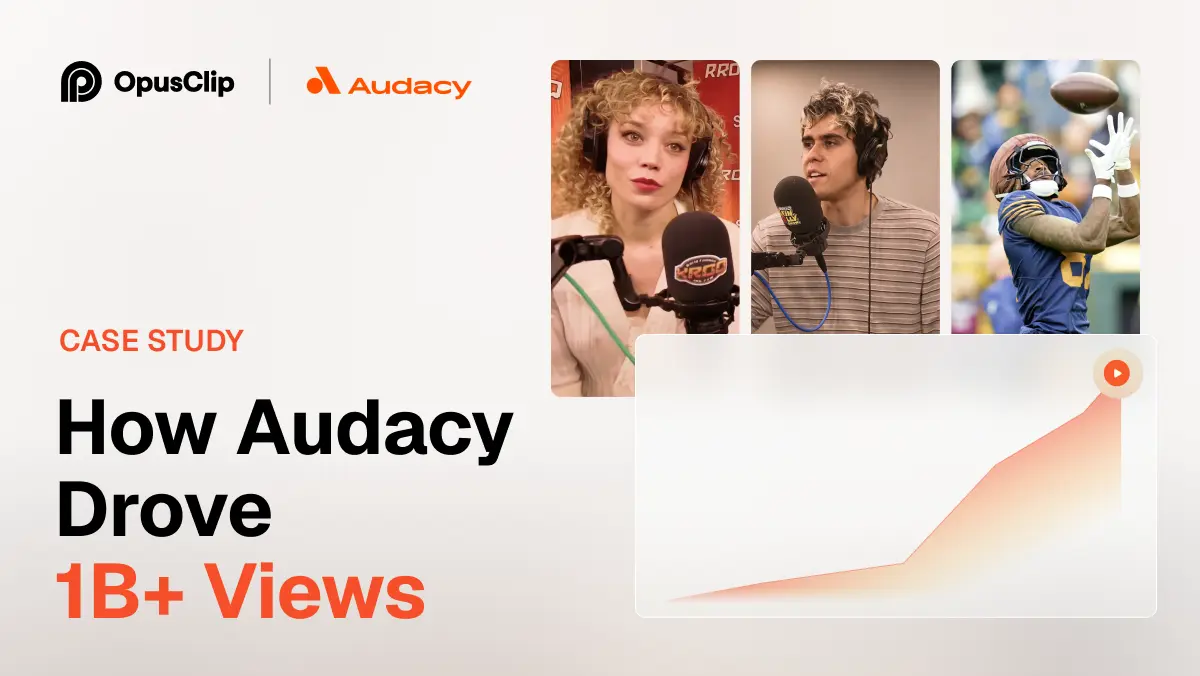
How Audacy Drove 1B+ Views by Taking a Tech-Forward Approach to Radio with OpusClip
No items found.

How Audacy Drove 1B+ Views by Taking a Tech-Forward Approach to Radio with OpusClip

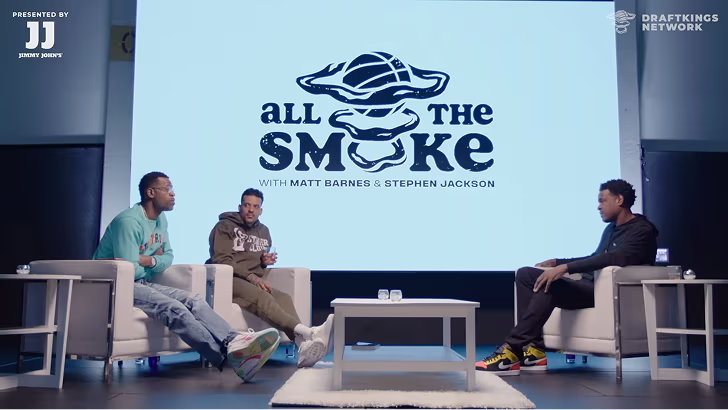
How All the Smoke makes hit compilations faster with OpusSearch

How All the Smoke makes hit compilations faster with OpusSearch

Growing a new channel to 1.5M views in 90 days without creating new videos

Growing a new channel to 1.5M views in 90 days without creating new videos

10 Best AI Tools to Edit Talking-Head Videos in 2026

Three people talking to camera with green face-detection boxes and a 9:16 tag
No items found.
No items found.

Boost your social media growth with OpusClip

Create and post one short video every day for your social media and grow faster.

10 Best AI Tools to Edit Talking-Head Videos in 2026

Three people talking to camera with green face-detection boxes and a 9:16 tag

For polishing a long talking-head recording into short, captioned videos, OpusClip is our first pick. Descript is the stronger choice for editing the full-length video like a document, Riverside for fixing problems at the recording stage, and Gling for cutting silences and bad takes out of raw YouTube footage. We ranked ten tools by how well each one handles the talking-head job: cutting dead air and filler words, captions, framing the speaker, audio cleanup, and getting a finished file out, with price and free-plan limits as tie-breakers.

Updated October 28, 2026. We make OpusClip, so it is ranked first for one specific job: turning a long talking-head recording into short captioned videos. Every price, limit and feature below comes from each tool's own pricing page or documentation, read on October 28, 2026. We did not run hands-on tests of the competing tools.

At a glance

  • OpusClip: best for polishing a long talking-head recording into short captioned videos, from $15 a month, free plan yes (60 credits a month, watermark).
  • Descript: best for editing a full-length talking-head video by editing its transcript, paid plans from $16 to $24 a month depending on billing period, free plan yes (60 media minutes a month).
  • Riverside: best for recording and editing a remote talking-head show in one place, Pro from $24 a month billed annually, free plan yes (2 hours of recording, one-off).
  • Gling: best for cutting silences, filler words and bad takes from raw YouTube footage, Plus from $10 a month billed annually, free plan yes (1 hour a month, watermark).
  • Captions: best for phone-first creators who talk to camera, Max at $24.99 a month, free plan yes (limited).
  • Submagic: best for caption-led short-form polish, from $19 a month billed monthly, no free plan listed.
  • Kapwing: best for a browser editor with silence removal and subtitles, Pro from $16 a month, free plan yes (10 credits, watermark).
  • VEED: best for a browser editor with eye contact correction and noise removal, free plan yes, see the pricing page for paid prices.
  • CapCut: best for creators who want a low-cost general editor with auto captions, Pro at $19.99 a month, free plan yes.
  • Vizard: best for turning long recordings into clips on a free starting tier, free plan yes (60 credits a month), see the pricing page for paid prices.

1. OpusClip: Best for polishing a long talking-head recording into short captioned videos

OpusClip takes a long recording of someone talking to camera (a podcast episode, webinar, interview or founder video), finds the strongest moments, and turns them into short clips with animated captions. Each clip gets a Virality Score from 0 to 99 based on hook, flow and trend. AI Reframe keeps the speaker in frame (9:16 on every plan, with 1:1 and 16:9 on Pro), and a text and timeline editor lets creators adjust cuts and captions before exporting. Filler-word and silence removal is available from the Starter plan, and speech enhancement (noise reduction and clearer voice) is on Pro.

It fits creators who record long and publish short: the same talking-head source becomes a batch of captioned clips. Brand templates keep fonts, colors and caption style consistent across clips, and imports work from YouTube, Zoom, Dropbox, Vimeo, Twitch, Riverside, StreamYard and Loom links, plus local uploads. Auto-posting to YouTube Shorts, TikTok and Instagram Reels is available from Starter.

Pricing, per OpusClip's pricing page: Free is 60 credits a month with 1080p clips and a watermark. Starter is $15 a month (monthly billing only) with 150 credits, and Pro is $29 a month or $14.50 a month billed annually with 300 credits. Pro adds 16:9 export, speech enhancement, custom fonts, a social media scheduler and export to Premiere Pro and DaVinci Resolve.

One real limitation: OpusClip is built to produce short clips and polish them, not to replace a full non-linear editor, so a long multi-camera timeline still belongs in a tool like Premiere Pro or DaVinci Resolve (Pro exports to both). Caption translation before clipping targets English only. Choose it if the goal is shorts from long talking-head footage. Skip it if the goal is a single long, heavily customized edit.

2. Descript: Best for editing a full-length talking-head video by editing its transcript

Descript transcribes a recording and lets the editor cut the video by editing the text. Its pricing page lists Studio Sound for audio cleanup, Remove Filler Words, Shorten Word Gaps, Remove Retakes, Eye Contact, Create Clips and dynamic captions, along with Underlord, which Descript describes as its AI co-editor. Text-based editing makes it a natural fit for long talking-head work such as tutorials, interviews, podcasts and course videos.

The pricing page lists a Free plan with 60 media minutes a month, 100 one-time AI credits and 720p export. Hobbyist is $16 to $24 a month (the page shows both figures and says annual billing saves up to 35%) with 10 media hours, 400 AI credits a month and 1080p export. Creator is $24 to $35 a month with 30 media hours, 800 AI credits and 4K export. Business is $50 to $65 a month per person with 40 media hours.

One real limitation: usage is metered in media hours and AI credits, and the AI tools on the Free plan are marked "Limited", so heavy editors will hit allowances on lower tiers. Clip-making is one feature among many rather than the whole product. Choose it if the finished product is the full-length video and transcript-driven editing suits the workflow. Skip it if the main output is a stream of short clips.

3. Riverside: Best for recording and editing a remote talking-head show in one place

Riverside is a recording studio first. Its pricing page describes separate audio and video tracks, up to 4K video on Pro, and a set of AI editing features on Pro: unlimited text-based editing, an AI editing and repurposing agent, AI B-roll, eye contact, remove silences and filler words, Magic Clips and audio enhancement. For interviews and podcasts, fixing problems at the source (separate audio and video tracks) is its main advantage.

Pricing, per Riverside's pricing page: Free is $0 with 2 hours of multitrack recording (one-off), up to 720p and a Riverside watermark. Pro is $29 a month, or $24 a month billed annually ($288 a year), with a 14-day free trial. Higher tiers (Grow and Webinar) add live streaming, publishing and webinar features.

One real limitation: the plan structure is organized around recording hours, studios and hosting, so it suits teams that record in Riverside more than creators who film alone on a phone or camera and edit afterward. Choose it if the show is recorded with remote guests. Skip it if the footage already exists elsewhere and the only need is captions and short clips.

4. Gling: Best for cutting silences, filler words and bad takes from raw YouTube footage

Gling is a desktop app (Gling's pricing page says it is designed exclusively for desktop) built for the first pass on talking-head footage. Its pricing page lists removal of bad takes, automatic silence removal, filler-word removal, AI captions with SRT export, auto framing, multicam editing, speech audio enhancement and XML export to Premiere, Final Cut Pro and DaVinci Resolve. It also lists a YouTube title generator and chapters generator.

Pricing, per Gling's pricing page: Free is $0 with 1 hour of AI-edited media a month and exports with a watermark. Plus is $20 a month, or $10 a month billed annually, with 10 hours and watermark-free export. Pro is $40 a month ($20 annually) with 30 hours, and Elite is $100 a month ($50 annually) with 100 hours.

One real limitation: allowances are counted in hours of AI-edited media, and the product is desktop-only, so there is no browser or phone workflow. It is also a rough-cut tool that hands off to an NLE rather than a full editor. Choose it if long YouTube-style recordings need a fast cleanup pass before the real edit. Skip it if the work happens on a phone or in a browser.

5. Captions: Best for phone-first creators who talk to camera

Captions is built around creators who film on a phone. Its pricing page lists a chat-based editor, AI Edit styles, a tool to turn a long video into a batch of post-ready clips, captions in 100+ languages, AI Denoise and AI Voiceover, alongside generative features such as AI actors and a digital twin.

Pricing, per Captions' pricing page: a free version exists with a limited feature set (basic tools like trimming and transitions). Max is $24.99 a month with 500 credits a month, and Frontier tiers run $69.99, $139.99 and $279.99 a month with higher credit allowances. The page notes that the prices and features shown reflect iOS plans only, and that unused credits roll over (a balance can hold up to three times the monthly allowance).

One real limitation: much of the paid tier is about generative video, and the pricing page does not list filler-word or silence removal, so cleanup-focused editors may fit a pure talking-head workflow better. Choose it if the footage is shot on a phone and a chat-driven editor appeals. Skip it if the priority is a desktop workflow or precise cuts on long recordings.

6. Submagic: Best for caption-led short-form polish

Submagic centers on captions for short videos. Its pricing page lists AI auto captions, hook titles, magic B-rolls, auto zooms, publishing with analytics, and a brand kit. Silence and bad-take removal and AI clean audio are listed from the Pro plan, and text-based trimming appears on Starter.

Pricing, per Submagic's pricing page: Starter is $19 a month billed monthly ($12 a month billed yearly) with 45 credits (15 videos) and 2-minute videos. Pro is $39 a month ($23 yearly) with 120 credits (40 videos) and 5-minute videos. Business is $69 a month with 300 credits and 30-minute videos plus 4K export. All three plans are listed as watermark-free, and the page does not list a free plan.

One real limitation: the per-video duration caps (2 minutes on Starter, 5 on Pro) make it a tool for already-short clips rather than for processing a long recording. Choose it if short clips already exist and caption styling is the priority. Skip it if the workflow starts from an hour-long recording.

7. Kapwing: Best for a browser editor with silence removal and subtitles

Kapwing is a browser-based editor. Its tool menu lists Smart Cut (automatically remove silences), Trim with Transcript, Subtitler, Clean Audio, Speaker Focus (auto-resize videos to focus on the speakers) and a Clip Maker that generates short clips from one video. It also lists a Repurpose Studio and Dubbing into 40+ languages.

Pricing, per Kapwing's pricing page: Free is 10 credits with watermarked exports of up to 4 minutes at 720p. Pro is $16 a month (the page offers an annual option it says saves 33%) with 1,000 credits a month, 4K export, exports up to 2 hours long, no watermark, a brand kit and custom fonts. Business is $50 a month with 4,000 credits.

One real limitation: features run on credits (for example auto-subtitling is capped in minutes per month on each plan), so volume users should check the allowance. Choose it if a browser editor with cleanup tools and team workspaces is wanted. Skip it if automatic selection of clip-worthy moments from long footage is the main need.

8. VEED: Best for a browser editor with eye contact correction and noise removal

VEED is a browser-based video editor. Its site lists an Auto Subtitle Generator, Eye Contact AI, tools to remove background noise from video and audio, a teleprompter, a Video Translator, an AI Clip Generator and an AI Video Editor. For talking-head creators, eye contact correction and audio cleanup are the most relevant.

VEED's pricing page offers a free start and paid plans, but its prices load dynamically and were not readable from the raw page, so see the pricing page for current numbers. The page states that AI credits refresh when a subscription renews and do not carry over, that paid plans include unlimited subtitle generation subject to a fair-use limit of 50 hours a month, and that plans are charged per seat.

One real limitation: the credits that power AI features do not roll over, and per-seat billing adds up for teams. Choose it if the work happens in a browser and eye contact or noise tools matter. Skip it if bulk clipping of long recordings is the main job.

9. CapCut: Best for creators who want a low-cost general editor with auto captions

CapCut is a general-purpose editor with desktop, online, mobile and tablet versions. Its site navigation lists auto captions, caption templates, speech recognition, enhance voice, reduce noise, remove video background and a trim tool, plus AI generation features. That breadth suits creators who want one editor for talking-head clips and everything else.

Pricing, per CapCut's pricing page: Free is $0 with free templates and basic editing tools. Pro is $19.99 a month with 1,200 monthly AI credits, premium templates and 1 TB of storage. Ultra is $79 a month, and Teams is $12.49 a month per seat with a brand kit. The page notes that displayed pricing is for reference and final pricing shows after sign-in.

One real limitation: the pricing page is weighted toward AI generation, and we did not find filler-word removal or automatic clipping of long recordings listed there. Choose it if a general editor with captions and a free tier is enough. Skip it if the main workflow is cutting dead air from long talking-head recordings.

10. Vizard: Best for turning long recordings into clips on a free starting tier

Vizard repurposes long videos into short clips. Its pricing page lists AI clipping, auto reframe, auto subtitling, AI highlight keywords, AI emojis, AI B-rolls and a brand kit on Business, and full access to a video editor. Creator and Business plans add watermark removal, 4K export and scheduled posting.

Pricing, per Vizard's pricing page: Free is 60 credits a month, 720p export, a 10-minute export length, 3-day storage and one connected social account. Paid prices render dynamically and were not readable from the raw page, so see the pricing page. The page states that 1 credit equals 1 minute of uploaded video.

One real limitation: the pricing page does not list silence or filler-word removal, so talking-head cleanup would happen elsewhere. Choose it if the goal is clips from long recordings with a free tier to start. Skip it if cutting pauses and filler words is the priority.

How to edit a talking head video with AI

Most AI-assisted talking-head workflows follow the same four steps. First, import the recording and let the tool transcribe it. Second, remove dead air: silences, filler words such as "um" and "uh", and bad takes. Third, clean the audio (noise reduction, clearer voice) and add captions. Fourth, frame the speaker for the target format (vertical for Shorts, Reels and TikTok; widescreen for YouTube) and export. For the full shooting and framing side of the craft, see our talking-head videos guide. The tools above differ mainly in which steps they automate and whether the output is one long video or many short ones.

Best AI tool to remove filler words from video

Filler-word removal is listed on the vendors' own pages for several tools in this list: OpusClip (from the Starter plan), Descript (Remove Filler Words), Riverside (Pro) and Gling (auto remove filler words). Kapwing lists Smart Cut for silences. Which one fits depends on the output: Descript and Gling suit long-form cleanup, while OpusClip pairs filler and silence removal with clipping, captions and reframing for short videos. Check each plan, because several vendors place these tools on paid tiers.

Best AI video editor for YouTubers who talk to camera

YouTubers who talk to camera usually need two outputs from one recording: the long video and a set of shorts. For the long video, Descript (transcript editing), Gling (rough-cut cleanup that exports to Premiere, Final Cut Pro or DaVinci Resolve) and Riverside (recording with separate tracks) are the closest fits from this list. For the shorts, OpusClip turns the same source into captioned vertical clips, with animated captions, speech enhancement on Pro and brand templates to keep every clip on-brand. Many creators will pair a long-form tool with a short-form tool rather than pick one.

How we compared these tools

We compared each tool on the talking-head job: removing silences, filler words and bad takes; caption quality and styling; framing the speaker; audio cleanup; output type (one long video or many shorts); and price and free-plan limits. We read each vendor's own pricing page and documentation on October 28, 2026, and used only what those pages state. We did not run hands-on tests of the competing tools, so claims about quality or speed are not made. Where a vendor's page did not show a price, we say so and point to the pricing page. Prices change often; check the vendor page before buying. OpusClip is our product, which is why it is disclosed up front and ranked first only for the stated job. Full-featured non-linear editors such as Premiere Pro and DaVinci Resolve are outside this list; they complement these tools rather than compete with them, and OpusClip Pro exports to both.

How to choose

  • Long video in, shorts out: OpusClip or Vizard. OpusClip adds filler and silence removal, brand templates and reframing.
  • One long, polished video: Descript or Gling, depending on whether transcript editing or a fast cleanup pass matters more.
  • Recording remote guests: Riverside.
  • Phone-first creators: Captions or CapCut.
  • Browser-only workflow: Kapwing or VEED.
  • Already-short clips that need captions: Submagic.

Also weigh the length of a typical recording against each plan's allowance (media hours, credits or per-video caps), whether captions and cleanup are on the free plan, and whether finished files export without a watermark. Our pricing page lists OpusClip plan details.

Red flags to watch for

  • Watermarks on free exports: several free plans here (OpusClip, Gling, Kapwing, Riverside) add one. Confirm what the free plan exports before building a workflow on it.
  • Credits that do not roll over: VEED states that AI credits do not carry over. Captions says unused credits roll over up to a cap.
  • Per-video duration caps: Submagic limits video length by plan, which rules out long recordings on lower tiers.
  • Prices shown for one platform: Captions' page says its displayed prices and features reflect iOS plans only.
  • No manual override: automatic cuts should be editable afterward. Look for a timeline or transcript editor before committing.
  • Cleanup behind a paywall: filler and silence removal sits on paid tiers at several vendors.

Frequently asked questions

What is the best AI video editor for talking head videos?

It depends on the output. For turning a long talking-head recording into short captioned videos, we rank OpusClip first (we make it, and say so above). For editing one full-length video by editing its transcript, Descript is a strong fit, and for cutting silences and bad takes from raw footage, Gling is.

What is the best AI tool to remove filler words from video?

Descript, Gling, Riverside and OpusClip all list filler-word removal on their own pages. OpusClip includes filler and silence removal from the Starter plan ($15 a month), and Gling lists it among its key features. Pick based on whether the result should be one long video or short clips.

How do I edit a talking head video with AI?

Import the recording, let the tool transcribe it, remove silences, filler words and bad takes, clean the audio, add captions, then frame the speaker for the target platform and export. See the how-to section above and our talking-head videos guide for the shooting side.

What is the best AI video editor for YouTubers who talk to camera?

Many YouTubers pair tools: Descript, Gling or Riverside for the long video, and OpusClip to turn the same recording into captioned shorts. OpusClip imports from YouTube, Zoom, Riverside and other links, and can auto-post to YouTube Shorts, TikTok and Instagram Reels from the Starter plan.

Is there a free AI editor for talking-head videos?

Yes, several have free plans: OpusClip (60 credits a month, watermark), Descript (60 media minutes a month), Gling (1 hour a month, watermark), Kapwing (10 credits, watermark), Vizard (60 credits a month) and CapCut, Captions and VEED have free tiers with limits. Watermarks and export caps are the usual trade-off.

Can AI remove silences and improve audio automatically?

Yes. Gling, Kapwing (Smart Cut), Riverside and OpusClip list silence removal, and Descript, Riverside, VEED, Kapwing and OpusClip list audio cleanup or noise reduction. OpusClip speech enhancement is on the Pro plan.

Do these tools replace Premiere Pro or DaVinci Resolve?

Not entirely. OpusClip is designed for polishing and clipping rather than replacing a full non-linear editor, and Gling hands off to one. OpusClip Pro and Gling both list export to Premiere Pro and DaVinci Resolve.

Ready to start streaming differently?

Opus is completely FREE for one year for all private beta users. You can get access to all our premium features during this period. We also offer free support for production, studio design, and content repurposing to help you grow.
Join the beta
Limited spots remaining

Try OPUS today

Try Opus Studio

Make your live stream your Magnum Opus