No items found.
8 Best AI Tools for YouTube Automation in 2026

For automating the part of a YouTube channel that takes the longest, turning long videos into Shorts and posting them, OpusClip is our first pick: Auto Import watches a connected channel for new long videos, the clips come back captioned and reframed, and scheduling covers YouTube Shorts, TikTok and Instagram Reels. The other seven tools each automate a different stage: vidIQ for ideas and titles, TubeBuddy for title and thumbnail testing, Descript for editing the long video, Vizard and Submagic for alternative clipping, and Zapier and Make for connecting the steps. We ranked 8 tools by how much of the channel workflow each one automates, then by price, free-tier limits and how clearly each vendor documents what it does. Facts come from each vendor's own pages, read on November 3, 2026.
Key takeaways
- Best for automating Shorts from long videos: OpusClip. Auto Import, clipping, captions and scheduling sit in one tool.
- Best for ideas, keywords and titles: vidIQ. Its pricing page lists a free tier and an MCP connection on every plan.
- Best for testing titles and thumbnails: TubeBuddy. Its site lists A/B testing and bulk editing tools.
- Best for editing the long video itself: Descript. Text-based editing, filler word removal and clip creation.
- Best for connecting tools together: Zapier and Make. Both list YouTube triggers and upload actions.
- Automation has limits on YouTube. YouTube's policies allow automated tools but not mass-produced, repetitive content, so every tool here works best on real source videos.
What YouTube automation means here
YouTube automation covers any step of running a channel that software can do without a person repeating it by hand: finding topics, writing titles, cutting long videos into Shorts, adding captions, scheduling uploads, testing thumbnails and moving files between apps. It does not mean a channel that runs itself. YouTube's own help pages say that creators who use automated tools or templates must still show original creative vision and give viewers value, so the tools below are a way to remove repetitive steps, not to replace the footage and the point of view. Teams that already publish long videos and want more Shorts from them see the biggest gain, because Shorts are cut from material that already exists. For editing-only help, see our guide to YouTube automation video editing.
At a glance
- OpusClip: best for automating Shorts from long videos; paid plans from $15 a month (Auto Import and posting from Starter, scheduling on Pro at $29 a month); free plan yes (60 credits a month, watermark, no editing).
- vidIQ: best for keyword research, video ideas and title help; Boost $19 a month ($199 a year); free plan yes (150 AI credits a month).
- TubeBuddy: best for title and thumbnail testing and bulk edits; free plan yes; see the pricing page for paid prices.
- Descript: best for editing long videos by editing text; Hobbyist $16 a month billed annually ($24 monthly); free plan yes (60 media minutes a month).
- Vizard: best for a clipping alternative with scheduling on paid plans; free plan yes (60 credits a month, 720p export); see the pricing page for paid prices.
- Submagic: best for caption-led Shorts with publishing built in; Starter $19 a month billed monthly ($12 on yearly billing); no free plan listed.
- Zapier: best for connecting YouTube to other apps without code; Professional from $19.99 a month; free plan yes (100 tasks a month, two-step Zaps).
- Make: best for visual multi-step scenarios with YouTube modules; Core $9 a month; free plan yes (1,000 credits a month).
1. OpusClip: Best for automating Shorts from long videos
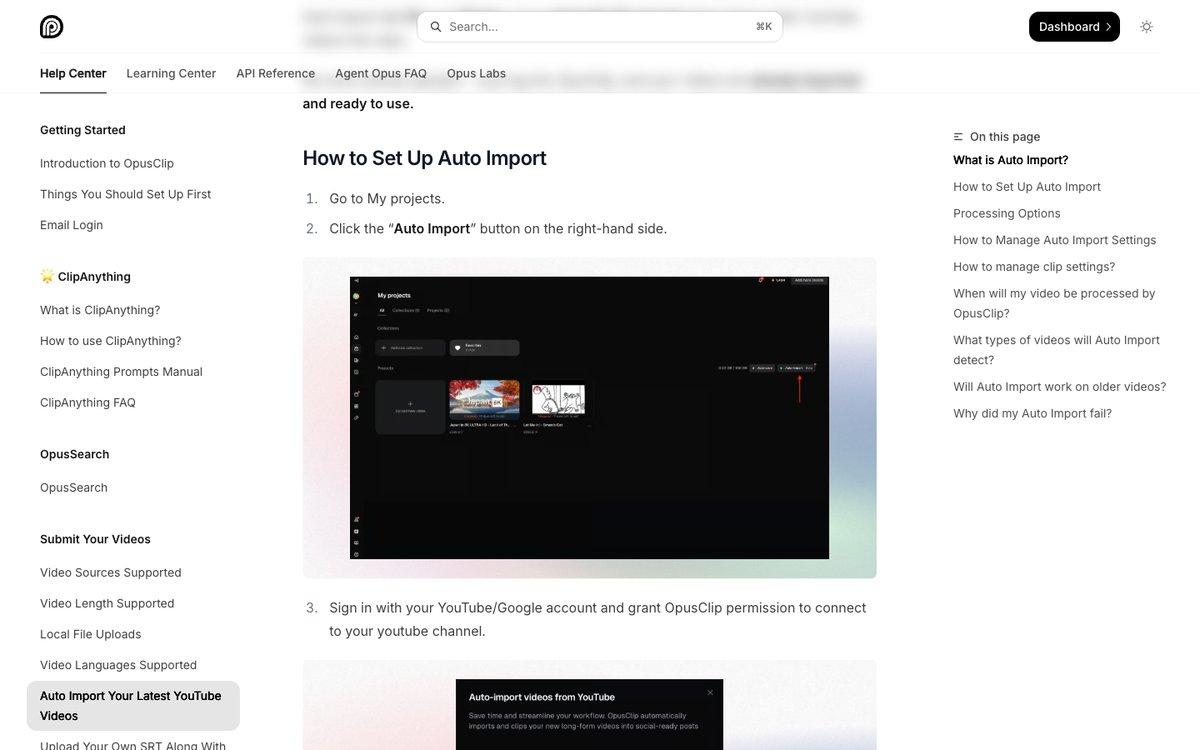
The Auto Import setup steps in OpusClip's help center. Source: OpusClip help center
OpusClip takes a long video (a podcast, webinar, interview, tutorial or stream) and returns short clips, each with a Virality Score from 0 to 99 based on hook, flow and trend. Clips get animated captions in 20+ languages and AI Reframe to 9:16, 1:1, 4:5 or 16:9, and projects can be started from YouTube, Zoom, Google Drive, Dropbox, Vimeo, Twitch, Riverside, StreamYard or Loom links. A text and timeline editor, brand templates, and filler word and silence removal sit on the paid plans. For a long-video channel, the first "automatic" step is Auto Import: after a YouTube channel is connected, OpusClip checks for new public videos every hour and can either email a notice or automatically create a clipping project with the saved clip settings and brand template.
The posting half is in the same tool. The help center's social account FAQ says Starter plan users can post in real time to YouTube, TikTok and Instagram, and Pro plan users can schedule future posts to YouTube, TikTok Feed and Instagram Reels, among other networks. A calendar view lets clips be assigned to dates, with AI-written descriptions and hashtags to edit before they go out, and a checkbox adds a link to the full video in YouTube posts. The bulk scheduler queues many clips at once. There is also a Zapier integration and an MCP server for AI agents, listed in the agent setup guide. For a worked example of the API route, see generating YouTube Shorts from long videos with the OpusClip API, and for the no-code route see our YouTube Shorts maker.
Pricing: OpusClip's pricing page lists Free at $0 (60 credits a month, up to 1080p, a watermark, no editing, and clips stop being exportable after 3 days), Starter at $15 a month (monthly billing only, 150 credits, auto-post to YouTube Shorts, TikTok and Instagram Reels, 1 brand template) and Pro at $29 a month, or $14.50 a month billed annually (300 credits that roll over for 2 months, a social media scheduler, 6 social account connections, 2 brand templates). Business is custom. The help center says Auto Import is available to Starter and Pro users.
Considerations: Auto Import only detects a channel's own public videos that are longer than 3 minutes and were uploaded after setup; Shorts, livestreams, private and unlisted videos are not imported, and credits are deducted by the full length of the imported video. Bulk scheduling is Pro only and works for YouTube only. A scheduled post saves the clip as it was when scheduled, so edits made later need a reschedule. OpusClip handles the Shorts side of a channel, not keyword research or thumbnail testing, so it pairs with a research tool.
- Choose it if the channel already publishes long videos and the Shorts, captions and posting should happen with as little hands-on work as possible.
- Skip it if the work is research, scripting or thumbnail testing, or the channel only posts original Shorts that need no clipping.
2. vidIQ: Best for keyword research, video ideas and title help
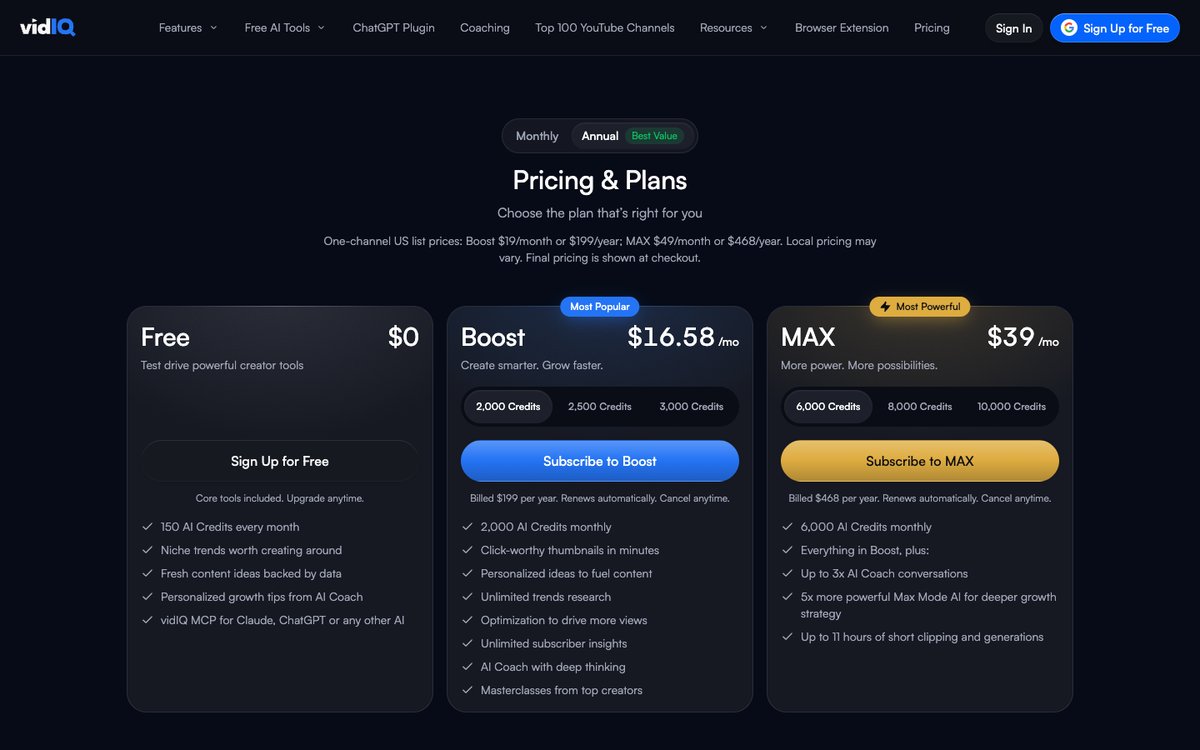
vidIQ's pricing page. Source: vidIQ website
vidIQ is a YouTube research and optimization tool. Its pricing page and navigation list keyword research, daily video ideas, outlier videos, competitor tracking, a channel audit, an AI YouTube coach, and free AI generators for titles, descriptions, scripts, tags and thumbnails. It sits at the start of the workflow: deciding what to make and how to name it, before any editing happens.
vidIQ's pricing page also says vidIQ MCP connects an account to Claude, ChatGPT or any other AI that supports MCP, on every plan including Free, with tool calls using the plan's AI credits. That makes it the most natural pick for a workflow where an AI assistant drafts titles and descriptions from real channel data. Its navigation also lists a clipping feature, which the MAX plan describes as up to 11 hours of short clipping and generations.
Pricing: vidIQ's pricing page lists Free at $0 with 150 AI credits a month, Boost at $19 a month or $199 a year (2,000 AI credits a month) and MAX at $49 a month or $468 a year (6,000 AI credits a month, more powerful AI coach modes and the short clipping allowance). These are one-channel US list prices, and the page says local pricing may vary. An Enterprise plan covers brands, agencies and networks.
Considerations: vidIQ helps decide topics and titles; it does not edit the video or schedule uploads on its own. AI credits are consumed by AI actions, so heavy use of generators needs a higher plan.
- Choose it if the bottleneck is knowing what to make and how to title it, and an AI assistant should be able to reach that data.
- Skip it if the bottleneck is producing and posting clips from footage that already exists.
3. TubeBuddy: Best for testing titles and thumbnails and bulk-editing a back catalog

TubeBuddy's features page. Source: TubeBuddy website
TubeBuddy is a browser-based toolkit for YouTube channel management. Its site lists a keyword explorer, SEO Studio for titles, descriptions and tags, a title generator, a thumbnail analyzer and generator, video A/B testing for titles, descriptions, tags and thumbnails, and bulk processing tools for editing cards, end screens, descriptions and thumbnails across many videos at once.
The bulk tools are the automation angle: a channel with hundreds of older videos can update descriptions or end screens in one pass instead of one video at a time. The A/B testing tool automates the experiment itself, so a title or thumbnail change can be compared by results instead of by guesswork.
Pricing: TubeBuddy's llms.txt describes a free plan with essential tools including basic keyword research and a thumbnail analyzer with 5 uses, and Pro, Legend and Enterprise plans with advanced features including unlimited A/B testing and bulk processing. The pricing page loads its prices with JavaScript, so see the pricing page for current numbers.
Considerations: TubeBuddy does not cut or edit video, so it covers the optimization side of a channel only. Because the pricing page does not render prices in the page source, confirm the cost of A/B testing and bulk tools before choosing a plan.
- Choose it if the channel has a back catalog to optimize or runs regular title and thumbnail tests.
- Skip it if the main need is cutting long videos into Shorts. See also our roundup of thumbnail A/B testing tools.
4. Descript: Best for editing long videos by editing text
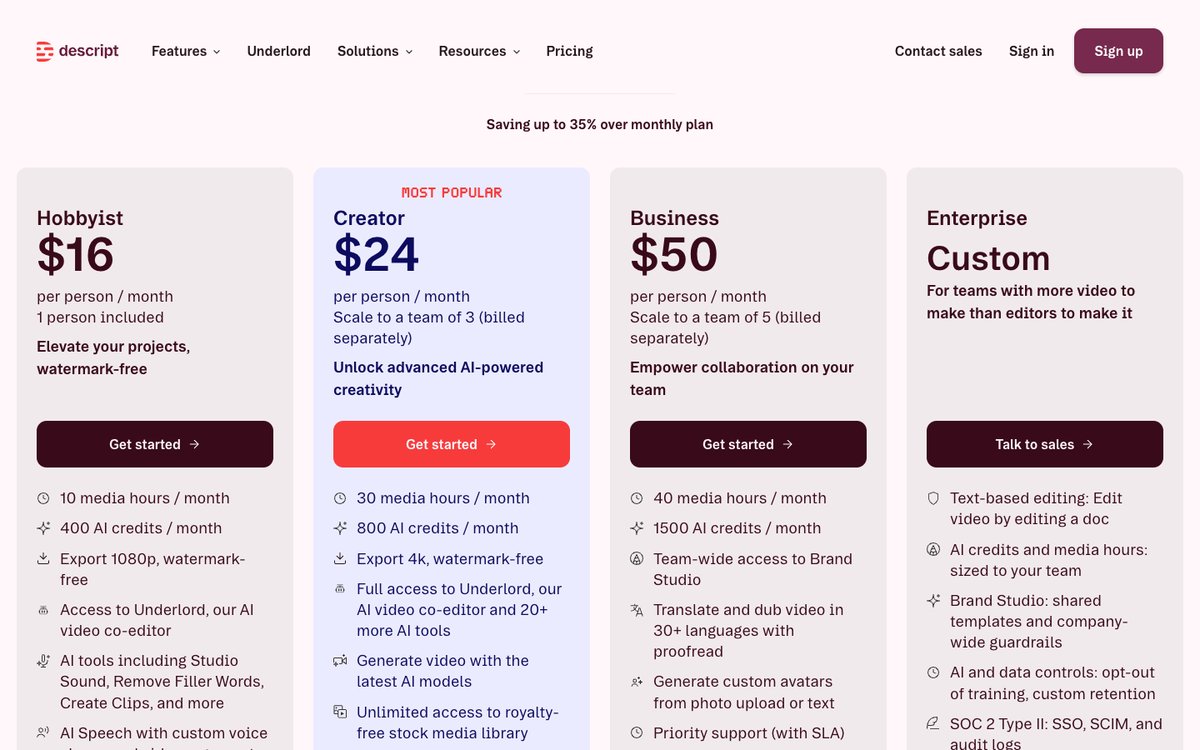
Descript's pricing page. Source: Descript website
Descript edits video the way a document is edited: speech is transcribed, and deleting words from the transcript cuts the video. Its navigation and pricing page list Underlord, its AI co-editor, along with Remove Filler Words, Studio Sound, Create Clips, captions, translation and AI features for YouTube descriptions and show notes. It suits a channel whose long videos are mostly talking, such as interviews, tutorials and commentary.
Descript also lists an API and MCP for editing video through code or from inside an AI assistant. In a YouTube workflow it sits between recording and clipping: clean up the long video first, then let a clipping tool make the Shorts.
Pricing: Descript's pricing page lists Free at $0 (60 media minutes a month, 100 one-time AI credits), Hobbyist at $16 a month billed annually or $24 monthly (10 media hours, 400 AI credits, 1080p export without a watermark), Creator at $24 a month annually or $35 monthly (30 media hours, 800 AI credits, 4K export) and Business at $50 a month annually or $65 monthly (40 media hours, 1,500 AI credits). Enterprise is custom. Pricing is per person.
Considerations: Descript is an editor first. Create Clips is one of its AI features, its plan table marks some AI tools as limited on lower tiers, and media hours and AI credits both cap monthly use, so a channel with many long videos should check the allowances.
- Choose it if the long videos need cleaning up (filler words, mistakes, audio) before or alongside clipping.
- Skip it if the main goal is fully automatic Shorts from each new upload, which needs a tool with channel import and posting built in.
5. Vizard: Best for a clipping alternative with scheduling on paid plans

Vizard's home page. Source: Vizard website
Vizard is the closest like-for-like alternative to OpusClip for long-video clipping. Its pricing page lists AI-generated clips, auto reframe, auto subtitling, AI B-rolls and AI post suggestions, and full access to its video editor on the free plan. It suits podcasters, coaches and marketers who start from webinars or recorded calls.
For posting, the plan comparison lists direct publishing to social media, with 1 connected account on Free, 6 on Creator and 20 on Business, and scheduling posts on the paid tiers.
Pricing: Vizard's pricing page lists Free at $0 with 60 credits a month, 720p export, 3-day storage and 1 social account. Creator adds no watermark, 4K export, scheduling and 6 social accounts; Business adds a shared workspace, brand kit and 20 accounts. One credit equals one minute of uploaded video. Paid dollar amounts did not appear in the page source on November 3, 2026, so see the pricing page for prices.
Considerations: Free-plan uploads are capped at 60 minutes and 1 GB and exports at 10 minutes. We did not find automatic YouTube channel import on its pricing page, so plan on submitting videos by hand.
- Choose it if clipping is the main job, the free tier is a starting point and scheduling on a paid plan is enough.
- Skip it if new uploads should flow in automatically or watermark-free exports are needed on a free plan.
6. Submagic: Best for caption-led Shorts with publishing built in
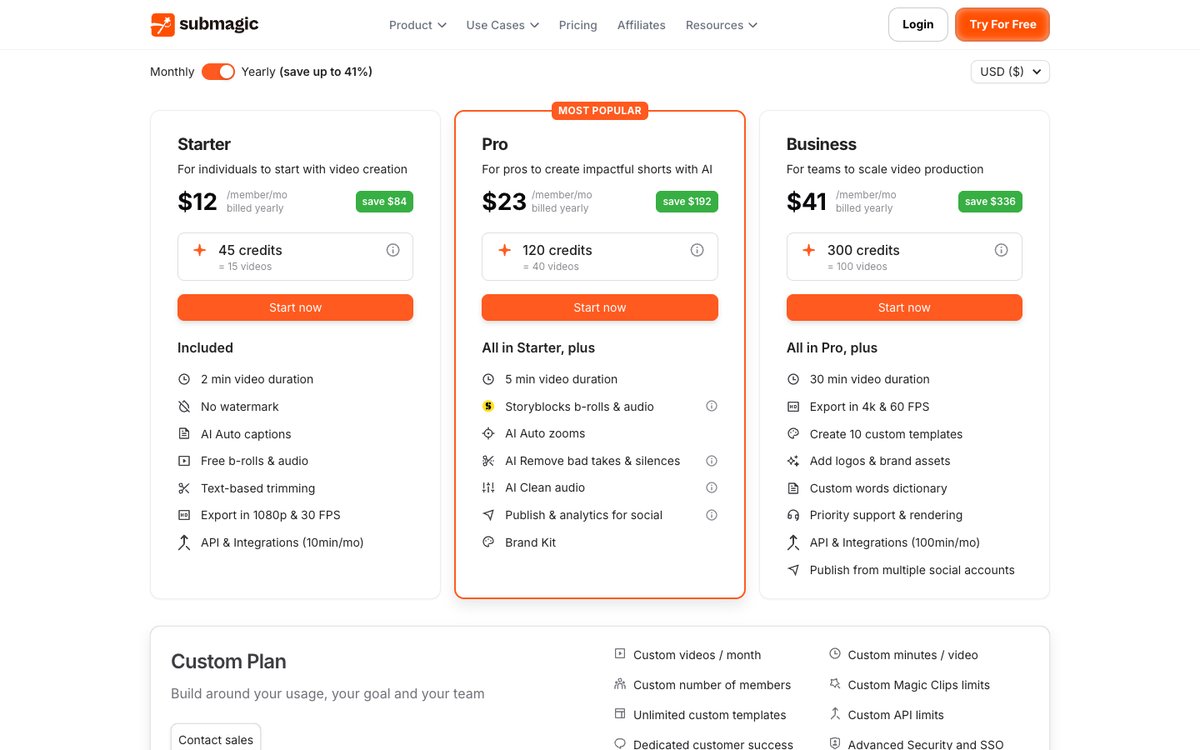
Submagic's pricing page. Source: Submagic website
Submagic is built around captions, with Magic Clips, auto zooms, b-roll and removal of bad takes and silences around them. Its navigation lists a YouTube Shorts maker, a YouTube clip maker and an auto description feature, and its site announces an API for automating video editing. It suits short-form creators who care most about caption style.
Its pricing page lists publish and analytics for social from the Pro plan and publishing from multiple social accounts on Business.
Pricing: Submagic's pricing page lists Starter at $19 a month (billed monthly; 45 credits, equal to 15 videos of up to 2 minutes), Pro at $39 a month (120 credits, 40 videos of up to 5 minutes) and Business at $69 a month (300 credits, 100 videos of up to 30 minutes, 4K export). All three list no watermark, and the page's yearly view shows $12, $23 and $41 a month billed yearly (saving up to 41%). The page lists no free plan; it says no credit card is required to start.
Considerations: The video length limits are tight for long recordings: Starter handles 2 minutes per video and Pro 5 minutes, so clipping an hour-long upload needs the Business tier. The page says publish and analytics for social rather than scheduling, and Starter does not list publishing.
- Choose it if short source videos need strong captions and publishing in one place.
- Skip it if long recordings are the input or a free plan is needed.
7. Zapier: Best for connecting YouTube to other apps without code
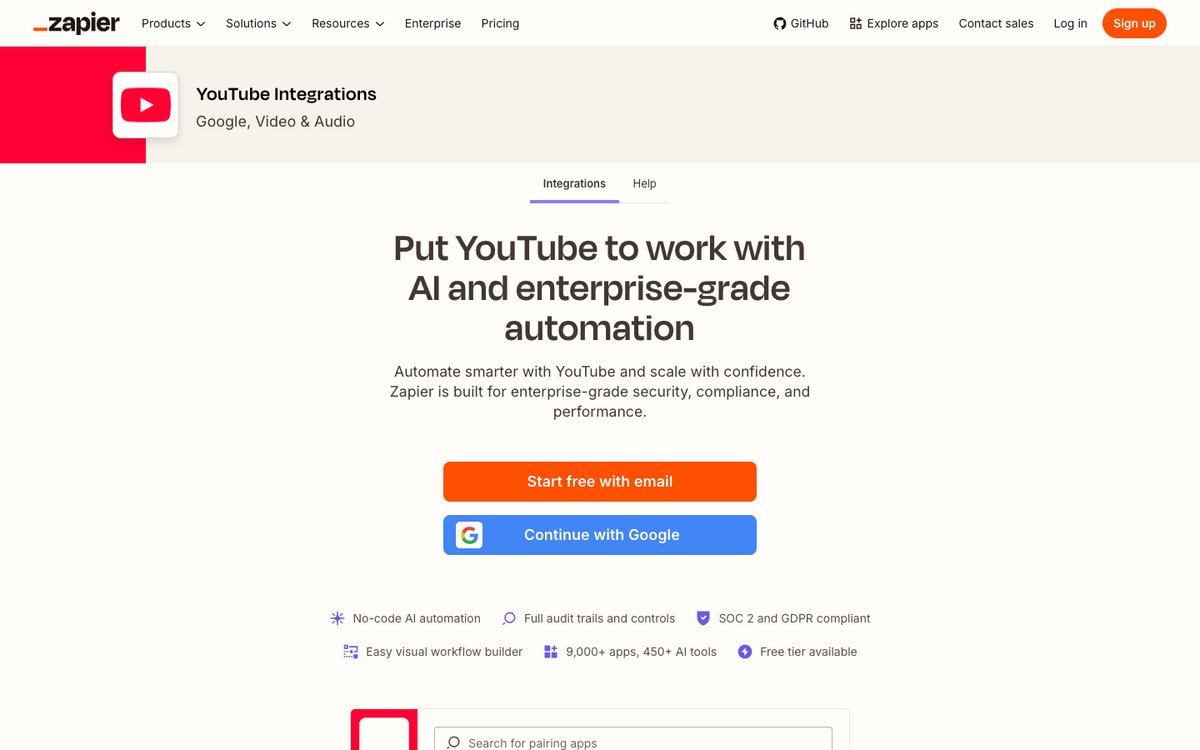
Zapier's YouTube integrations page. Source: Zapier website
Zapier connects apps with triggers and actions. Its YouTube integration page lists triggers such as New Video in Channel, New Video in Playlist and New Comment on Video, and actions such as Upload Video, Update Video Thumbnail and Add Video to Playlist. Its templates include uploading new Google Drive videos to YouTube and uploading new Zoom recordings to YouTube.
OpusClip also lists a Zapier integration in its help center: a Zap can send a new Google Drive file to OpusClip to start a clipping project and export finished clips back to Google Drive. The help center notes a 953 MB file size limit through Zapier, with mp4, mkv and webm formats supported. That makes Zapier the glue between a recording app, a clipping tool and a spreadsheet or chat channel.
Pricing: Zapier's pricing page lists Free at $0 (100 tasks a month, unlimited Zaps, two-step Zaps), Professional from $19.99 a month (multi-step Zaps, premium apps, webhooks) and Team from $69 a month (25 users). Enterprise is custom, and the amount scales with the number of tasks selected on the page.
Considerations: Zapier moves data between apps; it does not clip, caption or title anything itself. Multi-step Zaps need a paid plan, and each action counts toward the task allowance, so a busy channel can reach the limit.
- Choose it if files, titles or notifications need to move between several apps on a schedule or trigger.
- Skip it if a single tool already covers import, clipping and posting.
8. Make: Best for visual multi-step scenarios with YouTube modules
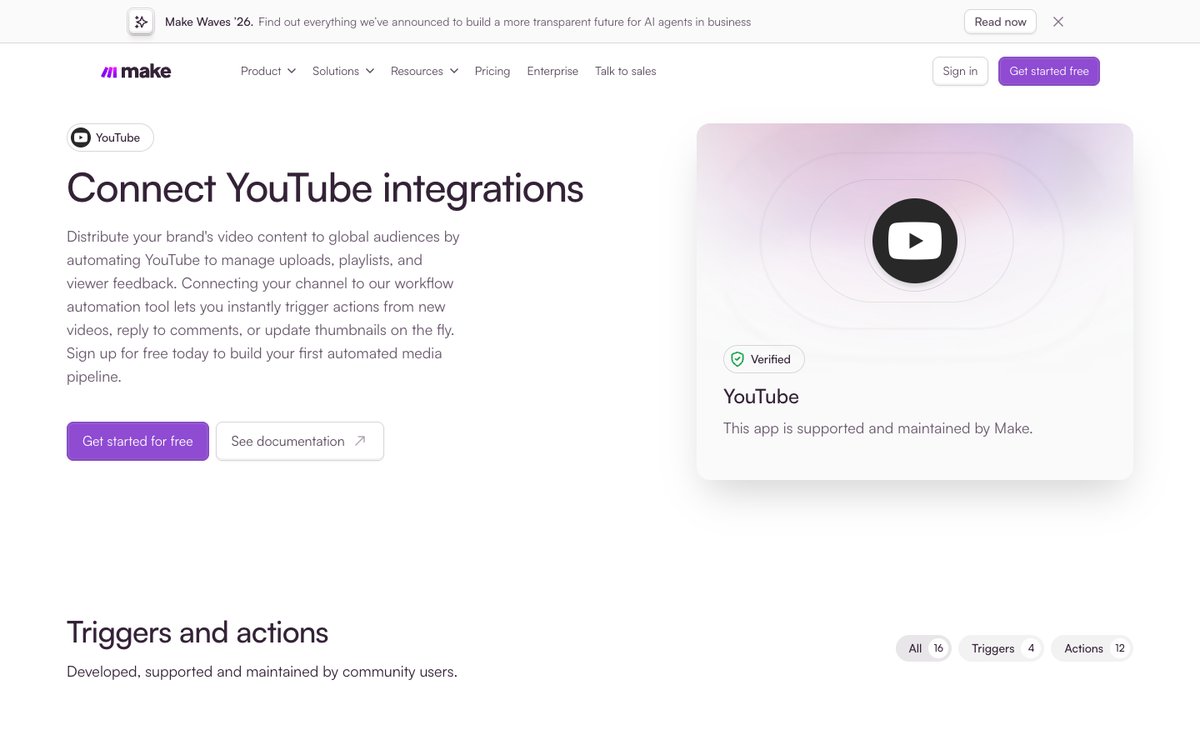
Make's YouTube integrations page. Source: Make website
Make is a visual automation builder where each step is a module in a scenario. Its YouTube integration lists modules such as Watch Videos in a Channel, Watch Videos in a Playlist, Upload a Video and Update a Video Details. It suits a channel that wants a branching workflow, for example sending each new upload to different places depending on its title or playlist.
Make's pricing page lists a no-code visual workflow builder, routers and filters, and 3,500+ apps. Its credit model counts each module action as one credit.
Pricing: Make's pricing page lists Free at $0 (1,000 credits a month, a 15-minute minimum interval between runs), Core at $9 a month (unlimited active scenarios, scheduling down to the minute, API access), Pro at $16 a month and Teams at $29 a month, with a 15% annual billing saving shown on the page. Prices scale with the credit volume chosen.
Considerations: Make runs scenarios on a schedule; the free plan runs no more often than every 15 minutes. It automates movement and metadata between apps and has no clipping or editing of its own.
- Choose it if the workflow has branches, filters or many steps and a visual builder is preferred.
- Skip it if the need is a simple two-step connection, where Zapier's free plan may be enough.
How we compared these tools
We scored each tool on five criteria: how much of the YouTube workflow it automates (ideas, editing, clipping, publishing, testing, connecting), the price of the entry paid tier, free-tier limits, how automatic the setup is once connected, and how clearly the vendor documents its limits. Ranking favors tools that remove the most repetitive work for a channel that already publishes long videos, which is why clipping with channel import and posting sits first.
All facts come from each vendor's own pricing page, help center or documentation, read on November 3, 2026. We did not run hands-on tests of any competitor. Where a pricing page showed prices only through JavaScript (TubeBuddy and Vizard), we say "see the pricing page" instead of quoting a number. Prices change, so confirm on the vendor page before buying. Policy statements about YouTube come from YouTube's own help pages.
How to choose
- If the channel has a library of long videos and wants more Shorts: start with a clipping tool that can import new uploads and post, such as OpusClip. Vizard and Submagic are alternatives when their limits fit.
- If the channel needs better topics and titles: start with vidIQ or TubeBuddy, then test the results over several uploads.
- If the long videos are messy recordings: clean them in Descript before clipping.
- If files and notifications move between apps by hand: add Zapier for simple two-step flows or Make for branching ones.
- If everything is needed: a common stack is one research tool, one editor, one clipping and posting tool and one connector. Avoid paying for two tools that do the same stage.
For related roundups, see the best YouTube scheduling tools for creators, the best YouTube keyword tools for Shorts creators and how to turn long videos into Shorts. For the clipping step on its own, see OpusClip's long video to short video tool.
Red flags to watch for
- Watermarks on free plans. OpusClip Free adds a watermark; Vizard's no-watermark export starts on Creator; Descript lists watermark-free export from Hobbyist.
- Length and volume caps. Submagic Starter handles 2-minute videos and Vizard Free exports 10 minutes, which can rule out long source videos.
- Credits that expire or burn fast. Credits can be counted by minute of source video (OpusClip Auto Import deducts by the full video length), so an automatic setup can spend credits on videos that were never needed.
- Automation without review. A tool that picks clips, titles or thumbnails with no way to edit them before posting leaves no fix for a bad cut or a wrong caption.
- Mass-produced output. YouTube's spam policy lists using automated tools or AI to churn out high volumes of similar content with minimal changes as prohibited. Automate the repetitive steps, not the originality.
- Task and credit limits on connectors. Zapier counts tasks and Make counts credits, so a busy channel can reach a free-plan limit quickly.
Frequently asked questions
What are the best AI tools for YouTube automation?
It depends on the stage. For clipping long videos into Shorts and posting them, OpusClip fits best in our ranking, with Auto Import for new uploads and scheduling on Pro. vidIQ and TubeBuddy cover ideas, titles and testing, Descript covers editing, and Zapier and Make connect the steps. See OpusClip pricing for plan limits.
How to automate a YouTube channel with AI?
Automate the repeatable steps in order. Use a research tool such as vidIQ for topics and titles, record and clean the long video (Descript is one option), let a clipping tool turn it into Shorts (OpusClip can import new uploads from a connected channel automatically), schedule the posts, and test titles and thumbnails with a tool like TubeBuddy. A connector such as Zapier or Make can move files and notifications between the steps. The original video and a person reviewing the results stay in the loop.
Is YouTube automation allowed?
Yes, with conditions. YouTube's channel monetization policies say that when automated tools or templates are used, the final product must still show creative vision and give viewers value, and its spam policy does not allow using automated tools or AI to churn out high volumes of similar content with minimal changes. YouTube also requires disclosure when content is generated or meaningfully altered with AI and looks realistic. Automating editing, clipping and scheduling of original videos is a different thing from mass-producing near-identical uploads. Policies change, so check YouTube's help pages before relying on this.
What is the best tool to turn long YouTube videos into Shorts?
OpusClip is our first pick: it detects highlights, scores each clip, adds captions and reframes to 9:16, and its Auto Import can process new public videos longer than 3 minutes from a connected channel (Starter and Pro). Vizard, Submagic and Descript's Create Clips are alternatives; see our guide to generating Shorts from long videos with the API and how to turn long videos into Shorts.
Can AI schedule YouTube Shorts?
Yes. On OpusClip, Pro plan users can schedule future posts to YouTube, TikTok Feed and Instagram Reels, and Starter plan users can post in real time. Bulk scheduling is Pro only and works for YouTube only. Vizard lists scheduling on its paid plans, and Submagic lists publishing from its plans. Zapier and Make can upload videos to YouTube through their YouTube actions, though neither is a scheduler for Shorts on its own.
Is there a free AI tool for YouTube automation?
Several tools have free plans with limits. OpusClip Free gives 60 credits a month with a watermark and no editing, vidIQ Free gives 150 AI credits a month, Descript Free gives 60 media minutes, Vizard Free gives 60 credits with 720p export, Zapier Free gives 100 tasks and Make Free gives 1,000 credits. Free plans are enough to test a workflow before paying.
Do these tools replace a video editor?
No. These tools automate repeated steps, but a channel still needs source footage and a person deciding what to publish. OpusClip, for example, returns clips for review and editing, and works alongside a full editor rather than replacing one.