No items found.
8 Best AI Video Editing Apps for Mobile in 2026

OpusClip is our pick for turning a long recording into short, captioned clips from a phone, on both iPhone and Android. Captions is the pick for one-tap AI edits of raw footage on iPhone, CapCut and Adobe Premiere for hands-on timeline editing, VN and Edits for free editing without a watermark, InShot for a low-priced plan and Filmora for generating video with AI. We ranked 8 apps by what the AI does, which phones each runs on and what each store listing says about exports and price, read on November 6, 2026.
Key takeaways
- Best for one-tap AI edits of raw footage on iPhone: Captions. Its listing names AI Edit and a chat-based editor, and its help center says Android gets a different app, Captions Lite.
- Best for hands-on editing with AI captions: CapCut. Its listing names auto captions, text-to-speech and background removal on a multi-track timeline, with 4K 60fps export.
- Best for turning a long video into short clips on a phone: OpusClip. Its App Store and Google Play listings describe AI highlight finding, captions and one-tap sharing, on iPhone and on Android 12 or later.
- Best free timeline editor with generative AI on demand: Adobe Premiere. Its listing says export is free, up to 4K and without watermarks, and that payment is for Firefly generative AI credits.
- Best free no-watermark editing with automatic filler-word removal: VN. Its listing says free with no watermark and names auto captions that remove filler words and silences.
- Best for Instagram-first creators who want free 4K export: Edits. Its listing says 4K export with no watermark, automatic captions and AI animation for images.
- Best for a low-priced Pro plan with AI captions and AI Cut: InShot. The App Store lists InShot Pro at $4.99 monthly or $19.99 yearly.
- Best for generating video from images and text: Filmora. Its listing names image to video, text to video and VideoGen, with a paid plan that removes the watermark.
How to choose
- A long recording or interview that should become several short clips: OpusClip, or Captions on its Max subscription, whose pricing page lists turning a long video into a batch of clips.
- One piece of raw footage that AI should edit for the user: Captions on iPhone, where its AI Edit and chat editor are listed.
- Hands-on cutting with AI helpers for captions and cutout: CapCut, Adobe Premiere, VN, InShot or Filmora.
- Free with no watermark: VN, Adobe Premiere and Edits each say so in their listings; OpusClip's Free plan adds a watermark and Filmora's listing says a Pro subscription removes it.
- An Android phone: read the Android notes first, because OpusClip's Android app has no editor, Captions runs a different app there and Adobe Premiere lists a 5GB RAM requirement.
- Reels or Shorts only: our guides to Instagram Reels editing apps and YouTube Shorts editing apps cover those formats; this list compares AI features across platforms.
Which AI video editor app is best for iPhone or Android?
On iPhone, Captions has the deepest AI editing in this list, because its App Store listing names a one-tap AI Edit and a chat-based editor. OpusClip's iPhone app covers clipping, caption edits and posting to six networks, per its help center. Adobe Premiere sets the highest minimum of the eight, iOS 18.0 or later, in its App Store listing.
On Android, the apps diverge. OpusClip's Android app needs Android 12 or later, is available in eight countries, is English only and has no editor, per its Android help article. Captions' help center describes Captions Lite on Android, not the iPhone app's AI Edit. Adobe Premiere's Google Play listing requires a device with 5GB of RAM or more. CapCut, InShot, VN, Edits and Filmora each have a Google Play listing, but where a feature appears in the App Store text and not in the Play text (InShot's AI Cut, for example), check the app before relying on it.
At a glance
- Captions: best for one-tap AI edits of raw footage on iPhone; the App Store lists Basic at $9.99 monthly or $64.99 yearly and Max at $24.99, which the pricing page lists per month; free plan yes (basic editing, no AI Edit).
- CapCut: best for hands-on editing with AI captions; the App Store lists Standard Monthly at $9.99, Pro Monthly at $19.99 and a Yearly Subscription at $89.99; free to download yes.
- OpusClip: best for turning long videos into short, captioned clips; the App Store lists Starter at $15.00, Pro Monthly (1 Pack) at $29.00 and Pro Yearly (1 Pack) at $174.99; free plan yes (clips carry a watermark).
- Adobe Premiere: best for a free timeline editor with generative AI on demand; the App Store lists Premiere Mobile Monthly at $7.99 and Premiere Mobile Yearly at $69.99, and the listing says the editor itself is free; free yes.
- VN: best for free, watermark-free editing with filler-word removal; the App Store lists VN Pro at $7.99 and $69.99 without naming the billing periods; free yes (no watermark, per the listing).
- Edits: best for free 4K export from Instagram's editor; the App Store listing shows no in-app purchases; free yes.
- InShot: best for a low-priced Pro plan with AI captions and AI Cut; the App Store lists Pro at $4.99 monthly, $19.99 yearly and $49.99 lifetime; free download yes.
- Filmora: best for generating video from images and text; the App Store lists Filmora Pro at $9.99 for 1 month and $45.99 for 1 year; free download yes (Pro removes the watermark).
Where each app runs, what its AI does and how it shares
The At a glance list covers best-for, price and free plan; this table compares which phones each app runs on, the AI features its store listing names, the editing surface and how it shares or exports, as listed on each vendor's own pages on November 6, 2026.
| App | Runs on | AI features the listing names | Editing surface on the phone | Sharing and export |
|---|---|---|---|---|
| Captions | iPhone app; Android runs Captions Lite, with manual-editing tools | One-tap AI Edit, chat-based editor, dubbing in 29 languages, subtitles in 91+ languages | Chat-based prompts, one-tap AI styles or manual timeline controls | Publishes to TikTok, Instagram and YouTube; resolution and frame rate set at export |
| CapCut | iPhone (iOS 15+) and Android | Auto captions, text-to-speech, background removal | Multi-track timeline, keyframes, chroma key, stabilizing | Exports up to 4K at 60fps with smart HDR; shares to TikTok, YouTube, Instagram |
| OpusClip | iPhone (iOS 16+); Android 12+ in 8 countries, English only at launch | AI highlight finding, auto-clips with captions; the Play listing names a Virality Score | Caption word, style and font edits on iPhone; no editor on Android | iPhone posts to YouTube, TikTok, Instagram, LinkedIn, Facebook, X; Android downloads or shares |
| Adobe Premiere | iPhone (iOS 18+); Android on devices with 5GB RAM or more | App Store: auto captions, background removal, audio enhance, Firefly generation | Multi-track timeline with unlimited tracks, keyframes | 4K export; resizes to any aspect ratio and shares to TikTok, YouTube Shorts, Reels |
| VN | iPhone (iOS 16+) and Android | Auto captions with filler-word and silence removal, text-to-speech, cutout, AutoCut | Multi-track timeline, masks, keyframes, beat-synced templates | Up to 4K at 60fps; shares to YouTube, Instagram, TikTok, WhatsApp |
| Edits | iPhone (iOS 16.3+) and Android | AI animation for images, automatic captions, audio enhance | Single-frame precision, green screen, cutout, video overlay | 4K export; shares to Instagram or any platform |
| InShot | iPhone (iOS 15+) and Android | App Store: auto captions, AI Cut for silences and filler words, AI speech, cutout | Keyframes, speed ramping, chroma key, picture-in-picture, smart tracking | Saves in 4K at 60fps; shares to YouTube, Instagram, TikTok, WhatsApp |
| Filmora | iPhone (iOS 13+) and Android | Image and text to video, VideoGen, AI Auto Cut, AI Remover, dynamic captions | Keyframes, multi-track layers, masking, smart tracking, templates | Shares to TikTok, Instagram and YouTube in the right format in one tap |
1. Captions: Best for one-tap AI edits and chat-based editing of raw footage on iPhone
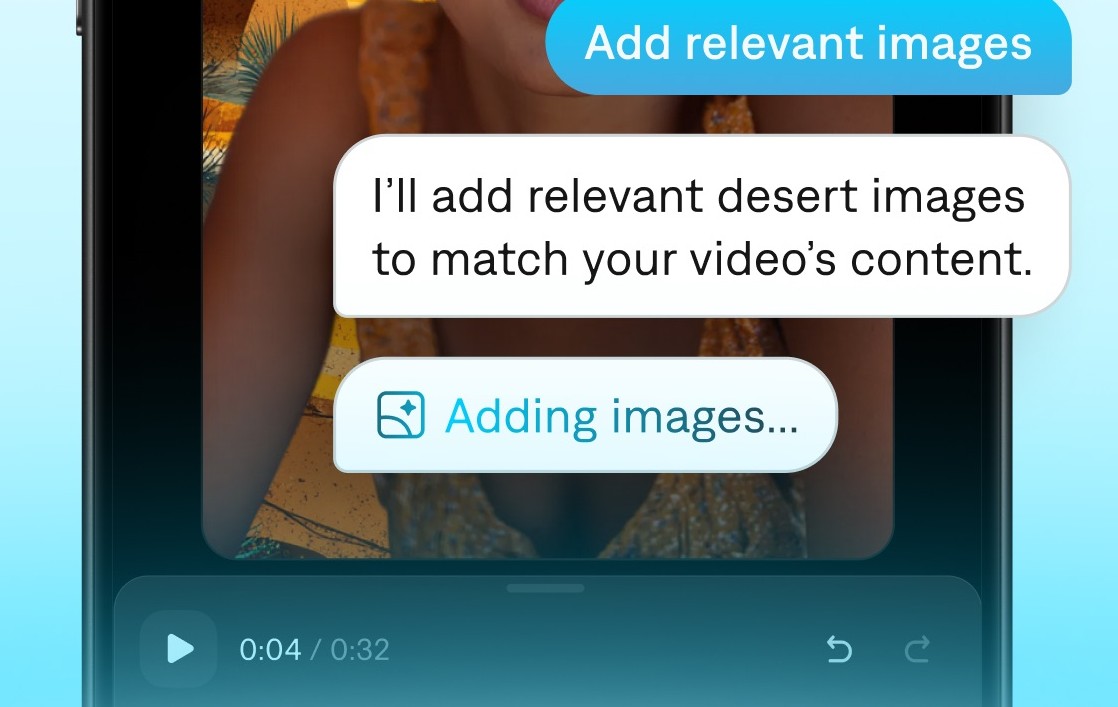
Captions' chat-based editor. Source: Captions App Store listing
Captions' App Store listing says the app, built by Mirage, imports a video or generates one from text, then edits it: a one-tap AI Edit that cuts scenes, overlays B-roll and adds sounds, and a chat-based editor where the user describes changes in plain language. The listing also names AI Denoise, AI Zoom, AI Scale, AI Dubbing into 29 languages, AI Subtitles in 91+ languages, and AI Twin and AI Actors for avatar videos.
The iPhone and Android apps are not the same product. Captions' help center says Android runs Captions Lite, which lists manual editing tools, caption styles, dubbing, denoise and AI eye contact on a separate subscription that works only on Android; AI Edit and the chat editor are not on that list. It also says projects do not sync between devices.
Pricing: Captions' pricing page lists Max at $24.99 a month and Frontier from $69.99 a month, and notes that its features and prices reflect iOS plans only. The help center lists Basic at $9.99 a month and Lite on Android at $4.99 a month. The App Store lists Captions Basic at $9.99 monthly and $64.99 yearly and Captions Max at $24.99. The help center says the Free plan covers basic editing and not AI Edit, and that an export using AI Edit on a Basic plan carries a watermark.
Considerations: AI Edit, the chat editor and Clips (turning a long video into a batch of clips) sit on Max, and AI usage runs on credits that renew monthly, so the price that matters is the Max price, not the Basic one.
- Choose it if raw iPhone footage should be edited by a prompt or one tap, and the Max price fits the budget.
- Skip it if the same AI Edit is needed on an Android phone, or a hands-on timeline is the main tool.
2. CapCut: Best for hands-on mobile editing with AI captions and effects
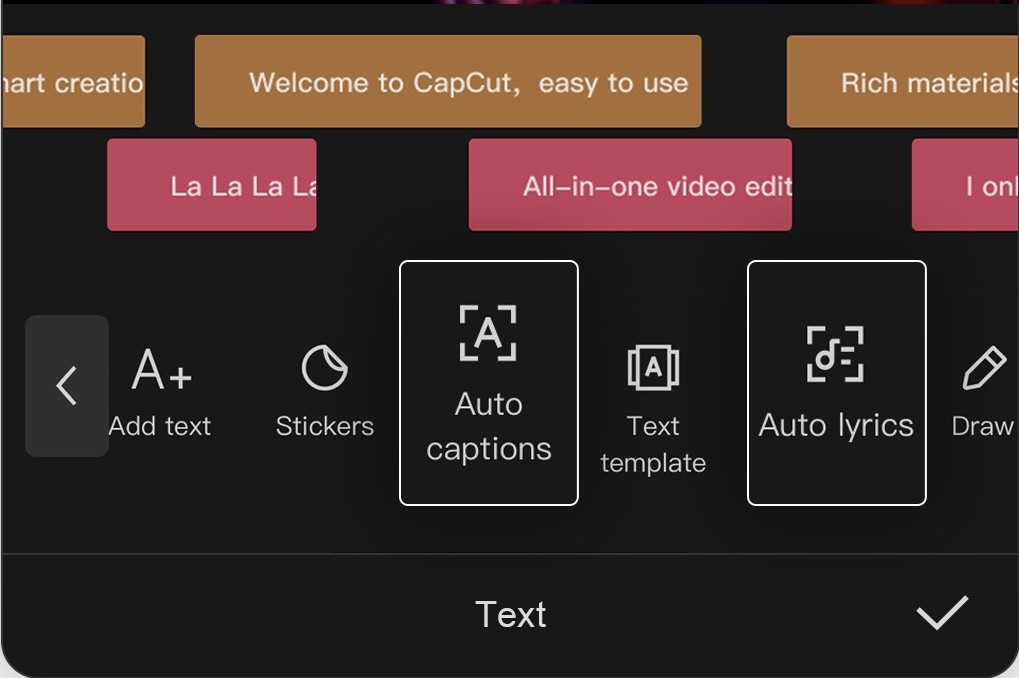
CapCut's text and auto captions tools. Source: CapCut App Store listing
CapCut's App Store listing describes a full editor: a multi-track timeline, keyframe animation for all settings, optical-flow slow motion, chroma key and stabilization, plus what it calls intelligent features, namely auto captions, text-to-speech in multiple languages and voices, and automatic background removal. It lists custom export resolution with 4K 60fps exports and smart HDR, and the Google Play listing carries the same feature text.
That mix suits people who want to cut and style a video by hand and let AI handle captions and cutouts. The AI features the phone listings name are captions, speech and cutout, rather than AI that finds clips or edits footage on its own.
Pricing: the App Store lists in-app purchases named Standard Monthly Subscription at $9.99, Pro Monthly Subscription at $19.99 and Yearly Subscription at $89.99. CapCut's own pricing page says its displayed pricing is for reference only. CapCut's help center says videos made in CapCut can usually be exported without a watermark, and that a watermark usually comes from a template's default ending clip or built-in element.
Considerations: Neither store listing says which features each subscription unlocks, and the in-app purchase names do not map cleanly to the web pricing page, so confirm what a plan adds before paying. The help center says the watermark on template exports usually comes from a default ending clip.
- Choose it if the plan is to edit by hand with a multi-track timeline, keyframes and auto captions on iPhone or Android.
- Skip it if the goal is AI that finds the best moments in a long video or edits raw footage without manual cuts.
3. OpusClip: Best for turning long videos into short, captioned clips on iPhone and Android
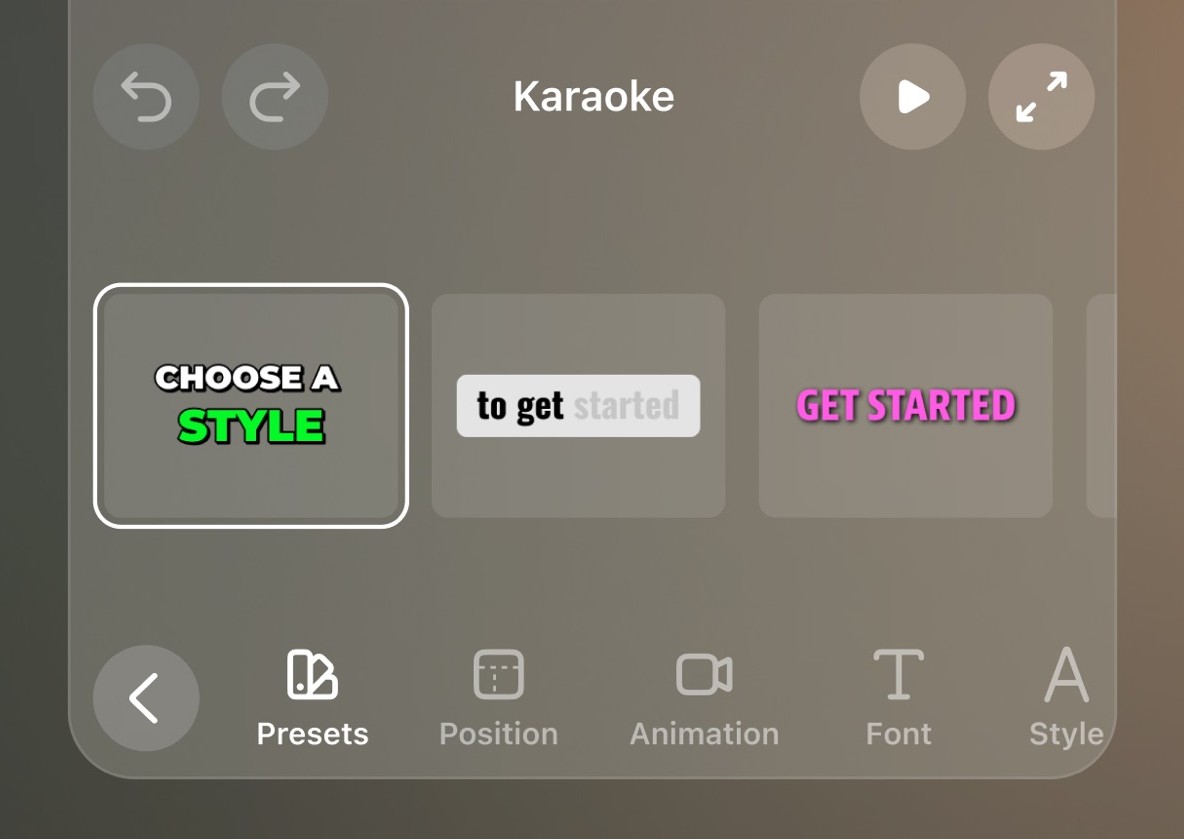
OpusClip's caption editor on iPhone. Source: OpusClip App Store listing
OpusClip's App Store listing says to drop or record a long video, and the app then finds the standout moments with AI smart highlighting, auto-clips and captions the best parts, applies templates, fonts and colors, and publishes in one tap or saves to the camera roll. The Google Play listing adds that clips are scored with a Virality Score before posting; the pricing page lists that score from Starter and not on Free.
The two apps differ. The iOS app is available in eight languages, lets users edit caption words, styles and fonts, and posts directly to YouTube, TikTok, Instagram, LinkedIn, Facebook and X, according to the iOS help article. The Android app needs Android 12 or later, is available in the US, UK, Canada, Australia, Germany, France, Spain and Brazil, and is English only, and the Android help article says it has no editor yet and no direct posting or scheduling, so clips download to the phone or share through one tap. That help center also lists Google Drive import and Auto Import as unavailable on both phone apps.
Pricing: OpusClip's pricing page lists Free at $0 (clips carry a watermark, there is no editing, and clips stop being exportable after 3 days), Starter at $15 a month billed monthly, and Pro at $29 a month or $14.50 a month billed annually ($174 a year), with Business custom. The App Store lists in-app purchases for Starter at $15.00, Pro Monthly (1 Pack) at $29.00 and Pro Yearly (1 Pack) at $174.99, and the help center says App Store subscriptions are managed through Apple. Each plan lists a monthly credit allowance.
Considerations: On a phone, OpusClip finds, captions and polishes clips; it is not a timeline editor. The iOS help article says detailed editing or full caption controls need a desktop browser, lists AI enhancements and B-roll as unavailable in the iPhone app, and the Android app has no editor at all. The help center lists the Android app for eight countries only.
- Choose it if the job is a long video, podcast or interview that should become several captioned clips, from an iPhone or an Android phone.
- Skip it if the job is cutting, layering and keyframing footage by hand on a phone; CapCut, Adobe Premiere or VN fit that better.
4. Adobe Premiere: Best for a free, watermark-free timeline editor with generative AI on demand
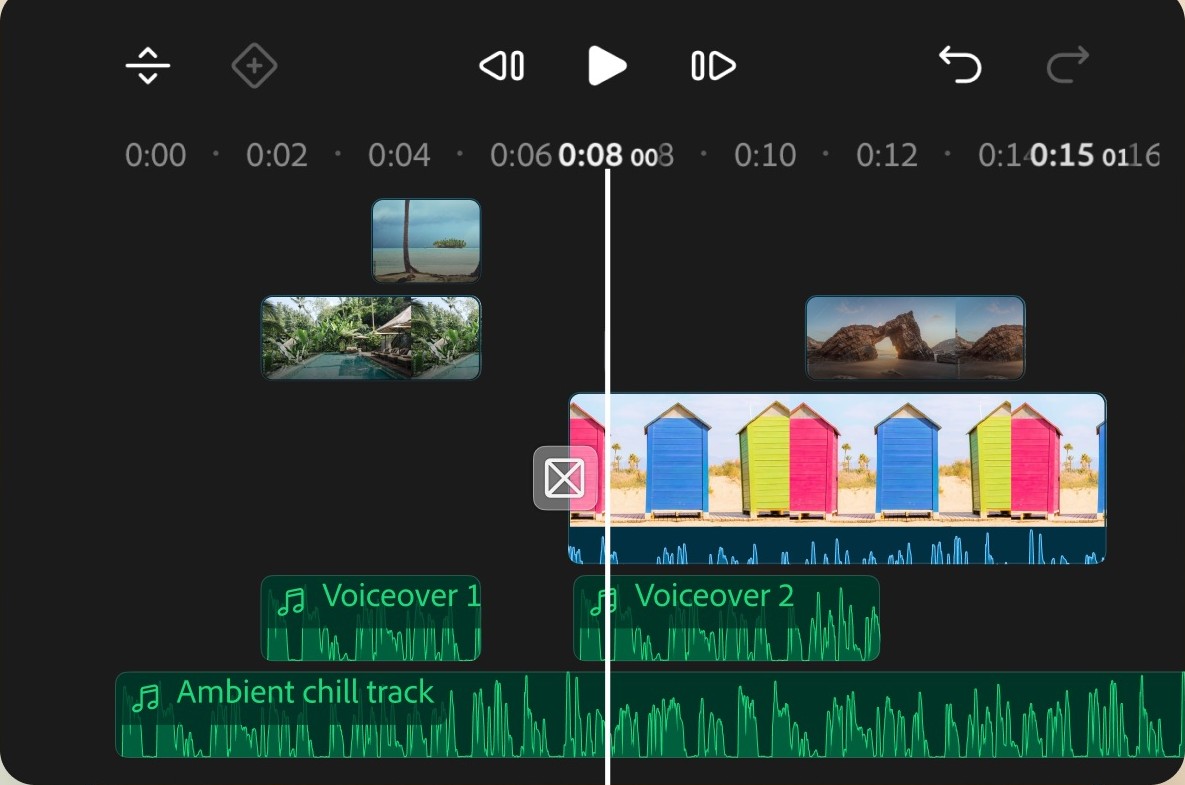
Adobe Premiere's multi-track timeline on mobile. Source: Adobe Premiere App Store listing
Adobe Premiere's App Store listing calls the app a free AI video editor with no ads or watermarks, a multi-track timeline with unlimited tracks, keyframes and frame-accurate edits. The AI features it names include auto captions, AI background removal, AI Enhance Audio, background expansion, sound effects generated from a voice, and a generator for images and video that uses Adobe Firefly and, the listing says, third-party models from Google and ChatGPT among others.
The listing says export in 4K is free. It requires iOS 18.0 or later on iPhone, and the Google Play listing says it requires a device with 5GB of RAM or more. The Android listing's feature list names AI Enhance Speech and Firefly text-to-image but not the auto-captions and background-removal lines in the App Store text, so confirm an Android phone has the feature needed.
Pricing: per the App Store listing, everything needed to edit is free and payment is only for Firefly generative AI credits. The in-app purchases it lists are Premiere Mobile Monthly at $7.99 and Premiere Mobile Yearly at $69.99.
Considerations: The listing does not spell out what the two Premiere Mobile subscriptions include or how many generative credits come with them. Adobe's own pages return a 403 error to scripts, so these facts come from the store listings only.
- Choose it if a free multi-track editor with 4K export, no watermark and optional generative AI is the goal, and the phone meets the iOS 18 or 5GB RAM requirement.
- Skip it if the phone runs an older iOS, or the job is AI that finds clips in a long video.
5. VN: Best for free, watermark-free editing with automatic filler-word and silence removal

VN's timeline and editing toolbar. Source: VN App Store listing
VN's App Store listing opens with free editing and no watermark, and VN's own site says the same. It lists a multi-track timeline, masks, keyframes with 19 built-in effects and beat-synced templates, and Smart Tools: auto captions in multiple languages with animated styles that also detect and remove filler words and silent segments, text-to-speech, one-tap video and photo cutout, and slow motion built on frame interpolation. AutoCut, the listing says, turns footage into a finished edit by syncing clips to a BeatsClip template.
Export goes up to 4K at 60fps, per the listing. The Google Play listing adds AI Kits for photo enhancement, image generation and video generation.
Pricing: the App Store lists VN Pro at $7.99 and $69.99 without naming the billing periods, and credit packs starting at $1.00. VN's site says no watermarks, all for free.
Considerations: The listings do not say what VN Pro adds on top of the free editor or what the credit packs pay for. AutoCut syncs clips to a beat template rather than choosing moments from a long recording, so it is not a substitute for an AI clipper.
- Choose it if free, no-watermark editing with automatic captions that also trim filler words and silences is the priority.
- Skip it if the job is finding clips in a long video, or Instagram-specific features such as a reels insights dashboard.
6. Edits: Best for Instagram-first creators who want free 4K export with no watermark
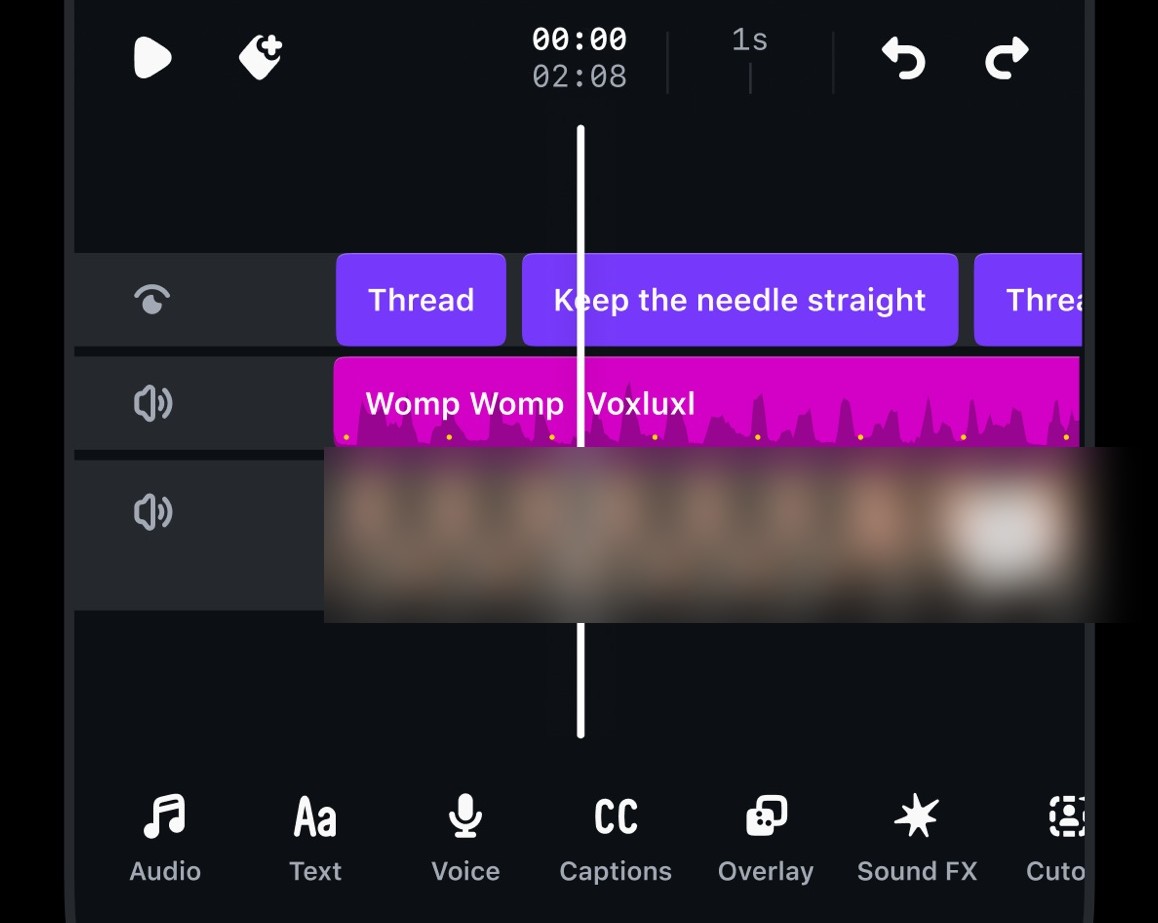
Edits' timeline and captions toolbar, with the video thumbnails blurred. Source: Edits App Store listing
Edits is Instagram's video editor. Its App Store listing says it exports in 4K with no watermark, edits with single-frame precision, generates captions automatically, enhances audio, offers green screen, cutout and overlays, and can bring images to life with AI animation. It also lists capturing clips up to 10 minutes long in the app, a place to keep ideas, and a live insights dashboard for reels performance.
The Google Play listing carries the same feature text, so the two platforms look alike on paper.
Pricing: free to download, and the App Store listing shows no in-app purchases.
Considerations: Its AI list is the shortest of the eight: AI animation, automatic captions and audio enhancement. The listing positions Edits around Instagram, with an export for any platform, and requires iOS 16.3 or later on iPhone.
- Choose it if Reels are the main format and free 4K export with automatic captions on iPhone or Android is the goal.
- Skip it if AI that picks clips from a long video, or generation features, are needed.
7. InShot: Best for a low-priced Pro plan with AI captions and AI Cut
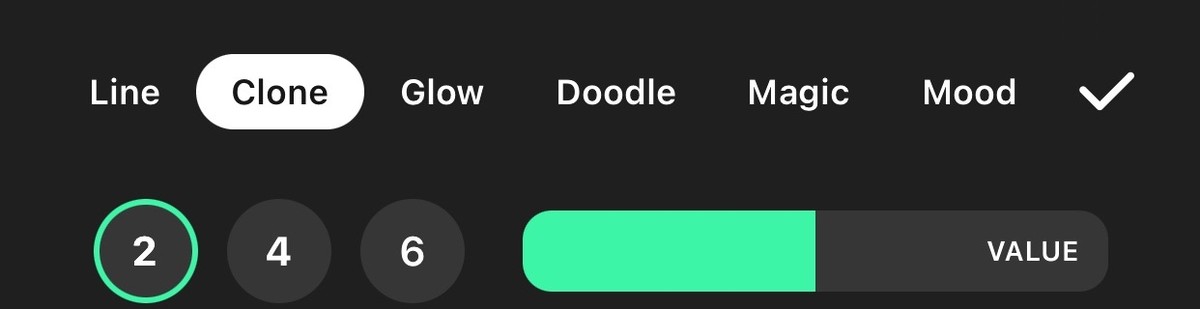
InShot's AI effects panel. Source: InShot App Store listing
InShot's App Store listing groups its AI tools as Auto Captions, Bilingual Subtitles, AI Speech, AI Cut (automatically removing silence, filler words and breath sounds), video and photo enhance, AI Effects, auto background removal, voice enhance and Auto Adjust. The editing list includes speed control with curves and ramping, keyframes, chroma key, picture-in-picture, a stabilizer and smart tracking, and the listing says InShot saves in 4K at 60fps. The listing also covers photo editing and a collage maker.
The Google Play listing's AI tools list is shorter: auto captions, AI speech, automatic background removal, smart tracking, smooth slow motion and AI body effects. AI Cut appears in the App Store text only.
Pricing: the App Store lists InShot Pro at $4.99 monthly, $19.99 yearly and $49.99 lifetime, and a Remove ads purchase at $3.99. Among the paid plans priced in this list, $19.99 yearly is the lowest yearly price printed, and $4.99 monthly is the joint lowest monthly price with Captions Lite on Android.
Considerations: The listings do not say whether free exports carry a watermark, and the separate Remove ads purchase suggests ads are part of the free tier. AI Cut cuts silences and filler words but does not choose clips from a long recording.
- Choose it if a low-priced paid plan with AI captions and automatic silence and filler-word removal on iPhone is the goal.
- Skip it if the free tier must be ad-free and watermark-free, or the job is clipping a long video.
8. Filmora: Best for generating video from images and text on a phone

Filmora's AI Audio tool. Source: Filmora App Store listing
Filmora's App Store listing describes an AI-based video editor and movie maker, formerly FilmoraGo, with Image to Video, VideoGen (swapping or adding elements in a video), AI Auto Cut (stitching highlight moments), AI Remover, Dynamic Captions as word-by-word captions, Text to Video, Text to Speech, AI music and sound effects, and AI Smart Cutout. The Google Play listing adds Story to Video and Marketing Video templates and lists multi-track editing, keyframes, masking and smart tracking.
That list leans on generation more than any other app here, and the listings name no export resolution.
Pricing: the App Store lists Filmora Pro at $9.99 for 1 month and $45.99 for 1 year, plus Professional and Advanced AI credit packs at $15.99 and $8.99. The listing says a Pro subscription removes the watermark and Logo Roll, and that billing can be monthly, annual or perpetual.
Considerations: Separate AI credit packs are listed as in-app purchases, and the watermark and Logo Roll point to a free export that carries both. The listings do not name a maximum export resolution.
- Choose it if generating or transforming video from an image or text prompt on a phone is the main job, and a Pro plan is acceptable.
- Skip it if a free export without a watermark is needed, or an AI that picks clips from a long recording is.
How we compared these tools
We compared each app on five points: what the AI does (finds moments, cuts, captions, cleans audio or generates footage), which phones it runs on and what each phone app leaves out, what the listing says about export resolution and watermarks, the subscription prices shown in the App Store listing with their billing periods, and how clearly the vendor documents all of it. Captions is first because its listing names the deepest AI editing of the eight, a one-tap AI Edit and a chat-based editor, although that is the iPhone app and Android gets a different one. CapCut is second because it pairs auto captions, text-to-speech and background removal with a full multi-track timeline and 4K 60fps export on both iPhone and Android, at a lower iOS minimum than Adobe Premiere. OpusClip is third: its AI picks and captions clips on both phones and it is the pick for turning a long video into short clips, but its phone apps are not timeline editors (caption edits only on iPhone, no editor on Android), which is why it ranks below the full editors for a general query. Adobe Premiere follows as a free, watermark-free 4K editor held back by its iOS 18.0 and 5GB RAM requirements, then VN, Edits and InShot as lighter editors, and Filmora last because its listing ties watermark removal to a paid plan and names no export resolution. Ranks 4 to 8 are close calls that reflect our judgment of fit for AI editing on a phone, not a scored formula.
All facts come from each vendor's own App Store listing, Google Play listing, site and help center, read on November 6, 2026, and every price is the amount shown in the listing with the billing period the listing names; store prices can differ by country. We did not run hands-on tests of any app. Adobe's own pages return a 403 error to scripts, so Adobe Premiere's facts come from its store listings only. We also read the store listings for Videoleap, Splice, Vizard, VEED and Mojo and left them out to keep the list to eight; they are reasonable alternatives. Star ratings and download counts are left out because they change daily.
Red flags to watch for
- Different AI on iPhone and Android. OpusClip's Android app has no editor, Captions runs Captions Lite there, and Adobe Premiere's and InShot's Google Play lists name fewer AI features than their App Store text.
- Watermarks on free exports. OpusClip's Free plan adds one, Captions adds one when AI Edit is used on a Basic plan, Filmora's Pro plan is what removes its watermark and Logo Roll, and CapCut's help center says the watermark on template exports usually comes from a default ending clip.
- Credits behind the AI. Captions draws AI usage on monthly credits, Filmora and VN sell credit packs, and Adobe Premiere charges for Firefly generative AI credits.
- Store prices that differ from the web. CapCut's pricing page says displayed pricing is for reference only, and OpusClip's help center says subscriptions bought through the App Store are managed by Apple, not on the web.
- Device and region requirements. Adobe Premiere lists iOS 18.0 and 5GB of RAM, and OpusClip's Android app is listed for eight countries and Android 12 or later.
- Projects that do not sync. Captions' help center says projects do not sync between devices, and a Captions Lite subscription works only on Android.
- No manual override. An app that clips or edits with AI but offers little editing on the phone leaves no fix for a clip that starts mid-sentence until the project is opened on the web.
Frequently asked questions
What are the best AI video editing apps for mobile?
It depends on the job. In our ranking, Captions leads for one-tap AI edits of raw footage on iPhone and CapCut is second for hands-on editing with AI captions. OpusClip is the pick for turning a long video into short, captioned clips on a phone, with apps for iPhone and Android, and ranks third because those apps are not timeline editors. Adobe Premiere suits free 4K editing with generative AI on demand, VN and Edits suit free editing without a watermark, InShot suits a low-priced plan and Filmora suits generating video from images and text. See OpusClip on mobile for what its apps do.
What is the best AI video editor app for iPhone?
For AI that edits raw footage, Captions has the deepest feature list on iPhone, with a one-tap AI Edit and a chat-based editor on its Max subscription. For turning a long video into clips and posting them, OpusClip's iPhone app posts to YouTube, TikTok, Instagram, LinkedIn, Facebook and X. For free hands-on editing, Adobe Premiere requires iOS 18.0 or later, while CapCut, VN and InShot list lower minimums in their App Store listings.
What is the best AI video editor app for Android?
It depends on the app, because the Android versions differ. OpusClip's Android app clips and captions long videos but has no editor and is listed for eight countries in English. Adobe Premiere lists a 5GB RAM requirement, and Captions' Android app is Captions Lite with manual editing tools. CapCut, VN, InShot, Edits and Filmora each have a Google Play listing; check that the AI feature needed appears in the Play text.
Is there a free AI video editing app for a phone with no watermark?
Three listings say so. VN's listing says free with no watermark, Adobe Premiere's says export is free without watermarks, and Edits' says 4K export with no watermark. OpusClip's pricing page lists a watermark on Free clips, and Filmora's listing says a Pro subscription removes its watermark. CapCut's help center says exports can usually be made without a watermark, though the watermark on template exports usually comes from a default ending clip. Our guide to the best AI video editors covers desktop and browser options.
Can AI video editing apps export 4K on a phone?
Several listings name it. CapCut lists 4K 60fps exports, InShot lists saving in 4K at 60fps, VN lists exporting up to 4K at 60fps, Adobe Premiere lists 4K export for free and Edits lists 4K export with no watermark. OpusClip's pricing page lists up to 1080p rendered clips on the Free plan. For desktop and cloud tools, see our guide to AI video editing tools for 4K video.
Does OpusClip have a mobile app?
Yes, for both iPhone and Android. The iOS app is in the App Store, and the Android app launched in June 2026 on Google Play for Android 12 or later in the US, UK, Canada, Australia, Germany, France, Spain and Brazil, English only. The help center says the Android app has no editor yet. The iOS help article and the Android help article list what each app can and cannot do.
Can an AI video editing app on a phone turn a long video into short clips?
Yes. OpusClip's App Store listing describes dropping or recording a long video and getting captioned clips, and Captions' pricing page lists turning a long video into a batch of clips on Max. Filmora's listing names an AI Auto Cut that stitches highlight moments, though it describes a highlight reel rather than separate clips. Clip scoring from Starter and posting are covered on OpusClip's pricing page.