
OpusClip 4.0 is here. Become a content powerhouse.

6 Best AI Video Editing Tools for 4K Video in 2026

November 5, 2026
Creators filming, editing and reviewing 4K video, with an Export 4K button, a 4K tag, a 16:9 tag and a play badge

DaVinci Resolve is our first pick for editing 4K video: its free version edits and exports up to Ultra HD (3840 x 2160), and the paid Studio edition goes beyond 4K. Adobe Premiere fits camera-native 4K workflows, Descript suits editing 4K by transcript, Filmora is a desktop editor that lists 4K and 8K output, and Kapwing edits in the browser. OpusClip is the pick for cutting a long 4K recording into short clips that stay in 4K. We ranked six tools on documented 4K import and export, plan limits, hardware guidance and AI features, using each vendor's own pages read on November 5, 2026.

What counts as AI video editing for 4K

4K usually means Ultra HD, 3840 x 2160 pixels, the figure used on DaVinci Resolve's product page and in OpusClip's help center. Three different jobs hide behind the phrase. Editing 4K means a timeline can import and play back 4K footage smoothly. Exporting 4K means a plan lets the finished file leave at 4K, which several tools gate behind a paid tier. Upscaling means making lower-resolution footage look sharper at 4K, and that is a separate job: for it, see our guide to AI video upscalers. This list covers the first two jobs, plus the AI features each editor ships on top. For a wider comparison that is not limited to 4K, see our roundup of the best AI video editors.

Key takeaways

  • Best for professional 4K editing and color: DaVinci Resolve. The free version edits up to Ultra HD 3840 x 2160, and Studio lists resolutions beyond 4K.
  • Best for camera-native 4K and 8K workflows: Adobe Premiere. Its supported-formats page lists H.265 media up to 8192 x 4320, and its help pages describe a proxy workflow for heavy 4K footage.
  • Best for editing 4K talking-head video by transcript: Descript. It lists 4K export on Creator and above and uploads up to 5K on Creator and Business.
  • Best for a desktop editor with 4K and 8K output and built-in AI tools: Filmora. Its tech-spec page lists 8K input and 4K and 8K output formats.
  • Best for cutting a long 4K recording into short clips that stay in 4K: OpusClip. Pro exports 4K when the source file is genuinely 4K.
  • Best for browser-based 4K export: Kapwing. Pro lists 4K export, though its help center recommends 1080p uploads for playback and export speed.

How to choose an AI video editor for 4K

Start with the job the 4K footage has to do, then check what the plan allows and what the computer can play back.

  • If the footage needs a full timeline, color grade and audio finish: DaVinci Resolve or Adobe Premiere.
  • If the footage is interviews, podcasts or webinars and cutting by text is faster than scrubbing: Descript. For more of this style, see our text-based video editors roundup.
  • If the goal is several vertical clips from one long 4K recording: OpusClip. Its long video to short video tool covers the clipping step.
  • If 4K export has to be free: DaVinci Resolve's free version is the only option on this list that lists Ultra HD export without a paid plan, and it is limited to 8-bit formats. Descript, Kapwing and OpusClip gate 4K export behind paid plans.
  • If the computer is the limit: compare the vendor's hardware guidance. Adobe, Descript and Filmora publish RAM and GPU memory figures for 4K; we did not find equivalent figures on Kapwing's or OpusClip's pages.
  • If the source is below 4K: none of these editors turns HD footage into native 4K on export; use an upscaler, then edit.

At a glance

  • DaVinci Resolve: best for professional 4K editing and color; free version yes (up to Ultra HD 3840 x 2160, 8-bit); Studio $236 on the product page, shown as 20% off $295.
  • Adobe Premiere: best for camera-native 4K and 8K workflows; plans from US$22.99 a month (annual plan billed monthly, first year only); no free plan, 7-day free trial.
  • Descript: best for editing 4K talking-head video by transcript; Creator $24 a month billed annually ($35 monthly) lists 4K export; free plan yes (720p export).
  • Filmora: best for a desktop editor with 4K and 8K output and built-in AI tools; see the pricing page for current prices; a free download is offered.
  • OpusClip: best for cutting a long 4K recording into short clips that stay in 4K; 4K export on Pro, $29 a month or $14.50 a month billed annually; free plan yes (up to 1080p, watermark, no editing).
  • Kapwing: best for browser-based 4K export; Pro $16 per member a month billed annually ($24 billed monthly) lists 4K export; free plan yes (720p, watermark, exports up to 4 minutes).

Where each editor runs, its 4K limits and its 4K performance notes compared

The At a glance list covers best-for, price and free plan; this table compares where each editor runs, the 4K and higher resolutions it lists and the performance or hardware guidance it gives, as listed on each vendor's own pages on November 5, 2026.

ToolWhere it runs4K and above, as listed4K performance note
DaVinci ResolveDesktop app for Mac, Windows and LinuxFree: up to Ultra HD 3840 x 2160 (8-bit, 60 fps); Studio: beyond 4K, up to 32K at 120 fpsProxy editing listed; Studio adds multi-GPU playback and H.264 and H.265 acceleration
DescriptMac, Windows and webUploads up to 4K (5K on Creator and Business); local export 4K on Creator and BusinessWindows: 32 GB+ RAM and 6 GB+ GPU memory for 4K; edits on proxies, exports from originals
FilmoraWindows and Mac desktop appInput up to 8K; output 4K (MP4, MOV, MKV) and 8K (MP4 H.264 or HEVC, MOV ProRes)4K: 16 GB RAM and 4 GB VRAM recommended; 8K: 32 GB RAM and 8 GB VRAM
OpusClipWeb app, iOS app and Android app (no editor on Android)4K export on Pro, from a genuinely 4K (3840 x 2160) source; not on Free or Starter4K cropped to 9:16 outputs 1215 x 2160; results-page previews are low resolution
KapwingOnline editor in the browser4K export on Pro and above, 720p on Free; help says 4K uploads are acceptedHelp center recommends 1080p uploads at most for playback and export speed

1. DaVinci Resolve: Best for professional 4K editing and color
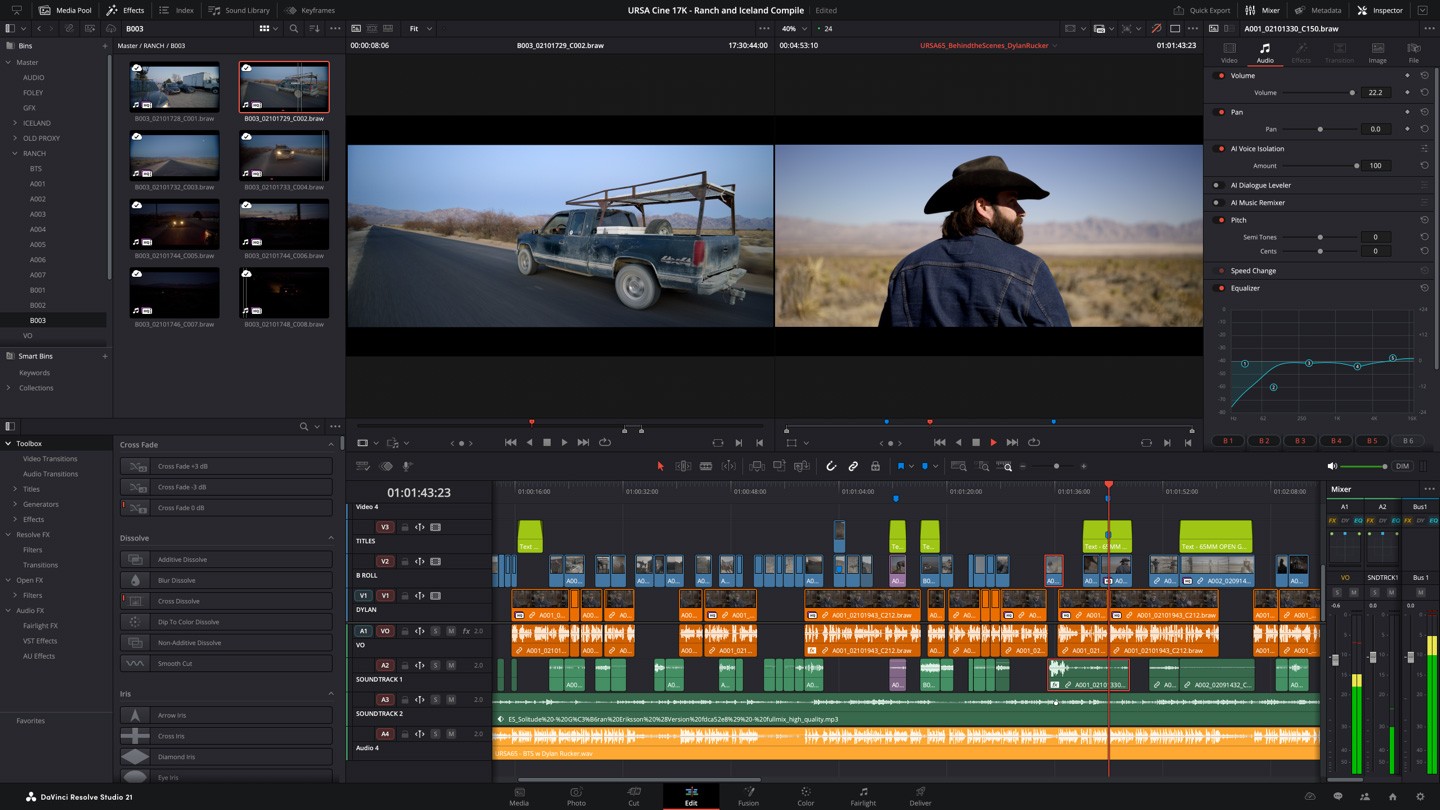
DaVinci Resolve Studio 21 Edit page with a media pool, two viewers, a multi-track timeline and the Inspector panel

DaVinci Resolve's Edit page. Source: Blackmagic Design website

DaVinci Resolve is a desktop suite for editing, visual effects, motion graphics, color correction and audio post production on Mac, Windows and Linux, according to Blackmagic Design's product page. That page says the free version works with virtually all 8-bit video formats at up to 60 fps in resolutions as high as Ultra HD 3840 x 2160, so 4K editing and export do not require a purchase. Studio adds 10-bit video up to 120 frames per second and resolutions beyond 4K; the Studio page lists up to 32K at 120 fps, multiple-GPU playback and accelerated H.264 and H.265 decoding and encoding.

The AI features sit in Studio. The product page lists the DaVinci AI Neural Engine, text-based editing and Magic Mask there, and describes the Neural Engine as powering facial recognition, object detection, smart reframing, speed warp retiming, Super Scale and auto color. Super Scale is described as creating 4K and 8K images from HD sources, so it upscales inside the editor; it is not how native 4K footage gets exported. For heavy footage, the Cut page lists proxy editing.

Pricing: Blackmagic's product page lists the free version at no cost and DaVinci Resolve Studio at $236, shown as 20% off a $295 price.

Considerations: The free version has no AI Neural Engine and is limited to 8-bit formats, so 10-bit camera files and the AI tools need Studio. The suite is organized into separate Cut, Edit, Color, Fusion and Fairlight pages, which is more tool than a quick social edit needs, and we did not find a RAM or GPU recommendation on the product pages we read.

  • Choose it if the 4K footage needs full timeline, color and audio finishing and a free start matters.
  • Skip it if the job is a quick vertical clip from a long recording, or the AI tools are needed without buying Studio.

2. Adobe Premiere: Best for camera-native 4K and 8K workflows
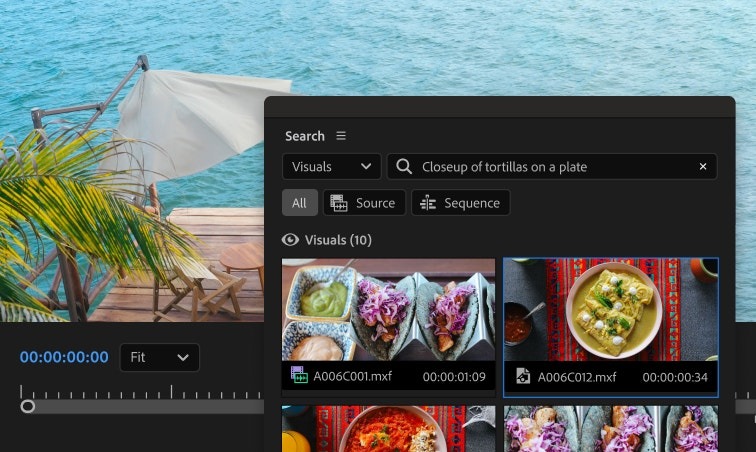
Adobe Premiere's Search panel showing a visual search for closeup of tortillas on a plate with matching clips

Adobe Premiere's Search panel. Source: Adobe website

Adobe Premiere is a subscription desktop editor; Adobe's FAQ says Adobe Premiere Pro is now simply called Adobe Premiere to represent a family of desktop and mobile apps. Adobe's supported-formats page lists H.265 media with resolutions up to 8192 x 4320, as well as ProRes and RED R3D files, so 4K camera files import natively. For heavy footage, Adobe's help page recommends proxy workflows when working with 4K or higher-resolution footage on less powerful hardware, then switching back to the original media for final export.

Adobe's technical requirements page says its recommended specifications are for editing HD, 4K or higher, and lists 32 GB or more of RAM for 4K and higher and 8 GB of GPU memory on Windows, and 16 GB of unified memory on Apple silicon Macs. The AI features on the product page include Text-Based Editing, a Media Intelligence Search panel that finds clips from a description, Generative Extend, Object Mask and AI-assisted color balance. Adobe's help page says Generative Extend can extend video clips by up to 2 seconds.

Pricing: Adobe's product page lists a Premiere plan starting at US$22.99 a month on an annual plan billed monthly, with the page noting first year only and new subscribers only. It lists a seven-day free trial, and its FAQ says Premiere is available only as a membership, not as a perpetual license. Generative AI features use generative credits.

Considerations: Adobe lists 8 GB of RAM as the minimum and, on Windows, 32 GB or more for 4K and higher, so a laptop built for HD work may lean on proxies. There is no free desktop plan beyond the trial, and the 8K figure is an import limit for one codec, not a promise about every camera format.

  • Choose it if the team already works in Creative Cloud or needs native camera formats and a proxy workflow for 4K and above.
  • Skip it if a free tier or a perpetual license is required, or the job is short social clips from a long recording.

3. Descript: Best for editing 4K talking-head video by transcript
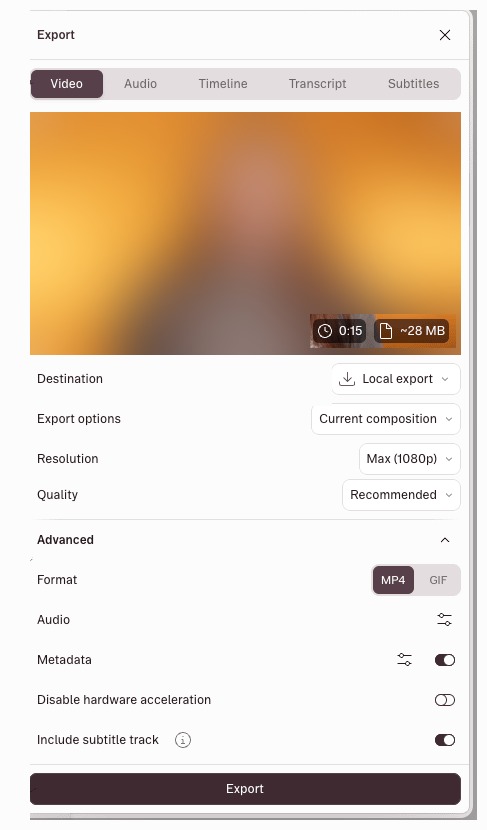
Descript's export panel with the Video tab open, a blurred preview, Local export, Current composition and a Max 1080p resolution setting

Descript's export panel, with the preview blurred. Source: Descript help center

Descript edits video by editing its transcript: delete a word and the media is cut. Its pricing page lists uploads up to 4K on the Free and Hobbyist plans and up to 5K on Creator and Business, and local export at 720p on Free, 1080p on Hobbyist and 4K on Creator and Business. Per its help center, ProRes uploads are limited to Creator, Business and Enterprise, and timeline export to Premiere, DaVinci Resolve or Final Cut Pro is available on those plans.

Descript's system requirements page recommends, for 4K media on Windows, 32 GB or more of RAM and 6 GB or more of GPU memory; Intel Macs get the same RAM advice, and Apple silicon lists 16 GB of unified memory. While editing, Descript makes optimized proxy files and says export always uses the original files, and its help center says Descript does not upscale media. The pricing page lists AI features including Underlord, its AI video co-editor, Studio Sound and filler word removal.

Pricing: Descript's pricing page lists Hobbyist at $16 a month billed annually ($24 monthly) and Creator, the first plan with 4K export, at $24 a month billed annually ($35 monthly), per person. The Free plan exports at 720p.

Considerations: Exports are MP4 with Low, Medium or High quality presets, and Descript's help center says there are no advanced bitrate or resolution options beyond that, which may matter for a delivery spec. The pricing page also lists web-link export duration of 1 hour on Free and Hobbyist and 3 hours on Creator and Business.

  • Choose it if the 4K footage is interviews, podcasts or webinars and editing by transcript is faster than scrubbing a timeline.
  • Skip it if the job needs frame-accurate color work or a bitrate-controlled master.

4. Filmora: Best for a desktop editor with 4K and 8K output and built-in AI tools
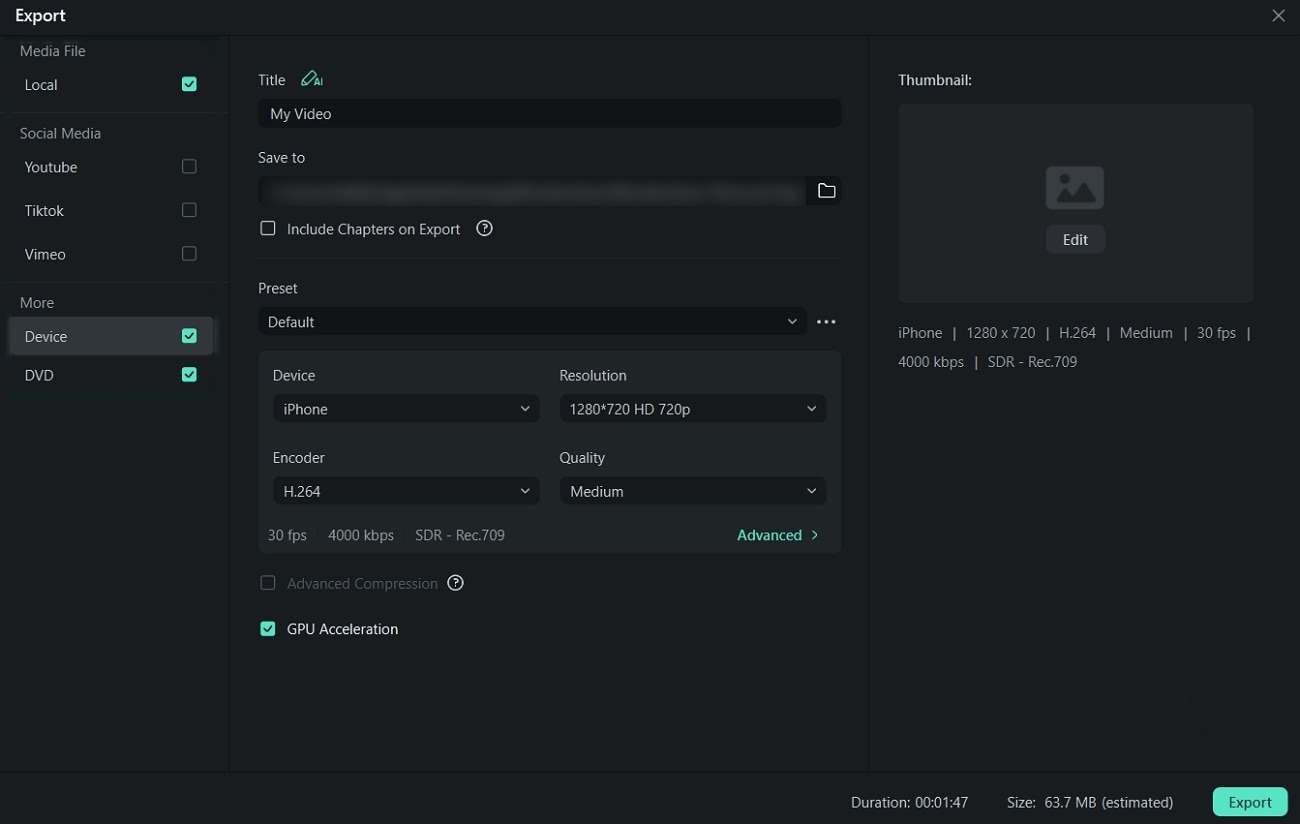
Filmora's Export dialog with a destination list, a Resolution drop-down, encoder and quality settings and a GPU Acceleration checkbox

Filmora's Export dialog, with the save path blurred. Source: Filmora website

Filmora is a desktop video editor from Wondershare for Windows and Mac. Its Windows tech-spec page lists a maximum input resolution of 8K, 4K output in MP4, MOV and MKV, and 8K output in MP4 (H.264 and HEVC) and MOV (Apple ProRes). It recommends an Intel 9th Gen or newer CPU, 16 GB of RAM and 4 GB of VRAM for HD and 4K editing, and 32 GB of RAM or more with at least 8 GB of VRAM for 8K, with an SSD recommended for 4K.

The pricing page's plan comparison lists AI Text Based Editing, Smart Scene Cut, Smart Short Clips and an AI Video Enhancer, most of them paid by AI credits, and its paid plan cards list Export Without Watermark and 4K HD Export. The tech-spec page lists a timeline XML export compatible with Adobe Premiere Pro, DaVinci Resolve and Final Cut Pro.

Pricing: Filmora's pricing page shows annual subscriptions, a perpetual license and promotional discounts that change the figures shown, so see the pricing page for current prices. The site offers a free download; we did not confirm what it includes.

Considerations: AI tools are metered by AI credits, and promotional pricing makes the real cost the hardest to pin down on this list. We did not find proxy or optimized-media documentation on the pages we read, so 4K playback on modest hardware is worth checking in the free download.

  • Choose it if a single-seat desktop editor with an 8K ceiling and AI shortcuts fits the workflow.
  • Skip it if browser access, team review or documented proxy workflows are required.

5. OpusClip: Best for cutting a long 4K recording into short clips that stay in 4K

OpusClip results page for one clip with a score, a scene analysis and Publish on Social, Export XML, Download 4K and Download HD buttons

OpusClip's results page with 4K and HD downloads. Source: OpusClip help center

OpusClip is not a general timeline editor. It takes a long video, finds the moments most likely to work, adds animated captions and reframes clips to vertical and other aspect ratios, with a Virality Score shown on paid plans. For 4K, the help center says that if a 4K video is uploaded, OpusClip can export clips in full 4K quality, and that 4K export is not upscaling: it only activates when the source video is genuinely 4K (3840 x 2160). The help center's resolution article gives an example: a 4K source cropped to 9:16 results in an output of 1215 x 2160, so a vertical clip keeps the source's 2160-pixel height.

4K is gated. The help center's plan table lists 4K export on Pro and not on Free or Starter, and lists 4K scheduling and posting as not available on Pro, so a 4K clip leaves by download and manual upload. The pricing page lists Free clips as up to 1080p rendered clips with a watermark and no editing, and the help center says results-page previews are low resolution until a clip is exported. For finishing in a full editor, the pricing page lists export to Adobe Premiere Pro and DaVinci Resolve on Pro.

Pricing: OpusClip's pricing page lists Free at $0 (a watermark, no editing, up to 1080p rendered clips), Starter at $15 a month (monthly billing only) and Pro at $29 a month, or $14.50 a month billed annually ($174 a year). Business is custom. Each plan lists a monthly credit allowance on the pricing page.

Considerations: 4K needs Pro and a genuinely 4K source file, 4K scheduling and posting is not listed for Pro, and OpusClip does not replace a timeline editor for color grading or multi-track finishing. Large 4K files also depend on the upload limits in the help center, so check them before planning a batch.

  • Choose it if a long 4K recording, such as a podcast, webinar, stream or interview, needs to become several captioned vertical clips at the source's full height.
  • Skip it if the job needs a full timeline edit or color grade, or a 4K scheduled post from inside the tool.

6. Kapwing: Best for browser-based 4K export
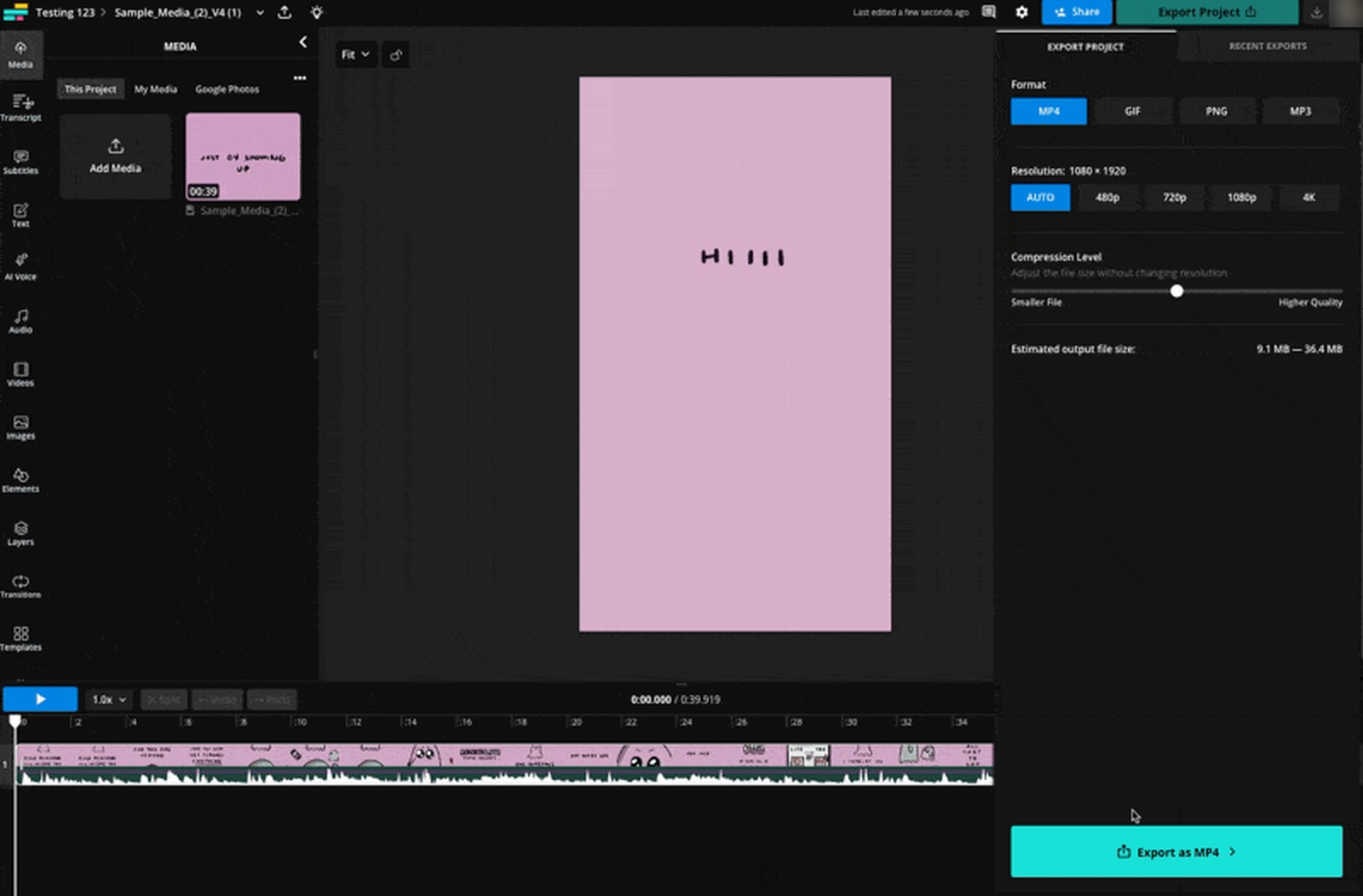
Kapwing's editor with the Export Project panel open, showing MP4 format and AUTO, 480p, 720p, 1080p and 4K resolution buttons

Kapwing's Export Project panel with a 4K resolution option. Source: Kapwing help center

Kapwing is an online editor with a drag-and-drop timeline and AI tools; its pricing page lists Smart Cut for silence removal, Clean Audio, Trim with Transcript, Repurpose Studio and dubbing. The pricing page lists 4K export resolution on Pro and above against 720p on Free, uploads up to 6 GB per file on Pro against 2 GB on Free, and exports up to 2 hours long on Pro. Kapwing's help center says that if a 4K video is uploaded, it can be exported at the same resolution in a paid workspace.

The same help center is candid about performance. It says files up to 4K can be uploaded but recommends 1080p as the maximum for better playback and export times, and that files above 1080p may take longer to export because the resolution is lowered before the final file is put together. Its export troubleshooting page lists projects with 4K footage, 20 or more scenes or a duration of 55 minutes or more among the causes of failed exports, and suggests exporting in SD or splitting the project.

Pricing: Kapwing's subscription FAQ lists Pro at $16 per member per month when billed annually or $24 per member per month when billed monthly, and its pricing page lists Free at $0 with a watermark, 720p exports, exports up to 4 minutes and a 2 GB upload limit.

Considerations: The vendor's own advice to upload 1080p files at most makes it a weaker fit for editing native 4K than a desktop editor. We did not find a RAM or GPU figure on Kapwing's pages, so the limits to plan around are the upload and export behavior described above.

  • Choose it if a team wants a shared browser workspace and an occasional 4K export from a short project.
  • Skip it if native 4K editing is the daily workload, since the help center recommends 1080p uploads.

How we compared these tools

We scored each tool on five criteria: the maximum import and export resolution its own pages document, whether 4K is gated by plan, what the vendor says about hardware, proxies or playback performance, the AI features it lists, and how clearly it documents its limits. Ranking favors editors that document native 4K handling end to end, which is why the two full timeline editors lead and why OpusClip is placed as a clip-making specialist rather than a general 4K editor.

All facts come from each vendor's own pricing page, product page, help center or documentation, read on November 5, 2026. We did not run hands-on tests of any tool, so nothing here is a claim about render speed or output quality. Where a vendor's pages give different pictures, such as Kapwing's 4K export listing and its 1080p upload advice, we report both. Prices change, so confirm on the vendor page before buying.

Red flags to watch for

  • 4K export behind a paid tier. Descript's Free plan exports at 720p and Hobbyist at 1080p, Kapwing Free exports at 720p, OpusClip Free is listed up to 1080p, and Filmora's paid cards list 4K HD Export.
  • Upload caps that differ from export caps. Descript lists uploads up to 4K on lower plans and 5K on Creator, while Kapwing recommends 1080p uploads even though it lists 4K export.
  • Upscaled output sold as 4K. OpusClip and Descript both say they do not upscale, and DaVinci Resolve's Super Scale is a separate Studio effect. Check that the source is genuinely 4K.
  • Hardware the plan does not mention. Adobe (on Windows) and Descript (on Windows and Intel Macs) list 32 GB of RAM for 4K; a machine below that may need proxies.
  • 4K export that is not 4K posting. OpusClip's help center lists 4K scheduling and posting as not available on Pro, so a clip may need a manual upload.
  • No bitrate control. Descript offers quality presets rather than bitrate settings, which may not meet a delivery spec.
  • Watermarks and time limits on free plans. Kapwing Free adds a watermark and exports up to 4 minutes, and OpusClip Free adds a watermark.
  • Promotional pricing. DaVinci Resolve Studio is shown at a markdown, Adobe's price is first year only, and Filmora's page shows promotions, so the price that applies can change.

Frequently asked questions

What are the best AI video editing tools for 4K video?

For full 4K editing, DaVinci Resolve and Adobe Premiere lead because their own pages document the highest resolutions, with Resolve's free version covering Ultra HD. Descript is the pick for editing by transcript, Filmora for a desktop editor listing 4K and 8K output, Kapwing for the browser, and OpusClip for cutting a long 4K recording into short clips that stay in 4K. See OpusClip pricing for plan limits.

Which AI video editors can edit and export 4K?

Per their own pages, DaVinci Resolve's free version edits and exports up to Ultra HD, Adobe Premiere imports H.265 media up to 8192 x 4320, Descript exports 4K on Creator and Business, Filmora lists 4K and 8K output, Kapwing lists 4K export on Pro and above, and OpusClip exports 4K on Pro when the source is genuinely 4K.

Can AI video editors handle 4K footage?

Yes, but playback depends on the computer. Adobe lists 32 GB or more of RAM and 8 GB of GPU memory for 4K and higher on Windows (16 GB of unified memory on Apple silicon), Descript lists 32 GB of RAM and 6 GB of GPU memory for 4K on Windows, and Filmora lists 16 GB of RAM and 4 GB of VRAM for 4K. Adobe, Descript and DaVinci Resolve describe proxy or optimized-media workflows that keep editing smooth on weaker hardware while exporting from the originals.

Is there a free AI video editor for 4K?

DaVinci Resolve's free version works with 8-bit formats at up to 60 fps in resolutions up to Ultra HD 3840 x 2160, but its AI Neural Engine is listed under Studio. The free plans of Descript (720p export), Kapwing (720p) and OpusClip (up to 1080p) do not list 4K export.

Does exporting in 4K make lower-resolution footage look better?

No. OpusClip's help center says 4K export is not upscaling and only activates for genuinely 4K sources, and Descript's help center says it does not upscale media. DaVinci Resolve Studio's Super Scale is a separate effect that creates 4K and 8K images from HD sources. For that job, see our AI video upscalers guide.

How much RAM does a computer need to edit 4K video?

Vendors differ. Adobe lists 8 GB as the minimum and, on Windows, 32 GB or more for 4K and higher (16 GB of unified memory on Apple silicon), Descript lists 32 GB for 4K on Windows and Intel Macs (16 GB on Apple silicon), and Filmora lists 16 GB for HD and 4K editing and 32 GB or more for 8K. Check the vendor's requirements page for the exact system.

What is the best way to turn a 4K recording into short clips?

Upload the 4K file to a clipping tool such as OpusClip, which finds the moments, adds captions and reframes to vertical, and exports in 4K on Pro when the source is 4K. For a timeline edit instead, cut the recording in DaVinci Resolve or Adobe Premiere. See OpusClip's long video to short video tool to try the clipping step.

What resolution is 4K?

In the vendor pages read here, 4K means Ultra HD at 3840 x 2160 pixels. DaVinci Resolve's product page and OpusClip's help center both use that figure, while Adobe's supported-formats page lists H.265 media up to 8192 x 4320 for higher resolutions.

On this page

Use our Free Forever Plan

Find the moment. Skip the scrubbing.

From script to polished video — in one click.

Create and post one short video every day for free, and grow faster.

OpusSearch uses AI to surface the exact clip you need from hours of footage — in seconds, not afternoons.

Agent Opus runs the entire video pipeline for you: research, scriptwriting, storyboarding, motion, voice, and edit. Upload the idea, post the result.

6 Best AI Video Editing Tools for 4K Video in 2026

DaVinci Resolve is our first pick for editing 4K video: its free version edits and exports up to Ultra HD (3840 x 2160), and the paid Studio edition goes beyond 4K. Adobe Premiere fits camera-native 4K workflows, Descript suits editing 4K by transcript, Filmora is a desktop editor that lists 4K and 8K output, and Kapwing edits in the browser. OpusClip is the pick for cutting a long 4K recording into short clips that stay in 4K. We ranked six tools on documented 4K import and export, plan limits, hardware guidance and AI features, using each vendor's own pages read on November 5, 2026.

What counts as AI video editing for 4K

4K usually means Ultra HD, 3840 x 2160 pixels, the figure used on DaVinci Resolve's product page and in OpusClip's help center. Three different jobs hide behind the phrase. Editing 4K means a timeline can import and play back 4K footage smoothly. Exporting 4K means a plan lets the finished file leave at 4K, which several tools gate behind a paid tier. Upscaling means making lower-resolution footage look sharper at 4K, and that is a separate job: for it, see our guide to AI video upscalers. This list covers the first two jobs, plus the AI features each editor ships on top. For a wider comparison that is not limited to 4K, see our roundup of the best AI video editors.

Key takeaways

  • Best for professional 4K editing and color: DaVinci Resolve. The free version edits up to Ultra HD 3840 x 2160, and Studio lists resolutions beyond 4K.
  • Best for camera-native 4K and 8K workflows: Adobe Premiere. Its supported-formats page lists H.265 media up to 8192 x 4320, and its help pages describe a proxy workflow for heavy 4K footage.
  • Best for editing 4K talking-head video by transcript: Descript. It lists 4K export on Creator and above and uploads up to 5K on Creator and Business.
  • Best for a desktop editor with 4K and 8K output and built-in AI tools: Filmora. Its tech-spec page lists 8K input and 4K and 8K output formats.
  • Best for cutting a long 4K recording into short clips that stay in 4K: OpusClip. Pro exports 4K when the source file is genuinely 4K.
  • Best for browser-based 4K export: Kapwing. Pro lists 4K export, though its help center recommends 1080p uploads for playback and export speed.

How to choose an AI video editor for 4K

Start with the job the 4K footage has to do, then check what the plan allows and what the computer can play back.

  • If the footage needs a full timeline, color grade and audio finish: DaVinci Resolve or Adobe Premiere.
  • If the footage is interviews, podcasts or webinars and cutting by text is faster than scrubbing: Descript. For more of this style, see our text-based video editors roundup.
  • If the goal is several vertical clips from one long 4K recording: OpusClip. Its long video to short video tool covers the clipping step.
  • If 4K export has to be free: DaVinci Resolve's free version is the only option on this list that lists Ultra HD export without a paid plan, and it is limited to 8-bit formats. Descript, Kapwing and OpusClip gate 4K export behind paid plans.
  • If the computer is the limit: compare the vendor's hardware guidance. Adobe, Descript and Filmora publish RAM and GPU memory figures for 4K; we did not find equivalent figures on Kapwing's or OpusClip's pages.
  • If the source is below 4K: none of these editors turns HD footage into native 4K on export; use an upscaler, then edit.

At a glance

  • DaVinci Resolve: best for professional 4K editing and color; free version yes (up to Ultra HD 3840 x 2160, 8-bit); Studio $236 on the product page, shown as 20% off $295.
  • Adobe Premiere: best for camera-native 4K and 8K workflows; plans from US$22.99 a month (annual plan billed monthly, first year only); no free plan, 7-day free trial.
  • Descript: best for editing 4K talking-head video by transcript; Creator $24 a month billed annually ($35 monthly) lists 4K export; free plan yes (720p export).
  • Filmora: best for a desktop editor with 4K and 8K output and built-in AI tools; see the pricing page for current prices; a free download is offered.
  • OpusClip: best for cutting a long 4K recording into short clips that stay in 4K; 4K export on Pro, $29 a month or $14.50 a month billed annually; free plan yes (up to 1080p, watermark, no editing).
  • Kapwing: best for browser-based 4K export; Pro $16 per member a month billed annually ($24 billed monthly) lists 4K export; free plan yes (720p, watermark, exports up to 4 minutes).

Where each editor runs, its 4K limits and its 4K performance notes compared

The At a glance list covers best-for, price and free plan; this table compares where each editor runs, the 4K and higher resolutions it lists and the performance or hardware guidance it gives, as listed on each vendor's own pages on November 5, 2026.

ToolWhere it runs4K and above, as listed4K performance note
DaVinci ResolveDesktop app for Mac, Windows and LinuxFree: up to Ultra HD 3840 x 2160 (8-bit, 60 fps); Studio: beyond 4K, up to 32K at 120 fpsProxy editing listed; Studio adds multi-GPU playback and H.264 and H.265 acceleration
DescriptMac, Windows and webUploads up to 4K (5K on Creator and Business); local export 4K on Creator and BusinessWindows: 32 GB+ RAM and 6 GB+ GPU memory for 4K; edits on proxies, exports from originals
FilmoraWindows and Mac desktop appInput up to 8K; output 4K (MP4, MOV, MKV) and 8K (MP4 H.264 or HEVC, MOV ProRes)4K: 16 GB RAM and 4 GB VRAM recommended; 8K: 32 GB RAM and 8 GB VRAM
OpusClipWeb app, iOS app and Android app (no editor on Android)4K export on Pro, from a genuinely 4K (3840 x 2160) source; not on Free or Starter4K cropped to 9:16 outputs 1215 x 2160; results-page previews are low resolution
KapwingOnline editor in the browser4K export on Pro and above, 720p on Free; help says 4K uploads are acceptedHelp center recommends 1080p uploads at most for playback and export speed

1. DaVinci Resolve: Best for professional 4K editing and color

DaVinci Resolve Studio 21 Edit page with a media pool, two viewers, a multi-track timeline and the Inspector panel

DaVinci Resolve's Edit page. Source: Blackmagic Design website

DaVinci Resolve is a desktop suite for editing, visual effects, motion graphics, color correction and audio post production on Mac, Windows and Linux, according to Blackmagic Design's product page. That page says the free version works with virtually all 8-bit video formats at up to 60 fps in resolutions as high as Ultra HD 3840 x 2160, so 4K editing and export do not require a purchase. Studio adds 10-bit video up to 120 frames per second and resolutions beyond 4K; the Studio page lists up to 32K at 120 fps, multiple-GPU playback and accelerated H.264 and H.265 decoding and encoding.

The AI features sit in Studio. The product page lists the DaVinci AI Neural Engine, text-based editing and Magic Mask there, and describes the Neural Engine as powering facial recognition, object detection, smart reframing, speed warp retiming, Super Scale and auto color. Super Scale is described as creating 4K and 8K images from HD sources, so it upscales inside the editor; it is not how native 4K footage gets exported. For heavy footage, the Cut page lists proxy editing.

Pricing: Blackmagic's product page lists the free version at no cost and DaVinci Resolve Studio at $236, shown as 20% off a $295 price.

Considerations: The free version has no AI Neural Engine and is limited to 8-bit formats, so 10-bit camera files and the AI tools need Studio. The suite is organized into separate Cut, Edit, Color, Fusion and Fairlight pages, which is more tool than a quick social edit needs, and we did not find a RAM or GPU recommendation on the product pages we read.

  • Choose it if the 4K footage needs full timeline, color and audio finishing and a free start matters.
  • Skip it if the job is a quick vertical clip from a long recording, or the AI tools are needed without buying Studio.

2. Adobe Premiere: Best for camera-native 4K and 8K workflows

Adobe Premiere's Search panel showing a visual search for closeup of tortillas on a plate with matching clips

Adobe Premiere's Search panel. Source: Adobe website

Adobe Premiere is a subscription desktop editor; Adobe's FAQ says Adobe Premiere Pro is now simply called Adobe Premiere to represent a family of desktop and mobile apps. Adobe's supported-formats page lists H.265 media with resolutions up to 8192 x 4320, as well as ProRes and RED R3D files, so 4K camera files import natively. For heavy footage, Adobe's help page recommends proxy workflows when working with 4K or higher-resolution footage on less powerful hardware, then switching back to the original media for final export.

Adobe's technical requirements page says its recommended specifications are for editing HD, 4K or higher, and lists 32 GB or more of RAM for 4K and higher and 8 GB of GPU memory on Windows, and 16 GB of unified memory on Apple silicon Macs. The AI features on the product page include Text-Based Editing, a Media Intelligence Search panel that finds clips from a description, Generative Extend, Object Mask and AI-assisted color balance. Adobe's help page says Generative Extend can extend video clips by up to 2 seconds.

Pricing: Adobe's product page lists a Premiere plan starting at US$22.99 a month on an annual plan billed monthly, with the page noting first year only and new subscribers only. It lists a seven-day free trial, and its FAQ says Premiere is available only as a membership, not as a perpetual license. Generative AI features use generative credits.

Considerations: Adobe lists 8 GB of RAM as the minimum and, on Windows, 32 GB or more for 4K and higher, so a laptop built for HD work may lean on proxies. There is no free desktop plan beyond the trial, and the 8K figure is an import limit for one codec, not a promise about every camera format.

  • Choose it if the team already works in Creative Cloud or needs native camera formats and a proxy workflow for 4K and above.
  • Skip it if a free tier or a perpetual license is required, or the job is short social clips from a long recording.

3. Descript: Best for editing 4K talking-head video by transcript

Descript's export panel with the Video tab open, a blurred preview, Local export, Current composition and a Max 1080p resolution setting

Descript's export panel, with the preview blurred. Source: Descript help center

Descript edits video by editing its transcript: delete a word and the media is cut. Its pricing page lists uploads up to 4K on the Free and Hobbyist plans and up to 5K on Creator and Business, and local export at 720p on Free, 1080p on Hobbyist and 4K on Creator and Business. Per its help center, ProRes uploads are limited to Creator, Business and Enterprise, and timeline export to Premiere, DaVinci Resolve or Final Cut Pro is available on those plans.

Descript's system requirements page recommends, for 4K media on Windows, 32 GB or more of RAM and 6 GB or more of GPU memory; Intel Macs get the same RAM advice, and Apple silicon lists 16 GB of unified memory. While editing, Descript makes optimized proxy files and says export always uses the original files, and its help center says Descript does not upscale media. The pricing page lists AI features including Underlord, its AI video co-editor, Studio Sound and filler word removal.

Pricing: Descript's pricing page lists Hobbyist at $16 a month billed annually ($24 monthly) and Creator, the first plan with 4K export, at $24 a month billed annually ($35 monthly), per person. The Free plan exports at 720p.

Considerations: Exports are MP4 with Low, Medium or High quality presets, and Descript's help center says there are no advanced bitrate or resolution options beyond that, which may matter for a delivery spec. The pricing page also lists web-link export duration of 1 hour on Free and Hobbyist and 3 hours on Creator and Business.

  • Choose it if the 4K footage is interviews, podcasts or webinars and editing by transcript is faster than scrubbing a timeline.
  • Skip it if the job needs frame-accurate color work or a bitrate-controlled master.

4. Filmora: Best for a desktop editor with 4K and 8K output and built-in AI tools

Filmora's Export dialog with a destination list, a Resolution drop-down, encoder and quality settings and a GPU Acceleration checkbox

Filmora's Export dialog, with the save path blurred. Source: Filmora website

Filmora is a desktop video editor from Wondershare for Windows and Mac. Its Windows tech-spec page lists a maximum input resolution of 8K, 4K output in MP4, MOV and MKV, and 8K output in MP4 (H.264 and HEVC) and MOV (Apple ProRes). It recommends an Intel 9th Gen or newer CPU, 16 GB of RAM and 4 GB of VRAM for HD and 4K editing, and 32 GB of RAM or more with at least 8 GB of VRAM for 8K, with an SSD recommended for 4K.

The pricing page's plan comparison lists AI Text Based Editing, Smart Scene Cut, Smart Short Clips and an AI Video Enhancer, most of them paid by AI credits, and its paid plan cards list Export Without Watermark and 4K HD Export. The tech-spec page lists a timeline XML export compatible with Adobe Premiere Pro, DaVinci Resolve and Final Cut Pro.

Pricing: Filmora's pricing page shows annual subscriptions, a perpetual license and promotional discounts that change the figures shown, so see the pricing page for current prices. The site offers a free download; we did not confirm what it includes.

Considerations: AI tools are metered by AI credits, and promotional pricing makes the real cost the hardest to pin down on this list. We did not find proxy or optimized-media documentation on the pages we read, so 4K playback on modest hardware is worth checking in the free download.

  • Choose it if a single-seat desktop editor with an 8K ceiling and AI shortcuts fits the workflow.
  • Skip it if browser access, team review or documented proxy workflows are required.

5. OpusClip: Best for cutting a long 4K recording into short clips that stay in 4K

OpusClip results page for one clip with a score, a scene analysis and Publish on Social, Export XML, Download 4K and Download HD buttons

OpusClip's results page with 4K and HD downloads. Source: OpusClip help center

OpusClip is not a general timeline editor. It takes a long video, finds the moments most likely to work, adds animated captions and reframes clips to vertical and other aspect ratios, with a Virality Score shown on paid plans. For 4K, the help center says that if a 4K video is uploaded, OpusClip can export clips in full 4K quality, and that 4K export is not upscaling: it only activates when the source video is genuinely 4K (3840 x 2160). The help center's resolution article gives an example: a 4K source cropped to 9:16 results in an output of 1215 x 2160, so a vertical clip keeps the source's 2160-pixel height.

4K is gated. The help center's plan table lists 4K export on Pro and not on Free or Starter, and lists 4K scheduling and posting as not available on Pro, so a 4K clip leaves by download and manual upload. The pricing page lists Free clips as up to 1080p rendered clips with a watermark and no editing, and the help center says results-page previews are low resolution until a clip is exported. For finishing in a full editor, the pricing page lists export to Adobe Premiere Pro and DaVinci Resolve on Pro.

Pricing: OpusClip's pricing page lists Free at $0 (a watermark, no editing, up to 1080p rendered clips), Starter at $15 a month (monthly billing only) and Pro at $29 a month, or $14.50 a month billed annually ($174 a year). Business is custom. Each plan lists a monthly credit allowance on the pricing page.

Considerations: 4K needs Pro and a genuinely 4K source file, 4K scheduling and posting is not listed for Pro, and OpusClip does not replace a timeline editor for color grading or multi-track finishing. Large 4K files also depend on the upload limits in the help center, so check them before planning a batch.

  • Choose it if a long 4K recording, such as a podcast, webinar, stream or interview, needs to become several captioned vertical clips at the source's full height.
  • Skip it if the job needs a full timeline edit or color grade, or a 4K scheduled post from inside the tool.

6. Kapwing: Best for browser-based 4K export

Kapwing's editor with the Export Project panel open, showing MP4 format and AUTO, 480p, 720p, 1080p and 4K resolution buttons

Kapwing's Export Project panel with a 4K resolution option. Source: Kapwing help center

Kapwing is an online editor with a drag-and-drop timeline and AI tools; its pricing page lists Smart Cut for silence removal, Clean Audio, Trim with Transcript, Repurpose Studio and dubbing. The pricing page lists 4K export resolution on Pro and above against 720p on Free, uploads up to 6 GB per file on Pro against 2 GB on Free, and exports up to 2 hours long on Pro. Kapwing's help center says that if a 4K video is uploaded, it can be exported at the same resolution in a paid workspace.

The same help center is candid about performance. It says files up to 4K can be uploaded but recommends 1080p as the maximum for better playback and export times, and that files above 1080p may take longer to export because the resolution is lowered before the final file is put together. Its export troubleshooting page lists projects with 4K footage, 20 or more scenes or a duration of 55 minutes or more among the causes of failed exports, and suggests exporting in SD or splitting the project.

Pricing: Kapwing's subscription FAQ lists Pro at $16 per member per month when billed annually or $24 per member per month when billed monthly, and its pricing page lists Free at $0 with a watermark, 720p exports, exports up to 4 minutes and a 2 GB upload limit.

Considerations: The vendor's own advice to upload 1080p files at most makes it a weaker fit for editing native 4K than a desktop editor. We did not find a RAM or GPU figure on Kapwing's pages, so the limits to plan around are the upload and export behavior described above.

  • Choose it if a team wants a shared browser workspace and an occasional 4K export from a short project.
  • Skip it if native 4K editing is the daily workload, since the help center recommends 1080p uploads.

How we compared these tools

We scored each tool on five criteria: the maximum import and export resolution its own pages document, whether 4K is gated by plan, what the vendor says about hardware, proxies or playback performance, the AI features it lists, and how clearly it documents its limits. Ranking favors editors that document native 4K handling end to end, which is why the two full timeline editors lead and why OpusClip is placed as a clip-making specialist rather than a general 4K editor.

All facts come from each vendor's own pricing page, product page, help center or documentation, read on November 5, 2026. We did not run hands-on tests of any tool, so nothing here is a claim about render speed or output quality. Where a vendor's pages give different pictures, such as Kapwing's 4K export listing and its 1080p upload advice, we report both. Prices change, so confirm on the vendor page before buying.

Red flags to watch for

  • 4K export behind a paid tier. Descript's Free plan exports at 720p and Hobbyist at 1080p, Kapwing Free exports at 720p, OpusClip Free is listed up to 1080p, and Filmora's paid cards list 4K HD Export.
  • Upload caps that differ from export caps. Descript lists uploads up to 4K on lower plans and 5K on Creator, while Kapwing recommends 1080p uploads even though it lists 4K export.
  • Upscaled output sold as 4K. OpusClip and Descript both say they do not upscale, and DaVinci Resolve's Super Scale is a separate Studio effect. Check that the source is genuinely 4K.
  • Hardware the plan does not mention. Adobe (on Windows) and Descript (on Windows and Intel Macs) list 32 GB of RAM for 4K; a machine below that may need proxies.
  • 4K export that is not 4K posting. OpusClip's help center lists 4K scheduling and posting as not available on Pro, so a clip may need a manual upload.
  • No bitrate control. Descript offers quality presets rather than bitrate settings, which may not meet a delivery spec.
  • Watermarks and time limits on free plans. Kapwing Free adds a watermark and exports up to 4 minutes, and OpusClip Free adds a watermark.
  • Promotional pricing. DaVinci Resolve Studio is shown at a markdown, Adobe's price is first year only, and Filmora's page shows promotions, so the price that applies can change.

Frequently asked questions

What are the best AI video editing tools for 4K video?

For full 4K editing, DaVinci Resolve and Adobe Premiere lead because their own pages document the highest resolutions, with Resolve's free version covering Ultra HD. Descript is the pick for editing by transcript, Filmora for a desktop editor listing 4K and 8K output, Kapwing for the browser, and OpusClip for cutting a long 4K recording into short clips that stay in 4K. See OpusClip pricing for plan limits.

Which AI video editors can edit and export 4K?

Per their own pages, DaVinci Resolve's free version edits and exports up to Ultra HD, Adobe Premiere imports H.265 media up to 8192 x 4320, Descript exports 4K on Creator and Business, Filmora lists 4K and 8K output, Kapwing lists 4K export on Pro and above, and OpusClip exports 4K on Pro when the source is genuinely 4K.

Can AI video editors handle 4K footage?

Yes, but playback depends on the computer. Adobe lists 32 GB or more of RAM and 8 GB of GPU memory for 4K and higher on Windows (16 GB of unified memory on Apple silicon), Descript lists 32 GB of RAM and 6 GB of GPU memory for 4K on Windows, and Filmora lists 16 GB of RAM and 4 GB of VRAM for 4K. Adobe, Descript and DaVinci Resolve describe proxy or optimized-media workflows that keep editing smooth on weaker hardware while exporting from the originals.

Is there a free AI video editor for 4K?

DaVinci Resolve's free version works with 8-bit formats at up to 60 fps in resolutions up to Ultra HD 3840 x 2160, but its AI Neural Engine is listed under Studio. The free plans of Descript (720p export), Kapwing (720p) and OpusClip (up to 1080p) do not list 4K export.

Does exporting in 4K make lower-resolution footage look better?

No. OpusClip's help center says 4K export is not upscaling and only activates for genuinely 4K sources, and Descript's help center says it does not upscale media. DaVinci Resolve Studio's Super Scale is a separate effect that creates 4K and 8K images from HD sources. For that job, see our AI video upscalers guide.

How much RAM does a computer need to edit 4K video?

Vendors differ. Adobe lists 8 GB as the minimum and, on Windows, 32 GB or more for 4K and higher (16 GB of unified memory on Apple silicon), Descript lists 32 GB for 4K on Windows and Intel Macs (16 GB on Apple silicon), and Filmora lists 16 GB for HD and 4K editing and 32 GB or more for 8K. Check the vendor's requirements page for the exact system.

What is the best way to turn a 4K recording into short clips?

Upload the 4K file to a clipping tool such as OpusClip, which finds the moments, adds captions and reframes to vertical, and exports in 4K on Pro when the source is 4K. For a timeline edit instead, cut the recording in DaVinci Resolve or Adobe Premiere. See OpusClip's long video to short video tool to try the clipping step.

What resolution is 4K?

In the vendor pages read here, 4K means Ultra HD at 3840 x 2160 pixels. DaVinci Resolve's product page and OpusClip's help center both use that figure, while Adobe's supported-formats page lists H.265 media up to 8192 x 4320 for higher resolutions.

Creator name

Creator type

Team size

Channels

linkYouTubefacebookXTikTok

Pain point

Time to see positive ROI

About the creator

Don't miss these

How Audacy Drove 1B+ Views by Taking a Tech-Forward Approach to Radio with OpusClip
No items found.

How Audacy Drove 1B+ Views by Taking a Tech-Forward Approach to Radio with OpusClip

How All the Smoke makes hit compilations faster with OpusSearch

How All the Smoke makes hit compilations faster with OpusSearch

Growing a new channel to 1.5M views in 90 days without creating new videos

Growing a new channel to 1.5M views in 90 days without creating new videos

OpusClip 4.0 is here. Become a content powerhouse.

6 Best AI Video Editing Tools for 4K Video in 2026

Creators filming, editing and reviewing 4K video, with an Export 4K button, a 4K tag, a 16:9 tag and a play badge
No items found.
No items found.

Boost your social media growth with OpusClip

Create and post one short video every day for your social media and grow faster.

6 Best AI Video Editing Tools for 4K Video in 2026

Creators filming, editing and reviewing 4K video, with an Export 4K button, a 4K tag, a 16:9 tag and a play badge

DaVinci Resolve is our first pick for editing 4K video: its free version edits and exports up to Ultra HD (3840 x 2160), and the paid Studio edition goes beyond 4K. Adobe Premiere fits camera-native 4K workflows, Descript suits editing 4K by transcript, Filmora is a desktop editor that lists 4K and 8K output, and Kapwing edits in the browser. OpusClip is the pick for cutting a long 4K recording into short clips that stay in 4K. We ranked six tools on documented 4K import and export, plan limits, hardware guidance and AI features, using each vendor's own pages read on November 5, 2026.

What counts as AI video editing for 4K

4K usually means Ultra HD, 3840 x 2160 pixels, the figure used on DaVinci Resolve's product page and in OpusClip's help center. Three different jobs hide behind the phrase. Editing 4K means a timeline can import and play back 4K footage smoothly. Exporting 4K means a plan lets the finished file leave at 4K, which several tools gate behind a paid tier. Upscaling means making lower-resolution footage look sharper at 4K, and that is a separate job: for it, see our guide to AI video upscalers. This list covers the first two jobs, plus the AI features each editor ships on top. For a wider comparison that is not limited to 4K, see our roundup of the best AI video editors.

Key takeaways

  • Best for professional 4K editing and color: DaVinci Resolve. The free version edits up to Ultra HD 3840 x 2160, and Studio lists resolutions beyond 4K.
  • Best for camera-native 4K and 8K workflows: Adobe Premiere. Its supported-formats page lists H.265 media up to 8192 x 4320, and its help pages describe a proxy workflow for heavy 4K footage.
  • Best for editing 4K talking-head video by transcript: Descript. It lists 4K export on Creator and above and uploads up to 5K on Creator and Business.
  • Best for a desktop editor with 4K and 8K output and built-in AI tools: Filmora. Its tech-spec page lists 8K input and 4K and 8K output formats.
  • Best for cutting a long 4K recording into short clips that stay in 4K: OpusClip. Pro exports 4K when the source file is genuinely 4K.
  • Best for browser-based 4K export: Kapwing. Pro lists 4K export, though its help center recommends 1080p uploads for playback and export speed.

How to choose an AI video editor for 4K

Start with the job the 4K footage has to do, then check what the plan allows and what the computer can play back.

  • If the footage needs a full timeline, color grade and audio finish: DaVinci Resolve or Adobe Premiere.
  • If the footage is interviews, podcasts or webinars and cutting by text is faster than scrubbing: Descript. For more of this style, see our text-based video editors roundup.
  • If the goal is several vertical clips from one long 4K recording: OpusClip. Its long video to short video tool covers the clipping step.
  • If 4K export has to be free: DaVinci Resolve's free version is the only option on this list that lists Ultra HD export without a paid plan, and it is limited to 8-bit formats. Descript, Kapwing and OpusClip gate 4K export behind paid plans.
  • If the computer is the limit: compare the vendor's hardware guidance. Adobe, Descript and Filmora publish RAM and GPU memory figures for 4K; we did not find equivalent figures on Kapwing's or OpusClip's pages.
  • If the source is below 4K: none of these editors turns HD footage into native 4K on export; use an upscaler, then edit.

At a glance

  • DaVinci Resolve: best for professional 4K editing and color; free version yes (up to Ultra HD 3840 x 2160, 8-bit); Studio $236 on the product page, shown as 20% off $295.
  • Adobe Premiere: best for camera-native 4K and 8K workflows; plans from US$22.99 a month (annual plan billed monthly, first year only); no free plan, 7-day free trial.
  • Descript: best for editing 4K talking-head video by transcript; Creator $24 a month billed annually ($35 monthly) lists 4K export; free plan yes (720p export).
  • Filmora: best for a desktop editor with 4K and 8K output and built-in AI tools; see the pricing page for current prices; a free download is offered.
  • OpusClip: best for cutting a long 4K recording into short clips that stay in 4K; 4K export on Pro, $29 a month or $14.50 a month billed annually; free plan yes (up to 1080p, watermark, no editing).
  • Kapwing: best for browser-based 4K export; Pro $16 per member a month billed annually ($24 billed monthly) lists 4K export; free plan yes (720p, watermark, exports up to 4 minutes).

Where each editor runs, its 4K limits and its 4K performance notes compared

The At a glance list covers best-for, price and free plan; this table compares where each editor runs, the 4K and higher resolutions it lists and the performance or hardware guidance it gives, as listed on each vendor's own pages on November 5, 2026.

ToolWhere it runs4K and above, as listed4K performance note
DaVinci ResolveDesktop app for Mac, Windows and LinuxFree: up to Ultra HD 3840 x 2160 (8-bit, 60 fps); Studio: beyond 4K, up to 32K at 120 fpsProxy editing listed; Studio adds multi-GPU playback and H.264 and H.265 acceleration
DescriptMac, Windows and webUploads up to 4K (5K on Creator and Business); local export 4K on Creator and BusinessWindows: 32 GB+ RAM and 6 GB+ GPU memory for 4K; edits on proxies, exports from originals
FilmoraWindows and Mac desktop appInput up to 8K; output 4K (MP4, MOV, MKV) and 8K (MP4 H.264 or HEVC, MOV ProRes)4K: 16 GB RAM and 4 GB VRAM recommended; 8K: 32 GB RAM and 8 GB VRAM
OpusClipWeb app, iOS app and Android app (no editor on Android)4K export on Pro, from a genuinely 4K (3840 x 2160) source; not on Free or Starter4K cropped to 9:16 outputs 1215 x 2160; results-page previews are low resolution
KapwingOnline editor in the browser4K export on Pro and above, 720p on Free; help says 4K uploads are acceptedHelp center recommends 1080p uploads at most for playback and export speed

1. DaVinci Resolve: Best for professional 4K editing and color

DaVinci Resolve Studio 21 Edit page with a media pool, two viewers, a multi-track timeline and the Inspector panel

DaVinci Resolve's Edit page. Source: Blackmagic Design website

DaVinci Resolve is a desktop suite for editing, visual effects, motion graphics, color correction and audio post production on Mac, Windows and Linux, according to Blackmagic Design's product page. That page says the free version works with virtually all 8-bit video formats at up to 60 fps in resolutions as high as Ultra HD 3840 x 2160, so 4K editing and export do not require a purchase. Studio adds 10-bit video up to 120 frames per second and resolutions beyond 4K; the Studio page lists up to 32K at 120 fps, multiple-GPU playback and accelerated H.264 and H.265 decoding and encoding.

The AI features sit in Studio. The product page lists the DaVinci AI Neural Engine, text-based editing and Magic Mask there, and describes the Neural Engine as powering facial recognition, object detection, smart reframing, speed warp retiming, Super Scale and auto color. Super Scale is described as creating 4K and 8K images from HD sources, so it upscales inside the editor; it is not how native 4K footage gets exported. For heavy footage, the Cut page lists proxy editing.

Pricing: Blackmagic's product page lists the free version at no cost and DaVinci Resolve Studio at $236, shown as 20% off a $295 price.

Considerations: The free version has no AI Neural Engine and is limited to 8-bit formats, so 10-bit camera files and the AI tools need Studio. The suite is organized into separate Cut, Edit, Color, Fusion and Fairlight pages, which is more tool than a quick social edit needs, and we did not find a RAM or GPU recommendation on the product pages we read.

  • Choose it if the 4K footage needs full timeline, color and audio finishing and a free start matters.
  • Skip it if the job is a quick vertical clip from a long recording, or the AI tools are needed without buying Studio.

2. Adobe Premiere: Best for camera-native 4K and 8K workflows

Adobe Premiere's Search panel showing a visual search for closeup of tortillas on a plate with matching clips

Adobe Premiere's Search panel. Source: Adobe website

Adobe Premiere is a subscription desktop editor; Adobe's FAQ says Adobe Premiere Pro is now simply called Adobe Premiere to represent a family of desktop and mobile apps. Adobe's supported-formats page lists H.265 media with resolutions up to 8192 x 4320, as well as ProRes and RED R3D files, so 4K camera files import natively. For heavy footage, Adobe's help page recommends proxy workflows when working with 4K or higher-resolution footage on less powerful hardware, then switching back to the original media for final export.

Adobe's technical requirements page says its recommended specifications are for editing HD, 4K or higher, and lists 32 GB or more of RAM for 4K and higher and 8 GB of GPU memory on Windows, and 16 GB of unified memory on Apple silicon Macs. The AI features on the product page include Text-Based Editing, a Media Intelligence Search panel that finds clips from a description, Generative Extend, Object Mask and AI-assisted color balance. Adobe's help page says Generative Extend can extend video clips by up to 2 seconds.

Pricing: Adobe's product page lists a Premiere plan starting at US$22.99 a month on an annual plan billed monthly, with the page noting first year only and new subscribers only. It lists a seven-day free trial, and its FAQ says Premiere is available only as a membership, not as a perpetual license. Generative AI features use generative credits.

Considerations: Adobe lists 8 GB of RAM as the minimum and, on Windows, 32 GB or more for 4K and higher, so a laptop built for HD work may lean on proxies. There is no free desktop plan beyond the trial, and the 8K figure is an import limit for one codec, not a promise about every camera format.

  • Choose it if the team already works in Creative Cloud or needs native camera formats and a proxy workflow for 4K and above.
  • Skip it if a free tier or a perpetual license is required, or the job is short social clips from a long recording.

3. Descript: Best for editing 4K talking-head video by transcript

Descript's export panel with the Video tab open, a blurred preview, Local export, Current composition and a Max 1080p resolution setting

Descript's export panel, with the preview blurred. Source: Descript help center

Descript edits video by editing its transcript: delete a word and the media is cut. Its pricing page lists uploads up to 4K on the Free and Hobbyist plans and up to 5K on Creator and Business, and local export at 720p on Free, 1080p on Hobbyist and 4K on Creator and Business. Per its help center, ProRes uploads are limited to Creator, Business and Enterprise, and timeline export to Premiere, DaVinci Resolve or Final Cut Pro is available on those plans.

Descript's system requirements page recommends, for 4K media on Windows, 32 GB or more of RAM and 6 GB or more of GPU memory; Intel Macs get the same RAM advice, and Apple silicon lists 16 GB of unified memory. While editing, Descript makes optimized proxy files and says export always uses the original files, and its help center says Descript does not upscale media. The pricing page lists AI features including Underlord, its AI video co-editor, Studio Sound and filler word removal.

Pricing: Descript's pricing page lists Hobbyist at $16 a month billed annually ($24 monthly) and Creator, the first plan with 4K export, at $24 a month billed annually ($35 monthly), per person. The Free plan exports at 720p.

Considerations: Exports are MP4 with Low, Medium or High quality presets, and Descript's help center says there are no advanced bitrate or resolution options beyond that, which may matter for a delivery spec. The pricing page also lists web-link export duration of 1 hour on Free and Hobbyist and 3 hours on Creator and Business.

  • Choose it if the 4K footage is interviews, podcasts or webinars and editing by transcript is faster than scrubbing a timeline.
  • Skip it if the job needs frame-accurate color work or a bitrate-controlled master.

4. Filmora: Best for a desktop editor with 4K and 8K output and built-in AI tools

Filmora's Export dialog with a destination list, a Resolution drop-down, encoder and quality settings and a GPU Acceleration checkbox

Filmora's Export dialog, with the save path blurred. Source: Filmora website

Filmora is a desktop video editor from Wondershare for Windows and Mac. Its Windows tech-spec page lists a maximum input resolution of 8K, 4K output in MP4, MOV and MKV, and 8K output in MP4 (H.264 and HEVC) and MOV (Apple ProRes). It recommends an Intel 9th Gen or newer CPU, 16 GB of RAM and 4 GB of VRAM for HD and 4K editing, and 32 GB of RAM or more with at least 8 GB of VRAM for 8K, with an SSD recommended for 4K.

The pricing page's plan comparison lists AI Text Based Editing, Smart Scene Cut, Smart Short Clips and an AI Video Enhancer, most of them paid by AI credits, and its paid plan cards list Export Without Watermark and 4K HD Export. The tech-spec page lists a timeline XML export compatible with Adobe Premiere Pro, DaVinci Resolve and Final Cut Pro.

Pricing: Filmora's pricing page shows annual subscriptions, a perpetual license and promotional discounts that change the figures shown, so see the pricing page for current prices. The site offers a free download; we did not confirm what it includes.

Considerations: AI tools are metered by AI credits, and promotional pricing makes the real cost the hardest to pin down on this list. We did not find proxy or optimized-media documentation on the pages we read, so 4K playback on modest hardware is worth checking in the free download.

  • Choose it if a single-seat desktop editor with an 8K ceiling and AI shortcuts fits the workflow.
  • Skip it if browser access, team review or documented proxy workflows are required.

5. OpusClip: Best for cutting a long 4K recording into short clips that stay in 4K

OpusClip results page for one clip with a score, a scene analysis and Publish on Social, Export XML, Download 4K and Download HD buttons

OpusClip's results page with 4K and HD downloads. Source: OpusClip help center

OpusClip is not a general timeline editor. It takes a long video, finds the moments most likely to work, adds animated captions and reframes clips to vertical and other aspect ratios, with a Virality Score shown on paid plans. For 4K, the help center says that if a 4K video is uploaded, OpusClip can export clips in full 4K quality, and that 4K export is not upscaling: it only activates when the source video is genuinely 4K (3840 x 2160). The help center's resolution article gives an example: a 4K source cropped to 9:16 results in an output of 1215 x 2160, so a vertical clip keeps the source's 2160-pixel height.

4K is gated. The help center's plan table lists 4K export on Pro and not on Free or Starter, and lists 4K scheduling and posting as not available on Pro, so a 4K clip leaves by download and manual upload. The pricing page lists Free clips as up to 1080p rendered clips with a watermark and no editing, and the help center says results-page previews are low resolution until a clip is exported. For finishing in a full editor, the pricing page lists export to Adobe Premiere Pro and DaVinci Resolve on Pro.

Pricing: OpusClip's pricing page lists Free at $0 (a watermark, no editing, up to 1080p rendered clips), Starter at $15 a month (monthly billing only) and Pro at $29 a month, or $14.50 a month billed annually ($174 a year). Business is custom. Each plan lists a monthly credit allowance on the pricing page.

Considerations: 4K needs Pro and a genuinely 4K source file, 4K scheduling and posting is not listed for Pro, and OpusClip does not replace a timeline editor for color grading or multi-track finishing. Large 4K files also depend on the upload limits in the help center, so check them before planning a batch.

  • Choose it if a long 4K recording, such as a podcast, webinar, stream or interview, needs to become several captioned vertical clips at the source's full height.
  • Skip it if the job needs a full timeline edit or color grade, or a 4K scheduled post from inside the tool.

6. Kapwing: Best for browser-based 4K export

Kapwing's editor with the Export Project panel open, showing MP4 format and AUTO, 480p, 720p, 1080p and 4K resolution buttons

Kapwing's Export Project panel with a 4K resolution option. Source: Kapwing help center

Kapwing is an online editor with a drag-and-drop timeline and AI tools; its pricing page lists Smart Cut for silence removal, Clean Audio, Trim with Transcript, Repurpose Studio and dubbing. The pricing page lists 4K export resolution on Pro and above against 720p on Free, uploads up to 6 GB per file on Pro against 2 GB on Free, and exports up to 2 hours long on Pro. Kapwing's help center says that if a 4K video is uploaded, it can be exported at the same resolution in a paid workspace.

The same help center is candid about performance. It says files up to 4K can be uploaded but recommends 1080p as the maximum for better playback and export times, and that files above 1080p may take longer to export because the resolution is lowered before the final file is put together. Its export troubleshooting page lists projects with 4K footage, 20 or more scenes or a duration of 55 minutes or more among the causes of failed exports, and suggests exporting in SD or splitting the project.

Pricing: Kapwing's subscription FAQ lists Pro at $16 per member per month when billed annually or $24 per member per month when billed monthly, and its pricing page lists Free at $0 with a watermark, 720p exports, exports up to 4 minutes and a 2 GB upload limit.

Considerations: The vendor's own advice to upload 1080p files at most makes it a weaker fit for editing native 4K than a desktop editor. We did not find a RAM or GPU figure on Kapwing's pages, so the limits to plan around are the upload and export behavior described above.

  • Choose it if a team wants a shared browser workspace and an occasional 4K export from a short project.
  • Skip it if native 4K editing is the daily workload, since the help center recommends 1080p uploads.

How we compared these tools

We scored each tool on five criteria: the maximum import and export resolution its own pages document, whether 4K is gated by plan, what the vendor says about hardware, proxies or playback performance, the AI features it lists, and how clearly it documents its limits. Ranking favors editors that document native 4K handling end to end, which is why the two full timeline editors lead and why OpusClip is placed as a clip-making specialist rather than a general 4K editor.

All facts come from each vendor's own pricing page, product page, help center or documentation, read on November 5, 2026. We did not run hands-on tests of any tool, so nothing here is a claim about render speed or output quality. Where a vendor's pages give different pictures, such as Kapwing's 4K export listing and its 1080p upload advice, we report both. Prices change, so confirm on the vendor page before buying.

Red flags to watch for

  • 4K export behind a paid tier. Descript's Free plan exports at 720p and Hobbyist at 1080p, Kapwing Free exports at 720p, OpusClip Free is listed up to 1080p, and Filmora's paid cards list 4K HD Export.
  • Upload caps that differ from export caps. Descript lists uploads up to 4K on lower plans and 5K on Creator, while Kapwing recommends 1080p uploads even though it lists 4K export.
  • Upscaled output sold as 4K. OpusClip and Descript both say they do not upscale, and DaVinci Resolve's Super Scale is a separate Studio effect. Check that the source is genuinely 4K.
  • Hardware the plan does not mention. Adobe (on Windows) and Descript (on Windows and Intel Macs) list 32 GB of RAM for 4K; a machine below that may need proxies.
  • 4K export that is not 4K posting. OpusClip's help center lists 4K scheduling and posting as not available on Pro, so a clip may need a manual upload.
  • No bitrate control. Descript offers quality presets rather than bitrate settings, which may not meet a delivery spec.
  • Watermarks and time limits on free plans. Kapwing Free adds a watermark and exports up to 4 minutes, and OpusClip Free adds a watermark.
  • Promotional pricing. DaVinci Resolve Studio is shown at a markdown, Adobe's price is first year only, and Filmora's page shows promotions, so the price that applies can change.

Frequently asked questions

What are the best AI video editing tools for 4K video?

For full 4K editing, DaVinci Resolve and Adobe Premiere lead because their own pages document the highest resolutions, with Resolve's free version covering Ultra HD. Descript is the pick for editing by transcript, Filmora for a desktop editor listing 4K and 8K output, Kapwing for the browser, and OpusClip for cutting a long 4K recording into short clips that stay in 4K. See OpusClip pricing for plan limits.

Which AI video editors can edit and export 4K?

Per their own pages, DaVinci Resolve's free version edits and exports up to Ultra HD, Adobe Premiere imports H.265 media up to 8192 x 4320, Descript exports 4K on Creator and Business, Filmora lists 4K and 8K output, Kapwing lists 4K export on Pro and above, and OpusClip exports 4K on Pro when the source is genuinely 4K.

Can AI video editors handle 4K footage?

Yes, but playback depends on the computer. Adobe lists 32 GB or more of RAM and 8 GB of GPU memory for 4K and higher on Windows (16 GB of unified memory on Apple silicon), Descript lists 32 GB of RAM and 6 GB of GPU memory for 4K on Windows, and Filmora lists 16 GB of RAM and 4 GB of VRAM for 4K. Adobe, Descript and DaVinci Resolve describe proxy or optimized-media workflows that keep editing smooth on weaker hardware while exporting from the originals.

Is there a free AI video editor for 4K?

DaVinci Resolve's free version works with 8-bit formats at up to 60 fps in resolutions up to Ultra HD 3840 x 2160, but its AI Neural Engine is listed under Studio. The free plans of Descript (720p export), Kapwing (720p) and OpusClip (up to 1080p) do not list 4K export.

Does exporting in 4K make lower-resolution footage look better?

No. OpusClip's help center says 4K export is not upscaling and only activates for genuinely 4K sources, and Descript's help center says it does not upscale media. DaVinci Resolve Studio's Super Scale is a separate effect that creates 4K and 8K images from HD sources. For that job, see our AI video upscalers guide.

How much RAM does a computer need to edit 4K video?

Vendors differ. Adobe lists 8 GB as the minimum and, on Windows, 32 GB or more for 4K and higher (16 GB of unified memory on Apple silicon), Descript lists 32 GB for 4K on Windows and Intel Macs (16 GB on Apple silicon), and Filmora lists 16 GB for HD and 4K editing and 32 GB or more for 8K. Check the vendor's requirements page for the exact system.

What is the best way to turn a 4K recording into short clips?

Upload the 4K file to a clipping tool such as OpusClip, which finds the moments, adds captions and reframes to vertical, and exports in 4K on Pro when the source is 4K. For a timeline edit instead, cut the recording in DaVinci Resolve or Adobe Premiere. See OpusClip's long video to short video tool to try the clipping step.

What resolution is 4K?

In the vendor pages read here, 4K means Ultra HD at 3840 x 2160 pixels. DaVinci Resolve's product page and OpusClip's help center both use that figure, while Adobe's supported-formats page lists H.265 media up to 8192 x 4320 for higher resolutions.

Ready to start streaming differently?

Opus is completely FREE for one year for all private beta users. You can get access to all our premium features during this period. We also offer free support for production, studio design, and content repurposing to help you grow.
Join the beta
Limited spots remaining

Try OPUS today

Try Opus Studio

Make your live stream your Magnum Opus