No items found.
8 Best AI YouTube Thumbnail Makers in 2026

OpusClip is the pick for turning a video link into a YouTube thumbnail: its free YouTube Thumbnail Maker page takes a link, has an Include face option and returns thumbnail designs. Here, an AI thumbnail maker makes the thumbnail from a prompt, a link or a template; it does not test one. vidIQ, Canva, Pikzels, ThumbnailCreator, Thumbnail.ai, YouTube Studio's Ask Studio and VEED cover the other routes. Items 2 to 8 follow one yardstick: how completely each vendor's pages state what goes in, what comes out and what a free account can download. Facts come from each vendor's own pages, read on November 10, 2026.
Key takeaways
- Best for turning a video link into a thumbnail: OpusClip. Its free tool page takes a video link and has an Include face option.
- Best for a free, watermark-free AI first try from a link, a file or a prompt: vidIQ. Its page says no watermark is added even on the free plan, and the download is a 1280 x 720 PNG.
- Best for building a thumbnail by hand from templates: Canva. Its page lists 1M+ templates and a drag-and-drop editor, with AI images capped per day on Free.
- Best for the same face and style on every thumbnail: Pikzels. Persona takes 3 photos of the creator and Style takes 3 thumbnails.
- Best for thumbnails from a pasted link with expression controls: ThumbnailCreator. Its Creator plan lists person swap and expression morphing, with a 7-day trial.
- Best for polished thumbnails on a business or client channel: Thumbnail.ai. It lists 1 to 8 variations per request and a free template maker.
- Best for suggestions inside the YouTube publishing flow: YouTube Studio's Ask Studio. It reads the video's transcript and themes, on a computer only.
- Best for a prompt-only thumbnail image in a video editor: VEED. Its page says to pick a style and aspect ratio, then sign up to download.
How to choose: three ways to make a thumbnail with AI
"Thumbnail maker" covers three jobs, and the right tool depends on what already exists.
- From a finished video (a link or a file): OpusClip, vidIQ and ThumbnailCreator take a video link, and vidIQ also takes an upload. The work is choosing among designs rather than drawing one. OpusClip's YouTube Thumbnail Maker page starts that flow.
- From a prompt or an idea: vidIQ, Pikzels, Canva, Thumbnail.ai, VEED and Ask Studio take a description, and Canva adds a full editor to finish it.
- From a template or a frame: Canva and Thumbnail.ai's free maker start from a layout. YouTube Studio also offers suggested options under Get suggestions, and in OpusClip the Edit cover step lets a creator pick any moment of a clip as its cover.
- A face on the thumbnail: vidIQ takes a selfie, Pikzels a Persona from 3 photos, ThumbnailCreator a Face Model from 3-5 photos, and OpusClip's page names an Include face option.
- Inside a pipeline: OpusClip's help center describes picking or uploading a cover when a clip is posted, and its API reference lists a thumbnail generation job marked experimental (see our guide to auto-generating thumbnails with the OpusClip API).
At a glance
- OpusClip: best for turning a video link into a thumbnail; the tool page is labelled Free and prints no limits; the clipping product's paid plans start at Starter $15 a month (monthly billing only) and Pro is $29 a month or $14.50 a month billed annually.
- vidIQ: best for a free, watermark-free AI first try from a link, a file or a prompt; Free $0 with 150 AI credits a month, Boost $19 a month or $199 a year (one-channel US list prices); the thumbnail maker is free to try.
- Canva: best for building a thumbnail by hand from templates, with AI images; Free $0 (limited AI), Pro US$144 a year for one person.
- Pikzels: best for the same face and style on every thumbnail; Premium $40 a month, or $28 a month billed annually at $336; the page shows Start for Free but does not list what it includes.
- ThumbnailCreator: best for thumbnails from a pasted link with expression controls; Starter $29 a month billed monthly, or $14.50 a month billed yearly ($174); no free plan, a 7-day free trial with 10 thumbnails to start.
- Thumbnail.ai: best for polished thumbnails on a business or client channel; Lite $9 a month (40 credits), Solo $19 a month (100 credits); the free maker is a template editor.
- YouTube Studio's Ask Studio: best for suggestions inside the publishing flow; the help pages list no separate price; available to most creators, in a computer browser only.
- VEED: best for a prompt-only thumbnail image in a video editor; Creator $12 per user a month billed yearly; the thumbnail page says to sign up to download.
What each tool starts from, which face and layout controls it lists and what it returns
The At a glance list covers best-for, price and free plan; this table compares what each tool starts from, the face and layout controls its pages list and what it returns, as listed on each vendor's own pages on November 10, 2026.
| Tool | Starts from | Face or person control | Text and layout control | What it returns |
|---|---|---|---|---|
| OpusClip | A video link dropped into the page's link field | An Include face option on the form | AI chooses colors, text placement and imagery; no editor described | Thumbnails in JPG, PNG or GIF, per the page's FAQ |
| vidIQ | Description, YouTube link or video upload (MP4, WebM, MOV up to 200MB) | Upload a selfie; background removed, lighting matched | Typed edits such as adding bold text or adjusting colors | A 1280 x 720 PNG for YouTube Studio |
| Canva | A template, an uploaded photo or a described idea | Photo tools only: Background Remover and Magic Edit; no face feature listed | Drag-and-drop editor with templates, fonts and icons | JPEG or PNG download |
| Pikzels | A text prompt, or a pasted thumbnail link to recreate | Persona: 3 photos of the creator, uploaded once | Typed edits; Style saves a look from 3 uploaded thumbnails | Counted per thumbnail (1,800 a year on annual Premium); no file format listed |
| ThumbnailCreator | A pasted video link, a topic or a description of the thumbnail | Basic face feature on Starter; person swap and expression morphing on Creator | Typed edits in plain English; a brush for targeted changes | YouTube-optimized export; its FAQ says 1280x720 (16:9) |
| Thumbnail.ai | Title and description, plus an optional photo, screenshot or reference style | Prompt can say who appears; a separate Reaction Face Generator page exists | Follow-up edits; the free maker adds text, shapes and canvas sizes by hand | 1 to 8 variations a request in 16:9, 9:16 or 1:1; no file format listed |
| YouTube Studio (Ask Studio) | A prompt in Ask Studio, plus the video or up to 10 reference images | No face feature listed; reference images can be uploaded | Follow-up prompts, such as making the thumbnail text larger | Suggestions to review in chat; YouTube recommends JPG or PNG files |
| VEED | A text prompt with a chosen style and aspect ratio | No face feature listed; the prompt describes subject, emotion and style | Text is added after download, in a simple photo editor | An image to download after sign-up; a paid plan removes watermarks |
1. OpusClip: Best for turning a video link into a YouTube thumbnail

OpusClip's YouTube Thumbnail Maker form; the link field's example text rotates between video platforms. Source: OpusClip website
OpusClip's YouTube Thumbnail Maker page is a free tool page with a link field, an Include face option and a Generate Thumbnail button. The page says to drop a video link, and its FAQ says the AI analyzes the video link and key content to recommend thumbnail designs, focusing on colors, text placement and imagery. It lists JPG, PNG and GIF as supported file formats and says styles run from bold and colorful to sleek and minimalist.
The product also has a thumbnail step for clips. OpusClip's help center article on custom thumbnails says that when a clip is posted, Edit cover lets a creator reselect any moment of the video or upload a JPEG or PNG, and Apply cover to all posts reuses the cover across networks. It lists YouTube videos over 3 minutes as supported and YouTube Shorts as not.
Pricing: OpusClip's pricing page lists Free at $0 (clips carry a watermark), Starter at $15 a month (monthly billing only) and Pro at $29 a month, or $14.50 a month billed annually; Business is custom. The thumbnail tool page is labelled Free and, on the page read, prints no usage limit, watermark rule, output size or number of designs returned, so none is stated here.
Considerations: The tool page describes a generator, not a design editor: it lists no text, layer or brand kit controls, and the Include face label is the only face control it names. It does not say which video sources it accepts or what the Include face option asks for, so confirm both on the page.
- Choose it if a link to a finished video should go in and thumbnail designs should come out without opening a design editor, with a free page to try first.
- Skip it if text and layer editing, a saved face and style across videos, or a stated export size and free allowance are needed up front.
2. vidIQ: Best for a free, watermark-free AI first try from a link, a file or a prompt

vidIQ's thumbnail form for a description, link or video upload. Source: vidIQ website
vidIQ's YouTube thumbnail maker page says to upload a video, paste a YouTube link or describe the idea, and the AI builds a thumbnail from it. Video uploads are listed as MP4, WebM or MOV up to 200MB, and the page says the AI scans an uploaded video for the highest click-pull moments. It also says a selfie can be added with the background removed and the lighting matched, and that a reference thumbnail can be used to rebuild a layout around the creator's own content.
Edits are typed: the page gives "make it brighter" and "add a red border" as examples, and downloads are listed as a 1280 x 720 PNG. Reference images open in the full vidIQ Thumbnail Maker after a free sign-up, per the page.
Pricing: vidIQ's pricing page lists Free at $0 with 150 AI credits every month, Boost at $19 a month or $199 a year (it lists these as one-channel US list prices and shows $16.58 a month billed $199 a year) with 2,000 AI credits a month and click-worthy thumbnails in minutes, and MAX at $49 a month or $468 a year. The thumbnail maker's FAQ says the tool is free to use, that the first few thumbnails need no account, that a free sign-up is needed to keep generating, edit and download in HD, and that no watermark is added even on the free plan.
Considerations: The page says "your first few" thumbnails are free without an account but gives no number, and it does not say how many credits one thumbnail uses. The download is a 1280 x 720 PNG, which is smaller than the 3840 x 2160 size YouTube's help page recommends (see the spec section below).
- Choose it if a free, watermark-free first try is wanted from a link, a file or a prompt, with edits made by typing.
- Skip it if a stated free allowance, a per-thumbnail credit cost or an export larger than 720p is needed.
3. Canva: Best for building a thumbnail by hand from templates, with AI images and photo tools
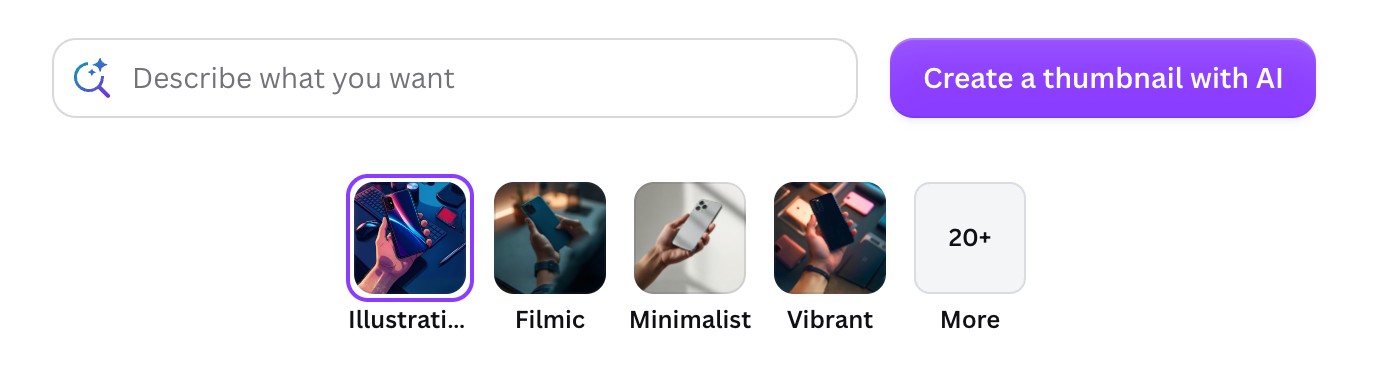
Canva's AI thumbnail prompt and style picker. Source: Canva website
Canva has two relevant pages. Its YouTube thumbnail page lists an easy drag-and-drop editor, 1M+ professionally designed templates, AI content and media generation, and downloads as JPEG or PNG. Its AI thumbnail maker page says to describe the vision in a prompt, choose an art style preset (Illustration, Filmic, Minimalist and Vibrant are shown, with 20+ more) and generate a thumbnail image, which can then be edited with Canva's photo tools.
On the YouTube page, Magic Edit, Magic Grab, Magic Eraser and Magic Expand are tagged PRO, while Dream Lab and Magic Media are tagged FREE. The page says team members can be invited to comment in the editor.
Pricing: Canva's pricing page lists Free at US$0 (limited access to Standard and Premium AI, and 1 Brand Kit with 3 colors), Pro at US$144 a year for one person (5 Brand Kits and "10x more AI than Free") and Business at US$250 a year per person. The AI thumbnail page says a limited number of images can be generated daily for free, with more each month on Pro, Business, Education or Nonprofits.
Considerations: Canva's FAQ says YouTube thumbnails are 1280 x 720 pixels with a 2 MB maximum file size, which differs from YouTube's current help page (see the spec section below). It is a general design editor, so layout and text decisions fall to the creator, and the thumbnail pages read do not describe starting from a video link.
- Choose it if control over layout, text and brand colors matters, or a team needs to review the thumbnail in one editor.
- Skip it if a link-in, thumbnail-out generator is wanted, or the AI image allowance has to be known before starting.
4. Pikzels: Best for the same face and style on every thumbnail

Pikzels' Edit demo. Source: Pikzels website
Pikzels describes itself as a YouTube packaging tool, not a generic image generator. Its pages list Prompt-to-Thumbnail (type a concept), Recreate (the homepage says to paste any thumbnail link and Pikzels recreates the format with the user's edits), Edit (type what to adjust), a score, a one-click fix and a Titles generator.
Two features aim at consistency. Persona takes 3 photos of the creator once so the face can be reused across thumbnails, and Style takes 3 thumbnails so the look stays consistent. The FAQ says credits are spent on generating, recreating, editing or analyzing thumbnails at different amounts by action, reset on the renewal date unless Credit Rollover is enabled at checkout, and need an active subscription.
Pricing: Pikzels' pricing page lists Premium at $40 a month (up to 150 thumbnails a month, 1,000 credits) or $28 a month billed annually at $336 (up to 1,800 thumbnails a year, 18,000 credits), and Ultimate at $80 a month or $56 a month billed annually at $672 (up to 5,400 thumbnails a year). Start for Free buttons appear on the page, but it does not say what the free start includes.
Considerations: Because credits cost different amounts by action, the thumbnail count on a plan card is a ceiling, not a promise. The Recreate route starts from another thumbnail's link; Pikzels' FAQ says the usual rules still apply, including nothing the user does not have the rights to. The pages read list no export format or resolution.
- Choose it if the same face and thumbnail style should carry across many videos, and a paid plan is acceptable.
- Skip it if free ongoing use or a stated export size and format is needed.
5. ThumbnailCreator: Best for thumbnails from a pasted video link, with expression controls
ThumbnailCreator's homepage says to paste a video link and get thumbnails built from the actual video, with the creator's face and style. Its AI Thumbnail Generator page says thumbnails can start from a text description, a YouTube video link (the vendor says it analyzes the video for context), uploaded images or sketches, or a description of an existing thumbnail to recreate. It says generated thumbnails are 1280x720 (16:9) and can be converted to 9:16 for Shorts.
Faces are what separates the plans. The pricing page lists a basic face feature on Starter, and Advanced Face Training plus Person Swap & Expression Morphing on Creator. The Face Swap page says a Face Model is built from 3-5 photos and that Face Models can be created for co-hosts, team members or podcast guests.
Pricing: ThumbnailCreator's pricing page counts 1 credit as 1 thumbnail and lists Starter at $29 a month billed monthly (50 thumbnails a month), or $14.50 a month billed yearly ($174, with 600 thumbnails unlocked up front), and Creator at $49 a month (100 thumbnails a month), or $24.50 a month billed yearly ($294, with 1,200 up front). Teams is listed at $99 a month, or $49.50 a month billed yearly. There is no free plan: the page offers a 7-day free trial with 10 thumbnails to start, and says the plan is billed after the trial.
Considerations: The free route is a trial that converts to a paid plan, not a free tier. Person swap and expression morphing edit faces, so only faces whose owners have agreed should go in (see Red flags). The pages read do not state a file format.
- Choose it if a video link should go in, thumbnails with controllable expressions should come out, and a paid plan is acceptable.
- Skip it if a free plan to keep using after a week, or a free allowance that does not bill, is needed.
6. Thumbnail.ai: Best for polished thumbnails on a business or client channel
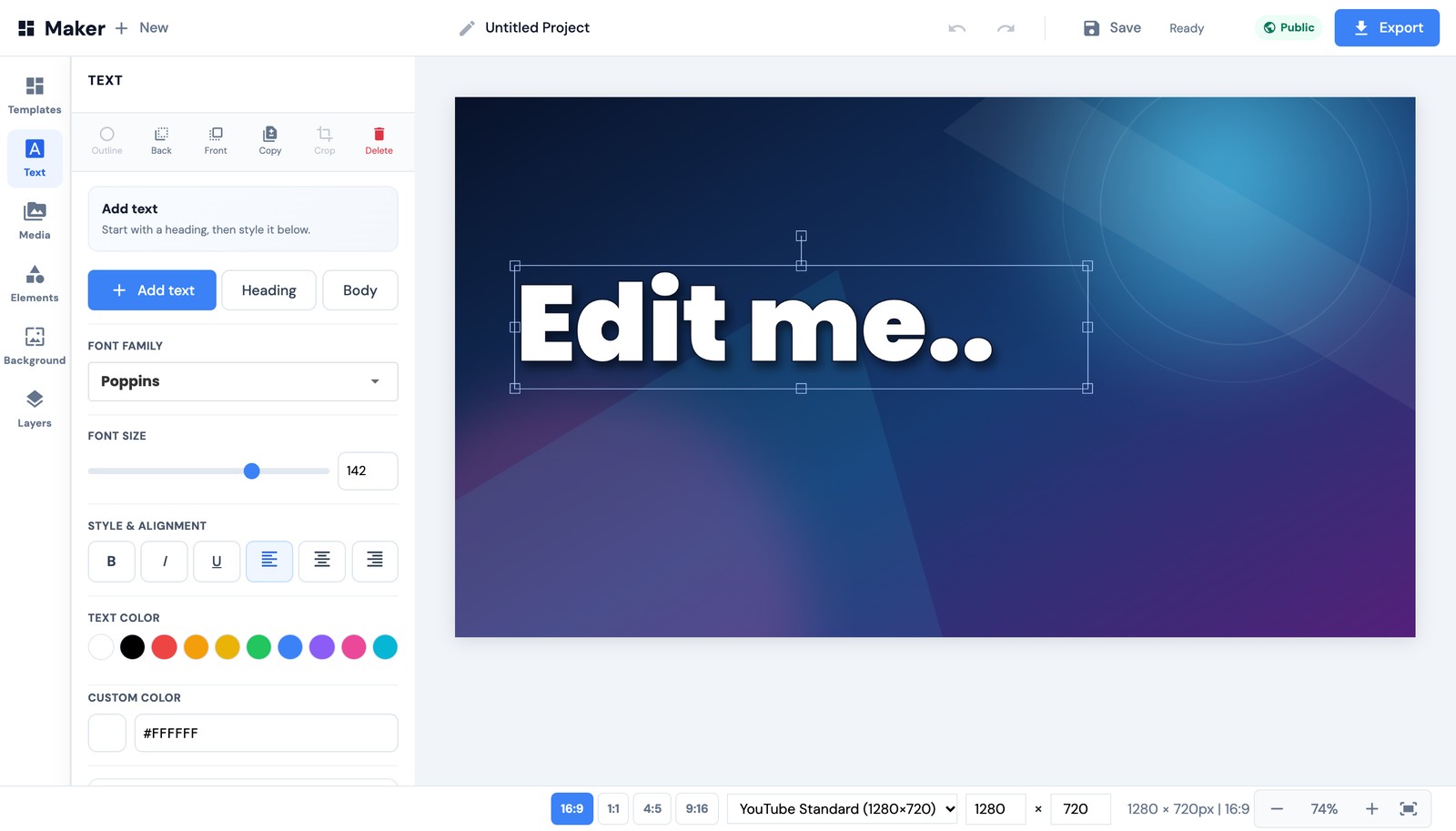
Thumbnail.ai's free maker editor. Source: Thumbnail.ai website
Thumbnail.ai's homepage describes a three-step flow: add the words wanted on the image and describe the subject, optionally upload a photo, product shot, screenshot or reference style, then compare options. Its FAQ says 1 to 8 variations can typically be generated at a time, in 16:9, 9:16 or 1:1, and that prompts, uploaded images, reference styles and follow-up edits can guide the result. It positions itself for professionals and small business owners, not growth hacks.
A separate free maker is a template editor, not an AI generator: its page says a thumbnail can be created, customized and exported for free with templates, stock photos, text, shapes and flexible canvas sizes, and its canvas menu lists YouTube Standard (1280 x 720).
Pricing: Thumbnail.ai's plans page lists Lite at $9 a month (40 monthly credits), Solo at $19 a month (100), Pro at $49 a month (300) and Studio at $99 a month (700), each listed per month, with watermark-free results and a 30-day money-back guarantee. The plans page lists no free AI generation plan; the free route is the manual maker.
Considerations: The pages read list aspect ratios but no file format or resolution for AI results, and no scoring or click-through feature. The navigation also lists a Reaction Faces generator that was not part of this read. The free maker is manual, so a free thumbnail there means building it by hand.
- Choose it if a plain-language request should turn into a polished thumbnail for a business or client channel, with a manual maker as a fallback.
- Skip it if data-backed scoring, a stated export format or free AI generation is needed.
7. YouTube Studio's Ask Studio: Best for thumbnail suggestions inside the YouTube publishing flow
YouTube's help page on custom thumbnails says Ask Studio analyzes a video's transcript and themes to suggest thumbnails. The steps are to open Ask Studio within the publishing workflow, enter a prompt such as "Create a thumbnail", add the video or upload reference images, use follow-up prompts to change things (the page's example is making the thumbnail text larger) and review the generated suggestions. Ask Studio's own help page says up to 10 images can be uploaded into a prompt.
The same custom thumbnails page lists two other routes in Studio: Get suggestions, which generates a thumbnail option, and Upload file, which needs a verified account.
Pricing: YouTube's help pages describe Ask Studio as available to most creators globally and list no separate price, plan or credit allowance.
Considerations: Ask Studio returns suggestions in a chat, and the pages read list no face feature, brand kit or export spec; YouTube says response quality may vary. It is available only in a web browser on a computer, and not to Official Artist Channels, Made for Kids channels or creators under 18.
- Choose it if suggestions should come from the video's transcript and themes without leaving YouTube Studio.
- Skip it if a saved face and style, a template editor or a phone workflow is needed.
8. VEED: Best for a prompt-only thumbnail image made in a video editor
VEED's AI Thumbnail Maker page says to describe the idea, choose a style and aspect ratio, generate, refine the prompt, then download. The prompt can describe the subject, emotion and visual style, and text is added after download in a simple photo editor. The tool sits inside VEED's video platform.
Pricing: VEED's pricing page lists Creator at $12 per user a month billed yearly (no watermark), Pro at $22 and Studio at $39 per user a month billed yearly, and Enterprise at custom pricing. The pricing page headline says to start for free, but the plan cards read list no free plan.
Considerations: VEED's own pages are not consistent about free access. The thumbnail page says "No credit card required" beside its button and "Sign up to download an image", yet its FAQ says the thumbnail maker using the AI Playground requires a subscription and that a paid plan removes watermarks. The page's rules also say to tell viewers the images are AI-generated. Confirm what a new account can download first.
- Choose it if thumbnails and videos are made in the same VEED account and a prompt-only image is enough.
- Skip it if the free allowance must be known before signing up, or a built-in text layout is wanted.
What YouTube says a thumbnail needs
These points come from YouTube's own help pages, read on November 10, 2026, not from the tools above.
- Size and format: YouTube's custom thumbnails page recommends 3840 x 2160 pixels for videos (2160 x 3840 for Shorts), with a minimum width of 640 pixels for videos, in image formats such as JPG or PNG. It lists a limit of 2 MB for video thumbnails uploaded from mobile and 50MB on desktop, a 16:9 aspect ratio for videos and 9:16 for Shorts.
- Vendor pages that still say 1280 x 720: Canva's FAQ gives 1280 x 720 with a 2 MB maximum, and vidIQ and ThumbnailCreator both produce 1280 x 720 files. That size clears the 640-pixel minimum width but is smaller than YouTube's recommendation.
- Who can upload: the page says a custom thumbnail file can be uploaded if the account is verified, and that custom Shorts thumbnails can be added only in YouTube Studio on a computer.
- Policy: custom thumbnails must follow the Community Guidelines. The page says a thumbnail can be rejected, with a strike on the account, if it contains nudity or sexually provocative content, hate speech, violence, or harmful or dangerous content.
- Testing: YouTube's help page, titled "A/B test titles & thumbnails", says creators can test up to 3 titles and thumbnails, and that the version with the highest watch time is shown to all viewers. It is desktop only, does not cover Shorts, and downscales all test thumbnails to 480p if any is below 720p. Our guide to YouTube thumbnail A/B testing tools covers testing, and the guide to YouTube title analyzers and CTR predictors covers scoring titles.
How we compared these tools
We compared each tool on five criteria: what goes in (a link, a file, a prompt or a template), what comes out (the size or format the vendor states), the face and text controls it lists, what a free account can do, and the price with its billing basis. The guide is organised around the job in the title, making a YouTube thumbnail. OpusClip comes first because its YouTube Thumbnail Maker page does that job from a video link; its limits are stated in its entry. Items 2 to 8 follow one yardstick: how completely the vendor's own pages state what goes in, what comes out and what a free account can download. vidIQ's page states all three, so it leads that group; Canva, Pikzels, ThumbnailCreator, Thumbnail.ai and Ask Studio each leave one out, and VEED is last because its own pages disagree on whether a free account can download.
All facts come from each vendor's own pricing page, product page or help center, and from YouTube's help pages, read in headless Chrome on November 10, 2026. We did not run hands-on tests of any tool. We also read Kapwing's YouTube thumbnail page, which describes a manual freeze-frame route with no AI step, and left it out. Adobe's pages returned an access-denied response to our scripts, so Adobe Express is not covered, and the tools in our thumbnail A/B testing guide are left to that guide. Prices change, so confirm on the vendor page before buying.
Red flags to watch for
- Specs that differ from YouTube's. Canva's FAQ gives 1280 x 720 and a 2 MB maximum, and the files from vidIQ and ThumbnailCreator are 1280 x 720, below the 3840 x 2160 YouTube recommends. YouTube's page lists the 2 MB limit for mobile uploads only.
- Free tiers that do not print their limits. OpusClip's tool page prints none, vidIQ says only "your first few", Pikzels shows Start for Free without details, and VEED's pages disagree.
- Credits that cost different amounts. Pikzels spends different credits by action, ThumbnailCreator counts 1 credit as 1 thumbnail, and vidIQ and Thumbnail.ai meter AI credits, so compare the unit before the price.
- Faces and real people. ThumbnailCreator lists person swap and expression morphing, and ThumbnailCreator's page says Face Models can be made for guests. YouTube's disclosure page lists making a real person appear to say or do something they did not among content creators must disclose, so use only faces whose owners agreed.
- Recreating another creator's thumbnail. Pikzels and ThumbnailCreator both list recreating an existing thumbnail, and Pikzels' own FAQ says nothing the user does not have the rights to. Copy a format, not someone else's artwork.
- Text the model got wrong. AI image tools can draw misspelled or garbled words, so read every letter of a generated thumbnail before uploading it.
Frequently asked questions
What is the best AI YouTube thumbnail maker?
For turning a video link into a thumbnail, OpusClip fits best in this guide: its free YouTube Thumbnail Maker page takes a link and has an Include face option. vidIQ is the pick for a free, watermark-free first try from a link, a file or a prompt, Pikzels for the same face and style on every thumbnail, and Canva for building one by hand. See OpusClip pricing for the clipping product's plans.
How do I make a YouTube thumbnail with AI?
Give a tool the source, pick from the designs it returns, fix the text and face, then upload the file in YouTube Studio under Content, the video, Thumbnail, Upload file. With OpusClip, the flow starts on its YouTube Thumbnail Maker page: drop the video link and generate.
Is there a free YouTube thumbnail maker?
Yes, with limits. OpusClip's tool page is labelled Free, vidIQ says its maker is free to use with no watermark on the free plan, Canva's page says a limited number of AI images can be generated daily for free, and Thumbnail.ai's free maker is a template editor. ThumbnailCreator offers a 7-day trial, and Pikzels and VEED do not say clearly what free includes.
What size should a YouTube thumbnail be?
YouTube's help page recommends 3840 x 2160 pixels for videos (2160 x 3840 for Shorts) at a 16:9 ratio for videos, in JPG or PNG, with a 640-pixel minimum width for videos and a 2 MB limit on mobile uploads and 50MB on desktop. Several vendor pages still say 1280 x 720, which clears the minimum but is smaller than the recommendation.
Do I have to tell YouTube a thumbnail is AI-generated?
YouTube's disclosure page lists production assistance, such as using generative AI tools to create or improve a thumbnail, title or script, among the examples that need no disclosure, and lists making a real person appear to say or do something they did not as content that must be disclosed. This is a summary of YouTube's page, not legal advice; read it before publishing a realistic generated scene.
Can I put my own face in an AI thumbnail?
Yes, on several tools. vidIQ takes a selfie, Pikzels builds a Persona from 3 photos, ThumbnailCreator builds a Face Model from 3-5 photos, and OpusClip's page names an Include face option. Permission is the safe default for anyone else's face.
How do I find out which thumbnail works best?
Make two or three distinct versions and test them: YouTube's help page says creators can test up to 3 titles and thumbnails, and that the version with the highest watch time is shown to all viewers. Our guide to YouTube thumbnail A/B testing tools compares the tools built for that job.