OpusClip 4.0 is here. Become a content powerhouse.

8 Best Auto Video Editors (Automatic Video Editing Software) in 2026
November 4, 2026
Three creators filming and editing at laptops and a podcast mic, with an Auto edit button, a 9:16 tag and a views badge

OpusClip is our first pick among auto video editors for talking videos: its Auto Edit takes one raw recording, uploaded or pasted as a link, and returns an edited video with the edits that were switched on (captions, a hook for the opening seconds, motion graphics, B-roll, speech cleanup and sound effects). VEED and Kapwing are the picks for auto edits in the browser, Descript for steering an AI co-editor while reading the transcript, CapCut for free one-click cuts, and Gling, AutoCut and Auto-Editor for automatic silence and bad-take cutting. We ranked 8 tools by how much of the edit each one does without anyone directing every cut, then by whether the result can be reviewed and changed, price and free access.

What an auto video editor does

An auto video editor makes the editing decisions a person would otherwise make by hand on a timeline: where to cut, which words to caption, where to add B-roll or a sound effect. The eight tools here fall into three kinds.

  • Finishing editors (OpusClip, VEED, Kapwing): take a raw recording and apply a set of edits in one run, such as cuts, captions, B-roll and a hook, then hand back a video that can still be adjusted in an editor.
  • Cutters (Gling, AutoCut, Auto-Editor): focus on removing dead air, filler words, retakes or motionless sections, then export a video or a timeline for another editor to finish.
  • General editors with automatic tools (Descript, CapCut): AI handles the repetitive steps, from a chat with an AI co-editor (Descript) to one-click scene cuts and templates (CapCut).

For narrower versions of this job, see our roundups of AI tools that edit raw footage, AI tools for talking-head videos and AI silence removers; for the wider category, see our AI video editors roundup.

At a glance

  • OpusClip: best for turning a raw talking video into an edited video in one pass with Auto Edit; Starter $15 a month, Pro $29 a month ($14.50 a month billed annually); free plan yes (watermark, and no editing per the pricing page).
  • VEED: best for browser-based auto edits such as noise removal, B-roll and one-click silence cuts; Creator $12 a user a month billed yearly; free to start.
  • Kapwing: best for prompting an editor to assemble several recordings into a first draft; Pro listed at $16 a month; free plan yes (watermark, 4-minute exports).
  • Descript: best for an AI co-editor that can be steered while reading the transcript; Hobbyist $16 a person a month on annual billing ($24 monthly); free plan yes (60 media minutes a month).
  • CapCut: best for free one-click cuts and templates for short vertical videos; Pro $19.99 a month; free plan yes (basic editing tools).
  • Gling: best for cutting silences, filler words and bad takes from spoken footage; Plus $20 a month ($10 a month on annual billing); free plan yes (1 hour a month, watermark).
  • AutoCut: best for automatic cuts inside Premiere Pro and DaVinci Resolve; AI plan $14.90 a month billed yearly; 14-day free trial.
  • Auto-Editor: best for free, scriptable silence and motion cutting; the open-source command-line tool is free, and the paid app is a one-time purchase from $23.99.

1. OpusClip: Best for turning a raw talking video into an edited video in one pass
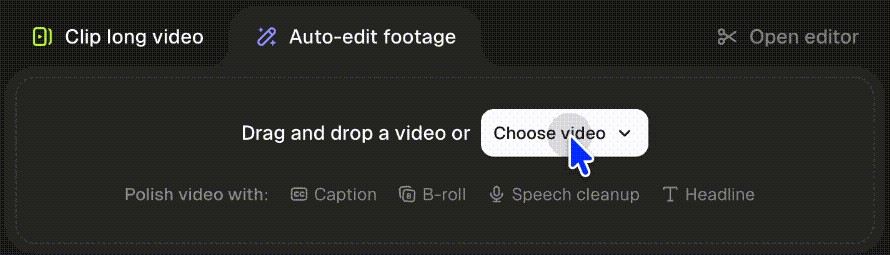
OpusClip home screen with the Auto-edit footage tab, a drop zone and quick options for caption, B-roll, speech cleanup and headline

The Auto-edit footage tab in OpusClip. Source: OpusClip Help Center

OpusClip added Auto Edit with OpusClip 4.0, which its launch post dates to November 2, 2026. In plain words: what goes in is one raw recording of someone talking, uploaded as a file or pasted as a link. What the user picks is which edits to run, either by starting from the built-in Auto-edit talking videos Recipe or by switching edits on and off one at a time. What comes out is one edited video, which can be opened in the editor to change anything the AI chose. On the OpusClip home screen this sits in the Auto-edit footage tab, next to Clip long video, with quick options for captions, B-roll, speech cleanup and a headline. OpusClip also has an Auto Video Editor page with an upload box and an Auto-edit button.

help.opus.pro documents what the edits do. The Viral Hook adds animated text, zoom effects and matching sound effects to the opening seconds, filled with the speaker's captions or the video's theme. Motion Graphics reads the transcript and adds animated graphics for details such as names, numbers and dates. Auto SFX detects key moments and places sound effects on the timeline, where each one can be moved, adjusted or deleted. B-roll can be AI images, AI video or stock footage. In the editor, Speech Cleanup highlights filler words, pauses and bad takes (retakes, restarts and self-corrections) for review before anything is removed. A custom Recipe saves the chosen edits and settings so the next video is edited the same way (how Recipes work).

The rest of the path sits in the same account. The Clip long video tab cuts a long recording into short clips with a Virality Score, the editor handles manual changes, auto-posting to YouTube Shorts, TikTok and Instagram Reels starts on Starter, and Pro adds a social media scheduler and export to Adobe Premiere Pro and DaVinci Resolve, per opus.pro/pricing.

The OpusClip 4.0 tutorial walks through the full workflow, from importing footage to scheduling posts.

Pricing: Per opus.pro/pricing (read Nov 4 2026), Free is $0 with a watermark and, per the pricing page, no editing; help.opus.pro confirms that Free-plan clips carry an OpusClip watermark and that upgrading removes it. Starter is $15 a month (monthly billing only). Pro is $29 a month, or $14.50 a month billed annually ($174). Business is custom. OpusClip plans run on credits, and the Recipe page shows a Summary of the selected edits and their credit usage before Create is clicked. help.opus.pro limits some edits, including the Viral Hook and Motion Graphics, to certain paid plans, so check which edits a plan includes before relying on them.

Considerations: Auto Edit is built for talking videos. help.opus.pro says the Viral Hook and Motion Graphics edits work best on single-speaker talking-head video, and that the hook works best when the opening seconds are one continuous shot, so screen recordings, multi-speaker layouts and footage with little speech are weaker fits. OpusClip is an edit-and-publish tool, not a replacement for a full non-linear editor, and Recipes cannot yet be saved from inside the editor.

  • Choose it if the raw footage is one person talking to camera, the goal is a captioned, polished video from one setup, and that setup should be reusable on the next video.
  • Skip it if the work is multitrack timeline editing, a screen recording or a multi-speaker shoot, or the only need is silence removal and a free command-line tool is enough.

2. VEED: Best for browser-based auto edits such as noise removal, B-roll and one-click silence cuts
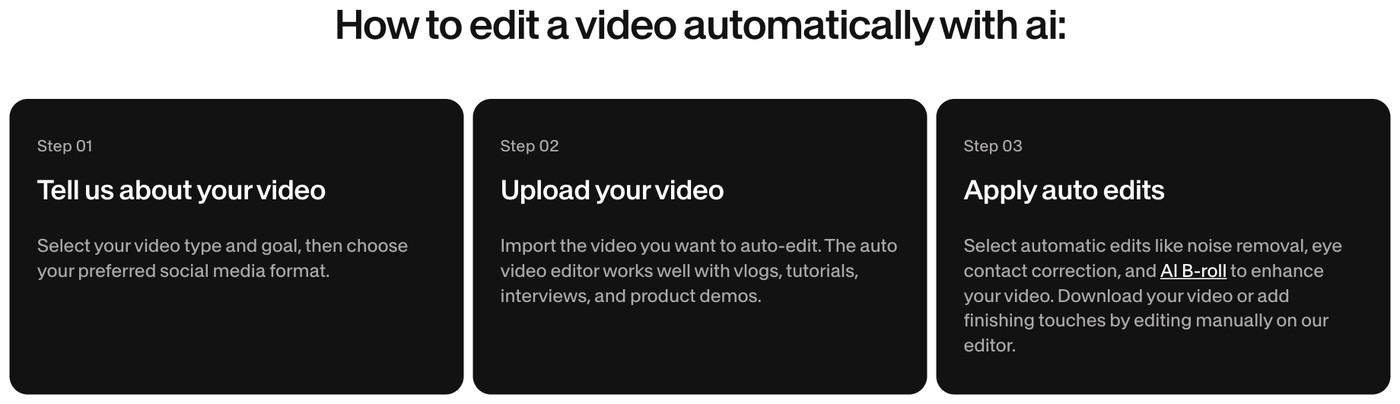
VEED Auto Video Editor page showing three steps: tell us about your video, upload your video and apply auto edits

VEED's three-step auto edit flow. Source: VEED website

VEED's Auto Video Editor page describes a three-step flow: choose the video type, goal and social format, upload the video, then apply automatic edits such as noise removal, eye contact correction and AI B-roll, and either download the result or keep editing by hand in VEED's editor. The page also says that in the editor a Magic Cut button removes filler words and silences in one click, and it lists dynamic captions and resizing for different social platforms. VEED says the tool works well with vlogs, tutorials, interviews and product demos.

It suits creators who want automatic edits and a full browser editor in the same place.

Pricing: VEED's pricing page lists Creator at $12 per user a month billed yearly (no watermark, unlimited auto subtitles) and Pro at $22 per user a month billed yearly (multiple Brand Kits, translation to 50+ languages), with Enterprise custom. The auto video editor page says to start for free and upgrade for watermark-free exports and full access to the AI tools. The pricing page also lists AI credits on each paid plan; see the pricing page for the current allowance and for monthly billing prices.

Considerations: Billing is per user, and the AI tools draw on a credit allowance. The edit happens in VEED's own online editor rather than inside a desktop editor.

  • Choose it if automatic cleanup and a full manual editor should live in the same browser tab, for talking videos, tutorials and interviews.
  • Skip it if the edit has to run inside Premiere Pro or DaVinci Resolve, or the team needs one flat price instead of per-user billing with a credit allowance.

3. Kapwing: Best for prompting an editor to assemble several recordings into a first draft
Kapwing Automatic Video Editor page headline with the line Auto-edit videos, just by asking AI

Kapwing's Automatic Video Editor page. Source: Kapwing website

Kapwing's Automatic Video Editor page describes editing by asking AI. Upload many clips and long recordings, describe the video in a prompt, and the tool analyzes the transcript, detects speech and extracts the moments the prompt asks for, assembling them into a first draft that can be refined in Kapwing's studio. The same page describes removing silences, filler words and stutters from a prompt, and generating a fully edited video from a prompt, script or article with voiceover, subtitles, B-roll and music. Kapwing's menu also lists Smart Cut, which removes silences automatically, and the page links a Kapwing MCP for use from Claude or ChatGPT.

It suits marketing teams, podcasters and trainers who turn webinars, interviews and demos into shorter videos by describing the result instead of cutting it.

Pricing: Kapwing's pricing page lists Free at $0 with 10 credits, exports with a watermark, exports up to 4 minutes long and 720p quality. Pro is listed at $16 a month (the page has a monthly and annual toggle that advertises 33% off annual billing) with 1,000 credits a month, no watermark, 4K export, exports up to 2 hours and a Brand Kit with custom fonts. Business is listed at $50 with 4,000 credits a month.

Considerations: The Free plan's watermark and 4-minute export cap make it a trial rather than a working plan, and the AI tools draw on credits and monthly minute allowances listed on the pricing page. The page itself calls the prompt-driven result a first draft, so a review pass is part of the job.

  • Choose it if the source is several recordings and the quickest route to a first cut is describing the video in words.
  • Skip it if a saved set of edits (captions, hook, B-roll) should run the same way on every video, since Kapwing's page describes prompting rather than a fixed setup.

4. Descript: Best for an AI co-editor that can be steered while reading the transcript
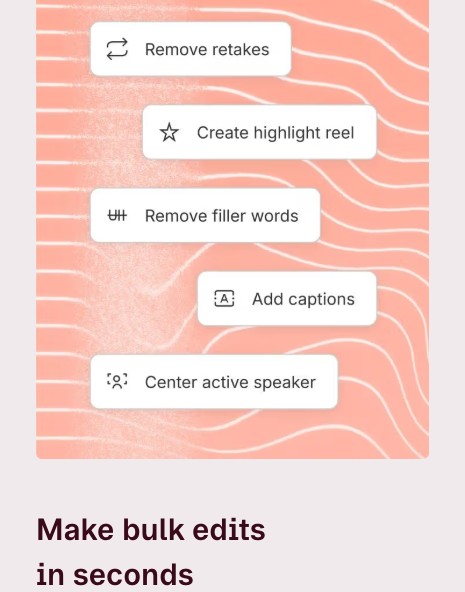
Descript Underlord tile listing Remove retakes, Create highlight reel, Remove filler words, Add captions and Center active speaker

Underlord's bulk edits on Descript's Underlord page. Source: Descript website

Descript's pricing page describes text-based editing as editing video by editing a doc, and lists Underlord as its AI video co-editor. Descript's Underlord page says the assistant can read the script, watch the video and decide what to do next, makes suggestions and takes feedback, and shows example prompts such as hiding jump cuts by adding zooms. The pricing page's tool list names automatic edits including Remove Filler Words, Shorten Word Gaps, Edit for Clarity, Remove Retakes, Automatic Multicam, Center Active Speaker and Create clips.

It suits editors who want the transcript in view, approve the changes and let AI handle the repetitive removals.

Pricing: Descript's pricing page lists Free with 60 media minutes a month, 100 one-time AI credits and 720p export, with Underlord and most AI tools marked Limited. Hobbyist is $16 per person a month on annual billing ($24 monthly) with 10 media hours, 400 AI credits a month and watermark-free 1080p export. Creator is $24 ($35 monthly) with 30 media hours, 800 credits and 4K export. Business is $50 ($65 monthly).

Considerations: Both media hours and AI credits are metered, so heavy use of Underlord can reach the credit allowance, and the AI tools are limited on Free. Descript's page describes a collaborator that suggests and takes feedback, not a one-click finish.

  • Choose it if the edit should stay under editorial control, with AI doing removals and first passes inside a transcript editor.
  • Skip it if the goal is a ready-to-post vertical video with minimal direction, or the budget cannot absorb media-hour and credit limits.

5. CapCut: Best for free one-click cuts and templates for short vertical videos
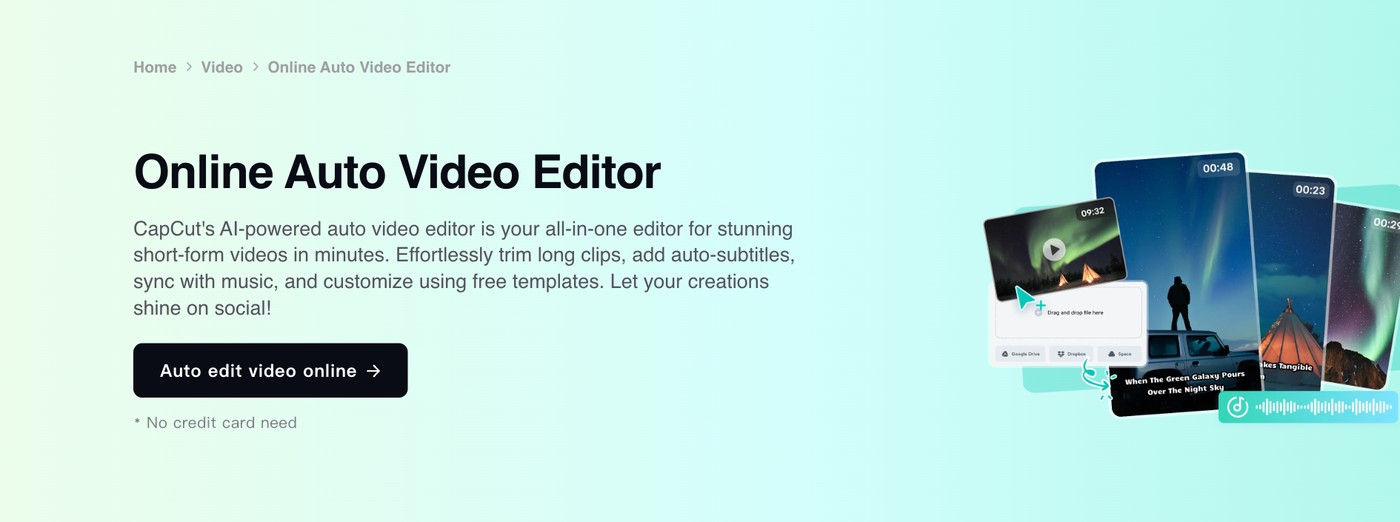
CapCut Online Auto Video Editor page with a mock-up of vertical clips cut from long footage

CapCut's Online Auto Video Editor page. Source: CapCut website

CapCut's Online Auto Video Editor page describes one-click automatic cutting powered by AI scene detection that trims long footage into short clips and highlights key moments, plus free templates that generate a complete video. Its steps for CapCut Web use a Long video to shorts tool: upload a video, choose the length and a caption template, click Convert, review the generated clips, open Edit more to adjust text, timing or style, and export. The page also lists auto-subtitles and music sync, and says the editor is available in the browser and in mobile and desktop apps.

It suits creators aiming at short vertical posts for TikTok, Reels or Shorts on a small budget.

Pricing: CapCut's pricing page lists Free with free templates and basic editing tools. Pro is $19.99 a month ($179.99 billed yearly) with 1,200 monthly AI credits, premium templates and 1 TB of storage. Ultra is $79 a month, and Teams is $12.49 a month per seat with a brand kit. The page notes that displayed pricing is for reference only and that the final price shows after sign-in.

Considerations: CapCut's auto video editor page describes the tool as free to use, while the pricing page lists access to AI features under the paid tiers, so which smart tools are free is worth confirming before a project depends on them. The page describes scene detection and templates; it does not describe removing filler words or retakes.

  • Choose it if the target is short vertical posts, the budget is close to zero, and scene-based cuts and templates are enough.
  • Skip it if the footage is talking-heavy and needs filler words, retakes or pauses removed automatically, or the same edit must run unchanged on every video.

6. Gling: Best for cutting silences, filler words and bad takes from spoken footage
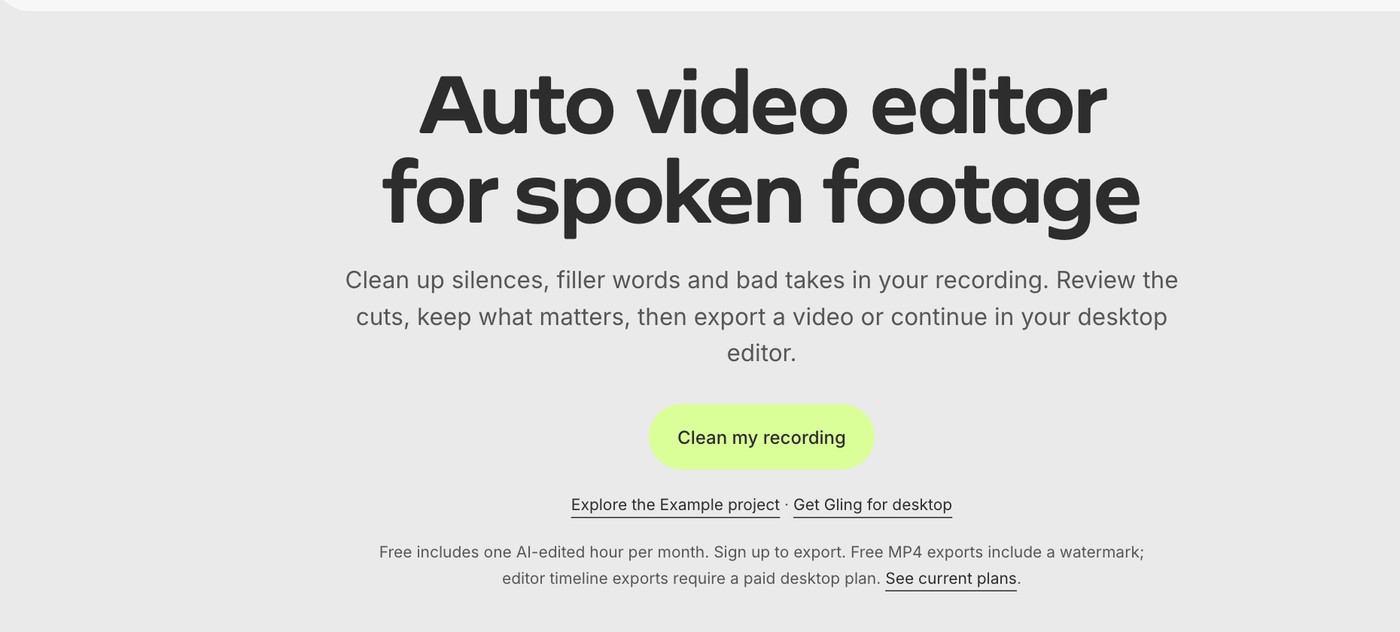
Gling Auto video editor page for spoken footage with a Clean my recording button

Gling's Auto video editor page. Source: Gling website

Gling's Auto video editor page describes a cleanup pass for spoken footage: silences, filler words and bad takes in a recording are found and proposed as cuts, the cuts can be reviewed and adjusted, and the result is exported as a video or as an editor timeline for Premiere Pro, DaVinci Resolve or Final Cut Pro. Its pricing page also lists AI captions, subtitle export as SRT, automatic zoom framing, multicam editing, AI B-rolls, speech audio enhancement and YouTube title and chapter generators. The home page says it works with video and audio files.

It suits solo creators and YouTubers who record long, talking-heavy takes and want the dead air gone before finishing the video in Gling or another editor.

Pricing: Gling's pricing page lists Free at $0 with 1 hour of AI-edited media a month and unlimited export with a watermark. Plus is $20 a month ($10 a month on annual billing) with 10 hours; Pro is $40 ($20 annual) with 30 hours; Elite is $100 ($50 annual) with 100 hours. Paid plans export without a watermark, and the Auto video editor page says editor timeline exports need a paid desktop plan.

Considerations: Gling is built for spoken footage, and allowances are counted in hours of AI-edited media. The pricing page does not list publishing to social platforms, so posting happens elsewhere.

  • Choose it if the job is cleaning up long spoken recordings and handing a tight cut to Premiere Pro, DaVinci Resolve or Final Cut Pro.
  • Skip it if the need is captions-first short clips, posting to social platforms from the same tool, or footage with little speech.

7. AutoCut: Best for automatic cuts inside Premiere Pro and DaVinci Resolve
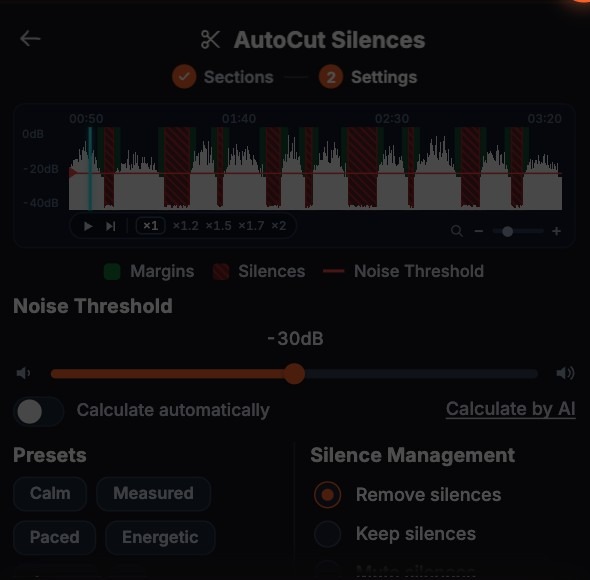
AutoCut Silences panel with a waveform, a noise threshold slider, presets and silence management options

The AutoCut Silences panel in AutoCut's interactive demo. Source: AutoCut website

AutoCut describes itself as an AI video editing plugin for Premiere Pro and DaVinci Resolve that removes silences and adds captions without leaving the video editor. Its AutoCut Silences panel exposes a noise threshold, presets such as Calm, Measured, Paced and Energetic, margin controls, and a choice to remove, keep or mute silences. The pricing page lists the features of its AI plan: AutoCut Silences, AutoCaptions, podcast editing, automatic camera angle switches, AutoZoom, AutoViral for short clips, AutoB-Rolls using stock video, removal of bad takes, a profanity filter and automatic chapters.

It suits editors who already work in Premiere Pro or DaVinci Resolve and want the automatic steps on the timeline they are already using.

Pricing: AutoCut's pricing page (read in USD on Nov 4 2026) lists a Basic plan that includes only silence removal at $6.60 a month billed yearly ($79), and an AI plan with the full feature list at $14.90 a month billed yearly ($178.80); the page shows $19.80 a month as the original price of the AI plan. Enterprise is priced per license. AutoCut runs on Mac and Windows with a 14-day free trial and no credit card required.

Considerations: AutoCut is a plugin, so it needs Premiere Pro or DaVinci Resolve already in the workflow and does not work as a standalone editor. The plan split matters: the Basic plan covers only silence removal, and the other automatic features sit in the AI plan.

  • Choose it if the editing already happens in Premiere Pro or DaVinci Resolve and the pain is repetitive cutting, captions and zooms.
  • Skip it if the edit happens in a browser or on a phone, or there is no Adobe or Blackmagic editor in the workflow.

8. Auto-Editor: Best for free, scriptable silence and motion cutting
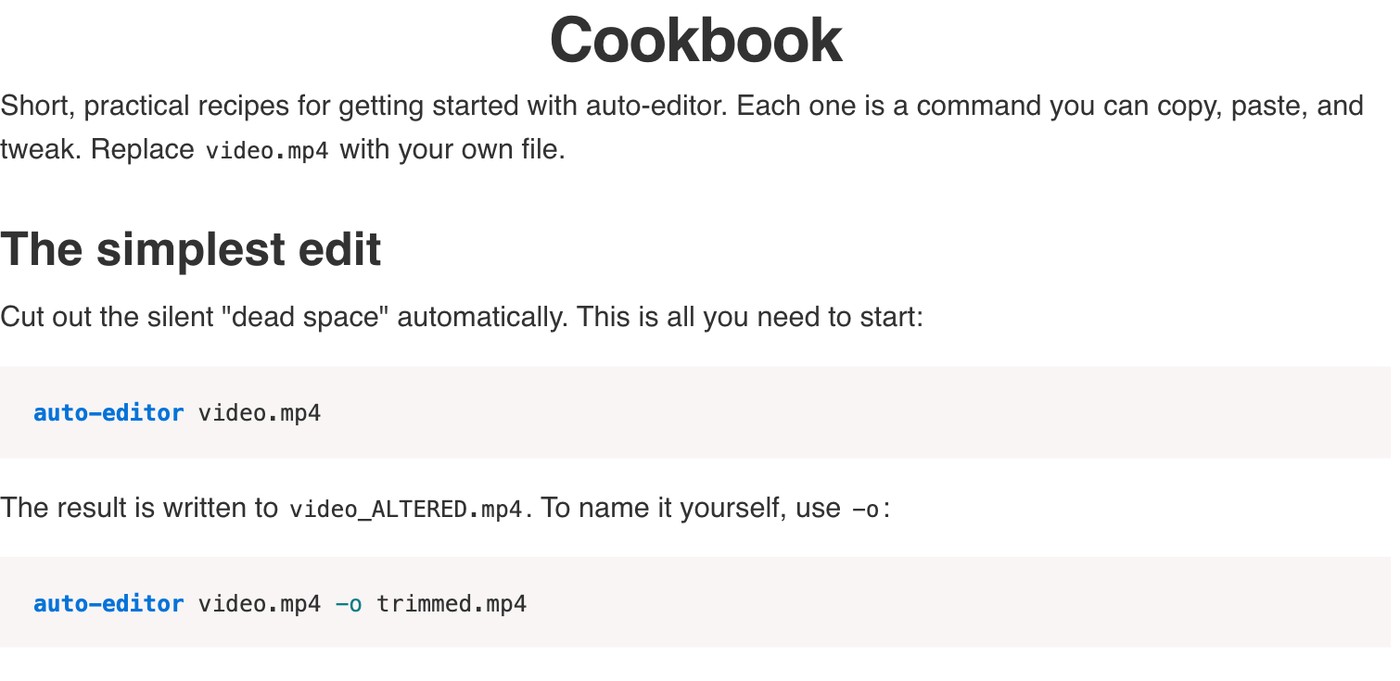
Auto-Editor cookbook showing the command auto-editor video.mp4 that cuts silent dead space automatically

Auto-Editor's cookbook. Source: Auto-Editor website

Auto-Editor is an open-source command-line tool that edits video and audio by analyzing audio loudness, motion and subtitles. Its cookbook starts with one command that cuts out the silent dead space automatically, and the GitHub README shows options to adjust the margin around cuts, to cut motionless sections instead of silence, and to export the result as an XML timeline for Premiere Pro, DaVinci Resolve, Final Cut Pro, ShotCut or Kdenlive, or as individual clips. The README places the repository in the public domain (Unlicense).

The README also links an app and an online version built on the project's assets under a separate proprietary license; the app's page says the online version runs in the browser (Chrome, Edge and Firefox) and does its work locally, so media stays on the computer.

Pricing: The command-line tool is free. The app page says it can be downloaded and evaluated for free, including 6 exports up to 3200 by 1800, with no time limit. Licenses are one-time purchases that include 3 years of updates: Personal is $23.99, Pro is $75 (hardware-accelerated encoders and full round-trip exports to editors such as Premiere, Final Cut and Resolve) and Studio is $179 (commercial-use license and premium support). Renewal after three years is 80% of the tier price.

Considerations: Auto-Editor cuts based on loudness, motion and subtitles. The pages we read do not list captions, B-roll or filler-word detection, and the command-line tool needs some comfort with a terminal.

  • Choose it if a free, repeatable first pass that removes silence from many files is the goal, with the cuts finished in any editor.
  • Skip it if the need is captions, B-roll, hooks or a finished post without opening another editor.

How we compared these tools

We compared the eight tools on four criteria: how much of the edit runs without someone directing each cut; whether the result can be reviewed and changed afterwards; price and free-plan limits; and how clearly the vendor documents what the tool does. Every fact comes from the vendor's own pages (pricing pages, feature pages, help center articles and, for Auto-Editor, its documentation and GitHub README), read on November 4, 2026. Pages that load prices with JavaScript were read in a browser, in US dollars. We did not run hands-on tests of the other seven tools, so the descriptions say what each vendor's pages state, and where a vendor's pages disagree with each other we say so. OpusClip's own facts come from opus.pro/pricing and help.opus.pro. Prices and limits change often, so confirm them on the vendor's pricing page before buying.

How to choose

Start with what the footage is and what the finished video must look like.

  • If the footage is a raw talking video and the goal is a finished, captioned post, look for one run that applies several edits and stays editable: OpusClip, VEED, Kapwing.
  • If the job is removing silences, filler words and retakes, look for cuts that can be reviewed before they are applied: Gling, AutoCut, Descript, Auto-Editor, plus Speech Cleanup in OpusClip.
  • If the edit lives in Premiere Pro or DaVinci Resolve, look for a plugin or a timeline export: AutoCut, Gling (paid desktop plan), Auto-Editor.
  • If the budget is zero, look for a usable free tier or free software: Auto-Editor, CapCut, Gling, Kapwing, OpusClip.
  • If editorial control matters more than speed, look for a transcript or timeline view with suggestions: Descript.
  • If the same edit repeats on every video, look for a saved setup or a repeatable command: OpusClip Recipes, Auto-Editor.

Red flags to watch for

  • Cuts that apply with no review step. Look for highlighted cuts that can be accepted or rejected, as in OpusClip's Speech Cleanup and Gling's review step.
  • Watermarks on free exports. OpusClip Free, Kapwing Free and Gling Free export with a watermark.
  • Allowances counted in hours, minutes or credits. Descript meters media hours and AI credits, Gling meters hours of AI-edited media, Kapwing and VEED meter credits, and OpusClip runs on credits.
  • Features gated by plan. AutoCut's Basic plan covers only silence removal, and help.opus.pro limits some OpusClip edits to certain paid plans.
  • Prices shown for reference only. CapCut's pricing page says the final price appears after sign-in.
  • Per-seat billing. VEED and CapCut Teams price per user or per seat.
  • Export caps. Kapwing Free exports are limited to 4 minutes.

Frequently asked questions

What is the best auto video editor?

For a raw talking video that should become a finished, captioned post, OpusClip is our first pick, because its Auto Edit applies several edits in one run and the result stays editable. VEED and Kapwing are the alternatives for automatic edits in the browser, Descript for transcript-based control, Gling, AutoCut and Auto-Editor for silence and bad-take cutting, and CapCut for free one-click cuts and templates. The best choice depends on the footage and on how much review the edit needs.

What is automatic video editing software?

Automatic video editing software makes editing decisions that would otherwise be made by hand on a timeline: where to cut silence or retakes, which words to caption, and where to add B-roll, graphics or sound effects. Some tools run a set of edits in one pass and return a finished video, some only cut dead air, and some add AI assistance to a general editor. The eight tools above fall into those three groups.

How does OpusClip's Auto Edit work?

A raw recording of someone talking goes in, uploaded or pasted as a link. The user picks which edits to run, for example by starting from the Auto-edit talking videos Recipe, which applies captions, a Viral Hook, Motion Graphics, B-roll, speech cleanup and other automatic edits per help.opus.pro. One edited video comes out, and it can be opened in the editor to change any of those choices. A custom Recipe saves the setup for the next video; how Recipes work covers the steps.

What is the difference between Auto Edit and clipping in OpusClip?

Clip long video finds highlights in a long recording and turns them into short clips with captions and a headline. Auto Edit works on one video and applies edits such as captions, a hook, B-roll and speech cleanup to it. help.opus.pro lists them as separate built-in Recipes, and OpusClip's launch post says clipping is not going away.

What is the best free auto video editor?

Auto-Editor's command-line tool is free software, and its app can be evaluated for free with no time limit (6 exports up to 3200 by 1800). CapCut Free offers basic editing tools and templates. Gling Free includes 1 hour of AI-edited media a month with watermarked exports, Kapwing Free exports with a watermark and up to 4 minutes, and OpusClip Free is $0 with a watermark. AutoCut offers a 14-day free trial. Each vendor's free tier limits what can be exported, so check the watermark and length limits first.

Can an auto video editor remove silences and filler words automatically?

Yes, several can. Gling, AutoCut and Auto-Editor are built around silence removal, and Gling and AutoCut also list bad takes. Descript lists Remove Filler Words, Shorten Word Gaps and Remove Retakes, VEED's page describes Magic Cut for filler words and silences, Kapwing lists Smart Cut for silences, and OpusClip's Speech Cleanup detects fillers, pauses and bad takes for review. Reviewing the cuts before exporting is still worthwhile, since a cut can remove a pause the speaker meant.

Is there an open-source automatic video editor?

Auto-Editor is the one in this list. It is a command-line application whose README places it in the public domain; it analyzes audio loudness, motion and subtitles to cut silent or motionless sections, and it exports XML for editors such as Premiere Pro, DaVinci Resolve and Final Cut Pro.

Which auto video editors work with Premiere Pro or DaVinci Resolve?

AutoCut runs as a plugin inside Premiere Pro and DaVinci Resolve. Gling exports an editor timeline for Premiere Pro, DaVinci Resolve or Final Cut Pro on a paid desktop plan, Auto-Editor exports XML for several editors, and OpusClip's pricing page lists export to Adobe Premiere Pro and DaVinci Resolve on the Pro plan.
On this page

Use our Free Forever Plan

Find the moment. Skip the scrubbing.

From script to polished video — in one click.

Create and post one short video every day for free, and grow faster.

OpusSearch uses AI to surface the exact clip you need from hours of footage — in seconds, not afternoons.

Agent Opus runs the entire video pipeline for you: research, scriptwriting, storyboarding, motion, voice, and edit. Upload the idea, post the result.

8 Best Auto Video Editors (Automatic Video Editing Software) in 2026

OpusClip is our first pick among auto video editors for talking videos: its Auto Edit takes one raw recording, uploaded or pasted as a link, and returns an edited video with the edits that were switched on (captions, a hook for the opening seconds, motion graphics, B-roll, speech cleanup and sound effects). VEED and Kapwing are the picks for auto edits in the browser, Descript for steering an AI co-editor while reading the transcript, CapCut for free one-click cuts, and Gling, AutoCut and Auto-Editor for automatic silence and bad-take cutting. We ranked 8 tools by how much of the edit each one does without anyone directing every cut, then by whether the result can be reviewed and changed, price and free access.

What an auto video editor does

An auto video editor makes the editing decisions a person would otherwise make by hand on a timeline: where to cut, which words to caption, where to add B-roll or a sound effect. The eight tools here fall into three kinds.

  • Finishing editors (OpusClip, VEED, Kapwing): take a raw recording and apply a set of edits in one run, such as cuts, captions, B-roll and a hook, then hand back a video that can still be adjusted in an editor.
  • Cutters (Gling, AutoCut, Auto-Editor): focus on removing dead air, filler words, retakes or motionless sections, then export a video or a timeline for another editor to finish.
  • General editors with automatic tools (Descript, CapCut): AI handles the repetitive steps, from a chat with an AI co-editor (Descript) to one-click scene cuts and templates (CapCut).

For narrower versions of this job, see our roundups of AI tools that edit raw footage, AI tools for talking-head videos and AI silence removers; for the wider category, see our AI video editors roundup.

At a glance

  • OpusClip: best for turning a raw talking video into an edited video in one pass with Auto Edit; Starter $15 a month, Pro $29 a month ($14.50 a month billed annually); free plan yes (watermark, and no editing per the pricing page).
  • VEED: best for browser-based auto edits such as noise removal, B-roll and one-click silence cuts; Creator $12 a user a month billed yearly; free to start.
  • Kapwing: best for prompting an editor to assemble several recordings into a first draft; Pro listed at $16 a month; free plan yes (watermark, 4-minute exports).
  • Descript: best for an AI co-editor that can be steered while reading the transcript; Hobbyist $16 a person a month on annual billing ($24 monthly); free plan yes (60 media minutes a month).
  • CapCut: best for free one-click cuts and templates for short vertical videos; Pro $19.99 a month; free plan yes (basic editing tools).
  • Gling: best for cutting silences, filler words and bad takes from spoken footage; Plus $20 a month ($10 a month on annual billing); free plan yes (1 hour a month, watermark).
  • AutoCut: best for automatic cuts inside Premiere Pro and DaVinci Resolve; AI plan $14.90 a month billed yearly; 14-day free trial.
  • Auto-Editor: best for free, scriptable silence and motion cutting; the open-source command-line tool is free, and the paid app is a one-time purchase from $23.99.

1. OpusClip: Best for turning a raw talking video into an edited video in one pass

OpusClip home screen with the Auto-edit footage tab, a drop zone and quick options for caption, B-roll, speech cleanup and headline

The Auto-edit footage tab in OpusClip. Source: OpusClip Help Center

OpusClip added Auto Edit with OpusClip 4.0, which its launch post dates to November 2, 2026. In plain words: what goes in is one raw recording of someone talking, uploaded as a file or pasted as a link. What the user picks is which edits to run, either by starting from the built-in Auto-edit talking videos Recipe or by switching edits on and off one at a time. What comes out is one edited video, which can be opened in the editor to change anything the AI chose. On the OpusClip home screen this sits in the Auto-edit footage tab, next to Clip long video, with quick options for captions, B-roll, speech cleanup and a headline. OpusClip also has an Auto Video Editor page with an upload box and an Auto-edit button.

help.opus.pro documents what the edits do. The Viral Hook adds animated text, zoom effects and matching sound effects to the opening seconds, filled with the speaker's captions or the video's theme. Motion Graphics reads the transcript and adds animated graphics for details such as names, numbers and dates. Auto SFX detects key moments and places sound effects on the timeline, where each one can be moved, adjusted or deleted. B-roll can be AI images, AI video or stock footage. In the editor, Speech Cleanup highlights filler words, pauses and bad takes (retakes, restarts and self-corrections) for review before anything is removed. A custom Recipe saves the chosen edits and settings so the next video is edited the same way (how Recipes work).

The rest of the path sits in the same account. The Clip long video tab cuts a long recording into short clips with a Virality Score, the editor handles manual changes, auto-posting to YouTube Shorts, TikTok and Instagram Reels starts on Starter, and Pro adds a social media scheduler and export to Adobe Premiere Pro and DaVinci Resolve, per opus.pro/pricing.

The OpusClip 4.0 tutorial walks through the full workflow, from importing footage to scheduling posts.

Pricing: Per opus.pro/pricing (read Nov 4 2026), Free is $0 with a watermark and, per the pricing page, no editing; help.opus.pro confirms that Free-plan clips carry an OpusClip watermark and that upgrading removes it. Starter is $15 a month (monthly billing only). Pro is $29 a month, or $14.50 a month billed annually ($174). Business is custom. OpusClip plans run on credits, and the Recipe page shows a Summary of the selected edits and their credit usage before Create is clicked. help.opus.pro limits some edits, including the Viral Hook and Motion Graphics, to certain paid plans, so check which edits a plan includes before relying on them.

Considerations: Auto Edit is built for talking videos. help.opus.pro says the Viral Hook and Motion Graphics edits work best on single-speaker talking-head video, and that the hook works best when the opening seconds are one continuous shot, so screen recordings, multi-speaker layouts and footage with little speech are weaker fits. OpusClip is an edit-and-publish tool, not a replacement for a full non-linear editor, and Recipes cannot yet be saved from inside the editor.

  • Choose it if the raw footage is one person talking to camera, the goal is a captioned, polished video from one setup, and that setup should be reusable on the next video.
  • Skip it if the work is multitrack timeline editing, a screen recording or a multi-speaker shoot, or the only need is silence removal and a free command-line tool is enough.

2. VEED: Best for browser-based auto edits such as noise removal, B-roll and one-click silence cuts

VEED Auto Video Editor page showing three steps: tell us about your video, upload your video and apply auto edits

VEED's three-step auto edit flow. Source: VEED website

VEED's Auto Video Editor page describes a three-step flow: choose the video type, goal and social format, upload the video, then apply automatic edits such as noise removal, eye contact correction and AI B-roll, and either download the result or keep editing by hand in VEED's editor. The page also says that in the editor a Magic Cut button removes filler words and silences in one click, and it lists dynamic captions and resizing for different social platforms. VEED says the tool works well with vlogs, tutorials, interviews and product demos.

It suits creators who want automatic edits and a full browser editor in the same place.

Pricing: VEED's pricing page lists Creator at $12 per user a month billed yearly (no watermark, unlimited auto subtitles) and Pro at $22 per user a month billed yearly (multiple Brand Kits, translation to 50+ languages), with Enterprise custom. The auto video editor page says to start for free and upgrade for watermark-free exports and full access to the AI tools. The pricing page also lists AI credits on each paid plan; see the pricing page for the current allowance and for monthly billing prices.

Considerations: Billing is per user, and the AI tools draw on a credit allowance. The edit happens in VEED's own online editor rather than inside a desktop editor.

  • Choose it if automatic cleanup and a full manual editor should live in the same browser tab, for talking videos, tutorials and interviews.
  • Skip it if the edit has to run inside Premiere Pro or DaVinci Resolve, or the team needs one flat price instead of per-user billing with a credit allowance.

3. Kapwing: Best for prompting an editor to assemble several recordings into a first draft

Kapwing Automatic Video Editor page headline with the line Auto-edit videos, just by asking AI

Kapwing's Automatic Video Editor page. Source: Kapwing website

Kapwing's Automatic Video Editor page describes editing by asking AI. Upload many clips and long recordings, describe the video in a prompt, and the tool analyzes the transcript, detects speech and extracts the moments the prompt asks for, assembling them into a first draft that can be refined in Kapwing's studio. The same page describes removing silences, filler words and stutters from a prompt, and generating a fully edited video from a prompt, script or article with voiceover, subtitles, B-roll and music. Kapwing's menu also lists Smart Cut, which removes silences automatically, and the page links a Kapwing MCP for use from Claude or ChatGPT.

It suits marketing teams, podcasters and trainers who turn webinars, interviews and demos into shorter videos by describing the result instead of cutting it.

Pricing: Kapwing's pricing page lists Free at $0 with 10 credits, exports with a watermark, exports up to 4 minutes long and 720p quality. Pro is listed at $16 a month (the page has a monthly and annual toggle that advertises 33% off annual billing) with 1,000 credits a month, no watermark, 4K export, exports up to 2 hours and a Brand Kit with custom fonts. Business is listed at $50 with 4,000 credits a month.

Considerations: The Free plan's watermark and 4-minute export cap make it a trial rather than a working plan, and the AI tools draw on credits and monthly minute allowances listed on the pricing page. The page itself calls the prompt-driven result a first draft, so a review pass is part of the job.

  • Choose it if the source is several recordings and the quickest route to a first cut is describing the video in words.
  • Skip it if a saved set of edits (captions, hook, B-roll) should run the same way on every video, since Kapwing's page describes prompting rather than a fixed setup.

4. Descript: Best for an AI co-editor that can be steered while reading the transcript

Descript Underlord tile listing Remove retakes, Create highlight reel, Remove filler words, Add captions and Center active speaker

Underlord's bulk edits on Descript's Underlord page. Source: Descript website

Descript's pricing page describes text-based editing as editing video by editing a doc, and lists Underlord as its AI video co-editor. Descript's Underlord page says the assistant can read the script, watch the video and decide what to do next, makes suggestions and takes feedback, and shows example prompts such as hiding jump cuts by adding zooms. The pricing page's tool list names automatic edits including Remove Filler Words, Shorten Word Gaps, Edit for Clarity, Remove Retakes, Automatic Multicam, Center Active Speaker and Create clips.

It suits editors who want the transcript in view, approve the changes and let AI handle the repetitive removals.

Pricing: Descript's pricing page lists Free with 60 media minutes a month, 100 one-time AI credits and 720p export, with Underlord and most AI tools marked Limited. Hobbyist is $16 per person a month on annual billing ($24 monthly) with 10 media hours, 400 AI credits a month and watermark-free 1080p export. Creator is $24 ($35 monthly) with 30 media hours, 800 credits and 4K export. Business is $50 ($65 monthly).

Considerations: Both media hours and AI credits are metered, so heavy use of Underlord can reach the credit allowance, and the AI tools are limited on Free. Descript's page describes a collaborator that suggests and takes feedback, not a one-click finish.

  • Choose it if the edit should stay under editorial control, with AI doing removals and first passes inside a transcript editor.
  • Skip it if the goal is a ready-to-post vertical video with minimal direction, or the budget cannot absorb media-hour and credit limits.

5. CapCut: Best for free one-click cuts and templates for short vertical videos

CapCut Online Auto Video Editor page with a mock-up of vertical clips cut from long footage

CapCut's Online Auto Video Editor page. Source: CapCut website

CapCut's Online Auto Video Editor page describes one-click automatic cutting powered by AI scene detection that trims long footage into short clips and highlights key moments, plus free templates that generate a complete video. Its steps for CapCut Web use a Long video to shorts tool: upload a video, choose the length and a caption template, click Convert, review the generated clips, open Edit more to adjust text, timing or style, and export. The page also lists auto-subtitles and music sync, and says the editor is available in the browser and in mobile and desktop apps.

It suits creators aiming at short vertical posts for TikTok, Reels or Shorts on a small budget.

Pricing: CapCut's pricing page lists Free with free templates and basic editing tools. Pro is $19.99 a month ($179.99 billed yearly) with 1,200 monthly AI credits, premium templates and 1 TB of storage. Ultra is $79 a month, and Teams is $12.49 a month per seat with a brand kit. The page notes that displayed pricing is for reference only and that the final price shows after sign-in.

Considerations: CapCut's auto video editor page describes the tool as free to use, while the pricing page lists access to AI features under the paid tiers, so which smart tools are free is worth confirming before a project depends on them. The page describes scene detection and templates; it does not describe removing filler words or retakes.

  • Choose it if the target is short vertical posts, the budget is close to zero, and scene-based cuts and templates are enough.
  • Skip it if the footage is talking-heavy and needs filler words, retakes or pauses removed automatically, or the same edit must run unchanged on every video.

6. Gling: Best for cutting silences, filler words and bad takes from spoken footage

Gling Auto video editor page for spoken footage with a Clean my recording button

Gling's Auto video editor page. Source: Gling website

Gling's Auto video editor page describes a cleanup pass for spoken footage: silences, filler words and bad takes in a recording are found and proposed as cuts, the cuts can be reviewed and adjusted, and the result is exported as a video or as an editor timeline for Premiere Pro, DaVinci Resolve or Final Cut Pro. Its pricing page also lists AI captions, subtitle export as SRT, automatic zoom framing, multicam editing, AI B-rolls, speech audio enhancement and YouTube title and chapter generators. The home page says it works with video and audio files.

It suits solo creators and YouTubers who record long, talking-heavy takes and want the dead air gone before finishing the video in Gling or another editor.

Pricing: Gling's pricing page lists Free at $0 with 1 hour of AI-edited media a month and unlimited export with a watermark. Plus is $20 a month ($10 a month on annual billing) with 10 hours; Pro is $40 ($20 annual) with 30 hours; Elite is $100 ($50 annual) with 100 hours. Paid plans export without a watermark, and the Auto video editor page says editor timeline exports need a paid desktop plan.

Considerations: Gling is built for spoken footage, and allowances are counted in hours of AI-edited media. The pricing page does not list publishing to social platforms, so posting happens elsewhere.

  • Choose it if the job is cleaning up long spoken recordings and handing a tight cut to Premiere Pro, DaVinci Resolve or Final Cut Pro.
  • Skip it if the need is captions-first short clips, posting to social platforms from the same tool, or footage with little speech.

7. AutoCut: Best for automatic cuts inside Premiere Pro and DaVinci Resolve

AutoCut Silences panel with a waveform, a noise threshold slider, presets and silence management options

The AutoCut Silences panel in AutoCut's interactive demo. Source: AutoCut website

AutoCut describes itself as an AI video editing plugin for Premiere Pro and DaVinci Resolve that removes silences and adds captions without leaving the video editor. Its AutoCut Silences panel exposes a noise threshold, presets such as Calm, Measured, Paced and Energetic, margin controls, and a choice to remove, keep or mute silences. The pricing page lists the features of its AI plan: AutoCut Silences, AutoCaptions, podcast editing, automatic camera angle switches, AutoZoom, AutoViral for short clips, AutoB-Rolls using stock video, removal of bad takes, a profanity filter and automatic chapters.

It suits editors who already work in Premiere Pro or DaVinci Resolve and want the automatic steps on the timeline they are already using.

Pricing: AutoCut's pricing page (read in USD on Nov 4 2026) lists a Basic plan that includes only silence removal at $6.60 a month billed yearly ($79), and an AI plan with the full feature list at $14.90 a month billed yearly ($178.80); the page shows $19.80 a month as the original price of the AI plan. Enterprise is priced per license. AutoCut runs on Mac and Windows with a 14-day free trial and no credit card required.

Considerations: AutoCut is a plugin, so it needs Premiere Pro or DaVinci Resolve already in the workflow and does not work as a standalone editor. The plan split matters: the Basic plan covers only silence removal, and the other automatic features sit in the AI plan.

  • Choose it if the editing already happens in Premiere Pro or DaVinci Resolve and the pain is repetitive cutting, captions and zooms.
  • Skip it if the edit happens in a browser or on a phone, or there is no Adobe or Blackmagic editor in the workflow.

8. Auto-Editor: Best for free, scriptable silence and motion cutting

Auto-Editor cookbook showing the command auto-editor video.mp4 that cuts silent dead space automatically

Auto-Editor's cookbook. Source: Auto-Editor website

Auto-Editor is an open-source command-line tool that edits video and audio by analyzing audio loudness, motion and subtitles. Its cookbook starts with one command that cuts out the silent dead space automatically, and the GitHub README shows options to adjust the margin around cuts, to cut motionless sections instead of silence, and to export the result as an XML timeline for Premiere Pro, DaVinci Resolve, Final Cut Pro, ShotCut or Kdenlive, or as individual clips. The README places the repository in the public domain (Unlicense).

The README also links an app and an online version built on the project's assets under a separate proprietary license; the app's page says the online version runs in the browser (Chrome, Edge and Firefox) and does its work locally, so media stays on the computer.

Pricing: The command-line tool is free. The app page says it can be downloaded and evaluated for free, including 6 exports up to 3200 by 1800, with no time limit. Licenses are one-time purchases that include 3 years of updates: Personal is $23.99, Pro is $75 (hardware-accelerated encoders and full round-trip exports to editors such as Premiere, Final Cut and Resolve) and Studio is $179 (commercial-use license and premium support). Renewal after three years is 80% of the tier price.

Considerations: Auto-Editor cuts based on loudness, motion and subtitles. The pages we read do not list captions, B-roll or filler-word detection, and the command-line tool needs some comfort with a terminal.

  • Choose it if a free, repeatable first pass that removes silence from many files is the goal, with the cuts finished in any editor.
  • Skip it if the need is captions, B-roll, hooks or a finished post without opening another editor.

How we compared these tools

We compared the eight tools on four criteria: how much of the edit runs without someone directing each cut; whether the result can be reviewed and changed afterwards; price and free-plan limits; and how clearly the vendor documents what the tool does. Every fact comes from the vendor's own pages (pricing pages, feature pages, help center articles and, for Auto-Editor, its documentation and GitHub README), read on November 4, 2026. Pages that load prices with JavaScript were read in a browser, in US dollars. We did not run hands-on tests of the other seven tools, so the descriptions say what each vendor's pages state, and where a vendor's pages disagree with each other we say so. OpusClip's own facts come from opus.pro/pricing and help.opus.pro. Prices and limits change often, so confirm them on the vendor's pricing page before buying.

How to choose

Start with what the footage is and what the finished video must look like.

  • If the footage is a raw talking video and the goal is a finished, captioned post, look for one run that applies several edits and stays editable: OpusClip, VEED, Kapwing.
  • If the job is removing silences, filler words and retakes, look for cuts that can be reviewed before they are applied: Gling, AutoCut, Descript, Auto-Editor, plus Speech Cleanup in OpusClip.
  • If the edit lives in Premiere Pro or DaVinci Resolve, look for a plugin or a timeline export: AutoCut, Gling (paid desktop plan), Auto-Editor.
  • If the budget is zero, look for a usable free tier or free software: Auto-Editor, CapCut, Gling, Kapwing, OpusClip.
  • If editorial control matters more than speed, look for a transcript or timeline view with suggestions: Descript.
  • If the same edit repeats on every video, look for a saved setup or a repeatable command: OpusClip Recipes, Auto-Editor.

Red flags to watch for

  • Cuts that apply with no review step. Look for highlighted cuts that can be accepted or rejected, as in OpusClip's Speech Cleanup and Gling's review step.
  • Watermarks on free exports. OpusClip Free, Kapwing Free and Gling Free export with a watermark.
  • Allowances counted in hours, minutes or credits. Descript meters media hours and AI credits, Gling meters hours of AI-edited media, Kapwing and VEED meter credits, and OpusClip runs on credits.
  • Features gated by plan. AutoCut's Basic plan covers only silence removal, and help.opus.pro limits some OpusClip edits to certain paid plans.
  • Prices shown for reference only. CapCut's pricing page says the final price appears after sign-in.
  • Per-seat billing. VEED and CapCut Teams price per user or per seat.
  • Export caps. Kapwing Free exports are limited to 4 minutes.

Frequently asked questions

What is the best auto video editor?

For a raw talking video that should become a finished, captioned post, OpusClip is our first pick, because its Auto Edit applies several edits in one run and the result stays editable. VEED and Kapwing are the alternatives for automatic edits in the browser, Descript for transcript-based control, Gling, AutoCut and Auto-Editor for silence and bad-take cutting, and CapCut for free one-click cuts and templates. The best choice depends on the footage and on how much review the edit needs.

What is automatic video editing software?

Automatic video editing software makes editing decisions that would otherwise be made by hand on a timeline: where to cut silence or retakes, which words to caption, and where to add B-roll, graphics or sound effects. Some tools run a set of edits in one pass and return a finished video, some only cut dead air, and some add AI assistance to a general editor. The eight tools above fall into those three groups.

How does OpusClip's Auto Edit work?

A raw recording of someone talking goes in, uploaded or pasted as a link. The user picks which edits to run, for example by starting from the Auto-edit talking videos Recipe, which applies captions, a Viral Hook, Motion Graphics, B-roll, speech cleanup and other automatic edits per help.opus.pro. One edited video comes out, and it can be opened in the editor to change any of those choices. A custom Recipe saves the setup for the next video; how Recipes work covers the steps.

What is the difference between Auto Edit and clipping in OpusClip?

Clip long video finds highlights in a long recording and turns them into short clips with captions and a headline. Auto Edit works on one video and applies edits such as captions, a hook, B-roll and speech cleanup to it. help.opus.pro lists them as separate built-in Recipes, and OpusClip's launch post says clipping is not going away.

What is the best free auto video editor?

Auto-Editor's command-line tool is free software, and its app can be evaluated for free with no time limit (6 exports up to 3200 by 1800). CapCut Free offers basic editing tools and templates. Gling Free includes 1 hour of AI-edited media a month with watermarked exports, Kapwing Free exports with a watermark and up to 4 minutes, and OpusClip Free is $0 with a watermark. AutoCut offers a 14-day free trial. Each vendor's free tier limits what can be exported, so check the watermark and length limits first.

Can an auto video editor remove silences and filler words automatically?

Yes, several can. Gling, AutoCut and Auto-Editor are built around silence removal, and Gling and AutoCut also list bad takes. Descript lists Remove Filler Words, Shorten Word Gaps and Remove Retakes, VEED's page describes Magic Cut for filler words and silences, Kapwing lists Smart Cut for silences, and OpusClip's Speech Cleanup detects fillers, pauses and bad takes for review. Reviewing the cuts before exporting is still worthwhile, since a cut can remove a pause the speaker meant.

Is there an open-source automatic video editor?

Auto-Editor is the one in this list. It is a command-line application whose README places it in the public domain; it analyzes audio loudness, motion and subtitles to cut silent or motionless sections, and it exports XML for editors such as Premiere Pro, DaVinci Resolve and Final Cut Pro.

Which auto video editors work with Premiere Pro or DaVinci Resolve?

AutoCut runs as a plugin inside Premiere Pro and DaVinci Resolve. Gling exports an editor timeline for Premiere Pro, DaVinci Resolve or Final Cut Pro on a paid desktop plan, Auto-Editor exports XML for several editors, and OpusClip's pricing page lists export to Adobe Premiere Pro and DaVinci Resolve on the Pro plan.

Creator name

Creator type

Team size

Channels

linkYouTubefacebookXTikTok

Pain point

Time to see positive ROI

About the creator

Don't miss these

How Audacy Drove 1B+ Views by Taking a Tech-Forward Approach to Radio with OpusClip
No items found.

How Audacy Drove 1B+ Views by Taking a Tech-Forward Approach to Radio with OpusClip

How All the Smoke makes hit compilations faster with OpusSearch

How All the Smoke makes hit compilations faster with OpusSearch

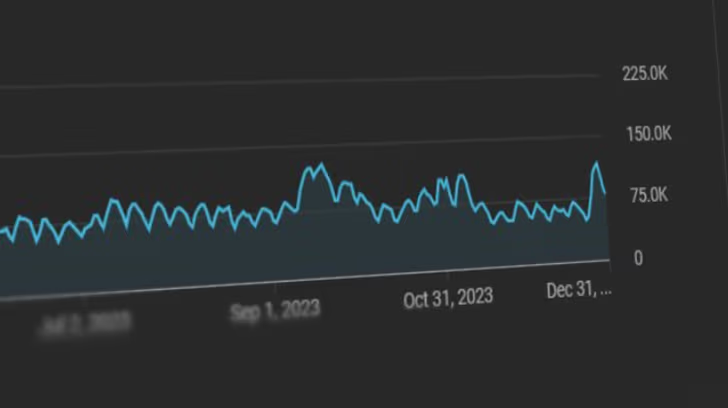
Growing a new channel to 1.5M views in 90 days without creating new videos

Growing a new channel to 1.5M views in 90 days without creating new videos

OpusClip 4.0 is here. Become a content powerhouse.

8 Best Auto Video Editors (Automatic Video Editing Software) in 2026

Three creators filming and editing at laptops and a podcast mic, with an Auto edit button, a 9:16 tag and a views badge
No items found.
No items found.

Boost your social media growth with OpusClip

Create and post one short video every day for your social media and grow faster.

8 Best Auto Video Editors (Automatic Video Editing Software) in 2026

Three creators filming and editing at laptops and a podcast mic, with an Auto edit button, a 9:16 tag and a views badge

OpusClip is our first pick among auto video editors for talking videos: its Auto Edit takes one raw recording, uploaded or pasted as a link, and returns an edited video with the edits that were switched on (captions, a hook for the opening seconds, motion graphics, B-roll, speech cleanup and sound effects). VEED and Kapwing are the picks for auto edits in the browser, Descript for steering an AI co-editor while reading the transcript, CapCut for free one-click cuts, and Gling, AutoCut and Auto-Editor for automatic silence and bad-take cutting. We ranked 8 tools by how much of the edit each one does without anyone directing every cut, then by whether the result can be reviewed and changed, price and free access.

What an auto video editor does

An auto video editor makes the editing decisions a person would otherwise make by hand on a timeline: where to cut, which words to caption, where to add B-roll or a sound effect. The eight tools here fall into three kinds.

  • Finishing editors (OpusClip, VEED, Kapwing): take a raw recording and apply a set of edits in one run, such as cuts, captions, B-roll and a hook, then hand back a video that can still be adjusted in an editor.
  • Cutters (Gling, AutoCut, Auto-Editor): focus on removing dead air, filler words, retakes or motionless sections, then export a video or a timeline for another editor to finish.
  • General editors with automatic tools (Descript, CapCut): AI handles the repetitive steps, from a chat with an AI co-editor (Descript) to one-click scene cuts and templates (CapCut).

For narrower versions of this job, see our roundups of AI tools that edit raw footage, AI tools for talking-head videos and AI silence removers; for the wider category, see our AI video editors roundup.

At a glance

  • OpusClip: best for turning a raw talking video into an edited video in one pass with Auto Edit; Starter $15 a month, Pro $29 a month ($14.50 a month billed annually); free plan yes (watermark, and no editing per the pricing page).
  • VEED: best for browser-based auto edits such as noise removal, B-roll and one-click silence cuts; Creator $12 a user a month billed yearly; free to start.
  • Kapwing: best for prompting an editor to assemble several recordings into a first draft; Pro listed at $16 a month; free plan yes (watermark, 4-minute exports).
  • Descript: best for an AI co-editor that can be steered while reading the transcript; Hobbyist $16 a person a month on annual billing ($24 monthly); free plan yes (60 media minutes a month).
  • CapCut: best for free one-click cuts and templates for short vertical videos; Pro $19.99 a month; free plan yes (basic editing tools).
  • Gling: best for cutting silences, filler words and bad takes from spoken footage; Plus $20 a month ($10 a month on annual billing); free plan yes (1 hour a month, watermark).
  • AutoCut: best for automatic cuts inside Premiere Pro and DaVinci Resolve; AI plan $14.90 a month billed yearly; 14-day free trial.
  • Auto-Editor: best for free, scriptable silence and motion cutting; the open-source command-line tool is free, and the paid app is a one-time purchase from $23.99.

1. OpusClip: Best for turning a raw talking video into an edited video in one pass

OpusClip home screen with the Auto-edit footage tab, a drop zone and quick options for caption, B-roll, speech cleanup and headline

The Auto-edit footage tab in OpusClip. Source: OpusClip Help Center

OpusClip added Auto Edit with OpusClip 4.0, which its launch post dates to November 2, 2026. In plain words: what goes in is one raw recording of someone talking, uploaded as a file or pasted as a link. What the user picks is which edits to run, either by starting from the built-in Auto-edit talking videos Recipe or by switching edits on and off one at a time. What comes out is one edited video, which can be opened in the editor to change anything the AI chose. On the OpusClip home screen this sits in the Auto-edit footage tab, next to Clip long video, with quick options for captions, B-roll, speech cleanup and a headline. OpusClip also has an Auto Video Editor page with an upload box and an Auto-edit button.

help.opus.pro documents what the edits do. The Viral Hook adds animated text, zoom effects and matching sound effects to the opening seconds, filled with the speaker's captions or the video's theme. Motion Graphics reads the transcript and adds animated graphics for details such as names, numbers and dates. Auto SFX detects key moments and places sound effects on the timeline, where each one can be moved, adjusted or deleted. B-roll can be AI images, AI video or stock footage. In the editor, Speech Cleanup highlights filler words, pauses and bad takes (retakes, restarts and self-corrections) for review before anything is removed. A custom Recipe saves the chosen edits and settings so the next video is edited the same way (how Recipes work).

The rest of the path sits in the same account. The Clip long video tab cuts a long recording into short clips with a Virality Score, the editor handles manual changes, auto-posting to YouTube Shorts, TikTok and Instagram Reels starts on Starter, and Pro adds a social media scheduler and export to Adobe Premiere Pro and DaVinci Resolve, per opus.pro/pricing.

The OpusClip 4.0 tutorial walks through the full workflow, from importing footage to scheduling posts.

Pricing: Per opus.pro/pricing (read Nov 4 2026), Free is $0 with a watermark and, per the pricing page, no editing; help.opus.pro confirms that Free-plan clips carry an OpusClip watermark and that upgrading removes it. Starter is $15 a month (monthly billing only). Pro is $29 a month, or $14.50 a month billed annually ($174). Business is custom. OpusClip plans run on credits, and the Recipe page shows a Summary of the selected edits and their credit usage before Create is clicked. help.opus.pro limits some edits, including the Viral Hook and Motion Graphics, to certain paid plans, so check which edits a plan includes before relying on them.

Considerations: Auto Edit is built for talking videos. help.opus.pro says the Viral Hook and Motion Graphics edits work best on single-speaker talking-head video, and that the hook works best when the opening seconds are one continuous shot, so screen recordings, multi-speaker layouts and footage with little speech are weaker fits. OpusClip is an edit-and-publish tool, not a replacement for a full non-linear editor, and Recipes cannot yet be saved from inside the editor.

  • Choose it if the raw footage is one person talking to camera, the goal is a captioned, polished video from one setup, and that setup should be reusable on the next video.
  • Skip it if the work is multitrack timeline editing, a screen recording or a multi-speaker shoot, or the only need is silence removal and a free command-line tool is enough.

2. VEED: Best for browser-based auto edits such as noise removal, B-roll and one-click silence cuts

VEED Auto Video Editor page showing three steps: tell us about your video, upload your video and apply auto edits

VEED's three-step auto edit flow. Source: VEED website

VEED's Auto Video Editor page describes a three-step flow: choose the video type, goal and social format, upload the video, then apply automatic edits such as noise removal, eye contact correction and AI B-roll, and either download the result or keep editing by hand in VEED's editor. The page also says that in the editor a Magic Cut button removes filler words and silences in one click, and it lists dynamic captions and resizing for different social platforms. VEED says the tool works well with vlogs, tutorials, interviews and product demos.

It suits creators who want automatic edits and a full browser editor in the same place.

Pricing: VEED's pricing page lists Creator at $12 per user a month billed yearly (no watermark, unlimited auto subtitles) and Pro at $22 per user a month billed yearly (multiple Brand Kits, translation to 50+ languages), with Enterprise custom. The auto video editor page says to start for free and upgrade for watermark-free exports and full access to the AI tools. The pricing page also lists AI credits on each paid plan; see the pricing page for the current allowance and for monthly billing prices.

Considerations: Billing is per user, and the AI tools draw on a credit allowance. The edit happens in VEED's own online editor rather than inside a desktop editor.

  • Choose it if automatic cleanup and a full manual editor should live in the same browser tab, for talking videos, tutorials and interviews.
  • Skip it if the edit has to run inside Premiere Pro or DaVinci Resolve, or the team needs one flat price instead of per-user billing with a credit allowance.

3. Kapwing: Best for prompting an editor to assemble several recordings into a first draft

Kapwing Automatic Video Editor page headline with the line Auto-edit videos, just by asking AI

Kapwing's Automatic Video Editor page. Source: Kapwing website

Kapwing's Automatic Video Editor page describes editing by asking AI. Upload many clips and long recordings, describe the video in a prompt, and the tool analyzes the transcript, detects speech and extracts the moments the prompt asks for, assembling them into a first draft that can be refined in Kapwing's studio. The same page describes removing silences, filler words and stutters from a prompt, and generating a fully edited video from a prompt, script or article with voiceover, subtitles, B-roll and music. Kapwing's menu also lists Smart Cut, which removes silences automatically, and the page links a Kapwing MCP for use from Claude or ChatGPT.

It suits marketing teams, podcasters and trainers who turn webinars, interviews and demos into shorter videos by describing the result instead of cutting it.

Pricing: Kapwing's pricing page lists Free at $0 with 10 credits, exports with a watermark, exports up to 4 minutes long and 720p quality. Pro is listed at $16 a month (the page has a monthly and annual toggle that advertises 33% off annual billing) with 1,000 credits a month, no watermark, 4K export, exports up to 2 hours and a Brand Kit with custom fonts. Business is listed at $50 with 4,000 credits a month.

Considerations: The Free plan's watermark and 4-minute export cap make it a trial rather than a working plan, and the AI tools draw on credits and monthly minute allowances listed on the pricing page. The page itself calls the prompt-driven result a first draft, so a review pass is part of the job.

  • Choose it if the source is several recordings and the quickest route to a first cut is describing the video in words.
  • Skip it if a saved set of edits (captions, hook, B-roll) should run the same way on every video, since Kapwing's page describes prompting rather than a fixed setup.

4. Descript: Best for an AI co-editor that can be steered while reading the transcript

Descript Underlord tile listing Remove retakes, Create highlight reel, Remove filler words, Add captions and Center active speaker

Underlord's bulk edits on Descript's Underlord page. Source: Descript website

Descript's pricing page describes text-based editing as editing video by editing a doc, and lists Underlord as its AI video co-editor. Descript's Underlord page says the assistant can read the script, watch the video and decide what to do next, makes suggestions and takes feedback, and shows example prompts such as hiding jump cuts by adding zooms. The pricing page's tool list names automatic edits including Remove Filler Words, Shorten Word Gaps, Edit for Clarity, Remove Retakes, Automatic Multicam, Center Active Speaker and Create clips.

It suits editors who want the transcript in view, approve the changes and let AI handle the repetitive removals.

Pricing: Descript's pricing page lists Free with 60 media minutes a month, 100 one-time AI credits and 720p export, with Underlord and most AI tools marked Limited. Hobbyist is $16 per person a month on annual billing ($24 monthly) with 10 media hours, 400 AI credits a month and watermark-free 1080p export. Creator is $24 ($35 monthly) with 30 media hours, 800 credits and 4K export. Business is $50 ($65 monthly).

Considerations: Both media hours and AI credits are metered, so heavy use of Underlord can reach the credit allowance, and the AI tools are limited on Free. Descript's page describes a collaborator that suggests and takes feedback, not a one-click finish.

  • Choose it if the edit should stay under editorial control, with AI doing removals and first passes inside a transcript editor.
  • Skip it if the goal is a ready-to-post vertical video with minimal direction, or the budget cannot absorb media-hour and credit limits.

5. CapCut: Best for free one-click cuts and templates for short vertical videos

CapCut Online Auto Video Editor page with a mock-up of vertical clips cut from long footage

CapCut's Online Auto Video Editor page. Source: CapCut website

CapCut's Online Auto Video Editor page describes one-click automatic cutting powered by AI scene detection that trims long footage into short clips and highlights key moments, plus free templates that generate a complete video. Its steps for CapCut Web use a Long video to shorts tool: upload a video, choose the length and a caption template, click Convert, review the generated clips, open Edit more to adjust text, timing or style, and export. The page also lists auto-subtitles and music sync, and says the editor is available in the browser and in mobile and desktop apps.

It suits creators aiming at short vertical posts for TikTok, Reels or Shorts on a small budget.

Pricing: CapCut's pricing page lists Free with free templates and basic editing tools. Pro is $19.99 a month ($179.99 billed yearly) with 1,200 monthly AI credits, premium templates and 1 TB of storage. Ultra is $79 a month, and Teams is $12.49 a month per seat with a brand kit. The page notes that displayed pricing is for reference only and that the final price shows after sign-in.

Considerations: CapCut's auto video editor page describes the tool as free to use, while the pricing page lists access to AI features under the paid tiers, so which smart tools are free is worth confirming before a project depends on them. The page describes scene detection and templates; it does not describe removing filler words or retakes.

  • Choose it if the target is short vertical posts, the budget is close to zero, and scene-based cuts and templates are enough.
  • Skip it if the footage is talking-heavy and needs filler words, retakes or pauses removed automatically, or the same edit must run unchanged on every video.

6. Gling: Best for cutting silences, filler words and bad takes from spoken footage

Gling Auto video editor page for spoken footage with a Clean my recording button

Gling's Auto video editor page. Source: Gling website

Gling's Auto video editor page describes a cleanup pass for spoken footage: silences, filler words and bad takes in a recording are found and proposed as cuts, the cuts can be reviewed and adjusted, and the result is exported as a video or as an editor timeline for Premiere Pro, DaVinci Resolve or Final Cut Pro. Its pricing page also lists AI captions, subtitle export as SRT, automatic zoom framing, multicam editing, AI B-rolls, speech audio enhancement and YouTube title and chapter generators. The home page says it works with video and audio files.

It suits solo creators and YouTubers who record long, talking-heavy takes and want the dead air gone before finishing the video in Gling or another editor.

Pricing: Gling's pricing page lists Free at $0 with 1 hour of AI-edited media a month and unlimited export with a watermark. Plus is $20 a month ($10 a month on annual billing) with 10 hours; Pro is $40 ($20 annual) with 30 hours; Elite is $100 ($50 annual) with 100 hours. Paid plans export without a watermark, and the Auto video editor page says editor timeline exports need a paid desktop plan.

Considerations: Gling is built for spoken footage, and allowances are counted in hours of AI-edited media. The pricing page does not list publishing to social platforms, so posting happens elsewhere.

  • Choose it if the job is cleaning up long spoken recordings and handing a tight cut to Premiere Pro, DaVinci Resolve or Final Cut Pro.
  • Skip it if the need is captions-first short clips, posting to social platforms from the same tool, or footage with little speech.

7. AutoCut: Best for automatic cuts inside Premiere Pro and DaVinci Resolve

AutoCut Silences panel with a waveform, a noise threshold slider, presets and silence management options

The AutoCut Silences panel in AutoCut's interactive demo. Source: AutoCut website

AutoCut describes itself as an AI video editing plugin for Premiere Pro and DaVinci Resolve that removes silences and adds captions without leaving the video editor. Its AutoCut Silences panel exposes a noise threshold, presets such as Calm, Measured, Paced and Energetic, margin controls, and a choice to remove, keep or mute silences. The pricing page lists the features of its AI plan: AutoCut Silences, AutoCaptions, podcast editing, automatic camera angle switches, AutoZoom, AutoViral for short clips, AutoB-Rolls using stock video, removal of bad takes, a profanity filter and automatic chapters.

It suits editors who already work in Premiere Pro or DaVinci Resolve and want the automatic steps on the timeline they are already using.

Pricing: AutoCut's pricing page (read in USD on Nov 4 2026) lists a Basic plan that includes only silence removal at $6.60 a month billed yearly ($79), and an AI plan with the full feature list at $14.90 a month billed yearly ($178.80); the page shows $19.80 a month as the original price of the AI plan. Enterprise is priced per license. AutoCut runs on Mac and Windows with a 14-day free trial and no credit card required.

Considerations: AutoCut is a plugin, so it needs Premiere Pro or DaVinci Resolve already in the workflow and does not work as a standalone editor. The plan split matters: the Basic plan covers only silence removal, and the other automatic features sit in the AI plan.

  • Choose it if the editing already happens in Premiere Pro or DaVinci Resolve and the pain is repetitive cutting, captions and zooms.
  • Skip it if the edit happens in a browser or on a phone, or there is no Adobe or Blackmagic editor in the workflow.

8. Auto-Editor: Best for free, scriptable silence and motion cutting

Auto-Editor cookbook showing the command auto-editor video.mp4 that cuts silent dead space automatically

Auto-Editor's cookbook. Source: Auto-Editor website

Auto-Editor is an open-source command-line tool that edits video and audio by analyzing audio loudness, motion and subtitles. Its cookbook starts with one command that cuts out the silent dead space automatically, and the GitHub README shows options to adjust the margin around cuts, to cut motionless sections instead of silence, and to export the result as an XML timeline for Premiere Pro, DaVinci Resolve, Final Cut Pro, ShotCut or Kdenlive, or as individual clips. The README places the repository in the public domain (Unlicense).

The README also links an app and an online version built on the project's assets under a separate proprietary license; the app's page says the online version runs in the browser (Chrome, Edge and Firefox) and does its work locally, so media stays on the computer.

Pricing: The command-line tool is free. The app page says it can be downloaded and evaluated for free, including 6 exports up to 3200 by 1800, with no time limit. Licenses are one-time purchases that include 3 years of updates: Personal is $23.99, Pro is $75 (hardware-accelerated encoders and full round-trip exports to editors such as Premiere, Final Cut and Resolve) and Studio is $179 (commercial-use license and premium support). Renewal after three years is 80% of the tier price.

Considerations: Auto-Editor cuts based on loudness, motion and subtitles. The pages we read do not list captions, B-roll or filler-word detection, and the command-line tool needs some comfort with a terminal.

  • Choose it if a free, repeatable first pass that removes silence from many files is the goal, with the cuts finished in any editor.
  • Skip it if the need is captions, B-roll, hooks or a finished post without opening another editor.

How we compared these tools

We compared the eight tools on four criteria: how much of the edit runs without someone directing each cut; whether the result can be reviewed and changed afterwards; price and free-plan limits; and how clearly the vendor documents what the tool does. Every fact comes from the vendor's own pages (pricing pages, feature pages, help center articles and, for Auto-Editor, its documentation and GitHub README), read on November 4, 2026. Pages that load prices with JavaScript were read in a browser, in US dollars. We did not run hands-on tests of the other seven tools, so the descriptions say what each vendor's pages state, and where a vendor's pages disagree with each other we say so. OpusClip's own facts come from opus.pro/pricing and help.opus.pro. Prices and limits change often, so confirm them on the vendor's pricing page before buying.

How to choose

Start with what the footage is and what the finished video must look like.

  • If the footage is a raw talking video and the goal is a finished, captioned post, look for one run that applies several edits and stays editable: OpusClip, VEED, Kapwing.
  • If the job is removing silences, filler words and retakes, look for cuts that can be reviewed before they are applied: Gling, AutoCut, Descript, Auto-Editor, plus Speech Cleanup in OpusClip.
  • If the edit lives in Premiere Pro or DaVinci Resolve, look for a plugin or a timeline export: AutoCut, Gling (paid desktop plan), Auto-Editor.
  • If the budget is zero, look for a usable free tier or free software: Auto-Editor, CapCut, Gling, Kapwing, OpusClip.
  • If editorial control matters more than speed, look for a transcript or timeline view with suggestions: Descript.
  • If the same edit repeats on every video, look for a saved setup or a repeatable command: OpusClip Recipes, Auto-Editor.

Red flags to watch for

  • Cuts that apply with no review step. Look for highlighted cuts that can be accepted or rejected, as in OpusClip's Speech Cleanup and Gling's review step.
  • Watermarks on free exports. OpusClip Free, Kapwing Free and Gling Free export with a watermark.
  • Allowances counted in hours, minutes or credits. Descript meters media hours and AI credits, Gling meters hours of AI-edited media, Kapwing and VEED meter credits, and OpusClip runs on credits.
  • Features gated by plan. AutoCut's Basic plan covers only silence removal, and help.opus.pro limits some OpusClip edits to certain paid plans.
  • Prices shown for reference only. CapCut's pricing page says the final price appears after sign-in.
  • Per-seat billing. VEED and CapCut Teams price per user or per seat.
  • Export caps. Kapwing Free exports are limited to 4 minutes.

Frequently asked questions

What is the best auto video editor?

For a raw talking video that should become a finished, captioned post, OpusClip is our first pick, because its Auto Edit applies several edits in one run and the result stays editable. VEED and Kapwing are the alternatives for automatic edits in the browser, Descript for transcript-based control, Gling, AutoCut and Auto-Editor for silence and bad-take cutting, and CapCut for free one-click cuts and templates. The best choice depends on the footage and on how much review the edit needs.

What is automatic video editing software?

Automatic video editing software makes editing decisions that would otherwise be made by hand on a timeline: where to cut silence or retakes, which words to caption, and where to add B-roll, graphics or sound effects. Some tools run a set of edits in one pass and return a finished video, some only cut dead air, and some add AI assistance to a general editor. The eight tools above fall into those three groups.

How does OpusClip's Auto Edit work?

A raw recording of someone talking goes in, uploaded or pasted as a link. The user picks which edits to run, for example by starting from the Auto-edit talking videos Recipe, which applies captions, a Viral Hook, Motion Graphics, B-roll, speech cleanup and other automatic edits per help.opus.pro. One edited video comes out, and it can be opened in the editor to change any of those choices. A custom Recipe saves the setup for the next video; how Recipes work covers the steps.

What is the difference between Auto Edit and clipping in OpusClip?

Clip long video finds highlights in a long recording and turns them into short clips with captions and a headline. Auto Edit works on one video and applies edits such as captions, a hook, B-roll and speech cleanup to it. help.opus.pro lists them as separate built-in Recipes, and OpusClip's launch post says clipping is not going away.

What is the best free auto video editor?

Auto-Editor's command-line tool is free software, and its app can be evaluated for free with no time limit (6 exports up to 3200 by 1800). CapCut Free offers basic editing tools and templates. Gling Free includes 1 hour of AI-edited media a month with watermarked exports, Kapwing Free exports with a watermark and up to 4 minutes, and OpusClip Free is $0 with a watermark. AutoCut offers a 14-day free trial. Each vendor's free tier limits what can be exported, so check the watermark and length limits first.

Can an auto video editor remove silences and filler words automatically?

Yes, several can. Gling, AutoCut and Auto-Editor are built around silence removal, and Gling and AutoCut also list bad takes. Descript lists Remove Filler Words, Shorten Word Gaps and Remove Retakes, VEED's page describes Magic Cut for filler words and silences, Kapwing lists Smart Cut for silences, and OpusClip's Speech Cleanup detects fillers, pauses and bad takes for review. Reviewing the cuts before exporting is still worthwhile, since a cut can remove a pause the speaker meant.

Is there an open-source automatic video editor?

Auto-Editor is the one in this list. It is a command-line application whose README places it in the public domain; it analyzes audio loudness, motion and subtitles to cut silent or motionless sections, and it exports XML for editors such as Premiere Pro, DaVinci Resolve and Final Cut Pro.

Which auto video editors work with Premiere Pro or DaVinci Resolve?

AutoCut runs as a plugin inside Premiere Pro and DaVinci Resolve. Gling exports an editor timeline for Premiere Pro, DaVinci Resolve or Final Cut Pro on a paid desktop plan, Auto-Editor exports XML for several editors, and OpusClip's pricing page lists export to Adobe Premiere Pro and DaVinci Resolve on the Pro plan.

Ready to start streaming differently?

Opus is completely FREE for one year for all private beta users. You can get access to all our premium features during this period. We also offer free support for production, studio design, and content repurposing to help you grow.
Join the beta
Limited spots remaining

Try OPUS today

Try Opus Studio

Make your live stream your Magnum Opus