No items found.
7 Best Video Editing Software with AI for Repurposing in 2026

OpusClip is the pick when the job is cutting one long video into several captioned clips resized for TikTok, Shorts and Reels: its help center calls it a clipping tool with an in-app editor for minor tweaks. This guide is about the other route, editing software that also repurposes, where the editor decides what gets posted. Filmora, Flixier, Descript, CapCut, Canva and DaVinci Resolve Studio follow, and items 2 to 7 are ordered by one yardstick: how many repurposing steps each vendor's own pages say its AI performs inside the editor, read November 13, 2026.
Key takeaways
- Best for AI-cut clips from a long recording, with an editor for minor tweaks: OpusClip. Its help center calls it a clipping tool and describes text-based and timeline-based editing for minor tweaks.
- Best for a desktop timeline editor with a dedicated short-clips tool: Filmora. Its Smart Short Clips guide takes a pasted YouTube link, a file or Filmora Cloud and returns clips that open in an editing panel.
- Best for prompting clips inside a browser editor: Flixier. Its Eva assistant finds clips in long recordings and puts them on the timeline, on Creator plans and up.
- Best for editing by transcript and generating clips from it: Descript. Create clips returns 1 to 20 clips of 10 seconds to 5 minutes, each an editable composition.
- Best for an everyday editor with an AI clip maker: CapCut. Its tool page describes AI Highlights, auto reframe and captions, with an Edit more option for the generated clips.
- Best for repurposing inside a design and brand workspace: Canva. Highlights and Magic Resize are listed as Pro features.
- Best for reframing inside a full professional timeline: DaVinci Resolve Studio. Smart reframe is part of its Neural Engine, which is a Studio feature.
What counts as editing software with AI for repurposing
Two kinds of tool repurpose video. A clipper starts from one long recording and returns finished short clips, and OpusClip is built that way. An editor starts from a timeline or a transcript that a person controls and adds AI steps for repurposing: finding the short moments, resizing them, captioning them and exporting more than one version. This guide covers OpusClip as the clipper that comes with an editor, then six editors. Five of the six (Filmora, Flixier, Descript, CapCut and Canva) have an AI step that finds short clips in a longer video. The DaVinci Resolve Studio pages we read list smart reframe and scene cut detection but no step that picks clips, so it appears as the timeline where a person makes every cut. Clipper-first tools are compared in our guide to video repurposing tools and our guide to video editors for content repurposing.
How to choose
- One long recording, several captioned clips, minor tweaks afterward: OpusClip.
- A desktop editor with a dedicated tool that cuts a long video into vertical clips: Filmora.
- A browser editor where an assistant finds the clips and leaves them on the timeline: Flixier.
- A recording that is already edited as text, with clips generated from the same project: Descript.
- An everyday editor on desktop, online and mobile with an AI clip maker: CapCut.
- Clips that must share brand kits and templates with other Canva assets: Canva.
- Frame-level finishing with AI reframing in the same app: DaVinci Resolve Studio.
- Resizing alone: see our guide to video resizers for TikTok, Reels and Shorts. AI tasks that sit beside a timeline editor: see AI solutions for video editors.
At a glance
- OpusClip: best for AI-cut clips from a long recording, with an editor for minor tweaks; Starter $15 a month (monthly billing only), Pro $29 a month or $14.50 a month billed annually; free plan yes ($0, with a watermark).
- Filmora: best for a desktop timeline editor with a dedicated short-clips tool; Basic US$49.99 a year, Advanced US$59.99 a year, Premium US$99.99 a year (each billed yearly); free version yes, exports carry a watermark.
- Flixier: best for prompting clips inside a browser editor; Starter $19 per seat a month billed monthly ($9 billed yearly), Creator $39 ($18 billed yearly); free plan yes (10 minutes of export a month, 720p, watermark).
- Descript: best for editing by transcript and generating clips from it; Hobbyist $16 per person a month billed annually ($24 billed monthly), Creator $24 ($35 monthly); free plan yes (1 media hour a month, 720p export with a watermark).
- CapCut: best for an everyday editor with an AI clip maker; Pro $19.99 a month in the pricing page's monthly view ($179.99 a year in its yearly view); free plan yes (free templates and basic editing tools).
- Canva: best for repurposing inside a design and brand workspace; Pro US$144 a year for one person (yearly view); free plan yes.
- DaVinci Resolve Studio: best for reframing inside a full professional timeline; Studio $236 (shown as discounted from $295); the free Resolve has no Neural Engine.
How each editor repurposes a long video and what it hands back
The At a glance list carries best-for, price and free plan; this table compares how each tool repurposes a long video, what its AI does, whether the result stays editable, what it exports or hands off and what the free version limits, as listed on each vendor's own pages on November 13, 2026.
| Tool | How it repurposes | What the AI does | Stays editable in the editor | Export or hand-off | Free version limit |
|---|---|---|---|---|---|
| OpusClip | Turns a long video into short clips | Finds engaging moments, adds animated captions, auto-resizes for TikTok, Shorts and Reels | Yes: in-app editor with text and timeline editing, meant for minor tweaks | Export XML to Premiere Pro or DaVinci Resolve; the help center says Pro only | Free is $0 with a watermark |
| Filmora | Smart Short Clips cuts a long video into vertical clips; Auto Reframe recuts for other platforms | Finds key moments from dialogue and visuals; adds music, dynamic subtitles and templates | Yes: Edit opens an editing panel for each clip; the timeline editor is the app itself | Export directly, export several versions at once, or send the timeline as Final Cut Pro 7 XML | Free exports carry a watermark; Smart Short Clips is paid by AI credits |
| Flixier | Clips tool and Eva assistant find clips in long recordings; Eva can resize to 9:16 | Eva transcribes, picks moments, proposes cuts, resizes, then adds captions and branding | Yes: Eva's edits land on the timeline; Full Edit opens a clip as a new project | Download the video or publish it to a supported platform | Free: 10 minutes of video export a month, 720p, Flixier watermark; Eva is on Creator and up |
| Descript | Create clips turns long-form content into shorts: 1 to 20 clips of 10 seconds to 5 minutes | Scans the composition for self-contained cuts; an optional topic or goal guides the pick | Yes: each clip is its own composition and can be edited | Timeline export to Premiere Pro, Final Cut Pro, DaVinci Resolve and more, on Creator and up | Free: 1 media hour a month, 720p export with a watermark, limited Underlord use |
| CapCut | AI clip maker cuts a long video into short clips; Auto Reframe changes the aspect ratio | AI Highlights picks key moments from speech patterns; subject tracking keeps the frame | Yes: Edit more opens the generated clips in the editor | Export or share to social media; desktop export sets resolution, bit rate, codec and format | Free plan lists free templates and basic editing tools; see the pricing page for export terms |
| Canva | Highlights finds the best moments in footage; a resize option adapts a video for every feed | Highlights picks moments and Auto-trim trims; Magic Video makes social-ready content from clips | Yes: multi-layered timeline editor, with captions generated and styled in one click | Share from the editor to Instagram, Facebook, LinkedIn, X, Pinterest, YouTube, TikTok and more | Free clips footage by hand on the timeline; AI clipping with Highlights is in the Pro column |
| DaVinci Resolve Studio | Studio's smart reframe reframes shots; the editor makes every cut on the cut and edit pages | Neural Engine in Studio: magic mask, smart reframe, object removal, scene cut detection | It is the editor: cut, edit, Fusion, color and Fairlight pages | Quick Export renders and uploads to YouTube, Vimeo or Dropbox, with custom presets | Free version has no Neural Engine; it works up to Ultra HD at 60 fps |
1. OpusClip: Best for AI-cut clips from a long recording, with an editor for minor tweaks
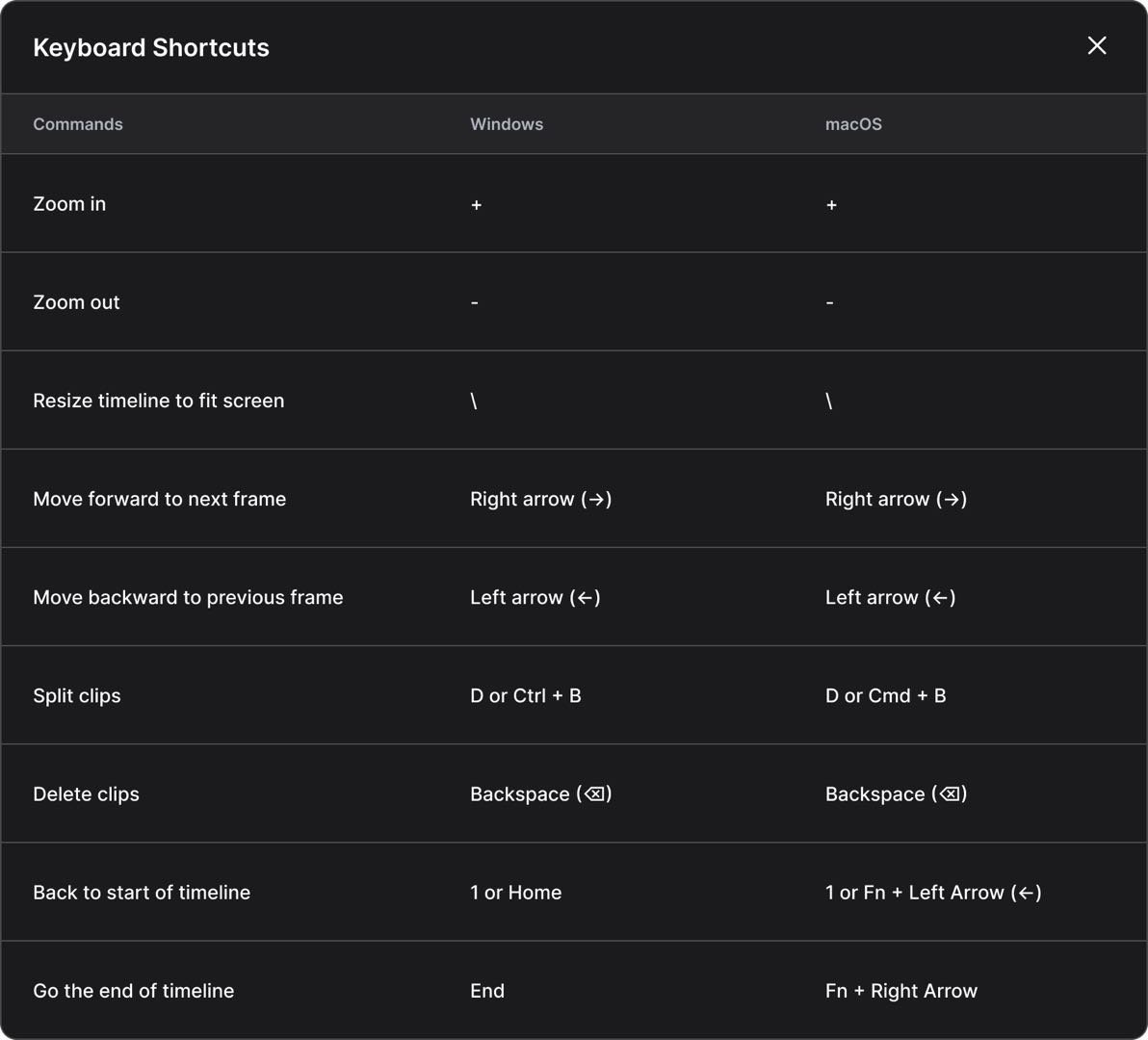
OpusClip's editor keyboard shortcuts for timeline editing. Source: OpusClip help center
OpusClip's help center introduction calls it a video clipping tool that turns long videos into shorts, and describes an in-app editor for minor tweaks that supports text-based and timeline-based editing. Its AI video editor page says clips get animated captions and are auto-resized for TikTok, YouTube Shorts and Instagram Reels. In a repurposing workflow, OpusClip does the first pass: it finds the clips, captions and resizes them, and the editor handles the touch-ups. The help center documents drag-and-drop scene reordering in the timeline, keyboard shortcuts such as D to split a selected clip and Backspace to delete it, and a Speech cleanup panel that shows what will be removed before anything is deleted.
When a clip needs more than the in-app editor offers, Export XML hands it to Premiere Pro or DaVinci Resolve. The help center says the export holds the original video, an .xml file with the clip's captions, auto reframe and B-roll, and an .srt file, and that the feature is exclusively for Pro plan users. Captions arrive as overlays that cannot be edited in Premiere Pro, so the .srt is the route for editable captions.
Pricing: OpusClip's pricing page lists Free at $0 (clips carry a watermark), Starter at $15 a month (monthly billing only) and Pro at $29 a month, or $14.50 a month billed annually. Business is custom. The pricing page and help center both list Export XML under Pro.
Considerations: OpusClip is a clipper first: its help center calls it a clipping tool and its editor is for minor tweaks, so a project that needs multi-track audio, color work or a deliverable spec belongs in a timeline editor after Export XML. It starts from one long video and returns a set of clips.
- Choose it if the job is turning long recordings into several captioned, resized clips and an editor is needed only for touch-ups.
- Skip it if the edit itself is the work and repurposing is a final step on a finished timeline.
2. Filmora: Best for a desktop timeline editor with a dedicated short-clips tool
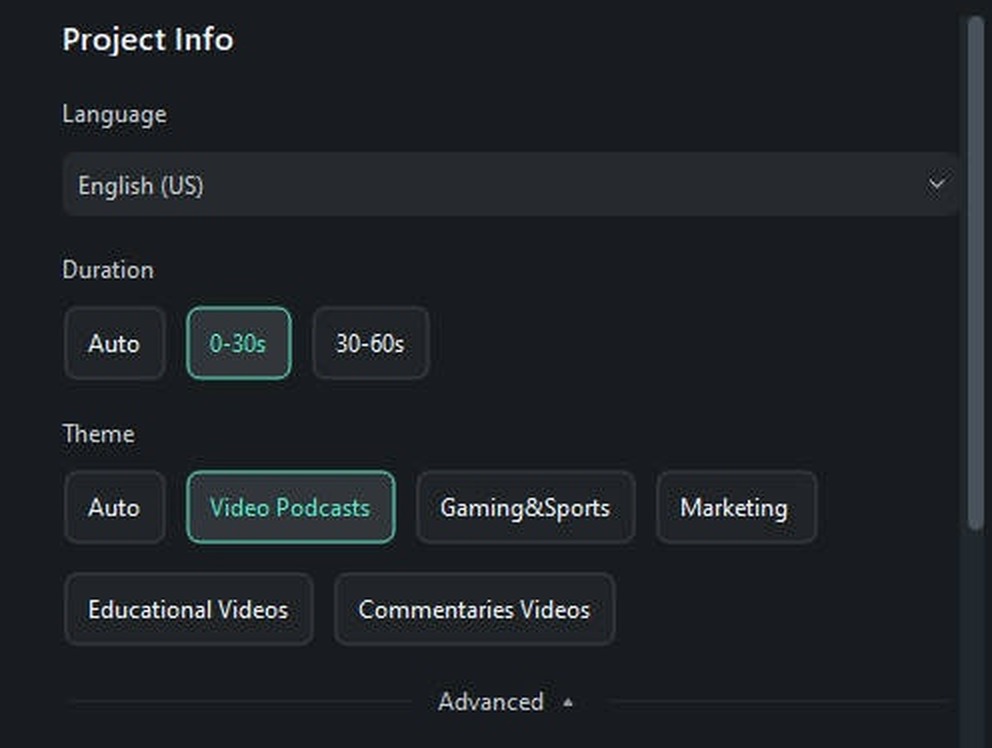
Filmora's Smart Short Clips settings, cropped from the user guide. Source: Filmora website
Filmora is Wondershare's video editor; its pricing page asks which of the Windows or Mac versions is being bought. For repurposing, the user guide describes Smart Short Clips as a tool that transforms long videos into social media-ready clips by identifying key moments, and the pricing page says its AI identifies key moments from dialogue and visuals and turns them into vertical videos with music, dynamic subtitles and templates. The guide says to paste a link to a YouTube video, upload a video file or choose a file from Filmora Cloud, and to use own videos when pasting a YouTube URL. Duration, theme and aspect ratio can be set before generating, the results come back with a rating based on platform rules, and a clip can be exported directly or refined in an editing panel that opens from Edit.
Two further features cover the rest of the repurposing job. Filmora's Auto Reframe page says it automatically resizes videos so the focus stays on the action, to recut content for every platform. The home page lists multi-version delivery: reframe for different aspect ratios, translate for new audiences and export different versions to multiple destinations at once from the same project. For hand-off, it says a timeline can be exported as Final Cut Pro 7 XML to continue in another editor.
Pricing: Filmora's pricing page lists Basic at US$49.99 a year, Advanced at US$59.99 a year and Premium at US$99.99 a year, each billed yearly in its annual view, with 1,000 AI credits a month on Advanced and 2,000 on Premium. The compare table lists AI credits as none on Free and Basic and marks Smart Short Clips as paid by AI credits. The page's FAQ says the free edition gives access to all basic editing features, with a watermark added to exported files.
Considerations: Smart Short Clips draws on AI credits, so the plan that carries credits matters more than the lowest headline price. The guide asks that pasted YouTube links be the creator's own videos.
- Choose it if a desktop editor is wanted, with a dedicated tool that cuts a long video into rated vertical clips and exports several versions.
- Skip it if work happens in a browser or on a locked-down machine, or AI credits are unwelcome.
3. Flixier: Best for prompting clips inside a browser editor

Eva, Flixier's AI assistant, in the editor, from a screen recording on Flixier's repurposing page. Source: Flixier website
Flixier is a browser-based editor; its home page says it runs entirely in the browser with cloud rendering. Its help center describes two routes to short clips. The Clips tool takes a pasted YouTube or Zoom link, an uploaded file or a cloud storage file, offers Landscape, Square or Portrait and a template, finds highlights, and lists the generated clips with titles and descriptions. Full Edit imports a generated clip into the main timeline editor as a new project. Eva, Flixier's AI assistant, works inside the editor: the repurposing page says to upload a long video and ask Eva, who transcribes the clip, identifies the best moments, proposes cuts, resizes the video and generates captions and branding, all in the browser, with every edit landing on the timeline.
The help center adds two cautions. Eva applies changes directly to the active timeline, so a project that holds the original long-form cut should be duplicated first. The repurposing page also says some YouTube links may not work because of platform restrictions and that uploading the file is the most reliable option.
Pricing: Flixier's pricing page lists Free at $0 (10 minutes of video export a month, 720p, Flixier watermark), Starter at $19 per seat a month billed monthly ($9 billed yearly, $108 a year) and Creator at $39 per seat a month billed monthly ($18 billed yearly, $216 a year). Its home page says editing with Eva is on Creator plans and up.
Considerations: Eva needs a Creator plan, and Free's 10 minutes of export a month is a small budget for a batch of clips. The help center says Eva works from the transcript, so footage needs spoken words.
- Choose it if clip finding, resizing, captions and brand assets should happen in one browser tab, with the result staying on an editable timeline.
- Skip it if the footage has no speech, or a local desktop editor is required.
4. Descript: Best for editing by transcript and generating clips from it
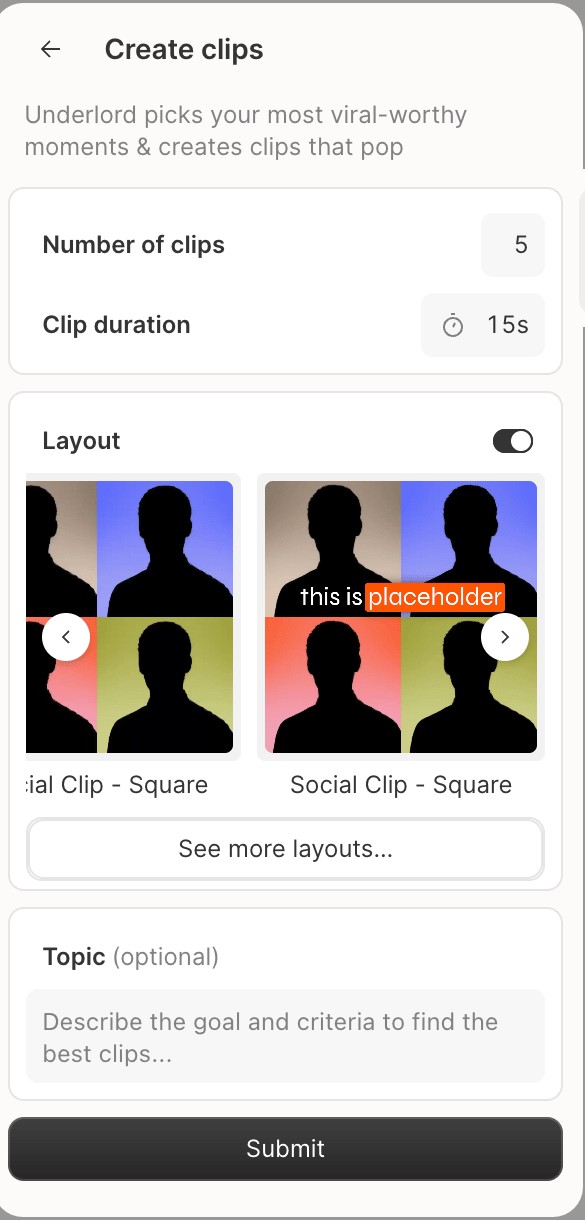
Descript's Create clips panel, cropped from the help center. Source: Descript help center
Descript is an editor where recordings are transcribed and cut by editing the text; its pricing page describes it as editing video by editing a doc. For repurposing, its help center documents a Create clips tool that uses AI to scan a composition and pull out short, self-contained cuts for social media, highlight reels or teasers. The settings are a number of clips (1 to 20), a length (10 seconds to 5 minutes), an optional layout with portrait (9:16) and square (1:1) presets, and an optional topic, goal or criteria to guide selection. Each clip lands in a folder as its own composition, and the help center says each can be edited. Descript's clips page says aspect ratios can be changed to fit different platforms, and the help center says Underlord, its AI co-editor, can also be asked to create clips.
For editors who finish elsewhere, the help center says timeline export sends a Descript timeline to Premiere Pro, Final Cut Pro, DaVinci Resolve, Pro Tools and more, and that it is available on Creator, Business and Enterprise plans.
Pricing: Descript's pricing page lists Hobbyist at $16 per person a month billed annually ($24 billed monthly), with Create Clips among its AI tools, and Creator at $24 ($35 monthly). Its clips page lists Free at $0 with 1 media hour a month, 100 AI credits (one time) and 720p export with a watermark, plus limited Underlord use.
Considerations: Media hours and AI credits are metered, Free's credits are a one-time grant, and timeline export needs Creator or higher, so a Free or Hobbyist project cannot use timeline export to Premiere Pro or Final Cut Pro. The help center says the source composition must be at least as long as the clips requested and that compositions under 1 minute may not generate clips.
- Choose it if the source is a talking recording that is already edited as text and the clips should come from the same project.
- Skip it if the work needs timeline-style layering, or Free's single media hour a month is too small.
5. CapCut: Best for an everyday editor with an AI clip maker
CapCut's site lists CapCut Desktop, CapCut Online, CapCut Pad and CapCut Mobile. Its long-video-to-shorts page describes an AI clip maker: upload a video from cloud storage, Google Drive or Dropbox, and the AI clip maker automatically edits and cuts it into short clips, with a Preview button and an Edit more option to edit the generated clips before export. The page says AI Highlights identifies key moments based on speech patterns, that clips can be refined by length, captions and templates, and that smart cropping, resizing and subject tracking adapt 16:9 footage to 9:16.
Auto Reframe has its own page. For the desktop editor, its steps are to enable Auto reframe on a clip in the timeline, pick an aspect ratio and adjust image stabilization and camera moving speed; export settings include resolution, bit rate, codec, format and frame rate. The page notes the feature is available in specific regions.
Pricing: CapCut's pricing page lists Free at $0 (free templates and basic editing tools) and Pro at $19.99 a month in its monthly view ($179.99 a year in its yearly view). The page says displayed pricing is for reference only and final pricing shows after sign-in.
Considerations: The clip-maker and reframe pages are marketing pages: they do not say which plan includes each feature, and the Auto Reframe page says availability depends on region. The pricing page prints no export limits for Free, so check them in the app.
- Choose it if an everyday editor is wanted on desktop, in a browser or on a phone, with an AI clip maker that opens its clips in the same editor.
- Skip it if a documented clip count and length control matter, or the plan terms must be known before starting.
6. Canva: Best for repurposing inside a design and brand workspace
Canva's video editor page lists a drag-and-drop, multi-layered timeline, captions and two repurposing features: Highlights, which the page says instantly surfaces the best bits of footage, and resizing a video to share everywhere and create multi-channel campaigns. The page's feature table puts AI-powered clipping (Highlights) and trimming (Auto-trim) in the Pro column and manual clipping in the Free column, and its FAQ says Magic Resize (Pro) changes the aspect ratio and size for different platforms. The FAQ also lists Magic Video, which it says creates social-ready clips in seconds by styling, cutting and sequencing clips.
On output, the FAQ says a video exports as an MP4 or GIF and can be published from Share to Facebook, Instagram, X, TikTok, Pinterest, LinkedIn and Tumblr.
Pricing: Canva's pricing page lists Free at $0 and Pro at US$144 a year for one person in its yearly view. The video editor FAQ says Free exports have no watermark unless Pro or paid elements are used.
Considerations: Highlights and Magic Resize are Pro features per the page, and the pages describe Highlights without a stated clip count or length control. Canva is a design workspace first, so the repurposing flow is lighter than a dedicated clip tool.
- Choose it if repurposed video should share brand kits and templates with the rest of a Canva workspace.
- Skip it if the job is a high volume of clips from long recordings, or the Pro price is a blocker.
7. DaVinci Resolve Studio: Best for reframing inside a full professional timeline
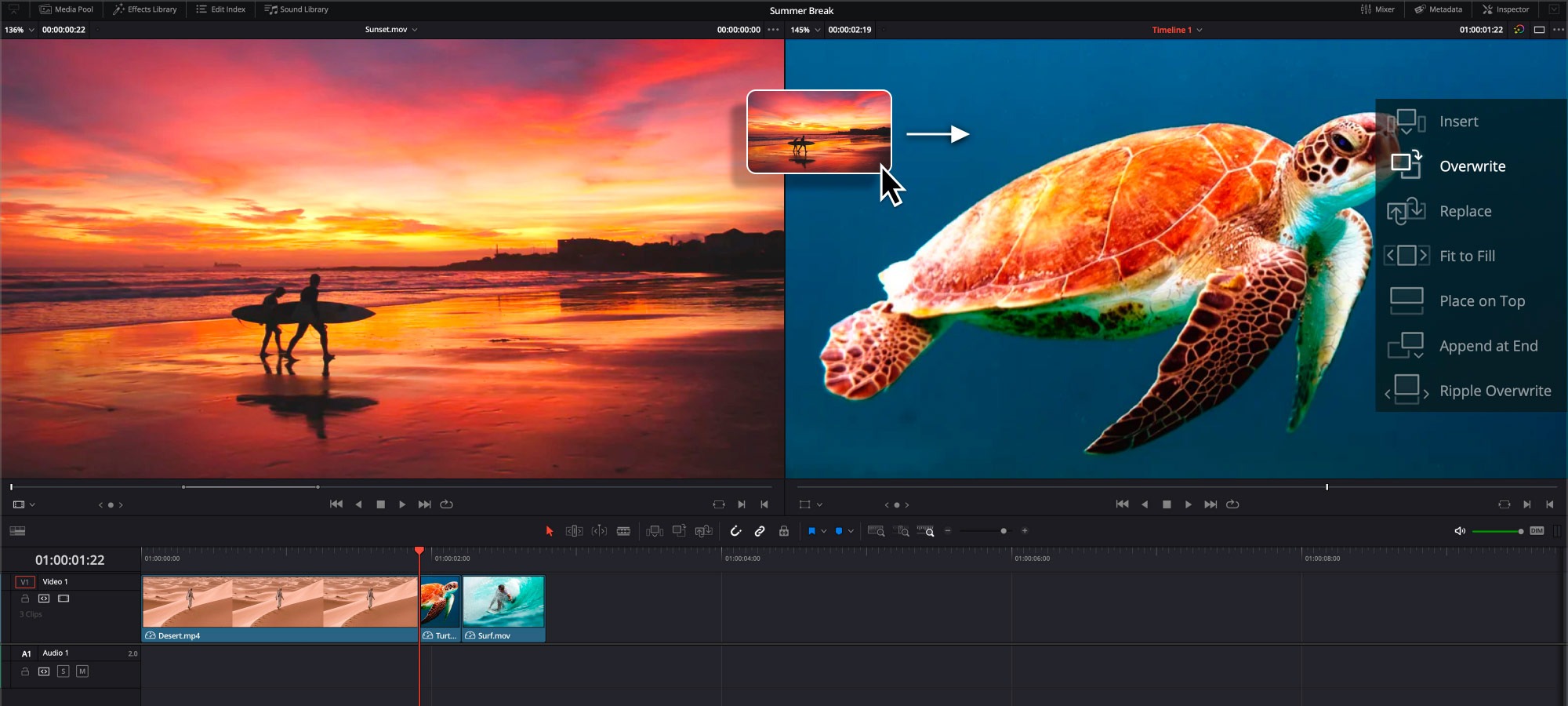
The edit page in DaVinci Resolve, as pictured on Blackmagic's Edit page. Source: Blackmagic Design website
Blackmagic Design's pages say editing in DaVinci Resolve is done on the cut and edit pages, in the same app as color, effects, motion graphics and audio. The paid Studio version adds the DaVinci Neural Engine, which Blackmagic says powers magic mask, smart reframe, object removal and scene cut detection, and its page lists text based editing among Studio's features. For repurposing, that means reframing shots and detecting cuts inside a timeline where the editor makes every cut. The pages we read describe no tool that picks short clips from a long recording.
For delivery, Blackmagic says Quick Export renders and uploads a finished video to YouTube, Vimeo or Dropbox accounts in a single step, with custom presets that show up in the quick export window.
Pricing: Blackmagic's page lists the free DaVinci Resolve, which works at up to 60 fps in resolutions as high as Ultra HD 3840 x 2160, and DaVinci Resolve Studio at $236, shown as discounted from $295.
Considerations: The Neural Engine is a Studio feature, so the free version does not have smart reframe or scene cut detection. Repurposing here is manual: the editor chooses every clip, and no step in the pages we read finds the moments.
- Choose it if an editor already finishes in Resolve and wants smart reframe and scene cut detection without leaving the timeline.
- Skip it if the job is turning hours of footage into clips without cutting each one by hand.
How we compared these tools
We compared each tool on five points: how it repurposes (long video to short clips, resizing, extra versions), what its AI does in that step, whether the result stays editable in the editor, what it exports or hands off, and what the free version limits. The guide is organized around the job in the title, and OpusClip comes first because cutting a long video into captioned, resized clips is the job its help center describes, with an in-app editor for minor tweaks and an XML hand-off for a finish elsewhere. Its limits are in its entry: its help center calls it a clipping tool whose editor is for minor tweaks.
Items 2 to 7 follow one yardstick: how many repurposing steps (finding clips, resizing, captioning, extra versions) each vendor's own pages say the editor's AI performs inside the editor. Filmora's pages list clip finding, reframing and multi-version delivery in one project. Flixier's list Eva finding clips, resizing and captioning on the timeline. Descript's list clip creation with portrait and square layouts. CapCut's list clip making, subject-tracking reframing and captions. Canva's list Highlights and Magic Resize on Pro, and Resolve Studio's list reframing and scene cut detection with every cut left to the editor. Positions 3 to 7 are close calls, not a scored formula.
All facts come from each vendor's own pricing pages, product pages, help centers and guides, read on November 13, 2026, with every price printed with its billing basis. Vendor pages here still write Premiere Pro, so this guide does too when it reports what they say. We did not run hands-on tests of any tool here, and this is a comparison of published features and prices, not a lab review. We left out editors that our repurposing guides already cover, such as VEED, Kapwing, Pictory and InVideo. Adobe's own site returned a 403 error to our scripts, so we printed no Adobe facts and Premiere is not on this list.
Red flags to watch for
- AI steps locked to a plan. Flixier's Eva is on Creator plans and up, Descript's timeline export needs Creator or higher, Canva's Highlights and Magic Resize are Pro features, Filmora's Smart Short Clips draws on AI credits, Resolve's Neural Engine is Studio-only and OpusClip's Export XML is Pro-only. Check the plan that holds the step the workflow needs.
- Metering and caps. Flixier Free exports 10 minutes of video a month, Descript Free gives 1 media hour a month and 100 one-time AI credits, and Filmora's credits are 1,000 or 2,000 a month on its two higher plans. Estimate a normal month, not one project.
- Watermarks. Filmora, Flixier and Descript list watermarked exports on their free versions. Canva says Free exports are clear unless Pro or paid elements are used, and OpusClip's Free plan carries a watermark.
- AI that edits the live timeline. Flixier's help center says Eva applies changes directly to the active timeline and says to duplicate the project first. Keep a copy of the original long cut in any editor.
- Link import limits. Flixier says some YouTube links may not work, and Filmora's guide asks that pasted YouTube links be the creator's own videos. Clip only videos that are owned or licensed for reuse, and upload the file when a link fails.
- Region limits. CapCut's Auto Reframe page says the feature is available in specific regions. Check availability in the account's region before building a workflow on it.
- Hand-off fidelity. OpusClip's captions arrive in Premiere Pro as overlays that cannot be edited there, and Descript says most timeline formats don't support sequences or avatars. Round-trip one real project before committing a team.
- Vendor claims. Several pages print speed, creator-count or engagement figures. None of the pages we read cites an independent test of clip quality, so this guide prints none. Every AI-picked clip still needs a human review before posting.
Frequently asked questions
What is the best video editing software with AI for repurposing?
It depends on where the edit happens. OpusClip comes first here for cutting a long recording into captioned clips, with an editor for minor tweaks and Export XML for a finish elsewhere. Filmora is the pick for a desktop editor with Smart Short Clips, Flixier for prompting clips in a browser, Descript for clips generated from a transcript project, CapCut for an everyday editor with an AI clip maker, Canva for a brand workspace and DaVinci Resolve Studio for reframing inside a professional timeline.
Can video editing software turn a long video into shorts with AI?
Five of the editors here describe an AI step that finds short clips: Filmora's Smart Short Clips, Flixier's Clips tool and Eva assistant, Descript's Create clips, CapCut's AI clip maker and Canva's Highlights on Pro. OpusClip is built around that step. DaVinci Resolve Studio's pages list AI reframing and scene cut detection but no clip finder. See our guide to video repurposing tools for clipper-first options.
How do I repurpose a video in an editor?
The editors here share a flow. Start from one long recording, let an AI step or a person pick the moments, resize each to the target aspect ratio, add captions, review every clip, then export or publish each version. In Descript the clips come out as separate compositions, in Flixier a clip can be pushed into the main timeline with Full Edit, and in Filmora the Edit button opens an editing panel for each result.
Is OpusClip a video editor?
OpusClip's help center introduction calls it a video clipping tool that turns long videos into shorts, and describes an in-app editor for minor tweaks with text-based and timeline-based editing. For a finish in a full editor, Export XML on Pro hands a clip to Premiere Pro or DaVinci Resolve. See OpusClip's pricing page for plan details.
Which editors can resize a video for TikTok, Reels and Shorts?
Filmora's Auto Reframe, CapCut's Auto Reframe, Canva's Magic Resize (Pro), Flixier's Eva, Descript's portrait and square layouts and DaVinci Resolve Studio's smart reframe all address aspect ratios, and OpusClip auto-resizes clips for TikTok, YouTube Shorts and Instagram Reels per its AI video editor page. For a resizing-only comparison, see our guide to video resizers.
Which of these hand work to Premiere Pro, Final Cut Pro or DaVinci Resolve?
Descript lists timeline export to Premiere Pro, Final Cut Pro and DaVinci Resolve on Creator and higher, Filmora says a timeline can be exported as Final Cut Pro 7 XML, and OpusClip's Pro plan exports XML for Premiere Pro and DaVinci Resolve per its help center. DaVinci Resolve Studio is itself the editor. For more AI tasks that sit beside a timeline, see AI solutions for video editors.
Is there free video editing software with AI for repurposing?
Every tool here has a free starting point with limits. OpusClip's Free plan is $0 with a watermark, Filmora's free edition exports with a watermark, Flixier's Free plan exports 10 minutes a month at 720p with a watermark, Descript's Free plan lists 1 media hour a month and 720p export with a watermark, CapCut lists free templates and basic editing tools, Canva Free exports clear unless Pro elements are used, and the free DaVinci Resolve works up to Ultra HD at 60 fps without the Neural Engine. The AI clip steps are tied to paid plans or credits on several of them.