OpusClip 4.0 is here. Become a content powerhouse.

8 Best AI Solutions for Video Editors in 2026

November 12, 2026
Video editors working at a desk and a podcast microphone, with a Clip it button, 16:9 and 9:16 tags and a Rough cut pill

OpusClip is the pick for an editor who needs short, captioned clips cut and reframed from a long recording, with an XML hand-off to Premiere Pro or DaVinci Resolve. Eddie AI is the pick for a rough cut from raw interviews, Descript for cutting by transcript, Autopod for multicam podcasts, TimeBolt for removing silences, Jumper for searching footage, Simon Says for transcripts and DaVinci Resolve Studio for AI inside the timeline. Items 2 to 8 follow one yardstick: how much of the first cut each vendor's own pages say the tool makes, read November 12, 2026.

Key takeaways

  • Best for short clips cut and reframed from long recordings: OpusClip. Its help center describes Export XML for Premiere Pro or DaVinci Resolve and a Speech cleanup panel that shows what will be removed.
  • Best for a rough cut from raw interviews: Eddie AI. Its pages describe logging, soundbite selection and a chat-built rough cut exported as Premiere, Resolve, Final Cut Pro or OTIO files.
  • Best for cutting by transcript: Descript. Its help center lists timeline export to Premiere, Resolve, Final Cut Pro and Pro Tools on Creator and higher plans.
  • Best for multicam podcast edits inside Premiere Pro: Autopod. Its Multi-Camera Editor handles up to 10 cameras and 10 microphones.
  • Best for removing silences, filler words and bad takes: TimeBolt. It exports XML and FCPXML, though its free version cannot export XML.
  • Best for finding shots and spoken lines inside the editor: Jumper. Its plug-ins cover Premiere Pro, Final Cut Pro, DaVinci Resolve and Avid.
  • Best for transcripts and subtitles that import into an editor: Simon Says. Its pricing page lists exports for Final Cut Pro X, Premiere Pro, Avid, Pro Tools and DaVinci Resolve.
  • Best for AI inside the timeline itself: DaVinci Resolve Studio. Blackmagic lists tracking, smart reframe, scene cut detection and voice isolation in its Neural Engine.

What counts as an AI solution for a video editor

Here, an AI solution takes a repetitive task off an editor and hands the result back to a timeline the editor still controls. Five of the eight sit beside the timeline editor in their own app: OpusClip, Eddie AI, Descript, TimeBolt and Simon Says. Two sit inside it as plug-ins: Autopod and Jumper. One is the editor itself: DaVinci Resolve Studio. The AI built into the other full timeline editors is compared in our guide to AI video editors for professionals; this guide covers the tasks around them: rough cuts, silence removal, searching footage, transcripts and short social versions.

How to choose

  • A first assembly from hours of interviews and B-roll: Eddie AI, or Descript when the cut should follow the transcript.
  • A multicam podcast in Premiere Pro: Autopod, which needs a separate audio track per speaker.
  • Dead air, fillers and bad takes removed from talking footage: TimeBolt, or OpusClip's Speech cleanup inside its clips.
  • A shot or spoken line in a large library: Jumper.
  • Transcripts or subtitles that import into an editor: Simon Says, or Descript.
  • Short, captioned, reframed versions of a long recording: OpusClip, then Export XML for a finish.
  • Transcript-led editing in more editors: see text-based video editors. Automatic cuts: see auto video editors. Scene detection: see scene and cut detection tools.

At a glance

  • OpusClip: best for short clips cut and reframed from long recordings; Starter $15 a month (monthly billing only), Pro $29 a month or $14.50 a month billed annually; free plan yes ($0, with a watermark).
  • Eddie AI: best for a rough cut from raw interview footage; one-time credit packs from $10 for 1,000 credits, no subscription; free: 500 credits for new accounts.
  • Descript: best for cutting by transcript; Hobbyist $16 per person a month billed annually ($24 billed monthly), Creator $24 ($35 monthly); free plan yes (60 media minutes a month, 720p export).
  • Autopod: best for multicam podcast edits inside Premiere Pro; $29 a month per license; free: a 30-day trial on monthly billing, no free plan listed.
  • TimeBolt: best for removing silences, filler words and bad takes; Pro $17 a month billed monthly, $97 a year billed annually or $347 lifetime; free plan yes (video only, watermarked, no XML export).
  • Jumper: best for finding shots and spoken lines inside the editor; $169 per seat lifetime (one year of updates), Pro $49 a month, $399 a year or $599 lifetime; free trial, no credit card.
  • Simon Says: best for transcripts and subtitles that import into an editor; pay as you go $15 an hour, Starter $15 per user a month billed annually ($20 monthly); no free plan listed.
  • DaVinci Resolve Studio: best for AI inside the timeline editor itself; Studio $236 one-time (shown as discounted from $295); the free Resolve has no Neural Engine.

Where each AI tool sits next to the timeline and what it hands back

The At a glance list carries best-for, price and free plan; this table compares the task each tool takes off an editor, where it sits next to the timeline, what comes back, the hand-off to an editing app and what the free version limits, as listed on each vendor's own pages on November 12, 2026.

ToolTask it takes off the editorWhere it sits next to the timelineWhat comes backHand-off the vendor listsFree version limit
OpusClipFinds clips in long recordings; Speech cleanup flags fillers, pauses and bad takesBeside it, in an in-app editor with text and timeline tools meant for minor tweaksShort clips with animated captions, auto-resized for TikTok, Shorts and ReelsExport XML to Premiere Pro or DaVinci Resolve, with an .srt; the help center says Pro onlyFree is $0 with a watermark; the pricing page says Free clips stop being exportable after 3 days
Eddie AILogs and transcribes footage, then builds a rough cut from a plain-language requestBeside it in web, Mac, Windows and iPhone apps; the desktop app installs a Premiere panelAn editable rough cut with B-roll placed; every version saved, removed material reviewablePremiere project, Resolve project, FCPXML, XML and OTIO files; Avid export is in betaNew accounts start with 500 free credits; credit packs after that
DescriptCuts by editing the transcript; Underlord, Remove Filler Words and Remove Retakes assistBeside it, in its own editor on Mac, Windows and the webA project that stays editable; exports as video, audio, GIF, text or subtitle filesTimeline export to Premiere, Resolve, Final Cut Pro and Pro Tools on Creator and upFree plan: 60 media minutes a month and 720p export; no timeline export
AutopodCuts multi-camera podcast edits from who is speaking and the camera layoutInside it, as panels in Adobe Premiere Pro 2023 or newer; a DaVinci Resolve version is soldMulticam sequences cut automatically, jump cuts from silence, and sequences for socialEdits inside the open Premiere project; the vendor has no plans for Final Cut Pro or Avid versionsNo free plan listed; monthly billing starts with a 30-day free trial
TimeBoltRemoves silences, filler words and bad takes from long talking videoBeside it: a Mac and Windows app that processes footage locally, with no uploadCuts as a timeline file or a rendered MP4, plus an SRT caption fileXML for Premiere Pro and DaVinci Resolve, FCPXML for Final Cut Pro, a Camtasia projectFree forever with watermarked exports, video only, no XML export and no saved projects
JumperFinds shots and spoken lines across a footage library by search, with no manual loggingInside it, as plug-ins for Premiere Pro, Final Cut Pro, DaVinci Resolve and Avid, or standaloneSearch results to drop on the timeline; a Script Editor turns transcripts into a first cutSequence export to four editors; connected round trips in Premiere, Resolve and AvidFree trial with no credit card; the lifetime license is paid
Simon SaysTranscribes, translates and subtitles footage so the editor can search and cut from textBeside it, on the web, macOS and iPhone, with extensions for Premiere, Final Cut and ResolveTimecoded, speaker-labelled transcripts and subtitles, editable in a transcript editorExports for Final Cut Pro X, Premiere Pro, Avid, Pro Tools and DaVinci Resolve, plus Word and SRTNo free plan listed; pay as you go has no subscription and no card is needed to start
DaVinci Resolve StudioNeural Engine tracks and isolates objects, reframes, detects scene cuts and isolates voicesIt is the timeline editor itself, on Mac, Windows and LinuxAI results land in the project, such as people-sorted bins; Studio lists text based editingBlackmagic says files move easily between Resolve, Final Cut Pro, Media Composer and Premiere ProThe free version has no Neural Engine tools; it edits up to Ultra HD at 60 fps

1. OpusClip: Best for short clips cut and reframed from long recordings
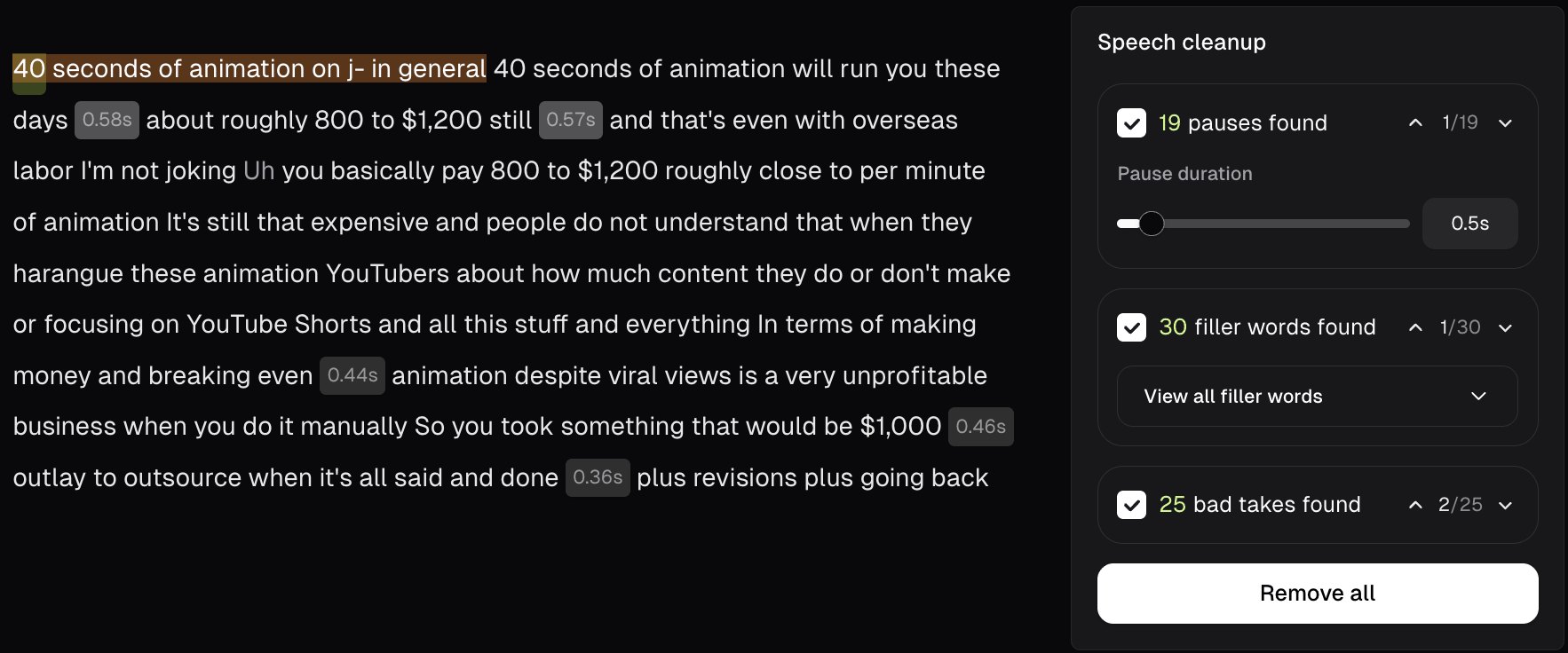
OpusClip's transcript view with highlighted words and gray pause chips beside a Speech cleanup panel listing pauses, filler words and bad takes found

OpusClip's Speech cleanup panel, with the video preview cropped out. Source: OpusClip help center

OpusClip's help center introduction calls it a video clipping tool that turns long videos into shorts, with an in-app editor, text-based and timeline-based, for minor tweaks. Its AI video editor page says clips get animated captions and are auto-resized for TikTok, YouTube Shorts and Instagram Reels, and also describes AI Producer, which it says turns raw talking-head footage into a publish-ready video; this guide covers the clip path. For an editor, the useful parts are the Speech cleanup panel, which finds filler words, pauses (0.5 seconds by default, adjustable) and bad takes such as retakes and restarts, with nothing cut without approval, plus keyboard shortcuts (D or Cmd+B splits a clip), Snap Editing and a manual reframe crop window.

The hand-off is the editor-specific feature. The help center says Export XML downloads the original video, an .xml file with the clip's captions, auto reframe and B-roll, and an .srt file, for Premiere Pro or DaVinci Resolve. Clips can be extended by 30 seconds before and after, each clip exports one at a time, and other editors can import the XML with slight variations. Captions arrive as overlays that cannot be edited in Premiere Pro, so the .srt is the route for editable captions.

Pricing: OpusClip's pricing page lists Free at $0 (clips carry a watermark and, per the page, stop being exportable after 3 days), Starter at $15 a month (monthly billing only) and Pro at $29 a month, or $14.50 a month billed annually. Business is custom. The pricing page and help center both list Export XML under Pro.

Considerations: OpusClip does not replace a timeline editor: its help center calls it a clipping tool whose editor is for minor tweaks, so a clip that needs color, multi-track audio or a deliverable spec belongs in Premiere Pro or DaVinci Resolve after Export XML. Its starting point is one long recording rather than a bin of separate shoots.

  • Choose it if the job is turning long interviews, podcasts, webinars or event recordings into several captioned, reframed clips, with an optional XML hand-off.
  • Skip it if the deliverable is a film, series or ad cut on a multi-track timeline.

2. Eddie AI: Best for a rough cut from raw interview footage that returns to Premiere, Resolve or Final Cut

Eddie AI's editor with a project list at left, a city skyline in the preview player and a two-track timeline above a music bar

Eddie AI's editor. Source: Eddie AI website

Eddie AI's AI video editor page describes an assistant editor for professionals: an editor imports footage, Eddie transcribes it (100+ languages, per the page), logs A-roll and B-roll, finds soundbites, removes filler words and awkward silences, and builds a rough cut from the story described in chat, with B-roll placed over the interview. For multicam, it says Eddie syncs cameras by audio or timecode, labels angles by who is on them and cuts between them. Every version is saved, and the editor can review what was removed before export.

Eddie exports a Premiere project (.prproj), a Resolve project (.drp), FCPXML, Premiere XML and OTIO files; Avid Media Composer export is in beta. On Premiere, the desktop app installs a panel that sends the sequence back relinked. Its help center states the limits: exports from web uploads point to Eddie's proxy media while desktop imports relink to originals, a timeline export carries the original sound rather than cleaned-up sound, and each timeline export costs 100 credits.

Pricing: Eddie AI's pricing page lists one-time credit packs: 1,000 credits for $10, 5,000 for $45, 15,000 for $120 and 50,000 for $350, with no subscription, packs that never expire and every feature in every pack. New accounts start with 500 free credits and no card. Importing costs about 250 credits an hour, and each edit is priced by the work, with an estimate before larger jobs.

Considerations: Everything is metered in credits, including each export, and Avid export is a beta. The pages position Eddie for interview-driven work such as documentaries, corporate video, podcasts and long-form stories.

  • Choose it if an editor wants a first assembly built from hours of interviews and B-roll, with the finish in Premiere Pro, DaVinci Resolve or Final Cut Pro.
  • Skip it if a credit meter is unwelcome, or the footage is one recording that only needs dead air removed.

3. Descript: Best for cutting by transcript, with timeline export to other editors
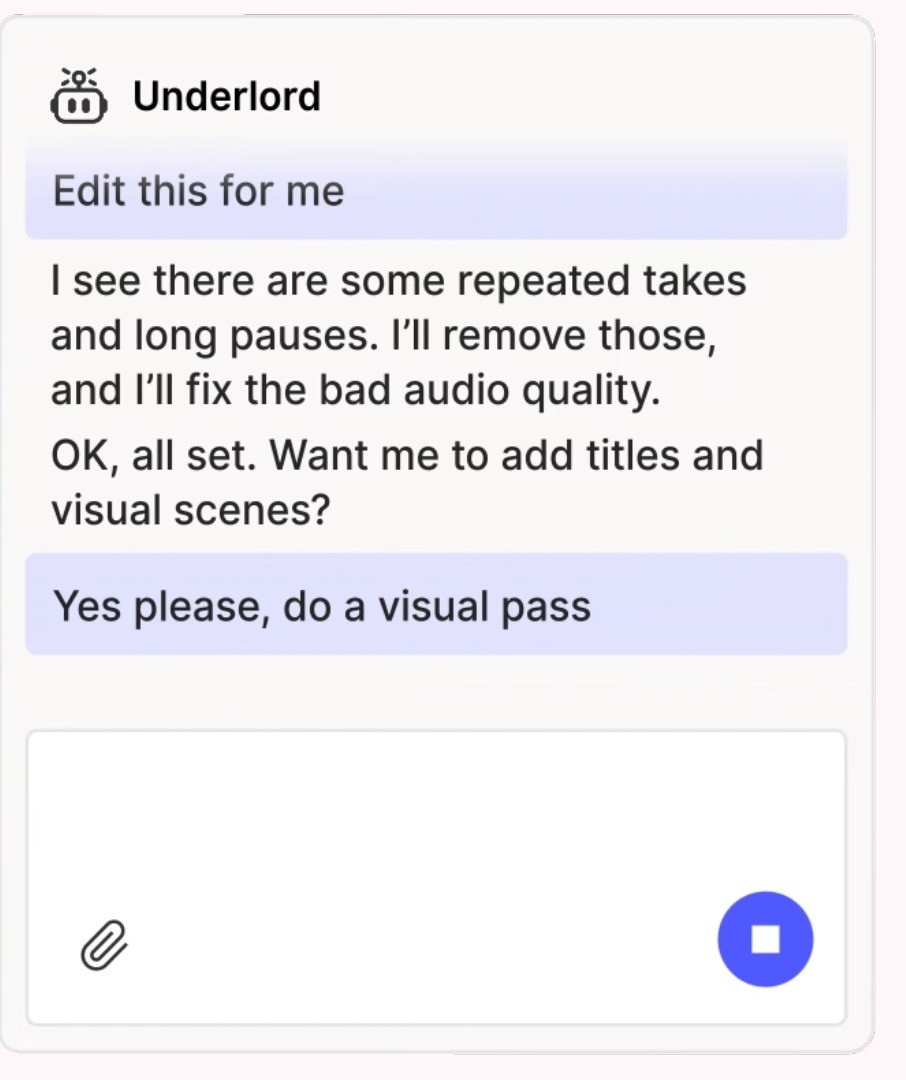
Descript's Underlord chat panel with the request Edit this for me and a reply about removing repeated takes and long pauses

Descript's Underlord chat panel. Source: Descript website

Descript is a Mac, Windows and web editor where recordings are transcribed and cut by editing the text; its pricing page describes this as editing video by editing a doc. Its AI co-editor, Underlord, is described as reading the script, watching the video and deciding what to do next. The pricing table lists Studio Sound, Remove Filler Words, Remove Retakes, Shorten Word Gaps, Automatic Multicam and Center Active Speaker, several marked Limited on Free.

For editors, the hand-off is documented in detail. Descript's help center says timeline export creates a project file with media, edits and source timecode, in Premiere (XML), Premiere (.prproj) (Beta), DaVinci Resolve (XML), Final Cut Pro (FCPXML), Reaper (EDL), Audition (SESX) or Pro Tools/Logic (AAF), and unresolved comments can export as markers. It warns that most formats don't support sequences or avatars.

Pricing: Descript's pricing page lists Free at $0 (60 media minutes a month, 100 one-time AI credits, 720p export that is not watermark-free), Hobbyist at $16 per person a month billed annually or $24 monthly (10 media hours, 400 AI credits a month, 1080p watermark-free), Creator at $24 or $35 (30 media hours, 800 credits, 4K) and Business at $50 or $65 (40 media hours, 1,500 credits). Enterprise is custom. Timeline export is on Creator, Business and Enterprise.

Considerations: Plans meter media hours and AI credits, and Free's credits are a one-time grant. Timeline export is paid, so an editor on Free or Hobbyist cannot hand the cut to Premiere or Final Cut Pro. Editing happens in Descript's own editor, beside the timeline software.

  • Choose it if dialogue-heavy footage should be rough-cut by editing text, with the finish in an editor that opens the exported timeline.
  • Skip it if the hand-off has to work on a lower-priced plan, or the cut must stay in one timeline app.

4. Autopod: Best for multicam podcast edits inside Premiere Pro

Autopod is a pack of plug-ins for Adobe Premiere Pro. Its Multi-Camera Editor edits multi-camera sequences automatically for up to 10 cameras and 10 microphones; the FAQ says it takes into account who is speaking, the camera layout and typical editing conventions, and the home page says it can be set to show wide shots more often. Social Clip Creator makes sequences at 1920x1080, 1080x1350 and 1080x1920 from in and out points, with auto-reframe and batch export. Jump Cut Editor cuts from silence using a decibel cutoff set per microphone.

The requirements are specific. The FAQ says Premiere Pro 2023 or newer, installed through Window then Extensions, and the Multi-Camera Editor needs multiple cameras and multiple unique audio tracks, so it does not work for a single speaker. A DaVinci Resolve version is sold through the same portal, each license covers one computer, and the FAQ says there are no plans for Final Cut Pro or Avid.

Pricing: Autopod's pricing page lists an Individual license at $29 a month per license, including all three plug-ins. Monthly subscriptions start with a 30-day free trial, and annual billing includes one month free per year. No free plan is listed.

Considerations: The AI cuts live in Premiere Pro and, through a separate downloader, DaVinci Resolve. We found no product screenshots or documentation pages beyond a short FAQ, so this entry rests on the home and pricing pages.

  • Choose it if a podcast or show is shot with several cameras and a microphone per speaker, and the edit happens in Premiere Pro.
  • Skip it if the project is one camera or a mixed audio track, or the team edits in Final Cut Pro or Avid.

5. TimeBolt: Best for removing silences, filler words and bad takes from long talking video
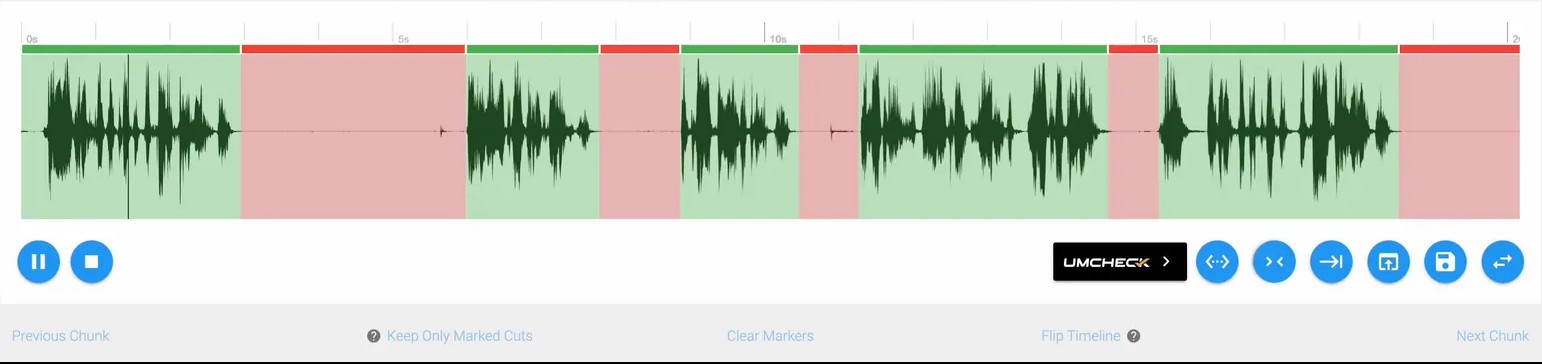
TimeBolt's waveform view with green and red segments over the audio, above playback buttons and an UMCHECK button

TimeBolt's waveform view, cropped to remove the video preview. Source: TimeBolt website

TimeBolt calls itself a video subtractor: its home page says it removes silence, filler words and bad takes from long video and podcast commentary. It is a Mac and Windows app, and the pages say transcription is local, with no upload. Its UMCheck feature uses AI transcription to detect filler words and then cuts from the waveform, and the home page lists keyboard editing that keeps the playhead moving and multi-track syncing that follows the active speaker.

The export list is what an editor needs: XML for Premiere Pro, XML for DaVinci Resolve, FCPXML for Final Cut Pro, a Camtasia project, MP4 and an SRT caption file. The FAQ also describes a JSON file for a Premiere plug-in and an EDL for Resolve.

Pricing: TimeBolt's pricing page lists Pro at $17 a month billed monthly, $97 a year billed annually (the page says it saves 52%) or $347 as a one-time lifetime payment, with a 30-day money-back guarantee. Free is listed as forever free: video only, silence detection and removal, watermarked exports, no XML or NLE export and no saved projects.

Considerations: The pages disagree on one price: the pricing FAQ says UMCheck is pay-per-use on paid plans at $0.03 per minute of video, while the home page says local transcription has no extra charge, so check which applies. Cuts come from audio thresholds, not from reading the story.

  • Choose it if long talking recordings need dead air, fillers and false starts cut before the finishing edit in Premiere Pro, DaVinci Resolve or Final Cut Pro.
  • Skip it if the footage needs structure decisions (see Eddie AI or Descript), or the Free plan's limits would block the workflow.

6. Jumper: Best for finding shots and spoken lines inside the editor
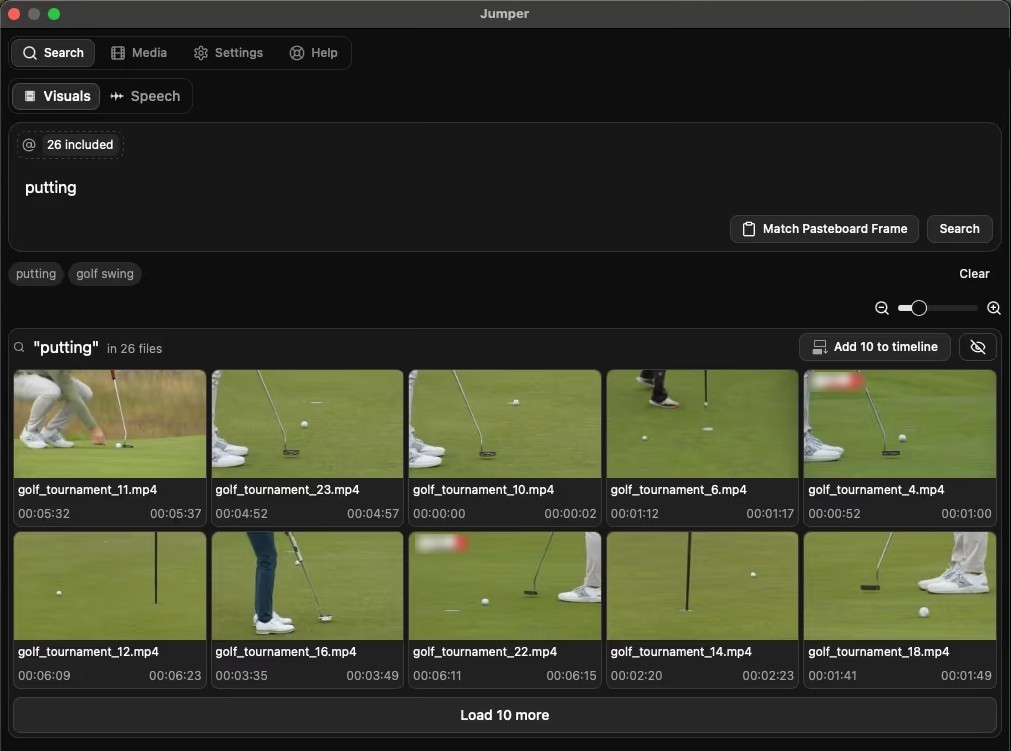
Jumper's standalone app showing a visual search for putting with golf clip thumbnails and an Add 10 to timeline button

Jumper's standalone search window. Source: Jumper website

Jumper describes itself as a machine-learning search engine for footage. An editor describes a shot in words and Jumper retrieves matching clips with no tags required, searches for a word or phrase in what was said (111 languages, per the home page), and finds more footage like a selected shot or the frame in the source monitor. Its Script Editor opens a transcribed clip so an editor can remove silences, drop lines and send ranges to the sequence. The pages say analysis runs on the editor's machine, with no uploads, and works offline after setup.

Jumper runs inside Premiere Pro, Final Cut Pro, DaVinci Resolve and Avid Media Composer through plug-ins, or as standalone apps for macOS and Windows. Its llms file says sequence exports support all four editors, connected timeline round trips currently support Premiere Pro, DaVinci Resolve and Avid, speech search matches words and phrases rather than topic or meaning, and Jumper is not a replacement for an NLE.

Pricing: Jumper's pricing page lists Jumper at $169 per seat as a lifetime license (including one year of updates), with unlimited analysis and search, NLE plug-ins and the Script Editor. Jumper Pro is $49 a month, $399 a year or $599 lifetime and adds shared analysis, watch folders, all AI models, face recognition, people search and agentic editing. Enterprise is custom, five licenses minimum. A free trial needs no credit card.

Considerations: Jumper finds footage; it does not cut a story. People search and agentic editing need Pro. Its llms file says that with a remote agent model, file paths, timecodes, transcript excerpts and thumbnails go to that model's provider.

  • Choose it if an editor works through large libraries such as documentaries, archives or event footage and needs B-roll or a quote fast, without leaving the editor.
  • Skip it if the footage is one recording, or the job is an automatic cut.

7. Simon Says: Best for transcripts and subtitles that import into an editor

Simon Says transcribes, translates and subtitles audio and video, with speaker identification, frame-accurate timecode sync, a transcript editor with video sync and a Visual Subtitle Editor for text, timing and formatting. Its pricing page lists transcription and translation in 100 languages, burn-in subtitles, and Simon Says Assemble, which edits video by ordering text, from Starter up. It runs on the web, a macOS app and an iPhone app, with a Final Cut Pro extension, a DaVinci Resolve extension and an Adobe Premiere Pro plug-in.

Exports cover Final Cut Pro X, Premiere Pro and Audition, Avid Media Composer and Pro Tools, DaVinci Resolve, Word and subtitle formats such as SRT and WebVTT, plus tools to convert SRT files to Final Cut Pro titles, Avid SubCap or EDL markers. Simon Says says accuracy depends on audio quality and accents and recommends reviewing transcripts.

Pricing: Simon Says' pricing page lists Pay as you go at $0 per user a month, then $15 an hour or $0.25 a minute of file duration, with no credit card needed to start. Starter is $15 per user a month billed annually ($20 monthly) with 2 hours of credit a month, Pro $33 ($40 monthly) with 4 hours, and Pro+ $125 ($150 monthly) with 30 hours. No free plan is listed.

Considerations: Simon Says makes text, subtitles and translations, not cuts, apart from the text-based Assemble mode on paid plans. We found no product screenshot of its current interface on its public pages, only illustrated marketing frames.

  • Choose it if an editor needs timecoded transcripts, subtitles or translations that import into Premiere Pro, Final Cut Pro, DaVinci Resolve or Avid.
  • Skip it if the job is an automatic cut of the footage, or a free plan is required.

8. DaVinci Resolve Studio: Best for AI inside the timeline editor itself
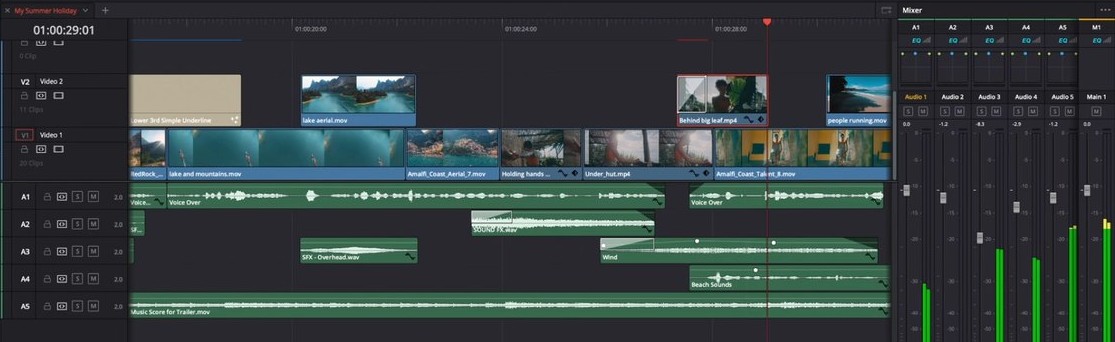
DaVinci Resolve's Edit page timeline with two video tracks, five audio tracks and a mixer with level meters

The Edit page timeline and mixer in DaVinci Resolve, cropped to the timeline. Source: Blackmagic Design website

Blackmagic describes DaVinci Resolve as software for editing, visual effects, motion graphics, color correction and audio post production on Mac, Windows and Linux. The paid Studio version adds the DaVinci Neural Engine, which its page says powers facial recognition that sorts clips into bins by the people in a shot, Super Scale upscaling, Speed Warp retiming, Magic Mask, smart reframe, object removal and scene cut detection, plus AI voice isolation, a music remixer, a dialogue separator and AI UltraNR noise reduction. The overview page lists text based editing among the Studio features and names IntelliSearch and CineFocus as new AI tools in version 21.

Blackmagic says these tools solve complex, repetitive and time consuming problems, that files move easily between Resolve, Final Cut Pro, Media Composer and Premiere Pro, and that the free version includes multi-user collaboration.

Pricing: Blackmagic's page lists the free version of DaVinci Resolve, which edits and finishes up to 60 fps at up to Ultra HD 3840 x 2160, and DaVinci Resolve Studio at $236 as a one-time purchase, shown as discounted from $295. Studio supports up to 120 fps at 32K.

Considerations: The Neural Engine tools are Studio features, so the free version does not have them, and the $236 price is shown as a discount, so check it at purchase. The AI tools handle specific tasks; the pages do not describe a story-led rough cut from raw footage.

  • Choose it if the editor already works in Resolve and wants tracking, reframing, scene cut detection and voice isolation without a hand-off.
  • Skip it if the first cut has to be built from hours of footage, or the AI tools must work on the free version.

How we compared these tools

We compared each tool on six points: the task it takes off an editor, where it sits next to the timeline (beside it, inside it or as the editor), what comes back, the hand-off the vendor lists in its own wording, what the free version limits, and how clearly the vendor's pages document all of it. The guide is organized around the job in the title, and OpusClip comes first because cutting and reframing short clips from long recordings is the job its help center describes, with an XML hand-off for finishing elsewhere. Its limits are in its entry: its help center calls it a clipping tool whose editor is for minor tweaks.

Items 2 to 8 follow one yardstick: how much of the first cut each vendor's own pages say the tool makes without the editor. Eddie AI describes a rough cut built from a chat request, Descript cutting by transcript, Autopod automatic multicam edits, TimeBolt cuts for silences and fillers, Jumper search with the cut left to the editor, Simon Says transcripts and subtitles, and Resolve Studio AI tasks inside an editor where the editor makes every cut. Positions 3 to 8 are close calls, not a scored formula.

All facts come from each vendor's own pricing pages, product pages, help centers and documentation, read on November 12, 2026, with every price printed with its billing basis. Vendor pages here still write Premiere Pro, so this guide does too when it reports what they say. We did not run hands-on tests of any tool here, and this is a comparison of published features, hand-offs and prices, not a lab review. We left out Gling, AutoCut and Auto-Editor, which our auto video editors guide covers, and Runway, which the professionals guide covers. Adobe's own site returned a 403 error to our scripts, so we printed no Adobe facts.

Red flags to watch for

  • Hand-off fidelity. OpusClip's captions arrive in Premiere Pro as overlays that cannot be edited there, Descript says most timeline formats don't support sequences or avatars, and Eddie AI says web uploads export against proxy media and timeline exports carry the original sound. Round-trip one real project before committing a team.
  • Hand-offs and AI locked to a plan. OpusClip's Export XML is listed under Pro, Descript's timeline export needs Creator or higher, TimeBolt's Free plan has no XML export, Resolve's Neural Engine is Studio-only, and Jumper's people search and agentic editing need Pro.
  • Metering. Eddie AI charges credits for imports, edits and each timeline export, and Descript meters media hours and AI credits. Estimate a normal month, not one project.
  • Prices that disagree on one site. TimeBolt's pricing FAQ lists UMCheck at $0.03 per minute of video while its home page says local transcription has no extra charge.
  • Platform and license limits. Autopod needs Premiere Pro 2023 or newer and one license covers one computer. Eddie AI's Avid export is a beta.
  • Vendor speed claims. Eddie AI, OpusClip, TimeBolt and Jumper pages print speed claims, some as customer quotes. None cites an independent test, so this guide prints none.
  • Cuts nobody reviewed. Simon Says recommends reviewing transcripts, OpusClip says Speech cleanup shows what will be removed before anything is deleted, and Eddie AI lets the editor review removals before export. Keep the original footage.
  • Where the footage goes. Jumper and TimeBolt say analysis happens on the editor's machine. We did not review the data handling of the other tools, so check each privacy page before sending client footage.

Frequently asked questions

What are the best AI solutions for video editors?

It depends on the task. OpusClip comes first here for short clips cut and reframed from long recordings, with an XML hand-off to Premiere Pro or DaVinci Resolve. Eddie AI is the pick for a rough cut from raw interviews, Descript for cutting by transcript, Autopod for multicam podcasts, TimeBolt for removing silences, Jumper for searching footage, Simon Says for transcripts and DaVinci Resolve Studio for AI inside the timeline.

Can AI tools hand their work back to Premiere Pro, Final Cut Pro or DaVinci Resolve?

Most can. Descript lists timeline export to Premiere, Resolve, Final Cut Pro and Pro Tools on Creator and higher, Eddie AI exports Premiere, Resolve, FCPXML, XML and OTIO files, TimeBolt exports XML and FCPXML, Simon Says exports to Final Cut Pro X, Premiere Pro, Avid and Resolve, and Jumper exports sequences to four editors. OpusClip's Pro plan exports XML for Premiere Pro and DaVinci Resolve, per its help center.

Will AI replace video editors?

Three vendors address it. Eddie AI's page says it is built to be an assistant editor, Jumper's llms file says it is not a replacement for an NLE, and OpusClip's help center calls it a clipping tool whose editor is for minor tweaks. The pages we read print no independent study of time saved.

Is there a free AI solution for video editors?

Several have free starting points with limits. OpusClip's Free plan is $0 with a watermark, Descript's Free plan lists 60 media minutes a month and 720p export, TimeBolt's Free plan is video only with watermarked exports and no XML export, Eddie AI gives new accounts 500 free credits, Jumper has a free trial, Autopod has a 30-day trial on monthly billing, and the free DaVinci Resolve edits up to Ultra HD at 60 fps without the Neural Engine. Simon Says lists no free plan.

Do AI editing tools keep footage on the editor's own computer?

Some say so. Jumper says analysis runs on the device with no uploads, and TimeBolt says it processes everything locally. DaVinci Resolve is a desktop application and Autopod runs inside Premiere Pro. We did not review the data handling of the other tools, so check each privacy page first.

Does OpusClip replace an editor's timeline software?

No. OpusClip is built to find and finish short clips from long recordings, and on Pro its Export XML hands a clip to Premiere Pro or DaVinci Resolve for a finish. See OpusClip's pricing page for plan details.

How is this different from the guide to AI video editors for professionals?

That guide compares full timeline editors on timeline control, color, audio, codecs and delivery. This one compares solutions by the repetitive task each takes off an editor and what each hands back. Only OpusClip, Descript and DaVinci Resolve appear in both.

On this page

Use our Free Forever Plan

Find the moment. Skip the scrubbing.

From script to polished video — in one click.

Create and post one short video every day for free, and grow faster.

OpusSearch uses AI to surface the exact clip you need from hours of footage — in seconds, not afternoons.

Agent Opus runs the entire video pipeline for you: research, scriptwriting, storyboarding, motion, voice, and edit. Upload the idea, post the result.

8 Best AI Solutions for Video Editors in 2026

OpusClip is the pick for an editor who needs short, captioned clips cut and reframed from a long recording, with an XML hand-off to Premiere Pro or DaVinci Resolve. Eddie AI is the pick for a rough cut from raw interviews, Descript for cutting by transcript, Autopod for multicam podcasts, TimeBolt for removing silences, Jumper for searching footage, Simon Says for transcripts and DaVinci Resolve Studio for AI inside the timeline. Items 2 to 8 follow one yardstick: how much of the first cut each vendor's own pages say the tool makes, read November 12, 2026.

Key takeaways

  • Best for short clips cut and reframed from long recordings: OpusClip. Its help center describes Export XML for Premiere Pro or DaVinci Resolve and a Speech cleanup panel that shows what will be removed.
  • Best for a rough cut from raw interviews: Eddie AI. Its pages describe logging, soundbite selection and a chat-built rough cut exported as Premiere, Resolve, Final Cut Pro or OTIO files.
  • Best for cutting by transcript: Descript. Its help center lists timeline export to Premiere, Resolve, Final Cut Pro and Pro Tools on Creator and higher plans.
  • Best for multicam podcast edits inside Premiere Pro: Autopod. Its Multi-Camera Editor handles up to 10 cameras and 10 microphones.
  • Best for removing silences, filler words and bad takes: TimeBolt. It exports XML and FCPXML, though its free version cannot export XML.
  • Best for finding shots and spoken lines inside the editor: Jumper. Its plug-ins cover Premiere Pro, Final Cut Pro, DaVinci Resolve and Avid.
  • Best for transcripts and subtitles that import into an editor: Simon Says. Its pricing page lists exports for Final Cut Pro X, Premiere Pro, Avid, Pro Tools and DaVinci Resolve.
  • Best for AI inside the timeline itself: DaVinci Resolve Studio. Blackmagic lists tracking, smart reframe, scene cut detection and voice isolation in its Neural Engine.

What counts as an AI solution for a video editor

Here, an AI solution takes a repetitive task off an editor and hands the result back to a timeline the editor still controls. Five of the eight sit beside the timeline editor in their own app: OpusClip, Eddie AI, Descript, TimeBolt and Simon Says. Two sit inside it as plug-ins: Autopod and Jumper. One is the editor itself: DaVinci Resolve Studio. The AI built into the other full timeline editors is compared in our guide to AI video editors for professionals; this guide covers the tasks around them: rough cuts, silence removal, searching footage, transcripts and short social versions.

How to choose

  • A first assembly from hours of interviews and B-roll: Eddie AI, or Descript when the cut should follow the transcript.
  • A multicam podcast in Premiere Pro: Autopod, which needs a separate audio track per speaker.
  • Dead air, fillers and bad takes removed from talking footage: TimeBolt, or OpusClip's Speech cleanup inside its clips.
  • A shot or spoken line in a large library: Jumper.
  • Transcripts or subtitles that import into an editor: Simon Says, or Descript.
  • Short, captioned, reframed versions of a long recording: OpusClip, then Export XML for a finish.
  • Transcript-led editing in more editors: see text-based video editors. Automatic cuts: see auto video editors. Scene detection: see scene and cut detection tools.

At a glance

  • OpusClip: best for short clips cut and reframed from long recordings; Starter $15 a month (monthly billing only), Pro $29 a month or $14.50 a month billed annually; free plan yes ($0, with a watermark).
  • Eddie AI: best for a rough cut from raw interview footage; one-time credit packs from $10 for 1,000 credits, no subscription; free: 500 credits for new accounts.
  • Descript: best for cutting by transcript; Hobbyist $16 per person a month billed annually ($24 billed monthly), Creator $24 ($35 monthly); free plan yes (60 media minutes a month, 720p export).
  • Autopod: best for multicam podcast edits inside Premiere Pro; $29 a month per license; free: a 30-day trial on monthly billing, no free plan listed.
  • TimeBolt: best for removing silences, filler words and bad takes; Pro $17 a month billed monthly, $97 a year billed annually or $347 lifetime; free plan yes (video only, watermarked, no XML export).
  • Jumper: best for finding shots and spoken lines inside the editor; $169 per seat lifetime (one year of updates), Pro $49 a month, $399 a year or $599 lifetime; free trial, no credit card.
  • Simon Says: best for transcripts and subtitles that import into an editor; pay as you go $15 an hour, Starter $15 per user a month billed annually ($20 monthly); no free plan listed.
  • DaVinci Resolve Studio: best for AI inside the timeline editor itself; Studio $236 one-time (shown as discounted from $295); the free Resolve has no Neural Engine.

Where each AI tool sits next to the timeline and what it hands back

The At a glance list carries best-for, price and free plan; this table compares the task each tool takes off an editor, where it sits next to the timeline, what comes back, the hand-off to an editing app and what the free version limits, as listed on each vendor's own pages on November 12, 2026.

ToolTask it takes off the editorWhere it sits next to the timelineWhat comes backHand-off the vendor listsFree version limit
OpusClipFinds clips in long recordings; Speech cleanup flags fillers, pauses and bad takesBeside it, in an in-app editor with text and timeline tools meant for minor tweaksShort clips with animated captions, auto-resized for TikTok, Shorts and ReelsExport XML to Premiere Pro or DaVinci Resolve, with an .srt; the help center says Pro onlyFree is $0 with a watermark; the pricing page says Free clips stop being exportable after 3 days
Eddie AILogs and transcribes footage, then builds a rough cut from a plain-language requestBeside it in web, Mac, Windows and iPhone apps; the desktop app installs a Premiere panelAn editable rough cut with B-roll placed; every version saved, removed material reviewablePremiere project, Resolve project, FCPXML, XML and OTIO files; Avid export is in betaNew accounts start with 500 free credits; credit packs after that
DescriptCuts by editing the transcript; Underlord, Remove Filler Words and Remove Retakes assistBeside it, in its own editor on Mac, Windows and the webA project that stays editable; exports as video, audio, GIF, text or subtitle filesTimeline export to Premiere, Resolve, Final Cut Pro and Pro Tools on Creator and upFree plan: 60 media minutes a month and 720p export; no timeline export
AutopodCuts multi-camera podcast edits from who is speaking and the camera layoutInside it, as panels in Adobe Premiere Pro 2023 or newer; a DaVinci Resolve version is soldMulticam sequences cut automatically, jump cuts from silence, and sequences for socialEdits inside the open Premiere project; the vendor has no plans for Final Cut Pro or Avid versionsNo free plan listed; monthly billing starts with a 30-day free trial
TimeBoltRemoves silences, filler words and bad takes from long talking videoBeside it: a Mac and Windows app that processes footage locally, with no uploadCuts as a timeline file or a rendered MP4, plus an SRT caption fileXML for Premiere Pro and DaVinci Resolve, FCPXML for Final Cut Pro, a Camtasia projectFree forever with watermarked exports, video only, no XML export and no saved projects
JumperFinds shots and spoken lines across a footage library by search, with no manual loggingInside it, as plug-ins for Premiere Pro, Final Cut Pro, DaVinci Resolve and Avid, or standaloneSearch results to drop on the timeline; a Script Editor turns transcripts into a first cutSequence export to four editors; connected round trips in Premiere, Resolve and AvidFree trial with no credit card; the lifetime license is paid
Simon SaysTranscribes, translates and subtitles footage so the editor can search and cut from textBeside it, on the web, macOS and iPhone, with extensions for Premiere, Final Cut and ResolveTimecoded, speaker-labelled transcripts and subtitles, editable in a transcript editorExports for Final Cut Pro X, Premiere Pro, Avid, Pro Tools and DaVinci Resolve, plus Word and SRTNo free plan listed; pay as you go has no subscription and no card is needed to start
DaVinci Resolve StudioNeural Engine tracks and isolates objects, reframes, detects scene cuts and isolates voicesIt is the timeline editor itself, on Mac, Windows and LinuxAI results land in the project, such as people-sorted bins; Studio lists text based editingBlackmagic says files move easily between Resolve, Final Cut Pro, Media Composer and Premiere ProThe free version has no Neural Engine tools; it edits up to Ultra HD at 60 fps

1. OpusClip: Best for short clips cut and reframed from long recordings

OpusClip's transcript view with highlighted words and gray pause chips beside a Speech cleanup panel listing pauses, filler words and bad takes found

OpusClip's Speech cleanup panel, with the video preview cropped out. Source: OpusClip help center

OpusClip's help center introduction calls it a video clipping tool that turns long videos into shorts, with an in-app editor, text-based and timeline-based, for minor tweaks. Its AI video editor page says clips get animated captions and are auto-resized for TikTok, YouTube Shorts and Instagram Reels, and also describes AI Producer, which it says turns raw talking-head footage into a publish-ready video; this guide covers the clip path. For an editor, the useful parts are the Speech cleanup panel, which finds filler words, pauses (0.5 seconds by default, adjustable) and bad takes such as retakes and restarts, with nothing cut without approval, plus keyboard shortcuts (D or Cmd+B splits a clip), Snap Editing and a manual reframe crop window.

The hand-off is the editor-specific feature. The help center says Export XML downloads the original video, an .xml file with the clip's captions, auto reframe and B-roll, and an .srt file, for Premiere Pro or DaVinci Resolve. Clips can be extended by 30 seconds before and after, each clip exports one at a time, and other editors can import the XML with slight variations. Captions arrive as overlays that cannot be edited in Premiere Pro, so the .srt is the route for editable captions.

Pricing: OpusClip's pricing page lists Free at $0 (clips carry a watermark and, per the page, stop being exportable after 3 days), Starter at $15 a month (monthly billing only) and Pro at $29 a month, or $14.50 a month billed annually. Business is custom. The pricing page and help center both list Export XML under Pro.

Considerations: OpusClip does not replace a timeline editor: its help center calls it a clipping tool whose editor is for minor tweaks, so a clip that needs color, multi-track audio or a deliverable spec belongs in Premiere Pro or DaVinci Resolve after Export XML. Its starting point is one long recording rather than a bin of separate shoots.

  • Choose it if the job is turning long interviews, podcasts, webinars or event recordings into several captioned, reframed clips, with an optional XML hand-off.
  • Skip it if the deliverable is a film, series or ad cut on a multi-track timeline.

2. Eddie AI: Best for a rough cut from raw interview footage that returns to Premiere, Resolve or Final Cut

Eddie AI's editor with a project list at left, a city skyline in the preview player and a two-track timeline above a music bar

Eddie AI's editor. Source: Eddie AI website

Eddie AI's AI video editor page describes an assistant editor for professionals: an editor imports footage, Eddie transcribes it (100+ languages, per the page), logs A-roll and B-roll, finds soundbites, removes filler words and awkward silences, and builds a rough cut from the story described in chat, with B-roll placed over the interview. For multicam, it says Eddie syncs cameras by audio or timecode, labels angles by who is on them and cuts between them. Every version is saved, and the editor can review what was removed before export.

Eddie exports a Premiere project (.prproj), a Resolve project (.drp), FCPXML, Premiere XML and OTIO files; Avid Media Composer export is in beta. On Premiere, the desktop app installs a panel that sends the sequence back relinked. Its help center states the limits: exports from web uploads point to Eddie's proxy media while desktop imports relink to originals, a timeline export carries the original sound rather than cleaned-up sound, and each timeline export costs 100 credits.

Pricing: Eddie AI's pricing page lists one-time credit packs: 1,000 credits for $10, 5,000 for $45, 15,000 for $120 and 50,000 for $350, with no subscription, packs that never expire and every feature in every pack. New accounts start with 500 free credits and no card. Importing costs about 250 credits an hour, and each edit is priced by the work, with an estimate before larger jobs.

Considerations: Everything is metered in credits, including each export, and Avid export is a beta. The pages position Eddie for interview-driven work such as documentaries, corporate video, podcasts and long-form stories.

  • Choose it if an editor wants a first assembly built from hours of interviews and B-roll, with the finish in Premiere Pro, DaVinci Resolve or Final Cut Pro.
  • Skip it if a credit meter is unwelcome, or the footage is one recording that only needs dead air removed.

3. Descript: Best for cutting by transcript, with timeline export to other editors

Descript's Underlord chat panel with the request Edit this for me and a reply about removing repeated takes and long pauses

Descript's Underlord chat panel. Source: Descript website

Descript is a Mac, Windows and web editor where recordings are transcribed and cut by editing the text; its pricing page describes this as editing video by editing a doc. Its AI co-editor, Underlord, is described as reading the script, watching the video and deciding what to do next. The pricing table lists Studio Sound, Remove Filler Words, Remove Retakes, Shorten Word Gaps, Automatic Multicam and Center Active Speaker, several marked Limited on Free.

For editors, the hand-off is documented in detail. Descript's help center says timeline export creates a project file with media, edits and source timecode, in Premiere (XML), Premiere (.prproj) (Beta), DaVinci Resolve (XML), Final Cut Pro (FCPXML), Reaper (EDL), Audition (SESX) or Pro Tools/Logic (AAF), and unresolved comments can export as markers. It warns that most formats don't support sequences or avatars.

Pricing: Descript's pricing page lists Free at $0 (60 media minutes a month, 100 one-time AI credits, 720p export that is not watermark-free), Hobbyist at $16 per person a month billed annually or $24 monthly (10 media hours, 400 AI credits a month, 1080p watermark-free), Creator at $24 or $35 (30 media hours, 800 credits, 4K) and Business at $50 or $65 (40 media hours, 1,500 credits). Enterprise is custom. Timeline export is on Creator, Business and Enterprise.

Considerations: Plans meter media hours and AI credits, and Free's credits are a one-time grant. Timeline export is paid, so an editor on Free or Hobbyist cannot hand the cut to Premiere or Final Cut Pro. Editing happens in Descript's own editor, beside the timeline software.

  • Choose it if dialogue-heavy footage should be rough-cut by editing text, with the finish in an editor that opens the exported timeline.
  • Skip it if the hand-off has to work on a lower-priced plan, or the cut must stay in one timeline app.

4. Autopod: Best for multicam podcast edits inside Premiere Pro

Autopod is a pack of plug-ins for Adobe Premiere Pro. Its Multi-Camera Editor edits multi-camera sequences automatically for up to 10 cameras and 10 microphones; the FAQ says it takes into account who is speaking, the camera layout and typical editing conventions, and the home page says it can be set to show wide shots more often. Social Clip Creator makes sequences at 1920x1080, 1080x1350 and 1080x1920 from in and out points, with auto-reframe and batch export. Jump Cut Editor cuts from silence using a decibel cutoff set per microphone.

The requirements are specific. The FAQ says Premiere Pro 2023 or newer, installed through Window then Extensions, and the Multi-Camera Editor needs multiple cameras and multiple unique audio tracks, so it does not work for a single speaker. A DaVinci Resolve version is sold through the same portal, each license covers one computer, and the FAQ says there are no plans for Final Cut Pro or Avid.

Pricing: Autopod's pricing page lists an Individual license at $29 a month per license, including all three plug-ins. Monthly subscriptions start with a 30-day free trial, and annual billing includes one month free per year. No free plan is listed.

Considerations: The AI cuts live in Premiere Pro and, through a separate downloader, DaVinci Resolve. We found no product screenshots or documentation pages beyond a short FAQ, so this entry rests on the home and pricing pages.

  • Choose it if a podcast or show is shot with several cameras and a microphone per speaker, and the edit happens in Premiere Pro.
  • Skip it if the project is one camera or a mixed audio track, or the team edits in Final Cut Pro or Avid.

5. TimeBolt: Best for removing silences, filler words and bad takes from long talking video

TimeBolt's waveform view with green and red segments over the audio, above playback buttons and an UMCHECK button

TimeBolt's waveform view, cropped to remove the video preview. Source: TimeBolt website

TimeBolt calls itself a video subtractor: its home page says it removes silence, filler words and bad takes from long video and podcast commentary. It is a Mac and Windows app, and the pages say transcription is local, with no upload. Its UMCheck feature uses AI transcription to detect filler words and then cuts from the waveform, and the home page lists keyboard editing that keeps the playhead moving and multi-track syncing that follows the active speaker.

The export list is what an editor needs: XML for Premiere Pro, XML for DaVinci Resolve, FCPXML for Final Cut Pro, a Camtasia project, MP4 and an SRT caption file. The FAQ also describes a JSON file for a Premiere plug-in and an EDL for Resolve.

Pricing: TimeBolt's pricing page lists Pro at $17 a month billed monthly, $97 a year billed annually (the page says it saves 52%) or $347 as a one-time lifetime payment, with a 30-day money-back guarantee. Free is listed as forever free: video only, silence detection and removal, watermarked exports, no XML or NLE export and no saved projects.

Considerations: The pages disagree on one price: the pricing FAQ says UMCheck is pay-per-use on paid plans at $0.03 per minute of video, while the home page says local transcription has no extra charge, so check which applies. Cuts come from audio thresholds, not from reading the story.

  • Choose it if long talking recordings need dead air, fillers and false starts cut before the finishing edit in Premiere Pro, DaVinci Resolve or Final Cut Pro.
  • Skip it if the footage needs structure decisions (see Eddie AI or Descript), or the Free plan's limits would block the workflow.

6. Jumper: Best for finding shots and spoken lines inside the editor

Jumper's standalone app showing a visual search for putting with golf clip thumbnails and an Add 10 to timeline button

Jumper's standalone search window. Source: Jumper website

Jumper describes itself as a machine-learning search engine for footage. An editor describes a shot in words and Jumper retrieves matching clips with no tags required, searches for a word or phrase in what was said (111 languages, per the home page), and finds more footage like a selected shot or the frame in the source monitor. Its Script Editor opens a transcribed clip so an editor can remove silences, drop lines and send ranges to the sequence. The pages say analysis runs on the editor's machine, with no uploads, and works offline after setup.

Jumper runs inside Premiere Pro, Final Cut Pro, DaVinci Resolve and Avid Media Composer through plug-ins, or as standalone apps for macOS and Windows. Its llms file says sequence exports support all four editors, connected timeline round trips currently support Premiere Pro, DaVinci Resolve and Avid, speech search matches words and phrases rather than topic or meaning, and Jumper is not a replacement for an NLE.

Pricing: Jumper's pricing page lists Jumper at $169 per seat as a lifetime license (including one year of updates), with unlimited analysis and search, NLE plug-ins and the Script Editor. Jumper Pro is $49 a month, $399 a year or $599 lifetime and adds shared analysis, watch folders, all AI models, face recognition, people search and agentic editing. Enterprise is custom, five licenses minimum. A free trial needs no credit card.

Considerations: Jumper finds footage; it does not cut a story. People search and agentic editing need Pro. Its llms file says that with a remote agent model, file paths, timecodes, transcript excerpts and thumbnails go to that model's provider.

  • Choose it if an editor works through large libraries such as documentaries, archives or event footage and needs B-roll or a quote fast, without leaving the editor.
  • Skip it if the footage is one recording, or the job is an automatic cut.

7. Simon Says: Best for transcripts and subtitles that import into an editor

Simon Says transcribes, translates and subtitles audio and video, with speaker identification, frame-accurate timecode sync, a transcript editor with video sync and a Visual Subtitle Editor for text, timing and formatting. Its pricing page lists transcription and translation in 100 languages, burn-in subtitles, and Simon Says Assemble, which edits video by ordering text, from Starter up. It runs on the web, a macOS app and an iPhone app, with a Final Cut Pro extension, a DaVinci Resolve extension and an Adobe Premiere Pro plug-in.

Exports cover Final Cut Pro X, Premiere Pro and Audition, Avid Media Composer and Pro Tools, DaVinci Resolve, Word and subtitle formats such as SRT and WebVTT, plus tools to convert SRT files to Final Cut Pro titles, Avid SubCap or EDL markers. Simon Says says accuracy depends on audio quality and accents and recommends reviewing transcripts.

Pricing: Simon Says' pricing page lists Pay as you go at $0 per user a month, then $15 an hour or $0.25 a minute of file duration, with no credit card needed to start. Starter is $15 per user a month billed annually ($20 monthly) with 2 hours of credit a month, Pro $33 ($40 monthly) with 4 hours, and Pro+ $125 ($150 monthly) with 30 hours. No free plan is listed.

Considerations: Simon Says makes text, subtitles and translations, not cuts, apart from the text-based Assemble mode on paid plans. We found no product screenshot of its current interface on its public pages, only illustrated marketing frames.

  • Choose it if an editor needs timecoded transcripts, subtitles or translations that import into Premiere Pro, Final Cut Pro, DaVinci Resolve or Avid.
  • Skip it if the job is an automatic cut of the footage, or a free plan is required.

8. DaVinci Resolve Studio: Best for AI inside the timeline editor itself

DaVinci Resolve's Edit page timeline with two video tracks, five audio tracks and a mixer with level meters

The Edit page timeline and mixer in DaVinci Resolve, cropped to the timeline. Source: Blackmagic Design website

Blackmagic describes DaVinci Resolve as software for editing, visual effects, motion graphics, color correction and audio post production on Mac, Windows and Linux. The paid Studio version adds the DaVinci Neural Engine, which its page says powers facial recognition that sorts clips into bins by the people in a shot, Super Scale upscaling, Speed Warp retiming, Magic Mask, smart reframe, object removal and scene cut detection, plus AI voice isolation, a music remixer, a dialogue separator and AI UltraNR noise reduction. The overview page lists text based editing among the Studio features and names IntelliSearch and CineFocus as new AI tools in version 21.

Blackmagic says these tools solve complex, repetitive and time consuming problems, that files move easily between Resolve, Final Cut Pro, Media Composer and Premiere Pro, and that the free version includes multi-user collaboration.

Pricing: Blackmagic's page lists the free version of DaVinci Resolve, which edits and finishes up to 60 fps at up to Ultra HD 3840 x 2160, and DaVinci Resolve Studio at $236 as a one-time purchase, shown as discounted from $295. Studio supports up to 120 fps at 32K.

Considerations: The Neural Engine tools are Studio features, so the free version does not have them, and the $236 price is shown as a discount, so check it at purchase. The AI tools handle specific tasks; the pages do not describe a story-led rough cut from raw footage.

  • Choose it if the editor already works in Resolve and wants tracking, reframing, scene cut detection and voice isolation without a hand-off.
  • Skip it if the first cut has to be built from hours of footage, or the AI tools must work on the free version.

How we compared these tools

We compared each tool on six points: the task it takes off an editor, where it sits next to the timeline (beside it, inside it or as the editor), what comes back, the hand-off the vendor lists in its own wording, what the free version limits, and how clearly the vendor's pages document all of it. The guide is organized around the job in the title, and OpusClip comes first because cutting and reframing short clips from long recordings is the job its help center describes, with an XML hand-off for finishing elsewhere. Its limits are in its entry: its help center calls it a clipping tool whose editor is for minor tweaks.

Items 2 to 8 follow one yardstick: how much of the first cut each vendor's own pages say the tool makes without the editor. Eddie AI describes a rough cut built from a chat request, Descript cutting by transcript, Autopod automatic multicam edits, TimeBolt cuts for silences and fillers, Jumper search with the cut left to the editor, Simon Says transcripts and subtitles, and Resolve Studio AI tasks inside an editor where the editor makes every cut. Positions 3 to 8 are close calls, not a scored formula.

All facts come from each vendor's own pricing pages, product pages, help centers and documentation, read on November 12, 2026, with every price printed with its billing basis. Vendor pages here still write Premiere Pro, so this guide does too when it reports what they say. We did not run hands-on tests of any tool here, and this is a comparison of published features, hand-offs and prices, not a lab review. We left out Gling, AutoCut and Auto-Editor, which our auto video editors guide covers, and Runway, which the professionals guide covers. Adobe's own site returned a 403 error to our scripts, so we printed no Adobe facts.

Red flags to watch for

  • Hand-off fidelity. OpusClip's captions arrive in Premiere Pro as overlays that cannot be edited there, Descript says most timeline formats don't support sequences or avatars, and Eddie AI says web uploads export against proxy media and timeline exports carry the original sound. Round-trip one real project before committing a team.
  • Hand-offs and AI locked to a plan. OpusClip's Export XML is listed under Pro, Descript's timeline export needs Creator or higher, TimeBolt's Free plan has no XML export, Resolve's Neural Engine is Studio-only, and Jumper's people search and agentic editing need Pro.
  • Metering. Eddie AI charges credits for imports, edits and each timeline export, and Descript meters media hours and AI credits. Estimate a normal month, not one project.
  • Prices that disagree on one site. TimeBolt's pricing FAQ lists UMCheck at $0.03 per minute of video while its home page says local transcription has no extra charge.
  • Platform and license limits. Autopod needs Premiere Pro 2023 or newer and one license covers one computer. Eddie AI's Avid export is a beta.
  • Vendor speed claims. Eddie AI, OpusClip, TimeBolt and Jumper pages print speed claims, some as customer quotes. None cites an independent test, so this guide prints none.
  • Cuts nobody reviewed. Simon Says recommends reviewing transcripts, OpusClip says Speech cleanup shows what will be removed before anything is deleted, and Eddie AI lets the editor review removals before export. Keep the original footage.
  • Where the footage goes. Jumper and TimeBolt say analysis happens on the editor's machine. We did not review the data handling of the other tools, so check each privacy page before sending client footage.

Frequently asked questions

What are the best AI solutions for video editors?

It depends on the task. OpusClip comes first here for short clips cut and reframed from long recordings, with an XML hand-off to Premiere Pro or DaVinci Resolve. Eddie AI is the pick for a rough cut from raw interviews, Descript for cutting by transcript, Autopod for multicam podcasts, TimeBolt for removing silences, Jumper for searching footage, Simon Says for transcripts and DaVinci Resolve Studio for AI inside the timeline.

Can AI tools hand their work back to Premiere Pro, Final Cut Pro or DaVinci Resolve?

Most can. Descript lists timeline export to Premiere, Resolve, Final Cut Pro and Pro Tools on Creator and higher, Eddie AI exports Premiere, Resolve, FCPXML, XML and OTIO files, TimeBolt exports XML and FCPXML, Simon Says exports to Final Cut Pro X, Premiere Pro, Avid and Resolve, and Jumper exports sequences to four editors. OpusClip's Pro plan exports XML for Premiere Pro and DaVinci Resolve, per its help center.

Will AI replace video editors?

Three vendors address it. Eddie AI's page says it is built to be an assistant editor, Jumper's llms file says it is not a replacement for an NLE, and OpusClip's help center calls it a clipping tool whose editor is for minor tweaks. The pages we read print no independent study of time saved.

Is there a free AI solution for video editors?

Several have free starting points with limits. OpusClip's Free plan is $0 with a watermark, Descript's Free plan lists 60 media minutes a month and 720p export, TimeBolt's Free plan is video only with watermarked exports and no XML export, Eddie AI gives new accounts 500 free credits, Jumper has a free trial, Autopod has a 30-day trial on monthly billing, and the free DaVinci Resolve edits up to Ultra HD at 60 fps without the Neural Engine. Simon Says lists no free plan.

Do AI editing tools keep footage on the editor's own computer?

Some say so. Jumper says analysis runs on the device with no uploads, and TimeBolt says it processes everything locally. DaVinci Resolve is a desktop application and Autopod runs inside Premiere Pro. We did not review the data handling of the other tools, so check each privacy page first.

Does OpusClip replace an editor's timeline software?

No. OpusClip is built to find and finish short clips from long recordings, and on Pro its Export XML hands a clip to Premiere Pro or DaVinci Resolve for a finish. See OpusClip's pricing page for plan details.

How is this different from the guide to AI video editors for professionals?

That guide compares full timeline editors on timeline control, color, audio, codecs and delivery. This one compares solutions by the repetitive task each takes off an editor and what each hands back. Only OpusClip, Descript and DaVinci Resolve appear in both.

Creator name

Creator type

Team size

Channels

linkYouTubefacebookXTikTok

Pain point

Time to see positive ROI

About the creator

Don't miss these

How Audacy Drove 1B+ Views by Taking a Tech-Forward Approach to Radio with OpusClip
No items found.

How Audacy Drove 1B+ Views by Taking a Tech-Forward Approach to Radio with OpusClip

How All the Smoke makes hit compilations faster with OpusSearch

How All the Smoke makes hit compilations faster with OpusSearch

Growing a new channel to 1.5M views in 90 days without creating new videos

Growing a new channel to 1.5M views in 90 days without creating new videos

OpusClip 4.0 is here. Become a content powerhouse.

8 Best AI Solutions for Video Editors in 2026

Video editors working at a desk and a podcast microphone, with a Clip it button, 16:9 and 9:16 tags and a Rough cut pill
No items found.
No items found.

Boost your social media growth with OpusClip

Create and post one short video every day for your social media and grow faster.

8 Best AI Solutions for Video Editors in 2026

Video editors working at a desk and a podcast microphone, with a Clip it button, 16:9 and 9:16 tags and a Rough cut pill

OpusClip is the pick for an editor who needs short, captioned clips cut and reframed from a long recording, with an XML hand-off to Premiere Pro or DaVinci Resolve. Eddie AI is the pick for a rough cut from raw interviews, Descript for cutting by transcript, Autopod for multicam podcasts, TimeBolt for removing silences, Jumper for searching footage, Simon Says for transcripts and DaVinci Resolve Studio for AI inside the timeline. Items 2 to 8 follow one yardstick: how much of the first cut each vendor's own pages say the tool makes, read November 12, 2026.

Key takeaways

  • Best for short clips cut and reframed from long recordings: OpusClip. Its help center describes Export XML for Premiere Pro or DaVinci Resolve and a Speech cleanup panel that shows what will be removed.
  • Best for a rough cut from raw interviews: Eddie AI. Its pages describe logging, soundbite selection and a chat-built rough cut exported as Premiere, Resolve, Final Cut Pro or OTIO files.
  • Best for cutting by transcript: Descript. Its help center lists timeline export to Premiere, Resolve, Final Cut Pro and Pro Tools on Creator and higher plans.
  • Best for multicam podcast edits inside Premiere Pro: Autopod. Its Multi-Camera Editor handles up to 10 cameras and 10 microphones.
  • Best for removing silences, filler words and bad takes: TimeBolt. It exports XML and FCPXML, though its free version cannot export XML.
  • Best for finding shots and spoken lines inside the editor: Jumper. Its plug-ins cover Premiere Pro, Final Cut Pro, DaVinci Resolve and Avid.
  • Best for transcripts and subtitles that import into an editor: Simon Says. Its pricing page lists exports for Final Cut Pro X, Premiere Pro, Avid, Pro Tools and DaVinci Resolve.
  • Best for AI inside the timeline itself: DaVinci Resolve Studio. Blackmagic lists tracking, smart reframe, scene cut detection and voice isolation in its Neural Engine.

What counts as an AI solution for a video editor

Here, an AI solution takes a repetitive task off an editor and hands the result back to a timeline the editor still controls. Five of the eight sit beside the timeline editor in their own app: OpusClip, Eddie AI, Descript, TimeBolt and Simon Says. Two sit inside it as plug-ins: Autopod and Jumper. One is the editor itself: DaVinci Resolve Studio. The AI built into the other full timeline editors is compared in our guide to AI video editors for professionals; this guide covers the tasks around them: rough cuts, silence removal, searching footage, transcripts and short social versions.

How to choose

  • A first assembly from hours of interviews and B-roll: Eddie AI, or Descript when the cut should follow the transcript.
  • A multicam podcast in Premiere Pro: Autopod, which needs a separate audio track per speaker.
  • Dead air, fillers and bad takes removed from talking footage: TimeBolt, or OpusClip's Speech cleanup inside its clips.
  • A shot or spoken line in a large library: Jumper.
  • Transcripts or subtitles that import into an editor: Simon Says, or Descript.
  • Short, captioned, reframed versions of a long recording: OpusClip, then Export XML for a finish.
  • Transcript-led editing in more editors: see text-based video editors. Automatic cuts: see auto video editors. Scene detection: see scene and cut detection tools.

At a glance

  • OpusClip: best for short clips cut and reframed from long recordings; Starter $15 a month (monthly billing only), Pro $29 a month or $14.50 a month billed annually; free plan yes ($0, with a watermark).
  • Eddie AI: best for a rough cut from raw interview footage; one-time credit packs from $10 for 1,000 credits, no subscription; free: 500 credits for new accounts.
  • Descript: best for cutting by transcript; Hobbyist $16 per person a month billed annually ($24 billed monthly), Creator $24 ($35 monthly); free plan yes (60 media minutes a month, 720p export).
  • Autopod: best for multicam podcast edits inside Premiere Pro; $29 a month per license; free: a 30-day trial on monthly billing, no free plan listed.
  • TimeBolt: best for removing silences, filler words and bad takes; Pro $17 a month billed monthly, $97 a year billed annually or $347 lifetime; free plan yes (video only, watermarked, no XML export).
  • Jumper: best for finding shots and spoken lines inside the editor; $169 per seat lifetime (one year of updates), Pro $49 a month, $399 a year or $599 lifetime; free trial, no credit card.
  • Simon Says: best for transcripts and subtitles that import into an editor; pay as you go $15 an hour, Starter $15 per user a month billed annually ($20 monthly); no free plan listed.
  • DaVinci Resolve Studio: best for AI inside the timeline editor itself; Studio $236 one-time (shown as discounted from $295); the free Resolve has no Neural Engine.

Where each AI tool sits next to the timeline and what it hands back

The At a glance list carries best-for, price and free plan; this table compares the task each tool takes off an editor, where it sits next to the timeline, what comes back, the hand-off to an editing app and what the free version limits, as listed on each vendor's own pages on November 12, 2026.

ToolTask it takes off the editorWhere it sits next to the timelineWhat comes backHand-off the vendor listsFree version limit
OpusClipFinds clips in long recordings; Speech cleanup flags fillers, pauses and bad takesBeside it, in an in-app editor with text and timeline tools meant for minor tweaksShort clips with animated captions, auto-resized for TikTok, Shorts and ReelsExport XML to Premiere Pro or DaVinci Resolve, with an .srt; the help center says Pro onlyFree is $0 with a watermark; the pricing page says Free clips stop being exportable after 3 days
Eddie AILogs and transcribes footage, then builds a rough cut from a plain-language requestBeside it in web, Mac, Windows and iPhone apps; the desktop app installs a Premiere panelAn editable rough cut with B-roll placed; every version saved, removed material reviewablePremiere project, Resolve project, FCPXML, XML and OTIO files; Avid export is in betaNew accounts start with 500 free credits; credit packs after that
DescriptCuts by editing the transcript; Underlord, Remove Filler Words and Remove Retakes assistBeside it, in its own editor on Mac, Windows and the webA project that stays editable; exports as video, audio, GIF, text or subtitle filesTimeline export to Premiere, Resolve, Final Cut Pro and Pro Tools on Creator and upFree plan: 60 media minutes a month and 720p export; no timeline export
AutopodCuts multi-camera podcast edits from who is speaking and the camera layoutInside it, as panels in Adobe Premiere Pro 2023 or newer; a DaVinci Resolve version is soldMulticam sequences cut automatically, jump cuts from silence, and sequences for socialEdits inside the open Premiere project; the vendor has no plans for Final Cut Pro or Avid versionsNo free plan listed; monthly billing starts with a 30-day free trial
TimeBoltRemoves silences, filler words and bad takes from long talking videoBeside it: a Mac and Windows app that processes footage locally, with no uploadCuts as a timeline file or a rendered MP4, plus an SRT caption fileXML for Premiere Pro and DaVinci Resolve, FCPXML for Final Cut Pro, a Camtasia projectFree forever with watermarked exports, video only, no XML export and no saved projects
JumperFinds shots and spoken lines across a footage library by search, with no manual loggingInside it, as plug-ins for Premiere Pro, Final Cut Pro, DaVinci Resolve and Avid, or standaloneSearch results to drop on the timeline; a Script Editor turns transcripts into a first cutSequence export to four editors; connected round trips in Premiere, Resolve and AvidFree trial with no credit card; the lifetime license is paid
Simon SaysTranscribes, translates and subtitles footage so the editor can search and cut from textBeside it, on the web, macOS and iPhone, with extensions for Premiere, Final Cut and ResolveTimecoded, speaker-labelled transcripts and subtitles, editable in a transcript editorExports for Final Cut Pro X, Premiere Pro, Avid, Pro Tools and DaVinci Resolve, plus Word and SRTNo free plan listed; pay as you go has no subscription and no card is needed to start
DaVinci Resolve StudioNeural Engine tracks and isolates objects, reframes, detects scene cuts and isolates voicesIt is the timeline editor itself, on Mac, Windows and LinuxAI results land in the project, such as people-sorted bins; Studio lists text based editingBlackmagic says files move easily between Resolve, Final Cut Pro, Media Composer and Premiere ProThe free version has no Neural Engine tools; it edits up to Ultra HD at 60 fps

1. OpusClip: Best for short clips cut and reframed from long recordings

OpusClip's transcript view with highlighted words and gray pause chips beside a Speech cleanup panel listing pauses, filler words and bad takes found

OpusClip's Speech cleanup panel, with the video preview cropped out. Source: OpusClip help center

OpusClip's help center introduction calls it a video clipping tool that turns long videos into shorts, with an in-app editor, text-based and timeline-based, for minor tweaks. Its AI video editor page says clips get animated captions and are auto-resized for TikTok, YouTube Shorts and Instagram Reels, and also describes AI Producer, which it says turns raw talking-head footage into a publish-ready video; this guide covers the clip path. For an editor, the useful parts are the Speech cleanup panel, which finds filler words, pauses (0.5 seconds by default, adjustable) and bad takes such as retakes and restarts, with nothing cut without approval, plus keyboard shortcuts (D or Cmd+B splits a clip), Snap Editing and a manual reframe crop window.

The hand-off is the editor-specific feature. The help center says Export XML downloads the original video, an .xml file with the clip's captions, auto reframe and B-roll, and an .srt file, for Premiere Pro or DaVinci Resolve. Clips can be extended by 30 seconds before and after, each clip exports one at a time, and other editors can import the XML with slight variations. Captions arrive as overlays that cannot be edited in Premiere Pro, so the .srt is the route for editable captions.

Pricing: OpusClip's pricing page lists Free at $0 (clips carry a watermark and, per the page, stop being exportable after 3 days), Starter at $15 a month (monthly billing only) and Pro at $29 a month, or $14.50 a month billed annually. Business is custom. The pricing page and help center both list Export XML under Pro.

Considerations: OpusClip does not replace a timeline editor: its help center calls it a clipping tool whose editor is for minor tweaks, so a clip that needs color, multi-track audio or a deliverable spec belongs in Premiere Pro or DaVinci Resolve after Export XML. Its starting point is one long recording rather than a bin of separate shoots.

  • Choose it if the job is turning long interviews, podcasts, webinars or event recordings into several captioned, reframed clips, with an optional XML hand-off.
  • Skip it if the deliverable is a film, series or ad cut on a multi-track timeline.

2. Eddie AI: Best for a rough cut from raw interview footage that returns to Premiere, Resolve or Final Cut

Eddie AI's editor with a project list at left, a city skyline in the preview player and a two-track timeline above a music bar

Eddie AI's editor. Source: Eddie AI website

Eddie AI's AI video editor page describes an assistant editor for professionals: an editor imports footage, Eddie transcribes it (100+ languages, per the page), logs A-roll and B-roll, finds soundbites, removes filler words and awkward silences, and builds a rough cut from the story described in chat, with B-roll placed over the interview. For multicam, it says Eddie syncs cameras by audio or timecode, labels angles by who is on them and cuts between them. Every version is saved, and the editor can review what was removed before export.

Eddie exports a Premiere project (.prproj), a Resolve project (.drp), FCPXML, Premiere XML and OTIO files; Avid Media Composer export is in beta. On Premiere, the desktop app installs a panel that sends the sequence back relinked. Its help center states the limits: exports from web uploads point to Eddie's proxy media while desktop imports relink to originals, a timeline export carries the original sound rather than cleaned-up sound, and each timeline export costs 100 credits.

Pricing: Eddie AI's pricing page lists one-time credit packs: 1,000 credits for $10, 5,000 for $45, 15,000 for $120 and 50,000 for $350, with no subscription, packs that never expire and every feature in every pack. New accounts start with 500 free credits and no card. Importing costs about 250 credits an hour, and each edit is priced by the work, with an estimate before larger jobs.

Considerations: Everything is metered in credits, including each export, and Avid export is a beta. The pages position Eddie for interview-driven work such as documentaries, corporate video, podcasts and long-form stories.

  • Choose it if an editor wants a first assembly built from hours of interviews and B-roll, with the finish in Premiere Pro, DaVinci Resolve or Final Cut Pro.
  • Skip it if a credit meter is unwelcome, or the footage is one recording that only needs dead air removed.

3. Descript: Best for cutting by transcript, with timeline export to other editors

Descript's Underlord chat panel with the request Edit this for me and a reply about removing repeated takes and long pauses

Descript's Underlord chat panel. Source: Descript website

Descript is a Mac, Windows and web editor where recordings are transcribed and cut by editing the text; its pricing page describes this as editing video by editing a doc. Its AI co-editor, Underlord, is described as reading the script, watching the video and deciding what to do next. The pricing table lists Studio Sound, Remove Filler Words, Remove Retakes, Shorten Word Gaps, Automatic Multicam and Center Active Speaker, several marked Limited on Free.

For editors, the hand-off is documented in detail. Descript's help center says timeline export creates a project file with media, edits and source timecode, in Premiere (XML), Premiere (.prproj) (Beta), DaVinci Resolve (XML), Final Cut Pro (FCPXML), Reaper (EDL), Audition (SESX) or Pro Tools/Logic (AAF), and unresolved comments can export as markers. It warns that most formats don't support sequences or avatars.

Pricing: Descript's pricing page lists Free at $0 (60 media minutes a month, 100 one-time AI credits, 720p export that is not watermark-free), Hobbyist at $16 per person a month billed annually or $24 monthly (10 media hours, 400 AI credits a month, 1080p watermark-free), Creator at $24 or $35 (30 media hours, 800 credits, 4K) and Business at $50 or $65 (40 media hours, 1,500 credits). Enterprise is custom. Timeline export is on Creator, Business and Enterprise.

Considerations: Plans meter media hours and AI credits, and Free's credits are a one-time grant. Timeline export is paid, so an editor on Free or Hobbyist cannot hand the cut to Premiere or Final Cut Pro. Editing happens in Descript's own editor, beside the timeline software.

  • Choose it if dialogue-heavy footage should be rough-cut by editing text, with the finish in an editor that opens the exported timeline.
  • Skip it if the hand-off has to work on a lower-priced plan, or the cut must stay in one timeline app.

4. Autopod: Best for multicam podcast edits inside Premiere Pro

Autopod is a pack of plug-ins for Adobe Premiere Pro. Its Multi-Camera Editor edits multi-camera sequences automatically for up to 10 cameras and 10 microphones; the FAQ says it takes into account who is speaking, the camera layout and typical editing conventions, and the home page says it can be set to show wide shots more often. Social Clip Creator makes sequences at 1920x1080, 1080x1350 and 1080x1920 from in and out points, with auto-reframe and batch export. Jump Cut Editor cuts from silence using a decibel cutoff set per microphone.

The requirements are specific. The FAQ says Premiere Pro 2023 or newer, installed through Window then Extensions, and the Multi-Camera Editor needs multiple cameras and multiple unique audio tracks, so it does not work for a single speaker. A DaVinci Resolve version is sold through the same portal, each license covers one computer, and the FAQ says there are no plans for Final Cut Pro or Avid.

Pricing: Autopod's pricing page lists an Individual license at $29 a month per license, including all three plug-ins. Monthly subscriptions start with a 30-day free trial, and annual billing includes one month free per year. No free plan is listed.

Considerations: The AI cuts live in Premiere Pro and, through a separate downloader, DaVinci Resolve. We found no product screenshots or documentation pages beyond a short FAQ, so this entry rests on the home and pricing pages.

  • Choose it if a podcast or show is shot with several cameras and a microphone per speaker, and the edit happens in Premiere Pro.
  • Skip it if the project is one camera or a mixed audio track, or the team edits in Final Cut Pro or Avid.

5. TimeBolt: Best for removing silences, filler words and bad takes from long talking video

TimeBolt's waveform view with green and red segments over the audio, above playback buttons and an UMCHECK button

TimeBolt's waveform view, cropped to remove the video preview. Source: TimeBolt website

TimeBolt calls itself a video subtractor: its home page says it removes silence, filler words and bad takes from long video and podcast commentary. It is a Mac and Windows app, and the pages say transcription is local, with no upload. Its UMCheck feature uses AI transcription to detect filler words and then cuts from the waveform, and the home page lists keyboard editing that keeps the playhead moving and multi-track syncing that follows the active speaker.

The export list is what an editor needs: XML for Premiere Pro, XML for DaVinci Resolve, FCPXML for Final Cut Pro, a Camtasia project, MP4 and an SRT caption file. The FAQ also describes a JSON file for a Premiere plug-in and an EDL for Resolve.

Pricing: TimeBolt's pricing page lists Pro at $17 a month billed monthly, $97 a year billed annually (the page says it saves 52%) or $347 as a one-time lifetime payment, with a 30-day money-back guarantee. Free is listed as forever free: video only, silence detection and removal, watermarked exports, no XML or NLE export and no saved projects.

Considerations: The pages disagree on one price: the pricing FAQ says UMCheck is pay-per-use on paid plans at $0.03 per minute of video, while the home page says local transcription has no extra charge, so check which applies. Cuts come from audio thresholds, not from reading the story.

  • Choose it if long talking recordings need dead air, fillers and false starts cut before the finishing edit in Premiere Pro, DaVinci Resolve or Final Cut Pro.
  • Skip it if the footage needs structure decisions (see Eddie AI or Descript), or the Free plan's limits would block the workflow.

6. Jumper: Best for finding shots and spoken lines inside the editor

Jumper's standalone app showing a visual search for putting with golf clip thumbnails and an Add 10 to timeline button

Jumper's standalone search window. Source: Jumper website

Jumper describes itself as a machine-learning search engine for footage. An editor describes a shot in words and Jumper retrieves matching clips with no tags required, searches for a word or phrase in what was said (111 languages, per the home page), and finds more footage like a selected shot or the frame in the source monitor. Its Script Editor opens a transcribed clip so an editor can remove silences, drop lines and send ranges to the sequence. The pages say analysis runs on the editor's machine, with no uploads, and works offline after setup.

Jumper runs inside Premiere Pro, Final Cut Pro, DaVinci Resolve and Avid Media Composer through plug-ins, or as standalone apps for macOS and Windows. Its llms file says sequence exports support all four editors, connected timeline round trips currently support Premiere Pro, DaVinci Resolve and Avid, speech search matches words and phrases rather than topic or meaning, and Jumper is not a replacement for an NLE.

Pricing: Jumper's pricing page lists Jumper at $169 per seat as a lifetime license (including one year of updates), with unlimited analysis and search, NLE plug-ins and the Script Editor. Jumper Pro is $49 a month, $399 a year or $599 lifetime and adds shared analysis, watch folders, all AI models, face recognition, people search and agentic editing. Enterprise is custom, five licenses minimum. A free trial needs no credit card.

Considerations: Jumper finds footage; it does not cut a story. People search and agentic editing need Pro. Its llms file says that with a remote agent model, file paths, timecodes, transcript excerpts and thumbnails go to that model's provider.

  • Choose it if an editor works through large libraries such as documentaries, archives or event footage and needs B-roll or a quote fast, without leaving the editor.
  • Skip it if the footage is one recording, or the job is an automatic cut.

7. Simon Says: Best for transcripts and subtitles that import into an editor

Simon Says transcribes, translates and subtitles audio and video, with speaker identification, frame-accurate timecode sync, a transcript editor with video sync and a Visual Subtitle Editor for text, timing and formatting. Its pricing page lists transcription and translation in 100 languages, burn-in subtitles, and Simon Says Assemble, which edits video by ordering text, from Starter up. It runs on the web, a macOS app and an iPhone app, with a Final Cut Pro extension, a DaVinci Resolve extension and an Adobe Premiere Pro plug-in.

Exports cover Final Cut Pro X, Premiere Pro and Audition, Avid Media Composer and Pro Tools, DaVinci Resolve, Word and subtitle formats such as SRT and WebVTT, plus tools to convert SRT files to Final Cut Pro titles, Avid SubCap or EDL markers. Simon Says says accuracy depends on audio quality and accents and recommends reviewing transcripts.

Pricing: Simon Says' pricing page lists Pay as you go at $0 per user a month, then $15 an hour or $0.25 a minute of file duration, with no credit card needed to start. Starter is $15 per user a month billed annually ($20 monthly) with 2 hours of credit a month, Pro $33 ($40 monthly) with 4 hours, and Pro+ $125 ($150 monthly) with 30 hours. No free plan is listed.

Considerations: Simon Says makes text, subtitles and translations, not cuts, apart from the text-based Assemble mode on paid plans. We found no product screenshot of its current interface on its public pages, only illustrated marketing frames.

  • Choose it if an editor needs timecoded transcripts, subtitles or translations that import into Premiere Pro, Final Cut Pro, DaVinci Resolve or Avid.
  • Skip it if the job is an automatic cut of the footage, or a free plan is required.

8. DaVinci Resolve Studio: Best for AI inside the timeline editor itself

DaVinci Resolve's Edit page timeline with two video tracks, five audio tracks and a mixer with level meters

The Edit page timeline and mixer in DaVinci Resolve, cropped to the timeline. Source: Blackmagic Design website

Blackmagic describes DaVinci Resolve as software for editing, visual effects, motion graphics, color correction and audio post production on Mac, Windows and Linux. The paid Studio version adds the DaVinci Neural Engine, which its page says powers facial recognition that sorts clips into bins by the people in a shot, Super Scale upscaling, Speed Warp retiming, Magic Mask, smart reframe, object removal and scene cut detection, plus AI voice isolation, a music remixer, a dialogue separator and AI UltraNR noise reduction. The overview page lists text based editing among the Studio features and names IntelliSearch and CineFocus as new AI tools in version 21.

Blackmagic says these tools solve complex, repetitive and time consuming problems, that files move easily between Resolve, Final Cut Pro, Media Composer and Premiere Pro, and that the free version includes multi-user collaboration.

Pricing: Blackmagic's page lists the free version of DaVinci Resolve, which edits and finishes up to 60 fps at up to Ultra HD 3840 x 2160, and DaVinci Resolve Studio at $236 as a one-time purchase, shown as discounted from $295. Studio supports up to 120 fps at 32K.

Considerations: The Neural Engine tools are Studio features, so the free version does not have them, and the $236 price is shown as a discount, so check it at purchase. The AI tools handle specific tasks; the pages do not describe a story-led rough cut from raw footage.

  • Choose it if the editor already works in Resolve and wants tracking, reframing, scene cut detection and voice isolation without a hand-off.
  • Skip it if the first cut has to be built from hours of footage, or the AI tools must work on the free version.

How we compared these tools

We compared each tool on six points: the task it takes off an editor, where it sits next to the timeline (beside it, inside it or as the editor), what comes back, the hand-off the vendor lists in its own wording, what the free version limits, and how clearly the vendor's pages document all of it. The guide is organized around the job in the title, and OpusClip comes first because cutting and reframing short clips from long recordings is the job its help center describes, with an XML hand-off for finishing elsewhere. Its limits are in its entry: its help center calls it a clipping tool whose editor is for minor tweaks.

Items 2 to 8 follow one yardstick: how much of the first cut each vendor's own pages say the tool makes without the editor. Eddie AI describes a rough cut built from a chat request, Descript cutting by transcript, Autopod automatic multicam edits, TimeBolt cuts for silences and fillers, Jumper search with the cut left to the editor, Simon Says transcripts and subtitles, and Resolve Studio AI tasks inside an editor where the editor makes every cut. Positions 3 to 8 are close calls, not a scored formula.

All facts come from each vendor's own pricing pages, product pages, help centers and documentation, read on November 12, 2026, with every price printed with its billing basis. Vendor pages here still write Premiere Pro, so this guide does too when it reports what they say. We did not run hands-on tests of any tool here, and this is a comparison of published features, hand-offs and prices, not a lab review. We left out Gling, AutoCut and Auto-Editor, which our auto video editors guide covers, and Runway, which the professionals guide covers. Adobe's own site returned a 403 error to our scripts, so we printed no Adobe facts.

Red flags to watch for

  • Hand-off fidelity. OpusClip's captions arrive in Premiere Pro as overlays that cannot be edited there, Descript says most timeline formats don't support sequences or avatars, and Eddie AI says web uploads export against proxy media and timeline exports carry the original sound. Round-trip one real project before committing a team.
  • Hand-offs and AI locked to a plan. OpusClip's Export XML is listed under Pro, Descript's timeline export needs Creator or higher, TimeBolt's Free plan has no XML export, Resolve's Neural Engine is Studio-only, and Jumper's people search and agentic editing need Pro.
  • Metering. Eddie AI charges credits for imports, edits and each timeline export, and Descript meters media hours and AI credits. Estimate a normal month, not one project.
  • Prices that disagree on one site. TimeBolt's pricing FAQ lists UMCheck at $0.03 per minute of video while its home page says local transcription has no extra charge.
  • Platform and license limits. Autopod needs Premiere Pro 2023 or newer and one license covers one computer. Eddie AI's Avid export is a beta.
  • Vendor speed claims. Eddie AI, OpusClip, TimeBolt and Jumper pages print speed claims, some as customer quotes. None cites an independent test, so this guide prints none.
  • Cuts nobody reviewed. Simon Says recommends reviewing transcripts, OpusClip says Speech cleanup shows what will be removed before anything is deleted, and Eddie AI lets the editor review removals before export. Keep the original footage.
  • Where the footage goes. Jumper and TimeBolt say analysis happens on the editor's machine. We did not review the data handling of the other tools, so check each privacy page before sending client footage.

Frequently asked questions

What are the best AI solutions for video editors?

It depends on the task. OpusClip comes first here for short clips cut and reframed from long recordings, with an XML hand-off to Premiere Pro or DaVinci Resolve. Eddie AI is the pick for a rough cut from raw interviews, Descript for cutting by transcript, Autopod for multicam podcasts, TimeBolt for removing silences, Jumper for searching footage, Simon Says for transcripts and DaVinci Resolve Studio for AI inside the timeline.

Can AI tools hand their work back to Premiere Pro, Final Cut Pro or DaVinci Resolve?

Most can. Descript lists timeline export to Premiere, Resolve, Final Cut Pro and Pro Tools on Creator and higher, Eddie AI exports Premiere, Resolve, FCPXML, XML and OTIO files, TimeBolt exports XML and FCPXML, Simon Says exports to Final Cut Pro X, Premiere Pro, Avid and Resolve, and Jumper exports sequences to four editors. OpusClip's Pro plan exports XML for Premiere Pro and DaVinci Resolve, per its help center.

Will AI replace video editors?

Three vendors address it. Eddie AI's page says it is built to be an assistant editor, Jumper's llms file says it is not a replacement for an NLE, and OpusClip's help center calls it a clipping tool whose editor is for minor tweaks. The pages we read print no independent study of time saved.

Is there a free AI solution for video editors?

Several have free starting points with limits. OpusClip's Free plan is $0 with a watermark, Descript's Free plan lists 60 media minutes a month and 720p export, TimeBolt's Free plan is video only with watermarked exports and no XML export, Eddie AI gives new accounts 500 free credits, Jumper has a free trial, Autopod has a 30-day trial on monthly billing, and the free DaVinci Resolve edits up to Ultra HD at 60 fps without the Neural Engine. Simon Says lists no free plan.

Do AI editing tools keep footage on the editor's own computer?

Some say so. Jumper says analysis runs on the device with no uploads, and TimeBolt says it processes everything locally. DaVinci Resolve is a desktop application and Autopod runs inside Premiere Pro. We did not review the data handling of the other tools, so check each privacy page first.

Does OpusClip replace an editor's timeline software?

No. OpusClip is built to find and finish short clips from long recordings, and on Pro its Export XML hands a clip to Premiere Pro or DaVinci Resolve for a finish. See OpusClip's pricing page for plan details.

How is this different from the guide to AI video editors for professionals?

That guide compares full timeline editors on timeline control, color, audio, codecs and delivery. This one compares solutions by the repetitive task each takes off an editor and what each hands back. Only OpusClip, Descript and DaVinci Resolve appear in both.

Ready to start streaming differently?

Opus is completely FREE for one year for all private beta users. You can get access to all our premium features during this period. We also offer free support for production, studio design, and content repurposing to help you grow.
Join the beta
Limited spots remaining

Try OPUS today

Try Opus Studio

Make your live stream your Magnum Opus