OpusClip 4.0 is here. Become a content powerhouse.

7 Best Video Editors with Caption Features in 2026
November 3, 2026
Creators filming short videos on phones and a laptop, with a Clip it button, a 9:16 tag and a views badge

For most short-form creators, OpusClip is the best video editor with caption features when the job is to cut clips from long videos and have animated, word-synced captions, keyword highlighting and brand fonts applied to every one of them. Submagic is the caption-first alternative with the largest preset library, CapCut suits free-to-start editing, VEED and Kapwing suit browser editing with editable subtitle styles, Descript suits editing captions through the transcript, and Captions (the app) suits mobile-first creators. We ranked 7 video editors by how deep their caption controls go (animation styles, templates, keyword highlighting, text editing, brand fonts), then by price, free-tier limits and how clearly each vendor documents the feature. This list is about editors where captions are one feature among several; for standalone subtitle files and translation, see our AI subtitle generators roundup and the multi-language subtitle generators list.

Key takeaways

  • Best for captions on clips cut from long videos: OpusClip. Animated caption templates, emoji and keyword highlighting, a caption editor and custom fonts sit in the same tool that finds the clips.
  • Best for caption-first short videos: Submagic. Its caption page lists 35+ animation templates and branded caption styles.
  • Best for free-to-start caption editing in a general editor: CapCut. Auto captions with editable fonts, colors, effects and motion.
  • Best for browser editing with karaoke-style and highlight animations: VEED.
  • Best for editing captions through the transcript: Descript. Dynamic captions are listed as unlimited on every plan, including Free.
  • Best for 100+ preset caption styles with an editable transcript in the browser: Kapwing.
  • Best for mobile-first creators who want AI-edited videos with captions: Captions.
  • Check the free tier before committing: watermarks, export length caps and caption-template limits differ more than headline prices do.

At a glance

  • OpusClip: best for animated captions on short clips cut from long videos; paid plans from $15 a month; free plan yes (60 credits a month, with a watermark and no editing).
  • Submagic: best for caption-first short videos with 35+ animation templates; Starter from $12 a month billed yearly ($19 billed monthly); see the pricing page for a free option.
  • CapCut: best for free-to-start captioning inside an all-round editor; Pro $19.99 a month; free plan yes (free templates and basic editing tools).
  • VEED: best for browser editing with karaoke-style and highlight subtitle animations; Creator $12 per user a month billed yearly; free to start.
  • Descript: best for editing captions through the transcript; Hobbyist $16 a month billed annually ($24 monthly); free plan yes (720p export).
  • Kapwing: best for 100+ subtitle presets with an editable transcript; Pro $16 a month on the pricing page; free plan yes (watermark, 720p, 4-minute exports).
  • Captions: best for mobile-first AI editing with a large caption-template library; Max $24.99 a month (iOS pricing); free plan yes (1 caption template).

1. OpusClip: Best for animated captions on clips cut from long videos
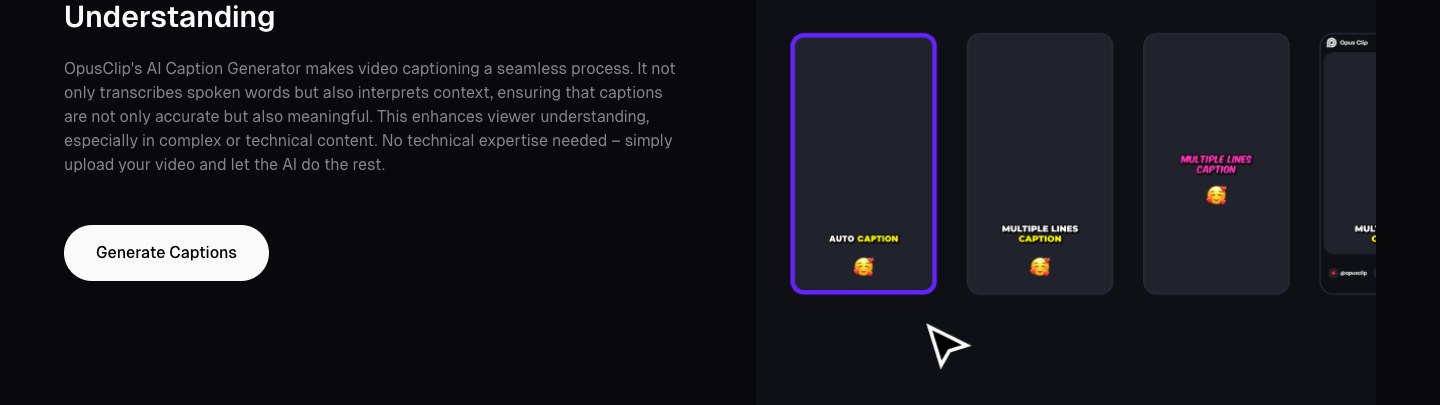
OpusClip's caption template picker showing Auto Caption and Multiple Lines Caption styles

Caption templates on OpusClip's AI caption generator page. Source: OpusClip website

OpusClip turns a long video (a podcast, webinar, interview or livestream) into short clips, and captions are built into that process rather than added afterward. Its pricing page lists AI animated captions, animated caption templates and AI captions with an emoji and keyword highlighter on every plan, including Free. The AI caption generator page shows the template picker (for example Auto Caption and Multiple Lines Caption styles), and the help center says the supported-languages list covers over 25 languages, with some marked beta, where emoji or highlighted keywords may be less accurate.

Editing is where OpusClip works as an editor and not just a generator. According to the captions and emojis help article, a word or sentence can be selected and edited, missing captions can be added, caption timestamps can be adjusted, and the Captions tab changes font style, size, color, stroke, shadow and case. Captions can be dragged to a new position on the canvas. The Brand Kit article describes picking a caption preset under Styles, adjusting size, weight, alignment and highlight color, and saving the style for reuse. Custom fonts are a Pro feature, with up to 2 fonts, per the custom fonts article.

The same caption controls are reachable by chat. The OpusClip MCP tool opusclip_edit_clip lists caption, emoji and keyword-highlight toggles, caption color, position and casing, and a replace-phrase operation that fixes wording in the captions without touching the video; see the OpusClip MCP page. Around captions, the pricing page lists a text and timeline editor, AI Reframe, filler-word and silence removal from Starter, and auto-posting to YouTube Shorts, TikTok and Instagram Reels from Starter. For related guides, see caption presets that boost retention and auto-caption tools ranked by accuracy.

Pricing: OpusClip's pricing page lists Free at $0 (60 credits a month, up to 1080p clips, a watermark, no editing, and clips stop being exportable after 3 days), Starter at $15 a month (monthly billing only, 150 credits, 1 brand template) and Pro at $29 a month, or $14.50 a month billed annually (300 credits, 2 brand templates, custom fonts). Business is custom. Because the Free plan lists no editing, caption edits need a paid plan.

Considerations: The help center says there is currently no bulk caption edit, so each clip's captions are edited individually, and it says right-to-left languages such as Arabic and Hebrew are not supported. OpusClip is a clip-and-publish tool, not a full non-linear editor, so multi-track timeline work belongs elsewhere.

  • Choose it if the job is turning long recordings into many captioned short clips, with animated captions, keyword highlighting and brand fonts applied automatically.
  • Skip it if the job is a single hand-built edit with complex multi-track timeline work, or captions in right-to-left languages.

2. Submagic: Best for caption-first short videos with a large animated preset library
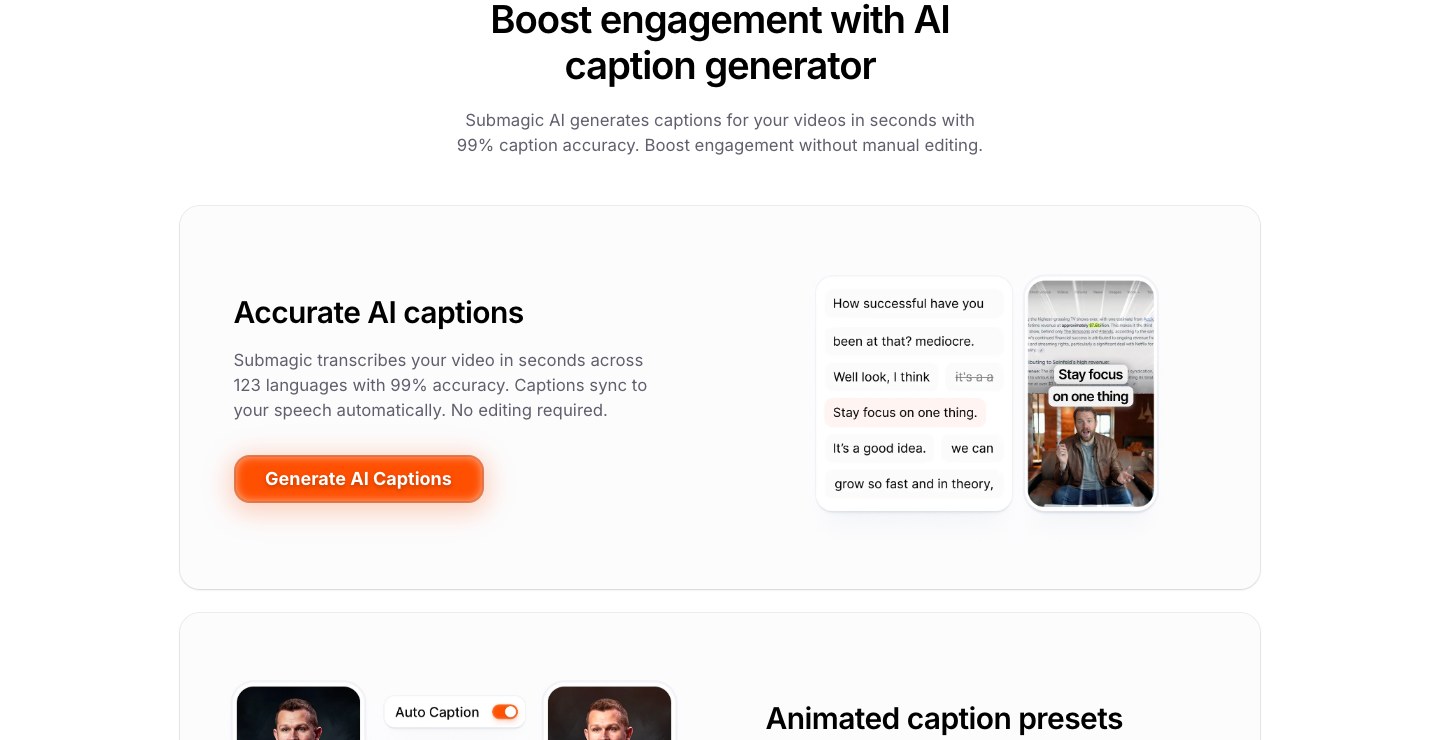
Submagic's caption generator page showing a transcript beside a vertical video with captions

Submagic's AI caption generator page. Source: Submagic website

Submagic is built around captions for short-form video. Its AI caption generator page says it creates animated captions in 123 languages with 99% caption accuracy, and describes 35+ animation templates that highlight, bounce and fade word by word. A branded-captions section says fonts, colors and animation can be set once so every generated caption uses the same visual identity, and the page describes a text-based editor for changing the transcript.

Beyond captions, the Submagic site lists AI editing tools such as Magic Clips (repurposing long videos into shorts), silence and bad-take removal, B-roll, auto-zoom, transitions, publishing and a video editing API. That makes it a caption-led editor with a clipping layer, not only a subtitle tool. The vendor's accuracy and language figures are its own claims; we did not test them.

Pricing: Submagic's pricing page lists Starter at $12 a month per member billed yearly ($19 billed monthly) with 45 credits (about 15 videos), no watermark, AI auto captions and 1080p export; Pro at $23 a month billed yearly ($39 monthly) with 120 credits, a Brand Kit and publishing with analytics; and Business at $41 a month billed yearly ($69 monthly) with 300 credits and 4K export. Its comparison table lists standard caption templates on Starter and premium templates on Pro and Business.

Considerations: Starter caps each video at 2 minutes (5 minutes on Pro, 30 on Business), and usage is measured in credits, so long recordings need a higher tier. The cards and comparison table describe custom templates differently, so confirm template limits on the pricing page. The pages we read did not list a free plan.

  • Choose it if captions are the main event and the goal is a polished, animated look on short videos, with a library of presets to pick from.
  • Skip it if videos run longer than a few minutes on a small plan, or a free plan is required.

3. CapCut: Best for free-to-start captioning inside an all-round editor
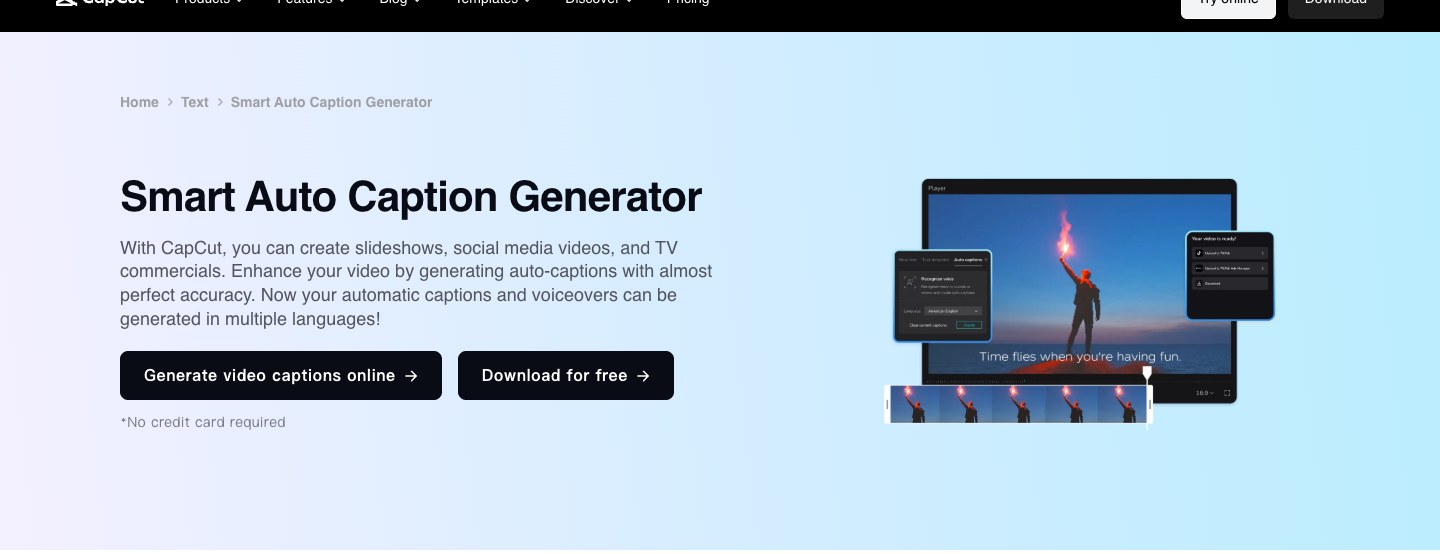
CapCut's auto caption generator page showing the editor with a captioned video

CapCut's auto caption generator page. Source: CapCut website

CapCut's auto caption page describes a short flow: add a video, open the Text tab, choose Auto captions, and generate captions that follow the detected language. After generation, the text can be corrected and restyled, with the page listing text style, format, font, color, effects and motion as adjustable settings. It also lists translating generated captions into a target language and inviting teammates to review captions through shared project access.

CapCut is a general-purpose editor, so captions sit next to trimming, effects, music and templates in the same project. Its site navigation lists auto captions, caption templates, speech recognition and text to speech as separate features, and its tools are available online, on desktop and on mobile. The caption page describes captioning a video that is already on the timeline; it does not describe finding clips inside a long recording.

Pricing: CapCut's pricing page lists Free at $0 (free templates and basic editing tools), Pro at USD 19.99 a month (USD 179.99 a year) with all premium templates, premium Pro features and 1,200 monthly AI credits, Ultra at USD 79 a month, and Teams at USD 12.49 a month per seat with a brand kit. The page notes that displayed pricing is for reference only and that final pricing appears after sign-in.

Considerations: The pricing page does not say which caption templates or effects are premium, so check inside the editor before building a workflow around a specific style. Its caption page describes brand features only for Teams, via the brand kit.

  • Choose it if a free-to-start editor that handles captions, trimming, effects and music in one project is the goal.
  • Skip it if the job is cutting many clips out of long recordings automatically.

4. VEED: Best for browser editing with karaoke-style and highlight subtitle animations
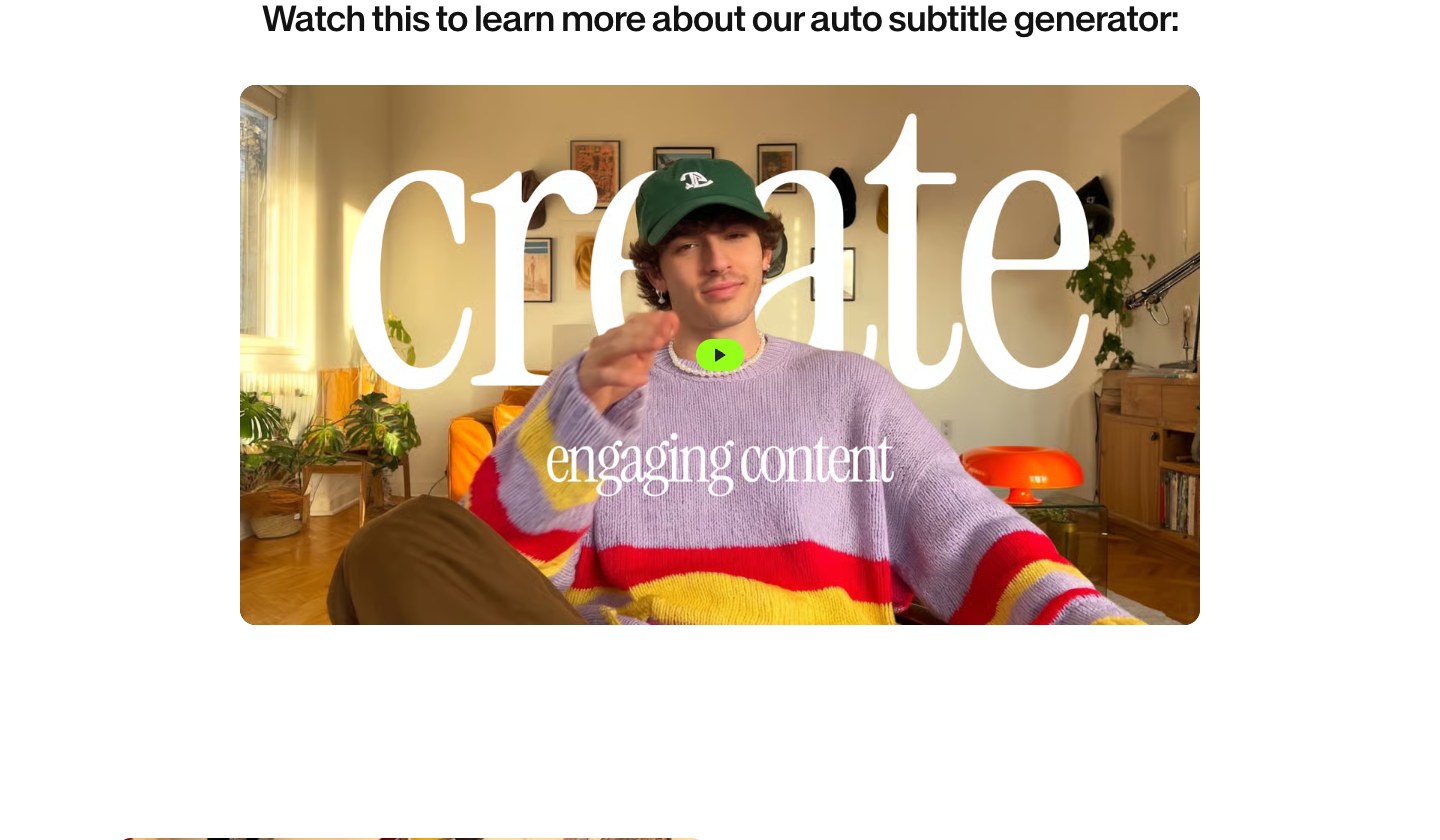
VEED's auto subtitle page showing an animated subtitle style on a video

VEED's auto subtitle generator page. Source: VEED website

VEED is a browser-based video editor with subtitles built into the same workflow. Its auto subtitle page describes selecting Auto Subtitle, choosing a language, and getting dynamic subtitles that emphasize key phrases, then changing the font, size, colors and background. Animation options on that page include a box highlight, karaoke-style highlights and dynamic subtitles that move in sync with the audio, and specific words can be highlighted. Captions can be corrected by clicking a line and typing.

The same page says a logo can be added to a Brand Kit and a video saved as a template for future projects, and that subtitles can be burned into the video or downloaded as SRT, VTT or TXT. VEED's navigation also lists dubbing, AI avatars and a subtitle API.

Pricing: VEED's pricing page (read in a rendered browser) lists Creator at $12 per user a month billed yearly with no watermark and unlimited auto subtitles; Pro at $22 with multiple Brand Kits and translation to 50+ languages; and Studio at $39 with custom templates. The subtitle page separately says a Creator plan starts at $20 a month, so the price depends on billing period. The page offers a free start.

Considerations: The pricing FAQ says paid plans include unlimited subtitle generation subject to a fair use limit of 50 hours a month, that subtitle styles and customization depend on the plan with more advanced styles on higher tiers, and that AI credits do not carry over. The free subtitle tool is limited: the subtitle page says paid plans are needed for longer videos and subtitle file downloads.

  • Choose it if the work happens in the browser and the goal is animated, brand-matched subtitles with highlight and karaoke effects.
  • Skip it if the free tier has to cover longer videos, or all caption styles need to be available without upgrading.

5. Descript: Best for editing captions through the transcript
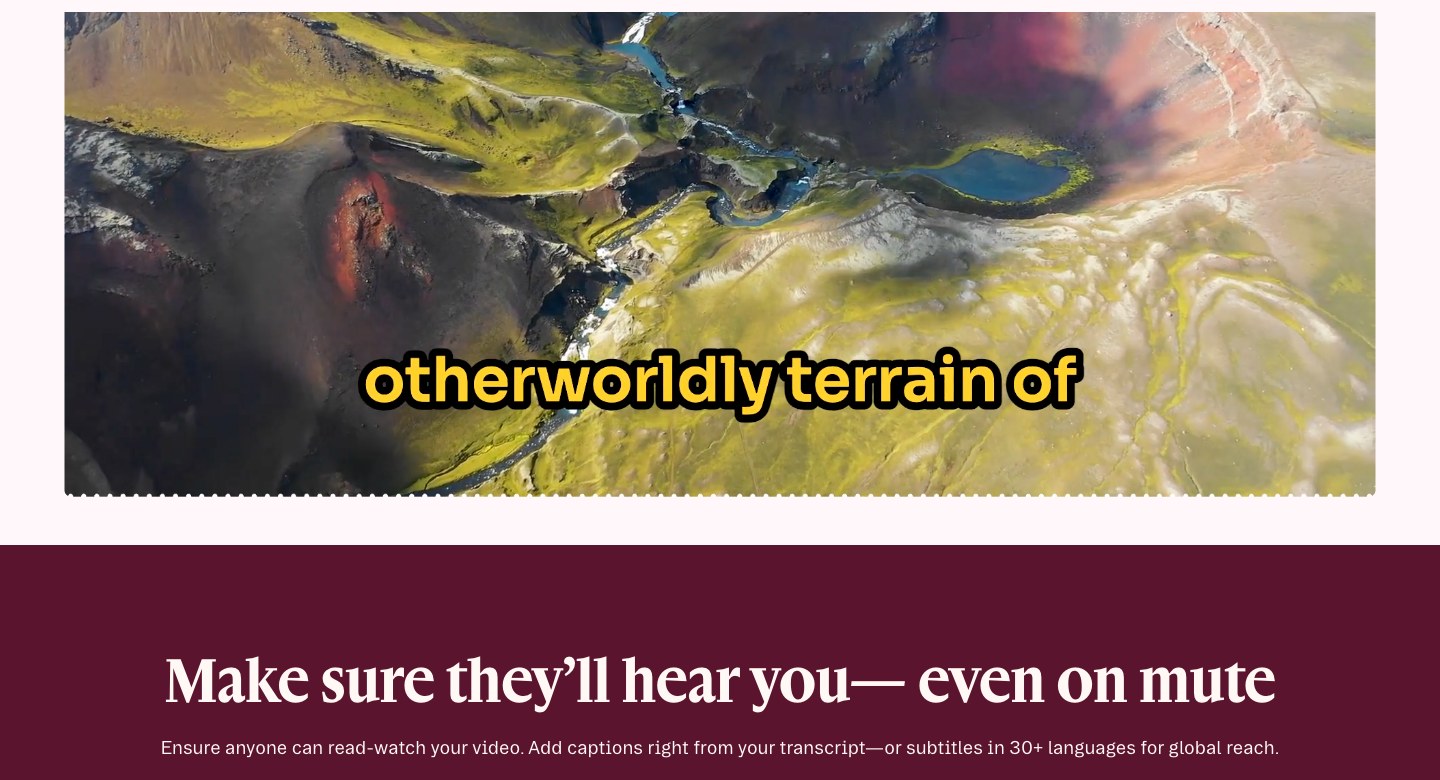
Descript's captions page showing a bold animated caption over an aerial landscape video

Descript's captions page. Source: Descript website

Descript edits video by editing a transcript, which makes caption text easy to correct: the words on screen come from the same document the editor is already working in. Its pricing page describes dynamic captions as automatically created animated captions, with a choice of stock caption styles or customized font, colors, word highlighting and positioning, and it lists dynamic captions as unlimited on Free, Hobbyist, Creator and Business. Layout packs, which the page says include captions, titles, intros and slides, can be shared across a team.

The pricing page also lists transcription in 25 languages, an AI co-editor called Underlord, filler-word removal, Studio Sound and clip creation. That makes it a strong fit for spoken-word video such as interviews, tutorials and podcasts, where the transcript is the editing surface.

Pricing: Descript's pricing page lists Free at $0 (60 media minutes a month and 720p local export), Hobbyist at $16 a month billed annually or $24 monthly (10 media hours, 1080p, watermark-free), Creator at $24 annually or $35 monthly (30 media hours, 4K), and Business at $50 annually or $65 monthly (40 media hours and team access to Brand Studio).

Considerations: Media-hour and AI-credit caps apply on every plan, and the page does not show which plans include custom font upload, so check before relying on a brand font. Descript is a spoken-word editor first; it is not built around automatically finding the best moments in a long recording.

  • Choose it if captions need to be corrected and restyled alongside a transcript-based edit of interviews, tutorials or podcasts.
  • Skip it if the main job is producing many short clips from long videos with minimal manual editing.

6. Kapwing: Best for 100+ subtitle presets with an editable transcript in the browser
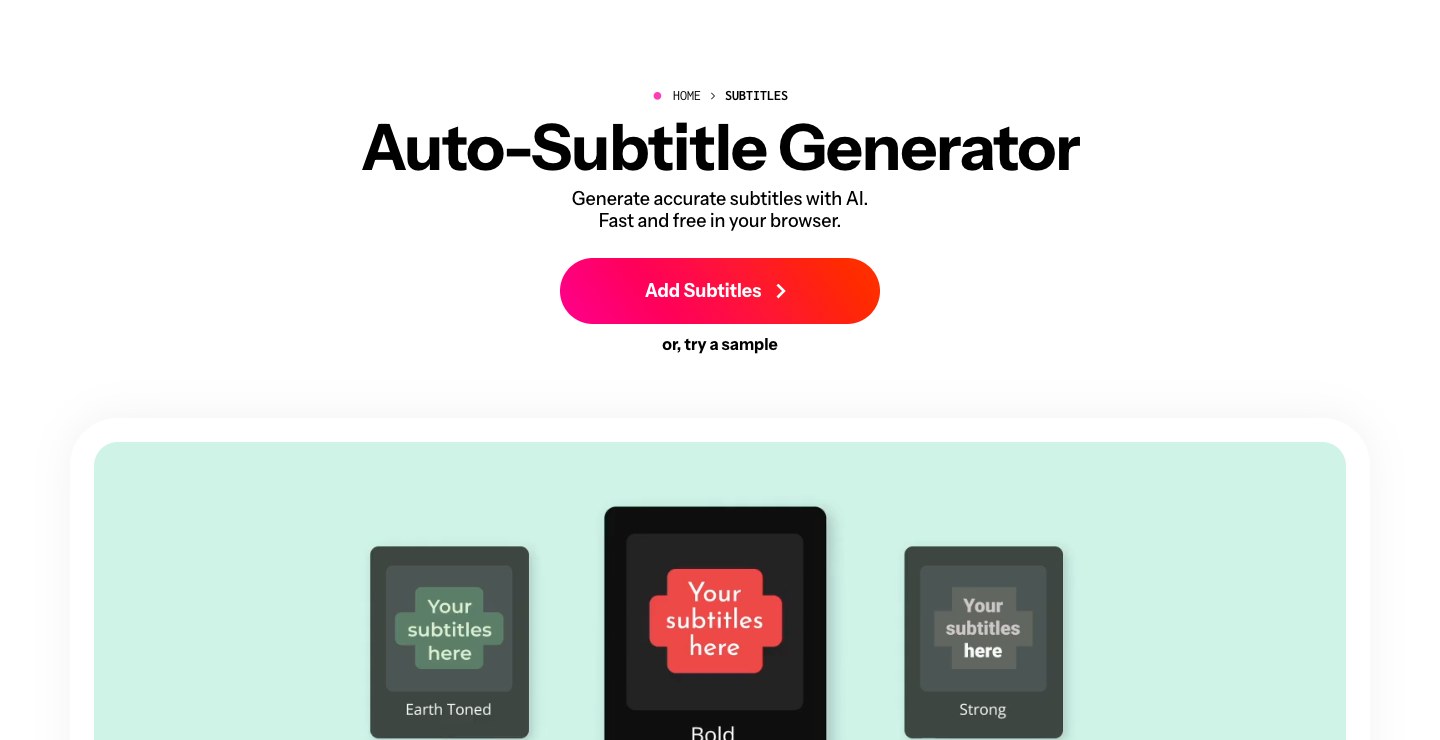
Kapwing's auto-subtitle page showing preset subtitle styles named Earth Toned, Bold and Strong

Kapwing's auto-subtitle generator page. Source: Kapwing website

Kapwing's auto-subtitle page says its generator creates word-by-word subtitles and a fully editable transcript, so terms and timing can be corrected, and describes customizing subtitle font, color, size, background, placement and animation. It says styles start from over 100 presets and templates, that different styles can be applied to multiple speakers, that custom fonts can be uploaded, and that a Brand Kit stores colors and fonts for a team. Exports can be hardcoded into the video or downloaded as SRT, VTT or TXT.

Kapwing is a general browser editor, so subtitles sit alongside trimming, resizing, stock media and transcript-based trimming. Its pricing page lists auto-subtitling as a credit-backed feature on each plan.

Pricing: Kapwing's pricing page lists Free at $0 (10 credits, unlimited exports with a watermark, 4-minute exports, 720p, and auto-subtitling up to 10 minutes), Pro at $16 a month (1,000 credits, no watermark, 4K, Brand Kit and custom fonts, auto-subtitling up to 1,000 minutes a month) and Business at $50 a month (4,000 credits). The page has a Monthly and Annual toggle labeled Save 33%, so confirm which period the $16 reflects.

Considerations: On the free plan, exports carry a Kapwing watermark and stop at 4 minutes, and Brand Kit and custom fonts are listed on Pro. Subtitle minutes are metered by plan.

  • Choose it if an editable transcript, 100+ subtitle presets and custom fonts in a browser editor are the priority.
  • Skip it if free exports without a watermark are needed, or the job is automatic clipping of long videos.

7. Captions: Best for mobile-first creators who want AI-edited videos with a large caption-template library
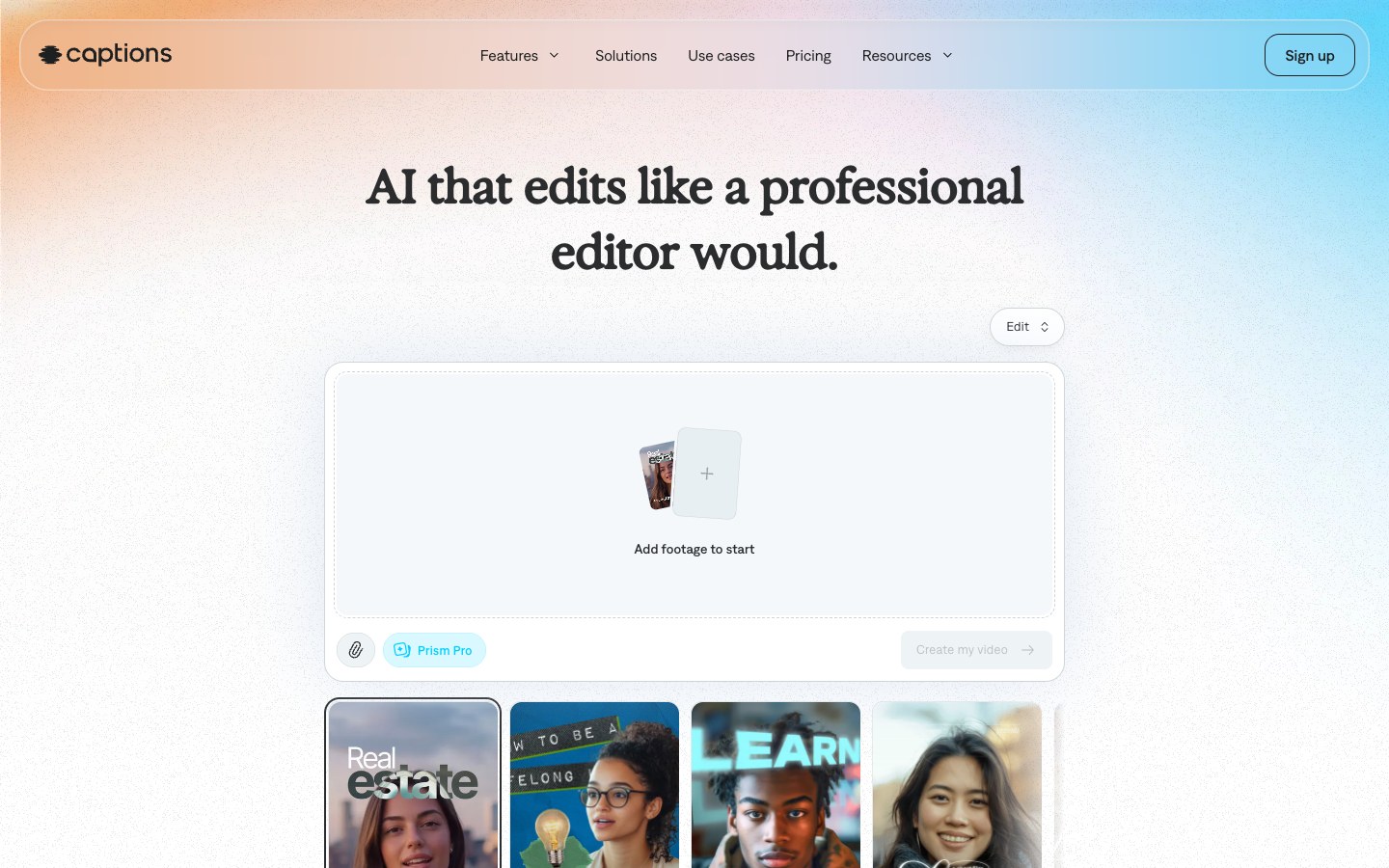
Captions app home page showing the editor with a row of caption style tiles

Captions' home page. Source: Captions website

Captions (the app, not the generic feature) positions itself as an AI video editor for phone and web. Its site lists automatic captions with stylized fonts, translation and subtitles in 100+ languages, trimming of pauses and filler words, a chat-based editor and an AI Edit mode that picks a style and cuts scenes, adds B-roll and generates captions. Its home page cites 100+ caption styles.

The pricing page compares caption features by plan: caption templates are listed as 1 on Free and 100+ on Max and Frontier, with customizable captions, captions in 100+ languages and download transcript as rows. The same table lists a clips feature that turns a long video into post-ready clips.

Pricing: Captions' pricing page lists Max at $24.99 a month and Frontier at $69.99, $139.99 and $279.99 a month for 1x, 2x and 4x usage, with Enterprise custom. The page says prices reflect iOS plans only, and that unused credits roll over for up to two extra months. The app is free to download with limited features.

Considerations: The Free plan lists a single caption template, so the full library needs a paid plan, and the page states prices for iOS only. The product is organized around AI Edit, avatars and generation rather than a manual caption editor, so fine control over a hand-built timeline is not its focus.

  • Choose it if editing happens mostly on a phone and the goal is AI-edited videos with a large library of caption styles.
  • Skip it if the job is manual, frame-level editing, or pricing outside the iOS app needs to be known up front.

How we compared these tools

We compared 7 video editors on the depth of their caption features: animation styles and templates, keyword or word highlighting, how captions are edited (text, timing, position), font and brand controls, and which plan unlocks each. Then we looked at price, free-tier limits and how clearly the vendor documents the feature. Every fact about a vendor comes from that vendor's own pricing, product and help pages, read on November 3, 2026, and we attribute vendor claims (accuracy, language counts) to the vendor. We did not run hands-on tests of the competitors in this list, so rankings reflect documented capability and fit for the job, not a measured accuracy comparison. Prices change often, so check each pricing page before buying.

How to choose

Start with where the captions come from, then match the editor to the volume of videos.

  • If the source is a long recording and the output is many short clips, look for clipping and captioning in one step: OpusClip, Submagic.
  • If one video is edited by hand and captions are one layer, look for a general editor with caption templates: CapCut, VEED, Kapwing.
  • If the video is mostly speech and the transcript is the edit, look for text-based editing with captions generated from it: Descript.
  • If the work is mostly on a phone, look for a mobile-first app with a large style library: Captions, CapCut.
  • If brand consistency matters, look for saved caption styles and custom fonts, and check which plan includes them: OpusClip (fonts on Pro), Kapwing (Pro), Submagic (Brand Kit on Pro).
  • If the need is a standalone subtitle file or translation, a dedicated tool may fit better; see our multilingual captions guide.

For tools that apply a saved look to every video, see the best video editors with brand templates, and for the wider field, our AI video editors roundup and the OpusClip AI video editor page.

Red flags to watch for

  • Watermarks on free exports. Kapwing's free plan lists a watermark and OpusClip's Free plan has one too; some tools lift it only on paid plans.
  • Short export limits. Free and entry plans can cap video length, such as 4 minutes on Kapwing Free or 2 minutes per video on Submagic Starter.
  • Caption styles locked to higher tiers. VEED says more advanced subtitle styles unlock on higher plans, and Captions lists 1 template on Free.
  • Credits that do not carry over. VEED's AI credits reset on renewal; check rollover rules before buying in bulk.
  • No manual override. Auto captions need a text editor for names and jargon. Confirm captions can be corrected, re-timed and moved before committing.
  • Accuracy claims without a method. Vendor figures such as 99% are their own claims; test on a real video before choosing.

Frequently asked questions

What is the best video editor with captions?

For short-form clips cut from long videos, OpusClip is our first pick because animated caption templates, keyword highlighting, a caption editor and custom fonts live in the same tool that finds the clips. Submagic is the caption-first alternative, and CapCut, VEED, Kapwing and Descript are general editors where captions are one feature. Which is best depends on whether the source is a long recording or a single hand-built edit.

Which video editor has the best auto captions?

We did not run an accuracy test, so we cannot rank the engines. Vendors publish their own figures: Submagic's caption page cites 99% accuracy across 123 languages, VEED's subtitle page says up to 99.9% accuracy, and Kapwing's subtitle page says 99% accurate subtitles. Test two or three tools on the same real video, and see our auto-caption accuracy guide.

Can I edit captions in a video editor?

Yes. OpusClip lets a selected word or sentence be edited, missing captions added and timestamps adjusted, per its help center. Descript edits captions through the transcript, Kapwing offers an editable transcript, VEED lets a line be clicked and retyped, CapCut lets generated captions be corrected and restyled, and Submagic describes a text-based editor.

What is a free video editor with auto captions?

CapCut's pricing page lists a Free plan with free templates and basic editing tools. Kapwing's Free plan includes auto-subtitling up to 10 minutes but exports with a watermark at 720p and up to 4 minutes. Descript's Free plan lists 60 media minutes a month and 720p export, with dynamic captions listed as unlimited. OpusClip's Free plan lists 60 credits and a watermark but no editing, so captions cannot be edited there.

How do I add animated captions to a video?

Upload the video to an editor with animated captions, generate captions automatically, pick an animated style, then adjust the font, size, color, highlight color and position. Correct any wrong words, then export. In OpusClip, a long video is uploaded or linked, clips are generated with captions, and the Captions tab in the editor changes style, font and position, per its help center. For preset ideas, see caption presets that boost retention.

Do video editors with captions support multiple languages?

Most list several languages, but counts differ and are vendor claims: OpusClip's help center says over 25 languages (some in beta), Descript lists 25 transcription languages, Submagic cites 123, and Captions lists 100+. Translation is a separate job from styling captions; see the multi-language subtitle generators list.

Are captions burned in or a separate file?

Both are common. VEED and Kapwing describe exporting hardcoded subtitles or downloading SRT, VTT or TXT files. A burned-in caption is part of the video image, while a subtitle file is a separate track that a platform can switch on or off. Check which the plan exports.

On this page

Use our Free Forever Plan

Find the moment. Skip the scrubbing.

From script to polished video — in one click.

Create and post one short video every day for free, and grow faster.

OpusSearch uses AI to surface the exact clip you need from hours of footage — in seconds, not afternoons.

Agent Opus runs the entire video pipeline for you: research, scriptwriting, storyboarding, motion, voice, and edit. Upload the idea, post the result.

7 Best Video Editors with Caption Features in 2026

For most short-form creators, OpusClip is the best video editor with caption features when the job is to cut clips from long videos and have animated, word-synced captions, keyword highlighting and brand fonts applied to every one of them. Submagic is the caption-first alternative with the largest preset library, CapCut suits free-to-start editing, VEED and Kapwing suit browser editing with editable subtitle styles, Descript suits editing captions through the transcript, and Captions (the app) suits mobile-first creators. We ranked 7 video editors by how deep their caption controls go (animation styles, templates, keyword highlighting, text editing, brand fonts), then by price, free-tier limits and how clearly each vendor documents the feature. This list is about editors where captions are one feature among several; for standalone subtitle files and translation, see our AI subtitle generators roundup and the multi-language subtitle generators list.

Key takeaways

  • Best for captions on clips cut from long videos: OpusClip. Animated caption templates, emoji and keyword highlighting, a caption editor and custom fonts sit in the same tool that finds the clips.
  • Best for caption-first short videos: Submagic. Its caption page lists 35+ animation templates and branded caption styles.
  • Best for free-to-start caption editing in a general editor: CapCut. Auto captions with editable fonts, colors, effects and motion.
  • Best for browser editing with karaoke-style and highlight animations: VEED.
  • Best for editing captions through the transcript: Descript. Dynamic captions are listed as unlimited on every plan, including Free.
  • Best for 100+ preset caption styles with an editable transcript in the browser: Kapwing.
  • Best for mobile-first creators who want AI-edited videos with captions: Captions.
  • Check the free tier before committing: watermarks, export length caps and caption-template limits differ more than headline prices do.

At a glance

  • OpusClip: best for animated captions on short clips cut from long videos; paid plans from $15 a month; free plan yes (60 credits a month, with a watermark and no editing).
  • Submagic: best for caption-first short videos with 35+ animation templates; Starter from $12 a month billed yearly ($19 billed monthly); see the pricing page for a free option.
  • CapCut: best for free-to-start captioning inside an all-round editor; Pro $19.99 a month; free plan yes (free templates and basic editing tools).
  • VEED: best for browser editing with karaoke-style and highlight subtitle animations; Creator $12 per user a month billed yearly; free to start.
  • Descript: best for editing captions through the transcript; Hobbyist $16 a month billed annually ($24 monthly); free plan yes (720p export).
  • Kapwing: best for 100+ subtitle presets with an editable transcript; Pro $16 a month on the pricing page; free plan yes (watermark, 720p, 4-minute exports).
  • Captions: best for mobile-first AI editing with a large caption-template library; Max $24.99 a month (iOS pricing); free plan yes (1 caption template).

1. OpusClip: Best for animated captions on clips cut from long videos

OpusClip's caption template picker showing Auto Caption and Multiple Lines Caption styles

Caption templates on OpusClip's AI caption generator page. Source: OpusClip website

OpusClip turns a long video (a podcast, webinar, interview or livestream) into short clips, and captions are built into that process rather than added afterward. Its pricing page lists AI animated captions, animated caption templates and AI captions with an emoji and keyword highlighter on every plan, including Free. The AI caption generator page shows the template picker (for example Auto Caption and Multiple Lines Caption styles), and the help center says the supported-languages list covers over 25 languages, with some marked beta, where emoji or highlighted keywords may be less accurate.

Editing is where OpusClip works as an editor and not just a generator. According to the captions and emojis help article, a word or sentence can be selected and edited, missing captions can be added, caption timestamps can be adjusted, and the Captions tab changes font style, size, color, stroke, shadow and case. Captions can be dragged to a new position on the canvas. The Brand Kit article describes picking a caption preset under Styles, adjusting size, weight, alignment and highlight color, and saving the style for reuse. Custom fonts are a Pro feature, with up to 2 fonts, per the custom fonts article.

The same caption controls are reachable by chat. The OpusClip MCP tool opusclip_edit_clip lists caption, emoji and keyword-highlight toggles, caption color, position and casing, and a replace-phrase operation that fixes wording in the captions without touching the video; see the OpusClip MCP page. Around captions, the pricing page lists a text and timeline editor, AI Reframe, filler-word and silence removal from Starter, and auto-posting to YouTube Shorts, TikTok and Instagram Reels from Starter. For related guides, see caption presets that boost retention and auto-caption tools ranked by accuracy.

Pricing: OpusClip's pricing page lists Free at $0 (60 credits a month, up to 1080p clips, a watermark, no editing, and clips stop being exportable after 3 days), Starter at $15 a month (monthly billing only, 150 credits, 1 brand template) and Pro at $29 a month, or $14.50 a month billed annually (300 credits, 2 brand templates, custom fonts). Business is custom. Because the Free plan lists no editing, caption edits need a paid plan.

Considerations: The help center says there is currently no bulk caption edit, so each clip's captions are edited individually, and it says right-to-left languages such as Arabic and Hebrew are not supported. OpusClip is a clip-and-publish tool, not a full non-linear editor, so multi-track timeline work belongs elsewhere.

  • Choose it if the job is turning long recordings into many captioned short clips, with animated captions, keyword highlighting and brand fonts applied automatically.
  • Skip it if the job is a single hand-built edit with complex multi-track timeline work, or captions in right-to-left languages.

2. Submagic: Best for caption-first short videos with a large animated preset library

Submagic's caption generator page showing a transcript beside a vertical video with captions

Submagic's AI caption generator page. Source: Submagic website

Submagic is built around captions for short-form video. Its AI caption generator page says it creates animated captions in 123 languages with 99% caption accuracy, and describes 35+ animation templates that highlight, bounce and fade word by word. A branded-captions section says fonts, colors and animation can be set once so every generated caption uses the same visual identity, and the page describes a text-based editor for changing the transcript.

Beyond captions, the Submagic site lists AI editing tools such as Magic Clips (repurposing long videos into shorts), silence and bad-take removal, B-roll, auto-zoom, transitions, publishing and a video editing API. That makes it a caption-led editor with a clipping layer, not only a subtitle tool. The vendor's accuracy and language figures are its own claims; we did not test them.

Pricing: Submagic's pricing page lists Starter at $12 a month per member billed yearly ($19 billed monthly) with 45 credits (about 15 videos), no watermark, AI auto captions and 1080p export; Pro at $23 a month billed yearly ($39 monthly) with 120 credits, a Brand Kit and publishing with analytics; and Business at $41 a month billed yearly ($69 monthly) with 300 credits and 4K export. Its comparison table lists standard caption templates on Starter and premium templates on Pro and Business.

Considerations: Starter caps each video at 2 minutes (5 minutes on Pro, 30 on Business), and usage is measured in credits, so long recordings need a higher tier. The cards and comparison table describe custom templates differently, so confirm template limits on the pricing page. The pages we read did not list a free plan.

  • Choose it if captions are the main event and the goal is a polished, animated look on short videos, with a library of presets to pick from.
  • Skip it if videos run longer than a few minutes on a small plan, or a free plan is required.

3. CapCut: Best for free-to-start captioning inside an all-round editor

CapCut's auto caption generator page showing the editor with a captioned video

CapCut's auto caption generator page. Source: CapCut website

CapCut's auto caption page describes a short flow: add a video, open the Text tab, choose Auto captions, and generate captions that follow the detected language. After generation, the text can be corrected and restyled, with the page listing text style, format, font, color, effects and motion as adjustable settings. It also lists translating generated captions into a target language and inviting teammates to review captions through shared project access.

CapCut is a general-purpose editor, so captions sit next to trimming, effects, music and templates in the same project. Its site navigation lists auto captions, caption templates, speech recognition and text to speech as separate features, and its tools are available online, on desktop and on mobile. The caption page describes captioning a video that is already on the timeline; it does not describe finding clips inside a long recording.

Pricing: CapCut's pricing page lists Free at $0 (free templates and basic editing tools), Pro at USD 19.99 a month (USD 179.99 a year) with all premium templates, premium Pro features and 1,200 monthly AI credits, Ultra at USD 79 a month, and Teams at USD 12.49 a month per seat with a brand kit. The page notes that displayed pricing is for reference only and that final pricing appears after sign-in.

Considerations: The pricing page does not say which caption templates or effects are premium, so check inside the editor before building a workflow around a specific style. Its caption page describes brand features only for Teams, via the brand kit.

  • Choose it if a free-to-start editor that handles captions, trimming, effects and music in one project is the goal.
  • Skip it if the job is cutting many clips out of long recordings automatically.

4. VEED: Best for browser editing with karaoke-style and highlight subtitle animations

VEED's auto subtitle page showing an animated subtitle style on a video

VEED's auto subtitle generator page. Source: VEED website

VEED is a browser-based video editor with subtitles built into the same workflow. Its auto subtitle page describes selecting Auto Subtitle, choosing a language, and getting dynamic subtitles that emphasize key phrases, then changing the font, size, colors and background. Animation options on that page include a box highlight, karaoke-style highlights and dynamic subtitles that move in sync with the audio, and specific words can be highlighted. Captions can be corrected by clicking a line and typing.

The same page says a logo can be added to a Brand Kit and a video saved as a template for future projects, and that subtitles can be burned into the video or downloaded as SRT, VTT or TXT. VEED's navigation also lists dubbing, AI avatars and a subtitle API.

Pricing: VEED's pricing page (read in a rendered browser) lists Creator at $12 per user a month billed yearly with no watermark and unlimited auto subtitles; Pro at $22 with multiple Brand Kits and translation to 50+ languages; and Studio at $39 with custom templates. The subtitle page separately says a Creator plan starts at $20 a month, so the price depends on billing period. The page offers a free start.

Considerations: The pricing FAQ says paid plans include unlimited subtitle generation subject to a fair use limit of 50 hours a month, that subtitle styles and customization depend on the plan with more advanced styles on higher tiers, and that AI credits do not carry over. The free subtitle tool is limited: the subtitle page says paid plans are needed for longer videos and subtitle file downloads.

  • Choose it if the work happens in the browser and the goal is animated, brand-matched subtitles with highlight and karaoke effects.
  • Skip it if the free tier has to cover longer videos, or all caption styles need to be available without upgrading.

5. Descript: Best for editing captions through the transcript

Descript's captions page showing a bold animated caption over an aerial landscape video

Descript's captions page. Source: Descript website

Descript edits video by editing a transcript, which makes caption text easy to correct: the words on screen come from the same document the editor is already working in. Its pricing page describes dynamic captions as automatically created animated captions, with a choice of stock caption styles or customized font, colors, word highlighting and positioning, and it lists dynamic captions as unlimited on Free, Hobbyist, Creator and Business. Layout packs, which the page says include captions, titles, intros and slides, can be shared across a team.

The pricing page also lists transcription in 25 languages, an AI co-editor called Underlord, filler-word removal, Studio Sound and clip creation. That makes it a strong fit for spoken-word video such as interviews, tutorials and podcasts, where the transcript is the editing surface.

Pricing: Descript's pricing page lists Free at $0 (60 media minutes a month and 720p local export), Hobbyist at $16 a month billed annually or $24 monthly (10 media hours, 1080p, watermark-free), Creator at $24 annually or $35 monthly (30 media hours, 4K), and Business at $50 annually or $65 monthly (40 media hours and team access to Brand Studio).

Considerations: Media-hour and AI-credit caps apply on every plan, and the page does not show which plans include custom font upload, so check before relying on a brand font. Descript is a spoken-word editor first; it is not built around automatically finding the best moments in a long recording.

  • Choose it if captions need to be corrected and restyled alongside a transcript-based edit of interviews, tutorials or podcasts.
  • Skip it if the main job is producing many short clips from long videos with minimal manual editing.

6. Kapwing: Best for 100+ subtitle presets with an editable transcript in the browser

Kapwing's auto-subtitle page showing preset subtitle styles named Earth Toned, Bold and Strong

Kapwing's auto-subtitle generator page. Source: Kapwing website

Kapwing's auto-subtitle page says its generator creates word-by-word subtitles and a fully editable transcript, so terms and timing can be corrected, and describes customizing subtitle font, color, size, background, placement and animation. It says styles start from over 100 presets and templates, that different styles can be applied to multiple speakers, that custom fonts can be uploaded, and that a Brand Kit stores colors and fonts for a team. Exports can be hardcoded into the video or downloaded as SRT, VTT or TXT.

Kapwing is a general browser editor, so subtitles sit alongside trimming, resizing, stock media and transcript-based trimming. Its pricing page lists auto-subtitling as a credit-backed feature on each plan.

Pricing: Kapwing's pricing page lists Free at $0 (10 credits, unlimited exports with a watermark, 4-minute exports, 720p, and auto-subtitling up to 10 minutes), Pro at $16 a month (1,000 credits, no watermark, 4K, Brand Kit and custom fonts, auto-subtitling up to 1,000 minutes a month) and Business at $50 a month (4,000 credits). The page has a Monthly and Annual toggle labeled Save 33%, so confirm which period the $16 reflects.

Considerations: On the free plan, exports carry a Kapwing watermark and stop at 4 minutes, and Brand Kit and custom fonts are listed on Pro. Subtitle minutes are metered by plan.

  • Choose it if an editable transcript, 100+ subtitle presets and custom fonts in a browser editor are the priority.
  • Skip it if free exports without a watermark are needed, or the job is automatic clipping of long videos.

7. Captions: Best for mobile-first creators who want AI-edited videos with a large caption-template library

Captions app home page showing the editor with a row of caption style tiles

Captions' home page. Source: Captions website

Captions (the app, not the generic feature) positions itself as an AI video editor for phone and web. Its site lists automatic captions with stylized fonts, translation and subtitles in 100+ languages, trimming of pauses and filler words, a chat-based editor and an AI Edit mode that picks a style and cuts scenes, adds B-roll and generates captions. Its home page cites 100+ caption styles.

The pricing page compares caption features by plan: caption templates are listed as 1 on Free and 100+ on Max and Frontier, with customizable captions, captions in 100+ languages and download transcript as rows. The same table lists a clips feature that turns a long video into post-ready clips.

Pricing: Captions' pricing page lists Max at $24.99 a month and Frontier at $69.99, $139.99 and $279.99 a month for 1x, 2x and 4x usage, with Enterprise custom. The page says prices reflect iOS plans only, and that unused credits roll over for up to two extra months. The app is free to download with limited features.

Considerations: The Free plan lists a single caption template, so the full library needs a paid plan, and the page states prices for iOS only. The product is organized around AI Edit, avatars and generation rather than a manual caption editor, so fine control over a hand-built timeline is not its focus.

  • Choose it if editing happens mostly on a phone and the goal is AI-edited videos with a large library of caption styles.
  • Skip it if the job is manual, frame-level editing, or pricing outside the iOS app needs to be known up front.

How we compared these tools

We compared 7 video editors on the depth of their caption features: animation styles and templates, keyword or word highlighting, how captions are edited (text, timing, position), font and brand controls, and which plan unlocks each. Then we looked at price, free-tier limits and how clearly the vendor documents the feature. Every fact about a vendor comes from that vendor's own pricing, product and help pages, read on November 3, 2026, and we attribute vendor claims (accuracy, language counts) to the vendor. We did not run hands-on tests of the competitors in this list, so rankings reflect documented capability and fit for the job, not a measured accuracy comparison. Prices change often, so check each pricing page before buying.

How to choose

Start with where the captions come from, then match the editor to the volume of videos.

  • If the source is a long recording and the output is many short clips, look for clipping and captioning in one step: OpusClip, Submagic.
  • If one video is edited by hand and captions are one layer, look for a general editor with caption templates: CapCut, VEED, Kapwing.
  • If the video is mostly speech and the transcript is the edit, look for text-based editing with captions generated from it: Descript.
  • If the work is mostly on a phone, look for a mobile-first app with a large style library: Captions, CapCut.
  • If brand consistency matters, look for saved caption styles and custom fonts, and check which plan includes them: OpusClip (fonts on Pro), Kapwing (Pro), Submagic (Brand Kit on Pro).
  • If the need is a standalone subtitle file or translation, a dedicated tool may fit better; see our multilingual captions guide.

For tools that apply a saved look to every video, see the best video editors with brand templates, and for the wider field, our AI video editors roundup and the OpusClip AI video editor page.

Red flags to watch for

  • Watermarks on free exports. Kapwing's free plan lists a watermark and OpusClip's Free plan has one too; some tools lift it only on paid plans.
  • Short export limits. Free and entry plans can cap video length, such as 4 minutes on Kapwing Free or 2 minutes per video on Submagic Starter.
  • Caption styles locked to higher tiers. VEED says more advanced subtitle styles unlock on higher plans, and Captions lists 1 template on Free.
  • Credits that do not carry over. VEED's AI credits reset on renewal; check rollover rules before buying in bulk.
  • No manual override. Auto captions need a text editor for names and jargon. Confirm captions can be corrected, re-timed and moved before committing.
  • Accuracy claims without a method. Vendor figures such as 99% are their own claims; test on a real video before choosing.

Frequently asked questions

What is the best video editor with captions?

For short-form clips cut from long videos, OpusClip is our first pick because animated caption templates, keyword highlighting, a caption editor and custom fonts live in the same tool that finds the clips. Submagic is the caption-first alternative, and CapCut, VEED, Kapwing and Descript are general editors where captions are one feature. Which is best depends on whether the source is a long recording or a single hand-built edit.

Which video editor has the best auto captions?

We did not run an accuracy test, so we cannot rank the engines. Vendors publish their own figures: Submagic's caption page cites 99% accuracy across 123 languages, VEED's subtitle page says up to 99.9% accuracy, and Kapwing's subtitle page says 99% accurate subtitles. Test two or three tools on the same real video, and see our auto-caption accuracy guide.

Can I edit captions in a video editor?

Yes. OpusClip lets a selected word or sentence be edited, missing captions added and timestamps adjusted, per its help center. Descript edits captions through the transcript, Kapwing offers an editable transcript, VEED lets a line be clicked and retyped, CapCut lets generated captions be corrected and restyled, and Submagic describes a text-based editor.

What is a free video editor with auto captions?

CapCut's pricing page lists a Free plan with free templates and basic editing tools. Kapwing's Free plan includes auto-subtitling up to 10 minutes but exports with a watermark at 720p and up to 4 minutes. Descript's Free plan lists 60 media minutes a month and 720p export, with dynamic captions listed as unlimited. OpusClip's Free plan lists 60 credits and a watermark but no editing, so captions cannot be edited there.

How do I add animated captions to a video?

Upload the video to an editor with animated captions, generate captions automatically, pick an animated style, then adjust the font, size, color, highlight color and position. Correct any wrong words, then export. In OpusClip, a long video is uploaded or linked, clips are generated with captions, and the Captions tab in the editor changes style, font and position, per its help center. For preset ideas, see caption presets that boost retention.

Do video editors with captions support multiple languages?

Most list several languages, but counts differ and are vendor claims: OpusClip's help center says over 25 languages (some in beta), Descript lists 25 transcription languages, Submagic cites 123, and Captions lists 100+. Translation is a separate job from styling captions; see the multi-language subtitle generators list.

Are captions burned in or a separate file?

Both are common. VEED and Kapwing describe exporting hardcoded subtitles or downloading SRT, VTT or TXT files. A burned-in caption is part of the video image, while a subtitle file is a separate track that a platform can switch on or off. Check which the plan exports.

Creator name

Creator type

Team size

Channels

linkYouTubefacebookXTikTok

Pain point

Time to see positive ROI

About the creator

Don't miss these

How Audacy Drove 1B+ Views by Taking a Tech-Forward Approach to Radio with OpusClip
No items found.

How Audacy Drove 1B+ Views by Taking a Tech-Forward Approach to Radio with OpusClip

How All the Smoke makes hit compilations faster with OpusSearch

How All the Smoke makes hit compilations faster with OpusSearch

Growing a new channel to 1.5M views in 90 days without creating new videos

Growing a new channel to 1.5M views in 90 days without creating new videos

OpusClip 4.0 is here. Become a content powerhouse.

7 Best Video Editors with Caption Features in 2026

Creators filming short videos on phones and a laptop, with a Clip it button, a 9:16 tag and a views badge
No items found.
No items found.

Boost your social media growth with OpusClip

Create and post one short video every day for your social media and grow faster.

7 Best Video Editors with Caption Features in 2026

Creators filming short videos on phones and a laptop, with a Clip it button, a 9:16 tag and a views badge

For most short-form creators, OpusClip is the best video editor with caption features when the job is to cut clips from long videos and have animated, word-synced captions, keyword highlighting and brand fonts applied to every one of them. Submagic is the caption-first alternative with the largest preset library, CapCut suits free-to-start editing, VEED and Kapwing suit browser editing with editable subtitle styles, Descript suits editing captions through the transcript, and Captions (the app) suits mobile-first creators. We ranked 7 video editors by how deep their caption controls go (animation styles, templates, keyword highlighting, text editing, brand fonts), then by price, free-tier limits and how clearly each vendor documents the feature. This list is about editors where captions are one feature among several; for standalone subtitle files and translation, see our AI subtitle generators roundup and the multi-language subtitle generators list.

Key takeaways

  • Best for captions on clips cut from long videos: OpusClip. Animated caption templates, emoji and keyword highlighting, a caption editor and custom fonts sit in the same tool that finds the clips.
  • Best for caption-first short videos: Submagic. Its caption page lists 35+ animation templates and branded caption styles.
  • Best for free-to-start caption editing in a general editor: CapCut. Auto captions with editable fonts, colors, effects and motion.
  • Best for browser editing with karaoke-style and highlight animations: VEED.
  • Best for editing captions through the transcript: Descript. Dynamic captions are listed as unlimited on every plan, including Free.
  • Best for 100+ preset caption styles with an editable transcript in the browser: Kapwing.
  • Best for mobile-first creators who want AI-edited videos with captions: Captions.
  • Check the free tier before committing: watermarks, export length caps and caption-template limits differ more than headline prices do.

At a glance

  • OpusClip: best for animated captions on short clips cut from long videos; paid plans from $15 a month; free plan yes (60 credits a month, with a watermark and no editing).
  • Submagic: best for caption-first short videos with 35+ animation templates; Starter from $12 a month billed yearly ($19 billed monthly); see the pricing page for a free option.
  • CapCut: best for free-to-start captioning inside an all-round editor; Pro $19.99 a month; free plan yes (free templates and basic editing tools).
  • VEED: best for browser editing with karaoke-style and highlight subtitle animations; Creator $12 per user a month billed yearly; free to start.
  • Descript: best for editing captions through the transcript; Hobbyist $16 a month billed annually ($24 monthly); free plan yes (720p export).
  • Kapwing: best for 100+ subtitle presets with an editable transcript; Pro $16 a month on the pricing page; free plan yes (watermark, 720p, 4-minute exports).
  • Captions: best for mobile-first AI editing with a large caption-template library; Max $24.99 a month (iOS pricing); free plan yes (1 caption template).

1. OpusClip: Best for animated captions on clips cut from long videos

OpusClip's caption template picker showing Auto Caption and Multiple Lines Caption styles

Caption templates on OpusClip's AI caption generator page. Source: OpusClip website

OpusClip turns a long video (a podcast, webinar, interview or livestream) into short clips, and captions are built into that process rather than added afterward. Its pricing page lists AI animated captions, animated caption templates and AI captions with an emoji and keyword highlighter on every plan, including Free. The AI caption generator page shows the template picker (for example Auto Caption and Multiple Lines Caption styles), and the help center says the supported-languages list covers over 25 languages, with some marked beta, where emoji or highlighted keywords may be less accurate.

Editing is where OpusClip works as an editor and not just a generator. According to the captions and emojis help article, a word or sentence can be selected and edited, missing captions can be added, caption timestamps can be adjusted, and the Captions tab changes font style, size, color, stroke, shadow and case. Captions can be dragged to a new position on the canvas. The Brand Kit article describes picking a caption preset under Styles, adjusting size, weight, alignment and highlight color, and saving the style for reuse. Custom fonts are a Pro feature, with up to 2 fonts, per the custom fonts article.

The same caption controls are reachable by chat. The OpusClip MCP tool opusclip_edit_clip lists caption, emoji and keyword-highlight toggles, caption color, position and casing, and a replace-phrase operation that fixes wording in the captions without touching the video; see the OpusClip MCP page. Around captions, the pricing page lists a text and timeline editor, AI Reframe, filler-word and silence removal from Starter, and auto-posting to YouTube Shorts, TikTok and Instagram Reels from Starter. For related guides, see caption presets that boost retention and auto-caption tools ranked by accuracy.

Pricing: OpusClip's pricing page lists Free at $0 (60 credits a month, up to 1080p clips, a watermark, no editing, and clips stop being exportable after 3 days), Starter at $15 a month (monthly billing only, 150 credits, 1 brand template) and Pro at $29 a month, or $14.50 a month billed annually (300 credits, 2 brand templates, custom fonts). Business is custom. Because the Free plan lists no editing, caption edits need a paid plan.

Considerations: The help center says there is currently no bulk caption edit, so each clip's captions are edited individually, and it says right-to-left languages such as Arabic and Hebrew are not supported. OpusClip is a clip-and-publish tool, not a full non-linear editor, so multi-track timeline work belongs elsewhere.

  • Choose it if the job is turning long recordings into many captioned short clips, with animated captions, keyword highlighting and brand fonts applied automatically.
  • Skip it if the job is a single hand-built edit with complex multi-track timeline work, or captions in right-to-left languages.

2. Submagic: Best for caption-first short videos with a large animated preset library

Submagic's caption generator page showing a transcript beside a vertical video with captions

Submagic's AI caption generator page. Source: Submagic website

Submagic is built around captions for short-form video. Its AI caption generator page says it creates animated captions in 123 languages with 99% caption accuracy, and describes 35+ animation templates that highlight, bounce and fade word by word. A branded-captions section says fonts, colors and animation can be set once so every generated caption uses the same visual identity, and the page describes a text-based editor for changing the transcript.

Beyond captions, the Submagic site lists AI editing tools such as Magic Clips (repurposing long videos into shorts), silence and bad-take removal, B-roll, auto-zoom, transitions, publishing and a video editing API. That makes it a caption-led editor with a clipping layer, not only a subtitle tool. The vendor's accuracy and language figures are its own claims; we did not test them.

Pricing: Submagic's pricing page lists Starter at $12 a month per member billed yearly ($19 billed monthly) with 45 credits (about 15 videos), no watermark, AI auto captions and 1080p export; Pro at $23 a month billed yearly ($39 monthly) with 120 credits, a Brand Kit and publishing with analytics; and Business at $41 a month billed yearly ($69 monthly) with 300 credits and 4K export. Its comparison table lists standard caption templates on Starter and premium templates on Pro and Business.

Considerations: Starter caps each video at 2 minutes (5 minutes on Pro, 30 on Business), and usage is measured in credits, so long recordings need a higher tier. The cards and comparison table describe custom templates differently, so confirm template limits on the pricing page. The pages we read did not list a free plan.

  • Choose it if captions are the main event and the goal is a polished, animated look on short videos, with a library of presets to pick from.
  • Skip it if videos run longer than a few minutes on a small plan, or a free plan is required.

3. CapCut: Best for free-to-start captioning inside an all-round editor

CapCut's auto caption generator page showing the editor with a captioned video

CapCut's auto caption generator page. Source: CapCut website

CapCut's auto caption page describes a short flow: add a video, open the Text tab, choose Auto captions, and generate captions that follow the detected language. After generation, the text can be corrected and restyled, with the page listing text style, format, font, color, effects and motion as adjustable settings. It also lists translating generated captions into a target language and inviting teammates to review captions through shared project access.

CapCut is a general-purpose editor, so captions sit next to trimming, effects, music and templates in the same project. Its site navigation lists auto captions, caption templates, speech recognition and text to speech as separate features, and its tools are available online, on desktop and on mobile. The caption page describes captioning a video that is already on the timeline; it does not describe finding clips inside a long recording.

Pricing: CapCut's pricing page lists Free at $0 (free templates and basic editing tools), Pro at USD 19.99 a month (USD 179.99 a year) with all premium templates, premium Pro features and 1,200 monthly AI credits, Ultra at USD 79 a month, and Teams at USD 12.49 a month per seat with a brand kit. The page notes that displayed pricing is for reference only and that final pricing appears after sign-in.

Considerations: The pricing page does not say which caption templates or effects are premium, so check inside the editor before building a workflow around a specific style. Its caption page describes brand features only for Teams, via the brand kit.

  • Choose it if a free-to-start editor that handles captions, trimming, effects and music in one project is the goal.
  • Skip it if the job is cutting many clips out of long recordings automatically.

4. VEED: Best for browser editing with karaoke-style and highlight subtitle animations

VEED's auto subtitle page showing an animated subtitle style on a video

VEED's auto subtitle generator page. Source: VEED website

VEED is a browser-based video editor with subtitles built into the same workflow. Its auto subtitle page describes selecting Auto Subtitle, choosing a language, and getting dynamic subtitles that emphasize key phrases, then changing the font, size, colors and background. Animation options on that page include a box highlight, karaoke-style highlights and dynamic subtitles that move in sync with the audio, and specific words can be highlighted. Captions can be corrected by clicking a line and typing.

The same page says a logo can be added to a Brand Kit and a video saved as a template for future projects, and that subtitles can be burned into the video or downloaded as SRT, VTT or TXT. VEED's navigation also lists dubbing, AI avatars and a subtitle API.

Pricing: VEED's pricing page (read in a rendered browser) lists Creator at $12 per user a month billed yearly with no watermark and unlimited auto subtitles; Pro at $22 with multiple Brand Kits and translation to 50+ languages; and Studio at $39 with custom templates. The subtitle page separately says a Creator plan starts at $20 a month, so the price depends on billing period. The page offers a free start.

Considerations: The pricing FAQ says paid plans include unlimited subtitle generation subject to a fair use limit of 50 hours a month, that subtitle styles and customization depend on the plan with more advanced styles on higher tiers, and that AI credits do not carry over. The free subtitle tool is limited: the subtitle page says paid plans are needed for longer videos and subtitle file downloads.

  • Choose it if the work happens in the browser and the goal is animated, brand-matched subtitles with highlight and karaoke effects.
  • Skip it if the free tier has to cover longer videos, or all caption styles need to be available without upgrading.

5. Descript: Best for editing captions through the transcript

Descript's captions page showing a bold animated caption over an aerial landscape video

Descript's captions page. Source: Descript website

Descript edits video by editing a transcript, which makes caption text easy to correct: the words on screen come from the same document the editor is already working in. Its pricing page describes dynamic captions as automatically created animated captions, with a choice of stock caption styles or customized font, colors, word highlighting and positioning, and it lists dynamic captions as unlimited on Free, Hobbyist, Creator and Business. Layout packs, which the page says include captions, titles, intros and slides, can be shared across a team.

The pricing page also lists transcription in 25 languages, an AI co-editor called Underlord, filler-word removal, Studio Sound and clip creation. That makes it a strong fit for spoken-word video such as interviews, tutorials and podcasts, where the transcript is the editing surface.

Pricing: Descript's pricing page lists Free at $0 (60 media minutes a month and 720p local export), Hobbyist at $16 a month billed annually or $24 monthly (10 media hours, 1080p, watermark-free), Creator at $24 annually or $35 monthly (30 media hours, 4K), and Business at $50 annually or $65 monthly (40 media hours and team access to Brand Studio).

Considerations: Media-hour and AI-credit caps apply on every plan, and the page does not show which plans include custom font upload, so check before relying on a brand font. Descript is a spoken-word editor first; it is not built around automatically finding the best moments in a long recording.

  • Choose it if captions need to be corrected and restyled alongside a transcript-based edit of interviews, tutorials or podcasts.
  • Skip it if the main job is producing many short clips from long videos with minimal manual editing.

6. Kapwing: Best for 100+ subtitle presets with an editable transcript in the browser

Kapwing's auto-subtitle page showing preset subtitle styles named Earth Toned, Bold and Strong

Kapwing's auto-subtitle generator page. Source: Kapwing website

Kapwing's auto-subtitle page says its generator creates word-by-word subtitles and a fully editable transcript, so terms and timing can be corrected, and describes customizing subtitle font, color, size, background, placement and animation. It says styles start from over 100 presets and templates, that different styles can be applied to multiple speakers, that custom fonts can be uploaded, and that a Brand Kit stores colors and fonts for a team. Exports can be hardcoded into the video or downloaded as SRT, VTT or TXT.

Kapwing is a general browser editor, so subtitles sit alongside trimming, resizing, stock media and transcript-based trimming. Its pricing page lists auto-subtitling as a credit-backed feature on each plan.

Pricing: Kapwing's pricing page lists Free at $0 (10 credits, unlimited exports with a watermark, 4-minute exports, 720p, and auto-subtitling up to 10 minutes), Pro at $16 a month (1,000 credits, no watermark, 4K, Brand Kit and custom fonts, auto-subtitling up to 1,000 minutes a month) and Business at $50 a month (4,000 credits). The page has a Monthly and Annual toggle labeled Save 33%, so confirm which period the $16 reflects.

Considerations: On the free plan, exports carry a Kapwing watermark and stop at 4 minutes, and Brand Kit and custom fonts are listed on Pro. Subtitle minutes are metered by plan.

  • Choose it if an editable transcript, 100+ subtitle presets and custom fonts in a browser editor are the priority.
  • Skip it if free exports without a watermark are needed, or the job is automatic clipping of long videos.

7. Captions: Best for mobile-first creators who want AI-edited videos with a large caption-template library

Captions app home page showing the editor with a row of caption style tiles

Captions' home page. Source: Captions website

Captions (the app, not the generic feature) positions itself as an AI video editor for phone and web. Its site lists automatic captions with stylized fonts, translation and subtitles in 100+ languages, trimming of pauses and filler words, a chat-based editor and an AI Edit mode that picks a style and cuts scenes, adds B-roll and generates captions. Its home page cites 100+ caption styles.

The pricing page compares caption features by plan: caption templates are listed as 1 on Free and 100+ on Max and Frontier, with customizable captions, captions in 100+ languages and download transcript as rows. The same table lists a clips feature that turns a long video into post-ready clips.

Pricing: Captions' pricing page lists Max at $24.99 a month and Frontier at $69.99, $139.99 and $279.99 a month for 1x, 2x and 4x usage, with Enterprise custom. The page says prices reflect iOS plans only, and that unused credits roll over for up to two extra months. The app is free to download with limited features.

Considerations: The Free plan lists a single caption template, so the full library needs a paid plan, and the page states prices for iOS only. The product is organized around AI Edit, avatars and generation rather than a manual caption editor, so fine control over a hand-built timeline is not its focus.

  • Choose it if editing happens mostly on a phone and the goal is AI-edited videos with a large library of caption styles.
  • Skip it if the job is manual, frame-level editing, or pricing outside the iOS app needs to be known up front.

How we compared these tools

We compared 7 video editors on the depth of their caption features: animation styles and templates, keyword or word highlighting, how captions are edited (text, timing, position), font and brand controls, and which plan unlocks each. Then we looked at price, free-tier limits and how clearly the vendor documents the feature. Every fact about a vendor comes from that vendor's own pricing, product and help pages, read on November 3, 2026, and we attribute vendor claims (accuracy, language counts) to the vendor. We did not run hands-on tests of the competitors in this list, so rankings reflect documented capability and fit for the job, not a measured accuracy comparison. Prices change often, so check each pricing page before buying.

How to choose

Start with where the captions come from, then match the editor to the volume of videos.

  • If the source is a long recording and the output is many short clips, look for clipping and captioning in one step: OpusClip, Submagic.
  • If one video is edited by hand and captions are one layer, look for a general editor with caption templates: CapCut, VEED, Kapwing.
  • If the video is mostly speech and the transcript is the edit, look for text-based editing with captions generated from it: Descript.
  • If the work is mostly on a phone, look for a mobile-first app with a large style library: Captions, CapCut.
  • If brand consistency matters, look for saved caption styles and custom fonts, and check which plan includes them: OpusClip (fonts on Pro), Kapwing (Pro), Submagic (Brand Kit on Pro).
  • If the need is a standalone subtitle file or translation, a dedicated tool may fit better; see our multilingual captions guide.

For tools that apply a saved look to every video, see the best video editors with brand templates, and for the wider field, our AI video editors roundup and the OpusClip AI video editor page.

Red flags to watch for

  • Watermarks on free exports. Kapwing's free plan lists a watermark and OpusClip's Free plan has one too; some tools lift it only on paid plans.
  • Short export limits. Free and entry plans can cap video length, such as 4 minutes on Kapwing Free or 2 minutes per video on Submagic Starter.
  • Caption styles locked to higher tiers. VEED says more advanced subtitle styles unlock on higher plans, and Captions lists 1 template on Free.
  • Credits that do not carry over. VEED's AI credits reset on renewal; check rollover rules before buying in bulk.
  • No manual override. Auto captions need a text editor for names and jargon. Confirm captions can be corrected, re-timed and moved before committing.
  • Accuracy claims without a method. Vendor figures such as 99% are their own claims; test on a real video before choosing.

Frequently asked questions

What is the best video editor with captions?

For short-form clips cut from long videos, OpusClip is our first pick because animated caption templates, keyword highlighting, a caption editor and custom fonts live in the same tool that finds the clips. Submagic is the caption-first alternative, and CapCut, VEED, Kapwing and Descript are general editors where captions are one feature. Which is best depends on whether the source is a long recording or a single hand-built edit.

Which video editor has the best auto captions?

We did not run an accuracy test, so we cannot rank the engines. Vendors publish their own figures: Submagic's caption page cites 99% accuracy across 123 languages, VEED's subtitle page says up to 99.9% accuracy, and Kapwing's subtitle page says 99% accurate subtitles. Test two or three tools on the same real video, and see our auto-caption accuracy guide.

Can I edit captions in a video editor?

Yes. OpusClip lets a selected word or sentence be edited, missing captions added and timestamps adjusted, per its help center. Descript edits captions through the transcript, Kapwing offers an editable transcript, VEED lets a line be clicked and retyped, CapCut lets generated captions be corrected and restyled, and Submagic describes a text-based editor.

What is a free video editor with auto captions?

CapCut's pricing page lists a Free plan with free templates and basic editing tools. Kapwing's Free plan includes auto-subtitling up to 10 minutes but exports with a watermark at 720p and up to 4 minutes. Descript's Free plan lists 60 media minutes a month and 720p export, with dynamic captions listed as unlimited. OpusClip's Free plan lists 60 credits and a watermark but no editing, so captions cannot be edited there.

How do I add animated captions to a video?

Upload the video to an editor with animated captions, generate captions automatically, pick an animated style, then adjust the font, size, color, highlight color and position. Correct any wrong words, then export. In OpusClip, a long video is uploaded or linked, clips are generated with captions, and the Captions tab in the editor changes style, font and position, per its help center. For preset ideas, see caption presets that boost retention.

Do video editors with captions support multiple languages?

Most list several languages, but counts differ and are vendor claims: OpusClip's help center says over 25 languages (some in beta), Descript lists 25 transcription languages, Submagic cites 123, and Captions lists 100+. Translation is a separate job from styling captions; see the multi-language subtitle generators list.

Are captions burned in or a separate file?

Both are common. VEED and Kapwing describe exporting hardcoded subtitles or downloading SRT, VTT or TXT files. A burned-in caption is part of the video image, while a subtitle file is a separate track that a platform can switch on or off. Check which the plan exports.

Ready to start streaming differently?

Opus is completely FREE for one year for all private beta users. You can get access to all our premium features during this period. We also offer free support for production, studio design, and content repurposing to help you grow.
Join the beta
Limited spots remaining

Try OPUS today

Try Opus Studio

Make your live stream your Magnum Opus