How to Edit Video with Claude: Trims, Captions, and Filler Words

July 30, 2026
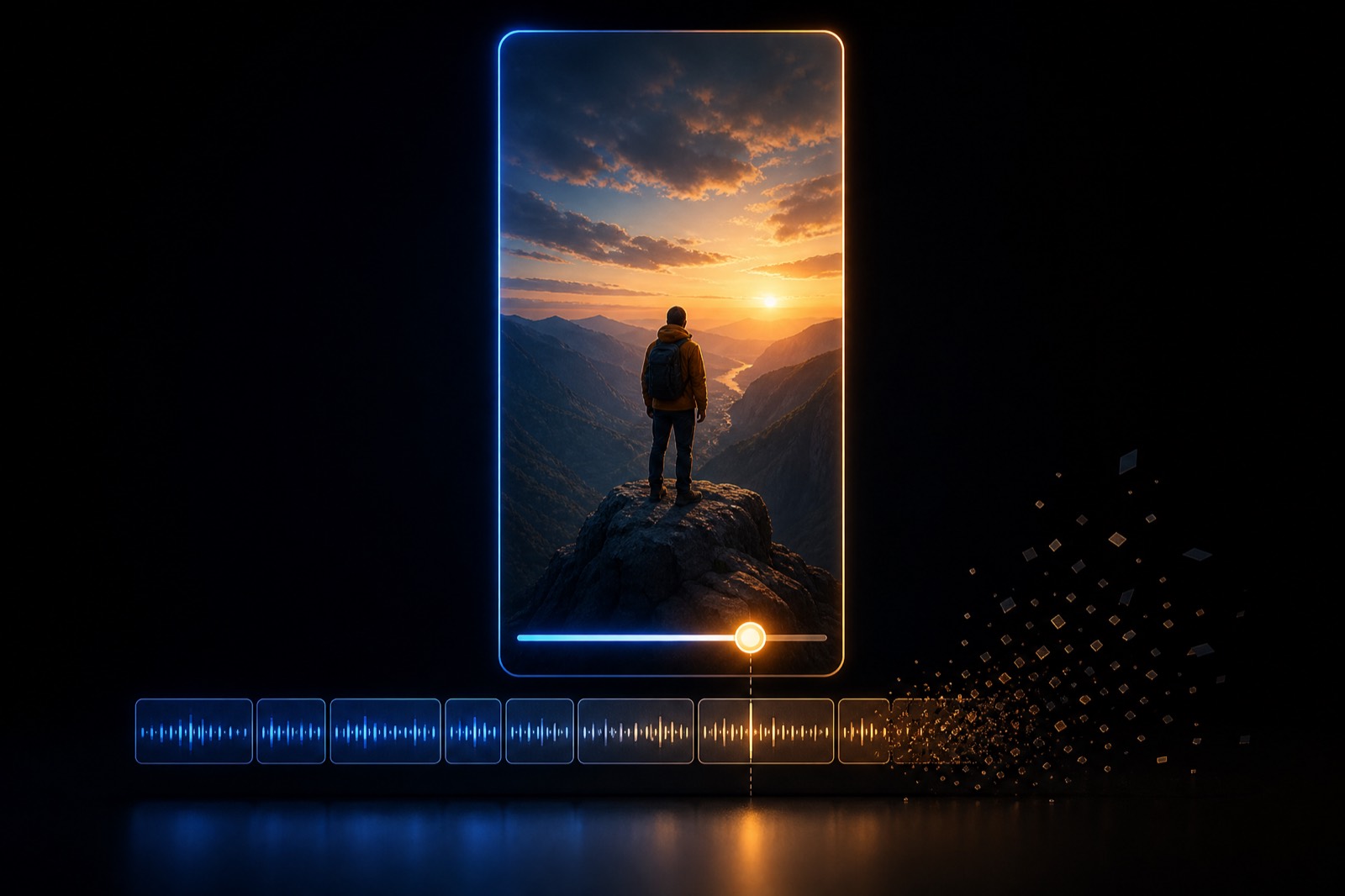
A vertical video frame with a trim handle and caption bars, illustrating an AI agent making precise edits to a clip

Claude can edit video, not just clip it. Most coverage of AI video agents stops at finding the good moments in a long recording. That is the easy half. The harder and more useful half is what happens after: trimming a clip that starts two seconds late, fixing the caption that transcribed a name wrong, cutting the filler words, censoring a word you cannot post.

All of that is available to an agent through our MCP server, and almost nobody knows it. This guide covers the five edits people actually need, in the order they usually need them.

If the server is not connected yet, the setup guide takes about five minutes. If you want the concept first, start with what MCP for video editing is.

What "editing" means here, and what it does not

Being precise about this saves disappointment later. Through MCP, an agent can trim, retime, rewrite captions, remove filler words, censor profanity, reframe, apply a brand template, and export. It works on clips derived from a video you submitted.

What it cannot do is compose a timeline from scratch out of imported assets, join two non-adjacent moments into one clip, or see the picture. The agent reads transcripts, timestamps, and metadata. It knows what was said and when. It does not know that the lighting shifted or that you gestured at the wrong moment.

So the honest framing is: it is a very capable editor for footage it already has, not a general-purpose NLE.

Edit 1: cut filler words

The cheapest edit is the one you ask for up front, because it happens during the initial render instead of triggering a second one. When you submit a video, ask for filler removal in the same breath:

Clip this podcast into five shorts and remove the filler words.

The agent passes removeFiller on the submission. Every "um," "uh," and "you know" comes out of the rendered clips without you marking a single one. If you forget and only realise afterwards, you can still fix it, but it means resubmitting rather than editing in place.

Edit 2: fix a caption typo

This is the single most common edit and the safest one to make. Transcription gets proper nouns wrong constantly, and a misspelled name in burned-in captions is the kind of thing that makes a clip unpostable.

The captions on clip 2 spell it "Sarah Chin". It should be "Sarah Chen". Fix it.

Under the hood the agent calls get_editing_script, finds the matching text element, changes its text, and posts the script back with apply_editing_script. The important detail, and the reason this edit is safe: only the text changes. Every timing field is left untouched, so nothing shifts.

Edit 3: trim a clip

Trimming is where agents get it wrong if they are careless, so it is worth understanding what is happening even though you will never type it yourself.

Clip 3 starts too early. Trim the first four seconds off the front.

An EditingScript uses two different coordinate systems at once. One set of fields describes which slice of the source video plays. A second set describes where in the rendered clip it plays, starting from zero. They are easy to confuse, and confusing them produces a specific and recognisable failure: the captions move but the video and audio stay exactly where they were.

If you see that happen, the edit touched the wrong coordinate system. Tell the agent the video did not move and it can correct the mutation. The tool descriptions spell out the correct recipe, so a capable model gets this right, but it is the one part of MCP editing where a wrong answer looks superficially like a right one.

Edit 4: censor a word

A dedicated tool handles profanity rather than making the agent hand-edit captions:

Censor the profanity in clip 1 and use a beep.

create_censor_job replaces matched words in the caption track with asterisks, and optionally lays a beep over the audio. The beep is off by default, so ask for it if you want it. This triggers a re-render.

Edit 5: make a variant without risking the original

When you want to try something and keep the version that already works, duplicate first:

Duplicate clip 4, then make the duplicate a 1:1 square version for LinkedIn.

duplicate_clip produces an independent copy titled with "(Copy)" appended. Edits to the copy never touch the original. Worth knowing: the tool is not idempotent, so asking twice gives you two copies.

The one thing that trips everybody up

Edits re-render asynchronously. When the agent applies an edit, it gets back a flag saying a render is pending, and the new version does not exist yet.

If you (or an over-eager agent) grab the preview URL or export immediately, you get the old render, and it looks like the edit silently failed. It did not. It is not finished.

The correct behaviour is to poll until the pending flag clears, then fetch. If a clip looks unchanged right after an edit, wait a few seconds and look again before assuming anything is broken. Re-renders do not consume extra credits today, though that pricing may change.

Getting the finished file out

Clips are preview-only until you explicitly export them, which mirrors how the web app works. Ask for the export and you get a download URL.

Three targets exist. HD is the default. 4K needs a paid plan and a 4K source. The third is the interesting one: xml returns an Adobe Premiere project file, so a clip an agent assembled can be opened and finished in Premiere Pro or DaVinci Resolve by a human editor. That round-trip is unusual, and it is the reason this counts as editing rather than automation with a nice wrapper.

Export clips 1, 2, and 4 in HD, and give me clip 3 as a Premiere project file.

Putting it together

A realistic editing session is not one prompt. It is a short conversation:

  • Submit the recording with filler removal on.
  • Review the ranked clips the agent returns.
  • Fix the two or three things wrong with the ones worth keeping.
  • Wait for each re-render before judging the result.
  • Export the survivors, in HD or into Premiere.

That loop is the part that used to require opening an editor, and it is the part almost no other video MCP server exposes. For the sequences worth saving, see the prompt pack, and the full tool reference lists everything an agent can call.

Frequently asked questions

Can Claude actually edit video, or only find clips?

It can edit. Through the OpusClip MCP server, Claude can trim to an exact millisecond, rewrite caption text, remove filler words, censor profanity, reframe, and export, using get_editing_script and apply_editing_script to round-trip the same edit format the OpusClip web editor saves. What it cannot do is compose a timeline from imported assets or join non-adjacent moments into one clip.

Why does my clip look unchanged after Claude edits it?

Because the re-render is asynchronous. Applying an edit returns a pending flag and queues a new render, so the old version is still what a preview URL or export returns for a few seconds. Wait for the pending flag to clear and fetch again. Nearly every apparent edit failure is this.

Can an AI agent remove filler words from my video?

Yes. Ask for filler removal when submitting the video and it happens during the initial render, which is cheaper than editing afterwards because it avoids a second render. Every um, uh, and you know comes out of the rendered clips without marking them manually.

Can I open an agent-edited clip in Adobe Premiere?

Yes. Exporting with the xml target returns an Adobe Premiere project file, so a clip an agent assembled can be finished by a human editor in Premiere Pro or DaVinci Resolve. It requires an entitled plan. HD and 4K exports are the other two targets.
On this page

Use our Free Forever Plan

Find the moment. Skip the scrubbing.

From script to polished video — in one click.

Create and post one short video every day for free, and grow faster.

OpusSearch uses AI to surface the exact clip you need from hours of footage — in seconds, not afternoons.

Agent Opus runs the entire video pipeline for you: research, scriptwriting, storyboarding, motion, voice, and edit. Upload the idea, post the result.

How to Edit Video with Claude: Trims, Captions, and Filler Words

Claude can edit video, not just clip it. Most coverage of AI video agents stops at finding the good moments in a long recording. That is the easy half. The harder and more useful half is what happens after: trimming a clip that starts two seconds late, fixing the caption that transcribed a name wrong, cutting the filler words, censoring a word you cannot post.

All of that is available to an agent through our MCP server, and almost nobody knows it. This guide covers the five edits people actually need, in the order they usually need them.

If the server is not connected yet, the setup guide takes about five minutes. If you want the concept first, start with what MCP for video editing is.

What "editing" means here, and what it does not

Being precise about this saves disappointment later. Through MCP, an agent can trim, retime, rewrite captions, remove filler words, censor profanity, reframe, apply a brand template, and export. It works on clips derived from a video you submitted.

What it cannot do is compose a timeline from scratch out of imported assets, join two non-adjacent moments into one clip, or see the picture. The agent reads transcripts, timestamps, and metadata. It knows what was said and when. It does not know that the lighting shifted or that you gestured at the wrong moment.

So the honest framing is: it is a very capable editor for footage it already has, not a general-purpose NLE.

Edit 1: cut filler words

The cheapest edit is the one you ask for up front, because it happens during the initial render instead of triggering a second one. When you submit a video, ask for filler removal in the same breath:

Clip this podcast into five shorts and remove the filler words.

The agent passes removeFiller on the submission. Every "um," "uh," and "you know" comes out of the rendered clips without you marking a single one. If you forget and only realise afterwards, you can still fix it, but it means resubmitting rather than editing in place.

Edit 2: fix a caption typo

This is the single most common edit and the safest one to make. Transcription gets proper nouns wrong constantly, and a misspelled name in burned-in captions is the kind of thing that makes a clip unpostable.

The captions on clip 2 spell it "Sarah Chin". It should be "Sarah Chen". Fix it.

Under the hood the agent calls get_editing_script, finds the matching text element, changes its text, and posts the script back with apply_editing_script. The important detail, and the reason this edit is safe: only the text changes. Every timing field is left untouched, so nothing shifts.

Edit 3: trim a clip

Trimming is where agents get it wrong if they are careless, so it is worth understanding what is happening even though you will never type it yourself.

Clip 3 starts too early. Trim the first four seconds off the front.

An EditingScript uses two different coordinate systems at once. One set of fields describes which slice of the source video plays. A second set describes where in the rendered clip it plays, starting from zero. They are easy to confuse, and confusing them produces a specific and recognisable failure: the captions move but the video and audio stay exactly where they were.

If you see that happen, the edit touched the wrong coordinate system. Tell the agent the video did not move and it can correct the mutation. The tool descriptions spell out the correct recipe, so a capable model gets this right, but it is the one part of MCP editing where a wrong answer looks superficially like a right one.

Edit 4: censor a word

A dedicated tool handles profanity rather than making the agent hand-edit captions:

Censor the profanity in clip 1 and use a beep.

create_censor_job replaces matched words in the caption track with asterisks, and optionally lays a beep over the audio. The beep is off by default, so ask for it if you want it. This triggers a re-render.

Edit 5: make a variant without risking the original

When you want to try something and keep the version that already works, duplicate first:

Duplicate clip 4, then make the duplicate a 1:1 square version for LinkedIn.

duplicate_clip produces an independent copy titled with "(Copy)" appended. Edits to the copy never touch the original. Worth knowing: the tool is not idempotent, so asking twice gives you two copies.

The one thing that trips everybody up

Edits re-render asynchronously. When the agent applies an edit, it gets back a flag saying a render is pending, and the new version does not exist yet.

If you (or an over-eager agent) grab the preview URL or export immediately, you get the old render, and it looks like the edit silently failed. It did not. It is not finished.

The correct behaviour is to poll until the pending flag clears, then fetch. If a clip looks unchanged right after an edit, wait a few seconds and look again before assuming anything is broken. Re-renders do not consume extra credits today, though that pricing may change.

Getting the finished file out

Clips are preview-only until you explicitly export them, which mirrors how the web app works. Ask for the export and you get a download URL.

Three targets exist. HD is the default. 4K needs a paid plan and a 4K source. The third is the interesting one: xml returns an Adobe Premiere project file, so a clip an agent assembled can be opened and finished in Premiere Pro or DaVinci Resolve by a human editor. That round-trip is unusual, and it is the reason this counts as editing rather than automation with a nice wrapper.

Export clips 1, 2, and 4 in HD, and give me clip 3 as a Premiere project file.

Putting it together

A realistic editing session is not one prompt. It is a short conversation:

  • Submit the recording with filler removal on.
  • Review the ranked clips the agent returns.
  • Fix the two or three things wrong with the ones worth keeping.
  • Wait for each re-render before judging the result.
  • Export the survivors, in HD or into Premiere.

That loop is the part that used to require opening an editor, and it is the part almost no other video MCP server exposes. For the sequences worth saving, see the prompt pack, and the full tool reference lists everything an agent can call.

Frequently asked questions

Can Claude actually edit video, or only find clips?

It can edit. Through the OpusClip MCP server, Claude can trim to an exact millisecond, rewrite caption text, remove filler words, censor profanity, reframe, and export, using get_editing_script and apply_editing_script to round-trip the same edit format the OpusClip web editor saves. What it cannot do is compose a timeline from imported assets or join non-adjacent moments into one clip.

Why does my clip look unchanged after Claude edits it?

Because the re-render is asynchronous. Applying an edit returns a pending flag and queues a new render, so the old version is still what a preview URL or export returns for a few seconds. Wait for the pending flag to clear and fetch again. Nearly every apparent edit failure is this.

Can an AI agent remove filler words from my video?

Yes. Ask for filler removal when submitting the video and it happens during the initial render, which is cheaper than editing afterwards because it avoids a second render. Every um, uh, and you know comes out of the rendered clips without marking them manually.

Can I open an agent-edited clip in Adobe Premiere?

Yes. Exporting with the xml target returns an Adobe Premiere project file, so a clip an agent assembled can be finished by a human editor in Premiere Pro or DaVinci Resolve. It requires an entitled plan. HD and 4K exports are the other two targets.

Creator name

Creator type

Team size

Channels

linkYouTubefacebookXTikTok

Pain point

Time to see positive ROI

About the creator

Don't miss these

How Audacy Drove 1B+ Views by Taking a Tech-Forward Approach to Radio with OpusClip
No items found.

How Audacy Drove 1B+ Views by Taking a Tech-Forward Approach to Radio with OpusClip

How All the Smoke makes hit compilations faster with OpusSearch

How All the Smoke makes hit compilations faster with OpusSearch

Growing a new channel to 1.5M views in 90 days without creating new videos

Growing a new channel to 1.5M views in 90 days without creating new videos

How to Edit Video with Claude: Trims, Captions, and Filler Words

A vertical video frame with a trim handle and caption bars, illustrating an AI agent making precise edits to a clip
No items found.
No items found.

Boost your social media growth with OpusClip

Create and post one short video every day for your social media and grow faster.

How to Edit Video with Claude: Trims, Captions, and Filler Words

A vertical video frame with a trim handle and caption bars, illustrating an AI agent making precise edits to a clip

Claude can edit video, not just clip it. Most coverage of AI video agents stops at finding the good moments in a long recording. That is the easy half. The harder and more useful half is what happens after: trimming a clip that starts two seconds late, fixing the caption that transcribed a name wrong, cutting the filler words, censoring a word you cannot post.

All of that is available to an agent through our MCP server, and almost nobody knows it. This guide covers the five edits people actually need, in the order they usually need them.

If the server is not connected yet, the setup guide takes about five minutes. If you want the concept first, start with what MCP for video editing is.

What "editing" means here, and what it does not

Being precise about this saves disappointment later. Through MCP, an agent can trim, retime, rewrite captions, remove filler words, censor profanity, reframe, apply a brand template, and export. It works on clips derived from a video you submitted.

What it cannot do is compose a timeline from scratch out of imported assets, join two non-adjacent moments into one clip, or see the picture. The agent reads transcripts, timestamps, and metadata. It knows what was said and when. It does not know that the lighting shifted or that you gestured at the wrong moment.

So the honest framing is: it is a very capable editor for footage it already has, not a general-purpose NLE.

Edit 1: cut filler words

The cheapest edit is the one you ask for up front, because it happens during the initial render instead of triggering a second one. When you submit a video, ask for filler removal in the same breath:

Clip this podcast into five shorts and remove the filler words.

The agent passes removeFiller on the submission. Every "um," "uh," and "you know" comes out of the rendered clips without you marking a single one. If you forget and only realise afterwards, you can still fix it, but it means resubmitting rather than editing in place.

Edit 2: fix a caption typo

This is the single most common edit and the safest one to make. Transcription gets proper nouns wrong constantly, and a misspelled name in burned-in captions is the kind of thing that makes a clip unpostable.

The captions on clip 2 spell it "Sarah Chin". It should be "Sarah Chen". Fix it.

Under the hood the agent calls get_editing_script, finds the matching text element, changes its text, and posts the script back with apply_editing_script. The important detail, and the reason this edit is safe: only the text changes. Every timing field is left untouched, so nothing shifts.

Edit 3: trim a clip

Trimming is where agents get it wrong if they are careless, so it is worth understanding what is happening even though you will never type it yourself.

Clip 3 starts too early. Trim the first four seconds off the front.

An EditingScript uses two different coordinate systems at once. One set of fields describes which slice of the source video plays. A second set describes where in the rendered clip it plays, starting from zero. They are easy to confuse, and confusing them produces a specific and recognisable failure: the captions move but the video and audio stay exactly where they were.

If you see that happen, the edit touched the wrong coordinate system. Tell the agent the video did not move and it can correct the mutation. The tool descriptions spell out the correct recipe, so a capable model gets this right, but it is the one part of MCP editing where a wrong answer looks superficially like a right one.

Edit 4: censor a word

A dedicated tool handles profanity rather than making the agent hand-edit captions:

Censor the profanity in clip 1 and use a beep.

create_censor_job replaces matched words in the caption track with asterisks, and optionally lays a beep over the audio. The beep is off by default, so ask for it if you want it. This triggers a re-render.

Edit 5: make a variant without risking the original

When you want to try something and keep the version that already works, duplicate first:

Duplicate clip 4, then make the duplicate a 1:1 square version for LinkedIn.

duplicate_clip produces an independent copy titled with "(Copy)" appended. Edits to the copy never touch the original. Worth knowing: the tool is not idempotent, so asking twice gives you two copies.

The one thing that trips everybody up

Edits re-render asynchronously. When the agent applies an edit, it gets back a flag saying a render is pending, and the new version does not exist yet.

If you (or an over-eager agent) grab the preview URL or export immediately, you get the old render, and it looks like the edit silently failed. It did not. It is not finished.

The correct behaviour is to poll until the pending flag clears, then fetch. If a clip looks unchanged right after an edit, wait a few seconds and look again before assuming anything is broken. Re-renders do not consume extra credits today, though that pricing may change.

Getting the finished file out

Clips are preview-only until you explicitly export them, which mirrors how the web app works. Ask for the export and you get a download URL.

Three targets exist. HD is the default. 4K needs a paid plan and a 4K source. The third is the interesting one: xml returns an Adobe Premiere project file, so a clip an agent assembled can be opened and finished in Premiere Pro or DaVinci Resolve by a human editor. That round-trip is unusual, and it is the reason this counts as editing rather than automation with a nice wrapper.

Export clips 1, 2, and 4 in HD, and give me clip 3 as a Premiere project file.

Putting it together

A realistic editing session is not one prompt. It is a short conversation:

  • Submit the recording with filler removal on.
  • Review the ranked clips the agent returns.
  • Fix the two or three things wrong with the ones worth keeping.
  • Wait for each re-render before judging the result.
  • Export the survivors, in HD or into Premiere.

That loop is the part that used to require opening an editor, and it is the part almost no other video MCP server exposes. For the sequences worth saving, see the prompt pack, and the full tool reference lists everything an agent can call.

Frequently asked questions

Can Claude actually edit video, or only find clips?

It can edit. Through the OpusClip MCP server, Claude can trim to an exact millisecond, rewrite caption text, remove filler words, censor profanity, reframe, and export, using get_editing_script and apply_editing_script to round-trip the same edit format the OpusClip web editor saves. What it cannot do is compose a timeline from imported assets or join non-adjacent moments into one clip.

Why does my clip look unchanged after Claude edits it?

Because the re-render is asynchronous. Applying an edit returns a pending flag and queues a new render, so the old version is still what a preview URL or export returns for a few seconds. Wait for the pending flag to clear and fetch again. Nearly every apparent edit failure is this.

Can an AI agent remove filler words from my video?

Yes. Ask for filler removal when submitting the video and it happens during the initial render, which is cheaper than editing afterwards because it avoids a second render. Every um, uh, and you know comes out of the rendered clips without marking them manually.

Can I open an agent-edited clip in Adobe Premiere?

Yes. Exporting with the xml target returns an Adobe Premiere project file, so a clip an agent assembled can be finished by a human editor in Premiere Pro or DaVinci Resolve. It requires an entitled plan. HD and 4K exports are the other two targets.

Ready to start streaming differently?

Opus is completely FREE for one year for all private beta users. You can get access to all our premium features during this period. We also offer free support for production, studio design, and content repurposing to help you grow.
Join the beta
Limited spots remaining

Try OPUS today

Try Opus Studio

Make your live stream your Magnum Opus