Schedule a month of videos in one command
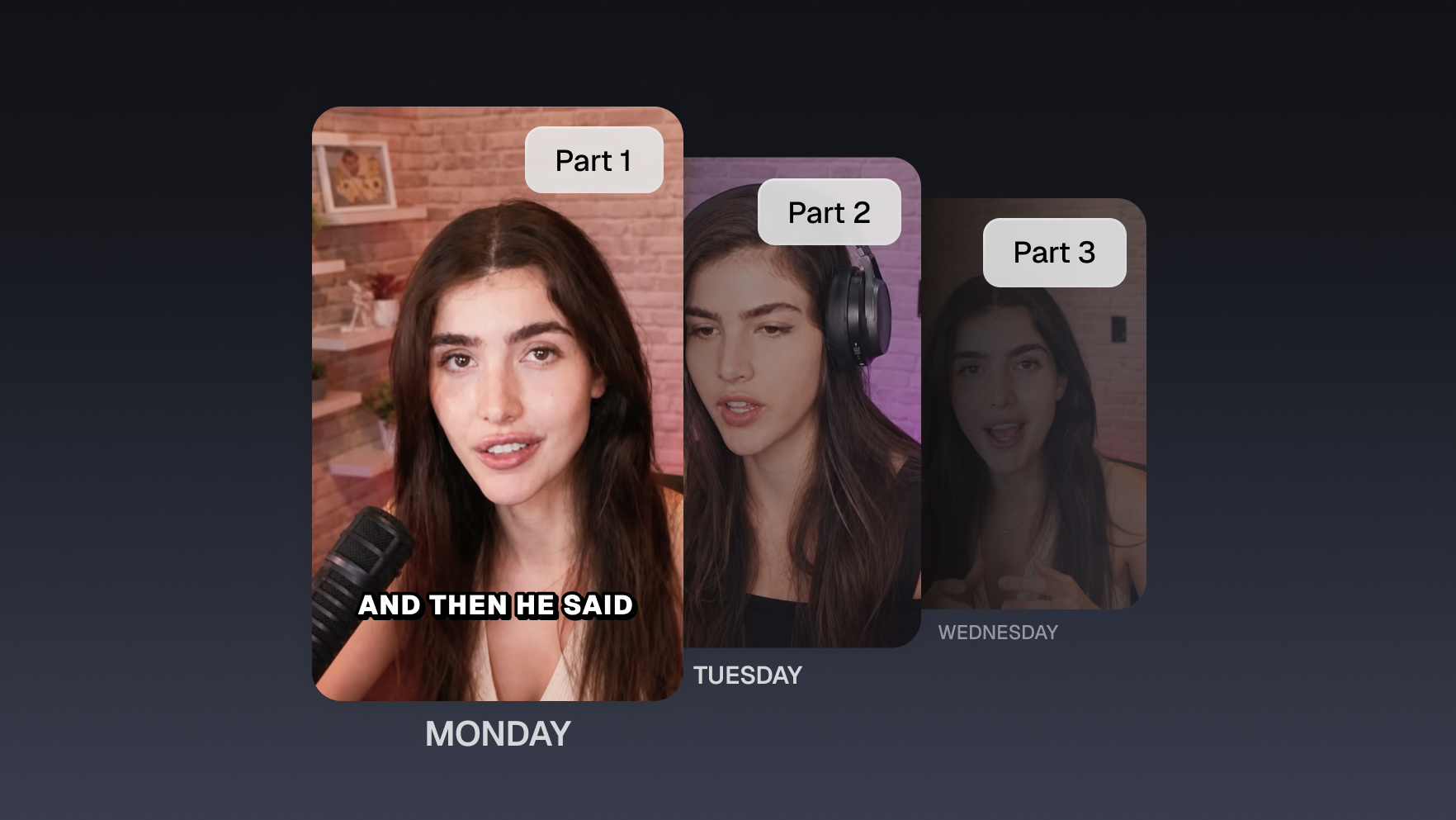
Hand your agent a library of finished clips and a posting rule (two a day on TikTok, one a day on Shorts) and it builds and schedules the entire calendar. A month of posts from one conversation.


Run it with your agent
- Open Customize in your client and select “Connectors”
- Find OpusClip and click "Add"
- Sign in with your OpusClip account in the OAuth window
- Run the command below in your terminal
claude mcp add --transport http opusclip https://mcp.opus.pro/mcp - Start Claude Code and run
/mcp - Approve the OAuth sign-in with your OpusClip account
claude mcp add --transport http opusclip https://mcp.opus.pro/mcp- Open the ChatGPT desktop app and select "Plugins" in the sidebar
- Search for OpusClip, then click the + icon
- Click "Connect" and sign in with your OpusClip account
- Open ChatGPT and select "Plugins" in the sidebar
- Search for OpusClip, then click the + icon
- Click "Connect" and sign in with your OpusClip account
- Open Customize in the left panel, then select MCPs
- Add New MCP Server
- Paste the configuration below
- Save the file (Cmd+S / Ctrl+S), then approve the sign-in request in your browser
{"mcpServers": {"opusclip": {"url": "https://mcp.opus.pro/mcp"}}}- Open Extensions ⇧⌘X → search @mcp opusclip
- Pick the opus-pro entry
- Install → OAuth sign-in
What this workflow does
Scheduling is where consistency dies. The clips exist, but someone has to sit in a dashboard picking dates, times, and platforms for each one, so it doesn't happen. This workflow replaces the dashboard session with a single instruction: you describe the posting cadence you want, and your agent schedules every clip in the queue to match it.
What you need
- An OpusClip account (MCP tool calls require a Pro plan)
- Claude, Cursor, or any MCP-enabled agent with the OpusClip MCP connected (api.opus.pro/api/mcp)
- Your social accounts connected in OpusClip
- A backlog of finished clips ready to go out
How it works
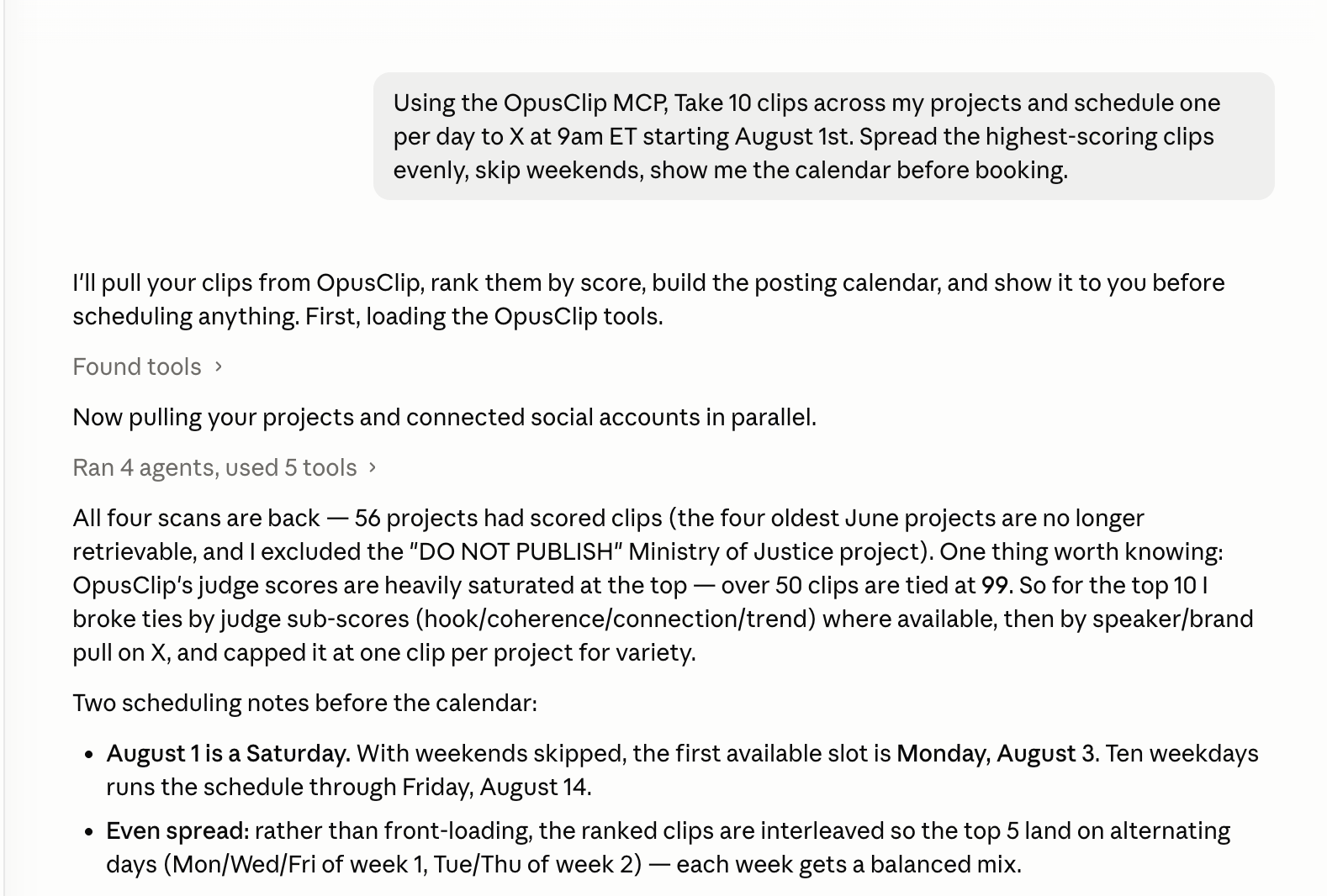
- Describe the cadence, not the calendar. Tell the agent your rule: platforms, posts per day, time slots, start date, days to skip.
- The agent inventories the queue. It lists every unposted clip across your projects and ranks them by virality score.
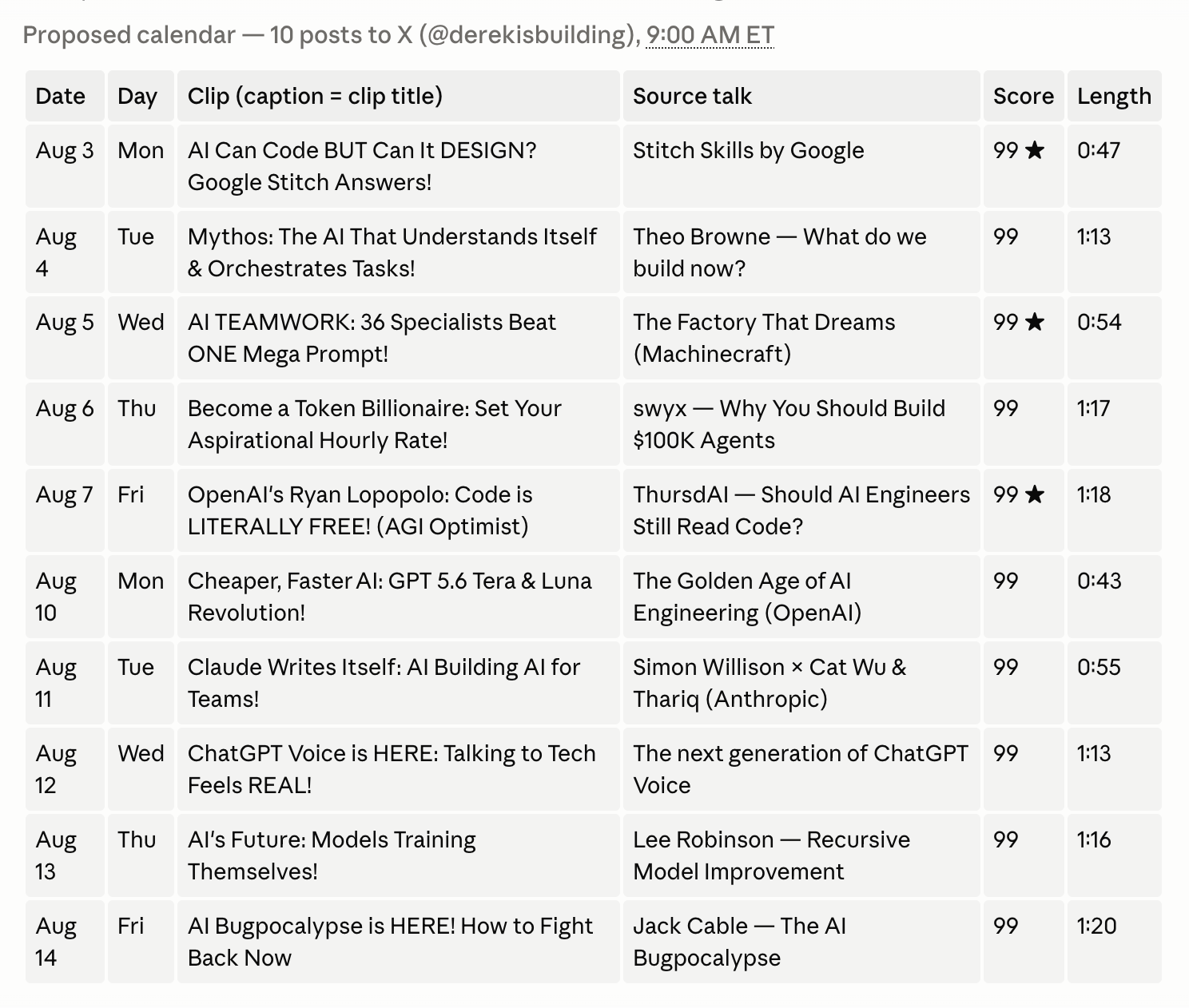
- It drafts the full calendar. Every clip gets a platform, date, and time that fits your rule, with the strongest clips spread across the month instead of clustered in week one.
- You approve the plan once. The agent shows the complete schedule before anything is booked.
- Everything gets scheduled. One confirmation, and the whole month is queued in OpusClip's scheduler.
Try this prompt
Take every unposted clip across my projects and schedule two per day to TikTok and one per day to YouTube Shorts at 9am and 5pm ET, starting Monday. Spread the highest-scoring clips evenly across the month, skip weekends, and show me the full calendar before you book anything.
Tips
- Don't front-load your best clips. Ask the agent to distribute top scorers so every week has an anchor post.
- Have it generate platform-specific captions while it schedules, so TikTok and Shorts don't get identical copy.
- Re-run the same instruction whenever the queue refills. The cadence rule stays the same, only the clips change.