OpusClip 4.0 is here. Become a content powerhouse.

8 Best AI Podcast Video Editors in 2026

November 23, 2026
Podcasters in headphones at microphones and a laptop with a timeline, with a green waveform pill, a Cut button, a scissors badge and a 16:9 tag

OpusClip is the pick for cleaning up and captioning clips cut from a finished podcast episode: its editor trims by transcript or timeline, removes fillers, pauses and bad takes, and enhances speech. Descript, Riverside and Zencastr edit the whole episode where it was recorded, Eddie AI and Autopod cut between cameras, Cleanvoice cleans the audio in a video file, and Kapwing edits by transcript. Items 2 to 8 follow how directly each vendor's pages are written for editing podcasts. Facts are from vendor pages read on November 23, 2026.

Key takeaways

  • Best for cleaning up and captioning the clips cut from a finished episode: OpusClip. Its help center lists Speech cleanup and Speech enhancement.
  • Best for editing a whole episode as a transcript in the app that records it: Descript. Its podcasting page says to edit a podcast like a doc.
  • Best for recording separate tracks per speaker, then editing with AI: Riverside. Its video editor page lists layouts that switch by speaker.
  • Best for editing an episode by chatting with an AI Producer: Zencastr. Its pricing page lists a Free plan with text-based editing and long pause removal.
  • Best for automatic multicam edits that finish in an editing suite: Eddie AI. It switches to the camera of whoever is talking and exports to Premiere, Resolve, Final Cut Pro or Avid.
  • Best for multi-camera edits inside Premiere Pro: Autopod. Its FAQ says it needs multiple cameras and separate audio tracks.
  • Best for cleaning the audio of a video podcast file: Cleanvoice. Its FAQ says it does not edit the picture.
  • Best for trimming an episode by deleting words in a browser: Kapwing. Its Free plan lists exports up to 4 minutes long.

What counts as an AI podcast video editor

A podcast video editor changes the episode itself. It cuts the ums, dead air and cross-talk, switches between the speakers' cameras, cleans the sound and adds captions, so the result is the full episode as well as any clips. That is a different job from clip finding, which returns short moments from a finished episode (our guide to AI podcast and webinar clip makers covers it), and from hosting, which publishes the feed (our guide to video podcast platforms covers it).

This guide covers three kinds of tool. Studios that record and edit: Descript, Riverside and Zencastr. Podcast-specific editors for a recording made elsewhere: Eddie AI, Autopod and Cleanvoice. Clip and general editors with podcast features: OpusClip and Kapwing. For a text-first approach to any video, see our guide to text-based video editors.

How to choose

  • A finished episode needs short captioned clips with clean speech: OpusClip. Its podcast editor page describes the flow from import to download or publish.
  • The episode should be recorded and edited in one place: Descript, Riverside or Zencastr.
  • Each speaker has a camera: Eddie AI and Autopod cut between cameras on a recording made elsewhere (Autopod inside Premiere Pro), while Descript, Riverside and Zencastr do it inside their own studios.
  • Only the sound is the problem: Cleanvoice for a video file, or Speech enhancement inside an OpusClip clip.
  • The budget is zero: compare the free entries in At a glance, because each vendor counts its free allowance in a different unit.

At a glance

  • OpusClip: best for cleaning up and captioning the clips cut from a finished episode; Starter $15 a month (monthly billing only), Pro $29 a month or $14.50 a month billed annually; free plan yes ($0 with a watermark).
  • Descript: best for editing a whole episode as a transcript in the app that records it; Hobbyist $16 a month billed annually ($24 billed monthly), per person; free plan yes (1 media hour a month, 720p export with a watermark).
  • Riverside: best for recording separate tracks per speaker, then editing with AI; Pro $24 a month billed yearly ($35 billed monthly); 14-day free trial on Pro, and the pricing page lists no free plan.
  • Zencastr: best for editing an episode by chatting with an AI Producer; the pricing page lists a Free plan and a custom Enterprise plan; free plan yes.
  • Eddie AI: best for automatic multicam edits that finish in an editing suite; credit packs with no subscription, 1,000 credits for $15 one time and 5,000 for $45; 500 free credits for new accounts.
  • Autopod: best for multi-camera edits inside Premiere Pro; $29 a month per license; 30-day free trial with monthly billing.
  • Cleanvoice: best for cleaning the audio of a video podcast file; subscription from $11 a month for 10 hours of processed audio, or $11 for 5 hours as pay as you go; free trial.
  • Kapwing: best for trimming an episode by deleting words in a browser; Pro $16 a month billed annually ($24 billed monthly); free plan yes (watermark, exports up to 4 minutes, 720p).

How each tool edits a podcast episode

The At a glance list covers best-for and the first paid price; this table compares what each tool edits, how the edit is made, what goes in and comes out, and the free access, as listed on each vendor's own pages on November 23, 2026.

ToolWhat it editsHow the edit is madeWhat goes inWhat comes outFree access as printed
OpusClipClips cut from a long videoTranscript or timeline trims; Speech cleanup removes fillers, pauses and bad takesA video file or a linkCaptioned clips; XML export to Premiere Pro or DaVinci Resolve (Pro)Free: $0 with a watermark
DescriptAudio and video episodes, recorded in Descript or importedTranscript or timeline; Underlord cuts fillers and retakes; Automatic MulticamRooms recordings, or an audio or video file (WAV, MP3, AAC, AIFF, M4A, FLAC listed)Episodes and clips; direct publish to YouTube or a hosting serviceFree: 1 media hour a month, 720p export with a watermark
RiversideAudio and video, with each speaker on a separate trackTranscript or timeline; AI removes pauses and fillers; layouts switch by speakerA Riverside recording, or an uploaded recordingAn AI-edited full episode with captions and branding; Spotify integration14-day free trial on Pro, Grow and Webinar
ZencastrAudio and video, by chatting with a ProducerChat requests; cuts fillers and long pauses; spotlights whoever is speakingZencastr recordings, or uploaded content; text-based editing in five transcript languagesEdited episode and clips; chapters and show notes; 16:9, 9:16 and 1:1 videoFree plan lists unlimited postproduction credits; home page says all for free
Eddie AIMulticam video with separate audio tracksSwitches to the camera of whoever is talking; chat prompts pull out shortsEvery camera angle and audio track, from a drive or NLE binsExports to Premiere, Resolve, Final Cut Pro or Avid; clips relink500 free credits for new accounts; credit packs, no subscription
AutopodMulti-camera video inside Adobe Premiere ProPlug-ins: auto multi-camera edit for up to 10 cameras, silence-based jump cuts, social clipsSeveral cameras and separate audio tracks in a Premiere Pro projectAn edited sequence in Premiere Pro; social clips in three sizes30-day free trial with monthly billing
CleanvoiceThe audio in a video file; the picture is not editedAutomatic removal of fillers, pauses and noise; templates choose which edits applyAudio or video such as MP3, WAV, M4A, MP4 and MOVA cleaned file; edits can mute instead of cut; a transcript to downloadFree trial; the video podcast page offers 30 minutes cleaned free
KapwingAudio and video, by editing the transcript in a browserDelete words in the transcript; Smart Cut removes silences; Clean Audio removes noiseA video uploaded to Kapwing Studio, then a generated transcriptAn edited video exported as MP4, MP3 and other formatsFree: watermark, exports up to 4 minutes, 720p

1. OpusClip: Best for cleaning up and captioning the clips cut from a finished episode
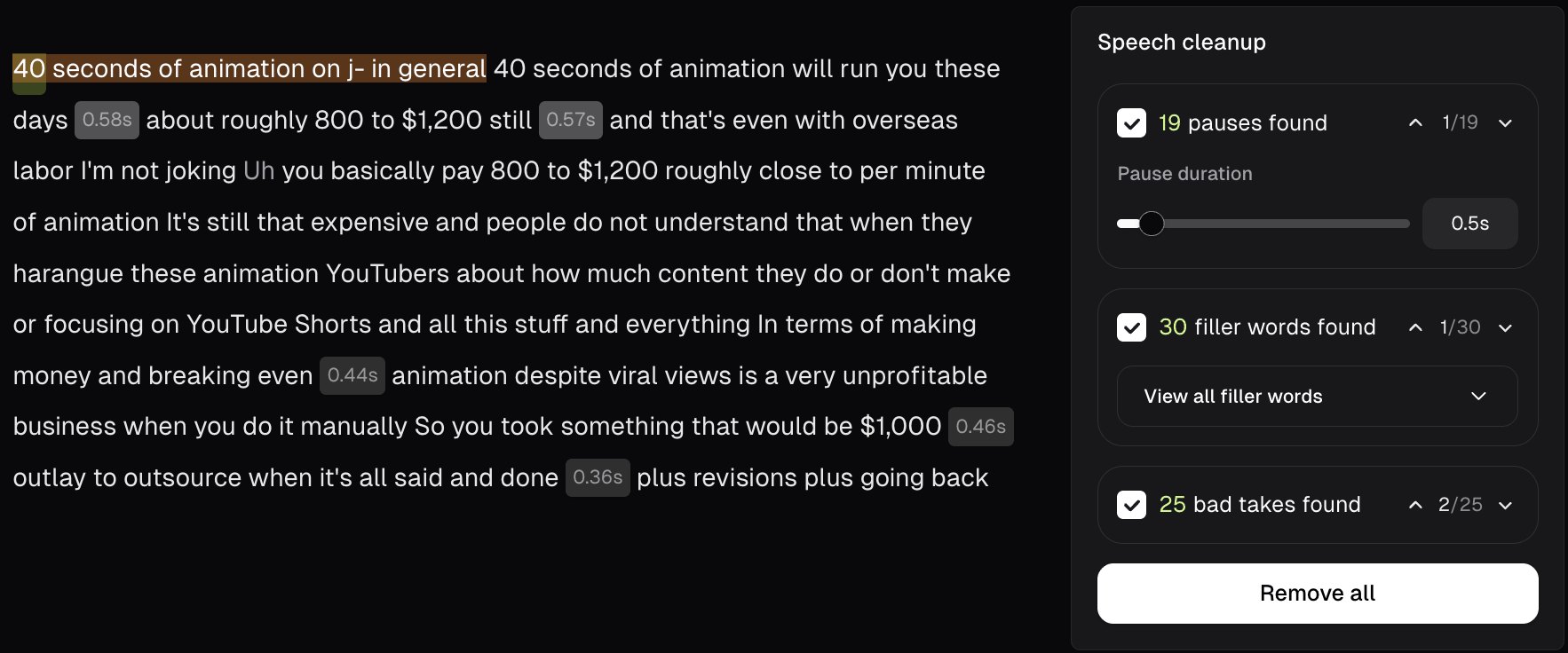
OpusClip's transcript view with highlighted words and gray pause chips beside a Speech cleanup panel listing pauses, filler words and bad takes found

OpusClip's Speech cleanup panel, with the video preview cropped out. Source: OpusClip help center

OpusClip's podcast editor page describes turning lengthy discussions into snippets for social media, with trimming of segments, filler removal and enhanced audio quality, and its steps are to import the episode, let the AI identify key moments, review and edit the results, then download or publish.

The editing tools sit in the clip editor. The help center's trim article says a section can be removed by selecting its text and deleting it, or by dragging the ends of a segment in the timeline. Speech cleanup detects filler words, pauses (0.5 seconds by default, adjustable) and bad takes such as retakes and restarts, and nothing is cut without approval. Speech enhancement reduces noise, isolates the voice onto a separate audio track and boosts voice volume, with sliders for noise reduction and voice enhancement. Names a transcript gets wrong can be fixed once and saved, per the Brand Vocabulary article.

For a longer edit, Export XML hands a clip to Premiere Pro or DaVinci Resolve.

Pricing: OpusClip's pricing page lists Free at $0 (with a watermark), Starter at $15 a month (monthly billing only) and Pro at $29 a month, or $14.50 a month billed annually. Business is custom. The pricing page and help center both list Export XML under Pro. Each plan lists its credits on the pricing page.

Considerations: OpusClip is a clipping tool first. Its help center introduction describes the in-app editor, text-based and timeline-based, as the place for minor tweaks to clips the AI has found, so an episode that needs several camera angles cut together or multi-track audio work belongs in one of the tools below, or in a timeline editor after Export XML. Captions arrive in Premiere Pro as overlays that cannot be edited there, per the help center.

  • Choose it if a finished episode needs short captioned clips with fillers, pauses and noise cleaned up, and the editing is trimming rather than a full timeline job.
  • Skip it if the episode needs cuts between several cameras, separate tracks per speaker or a studio that records the conversation.

2. Descript: Best for editing a whole episode as a transcript in the app that records it
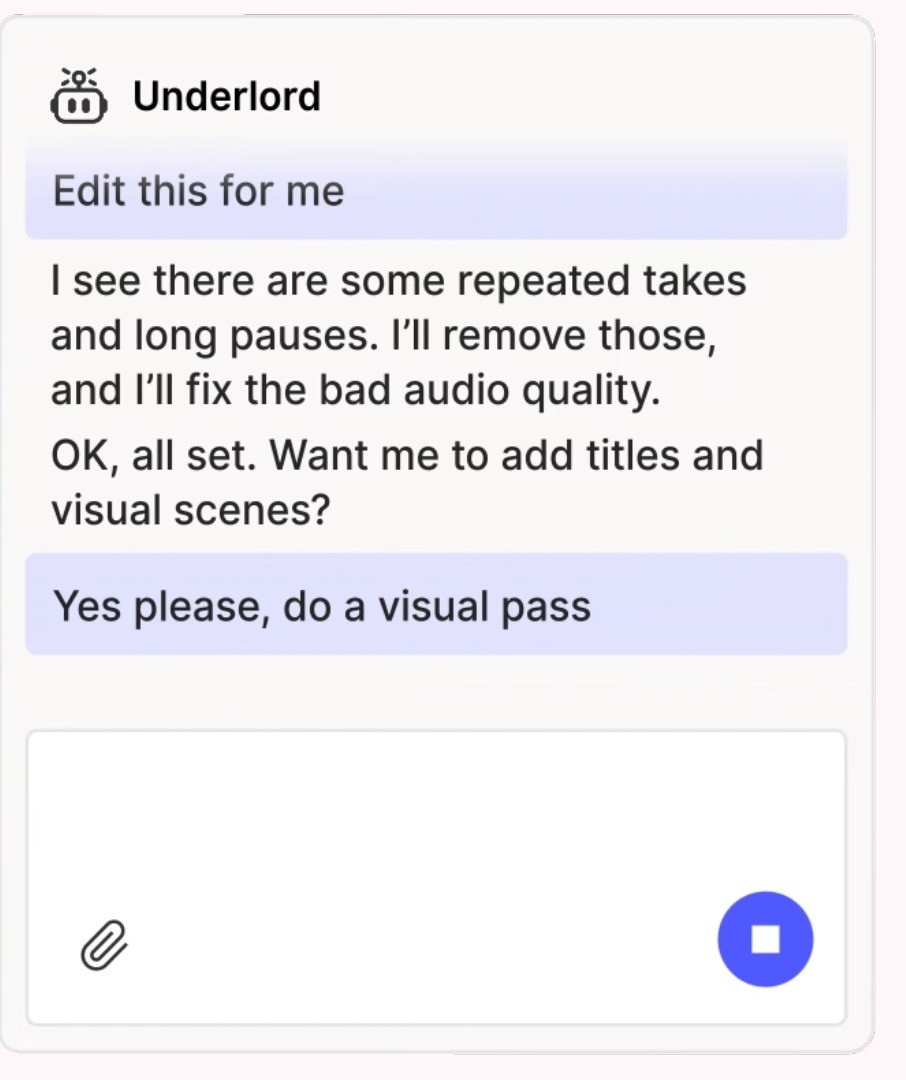
Descript's Underlord chat panel with the request Edit this for me and a reply about removing repeated takes and long pauses

Descript's Underlord chat panel. Source: Descript website

Descript's podcasting page says to record, transcribe, edit, make clips and publish in one app. Its text-based editor transcribes a file so a podcast can be edited like a doc, with cuts made on the backspace key, and the page also lists a timeline with visual navigation. Recording happens in Descript Rooms, which the page says captures audio and 4K video recorded locally. The AI co-editor, Underlord, is listed as cutting filler words and retakes and writing show notes, and Studio Sound removes noise and enhances voices.

For video, Descript's Automatic Multicam page says to record in Rooms and then run Automatic Multicam, after which the AI lays out the video so the speaker is on camera, adds reaction shots when someone has been talking a while and shows the whole group during rapid-fire conversation. The podcasting page lists audio files in WAV, MP3, AAC, AIFF, M4A and FLAC, and says a video podcast can be published directly to YouTube from Descript.

Pricing: Descript's pricing page lists Hobbyist at $16 a month billed annually ($24 billed monthly), per person, with 10 media hours a month, 1080p watermark-free export and AI tools including Studio Sound and Remove Filler Words. Creator is $24 a month billed annually ($35 billed monthly) with 30 media hours and 4K export. The podcasting page lists Free with 1 media hour a month and 720p export with a watermark.

Considerations: Media hours cap how much audio and video a plan processes each month, and Free lists 1 hour, so it is a way to try one episode rather than run a weekly show. Automatic Multicam is described as a step after recording in Rooms, so a multicam shoot made elsewhere is the job of Eddie AI and Autopod below. The page also lists Regenerate, which fixes a word by typing and changes the speaker's audio, so it needs the speaker's agreement.

  • Choose it if one app should record the episode, edit it by transcript and publish it, with the AI handling fillers, retakes and show notes.
  • Skip it if the footage is a multicam shoot recorded elsewhere, or the Free plan's single media hour is too small for the show.

3. Riverside: Best for recording separate tracks per speaker, then editing the episode with AI

Riverside's editor transcript with speaker names, a selected phrase and Correct, Delete and Copy actions above it

Riverside's transcript editor. Source: Riverside website

Riverside's podcast editor page says to record or upload a podcast, then trim it on a timeline or by deleting text in the transcript, with an AI option that generates a full episode or clips. It describes recording up to 10 guests in up to 4K with separate audio and video tracks per participant, color-coded speaker tracks with automatic chapters on the timeline, and multitrack editing to fix crosstalk.

Its video editor page, which it calls a video editor built for conversations, lists switching layouts by speaker, removing pauses and filler words, fixing eye contact and enhancing audio with one-click tools. The page says that whether a recording is made in Riverside or uploaded, each speaker gets their own track, and that AI can produce a full episode edit, clips and hooks from a recording, with editing by chatting or with full timeline control. The podcast editor page adds captions and an export with a Spotify integration.

Pricing: Riverside's pricing page lists Pro at $24 a month billed yearly and $35 a month billed monthly, with a 14-day free trial on Pro, Grow and Webinar. Pro lists unlimited text-based editing, an AI editing and repurposing agent, and AI B-roll, eye contact, silence removal and filler-word removal.

Considerations: The pricing page opens with a free trial and lists no free plan, while the page header offers Start for Free, so the free offer needs confirming on the pricing page. Riverside is a studio first, and its plans bundle hosting, live streaming and webinar tools with editing.

  • Choose it if guests record remotely, separate tracks per speaker matter, and one tool should record, edit and publish the show.
  • Skip it if the recording already exists elsewhere and only fillers and noise need cleaning, or a free plan is required.

4. Zencastr: Best for editing an episode by chatting with an AI Producer

Zencastr's chat graphic with the request I don't want it to feel rushed and a reply offering to trim only the pauses that feel too long

Zencastr's illustration of asking the Producer to trim long pauses. Source: Zencastr website

Zencastr's editing page says to skip the editing timeline and tell a personalized Producer what to do, in a chat-based interface for audio and video edits. The Producer is listed as cleaning up recordings by removing background noise and balancing levels, cutting filler words and repeated phrases, cutting long pauses and dead air with a pacing threshold the person can ask to change, and automatically spotlighting whoever is speaking with smooth transitions and no manual camera switching.

It also lists chapters, show notes with guest info, key links and timestamps, captioned clips, and video in 16:9, 9:16 or 1:1. The FAQ says text-based editing is available for transcripts in English, French, German, Spanish and Portuguese, and that recordings in other languages still get the audio enhancements, smart filters and video layouts.

Pricing: Zencastr's pricing page lists a Free plan and an Enterprise plan with custom pricing. The Free column lists 6 participants, 4K recording, unlimited postproduction credits, text-based and multi-track editing, long pause removal, filler word removal, animated captions and background noise removal, and the home page says recording, editing and publishing are all for free.

Considerations: The editing FAQ says editing runs on postproduction credits, one credit per hour of recording processed, with a fixed number per month on each plan, while the pricing page lists unlimited credits on Free, so confirm the current allowance. The page invites asking the Producer for fine-tuning, so expect to review the result.

  • Choose it if a studio with a free plan should record the show and edit it by chat, with pauses, fillers and speaker switching handled for the whole episode.
  • Skip it if the edit needs manual control of each cut on a timeline, or the cameras were recorded outside Zencastr.

5. Eddie AI: Best for automatic multicam edits that finish in an editing suite

Eddie AI's editor with a project list at left, a city skyline in the preview player and a two-track timeline above a music bar

Eddie AI's editor. Source: Eddie AI website

Eddie AI's podcast page is headed Automatic Multicam Podcast Edits and says Eddie switches camera angles based on who is speaking. The steps are to import footage with every angle and audio track from a drive or NLE bins, let Eddie detect who is talking and switch to their camera, then export and refine, with clips relinked and alternate angles aligned. Its multicam page says it can sync and align sources, or take multicams built in Premiere, Resolve or Final Cut Pro.

The podcast page lists rough cuts from raw multicam footage, logging of A-roll and B-roll by speaker, speaker diarization, a prompt-to-edit chat for pulling shorts from the podcast edit, and exports to Premiere Pro, DaVinci Resolve, Final Cut Pro and Avid Media Composer. Every pack includes the polish tools, such as word-level captions, clean speech and color grading.

Pricing: Eddie's pricing page sells credit packs with no subscription: 1,000 credits for $15 one time, 5,000 for $45, 15,000 for $120 and 50,000 for $350, and packs never expire. New accounts start with 500 free credits. Importing footage is listed at about 250 credits an hour, and each edit is priced by the work.

Considerations: Cost follows the hours of footage and the edits requested rather than a flat monthly plan, and the pricing page says larger jobs show a credit estimate before they run. The multicam steps assume footage with separate angles and audio tracks.

  • Choose it if multicam footage should get a first cut before a person finishes it in Premiere, Resolve, Final Cut Pro or Avid.
  • Skip it if the episode is a single recording that needs only cleanup, or a flat monthly price matters more than paying for each import and edit.

6. Autopod: Best for multi-camera edits inside Premiere Pro

Autopod's home page describes automatic editing for video podcasts and shows as a pack of plug-ins for Adobe Premiere Pro. The Multi-Camera Editor edits multi-camera sequences automatically for up to 10 cameras and 10 microphones, with solo, two-shot, three-shot, four-shot and wide-shot layouts, and can be set to use wide shots more often. The page says its users call the result essentially a finished edit, a vendor claim we did not check. The Jump Cut Editor creates cuts based on silence from a decibel cutoff, and the Social Clip Creator builds 1920x1080, 1080x1350 and 1080x1920 sequences with auto-reframe, watermarks and endpages.

The pricing page FAQ says the Multi-Camera Editor is designed for multiple cameras and multiple unique audio tracks and cannot be used with a single audio source or a single speaker. It needs Adobe Premiere Pro 2023 or newer, a DaVinci Resolve version is available through the same key portal, and the FAQ says there are no plans for Final Cut Pro or Avid.

Pricing: Autopod's pricing page lists an Individual license at $29 a month per license, with a 30-day free trial for monthly billing and one month free per year for annual billing. Each license works on one computer.

Considerations: Autopod is a set of plug-ins, so it needs a Premiere Pro or DaVinci Resolve project with separate audio tracks, and its page lists editing and clip tools rather than recording, hosting or audio cleanup.

  • Choose it if an editor already cuts podcasts in Premiere Pro and wants the first multi-camera pass automated, with one microphone per speaker.
  • Skip it if the recording has a single audio source or a single speaker, or editing does not happen in Premiere Pro or DaVinci Resolve.

7. Cleanvoice: Best for cleaning the audio of a video podcast file

Cleanvoice's edit options with Mute, Hesitations, Long Silences, Stutters, Mouth Sounds and Filler Words, above Enhance options for music, breath and noise

Cleanvoice's edit and enhance options. Source: Cleanvoice website

Cleanvoice's video podcast editing page says to drop an audio or video file (MP3, WAV, M4A, MP4, MOV and more, up to 1.5 GB) and let AI remove background noise, fillers and awkward pauses. Edits can mute instead of cut so the audio stays in sync with the video, and the page lists subtitle download and custom templates for choosing which edits apply. Its pricing page lists filler word, background noise, silence, mouth sound and breath removal, an audio enhancer and timeline export.

The FAQ is direct about the limit. Asked whether it edits videos visually, it answers no: for now it focuses on cleaning the podcast, cutting fillers and unwanted noise from the video file. It also says it does not burn subtitles into the video but auto-generates a transcript to download. The FAQ puts a one-hour video file at 5 to 10 minutes, a vendor figure we did not check.

Pricing: Cleanvoice's pricing page lists a free trial, pay as you go credits at $11 for 5 hours of processed audio (valid for 2 years), and subscriptions from $11 a month for 10 hours of processed audio a month, with yearly billing listed at $110. The video podcast page also offers 30 minutes cleaned free.

Considerations: Cleanvoice edits the sound, not the picture, so cutting between cameras, trimming sections by transcript, burned-in captions and branding all happen in another tool. Usage is billed in hours of processed audio.

  • Choose it if the episode already exists as a video file and the problem is ums, pauses, mouth sounds and background noise.
  • Skip it if the edit needs camera switching, trimming by transcript, captions on the picture or branding.

8. Kapwing: Best for trimming an episode by deleting words in a browser

Kapwing's text-based editing graphic showing a transcript with a retake that can be deleted

Kapwing's text-based editing graphic. Source: Kapwing website

Kapwing's text-based video editor page says to upload a video to Kapwing Studio, generate a transcript and delete words, and that Kapwing removes the matching sections so every cut lines up with the spoken words. It names podcast episodes as a use, saying podcasters cut tangents, false starts and off-topic stretches by reading the transcript, and adds that the full editor with an editable timeline is available when more control is needed.

The site's menu lists Smart Cut, which automatically removes silences, and Clean Audio, which enhances audio quality and removes background noise. The pricing page lists Clean Audio at up to 5 minutes on Free and up to 500 minutes a month on Pro.

Pricing: Kapwing's pricing page lists Free at $0 with unlimited exports carrying a watermark, exports up to 4 minutes long and 720p. Pro is $16 a month billed annually ($24 billed monthly), with no watermark, 4K export and exports up to 2 hours long.

Considerations: Free exports are limited to 4 minutes, so a full episode needs a paid plan. Kapwing is a general editor with no recording studio, and its text-based editing page names podcasts as one use among interviews, webinars and talking-head videos.

  • Choose it if a browser editor with transcript trimming and a timeline fits, and a paid plan is acceptable for full-length exports.
  • Skip it if a free full-length export is needed, or the episode has several cameras to cut between.

How we compared these tools

We compared each tool on six criteria: what it edits (audio, video or both), how the edit is made (transcript, chat, timeline or automatic), what goes in, what comes out, what it does for several speakers or cameras, and the free access the vendor prints. This guide is organised around the job in the title, editing a podcast episode with AI. OpusClip comes first because the part of that job it does is on its own podcast editor page: cutting a long discussion into captioned clips and cleaning up the speech in each one. Its limit is in its entry: its help center calls the editor a place for minor tweaks, so multi-camera and multi-track work belongs elsewhere. Items 2 to 8 follow one yardstick: how directly the vendor's own pages are written for editing podcast episodes, starting with studios whose pages cover recording through editing, then editors for a recording made elsewhere, then a general editor that names podcasts as one use.

  • 2. Descript: a podcasting page that covers recording, text editing, filler cuts and clips.
  • 3. Riverside: a podcast editor page and a video editor page written for conversations.
  • 4. Zencastr: an editing page written around podcast episodes, with a chat-based Producer.
  • 5. Eddie AI: a podcast page for multicam edits on footage recorded elsewhere.
  • 6. Autopod: a page for video podcasts and shows, limited to Premiere Pro and DaVinci Resolve.
  • 7. Cleanvoice: a video podcast page that covers cleaning the audio only.
  • 8. Kapwing: a general editor whose text-based editing page names podcast episodes as one use.

All facts come from each vendor's own pricing page, product pages and help center, read on November 23, 2026. Where a page loads its figures with a script we read the rendered page, and we clicked the monthly and yearly views. We did not run hands-on tests of any competitor, and this guide prints no accuracy figure. We also read pages for Async (formerly Podcastle), Alitu, Gling and DaVinci Resolve and left them out: Async's podcast video editor page describes a clip tool, Alitu's editing pages describe an audio editor, the Gling pages we read describe cutting YouTube footage, and DaVinci Resolve's page describes a general editor and prints no podcast function. Prices change, so confirm on the vendor's page before buying.

Red flags to watch for

  • Automatic camera switching is a first cut. Autopod's FAQ says its Multi-Camera Editor needs multiple cameras and separate audio tracks, and Eddie AI's page says clips relink and alternate angles stay aligned for easy tweaks. Review every switch before publishing.
  • Free allowances in different units. Descript counts 1 media hour a month, Cleanvoice 30 minutes, Kapwing exports up to 4 minutes, Eddie AI 500 credits, and Zencastr lists unlimited credits. OpusClip's Free plan is $0 with a watermark, and the pricing page lists its credits.
  • Pages that disagree with each other. Zencastr's editing FAQ describes credits per month while its pricing page lists unlimited credits, and Riverside's pricing page lists a trial rather than a free plan.
  • Vendor claims. Autopod's "essentially a finished edit" and Cleanvoice's 5 to 10 minutes for a one-hour file are the vendors' words, and we did not check them.
  • Changing what a guest said. Descript's page lists Regenerate, which fixes a word by typing, and Riverside's editor page lists turning text to voice to fix mistakes. Get the speaker's agreement before altering their words.
  • No review step. A tool that cuts silences and fillers with no way to see what was removed leaves no fix for a bad cut. OpusClip's Speech cleanup shows what will be removed before anything is deleted.
  • Guests and permissions. OpusClip's help center says uploads must be content the uploader has the right to use. Get a guest's agreement before posting a clip of them, and check each tool's own terms.

Frequently asked questions

What is the best AI podcast video editor?

For an AI podcast editor that works on the whole episode, Descript, Riverside and Zencastr record and edit in one place, Eddie AI and Autopod handle multi-camera edits, and Cleanvoice cleans the audio of a video file. For cleaning up and captioning the clips cut from a finished episode, OpusClip is the pick in this guide: its podcast editor page describes importing the episode, AI-picked key moments, review and editing, then download or publish, and its help center describes Speech cleanup and Speech enhancement.

How is a podcast video editor different from a podcast clip maker?

A podcast video editor changes the episode itself: it cuts fillers and dead air, switches between cameras and cleans the sound. A clip maker finds short moments in a finished episode and returns them as clips. OpusClip's AI podcast clip generator walks through importing an episode and exporting the clips, and our guide to AI podcast and webinar clip makers compares more tools for that job.

Can AI edit a video podcast automatically?

Partly. Descript's Automatic Multicam, Riverside's layouts that switch by speaker, Zencastr's Producer spotlighting whoever is speaking, Eddie AI and Autopod switch cameras automatically, and Cleanvoice and OpusClip's Speech cleanup remove fillers and pauses. Review the result either way: OpusClip's Speech cleanup shows what will be removed before anything is deleted.

How do I edit a podcast for free?

Several tools list free access in different units. Zencastr's pricing page lists a Free plan with text-based editing and long pause removal, Descript's Free plan lists 1 media hour a month with a watermark, Kapwing's Free plan exports up to 4 minutes with a watermark, Cleanvoice offers a free trial and 30 minutes cleaned free, Eddie AI gives new accounts 500 free credits, and OpusClip's Free plan is $0 with a watermark.

Which podcast platforms have the best video editor built in?

Riverside, Descript (through Rooms) and Zencastr record and edit video podcasts in one place, and Riverside and Zencastr also list hosting on their pricing pages. For platforms that host and distribute the show, see our guide to video podcast platforms.

Do I need a separate audio editor for a video podcast?

Not always. Descript lists Studio Sound, Riverside lists automatic audio enhancement, Zencastr's Producer removes background noise and balances levels, and OpusClip's help center describes Speech enhancement for noise and voice isolation. Cleanvoice focuses on the audio inside a video file.

Do I need permission to edit or clip a guest's recording?

Only recordings with a right to use them should be edited and posted. OpusClip's help center says uploads must be content the uploader has the right to use, in its copyright policy article. For a guest, getting their agreement before posting is a sensible step, and it matters more if their words are changed. We did not review the other vendors' terms.
On this page

Use our Free Forever Plan

Find the moment. Skip the scrubbing.

From script to polished video — in one click.

Create and post one short video every day for free, and grow faster.

OpusSearch uses AI to surface the exact clip you need from hours of footage — in seconds, not afternoons.

Agent Opus runs the entire video pipeline for you: research, scriptwriting, storyboarding, motion, voice, and edit. Upload the idea, post the result.

8 Best AI Podcast Video Editors in 2026

OpusClip is the pick for cleaning up and captioning clips cut from a finished podcast episode: its editor trims by transcript or timeline, removes fillers, pauses and bad takes, and enhances speech. Descript, Riverside and Zencastr edit the whole episode where it was recorded, Eddie AI and Autopod cut between cameras, Cleanvoice cleans the audio in a video file, and Kapwing edits by transcript. Items 2 to 8 follow how directly each vendor's pages are written for editing podcasts. Facts are from vendor pages read on November 23, 2026.

Key takeaways

  • Best for cleaning up and captioning the clips cut from a finished episode: OpusClip. Its help center lists Speech cleanup and Speech enhancement.
  • Best for editing a whole episode as a transcript in the app that records it: Descript. Its podcasting page says to edit a podcast like a doc.
  • Best for recording separate tracks per speaker, then editing with AI: Riverside. Its video editor page lists layouts that switch by speaker.
  • Best for editing an episode by chatting with an AI Producer: Zencastr. Its pricing page lists a Free plan with text-based editing and long pause removal.
  • Best for automatic multicam edits that finish in an editing suite: Eddie AI. It switches to the camera of whoever is talking and exports to Premiere, Resolve, Final Cut Pro or Avid.
  • Best for multi-camera edits inside Premiere Pro: Autopod. Its FAQ says it needs multiple cameras and separate audio tracks.
  • Best for cleaning the audio of a video podcast file: Cleanvoice. Its FAQ says it does not edit the picture.
  • Best for trimming an episode by deleting words in a browser: Kapwing. Its Free plan lists exports up to 4 minutes long.

What counts as an AI podcast video editor

A podcast video editor changes the episode itself. It cuts the ums, dead air and cross-talk, switches between the speakers' cameras, cleans the sound and adds captions, so the result is the full episode as well as any clips. That is a different job from clip finding, which returns short moments from a finished episode (our guide to AI podcast and webinar clip makers covers it), and from hosting, which publishes the feed (our guide to video podcast platforms covers it).

This guide covers three kinds of tool. Studios that record and edit: Descript, Riverside and Zencastr. Podcast-specific editors for a recording made elsewhere: Eddie AI, Autopod and Cleanvoice. Clip and general editors with podcast features: OpusClip and Kapwing. For a text-first approach to any video, see our guide to text-based video editors.

How to choose

  • A finished episode needs short captioned clips with clean speech: OpusClip. Its podcast editor page describes the flow from import to download or publish.
  • The episode should be recorded and edited in one place: Descript, Riverside or Zencastr.
  • Each speaker has a camera: Eddie AI and Autopod cut between cameras on a recording made elsewhere (Autopod inside Premiere Pro), while Descript, Riverside and Zencastr do it inside their own studios.
  • Only the sound is the problem: Cleanvoice for a video file, or Speech enhancement inside an OpusClip clip.
  • The budget is zero: compare the free entries in At a glance, because each vendor counts its free allowance in a different unit.

At a glance

  • OpusClip: best for cleaning up and captioning the clips cut from a finished episode; Starter $15 a month (monthly billing only), Pro $29 a month or $14.50 a month billed annually; free plan yes ($0 with a watermark).
  • Descript: best for editing a whole episode as a transcript in the app that records it; Hobbyist $16 a month billed annually ($24 billed monthly), per person; free plan yes (1 media hour a month, 720p export with a watermark).
  • Riverside: best for recording separate tracks per speaker, then editing with AI; Pro $24 a month billed yearly ($35 billed monthly); 14-day free trial on Pro, and the pricing page lists no free plan.
  • Zencastr: best for editing an episode by chatting with an AI Producer; the pricing page lists a Free plan and a custom Enterprise plan; free plan yes.
  • Eddie AI: best for automatic multicam edits that finish in an editing suite; credit packs with no subscription, 1,000 credits for $15 one time and 5,000 for $45; 500 free credits for new accounts.
  • Autopod: best for multi-camera edits inside Premiere Pro; $29 a month per license; 30-day free trial with monthly billing.
  • Cleanvoice: best for cleaning the audio of a video podcast file; subscription from $11 a month for 10 hours of processed audio, or $11 for 5 hours as pay as you go; free trial.
  • Kapwing: best for trimming an episode by deleting words in a browser; Pro $16 a month billed annually ($24 billed monthly); free plan yes (watermark, exports up to 4 minutes, 720p).

How each tool edits a podcast episode

The At a glance list covers best-for and the first paid price; this table compares what each tool edits, how the edit is made, what goes in and comes out, and the free access, as listed on each vendor's own pages on November 23, 2026.

ToolWhat it editsHow the edit is madeWhat goes inWhat comes outFree access as printed
OpusClipClips cut from a long videoTranscript or timeline trims; Speech cleanup removes fillers, pauses and bad takesA video file or a linkCaptioned clips; XML export to Premiere Pro or DaVinci Resolve (Pro)Free: $0 with a watermark
DescriptAudio and video episodes, recorded in Descript or importedTranscript or timeline; Underlord cuts fillers and retakes; Automatic MulticamRooms recordings, or an audio or video file (WAV, MP3, AAC, AIFF, M4A, FLAC listed)Episodes and clips; direct publish to YouTube or a hosting serviceFree: 1 media hour a month, 720p export with a watermark
RiversideAudio and video, with each speaker on a separate trackTranscript or timeline; AI removes pauses and fillers; layouts switch by speakerA Riverside recording, or an uploaded recordingAn AI-edited full episode with captions and branding; Spotify integration14-day free trial on Pro, Grow and Webinar
ZencastrAudio and video, by chatting with a ProducerChat requests; cuts fillers and long pauses; spotlights whoever is speakingZencastr recordings, or uploaded content; text-based editing in five transcript languagesEdited episode and clips; chapters and show notes; 16:9, 9:16 and 1:1 videoFree plan lists unlimited postproduction credits; home page says all for free
Eddie AIMulticam video with separate audio tracksSwitches to the camera of whoever is talking; chat prompts pull out shortsEvery camera angle and audio track, from a drive or NLE binsExports to Premiere, Resolve, Final Cut Pro or Avid; clips relink500 free credits for new accounts; credit packs, no subscription
AutopodMulti-camera video inside Adobe Premiere ProPlug-ins: auto multi-camera edit for up to 10 cameras, silence-based jump cuts, social clipsSeveral cameras and separate audio tracks in a Premiere Pro projectAn edited sequence in Premiere Pro; social clips in three sizes30-day free trial with monthly billing
CleanvoiceThe audio in a video file; the picture is not editedAutomatic removal of fillers, pauses and noise; templates choose which edits applyAudio or video such as MP3, WAV, M4A, MP4 and MOVA cleaned file; edits can mute instead of cut; a transcript to downloadFree trial; the video podcast page offers 30 minutes cleaned free
KapwingAudio and video, by editing the transcript in a browserDelete words in the transcript; Smart Cut removes silences; Clean Audio removes noiseA video uploaded to Kapwing Studio, then a generated transcriptAn edited video exported as MP4, MP3 and other formatsFree: watermark, exports up to 4 minutes, 720p

1. OpusClip: Best for cleaning up and captioning the clips cut from a finished episode

OpusClip's transcript view with highlighted words and gray pause chips beside a Speech cleanup panel listing pauses, filler words and bad takes found

OpusClip's Speech cleanup panel, with the video preview cropped out. Source: OpusClip help center

OpusClip's podcast editor page describes turning lengthy discussions into snippets for social media, with trimming of segments, filler removal and enhanced audio quality, and its steps are to import the episode, let the AI identify key moments, review and edit the results, then download or publish.

The editing tools sit in the clip editor. The help center's trim article says a section can be removed by selecting its text and deleting it, or by dragging the ends of a segment in the timeline. Speech cleanup detects filler words, pauses (0.5 seconds by default, adjustable) and bad takes such as retakes and restarts, and nothing is cut without approval. Speech enhancement reduces noise, isolates the voice onto a separate audio track and boosts voice volume, with sliders for noise reduction and voice enhancement. Names a transcript gets wrong can be fixed once and saved, per the Brand Vocabulary article.

For a longer edit, Export XML hands a clip to Premiere Pro or DaVinci Resolve.

Pricing: OpusClip's pricing page lists Free at $0 (with a watermark), Starter at $15 a month (monthly billing only) and Pro at $29 a month, or $14.50 a month billed annually. Business is custom. The pricing page and help center both list Export XML under Pro. Each plan lists its credits on the pricing page.

Considerations: OpusClip is a clipping tool first. Its help center introduction describes the in-app editor, text-based and timeline-based, as the place for minor tweaks to clips the AI has found, so an episode that needs several camera angles cut together or multi-track audio work belongs in one of the tools below, or in a timeline editor after Export XML. Captions arrive in Premiere Pro as overlays that cannot be edited there, per the help center.

  • Choose it if a finished episode needs short captioned clips with fillers, pauses and noise cleaned up, and the editing is trimming rather than a full timeline job.
  • Skip it if the episode needs cuts between several cameras, separate tracks per speaker or a studio that records the conversation.

2. Descript: Best for editing a whole episode as a transcript in the app that records it

Descript's Underlord chat panel with the request Edit this for me and a reply about removing repeated takes and long pauses

Descript's Underlord chat panel. Source: Descript website

Descript's podcasting page says to record, transcribe, edit, make clips and publish in one app. Its text-based editor transcribes a file so a podcast can be edited like a doc, with cuts made on the backspace key, and the page also lists a timeline with visual navigation. Recording happens in Descript Rooms, which the page says captures audio and 4K video recorded locally. The AI co-editor, Underlord, is listed as cutting filler words and retakes and writing show notes, and Studio Sound removes noise and enhances voices.

For video, Descript's Automatic Multicam page says to record in Rooms and then run Automatic Multicam, after which the AI lays out the video so the speaker is on camera, adds reaction shots when someone has been talking a while and shows the whole group during rapid-fire conversation. The podcasting page lists audio files in WAV, MP3, AAC, AIFF, M4A and FLAC, and says a video podcast can be published directly to YouTube from Descript.

Pricing: Descript's pricing page lists Hobbyist at $16 a month billed annually ($24 billed monthly), per person, with 10 media hours a month, 1080p watermark-free export and AI tools including Studio Sound and Remove Filler Words. Creator is $24 a month billed annually ($35 billed monthly) with 30 media hours and 4K export. The podcasting page lists Free with 1 media hour a month and 720p export with a watermark.

Considerations: Media hours cap how much audio and video a plan processes each month, and Free lists 1 hour, so it is a way to try one episode rather than run a weekly show. Automatic Multicam is described as a step after recording in Rooms, so a multicam shoot made elsewhere is the job of Eddie AI and Autopod below. The page also lists Regenerate, which fixes a word by typing and changes the speaker's audio, so it needs the speaker's agreement.

  • Choose it if one app should record the episode, edit it by transcript and publish it, with the AI handling fillers, retakes and show notes.
  • Skip it if the footage is a multicam shoot recorded elsewhere, or the Free plan's single media hour is too small for the show.

3. Riverside: Best for recording separate tracks per speaker, then editing the episode with AI

Riverside's editor transcript with speaker names, a selected phrase and Correct, Delete and Copy actions above it

Riverside's transcript editor. Source: Riverside website

Riverside's podcast editor page says to record or upload a podcast, then trim it on a timeline or by deleting text in the transcript, with an AI option that generates a full episode or clips. It describes recording up to 10 guests in up to 4K with separate audio and video tracks per participant, color-coded speaker tracks with automatic chapters on the timeline, and multitrack editing to fix crosstalk.

Its video editor page, which it calls a video editor built for conversations, lists switching layouts by speaker, removing pauses and filler words, fixing eye contact and enhancing audio with one-click tools. The page says that whether a recording is made in Riverside or uploaded, each speaker gets their own track, and that AI can produce a full episode edit, clips and hooks from a recording, with editing by chatting or with full timeline control. The podcast editor page adds captions and an export with a Spotify integration.

Pricing: Riverside's pricing page lists Pro at $24 a month billed yearly and $35 a month billed monthly, with a 14-day free trial on Pro, Grow and Webinar. Pro lists unlimited text-based editing, an AI editing and repurposing agent, and AI B-roll, eye contact, silence removal and filler-word removal.

Considerations: The pricing page opens with a free trial and lists no free plan, while the page header offers Start for Free, so the free offer needs confirming on the pricing page. Riverside is a studio first, and its plans bundle hosting, live streaming and webinar tools with editing.

  • Choose it if guests record remotely, separate tracks per speaker matter, and one tool should record, edit and publish the show.
  • Skip it if the recording already exists elsewhere and only fillers and noise need cleaning, or a free plan is required.

4. Zencastr: Best for editing an episode by chatting with an AI Producer

Zencastr's chat graphic with the request I don't want it to feel rushed and a reply offering to trim only the pauses that feel too long

Zencastr's illustration of asking the Producer to trim long pauses. Source: Zencastr website

Zencastr's editing page says to skip the editing timeline and tell a personalized Producer what to do, in a chat-based interface for audio and video edits. The Producer is listed as cleaning up recordings by removing background noise and balancing levels, cutting filler words and repeated phrases, cutting long pauses and dead air with a pacing threshold the person can ask to change, and automatically spotlighting whoever is speaking with smooth transitions and no manual camera switching.

It also lists chapters, show notes with guest info, key links and timestamps, captioned clips, and video in 16:9, 9:16 or 1:1. The FAQ says text-based editing is available for transcripts in English, French, German, Spanish and Portuguese, and that recordings in other languages still get the audio enhancements, smart filters and video layouts.

Pricing: Zencastr's pricing page lists a Free plan and an Enterprise plan with custom pricing. The Free column lists 6 participants, 4K recording, unlimited postproduction credits, text-based and multi-track editing, long pause removal, filler word removal, animated captions and background noise removal, and the home page says recording, editing and publishing are all for free.

Considerations: The editing FAQ says editing runs on postproduction credits, one credit per hour of recording processed, with a fixed number per month on each plan, while the pricing page lists unlimited credits on Free, so confirm the current allowance. The page invites asking the Producer for fine-tuning, so expect to review the result.

  • Choose it if a studio with a free plan should record the show and edit it by chat, with pauses, fillers and speaker switching handled for the whole episode.
  • Skip it if the edit needs manual control of each cut on a timeline, or the cameras were recorded outside Zencastr.

5. Eddie AI: Best for automatic multicam edits that finish in an editing suite

Eddie AI's editor with a project list at left, a city skyline in the preview player and a two-track timeline above a music bar

Eddie AI's editor. Source: Eddie AI website

Eddie AI's podcast page is headed Automatic Multicam Podcast Edits and says Eddie switches camera angles based on who is speaking. The steps are to import footage with every angle and audio track from a drive or NLE bins, let Eddie detect who is talking and switch to their camera, then export and refine, with clips relinked and alternate angles aligned. Its multicam page says it can sync and align sources, or take multicams built in Premiere, Resolve or Final Cut Pro.

The podcast page lists rough cuts from raw multicam footage, logging of A-roll and B-roll by speaker, speaker diarization, a prompt-to-edit chat for pulling shorts from the podcast edit, and exports to Premiere Pro, DaVinci Resolve, Final Cut Pro and Avid Media Composer. Every pack includes the polish tools, such as word-level captions, clean speech and color grading.

Pricing: Eddie's pricing page sells credit packs with no subscription: 1,000 credits for $15 one time, 5,000 for $45, 15,000 for $120 and 50,000 for $350, and packs never expire. New accounts start with 500 free credits. Importing footage is listed at about 250 credits an hour, and each edit is priced by the work.

Considerations: Cost follows the hours of footage and the edits requested rather than a flat monthly plan, and the pricing page says larger jobs show a credit estimate before they run. The multicam steps assume footage with separate angles and audio tracks.

  • Choose it if multicam footage should get a first cut before a person finishes it in Premiere, Resolve, Final Cut Pro or Avid.
  • Skip it if the episode is a single recording that needs only cleanup, or a flat monthly price matters more than paying for each import and edit.

6. Autopod: Best for multi-camera edits inside Premiere Pro

Autopod's home page describes automatic editing for video podcasts and shows as a pack of plug-ins for Adobe Premiere Pro. The Multi-Camera Editor edits multi-camera sequences automatically for up to 10 cameras and 10 microphones, with solo, two-shot, three-shot, four-shot and wide-shot layouts, and can be set to use wide shots more often. The page says its users call the result essentially a finished edit, a vendor claim we did not check. The Jump Cut Editor creates cuts based on silence from a decibel cutoff, and the Social Clip Creator builds 1920x1080, 1080x1350 and 1080x1920 sequences with auto-reframe, watermarks and endpages.

The pricing page FAQ says the Multi-Camera Editor is designed for multiple cameras and multiple unique audio tracks and cannot be used with a single audio source or a single speaker. It needs Adobe Premiere Pro 2023 or newer, a DaVinci Resolve version is available through the same key portal, and the FAQ says there are no plans for Final Cut Pro or Avid.

Pricing: Autopod's pricing page lists an Individual license at $29 a month per license, with a 30-day free trial for monthly billing and one month free per year for annual billing. Each license works on one computer.

Considerations: Autopod is a set of plug-ins, so it needs a Premiere Pro or DaVinci Resolve project with separate audio tracks, and its page lists editing and clip tools rather than recording, hosting or audio cleanup.

  • Choose it if an editor already cuts podcasts in Premiere Pro and wants the first multi-camera pass automated, with one microphone per speaker.
  • Skip it if the recording has a single audio source or a single speaker, or editing does not happen in Premiere Pro or DaVinci Resolve.

7. Cleanvoice: Best for cleaning the audio of a video podcast file

Cleanvoice's edit options with Mute, Hesitations, Long Silences, Stutters, Mouth Sounds and Filler Words, above Enhance options for music, breath and noise

Cleanvoice's edit and enhance options. Source: Cleanvoice website

Cleanvoice's video podcast editing page says to drop an audio or video file (MP3, WAV, M4A, MP4, MOV and more, up to 1.5 GB) and let AI remove background noise, fillers and awkward pauses. Edits can mute instead of cut so the audio stays in sync with the video, and the page lists subtitle download and custom templates for choosing which edits apply. Its pricing page lists filler word, background noise, silence, mouth sound and breath removal, an audio enhancer and timeline export.

The FAQ is direct about the limit. Asked whether it edits videos visually, it answers no: for now it focuses on cleaning the podcast, cutting fillers and unwanted noise from the video file. It also says it does not burn subtitles into the video but auto-generates a transcript to download. The FAQ puts a one-hour video file at 5 to 10 minutes, a vendor figure we did not check.

Pricing: Cleanvoice's pricing page lists a free trial, pay as you go credits at $11 for 5 hours of processed audio (valid for 2 years), and subscriptions from $11 a month for 10 hours of processed audio a month, with yearly billing listed at $110. The video podcast page also offers 30 minutes cleaned free.

Considerations: Cleanvoice edits the sound, not the picture, so cutting between cameras, trimming sections by transcript, burned-in captions and branding all happen in another tool. Usage is billed in hours of processed audio.

  • Choose it if the episode already exists as a video file and the problem is ums, pauses, mouth sounds and background noise.
  • Skip it if the edit needs camera switching, trimming by transcript, captions on the picture or branding.

8. Kapwing: Best for trimming an episode by deleting words in a browser

Kapwing's text-based editing graphic showing a transcript with a retake that can be deleted

Kapwing's text-based editing graphic. Source: Kapwing website

Kapwing's text-based video editor page says to upload a video to Kapwing Studio, generate a transcript and delete words, and that Kapwing removes the matching sections so every cut lines up with the spoken words. It names podcast episodes as a use, saying podcasters cut tangents, false starts and off-topic stretches by reading the transcript, and adds that the full editor with an editable timeline is available when more control is needed.

The site's menu lists Smart Cut, which automatically removes silences, and Clean Audio, which enhances audio quality and removes background noise. The pricing page lists Clean Audio at up to 5 minutes on Free and up to 500 minutes a month on Pro.

Pricing: Kapwing's pricing page lists Free at $0 with unlimited exports carrying a watermark, exports up to 4 minutes long and 720p. Pro is $16 a month billed annually ($24 billed monthly), with no watermark, 4K export and exports up to 2 hours long.

Considerations: Free exports are limited to 4 minutes, so a full episode needs a paid plan. Kapwing is a general editor with no recording studio, and its text-based editing page names podcasts as one use among interviews, webinars and talking-head videos.

  • Choose it if a browser editor with transcript trimming and a timeline fits, and a paid plan is acceptable for full-length exports.
  • Skip it if a free full-length export is needed, or the episode has several cameras to cut between.

How we compared these tools

We compared each tool on six criteria: what it edits (audio, video or both), how the edit is made (transcript, chat, timeline or automatic), what goes in, what comes out, what it does for several speakers or cameras, and the free access the vendor prints. This guide is organised around the job in the title, editing a podcast episode with AI. OpusClip comes first because the part of that job it does is on its own podcast editor page: cutting a long discussion into captioned clips and cleaning up the speech in each one. Its limit is in its entry: its help center calls the editor a place for minor tweaks, so multi-camera and multi-track work belongs elsewhere. Items 2 to 8 follow one yardstick: how directly the vendor's own pages are written for editing podcast episodes, starting with studios whose pages cover recording through editing, then editors for a recording made elsewhere, then a general editor that names podcasts as one use.

  • 2. Descript: a podcasting page that covers recording, text editing, filler cuts and clips.
  • 3. Riverside: a podcast editor page and a video editor page written for conversations.
  • 4. Zencastr: an editing page written around podcast episodes, with a chat-based Producer.
  • 5. Eddie AI: a podcast page for multicam edits on footage recorded elsewhere.
  • 6. Autopod: a page for video podcasts and shows, limited to Premiere Pro and DaVinci Resolve.
  • 7. Cleanvoice: a video podcast page that covers cleaning the audio only.
  • 8. Kapwing: a general editor whose text-based editing page names podcast episodes as one use.

All facts come from each vendor's own pricing page, product pages and help center, read on November 23, 2026. Where a page loads its figures with a script we read the rendered page, and we clicked the monthly and yearly views. We did not run hands-on tests of any competitor, and this guide prints no accuracy figure. We also read pages for Async (formerly Podcastle), Alitu, Gling and DaVinci Resolve and left them out: Async's podcast video editor page describes a clip tool, Alitu's editing pages describe an audio editor, the Gling pages we read describe cutting YouTube footage, and DaVinci Resolve's page describes a general editor and prints no podcast function. Prices change, so confirm on the vendor's page before buying.

Red flags to watch for

  • Automatic camera switching is a first cut. Autopod's FAQ says its Multi-Camera Editor needs multiple cameras and separate audio tracks, and Eddie AI's page says clips relink and alternate angles stay aligned for easy tweaks. Review every switch before publishing.
  • Free allowances in different units. Descript counts 1 media hour a month, Cleanvoice 30 minutes, Kapwing exports up to 4 minutes, Eddie AI 500 credits, and Zencastr lists unlimited credits. OpusClip's Free plan is $0 with a watermark, and the pricing page lists its credits.
  • Pages that disagree with each other. Zencastr's editing FAQ describes credits per month while its pricing page lists unlimited credits, and Riverside's pricing page lists a trial rather than a free plan.
  • Vendor claims. Autopod's "essentially a finished edit" and Cleanvoice's 5 to 10 minutes for a one-hour file are the vendors' words, and we did not check them.
  • Changing what a guest said. Descript's page lists Regenerate, which fixes a word by typing, and Riverside's editor page lists turning text to voice to fix mistakes. Get the speaker's agreement before altering their words.
  • No review step. A tool that cuts silences and fillers with no way to see what was removed leaves no fix for a bad cut. OpusClip's Speech cleanup shows what will be removed before anything is deleted.
  • Guests and permissions. OpusClip's help center says uploads must be content the uploader has the right to use. Get a guest's agreement before posting a clip of them, and check each tool's own terms.

Frequently asked questions

What is the best AI podcast video editor?

For an AI podcast editor that works on the whole episode, Descript, Riverside and Zencastr record and edit in one place, Eddie AI and Autopod handle multi-camera edits, and Cleanvoice cleans the audio of a video file. For cleaning up and captioning the clips cut from a finished episode, OpusClip is the pick in this guide: its podcast editor page describes importing the episode, AI-picked key moments, review and editing, then download or publish, and its help center describes Speech cleanup and Speech enhancement.

How is a podcast video editor different from a podcast clip maker?

A podcast video editor changes the episode itself: it cuts fillers and dead air, switches between cameras and cleans the sound. A clip maker finds short moments in a finished episode and returns them as clips. OpusClip's AI podcast clip generator walks through importing an episode and exporting the clips, and our guide to AI podcast and webinar clip makers compares more tools for that job.

Can AI edit a video podcast automatically?

Partly. Descript's Automatic Multicam, Riverside's layouts that switch by speaker, Zencastr's Producer spotlighting whoever is speaking, Eddie AI and Autopod switch cameras automatically, and Cleanvoice and OpusClip's Speech cleanup remove fillers and pauses. Review the result either way: OpusClip's Speech cleanup shows what will be removed before anything is deleted.

How do I edit a podcast for free?

Several tools list free access in different units. Zencastr's pricing page lists a Free plan with text-based editing and long pause removal, Descript's Free plan lists 1 media hour a month with a watermark, Kapwing's Free plan exports up to 4 minutes with a watermark, Cleanvoice offers a free trial and 30 minutes cleaned free, Eddie AI gives new accounts 500 free credits, and OpusClip's Free plan is $0 with a watermark.

Which podcast platforms have the best video editor built in?

Riverside, Descript (through Rooms) and Zencastr record and edit video podcasts in one place, and Riverside and Zencastr also list hosting on their pricing pages. For platforms that host and distribute the show, see our guide to video podcast platforms.

Do I need a separate audio editor for a video podcast?

Not always. Descript lists Studio Sound, Riverside lists automatic audio enhancement, Zencastr's Producer removes background noise and balances levels, and OpusClip's help center describes Speech enhancement for noise and voice isolation. Cleanvoice focuses on the audio inside a video file.

Do I need permission to edit or clip a guest's recording?

Only recordings with a right to use them should be edited and posted. OpusClip's help center says uploads must be content the uploader has the right to use, in its copyright policy article. For a guest, getting their agreement before posting is a sensible step, and it matters more if their words are changed. We did not review the other vendors' terms.

Creator name

Creator type

Team size

Channels

linkYouTubefacebookXTikTok

Pain point

Time to see positive ROI

About the creator

Don't miss these

How Audacy Drove 1B+ Views by Taking a Tech-Forward Approach to Radio with OpusClip
No items found.

How Audacy Drove 1B+ Views by Taking a Tech-Forward Approach to Radio with OpusClip

How All the Smoke makes hit compilations faster with OpusSearch

How All the Smoke makes hit compilations faster with OpusSearch

Growing a new channel to 1.5M views in 90 days without creating new videos

Growing a new channel to 1.5M views in 90 days without creating new videos

OpusClip 4.0 is here. Become a content powerhouse.

8 Best AI Podcast Video Editors in 2026

Podcasters in headphones at microphones and a laptop with a timeline, with a green waveform pill, a Cut button, a scissors badge and a 16:9 tag
No items found.
No items found.

Boost your social media growth with OpusClip

Create and post one short video every day for your social media and grow faster.

8 Best AI Podcast Video Editors in 2026

Podcasters in headphones at microphones and a laptop with a timeline, with a green waveform pill, a Cut button, a scissors badge and a 16:9 tag

OpusClip is the pick for cleaning up and captioning clips cut from a finished podcast episode: its editor trims by transcript or timeline, removes fillers, pauses and bad takes, and enhances speech. Descript, Riverside and Zencastr edit the whole episode where it was recorded, Eddie AI and Autopod cut between cameras, Cleanvoice cleans the audio in a video file, and Kapwing edits by transcript. Items 2 to 8 follow how directly each vendor's pages are written for editing podcasts. Facts are from vendor pages read on November 23, 2026.

Key takeaways

  • Best for cleaning up and captioning the clips cut from a finished episode: OpusClip. Its help center lists Speech cleanup and Speech enhancement.
  • Best for editing a whole episode as a transcript in the app that records it: Descript. Its podcasting page says to edit a podcast like a doc.
  • Best for recording separate tracks per speaker, then editing with AI: Riverside. Its video editor page lists layouts that switch by speaker.
  • Best for editing an episode by chatting with an AI Producer: Zencastr. Its pricing page lists a Free plan with text-based editing and long pause removal.
  • Best for automatic multicam edits that finish in an editing suite: Eddie AI. It switches to the camera of whoever is talking and exports to Premiere, Resolve, Final Cut Pro or Avid.
  • Best for multi-camera edits inside Premiere Pro: Autopod. Its FAQ says it needs multiple cameras and separate audio tracks.
  • Best for cleaning the audio of a video podcast file: Cleanvoice. Its FAQ says it does not edit the picture.
  • Best for trimming an episode by deleting words in a browser: Kapwing. Its Free plan lists exports up to 4 minutes long.

What counts as an AI podcast video editor

A podcast video editor changes the episode itself. It cuts the ums, dead air and cross-talk, switches between the speakers' cameras, cleans the sound and adds captions, so the result is the full episode as well as any clips. That is a different job from clip finding, which returns short moments from a finished episode (our guide to AI podcast and webinar clip makers covers it), and from hosting, which publishes the feed (our guide to video podcast platforms covers it).

This guide covers three kinds of tool. Studios that record and edit: Descript, Riverside and Zencastr. Podcast-specific editors for a recording made elsewhere: Eddie AI, Autopod and Cleanvoice. Clip and general editors with podcast features: OpusClip and Kapwing. For a text-first approach to any video, see our guide to text-based video editors.

How to choose

  • A finished episode needs short captioned clips with clean speech: OpusClip. Its podcast editor page describes the flow from import to download or publish.
  • The episode should be recorded and edited in one place: Descript, Riverside or Zencastr.
  • Each speaker has a camera: Eddie AI and Autopod cut between cameras on a recording made elsewhere (Autopod inside Premiere Pro), while Descript, Riverside and Zencastr do it inside their own studios.
  • Only the sound is the problem: Cleanvoice for a video file, or Speech enhancement inside an OpusClip clip.
  • The budget is zero: compare the free entries in At a glance, because each vendor counts its free allowance in a different unit.

At a glance

  • OpusClip: best for cleaning up and captioning the clips cut from a finished episode; Starter $15 a month (monthly billing only), Pro $29 a month or $14.50 a month billed annually; free plan yes ($0 with a watermark).
  • Descript: best for editing a whole episode as a transcript in the app that records it; Hobbyist $16 a month billed annually ($24 billed monthly), per person; free plan yes (1 media hour a month, 720p export with a watermark).
  • Riverside: best for recording separate tracks per speaker, then editing with AI; Pro $24 a month billed yearly ($35 billed monthly); 14-day free trial on Pro, and the pricing page lists no free plan.
  • Zencastr: best for editing an episode by chatting with an AI Producer; the pricing page lists a Free plan and a custom Enterprise plan; free plan yes.
  • Eddie AI: best for automatic multicam edits that finish in an editing suite; credit packs with no subscription, 1,000 credits for $15 one time and 5,000 for $45; 500 free credits for new accounts.
  • Autopod: best for multi-camera edits inside Premiere Pro; $29 a month per license; 30-day free trial with monthly billing.
  • Cleanvoice: best for cleaning the audio of a video podcast file; subscription from $11 a month for 10 hours of processed audio, or $11 for 5 hours as pay as you go; free trial.
  • Kapwing: best for trimming an episode by deleting words in a browser; Pro $16 a month billed annually ($24 billed monthly); free plan yes (watermark, exports up to 4 minutes, 720p).

How each tool edits a podcast episode

The At a glance list covers best-for and the first paid price; this table compares what each tool edits, how the edit is made, what goes in and comes out, and the free access, as listed on each vendor's own pages on November 23, 2026.

ToolWhat it editsHow the edit is madeWhat goes inWhat comes outFree access as printed
OpusClipClips cut from a long videoTranscript or timeline trims; Speech cleanup removes fillers, pauses and bad takesA video file or a linkCaptioned clips; XML export to Premiere Pro or DaVinci Resolve (Pro)Free: $0 with a watermark
DescriptAudio and video episodes, recorded in Descript or importedTranscript or timeline; Underlord cuts fillers and retakes; Automatic MulticamRooms recordings, or an audio or video file (WAV, MP3, AAC, AIFF, M4A, FLAC listed)Episodes and clips; direct publish to YouTube or a hosting serviceFree: 1 media hour a month, 720p export with a watermark
RiversideAudio and video, with each speaker on a separate trackTranscript or timeline; AI removes pauses and fillers; layouts switch by speakerA Riverside recording, or an uploaded recordingAn AI-edited full episode with captions and branding; Spotify integration14-day free trial on Pro, Grow and Webinar
ZencastrAudio and video, by chatting with a ProducerChat requests; cuts fillers and long pauses; spotlights whoever is speakingZencastr recordings, or uploaded content; text-based editing in five transcript languagesEdited episode and clips; chapters and show notes; 16:9, 9:16 and 1:1 videoFree plan lists unlimited postproduction credits; home page says all for free
Eddie AIMulticam video with separate audio tracksSwitches to the camera of whoever is talking; chat prompts pull out shortsEvery camera angle and audio track, from a drive or NLE binsExports to Premiere, Resolve, Final Cut Pro or Avid; clips relink500 free credits for new accounts; credit packs, no subscription
AutopodMulti-camera video inside Adobe Premiere ProPlug-ins: auto multi-camera edit for up to 10 cameras, silence-based jump cuts, social clipsSeveral cameras and separate audio tracks in a Premiere Pro projectAn edited sequence in Premiere Pro; social clips in three sizes30-day free trial with monthly billing
CleanvoiceThe audio in a video file; the picture is not editedAutomatic removal of fillers, pauses and noise; templates choose which edits applyAudio or video such as MP3, WAV, M4A, MP4 and MOVA cleaned file; edits can mute instead of cut; a transcript to downloadFree trial; the video podcast page offers 30 minutes cleaned free
KapwingAudio and video, by editing the transcript in a browserDelete words in the transcript; Smart Cut removes silences; Clean Audio removes noiseA video uploaded to Kapwing Studio, then a generated transcriptAn edited video exported as MP4, MP3 and other formatsFree: watermark, exports up to 4 minutes, 720p

1. OpusClip: Best for cleaning up and captioning the clips cut from a finished episode

OpusClip's transcript view with highlighted words and gray pause chips beside a Speech cleanup panel listing pauses, filler words and bad takes found

OpusClip's Speech cleanup panel, with the video preview cropped out. Source: OpusClip help center

OpusClip's podcast editor page describes turning lengthy discussions into snippets for social media, with trimming of segments, filler removal and enhanced audio quality, and its steps are to import the episode, let the AI identify key moments, review and edit the results, then download or publish.

The editing tools sit in the clip editor. The help center's trim article says a section can be removed by selecting its text and deleting it, or by dragging the ends of a segment in the timeline. Speech cleanup detects filler words, pauses (0.5 seconds by default, adjustable) and bad takes such as retakes and restarts, and nothing is cut without approval. Speech enhancement reduces noise, isolates the voice onto a separate audio track and boosts voice volume, with sliders for noise reduction and voice enhancement. Names a transcript gets wrong can be fixed once and saved, per the Brand Vocabulary article.

For a longer edit, Export XML hands a clip to Premiere Pro or DaVinci Resolve.

Pricing: OpusClip's pricing page lists Free at $0 (with a watermark), Starter at $15 a month (monthly billing only) and Pro at $29 a month, or $14.50 a month billed annually. Business is custom. The pricing page and help center both list Export XML under Pro. Each plan lists its credits on the pricing page.

Considerations: OpusClip is a clipping tool first. Its help center introduction describes the in-app editor, text-based and timeline-based, as the place for minor tweaks to clips the AI has found, so an episode that needs several camera angles cut together or multi-track audio work belongs in one of the tools below, or in a timeline editor after Export XML. Captions arrive in Premiere Pro as overlays that cannot be edited there, per the help center.

  • Choose it if a finished episode needs short captioned clips with fillers, pauses and noise cleaned up, and the editing is trimming rather than a full timeline job.
  • Skip it if the episode needs cuts between several cameras, separate tracks per speaker or a studio that records the conversation.

2. Descript: Best for editing a whole episode as a transcript in the app that records it

Descript's Underlord chat panel with the request Edit this for me and a reply about removing repeated takes and long pauses

Descript's Underlord chat panel. Source: Descript website

Descript's podcasting page says to record, transcribe, edit, make clips and publish in one app. Its text-based editor transcribes a file so a podcast can be edited like a doc, with cuts made on the backspace key, and the page also lists a timeline with visual navigation. Recording happens in Descript Rooms, which the page says captures audio and 4K video recorded locally. The AI co-editor, Underlord, is listed as cutting filler words and retakes and writing show notes, and Studio Sound removes noise and enhances voices.

For video, Descript's Automatic Multicam page says to record in Rooms and then run Automatic Multicam, after which the AI lays out the video so the speaker is on camera, adds reaction shots when someone has been talking a while and shows the whole group during rapid-fire conversation. The podcasting page lists audio files in WAV, MP3, AAC, AIFF, M4A and FLAC, and says a video podcast can be published directly to YouTube from Descript.

Pricing: Descript's pricing page lists Hobbyist at $16 a month billed annually ($24 billed monthly), per person, with 10 media hours a month, 1080p watermark-free export and AI tools including Studio Sound and Remove Filler Words. Creator is $24 a month billed annually ($35 billed monthly) with 30 media hours and 4K export. The podcasting page lists Free with 1 media hour a month and 720p export with a watermark.

Considerations: Media hours cap how much audio and video a plan processes each month, and Free lists 1 hour, so it is a way to try one episode rather than run a weekly show. Automatic Multicam is described as a step after recording in Rooms, so a multicam shoot made elsewhere is the job of Eddie AI and Autopod below. The page also lists Regenerate, which fixes a word by typing and changes the speaker's audio, so it needs the speaker's agreement.

  • Choose it if one app should record the episode, edit it by transcript and publish it, with the AI handling fillers, retakes and show notes.
  • Skip it if the footage is a multicam shoot recorded elsewhere, or the Free plan's single media hour is too small for the show.

3. Riverside: Best for recording separate tracks per speaker, then editing the episode with AI

Riverside's editor transcript with speaker names, a selected phrase and Correct, Delete and Copy actions above it

Riverside's transcript editor. Source: Riverside website

Riverside's podcast editor page says to record or upload a podcast, then trim it on a timeline or by deleting text in the transcript, with an AI option that generates a full episode or clips. It describes recording up to 10 guests in up to 4K with separate audio and video tracks per participant, color-coded speaker tracks with automatic chapters on the timeline, and multitrack editing to fix crosstalk.

Its video editor page, which it calls a video editor built for conversations, lists switching layouts by speaker, removing pauses and filler words, fixing eye contact and enhancing audio with one-click tools. The page says that whether a recording is made in Riverside or uploaded, each speaker gets their own track, and that AI can produce a full episode edit, clips and hooks from a recording, with editing by chatting or with full timeline control. The podcast editor page adds captions and an export with a Spotify integration.

Pricing: Riverside's pricing page lists Pro at $24 a month billed yearly and $35 a month billed monthly, with a 14-day free trial on Pro, Grow and Webinar. Pro lists unlimited text-based editing, an AI editing and repurposing agent, and AI B-roll, eye contact, silence removal and filler-word removal.

Considerations: The pricing page opens with a free trial and lists no free plan, while the page header offers Start for Free, so the free offer needs confirming on the pricing page. Riverside is a studio first, and its plans bundle hosting, live streaming and webinar tools with editing.

  • Choose it if guests record remotely, separate tracks per speaker matter, and one tool should record, edit and publish the show.
  • Skip it if the recording already exists elsewhere and only fillers and noise need cleaning, or a free plan is required.

4. Zencastr: Best for editing an episode by chatting with an AI Producer

Zencastr's chat graphic with the request I don't want it to feel rushed and a reply offering to trim only the pauses that feel too long

Zencastr's illustration of asking the Producer to trim long pauses. Source: Zencastr website

Zencastr's editing page says to skip the editing timeline and tell a personalized Producer what to do, in a chat-based interface for audio and video edits. The Producer is listed as cleaning up recordings by removing background noise and balancing levels, cutting filler words and repeated phrases, cutting long pauses and dead air with a pacing threshold the person can ask to change, and automatically spotlighting whoever is speaking with smooth transitions and no manual camera switching.

It also lists chapters, show notes with guest info, key links and timestamps, captioned clips, and video in 16:9, 9:16 or 1:1. The FAQ says text-based editing is available for transcripts in English, French, German, Spanish and Portuguese, and that recordings in other languages still get the audio enhancements, smart filters and video layouts.

Pricing: Zencastr's pricing page lists a Free plan and an Enterprise plan with custom pricing. The Free column lists 6 participants, 4K recording, unlimited postproduction credits, text-based and multi-track editing, long pause removal, filler word removal, animated captions and background noise removal, and the home page says recording, editing and publishing are all for free.

Considerations: The editing FAQ says editing runs on postproduction credits, one credit per hour of recording processed, with a fixed number per month on each plan, while the pricing page lists unlimited credits on Free, so confirm the current allowance. The page invites asking the Producer for fine-tuning, so expect to review the result.

  • Choose it if a studio with a free plan should record the show and edit it by chat, with pauses, fillers and speaker switching handled for the whole episode.
  • Skip it if the edit needs manual control of each cut on a timeline, or the cameras were recorded outside Zencastr.

5. Eddie AI: Best for automatic multicam edits that finish in an editing suite

Eddie AI's editor with a project list at left, a city skyline in the preview player and a two-track timeline above a music bar

Eddie AI's editor. Source: Eddie AI website

Eddie AI's podcast page is headed Automatic Multicam Podcast Edits and says Eddie switches camera angles based on who is speaking. The steps are to import footage with every angle and audio track from a drive or NLE bins, let Eddie detect who is talking and switch to their camera, then export and refine, with clips relinked and alternate angles aligned. Its multicam page says it can sync and align sources, or take multicams built in Premiere, Resolve or Final Cut Pro.

The podcast page lists rough cuts from raw multicam footage, logging of A-roll and B-roll by speaker, speaker diarization, a prompt-to-edit chat for pulling shorts from the podcast edit, and exports to Premiere Pro, DaVinci Resolve, Final Cut Pro and Avid Media Composer. Every pack includes the polish tools, such as word-level captions, clean speech and color grading.

Pricing: Eddie's pricing page sells credit packs with no subscription: 1,000 credits for $15 one time, 5,000 for $45, 15,000 for $120 and 50,000 for $350, and packs never expire. New accounts start with 500 free credits. Importing footage is listed at about 250 credits an hour, and each edit is priced by the work.

Considerations: Cost follows the hours of footage and the edits requested rather than a flat monthly plan, and the pricing page says larger jobs show a credit estimate before they run. The multicam steps assume footage with separate angles and audio tracks.

  • Choose it if multicam footage should get a first cut before a person finishes it in Premiere, Resolve, Final Cut Pro or Avid.
  • Skip it if the episode is a single recording that needs only cleanup, or a flat monthly price matters more than paying for each import and edit.

6. Autopod: Best for multi-camera edits inside Premiere Pro

Autopod's home page describes automatic editing for video podcasts and shows as a pack of plug-ins for Adobe Premiere Pro. The Multi-Camera Editor edits multi-camera sequences automatically for up to 10 cameras and 10 microphones, with solo, two-shot, three-shot, four-shot and wide-shot layouts, and can be set to use wide shots more often. The page says its users call the result essentially a finished edit, a vendor claim we did not check. The Jump Cut Editor creates cuts based on silence from a decibel cutoff, and the Social Clip Creator builds 1920x1080, 1080x1350 and 1080x1920 sequences with auto-reframe, watermarks and endpages.

The pricing page FAQ says the Multi-Camera Editor is designed for multiple cameras and multiple unique audio tracks and cannot be used with a single audio source or a single speaker. It needs Adobe Premiere Pro 2023 or newer, a DaVinci Resolve version is available through the same key portal, and the FAQ says there are no plans for Final Cut Pro or Avid.

Pricing: Autopod's pricing page lists an Individual license at $29 a month per license, with a 30-day free trial for monthly billing and one month free per year for annual billing. Each license works on one computer.

Considerations: Autopod is a set of plug-ins, so it needs a Premiere Pro or DaVinci Resolve project with separate audio tracks, and its page lists editing and clip tools rather than recording, hosting or audio cleanup.

  • Choose it if an editor already cuts podcasts in Premiere Pro and wants the first multi-camera pass automated, with one microphone per speaker.
  • Skip it if the recording has a single audio source or a single speaker, or editing does not happen in Premiere Pro or DaVinci Resolve.

7. Cleanvoice: Best for cleaning the audio of a video podcast file

Cleanvoice's edit options with Mute, Hesitations, Long Silences, Stutters, Mouth Sounds and Filler Words, above Enhance options for music, breath and noise

Cleanvoice's edit and enhance options. Source: Cleanvoice website

Cleanvoice's video podcast editing page says to drop an audio or video file (MP3, WAV, M4A, MP4, MOV and more, up to 1.5 GB) and let AI remove background noise, fillers and awkward pauses. Edits can mute instead of cut so the audio stays in sync with the video, and the page lists subtitle download and custom templates for choosing which edits apply. Its pricing page lists filler word, background noise, silence, mouth sound and breath removal, an audio enhancer and timeline export.

The FAQ is direct about the limit. Asked whether it edits videos visually, it answers no: for now it focuses on cleaning the podcast, cutting fillers and unwanted noise from the video file. It also says it does not burn subtitles into the video but auto-generates a transcript to download. The FAQ puts a one-hour video file at 5 to 10 minutes, a vendor figure we did not check.

Pricing: Cleanvoice's pricing page lists a free trial, pay as you go credits at $11 for 5 hours of processed audio (valid for 2 years), and subscriptions from $11 a month for 10 hours of processed audio a month, with yearly billing listed at $110. The video podcast page also offers 30 minutes cleaned free.

Considerations: Cleanvoice edits the sound, not the picture, so cutting between cameras, trimming sections by transcript, burned-in captions and branding all happen in another tool. Usage is billed in hours of processed audio.

  • Choose it if the episode already exists as a video file and the problem is ums, pauses, mouth sounds and background noise.
  • Skip it if the edit needs camera switching, trimming by transcript, captions on the picture or branding.

8. Kapwing: Best for trimming an episode by deleting words in a browser

Kapwing's text-based editing graphic showing a transcript with a retake that can be deleted

Kapwing's text-based editing graphic. Source: Kapwing website

Kapwing's text-based video editor page says to upload a video to Kapwing Studio, generate a transcript and delete words, and that Kapwing removes the matching sections so every cut lines up with the spoken words. It names podcast episodes as a use, saying podcasters cut tangents, false starts and off-topic stretches by reading the transcript, and adds that the full editor with an editable timeline is available when more control is needed.

The site's menu lists Smart Cut, which automatically removes silences, and Clean Audio, which enhances audio quality and removes background noise. The pricing page lists Clean Audio at up to 5 minutes on Free and up to 500 minutes a month on Pro.

Pricing: Kapwing's pricing page lists Free at $0 with unlimited exports carrying a watermark, exports up to 4 minutes long and 720p. Pro is $16 a month billed annually ($24 billed monthly), with no watermark, 4K export and exports up to 2 hours long.

Considerations: Free exports are limited to 4 minutes, so a full episode needs a paid plan. Kapwing is a general editor with no recording studio, and its text-based editing page names podcasts as one use among interviews, webinars and talking-head videos.

  • Choose it if a browser editor with transcript trimming and a timeline fits, and a paid plan is acceptable for full-length exports.
  • Skip it if a free full-length export is needed, or the episode has several cameras to cut between.

How we compared these tools

We compared each tool on six criteria: what it edits (audio, video or both), how the edit is made (transcript, chat, timeline or automatic), what goes in, what comes out, what it does for several speakers or cameras, and the free access the vendor prints. This guide is organised around the job in the title, editing a podcast episode with AI. OpusClip comes first because the part of that job it does is on its own podcast editor page: cutting a long discussion into captioned clips and cleaning up the speech in each one. Its limit is in its entry: its help center calls the editor a place for minor tweaks, so multi-camera and multi-track work belongs elsewhere. Items 2 to 8 follow one yardstick: how directly the vendor's own pages are written for editing podcast episodes, starting with studios whose pages cover recording through editing, then editors for a recording made elsewhere, then a general editor that names podcasts as one use.

  • 2. Descript: a podcasting page that covers recording, text editing, filler cuts and clips.
  • 3. Riverside: a podcast editor page and a video editor page written for conversations.
  • 4. Zencastr: an editing page written around podcast episodes, with a chat-based Producer.
  • 5. Eddie AI: a podcast page for multicam edits on footage recorded elsewhere.
  • 6. Autopod: a page for video podcasts and shows, limited to Premiere Pro and DaVinci Resolve.
  • 7. Cleanvoice: a video podcast page that covers cleaning the audio only.
  • 8. Kapwing: a general editor whose text-based editing page names podcast episodes as one use.

All facts come from each vendor's own pricing page, product pages and help center, read on November 23, 2026. Where a page loads its figures with a script we read the rendered page, and we clicked the monthly and yearly views. We did not run hands-on tests of any competitor, and this guide prints no accuracy figure. We also read pages for Async (formerly Podcastle), Alitu, Gling and DaVinci Resolve and left them out: Async's podcast video editor page describes a clip tool, Alitu's editing pages describe an audio editor, the Gling pages we read describe cutting YouTube footage, and DaVinci Resolve's page describes a general editor and prints no podcast function. Prices change, so confirm on the vendor's page before buying.

Red flags to watch for

  • Automatic camera switching is a first cut. Autopod's FAQ says its Multi-Camera Editor needs multiple cameras and separate audio tracks, and Eddie AI's page says clips relink and alternate angles stay aligned for easy tweaks. Review every switch before publishing.
  • Free allowances in different units. Descript counts 1 media hour a month, Cleanvoice 30 minutes, Kapwing exports up to 4 minutes, Eddie AI 500 credits, and Zencastr lists unlimited credits. OpusClip's Free plan is $0 with a watermark, and the pricing page lists its credits.
  • Pages that disagree with each other. Zencastr's editing FAQ describes credits per month while its pricing page lists unlimited credits, and Riverside's pricing page lists a trial rather than a free plan.
  • Vendor claims. Autopod's "essentially a finished edit" and Cleanvoice's 5 to 10 minutes for a one-hour file are the vendors' words, and we did not check them.
  • Changing what a guest said. Descript's page lists Regenerate, which fixes a word by typing, and Riverside's editor page lists turning text to voice to fix mistakes. Get the speaker's agreement before altering their words.
  • No review step. A tool that cuts silences and fillers with no way to see what was removed leaves no fix for a bad cut. OpusClip's Speech cleanup shows what will be removed before anything is deleted.
  • Guests and permissions. OpusClip's help center says uploads must be content the uploader has the right to use. Get a guest's agreement before posting a clip of them, and check each tool's own terms.

Frequently asked questions

What is the best AI podcast video editor?

For an AI podcast editor that works on the whole episode, Descript, Riverside and Zencastr record and edit in one place, Eddie AI and Autopod handle multi-camera edits, and Cleanvoice cleans the audio of a video file. For cleaning up and captioning the clips cut from a finished episode, OpusClip is the pick in this guide: its podcast editor page describes importing the episode, AI-picked key moments, review and editing, then download or publish, and its help center describes Speech cleanup and Speech enhancement.

How is a podcast video editor different from a podcast clip maker?

A podcast video editor changes the episode itself: it cuts fillers and dead air, switches between cameras and cleans the sound. A clip maker finds short moments in a finished episode and returns them as clips. OpusClip's AI podcast clip generator walks through importing an episode and exporting the clips, and our guide to AI podcast and webinar clip makers compares more tools for that job.

Can AI edit a video podcast automatically?

Partly. Descript's Automatic Multicam, Riverside's layouts that switch by speaker, Zencastr's Producer spotlighting whoever is speaking, Eddie AI and Autopod switch cameras automatically, and Cleanvoice and OpusClip's Speech cleanup remove fillers and pauses. Review the result either way: OpusClip's Speech cleanup shows what will be removed before anything is deleted.

How do I edit a podcast for free?

Several tools list free access in different units. Zencastr's pricing page lists a Free plan with text-based editing and long pause removal, Descript's Free plan lists 1 media hour a month with a watermark, Kapwing's Free plan exports up to 4 minutes with a watermark, Cleanvoice offers a free trial and 30 minutes cleaned free, Eddie AI gives new accounts 500 free credits, and OpusClip's Free plan is $0 with a watermark.

Which podcast platforms have the best video editor built in?

Riverside, Descript (through Rooms) and Zencastr record and edit video podcasts in one place, and Riverside and Zencastr also list hosting on their pricing pages. For platforms that host and distribute the show, see our guide to video podcast platforms.

Do I need a separate audio editor for a video podcast?

Not always. Descript lists Studio Sound, Riverside lists automatic audio enhancement, Zencastr's Producer removes background noise and balances levels, and OpusClip's help center describes Speech enhancement for noise and voice isolation. Cleanvoice focuses on the audio inside a video file.

Do I need permission to edit or clip a guest's recording?

Only recordings with a right to use them should be edited and posted. OpusClip's help center says uploads must be content the uploader has the right to use, in its copyright policy article. For a guest, getting their agreement before posting is a sensible step, and it matters more if their words are changed. We did not review the other vendors' terms.

Ready to start streaming differently?

Opus is completely FREE for one year for all private beta users. You can get access to all our premium features during this period. We also offer free support for production, studio design, and content repurposing to help you grow.
Join the beta
Limited spots remaining

Try OPUS today

Try Opus Studio

Make your live stream your Magnum Opus