OpusClip 4.0 is here. Become a content powerhouse.

7 Best AI Podcast and Webinar Clip Makers in 2026

November 11, 2026
A podcast conversation, a woman presenting to a webcam and a man reviewing clips on a laptop, with Clip it, views, 9:16 and play badges

OpusClip is the pick for turning a recorded conversation, such as a podcast episode, interview or webinar replay, into short captioned clips: it takes a video file or link, finds the moments and reframes them for vertical with layouts for several speakers. Riverside and StreamYard fit when the conversation is recorded or streamed in the same tool, Reap and Castmagic also handle audio-only episodes, and Podsqueeze and Wavve suit audio-first shows. We ordered items 2 to 7 by how plainly each vendor's pages describe handling more than one speaker. Facts come from each vendor's own pages, read on November 11, 2026.

Key takeaways

  • Best for AI-picked clips from a podcast or webinar recording, with layouts for several speakers: OpusClip. Its podcast page lists Active Speaker Detection, and its help center describes layouts for two, three or four speakers in frame.
  • Best for one tool that clips video episodes and turns audio-only ones into audiograms: Reap. Its podcast page answers the multi-speaker question directly.
  • Best for clips from conversations recorded or streamed in StreamYard: StreamYard. Saying "Clip that" during a recording marks a moment, and the Free plan lists 2 AI clips a month.
  • Best for recording a remote conversation on separate tracks, then clipping it: Riverside. Its Magic Clips page lets a clip focus on one speaker, and its AI Show Notes page lists chapters.
  • Best for clips from a speaker-labelled transcript that also drafts show notes and posts: Castmagic. It imports from Spotify, Apple Podcasts, RSS and Zoom, but lists no free plan.
  • Best for chapter-based clips and show notes from podcast audio or video: Podsqueeze. Its Free plan lists 30 minutes a month and 1 video clip.
  • Best for turning audio-only episodes into captioned waveform videos: Wavve. It keeps only the audio of an uploaded video, so it is not a clipper for footage.

What counts as a podcast or webinar clip maker

A recorded conversation is different from a solo video, because two or more people speak, the camera may be wide, and an audio-only episode may have no picture at all. This guide covers three kinds of tool. Clip finders take a finished recording and return vertical clips: OpusClip, Reap and Castmagic. Recording and streaming studios clip the conversations made inside them: StreamYard and Riverside. Audio-first repurposing tools turn an episode into audiograms and written extras: Podsqueeze and Wavve, with Reap and Castmagic also making audiograms.

For broader lists, see our older guides to video repurposing tools for podcasters and tools that turn webinars into short clips, which cover Descript, Kapwing, Headliner, Repurpose.io and Zubtitle, and our guide to free AI clipping tools for general clippers.

How to choose

  • A video recording already exists: OpusClip or Reap. OpusClip's AI podcast clip generator page shows the flow.
  • The conversation is recorded or streamed live in a studio tool: StreamYard or Riverside, which clip what they record.
  • The show is audio only: Reap, Castmagic, Podsqueeze or Wavve make audiograms. The OpusClip pages we read describe video uploads and links.
  • Show notes, chapters or a newsletter are needed too: Castmagic, Podsqueeze or Riverside, per their pages.
  • Several people are in frame: Reap, StreamYard and OpusClip describe how the crop follows the speaker, and Reap's page tells the reader to check the result.
  • A webinar replay with slides: OpusClip lists a Screenshare layout, while StreamYard's help center warns that clip generation can be unavailable when screen sharing is the main visual.

At a glance

  • OpusClip: best for AI-picked clips from a podcast or webinar recording, with layouts for several speakers; Starter $15 a month (monthly billing only), Pro $29 a month or $14.50 a month billed annually; free plan yes (watermark).
  • Reap: best for clipping video episodes and turning audio-only ones into audiograms; Creator $9.99 a month billed annually ($119.88 a year), $16.99 a month billed monthly; free plan yes (1 hour of AI clipping a month, watermarked).
  • StreamYard: best for clips from conversations recorded or streamed in StreamYard; Core $35.99 a month billed yearly, $44.99 a month billed monthly; free plan yes (2 AI clips a month, StreamYard logo required).
  • Riverside: best for recording a remote conversation on separate tracks, then clipping it and writing show notes; Pro $24 a month billed yearly, with a 14-day free trial; see the pricing page for monthly billing and for what a free plan includes.
  • Castmagic: best for clips from a speaker-labelled transcript that also drafts show notes and posts; Hobby $19 a month billed annually ($239 a year), $29 a month billed monthly; no free plan listed on the pricing page.
  • Podsqueeze: best for chapter-based clips and show notes from podcast audio or video; Starter $5.99 a month billed annually ($71.88 a year), $8.99 a month billed monthly; free plan yes (30 minutes a month, 1 video clip).
  • Wavve: best for turning audio-only episodes into captioned waveform videos; Starter $7.99 a month, marked down from $9.99 (the page labels it Monthly and names no billing period); free trial, no credit card.

How each tool handles a recorded conversation

The At a glance list covers best-for and the first paid price; this table compares what goes in, how each tool treats more than one speaker, what happens to an audio-only episode, whether it writes show notes or chapters, and the free access, as listed on each vendor's own pages on November 11, 2026.

ToolWhat goes inMore than one speakerAudio-only episodesShow notes or chaptersFree access as printed
OpusClipA video upload, or help center links from Apple Podcast, Zoom, Riverside, StreamYard and moreSplit, Three and Four layouts for several speakers in frame; Active Speaker DetectionNot described; the import pages name video links and video uploadsClip titles, descriptions and hashtags; no show notes or chapters describedFree: $0, watermark, clips stop being exportable after 3 days
ReapA video or an MP3, M4A or WAV upload, or a pasted link; a Zoom recording as MP4Speaker and face tracking; multi-speaker layouts for panels and co-hostsAudiograms: a waveform with captions and a logo, in portrait, square or landscapeTimestamped, exportable transcripts; no show notes or chapters describedUp to 1 hour of AI clipping a month, watermarked 720p, projects expire in 7 days
StreamYardRecordings and live streams made in StreamYard, up to 6 hours longReframes by tracking who is speaking; falls back to 16:9 inside 9:16 when unsureNot described; AI clips are vertical 9:16 videos with captionsEach AI clip gets a title; no show notes or chapters described2 AI clips a month on Free, StreamYard logo required, no custom logo
RiversideRecord in Riverside, or upload a video or a file; the Show Notes page says the sameChoose a focus speaker for a clip; each participant is recorded on a separate trackNot described for Magic Clips; its steps start from an uploaded or recorded videoAI show notes with a summary, takeaways and timestamped chapters14-day free trial on Pro, Grow and Webinar; the pages disagree on a free plan
CastmagicSpotify, Apple Podcasts, YouTube, Zoom, Loom or Drive links, an RSS feed, or an uploadSpeaker-labelled transcript; captions follow whoever is talkingAudiograms with captions and cover art, in the same aspect ratiosShow notes, chapters, newsletter, blog post and social posts from the same transcriptNo free plan on the pricing page; the clip page says plans start at $29 a month
PodsqueezeAn audio or video upload, or an episode from an RSS feed linkTranscripts with speaker labeling; framing for several speakers not describedAudio-only files become audiograms; video files become clipsShow notes with summaries, timestamped chapters and key takeawaysFree plan: 30 minutes a month, 1 video clip, 4 GB files
WavveAudio files or a podcast RSS feed; an MP4 upload keeps only its audioNone listed; Wavve uses only the audio and animates a waveformYes: waveform videos with captions, templates and auto-resizingSRT and transcript downloads; no show notes or chapters describedFree trial with unlimited content creation, no credit card; no free plan listed

1. OpusClip: Best for AI-picked clips from a podcast or webinar recording, with layouts for several speakers
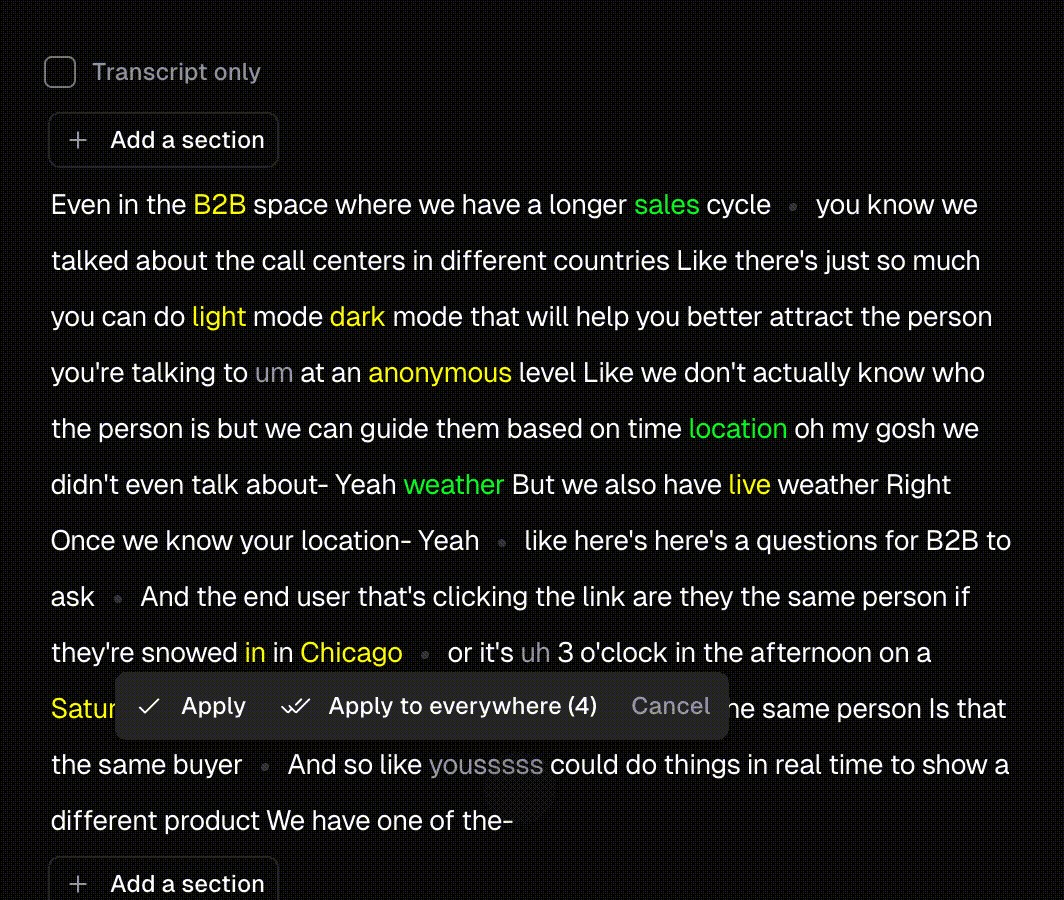
OpusClip's transcript editor with highlighted words, greyed filler words and an Apply to everywhere prompt for correcting a word

OpusClip's transcript editor, where a corrected word can be applied everywhere it appears. Source: OpusClip app

OpusClip's AI podcast clip generator page says to drop a video link or upload a file, and its steps are to import the episode, let the AI find the most engaging segments, review and edit the suggested clips, then download or publish. Its FAQ names YouTube, Riverside.fm and Google Drive links as well as a local file upload, and the help center's import list adds Apple Podcast, Zoom, Zoom Clips and StreamYard links, for public or unlisted videos only.

For several speakers, the help center describes a Split layout for two speakers and Three and Four layouts for three or four, which it calls suitable for interview videos and panel discussions. The podcast page lists Active Speaker Detection to keep the speaker centered. For webinars, the Edit Zoom Recording page describes a Screenshare layout with the screen on top and the speaker below, and says ClipAnything finds key moments in recordings including meetings and webinars. Names a transcript gets wrong can be fixed once and saved, per the help center's Brand Vocabulary article.

Pricing: OpusClip's pricing page lists Free at $0 (a watermark, and clips stop being exportable after 3 days), Starter at $15 a month (monthly billing only) and Pro at $29 a month, or $14.50 a month billed annually. Business is custom. Each plan lists its credits on the pricing page.

Considerations: The Split, Three and Four layouts apply when the speakers appear together in the original frame, per the help center. The import pages name video links and video uploads, and none of the pages we read describes turning an audio-only file into a waveform video, so for an audio-only show the audiogram tools below are the safer fit. OpusClip returns clips, not episode show notes or chapters, and it clips footage that already exists rather than recording it or replacing a timeline editor.

  • Choose it if the source is a recorded video, or a link from Zoom, Riverside, StreamYard or Apple Podcast, and the goal is vertical captioned clips with the active speaker kept in frame.
  • Skip it if the show is audio only and needs a waveform video (none of the OpusClip pages we read describes one), or the episode also needs show notes, chapters or a place to record.

2. Reap: Best for clipping video episodes and turning audio-only ones into audiograms
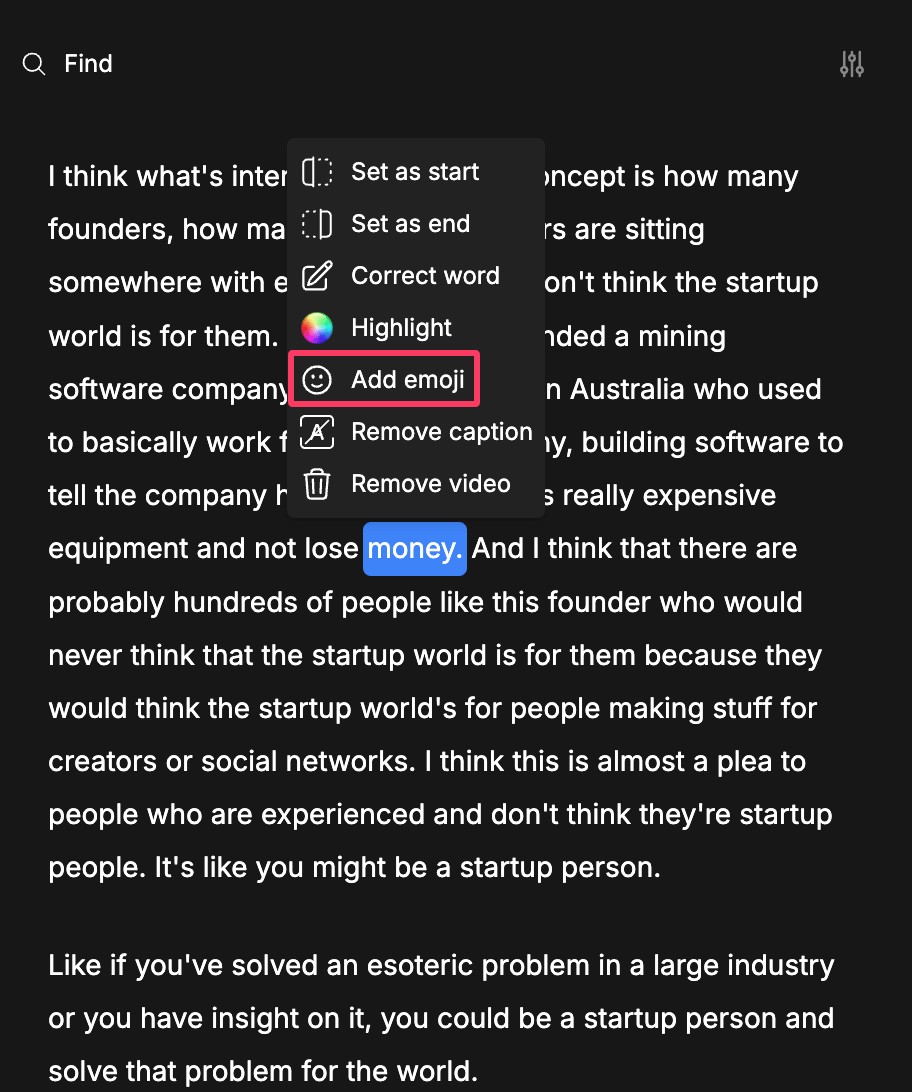
Reap's transcript editor with a context menu offering Set as start, Set as end, Correct word, Highlight, Add emoji and Remove caption

Reap's transcript editor menu, used to trim a clip by selecting words. Source: Reap help center

Reap's podcast page says to upload an episode or paste a supported link, after which it suggests clips cut for vertical and captioned, or takes a description of the moments wanted. For an audio-only show, an MP3, M4A or WAV upload becomes an audiogram: an animated waveform with captions, a logo, text and a background, in portrait, square or landscape.

Its FAQ answers the multi-speaker question directly: speaker and face tracking keep the active speaker visible when a wide two-camera or panel recording becomes a 9:16 clip, there are multi-speaker layouts for panels and co-hosts, and the framing should be treated as a starting crop and adjusted by hand when two people talk over each other. A separate Zoom page says to download the MP4 from Zoom and upload it, and lists webinar clip ideas such as a registration teaser and a key lesson.

Pricing: Reap's pricing page lists Creator at $9.99 a month billed annually ($119.88 a year) and $16.99 a month billed monthly, and Studio at $29 a month billed annually and $45 a month billed monthly. Free lists up to 1 hour a month of AI clipping and of AI captions (both watermarked), 720p watermarked exports and projects that expire in 7 days. The podcast page says uploads go up to 5 GB on Free and 10 GB on paid plans, and paid plans take sources up to 180 minutes.

Considerations: Reap's own FAQ says it is not an audio editor, does not repair audio or remove background noise, and does not record, host or manage an RSS feed, so it only does the clip step. Audiograms give an audio episode a visual but, as the page says, do not turn audio into camera footage. Free projects expire in 7 days, so clips need exporting early.

  • Choose it if one tool should clip video episodes and also make audiograms for an audio-only show, with a Zoom MP4 as the route for webinars.
  • Skip it if recording, hosting, show notes or audio repair have to happen in the same tool.

3. StreamYard: Best for clips from conversations recorded or streamed live in StreamYard

StreamYard's AI clip settings panel with caption style presets, a caption color field, a caption font menu and a font size slider

Caption settings for StreamYard's AI clips. Source: StreamYard help center

StreamYard's help center describes AI clips as a repurposing tool that analyzes a recording or live stream made in StreamYard and generates vertical 9:16 captioned clips with a title. Recordings can be up to 6 hours long. Saying "Clip that" out loud during a recording or stream marks a highlight, and the AI later takes the previous 30 seconds as one suggested segment.

For several speakers, the article says AI clips reframe by tracking who is speaking, and fall back to a 16:9 view centered within 9:16 when a face cannot be detected reliably, for example when participants appear very small or screen sharing dominates the frame. StreamYard's podcasting page says it records audio and video with up to 10 people, and its On-Air page describes a live webinar platform with a registration form and reminder emails.

Pricing: StreamYard's pricing page lists a Free plan, and its help center lists AI clips as 2 a month on Free (StreamYard logo required, no custom logo), 6 on Core, 25 on Advanced and unlimited on Business. Core is $44.99 a month billed monthly or $35.99 a month billed yearly. The Advanced plan, at $88.99 a month billed monthly or $68.99 billed yearly, lists On-Air webinars with 100 viewers.

Considerations: The help center's steps start from a StreamYard recording or live stream and describe no upload route, so a podcast or Zoom file made elsewhere is a different job. It says generation can show Unavailable for videos with no clear speech, a non-conversational format, large layout changes or screen sharing as the main visual, which matters for slide-heavy webinars.

  • Choose it if the conversation is recorded or streamed in StreamYard, including live webinars, and 2 free AI clips a month is enough to judge the clip quality.
  • Skip it if the recording was made elsewhere, or the video is mostly slides or a shared screen.

4. Riverside: Best for recording a remote conversation on separate tracks, then clipping it and writing show notes

Riverside's Magic Clips intake box with a Drop a YouTube link field, a Get free clips button and an Upload files button

The intake box on Riverside's Magic Clips page. Source: Riverside website

Riverside's Magic Clips page says to record in Riverside or upload a video and let the AI pick the highlights, and its intake box takes a YouTube link or uploaded files. A clip can then be edited by choosing a focus speaker or keywords, and changing layouts. The page says its captions are 99% accurate, a vendor claim we did not check.

The recording side is where Riverside differs. Its webinar page says everything is recorded in separate tracks, with up to 10 on-screen participants (1 host and 9 recorded guests). Its AI Show Notes page says it can generate a summary, keywords, takeaways, sound bites and chapters with timestamps for a recording made in the studio or uploaded.

Pricing: Riverside's pricing page lists a 14-day free trial on Pro, Grow and Webinar. Pro is $24 a month billed yearly (the page's Monthly view lists a higher price) and lists Magic clips and show notes, and Webinar is $79 a month billed yearly and adds hosting webinars for up to 100 registrants.

Considerations: The pricing page lists no Free plan, but the Magic Clips page calls Magic Clips completely free and the webinar FAQ mentions a Free plan, so the free offer needs confirming on the pricing page. The Magic Clips steps start from an uploaded or recorded video, and the pages we read describe no audiogram or waveform clips for audio-only episodes. Webinar hosting sits on the Webinar plan.

  • Choose it if the conversation is recorded with remote guests, separate tracks matter, and the same tool should clip it and write the show notes.
  • Skip it if the recording already exists elsewhere and only clips are needed, or the show is audio only.

5. Castmagic: Best for clips cut from a speaker-labelled transcript that also drafts show notes and posts

Castmagic's Import URL box with a link field and a Submit button, under the line Paste a Spotify, Apple Podcasts or YouTube episode link

Castmagic's import box for episode links. Source: Castmagic website

Castmagic's podcast clip generator page says to paste a Spotify, Apple Podcasts or YouTube episode link, an RSS feed or an upload, after which it transcribes the episode with speaker labels, flags the strongest moments and cuts captioned vertical clips. Audio-only episodes become audiograms, a waveform video with captions and cover art, in the same aspect ratios. Its FAQ says interviews with several guests keep each line attributed to the right person and the captions follow whoever is talking, and that Zoom, Loom and Google Drive imports work too.

A separate AI clip maker page covers webinars: it says to paste a YouTube, Vimeo, Zoom or Loom link, an RSS feed or an upload, and describes a webinar replay yielding a batch of clips. The same transcript also drafts show notes, chapters, a newsletter, a blog post and social posts, according to the clip page's FAQ.

Pricing: Castmagic's pricing page lists Hobby at $19 a month billed annually ($239 a year) and $29 a month billed monthly, with media clipping and audiogram generation listed as unlimited and 30 transcribed hours in the library total. No free plan is listed on the pricing page.

Considerations: The clip page's FAQ answers "Is there a free version?" with plans starting at $29 a month, while another page's button reads Try Castmagic Free, so any trial needs confirming on the pricing page. The home page lists uploads up to 1 GB and the pricing page lists a 10 GB maximum file size. Castmagic is a content platform with clips as one output, so a clips-only job pays for the rest, and its pages describe no framing for several speakers beyond the speaker-labelled transcript.

  • Choose it if an episode or webinar should become clips plus show notes, a newsletter and posts from one speaker-labelled transcript, with imports from Spotify, Apple Podcasts, RSS or Zoom.
  • Skip it if a free plan is needed, or the job is clips only.

6. Podsqueeze: Best for chapter-based clips and show notes from podcast audio or video

Podsqueeze's clip editor panel with aspect ratio buttons, Subtitles, Fonts and Colors and Cover tabs and a list of timed subtitle lines

The subtitle and aspect ratio panel in Podsqueeze's clip maker. Source: Podsqueeze website

Podsqueeze's clip maker page says to search for a podcast or upload an audio or video file. The AI breaks the episode into chapters, a chapter is picked, and Podsqueeze produces an audiogram for an audio-only file or a short video clip for a video file, with the aspect ratio, colors and fonts adjustable and a clip trimmed by removing subtitle lines. Its audiogram page adds that an episode can be selected from an RSS feed link.

The rest of the suite is written for podcasters: its home page lists transcripts with speaker labeling, show notes with timestamps, newsletters and social posts, and a one-click option that shortens each chapter to under 60 seconds.

Pricing: Podsqueeze's pricing page lists Starter at $5.99 a month billed annually ($71.88 a year) and $8.99 a month billed monthly. Free is $0 with 30 minutes a month, 1 video clip and a 4 GB maximum file size.

Considerations: Clips start from AI-made chapters rather than a prompt, and the clip page says nothing about framing for several speakers, so a wide two-camera recording is not addressed. The Free plan lists 1 video clip, and the pages we read describe podcasts rather than webinars.

  • Choose it if the show is a podcast, audio or video, and chapter-based clips, audiograms and show notes should come from one upload or an RSS feed.
  • Skip it if the source is a webinar, or several speakers must be reframed in a wide shot.

7. Wavve: Best for turning audio-only episodes into captioned waveform videos

Wavve's home page says it turns content into social media-ready videos, and lists AI hot spot identification to find key moments, templates, animated Wavveform graphics, captions, auto-resizing, SRT and transcript downloads, and scheduling. Its FAQ says audio comes in as a file or from a podcast's RSS feed and that the longest video it can generate is typically around 2 hours.

The FAQ is also clear about what it does not do: an uploaded MP4's picture is dropped and only the audio is used, so a Wavve video is made of images and Wavve animations, never of the speakers' footage.

Pricing: Wavve's pricing page lists Starter at $7.99 a month, marked down from $9.99, with 70 upload minutes and 18 exported videos a month. The page labels the price Monthly and names no billing period, while the FAQ says plans can be billed monthly, every 6 months or annually, with annual getting the largest discount. The FAQ says a free trial allows full unlimited content creation, and the pricing page says no credit card is needed; no trial length is printed.

Considerations: The pages describe no speaker detection or framing, because the product works from the audio alone. The FAQ recommends audio files under 50 MB, warns of longer processing above 75 MB and allows imports up to 150 MB, which is small for a long episode. Editing the audio or design removes the captions, because a new video is made.

  • Choose it if the show is audio only and a waveform video with captions is the output wanted, or a podcast RSS feed should feed the videos.
  • Skip it if the guests or slides on screen are the point of the clip, or episodes are long, uncompressed files.

How we compared these tools

We compared each tool on six criteria: what goes in, how it treats more than one speaker, what happens to an audio-only episode, whether it writes show notes or chapters, how captions and branding are handled, and the free access the vendor prints. This guide is organised around the job in the title, clipping recorded conversations such as podcast episodes, interviews and webinars. OpusClip comes first because that is the job it is built for: a video recording in, vertical captioned clips out, with layouts for several speakers. Its limits are in its entry: it does not make audiograms from audio-only files, and it does not write show notes. Items 2 to 7 follow one yardstick: how plainly the vendor's own pages describe what the tool does with more than one speaker, then with an audio-only episode.

  • 2. Reap: a direct FAQ answer on multi-speaker framing, plus audiograms.
  • 3. StreamYard: speaker tracking and its fallback described in detail, for StreamYard recordings only.
  • 4. Riverside: a focus speaker and separate tracks, with no audio-only clip route described.
  • 5. Castmagic: speaker-labelled transcripts and audiograms, but no framing for several speakers.
  • 6. Podsqueeze: speaker labeling in transcripts and audiograms, with the clip pages silent on framing.
  • 7. Wavve: audio only, with no speaker handling described.

All facts come from each vendor's own pricing page, product pages and help center, read on November 11, 2026. Where a page loads its figures with a script we read the rendered page, and we clicked the monthly and yearly views. We did not run hands-on tests of any competitor, and this guide prints no accuracy figure except the one Riverside's page prints, attributed to it. We also read pages for Vizard, Munch, Swell AI and Pictory and left them out: Vizard's podcast page prints 60 free transcription minutes in one place and 300 in another, Munch's site now describes a social marketing platform, Swell AI's pages describe transcript-led clips but no framing for several speakers, and Pictory's home page now describes an AI video agent that generates videos. Prices change, so confirm on the vendor's page before buying.

Red flags to watch for

  • Framing for several speakers is a starting point. Reap's page says to check the crop, OpusClip's layouts apply only when speakers appear together in the original frame, and StreamYard falls back to a wide view when it cannot find a face.
  • Slides and screen shares. StreamYard's help center says clip generation can be unavailable when screen sharing is the main visual, and OpusClip lists a Screenshare layout that expects screen content and one speaker.
  • Audio-only is a separate feature. Reap, Castmagic, Podsqueeze and Wavve describe audiograms. The OpusClip, Riverside and StreamYard pages we read describe clips from video, and Wavve drops the picture from an MP4.
  • Free allowances in different units. Reap counts 1 hour of AI clipping, Podsqueeze 30 minutes and 1 video clip, StreamYard 2 AI clips, and Wavve offers a free trial with no length printed. OpusClip lists its credits on the pricing page.
  • Pages that disagree with each other. Riverside's pricing page lists no free plan while its Magic Clips page calls the tool free, and Wavve's price carries no billing period.
  • Vendor accuracy claims. Riverside's page says its captions are 99% accurate. Check guest names and jargon in any transcript before posting.
  • No manual override. A tool that picks and crops clips with no way to edit them leaves no fix for a bad cut.
  • Guests and attendees. OpusClip's help center says uploads must be content the uploader has the right to use. Get a guest's or speaker's agreement before posting a clip of them, and check each tool's own terms.

Frequently asked questions

What is the best AI podcast and webinar clip maker?

For cutting a recorded podcast, interview or webinar into short captioned clips, OpusClip is the pick in this guide: its AI podcast clip generator page describes importing the episode, AI-picked segments, editing and publishing, and its help center describes layouts for several speakers. Reap fits when audio-only episodes also need clips, StreamYard and Riverside fit conversations recorded in them, Castmagic and Podsqueeze add show notes, and Wavve suits audio-only shows.

How do I turn a podcast episode into short clips?

Add the episode as a video file or link, let the tool find the moments, review the suggested clips, fix any mis-heard names in the transcript and export. In OpusClip, the AI podcast clip generator walks through those steps, and the help center's Brand Vocabulary article covers saving names. An audio-only episode needs a tool that makes audiograms: Reap, Castmagic, Podsqueeze or Wavve.

How do I turn a webinar recording into short clips?

Download the recording or copy its link, then use a tool that accepts it. OpusClip's help center lists Zoom and Zoom Clips links, and its Edit Zoom Recording page describes a Screenshare layout. Reap says to upload the MP4 from Zoom, Castmagic's AI clip maker page names Zoom links, and StreamYard and Riverside clip recordings made inside them. For more tools, see our guide to tools that turn webinars into short clips.

Can I make clips from an audio-only podcast?

Yes, with an audiogram tool. Reap turns an MP3, M4A or WAV upload into an audiogram with captions, Castmagic and Podsqueeze make audiograms from audio-only episodes, and Wavve builds waveform videos from audio files or a podcast RSS feed. The OpusClip pages we read describe video uploads and links and do not describe audio-only clipping, so an audio-only show is better served by one of the others.

How do AI clip makers handle several speakers?

Three ways. Some reframe the crop around the person speaking (Reap, StreamYard, OpusClip's Active Speaker Detection). Some place several people on screen (OpusClip's Split, Three and Four layouts, Reap's multi-speaker layouts). Others keep speakers straight in the transcript (Castmagic, Podsqueeze) or on separate tracks (Riverside). Reap's page says to treat the framing as a starting crop.

Is there a free AI podcast clip maker?

Several tools list free access with limits. OpusClip's Free plan carries a watermark and clips stop being exportable after 3 days, Reap's lists 1 hour of AI clipping a month with watermarked 720p exports, StreamYard's lists 2 AI clips a month with its logo, and Podsqueeze's lists 30 minutes and 1 video clip a month. Wavve offers a free trial, Riverside lists a 14-day trial, and Castmagic lists no free plan. For general clippers, see our guide to free AI clipping tools.

Which tools write show notes and chapters as well as clips?

Riverside's AI Show Notes page lists a summary, keywords, takeaways, sound bites and chapters with timestamps, Castmagic lists show notes, chapters, a newsletter, a blog post and social posts from the same transcript, and Podsqueeze lists show notes with timestamped chapters and key takeaways. OpusClip, Reap, StreamYard and Wavve are described as clip or video tools, with no show notes on the pages we read. For transcripts alone, see our guide to AI transcript generators.

Do I need permission to clip a podcast guest or a webinar?

Only recordings with a right to use them should be clipped. OpusClip's help center says uploads must be content the uploader has the right to use, and says violating clips may be subject to a takedown notice, in its copyright policy article. For a guest or a webinar speaker, getting their agreement before posting is a sensible step. We did not review the other vendors' terms.
On this page

Use our Free Forever Plan

Find the moment. Skip the scrubbing.

From script to polished video — in one click.

Create and post one short video every day for free, and grow faster.

OpusSearch uses AI to surface the exact clip you need from hours of footage — in seconds, not afternoons.

Agent Opus runs the entire video pipeline for you: research, scriptwriting, storyboarding, motion, voice, and edit. Upload the idea, post the result.

7 Best AI Podcast and Webinar Clip Makers in 2026

OpusClip is the pick for turning a recorded conversation, such as a podcast episode, interview or webinar replay, into short captioned clips: it takes a video file or link, finds the moments and reframes them for vertical with layouts for several speakers. Riverside and StreamYard fit when the conversation is recorded or streamed in the same tool, Reap and Castmagic also handle audio-only episodes, and Podsqueeze and Wavve suit audio-first shows. We ordered items 2 to 7 by how plainly each vendor's pages describe handling more than one speaker. Facts come from each vendor's own pages, read on November 11, 2026.

Key takeaways

  • Best for AI-picked clips from a podcast or webinar recording, with layouts for several speakers: OpusClip. Its podcast page lists Active Speaker Detection, and its help center describes layouts for two, three or four speakers in frame.
  • Best for one tool that clips video episodes and turns audio-only ones into audiograms: Reap. Its podcast page answers the multi-speaker question directly.
  • Best for clips from conversations recorded or streamed in StreamYard: StreamYard. Saying "Clip that" during a recording marks a moment, and the Free plan lists 2 AI clips a month.
  • Best for recording a remote conversation on separate tracks, then clipping it: Riverside. Its Magic Clips page lets a clip focus on one speaker, and its AI Show Notes page lists chapters.
  • Best for clips from a speaker-labelled transcript that also drafts show notes and posts: Castmagic. It imports from Spotify, Apple Podcasts, RSS and Zoom, but lists no free plan.
  • Best for chapter-based clips and show notes from podcast audio or video: Podsqueeze. Its Free plan lists 30 minutes a month and 1 video clip.
  • Best for turning audio-only episodes into captioned waveform videos: Wavve. It keeps only the audio of an uploaded video, so it is not a clipper for footage.

What counts as a podcast or webinar clip maker

A recorded conversation is different from a solo video, because two or more people speak, the camera may be wide, and an audio-only episode may have no picture at all. This guide covers three kinds of tool. Clip finders take a finished recording and return vertical clips: OpusClip, Reap and Castmagic. Recording and streaming studios clip the conversations made inside them: StreamYard and Riverside. Audio-first repurposing tools turn an episode into audiograms and written extras: Podsqueeze and Wavve, with Reap and Castmagic also making audiograms.

For broader lists, see our older guides to video repurposing tools for podcasters and tools that turn webinars into short clips, which cover Descript, Kapwing, Headliner, Repurpose.io and Zubtitle, and our guide to free AI clipping tools for general clippers.

How to choose

  • A video recording already exists: OpusClip or Reap. OpusClip's AI podcast clip generator page shows the flow.
  • The conversation is recorded or streamed live in a studio tool: StreamYard or Riverside, which clip what they record.
  • The show is audio only: Reap, Castmagic, Podsqueeze or Wavve make audiograms. The OpusClip pages we read describe video uploads and links.
  • Show notes, chapters or a newsletter are needed too: Castmagic, Podsqueeze or Riverside, per their pages.
  • Several people are in frame: Reap, StreamYard and OpusClip describe how the crop follows the speaker, and Reap's page tells the reader to check the result.
  • A webinar replay with slides: OpusClip lists a Screenshare layout, while StreamYard's help center warns that clip generation can be unavailable when screen sharing is the main visual.

At a glance

  • OpusClip: best for AI-picked clips from a podcast or webinar recording, with layouts for several speakers; Starter $15 a month (monthly billing only), Pro $29 a month or $14.50 a month billed annually; free plan yes (watermark).
  • Reap: best for clipping video episodes and turning audio-only ones into audiograms; Creator $9.99 a month billed annually ($119.88 a year), $16.99 a month billed monthly; free plan yes (1 hour of AI clipping a month, watermarked).
  • StreamYard: best for clips from conversations recorded or streamed in StreamYard; Core $35.99 a month billed yearly, $44.99 a month billed monthly; free plan yes (2 AI clips a month, StreamYard logo required).
  • Riverside: best for recording a remote conversation on separate tracks, then clipping it and writing show notes; Pro $24 a month billed yearly, with a 14-day free trial; see the pricing page for monthly billing and for what a free plan includes.
  • Castmagic: best for clips from a speaker-labelled transcript that also drafts show notes and posts; Hobby $19 a month billed annually ($239 a year), $29 a month billed monthly; no free plan listed on the pricing page.
  • Podsqueeze: best for chapter-based clips and show notes from podcast audio or video; Starter $5.99 a month billed annually ($71.88 a year), $8.99 a month billed monthly; free plan yes (30 minutes a month, 1 video clip).
  • Wavve: best for turning audio-only episodes into captioned waveform videos; Starter $7.99 a month, marked down from $9.99 (the page labels it Monthly and names no billing period); free trial, no credit card.

How each tool handles a recorded conversation

The At a glance list covers best-for and the first paid price; this table compares what goes in, how each tool treats more than one speaker, what happens to an audio-only episode, whether it writes show notes or chapters, and the free access, as listed on each vendor's own pages on November 11, 2026.

ToolWhat goes inMore than one speakerAudio-only episodesShow notes or chaptersFree access as printed
OpusClipA video upload, or help center links from Apple Podcast, Zoom, Riverside, StreamYard and moreSplit, Three and Four layouts for several speakers in frame; Active Speaker DetectionNot described; the import pages name video links and video uploadsClip titles, descriptions and hashtags; no show notes or chapters describedFree: $0, watermark, clips stop being exportable after 3 days
ReapA video or an MP3, M4A or WAV upload, or a pasted link; a Zoom recording as MP4Speaker and face tracking; multi-speaker layouts for panels and co-hostsAudiograms: a waveform with captions and a logo, in portrait, square or landscapeTimestamped, exportable transcripts; no show notes or chapters describedUp to 1 hour of AI clipping a month, watermarked 720p, projects expire in 7 days
StreamYardRecordings and live streams made in StreamYard, up to 6 hours longReframes by tracking who is speaking; falls back to 16:9 inside 9:16 when unsureNot described; AI clips are vertical 9:16 videos with captionsEach AI clip gets a title; no show notes or chapters described2 AI clips a month on Free, StreamYard logo required, no custom logo
RiversideRecord in Riverside, or upload a video or a file; the Show Notes page says the sameChoose a focus speaker for a clip; each participant is recorded on a separate trackNot described for Magic Clips; its steps start from an uploaded or recorded videoAI show notes with a summary, takeaways and timestamped chapters14-day free trial on Pro, Grow and Webinar; the pages disagree on a free plan
CastmagicSpotify, Apple Podcasts, YouTube, Zoom, Loom or Drive links, an RSS feed, or an uploadSpeaker-labelled transcript; captions follow whoever is talkingAudiograms with captions and cover art, in the same aspect ratiosShow notes, chapters, newsletter, blog post and social posts from the same transcriptNo free plan on the pricing page; the clip page says plans start at $29 a month
PodsqueezeAn audio or video upload, or an episode from an RSS feed linkTranscripts with speaker labeling; framing for several speakers not describedAudio-only files become audiograms; video files become clipsShow notes with summaries, timestamped chapters and key takeawaysFree plan: 30 minutes a month, 1 video clip, 4 GB files
WavveAudio files or a podcast RSS feed; an MP4 upload keeps only its audioNone listed; Wavve uses only the audio and animates a waveformYes: waveform videos with captions, templates and auto-resizingSRT and transcript downloads; no show notes or chapters describedFree trial with unlimited content creation, no credit card; no free plan listed

1. OpusClip: Best for AI-picked clips from a podcast or webinar recording, with layouts for several speakers

OpusClip's transcript editor with highlighted words, greyed filler words and an Apply to everywhere prompt for correcting a word

OpusClip's transcript editor, where a corrected word can be applied everywhere it appears. Source: OpusClip app

OpusClip's AI podcast clip generator page says to drop a video link or upload a file, and its steps are to import the episode, let the AI find the most engaging segments, review and edit the suggested clips, then download or publish. Its FAQ names YouTube, Riverside.fm and Google Drive links as well as a local file upload, and the help center's import list adds Apple Podcast, Zoom, Zoom Clips and StreamYard links, for public or unlisted videos only.

For several speakers, the help center describes a Split layout for two speakers and Three and Four layouts for three or four, which it calls suitable for interview videos and panel discussions. The podcast page lists Active Speaker Detection to keep the speaker centered. For webinars, the Edit Zoom Recording page describes a Screenshare layout with the screen on top and the speaker below, and says ClipAnything finds key moments in recordings including meetings and webinars. Names a transcript gets wrong can be fixed once and saved, per the help center's Brand Vocabulary article.

Pricing: OpusClip's pricing page lists Free at $0 (a watermark, and clips stop being exportable after 3 days), Starter at $15 a month (monthly billing only) and Pro at $29 a month, or $14.50 a month billed annually. Business is custom. Each plan lists its credits on the pricing page.

Considerations: The Split, Three and Four layouts apply when the speakers appear together in the original frame, per the help center. The import pages name video links and video uploads, and none of the pages we read describes turning an audio-only file into a waveform video, so for an audio-only show the audiogram tools below are the safer fit. OpusClip returns clips, not episode show notes or chapters, and it clips footage that already exists rather than recording it or replacing a timeline editor.

  • Choose it if the source is a recorded video, or a link from Zoom, Riverside, StreamYard or Apple Podcast, and the goal is vertical captioned clips with the active speaker kept in frame.
  • Skip it if the show is audio only and needs a waveform video (none of the OpusClip pages we read describes one), or the episode also needs show notes, chapters or a place to record.

2. Reap: Best for clipping video episodes and turning audio-only ones into audiograms

Reap's transcript editor with a context menu offering Set as start, Set as end, Correct word, Highlight, Add emoji and Remove caption

Reap's transcript editor menu, used to trim a clip by selecting words. Source: Reap help center

Reap's podcast page says to upload an episode or paste a supported link, after which it suggests clips cut for vertical and captioned, or takes a description of the moments wanted. For an audio-only show, an MP3, M4A or WAV upload becomes an audiogram: an animated waveform with captions, a logo, text and a background, in portrait, square or landscape.

Its FAQ answers the multi-speaker question directly: speaker and face tracking keep the active speaker visible when a wide two-camera or panel recording becomes a 9:16 clip, there are multi-speaker layouts for panels and co-hosts, and the framing should be treated as a starting crop and adjusted by hand when two people talk over each other. A separate Zoom page says to download the MP4 from Zoom and upload it, and lists webinar clip ideas such as a registration teaser and a key lesson.

Pricing: Reap's pricing page lists Creator at $9.99 a month billed annually ($119.88 a year) and $16.99 a month billed monthly, and Studio at $29 a month billed annually and $45 a month billed monthly. Free lists up to 1 hour a month of AI clipping and of AI captions (both watermarked), 720p watermarked exports and projects that expire in 7 days. The podcast page says uploads go up to 5 GB on Free and 10 GB on paid plans, and paid plans take sources up to 180 minutes.

Considerations: Reap's own FAQ says it is not an audio editor, does not repair audio or remove background noise, and does not record, host or manage an RSS feed, so it only does the clip step. Audiograms give an audio episode a visual but, as the page says, do not turn audio into camera footage. Free projects expire in 7 days, so clips need exporting early.

  • Choose it if one tool should clip video episodes and also make audiograms for an audio-only show, with a Zoom MP4 as the route for webinars.
  • Skip it if recording, hosting, show notes or audio repair have to happen in the same tool.

3. StreamYard: Best for clips from conversations recorded or streamed live in StreamYard

StreamYard's AI clip settings panel with caption style presets, a caption color field, a caption font menu and a font size slider

Caption settings for StreamYard's AI clips. Source: StreamYard help center

StreamYard's help center describes AI clips as a repurposing tool that analyzes a recording or live stream made in StreamYard and generates vertical 9:16 captioned clips with a title. Recordings can be up to 6 hours long. Saying "Clip that" out loud during a recording or stream marks a highlight, and the AI later takes the previous 30 seconds as one suggested segment.

For several speakers, the article says AI clips reframe by tracking who is speaking, and fall back to a 16:9 view centered within 9:16 when a face cannot be detected reliably, for example when participants appear very small or screen sharing dominates the frame. StreamYard's podcasting page says it records audio and video with up to 10 people, and its On-Air page describes a live webinar platform with a registration form and reminder emails.

Pricing: StreamYard's pricing page lists a Free plan, and its help center lists AI clips as 2 a month on Free (StreamYard logo required, no custom logo), 6 on Core, 25 on Advanced and unlimited on Business. Core is $44.99 a month billed monthly or $35.99 a month billed yearly. The Advanced plan, at $88.99 a month billed monthly or $68.99 billed yearly, lists On-Air webinars with 100 viewers.

Considerations: The help center's steps start from a StreamYard recording or live stream and describe no upload route, so a podcast or Zoom file made elsewhere is a different job. It says generation can show Unavailable for videos with no clear speech, a non-conversational format, large layout changes or screen sharing as the main visual, which matters for slide-heavy webinars.

  • Choose it if the conversation is recorded or streamed in StreamYard, including live webinars, and 2 free AI clips a month is enough to judge the clip quality.
  • Skip it if the recording was made elsewhere, or the video is mostly slides or a shared screen.

4. Riverside: Best for recording a remote conversation on separate tracks, then clipping it and writing show notes

Riverside's Magic Clips intake box with a Drop a YouTube link field, a Get free clips button and an Upload files button

The intake box on Riverside's Magic Clips page. Source: Riverside website

Riverside's Magic Clips page says to record in Riverside or upload a video and let the AI pick the highlights, and its intake box takes a YouTube link or uploaded files. A clip can then be edited by choosing a focus speaker or keywords, and changing layouts. The page says its captions are 99% accurate, a vendor claim we did not check.

The recording side is where Riverside differs. Its webinar page says everything is recorded in separate tracks, with up to 10 on-screen participants (1 host and 9 recorded guests). Its AI Show Notes page says it can generate a summary, keywords, takeaways, sound bites and chapters with timestamps for a recording made in the studio or uploaded.

Pricing: Riverside's pricing page lists a 14-day free trial on Pro, Grow and Webinar. Pro is $24 a month billed yearly (the page's Monthly view lists a higher price) and lists Magic clips and show notes, and Webinar is $79 a month billed yearly and adds hosting webinars for up to 100 registrants.

Considerations: The pricing page lists no Free plan, but the Magic Clips page calls Magic Clips completely free and the webinar FAQ mentions a Free plan, so the free offer needs confirming on the pricing page. The Magic Clips steps start from an uploaded or recorded video, and the pages we read describe no audiogram or waveform clips for audio-only episodes. Webinar hosting sits on the Webinar plan.

  • Choose it if the conversation is recorded with remote guests, separate tracks matter, and the same tool should clip it and write the show notes.
  • Skip it if the recording already exists elsewhere and only clips are needed, or the show is audio only.

5. Castmagic: Best for clips cut from a speaker-labelled transcript that also drafts show notes and posts

Castmagic's Import URL box with a link field and a Submit button, under the line Paste a Spotify, Apple Podcasts or YouTube episode link

Castmagic's import box for episode links. Source: Castmagic website

Castmagic's podcast clip generator page says to paste a Spotify, Apple Podcasts or YouTube episode link, an RSS feed or an upload, after which it transcribes the episode with speaker labels, flags the strongest moments and cuts captioned vertical clips. Audio-only episodes become audiograms, a waveform video with captions and cover art, in the same aspect ratios. Its FAQ says interviews with several guests keep each line attributed to the right person and the captions follow whoever is talking, and that Zoom, Loom and Google Drive imports work too.

A separate AI clip maker page covers webinars: it says to paste a YouTube, Vimeo, Zoom or Loom link, an RSS feed or an upload, and describes a webinar replay yielding a batch of clips. The same transcript also drafts show notes, chapters, a newsletter, a blog post and social posts, according to the clip page's FAQ.

Pricing: Castmagic's pricing page lists Hobby at $19 a month billed annually ($239 a year) and $29 a month billed monthly, with media clipping and audiogram generation listed as unlimited and 30 transcribed hours in the library total. No free plan is listed on the pricing page.

Considerations: The clip page's FAQ answers "Is there a free version?" with plans starting at $29 a month, while another page's button reads Try Castmagic Free, so any trial needs confirming on the pricing page. The home page lists uploads up to 1 GB and the pricing page lists a 10 GB maximum file size. Castmagic is a content platform with clips as one output, so a clips-only job pays for the rest, and its pages describe no framing for several speakers beyond the speaker-labelled transcript.

  • Choose it if an episode or webinar should become clips plus show notes, a newsletter and posts from one speaker-labelled transcript, with imports from Spotify, Apple Podcasts, RSS or Zoom.
  • Skip it if a free plan is needed, or the job is clips only.

6. Podsqueeze: Best for chapter-based clips and show notes from podcast audio or video

Podsqueeze's clip editor panel with aspect ratio buttons, Subtitles, Fonts and Colors and Cover tabs and a list of timed subtitle lines

The subtitle and aspect ratio panel in Podsqueeze's clip maker. Source: Podsqueeze website

Podsqueeze's clip maker page says to search for a podcast or upload an audio or video file. The AI breaks the episode into chapters, a chapter is picked, and Podsqueeze produces an audiogram for an audio-only file or a short video clip for a video file, with the aspect ratio, colors and fonts adjustable and a clip trimmed by removing subtitle lines. Its audiogram page adds that an episode can be selected from an RSS feed link.

The rest of the suite is written for podcasters: its home page lists transcripts with speaker labeling, show notes with timestamps, newsletters and social posts, and a one-click option that shortens each chapter to under 60 seconds.

Pricing: Podsqueeze's pricing page lists Starter at $5.99 a month billed annually ($71.88 a year) and $8.99 a month billed monthly. Free is $0 with 30 minutes a month, 1 video clip and a 4 GB maximum file size.

Considerations: Clips start from AI-made chapters rather than a prompt, and the clip page says nothing about framing for several speakers, so a wide two-camera recording is not addressed. The Free plan lists 1 video clip, and the pages we read describe podcasts rather than webinars.

  • Choose it if the show is a podcast, audio or video, and chapter-based clips, audiograms and show notes should come from one upload or an RSS feed.
  • Skip it if the source is a webinar, or several speakers must be reframed in a wide shot.

7. Wavve: Best for turning audio-only episodes into captioned waveform videos

Wavve's home page says it turns content into social media-ready videos, and lists AI hot spot identification to find key moments, templates, animated Wavveform graphics, captions, auto-resizing, SRT and transcript downloads, and scheduling. Its FAQ says audio comes in as a file or from a podcast's RSS feed and that the longest video it can generate is typically around 2 hours.

The FAQ is also clear about what it does not do: an uploaded MP4's picture is dropped and only the audio is used, so a Wavve video is made of images and Wavve animations, never of the speakers' footage.

Pricing: Wavve's pricing page lists Starter at $7.99 a month, marked down from $9.99, with 70 upload minutes and 18 exported videos a month. The page labels the price Monthly and names no billing period, while the FAQ says plans can be billed monthly, every 6 months or annually, with annual getting the largest discount. The FAQ says a free trial allows full unlimited content creation, and the pricing page says no credit card is needed; no trial length is printed.

Considerations: The pages describe no speaker detection or framing, because the product works from the audio alone. The FAQ recommends audio files under 50 MB, warns of longer processing above 75 MB and allows imports up to 150 MB, which is small for a long episode. Editing the audio or design removes the captions, because a new video is made.

  • Choose it if the show is audio only and a waveform video with captions is the output wanted, or a podcast RSS feed should feed the videos.
  • Skip it if the guests or slides on screen are the point of the clip, or episodes are long, uncompressed files.

How we compared these tools

We compared each tool on six criteria: what goes in, how it treats more than one speaker, what happens to an audio-only episode, whether it writes show notes or chapters, how captions and branding are handled, and the free access the vendor prints. This guide is organised around the job in the title, clipping recorded conversations such as podcast episodes, interviews and webinars. OpusClip comes first because that is the job it is built for: a video recording in, vertical captioned clips out, with layouts for several speakers. Its limits are in its entry: it does not make audiograms from audio-only files, and it does not write show notes. Items 2 to 7 follow one yardstick: how plainly the vendor's own pages describe what the tool does with more than one speaker, then with an audio-only episode.

  • 2. Reap: a direct FAQ answer on multi-speaker framing, plus audiograms.
  • 3. StreamYard: speaker tracking and its fallback described in detail, for StreamYard recordings only.
  • 4. Riverside: a focus speaker and separate tracks, with no audio-only clip route described.
  • 5. Castmagic: speaker-labelled transcripts and audiograms, but no framing for several speakers.
  • 6. Podsqueeze: speaker labeling in transcripts and audiograms, with the clip pages silent on framing.
  • 7. Wavve: audio only, with no speaker handling described.

All facts come from each vendor's own pricing page, product pages and help center, read on November 11, 2026. Where a page loads its figures with a script we read the rendered page, and we clicked the monthly and yearly views. We did not run hands-on tests of any competitor, and this guide prints no accuracy figure except the one Riverside's page prints, attributed to it. We also read pages for Vizard, Munch, Swell AI and Pictory and left them out: Vizard's podcast page prints 60 free transcription minutes in one place and 300 in another, Munch's site now describes a social marketing platform, Swell AI's pages describe transcript-led clips but no framing for several speakers, and Pictory's home page now describes an AI video agent that generates videos. Prices change, so confirm on the vendor's page before buying.

Red flags to watch for

  • Framing for several speakers is a starting point. Reap's page says to check the crop, OpusClip's layouts apply only when speakers appear together in the original frame, and StreamYard falls back to a wide view when it cannot find a face.
  • Slides and screen shares. StreamYard's help center says clip generation can be unavailable when screen sharing is the main visual, and OpusClip lists a Screenshare layout that expects screen content and one speaker.
  • Audio-only is a separate feature. Reap, Castmagic, Podsqueeze and Wavve describe audiograms. The OpusClip, Riverside and StreamYard pages we read describe clips from video, and Wavve drops the picture from an MP4.
  • Free allowances in different units. Reap counts 1 hour of AI clipping, Podsqueeze 30 minutes and 1 video clip, StreamYard 2 AI clips, and Wavve offers a free trial with no length printed. OpusClip lists its credits on the pricing page.
  • Pages that disagree with each other. Riverside's pricing page lists no free plan while its Magic Clips page calls the tool free, and Wavve's price carries no billing period.
  • Vendor accuracy claims. Riverside's page says its captions are 99% accurate. Check guest names and jargon in any transcript before posting.
  • No manual override. A tool that picks and crops clips with no way to edit them leaves no fix for a bad cut.
  • Guests and attendees. OpusClip's help center says uploads must be content the uploader has the right to use. Get a guest's or speaker's agreement before posting a clip of them, and check each tool's own terms.

Frequently asked questions

What is the best AI podcast and webinar clip maker?

For cutting a recorded podcast, interview or webinar into short captioned clips, OpusClip is the pick in this guide: its AI podcast clip generator page describes importing the episode, AI-picked segments, editing and publishing, and its help center describes layouts for several speakers. Reap fits when audio-only episodes also need clips, StreamYard and Riverside fit conversations recorded in them, Castmagic and Podsqueeze add show notes, and Wavve suits audio-only shows.

How do I turn a podcast episode into short clips?

Add the episode as a video file or link, let the tool find the moments, review the suggested clips, fix any mis-heard names in the transcript and export. In OpusClip, the AI podcast clip generator walks through those steps, and the help center's Brand Vocabulary article covers saving names. An audio-only episode needs a tool that makes audiograms: Reap, Castmagic, Podsqueeze or Wavve.

How do I turn a webinar recording into short clips?

Download the recording or copy its link, then use a tool that accepts it. OpusClip's help center lists Zoom and Zoom Clips links, and its Edit Zoom Recording page describes a Screenshare layout. Reap says to upload the MP4 from Zoom, Castmagic's AI clip maker page names Zoom links, and StreamYard and Riverside clip recordings made inside them. For more tools, see our guide to tools that turn webinars into short clips.

Can I make clips from an audio-only podcast?

Yes, with an audiogram tool. Reap turns an MP3, M4A or WAV upload into an audiogram with captions, Castmagic and Podsqueeze make audiograms from audio-only episodes, and Wavve builds waveform videos from audio files or a podcast RSS feed. The OpusClip pages we read describe video uploads and links and do not describe audio-only clipping, so an audio-only show is better served by one of the others.

How do AI clip makers handle several speakers?

Three ways. Some reframe the crop around the person speaking (Reap, StreamYard, OpusClip's Active Speaker Detection). Some place several people on screen (OpusClip's Split, Three and Four layouts, Reap's multi-speaker layouts). Others keep speakers straight in the transcript (Castmagic, Podsqueeze) or on separate tracks (Riverside). Reap's page says to treat the framing as a starting crop.

Is there a free AI podcast clip maker?

Several tools list free access with limits. OpusClip's Free plan carries a watermark and clips stop being exportable after 3 days, Reap's lists 1 hour of AI clipping a month with watermarked 720p exports, StreamYard's lists 2 AI clips a month with its logo, and Podsqueeze's lists 30 minutes and 1 video clip a month. Wavve offers a free trial, Riverside lists a 14-day trial, and Castmagic lists no free plan. For general clippers, see our guide to free AI clipping tools.

Which tools write show notes and chapters as well as clips?

Riverside's AI Show Notes page lists a summary, keywords, takeaways, sound bites and chapters with timestamps, Castmagic lists show notes, chapters, a newsletter, a blog post and social posts from the same transcript, and Podsqueeze lists show notes with timestamped chapters and key takeaways. OpusClip, Reap, StreamYard and Wavve are described as clip or video tools, with no show notes on the pages we read. For transcripts alone, see our guide to AI transcript generators.

Do I need permission to clip a podcast guest or a webinar?

Only recordings with a right to use them should be clipped. OpusClip's help center says uploads must be content the uploader has the right to use, and says violating clips may be subject to a takedown notice, in its copyright policy article. For a guest or a webinar speaker, getting their agreement before posting is a sensible step. We did not review the other vendors' terms.

Creator name

Creator type

Team size

Channels

linkYouTubefacebookXTikTok

Pain point

Time to see positive ROI

About the creator

Don't miss these

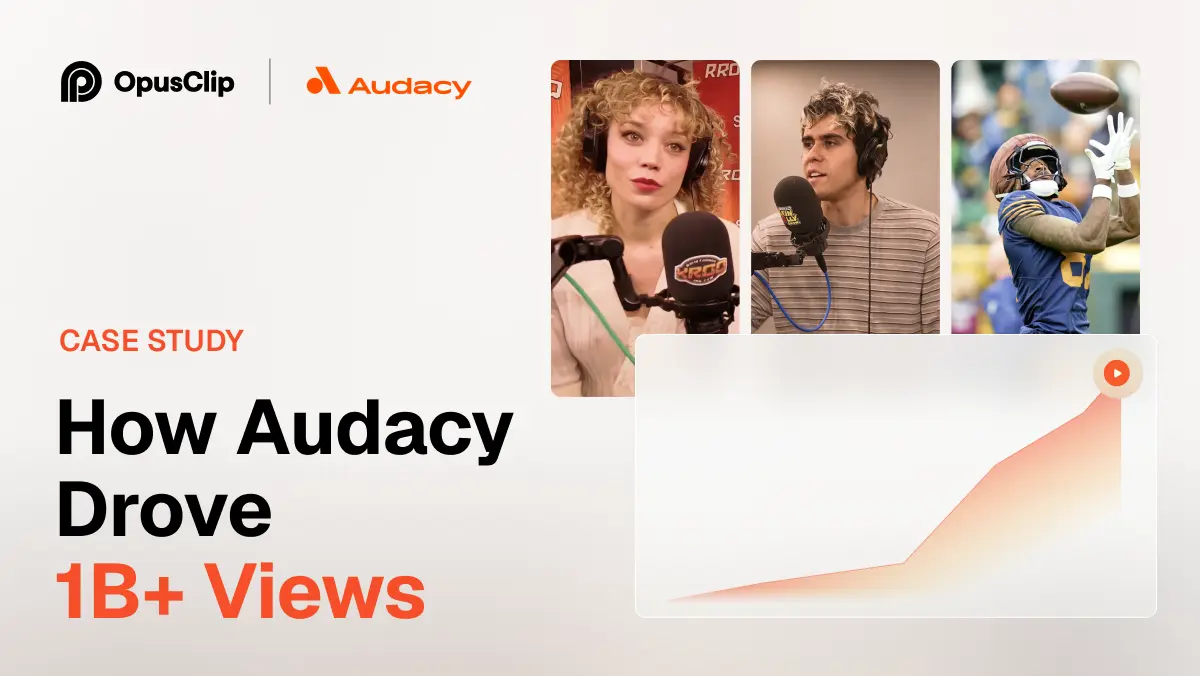
How Audacy Drove 1B+ Views by Taking a Tech-Forward Approach to Radio with OpusClip
No items found.

How Audacy Drove 1B+ Views by Taking a Tech-Forward Approach to Radio with OpusClip

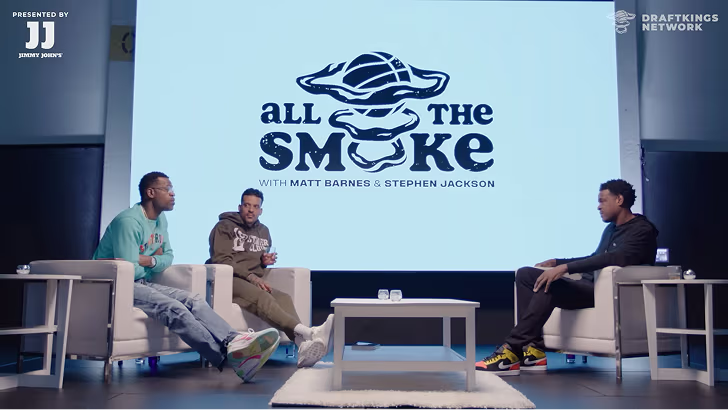
How All the Smoke makes hit compilations faster with OpusSearch

How All the Smoke makes hit compilations faster with OpusSearch

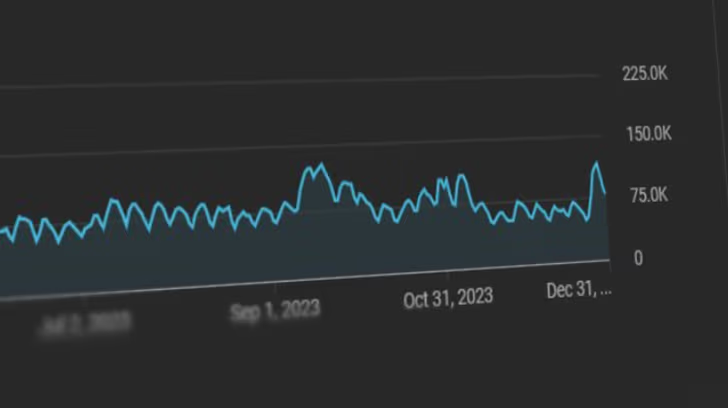
Growing a new channel to 1.5M views in 90 days without creating new videos

Growing a new channel to 1.5M views in 90 days without creating new videos

OpusClip 4.0 is here. Become a content powerhouse.

7 Best AI Podcast and Webinar Clip Makers in 2026

A podcast conversation, a woman presenting to a webcam and a man reviewing clips on a laptop, with Clip it, views, 9:16 and play badges
No items found.
No items found.

Boost your social media growth with OpusClip

Create and post one short video every day for your social media and grow faster.

7 Best AI Podcast and Webinar Clip Makers in 2026

A podcast conversation, a woman presenting to a webcam and a man reviewing clips on a laptop, with Clip it, views, 9:16 and play badges

OpusClip is the pick for turning a recorded conversation, such as a podcast episode, interview or webinar replay, into short captioned clips: it takes a video file or link, finds the moments and reframes them for vertical with layouts for several speakers. Riverside and StreamYard fit when the conversation is recorded or streamed in the same tool, Reap and Castmagic also handle audio-only episodes, and Podsqueeze and Wavve suit audio-first shows. We ordered items 2 to 7 by how plainly each vendor's pages describe handling more than one speaker. Facts come from each vendor's own pages, read on November 11, 2026.

Key takeaways

  • Best for AI-picked clips from a podcast or webinar recording, with layouts for several speakers: OpusClip. Its podcast page lists Active Speaker Detection, and its help center describes layouts for two, three or four speakers in frame.
  • Best for one tool that clips video episodes and turns audio-only ones into audiograms: Reap. Its podcast page answers the multi-speaker question directly.
  • Best for clips from conversations recorded or streamed in StreamYard: StreamYard. Saying "Clip that" during a recording marks a moment, and the Free plan lists 2 AI clips a month.
  • Best for recording a remote conversation on separate tracks, then clipping it: Riverside. Its Magic Clips page lets a clip focus on one speaker, and its AI Show Notes page lists chapters.
  • Best for clips from a speaker-labelled transcript that also drafts show notes and posts: Castmagic. It imports from Spotify, Apple Podcasts, RSS and Zoom, but lists no free plan.
  • Best for chapter-based clips and show notes from podcast audio or video: Podsqueeze. Its Free plan lists 30 minutes a month and 1 video clip.
  • Best for turning audio-only episodes into captioned waveform videos: Wavve. It keeps only the audio of an uploaded video, so it is not a clipper for footage.

What counts as a podcast or webinar clip maker

A recorded conversation is different from a solo video, because two or more people speak, the camera may be wide, and an audio-only episode may have no picture at all. This guide covers three kinds of tool. Clip finders take a finished recording and return vertical clips: OpusClip, Reap and Castmagic. Recording and streaming studios clip the conversations made inside them: StreamYard and Riverside. Audio-first repurposing tools turn an episode into audiograms and written extras: Podsqueeze and Wavve, with Reap and Castmagic also making audiograms.

For broader lists, see our older guides to video repurposing tools for podcasters and tools that turn webinars into short clips, which cover Descript, Kapwing, Headliner, Repurpose.io and Zubtitle, and our guide to free AI clipping tools for general clippers.

How to choose

  • A video recording already exists: OpusClip or Reap. OpusClip's AI podcast clip generator page shows the flow.
  • The conversation is recorded or streamed live in a studio tool: StreamYard or Riverside, which clip what they record.
  • The show is audio only: Reap, Castmagic, Podsqueeze or Wavve make audiograms. The OpusClip pages we read describe video uploads and links.
  • Show notes, chapters or a newsletter are needed too: Castmagic, Podsqueeze or Riverside, per their pages.
  • Several people are in frame: Reap, StreamYard and OpusClip describe how the crop follows the speaker, and Reap's page tells the reader to check the result.
  • A webinar replay with slides: OpusClip lists a Screenshare layout, while StreamYard's help center warns that clip generation can be unavailable when screen sharing is the main visual.

At a glance

  • OpusClip: best for AI-picked clips from a podcast or webinar recording, with layouts for several speakers; Starter $15 a month (monthly billing only), Pro $29 a month or $14.50 a month billed annually; free plan yes (watermark).
  • Reap: best for clipping video episodes and turning audio-only ones into audiograms; Creator $9.99 a month billed annually ($119.88 a year), $16.99 a month billed monthly; free plan yes (1 hour of AI clipping a month, watermarked).
  • StreamYard: best for clips from conversations recorded or streamed in StreamYard; Core $35.99 a month billed yearly, $44.99 a month billed monthly; free plan yes (2 AI clips a month, StreamYard logo required).
  • Riverside: best for recording a remote conversation on separate tracks, then clipping it and writing show notes; Pro $24 a month billed yearly, with a 14-day free trial; see the pricing page for monthly billing and for what a free plan includes.
  • Castmagic: best for clips from a speaker-labelled transcript that also drafts show notes and posts; Hobby $19 a month billed annually ($239 a year), $29 a month billed monthly; no free plan listed on the pricing page.
  • Podsqueeze: best for chapter-based clips and show notes from podcast audio or video; Starter $5.99 a month billed annually ($71.88 a year), $8.99 a month billed monthly; free plan yes (30 minutes a month, 1 video clip).
  • Wavve: best for turning audio-only episodes into captioned waveform videos; Starter $7.99 a month, marked down from $9.99 (the page labels it Monthly and names no billing period); free trial, no credit card.

How each tool handles a recorded conversation

The At a glance list covers best-for and the first paid price; this table compares what goes in, how each tool treats more than one speaker, what happens to an audio-only episode, whether it writes show notes or chapters, and the free access, as listed on each vendor's own pages on November 11, 2026.

ToolWhat goes inMore than one speakerAudio-only episodesShow notes or chaptersFree access as printed
OpusClipA video upload, or help center links from Apple Podcast, Zoom, Riverside, StreamYard and moreSplit, Three and Four layouts for several speakers in frame; Active Speaker DetectionNot described; the import pages name video links and video uploadsClip titles, descriptions and hashtags; no show notes or chapters describedFree: $0, watermark, clips stop being exportable after 3 days
ReapA video or an MP3, M4A or WAV upload, or a pasted link; a Zoom recording as MP4Speaker and face tracking; multi-speaker layouts for panels and co-hostsAudiograms: a waveform with captions and a logo, in portrait, square or landscapeTimestamped, exportable transcripts; no show notes or chapters describedUp to 1 hour of AI clipping a month, watermarked 720p, projects expire in 7 days
StreamYardRecordings and live streams made in StreamYard, up to 6 hours longReframes by tracking who is speaking; falls back to 16:9 inside 9:16 when unsureNot described; AI clips are vertical 9:16 videos with captionsEach AI clip gets a title; no show notes or chapters described2 AI clips a month on Free, StreamYard logo required, no custom logo
RiversideRecord in Riverside, or upload a video or a file; the Show Notes page says the sameChoose a focus speaker for a clip; each participant is recorded on a separate trackNot described for Magic Clips; its steps start from an uploaded or recorded videoAI show notes with a summary, takeaways and timestamped chapters14-day free trial on Pro, Grow and Webinar; the pages disagree on a free plan
CastmagicSpotify, Apple Podcasts, YouTube, Zoom, Loom or Drive links, an RSS feed, or an uploadSpeaker-labelled transcript; captions follow whoever is talkingAudiograms with captions and cover art, in the same aspect ratiosShow notes, chapters, newsletter, blog post and social posts from the same transcriptNo free plan on the pricing page; the clip page says plans start at $29 a month
PodsqueezeAn audio or video upload, or an episode from an RSS feed linkTranscripts with speaker labeling; framing for several speakers not describedAudio-only files become audiograms; video files become clipsShow notes with summaries, timestamped chapters and key takeawaysFree plan: 30 minutes a month, 1 video clip, 4 GB files
WavveAudio files or a podcast RSS feed; an MP4 upload keeps only its audioNone listed; Wavve uses only the audio and animates a waveformYes: waveform videos with captions, templates and auto-resizingSRT and transcript downloads; no show notes or chapters describedFree trial with unlimited content creation, no credit card; no free plan listed

1. OpusClip: Best for AI-picked clips from a podcast or webinar recording, with layouts for several speakers

OpusClip's transcript editor with highlighted words, greyed filler words and an Apply to everywhere prompt for correcting a word

OpusClip's transcript editor, where a corrected word can be applied everywhere it appears. Source: OpusClip app

OpusClip's AI podcast clip generator page says to drop a video link or upload a file, and its steps are to import the episode, let the AI find the most engaging segments, review and edit the suggested clips, then download or publish. Its FAQ names YouTube, Riverside.fm and Google Drive links as well as a local file upload, and the help center's import list adds Apple Podcast, Zoom, Zoom Clips and StreamYard links, for public or unlisted videos only.

For several speakers, the help center describes a Split layout for two speakers and Three and Four layouts for three or four, which it calls suitable for interview videos and panel discussions. The podcast page lists Active Speaker Detection to keep the speaker centered. For webinars, the Edit Zoom Recording page describes a Screenshare layout with the screen on top and the speaker below, and says ClipAnything finds key moments in recordings including meetings and webinars. Names a transcript gets wrong can be fixed once and saved, per the help center's Brand Vocabulary article.

Pricing: OpusClip's pricing page lists Free at $0 (a watermark, and clips stop being exportable after 3 days), Starter at $15 a month (monthly billing only) and Pro at $29 a month, or $14.50 a month billed annually. Business is custom. Each plan lists its credits on the pricing page.

Considerations: The Split, Three and Four layouts apply when the speakers appear together in the original frame, per the help center. The import pages name video links and video uploads, and none of the pages we read describes turning an audio-only file into a waveform video, so for an audio-only show the audiogram tools below are the safer fit. OpusClip returns clips, not episode show notes or chapters, and it clips footage that already exists rather than recording it or replacing a timeline editor.

  • Choose it if the source is a recorded video, or a link from Zoom, Riverside, StreamYard or Apple Podcast, and the goal is vertical captioned clips with the active speaker kept in frame.
  • Skip it if the show is audio only and needs a waveform video (none of the OpusClip pages we read describes one), or the episode also needs show notes, chapters or a place to record.

2. Reap: Best for clipping video episodes and turning audio-only ones into audiograms

Reap's transcript editor with a context menu offering Set as start, Set as end, Correct word, Highlight, Add emoji and Remove caption

Reap's transcript editor menu, used to trim a clip by selecting words. Source: Reap help center

Reap's podcast page says to upload an episode or paste a supported link, after which it suggests clips cut for vertical and captioned, or takes a description of the moments wanted. For an audio-only show, an MP3, M4A or WAV upload becomes an audiogram: an animated waveform with captions, a logo, text and a background, in portrait, square or landscape.

Its FAQ answers the multi-speaker question directly: speaker and face tracking keep the active speaker visible when a wide two-camera or panel recording becomes a 9:16 clip, there are multi-speaker layouts for panels and co-hosts, and the framing should be treated as a starting crop and adjusted by hand when two people talk over each other. A separate Zoom page says to download the MP4 from Zoom and upload it, and lists webinar clip ideas such as a registration teaser and a key lesson.

Pricing: Reap's pricing page lists Creator at $9.99 a month billed annually ($119.88 a year) and $16.99 a month billed monthly, and Studio at $29 a month billed annually and $45 a month billed monthly. Free lists up to 1 hour a month of AI clipping and of AI captions (both watermarked), 720p watermarked exports and projects that expire in 7 days. The podcast page says uploads go up to 5 GB on Free and 10 GB on paid plans, and paid plans take sources up to 180 minutes.

Considerations: Reap's own FAQ says it is not an audio editor, does not repair audio or remove background noise, and does not record, host or manage an RSS feed, so it only does the clip step. Audiograms give an audio episode a visual but, as the page says, do not turn audio into camera footage. Free projects expire in 7 days, so clips need exporting early.

  • Choose it if one tool should clip video episodes and also make audiograms for an audio-only show, with a Zoom MP4 as the route for webinars.
  • Skip it if recording, hosting, show notes or audio repair have to happen in the same tool.

3. StreamYard: Best for clips from conversations recorded or streamed live in StreamYard

StreamYard's AI clip settings panel with caption style presets, a caption color field, a caption font menu and a font size slider

Caption settings for StreamYard's AI clips. Source: StreamYard help center

StreamYard's help center describes AI clips as a repurposing tool that analyzes a recording or live stream made in StreamYard and generates vertical 9:16 captioned clips with a title. Recordings can be up to 6 hours long. Saying "Clip that" out loud during a recording or stream marks a highlight, and the AI later takes the previous 30 seconds as one suggested segment.

For several speakers, the article says AI clips reframe by tracking who is speaking, and fall back to a 16:9 view centered within 9:16 when a face cannot be detected reliably, for example when participants appear very small or screen sharing dominates the frame. StreamYard's podcasting page says it records audio and video with up to 10 people, and its On-Air page describes a live webinar platform with a registration form and reminder emails.

Pricing: StreamYard's pricing page lists a Free plan, and its help center lists AI clips as 2 a month on Free (StreamYard logo required, no custom logo), 6 on Core, 25 on Advanced and unlimited on Business. Core is $44.99 a month billed monthly or $35.99 a month billed yearly. The Advanced plan, at $88.99 a month billed monthly or $68.99 billed yearly, lists On-Air webinars with 100 viewers.

Considerations: The help center's steps start from a StreamYard recording or live stream and describe no upload route, so a podcast or Zoom file made elsewhere is a different job. It says generation can show Unavailable for videos with no clear speech, a non-conversational format, large layout changes or screen sharing as the main visual, which matters for slide-heavy webinars.

  • Choose it if the conversation is recorded or streamed in StreamYard, including live webinars, and 2 free AI clips a month is enough to judge the clip quality.
  • Skip it if the recording was made elsewhere, or the video is mostly slides or a shared screen.

4. Riverside: Best for recording a remote conversation on separate tracks, then clipping it and writing show notes

Riverside's Magic Clips intake box with a Drop a YouTube link field, a Get free clips button and an Upload files button

The intake box on Riverside's Magic Clips page. Source: Riverside website

Riverside's Magic Clips page says to record in Riverside or upload a video and let the AI pick the highlights, and its intake box takes a YouTube link or uploaded files. A clip can then be edited by choosing a focus speaker or keywords, and changing layouts. The page says its captions are 99% accurate, a vendor claim we did not check.

The recording side is where Riverside differs. Its webinar page says everything is recorded in separate tracks, with up to 10 on-screen participants (1 host and 9 recorded guests). Its AI Show Notes page says it can generate a summary, keywords, takeaways, sound bites and chapters with timestamps for a recording made in the studio or uploaded.

Pricing: Riverside's pricing page lists a 14-day free trial on Pro, Grow and Webinar. Pro is $24 a month billed yearly (the page's Monthly view lists a higher price) and lists Magic clips and show notes, and Webinar is $79 a month billed yearly and adds hosting webinars for up to 100 registrants.

Considerations: The pricing page lists no Free plan, but the Magic Clips page calls Magic Clips completely free and the webinar FAQ mentions a Free plan, so the free offer needs confirming on the pricing page. The Magic Clips steps start from an uploaded or recorded video, and the pages we read describe no audiogram or waveform clips for audio-only episodes. Webinar hosting sits on the Webinar plan.

  • Choose it if the conversation is recorded with remote guests, separate tracks matter, and the same tool should clip it and write the show notes.
  • Skip it if the recording already exists elsewhere and only clips are needed, or the show is audio only.

5. Castmagic: Best for clips cut from a speaker-labelled transcript that also drafts show notes and posts

Castmagic's Import URL box with a link field and a Submit button, under the line Paste a Spotify, Apple Podcasts or YouTube episode link

Castmagic's import box for episode links. Source: Castmagic website

Castmagic's podcast clip generator page says to paste a Spotify, Apple Podcasts or YouTube episode link, an RSS feed or an upload, after which it transcribes the episode with speaker labels, flags the strongest moments and cuts captioned vertical clips. Audio-only episodes become audiograms, a waveform video with captions and cover art, in the same aspect ratios. Its FAQ says interviews with several guests keep each line attributed to the right person and the captions follow whoever is talking, and that Zoom, Loom and Google Drive imports work too.

A separate AI clip maker page covers webinars: it says to paste a YouTube, Vimeo, Zoom or Loom link, an RSS feed or an upload, and describes a webinar replay yielding a batch of clips. The same transcript also drafts show notes, chapters, a newsletter, a blog post and social posts, according to the clip page's FAQ.

Pricing: Castmagic's pricing page lists Hobby at $19 a month billed annually ($239 a year) and $29 a month billed monthly, with media clipping and audiogram generation listed as unlimited and 30 transcribed hours in the library total. No free plan is listed on the pricing page.

Considerations: The clip page's FAQ answers "Is there a free version?" with plans starting at $29 a month, while another page's button reads Try Castmagic Free, so any trial needs confirming on the pricing page. The home page lists uploads up to 1 GB and the pricing page lists a 10 GB maximum file size. Castmagic is a content platform with clips as one output, so a clips-only job pays for the rest, and its pages describe no framing for several speakers beyond the speaker-labelled transcript.

  • Choose it if an episode or webinar should become clips plus show notes, a newsletter and posts from one speaker-labelled transcript, with imports from Spotify, Apple Podcasts, RSS or Zoom.
  • Skip it if a free plan is needed, or the job is clips only.

6. Podsqueeze: Best for chapter-based clips and show notes from podcast audio or video

Podsqueeze's clip editor panel with aspect ratio buttons, Subtitles, Fonts and Colors and Cover tabs and a list of timed subtitle lines

The subtitle and aspect ratio panel in Podsqueeze's clip maker. Source: Podsqueeze website

Podsqueeze's clip maker page says to search for a podcast or upload an audio or video file. The AI breaks the episode into chapters, a chapter is picked, and Podsqueeze produces an audiogram for an audio-only file or a short video clip for a video file, with the aspect ratio, colors and fonts adjustable and a clip trimmed by removing subtitle lines. Its audiogram page adds that an episode can be selected from an RSS feed link.

The rest of the suite is written for podcasters: its home page lists transcripts with speaker labeling, show notes with timestamps, newsletters and social posts, and a one-click option that shortens each chapter to under 60 seconds.

Pricing: Podsqueeze's pricing page lists Starter at $5.99 a month billed annually ($71.88 a year) and $8.99 a month billed monthly. Free is $0 with 30 minutes a month, 1 video clip and a 4 GB maximum file size.

Considerations: Clips start from AI-made chapters rather than a prompt, and the clip page says nothing about framing for several speakers, so a wide two-camera recording is not addressed. The Free plan lists 1 video clip, and the pages we read describe podcasts rather than webinars.

  • Choose it if the show is a podcast, audio or video, and chapter-based clips, audiograms and show notes should come from one upload or an RSS feed.
  • Skip it if the source is a webinar, or several speakers must be reframed in a wide shot.

7. Wavve: Best for turning audio-only episodes into captioned waveform videos

Wavve's home page says it turns content into social media-ready videos, and lists AI hot spot identification to find key moments, templates, animated Wavveform graphics, captions, auto-resizing, SRT and transcript downloads, and scheduling. Its FAQ says audio comes in as a file or from a podcast's RSS feed and that the longest video it can generate is typically around 2 hours.

The FAQ is also clear about what it does not do: an uploaded MP4's picture is dropped and only the audio is used, so a Wavve video is made of images and Wavve animations, never of the speakers' footage.

Pricing: Wavve's pricing page lists Starter at $7.99 a month, marked down from $9.99, with 70 upload minutes and 18 exported videos a month. The page labels the price Monthly and names no billing period, while the FAQ says plans can be billed monthly, every 6 months or annually, with annual getting the largest discount. The FAQ says a free trial allows full unlimited content creation, and the pricing page says no credit card is needed; no trial length is printed.

Considerations: The pages describe no speaker detection or framing, because the product works from the audio alone. The FAQ recommends audio files under 50 MB, warns of longer processing above 75 MB and allows imports up to 150 MB, which is small for a long episode. Editing the audio or design removes the captions, because a new video is made.

  • Choose it if the show is audio only and a waveform video with captions is the output wanted, or a podcast RSS feed should feed the videos.
  • Skip it if the guests or slides on screen are the point of the clip, or episodes are long, uncompressed files.

How we compared these tools

We compared each tool on six criteria: what goes in, how it treats more than one speaker, what happens to an audio-only episode, whether it writes show notes or chapters, how captions and branding are handled, and the free access the vendor prints. This guide is organised around the job in the title, clipping recorded conversations such as podcast episodes, interviews and webinars. OpusClip comes first because that is the job it is built for: a video recording in, vertical captioned clips out, with layouts for several speakers. Its limits are in its entry: it does not make audiograms from audio-only files, and it does not write show notes. Items 2 to 7 follow one yardstick: how plainly the vendor's own pages describe what the tool does with more than one speaker, then with an audio-only episode.

  • 2. Reap: a direct FAQ answer on multi-speaker framing, plus audiograms.
  • 3. StreamYard: speaker tracking and its fallback described in detail, for StreamYard recordings only.
  • 4. Riverside: a focus speaker and separate tracks, with no audio-only clip route described.
  • 5. Castmagic: speaker-labelled transcripts and audiograms, but no framing for several speakers.
  • 6. Podsqueeze: speaker labeling in transcripts and audiograms, with the clip pages silent on framing.
  • 7. Wavve: audio only, with no speaker handling described.

All facts come from each vendor's own pricing page, product pages and help center, read on November 11, 2026. Where a page loads its figures with a script we read the rendered page, and we clicked the monthly and yearly views. We did not run hands-on tests of any competitor, and this guide prints no accuracy figure except the one Riverside's page prints, attributed to it. We also read pages for Vizard, Munch, Swell AI and Pictory and left them out: Vizard's podcast page prints 60 free transcription minutes in one place and 300 in another, Munch's site now describes a social marketing platform, Swell AI's pages describe transcript-led clips but no framing for several speakers, and Pictory's home page now describes an AI video agent that generates videos. Prices change, so confirm on the vendor's page before buying.

Red flags to watch for

  • Framing for several speakers is a starting point. Reap's page says to check the crop, OpusClip's layouts apply only when speakers appear together in the original frame, and StreamYard falls back to a wide view when it cannot find a face.
  • Slides and screen shares. StreamYard's help center says clip generation can be unavailable when screen sharing is the main visual, and OpusClip lists a Screenshare layout that expects screen content and one speaker.
  • Audio-only is a separate feature. Reap, Castmagic, Podsqueeze and Wavve describe audiograms. The OpusClip, Riverside and StreamYard pages we read describe clips from video, and Wavve drops the picture from an MP4.
  • Free allowances in different units. Reap counts 1 hour of AI clipping, Podsqueeze 30 minutes and 1 video clip, StreamYard 2 AI clips, and Wavve offers a free trial with no length printed. OpusClip lists its credits on the pricing page.
  • Pages that disagree with each other. Riverside's pricing page lists no free plan while its Magic Clips page calls the tool free, and Wavve's price carries no billing period.
  • Vendor accuracy claims. Riverside's page says its captions are 99% accurate. Check guest names and jargon in any transcript before posting.
  • No manual override. A tool that picks and crops clips with no way to edit them leaves no fix for a bad cut.
  • Guests and attendees. OpusClip's help center says uploads must be content the uploader has the right to use. Get a guest's or speaker's agreement before posting a clip of them, and check each tool's own terms.

Frequently asked questions

What is the best AI podcast and webinar clip maker?

For cutting a recorded podcast, interview or webinar into short captioned clips, OpusClip is the pick in this guide: its AI podcast clip generator page describes importing the episode, AI-picked segments, editing and publishing, and its help center describes layouts for several speakers. Reap fits when audio-only episodes also need clips, StreamYard and Riverside fit conversations recorded in them, Castmagic and Podsqueeze add show notes, and Wavve suits audio-only shows.

How do I turn a podcast episode into short clips?

Add the episode as a video file or link, let the tool find the moments, review the suggested clips, fix any mis-heard names in the transcript and export. In OpusClip, the AI podcast clip generator walks through those steps, and the help center's Brand Vocabulary article covers saving names. An audio-only episode needs a tool that makes audiograms: Reap, Castmagic, Podsqueeze or Wavve.

How do I turn a webinar recording into short clips?

Download the recording or copy its link, then use a tool that accepts it. OpusClip's help center lists Zoom and Zoom Clips links, and its Edit Zoom Recording page describes a Screenshare layout. Reap says to upload the MP4 from Zoom, Castmagic's AI clip maker page names Zoom links, and StreamYard and Riverside clip recordings made inside them. For more tools, see our guide to tools that turn webinars into short clips.

Can I make clips from an audio-only podcast?

Yes, with an audiogram tool. Reap turns an MP3, M4A or WAV upload into an audiogram with captions, Castmagic and Podsqueeze make audiograms from audio-only episodes, and Wavve builds waveform videos from audio files or a podcast RSS feed. The OpusClip pages we read describe video uploads and links and do not describe audio-only clipping, so an audio-only show is better served by one of the others.

How do AI clip makers handle several speakers?

Three ways. Some reframe the crop around the person speaking (Reap, StreamYard, OpusClip's Active Speaker Detection). Some place several people on screen (OpusClip's Split, Three and Four layouts, Reap's multi-speaker layouts). Others keep speakers straight in the transcript (Castmagic, Podsqueeze) or on separate tracks (Riverside). Reap's page says to treat the framing as a starting crop.

Is there a free AI podcast clip maker?

Several tools list free access with limits. OpusClip's Free plan carries a watermark and clips stop being exportable after 3 days, Reap's lists 1 hour of AI clipping a month with watermarked 720p exports, StreamYard's lists 2 AI clips a month with its logo, and Podsqueeze's lists 30 minutes and 1 video clip a month. Wavve offers a free trial, Riverside lists a 14-day trial, and Castmagic lists no free plan. For general clippers, see our guide to free AI clipping tools.

Which tools write show notes and chapters as well as clips?

Riverside's AI Show Notes page lists a summary, keywords, takeaways, sound bites and chapters with timestamps, Castmagic lists show notes, chapters, a newsletter, a blog post and social posts from the same transcript, and Podsqueeze lists show notes with timestamped chapters and key takeaways. OpusClip, Reap, StreamYard and Wavve are described as clip or video tools, with no show notes on the pages we read. For transcripts alone, see our guide to AI transcript generators.

Do I need permission to clip a podcast guest or a webinar?

Only recordings with a right to use them should be clipped. OpusClip's help center says uploads must be content the uploader has the right to use, and says violating clips may be subject to a takedown notice, in its copyright policy article. For a guest or a webinar speaker, getting their agreement before posting is a sensible step. We did not review the other vendors' terms.

Ready to start streaming differently?

Opus is completely FREE for one year for all private beta users. You can get access to all our premium features during this period. We also offer free support for production, studio design, and content repurposing to help you grow.
Join the beta
Limited spots remaining

Try OPUS today

Try Opus Studio

Make your live stream your Magnum Opus