OpusClip 4.0 is here. Become a content powerhouse.

8 Best AI Transcript Generators in 2026
November 10, 2026
Creators at a laptop, a podcast microphone and a phone recording an interview, with a waveform badge, TXT and SRT tags and a document icon

OpusClip is the pick for turning a video into an editable transcript: its free transcript maker takes a pasted YouTube link with no sign-up, and the same transcript sits behind the captions and clips in the OpusClip editor. Here, a transcript generator means a tool whose deliverable is the text itself, not burned-in captions. TurboScribe, Notta, Rev, Otter, Microsoft Word, Fireflies and AssemblyAI cover files, meetings, documents and code. Items 2 to 8 follow one yardstick: how directly the vendor's pages show an uploaded file becoming a downloadable transcript. Facts come from each vendor's own pages, read on November 10, 2026.

Key takeaways

  • Best for turning a video or YouTube link into an editable transcript: OpusClip. Its free transcript maker page takes a pasted link with no sign-up and covers videos up to 30 minutes.
  • Best for batches of long recordings: TurboScribe, with 3 free files a day of up to 30 minutes each and exports to DOCX, PDF, TXT, SRT and VTT.
  • Best for uploads or pasted links with translation: Notta, whose free plan caps each conversation at 3 minutes.
  • Best for a human-verified transcript: Rev, with human transcripts from $1.99 a minute and AI transcripts at $0.25 a minute.
  • Best for meetings and live transcripts: Otter, with 300 free transcription minutes a month and 3 lifetime file imports.
  • Best for a transcript inside a document: Microsoft Word, with up to 300 minutes of uploaded audio a month on a Microsoft 365 subscription.
  • Best for a searchable library of recorded meetings: Fireflies, which lists uploads on its free plan with a 100 MB video cap.
  • Best for developers: AssemblyAI, from $0.15 an hour, with a free tier of up to 185 hours.

What counts as an AI transcript generator

Searches for a transcript generator describe several jobs. The one covered here is the transcript as the deliverable: a text document, produced by AI from audio or video, that can be read, searched, quoted and exported. Burned-in captions and subtitle styling are covered in our guide to the best auto caption generators for videos, and pulling a transcript that already exists on a YouTube video is covered in our guide to the best YouTube transcript extractors.

Three kinds of tool produce a transcript, and each has a pick here:

  • Upload-and-transcribe tools take a file or a link and return text. OpusClip, TurboScribe, Notta and Rev work this way. The picks are OpusClip for a YouTube link and TurboScribe for a batch of files.
  • Meeting notetakers join or record calls and keep a searchable library, with uploads as a side route. Otter and Fireflies work this way. The pick is Otter.
  • Transcripts built into something else live inside a document or an app. Microsoft Word puts the transcript in a document, and AssemblyAI returns it to code through an API. The picks are Word for documents and AssemblyAI for developers.

How to choose

  • A YouTube video, fast, with no account: OpusClip's transcript maker page, for videos up to 30 minutes.
  • Many or long recordings: TurboScribe lists files of up to 10 hours on its Unlimited plan, and Otter imports files of up to 5 GB.
  • A transcript that will be quoted or filed: Rev's human-verified option, since its FAQ points to human transcription where accuracy is critical.
  • Meetings and calls: Otter or Fireflies. Both list live or bot-recorded transcripts, with uploads on top.
  • A free trial: check the per-file cap first. Notta Free stops each conversation at 3 minutes, Otter Basic at 30 minutes with 3 lifetime imports, and TurboScribe Free at 30 minutes a file.
  • Export format: Otter Basic exports TXT only, while TurboScribe, Rev, Notta and Fireflies list DOCX or PDF among their exports.

At a glance

  • OpusClip: best for turning a video or YouTube link into an editable transcript; Starter $15 a month (monthly billing only), Pro $29 a month or $14.50 a month billed annually; free yes (the transcript maker page, plus a Free plan whose clips carry a watermark).
  • TurboScribe: best for batches of long files; Unlimited $10 a month billed yearly ($120), or $20 a month billed monthly; free plan yes (3 files a day).
  • Notta: best for uploads or pasted links with translation; Pro $8.17 a month billed annually ($97.99), or $13.49 a month billed monthly; free plan yes (120 minutes a month).
  • Rev: best for human-verified transcripts; human transcripts from $1.99 a minute and AI transcripts at $0.25 a minute; free plan yes (45 AI minutes a month, English only).
  • Otter: best for meeting and live transcripts; Pro $8.33 per user a month billed annually, or $16.99 per user a month billed monthly; free plan yes (300 minutes a month).
  • Microsoft Word: best for a transcript inside a document; included with a Microsoft 365 subscription, so see Microsoft's plans for pricing; no separate free plan.
  • Fireflies: best for searchable transcripts of recorded meetings; Pro $10 per seat a month billed annually; free plan yes (free forever).
  • AssemblyAI: best for developers; pay as you go at $0.15 an hour (Universal-2) or $0.21 an hour (Universal-3.5 Pro); free tier of up to 185 hours.

What goes in, what comes out and what the free tier allows for each transcript tool

The At a glance list covers best-for, price and whether a free plan exists; this table compares what each tool accepts, the export formats it lists, speaker labels, editing before export and the free limit it prints, as listed on each vendor's own pages on November 10, 2026.

ToolWhat goes inExport formats listedSpeaker labelsEdit before exportFree limit as printed
OpusClipPasted YouTube link on the free tool page, no sign-up; link or file upload in the appTXT transcript and SRT subtitles per the help centerAPI transcripts carry an optional speaker per paragraph; captions can be coloured by speakerSelect a word or sentence and edit it; the tool page says the output can be editedTool page: free with no registration, for videos up to 30 minutes
TurboScribeAudio and video files (MP3, MP4, M4A, MOV, WAV and more); YouTube is listed tooDOCX, PDF, TXT, captions and subtitles (SRT, VTT)Recognize Speakers setting labels each section with who is speakingNo editor is described on the pages read3 files a day, up to 30 minutes each, uploaded one at a time
NottaFiles up to 1GB (audio) or 10GB (video), or links from YouTube, Google Drive and DropboxMP3, TXT, SRT, PDF, DOCX and XLSX; the pricing page lists Export transcripts under ProAutomatic speaker identificationReview and edit the transcript in the app120 transcription minutes a month, up to 3 minutes per conversation
RevUpload a file on the web; record audio in the mobile appAI transcript: DOCX, PDF, TXT, SRT, VTT; human transcript: DOCX, PDF, TXTHelp center guide covers editing speaker labels in the transcript editorInteractive editor for AI and human transcripts45 AI transcription minutes a month, English only, 1 user
OtterAudio or video files up to 5GB (AAC, MP3, M4A, WAV, MP4, MOV and more), or live recordingBasic: TXT only; paid plans add DOCX, PDF and SRT; audio exports as MP3Speaker identification; exports can show speaker namesEditable text and speaker tags300 transcription minutes a month, 30 minutes per conversation, 3 lifetime imports
Microsoft WordRecord in Word, or upload .wav, .mp4, .m4a or .mp3 audioSave the full transcript as a Word document, or insert snippets into a documentSpeakers are separated and labelled Speaker 1, Speaker 2; labels can be renamedEdit a section or relabel a speaker in the Transcribe paneIncluded with a Microsoft 365 subscription: up to 300 minutes of uploaded audio a month
FirefliesMP3, M4A, WAV, MP4 or WEBM files up to 150 minutes each, or recorded meetingsPDF, DOCX, SRT, CSV, JSON and MD; downloads are on Pro plans and higherHelp center has a guide to editing speaker labels or namesThe pricing table lists Edit transcript among its featuresFree forever plan; uploaded video files up to 100MB on Free
AssemblyAIAudio or video by URL or upload through the API, or the no-code PlaygroundJSON with text and word timings; SRT or VTT through a subtitles endpointSpeaker diarization splits the transcript into per-speaker utterancesNone: the API returns the transcript as dataFree tier of up to 185 hours of pre-recorded transcription

1. OpusClip: Best for turning a video or YouTube link into an editable transcript
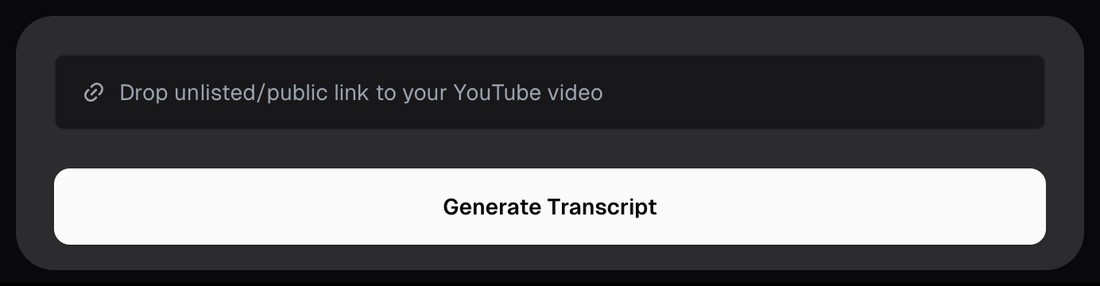
OpusClip's free transcript maker with a link field reading Drop unlisted/public link to your YouTube video above a Generate Transcript button

OpusClip's free transcript maker: a link field for a YouTube video and a Generate Transcript button. Source: OpusClip website

OpusClip's transcript maker page says to paste any YouTube link and get a timestamped transcript. The page says the AI processes the audio, detects the language automatically, and lets the result be copied, downloaded or shared by link. Its FAQ says the basic tool is free with no registration and covers videos up to 30 minutes, with premium plans for longer content and higher usage. The YouTube video transcript page describes the same job for a public YouTube link or an uploaded file, and says the text can be edited before it is downloaded.

The transcript also lives inside the product. OpusClip's help center lists auto-transcription on the result page and says a word or sentence can be selected and changed with the Edit button when editing captions. Someone who already has a transcript can upload an SRT file with a video, and OpusClip uses it for captions instead of the transcript it would otherwise create. For code, the API reference describes a transcript endpoint that returns paragraphs with start and end times, text, an optional speaker and per-word timings, and the Claude connector lists a get transcript tool.

Pricing: OpusClip's pricing page lists Free at $0 (clips carry a watermark), Starter at $15 a month (monthly billing only) and Pro at $29 a month, or $14.50 a month billed annually. Business is custom. Each plan lists its credits on the pricing page. The transcript maker page says its basic tool is free and that premium plans cover longer content.

Considerations: The free page covers videos up to 30 minutes, per its FAQ. In the app, the help center says a transcript can be downloaded as a .txt file and subtitles as an .srt file from the result page and My projects, and the pages read list no DOCX or PDF export. When a YouTube link is used in the app, the help center says OpusClip asks for the channel's ownership to be confirmed. OpusClip is a clipping tool first, so its transcript view suits video being cut into clips more than a backlog of audio files, and it is not a meeting recorder or a human-verified service.

  • Choose it if a transcript of a YouTube video is needed quickly with no account, or the transcript should feed captions and clips in the same tool.
  • Skip it if the source is a long audio archive, a meeting recorder is needed, or DOCX, PDF or human-checked output is the requirement.

2. TurboScribe: Best for batches of long audio and video files
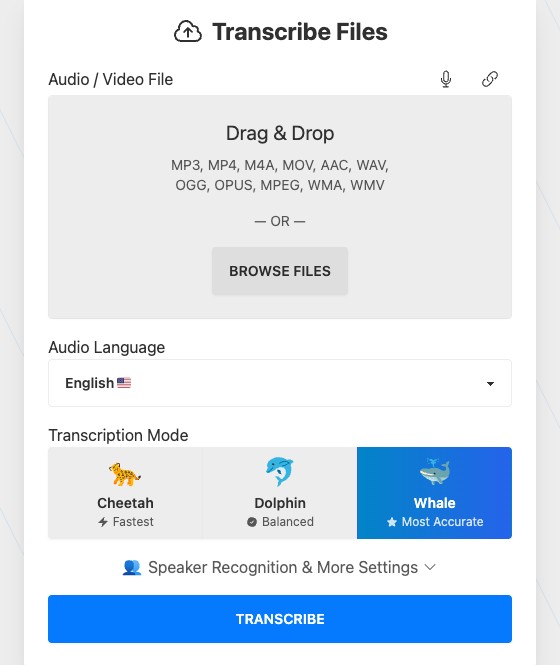
TurboScribe's Transcribe Files form with a drag and drop area, an audio language menu, three transcription modes and a Speaker Recognition setting

TurboScribe's upload form, with a language menu, three transcription modes and a Speaker Recognition setting. Source: TurboScribe website

TurboScribe's home page is built around one upload box. Audio and video files go in (MP3, MP4, M4A, MOV, AAC, WAV and more, with YouTube listed among the sources), a language and a mode are chosen (Cheetah, Dolphin or Whale, labelled fastest, balanced and most accurate), and the Recognize Speakers setting labels each section of the transcript with who is speaking. Transcripts export as DOCX, PDF, TXT, captions and subtitles (SRT, VTT). The page lists 98+ languages, translation of transcripts or subtitles into 134+ languages, and says the service is powered by Whisper and stores files and transcripts encrypted.

Pricing: TurboScribe's pricing page lists a free plan with 3 files a day, each up to 30 minutes, uploaded one at a time with lower priority. Unlimited costs $10 a month billed yearly ($120), or $20 a month billed monthly, with files of up to 10 hours or 5 GB and 50 files uploaded at a time. The page describes Unlimited as unlimited transcription for one person.

Considerations: The pages read describe uploading and downloading but no transcript editor, so corrections would happen in the exported file. The free plan's 30-minute files and daily limit make it a trial for long recordings, and the accuracy figure on the home page is the vendor's own claim.

  • Choose it if many or long recordings should become text files in one pass, with a free daily trial first.
  • Skip it if editing inside the tool, live meeting capture or a team workspace is needed.

3. Notta: Best for transcripts from uploads or pasted links, with translation on Pro
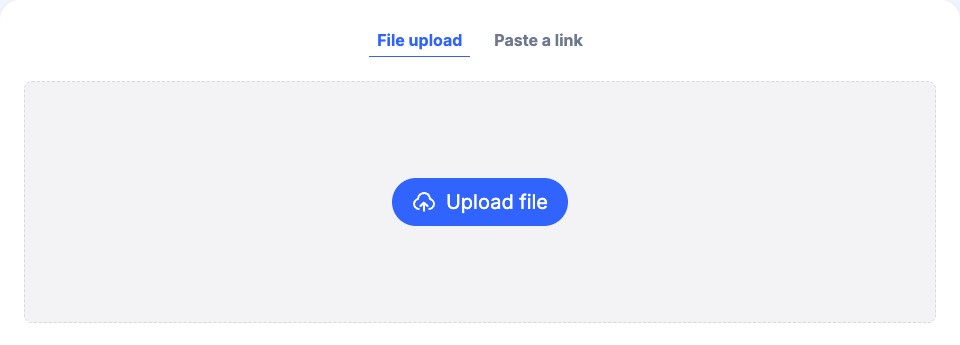
Notta's audio to text converter with File upload and Paste a link tabs above a dashed upload area and an Upload file button

Notta's audio to text tool, with File upload and Paste a link tabs. Source: Notta website

Notta's AI transcription page says to upload audio or video files, paste links from YouTube, Google Drive and Dropbox, or capture live speech. Its FAQ says audio files can run up to 1 GB and video files up to 10 GB. The page says the transcript can be reviewed and edited in the app, with automatic speaker identification, translation into over 40 languages, and exports as MP3, TXT, SRT, PDF, DOCX or XLSX.

Pricing: Notta's pricing page lists Free at $0 with 120 transcription minutes a month, up to 3 minutes per conversation and 50 file uploads a month. Pro is $8.17 a month billed annually ($97.99), or $13.49 a month billed monthly, with 1,800 minutes a month, recordings of up to 5 hours, Export transcripts and Transcript translation. Business is $16.67 a month billed annually ($199.99) with unlimited transcription.

Considerations: The 3-minute cap per conversation makes Free a trial rather than a way to transcribe real recordings, and the pricing page lists exporting transcripts under Pro. Notta's own pages disagree on languages: its AI transcription page says 58, and its audio to text page says over 90, so the languages needed are worth confirming before paying.

  • Choose it if files and pasted links should both work, with translation and a spreadsheet-friendly export.
  • Skip it if the free plan has to handle recordings longer than 3 minutes.

4. Rev: Best for a human-verified transcript when AI is not enough
Rev's transcript editor toolbar with playback controls and a download icon above a first transcript block labelled Dispatcher with a timestamp

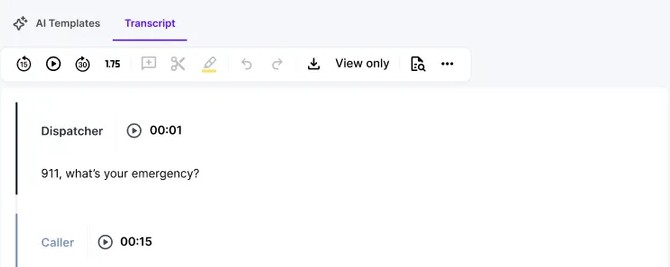
Rev's transcript editor, with playback controls and speaker-labelled, timestamped blocks. Source: Rev website

Rev's human transcription page lists human transcripts starting at $1.99 a minute, with 99%+ accuracy guaranteed and delivery in 12 hours or less, plus verbatim and timestamp add-ons. The same page lists AI transcription at $0.25 a minute in 37 languages, with access to an interactive editor, and its FAQ says to choose human transcription for legal, medical or complex audio where accuracy is critical. Rev's help center lists AI transcripts as downloadable as Word, PDF, plain text, SRT and VTT, and human transcripts as Word, PDF and plain text. It also has a guide to editing speaker labels in the transcript editor.

Pricing: Rev's pricing page lists a Free plan with 45 AI transcription and caption minutes a month, English only, for one user. Its subscription plans are framed for legal and investigative work: Essentials is $25.49 per seat a month billed annually ($305.90) with 5,000 AI minutes per user a month, English and Spanish. Human transcripts are paid by the minute, with subscription discounts listed.

Considerations: Rev's help center says SRT and VTT files from an AI transcription order are timed less precisely than files from an AI captions order and cannot be edited in the caption editor, so subtitle files should come from its captions product. The pricing page is now built around legal and investigative teams, and the human service is a per-minute cost rather than a plan.

  • Choose it if the transcript will be quoted, filed or published and a human check is worth paying for.
  • Skip it if the goal is a free, high-volume or team-wide AI transcript.

5. Otter: Best for meeting and live transcripts, with file imports on top
Otter's Transcribe audio and video dialog with a drag and drop area listing supported file formats and a Browse files button

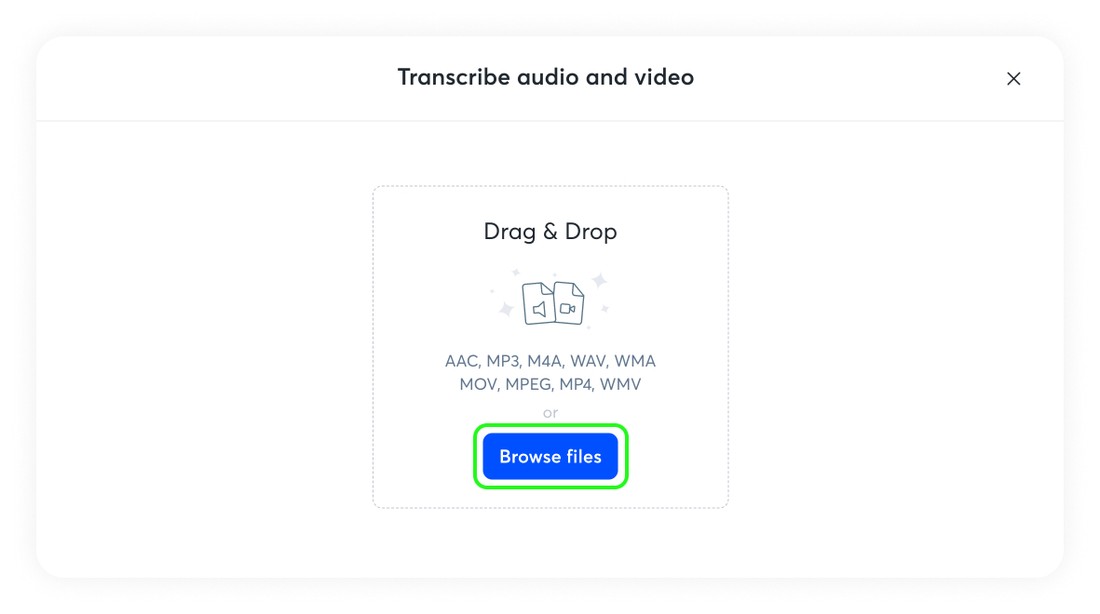
Otter's import dialog, as shown in its help center. Source: Otter help center

Otter's help center says audio and video files of up to 5 GB can be imported from a computer or phone for automatic transcription (AAC, MP3, M4A, WAV, WMA and OGG audio, and AVI, MOV, MPEG, MP4 and WMV video among others), producing a transcript along with summaries and action items. Its pricing page lists live transcription, speaker identification, editable text and speaker tags, and AI transcription in English, Spanish, French, German, Japanese and Chinese. Exports are TXT, DOCX, PDF and SRT, with options to show speaker names and timestamps, and audio exports as MP3.

Pricing: Otter's pricing page lists Basic as free forever with 300 monthly transcription minutes, 30 minutes per conversation and 3 lifetime audio or video file imports; the help center says Basic exports TXT only. Pro is $8.33 per user a month billed annually, or $16.99 per user a month billed monthly, with 1,200 minutes, 10 imports a month and up to 90 minutes per meeting.

Considerations: Three lifetime imports mean the free plan is built for meetings and live recording rather than a backlog of files, and a footnote on the pricing page says minutes are a shared pool across all transcription types. Otter's pages are meeting-first, so the transcript sits beside summaries and action items rather than on its own.

  • Choose it if meetings and calls are the main source and file uploads are occasional.
  • Skip it if a backlog of recordings has to be transcribed on a free plan.

6. Microsoft Word: Best for transcribing an interview or voice recording inside a document
Microsoft Word's Transcribe pane offering Upload audio or Start recording for .wav, .mp4, .m4a and .mp3 files

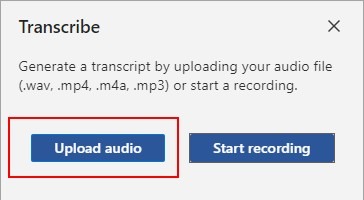
Word's Transcribe pane, as shown on Microsoft's support page. Source: Microsoft Support

Microsoft's support page describes Transcribe in Word: record in Word or upload an audio file (.wav, .mp4, .m4a or .mp3), and the feature converts speech to a text transcript with each speaker separated and labelled Speaker 1, Speaker 2 and so on, labels that can be renamed. Timestamps play back the matching audio, sections can be edited, and the full transcript can be saved as a Word document or inserted into the document in snippets. The page says the feature works with 80+ locales.

Pricing: The page prints no separate price. It says users with a Microsoft 365 subscription can transcribe up to 300 minutes of uploaded audio a month, and users with a Microsoft Copilot license up to 30,000 minutes, so see Microsoft's plans for subscription pricing.

Considerations: The page lists four file formats and no link input, so a YouTube video would need to be saved as a file first. It says only one transcript is stored per document, and its availability note names Word for Microsoft 365 on Windows in commercial tenants, with Word for the web for government tenants.

  • Choose it if Microsoft 365 is already paid for and the transcript belongs in a Word document, such as an interview write-up.
  • Skip it if the work is spread across many files, starts from a link, or happens without a Microsoft 365 subscription.

7. Fireflies: Best for searchable transcripts of recorded meetings, with uploads on the free plan
Fireflies' Uploads tab with a dashed drop area reading Upload audio or video recordings, file size limits and a Browse Files button

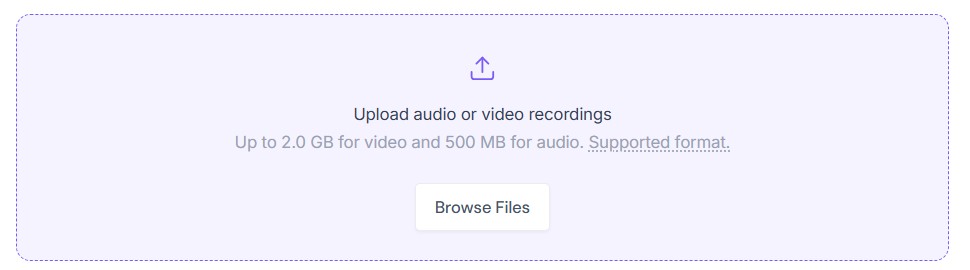
Fireflies' Uploads tab, as shown in its help center with paid-plan upload limits. Source: Fireflies help center

Fireflies' pricing page lists a free plan with unlimited transcription (marked with an asterisk), transcription in 100+ languages, real-time notes, meeting search and an Upload audio/video file feature. Its help center says an upload can be MP3, M4A, WAV, MP4 or WEBM, up to 150 minutes, with video capped at 100 MB on Free and 2 GB on paid plans and audio at 500 MB. Transcripts download as PDF, DOCX, SRT, CSV, JSON or MD, and the help center has a guide to editing speaker labels or names.

Pricing: Fireflies' pricing page lists Free as free forever, Pro at $10 per seat a month billed annually, Business at $19 and Enterprise at $39 on the same per-seat basis (Enterprise is annual only). The help center says downloading transcripts is available on Pro plans and higher.

Considerations: Fireflies is meeting-first, with a notetaker joining Zoom, Google Meet and Teams, so uploads are the side route. The help center says downloading transcripts is for Pro plans and higher, so the free plan is for searching transcripts in the app, and the 100 MB video cap suits audio or short clips better than long video files.

  • Choose it if a library of recorded meetings should be searchable, with an occasional uploaded file.
  • Skip it if a free download of the transcript or a large video upload is needed.

8. AssemblyAI: Best for developers who need transcripts inside an app
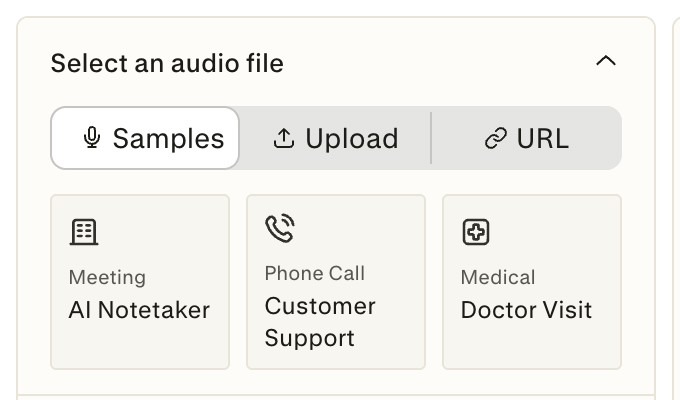
AssemblyAI's Playground settings panel with Samples, Upload and URL tabs and three sample recordings

AssemblyAI's Playground file picker, for trying the speech-to-text models without code. Source: AssemblyAI website

AssemblyAI's docs describe a speech-to-text API: send an audio or video file by URL or upload, add options such as speaker labels and automatic language detection, and get back JSON with the text and, for each speaker's utterance, word timings in milliseconds. A subtitles endpoint exports SRT or VTT. The docs list files of up to 5 GB per request and up to 10 hours per file, and the pricing page lists 99 languages for Universal-2 and 18 for Universal-3.5 Pro. A no-code Playground lets files be tried without writing code, after signing up.

Pricing: AssemblyAI's pricing page lists pay as you go at $0.15 an hour for Universal-2 and $0.21 an hour for Universal-3.5 Pro. Its FAQ says the free tier includes up to 185 hours of pre-recorded transcription with no credit card required.

Considerations: This is a developer product: the transcript is data returned by an API, and the pages read describe no editor and no DOCX or PDF export. OpusClip's own transcript endpoint is covered in our video transcription API guide.

  • Choose it if transcripts should be generated inside an app or pipeline, billed by the hour.
  • Skip it if a finished document or an editor is needed without writing code.

How we compared these tools

We compared each tool on five criteria: what can go in, the export formats the vendor lists, whether speakers are labelled, whether the transcript can be edited before export, and the free limit the vendor prints. The guide is organised around the job in the title, producing a transcript as the deliverable. OpusClip comes first because that job is what its transcript maker and YouTube video transcript pages describe, with the same transcript behind its captions and clips; its limits are stated in its entry: a 30-minute cap on the free page, no DOCX or PDF export in the pages read, and a clipping-first product. Items 2 to 8 follow one yardstick: how directly the vendor's own pages show an uploaded file becoming a downloadable transcript. Tools whose pages lead with the upload box come first (TurboScribe, Notta, Rev), then tools where upload sits beside meetings, a document or an API (Otter, Microsoft Word, Fireflies, AssemblyAI), each group ordered by how completely the pages state input formats, export formats, speaker labels and the free limit. AssemblyAI is last because its transcript is data returned by an API rather than a document.

All facts come from each vendor's own pricing page, product page, help center or documentation, read on November 10, 2026. We did not run hands-on tests of any competitor, and we print no accuracy figures because we ran no benchmark. We did not read pages for Descript, Happy Scribe, Sonix, Trint or Maestra for this guide, since our caption, subtitle and YouTube transcript guides cover them. Prices change, so confirm on the vendor page before buying.

Red flags to watch for

  • Per-file caps on free plans. Notta Free stops each conversation at 3 minutes, Otter Basic at 30 minutes with 3 lifetime imports, TurboScribe Free at 30 minutes a file with 3 files a day, and OpusClip's free transcript page at videos of up to 30 minutes.
  • Exports behind a paid plan. Otter Basic exports TXT only, Notta's pricing page lists Export transcripts under Pro, and Fireflies says downloads are available on Pro plans and higher.
  • Subtitle files made from a transcript. Rev's help center says SRT and VTT files from an AI transcription order are timed less precisely than AI captions and cannot be edited in the caption editor.
  • Accuracy percentages. Rev, Notta and TurboScribe print accuracy figures on their pages. Treat them as vendor claims we did not verify, and check names, numbers and quotes against the recording.
  • Minutes in a shared pool. Otter's pricing page says its transcription minutes are shared across all transcription types, so meetings and imported files draw on the same allowance.
  • Different numbers on one vendor's own pages. Notta lists 58 languages on its AI transcription page and over 90 on its audio to text page.
  • Other people's recordings. Transcribe only videos and recordings that are yours or that the owner has permitted, and read each vendor's data and privacy terms before uploading anything confidential.

Frequently asked questions

What is the best AI transcript generator?

For a transcript of a video or a pasted YouTube link, OpusClip fits best in this guide: its free transcript maker needs no sign-up for videos up to 30 minutes. TurboScribe fits batches of files, Rev a human-verified transcript, Otter meetings, Microsoft Word a transcript inside a document and AssemblyAI developers. See OpusClip pricing for plan limits.

How do I turn a video into a transcript?

Upload the file or paste its link into a transcript generator, set the spoken language if the tool asks, check the speaker labels, then copy or export the text. With OpusClip, paste a public YouTube link on the transcript maker page, or upload a file on the YouTube video transcript page. In the app, the help center says a YouTube link needs the channel's ownership to be confirmed.

What is the best audio to text transcription tool?

For audio files, TurboScribe and Notta put the upload box first, Otter imports audio files of up to 5 GB, Microsoft Word accepts .wav, .mp4, .m4a and .mp3 audio inside a document, and Rev adds a human-verified option. AssemblyAI is the choice when audio should be transcribed from code.

Is there a free transcript generator?

Yes, with limits. OpusClip's transcript maker page says its basic tool is free with no registration for videos up to 30 minutes. TurboScribe Free allows 3 files a day of up to 30 minutes, Otter Basic gives 300 monthly minutes with 3 lifetime imports, Notta Free gives 120 minutes a month with 3 minutes per conversation, and Rev Free gives 45 AI minutes a month in English. Fireflies lists a free forever plan, and AssemblyAI lists a free tier of up to 185 hours for developers. Microsoft Word needs a Microsoft 365 subscription.

What is the difference between a transcript and captions?

A transcript is a text document of what was said, often with speaker labels and timestamps, meant to be read, searched and quoted. Captions are timed text shown on the video. A transcript can be turned into subtitle files, but Rev's help center warns that SRT and VTT files from an AI transcription order are timed less precisely than AI captions. For burned-in captions, see our guide to the best auto caption generators for videos.

How do I get the transcript of a YouTube video?

For a transcript that already exists on a YouTube video, see our guide to the best YouTube transcript extractors. To generate a new AI transcript from the audio, paste the link on OpusClip's transcript maker page; TurboScribe and Notta also list YouTube among their inputs. Use only videos that are yours or that the owner has permitted.

Can an AI transcript generator label who is speaking?

Most can. TurboScribe has a Recognize Speakers setting, Notta lists speaker identification, Otter lists speaker identification with editable speaker tags, Microsoft Word labels speakers as Speaker 1, Speaker 2 and so on, and AssemblyAI lists speaker diarization. OpusClip's API transcript carries an optional speaker field for each paragraph.

Are AI transcripts accurate enough to use as they are?

Vendors print accuracy figures, but they are claims we did not verify. Check names, numbers and quotes against the recording before publishing. Otter and Microsoft Word let sections be edited, and Rev's FAQ says to choose human transcription for legal, medical or complex audio where accuracy is critical.
On this page

Use our Free Forever Plan

Find the moment. Skip the scrubbing.

From script to polished video — in one click.

Create and post one short video every day for free, and grow faster.

OpusSearch uses AI to surface the exact clip you need from hours of footage — in seconds, not afternoons.

Agent Opus runs the entire video pipeline for you: research, scriptwriting, storyboarding, motion, voice, and edit. Upload the idea, post the result.

8 Best AI Transcript Generators in 2026

OpusClip is the pick for turning a video into an editable transcript: its free transcript maker takes a pasted YouTube link with no sign-up, and the same transcript sits behind the captions and clips in the OpusClip editor. Here, a transcript generator means a tool whose deliverable is the text itself, not burned-in captions. TurboScribe, Notta, Rev, Otter, Microsoft Word, Fireflies and AssemblyAI cover files, meetings, documents and code. Items 2 to 8 follow one yardstick: how directly the vendor's pages show an uploaded file becoming a downloadable transcript. Facts come from each vendor's own pages, read on November 10, 2026.

Key takeaways

  • Best for turning a video or YouTube link into an editable transcript: OpusClip. Its free transcript maker page takes a pasted link with no sign-up and covers videos up to 30 minutes.
  • Best for batches of long recordings: TurboScribe, with 3 free files a day of up to 30 minutes each and exports to DOCX, PDF, TXT, SRT and VTT.
  • Best for uploads or pasted links with translation: Notta, whose free plan caps each conversation at 3 minutes.
  • Best for a human-verified transcript: Rev, with human transcripts from $1.99 a minute and AI transcripts at $0.25 a minute.
  • Best for meetings and live transcripts: Otter, with 300 free transcription minutes a month and 3 lifetime file imports.
  • Best for a transcript inside a document: Microsoft Word, with up to 300 minutes of uploaded audio a month on a Microsoft 365 subscription.
  • Best for a searchable library of recorded meetings: Fireflies, which lists uploads on its free plan with a 100 MB video cap.
  • Best for developers: AssemblyAI, from $0.15 an hour, with a free tier of up to 185 hours.

What counts as an AI transcript generator

Searches for a transcript generator describe several jobs. The one covered here is the transcript as the deliverable: a text document, produced by AI from audio or video, that can be read, searched, quoted and exported. Burned-in captions and subtitle styling are covered in our guide to the best auto caption generators for videos, and pulling a transcript that already exists on a YouTube video is covered in our guide to the best YouTube transcript extractors.

Three kinds of tool produce a transcript, and each has a pick here:

  • Upload-and-transcribe tools take a file or a link and return text. OpusClip, TurboScribe, Notta and Rev work this way. The picks are OpusClip for a YouTube link and TurboScribe for a batch of files.
  • Meeting notetakers join or record calls and keep a searchable library, with uploads as a side route. Otter and Fireflies work this way. The pick is Otter.
  • Transcripts built into something else live inside a document or an app. Microsoft Word puts the transcript in a document, and AssemblyAI returns it to code through an API. The picks are Word for documents and AssemblyAI for developers.

How to choose

  • A YouTube video, fast, with no account: OpusClip's transcript maker page, for videos up to 30 minutes.
  • Many or long recordings: TurboScribe lists files of up to 10 hours on its Unlimited plan, and Otter imports files of up to 5 GB.
  • A transcript that will be quoted or filed: Rev's human-verified option, since its FAQ points to human transcription where accuracy is critical.
  • Meetings and calls: Otter or Fireflies. Both list live or bot-recorded transcripts, with uploads on top.
  • A free trial: check the per-file cap first. Notta Free stops each conversation at 3 minutes, Otter Basic at 30 minutes with 3 lifetime imports, and TurboScribe Free at 30 minutes a file.
  • Export format: Otter Basic exports TXT only, while TurboScribe, Rev, Notta and Fireflies list DOCX or PDF among their exports.

At a glance

  • OpusClip: best for turning a video or YouTube link into an editable transcript; Starter $15 a month (monthly billing only), Pro $29 a month or $14.50 a month billed annually; free yes (the transcript maker page, plus a Free plan whose clips carry a watermark).
  • TurboScribe: best for batches of long files; Unlimited $10 a month billed yearly ($120), or $20 a month billed monthly; free plan yes (3 files a day).
  • Notta: best for uploads or pasted links with translation; Pro $8.17 a month billed annually ($97.99), or $13.49 a month billed monthly; free plan yes (120 minutes a month).
  • Rev: best for human-verified transcripts; human transcripts from $1.99 a minute and AI transcripts at $0.25 a minute; free plan yes (45 AI minutes a month, English only).
  • Otter: best for meeting and live transcripts; Pro $8.33 per user a month billed annually, or $16.99 per user a month billed monthly; free plan yes (300 minutes a month).
  • Microsoft Word: best for a transcript inside a document; included with a Microsoft 365 subscription, so see Microsoft's plans for pricing; no separate free plan.
  • Fireflies: best for searchable transcripts of recorded meetings; Pro $10 per seat a month billed annually; free plan yes (free forever).
  • AssemblyAI: best for developers; pay as you go at $0.15 an hour (Universal-2) or $0.21 an hour (Universal-3.5 Pro); free tier of up to 185 hours.

What goes in, what comes out and what the free tier allows for each transcript tool

The At a glance list covers best-for, price and whether a free plan exists; this table compares what each tool accepts, the export formats it lists, speaker labels, editing before export and the free limit it prints, as listed on each vendor's own pages on November 10, 2026.

ToolWhat goes inExport formats listedSpeaker labelsEdit before exportFree limit as printed
OpusClipPasted YouTube link on the free tool page, no sign-up; link or file upload in the appTXT transcript and SRT subtitles per the help centerAPI transcripts carry an optional speaker per paragraph; captions can be coloured by speakerSelect a word or sentence and edit it; the tool page says the output can be editedTool page: free with no registration, for videos up to 30 minutes
TurboScribeAudio and video files (MP3, MP4, M4A, MOV, WAV and more); YouTube is listed tooDOCX, PDF, TXT, captions and subtitles (SRT, VTT)Recognize Speakers setting labels each section with who is speakingNo editor is described on the pages read3 files a day, up to 30 minutes each, uploaded one at a time
NottaFiles up to 1GB (audio) or 10GB (video), or links from YouTube, Google Drive and DropboxMP3, TXT, SRT, PDF, DOCX and XLSX; the pricing page lists Export transcripts under ProAutomatic speaker identificationReview and edit the transcript in the app120 transcription minutes a month, up to 3 minutes per conversation
RevUpload a file on the web; record audio in the mobile appAI transcript: DOCX, PDF, TXT, SRT, VTT; human transcript: DOCX, PDF, TXTHelp center guide covers editing speaker labels in the transcript editorInteractive editor for AI and human transcripts45 AI transcription minutes a month, English only, 1 user
OtterAudio or video files up to 5GB (AAC, MP3, M4A, WAV, MP4, MOV and more), or live recordingBasic: TXT only; paid plans add DOCX, PDF and SRT; audio exports as MP3Speaker identification; exports can show speaker namesEditable text and speaker tags300 transcription minutes a month, 30 minutes per conversation, 3 lifetime imports
Microsoft WordRecord in Word, or upload .wav, .mp4, .m4a or .mp3 audioSave the full transcript as a Word document, or insert snippets into a documentSpeakers are separated and labelled Speaker 1, Speaker 2; labels can be renamedEdit a section or relabel a speaker in the Transcribe paneIncluded with a Microsoft 365 subscription: up to 300 minutes of uploaded audio a month
FirefliesMP3, M4A, WAV, MP4 or WEBM files up to 150 minutes each, or recorded meetingsPDF, DOCX, SRT, CSV, JSON and MD; downloads are on Pro plans and higherHelp center has a guide to editing speaker labels or namesThe pricing table lists Edit transcript among its featuresFree forever plan; uploaded video files up to 100MB on Free
AssemblyAIAudio or video by URL or upload through the API, or the no-code PlaygroundJSON with text and word timings; SRT or VTT through a subtitles endpointSpeaker diarization splits the transcript into per-speaker utterancesNone: the API returns the transcript as dataFree tier of up to 185 hours of pre-recorded transcription

1. OpusClip: Best for turning a video or YouTube link into an editable transcript

OpusClip's free transcript maker with a link field reading Drop unlisted/public link to your YouTube video above a Generate Transcript button

OpusClip's free transcript maker: a link field for a YouTube video and a Generate Transcript button. Source: OpusClip website

OpusClip's transcript maker page says to paste any YouTube link and get a timestamped transcript. The page says the AI processes the audio, detects the language automatically, and lets the result be copied, downloaded or shared by link. Its FAQ says the basic tool is free with no registration and covers videos up to 30 minutes, with premium plans for longer content and higher usage. The YouTube video transcript page describes the same job for a public YouTube link or an uploaded file, and says the text can be edited before it is downloaded.

The transcript also lives inside the product. OpusClip's help center lists auto-transcription on the result page and says a word or sentence can be selected and changed with the Edit button when editing captions. Someone who already has a transcript can upload an SRT file with a video, and OpusClip uses it for captions instead of the transcript it would otherwise create. For code, the API reference describes a transcript endpoint that returns paragraphs with start and end times, text, an optional speaker and per-word timings, and the Claude connector lists a get transcript tool.

Pricing: OpusClip's pricing page lists Free at $0 (clips carry a watermark), Starter at $15 a month (monthly billing only) and Pro at $29 a month, or $14.50 a month billed annually. Business is custom. Each plan lists its credits on the pricing page. The transcript maker page says its basic tool is free and that premium plans cover longer content.

Considerations: The free page covers videos up to 30 minutes, per its FAQ. In the app, the help center says a transcript can be downloaded as a .txt file and subtitles as an .srt file from the result page and My projects, and the pages read list no DOCX or PDF export. When a YouTube link is used in the app, the help center says OpusClip asks for the channel's ownership to be confirmed. OpusClip is a clipping tool first, so its transcript view suits video being cut into clips more than a backlog of audio files, and it is not a meeting recorder or a human-verified service.

  • Choose it if a transcript of a YouTube video is needed quickly with no account, or the transcript should feed captions and clips in the same tool.
  • Skip it if the source is a long audio archive, a meeting recorder is needed, or DOCX, PDF or human-checked output is the requirement.

2. TurboScribe: Best for batches of long audio and video files

TurboScribe's Transcribe Files form with a drag and drop area, an audio language menu, three transcription modes and a Speaker Recognition setting

TurboScribe's upload form, with a language menu, three transcription modes and a Speaker Recognition setting. Source: TurboScribe website

TurboScribe's home page is built around one upload box. Audio and video files go in (MP3, MP4, M4A, MOV, AAC, WAV and more, with YouTube listed among the sources), a language and a mode are chosen (Cheetah, Dolphin or Whale, labelled fastest, balanced and most accurate), and the Recognize Speakers setting labels each section of the transcript with who is speaking. Transcripts export as DOCX, PDF, TXT, captions and subtitles (SRT, VTT). The page lists 98+ languages, translation of transcripts or subtitles into 134+ languages, and says the service is powered by Whisper and stores files and transcripts encrypted.

Pricing: TurboScribe's pricing page lists a free plan with 3 files a day, each up to 30 minutes, uploaded one at a time with lower priority. Unlimited costs $10 a month billed yearly ($120), or $20 a month billed monthly, with files of up to 10 hours or 5 GB and 50 files uploaded at a time. The page describes Unlimited as unlimited transcription for one person.

Considerations: The pages read describe uploading and downloading but no transcript editor, so corrections would happen in the exported file. The free plan's 30-minute files and daily limit make it a trial for long recordings, and the accuracy figure on the home page is the vendor's own claim.

  • Choose it if many or long recordings should become text files in one pass, with a free daily trial first.
  • Skip it if editing inside the tool, live meeting capture or a team workspace is needed.

3. Notta: Best for transcripts from uploads or pasted links, with translation on Pro

Notta's audio to text converter with File upload and Paste a link tabs above a dashed upload area and an Upload file button

Notta's audio to text tool, with File upload and Paste a link tabs. Source: Notta website

Notta's AI transcription page says to upload audio or video files, paste links from YouTube, Google Drive and Dropbox, or capture live speech. Its FAQ says audio files can run up to 1 GB and video files up to 10 GB. The page says the transcript can be reviewed and edited in the app, with automatic speaker identification, translation into over 40 languages, and exports as MP3, TXT, SRT, PDF, DOCX or XLSX.

Pricing: Notta's pricing page lists Free at $0 with 120 transcription minutes a month, up to 3 minutes per conversation and 50 file uploads a month. Pro is $8.17 a month billed annually ($97.99), or $13.49 a month billed monthly, with 1,800 minutes a month, recordings of up to 5 hours, Export transcripts and Transcript translation. Business is $16.67 a month billed annually ($199.99) with unlimited transcription.

Considerations: The 3-minute cap per conversation makes Free a trial rather than a way to transcribe real recordings, and the pricing page lists exporting transcripts under Pro. Notta's own pages disagree on languages: its AI transcription page says 58, and its audio to text page says over 90, so the languages needed are worth confirming before paying.

  • Choose it if files and pasted links should both work, with translation and a spreadsheet-friendly export.
  • Skip it if the free plan has to handle recordings longer than 3 minutes.

4. Rev: Best for a human-verified transcript when AI is not enough

Rev's transcript editor toolbar with playback controls and a download icon above a first transcript block labelled Dispatcher with a timestamp

Rev's transcript editor, with playback controls and speaker-labelled, timestamped blocks. Source: Rev website

Rev's human transcription page lists human transcripts starting at $1.99 a minute, with 99%+ accuracy guaranteed and delivery in 12 hours or less, plus verbatim and timestamp add-ons. The same page lists AI transcription at $0.25 a minute in 37 languages, with access to an interactive editor, and its FAQ says to choose human transcription for legal, medical or complex audio where accuracy is critical. Rev's help center lists AI transcripts as downloadable as Word, PDF, plain text, SRT and VTT, and human transcripts as Word, PDF and plain text. It also has a guide to editing speaker labels in the transcript editor.

Pricing: Rev's pricing page lists a Free plan with 45 AI transcription and caption minutes a month, English only, for one user. Its subscription plans are framed for legal and investigative work: Essentials is $25.49 per seat a month billed annually ($305.90) with 5,000 AI minutes per user a month, English and Spanish. Human transcripts are paid by the minute, with subscription discounts listed.

Considerations: Rev's help center says SRT and VTT files from an AI transcription order are timed less precisely than files from an AI captions order and cannot be edited in the caption editor, so subtitle files should come from its captions product. The pricing page is now built around legal and investigative teams, and the human service is a per-minute cost rather than a plan.

  • Choose it if the transcript will be quoted, filed or published and a human check is worth paying for.
  • Skip it if the goal is a free, high-volume or team-wide AI transcript.

5. Otter: Best for meeting and live transcripts, with file imports on top

Otter's Transcribe audio and video dialog with a drag and drop area listing supported file formats and a Browse files button

Otter's import dialog, as shown in its help center. Source: Otter help center

Otter's help center says audio and video files of up to 5 GB can be imported from a computer or phone for automatic transcription (AAC, MP3, M4A, WAV, WMA and OGG audio, and AVI, MOV, MPEG, MP4 and WMV video among others), producing a transcript along with summaries and action items. Its pricing page lists live transcription, speaker identification, editable text and speaker tags, and AI transcription in English, Spanish, French, German, Japanese and Chinese. Exports are TXT, DOCX, PDF and SRT, with options to show speaker names and timestamps, and audio exports as MP3.

Pricing: Otter's pricing page lists Basic as free forever with 300 monthly transcription minutes, 30 minutes per conversation and 3 lifetime audio or video file imports; the help center says Basic exports TXT only. Pro is $8.33 per user a month billed annually, or $16.99 per user a month billed monthly, with 1,200 minutes, 10 imports a month and up to 90 minutes per meeting.

Considerations: Three lifetime imports mean the free plan is built for meetings and live recording rather than a backlog of files, and a footnote on the pricing page says minutes are a shared pool across all transcription types. Otter's pages are meeting-first, so the transcript sits beside summaries and action items rather than on its own.

  • Choose it if meetings and calls are the main source and file uploads are occasional.
  • Skip it if a backlog of recordings has to be transcribed on a free plan.

6. Microsoft Word: Best for transcribing an interview or voice recording inside a document

Microsoft Word's Transcribe pane offering Upload audio or Start recording for .wav, .mp4, .m4a and .mp3 files

Word's Transcribe pane, as shown on Microsoft's support page. Source: Microsoft Support

Microsoft's support page describes Transcribe in Word: record in Word or upload an audio file (.wav, .mp4, .m4a or .mp3), and the feature converts speech to a text transcript with each speaker separated and labelled Speaker 1, Speaker 2 and so on, labels that can be renamed. Timestamps play back the matching audio, sections can be edited, and the full transcript can be saved as a Word document or inserted into the document in snippets. The page says the feature works with 80+ locales.

Pricing: The page prints no separate price. It says users with a Microsoft 365 subscription can transcribe up to 300 minutes of uploaded audio a month, and users with a Microsoft Copilot license up to 30,000 minutes, so see Microsoft's plans for subscription pricing.

Considerations: The page lists four file formats and no link input, so a YouTube video would need to be saved as a file first. It says only one transcript is stored per document, and its availability note names Word for Microsoft 365 on Windows in commercial tenants, with Word for the web for government tenants.

  • Choose it if Microsoft 365 is already paid for and the transcript belongs in a Word document, such as an interview write-up.
  • Skip it if the work is spread across many files, starts from a link, or happens without a Microsoft 365 subscription.

7. Fireflies: Best for searchable transcripts of recorded meetings, with uploads on the free plan

Fireflies' Uploads tab with a dashed drop area reading Upload audio or video recordings, file size limits and a Browse Files button

Fireflies' Uploads tab, as shown in its help center with paid-plan upload limits. Source: Fireflies help center

Fireflies' pricing page lists a free plan with unlimited transcription (marked with an asterisk), transcription in 100+ languages, real-time notes, meeting search and an Upload audio/video file feature. Its help center says an upload can be MP3, M4A, WAV, MP4 or WEBM, up to 150 minutes, with video capped at 100 MB on Free and 2 GB on paid plans and audio at 500 MB. Transcripts download as PDF, DOCX, SRT, CSV, JSON or MD, and the help center has a guide to editing speaker labels or names.

Pricing: Fireflies' pricing page lists Free as free forever, Pro at $10 per seat a month billed annually, Business at $19 and Enterprise at $39 on the same per-seat basis (Enterprise is annual only). The help center says downloading transcripts is available on Pro plans and higher.

Considerations: Fireflies is meeting-first, with a notetaker joining Zoom, Google Meet and Teams, so uploads are the side route. The help center says downloading transcripts is for Pro plans and higher, so the free plan is for searching transcripts in the app, and the 100 MB video cap suits audio or short clips better than long video files.

  • Choose it if a library of recorded meetings should be searchable, with an occasional uploaded file.
  • Skip it if a free download of the transcript or a large video upload is needed.

8. AssemblyAI: Best for developers who need transcripts inside an app

AssemblyAI's Playground settings panel with Samples, Upload and URL tabs and three sample recordings

AssemblyAI's Playground file picker, for trying the speech-to-text models without code. Source: AssemblyAI website

AssemblyAI's docs describe a speech-to-text API: send an audio or video file by URL or upload, add options such as speaker labels and automatic language detection, and get back JSON with the text and, for each speaker's utterance, word timings in milliseconds. A subtitles endpoint exports SRT or VTT. The docs list files of up to 5 GB per request and up to 10 hours per file, and the pricing page lists 99 languages for Universal-2 and 18 for Universal-3.5 Pro. A no-code Playground lets files be tried without writing code, after signing up.

Pricing: AssemblyAI's pricing page lists pay as you go at $0.15 an hour for Universal-2 and $0.21 an hour for Universal-3.5 Pro. Its FAQ says the free tier includes up to 185 hours of pre-recorded transcription with no credit card required.

Considerations: This is a developer product: the transcript is data returned by an API, and the pages read describe no editor and no DOCX or PDF export. OpusClip's own transcript endpoint is covered in our video transcription API guide.

  • Choose it if transcripts should be generated inside an app or pipeline, billed by the hour.
  • Skip it if a finished document or an editor is needed without writing code.

How we compared these tools

We compared each tool on five criteria: what can go in, the export formats the vendor lists, whether speakers are labelled, whether the transcript can be edited before export, and the free limit the vendor prints. The guide is organised around the job in the title, producing a transcript as the deliverable. OpusClip comes first because that job is what its transcript maker and YouTube video transcript pages describe, with the same transcript behind its captions and clips; its limits are stated in its entry: a 30-minute cap on the free page, no DOCX or PDF export in the pages read, and a clipping-first product. Items 2 to 8 follow one yardstick: how directly the vendor's own pages show an uploaded file becoming a downloadable transcript. Tools whose pages lead with the upload box come first (TurboScribe, Notta, Rev), then tools where upload sits beside meetings, a document or an API (Otter, Microsoft Word, Fireflies, AssemblyAI), each group ordered by how completely the pages state input formats, export formats, speaker labels and the free limit. AssemblyAI is last because its transcript is data returned by an API rather than a document.

All facts come from each vendor's own pricing page, product page, help center or documentation, read on November 10, 2026. We did not run hands-on tests of any competitor, and we print no accuracy figures because we ran no benchmark. We did not read pages for Descript, Happy Scribe, Sonix, Trint or Maestra for this guide, since our caption, subtitle and YouTube transcript guides cover them. Prices change, so confirm on the vendor page before buying.

Red flags to watch for

  • Per-file caps on free plans. Notta Free stops each conversation at 3 minutes, Otter Basic at 30 minutes with 3 lifetime imports, TurboScribe Free at 30 minutes a file with 3 files a day, and OpusClip's free transcript page at videos of up to 30 minutes.
  • Exports behind a paid plan. Otter Basic exports TXT only, Notta's pricing page lists Export transcripts under Pro, and Fireflies says downloads are available on Pro plans and higher.
  • Subtitle files made from a transcript. Rev's help center says SRT and VTT files from an AI transcription order are timed less precisely than AI captions and cannot be edited in the caption editor.
  • Accuracy percentages. Rev, Notta and TurboScribe print accuracy figures on their pages. Treat them as vendor claims we did not verify, and check names, numbers and quotes against the recording.
  • Minutes in a shared pool. Otter's pricing page says its transcription minutes are shared across all transcription types, so meetings and imported files draw on the same allowance.
  • Different numbers on one vendor's own pages. Notta lists 58 languages on its AI transcription page and over 90 on its audio to text page.
  • Other people's recordings. Transcribe only videos and recordings that are yours or that the owner has permitted, and read each vendor's data and privacy terms before uploading anything confidential.

Frequently asked questions

What is the best AI transcript generator?

For a transcript of a video or a pasted YouTube link, OpusClip fits best in this guide: its free transcript maker needs no sign-up for videos up to 30 minutes. TurboScribe fits batches of files, Rev a human-verified transcript, Otter meetings, Microsoft Word a transcript inside a document and AssemblyAI developers. See OpusClip pricing for plan limits.

How do I turn a video into a transcript?

Upload the file or paste its link into a transcript generator, set the spoken language if the tool asks, check the speaker labels, then copy or export the text. With OpusClip, paste a public YouTube link on the transcript maker page, or upload a file on the YouTube video transcript page. In the app, the help center says a YouTube link needs the channel's ownership to be confirmed.

What is the best audio to text transcription tool?

For audio files, TurboScribe and Notta put the upload box first, Otter imports audio files of up to 5 GB, Microsoft Word accepts .wav, .mp4, .m4a and .mp3 audio inside a document, and Rev adds a human-verified option. AssemblyAI is the choice when audio should be transcribed from code.

Is there a free transcript generator?

Yes, with limits. OpusClip's transcript maker page says its basic tool is free with no registration for videos up to 30 minutes. TurboScribe Free allows 3 files a day of up to 30 minutes, Otter Basic gives 300 monthly minutes with 3 lifetime imports, Notta Free gives 120 minutes a month with 3 minutes per conversation, and Rev Free gives 45 AI minutes a month in English. Fireflies lists a free forever plan, and AssemblyAI lists a free tier of up to 185 hours for developers. Microsoft Word needs a Microsoft 365 subscription.

What is the difference between a transcript and captions?

A transcript is a text document of what was said, often with speaker labels and timestamps, meant to be read, searched and quoted. Captions are timed text shown on the video. A transcript can be turned into subtitle files, but Rev's help center warns that SRT and VTT files from an AI transcription order are timed less precisely than AI captions. For burned-in captions, see our guide to the best auto caption generators for videos.

How do I get the transcript of a YouTube video?

For a transcript that already exists on a YouTube video, see our guide to the best YouTube transcript extractors. To generate a new AI transcript from the audio, paste the link on OpusClip's transcript maker page; TurboScribe and Notta also list YouTube among their inputs. Use only videos that are yours or that the owner has permitted.

Can an AI transcript generator label who is speaking?

Most can. TurboScribe has a Recognize Speakers setting, Notta lists speaker identification, Otter lists speaker identification with editable speaker tags, Microsoft Word labels speakers as Speaker 1, Speaker 2 and so on, and AssemblyAI lists speaker diarization. OpusClip's API transcript carries an optional speaker field for each paragraph.

Are AI transcripts accurate enough to use as they are?

Vendors print accuracy figures, but they are claims we did not verify. Check names, numbers and quotes against the recording before publishing. Otter and Microsoft Word let sections be edited, and Rev's FAQ says to choose human transcription for legal, medical or complex audio where accuracy is critical.

Creator name

Creator type

Team size

Channels

linkYouTubefacebookXTikTok

Pain point

Time to see positive ROI

About the creator

Don't miss these

How Audacy Drove 1B+ Views by Taking a Tech-Forward Approach to Radio with OpusClip
No items found.

How Audacy Drove 1B+ Views by Taking a Tech-Forward Approach to Radio with OpusClip

How All the Smoke makes hit compilations faster with OpusSearch

How All the Smoke makes hit compilations faster with OpusSearch

Growing a new channel to 1.5M views in 90 days without creating new videos

Growing a new channel to 1.5M views in 90 days without creating new videos

OpusClip 4.0 is here. Become a content powerhouse.

8 Best AI Transcript Generators in 2026

Creators at a laptop, a podcast microphone and a phone recording an interview, with a waveform badge, TXT and SRT tags and a document icon
No items found.
No items found.

Boost your social media growth with OpusClip

Create and post one short video every day for your social media and grow faster.

8 Best AI Transcript Generators in 2026

Creators at a laptop, a podcast microphone and a phone recording an interview, with a waveform badge, TXT and SRT tags and a document icon

OpusClip is the pick for turning a video into an editable transcript: its free transcript maker takes a pasted YouTube link with no sign-up, and the same transcript sits behind the captions and clips in the OpusClip editor. Here, a transcript generator means a tool whose deliverable is the text itself, not burned-in captions. TurboScribe, Notta, Rev, Otter, Microsoft Word, Fireflies and AssemblyAI cover files, meetings, documents and code. Items 2 to 8 follow one yardstick: how directly the vendor's pages show an uploaded file becoming a downloadable transcript. Facts come from each vendor's own pages, read on November 10, 2026.

Key takeaways

  • Best for turning a video or YouTube link into an editable transcript: OpusClip. Its free transcript maker page takes a pasted link with no sign-up and covers videos up to 30 minutes.
  • Best for batches of long recordings: TurboScribe, with 3 free files a day of up to 30 minutes each and exports to DOCX, PDF, TXT, SRT and VTT.
  • Best for uploads or pasted links with translation: Notta, whose free plan caps each conversation at 3 minutes.
  • Best for a human-verified transcript: Rev, with human transcripts from $1.99 a minute and AI transcripts at $0.25 a minute.
  • Best for meetings and live transcripts: Otter, with 300 free transcription minutes a month and 3 lifetime file imports.
  • Best for a transcript inside a document: Microsoft Word, with up to 300 minutes of uploaded audio a month on a Microsoft 365 subscription.
  • Best for a searchable library of recorded meetings: Fireflies, which lists uploads on its free plan with a 100 MB video cap.
  • Best for developers: AssemblyAI, from $0.15 an hour, with a free tier of up to 185 hours.

What counts as an AI transcript generator

Searches for a transcript generator describe several jobs. The one covered here is the transcript as the deliverable: a text document, produced by AI from audio or video, that can be read, searched, quoted and exported. Burned-in captions and subtitle styling are covered in our guide to the best auto caption generators for videos, and pulling a transcript that already exists on a YouTube video is covered in our guide to the best YouTube transcript extractors.

Three kinds of tool produce a transcript, and each has a pick here:

  • Upload-and-transcribe tools take a file or a link and return text. OpusClip, TurboScribe, Notta and Rev work this way. The picks are OpusClip for a YouTube link and TurboScribe for a batch of files.
  • Meeting notetakers join or record calls and keep a searchable library, with uploads as a side route. Otter and Fireflies work this way. The pick is Otter.
  • Transcripts built into something else live inside a document or an app. Microsoft Word puts the transcript in a document, and AssemblyAI returns it to code through an API. The picks are Word for documents and AssemblyAI for developers.

How to choose

  • A YouTube video, fast, with no account: OpusClip's transcript maker page, for videos up to 30 minutes.
  • Many or long recordings: TurboScribe lists files of up to 10 hours on its Unlimited plan, and Otter imports files of up to 5 GB.
  • A transcript that will be quoted or filed: Rev's human-verified option, since its FAQ points to human transcription where accuracy is critical.
  • Meetings and calls: Otter or Fireflies. Both list live or bot-recorded transcripts, with uploads on top.
  • A free trial: check the per-file cap first. Notta Free stops each conversation at 3 minutes, Otter Basic at 30 minutes with 3 lifetime imports, and TurboScribe Free at 30 minutes a file.
  • Export format: Otter Basic exports TXT only, while TurboScribe, Rev, Notta and Fireflies list DOCX or PDF among their exports.

At a glance

  • OpusClip: best for turning a video or YouTube link into an editable transcript; Starter $15 a month (monthly billing only), Pro $29 a month or $14.50 a month billed annually; free yes (the transcript maker page, plus a Free plan whose clips carry a watermark).
  • TurboScribe: best for batches of long files; Unlimited $10 a month billed yearly ($120), or $20 a month billed monthly; free plan yes (3 files a day).
  • Notta: best for uploads or pasted links with translation; Pro $8.17 a month billed annually ($97.99), or $13.49 a month billed monthly; free plan yes (120 minutes a month).
  • Rev: best for human-verified transcripts; human transcripts from $1.99 a minute and AI transcripts at $0.25 a minute; free plan yes (45 AI minutes a month, English only).
  • Otter: best for meeting and live transcripts; Pro $8.33 per user a month billed annually, or $16.99 per user a month billed monthly; free plan yes (300 minutes a month).
  • Microsoft Word: best for a transcript inside a document; included with a Microsoft 365 subscription, so see Microsoft's plans for pricing; no separate free plan.
  • Fireflies: best for searchable transcripts of recorded meetings; Pro $10 per seat a month billed annually; free plan yes (free forever).
  • AssemblyAI: best for developers; pay as you go at $0.15 an hour (Universal-2) or $0.21 an hour (Universal-3.5 Pro); free tier of up to 185 hours.

What goes in, what comes out and what the free tier allows for each transcript tool

The At a glance list covers best-for, price and whether a free plan exists; this table compares what each tool accepts, the export formats it lists, speaker labels, editing before export and the free limit it prints, as listed on each vendor's own pages on November 10, 2026.

ToolWhat goes inExport formats listedSpeaker labelsEdit before exportFree limit as printed
OpusClipPasted YouTube link on the free tool page, no sign-up; link or file upload in the appTXT transcript and SRT subtitles per the help centerAPI transcripts carry an optional speaker per paragraph; captions can be coloured by speakerSelect a word or sentence and edit it; the tool page says the output can be editedTool page: free with no registration, for videos up to 30 minutes
TurboScribeAudio and video files (MP3, MP4, M4A, MOV, WAV and more); YouTube is listed tooDOCX, PDF, TXT, captions and subtitles (SRT, VTT)Recognize Speakers setting labels each section with who is speakingNo editor is described on the pages read3 files a day, up to 30 minutes each, uploaded one at a time
NottaFiles up to 1GB (audio) or 10GB (video), or links from YouTube, Google Drive and DropboxMP3, TXT, SRT, PDF, DOCX and XLSX; the pricing page lists Export transcripts under ProAutomatic speaker identificationReview and edit the transcript in the app120 transcription minutes a month, up to 3 minutes per conversation
RevUpload a file on the web; record audio in the mobile appAI transcript: DOCX, PDF, TXT, SRT, VTT; human transcript: DOCX, PDF, TXTHelp center guide covers editing speaker labels in the transcript editorInteractive editor for AI and human transcripts45 AI transcription minutes a month, English only, 1 user
OtterAudio or video files up to 5GB (AAC, MP3, M4A, WAV, MP4, MOV and more), or live recordingBasic: TXT only; paid plans add DOCX, PDF and SRT; audio exports as MP3Speaker identification; exports can show speaker namesEditable text and speaker tags300 transcription minutes a month, 30 minutes per conversation, 3 lifetime imports
Microsoft WordRecord in Word, or upload .wav, .mp4, .m4a or .mp3 audioSave the full transcript as a Word document, or insert snippets into a documentSpeakers are separated and labelled Speaker 1, Speaker 2; labels can be renamedEdit a section or relabel a speaker in the Transcribe paneIncluded with a Microsoft 365 subscription: up to 300 minutes of uploaded audio a month
FirefliesMP3, M4A, WAV, MP4 or WEBM files up to 150 minutes each, or recorded meetingsPDF, DOCX, SRT, CSV, JSON and MD; downloads are on Pro plans and higherHelp center has a guide to editing speaker labels or namesThe pricing table lists Edit transcript among its featuresFree forever plan; uploaded video files up to 100MB on Free
AssemblyAIAudio or video by URL or upload through the API, or the no-code PlaygroundJSON with text and word timings; SRT or VTT through a subtitles endpointSpeaker diarization splits the transcript into per-speaker utterancesNone: the API returns the transcript as dataFree tier of up to 185 hours of pre-recorded transcription

1. OpusClip: Best for turning a video or YouTube link into an editable transcript

OpusClip's free transcript maker with a link field reading Drop unlisted/public link to your YouTube video above a Generate Transcript button

OpusClip's free transcript maker: a link field for a YouTube video and a Generate Transcript button. Source: OpusClip website

OpusClip's transcript maker page says to paste any YouTube link and get a timestamped transcript. The page says the AI processes the audio, detects the language automatically, and lets the result be copied, downloaded or shared by link. Its FAQ says the basic tool is free with no registration and covers videos up to 30 minutes, with premium plans for longer content and higher usage. The YouTube video transcript page describes the same job for a public YouTube link or an uploaded file, and says the text can be edited before it is downloaded.

The transcript also lives inside the product. OpusClip's help center lists auto-transcription on the result page and says a word or sentence can be selected and changed with the Edit button when editing captions. Someone who already has a transcript can upload an SRT file with a video, and OpusClip uses it for captions instead of the transcript it would otherwise create. For code, the API reference describes a transcript endpoint that returns paragraphs with start and end times, text, an optional speaker and per-word timings, and the Claude connector lists a get transcript tool.

Pricing: OpusClip's pricing page lists Free at $0 (clips carry a watermark), Starter at $15 a month (monthly billing only) and Pro at $29 a month, or $14.50 a month billed annually. Business is custom. Each plan lists its credits on the pricing page. The transcript maker page says its basic tool is free and that premium plans cover longer content.

Considerations: The free page covers videos up to 30 minutes, per its FAQ. In the app, the help center says a transcript can be downloaded as a .txt file and subtitles as an .srt file from the result page and My projects, and the pages read list no DOCX or PDF export. When a YouTube link is used in the app, the help center says OpusClip asks for the channel's ownership to be confirmed. OpusClip is a clipping tool first, so its transcript view suits video being cut into clips more than a backlog of audio files, and it is not a meeting recorder or a human-verified service.

  • Choose it if a transcript of a YouTube video is needed quickly with no account, or the transcript should feed captions and clips in the same tool.
  • Skip it if the source is a long audio archive, a meeting recorder is needed, or DOCX, PDF or human-checked output is the requirement.

2. TurboScribe: Best for batches of long audio and video files

TurboScribe's Transcribe Files form with a drag and drop area, an audio language menu, three transcription modes and a Speaker Recognition setting

TurboScribe's upload form, with a language menu, three transcription modes and a Speaker Recognition setting. Source: TurboScribe website

TurboScribe's home page is built around one upload box. Audio and video files go in (MP3, MP4, M4A, MOV, AAC, WAV and more, with YouTube listed among the sources), a language and a mode are chosen (Cheetah, Dolphin or Whale, labelled fastest, balanced and most accurate), and the Recognize Speakers setting labels each section of the transcript with who is speaking. Transcripts export as DOCX, PDF, TXT, captions and subtitles (SRT, VTT). The page lists 98+ languages, translation of transcripts or subtitles into 134+ languages, and says the service is powered by Whisper and stores files and transcripts encrypted.

Pricing: TurboScribe's pricing page lists a free plan with 3 files a day, each up to 30 minutes, uploaded one at a time with lower priority. Unlimited costs $10 a month billed yearly ($120), or $20 a month billed monthly, with files of up to 10 hours or 5 GB and 50 files uploaded at a time. The page describes Unlimited as unlimited transcription for one person.

Considerations: The pages read describe uploading and downloading but no transcript editor, so corrections would happen in the exported file. The free plan's 30-minute files and daily limit make it a trial for long recordings, and the accuracy figure on the home page is the vendor's own claim.

  • Choose it if many or long recordings should become text files in one pass, with a free daily trial first.
  • Skip it if editing inside the tool, live meeting capture or a team workspace is needed.

3. Notta: Best for transcripts from uploads or pasted links, with translation on Pro

Notta's audio to text converter with File upload and Paste a link tabs above a dashed upload area and an Upload file button

Notta's audio to text tool, with File upload and Paste a link tabs. Source: Notta website

Notta's AI transcription page says to upload audio or video files, paste links from YouTube, Google Drive and Dropbox, or capture live speech. Its FAQ says audio files can run up to 1 GB and video files up to 10 GB. The page says the transcript can be reviewed and edited in the app, with automatic speaker identification, translation into over 40 languages, and exports as MP3, TXT, SRT, PDF, DOCX or XLSX.

Pricing: Notta's pricing page lists Free at $0 with 120 transcription minutes a month, up to 3 minutes per conversation and 50 file uploads a month. Pro is $8.17 a month billed annually ($97.99), or $13.49 a month billed monthly, with 1,800 minutes a month, recordings of up to 5 hours, Export transcripts and Transcript translation. Business is $16.67 a month billed annually ($199.99) with unlimited transcription.

Considerations: The 3-minute cap per conversation makes Free a trial rather than a way to transcribe real recordings, and the pricing page lists exporting transcripts under Pro. Notta's own pages disagree on languages: its AI transcription page says 58, and its audio to text page says over 90, so the languages needed are worth confirming before paying.

  • Choose it if files and pasted links should both work, with translation and a spreadsheet-friendly export.
  • Skip it if the free plan has to handle recordings longer than 3 minutes.

4. Rev: Best for a human-verified transcript when AI is not enough

Rev's transcript editor toolbar with playback controls and a download icon above a first transcript block labelled Dispatcher with a timestamp

Rev's transcript editor, with playback controls and speaker-labelled, timestamped blocks. Source: Rev website

Rev's human transcription page lists human transcripts starting at $1.99 a minute, with 99%+ accuracy guaranteed and delivery in 12 hours or less, plus verbatim and timestamp add-ons. The same page lists AI transcription at $0.25 a minute in 37 languages, with access to an interactive editor, and its FAQ says to choose human transcription for legal, medical or complex audio where accuracy is critical. Rev's help center lists AI transcripts as downloadable as Word, PDF, plain text, SRT and VTT, and human transcripts as Word, PDF and plain text. It also has a guide to editing speaker labels in the transcript editor.

Pricing: Rev's pricing page lists a Free plan with 45 AI transcription and caption minutes a month, English only, for one user. Its subscription plans are framed for legal and investigative work: Essentials is $25.49 per seat a month billed annually ($305.90) with 5,000 AI minutes per user a month, English and Spanish. Human transcripts are paid by the minute, with subscription discounts listed.

Considerations: Rev's help center says SRT and VTT files from an AI transcription order are timed less precisely than files from an AI captions order and cannot be edited in the caption editor, so subtitle files should come from its captions product. The pricing page is now built around legal and investigative teams, and the human service is a per-minute cost rather than a plan.

  • Choose it if the transcript will be quoted, filed or published and a human check is worth paying for.
  • Skip it if the goal is a free, high-volume or team-wide AI transcript.

5. Otter: Best for meeting and live transcripts, with file imports on top

Otter's Transcribe audio and video dialog with a drag and drop area listing supported file formats and a Browse files button

Otter's import dialog, as shown in its help center. Source: Otter help center

Otter's help center says audio and video files of up to 5 GB can be imported from a computer or phone for automatic transcription (AAC, MP3, M4A, WAV, WMA and OGG audio, and AVI, MOV, MPEG, MP4 and WMV video among others), producing a transcript along with summaries and action items. Its pricing page lists live transcription, speaker identification, editable text and speaker tags, and AI transcription in English, Spanish, French, German, Japanese and Chinese. Exports are TXT, DOCX, PDF and SRT, with options to show speaker names and timestamps, and audio exports as MP3.

Pricing: Otter's pricing page lists Basic as free forever with 300 monthly transcription minutes, 30 minutes per conversation and 3 lifetime audio or video file imports; the help center says Basic exports TXT only. Pro is $8.33 per user a month billed annually, or $16.99 per user a month billed monthly, with 1,200 minutes, 10 imports a month and up to 90 minutes per meeting.

Considerations: Three lifetime imports mean the free plan is built for meetings and live recording rather than a backlog of files, and a footnote on the pricing page says minutes are a shared pool across all transcription types. Otter's pages are meeting-first, so the transcript sits beside summaries and action items rather than on its own.

  • Choose it if meetings and calls are the main source and file uploads are occasional.
  • Skip it if a backlog of recordings has to be transcribed on a free plan.

6. Microsoft Word: Best for transcribing an interview or voice recording inside a document

Microsoft Word's Transcribe pane offering Upload audio or Start recording for .wav, .mp4, .m4a and .mp3 files

Word's Transcribe pane, as shown on Microsoft's support page. Source: Microsoft Support

Microsoft's support page describes Transcribe in Word: record in Word or upload an audio file (.wav, .mp4, .m4a or .mp3), and the feature converts speech to a text transcript with each speaker separated and labelled Speaker 1, Speaker 2 and so on, labels that can be renamed. Timestamps play back the matching audio, sections can be edited, and the full transcript can be saved as a Word document or inserted into the document in snippets. The page says the feature works with 80+ locales.

Pricing: The page prints no separate price. It says users with a Microsoft 365 subscription can transcribe up to 300 minutes of uploaded audio a month, and users with a Microsoft Copilot license up to 30,000 minutes, so see Microsoft's plans for subscription pricing.

Considerations: The page lists four file formats and no link input, so a YouTube video would need to be saved as a file first. It says only one transcript is stored per document, and its availability note names Word for Microsoft 365 on Windows in commercial tenants, with Word for the web for government tenants.

  • Choose it if Microsoft 365 is already paid for and the transcript belongs in a Word document, such as an interview write-up.
  • Skip it if the work is spread across many files, starts from a link, or happens without a Microsoft 365 subscription.

7. Fireflies: Best for searchable transcripts of recorded meetings, with uploads on the free plan

Fireflies' Uploads tab with a dashed drop area reading Upload audio or video recordings, file size limits and a Browse Files button

Fireflies' Uploads tab, as shown in its help center with paid-plan upload limits. Source: Fireflies help center

Fireflies' pricing page lists a free plan with unlimited transcription (marked with an asterisk), transcription in 100+ languages, real-time notes, meeting search and an Upload audio/video file feature. Its help center says an upload can be MP3, M4A, WAV, MP4 or WEBM, up to 150 minutes, with video capped at 100 MB on Free and 2 GB on paid plans and audio at 500 MB. Transcripts download as PDF, DOCX, SRT, CSV, JSON or MD, and the help center has a guide to editing speaker labels or names.

Pricing: Fireflies' pricing page lists Free as free forever, Pro at $10 per seat a month billed annually, Business at $19 and Enterprise at $39 on the same per-seat basis (Enterprise is annual only). The help center says downloading transcripts is available on Pro plans and higher.

Considerations: Fireflies is meeting-first, with a notetaker joining Zoom, Google Meet and Teams, so uploads are the side route. The help center says downloading transcripts is for Pro plans and higher, so the free plan is for searching transcripts in the app, and the 100 MB video cap suits audio or short clips better than long video files.

  • Choose it if a library of recorded meetings should be searchable, with an occasional uploaded file.
  • Skip it if a free download of the transcript or a large video upload is needed.

8. AssemblyAI: Best for developers who need transcripts inside an app

AssemblyAI's Playground settings panel with Samples, Upload and URL tabs and three sample recordings

AssemblyAI's Playground file picker, for trying the speech-to-text models without code. Source: AssemblyAI website

AssemblyAI's docs describe a speech-to-text API: send an audio or video file by URL or upload, add options such as speaker labels and automatic language detection, and get back JSON with the text and, for each speaker's utterance, word timings in milliseconds. A subtitles endpoint exports SRT or VTT. The docs list files of up to 5 GB per request and up to 10 hours per file, and the pricing page lists 99 languages for Universal-2 and 18 for Universal-3.5 Pro. A no-code Playground lets files be tried without writing code, after signing up.

Pricing: AssemblyAI's pricing page lists pay as you go at $0.15 an hour for Universal-2 and $0.21 an hour for Universal-3.5 Pro. Its FAQ says the free tier includes up to 185 hours of pre-recorded transcription with no credit card required.

Considerations: This is a developer product: the transcript is data returned by an API, and the pages read describe no editor and no DOCX or PDF export. OpusClip's own transcript endpoint is covered in our video transcription API guide.

  • Choose it if transcripts should be generated inside an app or pipeline, billed by the hour.
  • Skip it if a finished document or an editor is needed without writing code.

How we compared these tools

We compared each tool on five criteria: what can go in, the export formats the vendor lists, whether speakers are labelled, whether the transcript can be edited before export, and the free limit the vendor prints. The guide is organised around the job in the title, producing a transcript as the deliverable. OpusClip comes first because that job is what its transcript maker and YouTube video transcript pages describe, with the same transcript behind its captions and clips; its limits are stated in its entry: a 30-minute cap on the free page, no DOCX or PDF export in the pages read, and a clipping-first product. Items 2 to 8 follow one yardstick: how directly the vendor's own pages show an uploaded file becoming a downloadable transcript. Tools whose pages lead with the upload box come first (TurboScribe, Notta, Rev), then tools where upload sits beside meetings, a document or an API (Otter, Microsoft Word, Fireflies, AssemblyAI), each group ordered by how completely the pages state input formats, export formats, speaker labels and the free limit. AssemblyAI is last because its transcript is data returned by an API rather than a document.

All facts come from each vendor's own pricing page, product page, help center or documentation, read on November 10, 2026. We did not run hands-on tests of any competitor, and we print no accuracy figures because we ran no benchmark. We did not read pages for Descript, Happy Scribe, Sonix, Trint or Maestra for this guide, since our caption, subtitle and YouTube transcript guides cover them. Prices change, so confirm on the vendor page before buying.

Red flags to watch for

  • Per-file caps on free plans. Notta Free stops each conversation at 3 minutes, Otter Basic at 30 minutes with 3 lifetime imports, TurboScribe Free at 30 minutes a file with 3 files a day, and OpusClip's free transcript page at videos of up to 30 minutes.
  • Exports behind a paid plan. Otter Basic exports TXT only, Notta's pricing page lists Export transcripts under Pro, and Fireflies says downloads are available on Pro plans and higher.
  • Subtitle files made from a transcript. Rev's help center says SRT and VTT files from an AI transcription order are timed less precisely than AI captions and cannot be edited in the caption editor.
  • Accuracy percentages. Rev, Notta and TurboScribe print accuracy figures on their pages. Treat them as vendor claims we did not verify, and check names, numbers and quotes against the recording.
  • Minutes in a shared pool. Otter's pricing page says its transcription minutes are shared across all transcription types, so meetings and imported files draw on the same allowance.
  • Different numbers on one vendor's own pages. Notta lists 58 languages on its AI transcription page and over 90 on its audio to text page.
  • Other people's recordings. Transcribe only videos and recordings that are yours or that the owner has permitted, and read each vendor's data and privacy terms before uploading anything confidential.

Frequently asked questions

What is the best AI transcript generator?

For a transcript of a video or a pasted YouTube link, OpusClip fits best in this guide: its free transcript maker needs no sign-up for videos up to 30 minutes. TurboScribe fits batches of files, Rev a human-verified transcript, Otter meetings, Microsoft Word a transcript inside a document and AssemblyAI developers. See OpusClip pricing for plan limits.

How do I turn a video into a transcript?

Upload the file or paste its link into a transcript generator, set the spoken language if the tool asks, check the speaker labels, then copy or export the text. With OpusClip, paste a public YouTube link on the transcript maker page, or upload a file on the YouTube video transcript page. In the app, the help center says a YouTube link needs the channel's ownership to be confirmed.

What is the best audio to text transcription tool?

For audio files, TurboScribe and Notta put the upload box first, Otter imports audio files of up to 5 GB, Microsoft Word accepts .wav, .mp4, .m4a and .mp3 audio inside a document, and Rev adds a human-verified option. AssemblyAI is the choice when audio should be transcribed from code.

Is there a free transcript generator?

Yes, with limits. OpusClip's transcript maker page says its basic tool is free with no registration for videos up to 30 minutes. TurboScribe Free allows 3 files a day of up to 30 minutes, Otter Basic gives 300 monthly minutes with 3 lifetime imports, Notta Free gives 120 minutes a month with 3 minutes per conversation, and Rev Free gives 45 AI minutes a month in English. Fireflies lists a free forever plan, and AssemblyAI lists a free tier of up to 185 hours for developers. Microsoft Word needs a Microsoft 365 subscription.

What is the difference between a transcript and captions?

A transcript is a text document of what was said, often with speaker labels and timestamps, meant to be read, searched and quoted. Captions are timed text shown on the video. A transcript can be turned into subtitle files, but Rev's help center warns that SRT and VTT files from an AI transcription order are timed less precisely than AI captions. For burned-in captions, see our guide to the best auto caption generators for videos.

How do I get the transcript of a YouTube video?

For a transcript that already exists on a YouTube video, see our guide to the best YouTube transcript extractors. To generate a new AI transcript from the audio, paste the link on OpusClip's transcript maker page; TurboScribe and Notta also list YouTube among their inputs. Use only videos that are yours or that the owner has permitted.

Can an AI transcript generator label who is speaking?

Most can. TurboScribe has a Recognize Speakers setting, Notta lists speaker identification, Otter lists speaker identification with editable speaker tags, Microsoft Word labels speakers as Speaker 1, Speaker 2 and so on, and AssemblyAI lists speaker diarization. OpusClip's API transcript carries an optional speaker field for each paragraph.

Are AI transcripts accurate enough to use as they are?

Vendors print accuracy figures, but they are claims we did not verify. Check names, numbers and quotes against the recording before publishing. Otter and Microsoft Word let sections be edited, and Rev's FAQ says to choose human transcription for legal, medical or complex audio where accuracy is critical.

Ready to start streaming differently?

Opus is completely FREE for one year for all private beta users. You can get access to all our premium features during this period. We also offer free support for production, studio design, and content repurposing to help you grow.
Join the beta
Limited spots remaining

Try OPUS today

Try Opus Studio

Make your live stream your Magnum Opus