No items found.
8 Best AI Reel Makers in 2026

OpusClip is the pick for making an Instagram Reel from a long video: it finds the moments, cuts captioned vertical clips and can post to Instagram Reels. Vizard is the other long-video option, VEED is the pick for a Reel from a script or idea, and invideo, Canva, Clipchamp, CapCut and Edits make one from raw clips and photos. The guide is organised around making a Reel: OpusClip comes first as the tool built for the long-video job, and items 2 to 8 are ordered by how much of the Reel each tool builds before a person edits it, from vendor pages read on November 9, 2026.
Key takeaways
- Best for turning a long video into captioned Reels: OpusClip. Its Instagram Reels maker page says to drop a link or upload a file, and its help center lists Instagram Reels among the places it can autopost.
- Best for an AI agent that cuts Reels from a long video: Vizard. Its Reels page says Vizard Agent finds the moments, cuts each one, burns in captions and reframes to 9:16.
- Best for a Reel generated from a script or idea: VEED. Its AI Reel Generator page says to type a prompt or paste a script, and the AI generates narration, footage and the video.
- Best for an AI first cut of raw footage on a timeline: invideo. Its Instagram editor page says to drop in raw footage and get a first cut with the silences gone and captions on.
- Best for template-led Reels from photos and clips: Canva. Its Reels page lists reel templates, Magic Video for text prompts and an MP4 download without watermarks.
- Best for a free editor with autocompose and AI voiceovers: Clipchamp. Its pricing page lists watermark-free exports up to 1080p on the free plan.
- Best for AI video templates and effects in 9:16: CapCut. Its Reel Maker page lists 9:16 templates, stickers and keyframes on a timeline.
- Best for hand-editing in Instagram's own app: Edits. Its App Store listing says free, with 4K export and no watermark.
How to choose: three ways to make a Reel with AI
"Reel maker" covers three different jobs, and the right tool depends on what already exists.
- From a long video (a podcast, interview, webinar or stream): OpusClip or Vizard. Both take a link or file and return several Reels with captions in a vertical frame, so the work is picking and fixing rather than editing from scratch.
- From a script or idea, with no footage: VEED's AI Reel Generator, which builds narration, footage and captions from a prompt. Canva's Magic Video, which its page says turns text prompts into AI videos, is a second route inside a design tool.
- From raw clips and photos: invideo for an AI first cut on a timeline, or Canva, Clipchamp, CapCut and Edits for template-led and hand-built Reels.
This guide is about making a Reel from material. For apps that edit a Reel by hand, see our guide to Instagram Reels editing apps, and for AI features on a phone, our guide to AI video editing apps for mobile.
What Instagram's Help Center says a Reel needs
Every spec below comes from Instagram's own Help Center, read on November 9, 2026, because several vendor pages still carry older numbers (see Red flags).
- Aspect ratio: a reel can be uploaded with an aspect ratio between 1.91:1 and 9:16, which makes 9:16 the tallest vertical frame it accepts.
- Resolution and frame rate: a minimum resolution of 720 pixels and a minimum frame rate of 30 FPS.
- Length: the Record a reel article says one or more clips can add up to 20 minutes, with a note that reels over 3 minutes won't be recommended to new audiences.
- Cover photo: a recommended size of 420 by 654 pixels (a 1:1.55 ratio), as a png or jpg file.
- Encoding: for anyone who needs more detail, Instagram lists progressive scan High profile video with 2 consecutive B frames, a closed GOP of half the frame rate, CABAC and 4:2:0 chroma subsampling, plus stereo or stereo and 5.1 audio at 96 kHz or 48 kHz.
- Upload quality: an Upload at highest quality setting under Media quality, which Instagram says can make uploads take longer.
Trending audio depends on the account. Instagram's Help Center says the licensed music library is intended for personal, non-commercial use, and that certain business accounts and certain types of posts do not have access to it. For those accounts it points to Meta's Sound Collection, which it describes as over 14,000 royalty-free songs and sounds that can be used for commercial purposes like ads, found under Audio in the Reels camera. It also says licensed audio can be muted if Meta's agreements with rights holders change. In Edits, Instagram says any licensed audio over 60 seconds is left out of a downloaded video. Check the account type, and the music terms of any tool that adds its own library, before building a Reel around a trending track.
At a glance
- OpusClip: best for turning a long video into captioned Reels; paid plans from $15 a month billed monthly (Pro $29 a month, or $14.50 a month billed annually); free plan yes (watermark, up to 1080p rendered clips).
- Vizard: best for an AI agent that cuts Reels from a long video; Creator $29 a month ($14.50 a month billed yearly); free plan yes (720p export).
- VEED: best for a Reel generated from a script or idea; Creator $12 per user per month billed yearly; the page says to start for free, with AI credits.
- invideo: best for an AI first cut of raw footage on a timeline; the Instagram editor page says the editor is free; Starter $10 per seat per month billed annually under a 50% off banner, for AI generation credits.
- Canva: best for template-led Reels from photos and clips; Pro US$18 a month, or US$144 a year, for one person; free plan yes.
- Clipchamp: best for a free editor with autocompose and AI voiceovers; free with watermark-free exports up to 1080p; 4K comes with a Microsoft 365 Personal or Family plan.
- CapCut: best for AI video templates and effects in 9:16; Pro USD 19.99 a month on the pricing page's monthly view; free plan yes (free templates, basic editing tools).
- Edits: best for hand-editing in Instagram's own app; free, with 4K export and no watermark; Edits Plus is a separate paid subscription for cloud storage and AI usage.
What each tool starts from, how it builds the Reel and where it runs
The At a glance list covers best-for, price and free plan; this table compares what each tool starts from, how it builds the Reel, the Reels output its pages list and where it runs, as listed on each vendor's own pages on November 9, 2026.
| Tool | Starts from | How the Reel gets made | Reels output the page lists | Where it runs |
|---|---|---|---|---|
| OpusClip | A long video, by link or file upload | AI finds moments and cuts captioned clips; fix words and cuts in the editor | 9:16 with Fill, Fit and Split layouts, plus manual reframe | Browser; iPhone app posts to Instagram; Android app has no editor or direct posting |
| Vizard | A local file or a pasted YouTube link | Vizard Agent picks moments, cuts each one and burns in captions; ask it to re-cut | Reframes to 9:16 with captions burned in; resizes for other platforms | Browser, nothing to install |
| VEED | A text prompt or pasted script; own media can replace the footage | AI writes an editable script, then generates narration, footage and the video | Aspect ratio, avatar or voiceover, music and caption style are set before export | Browser, no software required |
| invideo | Raw footage: phone clips, camera files, screen recordings | AI first cut clears silences and adds captions; every AI change sits on the timeline | Landscape footage becomes 9:16 with the subject held in frame; drag the crop to fix it | Browser, iOS and Android, one project on every device |
| Canva | Videos and photos in a reel template, or a text prompt in Magic Video | Drag-and-drop editor with templates; Beat Sync matches footage to music (tagged Pro) | High-resolution MP4 download without watermarks; share to platforms from the editor | Mobile app or a laptop; real-time team editing |
| Clipchamp | A blank canvas or a template filled with your photos and videos | Editor plus AI tools: autocompose, AI voiceovers and auto cut for talking heads | 9:16 aspect ratio preset; animated text, music and automatic subtitles | No download needed; sign in with a personal Microsoft account |
| CapCut | Photos or video clips on a 9:16 canvas, or an AI video template | Timeline editor with AI video templates, effects, keyframes, stickers and music | 9:16 templates; frame rate, format, quality and resolution are chosen at export | CapCut Online, Desktop, Pad and Mobile |
| Edits | Clips recorded in the app, up to 10 minutes each | Manual editor with AI animation for images, automatic captions and audio cleanup | 4K export with no watermark; shares to Instagram as a reel | Apps for iPhone, Android and Mac |
1. OpusClip: Best for turning a long video into captioned Reels

OpusClip's clip layout settings. Source: OpusClip help center
OpusClip's Instagram Reels maker page says to drop a video link or upload a file, and its AI then analyzes the video to find the sections worth turning into Reels. Each clip is framed for the vertical 9:16 screen using a layout the help center names: Fill crops to the speaker, Fit keeps more of the original frame, and Split shows both speakers, with a manual reframe window for fixes. Captions can be corrected word by word in the Captions Editor, and a clip can be trimmed by deleting transcript text or dragging in the timeline editor, per the help center.
For publishing, the help center lists Instagram Reels among the destinations OpusClip supports for autoposting. It also says that, due to limitations from Instagram, only Business and Creator profiles can be connected (connecting an Instagram account), and that Instagram and Facebook connections are the ones that most often need to be reauthorized.
Pricing: OpusClip's pricing page lists Free at $0 (a watermark, up to 1080p rendered clips), Starter at $15 a month billed monthly, and Pro at $29 a month or $14.50 a month billed annually, with Business custom. Credits differ by plan, so see the pricing page for amounts.
Considerations: OpusClip starts from footage that already exists. It does not write a script or generate scenes, so a Reel with no source recording needs another tool on this list, and it is not a full timeline editor, so a Reel built from loose phone clips and photos fits a template editor better. The Android app has no editor and no direct posting, per the help center, and posting to Instagram needs a Business or Creator account.
- Choose it if a podcast, interview, webinar or stream should become several captioned vertical Reels, with optional posting from the same place.
- Skip it if the Reel has to start from a script, photos or a few phone clips, or the Instagram account is Personal and posting from OpusClip is the goal.
2. Vizard: Best for an AI agent that cuts Reels from a long video
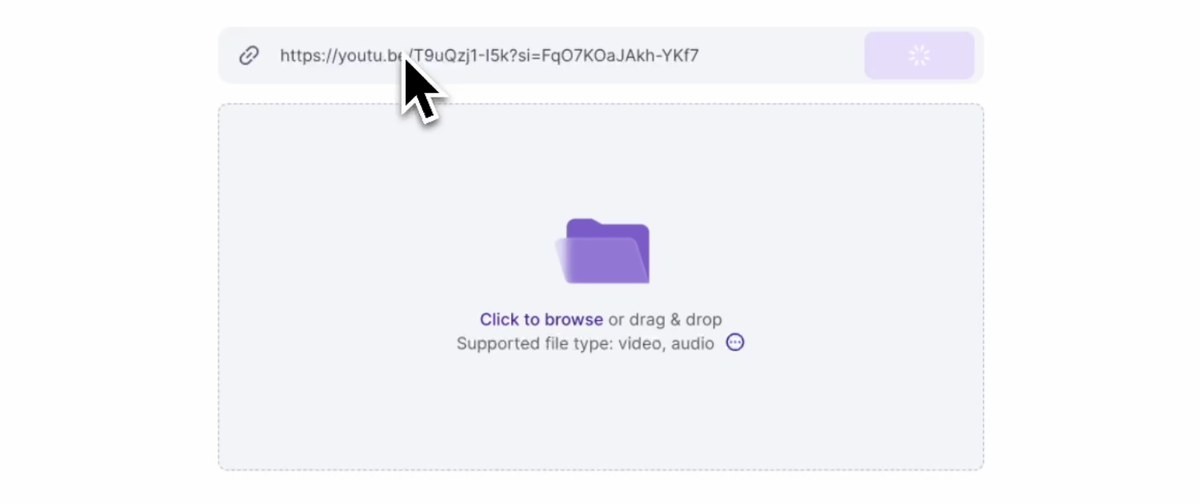
Starting a project in Vizard from a pasted link or a dropped file. Source: Vizard website
Vizard's Instagram Reels maker page describes Vizard Agent: give it a video and ask for Reels, and it finds the moments worth posting, cuts each one to fit, burns in captions and reframes to 9:16, then re-cuts whatever the user asks to change, such as swapping the music or restyling the captions. A video comes in as a local file or a pasted YouTube link, and the page says nothing needs installing because Vizard runs in the browser. Finished Reels are exported to download or shared as a link, and the page says Vizard is integrated with the platforms it lists, including Instagram, for post scheduling and direct publishing.
Pricing: Vizard's pricing page lists Free at $0 (60 credits a month, AI-generated clips, 720p export, 1 social media account) and Creator at $29 a month, shown as $14.50 a month billed yearly ($174 billed yearly), which lists no watermark, 4K export and scheduled social posts. Business is $39 a month, or $19.50 a month billed yearly.
Considerations: Free exports stop at 720p, and the pricing page lists the no-watermark file under Creator, so a free Reel is a preview rather than a final file. The page gives no Instagram account requirements, so check those before relying on direct publishing.
- Choose it if a long recording should become Reels with an agent doing the cutting, and a free plan is wanted for a first try.
- Skip it if a final export above 720p or without a watermark is needed on a free plan.
3. VEED: Best for a Reel generated from a script or idea

The prompt box on VEED's AI Reel Generator page. Source: VEED website
VEED's AI Reel Generator page says to type a prompt or paste a script. The AI then writes a script that can be edited and, per the page, generates narration, selects footage and builds the video. Before export, the page says to choose the aspect ratio, an avatar or voiceover, music and a caption style, and footage can be replaced with uploaded media, stock videos or newly generated visuals. Done exports the video, or the VEED editor adds transitions, text overlays and brand assets.
Pricing: VEED's pricing page says to start for free and lists Creator at $12 per user per month billed yearly (no watermark, unlimited auto subtitles) and Pro at $22 per user per month billed yearly (multiple Brand Kits, translation to 50+ languages), with Enterprise custom. The AI Reel Generator page says the reel maker runs on AI credits and to sign up to see what a plan includes. The pricing page showed yearly-billing prices when we read it, so check the monthly price.
Considerations: A Reel built from a prompt starts from stock or generated footage unless real media is swapped in. The pages we read do not itemize free-plan limits, and the pricing page lists no watermark as a Creator feature, so check what a free export includes before posting.
- Choose it if there is an idea or a script but no footage, and a narrated, captioned Reel should come from one place.
- Skip it if a long recording should be cut into Reels, or the free-plan export terms must be known before starting.
4. invideo: Best for an AI first cut of raw footage on a timeline

invideo's editing agent chat on its Instagram video editor page. Source: invideo website
invideo's Instagram video editor page says to drop in raw footage (phone clips, camera files, screen recordings) and get a first cut: the editor picks the takes, clears the silences, turns captions on and frames the video vertically. Each AI change lands on the timeline as a normal edit that can be moved or undone, and landscape footage becomes 9:16 with the subject held in frame on every shot, with a crop that can be dragged where it lands wrong. The page lists the browser, iOS and Android, and invideo's home page says it can turn a script or idea into a shot-by-shot plan before generating.
The page's FAQ says the editor is completely free to use, in the browser and in the app.
Pricing: invideo's pricing page, which covers its AI generation rather than the editor, lists Starter at $10 per seat per month billed annually, shown against a struck-through $20 and a 50% off banner, with 400 credits per seat a month. The price depended on that promotion when we read the page.
Considerations: The first cut is a starting point: the page's own steps tell editors to cut the hook first and keep the proof moving by hand. AI generation draws on credits sold in plans shown with a promotional discount, so confirm the price when buying.
- Choose it if there is raw footage to turn into a Reel, a real timeline is wanted for fixes, and the editor will be used in a browser or on a phone.
- Skip it if no footage exists yet and a Reel should come from a prompt alone, or a long recording should become several Reels automatically.
5. Canva: Best for template-led Reels from photos and clips
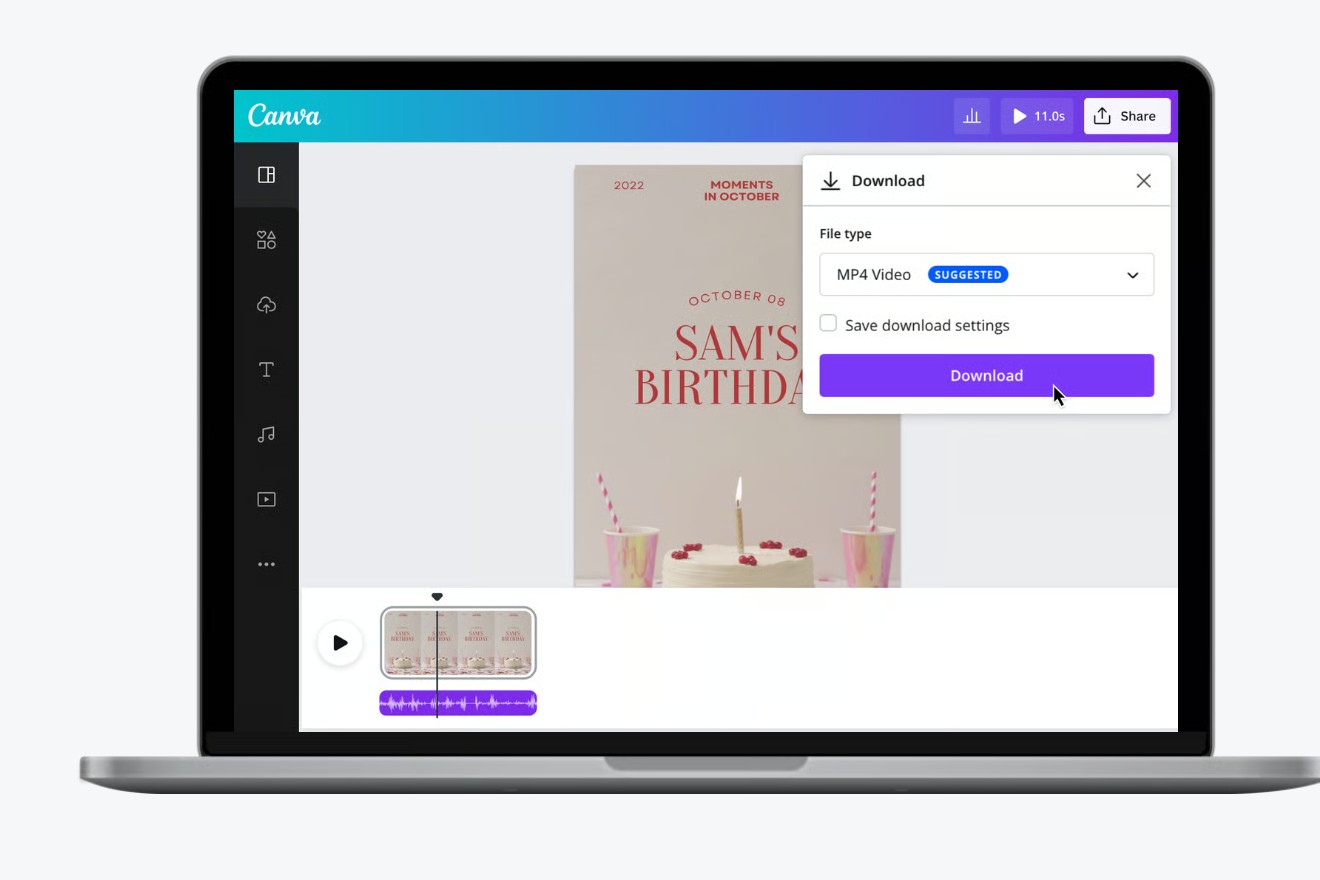
Canva's editor with the MP4 download panel. Source: Canva website
Canva's Create Reels page lists an easy drag-and-drop editor, more than 1M professionally designed templates, AI content generation and easy download or sharing. Under Magic Studio the page lists Beat Sync, which matches footage to a soundtrack and is tagged Pro, Magic Video, which turns text prompts into AI videos and is tagged Free, and Magic Animate, tagged Pro. The page says a Reel can be downloaded as a high-resolution MP4 without watermarks, shared to other platforms from the reel editor and edited with teammates in real time, on a mobile app or a laptop.
Pricing: Canva's pricing page lists Free at US$0, Pro at US$18 a month for one person on its monthly view, or US$144 a year on the yearly view, and Business at US$25 a month per person (US$250 a year). The Free plan lists limited access to Standard and Premium AI.
Considerations: Canva is a design tool first: the Reels page shows templates and a short timeline, not an AI that finds moments in a long recording. Two of the three Magic Studio tools shown on that page are tagged Pro, and the page says its popular music library, with trending tracks, is for Pro and Education users in listed territories, so that library depends on plan and region and is separate from Instagram's own.
- Choose it if a Reel should be built from photos, clips and a branded template, with teammates editing alongside.
- Skip it if a long recording should become Reels automatically, or the Pro-tagged tools are needed on a free plan.
6. Clipchamp: Best for a free editor with autocompose and AI voiceovers
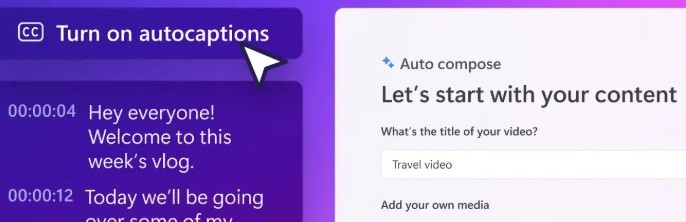
Clipchamp's autocaptions and Auto compose panels. Source: Clipchamp website
Clipchamp's Instagram Reels maker page says to start from a blank canvas or a template and make Reels from photos and videos. It lists animated text, captions, transitions, AI voiceovers in global languages with 400 voices, autocompose for polished short videos, auto cut for talking-head videos, background-noise removal and a 9:16 aspect ratio preset for resizing existing videos.
Pricing: Clipchamp's pricing page says to start editing for free with a personal Microsoft account, with no payment or downloads required. Its comparison lists watermark-free exports on both plans, a 1080p limit on Free and up to 4K on Premium, which comes with Microsoft 365 Personal and Family plans along with premium stock assets and the brand kit.
Considerations: The page describes templates and an editor, not a tool that finds Reels in a long recording, and its repurposing advice, trimming a YouTube video into one Reel or a series of short videos, is a manual job. A Microsoft account is needed, and 4K export, premium stock and the brand kit sit behind a Microsoft 365 plan.
- Choose it if a free, watermark-free Reel with templates, AI voiceovers and automatic subtitles is the goal, and a personal Microsoft account is available.
- Skip it if Reels should be cut out of a long recording automatically, or 4K export is needed without a Microsoft 365 plan.
7. CapCut: Best for AI video templates and effects in 9:16
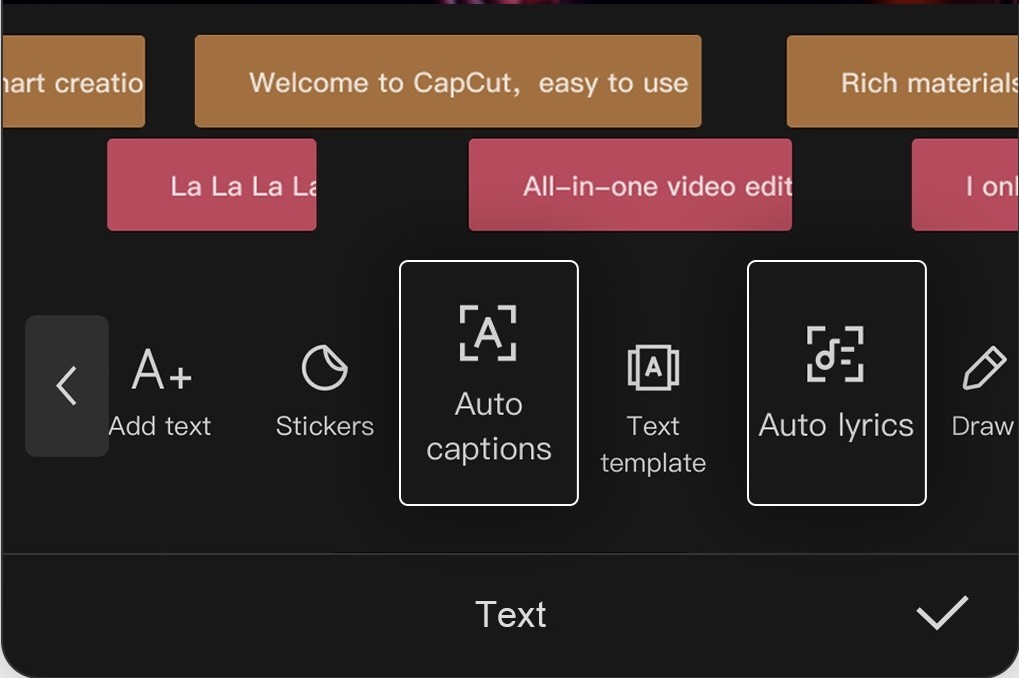
CapCut's text and auto captions tools on a phone. Source: CapCut App Store listing
CapCut's Instagram Reel Maker page says to pick a 9:16 aspect ratio for the canvas, upload photos or video clips, arrange them on the timeline, add text, effects, transitions, filters and music, then choose a frame rate, format, quality and resolution at export or publish to Instagram from the interface. It lists AI video templates in 9:16, stickers, emojis and keyframes, and names CapCut Online, Desktop, Pad and Mobile as its products.
Pricing: CapCut's pricing page lists Free (free templates, basic editing tools) and Pro at USD 19.99 a month on its monthly view, and says displayed pricing is for reference only.
Considerations: CapCut's Reel Maker page presents an editor with AI templates, not a tool that finds Reels in a long video. It also states that Instagram Reels can be up to 60 seconds, while Instagram's Help Center says one or more clips can add up to 20 minutes, so use Instagram's numbers rather than the page's spec text. The pages we read do not itemize which AI features need Pro.
- Choose it if a Reel should be built on a timeline from clips and photos with templates, effects and keyframes, on desktop, browser or phone.
- Skip it if the Reel has to come from a long recording or a script automatically.
8. Edits: Best for hand-editing in Instagram's own app

Edits' timeline and captions toolbar, with the video thumbnails blurred. Source: Edits App Store listing
Edits is an app from Instagram. Its App Store listing calls it a free video editor with 4K export and no watermark, clips of up to 10 minutes captured in the app, AI animation for images, automatic captions, audio enhancement, and browsing of reels with trending audio. Instagram's Help Center says a finished video can be downloaded or shared to Instagram as a reel, that the reel carries an icon showing it was made with Edits, and describes Edits apps for iPhone, Android and Mac.
Pricing: The App Store lists Edits at $0. Instagram's Help Center describes Edits Plus, a paid subscription for more cloud storage and AI usage, available only in the Edits mobile app and in limited testing.
Considerations: Edits is a manual editor: it does not turn a long recording into Reels or write a script. Instagram's help page says its AI assistant is not available to all users, and that licensed audio over 60 seconds is left out of a downloaded video.
- Choose it if the footage is filmed on a phone, the Reel will be cut by hand, and sharing straight to Instagram matters.
- Skip it if a long recording should become several Reels automatically, or the Reel must start from a script.
How we compared these tools
We compared each tool on five criteria: what it starts from (a long video, a script or idea, or raw clips and photos), how much of the Reel it builds before a person edits it, the Reels output its pages list, where it runs, and the price and free offer with their billing basis. The guide is organised around making a Reel from material, and OpusClip comes first as the tool built for the long-video-to-Reels job, which its Instagram Reels maker page, help center and pricing page document. It is not a script-to-Reel or hand-editing tool, which is why VEED, invideo, Canva, Clipchamp, CapCut and Edits stay the picks for those jobs.
Items 2 to 8 follow one yardstick: how much of the Reel the tool builds before a person edits it. Vizard's agent cuts Reels from a long video, VEED builds a whole Reel from a prompt, invideo produces a first cut of raw footage, Canva and Clipchamp pair templates with AI tools, CapCut leans on templates and a timeline, and Edits is a hand editor with a few AI tools. Positions 4 to 8 are close calls, not a scored formula.
All facts come from each vendor's own Reels, pricing and help pages, and Reels specs come only from Instagram's Help Center, all read on November 9, 2026. We did not run hands-on tests of any tool. Adobe's pages return a 403 error to scripts, so Adobe Express is left out, and Predis.ai (now an AI ad generator) and Kapwing (no Reel-specific page loaded) are left out too. Prices change and some vendors show promotional discounts, so confirm on the vendor page before buying.
Red flags to watch for
- Old Reels specs on vendor pages. CapCut's Reel Maker page says Reels can be up to 60 seconds and VEED's older Instagram Reels maker page says 15 seconds, while Instagram's Help Center says one or more clips can add up to 20 minutes.
- Watermarks and export caps on free plans. OpusClip Free adds a watermark, Vizard Free exports at 720p, VEED's pricing page lists no watermark as a Creator feature, and Clipchamp's free plan caps exports at 1080p.
- Posting needs the right account. OpusClip connects only Instagram Business and Creator profiles, and Instagram connections often need to be reauthorized.
- Trending audio is not portable. Instagram says its licensed music library is for personal, non-commercial use and that some business accounts lack access, and Edits leaves licensed audio over 60 seconds out of a downloaded video.
- Credits behind the AI. VEED and invideo sell AI features through credits, and Vizard lists a monthly credit allowance on each plan.
- Generic footage from prompt tools. A Reel generated from a prompt starts from stock or generated footage unless real media is swapped in.
- No manual override. A tool that cuts or generates a Reel with no way to fix a caption or a crop leaves no repair for a clip that starts mid-sentence.
Frequently asked questions
What is the best AI reel maker?
It depends on what the Reel starts from. For a long video, OpusClip comes first in this guide, with Vizard as the other long-video option. VEED is the pick for a Reel generated from a script or idea, invideo for an AI first cut of raw footage, Canva for template-led Reels, Clipchamp for a free editor with autocompose, CapCut for AI templates and effects, and Edits for hand-editing in Instagram's own app.
Is there a free AI reel maker?
Several tools list a free start, with different limits. OpusClip's Free plan adds a watermark and renders up to 1080p, and its Free Reel Creator page is the place to try it. Vizard's Free plan exports at 720p, Clipchamp's lists watermark-free exports up to 1080p, and Edits is free with 4K export and no watermark. invideo says its editor is free, Canva and CapCut list free plans, and VEED's pricing page says to start for free with AI credits.
What is the best reel maker app?
Edits is Instagram's own free editing app, for iPhone and Android, with a Mac version described in Instagram's Help Center. CapCut lists a mobile product, Canva's page mentions a mobile app, and invideo lists iOS and Android. OpusClip has iPhone and Android apps too, though its help center says the Android app has no editor and no direct posting. Our guides to AI video editing apps for mobile and Instagram Reels editing apps go deeper on apps.
How do I make Instagram Reels with AI?
Match the method to what exists. With a long video, drop its link or file into an AI clipper such as OpusClip, review the clips and fix captions or framing, then export or post; OpusClip's Instagram Reels maker walks through it. With only an idea, type a prompt or paste a script into a generator such as VEED's AI Reel Generator and swap in real media. With raw clips, drop them into an editor such as invideo, Canva, Clipchamp, CapCut or Edits and let its AI tools handle captions and the first cut. Then check the spec list above before uploading.
How long can an Instagram Reel be, and what size should it be?
Instagram's Help Center says one or more clips can add up to 20 minutes, with a note that reels over 3 minutes won't be recommended to new audiences. It says a reel can be uploaded with an aspect ratio between 1.91:1 and 9:16, with a minimum resolution of 720 pixels and a minimum frame rate of 30 FPS, and it recommends a cover photo of 420 by 654 pixels.
Can I use trending audio in a Reel made with an AI tool?
It depends on the account and where the audio is added. Instagram's Help Center says its licensed music library is intended for personal, non-commercial use and that certain business accounts do not have access to it, and it offers Meta's Sound Collection of royalty-free sounds for commercial use. Audio inside a tool's own library follows that tool's terms, so read them before relying on a track.
Can AI turn a long video into Instagram Reels automatically?
Yes. OpusClip's Instagram Reels maker page and Vizard's Reels page both describe taking a long video and returning Reels with captions in a vertical frame, and OpusClip's help center lists Instagram Reels as an autopost destination. Neither replaces review: check the first sentence of each clip and the captions before posting. Our guide to tools to edit and schedule short-form video covers scheduling.
Do I need a Business or Creator account to post Reels from a tool?
For OpusClip, yes: its help center says that, due to limitations from Instagram, only Business and Creator profiles can be connected. Other tools set their own rules, and the vendor pages we read for them do not say, so check each tool's help center. Instagram's Help Center says Edits can sign in with an Instagram account and share a finished video to Instagram as a reel.