OpusClip 4.0 is here. Become a content powerhouse.

8 Best AI Video Editing Services Online in 2026

November 13, 2026
Creators editing on a laptop, showing a vertical video on a phone and speaking at a microphone, with Clip it, views, 16:9 and TikTok chips

OpusClip is the pick for turning a long recording into short, captioned clips in the browser, with an editor for minor tweaks. "AI video editing service" can mean software that runs in a browser tab or a team of people who edit the footage; this guide covers the first and names the pick for the second. Items 2 to 8 are ordered by what each vendor's own pages say the AI does with uploaded footage. Facts come from each vendor's own pages, read on November 13, 2026.

Key takeaways

  • Best for turning a long recording into captioned clips in the browser: OpusClip. Its pages describe a browser-based editor that takes a video link or an upload and returns short clips.
  • Best for an AI editor that builds a first cut: Flixier. Its home page says Eva cuts a rough draft from what is said, on Creator plans and up.
  • Best for prompt-led clips and shared editing: Kapwing. Its Repurpose Studio finds clips from a video or pasted link, and projects share by link with time-stamped comments.
  • Best for a template-led editor with an AI clipper: FlexClip. Its AI Long to Shorts page extracts highlights from a long video.
  • Best for a free design suite with video editing: Canva. Its editor page lists Magic Video, and AI clipping is listed under Pro.
  • Best for a free Microsoft editor with no watermark: Clipchamp. Its pricing page lists AI tools and watermark-free 1080p exports as free.
  • Best for text-based editing and one-click automatic edits: VEED. Its editor page lists subtitles, audio cleanup and B-roll as automatic edits.
  • Best for a free in-browser editor from a hosting platform: Vimeo. Its editor page lists a text-based editor for filler words and silences.
  • If "service" means people editing the footage: beCreatives. Its pricing page lists a dedicated editing team with unlimited revisions from $999 a month billed quarterly.

What counts as an AI video editing service online

The phrase covers two different purchases. In the first, the service is software that runs in a browser tab: footage goes up, an editor opens, and the AI handles some of the cutting, captioning or cleanup. In the second, the service is a team of people who edit the footage on a plan, usually with software behind them. This guide covers the first and points to the second: beCreatives describes a dedicated editing team with unlimited revisions and lists its Scale plan at $999 a month billed quarterly. For more of the managed model, see our guide to video repurposing companies and services, and see our guide to clipping agencies for networks that pay clippers per view.

Within the first group, the tools differ in what the AI takes off the editor's hands. Some cut or find clips in a long recording (OpusClip, Flixier, Kapwing, FlexClip), some assemble a draft from clips and a prompt or style (Canva, Clipchamp), and some clean up an edit that the user drives (VEED, Vimeo). Items 2 to 8 follow that order.

How to choose

  • A long recording that should become short captioned clips: OpusClip, or Kapwing, FlexClip and Flixier when the same editor should also build longer videos.
  • A first cut made by the AI: Flixier, whose Eva is listed on Creator plans and up.
  • A template start for a promo or social video: FlexClip or Canva.
  • A free editor with no watermark: Clipchamp lists watermark-free exports up to 1080p on its free plan, and Canva's video editor FAQ says free exports carry no watermark unless Pro elements are used.
  • Cleaning up spoken video (fillers, silences, subtitles): VEED, Vimeo or Clipchamp.
  • Feedback from a team in the browser: Kapwing lists time-stamped comments and share links, Flixier lists real-time collaboration, and VEED lists time-stamped feedback.
  • People to do the editing: beCreatives, or the guides linked above.

At a glance

  • OpusClip: best for turning a long recording into captioned clips in the browser; Starter $15 a month (monthly billing only), Pro $29 a month or $14.50 a month billed annually; Free $0 with a watermark.
  • Flixier: best for an AI editor that builds a first cut; Starter $19 a seat a month or $9 billed yearly, Creator $39 or $18 billed yearly; Free $0 (10 minutes of export a month, 720p, watermark).
  • Kapwing: best for prompt-led clips and shared editing; Pro $24 a month or $16 a month billed annually; Free $0 (4-minute exports, 720p, watermark).
  • FlexClip: best for a template-led editor with an AI clipper; Plus $11.99 a month billed annually ($143.88); Free $0 (720p, 10-minute exports).
  • Canva: best for a free design suite with video editing; Pro US$144 a year for one person; Free $0.
  • Clipchamp: best for a free Microsoft editor with no watermark; Premium features come with Microsoft 365 Personal and Family (see Microsoft for the price); free plan with 1080p and no watermark.
  • VEED: best for text-based editing and automatic edits; Creator $12 per user a month billed yearly; free plan with 720p and a watermark.
  • Vimeo: best for a free in-browser editor from a hosting platform; Creator $9 a month billed annually per its pricing page; a free plan exists.

Where each service runs, what its AI does and what a free plan gives

The At a glance list covers best-for and price; this table compares the online service itself, meaning where it runs, what its AI does, what goes in, how a result leaves and what a free plan allows, as listed on each vendor's own pages on November 13, 2026.

ServiceRuns whereWhat the AI doesWhat goes inExport and sharingFree plan as printed
OpusClipBrowser web app; an iOS app is listedFinds clips, adds captions, resizes for social, removes filler wordsA video link or an uploaded fileHD download, XML for Premiere Pro or DaVinci Resolve, or scheduling to social$0; clips carry a watermark
FlixierIn the browser; renders in the cloudEva (Creator and up) builds a rough cut, cuts fillers, adds captions, finds clipsFiles from Drive, Dropbox, OneDrive, Zoom or any linkDirect to YouTube, TikTok or Drive; 4K on Creator and up500 AI credits, 10 min of export a month, 720p, watermark
KapwingIn the browser on Mac, Windows, Chromebook and mobileFinds clips from a prompt, auto-subtitles, cuts silences, cleans audioUpload, paste a URL or record in the editorDownload, a Kapwing share link or socials; 4K on ProWatermark, 4-minute exports, 720p, 5 GB, 10 credits
FlexClipIn the browser (Chrome, Safari, Firefox)Long-to-shorts clipper, auto subtitles, text-to-videoUploaded files or stock media; a pasted YouTube link for clipsDownload in various ratios or share online; 4K on Business only720p, 10-minute exports, 12 projects, 1 stock video per project
CanvaOnline video editorMagic Video works from your clips and a prompt; Highlights and Auto-trim are ProClips uploaded from a device; a quick prompt for Magic VideoShares to social, messaging and cloud appsManual clipping on the timeline; AI clipping and Auto-trim are listed under Pro
VEEDIn Chrome, Safari, Edge and FirefoxAutomatic edits add subtitles, clean audio and insert B-roll; text-based editingA file or a pasted link (MP4, MOV, AVI and more)Download, share a link or embed; paid plans drop the watermark720p exports with a watermark; one-time trials of the AI tools
VimeoIn the browserText-based editing for fillers and silences, audio cleanup, auto highlight reelsUpload MP4, MOV, AVI or WMV, or import from Dropbox, Google Drive or BoxDownload up to 1080p on any plan; share from Vimeo1 seat, 1 GB storage; paid plans remove the default Vimeo watermark
ClipchampIn the browser; a Windows app tooAuto compose, silence removal, AI subtitles, AI voiceover, noise removalPhotos and videos you add, or recordings from camera, screen and micUp to 1080p free, up to 4K with PremiumNo watermark, up to 1080p, AI tools included

1. OpusClip: Best for turning a long recording into captioned clips in the browser
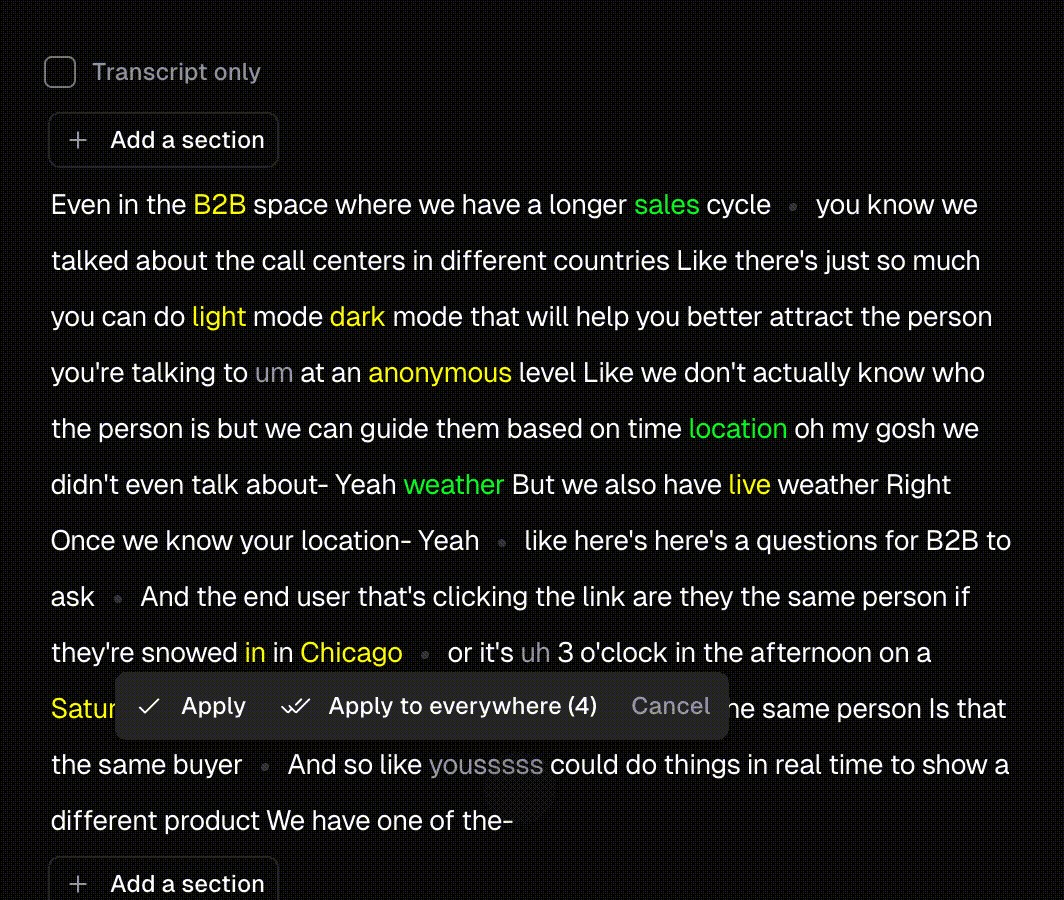
OpusClip's transcript editor with keywords highlighted in yellow and green, greyed filler words and an Apply to everywhere prompt

OpusClip's transcript editor, one place where clips can be edited in the browser after they are found. Source: OpusClip website

OpusClip runs in the browser. Its Chromebook video editor page calls it a browser-based video editor with no software installation, and its video repurposing tool page says to drop a video link or upload a file, after which the AI turns one long video into short clips that can be edited in the browser. Its AI video editor page lists AI clipping, animated captions, filler-word removal, B-roll and auto-resizing for TikTok, YouTube Shorts and Instagram Reels. The same page describes AI Producer, an AI video editor agent for raw talking-head footage: real footage in, a finished video out, with changes directed in plain language.

The help center says that once the clips are found, the in-app video editor covers minor tweaks, with both text-based and timeline-based editing. Its result page lists scheduling to social platforms, downloading the HD version of a clip, and XML files for further editing in DaVinci Resolve or Premiere Pro. A project can also be shared by link with someone outside the team workspace once its privacy setting is changed from Default to Public.

Pricing: OpusClip's pricing page lists Free at $0 (clips carry a watermark), Starter at $15 a month (monthly billing only) and Pro at $29 a month, or $14.50 a month billed annually. Business is custom.

Considerations: OpusClip is a clipping tool first. The help center describes the editor as the place for minor tweaks to clips the AI has found, so a project that starts from templates and several separate recordings sits closer to the editors below. The help center also recommends Google Chrome for the editor.

  • Choose it if a long recording, such as a podcast, webinar or talking-head video, should become short captioned clips in a browser, with text-based edits and a download or schedule step after.
  • Skip it if the job is a template-led promo or a video assembled from many separate clips, where Canva, FlexClip or Clipchamp start from templates.

2. Flixier: Best for an AI editor that builds a first cut and renders in the cloud

Flixier is a browser editor that renders in the cloud. Its home page says the whole job happens in a browser tab with no installs, and that rendering runs on Flixier's machines instead of the user's laptop. Files come in from Google Drive, Dropbox, OneDrive, Zoom or any link, and a finished video can be sent to YouTube, TikTok or Drive. The page also lists editing by transcript, a screen and webcam recorder, a brand kit and real-time collaboration.

The AI is called Eva. The page says Eva builds a rough cut from what is actually said, removes filler words and dead air, and applies captions, titles and the brand kit. It also says Eva can find a described moment, with a two-hour webinar turned into five short clips as the example, and that everything Eva does lands on the timeline, where it can be changed. The page says editing with Eva is on Creator plans and up.

Pricing: Per Flixier's pricing page, Free is $0 with 500 AI credits, 10 minutes of video export a month, 720p, 2 GB of storage and a Flixier watermark. Starter is $19 a seat a month, or $9 a seat a month billed yearly ($108), with 60 minutes of export a seat, 1080p and no watermark. Creator is $39 a seat a month, or $18 a month billed yearly, with unlimited exports, 4K, Edit with Eva, edit by transcript, a brand kit and unlimited collaborators.

Considerations: Eva's editing needs the Creator plan, so the cheaper tiers get the browser editor without it. The pricing page says AI credits are used for AI generation and transcription and that costs vary by model and clip length, and a footnote says very large or consecutive exports may wait in a short processing queue at peak times.

  • Choose it if a long recording should become a first cut or a set of short clips without a local render, and Creator pricing fits.
  • Skip it if the free plan has to carry real work: its cap is 10 minutes of export a month, with a watermark.

3. Kapwing: Best for prompt-led clips and shared editing with comments

Kapwing is a browser-based editor that its editor page says works on Mac, Windows, Chromebook and mobile. The page says to upload a video, paste a URL or record in the editor, then edit on a drag-and-drop timeline with AI tools for subtitles, audio cleanup and background removal. Its Repurpose Studio page says AI analysis finds the best sections of a long video to turn into clips, that a few prompts can steer the topics and the clip length, and that clips can then be edited by cutting sections from the transcript. Its tool menu also lists Smart Cut, which removes silences.

Sharing is part of the editor. The page says to send a project link so teammates can join, with time-stamped comments, and to export by download, a unique Kapwing link or straight to socials.

Pricing: Kapwing's pricing page lists Free at $0 with 10 credits, a watermark, exports up to 4 minutes long at 720p and 5 GB of storage. Pro is $24 a month, or $16 a month billed annually, with no watermark, 4K, exports up to 2 hours, a Brand Kit and 1,000 credits a month.

Considerations: The Free card says unlimited exports with a watermark, while the plan comparison on the same page lists a 30-minute monthly export limit for Free, so check which applies. Auto-subtitling, dubbing and text to speech draw on credits with minute caps for each plan.

  • Choose it if a team wants clips from a prompt and then a shared timeline with comments in one browser tab.
  • Skip it if the free plan must export long videos, since Free exports stop at 4 minutes per the pricing page.

4. FlexClip: Best for a template-led editor with an AI long-video clipper

FlexClip's AI tools list with AI Text to Video, AI Image Generator, AI Video Script, AI Translator and AI Text to Speech

FlexClip's list of AI tools. Source: FlexClip website

FlexClip is an online video editor built around templates: its home page lists 6,000-plus of them, and its editor page says it works well in Chrome, Safari and Firefox. The AI tools list covers a video generator that works from a prompt, article or URL, text to speech, a script writer, a background remover, a translator and AI Auto Subtitle. A separate AI Long to Shorts page says the AI clipper extracts highlights and key points from a long video, detects the speaker and reframes, adds animated subtitles and can write titles and descriptions. That page says to paste a YouTube link and that a built-in editor lets each clip be trimmed and edited.

The editor page says to download a video in various ratios or share it online, and that 4K output is only available to Business plan subscribers.

Pricing: FlexClip's pricing page lists Free at $0 with 720p downloads, a free trial of AI features, 1 stock video per project, a maximum of 12 projects and video length up to 10 minutes. Plus is $11.99 a month billed annually ($143.88), with 1080p, 3,600 bonus AI credits a year, unlimited video length, a Brand Kit and no FlexClip watermark. Business is $19.99 a month billed annually ($239.88), with 4K.

Considerations: The pricing FAQ says a FlexClip watermark is added when a project uses features or resources beyond the current plan, for example more stock videos than the plan allows, so a free export is not always clean. The AI features are a free trial on Free, and AI credits are a yearly bonus on paid plans.

  • Choose it if a promo or social video should start from a template, with an AI clipper available for long recordings.
  • Skip it if 4K is needed below the Business plan, or free exports must run past 10 minutes.

5. Canva: Best for a free design suite with video editing and AI helpers
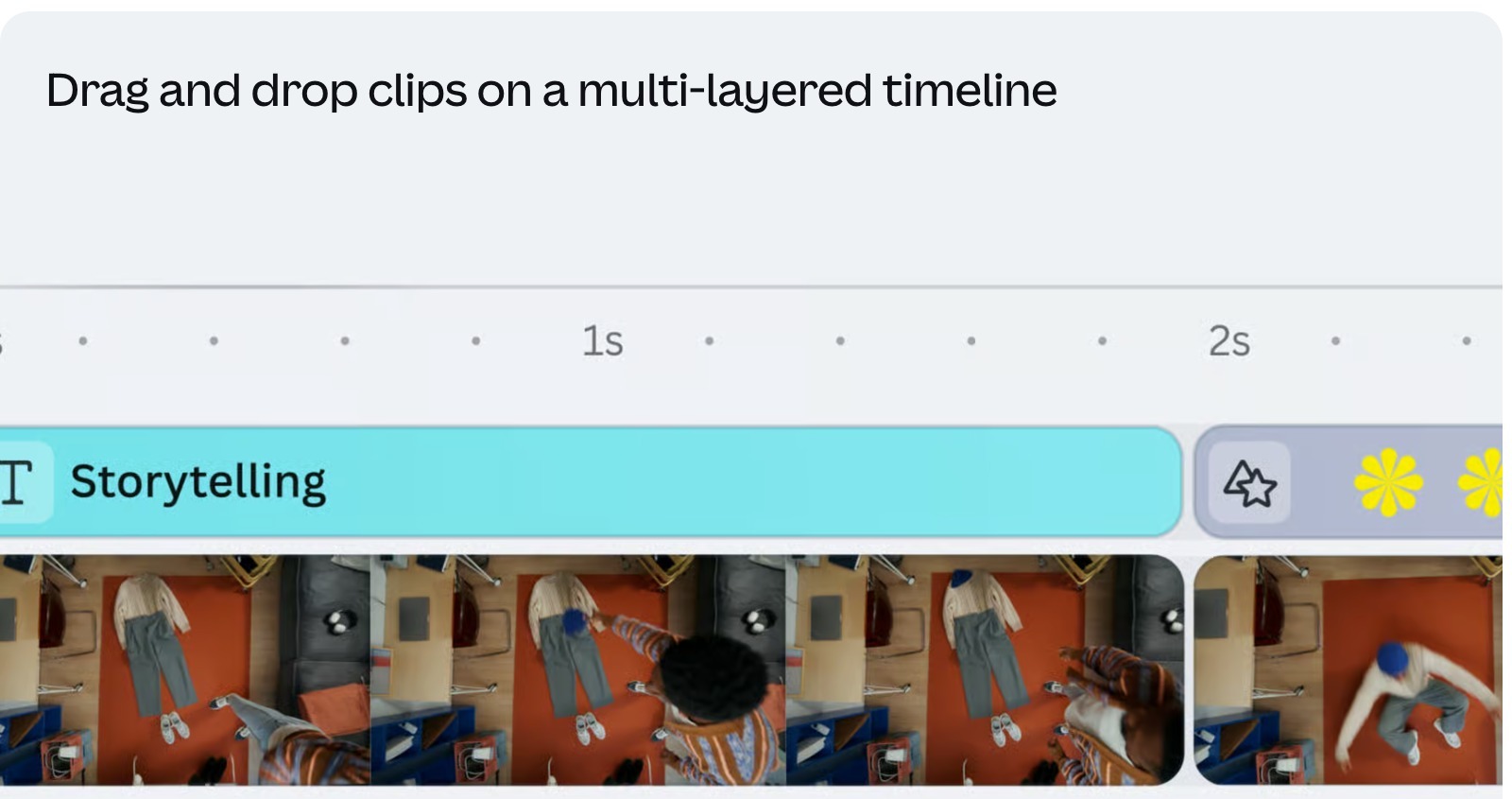
Canva's video editor timeline with a Storytelling text layer above a filmstrip of clips on a multi-layered drag-and-drop timeline

Canva's video editor timeline. Source: Canva website

Canva's video editor is one tool inside a wider design suite. The video editor page calls it a free online video editor with a multi-layer drag-and-drop timeline, trending hook templates and one-click captions, and it lists AI tools: Highlights to surface the best bits of footage, Magic Video, which takes dropped-in clips and a quick prompt, and a background remover. The page's Free and Pro comparison lists manual clipping on the timeline for Free, and AI-powered clipping (Highlights) with Auto-trim under Pro.

The FAQ on the same page says videos export as MP4 or GIF and can be shared from the Share menu to Facebook, Instagram, X, TikTok, Pinterest, LinkedIn and Tumblr. It also says a free account can export a video without a watermark as long as only free elements are used, while Pro elements added on a free account bring a watermark.

Pricing: Canva's pricing page lists Free at US$0 a year and Pro at US$144 a year for one person.

Considerations: Video is one tool among many in Canva, and per the page's own comparison the AI clipping is a Pro feature, so a free account clips by hand. The Free export is clean only while every element in the project is a free one.

  • Choose it if social videos sit beside designs and brand assets, and a free editor with templates is enough.
  • Skip it if AI clipping of a long recording has to be part of a free plan.

6. Clipchamp: Best for a free Microsoft editor with no watermark

Clipchamp's editor with the Text to speech panel open, showing language, voice, emotion and pitch options beside a purple waveform preview and a timeline

Clipchamp's editor with its text-to-speech panel open. Source: Clipchamp website

Clipchamp is Microsoft's online video editor. Its home page describes an in-browser editor that needs no download, plus a desktop app that sits in the Start menu on Windows 11, and its AI video editing FAQ says it works in Microsoft Edge and Google Chrome. The AI page lists auto compose, which takes added photos and videos and a chosen video style and generates a video, and an AI voiceover with 400 voices. It also lists silence removal that finds pauses over 3 seconds and offers suggestions to accept, AI subtitles in over 80 languages, and background noise removal.

The pricing page's comparison lists AI video editing tools, watermark-free exports and export up to 1080p as included on the free plan. Premium adds up to 4K, premium stock assets and a brand kit.

Pricing: Clipchamp's pricing page lists a free plan that opens with a personal Microsoft account, and says Premium features are included with Microsoft 365 Personal and Family plans, so see Microsoft for those prices.

Considerations: Sign-in uses a Microsoft account, the browser editor is listed for Edge and Chrome, and 4K and the brand kit sit behind a Microsoft 365 plan. Per the AI page, silence removal shows suggestions that the user previews and accepts.

  • Choose it if a free editor with watermark-free 1080p exports and AI subtitles, silence removal and voiceover is enough.
  • Skip it if 4K or a brand kit is needed without a Microsoft 365 plan, or the team does not use Microsoft accounts.

7. VEED: Best for text-based editing and one-click automatic edits
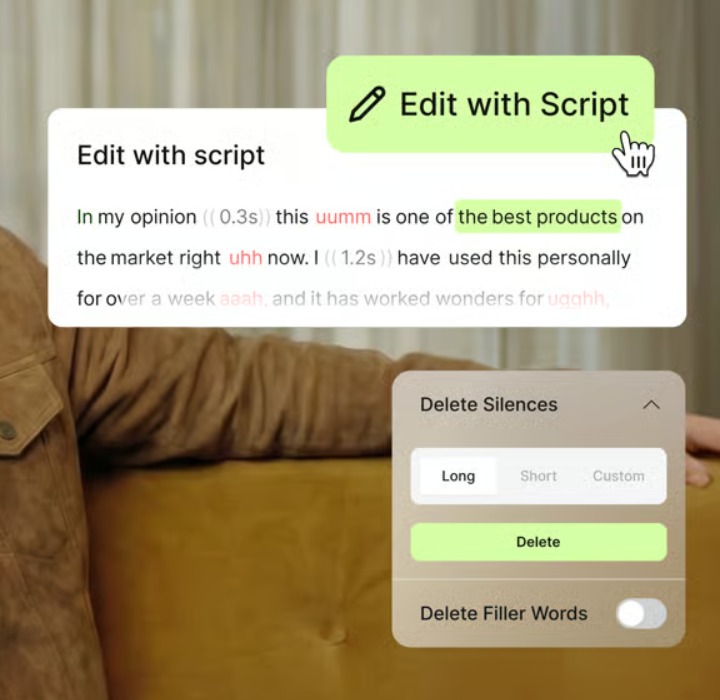
VEED's Edit with script card showing a transcript with filler words marked, beside a Delete Silences and Delete Filler Words panel

VEED's text-based editing card, with filler-word and silence deletion. Source: VEED website

VEED's video editor page says to drag in a file or paste a link (MP4, MOV, AVI and other major formats), edit on a timeline or by editing the transcript, and use automatic edits to add subtitles, clean up audio and insert B-roll. The page also lists filler-word and silence removal, background noise removal, background removal, subtitles with translation into over 125 languages and time-stamped feedback from a team, and says the editor works in Chrome, Safari, Edge and Firefox. Finished videos can be downloaded, shared by link or embedded on a website.

Pricing: VEED's pricing page lists Creator at $12 per user a month billed yearly (6,000 credits, no watermark, unlimited auto subtitles), Pro at $22 and Studio at $39 on the same billing. On the editor page, the free plan exports at 720p with a watermark and gives one-time trials of its automatic edits, AI B-roll and audio cleanup.

Considerations: VEED's editor page says plans start at $9 a month billed yearly and $19 billed monthly, while its pricing page lists Creator at $12 billed yearly, so check the price at sign-up. The pricing FAQ says AI credits do not carry over and that paid subtitles are subject to a fair use limit of 50 hours a month. VEED's home page leads with AI video creation.

  • Choose it if spoken video should be cleaned up and subtitled in the browser by editing its text.
  • Skip it if the AI features must be unlimited on a free plan, since the editor page lists one-time trials.

8. Vimeo: Best for a free in-browser editor from a hosting platform

Vimeo's transcript editor showing a searchable transcript with filler words such as um and uh and pause lengths marked between sentences

Vimeo's transcript view, with filler words and pauses marked in the text. Source: Vimeo website

Vimeo is known for video hosting, and its editor page describes a free online video editor that runs in the browser. The page says to upload MP4, MOV, AVI or WMV files or start from a template, import from Dropbox, Google Drive and Box, then trim, crop and add text, music and effects. Its AI section says a text-based editor removes filler words, silences and unwanted sections by editing transcript text, that audio is cleaned up automatically and that highlight reels can be created automatically. Per the page, videos made in the editor can be downloaded in up to 1080p on any plan, and videos up to two hours long can be edited.

Pricing: Vimeo's pricing page lists Creator at $9 a month billed annually, with AI-powered video tools and text-based video editing, and points to a free plan. The editor page says paid plans remove the default Vimeo watermark and that AI-powered features are available on certain paid plans.

Considerations: The editor page and the pricing page list different plans. The editor page names Starter at $12 a month, Standard at $25 and Advanced at $75, billed annually, and puts text-based editing on Standard; the pricing page names Creator at $9, Core at $24.50 and Professional at $71 and notes that new plans are rolling out. Check the plan before relying on an AI feature.

  • Choose it if a free browser editor is wanted from a platform already used for hosting and review.
  • Skip it if the AI features must be on a free plan, or the plan names need to settle before buying.

How we compared these tools

This guide is organised around AI video editing that runs online. OpusClip is built for the clip job inside it, turning a long recording into short captioned clips with an editor for tweaks, so it comes first. Items 2 to 8 follow one yardstick: what each vendor's own pages say the AI does with uploaded footage, from cutting or finding clips, to assembling a draft from clips and a prompt, to cleaning up an edit the user drives.

  • 2. Flixier: Eva builds a rough cut and finds described moments.
  • 3. Kapwing: AI analysis finds clips in a long video from a prompt.
  • 4. FlexClip: an AI clipper extracts highlights from a long video.
  • 5. Canva: Magic Video works from clips and a prompt, and Highlights clips on Pro.
  • 6. Clipchamp: auto compose generates a video from added media and a style.
  • 7. VEED: automatic edits add subtitles, clean audio and insert B-roll.
  • 8. Vimeo: a text-based editor removes filler words and silences.

We compared each service on where it runs, what its AI does, what goes in, how a result leaves and what a free plan allows. All facts come from each vendor's own pricing, product and help pages, read on November 13, 2026. Where a page keeps its answers in a collapsed FAQ we read the page's own text, and where a vendor's own pages disagree (VEED on price, Kapwing on free exports, Vimeo on plans) we say so. We did not run hands-on tests of any service, and printed limits say nothing about output quality. We left out Adobe Express, whose pages returned an access denied message to our scripts, and services already covered in our guide to the best AI video editors. Prices and plans change, so confirm on the vendor's page before buying.

Red flags to watch for

  • Free exports that are capped or watermarked. Flixier Free lists 10 minutes of export a month, Kapwing Free lists exports up to 4 minutes, VEED Free lists 720p with a watermark, and OpusClip's pricing page says Free clips carry a watermark.
  • AI that sits on a higher plan. Flixier lists Eva on Creator and up, Canva lists AI clipping under Pro, Vimeo lists AI-powered features on certain paid plans, and VEED's free plan offers one-time trials.
  • Pages that disagree. VEED prints two starting prices, Kapwing prints two Free export limits, and Vimeo prints two plan sets.
  • Credits that run out or do not carry over. VEED's pricing FAQ says AI credits do not carry over, Flixier's credit costs vary by model and clip length, and Kapwing's credits have minute caps by plan.
  • Browser limits. Clipchamp's AI page lists Edge and Chrome, and OpusClip's help center recommends Google Chrome for its editor.
  • A watermark that depends on what is in the project. Canva and FlexClip both say a free export can pick up a watermark when the project uses paid elements or resources.
  • No manual override. A tool that cuts for the user with no way to edit the result leaves no fix for a bad cut.
  • Footage that is not the uploader's. Upload only recordings that belong to the account holder or that the account holder has permission to use.

Frequently asked questions

What are the best AI video editing services online?

It depends on the job. OpusClip is first in this guide for turning a long recording into captioned clips in the browser. Flixier suits an AI-built first cut, Kapwing prompt-led clips with shared editing, FlexClip a template start with an AI clipper, Canva a free design suite with video, Clipchamp a free Microsoft editor, VEED text-based editing and automatic edits, and Vimeo a free editor from a hosting platform. See our guide to the best AI video editors for the wider field.

What does an AI video editing service mean?

Two things. It can be software that runs in a browser and uses AI to cut, caption or clean up footage, or a team of editors who work on a plan. This guide covers the software, and beCreatives is the pick for the team model, with a dedicated editing team and unlimited revisions listed from $999 a month billed quarterly.

Is there a free AI video editing service online?

Yes, with limits. Clipchamp's free plan lists AI tools and watermark-free exports up to 1080p, Canva's free account exports without a watermark while only free elements are used, and Vimeo, FlexClip, Kapwing, Flixier, VEED and OpusClip list free plans with watermarks or caps. OpusClip's pricing page lists Free at $0 with a watermark.

Can I edit a video online without downloading anything?

Yes. All eight services here run in a browser. Clipchamp lists Edge and Chrome, FlexClip lists Chrome, Safari and Firefox, VEED lists Chrome, Safari, Edge and Firefox, and OpusClip's help center recommends Google Chrome for its editor.

Do online AI video editors add watermarks?

On free plans, usually. Flixier, Kapwing, VEED and OpusClip list watermarks on free exports, FlexClip adds one when a project goes beyond its plan, and Vimeo's editor page says paid plans remove its default watermark. Clipchamp lists watermark-free exports on its free plan.

Which online editor is best for turning a long video into short clips?

OpusClip leads this guide for that job, since its pages describe a link or upload turning into short captioned clips that can be edited in the browser. Kapwing's Repurpose Studio, FlexClip's AI Long to Shorts and Flixier's Eva also describe finding clips in a long video.

Is OpusClip an online video editor?

It runs in the browser, and its help center describes an in-app editor with text-based and timeline-based editing for minor tweaks to the clips the AI finds. It is a clipping tool first. See the AI video editor page for what OpusClip lists today.

Should I use a service where people do the editing instead?

Use people when the goal is to hand over a recording and get finished videos back, and software when someone on the team will review the result. beCreatives is the pick for a dedicated editing team, and our guide to video repurposing companies and services compares more of them.

On this page

Use our Free Forever Plan

Find the moment. Skip the scrubbing.

From script to polished video — in one click.

Create and post one short video every day for free, and grow faster.

OpusSearch uses AI to surface the exact clip you need from hours of footage — in seconds, not afternoons.

Agent Opus runs the entire video pipeline for you: research, scriptwriting, storyboarding, motion, voice, and edit. Upload the idea, post the result.

8 Best AI Video Editing Services Online in 2026

OpusClip is the pick for turning a long recording into short, captioned clips in the browser, with an editor for minor tweaks. "AI video editing service" can mean software that runs in a browser tab or a team of people who edit the footage; this guide covers the first and names the pick for the second. Items 2 to 8 are ordered by what each vendor's own pages say the AI does with uploaded footage. Facts come from each vendor's own pages, read on November 13, 2026.

Key takeaways

  • Best for turning a long recording into captioned clips in the browser: OpusClip. Its pages describe a browser-based editor that takes a video link or an upload and returns short clips.
  • Best for an AI editor that builds a first cut: Flixier. Its home page says Eva cuts a rough draft from what is said, on Creator plans and up.
  • Best for prompt-led clips and shared editing: Kapwing. Its Repurpose Studio finds clips from a video or pasted link, and projects share by link with time-stamped comments.
  • Best for a template-led editor with an AI clipper: FlexClip. Its AI Long to Shorts page extracts highlights from a long video.
  • Best for a free design suite with video editing: Canva. Its editor page lists Magic Video, and AI clipping is listed under Pro.
  • Best for a free Microsoft editor with no watermark: Clipchamp. Its pricing page lists AI tools and watermark-free 1080p exports as free.
  • Best for text-based editing and one-click automatic edits: VEED. Its editor page lists subtitles, audio cleanup and B-roll as automatic edits.
  • Best for a free in-browser editor from a hosting platform: Vimeo. Its editor page lists a text-based editor for filler words and silences.
  • If "service" means people editing the footage: beCreatives. Its pricing page lists a dedicated editing team with unlimited revisions from $999 a month billed quarterly.

What counts as an AI video editing service online

The phrase covers two different purchases. In the first, the service is software that runs in a browser tab: footage goes up, an editor opens, and the AI handles some of the cutting, captioning or cleanup. In the second, the service is a team of people who edit the footage on a plan, usually with software behind them. This guide covers the first and points to the second: beCreatives describes a dedicated editing team with unlimited revisions and lists its Scale plan at $999 a month billed quarterly. For more of the managed model, see our guide to video repurposing companies and services, and see our guide to clipping agencies for networks that pay clippers per view.

Within the first group, the tools differ in what the AI takes off the editor's hands. Some cut or find clips in a long recording (OpusClip, Flixier, Kapwing, FlexClip), some assemble a draft from clips and a prompt or style (Canva, Clipchamp), and some clean up an edit that the user drives (VEED, Vimeo). Items 2 to 8 follow that order.

How to choose

  • A long recording that should become short captioned clips: OpusClip, or Kapwing, FlexClip and Flixier when the same editor should also build longer videos.
  • A first cut made by the AI: Flixier, whose Eva is listed on Creator plans and up.
  • A template start for a promo or social video: FlexClip or Canva.
  • A free editor with no watermark: Clipchamp lists watermark-free exports up to 1080p on its free plan, and Canva's video editor FAQ says free exports carry no watermark unless Pro elements are used.
  • Cleaning up spoken video (fillers, silences, subtitles): VEED, Vimeo or Clipchamp.
  • Feedback from a team in the browser: Kapwing lists time-stamped comments and share links, Flixier lists real-time collaboration, and VEED lists time-stamped feedback.
  • People to do the editing: beCreatives, or the guides linked above.

At a glance

  • OpusClip: best for turning a long recording into captioned clips in the browser; Starter $15 a month (monthly billing only), Pro $29 a month or $14.50 a month billed annually; Free $0 with a watermark.
  • Flixier: best for an AI editor that builds a first cut; Starter $19 a seat a month or $9 billed yearly, Creator $39 or $18 billed yearly; Free $0 (10 minutes of export a month, 720p, watermark).
  • Kapwing: best for prompt-led clips and shared editing; Pro $24 a month or $16 a month billed annually; Free $0 (4-minute exports, 720p, watermark).
  • FlexClip: best for a template-led editor with an AI clipper; Plus $11.99 a month billed annually ($143.88); Free $0 (720p, 10-minute exports).
  • Canva: best for a free design suite with video editing; Pro US$144 a year for one person; Free $0.
  • Clipchamp: best for a free Microsoft editor with no watermark; Premium features come with Microsoft 365 Personal and Family (see Microsoft for the price); free plan with 1080p and no watermark.
  • VEED: best for text-based editing and automatic edits; Creator $12 per user a month billed yearly; free plan with 720p and a watermark.
  • Vimeo: best for a free in-browser editor from a hosting platform; Creator $9 a month billed annually per its pricing page; a free plan exists.

Where each service runs, what its AI does and what a free plan gives

The At a glance list covers best-for and price; this table compares the online service itself, meaning where it runs, what its AI does, what goes in, how a result leaves and what a free plan allows, as listed on each vendor's own pages on November 13, 2026.

ServiceRuns whereWhat the AI doesWhat goes inExport and sharingFree plan as printed
OpusClipBrowser web app; an iOS app is listedFinds clips, adds captions, resizes for social, removes filler wordsA video link or an uploaded fileHD download, XML for Premiere Pro or DaVinci Resolve, or scheduling to social$0; clips carry a watermark
FlixierIn the browser; renders in the cloudEva (Creator and up) builds a rough cut, cuts fillers, adds captions, finds clipsFiles from Drive, Dropbox, OneDrive, Zoom or any linkDirect to YouTube, TikTok or Drive; 4K on Creator and up500 AI credits, 10 min of export a month, 720p, watermark
KapwingIn the browser on Mac, Windows, Chromebook and mobileFinds clips from a prompt, auto-subtitles, cuts silences, cleans audioUpload, paste a URL or record in the editorDownload, a Kapwing share link or socials; 4K on ProWatermark, 4-minute exports, 720p, 5 GB, 10 credits
FlexClipIn the browser (Chrome, Safari, Firefox)Long-to-shorts clipper, auto subtitles, text-to-videoUploaded files or stock media; a pasted YouTube link for clipsDownload in various ratios or share online; 4K on Business only720p, 10-minute exports, 12 projects, 1 stock video per project
CanvaOnline video editorMagic Video works from your clips and a prompt; Highlights and Auto-trim are ProClips uploaded from a device; a quick prompt for Magic VideoShares to social, messaging and cloud appsManual clipping on the timeline; AI clipping and Auto-trim are listed under Pro
VEEDIn Chrome, Safari, Edge and FirefoxAutomatic edits add subtitles, clean audio and insert B-roll; text-based editingA file or a pasted link (MP4, MOV, AVI and more)Download, share a link or embed; paid plans drop the watermark720p exports with a watermark; one-time trials of the AI tools
VimeoIn the browserText-based editing for fillers and silences, audio cleanup, auto highlight reelsUpload MP4, MOV, AVI or WMV, or import from Dropbox, Google Drive or BoxDownload up to 1080p on any plan; share from Vimeo1 seat, 1 GB storage; paid plans remove the default Vimeo watermark
ClipchampIn the browser; a Windows app tooAuto compose, silence removal, AI subtitles, AI voiceover, noise removalPhotos and videos you add, or recordings from camera, screen and micUp to 1080p free, up to 4K with PremiumNo watermark, up to 1080p, AI tools included

1. OpusClip: Best for turning a long recording into captioned clips in the browser

OpusClip's transcript editor with keywords highlighted in yellow and green, greyed filler words and an Apply to everywhere prompt

OpusClip's transcript editor, one place where clips can be edited in the browser after they are found. Source: OpusClip website

OpusClip runs in the browser. Its Chromebook video editor page calls it a browser-based video editor with no software installation, and its video repurposing tool page says to drop a video link or upload a file, after which the AI turns one long video into short clips that can be edited in the browser. Its AI video editor page lists AI clipping, animated captions, filler-word removal, B-roll and auto-resizing for TikTok, YouTube Shorts and Instagram Reels. The same page describes AI Producer, an AI video editor agent for raw talking-head footage: real footage in, a finished video out, with changes directed in plain language.

The help center says that once the clips are found, the in-app video editor covers minor tweaks, with both text-based and timeline-based editing. Its result page lists scheduling to social platforms, downloading the HD version of a clip, and XML files for further editing in DaVinci Resolve or Premiere Pro. A project can also be shared by link with someone outside the team workspace once its privacy setting is changed from Default to Public.

Pricing: OpusClip's pricing page lists Free at $0 (clips carry a watermark), Starter at $15 a month (monthly billing only) and Pro at $29 a month, or $14.50 a month billed annually. Business is custom.

Considerations: OpusClip is a clipping tool first. The help center describes the editor as the place for minor tweaks to clips the AI has found, so a project that starts from templates and several separate recordings sits closer to the editors below. The help center also recommends Google Chrome for the editor.

  • Choose it if a long recording, such as a podcast, webinar or talking-head video, should become short captioned clips in a browser, with text-based edits and a download or schedule step after.
  • Skip it if the job is a template-led promo or a video assembled from many separate clips, where Canva, FlexClip or Clipchamp start from templates.

2. Flixier: Best for an AI editor that builds a first cut and renders in the cloud

Flixier is a browser editor that renders in the cloud. Its home page says the whole job happens in a browser tab with no installs, and that rendering runs on Flixier's machines instead of the user's laptop. Files come in from Google Drive, Dropbox, OneDrive, Zoom or any link, and a finished video can be sent to YouTube, TikTok or Drive. The page also lists editing by transcript, a screen and webcam recorder, a brand kit and real-time collaboration.

The AI is called Eva. The page says Eva builds a rough cut from what is actually said, removes filler words and dead air, and applies captions, titles and the brand kit. It also says Eva can find a described moment, with a two-hour webinar turned into five short clips as the example, and that everything Eva does lands on the timeline, where it can be changed. The page says editing with Eva is on Creator plans and up.

Pricing: Per Flixier's pricing page, Free is $0 with 500 AI credits, 10 minutes of video export a month, 720p, 2 GB of storage and a Flixier watermark. Starter is $19 a seat a month, or $9 a seat a month billed yearly ($108), with 60 minutes of export a seat, 1080p and no watermark. Creator is $39 a seat a month, or $18 a month billed yearly, with unlimited exports, 4K, Edit with Eva, edit by transcript, a brand kit and unlimited collaborators.

Considerations: Eva's editing needs the Creator plan, so the cheaper tiers get the browser editor without it. The pricing page says AI credits are used for AI generation and transcription and that costs vary by model and clip length, and a footnote says very large or consecutive exports may wait in a short processing queue at peak times.

  • Choose it if a long recording should become a first cut or a set of short clips without a local render, and Creator pricing fits.
  • Skip it if the free plan has to carry real work: its cap is 10 minutes of export a month, with a watermark.

3. Kapwing: Best for prompt-led clips and shared editing with comments

Kapwing is a browser-based editor that its editor page says works on Mac, Windows, Chromebook and mobile. The page says to upload a video, paste a URL or record in the editor, then edit on a drag-and-drop timeline with AI tools for subtitles, audio cleanup and background removal. Its Repurpose Studio page says AI analysis finds the best sections of a long video to turn into clips, that a few prompts can steer the topics and the clip length, and that clips can then be edited by cutting sections from the transcript. Its tool menu also lists Smart Cut, which removes silences.

Sharing is part of the editor. The page says to send a project link so teammates can join, with time-stamped comments, and to export by download, a unique Kapwing link or straight to socials.

Pricing: Kapwing's pricing page lists Free at $0 with 10 credits, a watermark, exports up to 4 minutes long at 720p and 5 GB of storage. Pro is $24 a month, or $16 a month billed annually, with no watermark, 4K, exports up to 2 hours, a Brand Kit and 1,000 credits a month.

Considerations: The Free card says unlimited exports with a watermark, while the plan comparison on the same page lists a 30-minute monthly export limit for Free, so check which applies. Auto-subtitling, dubbing and text to speech draw on credits with minute caps for each plan.

  • Choose it if a team wants clips from a prompt and then a shared timeline with comments in one browser tab.
  • Skip it if the free plan must export long videos, since Free exports stop at 4 minutes per the pricing page.

4. FlexClip: Best for a template-led editor with an AI long-video clipper

FlexClip's AI tools list with AI Text to Video, AI Image Generator, AI Video Script, AI Translator and AI Text to Speech

FlexClip's list of AI tools. Source: FlexClip website

FlexClip is an online video editor built around templates: its home page lists 6,000-plus of them, and its editor page says it works well in Chrome, Safari and Firefox. The AI tools list covers a video generator that works from a prompt, article or URL, text to speech, a script writer, a background remover, a translator and AI Auto Subtitle. A separate AI Long to Shorts page says the AI clipper extracts highlights and key points from a long video, detects the speaker and reframes, adds animated subtitles and can write titles and descriptions. That page says to paste a YouTube link and that a built-in editor lets each clip be trimmed and edited.

The editor page says to download a video in various ratios or share it online, and that 4K output is only available to Business plan subscribers.

Pricing: FlexClip's pricing page lists Free at $0 with 720p downloads, a free trial of AI features, 1 stock video per project, a maximum of 12 projects and video length up to 10 minutes. Plus is $11.99 a month billed annually ($143.88), with 1080p, 3,600 bonus AI credits a year, unlimited video length, a Brand Kit and no FlexClip watermark. Business is $19.99 a month billed annually ($239.88), with 4K.

Considerations: The pricing FAQ says a FlexClip watermark is added when a project uses features or resources beyond the current plan, for example more stock videos than the plan allows, so a free export is not always clean. The AI features are a free trial on Free, and AI credits are a yearly bonus on paid plans.

  • Choose it if a promo or social video should start from a template, with an AI clipper available for long recordings.
  • Skip it if 4K is needed below the Business plan, or free exports must run past 10 minutes.

5. Canva: Best for a free design suite with video editing and AI helpers

Canva's video editor timeline with a Storytelling text layer above a filmstrip of clips on a multi-layered drag-and-drop timeline

Canva's video editor timeline. Source: Canva website

Canva's video editor is one tool inside a wider design suite. The video editor page calls it a free online video editor with a multi-layer drag-and-drop timeline, trending hook templates and one-click captions, and it lists AI tools: Highlights to surface the best bits of footage, Magic Video, which takes dropped-in clips and a quick prompt, and a background remover. The page's Free and Pro comparison lists manual clipping on the timeline for Free, and AI-powered clipping (Highlights) with Auto-trim under Pro.

The FAQ on the same page says videos export as MP4 or GIF and can be shared from the Share menu to Facebook, Instagram, X, TikTok, Pinterest, LinkedIn and Tumblr. It also says a free account can export a video without a watermark as long as only free elements are used, while Pro elements added on a free account bring a watermark.

Pricing: Canva's pricing page lists Free at US$0 a year and Pro at US$144 a year for one person.

Considerations: Video is one tool among many in Canva, and per the page's own comparison the AI clipping is a Pro feature, so a free account clips by hand. The Free export is clean only while every element in the project is a free one.

  • Choose it if social videos sit beside designs and brand assets, and a free editor with templates is enough.
  • Skip it if AI clipping of a long recording has to be part of a free plan.

6. Clipchamp: Best for a free Microsoft editor with no watermark

Clipchamp's editor with the Text to speech panel open, showing language, voice, emotion and pitch options beside a purple waveform preview and a timeline

Clipchamp's editor with its text-to-speech panel open. Source: Clipchamp website

Clipchamp is Microsoft's online video editor. Its home page describes an in-browser editor that needs no download, plus a desktop app that sits in the Start menu on Windows 11, and its AI video editing FAQ says it works in Microsoft Edge and Google Chrome. The AI page lists auto compose, which takes added photos and videos and a chosen video style and generates a video, and an AI voiceover with 400 voices. It also lists silence removal that finds pauses over 3 seconds and offers suggestions to accept, AI subtitles in over 80 languages, and background noise removal.

The pricing page's comparison lists AI video editing tools, watermark-free exports and export up to 1080p as included on the free plan. Premium adds up to 4K, premium stock assets and a brand kit.

Pricing: Clipchamp's pricing page lists a free plan that opens with a personal Microsoft account, and says Premium features are included with Microsoft 365 Personal and Family plans, so see Microsoft for those prices.

Considerations: Sign-in uses a Microsoft account, the browser editor is listed for Edge and Chrome, and 4K and the brand kit sit behind a Microsoft 365 plan. Per the AI page, silence removal shows suggestions that the user previews and accepts.

  • Choose it if a free editor with watermark-free 1080p exports and AI subtitles, silence removal and voiceover is enough.
  • Skip it if 4K or a brand kit is needed without a Microsoft 365 plan, or the team does not use Microsoft accounts.

7. VEED: Best for text-based editing and one-click automatic edits

VEED's Edit with script card showing a transcript with filler words marked, beside a Delete Silences and Delete Filler Words panel

VEED's text-based editing card, with filler-word and silence deletion. Source: VEED website

VEED's video editor page says to drag in a file or paste a link (MP4, MOV, AVI and other major formats), edit on a timeline or by editing the transcript, and use automatic edits to add subtitles, clean up audio and insert B-roll. The page also lists filler-word and silence removal, background noise removal, background removal, subtitles with translation into over 125 languages and time-stamped feedback from a team, and says the editor works in Chrome, Safari, Edge and Firefox. Finished videos can be downloaded, shared by link or embedded on a website.

Pricing: VEED's pricing page lists Creator at $12 per user a month billed yearly (6,000 credits, no watermark, unlimited auto subtitles), Pro at $22 and Studio at $39 on the same billing. On the editor page, the free plan exports at 720p with a watermark and gives one-time trials of its automatic edits, AI B-roll and audio cleanup.

Considerations: VEED's editor page says plans start at $9 a month billed yearly and $19 billed monthly, while its pricing page lists Creator at $12 billed yearly, so check the price at sign-up. The pricing FAQ says AI credits do not carry over and that paid subtitles are subject to a fair use limit of 50 hours a month. VEED's home page leads with AI video creation.

  • Choose it if spoken video should be cleaned up and subtitled in the browser by editing its text.
  • Skip it if the AI features must be unlimited on a free plan, since the editor page lists one-time trials.

8. Vimeo: Best for a free in-browser editor from a hosting platform

Vimeo's transcript editor showing a searchable transcript with filler words such as um and uh and pause lengths marked between sentences

Vimeo's transcript view, with filler words and pauses marked in the text. Source: Vimeo website

Vimeo is known for video hosting, and its editor page describes a free online video editor that runs in the browser. The page says to upload MP4, MOV, AVI or WMV files or start from a template, import from Dropbox, Google Drive and Box, then trim, crop and add text, music and effects. Its AI section says a text-based editor removes filler words, silences and unwanted sections by editing transcript text, that audio is cleaned up automatically and that highlight reels can be created automatically. Per the page, videos made in the editor can be downloaded in up to 1080p on any plan, and videos up to two hours long can be edited.

Pricing: Vimeo's pricing page lists Creator at $9 a month billed annually, with AI-powered video tools and text-based video editing, and points to a free plan. The editor page says paid plans remove the default Vimeo watermark and that AI-powered features are available on certain paid plans.

Considerations: The editor page and the pricing page list different plans. The editor page names Starter at $12 a month, Standard at $25 and Advanced at $75, billed annually, and puts text-based editing on Standard; the pricing page names Creator at $9, Core at $24.50 and Professional at $71 and notes that new plans are rolling out. Check the plan before relying on an AI feature.

  • Choose it if a free browser editor is wanted from a platform already used for hosting and review.
  • Skip it if the AI features must be on a free plan, or the plan names need to settle before buying.

How we compared these tools

This guide is organised around AI video editing that runs online. OpusClip is built for the clip job inside it, turning a long recording into short captioned clips with an editor for tweaks, so it comes first. Items 2 to 8 follow one yardstick: what each vendor's own pages say the AI does with uploaded footage, from cutting or finding clips, to assembling a draft from clips and a prompt, to cleaning up an edit the user drives.

  • 2. Flixier: Eva builds a rough cut and finds described moments.
  • 3. Kapwing: AI analysis finds clips in a long video from a prompt.
  • 4. FlexClip: an AI clipper extracts highlights from a long video.
  • 5. Canva: Magic Video works from clips and a prompt, and Highlights clips on Pro.
  • 6. Clipchamp: auto compose generates a video from added media and a style.
  • 7. VEED: automatic edits add subtitles, clean audio and insert B-roll.
  • 8. Vimeo: a text-based editor removes filler words and silences.

We compared each service on where it runs, what its AI does, what goes in, how a result leaves and what a free plan allows. All facts come from each vendor's own pricing, product and help pages, read on November 13, 2026. Where a page keeps its answers in a collapsed FAQ we read the page's own text, and where a vendor's own pages disagree (VEED on price, Kapwing on free exports, Vimeo on plans) we say so. We did not run hands-on tests of any service, and printed limits say nothing about output quality. We left out Adobe Express, whose pages returned an access denied message to our scripts, and services already covered in our guide to the best AI video editors. Prices and plans change, so confirm on the vendor's page before buying.

Red flags to watch for

  • Free exports that are capped or watermarked. Flixier Free lists 10 minutes of export a month, Kapwing Free lists exports up to 4 minutes, VEED Free lists 720p with a watermark, and OpusClip's pricing page says Free clips carry a watermark.
  • AI that sits on a higher plan. Flixier lists Eva on Creator and up, Canva lists AI clipping under Pro, Vimeo lists AI-powered features on certain paid plans, and VEED's free plan offers one-time trials.
  • Pages that disagree. VEED prints two starting prices, Kapwing prints two Free export limits, and Vimeo prints two plan sets.
  • Credits that run out or do not carry over. VEED's pricing FAQ says AI credits do not carry over, Flixier's credit costs vary by model and clip length, and Kapwing's credits have minute caps by plan.
  • Browser limits. Clipchamp's AI page lists Edge and Chrome, and OpusClip's help center recommends Google Chrome for its editor.
  • A watermark that depends on what is in the project. Canva and FlexClip both say a free export can pick up a watermark when the project uses paid elements or resources.
  • No manual override. A tool that cuts for the user with no way to edit the result leaves no fix for a bad cut.
  • Footage that is not the uploader's. Upload only recordings that belong to the account holder or that the account holder has permission to use.

Frequently asked questions

What are the best AI video editing services online?

It depends on the job. OpusClip is first in this guide for turning a long recording into captioned clips in the browser. Flixier suits an AI-built first cut, Kapwing prompt-led clips with shared editing, FlexClip a template start with an AI clipper, Canva a free design suite with video, Clipchamp a free Microsoft editor, VEED text-based editing and automatic edits, and Vimeo a free editor from a hosting platform. See our guide to the best AI video editors for the wider field.

What does an AI video editing service mean?

Two things. It can be software that runs in a browser and uses AI to cut, caption or clean up footage, or a team of editors who work on a plan. This guide covers the software, and beCreatives is the pick for the team model, with a dedicated editing team and unlimited revisions listed from $999 a month billed quarterly.

Is there a free AI video editing service online?

Yes, with limits. Clipchamp's free plan lists AI tools and watermark-free exports up to 1080p, Canva's free account exports without a watermark while only free elements are used, and Vimeo, FlexClip, Kapwing, Flixier, VEED and OpusClip list free plans with watermarks or caps. OpusClip's pricing page lists Free at $0 with a watermark.

Can I edit a video online without downloading anything?

Yes. All eight services here run in a browser. Clipchamp lists Edge and Chrome, FlexClip lists Chrome, Safari and Firefox, VEED lists Chrome, Safari, Edge and Firefox, and OpusClip's help center recommends Google Chrome for its editor.

Do online AI video editors add watermarks?

On free plans, usually. Flixier, Kapwing, VEED and OpusClip list watermarks on free exports, FlexClip adds one when a project goes beyond its plan, and Vimeo's editor page says paid plans remove its default watermark. Clipchamp lists watermark-free exports on its free plan.

Which online editor is best for turning a long video into short clips?

OpusClip leads this guide for that job, since its pages describe a link or upload turning into short captioned clips that can be edited in the browser. Kapwing's Repurpose Studio, FlexClip's AI Long to Shorts and Flixier's Eva also describe finding clips in a long video.

Is OpusClip an online video editor?

It runs in the browser, and its help center describes an in-app editor with text-based and timeline-based editing for minor tweaks to the clips the AI finds. It is a clipping tool first. See the AI video editor page for what OpusClip lists today.

Should I use a service where people do the editing instead?

Use people when the goal is to hand over a recording and get finished videos back, and software when someone on the team will review the result. beCreatives is the pick for a dedicated editing team, and our guide to video repurposing companies and services compares more of them.

Creator name

Creator type

Team size

Channels

linkYouTubefacebookXTikTok

Pain point

Time to see positive ROI

About the creator

Don't miss these

How Audacy Drove 1B+ Views by Taking a Tech-Forward Approach to Radio with OpusClip
No items found.

How Audacy Drove 1B+ Views by Taking a Tech-Forward Approach to Radio with OpusClip

How All the Smoke makes hit compilations faster with OpusSearch

How All the Smoke makes hit compilations faster with OpusSearch

Growing a new channel to 1.5M views in 90 days without creating new videos

Growing a new channel to 1.5M views in 90 days without creating new videos

OpusClip 4.0 is here. Become a content powerhouse.

8 Best AI Video Editing Services Online in 2026

Creators editing on a laptop, showing a vertical video on a phone and speaking at a microphone, with Clip it, views, 16:9 and TikTok chips
No items found.
No items found.

Boost your social media growth with OpusClip

Create and post one short video every day for your social media and grow faster.

8 Best AI Video Editing Services Online in 2026

Creators editing on a laptop, showing a vertical video on a phone and speaking at a microphone, with Clip it, views, 16:9 and TikTok chips

OpusClip is the pick for turning a long recording into short, captioned clips in the browser, with an editor for minor tweaks. "AI video editing service" can mean software that runs in a browser tab or a team of people who edit the footage; this guide covers the first and names the pick for the second. Items 2 to 8 are ordered by what each vendor's own pages say the AI does with uploaded footage. Facts come from each vendor's own pages, read on November 13, 2026.

Key takeaways

  • Best for turning a long recording into captioned clips in the browser: OpusClip. Its pages describe a browser-based editor that takes a video link or an upload and returns short clips.
  • Best for an AI editor that builds a first cut: Flixier. Its home page says Eva cuts a rough draft from what is said, on Creator plans and up.
  • Best for prompt-led clips and shared editing: Kapwing. Its Repurpose Studio finds clips from a video or pasted link, and projects share by link with time-stamped comments.
  • Best for a template-led editor with an AI clipper: FlexClip. Its AI Long to Shorts page extracts highlights from a long video.
  • Best for a free design suite with video editing: Canva. Its editor page lists Magic Video, and AI clipping is listed under Pro.
  • Best for a free Microsoft editor with no watermark: Clipchamp. Its pricing page lists AI tools and watermark-free 1080p exports as free.
  • Best for text-based editing and one-click automatic edits: VEED. Its editor page lists subtitles, audio cleanup and B-roll as automatic edits.
  • Best for a free in-browser editor from a hosting platform: Vimeo. Its editor page lists a text-based editor for filler words and silences.
  • If "service" means people editing the footage: beCreatives. Its pricing page lists a dedicated editing team with unlimited revisions from $999 a month billed quarterly.

What counts as an AI video editing service online

The phrase covers two different purchases. In the first, the service is software that runs in a browser tab: footage goes up, an editor opens, and the AI handles some of the cutting, captioning or cleanup. In the second, the service is a team of people who edit the footage on a plan, usually with software behind them. This guide covers the first and points to the second: beCreatives describes a dedicated editing team with unlimited revisions and lists its Scale plan at $999 a month billed quarterly. For more of the managed model, see our guide to video repurposing companies and services, and see our guide to clipping agencies for networks that pay clippers per view.

Within the first group, the tools differ in what the AI takes off the editor's hands. Some cut or find clips in a long recording (OpusClip, Flixier, Kapwing, FlexClip), some assemble a draft from clips and a prompt or style (Canva, Clipchamp), and some clean up an edit that the user drives (VEED, Vimeo). Items 2 to 8 follow that order.

How to choose

  • A long recording that should become short captioned clips: OpusClip, or Kapwing, FlexClip and Flixier when the same editor should also build longer videos.
  • A first cut made by the AI: Flixier, whose Eva is listed on Creator plans and up.
  • A template start for a promo or social video: FlexClip or Canva.
  • A free editor with no watermark: Clipchamp lists watermark-free exports up to 1080p on its free plan, and Canva's video editor FAQ says free exports carry no watermark unless Pro elements are used.
  • Cleaning up spoken video (fillers, silences, subtitles): VEED, Vimeo or Clipchamp.
  • Feedback from a team in the browser: Kapwing lists time-stamped comments and share links, Flixier lists real-time collaboration, and VEED lists time-stamped feedback.
  • People to do the editing: beCreatives, or the guides linked above.

At a glance

  • OpusClip: best for turning a long recording into captioned clips in the browser; Starter $15 a month (monthly billing only), Pro $29 a month or $14.50 a month billed annually; Free $0 with a watermark.
  • Flixier: best for an AI editor that builds a first cut; Starter $19 a seat a month or $9 billed yearly, Creator $39 or $18 billed yearly; Free $0 (10 minutes of export a month, 720p, watermark).
  • Kapwing: best for prompt-led clips and shared editing; Pro $24 a month or $16 a month billed annually; Free $0 (4-minute exports, 720p, watermark).
  • FlexClip: best for a template-led editor with an AI clipper; Plus $11.99 a month billed annually ($143.88); Free $0 (720p, 10-minute exports).
  • Canva: best for a free design suite with video editing; Pro US$144 a year for one person; Free $0.
  • Clipchamp: best for a free Microsoft editor with no watermark; Premium features come with Microsoft 365 Personal and Family (see Microsoft for the price); free plan with 1080p and no watermark.
  • VEED: best for text-based editing and automatic edits; Creator $12 per user a month billed yearly; free plan with 720p and a watermark.
  • Vimeo: best for a free in-browser editor from a hosting platform; Creator $9 a month billed annually per its pricing page; a free plan exists.

Where each service runs, what its AI does and what a free plan gives

The At a glance list covers best-for and price; this table compares the online service itself, meaning where it runs, what its AI does, what goes in, how a result leaves and what a free plan allows, as listed on each vendor's own pages on November 13, 2026.

ServiceRuns whereWhat the AI doesWhat goes inExport and sharingFree plan as printed
OpusClipBrowser web app; an iOS app is listedFinds clips, adds captions, resizes for social, removes filler wordsA video link or an uploaded fileHD download, XML for Premiere Pro or DaVinci Resolve, or scheduling to social$0; clips carry a watermark
FlixierIn the browser; renders in the cloudEva (Creator and up) builds a rough cut, cuts fillers, adds captions, finds clipsFiles from Drive, Dropbox, OneDrive, Zoom or any linkDirect to YouTube, TikTok or Drive; 4K on Creator and up500 AI credits, 10 min of export a month, 720p, watermark
KapwingIn the browser on Mac, Windows, Chromebook and mobileFinds clips from a prompt, auto-subtitles, cuts silences, cleans audioUpload, paste a URL or record in the editorDownload, a Kapwing share link or socials; 4K on ProWatermark, 4-minute exports, 720p, 5 GB, 10 credits
FlexClipIn the browser (Chrome, Safari, Firefox)Long-to-shorts clipper, auto subtitles, text-to-videoUploaded files or stock media; a pasted YouTube link for clipsDownload in various ratios or share online; 4K on Business only720p, 10-minute exports, 12 projects, 1 stock video per project
CanvaOnline video editorMagic Video works from your clips and a prompt; Highlights and Auto-trim are ProClips uploaded from a device; a quick prompt for Magic VideoShares to social, messaging and cloud appsManual clipping on the timeline; AI clipping and Auto-trim are listed under Pro
VEEDIn Chrome, Safari, Edge and FirefoxAutomatic edits add subtitles, clean audio and insert B-roll; text-based editingA file or a pasted link (MP4, MOV, AVI and more)Download, share a link or embed; paid plans drop the watermark720p exports with a watermark; one-time trials of the AI tools
VimeoIn the browserText-based editing for fillers and silences, audio cleanup, auto highlight reelsUpload MP4, MOV, AVI or WMV, or import from Dropbox, Google Drive or BoxDownload up to 1080p on any plan; share from Vimeo1 seat, 1 GB storage; paid plans remove the default Vimeo watermark
ClipchampIn the browser; a Windows app tooAuto compose, silence removal, AI subtitles, AI voiceover, noise removalPhotos and videos you add, or recordings from camera, screen and micUp to 1080p free, up to 4K with PremiumNo watermark, up to 1080p, AI tools included

1. OpusClip: Best for turning a long recording into captioned clips in the browser

OpusClip's transcript editor with keywords highlighted in yellow and green, greyed filler words and an Apply to everywhere prompt

OpusClip's transcript editor, one place where clips can be edited in the browser after they are found. Source: OpusClip website

OpusClip runs in the browser. Its Chromebook video editor page calls it a browser-based video editor with no software installation, and its video repurposing tool page says to drop a video link or upload a file, after which the AI turns one long video into short clips that can be edited in the browser. Its AI video editor page lists AI clipping, animated captions, filler-word removal, B-roll and auto-resizing for TikTok, YouTube Shorts and Instagram Reels. The same page describes AI Producer, an AI video editor agent for raw talking-head footage: real footage in, a finished video out, with changes directed in plain language.

The help center says that once the clips are found, the in-app video editor covers minor tweaks, with both text-based and timeline-based editing. Its result page lists scheduling to social platforms, downloading the HD version of a clip, and XML files for further editing in DaVinci Resolve or Premiere Pro. A project can also be shared by link with someone outside the team workspace once its privacy setting is changed from Default to Public.

Pricing: OpusClip's pricing page lists Free at $0 (clips carry a watermark), Starter at $15 a month (monthly billing only) and Pro at $29 a month, or $14.50 a month billed annually. Business is custom.

Considerations: OpusClip is a clipping tool first. The help center describes the editor as the place for minor tweaks to clips the AI has found, so a project that starts from templates and several separate recordings sits closer to the editors below. The help center also recommends Google Chrome for the editor.

  • Choose it if a long recording, such as a podcast, webinar or talking-head video, should become short captioned clips in a browser, with text-based edits and a download or schedule step after.
  • Skip it if the job is a template-led promo or a video assembled from many separate clips, where Canva, FlexClip or Clipchamp start from templates.

2. Flixier: Best for an AI editor that builds a first cut and renders in the cloud

Flixier is a browser editor that renders in the cloud. Its home page says the whole job happens in a browser tab with no installs, and that rendering runs on Flixier's machines instead of the user's laptop. Files come in from Google Drive, Dropbox, OneDrive, Zoom or any link, and a finished video can be sent to YouTube, TikTok or Drive. The page also lists editing by transcript, a screen and webcam recorder, a brand kit and real-time collaboration.

The AI is called Eva. The page says Eva builds a rough cut from what is actually said, removes filler words and dead air, and applies captions, titles and the brand kit. It also says Eva can find a described moment, with a two-hour webinar turned into five short clips as the example, and that everything Eva does lands on the timeline, where it can be changed. The page says editing with Eva is on Creator plans and up.

Pricing: Per Flixier's pricing page, Free is $0 with 500 AI credits, 10 minutes of video export a month, 720p, 2 GB of storage and a Flixier watermark. Starter is $19 a seat a month, or $9 a seat a month billed yearly ($108), with 60 minutes of export a seat, 1080p and no watermark. Creator is $39 a seat a month, or $18 a month billed yearly, with unlimited exports, 4K, Edit with Eva, edit by transcript, a brand kit and unlimited collaborators.

Considerations: Eva's editing needs the Creator plan, so the cheaper tiers get the browser editor without it. The pricing page says AI credits are used for AI generation and transcription and that costs vary by model and clip length, and a footnote says very large or consecutive exports may wait in a short processing queue at peak times.

  • Choose it if a long recording should become a first cut or a set of short clips without a local render, and Creator pricing fits.
  • Skip it if the free plan has to carry real work: its cap is 10 minutes of export a month, with a watermark.

3. Kapwing: Best for prompt-led clips and shared editing with comments

Kapwing is a browser-based editor that its editor page says works on Mac, Windows, Chromebook and mobile. The page says to upload a video, paste a URL or record in the editor, then edit on a drag-and-drop timeline with AI tools for subtitles, audio cleanup and background removal. Its Repurpose Studio page says AI analysis finds the best sections of a long video to turn into clips, that a few prompts can steer the topics and the clip length, and that clips can then be edited by cutting sections from the transcript. Its tool menu also lists Smart Cut, which removes silences.

Sharing is part of the editor. The page says to send a project link so teammates can join, with time-stamped comments, and to export by download, a unique Kapwing link or straight to socials.

Pricing: Kapwing's pricing page lists Free at $0 with 10 credits, a watermark, exports up to 4 minutes long at 720p and 5 GB of storage. Pro is $24 a month, or $16 a month billed annually, with no watermark, 4K, exports up to 2 hours, a Brand Kit and 1,000 credits a month.

Considerations: The Free card says unlimited exports with a watermark, while the plan comparison on the same page lists a 30-minute monthly export limit for Free, so check which applies. Auto-subtitling, dubbing and text to speech draw on credits with minute caps for each plan.

  • Choose it if a team wants clips from a prompt and then a shared timeline with comments in one browser tab.
  • Skip it if the free plan must export long videos, since Free exports stop at 4 minutes per the pricing page.

4. FlexClip: Best for a template-led editor with an AI long-video clipper

FlexClip's AI tools list with AI Text to Video, AI Image Generator, AI Video Script, AI Translator and AI Text to Speech

FlexClip's list of AI tools. Source: FlexClip website

FlexClip is an online video editor built around templates: its home page lists 6,000-plus of them, and its editor page says it works well in Chrome, Safari and Firefox. The AI tools list covers a video generator that works from a prompt, article or URL, text to speech, a script writer, a background remover, a translator and AI Auto Subtitle. A separate AI Long to Shorts page says the AI clipper extracts highlights and key points from a long video, detects the speaker and reframes, adds animated subtitles and can write titles and descriptions. That page says to paste a YouTube link and that a built-in editor lets each clip be trimmed and edited.

The editor page says to download a video in various ratios or share it online, and that 4K output is only available to Business plan subscribers.

Pricing: FlexClip's pricing page lists Free at $0 with 720p downloads, a free trial of AI features, 1 stock video per project, a maximum of 12 projects and video length up to 10 minutes. Plus is $11.99 a month billed annually ($143.88), with 1080p, 3,600 bonus AI credits a year, unlimited video length, a Brand Kit and no FlexClip watermark. Business is $19.99 a month billed annually ($239.88), with 4K.

Considerations: The pricing FAQ says a FlexClip watermark is added when a project uses features or resources beyond the current plan, for example more stock videos than the plan allows, so a free export is not always clean. The AI features are a free trial on Free, and AI credits are a yearly bonus on paid plans.

  • Choose it if a promo or social video should start from a template, with an AI clipper available for long recordings.
  • Skip it if 4K is needed below the Business plan, or free exports must run past 10 minutes.

5. Canva: Best for a free design suite with video editing and AI helpers

Canva's video editor timeline with a Storytelling text layer above a filmstrip of clips on a multi-layered drag-and-drop timeline

Canva's video editor timeline. Source: Canva website

Canva's video editor is one tool inside a wider design suite. The video editor page calls it a free online video editor with a multi-layer drag-and-drop timeline, trending hook templates and one-click captions, and it lists AI tools: Highlights to surface the best bits of footage, Magic Video, which takes dropped-in clips and a quick prompt, and a background remover. The page's Free and Pro comparison lists manual clipping on the timeline for Free, and AI-powered clipping (Highlights) with Auto-trim under Pro.

The FAQ on the same page says videos export as MP4 or GIF and can be shared from the Share menu to Facebook, Instagram, X, TikTok, Pinterest, LinkedIn and Tumblr. It also says a free account can export a video without a watermark as long as only free elements are used, while Pro elements added on a free account bring a watermark.

Pricing: Canva's pricing page lists Free at US$0 a year and Pro at US$144 a year for one person.

Considerations: Video is one tool among many in Canva, and per the page's own comparison the AI clipping is a Pro feature, so a free account clips by hand. The Free export is clean only while every element in the project is a free one.

  • Choose it if social videos sit beside designs and brand assets, and a free editor with templates is enough.
  • Skip it if AI clipping of a long recording has to be part of a free plan.

6. Clipchamp: Best for a free Microsoft editor with no watermark

Clipchamp's editor with the Text to speech panel open, showing language, voice, emotion and pitch options beside a purple waveform preview and a timeline

Clipchamp's editor with its text-to-speech panel open. Source: Clipchamp website

Clipchamp is Microsoft's online video editor. Its home page describes an in-browser editor that needs no download, plus a desktop app that sits in the Start menu on Windows 11, and its AI video editing FAQ says it works in Microsoft Edge and Google Chrome. The AI page lists auto compose, which takes added photos and videos and a chosen video style and generates a video, and an AI voiceover with 400 voices. It also lists silence removal that finds pauses over 3 seconds and offers suggestions to accept, AI subtitles in over 80 languages, and background noise removal.

The pricing page's comparison lists AI video editing tools, watermark-free exports and export up to 1080p as included on the free plan. Premium adds up to 4K, premium stock assets and a brand kit.

Pricing: Clipchamp's pricing page lists a free plan that opens with a personal Microsoft account, and says Premium features are included with Microsoft 365 Personal and Family plans, so see Microsoft for those prices.

Considerations: Sign-in uses a Microsoft account, the browser editor is listed for Edge and Chrome, and 4K and the brand kit sit behind a Microsoft 365 plan. Per the AI page, silence removal shows suggestions that the user previews and accepts.

  • Choose it if a free editor with watermark-free 1080p exports and AI subtitles, silence removal and voiceover is enough.
  • Skip it if 4K or a brand kit is needed without a Microsoft 365 plan, or the team does not use Microsoft accounts.

7. VEED: Best for text-based editing and one-click automatic edits

VEED's Edit with script card showing a transcript with filler words marked, beside a Delete Silences and Delete Filler Words panel

VEED's text-based editing card, with filler-word and silence deletion. Source: VEED website

VEED's video editor page says to drag in a file or paste a link (MP4, MOV, AVI and other major formats), edit on a timeline or by editing the transcript, and use automatic edits to add subtitles, clean up audio and insert B-roll. The page also lists filler-word and silence removal, background noise removal, background removal, subtitles with translation into over 125 languages and time-stamped feedback from a team, and says the editor works in Chrome, Safari, Edge and Firefox. Finished videos can be downloaded, shared by link or embedded on a website.

Pricing: VEED's pricing page lists Creator at $12 per user a month billed yearly (6,000 credits, no watermark, unlimited auto subtitles), Pro at $22 and Studio at $39 on the same billing. On the editor page, the free plan exports at 720p with a watermark and gives one-time trials of its automatic edits, AI B-roll and audio cleanup.

Considerations: VEED's editor page says plans start at $9 a month billed yearly and $19 billed monthly, while its pricing page lists Creator at $12 billed yearly, so check the price at sign-up. The pricing FAQ says AI credits do not carry over and that paid subtitles are subject to a fair use limit of 50 hours a month. VEED's home page leads with AI video creation.

  • Choose it if spoken video should be cleaned up and subtitled in the browser by editing its text.
  • Skip it if the AI features must be unlimited on a free plan, since the editor page lists one-time trials.

8. Vimeo: Best for a free in-browser editor from a hosting platform

Vimeo's transcript editor showing a searchable transcript with filler words such as um and uh and pause lengths marked between sentences

Vimeo's transcript view, with filler words and pauses marked in the text. Source: Vimeo website

Vimeo is known for video hosting, and its editor page describes a free online video editor that runs in the browser. The page says to upload MP4, MOV, AVI or WMV files or start from a template, import from Dropbox, Google Drive and Box, then trim, crop and add text, music and effects. Its AI section says a text-based editor removes filler words, silences and unwanted sections by editing transcript text, that audio is cleaned up automatically and that highlight reels can be created automatically. Per the page, videos made in the editor can be downloaded in up to 1080p on any plan, and videos up to two hours long can be edited.

Pricing: Vimeo's pricing page lists Creator at $9 a month billed annually, with AI-powered video tools and text-based video editing, and points to a free plan. The editor page says paid plans remove the default Vimeo watermark and that AI-powered features are available on certain paid plans.

Considerations: The editor page and the pricing page list different plans. The editor page names Starter at $12 a month, Standard at $25 and Advanced at $75, billed annually, and puts text-based editing on Standard; the pricing page names Creator at $9, Core at $24.50 and Professional at $71 and notes that new plans are rolling out. Check the plan before relying on an AI feature.

  • Choose it if a free browser editor is wanted from a platform already used for hosting and review.
  • Skip it if the AI features must be on a free plan, or the plan names need to settle before buying.

How we compared these tools

This guide is organised around AI video editing that runs online. OpusClip is built for the clip job inside it, turning a long recording into short captioned clips with an editor for tweaks, so it comes first. Items 2 to 8 follow one yardstick: what each vendor's own pages say the AI does with uploaded footage, from cutting or finding clips, to assembling a draft from clips and a prompt, to cleaning up an edit the user drives.

  • 2. Flixier: Eva builds a rough cut and finds described moments.
  • 3. Kapwing: AI analysis finds clips in a long video from a prompt.
  • 4. FlexClip: an AI clipper extracts highlights from a long video.
  • 5. Canva: Magic Video works from clips and a prompt, and Highlights clips on Pro.
  • 6. Clipchamp: auto compose generates a video from added media and a style.
  • 7. VEED: automatic edits add subtitles, clean audio and insert B-roll.
  • 8. Vimeo: a text-based editor removes filler words and silences.

We compared each service on where it runs, what its AI does, what goes in, how a result leaves and what a free plan allows. All facts come from each vendor's own pricing, product and help pages, read on November 13, 2026. Where a page keeps its answers in a collapsed FAQ we read the page's own text, and where a vendor's own pages disagree (VEED on price, Kapwing on free exports, Vimeo on plans) we say so. We did not run hands-on tests of any service, and printed limits say nothing about output quality. We left out Adobe Express, whose pages returned an access denied message to our scripts, and services already covered in our guide to the best AI video editors. Prices and plans change, so confirm on the vendor's page before buying.

Red flags to watch for

  • Free exports that are capped or watermarked. Flixier Free lists 10 minutes of export a month, Kapwing Free lists exports up to 4 minutes, VEED Free lists 720p with a watermark, and OpusClip's pricing page says Free clips carry a watermark.
  • AI that sits on a higher plan. Flixier lists Eva on Creator and up, Canva lists AI clipping under Pro, Vimeo lists AI-powered features on certain paid plans, and VEED's free plan offers one-time trials.
  • Pages that disagree. VEED prints two starting prices, Kapwing prints two Free export limits, and Vimeo prints two plan sets.
  • Credits that run out or do not carry over. VEED's pricing FAQ says AI credits do not carry over, Flixier's credit costs vary by model and clip length, and Kapwing's credits have minute caps by plan.
  • Browser limits. Clipchamp's AI page lists Edge and Chrome, and OpusClip's help center recommends Google Chrome for its editor.
  • A watermark that depends on what is in the project. Canva and FlexClip both say a free export can pick up a watermark when the project uses paid elements or resources.
  • No manual override. A tool that cuts for the user with no way to edit the result leaves no fix for a bad cut.
  • Footage that is not the uploader's. Upload only recordings that belong to the account holder or that the account holder has permission to use.

Frequently asked questions

What are the best AI video editing services online?

It depends on the job. OpusClip is first in this guide for turning a long recording into captioned clips in the browser. Flixier suits an AI-built first cut, Kapwing prompt-led clips with shared editing, FlexClip a template start with an AI clipper, Canva a free design suite with video, Clipchamp a free Microsoft editor, VEED text-based editing and automatic edits, and Vimeo a free editor from a hosting platform. See our guide to the best AI video editors for the wider field.

What does an AI video editing service mean?

Two things. It can be software that runs in a browser and uses AI to cut, caption or clean up footage, or a team of editors who work on a plan. This guide covers the software, and beCreatives is the pick for the team model, with a dedicated editing team and unlimited revisions listed from $999 a month billed quarterly.

Is there a free AI video editing service online?

Yes, with limits. Clipchamp's free plan lists AI tools and watermark-free exports up to 1080p, Canva's free account exports without a watermark while only free elements are used, and Vimeo, FlexClip, Kapwing, Flixier, VEED and OpusClip list free plans with watermarks or caps. OpusClip's pricing page lists Free at $0 with a watermark.

Can I edit a video online without downloading anything?

Yes. All eight services here run in a browser. Clipchamp lists Edge and Chrome, FlexClip lists Chrome, Safari and Firefox, VEED lists Chrome, Safari, Edge and Firefox, and OpusClip's help center recommends Google Chrome for its editor.

Do online AI video editors add watermarks?

On free plans, usually. Flixier, Kapwing, VEED and OpusClip list watermarks on free exports, FlexClip adds one when a project goes beyond its plan, and Vimeo's editor page says paid plans remove its default watermark. Clipchamp lists watermark-free exports on its free plan.

Which online editor is best for turning a long video into short clips?

OpusClip leads this guide for that job, since its pages describe a link or upload turning into short captioned clips that can be edited in the browser. Kapwing's Repurpose Studio, FlexClip's AI Long to Shorts and Flixier's Eva also describe finding clips in a long video.

Is OpusClip an online video editor?

It runs in the browser, and its help center describes an in-app editor with text-based and timeline-based editing for minor tweaks to the clips the AI finds. It is a clipping tool first. See the AI video editor page for what OpusClip lists today.

Should I use a service where people do the editing instead?

Use people when the goal is to hand over a recording and get finished videos back, and software when someone on the team will review the result. beCreatives is the pick for a dedicated editing team, and our guide to video repurposing companies and services compares more of them.

Ready to start streaming differently?

Opus is completely FREE for one year for all private beta users. You can get access to all our premium features during this period. We also offer free support for production, studio design, and content repurposing to help you grow.
Join the beta
Limited spots remaining

Try OPUS today

Try Opus Studio

Make your live stream your Magnum Opus