OpusClip 4.0 is here. Become a content powerhouse.

8 Best AI Video Editing Software for YouTube in 2026

November 13, 2026
Creators editing a long video on a laptop and monitor and showing a vertical video on a phone, with a Clip it button, a YouTube icon and 16:9 and 9:16 tags

OpusClip is the pick for turning a long YouTube video into captioned, vertical Shorts. For the long video itself, Filmora is the pick for one editor that covers cutting, Shorts, thumbnails and upload, Descript for cutting by transcript, Gling for talking-head footage, YouTube's own tools for free editing, Flixier and Clipchamp for browser editing and DaVinci Resolve for a professional timeline. Items 2 to 8 follow one yardstick: how many of the four YouTube steps in the table each vendor's own pages describe. Facts were read on November 13, 2026.

Key takeaways

  • Best for turning a long YouTube video into captioned Shorts: OpusClip. Its YouTube Shorts page describes picking moments, reframing to 9:16 and adding captions, and its help center covers posting to a connected channel.
  • Best for one editor that covers a YouTube video from cut to upload: Filmora. Its YouTube editor page lists silence detection, Smart Short Clips, an AI thumbnail creator and a direct upload.
  • Best for cutting a talking video by editing its transcript: Descript. Its help center documents Create clips, a thumbnail generator and web export to YouTube, though not for Shorts.
  • Best for free editing inside YouTube: YouTube's own tools. YouTube Create is described as free of charge and without ads, and Studio's Clips and Shorts tool cuts Shorts from a channel's own videos.
  • Best for cleaning raw talking-head footage: Gling, which lists bad take, silence and filler word removal plus title and chapter generators.
  • Best for a browser editor with an AI assistant: Flixier, whose Eva builds a first cut or finds clips from the transcript on Creator plans and up.
  • Best for a free editor with no watermark: Clipchamp, with exports up to 1080p on its Free plan and an upload to YouTube step.
  • Best for a professional timeline with a free version: DaVinci Resolve, whose quick export tool uploads to YouTube.

What AI editing has to do for a YouTube video

A YouTube upload is three jobs. The first is the long video: cutting silences, retakes and filler words from the recording. The second is Shorts: YouTube's help pages say a Short can run up to three minutes with a square or vertical aspect ratio, so a long video needs moments picked, a vertical crop and captions. The third is the finish: a title (YouTube's Shorts help page lists a 100-character maximum), chapters, a thumbnail and the upload itself.

No single tool here leads all three. OpusClip is the pick for the Shorts job, Descript and Gling for cutting the long video, and Filmora and Descript for the most finishing steps in one app. Our guides to AI YouTube thumbnail makers and AI YouTube title generators cover those two finishing jobs in depth, and our guide to the best YouTube Shorts makers compares Shorts-first tools.

How to choose

  • Silences, retakes and filler words cut from a talking video: Gling, Descript or Clipchamp's AI auto cut; OpusClip's Speech Cleanup does it inside its clips.
  • Several Shorts from one long upload: OpusClip, Filmora's Smart Short Clips, Descript's Create clips or Flixier's Eva; for one hand-picked Short from a channel's own video, YouTube Studio's Clips and Shorts tool.
  • Titles, chapters or thumbnails inside the editor: Gling, Descript and Filmora, or Ask Studio inside YouTube Studio.
  • An upload without leaving the app: Filmora, Descript (web only, not Shorts), Flixier, Clipchamp, YouTube Create and DaVinci Resolve's quick export; OpusClip posts to a connected channel.
  • A free start: YouTube Create, Clipchamp (no watermark up to 1080p) and DaVinci Resolve's free version. The other free plans carry a watermark or a cap, listed in At a glance.

At a glance

  • OpusClip: best for turning a long YouTube video into captioned Shorts; Starter $15 a month (monthly billing only), Pro $29 a month or $14.50 a month billed annually; free plan yes ($0, with a watermark).
  • Filmora: best for one editor that covers a YouTube video from cut to upload; Basic US$4.17 a month billed yearly as US$49.99, Advanced US$5.00 a month billed yearly as US$59.99; free version yes (watermark on exports).
  • Descript: best for cutting a talking video by editing its transcript; Hobbyist $16 per person a month billed annually ($24 billed monthly), Creator $24 ($35 monthly); free plan yes (60 media minutes a month, 720p export).
  • YouTube's own tools: best for free editing inside YouTube; YouTube Create is described as free of charge and without ads, and the help pages list no price for Studio's tools.
  • Gling: best for cleaning raw talking-head footage with title and chapter help; Plus $20 a month on the page's monthly view ($10 on its Annual toggle); free plan yes (1 hour of AI-edited media a month, watermarked exports).
  • Flixier: best for a browser editor with an AI assistant; Starter $19 per seat a month and Creator $39 on the monthly view (Eva starts at Creator); free plan yes (watermark, 10 minutes of export a month).
  • Clipchamp: best for a free editor with no watermark; Free, with premium features included in Microsoft 365 Personal and Family; free plan yes (up to 1080p, no watermark).
  • DaVinci Resolve: best for a professional timeline with a free version; Studio $236 (shown as discounted from $295, with a Buy Online Now button); free version yes.

How each tool handles the four YouTube steps

The At a glance list covers best-for, price and free plan; this table compares how each tool cuts a long video, makes Shorts or vertical clips, helps with titles, chapters or thumbnails, where it sends the finished video and what its free plan limits, as listed on each vendor's own pages on November 13, 2026.

ToolCuts for a long videoShorts or vertical clipsTitles, chapters or thumbnailsWhere it goes nextFree plan limits
OpusClipSpeech Cleanup removes fillers, pauses and bad takes; nothing is cut without approvalPicks the strongest moments, reframes to 9:16 and adds captionsAI-generated titles, descriptions and hashtags are editable before posting on the iOS appAutoposts to YouTube or downloads; a Short needs 9:16Free clips carry a watermark
FilmoraSilence Detection and text-based editing remove pauses and unwanted sectionsSmart Short Clips finds key moments, reframes them vertically and adds captionsAI Copywriting drafts titles and descriptions; AI Thumbnail Creator picks key framesUploads to YouTube from the editor with title, description and tagsFree exports carry a watermark
DescriptText-based editing, plus Remove Filler Words on English transcriptsCreate clips makes 1 to 20 cuts of 10 seconds to 5 minutes, with optional 9:16 or 1:1 layoutsGenerates four thumbnail options; a Copy chapters for YouTube button for descriptionsExports to YouTube from the web app; Shorts are not supportedFree exports to YouTube are capped at 720p and 1 hour
YouTube's own toolsStudio trims and cuts; YouTube Create's Edit with AI builds a first draftStudio's Clips and Shorts tool cuts Shorts from own videos; AI suggestions in select countriesAsk Studio generates titles and thumbnailsYouTube Create uploads to a channel directly from the appYouTube Create is free of charge and without ads
GlingFinds bad takes, silences and filler words; the cuts are reviewed before exportIts AI short clips page: long videos become clips with captions, b-rolls and zoom effectsTitle generator, chapter markers placed from the transcript, next-video suggestionsDownload MP4 or MP3 with SRT captions, or a timeline for Final Cut, DaVinci or Premiere1 hour of AI-edited media a month; exports carry a watermark
FlixierEva removes filler words and silences and builds a first cut from the transcriptEva finds clips in the transcript; the page example is 9:16 with captions onOn-screen titles and a brand kit applied; no title, chapter or thumbnail tool listedSends finished videos straight to YouTube, TikTok or Drive720p, 10 minutes of export a month and a Flixier watermark
ClipchampAI auto cut removes pauses and silences from talking head footageA size button shortcut resizes long videos into ShortsYouTube intro and end screen templates; no title or thumbnail tool listedUpload to YouTube from the export page, beside OneDrive and Google DriveFree exports are watermark-free, up to 1080p
DaVinci ResolveStudio adds text based editing and the AI Neural EngineSmart reframing is a Neural Engine feature, a Studio toolNone listed; the page covers editing, color, effects, audio and photoQuick export tool uploads to YouTube, Vimeo and XFree version works up to 60 fps at Ultra HD (3840 x 2160)

1. OpusClip: Best for turning a long YouTube video into captioned Shorts

OpusClip's Auto-import videos from YouTube dialog with an active channel connection and import settings for all new videos or specific playlists

OpusClip's Auto Import settings. Source: OpusClip help center

OpusClip's YouTube Shorts maker page says it turns long videos into vertical YouTube Shorts by picking the strongest moments, reframing them to 9:16 and adding captions, from a pasted link (YouTube is listed) or an uploaded file, and that a finished Short can be autoposted to YouTube or downloaded. Its help center says a clip posts to YouTube as a Short only if it is vertical (9:16). The Auto Import article describes connecting a channel so that new public videos are processed into clips, either after an email prompt or automatically with saved clip settings.

For the long video itself, the Speech Cleanup article describes a panel that finds filler words, pauses and bad takes such as retakes and restarts, with nothing cut without approval. OpusClip's AI video editor page also describes AI Producer, which it says turns raw talking-head footage into a publish-ready video; this guide covers the long-video-to-Shorts path.

Pricing: OpusClip's pricing page lists Free at $0 with a watermark, Starter at $15 a month (monthly billing only) and Pro at $29 a month, or $14.50 a month billed annually. Business is custom.

Considerations: OpusClip is not a long-form editor: its help center introduction calls it a video clipping tool with an in-app editor, text-based and timeline-based, for minor tweaks. Starting from a YouTube link means confirming channel ownership first, per the help center, and the help center reports higher failure rates for YouTube link uploads, with a local upload as the fallback. Its help article also says YouTube's public API does not yet allow setting a Short's related video at posting time, so that link is added by hand in YouTube Studio.

  • Choose it if a channel has long videos and several captioned Shorts should come out of each, with posting to YouTube from the same app.
  • Skip it if the job is a multi-track edit of the long video itself, or the video belongs to someone else and channel ownership cannot be confirmed.

2. Filmora: Best for one editor that covers a YouTube video from cut to upload

Filmora's editor with a media panel, a preview showing a title over a mountain lake, a properties panel and a timeline

Filmora's editor window. Source: Filmora website

Filmora's YouTube video editor page lays out a path from plan to publish. It lists AI Copywriting for scripts, titles and descriptions, AI Media Analysis that surfaces keywords and editing suggestions in footage, Silence Detection and text-based editing for removing pauses and unwanted sections, an AI Thumbnail Creator that finds key frames and applies YouTube thumbnail templates, and an upload to YouTube with the title, description and tags set in the app.

For Shorts, the page says Smart Short Clips finds key moments in a long video, reframes them vertically and creates new Shorts with captions. Filmora is desktop software for Windows and Mac, and its FAQ says a license works on one platform only.

Pricing: Filmora's pricing page, on its Annual tab, lists Basic at US$4.17 a month billed yearly as US$49.99, Advanced at US$5.00 a month billed yearly as US$59.99 with 1,000 AI credits a month, and Premium at US$8.33 a month billed yearly as US$99.99 with 2,000 AI credits a month. Its FAQ says the free version includes all basic editing features, with a watermark on exported files.

Considerations: The plan table lists Smart Short Clips as paid by AI credits, and Basic lists no AI credits, so the Shorts tool starts with Advanced. Free exports carry a watermark. Filmora's Shorts page prints performance statistics that carry no source on the page, so this guide prints none of them.

  • Choose it if cutting, Shorts, thumbnails and the YouTube upload should live in one desktop editor.
  • Skip it if an AI credit meter is unwelcome, or a free plan without a watermark is required.

3. Descript: Best for cutting a talking video by editing its transcript
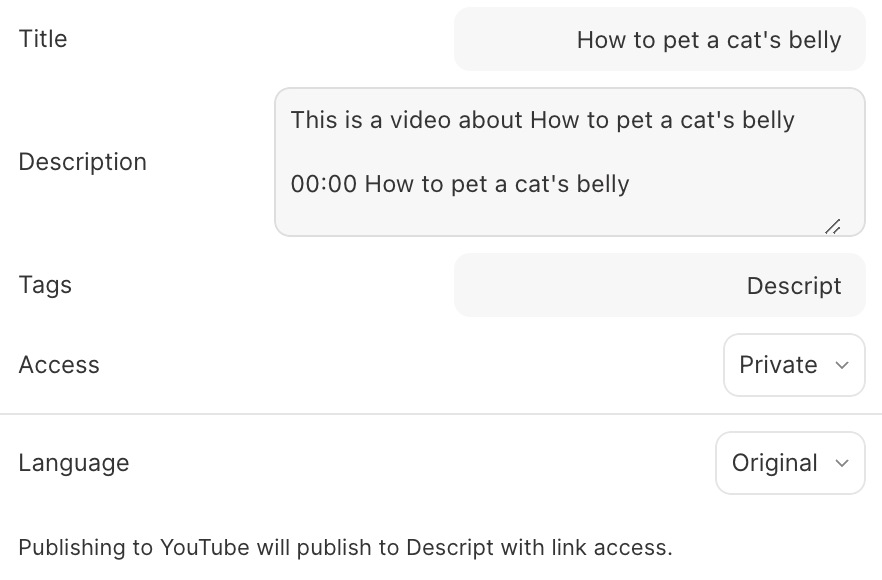
Descript's export panel with YouTube title, description, tags and access fields, a language menu and a note about link access

Descript's export panel with YouTube as the destination, cropped below the destination row. Source: Descript help center

Descript edits video by editing a doc: its pricing page describes text-based editing and an AI co-editor, Underlord, and its help center documents AI tools that fit a YouTube video. Remove Filler Words works on English transcripts only. Create clips scans a composition and pulls out 1 to 20 short cuts of 10 seconds to 5 minutes, with portrait (9:16) and square (1:1) layout presets. Generate a YouTube thumbnail produces four options from a title and a style, and the markers page describes a Copy chapters for YouTube button for pasting chapters into a description.

Export to YouTube sits in the export panel: title, description, category and tags are set in Descript and the video publishes to the channel without a separate upload. The help center states the limits: it works from the web version only, only channel owners can publish, and YouTube Shorts are not supported, so a Short is downloaded and uploaded by hand. Free plans export to YouTube up to 720p and 1 hour, Hobbyist up to 1080p and 1 hour, and Creator, Business and Enterprise up to 4K and 3 hours.

Pricing: Descript's pricing page lists Free at $0 (60 media minutes a month and 720p export), Hobbyist at $16 per person a month billed annually ($24 billed monthly) with 10 media hours and 400 AI credits, Creator at $24 ($35 monthly) with 30 media hours, 800 AI credits and 4K export, and Business at $50 ($65 monthly). Enterprise is custom.

Considerations: Media hours and AI credits are both metered, and the filler word tool and the thumbnail generator draw on AI credits. The direct YouTube export is web only and skips Shorts, so a Shorts workflow adds a download step.

  • Choose it if the starting point is a spoken recording and cutting, thumbnails and the long-video upload should sit in one editor.
  • Skip it if Shorts should publish straight from the editor, or media hours and credits would run out.

4. YouTube's own tools: Best for free editing inside YouTube

YouTube Create's editing screen with a captions track, a video filmstrip, an audio track and Edit, Style and Delete buttons

Caption editing in YouTube Create. Source: Google Play listing for YouTube Create

YouTube's help pages describe four relevant tools. YouTube Create is an app for editing long-form videos and Shorts, described as free of charge and without ads, on Android phones and iPhones. Its Edit with AI feature turns up to 25 videos and photos into a first draft with music and effects, its captions tool generates captions for clips up to 60 seconds, and an edited project uploads to a channel from the app. In YouTube Studio, the Clips and Shorts tool cuts a segment from a channel's own long-form video by transcript text or timestamps, with AI-powered suggestions and an AI-generated outline where available, and Ask Studio is an AI creative partner for video ideas, titles and thumbnails.

Availability is the catch. Edit with AI is listed for 14 countries and regions including the United States, the Studio tool's AI suggestions are listed for ten countries and seven languages, and Gemini Omni video generation in YouTube Create is described as experimental. Studio's editor has its own rule: for an unedited video with over 100,000 views, YouTube Help says changes may not be savable except blurring faces, a restriction that does not apply to channels in the YouTube Partner Program.

Pricing: YouTube's help page describes YouTube Create as free of charge and without ads; the help pages list no price for Studio's tools.

Considerations: The Studio tool works on videos already in a channel's own Studio, so it does not help with someone else's video, and YouTube Create is a phone app. YouTube Help says the source video is added automatically as a related video to a Short made with the Studio tool, unless the Short is private, unlisted or Made for Kids.

  • Choose it if the videos are on the channel, a free editor is wanted and a phone is the place to edit.
  • Skip it if a desktop timeline is needed, or many Shorts from every upload should be made in bulk.

5. Gling: Best for cleaning raw talking-head footage, with title and chapter help
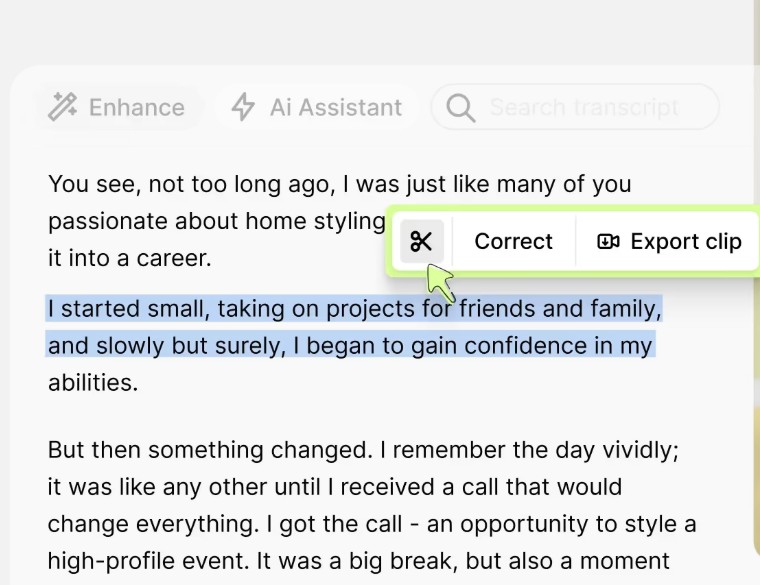
Gling transcript panel with a selected passage and a Correct and Export clip menu below Enhance and AI Assistant buttons

Gling's transcript-based trimmer. Source: Gling website

Gling's pages call it an AI video editor for YouTube creators: raw footage goes in, and the AI transcribes it, finds bad takes, silences and filler words, and cuts them. Its save-time page says to review the proposed cuts, listen to the delivery and restore any take or pause worth keeping, and calls the automatic cleanup a starting point. Its YouTube features page lists a title generator, which Gling says builds in SEO adapted to YouTube's algorithm, chapter markers placed from the transcript, and next-video suggestions.

Output is an MP4 or MP3 with captions as an SRT file, or, on paid desktop plans, a timeline for Final Cut Pro, DaVinci Resolve or Premiere Pro. A separate AI short clips page says Gling turns long videos into clips with captions, b-rolls and zoom effects. The pages we read describe no direct upload to YouTube.

Pricing: Gling's pricing page, on its monthly view, lists Free at $0 with 1 hour of AI-edited media a month and watermarked exports, Plus at $20 a month with 10 hours, Pro at $40 a month with 30 hours and Elite at $100 a month with 100 hours. Its Annual toggle shows half those figures (Plus $10, Pro $20, Elite $50 a month). The pricing FAQ says Free exports carry a watermark and cannot go to Premiere, Final Cut or Resolve.

Considerations: AI-edited hours are metered by plan, editor timelines need a paid desktop plan, and the save-time page calls the cleanup a starting point rather than a finished edit.

  • Choose it if raw talking-head recordings need bad takes, silences and fillers removed before a finish in another editor, with title and chapter suggestions alongside.
  • Skip it if a one-app path from cut to YouTube upload is the goal, or a timeline export is needed on a free plan.

6. Flixier: Best for a browser editor with an AI assistant

Flixier is a browser editor. Its home page says rendering runs in the cloud, so a full-length export finishes in minutes on any laptop, and that finished videos can be sent straight to YouTube, TikTok or Drive. Its AI assistant, Eva, reads the transcript to build a first cut, removing filler words and silences, or to pull clips: the pages give examples such as a long-form video with three clips worth posting and a two-hour webinar that becomes five short clips, resized to 9:16 with captions on.

Eva works from the transcript, so the Eva page says she is built for footage where people are talking. The pricing page lists Edit with Eva and Edit by transcript from the Creator plan up.

Pricing: Flixier's pricing page, on its monthly view, lists Free at $0 (500 AI credits, 10 minutes of video export a month, 720p and a Flixier watermark), Starter at $19 per seat a month (60 minutes of export, 1080p, no watermark), Creator at $39 per seat a month (unlimited exports, 4K, Edit with Eva) and Business at $69 per seat a month. Its Yearly toggle lists Starter at $9, Creator at $18 and Business at $31 per seat a month.

Considerations: Eva, the part built for this job, needs Creator or above, and Free caps export at 10 minutes a month with a watermark. The pages we read list no YouTube title, chapter or thumbnail tool.

  • Choose it if a browser editor with cloud rendering and an assistant that reads the transcript suits the workflow, and the upload should go straight to YouTube.
  • Skip it if Eva's plan level does not fit the budget, or the footage has little speech.

7. Clipchamp: Best for a free editor with no watermark and an upload step

Clipchamp's export page listing Save to Google Drive, Upload to YouTube, Send to TikTok, Save to Dropbox and Share to LinkedIn

Clipchamp's share options after an export. Source: Microsoft Support

Clipchamp is a Microsoft video editor that runs in a browser and as a Windows app. Its YouTube video editor page lists AI auto cut for removing pauses and silences from talking head footage, AI subtitles with transcripts, AI voiceovers in 400 voices, YouTube intro and end card templates, and a size button that resizes long videos into Shorts. Microsoft's support page for exporting says that, after a video exports, it can be uploaded to YouTube from the same page, alongside OneDrive, Google Drive, TikTok, Dropbox and LinkedIn.

Pricing: Clipchamp's pricing page lists a Free plan that needs a personal Microsoft account and includes AI video editing tools and watermark-free exports up to 1080p. Premium features come with Microsoft 365 Personal and Family plans, including 4K exports, premium stock assets and a brand kit; see Microsoft for those plan prices.

Considerations: The size button resizes a long video into a vertical one, and the page describes no AI step that picks Shorts moments. The pages we read list no title, chapter or thumbnail tool.

  • Choose it if a free, watermark-free editor with silence cuts, subtitles and an upload to YouTube is wanted.
  • Skip it if AI-picked Shorts moments are required, or 4K export is needed without a Microsoft 365 plan.

8. DaVinci Resolve: Best for a professional timeline with a free version
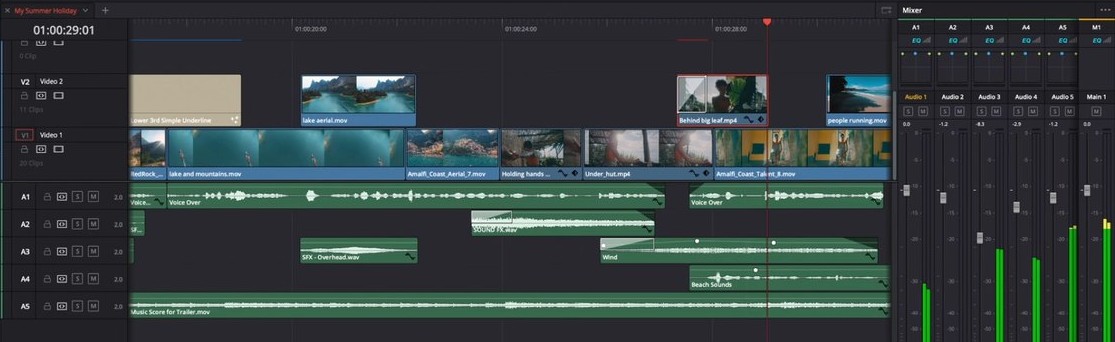
DaVinci Resolve's Edit page timeline with two video tracks, five audio tracks and a mixer with level meters

The Edit page timeline and mixer in DaVinci Resolve, cropped to the timeline. Source: Blackmagic Design website

Blackmagic describes DaVinci Resolve as software that combines editing, color correction, visual effects, motion graphics and audio post production, and says its quick export tool can output and upload files to YouTube, Vimeo and X. The free version works with 8-bit formats at up to 60 fps in resolutions as high as Ultra HD (3840 x 2160). Resolve Studio adds the DaVinci AI Neural Engine, which Blackmagic lists as powering facial recognition, object detection and smart reframing, among others, and text based editing.

Pricing: Blackmagic's page lists a free version and DaVinci Resolve Studio at $236 with a Buy Online Now button, shown as discounted from $295; the page prints no subscription term.

Considerations: The AI tools and text based editing are Studio features, and the pages describe no step that picks Shorts moments from a long video or helps with titles, chapters or thumbnails. Resolve is a full post-production suite, so it asks more learning than a clip-first tool.

  • Choose it if a long YouTube video needs a professional timeline, color and audio, with a free version to start.
  • Skip it if fast vertical Shorts or YouTube metadata help is the goal.

What YouTube says about AI-edited videos

YouTube's help pages, read on November 13, 2026, draw lines that matter for AI editing. The disclosure page says creators must disclose AI-generated or altered content that seems realistic, and lists AI-generated extra footage of a real place and making it appear as if someone gave advice they did not give as examples that need disclosure. It lists caption creation, color adjustment, generative AI help with an outline, script, thumbnail or title, video sharpening, upscaling or repair, audio repair and cloning one's own voice for voice overs or dubs as examples that do not.

The monetization policies say separately that if automated tools or templates help create content, the final product must still demonstrate creative vision and provide educational or entertainment value. The Studio clips page says a creator is not penalized for using their own content in a video clip or Short.

How we compared these tools

We compared each tool on four YouTube steps (cutting a long video, Shorts or vertical clips from it, help with titles, chapters or thumbnails, and uploading to YouTube), plus price, the free plan's limits and how clearly the vendor documents each. The guide is organized around the job in the title, and OpusClip comes first because turning a long YouTube video into captioned Shorts is the job its pages describe for YouTube; its limits are in its entry.

Items 2 to 8 follow one yardstick: how many of the four steps each vendor's own pages describe. Filmora, Descript and YouTube's own tools describe all four, and Gling, Flixier, Clipchamp and DaVinci Resolve three each. Positions within a tie are close calls, not a scored formula.

All facts come from each vendor's own pricing pages, product pages, help centers and documentation, and from YouTube Help read in a browser, on November 13, 2026, with every price printed with its billing basis. We did not run hands-on tests of any tool here, and this is a comparison of published features and prices, not a lab review. We left out Adobe Premiere, whose site returned a 403 error to our scripts, and CapCut, Kapwing, VEED, Vizard and Submagic, which our other guides cover.

Red flags to watch for

  • Watermarks and caps on free plans. OpusClip Free, Filmora's free version, Gling Free and Flixier Free carry a watermark, Descript Free caps export at 720p, and Flixier Free caps export at 10 minutes a month.
  • AI behind credits or higher tiers. Filmora's Smart Short Clips is paid by AI credits, Flixier's Eva starts at Creator, Gling and Descript meter hours or credits, and DaVinci Resolve's AI tools and text based editing are Studio features.
  • A YouTube upload that skips Shorts. Descript's help center says YouTube Shorts are not supported by its direct export and that only channel owners can publish; OpusClip's help center says a YouTube channel connects only through the Google account that owns it.
  • Pages that disagree. Descript's markers page says YouTube does not read chapter metadata from exported files, while its YouTube export page says markers become chapters. Check one export before relying on either.
  • Features tied to country or language. YouTube Create's Edit with AI and Studio's AI suggestions are listed for specific countries, Studio's suggestions for specific languages, and YouTube Create's captions stop at 60 seconds.
  • Link imports that fail. OpusClip's help center reports higher failure rates for YouTube link uploads and asks for channel ownership to be confirmed. Keep a file upload as the fallback.
  • Disclosure and monetization rules. YouTube requires disclosure of realistic AI-generated or altered content, and its monetization policies say tools and templates do not replace creative vision.
  • Vendor statistics with no source. Filmora's Shorts page prints view and engagement statistics, and none of the vendor pages we read cites an independent test, so this guide prints none.

Frequently asked questions

What is the best AI video editing software for YouTube?

It depends on the YouTube job. OpusClip comes first here for turning a long YouTube video into captioned Shorts. Filmora covers the most steps in one editor, Descript suits cutting by transcript, Gling cleans talking-head footage, YouTube Create is a free phone editor, Flixier and Clipchamp edit in a browser, and DaVinci Resolve is the professional timeline. See OpusClip pricing for plan details.

What is the best AI video editor for YouTube Shorts?

For turning a long video into Shorts, OpusClip's YouTube Shorts maker page describes picking moments, reframing to 9:16 and adding captions, and Filmora (Smart Short Clips), Descript (Create clips) and Flixier (Eva) describe similar steps. YouTube Help says a Short can be up to three minutes long with a square or vertical aspect ratio. Our guide to the best YouTube Shorts makers compares Shorts-first tools.

Which AI video editor can upload straight to YouTube?

Filmora lists an upload to YouTube from the editor, Descript exports to YouTube from its web version (not Shorts, and only for channel owners), Flixier says finished videos can be sent straight to YouTube, Clipchamp's export page lists Upload to YouTube, YouTube Create uploads to a channel from the app, and DaVinci Resolve's quick export tool uploads to YouTube. OpusClip posts to a connected YouTube channel, and Gling's pages describe downloads and timeline exports.

Is there a free AI video editor for YouTube?

Yes, with limits. YouTube Create is described as free of charge and without ads, Clipchamp's Free plan exports up to 1080p with no watermark, and DaVinci Resolve has a free version. OpusClip Free, Filmora's free version, Gling Free and Flixier Free add a watermark, and Descript Free caps export at 720p.

Which AI editors help with YouTube titles, chapters and thumbnails?

Gling lists a title generator and a chapters generator, Descript lists a YouTube thumbnail generator and a Copy chapters for YouTube button, Filmora lists AI Copywriting and an AI Thumbnail Creator, and Ask Studio inside YouTube Studio generates titles and thumbnails. Our guides to AI YouTube title generators and AI YouTube thumbnail makers go deeper.

Do I have to disclose AI editing on YouTube?

YouTube Help says creators must disclose AI-generated or altered content that seems realistic, and lists examples that need it, such as AI-generated extra footage of a real place. It lists caption creation, color adjustment and generative AI help with a title or thumbnail as examples that do not. Read the page itself for the full list.

Can AI editing hurt YouTube monetization?

YouTube's monetization policies say channel content should not be mass-produced, generic, repetitive or manipulative, and that if automated tools or templates help create content, the final product must still show creative vision and give viewers educational or entertainment value.

Does OpusClip replace a long-form editor?

No. OpusClip's help center calls it a video clipping tool with an in-app editor for minor tweaks, so a long video that needs a full edit belongs in an editor such as Descript, Filmora or DaVinci Resolve first, with OpusClip clipping the finished video into Shorts.
On this page

Use our Free Forever Plan

Find the moment. Skip the scrubbing.

From script to polished video — in one click.

Create and post one short video every day for free, and grow faster.

OpusSearch uses AI to surface the exact clip you need from hours of footage — in seconds, not afternoons.

Agent Opus runs the entire video pipeline for you: research, scriptwriting, storyboarding, motion, voice, and edit. Upload the idea, post the result.

8 Best AI Video Editing Software for YouTube in 2026

OpusClip is the pick for turning a long YouTube video into captioned, vertical Shorts. For the long video itself, Filmora is the pick for one editor that covers cutting, Shorts, thumbnails and upload, Descript for cutting by transcript, Gling for talking-head footage, YouTube's own tools for free editing, Flixier and Clipchamp for browser editing and DaVinci Resolve for a professional timeline. Items 2 to 8 follow one yardstick: how many of the four YouTube steps in the table each vendor's own pages describe. Facts were read on November 13, 2026.

Key takeaways

  • Best for turning a long YouTube video into captioned Shorts: OpusClip. Its YouTube Shorts page describes picking moments, reframing to 9:16 and adding captions, and its help center covers posting to a connected channel.
  • Best for one editor that covers a YouTube video from cut to upload: Filmora. Its YouTube editor page lists silence detection, Smart Short Clips, an AI thumbnail creator and a direct upload.
  • Best for cutting a talking video by editing its transcript: Descript. Its help center documents Create clips, a thumbnail generator and web export to YouTube, though not for Shorts.
  • Best for free editing inside YouTube: YouTube's own tools. YouTube Create is described as free of charge and without ads, and Studio's Clips and Shorts tool cuts Shorts from a channel's own videos.
  • Best for cleaning raw talking-head footage: Gling, which lists bad take, silence and filler word removal plus title and chapter generators.
  • Best for a browser editor with an AI assistant: Flixier, whose Eva builds a first cut or finds clips from the transcript on Creator plans and up.
  • Best for a free editor with no watermark: Clipchamp, with exports up to 1080p on its Free plan and an upload to YouTube step.
  • Best for a professional timeline with a free version: DaVinci Resolve, whose quick export tool uploads to YouTube.

What AI editing has to do for a YouTube video

A YouTube upload is three jobs. The first is the long video: cutting silences, retakes and filler words from the recording. The second is Shorts: YouTube's help pages say a Short can run up to three minutes with a square or vertical aspect ratio, so a long video needs moments picked, a vertical crop and captions. The third is the finish: a title (YouTube's Shorts help page lists a 100-character maximum), chapters, a thumbnail and the upload itself.

No single tool here leads all three. OpusClip is the pick for the Shorts job, Descript and Gling for cutting the long video, and Filmora and Descript for the most finishing steps in one app. Our guides to AI YouTube thumbnail makers and AI YouTube title generators cover those two finishing jobs in depth, and our guide to the best YouTube Shorts makers compares Shorts-first tools.

How to choose

  • Silences, retakes and filler words cut from a talking video: Gling, Descript or Clipchamp's AI auto cut; OpusClip's Speech Cleanup does it inside its clips.
  • Several Shorts from one long upload: OpusClip, Filmora's Smart Short Clips, Descript's Create clips or Flixier's Eva; for one hand-picked Short from a channel's own video, YouTube Studio's Clips and Shorts tool.
  • Titles, chapters or thumbnails inside the editor: Gling, Descript and Filmora, or Ask Studio inside YouTube Studio.
  • An upload without leaving the app: Filmora, Descript (web only, not Shorts), Flixier, Clipchamp, YouTube Create and DaVinci Resolve's quick export; OpusClip posts to a connected channel.
  • A free start: YouTube Create, Clipchamp (no watermark up to 1080p) and DaVinci Resolve's free version. The other free plans carry a watermark or a cap, listed in At a glance.

At a glance

  • OpusClip: best for turning a long YouTube video into captioned Shorts; Starter $15 a month (monthly billing only), Pro $29 a month or $14.50 a month billed annually; free plan yes ($0, with a watermark).
  • Filmora: best for one editor that covers a YouTube video from cut to upload; Basic US$4.17 a month billed yearly as US$49.99, Advanced US$5.00 a month billed yearly as US$59.99; free version yes (watermark on exports).
  • Descript: best for cutting a talking video by editing its transcript; Hobbyist $16 per person a month billed annually ($24 billed monthly), Creator $24 ($35 monthly); free plan yes (60 media minutes a month, 720p export).
  • YouTube's own tools: best for free editing inside YouTube; YouTube Create is described as free of charge and without ads, and the help pages list no price for Studio's tools.
  • Gling: best for cleaning raw talking-head footage with title and chapter help; Plus $20 a month on the page's monthly view ($10 on its Annual toggle); free plan yes (1 hour of AI-edited media a month, watermarked exports).
  • Flixier: best for a browser editor with an AI assistant; Starter $19 per seat a month and Creator $39 on the monthly view (Eva starts at Creator); free plan yes (watermark, 10 minutes of export a month).
  • Clipchamp: best for a free editor with no watermark; Free, with premium features included in Microsoft 365 Personal and Family; free plan yes (up to 1080p, no watermark).
  • DaVinci Resolve: best for a professional timeline with a free version; Studio $236 (shown as discounted from $295, with a Buy Online Now button); free version yes.

How each tool handles the four YouTube steps

The At a glance list covers best-for, price and free plan; this table compares how each tool cuts a long video, makes Shorts or vertical clips, helps with titles, chapters or thumbnails, where it sends the finished video and what its free plan limits, as listed on each vendor's own pages on November 13, 2026.

ToolCuts for a long videoShorts or vertical clipsTitles, chapters or thumbnailsWhere it goes nextFree plan limits
OpusClipSpeech Cleanup removes fillers, pauses and bad takes; nothing is cut without approvalPicks the strongest moments, reframes to 9:16 and adds captionsAI-generated titles, descriptions and hashtags are editable before posting on the iOS appAutoposts to YouTube or downloads; a Short needs 9:16Free clips carry a watermark
FilmoraSilence Detection and text-based editing remove pauses and unwanted sectionsSmart Short Clips finds key moments, reframes them vertically and adds captionsAI Copywriting drafts titles and descriptions; AI Thumbnail Creator picks key framesUploads to YouTube from the editor with title, description and tagsFree exports carry a watermark
DescriptText-based editing, plus Remove Filler Words on English transcriptsCreate clips makes 1 to 20 cuts of 10 seconds to 5 minutes, with optional 9:16 or 1:1 layoutsGenerates four thumbnail options; a Copy chapters for YouTube button for descriptionsExports to YouTube from the web app; Shorts are not supportedFree exports to YouTube are capped at 720p and 1 hour
YouTube's own toolsStudio trims and cuts; YouTube Create's Edit with AI builds a first draftStudio's Clips and Shorts tool cuts Shorts from own videos; AI suggestions in select countriesAsk Studio generates titles and thumbnailsYouTube Create uploads to a channel directly from the appYouTube Create is free of charge and without ads
GlingFinds bad takes, silences and filler words; the cuts are reviewed before exportIts AI short clips page: long videos become clips with captions, b-rolls and zoom effectsTitle generator, chapter markers placed from the transcript, next-video suggestionsDownload MP4 or MP3 with SRT captions, or a timeline for Final Cut, DaVinci or Premiere1 hour of AI-edited media a month; exports carry a watermark
FlixierEva removes filler words and silences and builds a first cut from the transcriptEva finds clips in the transcript; the page example is 9:16 with captions onOn-screen titles and a brand kit applied; no title, chapter or thumbnail tool listedSends finished videos straight to YouTube, TikTok or Drive720p, 10 minutes of export a month and a Flixier watermark
ClipchampAI auto cut removes pauses and silences from talking head footageA size button shortcut resizes long videos into ShortsYouTube intro and end screen templates; no title or thumbnail tool listedUpload to YouTube from the export page, beside OneDrive and Google DriveFree exports are watermark-free, up to 1080p
DaVinci ResolveStudio adds text based editing and the AI Neural EngineSmart reframing is a Neural Engine feature, a Studio toolNone listed; the page covers editing, color, effects, audio and photoQuick export tool uploads to YouTube, Vimeo and XFree version works up to 60 fps at Ultra HD (3840 x 2160)

1. OpusClip: Best for turning a long YouTube video into captioned Shorts

OpusClip's Auto-import videos from YouTube dialog with an active channel connection and import settings for all new videos or specific playlists

OpusClip's Auto Import settings. Source: OpusClip help center

OpusClip's YouTube Shorts maker page says it turns long videos into vertical YouTube Shorts by picking the strongest moments, reframing them to 9:16 and adding captions, from a pasted link (YouTube is listed) or an uploaded file, and that a finished Short can be autoposted to YouTube or downloaded. Its help center says a clip posts to YouTube as a Short only if it is vertical (9:16). The Auto Import article describes connecting a channel so that new public videos are processed into clips, either after an email prompt or automatically with saved clip settings.

For the long video itself, the Speech Cleanup article describes a panel that finds filler words, pauses and bad takes such as retakes and restarts, with nothing cut without approval. OpusClip's AI video editor page also describes AI Producer, which it says turns raw talking-head footage into a publish-ready video; this guide covers the long-video-to-Shorts path.

Pricing: OpusClip's pricing page lists Free at $0 with a watermark, Starter at $15 a month (monthly billing only) and Pro at $29 a month, or $14.50 a month billed annually. Business is custom.

Considerations: OpusClip is not a long-form editor: its help center introduction calls it a video clipping tool with an in-app editor, text-based and timeline-based, for minor tweaks. Starting from a YouTube link means confirming channel ownership first, per the help center, and the help center reports higher failure rates for YouTube link uploads, with a local upload as the fallback. Its help article also says YouTube's public API does not yet allow setting a Short's related video at posting time, so that link is added by hand in YouTube Studio.

  • Choose it if a channel has long videos and several captioned Shorts should come out of each, with posting to YouTube from the same app.
  • Skip it if the job is a multi-track edit of the long video itself, or the video belongs to someone else and channel ownership cannot be confirmed.

2. Filmora: Best for one editor that covers a YouTube video from cut to upload

Filmora's editor with a media panel, a preview showing a title over a mountain lake, a properties panel and a timeline

Filmora's editor window. Source: Filmora website

Filmora's YouTube video editor page lays out a path from plan to publish. It lists AI Copywriting for scripts, titles and descriptions, AI Media Analysis that surfaces keywords and editing suggestions in footage, Silence Detection and text-based editing for removing pauses and unwanted sections, an AI Thumbnail Creator that finds key frames and applies YouTube thumbnail templates, and an upload to YouTube with the title, description and tags set in the app.

For Shorts, the page says Smart Short Clips finds key moments in a long video, reframes them vertically and creates new Shorts with captions. Filmora is desktop software for Windows and Mac, and its FAQ says a license works on one platform only.

Pricing: Filmora's pricing page, on its Annual tab, lists Basic at US$4.17 a month billed yearly as US$49.99, Advanced at US$5.00 a month billed yearly as US$59.99 with 1,000 AI credits a month, and Premium at US$8.33 a month billed yearly as US$99.99 with 2,000 AI credits a month. Its FAQ says the free version includes all basic editing features, with a watermark on exported files.

Considerations: The plan table lists Smart Short Clips as paid by AI credits, and Basic lists no AI credits, so the Shorts tool starts with Advanced. Free exports carry a watermark. Filmora's Shorts page prints performance statistics that carry no source on the page, so this guide prints none of them.

  • Choose it if cutting, Shorts, thumbnails and the YouTube upload should live in one desktop editor.
  • Skip it if an AI credit meter is unwelcome, or a free plan without a watermark is required.

3. Descript: Best for cutting a talking video by editing its transcript

Descript's export panel with YouTube title, description, tags and access fields, a language menu and a note about link access

Descript's export panel with YouTube as the destination, cropped below the destination row. Source: Descript help center

Descript edits video by editing a doc: its pricing page describes text-based editing and an AI co-editor, Underlord, and its help center documents AI tools that fit a YouTube video. Remove Filler Words works on English transcripts only. Create clips scans a composition and pulls out 1 to 20 short cuts of 10 seconds to 5 minutes, with portrait (9:16) and square (1:1) layout presets. Generate a YouTube thumbnail produces four options from a title and a style, and the markers page describes a Copy chapters for YouTube button for pasting chapters into a description.

Export to YouTube sits in the export panel: title, description, category and tags are set in Descript and the video publishes to the channel without a separate upload. The help center states the limits: it works from the web version only, only channel owners can publish, and YouTube Shorts are not supported, so a Short is downloaded and uploaded by hand. Free plans export to YouTube up to 720p and 1 hour, Hobbyist up to 1080p and 1 hour, and Creator, Business and Enterprise up to 4K and 3 hours.

Pricing: Descript's pricing page lists Free at $0 (60 media minutes a month and 720p export), Hobbyist at $16 per person a month billed annually ($24 billed monthly) with 10 media hours and 400 AI credits, Creator at $24 ($35 monthly) with 30 media hours, 800 AI credits and 4K export, and Business at $50 ($65 monthly). Enterprise is custom.

Considerations: Media hours and AI credits are both metered, and the filler word tool and the thumbnail generator draw on AI credits. The direct YouTube export is web only and skips Shorts, so a Shorts workflow adds a download step.

  • Choose it if the starting point is a spoken recording and cutting, thumbnails and the long-video upload should sit in one editor.
  • Skip it if Shorts should publish straight from the editor, or media hours and credits would run out.

4. YouTube's own tools: Best for free editing inside YouTube

YouTube Create's editing screen with a captions track, a video filmstrip, an audio track and Edit, Style and Delete buttons

Caption editing in YouTube Create. Source: Google Play listing for YouTube Create

YouTube's help pages describe four relevant tools. YouTube Create is an app for editing long-form videos and Shorts, described as free of charge and without ads, on Android phones and iPhones. Its Edit with AI feature turns up to 25 videos and photos into a first draft with music and effects, its captions tool generates captions for clips up to 60 seconds, and an edited project uploads to a channel from the app. In YouTube Studio, the Clips and Shorts tool cuts a segment from a channel's own long-form video by transcript text or timestamps, with AI-powered suggestions and an AI-generated outline where available, and Ask Studio is an AI creative partner for video ideas, titles and thumbnails.

Availability is the catch. Edit with AI is listed for 14 countries and regions including the United States, the Studio tool's AI suggestions are listed for ten countries and seven languages, and Gemini Omni video generation in YouTube Create is described as experimental. Studio's editor has its own rule: for an unedited video with over 100,000 views, YouTube Help says changes may not be savable except blurring faces, a restriction that does not apply to channels in the YouTube Partner Program.

Pricing: YouTube's help page describes YouTube Create as free of charge and without ads; the help pages list no price for Studio's tools.

Considerations: The Studio tool works on videos already in a channel's own Studio, so it does not help with someone else's video, and YouTube Create is a phone app. YouTube Help says the source video is added automatically as a related video to a Short made with the Studio tool, unless the Short is private, unlisted or Made for Kids.

  • Choose it if the videos are on the channel, a free editor is wanted and a phone is the place to edit.
  • Skip it if a desktop timeline is needed, or many Shorts from every upload should be made in bulk.

5. Gling: Best for cleaning raw talking-head footage, with title and chapter help

Gling transcript panel with a selected passage and a Correct and Export clip menu below Enhance and AI Assistant buttons

Gling's transcript-based trimmer. Source: Gling website

Gling's pages call it an AI video editor for YouTube creators: raw footage goes in, and the AI transcribes it, finds bad takes, silences and filler words, and cuts them. Its save-time page says to review the proposed cuts, listen to the delivery and restore any take or pause worth keeping, and calls the automatic cleanup a starting point. Its YouTube features page lists a title generator, which Gling says builds in SEO adapted to YouTube's algorithm, chapter markers placed from the transcript, and next-video suggestions.

Output is an MP4 or MP3 with captions as an SRT file, or, on paid desktop plans, a timeline for Final Cut Pro, DaVinci Resolve or Premiere Pro. A separate AI short clips page says Gling turns long videos into clips with captions, b-rolls and zoom effects. The pages we read describe no direct upload to YouTube.

Pricing: Gling's pricing page, on its monthly view, lists Free at $0 with 1 hour of AI-edited media a month and watermarked exports, Plus at $20 a month with 10 hours, Pro at $40 a month with 30 hours and Elite at $100 a month with 100 hours. Its Annual toggle shows half those figures (Plus $10, Pro $20, Elite $50 a month). The pricing FAQ says Free exports carry a watermark and cannot go to Premiere, Final Cut or Resolve.

Considerations: AI-edited hours are metered by plan, editor timelines need a paid desktop plan, and the save-time page calls the cleanup a starting point rather than a finished edit.

  • Choose it if raw talking-head recordings need bad takes, silences and fillers removed before a finish in another editor, with title and chapter suggestions alongside.
  • Skip it if a one-app path from cut to YouTube upload is the goal, or a timeline export is needed on a free plan.

6. Flixier: Best for a browser editor with an AI assistant

Flixier is a browser editor. Its home page says rendering runs in the cloud, so a full-length export finishes in minutes on any laptop, and that finished videos can be sent straight to YouTube, TikTok or Drive. Its AI assistant, Eva, reads the transcript to build a first cut, removing filler words and silences, or to pull clips: the pages give examples such as a long-form video with three clips worth posting and a two-hour webinar that becomes five short clips, resized to 9:16 with captions on.

Eva works from the transcript, so the Eva page says she is built for footage where people are talking. The pricing page lists Edit with Eva and Edit by transcript from the Creator plan up.

Pricing: Flixier's pricing page, on its monthly view, lists Free at $0 (500 AI credits, 10 minutes of video export a month, 720p and a Flixier watermark), Starter at $19 per seat a month (60 minutes of export, 1080p, no watermark), Creator at $39 per seat a month (unlimited exports, 4K, Edit with Eva) and Business at $69 per seat a month. Its Yearly toggle lists Starter at $9, Creator at $18 and Business at $31 per seat a month.

Considerations: Eva, the part built for this job, needs Creator or above, and Free caps export at 10 minutes a month with a watermark. The pages we read list no YouTube title, chapter or thumbnail tool.

  • Choose it if a browser editor with cloud rendering and an assistant that reads the transcript suits the workflow, and the upload should go straight to YouTube.
  • Skip it if Eva's plan level does not fit the budget, or the footage has little speech.

7. Clipchamp: Best for a free editor with no watermark and an upload step

Clipchamp's export page listing Save to Google Drive, Upload to YouTube, Send to TikTok, Save to Dropbox and Share to LinkedIn

Clipchamp's share options after an export. Source: Microsoft Support

Clipchamp is a Microsoft video editor that runs in a browser and as a Windows app. Its YouTube video editor page lists AI auto cut for removing pauses and silences from talking head footage, AI subtitles with transcripts, AI voiceovers in 400 voices, YouTube intro and end card templates, and a size button that resizes long videos into Shorts. Microsoft's support page for exporting says that, after a video exports, it can be uploaded to YouTube from the same page, alongside OneDrive, Google Drive, TikTok, Dropbox and LinkedIn.

Pricing: Clipchamp's pricing page lists a Free plan that needs a personal Microsoft account and includes AI video editing tools and watermark-free exports up to 1080p. Premium features come with Microsoft 365 Personal and Family plans, including 4K exports, premium stock assets and a brand kit; see Microsoft for those plan prices.

Considerations: The size button resizes a long video into a vertical one, and the page describes no AI step that picks Shorts moments. The pages we read list no title, chapter or thumbnail tool.

  • Choose it if a free, watermark-free editor with silence cuts, subtitles and an upload to YouTube is wanted.
  • Skip it if AI-picked Shorts moments are required, or 4K export is needed without a Microsoft 365 plan.

8. DaVinci Resolve: Best for a professional timeline with a free version

DaVinci Resolve's Edit page timeline with two video tracks, five audio tracks and a mixer with level meters

The Edit page timeline and mixer in DaVinci Resolve, cropped to the timeline. Source: Blackmagic Design website

Blackmagic describes DaVinci Resolve as software that combines editing, color correction, visual effects, motion graphics and audio post production, and says its quick export tool can output and upload files to YouTube, Vimeo and X. The free version works with 8-bit formats at up to 60 fps in resolutions as high as Ultra HD (3840 x 2160). Resolve Studio adds the DaVinci AI Neural Engine, which Blackmagic lists as powering facial recognition, object detection and smart reframing, among others, and text based editing.

Pricing: Blackmagic's page lists a free version and DaVinci Resolve Studio at $236 with a Buy Online Now button, shown as discounted from $295; the page prints no subscription term.

Considerations: The AI tools and text based editing are Studio features, and the pages describe no step that picks Shorts moments from a long video or helps with titles, chapters or thumbnails. Resolve is a full post-production suite, so it asks more learning than a clip-first tool.

  • Choose it if a long YouTube video needs a professional timeline, color and audio, with a free version to start.
  • Skip it if fast vertical Shorts or YouTube metadata help is the goal.

What YouTube says about AI-edited videos

YouTube's help pages, read on November 13, 2026, draw lines that matter for AI editing. The disclosure page says creators must disclose AI-generated or altered content that seems realistic, and lists AI-generated extra footage of a real place and making it appear as if someone gave advice they did not give as examples that need disclosure. It lists caption creation, color adjustment, generative AI help with an outline, script, thumbnail or title, video sharpening, upscaling or repair, audio repair and cloning one's own voice for voice overs or dubs as examples that do not.

The monetization policies say separately that if automated tools or templates help create content, the final product must still demonstrate creative vision and provide educational or entertainment value. The Studio clips page says a creator is not penalized for using their own content in a video clip or Short.

How we compared these tools

We compared each tool on four YouTube steps (cutting a long video, Shorts or vertical clips from it, help with titles, chapters or thumbnails, and uploading to YouTube), plus price, the free plan's limits and how clearly the vendor documents each. The guide is organized around the job in the title, and OpusClip comes first because turning a long YouTube video into captioned Shorts is the job its pages describe for YouTube; its limits are in its entry.

Items 2 to 8 follow one yardstick: how many of the four steps each vendor's own pages describe. Filmora, Descript and YouTube's own tools describe all four, and Gling, Flixier, Clipchamp and DaVinci Resolve three each. Positions within a tie are close calls, not a scored formula.

All facts come from each vendor's own pricing pages, product pages, help centers and documentation, and from YouTube Help read in a browser, on November 13, 2026, with every price printed with its billing basis. We did not run hands-on tests of any tool here, and this is a comparison of published features and prices, not a lab review. We left out Adobe Premiere, whose site returned a 403 error to our scripts, and CapCut, Kapwing, VEED, Vizard and Submagic, which our other guides cover.

Red flags to watch for

  • Watermarks and caps on free plans. OpusClip Free, Filmora's free version, Gling Free and Flixier Free carry a watermark, Descript Free caps export at 720p, and Flixier Free caps export at 10 minutes a month.
  • AI behind credits or higher tiers. Filmora's Smart Short Clips is paid by AI credits, Flixier's Eva starts at Creator, Gling and Descript meter hours or credits, and DaVinci Resolve's AI tools and text based editing are Studio features.
  • A YouTube upload that skips Shorts. Descript's help center says YouTube Shorts are not supported by its direct export and that only channel owners can publish; OpusClip's help center says a YouTube channel connects only through the Google account that owns it.
  • Pages that disagree. Descript's markers page says YouTube does not read chapter metadata from exported files, while its YouTube export page says markers become chapters. Check one export before relying on either.
  • Features tied to country or language. YouTube Create's Edit with AI and Studio's AI suggestions are listed for specific countries, Studio's suggestions for specific languages, and YouTube Create's captions stop at 60 seconds.
  • Link imports that fail. OpusClip's help center reports higher failure rates for YouTube link uploads and asks for channel ownership to be confirmed. Keep a file upload as the fallback.
  • Disclosure and monetization rules. YouTube requires disclosure of realistic AI-generated or altered content, and its monetization policies say tools and templates do not replace creative vision.
  • Vendor statistics with no source. Filmora's Shorts page prints view and engagement statistics, and none of the vendor pages we read cites an independent test, so this guide prints none.

Frequently asked questions

What is the best AI video editing software for YouTube?

It depends on the YouTube job. OpusClip comes first here for turning a long YouTube video into captioned Shorts. Filmora covers the most steps in one editor, Descript suits cutting by transcript, Gling cleans talking-head footage, YouTube Create is a free phone editor, Flixier and Clipchamp edit in a browser, and DaVinci Resolve is the professional timeline. See OpusClip pricing for plan details.

What is the best AI video editor for YouTube Shorts?

For turning a long video into Shorts, OpusClip's YouTube Shorts maker page describes picking moments, reframing to 9:16 and adding captions, and Filmora (Smart Short Clips), Descript (Create clips) and Flixier (Eva) describe similar steps. YouTube Help says a Short can be up to three minutes long with a square or vertical aspect ratio. Our guide to the best YouTube Shorts makers compares Shorts-first tools.

Which AI video editor can upload straight to YouTube?

Filmora lists an upload to YouTube from the editor, Descript exports to YouTube from its web version (not Shorts, and only for channel owners), Flixier says finished videos can be sent straight to YouTube, Clipchamp's export page lists Upload to YouTube, YouTube Create uploads to a channel from the app, and DaVinci Resolve's quick export tool uploads to YouTube. OpusClip posts to a connected YouTube channel, and Gling's pages describe downloads and timeline exports.

Is there a free AI video editor for YouTube?

Yes, with limits. YouTube Create is described as free of charge and without ads, Clipchamp's Free plan exports up to 1080p with no watermark, and DaVinci Resolve has a free version. OpusClip Free, Filmora's free version, Gling Free and Flixier Free add a watermark, and Descript Free caps export at 720p.

Which AI editors help with YouTube titles, chapters and thumbnails?

Gling lists a title generator and a chapters generator, Descript lists a YouTube thumbnail generator and a Copy chapters for YouTube button, Filmora lists AI Copywriting and an AI Thumbnail Creator, and Ask Studio inside YouTube Studio generates titles and thumbnails. Our guides to AI YouTube title generators and AI YouTube thumbnail makers go deeper.

Do I have to disclose AI editing on YouTube?

YouTube Help says creators must disclose AI-generated or altered content that seems realistic, and lists examples that need it, such as AI-generated extra footage of a real place. It lists caption creation, color adjustment and generative AI help with a title or thumbnail as examples that do not. Read the page itself for the full list.

Can AI editing hurt YouTube monetization?

YouTube's monetization policies say channel content should not be mass-produced, generic, repetitive or manipulative, and that if automated tools or templates help create content, the final product must still show creative vision and give viewers educational or entertainment value.

Does OpusClip replace a long-form editor?

No. OpusClip's help center calls it a video clipping tool with an in-app editor for minor tweaks, so a long video that needs a full edit belongs in an editor such as Descript, Filmora or DaVinci Resolve first, with OpusClip clipping the finished video into Shorts.

Creator name

Creator type

Team size

Channels

linkYouTubefacebookXTikTok

Pain point

Time to see positive ROI

About the creator

Don't miss these

How Audacy Drove 1B+ Views by Taking a Tech-Forward Approach to Radio with OpusClip
No items found.

How Audacy Drove 1B+ Views by Taking a Tech-Forward Approach to Radio with OpusClip

How All the Smoke makes hit compilations faster with OpusSearch

How All the Smoke makes hit compilations faster with OpusSearch

Growing a new channel to 1.5M views in 90 days without creating new videos

Growing a new channel to 1.5M views in 90 days without creating new videos

OpusClip 4.0 is here. Become a content powerhouse.

8 Best AI Video Editing Software for YouTube in 2026

Creators editing a long video on a laptop and monitor and showing a vertical video on a phone, with a Clip it button, a YouTube icon and 16:9 and 9:16 tags
No items found.
No items found.

Boost your social media growth with OpusClip

Create and post one short video every day for your social media and grow faster.

8 Best AI Video Editing Software for YouTube in 2026

Creators editing a long video on a laptop and monitor and showing a vertical video on a phone, with a Clip it button, a YouTube icon and 16:9 and 9:16 tags

OpusClip is the pick for turning a long YouTube video into captioned, vertical Shorts. For the long video itself, Filmora is the pick for one editor that covers cutting, Shorts, thumbnails and upload, Descript for cutting by transcript, Gling for talking-head footage, YouTube's own tools for free editing, Flixier and Clipchamp for browser editing and DaVinci Resolve for a professional timeline. Items 2 to 8 follow one yardstick: how many of the four YouTube steps in the table each vendor's own pages describe. Facts were read on November 13, 2026.

Key takeaways

  • Best for turning a long YouTube video into captioned Shorts: OpusClip. Its YouTube Shorts page describes picking moments, reframing to 9:16 and adding captions, and its help center covers posting to a connected channel.
  • Best for one editor that covers a YouTube video from cut to upload: Filmora. Its YouTube editor page lists silence detection, Smart Short Clips, an AI thumbnail creator and a direct upload.
  • Best for cutting a talking video by editing its transcript: Descript. Its help center documents Create clips, a thumbnail generator and web export to YouTube, though not for Shorts.
  • Best for free editing inside YouTube: YouTube's own tools. YouTube Create is described as free of charge and without ads, and Studio's Clips and Shorts tool cuts Shorts from a channel's own videos.
  • Best for cleaning raw talking-head footage: Gling, which lists bad take, silence and filler word removal plus title and chapter generators.
  • Best for a browser editor with an AI assistant: Flixier, whose Eva builds a first cut or finds clips from the transcript on Creator plans and up.
  • Best for a free editor with no watermark: Clipchamp, with exports up to 1080p on its Free plan and an upload to YouTube step.
  • Best for a professional timeline with a free version: DaVinci Resolve, whose quick export tool uploads to YouTube.

What AI editing has to do for a YouTube video

A YouTube upload is three jobs. The first is the long video: cutting silences, retakes and filler words from the recording. The second is Shorts: YouTube's help pages say a Short can run up to three minutes with a square or vertical aspect ratio, so a long video needs moments picked, a vertical crop and captions. The third is the finish: a title (YouTube's Shorts help page lists a 100-character maximum), chapters, a thumbnail and the upload itself.

No single tool here leads all three. OpusClip is the pick for the Shorts job, Descript and Gling for cutting the long video, and Filmora and Descript for the most finishing steps in one app. Our guides to AI YouTube thumbnail makers and AI YouTube title generators cover those two finishing jobs in depth, and our guide to the best YouTube Shorts makers compares Shorts-first tools.

How to choose

  • Silences, retakes and filler words cut from a talking video: Gling, Descript or Clipchamp's AI auto cut; OpusClip's Speech Cleanup does it inside its clips.
  • Several Shorts from one long upload: OpusClip, Filmora's Smart Short Clips, Descript's Create clips or Flixier's Eva; for one hand-picked Short from a channel's own video, YouTube Studio's Clips and Shorts tool.
  • Titles, chapters or thumbnails inside the editor: Gling, Descript and Filmora, or Ask Studio inside YouTube Studio.
  • An upload without leaving the app: Filmora, Descript (web only, not Shorts), Flixier, Clipchamp, YouTube Create and DaVinci Resolve's quick export; OpusClip posts to a connected channel.
  • A free start: YouTube Create, Clipchamp (no watermark up to 1080p) and DaVinci Resolve's free version. The other free plans carry a watermark or a cap, listed in At a glance.

At a glance

  • OpusClip: best for turning a long YouTube video into captioned Shorts; Starter $15 a month (monthly billing only), Pro $29 a month or $14.50 a month billed annually; free plan yes ($0, with a watermark).
  • Filmora: best for one editor that covers a YouTube video from cut to upload; Basic US$4.17 a month billed yearly as US$49.99, Advanced US$5.00 a month billed yearly as US$59.99; free version yes (watermark on exports).
  • Descript: best for cutting a talking video by editing its transcript; Hobbyist $16 per person a month billed annually ($24 billed monthly), Creator $24 ($35 monthly); free plan yes (60 media minutes a month, 720p export).
  • YouTube's own tools: best for free editing inside YouTube; YouTube Create is described as free of charge and without ads, and the help pages list no price for Studio's tools.
  • Gling: best for cleaning raw talking-head footage with title and chapter help; Plus $20 a month on the page's monthly view ($10 on its Annual toggle); free plan yes (1 hour of AI-edited media a month, watermarked exports).
  • Flixier: best for a browser editor with an AI assistant; Starter $19 per seat a month and Creator $39 on the monthly view (Eva starts at Creator); free plan yes (watermark, 10 minutes of export a month).
  • Clipchamp: best for a free editor with no watermark; Free, with premium features included in Microsoft 365 Personal and Family; free plan yes (up to 1080p, no watermark).
  • DaVinci Resolve: best for a professional timeline with a free version; Studio $236 (shown as discounted from $295, with a Buy Online Now button); free version yes.

How each tool handles the four YouTube steps

The At a glance list covers best-for, price and free plan; this table compares how each tool cuts a long video, makes Shorts or vertical clips, helps with titles, chapters or thumbnails, where it sends the finished video and what its free plan limits, as listed on each vendor's own pages on November 13, 2026.

ToolCuts for a long videoShorts or vertical clipsTitles, chapters or thumbnailsWhere it goes nextFree plan limits
OpusClipSpeech Cleanup removes fillers, pauses and bad takes; nothing is cut without approvalPicks the strongest moments, reframes to 9:16 and adds captionsAI-generated titles, descriptions and hashtags are editable before posting on the iOS appAutoposts to YouTube or downloads; a Short needs 9:16Free clips carry a watermark
FilmoraSilence Detection and text-based editing remove pauses and unwanted sectionsSmart Short Clips finds key moments, reframes them vertically and adds captionsAI Copywriting drafts titles and descriptions; AI Thumbnail Creator picks key framesUploads to YouTube from the editor with title, description and tagsFree exports carry a watermark
DescriptText-based editing, plus Remove Filler Words on English transcriptsCreate clips makes 1 to 20 cuts of 10 seconds to 5 minutes, with optional 9:16 or 1:1 layoutsGenerates four thumbnail options; a Copy chapters for YouTube button for descriptionsExports to YouTube from the web app; Shorts are not supportedFree exports to YouTube are capped at 720p and 1 hour
YouTube's own toolsStudio trims and cuts; YouTube Create's Edit with AI builds a first draftStudio's Clips and Shorts tool cuts Shorts from own videos; AI suggestions in select countriesAsk Studio generates titles and thumbnailsYouTube Create uploads to a channel directly from the appYouTube Create is free of charge and without ads
GlingFinds bad takes, silences and filler words; the cuts are reviewed before exportIts AI short clips page: long videos become clips with captions, b-rolls and zoom effectsTitle generator, chapter markers placed from the transcript, next-video suggestionsDownload MP4 or MP3 with SRT captions, or a timeline for Final Cut, DaVinci or Premiere1 hour of AI-edited media a month; exports carry a watermark
FlixierEva removes filler words and silences and builds a first cut from the transcriptEva finds clips in the transcript; the page example is 9:16 with captions onOn-screen titles and a brand kit applied; no title, chapter or thumbnail tool listedSends finished videos straight to YouTube, TikTok or Drive720p, 10 minutes of export a month and a Flixier watermark
ClipchampAI auto cut removes pauses and silences from talking head footageA size button shortcut resizes long videos into ShortsYouTube intro and end screen templates; no title or thumbnail tool listedUpload to YouTube from the export page, beside OneDrive and Google DriveFree exports are watermark-free, up to 1080p
DaVinci ResolveStudio adds text based editing and the AI Neural EngineSmart reframing is a Neural Engine feature, a Studio toolNone listed; the page covers editing, color, effects, audio and photoQuick export tool uploads to YouTube, Vimeo and XFree version works up to 60 fps at Ultra HD (3840 x 2160)

1. OpusClip: Best for turning a long YouTube video into captioned Shorts

OpusClip's Auto-import videos from YouTube dialog with an active channel connection and import settings for all new videos or specific playlists

OpusClip's Auto Import settings. Source: OpusClip help center

OpusClip's YouTube Shorts maker page says it turns long videos into vertical YouTube Shorts by picking the strongest moments, reframing them to 9:16 and adding captions, from a pasted link (YouTube is listed) or an uploaded file, and that a finished Short can be autoposted to YouTube or downloaded. Its help center says a clip posts to YouTube as a Short only if it is vertical (9:16). The Auto Import article describes connecting a channel so that new public videos are processed into clips, either after an email prompt or automatically with saved clip settings.

For the long video itself, the Speech Cleanup article describes a panel that finds filler words, pauses and bad takes such as retakes and restarts, with nothing cut without approval. OpusClip's AI video editor page also describes AI Producer, which it says turns raw talking-head footage into a publish-ready video; this guide covers the long-video-to-Shorts path.

Pricing: OpusClip's pricing page lists Free at $0 with a watermark, Starter at $15 a month (monthly billing only) and Pro at $29 a month, or $14.50 a month billed annually. Business is custom.

Considerations: OpusClip is not a long-form editor: its help center introduction calls it a video clipping tool with an in-app editor, text-based and timeline-based, for minor tweaks. Starting from a YouTube link means confirming channel ownership first, per the help center, and the help center reports higher failure rates for YouTube link uploads, with a local upload as the fallback. Its help article also says YouTube's public API does not yet allow setting a Short's related video at posting time, so that link is added by hand in YouTube Studio.

  • Choose it if a channel has long videos and several captioned Shorts should come out of each, with posting to YouTube from the same app.
  • Skip it if the job is a multi-track edit of the long video itself, or the video belongs to someone else and channel ownership cannot be confirmed.

2. Filmora: Best for one editor that covers a YouTube video from cut to upload

Filmora's editor with a media panel, a preview showing a title over a mountain lake, a properties panel and a timeline

Filmora's editor window. Source: Filmora website

Filmora's YouTube video editor page lays out a path from plan to publish. It lists AI Copywriting for scripts, titles and descriptions, AI Media Analysis that surfaces keywords and editing suggestions in footage, Silence Detection and text-based editing for removing pauses and unwanted sections, an AI Thumbnail Creator that finds key frames and applies YouTube thumbnail templates, and an upload to YouTube with the title, description and tags set in the app.

For Shorts, the page says Smart Short Clips finds key moments in a long video, reframes them vertically and creates new Shorts with captions. Filmora is desktop software for Windows and Mac, and its FAQ says a license works on one platform only.

Pricing: Filmora's pricing page, on its Annual tab, lists Basic at US$4.17 a month billed yearly as US$49.99, Advanced at US$5.00 a month billed yearly as US$59.99 with 1,000 AI credits a month, and Premium at US$8.33 a month billed yearly as US$99.99 with 2,000 AI credits a month. Its FAQ says the free version includes all basic editing features, with a watermark on exported files.

Considerations: The plan table lists Smart Short Clips as paid by AI credits, and Basic lists no AI credits, so the Shorts tool starts with Advanced. Free exports carry a watermark. Filmora's Shorts page prints performance statistics that carry no source on the page, so this guide prints none of them.

  • Choose it if cutting, Shorts, thumbnails and the YouTube upload should live in one desktop editor.
  • Skip it if an AI credit meter is unwelcome, or a free plan without a watermark is required.

3. Descript: Best for cutting a talking video by editing its transcript

Descript's export panel with YouTube title, description, tags and access fields, a language menu and a note about link access

Descript's export panel with YouTube as the destination, cropped below the destination row. Source: Descript help center

Descript edits video by editing a doc: its pricing page describes text-based editing and an AI co-editor, Underlord, and its help center documents AI tools that fit a YouTube video. Remove Filler Words works on English transcripts only. Create clips scans a composition and pulls out 1 to 20 short cuts of 10 seconds to 5 minutes, with portrait (9:16) and square (1:1) layout presets. Generate a YouTube thumbnail produces four options from a title and a style, and the markers page describes a Copy chapters for YouTube button for pasting chapters into a description.

Export to YouTube sits in the export panel: title, description, category and tags are set in Descript and the video publishes to the channel without a separate upload. The help center states the limits: it works from the web version only, only channel owners can publish, and YouTube Shorts are not supported, so a Short is downloaded and uploaded by hand. Free plans export to YouTube up to 720p and 1 hour, Hobbyist up to 1080p and 1 hour, and Creator, Business and Enterprise up to 4K and 3 hours.

Pricing: Descript's pricing page lists Free at $0 (60 media minutes a month and 720p export), Hobbyist at $16 per person a month billed annually ($24 billed monthly) with 10 media hours and 400 AI credits, Creator at $24 ($35 monthly) with 30 media hours, 800 AI credits and 4K export, and Business at $50 ($65 monthly). Enterprise is custom.

Considerations: Media hours and AI credits are both metered, and the filler word tool and the thumbnail generator draw on AI credits. The direct YouTube export is web only and skips Shorts, so a Shorts workflow adds a download step.

  • Choose it if the starting point is a spoken recording and cutting, thumbnails and the long-video upload should sit in one editor.
  • Skip it if Shorts should publish straight from the editor, or media hours and credits would run out.

4. YouTube's own tools: Best for free editing inside YouTube

YouTube Create's editing screen with a captions track, a video filmstrip, an audio track and Edit, Style and Delete buttons

Caption editing in YouTube Create. Source: Google Play listing for YouTube Create

YouTube's help pages describe four relevant tools. YouTube Create is an app for editing long-form videos and Shorts, described as free of charge and without ads, on Android phones and iPhones. Its Edit with AI feature turns up to 25 videos and photos into a first draft with music and effects, its captions tool generates captions for clips up to 60 seconds, and an edited project uploads to a channel from the app. In YouTube Studio, the Clips and Shorts tool cuts a segment from a channel's own long-form video by transcript text or timestamps, with AI-powered suggestions and an AI-generated outline where available, and Ask Studio is an AI creative partner for video ideas, titles and thumbnails.

Availability is the catch. Edit with AI is listed for 14 countries and regions including the United States, the Studio tool's AI suggestions are listed for ten countries and seven languages, and Gemini Omni video generation in YouTube Create is described as experimental. Studio's editor has its own rule: for an unedited video with over 100,000 views, YouTube Help says changes may not be savable except blurring faces, a restriction that does not apply to channels in the YouTube Partner Program.

Pricing: YouTube's help page describes YouTube Create as free of charge and without ads; the help pages list no price for Studio's tools.

Considerations: The Studio tool works on videos already in a channel's own Studio, so it does not help with someone else's video, and YouTube Create is a phone app. YouTube Help says the source video is added automatically as a related video to a Short made with the Studio tool, unless the Short is private, unlisted or Made for Kids.

  • Choose it if the videos are on the channel, a free editor is wanted and a phone is the place to edit.
  • Skip it if a desktop timeline is needed, or many Shorts from every upload should be made in bulk.

5. Gling: Best for cleaning raw talking-head footage, with title and chapter help

Gling transcript panel with a selected passage and a Correct and Export clip menu below Enhance and AI Assistant buttons

Gling's transcript-based trimmer. Source: Gling website

Gling's pages call it an AI video editor for YouTube creators: raw footage goes in, and the AI transcribes it, finds bad takes, silences and filler words, and cuts them. Its save-time page says to review the proposed cuts, listen to the delivery and restore any take or pause worth keeping, and calls the automatic cleanup a starting point. Its YouTube features page lists a title generator, which Gling says builds in SEO adapted to YouTube's algorithm, chapter markers placed from the transcript, and next-video suggestions.

Output is an MP4 or MP3 with captions as an SRT file, or, on paid desktop plans, a timeline for Final Cut Pro, DaVinci Resolve or Premiere Pro. A separate AI short clips page says Gling turns long videos into clips with captions, b-rolls and zoom effects. The pages we read describe no direct upload to YouTube.

Pricing: Gling's pricing page, on its monthly view, lists Free at $0 with 1 hour of AI-edited media a month and watermarked exports, Plus at $20 a month with 10 hours, Pro at $40 a month with 30 hours and Elite at $100 a month with 100 hours. Its Annual toggle shows half those figures (Plus $10, Pro $20, Elite $50 a month). The pricing FAQ says Free exports carry a watermark and cannot go to Premiere, Final Cut or Resolve.

Considerations: AI-edited hours are metered by plan, editor timelines need a paid desktop plan, and the save-time page calls the cleanup a starting point rather than a finished edit.

  • Choose it if raw talking-head recordings need bad takes, silences and fillers removed before a finish in another editor, with title and chapter suggestions alongside.
  • Skip it if a one-app path from cut to YouTube upload is the goal, or a timeline export is needed on a free plan.

6. Flixier: Best for a browser editor with an AI assistant

Flixier is a browser editor. Its home page says rendering runs in the cloud, so a full-length export finishes in minutes on any laptop, and that finished videos can be sent straight to YouTube, TikTok or Drive. Its AI assistant, Eva, reads the transcript to build a first cut, removing filler words and silences, or to pull clips: the pages give examples such as a long-form video with three clips worth posting and a two-hour webinar that becomes five short clips, resized to 9:16 with captions on.

Eva works from the transcript, so the Eva page says she is built for footage where people are talking. The pricing page lists Edit with Eva and Edit by transcript from the Creator plan up.

Pricing: Flixier's pricing page, on its monthly view, lists Free at $0 (500 AI credits, 10 minutes of video export a month, 720p and a Flixier watermark), Starter at $19 per seat a month (60 minutes of export, 1080p, no watermark), Creator at $39 per seat a month (unlimited exports, 4K, Edit with Eva) and Business at $69 per seat a month. Its Yearly toggle lists Starter at $9, Creator at $18 and Business at $31 per seat a month.

Considerations: Eva, the part built for this job, needs Creator or above, and Free caps export at 10 minutes a month with a watermark. The pages we read list no YouTube title, chapter or thumbnail tool.

  • Choose it if a browser editor with cloud rendering and an assistant that reads the transcript suits the workflow, and the upload should go straight to YouTube.
  • Skip it if Eva's plan level does not fit the budget, or the footage has little speech.

7. Clipchamp: Best for a free editor with no watermark and an upload step

Clipchamp's export page listing Save to Google Drive, Upload to YouTube, Send to TikTok, Save to Dropbox and Share to LinkedIn

Clipchamp's share options after an export. Source: Microsoft Support

Clipchamp is a Microsoft video editor that runs in a browser and as a Windows app. Its YouTube video editor page lists AI auto cut for removing pauses and silences from talking head footage, AI subtitles with transcripts, AI voiceovers in 400 voices, YouTube intro and end card templates, and a size button that resizes long videos into Shorts. Microsoft's support page for exporting says that, after a video exports, it can be uploaded to YouTube from the same page, alongside OneDrive, Google Drive, TikTok, Dropbox and LinkedIn.

Pricing: Clipchamp's pricing page lists a Free plan that needs a personal Microsoft account and includes AI video editing tools and watermark-free exports up to 1080p. Premium features come with Microsoft 365 Personal and Family plans, including 4K exports, premium stock assets and a brand kit; see Microsoft for those plan prices.

Considerations: The size button resizes a long video into a vertical one, and the page describes no AI step that picks Shorts moments. The pages we read list no title, chapter or thumbnail tool.

  • Choose it if a free, watermark-free editor with silence cuts, subtitles and an upload to YouTube is wanted.
  • Skip it if AI-picked Shorts moments are required, or 4K export is needed without a Microsoft 365 plan.

8. DaVinci Resolve: Best for a professional timeline with a free version

DaVinci Resolve's Edit page timeline with two video tracks, five audio tracks and a mixer with level meters

The Edit page timeline and mixer in DaVinci Resolve, cropped to the timeline. Source: Blackmagic Design website

Blackmagic describes DaVinci Resolve as software that combines editing, color correction, visual effects, motion graphics and audio post production, and says its quick export tool can output and upload files to YouTube, Vimeo and X. The free version works with 8-bit formats at up to 60 fps in resolutions as high as Ultra HD (3840 x 2160). Resolve Studio adds the DaVinci AI Neural Engine, which Blackmagic lists as powering facial recognition, object detection and smart reframing, among others, and text based editing.

Pricing: Blackmagic's page lists a free version and DaVinci Resolve Studio at $236 with a Buy Online Now button, shown as discounted from $295; the page prints no subscription term.

Considerations: The AI tools and text based editing are Studio features, and the pages describe no step that picks Shorts moments from a long video or helps with titles, chapters or thumbnails. Resolve is a full post-production suite, so it asks more learning than a clip-first tool.

  • Choose it if a long YouTube video needs a professional timeline, color and audio, with a free version to start.
  • Skip it if fast vertical Shorts or YouTube metadata help is the goal.

What YouTube says about AI-edited videos

YouTube's help pages, read on November 13, 2026, draw lines that matter for AI editing. The disclosure page says creators must disclose AI-generated or altered content that seems realistic, and lists AI-generated extra footage of a real place and making it appear as if someone gave advice they did not give as examples that need disclosure. It lists caption creation, color adjustment, generative AI help with an outline, script, thumbnail or title, video sharpening, upscaling or repair, audio repair and cloning one's own voice for voice overs or dubs as examples that do not.

The monetization policies say separately that if automated tools or templates help create content, the final product must still demonstrate creative vision and provide educational or entertainment value. The Studio clips page says a creator is not penalized for using their own content in a video clip or Short.

How we compared these tools

We compared each tool on four YouTube steps (cutting a long video, Shorts or vertical clips from it, help with titles, chapters or thumbnails, and uploading to YouTube), plus price, the free plan's limits and how clearly the vendor documents each. The guide is organized around the job in the title, and OpusClip comes first because turning a long YouTube video into captioned Shorts is the job its pages describe for YouTube; its limits are in its entry.

Items 2 to 8 follow one yardstick: how many of the four steps each vendor's own pages describe. Filmora, Descript and YouTube's own tools describe all four, and Gling, Flixier, Clipchamp and DaVinci Resolve three each. Positions within a tie are close calls, not a scored formula.

All facts come from each vendor's own pricing pages, product pages, help centers and documentation, and from YouTube Help read in a browser, on November 13, 2026, with every price printed with its billing basis. We did not run hands-on tests of any tool here, and this is a comparison of published features and prices, not a lab review. We left out Adobe Premiere, whose site returned a 403 error to our scripts, and CapCut, Kapwing, VEED, Vizard and Submagic, which our other guides cover.

Red flags to watch for

  • Watermarks and caps on free plans. OpusClip Free, Filmora's free version, Gling Free and Flixier Free carry a watermark, Descript Free caps export at 720p, and Flixier Free caps export at 10 minutes a month.
  • AI behind credits or higher tiers. Filmora's Smart Short Clips is paid by AI credits, Flixier's Eva starts at Creator, Gling and Descript meter hours or credits, and DaVinci Resolve's AI tools and text based editing are Studio features.
  • A YouTube upload that skips Shorts. Descript's help center says YouTube Shorts are not supported by its direct export and that only channel owners can publish; OpusClip's help center says a YouTube channel connects only through the Google account that owns it.
  • Pages that disagree. Descript's markers page says YouTube does not read chapter metadata from exported files, while its YouTube export page says markers become chapters. Check one export before relying on either.
  • Features tied to country or language. YouTube Create's Edit with AI and Studio's AI suggestions are listed for specific countries, Studio's suggestions for specific languages, and YouTube Create's captions stop at 60 seconds.
  • Link imports that fail. OpusClip's help center reports higher failure rates for YouTube link uploads and asks for channel ownership to be confirmed. Keep a file upload as the fallback.
  • Disclosure and monetization rules. YouTube requires disclosure of realistic AI-generated or altered content, and its monetization policies say tools and templates do not replace creative vision.
  • Vendor statistics with no source. Filmora's Shorts page prints view and engagement statistics, and none of the vendor pages we read cites an independent test, so this guide prints none.

Frequently asked questions

What is the best AI video editing software for YouTube?

It depends on the YouTube job. OpusClip comes first here for turning a long YouTube video into captioned Shorts. Filmora covers the most steps in one editor, Descript suits cutting by transcript, Gling cleans talking-head footage, YouTube Create is a free phone editor, Flixier and Clipchamp edit in a browser, and DaVinci Resolve is the professional timeline. See OpusClip pricing for plan details.

What is the best AI video editor for YouTube Shorts?

For turning a long video into Shorts, OpusClip's YouTube Shorts maker page describes picking moments, reframing to 9:16 and adding captions, and Filmora (Smart Short Clips), Descript (Create clips) and Flixier (Eva) describe similar steps. YouTube Help says a Short can be up to three minutes long with a square or vertical aspect ratio. Our guide to the best YouTube Shorts makers compares Shorts-first tools.

Which AI video editor can upload straight to YouTube?

Filmora lists an upload to YouTube from the editor, Descript exports to YouTube from its web version (not Shorts, and only for channel owners), Flixier says finished videos can be sent straight to YouTube, Clipchamp's export page lists Upload to YouTube, YouTube Create uploads to a channel from the app, and DaVinci Resolve's quick export tool uploads to YouTube. OpusClip posts to a connected YouTube channel, and Gling's pages describe downloads and timeline exports.

Is there a free AI video editor for YouTube?

Yes, with limits. YouTube Create is described as free of charge and without ads, Clipchamp's Free plan exports up to 1080p with no watermark, and DaVinci Resolve has a free version. OpusClip Free, Filmora's free version, Gling Free and Flixier Free add a watermark, and Descript Free caps export at 720p.

Which AI editors help with YouTube titles, chapters and thumbnails?

Gling lists a title generator and a chapters generator, Descript lists a YouTube thumbnail generator and a Copy chapters for YouTube button, Filmora lists AI Copywriting and an AI Thumbnail Creator, and Ask Studio inside YouTube Studio generates titles and thumbnails. Our guides to AI YouTube title generators and AI YouTube thumbnail makers go deeper.

Do I have to disclose AI editing on YouTube?

YouTube Help says creators must disclose AI-generated or altered content that seems realistic, and lists examples that need it, such as AI-generated extra footage of a real place. It lists caption creation, color adjustment and generative AI help with a title or thumbnail as examples that do not. Read the page itself for the full list.

Can AI editing hurt YouTube monetization?

YouTube's monetization policies say channel content should not be mass-produced, generic, repetitive or manipulative, and that if automated tools or templates help create content, the final product must still show creative vision and give viewers educational or entertainment value.

Does OpusClip replace a long-form editor?

No. OpusClip's help center calls it a video clipping tool with an in-app editor for minor tweaks, so a long video that needs a full edit belongs in an editor such as Descript, Filmora or DaVinci Resolve first, with OpusClip clipping the finished video into Shorts.

Ready to start streaming differently?

Opus is completely FREE for one year for all private beta users. You can get access to all our premium features during this period. We also offer free support for production, studio design, and content repurposing to help you grow.
Join the beta
Limited spots remaining

Try OPUS today

Try Opus Studio

Make your live stream your Magnum Opus