No items found.
10 Best AI Video Editors for Social Media Managers and Small Teams in 2026

For social media managers and small teams who need to edit and publish short-form video across several channels, OpusClip is our top pick: it turns long recordings into short, captioned clips, applies brand templates, and posts or schedules them to YouTube Shorts, TikTok, Instagram Reels and other channels from one calendar. Canva is the pick for branded graphics plus video with approvals, Adobe Express for a free scheduler with brand controls, and Vizard, Submagic, VEED, Kapwing, CapCut, Flixier and Clipchamp for narrower jobs. We ranked 10 tools on editing, brand consistency, scheduling and publishing, collaboration and approvals, and how clearly each vendor documents them.
Updated October 30, 2026. We make OpusClip, so we rank it first for the job named above. Every fact about every tool below comes from that tool's own pricing page, docs or help center, read on October 30, 2026, and we say so where a price or plan detail was not readable. We did not run hands-on tests of any competitor.
Key takeaways
- Best for turning long videos into scheduled short posts: OpusClip. Clipping, a text and timeline editor, brand templates and a social scheduler sit in one account.
- Best for branded design plus video with approvals: Canva. Its pricing page lists Brand Kits and approvals on Business.
- Best free scheduler with brand controls: Adobe Express. Its content scheduler is free, with more accounts per network on Premium.
- Best for clipping and multi-account publishing: Vizard and Submagic. Both list publishing to social accounts on paid plans.
- Best for shared browser editing: Kapwing, VEED and Flixier. Each lists team features such as comments, brand kits or per-seat plans.
- Best for budget and Microsoft 365 teams: CapCut and Clipchamp. Both have free tiers and a brand kit on a paid tier.
How to choose
Start with the job that fills the most hours each week, then check scheduling, brand and review features against the channels and clients involved.
- If the source material is long recordings (podcasts, webinars, interviews, livestreams), look for clipping plus scheduling: OpusClip, Vizard, Submagic.
- If posts mix graphics and video for several brands, look for brand kits and a content planner: Canva, Adobe Express.
- If a manager or client must sign off before anything goes live, look for documented approvals or review modes: Canva Business, VEED Enterprise, and comment features in Kapwing and Clipchamp for work.
- If one person handles many client accounts, look for connection caps and per-platform account limits: OpusClip Pro, Canva, Vizard, Adobe Express.
- If the team edits together in a browser, look for shared workspaces and comments: Kapwing, Flixier, VEED.
- If budget is the constraint, look for useful free tiers: Adobe Express, CapCut, Clipchamp, Canva Free, OpusClip Free (watermark).
For other angles on the same workflow, see our roundup of tools that edit and schedule short-form video, our guide to video marketing software for small businesses and our comparison of video editors with brand templates. This post focuses on managers who run several brand or client accounts and need review, templates and a calendar.
At a glance
- OpusClip: best for long-to-short clipping with brand templates and a social scheduler; paid plans from $15 a month; free plan yes (60 credits a month, watermark, no editing); Pro lists a team workspace with 2 seats and 6 social account connections.
- Canva: best for branded graphics and video with a content planner; Pro US$144 a year, Business US$250 a year per person; free plan yes; Business lists 100 Brand Kits and approvals.
- Adobe Express: best for brand-controlled templates with a free content scheduler; Premium US$9.99 a month; free plan yes; 1 account per network free, 3 on Premium.
- VEED: best for browser editing and subtitles; Creator $10 and Pro $19 per user a month billed yearly; free to start; Pro lists multiple Brand Kits.
- Kapwing: best for shared browser editing with comments and a brand kit; Pro $16 a month billed annually; free plan yes (watermark, 720p).
- Vizard: best for clipping long videos and publishing to several accounts; free plan yes (60 credits a month, 720p); see the pricing page for paid prices.
- Submagic: best for caption-first short videos with publishing; Starter $19 a month billed monthly; no free plan shown on its pricing page.
- CapCut: best for fast vertical edits; Pro USD 19.99 a month, Teams USD 12.49 a month per seat; free plan yes.
- Flixier: best for cloud editing with a brand kit and unlimited collaborators; $19, $39 and $69 per seat a month listed; free plan yes (watermark, 720p).
- Clipchamp: best for Microsoft 365 teams; free plan yes (1080p, no watermark); brand kit with Microsoft 365 Personal or Family; see Microsoft for plan prices.
1. OpusClip: Best for turning long videos into branded short clips and scheduling them from one calendar
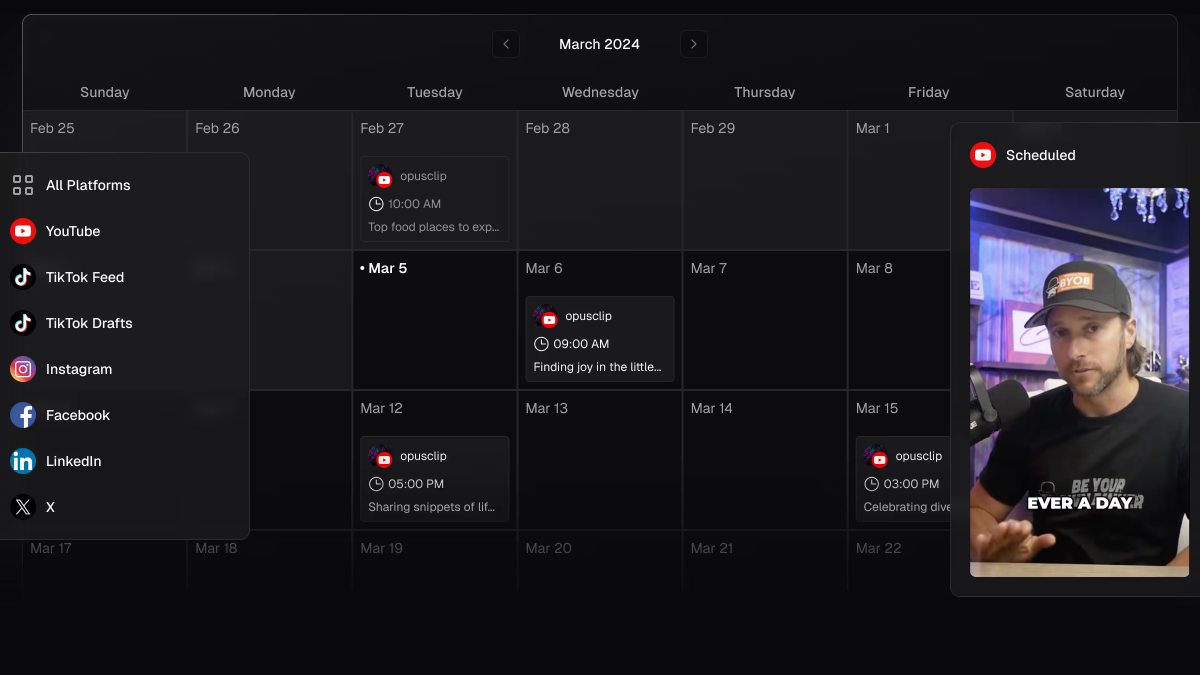
The OpusClip social calendar. Source: OpusClip website
OpusClip takes a long video (a podcast, webinar, interview, livestream or client recording) and returns short clips, each scored from 0 to 99 for hook, flow and trend. It adds animated captions in 20+ languages, reframes to 9:16, 1:1, 4:5 or 16:9, and imports from YouTube, Zoom, Google Drive, Dropbox, Vimeo, Twitch, Riverside, StreamYard and Loom links. A text and timeline editor, filler-word and silence removal, and brand templates (1 on Starter, 2 on Pro) sit on the paid plans, with custom fonts on Pro.
The publishing side is what makes it useful for a manager. Per the OpusClip help center, Starter posts in real time to YouTube Shorts, TikTok and Instagram, while Pro adds a social media scheduler and real-time posting to LinkedIn, Facebook Pages, X (beta), Pinterest, Threads and Bluesky. Pro can connect multiple accounts to each platform, up to 6 accounts (an add-on pack raises the cap to 12). The calendar shows what was published, drafted and planned, and posts can be dragged to a new day or time. For teams, the team workspace shares credits, videos and brand templates, and Pro includes 2 seats per pack, up to 4 seats; the team workspace page and brand templates page show the features.
Pricing: Pricing on opus.pro/pricing: Free is $0 with 60 credits a month, 1080p clips, a watermark and no editing, and clips stop being exportable after 3 days. Starter is $15 a month (monthly billing only) with 150 credits, 1 brand template and auto-posting to YouTube Shorts, TikTok and Instagram Reels. Pro is $29 a month, or $14.50 a month billed annually ($174), with 300 credits that roll over for 2 months, a team workspace with 2 seats, 2 brand templates, 6 social account connections, the social media scheduler and custom fonts. Business is custom, with customized credits, team seats and social account connections.
Considerations: OpusClip is a clip-and-publish tool, not a replacement for a full non-linear editor, and it starts from video rather than static graphics. Bulk scheduling is Pro only and covers YouTube only. The help center says that editing a clip after scheduling it does not change the scheduled post, so the clip must be scheduled again. Instagram posting needs a Business or Creator account. The team workspace documentation says chat and notes inside the workspace are not supported, and we did not find a documented approval step before posting, so sign-off currently happens outside the tool.
- Choose it if the job is turning long recordings into many short branded posts and scheduling them across several accounts.
- Skip it if approvals must be enforced inside the tool, or most posts are static graphics rather than video.
2. Canva: Best for branded graphics and video with a content planner and approvals
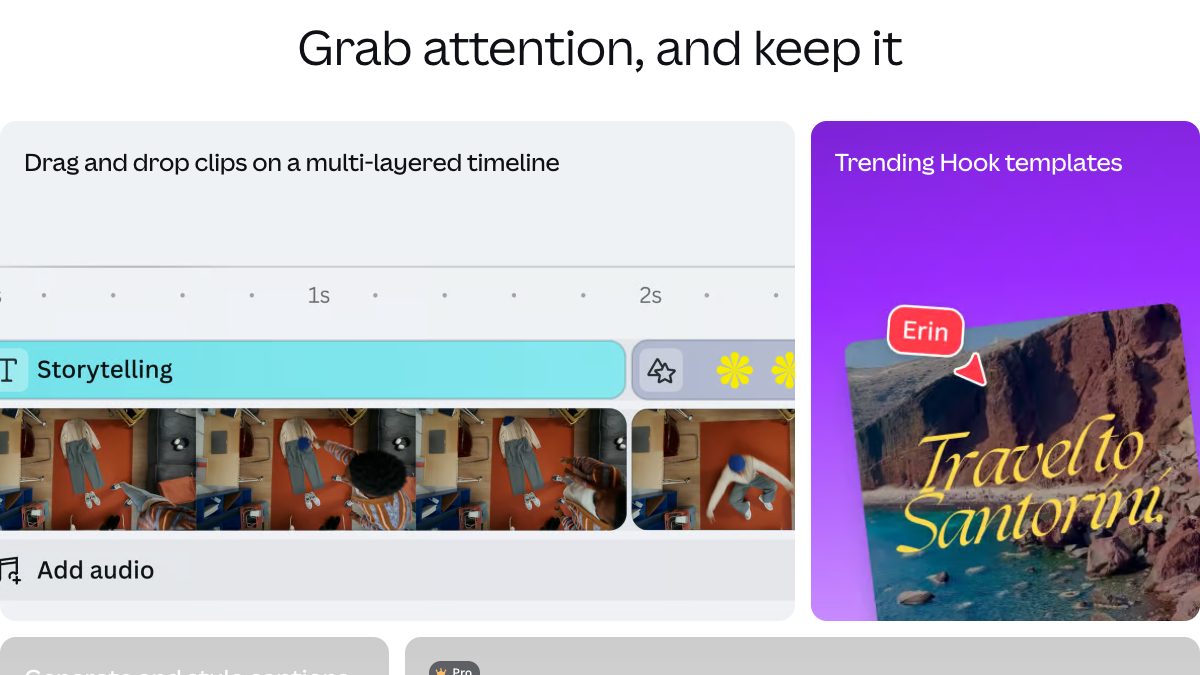
Canva's video editor page. Source: Canva website
Canva is a design suite with a video editor attached. Its video editor page lists a multi-layered timeline, trending hook templates for social media, one-click captions, a Highlights tool that surfaces the best parts of footage, Magic Video from a prompt, and resizing for multi-channel campaigns. It suits managers whose weekly output mixes carousels, stills and short video for several brands.
On the management side, Canva's pricing page lists Brand Kits on every plan (1 on Free with 3 colors only, 5 on Pro, 100 on Business) and "collaboration and team admin tools" plus approvals on Business. Canva's help center says Content Planner scheduling is available to Pro and Business, each user can connect up to 80 social accounts per team, and each connected account can be private, team-viewable or team-publishable. The platforms it lists are Facebook Pages, Instagram Business accounts, X, LinkedIn, Pinterest, Slack and Tumblr.
Pricing: Canva's pricing page lists Free at US$0, Pro at US$144 a year for one person and Business at US$250 a year per person. Pro adds social content scheduling and 5 Brand Kits; Business adds collaboration and team admin tools and "100 Brand Kits and approvals". Enterprise is by contact.
Considerations: Canva's Content Planner help article does not list TikTok or YouTube among supported platforms, says each design can be scheduled to only one platform at a time, and requires Instagram scheduling from a desktop browser. We found no long-video clipping feature on the pages we read.
- Choose it if posts combine design and video for several brands and a reviewer needs a defined approval step.
- Skip it if the main need is cutting long recordings into clips or scheduling to TikTok and YouTube from the same tool.
3. Adobe Express: Best for brand-controlled templates with a free content scheduler
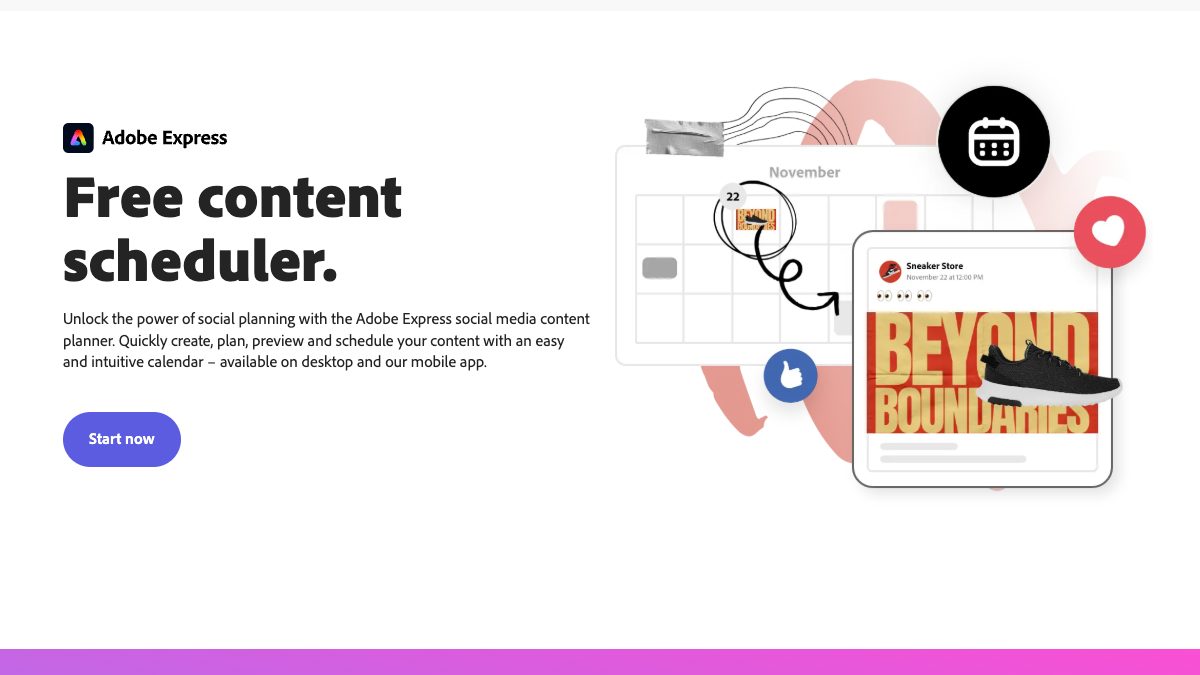
Adobe Express Content Scheduler. Source: Adobe website
Adobe Express combines templates, a video editor and a content scheduler. Its pricing page lists drag-and-drop video creation, Caption Video, Resize Video, Clip Maker (which turns video podcasts and similar long videos into social clips with captions), Brand Kits, branded templates, Brand Check and brand controls, which specify which colors and fonts may be used in a shared template.
Adobe's Content Scheduler page says it lets users plan, preview and schedule posts on a calendar, on desktop and in the mobile app, and names social media managers as an audience. It lists TikTok, Instagram, Facebook, X, Pinterest and LinkedIn for free, and says the free plan includes scheduling of up to 1000 posts a month. YouTube is not in that list.
Pricing: Adobe's pricing page lists Free at US$0.00 (scheduling to 1 account per social network, video up to 30 minutes), Premium at US$9.99 a month billed monthly with a 30-day free trial (scheduling to 3 accounts per social network, brand kits, one-click resize, video up to 2 hours) and Firefly Pro at US$19.99 a month. Branded templates are use-only on Free and create-and-use on Premium.
Considerations: Three accounts per network on Premium may not stretch across many client brands. The pricing page notes its comparison reflects public information as of May 2026, and the plan columns for Brand Check and brand controls were not readable in the text we extracted, so confirm them before buying.
- Choose it if a low-cost scheduler with brand-locked templates covers most posts, including graphics.
- Skip it if the work is clipping long videos at volume or publishing to YouTube.
4. VEED: Best for browser-based editing and subtitles with per-seat team plans
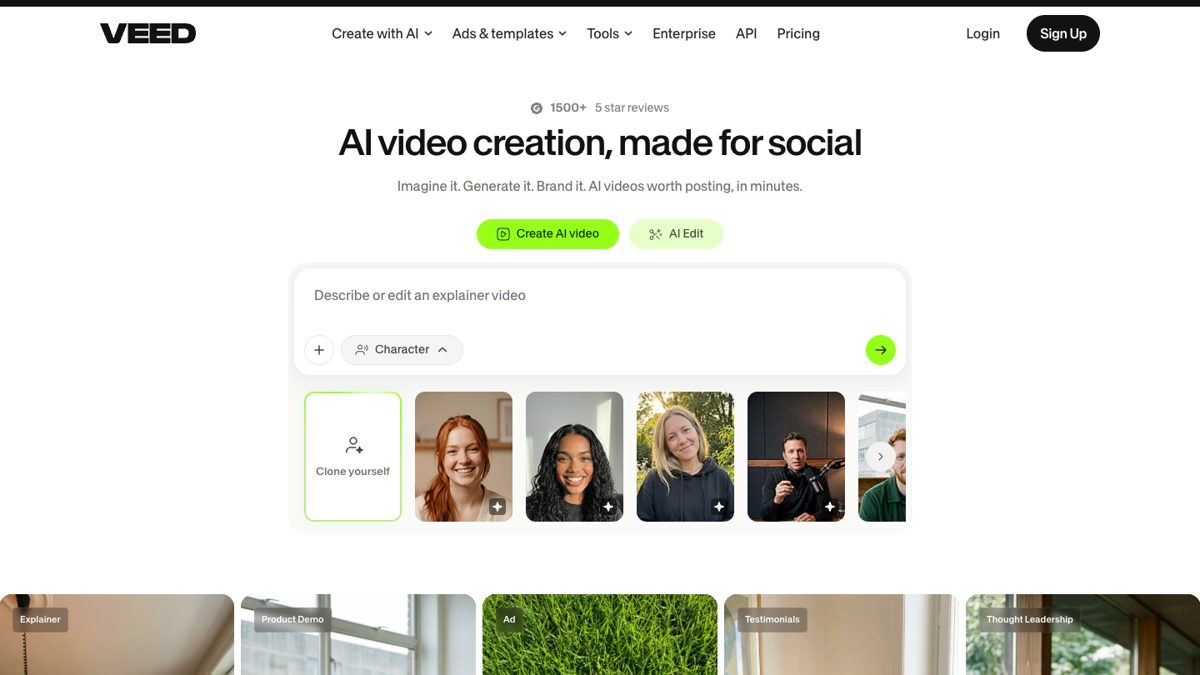
VEED's AI video creation and AI Edit entry point. Source: VEED website
VEED is an online editor that its site describes as an AI video generation and editing platform. It lists an AI video editor, an AI clip generator, auto subtitles, translation, dubbing, a teleprompter and a Teams offering. It suits small teams that edit in a browser and need subtitles on every video.
VEED's pricing page lists Multiple Brand Kits on Pro, and Review mode for videos and central team and data management on Enterprise. Plans are charged per seat, so each added editor adds to the bill.
Pricing: VEED's pricing page lists Creator at $10 per user a month billed yearly (1080p, no watermark, unlimited video length) and Pro at $19 per user a month billed yearly (4K export, 50GB of storage, 50+ translation languages, multiple Brand Kits, unlimited auto subtitles). Enterprise is custom. The page says there is a free way to start and a free trial only for enterprise customers with at least 3 users.
Considerations: Per-seat pricing makes team costs scale with headcount, and AI credits refresh on renewal without carrying over. The pages we read do not describe scheduling or direct publishing to social accounts, and Review mode is listed only under Enterprise.
- Choose it if subtitles and browser editing are the core need and a review mode matters at the Enterprise level.
- Skip it if scheduling posts from the same tool is a requirement.
5. Kapwing: Best for shared browser editing with comments and a brand kit
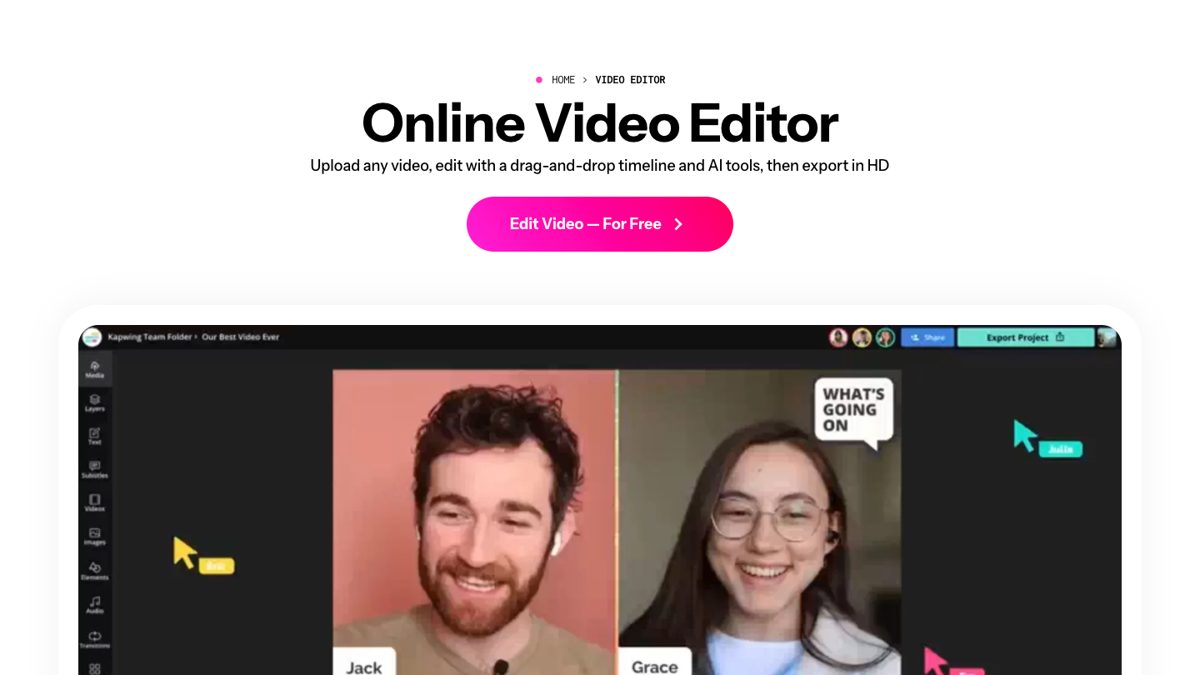
Collaborative editing in Kapwing. Source: Kapwing website
Kapwing is a browser editor with a drag-and-drop timeline and tools such as Subtitler, Repurpose Studio, Clip Maker, Smart Cut for removing silences, Trim with Transcript and dubbing into 40+ languages. Its pricing page has a Collaboration and Brand Management section listing commenting (collaborators can leave comments directly on the video), project link sharing, team invitations, real-time collaboration and a Brand Kit for logos, fonts and colors.
That suits a small team where an editor and a reviewer leave feedback on the same cut.
Pricing: Kapwing's pricing page lists Free at $0 with 10 credits, a Kapwing watermark, exports up to 4 minutes and 720p. Pro is $16 a month on the annual toggle with 1,000 credits a month, no watermark, 4K export, a Brand Kit with custom fonts and a collaborative shared workspace. Business is $50 a month with 4,000 credits. Enterprise is custom. The page says there is no free trial of paid plans.
Considerations: Which plan includes commenting was not readable in the text we extracted, so confirm it on the pricing page. The pages we read do not describe scheduling or direct publishing, so posts are exported and uploaded elsewhere.
- Choose it if an editor and a reviewer need to work on the same video in the browser with a shared brand kit.
- Skip it if the workflow needs a calendar or direct posting from the editor.
6. Vizard: Best for clipping long videos and publishing to several social accounts
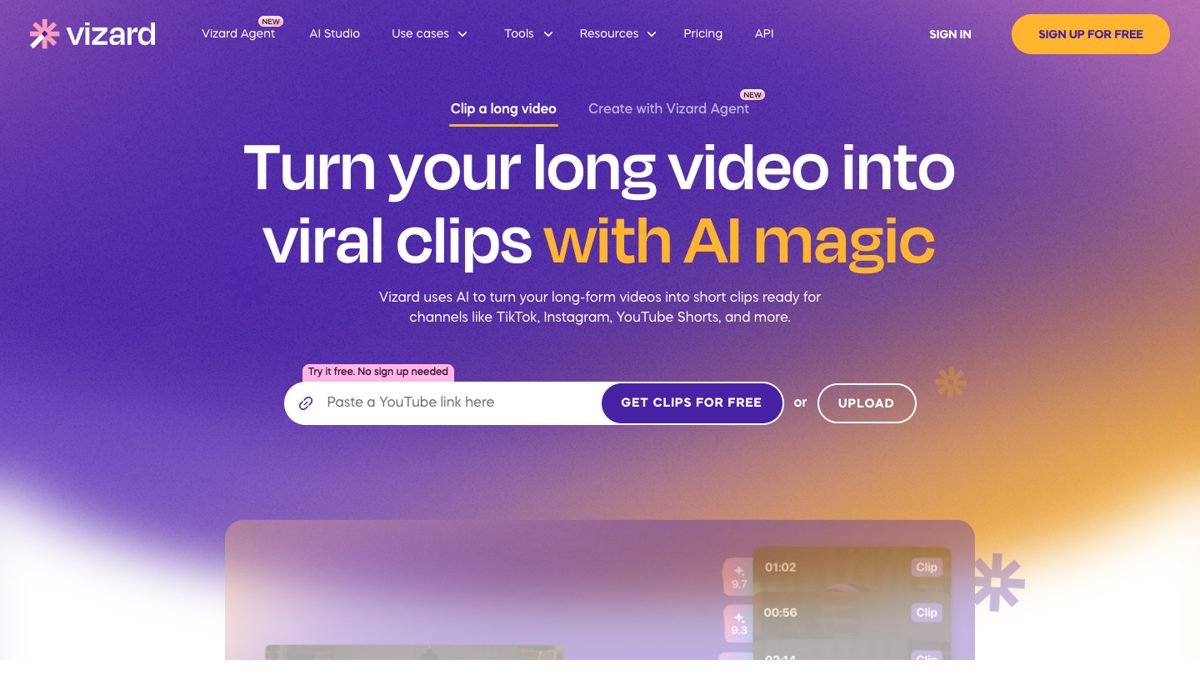
Starting from a YouTube link in Vizard. Source: Vizard website
Vizard clips long videos into short ones: its pricing page lists AI clipping, auto subtitling, auto reframe, AI emojis and highlight keywords, AI B-rolls and AI post suggestions, alongside a video editor.
On publishing and teams, the pricing page lists managing 1 social media account on Free, 6 on Creator and 20 on Business, with scheduling of social posts listed under Creator, and Business lists a shared workspace, invited team members, project sharing and a Brand kit.
Pricing: Vizard's pricing page lists Free at $0 with 60 credits a month, 720p export, a full video editor, 3-day storage and 1 social account. Creator adds no watermark, 4K export, 6 social accounts and scheduling, and Business adds a shared workspace, 20 social accounts, team invitations, project sharing and a Brand kit. One credit equals one minute of uploaded video. The paid dollar amounts did not render in the page text, so see the pricing page for current prices.
Considerations: Credits are spent per uploaded minute, which can add up for long recordings. The comparison table check marks were not readable, so the plan mapping above follows the plan descriptions rather than the table.
- Choose it if long-video clipping, a scheduler and a higher account cap on a team plan matter together.
- Skip it if an approval flow or a full timeline editor is the priority.
7. Submagic: Best for caption-first short videos with built-in publishing
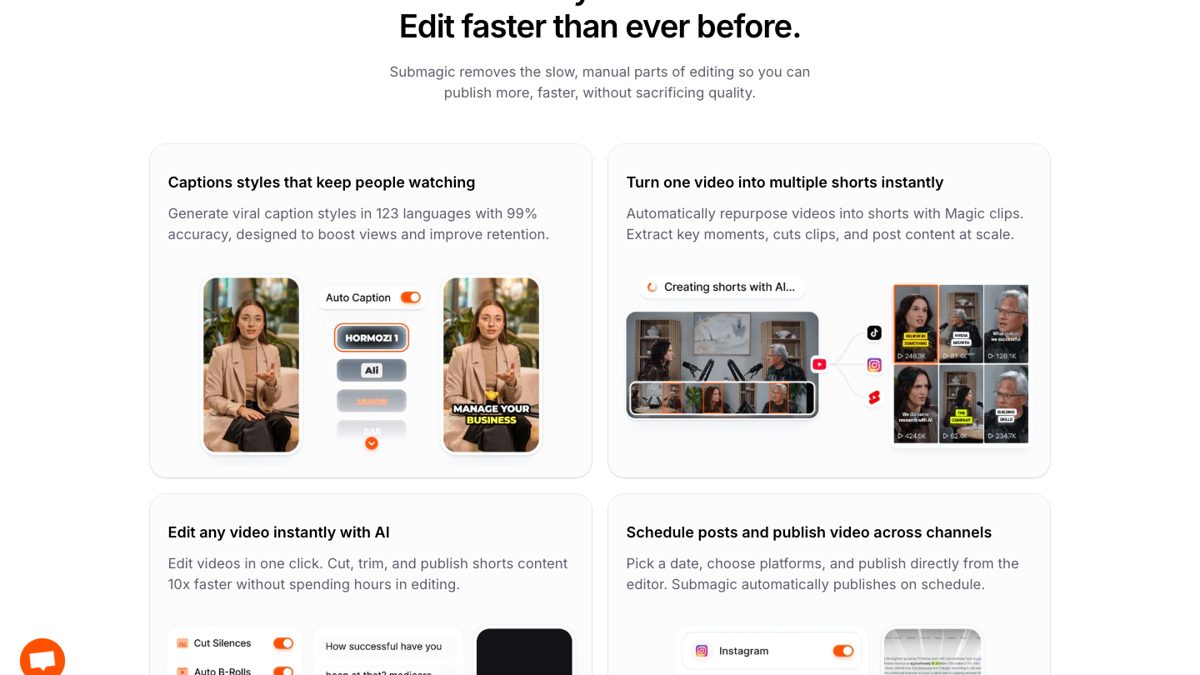
Submagic's caption, repurposing and publishing features. Source: Submagic website
Submagic centers on captions and short-form finishing. Its pricing page lists AI auto captions, Magic Clips, AI hook titles, removal of bad takes and silences, AI clean audio, free b-rolls and audio, a Brand Kit, custom templates and a Business plan described as for teams scaling video production.
The page also lists publishing and analytics for social: publishing is shown from the Pro plan, and the comparison table lists 1 publishing profile per platform on one tier and 3 on Business.
Pricing: Submagic's pricing page lists Starter at $19 a month billed monthly (45 credits, equal to 15 videos, 2-minute videos, 1080p, no watermark), Pro at $39 per member a month and Business at $69 per member a month (300 credits, equal to 100 videos, 30-minute videos, 4K). No free plan appears on the pricing page.
Considerations: The pricing page contains two plan blocks whose details differ slightly, such as where publishing starts and how many custom templates each plan gets, so confirm the plan you need on the live page. We did not find a documented approval step.
- Choose it if caption styling is the main edit and posting from the same tool is a plus.
- Skip it if the job is a full multi-account calendar with approvals.
8. CapCut: Best for fast vertical edits with a per-seat Teams plan
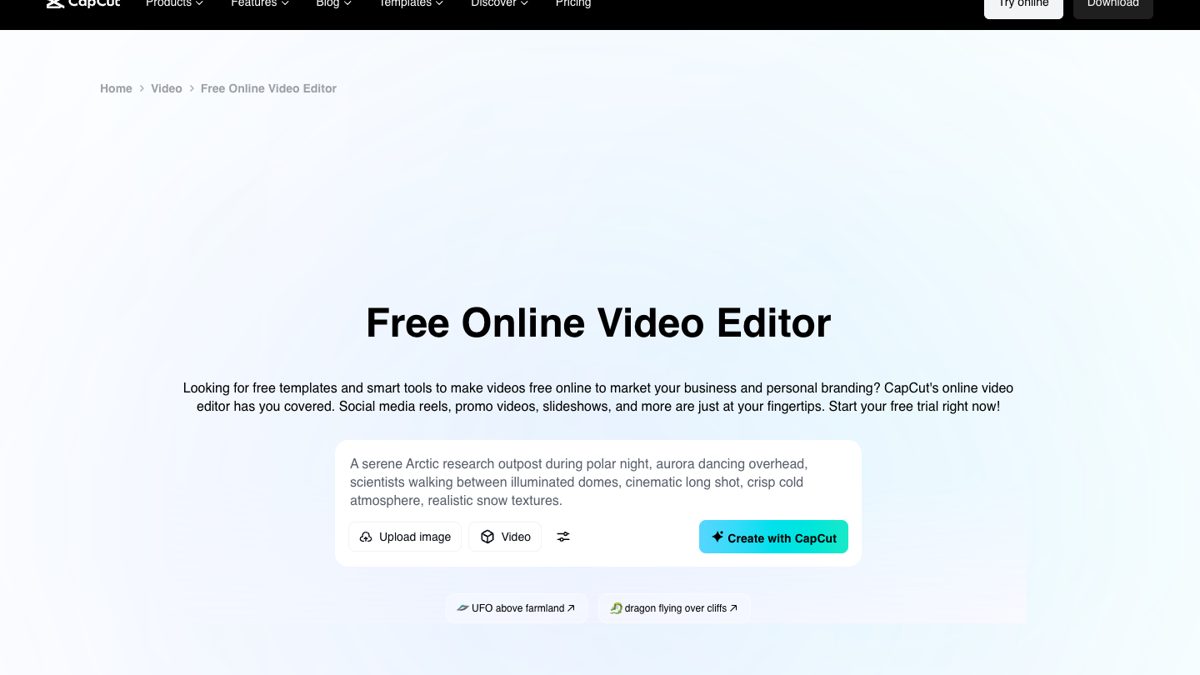
CapCut's online video editor page. Source: CapCut website
CapCut offers desktop, online and mobile editors with auto captions, templates and AI features, and its online editor page lists cloud storage and collaboration. It suits creators and small teams editing short vertical video.
CapCut's pricing page lists a Teams plan priced per seat with Pro features for all seats, a Brand kit and 1 TB of storage, which is the team feature most relevant to managers.
Pricing: CapCut's pricing page lists Free at USD 0 (free templates, basic editing tools), Pro at USD 19.99 a month (1,200 monthly AI credits, premium templates, 1 TB of storage) and Teams at USD 12.49 a month per seat for 2 seats. The page notes that displayed pricing is for reference only, and the final price appears after signing in.
Considerations: The CapCut pages we read do not describe a content calendar, scheduled posting or an approval workflow, and the online editor page tells users to check access and sharing settings in their workspace.
- Choose it if budget is tight and quick vertical edits with templates are the main job.
- Skip it if scheduling, approvals or long-video clipping must live in the same tool.
9. Flixier: Best for cloud editing with a brand kit and unlimited collaborators

Flixier's cloud editor. Source: Flixier website
Flixier is a cloud video editor that renders on its own servers. Its site lists editing by transcript, a screen and webcam recorder, subtitles in 130+ languages, real-time collaboration, a Brand Kit and its Eva AI editing assistant. Its homepage says finished videos can be sent to YouTube, TikTok or Google Drive.
Its pricing page lists Brand Kit and Unlimited Collaborators on the Creator and Business plans, which suits small teams that edit together without paying extra for guests.
Pricing: Flixier's pricing page lists Free at $0 (10 minutes of export a month, 720p, a Flixier watermark), Starter at $19, Creator at $39 and Business at $69 per seat per month, with monthly and yearly toggles on the page, so see the pricing page for which price applies. Starter removes the watermark and allows 60 minutes of export per seat a month; Creator and Business list unlimited exports and 4K.
Considerations: Per-seat pricing grows with the team, and the pages we read describe sending a finished video to YouTube, TikTok or Drive but not scheduling or a content calendar.
- Choose it if a team edits in the browser together and the brand kit and collaborator count matter.
- Skip it if a scheduling calendar or long-video clip selection is required.
10. Clipchamp: Best for Microsoft 365 teams that want a free editor with a brand kit
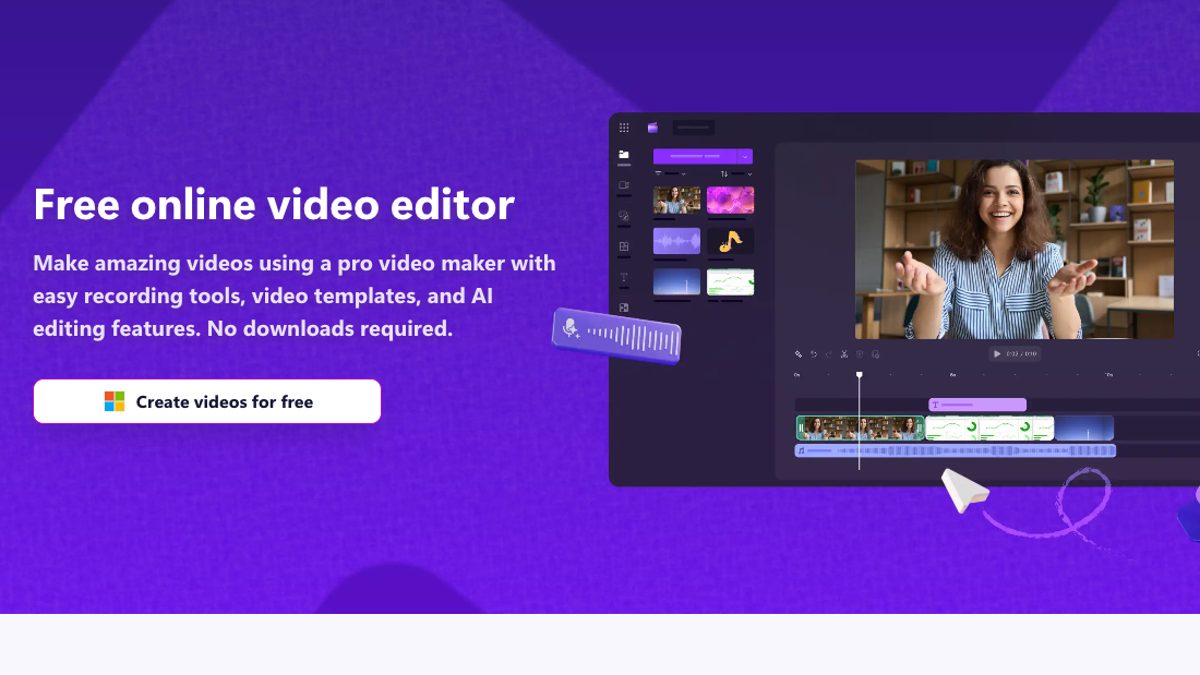
Clipchamp's online video editor page. Source: Clipchamp website
Clipchamp is Microsoft's browser and Windows video editor. Its pricing page lists free AI video editing tools, an AI subtitle generator, voiceovers, silence removal and 1080p export with no watermark on the free plan. Its FAQ says videos can be exported and shared directly to YouTube, TikTok and LinkedIn company pages, or saved to OneDrive, Google Drive and Dropbox.
For teams, the Clipchamp for work page lists shareable organization video templates with logos, fonts and color palettes from the brand kit tool, and says collaborators can add reactions or comments in Clipchamp and store videos in OneDrive and SharePoint.
Pricing: Clipchamp's pricing page lists a free plan that works with a personal Microsoft account, and premium features (4K export, premium stock assets, the brand kit tool for a single brand) with Microsoft 365 Personal and Family. It says the work version is included in some Microsoft 365 business and education licenses, and premium features and AI video creation with a Copilot license. See Microsoft for plan prices.
Considerations: The brand kit is listed as a single brand on Premium, which limits agency use. The pages we read do not describe a content calendar or scheduled posting.
- Choose it if the team already pays for Microsoft 365 and needs a free editor with comments and one brand kit.
- Skip it if several client brands or a posting calendar are involved.
How we compared these tools
We compared the tools on the job of editing short-form video and getting it posted for one or more brands: editing, brand consistency (brand kits and templates), scheduling and publishing (channels, account limits, calendar), collaboration and approvals, and price and free-tier limits. Every fact comes from each vendor's own pricing page, documentation or help center, read with a direct page request or a rendered browser view on October 30, 2026, and we attribute vendor claims to the vendor.
We did not run hands-on tests of any competitor. Where a price or a plan detail was not readable in the page text, we say so and point to the pricing page rather than guess. We rank OpusClip first because its Pro plan combines clipping, brand templates, a multi-account scheduler and a team workspace; a manager whose work is mainly design or approvals may reasonably choose Canva instead.
Red flags to watch for
Scheduling that misses the channels a client uses
Platform lists differ. Canva's help article lists no TikTok or YouTube, Adobe's scheduler page lists no YouTube, and OpusClip's bulk scheduling covers YouTube only. Trial test: connect one real account on each channel a client uses and schedule one post to each before paying.
Account caps and per-seat pricing that grow with client count
Limits range from 1 social account on Vizard Free to 6 on OpusClip Pro and 80 per user on Canva, and VEED, Kapwing, Flixier and Submagic price by seat or member. Trial test: add up the accounts and editors needed for the busiest month and price that exact plan.
A brand kit that covers only one brand
Clipchamp lists a single brand, OpusClip Pro lists 2 brand templates, and Canva Business lists 100 Brand Kits. Trial test: build one template for each of two different clients and confirm both can be saved and applied without swapping settings.
Approvals that are missing or only on top plans
Canva lists approvals on Business, VEED lists Review mode on Enterprise, and some tools document only comments. Trial test: ask a reviewer to approve or reject a draft and check whether a post can still go out without that step.
Edits that do not follow a scheduled post
OpusClip's help center says edits made after scheduling are not reflected, so the clip must be scheduled again. Other tools may behave differently. Trial test: schedule a post, edit the video, and check which version is queued.
Watermarks and export limits on free plans
OpusClip Free adds a watermark and no editing, Kapwing Free limits exports to 4 minutes and 720p, Flixier Free allows 10 minutes of export a month, and Vizard Free exports 720p. Trial test: export one real client video on the free plan and check the watermark, resolution and length before committing.
Frequently asked questions
What is the best AI video editor for social media managers?
For managers who turn long recordings into short posts and schedule them, OpusClip is our pick because clipping, brand templates, a multi-account scheduler and a team workspace sit in one account. For managers who mix graphics and video and need approvals, Canva is the stronger fit. We make OpusClip, and we did not run hands-on tests of the other tools.
What is the best AI video editor for small teams?
It depends on how the team works. OpusClip Pro lists a team workspace with 2 seats per pack (up to 4), Kapwing lists a collaborative shared workspace on Pro, Flixier lists unlimited collaborators on Creator and Business, and Canva Business lists team admin tools and approvals. Compare seat limits and per-seat pricing against the real team size.
Which AI video editors can schedule posts to social media?
From the vendors' own pages: OpusClip (Pro scheduler, plus real-time posting from Starter), Canva (Pro and Business Content Planner), Adobe Express (free content scheduler), Vizard (scheduling on Creator) and Submagic (publishing from Pro). Clipchamp and Flixier describe sending finished videos to platforms such as YouTube and TikTok but not scheduling.
How can social media managers keep client videos on brand?
Use brand kits or templates that fix logos, fonts and colors. OpusClip has brand templates (1 on Starter, 2 on Pro), Canva has Brand Kits (5 on Pro, 100 on Business), Adobe Express lists Brand Kits and brand controls for templates, and Kapwing, VEED, Flixier and CapCut list brand kits on paid plans. See our brand templates comparison for more.
Do these editors have an approval workflow for client review?
Canva's pricing page lists approvals on Business, and VEED lists Review mode for videos on Enterprise. Kapwing and Clipchamp for work list comments on videos. For OpusClip, we did not find a documented approval step, and its team workspace does not support chat or notes, so reviewers currently give feedback outside the tool.
Is there a free AI video editor for social media managers?
Yes, with limits. Adobe Express Free includes scheduling to 1 account per network, CapCut and Clipchamp have free tiers, Canva Free and Kapwing Free exist (Kapwing adds a watermark), and OpusClip Free includes 60 credits a month with a watermark and no editing. Check the watermark, resolution and credit limits before relying on a free plan for client work.
How many social accounts can each tool connect?
The vendors list: OpusClip Pro 6 accounts (12 with an add-on pack), Canva up to 80 per user per team on paid plans, Vizard 1, 6 and 20 on Free, Creator and Business, Adobe Express 1 per network on Free and 3 on Premium, and Submagic 1 or 3 publishing profiles per platform depending on plan.