No items found.
8 Best Auto Censor and Profanity Bleep Tools for Video in 2026
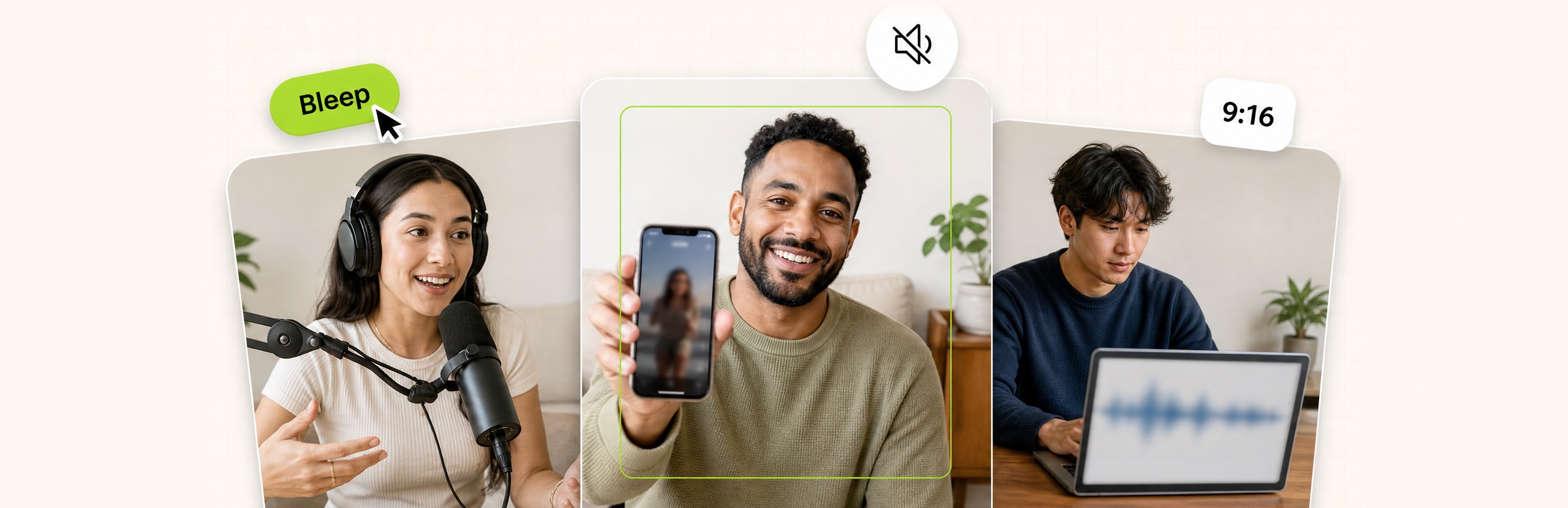
OpusClip is the pick for censoring swear words while editing clips: its Auto Censor mutes or bleeps each flagged word, masks it in the captions (for example with asterisks), and lets every word be reviewed or reverted before export. Choppity, BeepThatOut, Bleepify, VIDIO and CurseCut are web tools, FireCut is a Premiere Pro plugin, and Beep is an iPhone app. Items 2 to 8 follow one yardstick, where the tool lives: websites first, then an editor plugin, then a phone app. Facts come from vendor pages read on November 18, 2026.
Key takeaways
- Best for censoring while editing clips: OpusClip. Auto Censor mutes or bleeps flagged words and masks them in the captions; the help center says any word can be censored or un-censored from the transcript.
- Best for a free web tool that takes a link or a file: Choppity. Its tool page lists bleep, mute, volume reduction and caption masking, and says individual words can be toggled on or off.
- Best for long recordings reviewed word by word: BeepThatOut. Its editor adjusts word timing, takes a custom word list and exports an XML project for Premiere Pro, Final Cut Pro or DaVinci Resolve.
- Best for video, audio and songs: Bleepify. Its Free plan lists 10 minutes a month, and a $9 one-time Project Pass covers occasional jobs.
- Best for hiding more than swear words: VIDIO. Its page says names, places, phone numbers and words a user adds can be bleeped in the same pass.
- Best for processing on your own computer: CurseCut. Its pages say video files never leave the computer and that a custom word list drives the pass.
- Best for Premiere Pro editors: FireCut. Its docs list a custom blocklist and allowlist, four built-in bleep sounds and a per-word review list.
- Best for an iPhone or iPad: Beep. Its App Store listing prices the app at $4.99 and lists manual censoring that needs no credits.
How auto censoring works
Auto censoring has three steps. The tool transcribes the speech and matches the transcript against a word list, it covers each match in the audio (with a beep, silence or another sound) and usually in the captions (with asterisks or symbols), and it lets a person review the matches before export. The pages read for this guide describe that same flow. Two of them also state the limit of a transcript-based method: FireCut's docs say music, sound effects, noise or several speakers can throw off the analysis, and Beep's App Store listing says results may vary with audio noise and speaker accents.
Blurring faces or hiding nudity is a different, visual job, and this guide compares the profanity job. For reference, VIDIO's site links separate face blurring and license plate blurring tools, Bleepify's page lists an AI nudity censor on its paid plans and Project Pass, and Beep's listing lists Blur and Pixelate.
How to choose
- The video is already being cut into clips and captioned: OpusClip, so the bleep and the caption mask happen in the same editor. For cutting a section out instead of bleeping it, see our AI video cutters and trimmers guide.
- One file, free, from a link or an upload: Choppity, or Bleepify's Free plan within its 10 minutes a month.
- A long podcast, stream or interview that needs a word-by-word pass: BeepThatOut, which exports an editor project.
- Names, numbers or contact details should be hidden too: VIDIO.
- The files should stay on the computer: CurseCut, per its own pages.
- The edit lives in Premiere Pro: FireCut. For DaVinci Resolve or Premiere Pro, AutoCut's AutoProfanity Filter is another plugin option: its pricing page lists it in the AI Plan, and its feature page lists saved custom word lists.
- The phone is the only editor: Beep.
At a glance
- OpusClip: best for censoring swear words while editing clips; Free $0 with a watermark; Starter $15 a month (monthly billing only); Pro $29 a month or $14.50 a month billed annually; the pricing page's plan comparison lists which plans include Auto Censor.
- Choppity: best for a free web censor tool; the tool page calls it free and the Free plan is $0 a month; Starter $24 a month, or $16.80 a month billed yearly.
- BeepThatOut: best for long recordings reviewed word by word; 7-day free trial, no free plan listed; Hobby $26 a month billed monthly, or $21 a month billed annually.
- Bleepify: best for video, audio and songs; Free $0 (10 minutes a month); Starter $9.99 a month, or $90 billed yearly; $9 one-time Project Pass.
- VIDIO: best for hiding names and numbers as well as swear words; Free $0 with watermarked exports; Pro 20 $8 a month billed annually ($96), or $10 a month billed monthly.
- CurseCut: best for processing on your own computer; a Free tier with watermarked exports; one-time credit packs from $7.
- FireCut: best for Premiere Pro editors; 7-day trial; Pro $20 a month billed yearly lists Remove profanity.
- Beep: best for an iPhone or iPad; the app is listed at $4.99 with in-app purchases.
Where each tool runs, what replaces the word and how it is reviewed
The At a glance list covers best-for and prices; this table compares where each tool runs, what replaces a flagged word, how custom words are added and how matches are reviewed, as listed on each vendor's own pages on November 18, 2026.
| Tool | Where it runs | What replaces the word | Custom words | Review before export | Free option or entry cost as listed |
|---|---|---|---|---|---|
| OpusClip | Inside OpusClip's clip editor | Mute or bleep; word masked in captions (e.g. **) | Pick a word list; censor any word from the transcript | Revert or censor any word before publishing | Free plan has a watermark; plan list is on the pricing page |
| Choppity | Web tool page: upload a file or paste a YouTube link | Bleep, mute or lower volume; caption mask | Click a transcript word to censor it; no word list printed | Toggle each flagged word; preview before export | Tool page says free; Free plan lists 1 hour of AI video analysis |
| BeepThatOut | Web editor; XML export to Premiere, Final Cut, Resolve | Beep, silence, preset sounds or your own audio | Own word blacklist and personal dictionary | Edit transcript inline; move or stretch word timing | 7-day free trial; no free plan listed |
| Bleepify | Web app: upload a file or paste a YouTube link | Bleep or mute; some projects swap in a spoken word | Custom words checked in the transcript | Timed transcript; check each edit before export | Free plan: 10 minutes a month, 3 re-edits per video |
| VIDIO | Web app; nothing to install | Beep, noise or silence on each word | Add your own words; names and numbers too | Click a word to bleep or keep it; hear it in preview | Free plan lists watermarked exports; clean export paid once |
| CurseCut | Website upload; ffmpeg processes files locally | Beep, silence, custom sound or reversed audio | Own words or phrases; exact or approximate match | Set how much of each word is muted; reprocess free | Free credits for new users |
| FireCut | Premiere Pro plugin on Windows or macOS | Mute, or bleep with Beep, Quack, Dolphin, Ahooga or your own | Custom blocklist and allowlist | Lists each word with its time; untick to keep one | 7-day trial; Remove profanity starts on Pro |
| Beep | iPhone and iPad app | Bleep, 15+ sound effects or silence | Manual censoring by tap and hold; no word list printed | Nudge timing by hand; results vary with noise | 300 AI credits (Sparks) with the app; manual censoring needs none |
1. OpusClip: Best for censoring swear words while editing clips
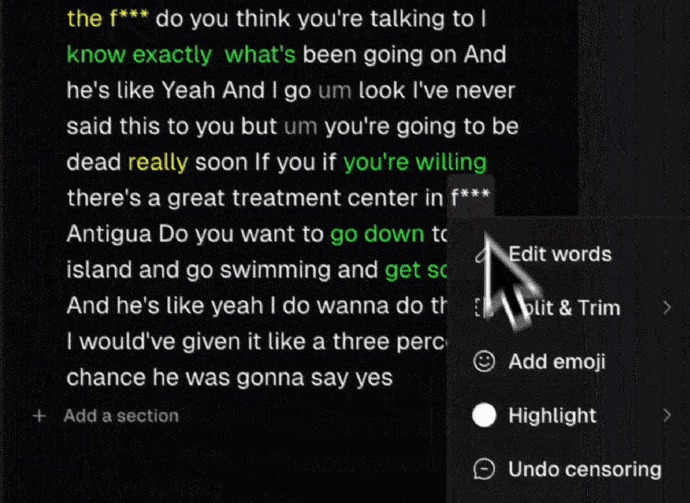
The transcript menu with Undo censoring in OpusClip's editor. Source: OpusClip help center
OpusClip's Auto Censor works inside its clip editor. Per the OpusClip Censor Video page, it finds curse words in a video and censors them in both the audio and the captions: flagged words can be muted or bleeped, and masked in the captions with characters such as asterisks. The help article gives the steps: open the clip in the editor, choose AI enhance, click Auto censor, pick the curse word list to review, pick how censored words look in the captions and whether the audio is beeped, muted or left alone, then enable it.
Review is word by word. The help center says a word can be selected in the transcript and censored for that one word or for every instance of it, an individual censored word can be un-censored, and a Revert censorship option in the AI enhance menu cancels the whole pass. Because the censor pass sits in the same project as clipping, captions and reframing, it is one more step rather than a separate app. For the caption side of that project, see our auto caption generators guide.
Pricing: OpusClip's pricing page lists Free at $0 with a watermark, Starter at $15 a month (monthly billing only) and Pro at $29 a month, or $14.50 a month billed annually. Business is custom. The plan comparison lists Auto censor curse words, so check that page for the plan that includes it.
Considerations: Auto Censor is one function of a clip editor, so it fits best when the video is also being clipped, captioned or reframed; a single-purpose bleeper may be lighter for a one-off file. Detection works from the transcript, so each flagged word, and any word the pass missed, gets checked in the transcript view before export.
- Choose it if the video is being turned into clips and the swear words should be bleeped or muted and masked in the captions in the same editor.
- Skip it if a lone audio file needs a bleep with no clipping, or a plugin inside Premiere Pro is preferred.
2. Choppity: Best for a free web censor tool that takes a link or a file
The intake card on Choppity's free censor tool page. Source: Choppity website
Choppity is an AI clipper that also has a dedicated web tool for censoring profanity. Its tool page says to paste a YouTube link or upload a video, that the AI transcribes the audio and flags each instance of profanity with a timestamp, and that each word can be bleeped with a tone, muted, reduced in volume or left uncensored. In captions, it says profanity can be masked with symbols, asterisks or underscores, or removed entirely.
Choppity's pages say the AI flags every detected word but the reader decides what to censor: individual words can be toggled on or off, and the preview updates before export. The feature page adds that clicking a word in the transcript turns the censor on for it, and that caption masking is handled separately from audio censoring, so audio can be bleeped while the captions show the full word, or the reverse.
Pricing: Choppity's tool page calls the censor tool free. Its pricing page lists a Free plan at $0 a month with 1 hour of AI video analysis and 3-day project storage, and Starter at $24 a month, or $16.80 a month billed yearly ($201.60).
Considerations: The pages read print no custom word list, so extra terms are added by clicking them in the transcript. Choppity's pricing comparison shows a dash against Exports/downloads on Free while the free tool page says to export the video, so confirm what Free can export before planning around it. The tool page makes claims about YouTube monetization; the Red flags section below sets them against what YouTube Help says.
- Choose it if one video needs a quick bleep from a link or a file, with the caption text masked separately.
- Skip it if a saved custom word list is needed, or the file should stay on the computer.
3. BeepThatOut: Best for long recordings reviewed word by word
BeepThatOut calls itself a web-based editor that detects and censors profanities in audio and video. Its FAQ says the AI transcribes the audio, aligns each word to the timeline and detects profanities; the editor then lets a person adjust word alignment, edit the transcript inline, add or remove profanity tags and update a personal profanity dictionary. Categories and an intensity level can be picked, custom words added to a blacklist, and the censor sound set to a beep, silence, a preset sound such as a car horn or dog bark, or an uploaded audio file.
Output goes two ways: a rendered file (video, audio or just the audio track with effects) or an XML project for Adobe Premiere Pro, Final Cut Pro or DaVinci Resolve. BeepThatOut also exports .srt subtitles at no extra cost and lists 55 languages on its pricing table.
Pricing: BeepThatOut's pricing page lists Hobby at $26 a month billed monthly ($21 a month billed annually) with 12 hours of processing time and a 2-hour video duration limit; Creator at $37 a month ($30 annually) with 32 hours and a 10-hour limit; and Studio at $111 a month ($89 annually). Its FAQ offers a 7-day free trial with no feature limits.
Considerations: No free plan is listed, only the trial. The FAQ says a video can be up to 10 hours and 20GB while the Hobby plan lists a 2-hour limit, so the plan limit is the number to check. Per the FAQ, uploading a video extracts the audio and stores it without the video.
- Choose it if a long podcast, stream or interview needs a word-by-word pass and a project handed on to an editor.
- Skip it if a free plan is needed for occasional files.
4. Bleepify: Best for video, audio and songs, with a one-time pass for occasional jobs
The upload card on Bleepify's home page. Source: Bleepify website
Bleepify describes itself as an AI profanity filter for video and audio: it creates a timed transcript, highlights likely swear words and lets a person choose what to bleep, mute or replace before exporting a clean copy. Its home page lists a transcript viewer with a per-word toggle, custom censor sounds (a classic bleep, silence or an uploaded sound), SRT subtitle export, batch uploads on paid plans and detection in 40+ languages. A YouTube link can be pasted instead of a file.
Two extras set it apart. Music Mode separates the vocals from a song so selected lyrics can be covered, and AI Word Replacement swaps a selected word for a generated spoken alternative, with the page warning that the new voice may sound different from the original speaker. Bleepify also lists an AI nudity censor, a visual job outside this guide.
Pricing: Bleepify's pricing page lists Free at $0 with 10 minutes a month and 3 re-edits per video, Starter at $9.99 a month (or $90 billed yearly, $7.50 a month equivalent) with 150 minutes a month, and Creator at $29.99 a month with 600 minutes. A $9 one-time Project Pass gives 120 paid minutes that do not expire and a 30-day project workspace. Music Mode needs a paid plan or the pass.
Considerations: Bleepify edits recorded files; its FAQ says it does not censor a live broadcast as it happens. Its FAQ also says cleaning the audio does not guarantee YouTube monetization, because captions, title and thumbnail need review too.
- Choose it if an occasional job should be paid for once, or a song needs a clean version.
- Skip it if the bleeping has to happen live, or a Free plan beyond 10 minutes a month is needed.
5. VIDIO: Best for hiding names and phone numbers as well as swear words
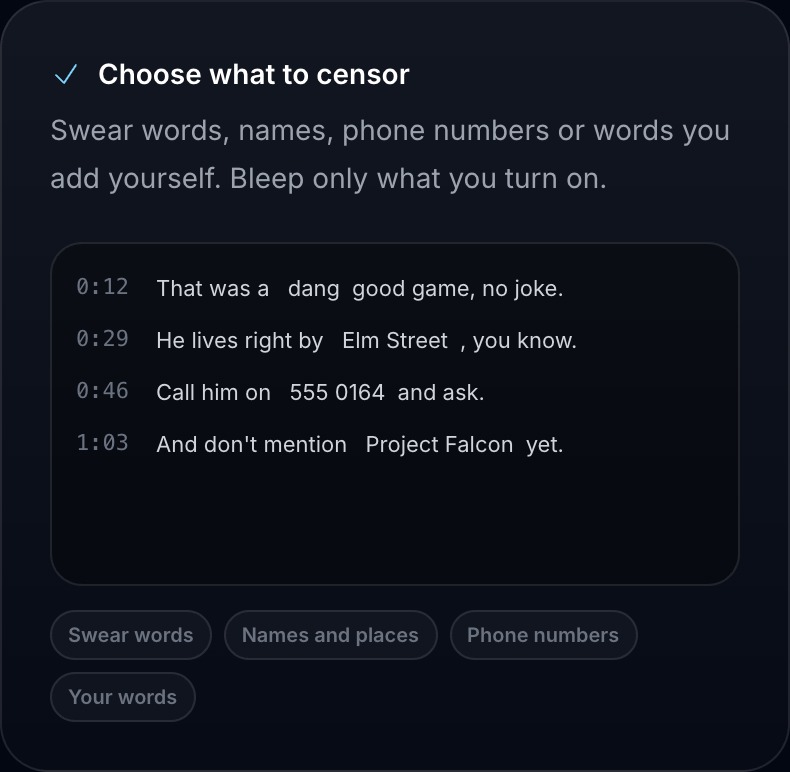
VIDIO's censor choices, shown as a mock-up on its voice censoring page. Source: VIDIO website
VIDIO is an online video editor with a voice censoring tool. Its page says VIDIO transcribes the speech word by word and flags swear words, plus names, numbers and contact details if those should be hidden too, then covers each with a beep, noise or silence at the exact moment it is said. A word can be clicked to bleep or keep, a person's own words can be added, and the bleeps can be heard in the preview before export.
The same page describes changing a guest's voice in the same pass, and VIDIO's site links separate tools for the visual side, face blurring and license plate blurring.
Pricing: VIDIO's pricing page lists Free at $0 with watermarked exports, and Pro 20 at $8 a month billed annually ($96), or $10 a month billed monthly. The censor page says a project is paid once, the first time it is exported without a watermark, and that changing what is bleeped and exporting again is free.
Considerations: VIDIO is a general editor rather than a single-purpose bleeper. Its own pages give two upload caps: the censor page's FAQ says 3GB while the pricing table lists a file size limit of 1GB on Free, so check the cap on the plan being used. The image above is a mock-up from its page, not a capture of the editor.
- Choose it if names, numbers or contact details should be bleeped along with swear words.
- Skip it if a watermark-free export has to be free.
6. CurseCut: Best for processing on your own computer with your own word list
CurseCut is a single-purpose tool for removing profanity from video and audio. Its pages say a word list can be supplied (specific words or phrases, with exact or approximate matching), that each flagged word can be covered with a beep tone, silence, a custom sound or reversed audio, and that a setting adjusts how much of each flagged word is muted. The home page says it handles over 30 languages with automatic language detection and lists batch processing.
The privacy claim is the distinctive one: its How it works page says the video files never leave the computer and that ffmpeg processes them locally, and the home page says files are never saved to CurseCut servers. Reprocessing is described as free and unlimited.
Pricing: CurseCut's pricing dialog lists a Free tier with previews and watermarked exports, and one-time credit packs, the smallest listed being 20 credits (described as 2 hours of video or audio) for $7. Its How it works page also says new users get free credits.
Considerations: A sign-in is needed to use it, and the pages read describe previews and free reprocessing rather than a word-by-word review list. No screenshot is shown here because the app sits behind that sign-in.
- Choose it if the files should stay on the computer and a custom word list drives the pass.
- Skip it if a word-by-word review list or a caption mask is needed.
7. FireCut: Best for Premiere Pro editors who want a blocklist and an allowlist
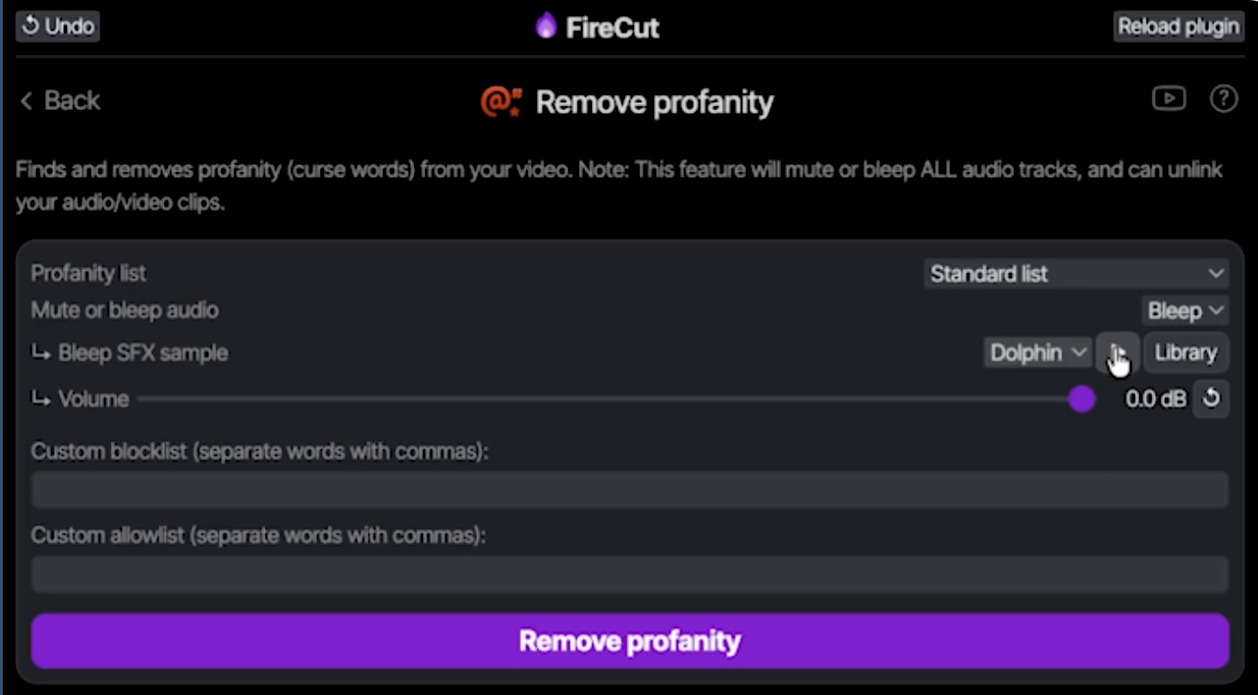
FireCut's Remove profanity panel inside Premiere Pro, from its demo video. Source: FireCut website
FireCut is a plugin for Adobe Premiere Pro (2022 or later, Windows or macOS, per its page) whose Remove profanity feature analyzes the spoken words in a sequence, in the language chosen, and then mutes them or lays a bleep over them. Its docs list a standard word list plus a custom blocklist and allowlist (an asterisk matches any letters), a choice of Beep, Quack, Dolphin and Ahooga sounds or an uploaded sound, and a volume setting for the bleep.
After the analysis FireCut lists each found word with its time and the words around it; a checkbox leaves any word untouched, and Undo rolls the whole step back. FireCut's site also lists a DaVinci Resolve version, and its footer lists Remove profanity for both.
Pricing: FireCut's pricing page lists Remove profanity on the Pro plan at $20 a month billed yearly (25 hours of source video a month), with custom censor sounds on Max at $39 a month billed yearly. Individual plans start with a 7-day trial.
Considerations: The docs say Remove profanity changes all audio tracks, including music and sound effects, and can unlink audio from video clips. They label non-English analysis as experimental and say loud, clear audio with music and effects muted gives the best result.
- Choose it if the edit already lives in Premiere Pro and a blocklist, an allowlist and a choice of bleep sounds matter.
- Skip it if the footage is not in an editor yet, or a web tool is preferred.
8. Beep: Best for censoring on an iPhone or iPad
Beep 3 is an iPhone and iPad app. Its App Store listing says it detects profanity automatically and censors it, lists detection in 100+ languages and locales, a high-quality bleep with 15+ sound effects or silence, and manual censoring by tap and hold with timing that can be nudged. It also lists a face-detection option that covers the speaker's mouth with an emoji, and Blur and Pixelate for on-screen details.
The listing says automatic detection and some other AI steps use Sparks credits, with 300 included at download and more sold as in-app purchases, and that manual censoring needs no Sparks. It also says there are no subscriptions and no ads.
Pricing: The App Store lists the app at $4.99 with in-app purchases.
Considerations: The listing gives a maximum video length of 10 minutes and says results may vary with audio noise and speaker accents. No screenshot is shown here because the listing's screenshots do not show the censor screen.
- Choose it if a phone is the only editor and a short video needs a bleep.
- Skip it if the recordings are long, or the work happens on a computer.
How we compared these tools
This guide is organised around censoring swear words in video. OpusClip is built for the clip-editing part of that job, so it comes first. Items 2 to 8 follow one yardstick: where the tool lives, from websites to an editor plugin to a phone app. We compared how each tool finds words (a transcript matched against a word list), what replaces a word in the audio and in the captions, whether custom words can be added, whether each match can be reviewed before export, and the free option as printed. Every fact about a vendor comes from that vendor's own pages, FireCut's docs, the Apple App Store listing or YouTube Help, read on November 18, 2026, and vendor claims are attributed. We did not run hands-on tests of the competitors in this list, so the order reflects documented capability, not a measured accuracy or speed comparison.
Tools whose pages describe only manual blur or mute censoring were left out; VEED's Censor Video page, for example, describes blurring, muting and replacing audio by hand rather than automatic profanity detection. Prices and caps change often, so check each page before relying on one. Where a vendor's own pages disagree, as with BeepThatOut's and VIDIO's file limits, the plan-level number is the one to check.
Red flags to watch for
- Missed and mismatched words. FireCut's docs say sound effects, multiple speakers, music or noise can throw off detection, and Beep's listing says results vary with audio noise and accents. Spot-check the transcript and the playback before posting.
- Audio and captions are separate. Choppity says caption masking is handled separately from audio censoring, and YouTube Help says its automatic-caption setting that replaces potentially inappropriate words with [ __ ] does not affect any audio tracks or manually edited captions. Check both.
- Titles and thumbnails still count. YouTube Help says its advertiser-friendly policies apply to all portions of a video's content, including the thumbnail, title, description and tags, so a clean audio track does not clean the rest.
- Monetization claims. Choppity's tool page says censoring helps maintain YouTube monetization eligibility, while Bleepify's FAQ says cleaning the audio does not guarantee it. YouTube Help says profanity or vulgarity at the start or throughout the majority of a video may not be suitable for advertising, and that occasional use will not necessarily make it unsuitable. YouTube makes the call.
- Watermarks and caps on free options. OpusClip's Free plan and VIDIO's Free plan list a watermark, CurseCut's Free tier lists watermarked exports, Bleepify's Free plan lists 10 minutes a month, and Beep's listing gives a 10-minute video maximum.
- Plugins change every track. FireCut's docs say Remove profanity mutes or bleeps all audio tracks, including music and sound effects.
- Where the file goes. CurseCut says processing is local; BeepThatOut says it stores the extracted audio without the video. Read each tool's privacy terms before uploading client footage.
- Links and rights. Choppity and Bleepify accept a pasted YouTube link; use it only for videos the reader owns or has permission to edit.
Frequently asked questions
What is the best AI tool to auto censor a video?
For censoring swear words while editing clips, OpusClip is the pick: Auto Censor mutes or bleeps flagged words, masks them in the captions and lets each word be reviewed or reverted. For a free web tool, Choppity; for long recordings handed on to an editor, BeepThatOut; for Premiere Pro, FireCut; for an iPhone, Beep. The free options listed above carry limits such as watermarks or minute caps.
How do I auto censor swear words in a video?
In OpusClip, open the clip in the editor, choose AI enhance, click Auto censor, pick the curse word list, the caption style and whether the audio is beeped, muted or left alone, then enable it and review the flagged words in the transcript. The OpusClip Censor Video page has the one-click version and the help article has every step. The other tools above follow a similar flow of upload, detect, choose a bleep and review.
Is there a free AI censor tool for video?
Several have a free option with limits. Choppity's tool page calls its censor tool free, Bleepify's Free plan lists 10 minutes a month, VIDIO's Free plan lists watermarked exports, CurseCut lists a Free tier with watermarked exports, and OpusClip's Free plan is $0 with a watermark (the pricing page's plan comparison shows which plans include Auto Censor). BeepThatOut and FireCut offer 7-day trials rather than a free plan.
Can AI censor curse words in other languages?
The vendors say so, with different claims: CurseCut says over 30 languages, Bleepify 40+, BeepThatOut lists 55, and Beep's listing says 100+ languages and locales. FireCut's docs support a language choice but call non-English analysis experimental. For OpusClip, see the help article. None of these figures is an accuracy claim, so spot-check any language beyond English.
Can I censor only certain words or add my own?
Yes, in most of them. In OpusClip a word can be selected in the transcript and censored on its own, or everywhere it appears. FireCut has a custom blocklist and allowlist, BeepThatOut a custom blacklist, VIDIO lets a person add their own words, Bleepify checks custom words in its transcript, and CurseCut takes a list of words or phrases. Choppity toggles words on or off one at a time.
Does bleeping swear words make a YouTube video advertiser-friendly?
Not by itself. YouTube Help says content with profanity or vulgarity at the start or throughout the majority of the video may not be suitable for advertising, that occasional use will not necessarily make it unsuitable, and that its policies apply to the video, thumbnail, title, description and tags. YouTube's vulgar language policy also lists excessive profanity among the factors it may weigh for age restriction. Bleeping the audio addresses one part of that.
Does YouTube censor swear words in automatic captions?
YouTube Help says a Studio setting called Don't show potentially inappropriate words replaces such words with [ __ ] by default in automatic captions. It says the setting does not affect any audio tracks or manually edited captions, and does not affect a video's monetization status. The spoken word still needs bleeping in the audio. For the caption side, see our free caption apps for YouTube guide.
How do I bleep a word in a video on my phone?
On an iPhone or iPad, Beep's listing describes manual censoring by tap and hold with timing that can be nudged, plus automatic detection that uses Sparks credits. The listing prices the app at $4.99 and gives a 10-minute maximum video length. OpusClip's Auto Censor is described in its help center as a step in the clip editor.