OpusClip 4.0 is here. Become a content powerhouse.

8 Best Free Caption Apps for YouTube Videos in 2026

November 13, 2026
Creators at a laptop, a podcast microphone and a phone, with a play badge, a CC tag, a Free pill and a views badge

OpusClip is the pick for free animated captions on YouTube Shorts cut from a long video: Free is $0 with a watermark, and clips come back with captions added. For captions on a whole YouTube upload, YouTube Studio's own automatic captions are the shortest path, YouTube Create captions and uploads from a phone, Clipchamp and Flixier hand over a caption file or a captioned video from the browser, and TurboScribe, Buzz and Kdenlive cover file-only and offline work. Items 2 to 8 are ordered by how few steps stand between the free tool and a captioned YouTube upload, from facts read on November 13, 2026.

Key takeaways

  • Best for free animated captions on Shorts cut from a long video: OpusClip. Free lists AI captions with an emoji and keyword highlighter and up to 1080p rendered clips, with a watermark.
  • Best for captions on a video that lives on YouTube: YouTube Studio. YouTube Help says automatic captions are published on the video when they are available, and Studio's caption editor fixes them.
  • Best for captioning and uploading from a phone: YouTube Create. YouTube Help calls the app free of charge and without ads, but says it cannot generate captions for clips longer than 60 seconds.
  • Best for a free captioned video plus an .SRT file: Clipchamp. Its subtitle page calls autocaptions free for all users with no stated limit on generating subtitles.
  • Best for short videos on a free plan that prints its caps: Flixier. Free lists 5 minutes of subtitles and 10 minutes of video export a month, with a watermark.
  • Best for a caption file only: TurboScribe and Buzz. TurboScribe's free plan allows 3 files a day of up to 30 minutes each; Buzz is open source and runs offline.
  • Best for a free editor with speech-to-text subtitles: Kdenlive. It is free and open source, but speech models have to be set up first.

Three ways a free caption app hands captions to YouTube

A caption tool only helps if its output lands on the upload. Besides the automatic captions YouTube generates, YouTube Help lists three ways to add captions in YouTube Studio: upload a caption file (with or without timing), auto-sync a transcript, or type them in. That leaves three hand-offs to compare.

  • YouTube makes the captions itself. YouTube Studio's automatic captions and the YouTube Create app need no hand-off.
  • A caption file goes into YouTube Studio. YouTube Help lists SubRip (.srt) and SubViewer (.sbv) as basic formats, which must be plain UTF-8 with no style markup recognized, and WebVTT among the advanced ones. Clipchamp, Flixier, TurboScribe, Buzz and Kdenlive list an SRT export.
  • The captions are rendered into the video. Styled captions that are part of the video image show wherever the video goes, as the pages for OpusClip, Clipchamp and Flixier describe their styled output. For the burn-in job on its own, see our open-caption burn-in guide.

A transcript with no timing also works: YouTube Help says Studio can synchronize the text to the video automatically when it is in a language its speech recognition supports and matches the spoken language, and does not recommend it for videos over an hour or with poor audio. For paid caption styles in tools such as CapCut, Submagic, VEED and Kapwing, see our auto caption generators guide.

How to choose

  • The video already lives on YouTube and a plain caption track is enough: start with YouTube Studio's automatic captions and its caption editor.
  • The video is a short vertical clip edited on a phone: YouTube Create, within its 60-second caption limit.
  • Shorts are being cut from a long recording and the captions should be styled: OpusClip; see our YouTube clip makers guide for the clipping step.
  • A finished video needs captions burned in without a watermark: Clipchamp's pricing page lists watermark-free exports on its Free plan.
  • Only a caption file is needed: Clipchamp, Flixier, TurboScribe, Buzz or Kdenlive, then upload it in YouTube Studio.
  • The recording is long: TurboScribe's free plan stops at 30 minutes a file and Flixier's at 5 minutes of subtitles a month; Clipchamp lists no limit, and Buzz and Kdenlive run on the creator's own computer.

At a glance

  • OpusClip: best for animated captions on Shorts cut from a long video; Free $0 with a watermark; Starter $15 a month (monthly billing only), Pro $29 a month or $14.50 a month billed annually.
  • YouTube Studio: best for captions on a video that lives on YouTube; YouTube Help's captions articles list no fee.
  • YouTube Create: best for captioning and uploading short clips from a phone; free of charge and without ads, per YouTube Help.
  • Clipchamp: best for a free captioned video plus an .SRT file; Free plan with watermark-free exports up to 1080p; Premium comes with Microsoft 365 Personal or Family.
  • Flixier: best for short videos on a capped free plan; Free $0 a month (watermark); Starter $19 per seat a month on the monthly toggle, $9 per seat a month billed yearly.
  • TurboScribe: best for a caption file only; Free plan (3 files a day); Unlimited $20 a month billed monthly, or $10 a month billed yearly.
  • Buzz: best for offline caption files; free, open source under an MIT license.
  • Kdenlive: best for a free editor that makes subtitles from speech; free and open source.

Free limits, caption files and the YouTube hand-off

The At a glance list covers best-for and paid prices; this table compares the free limit, the caption files each tool reads or writes and the route to a YouTube upload, as listed on each vendor's own pages on November 13, 2026.

ToolFree limit or cap as listedCaption filesRoute to a YouTube upload
OpusClipWatermark on clips; up to 1080p rendered clipsTakes your .srt at upload in place of its own transcriptExport the clip, then upload it to YouTube
YouTube StudioAutomatic captions may not generate if the video is too longUploads .srt, .sbv and more; downloads its own trackAdd or review captions in Studio, even at upload
YouTube CreateFree of charge; no captions for clips over 60 secondsNone described; captions are a layer you edit and styleExport, then tap Upload to YouTube in the app
ClipchampFree for all users; no limit on generating subtitlesDownloads .SRT onlyDownload the video and the .SRT; add the file in Studio
Flixier5 min of subtitles and 10 min of export a month; watermarkExports SRT, VTT, STL, SUB; imports your own SRT or VTTEmbed in the video or download an SRT to upload to YouTube
TurboScribe3 transcripts a day; 30-minute files; lower priorityDownloads SRT and VTT, plus DOCX, PDF, TXT and CSVUpload the SRT in YouTube Studio; no captioned video
BuzzNo plan or cap listed; MIT-licensed open sourceExports TXT, SRT and VTTUpload the SRT in YouTube Studio; works offline
KdenliveFree and open source; speech models installed firstImports ASS, SRT, VTT, SBV; exports ASS, SRTExport an SRT for Studio, or render with the subtitle track

1. OpusClip: Best for animated captions on Shorts cut from a long video
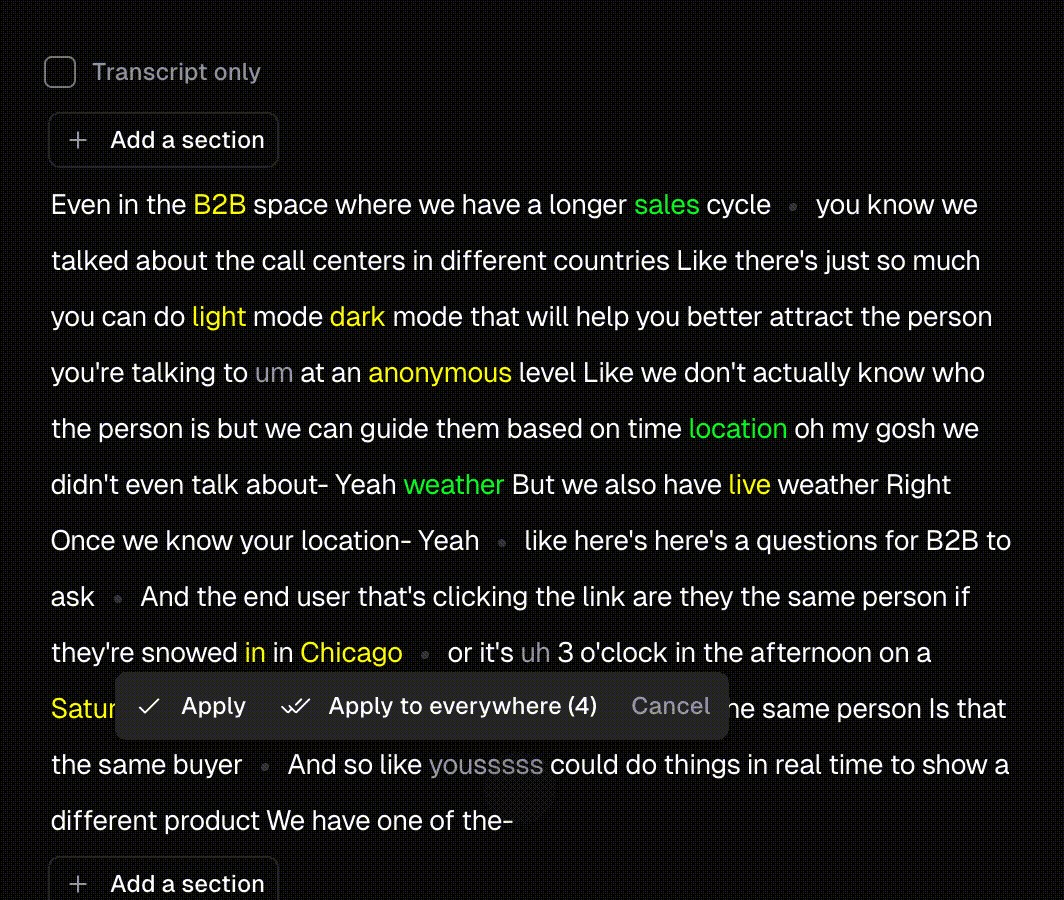
OpusClip's caption editor showing a transcript with highlighted keywords, greyed filler words and an Apply to everywhere option

Keyword highlights and word edits in OpusClip's caption editor. Source: OpusClip website

OpusClip is a clipping tool whose captions come with the job: a pasted link or an uploaded file goes in, and clips come back with captions added. The OpusClip captions page describes animated caption templates and text-based editing, and the pricing page lists AI captions with an emoji and keyword highlighter, up to 1080p rendered clips and a watermark on Free. The help center says clips on the Free plan carry an OpusClip brand logo watermark. The captions help article describes selecting a word or sentence to edit it, adjusting timestamps and dragging captions to a new position.

For a YouTube upload, the hand-off is the exported clip, and the pricing page lists AI captions with the rendered clips. The help center also describes going the other way: an SRT file added at submission is used to generate the captions instead of OpusClip's own transcript. When a full video should stay whole, the help center describes a Don't Clip option that generates a caption-only project.

Pricing: OpusClip's pricing page lists Free at $0 with a watermark, Starter at $15 a month (monthly billing only) and Pro at $29 a month, or $14.50 a month billed annually. Business is custom.

Considerations: OpusClip is built around clips, so it is not the shortest route to a plain caption track for a whole long-form upload: YouTube Studio or a file tool below is more direct. Free clips carry the watermark. OpusClip is a clipping tool, not a timeline editor.

  • Choose it if Shorts or other short clips are being cut from a longer video and animated, styled captions should come with them.
  • Skip it if all that is needed is a free caption track or an .srt for a long-form upload, or the free clip has to be watermark-free.

2. YouTube Studio: Best for captions on a video that already lives on YouTube

YouTube Help says YouTube can use speech recognition to create captions for videos automatically, on long-form videos and Shorts, in the languages its article lists. If automatic captions are available, they are published on the video automatically, though they may not be ready at upload because processing time depends on the audio. The article warns that quality may vary and that mispronunciations, accents, dialects and background noise can cause errors, so creators should always review them: in YouTube Studio, choose Subtitles, open the video, select More beside the captions, then edit or remove lines that were not transcribed correctly.

Studio is also the destination for every other tool in this guide. YouTube Help lists uploading a file, auto-syncing a transcript and typing captions as the ways to add them, and says captions can be added during the upload process. The editing article says changes to automatic captions create a new caption track, and that a track can be downloaded, edited as a file and uploaded again.

Pricing: YouTube Help's captions articles list no fee or plan requirement.

Considerations: The Help article names reasons automatic captions may be missing: the video is too long, the language is not supported, the sound quality is poor, there is a long silence at the start, or speakers overlap or several languages are used at once. Automatic captions are a track attached to the YouTube video, and Help describes no styled or burned-in version, so they stay on YouTube. A default setting replaces potentially inappropriate words in automatic captions with [ __ ] until it is switched off in Studio's channel advanced settings.

  • Choose it if the video is already on YouTube, or about to be uploaded there, and a plain caption track with a review pass is enough.
  • Skip it if captions need a styled look, have to be burned into the video, or must be reused on other platforms.

3. YouTube Create: Best for captioning and uploading short clips from a phone

YouTube Create's Captions panel on a phone with audio source, spoken language, translation language and preset style options above a Generate button

The Captions panel in YouTube Create, as shown in YouTube Help. Source: YouTube Help

YouTube Help describes YouTube Create as an app for editing long-form videos and Shorts, free of charge and without ads. It runs on Android phones with at least 4GB of RAM and on iPhone XR and newer models with iOS 17 or later, in the countries Help lists. To caption a project, open it, tap Captions, choose whether to transcribe all videos or only voiceovers recorded in the app, pick the language and tap Generate. Help says the captions capture tone and sound effects such as laughter and pauses. A wrong word is fixed by tapping it and typing, and the caption layer can be restyled (size, font, color, background, format, outline and shadow).

The hand-off is built in: export the project, tap Upload to YouTube, add the title, description and thumbnail, choose the privacy level and upload. Help says both long-form videos and Shorts can be uploaded from the app.

Pricing: YouTube Help lists the app as free of charge and without ads.

Considerations: YouTube Help says YouTube Create cannot generate captions for clips longer than 60 seconds. It is a phone app only, and the Help article describes no caption file export.

  • Choose it if short vertical videos are edited on a phone and go straight to YouTube.
  • Skip it if clips run past 60 seconds, the edit happens on a desktop, or a caption file is needed.

4. Clipchamp: Best for a free captioned video plus an .SRT file
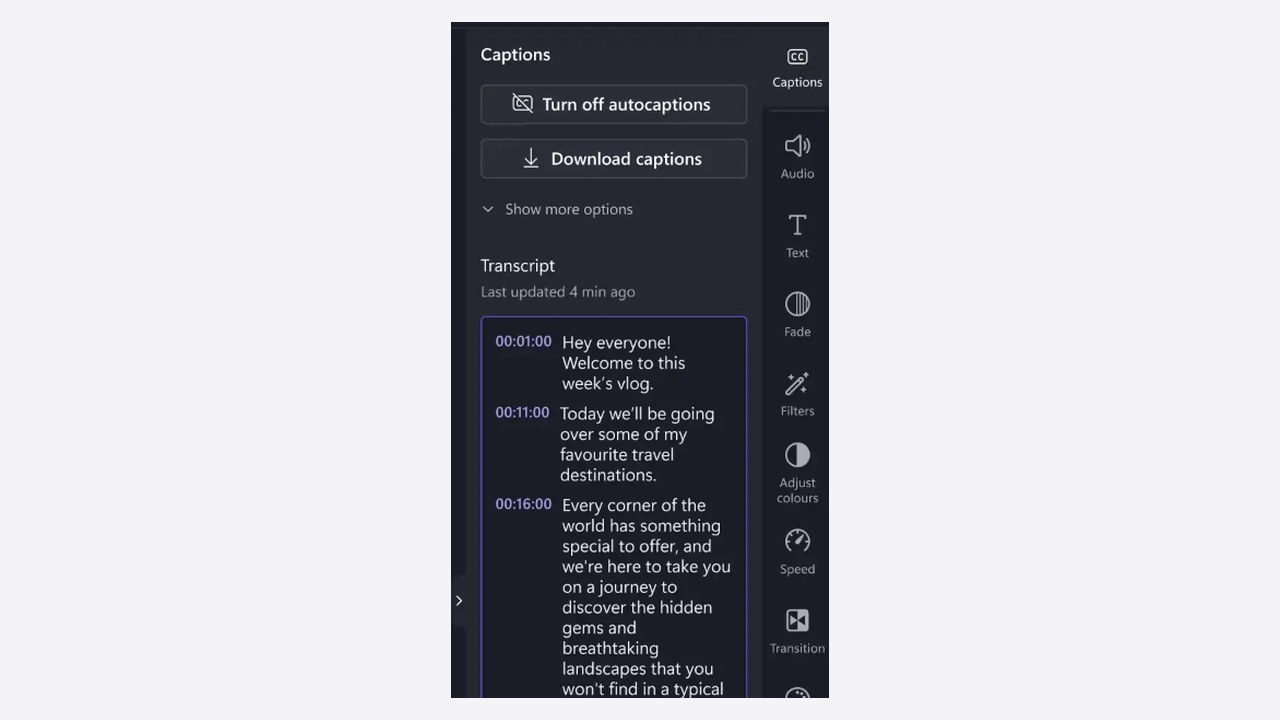
Clipchamp's Captions panel with Turn off autocaptions and Download captions buttons above a timestamped transcript

Clipchamp's captions panel on its subtitle generator page. Source: Clipchamp website

Clipchamp is Microsoft's video editor, and its subtitle generator page describes four steps: upload or record a video, choose the subtitle language, adjust font, colors, size and alignment, then download the video and an .SRT transcript file. The page's FAQ says the autocaptions feature is free for all Clipchamp users and that there are no limits on generating subtitles for a video. The page also lists a one-click filter for offensive language and says the transcript can be edited.

For YouTube, the .SRT is the hand-off: YouTube Help lists SubRip (.srt) as a basic supported format, so the file Clipchamp downloads can go to YouTube Studio as a caption track. The FAQ says speech recognition detects one language at a time and that transcripts download only as .SRT. Clipchamp runs in the browser and, per its home page, as a Windows app.

Pricing: Clipchamp's pricing page lists a Free plan (sign in with a personal Microsoft account) that includes watermark-free video exports up to 1080p, and Premium through Microsoft 365 Personal and Family, which adds 4K exports, premium stock assets and a brand kit for a single brand. The page does not list Microsoft 365 prices.

Considerations: The subtitle page describes font, color, size and alignment styling, not animated word-by-word captions. The pricing page says free users cannot export videos that include premium assets, and transcripts download as .SRT only, not VTT.

  • Choose it if a free, watermark-free captioned video or an .SRT for YouTube Studio is the goal, on Windows or in the browser.
  • Skip it if animated caption styles, VTT downloads or captions in more than one language at once are needed.

5. Flixier: Best for short videos on a free plan that prints its caps

Flixier's Free plan card listing 10 minutes of video export, 5 minutes of subtitles a month, 720p resolution and a Flixier watermark

Flixier's Free plan card on its pricing page, which prints the monthly caps. Source: Flixier website

Flixier is a browser-based editor. Its pages describe generating subtitles from the timeline (right-click, then Generate subtitles), styling the font, color, position and animations, editing the text and timing, and then either embedding the subtitles in the video or exporting standalone SRT, VTT, STL or SUB files, a dual route Flixier says is compatible with YouTube. The tool page's FAQ says a generated, translated file can be downloaded as an SRT to upload to YouTube or any other platform, and that a creator's own SRT or VTT can be imported and adjusted. Flixier says it generates subtitles in over 100 languages.

Pricing: Flixier's pricing page lists Free at $0 a month with 10 minutes of video export and 5 minutes of subtitles a month, 720p resolution, 2 GB of storage and a Flixier watermark. Starter is $19 per seat a month on the monthly toggle, or $9 per seat a month ($108 billed yearly) on the yearly toggle, with 60 minutes of export, 120 minutes of subtitles, 1080p and no watermark. Business lists unlimited subtitle exports.

Considerations: Five minutes of subtitles a month covers a short video or two, and the watermark stays until a paid plan. The pricing page does not say whether the Free plan can download subtitle files, so check the export menu before building a workflow around an SRT.

  • Choose it if a short video needs captions generated, styled and exported from the browser and the free caps fit.
  • Skip it if videos run longer than a few minutes, or a watermark-free free export is required.

6. TurboScribe: Best for a free caption file from a recording of up to 30 minutes

TurboScribe's upload list showing files being transcribed, with progress percentages and a whale icon beside each file name

TurboScribe's home-page demo of its upload list. Source: TurboScribe website

TurboScribe is a transcription service rather than a caption editor: audio or video goes in and text comes out. Its pages list downloads as DOCX, PDF, TXT, CSV, and captions and subtitles (SRT, VTT). The FAQ says it supports 98+ languages, speaker recognition and translation of transcripts or subtitles into more than 130 languages, and the home page says it is powered by Whisper; those are the vendor's claims, not ours. For the transcript job on its own, see our AI transcript generators guide.

For YouTube, the file is the hand-off: an SRT can be uploaded in YouTube Studio, and a plain text transcript can go through Studio's auto-sync route, which YouTube Help says suits videos under an hour with good sound and clear speech. TurboScribe lists no captioned-video output.

Pricing: TurboScribe's home page lists Free as 100% free with 3 transcripts a day, uploads of up to 30 minutes each, one file at a time and lower priority. Unlimited is $20 a month billed monthly, or $10 a month ($120) billed yearly.

Considerations: The page lists SRT and VTT among the downloads but does not split formats by plan, so confirm the free export before relying on it. The captions are not styled or burned in, and a video over 30 minutes needs splitting on Free.

  • Choose it if a caption file for a recording of up to 30 minutes is the goal and the video itself does not need to change.
  • Skip it if styled or burned-in captions are needed, or recordings run past 30 minutes on a free plan.

7. Buzz: Best for offline caption files from a free open-source app

Buzz's desktop window listing three files with their Whisper model, a Transcribe task and statuses of queued, in progress and completed

Buzz's file list, from the project's own README screenshots. Source: Buzz GitHub repository

Buzz is an open-source desktop app that, per its GitHub README, transcribes and translates audio offline on the user's own computer, powered by OpenAI's Whisper. The feature list includes transcribing audio and video files, speaker identification and exporting transcripts to TXT, SRT and VTT. The README lists installers for macOS, Windows and Linux (Flatpak), and GPU acceleration options.

The SRT or VTT export is the hand-off to YouTube Studio's upload-a-file option. Because the README says processing is offline, nothing has to be sent to a third-party service before the caption file reaches Studio.

Pricing: No plan or price is listed; the repository shows an MIT license.

Considerations: The README says the current macOS build needs Apple silicon (the last version for Intel Macs is 1.4.5) and that the Windows installer is not signed, so Windows shows a warning at install. Buzz exports a transcript file, not a captioned video.

  • Choose it if offline caption files with no plan to pay for are wanted and installing an open-source app is fine.
  • Skip it if a browser-only tool, styled captions or a captioned video is needed.

8. Kdenlive: Best for a free editor that makes subtitles from speech

Kdenlive's Subtitles panel with a text box showing ASS style tags, a character count, position, end and duration fields and a style menu

Kdenlive's Subtitles panel, from the Kdenlive manual. Source: Kdenlive documentation

Kdenlive is, per its home page, a free and open-source video editor that works on Linux, Windows, macOS and BSD. Its manual describes automatic subtitling from speech, using VOSK or Whisper speech models, onto a subtitle track in the timeline, where each subtitle can be edited as text, resized on the timeline and styled in the Subtitle Manager. Subtitles import as ASS, SRT, VTT or SBV and export as ASS or SRT, and the manual says a render uses the active subtitle track.

For YouTube, the SRT export goes to Studio's upload-a-file option, or the video is rendered with the active subtitle track and uploaded as is.

Pricing: Kdenlive's home page calls it free and open source; there is no plan.

Considerations: The manual says speech to text must be configured and speech models installed before first use, and that its translation step can download a 9GB model and use all available RAM, CPU and disk access. Kdenlive is a full timeline editor, so it is the slowest route to a first caption file.

  • Choose it if a free timeline editor with offline speech-to-text subtitles and SRT export is wanted.
  • Skip it if a quick browser tool is enough, or captions need a look beyond ASS styling.

How we compared these tools

This guide is organised around free captions for YouTube videos. OpusClip is built for the captioned-clips part of that job, so it comes first. Items 2 to 8 follow one yardstick: how few steps stand between the free tool and a captioned YouTube upload, as each vendor's own pages describe them, with YouTube's own tools first, then browser tools, then file-only and offline tools. We compared the free limit as printed, the caption files each tool reads or writes, whether captions can be rendered into the video, and how the result reaches YouTube. Every fact about a vendor comes from that vendor's own pages or from YouTube Help, read on November 13, 2026, and vendor claims are attributed to the vendor. We did not run hands-on tests of the competitors in this list, so the order reflects documented capability, not a measured accuracy or speed comparison. Prices and caps change often, so check each page before relying on one.

Red flags to watch for

  • Watermarks on free exports. OpusClip's Free plan and Flixier's Free plan list a watermark; Clipchamp's pricing page lists watermark-free exports on its Free plan.
  • Monthly, daily or per-clip caps. Flixier Free lists 5 minutes of subtitles and 10 minutes of export a month, TurboScribe Free allows 3 files a day of up to 30 minutes, and YouTube Help says YouTube Create cannot generate captions for clips longer than 60 seconds.
  • Caption files cannot carry a style. YouTube Help says SubRip and SubViewer files are basic formats with no style markup recognized, so a styled look needs captions rendered into the video.
  • Automatic captions published without a review. YouTube Help says automatic captions might misrepresent the spoken content and should always be reviewed, and that editing them creates a new caption track.
  • Words replaced in automatic captions. YouTube's default setting swaps potentially inappropriate words for [ __ ] until it is turned off in Studio.
  • Premium assets block a free export. Clipchamp's pricing page says free users cannot export videos that include premium assets.
  • File-only tools leave the video untouched. TurboScribe and Buzz list transcript and subtitle downloads, so the caption track still has to be added in YouTube Studio.
  • The wrong spoken language. Clipchamp detects one language at a time, and YouTube Help says a transcript must be in the language spoken in the video for auto-sync.

Frequently asked questions

What are the best free caption apps for YouTube videos in 2026?

For Shorts cut from a long video, OpusClip is the pick: Free is $0 with a watermark and puts animated captions on the clip. For a video that lives on YouTube, YouTube Studio's automatic captions and caption editor are the shortest path, and YouTube Create captions short clips on a phone and uploads them. Clipchamp, Flixier, TurboScribe, Buzz and Kdenlive each export a caption file or a captioned video, with the free limits listed above. For paid animated styles, see our auto caption generators guide.

How do I add captions to a YouTube video for free?

In YouTube Studio, choose Subtitles, open the video, select Add language if needed, and under Subtitles select Add. YouTube Help then offers uploading a file (with or without timing), auto-syncing a transcript or typing the captions in, and says captions can also be added during the upload process. If automatic captions are available they are published on the video automatically, and Help says to review them. Another route is to render captions into the video with a tool such as Clipchamp first.

Does YouTube add captions automatically?

YouTube Help says YouTube can use speech recognition to create captions automatically, and that if automatic captions are available they are published on the video. They may not be ready when a video is uploaded, and Help lists reasons they may be missing, such as a long video, an unsupported language or poor sound. Help says to always review them.

Can I upload an SRT file to YouTube?

Yes. YouTube Help lists SubRip (.srt) and SubViewer (.sbv) as basic caption file formats, which must be plain UTF-8 with no style markup recognized, along with WebVTT and others. In Studio, choose Upload file, then With timing or Without timing. Clipchamp, Flixier, TurboScribe, Buzz and Kdenlive each list an SRT export.

Should captions be burned into the video or uploaded as a file?

Both are common. Captions rendered into the video are part of the image, so they show on every platform and can carry a styled look, as with OpusClip's animated templates. A caption file is a separate track that YouTube can show or hide, and YouTube Help says SubRip and SubViewer files carry no style markup. OpusClip's help center says a caption file added at submission replaces its own transcript. See our open-caption burn-in guide for the burned-in route.

Do free caption apps put a watermark on the video?

Some do. OpusClip's Free plan and Flixier's Free plan list a watermark, while Clipchamp's pricing page lists watermark-free exports on its Free plan. TurboScribe and Buzz hand over text and do not change the video, and YouTube Studio's captions are a track on the YouTube video, so none of those add a mark.

Can OpusClip add captions to a YouTube video for free?

OpusClip's pricing page lists Free at $0 with a watermark and AI captions with an emoji and keyword highlighter. It cuts captioned clips from a longer video rather than producing a caption track for a whole upload, so it suits Shorts from a long recording. See the OpusClip captions page for the captioning step, or our YouTube clip makers guide for the clipping step.
On this page

Use our Free Forever Plan

Find the moment. Skip the scrubbing.

From script to polished video — in one click.

Create and post one short video every day for free, and grow faster.

OpusSearch uses AI to surface the exact clip you need from hours of footage — in seconds, not afternoons.

Agent Opus runs the entire video pipeline for you: research, scriptwriting, storyboarding, motion, voice, and edit. Upload the idea, post the result.

8 Best Free Caption Apps for YouTube Videos in 2026

OpusClip is the pick for free animated captions on YouTube Shorts cut from a long video: Free is $0 with a watermark, and clips come back with captions added. For captions on a whole YouTube upload, YouTube Studio's own automatic captions are the shortest path, YouTube Create captions and uploads from a phone, Clipchamp and Flixier hand over a caption file or a captioned video from the browser, and TurboScribe, Buzz and Kdenlive cover file-only and offline work. Items 2 to 8 are ordered by how few steps stand between the free tool and a captioned YouTube upload, from facts read on November 13, 2026.

Key takeaways

  • Best for free animated captions on Shorts cut from a long video: OpusClip. Free lists AI captions with an emoji and keyword highlighter and up to 1080p rendered clips, with a watermark.
  • Best for captions on a video that lives on YouTube: YouTube Studio. YouTube Help says automatic captions are published on the video when they are available, and Studio's caption editor fixes them.
  • Best for captioning and uploading from a phone: YouTube Create. YouTube Help calls the app free of charge and without ads, but says it cannot generate captions for clips longer than 60 seconds.
  • Best for a free captioned video plus an .SRT file: Clipchamp. Its subtitle page calls autocaptions free for all users with no stated limit on generating subtitles.
  • Best for short videos on a free plan that prints its caps: Flixier. Free lists 5 minutes of subtitles and 10 minutes of video export a month, with a watermark.
  • Best for a caption file only: TurboScribe and Buzz. TurboScribe's free plan allows 3 files a day of up to 30 minutes each; Buzz is open source and runs offline.
  • Best for a free editor with speech-to-text subtitles: Kdenlive. It is free and open source, but speech models have to be set up first.

Three ways a free caption app hands captions to YouTube

A caption tool only helps if its output lands on the upload. Besides the automatic captions YouTube generates, YouTube Help lists three ways to add captions in YouTube Studio: upload a caption file (with or without timing), auto-sync a transcript, or type them in. That leaves three hand-offs to compare.

  • YouTube makes the captions itself. YouTube Studio's automatic captions and the YouTube Create app need no hand-off.
  • A caption file goes into YouTube Studio. YouTube Help lists SubRip (.srt) and SubViewer (.sbv) as basic formats, which must be plain UTF-8 with no style markup recognized, and WebVTT among the advanced ones. Clipchamp, Flixier, TurboScribe, Buzz and Kdenlive list an SRT export.
  • The captions are rendered into the video. Styled captions that are part of the video image show wherever the video goes, as the pages for OpusClip, Clipchamp and Flixier describe their styled output. For the burn-in job on its own, see our open-caption burn-in guide.

A transcript with no timing also works: YouTube Help says Studio can synchronize the text to the video automatically when it is in a language its speech recognition supports and matches the spoken language, and does not recommend it for videos over an hour or with poor audio. For paid caption styles in tools such as CapCut, Submagic, VEED and Kapwing, see our auto caption generators guide.

How to choose

  • The video already lives on YouTube and a plain caption track is enough: start with YouTube Studio's automatic captions and its caption editor.
  • The video is a short vertical clip edited on a phone: YouTube Create, within its 60-second caption limit.
  • Shorts are being cut from a long recording and the captions should be styled: OpusClip; see our YouTube clip makers guide for the clipping step.
  • A finished video needs captions burned in without a watermark: Clipchamp's pricing page lists watermark-free exports on its Free plan.
  • Only a caption file is needed: Clipchamp, Flixier, TurboScribe, Buzz or Kdenlive, then upload it in YouTube Studio.
  • The recording is long: TurboScribe's free plan stops at 30 minutes a file and Flixier's at 5 minutes of subtitles a month; Clipchamp lists no limit, and Buzz and Kdenlive run on the creator's own computer.

At a glance

  • OpusClip: best for animated captions on Shorts cut from a long video; Free $0 with a watermark; Starter $15 a month (monthly billing only), Pro $29 a month or $14.50 a month billed annually.
  • YouTube Studio: best for captions on a video that lives on YouTube; YouTube Help's captions articles list no fee.
  • YouTube Create: best for captioning and uploading short clips from a phone; free of charge and without ads, per YouTube Help.
  • Clipchamp: best for a free captioned video plus an .SRT file; Free plan with watermark-free exports up to 1080p; Premium comes with Microsoft 365 Personal or Family.
  • Flixier: best for short videos on a capped free plan; Free $0 a month (watermark); Starter $19 per seat a month on the monthly toggle, $9 per seat a month billed yearly.
  • TurboScribe: best for a caption file only; Free plan (3 files a day); Unlimited $20 a month billed monthly, or $10 a month billed yearly.
  • Buzz: best for offline caption files; free, open source under an MIT license.
  • Kdenlive: best for a free editor that makes subtitles from speech; free and open source.

Free limits, caption files and the YouTube hand-off

The At a glance list covers best-for and paid prices; this table compares the free limit, the caption files each tool reads or writes and the route to a YouTube upload, as listed on each vendor's own pages on November 13, 2026.

ToolFree limit or cap as listedCaption filesRoute to a YouTube upload
OpusClipWatermark on clips; up to 1080p rendered clipsTakes your .srt at upload in place of its own transcriptExport the clip, then upload it to YouTube
YouTube StudioAutomatic captions may not generate if the video is too longUploads .srt, .sbv and more; downloads its own trackAdd or review captions in Studio, even at upload
YouTube CreateFree of charge; no captions for clips over 60 secondsNone described; captions are a layer you edit and styleExport, then tap Upload to YouTube in the app
ClipchampFree for all users; no limit on generating subtitlesDownloads .SRT onlyDownload the video and the .SRT; add the file in Studio
Flixier5 min of subtitles and 10 min of export a month; watermarkExports SRT, VTT, STL, SUB; imports your own SRT or VTTEmbed in the video or download an SRT to upload to YouTube
TurboScribe3 transcripts a day; 30-minute files; lower priorityDownloads SRT and VTT, plus DOCX, PDF, TXT and CSVUpload the SRT in YouTube Studio; no captioned video
BuzzNo plan or cap listed; MIT-licensed open sourceExports TXT, SRT and VTTUpload the SRT in YouTube Studio; works offline
KdenliveFree and open source; speech models installed firstImports ASS, SRT, VTT, SBV; exports ASS, SRTExport an SRT for Studio, or render with the subtitle track

1. OpusClip: Best for animated captions on Shorts cut from a long video

OpusClip's caption editor showing a transcript with highlighted keywords, greyed filler words and an Apply to everywhere option

Keyword highlights and word edits in OpusClip's caption editor. Source: OpusClip website

OpusClip is a clipping tool whose captions come with the job: a pasted link or an uploaded file goes in, and clips come back with captions added. The OpusClip captions page describes animated caption templates and text-based editing, and the pricing page lists AI captions with an emoji and keyword highlighter, up to 1080p rendered clips and a watermark on Free. The help center says clips on the Free plan carry an OpusClip brand logo watermark. The captions help article describes selecting a word or sentence to edit it, adjusting timestamps and dragging captions to a new position.

For a YouTube upload, the hand-off is the exported clip, and the pricing page lists AI captions with the rendered clips. The help center also describes going the other way: an SRT file added at submission is used to generate the captions instead of OpusClip's own transcript. When a full video should stay whole, the help center describes a Don't Clip option that generates a caption-only project.

Pricing: OpusClip's pricing page lists Free at $0 with a watermark, Starter at $15 a month (monthly billing only) and Pro at $29 a month, or $14.50 a month billed annually. Business is custom.

Considerations: OpusClip is built around clips, so it is not the shortest route to a plain caption track for a whole long-form upload: YouTube Studio or a file tool below is more direct. Free clips carry the watermark. OpusClip is a clipping tool, not a timeline editor.

  • Choose it if Shorts or other short clips are being cut from a longer video and animated, styled captions should come with them.
  • Skip it if all that is needed is a free caption track or an .srt for a long-form upload, or the free clip has to be watermark-free.

2. YouTube Studio: Best for captions on a video that already lives on YouTube

YouTube Help says YouTube can use speech recognition to create captions for videos automatically, on long-form videos and Shorts, in the languages its article lists. If automatic captions are available, they are published on the video automatically, though they may not be ready at upload because processing time depends on the audio. The article warns that quality may vary and that mispronunciations, accents, dialects and background noise can cause errors, so creators should always review them: in YouTube Studio, choose Subtitles, open the video, select More beside the captions, then edit or remove lines that were not transcribed correctly.

Studio is also the destination for every other tool in this guide. YouTube Help lists uploading a file, auto-syncing a transcript and typing captions as the ways to add them, and says captions can be added during the upload process. The editing article says changes to automatic captions create a new caption track, and that a track can be downloaded, edited as a file and uploaded again.

Pricing: YouTube Help's captions articles list no fee or plan requirement.

Considerations: The Help article names reasons automatic captions may be missing: the video is too long, the language is not supported, the sound quality is poor, there is a long silence at the start, or speakers overlap or several languages are used at once. Automatic captions are a track attached to the YouTube video, and Help describes no styled or burned-in version, so they stay on YouTube. A default setting replaces potentially inappropriate words in automatic captions with [ __ ] until it is switched off in Studio's channel advanced settings.

  • Choose it if the video is already on YouTube, or about to be uploaded there, and a plain caption track with a review pass is enough.
  • Skip it if captions need a styled look, have to be burned into the video, or must be reused on other platforms.

3. YouTube Create: Best for captioning and uploading short clips from a phone

YouTube Create's Captions panel on a phone with audio source, spoken language, translation language and preset style options above a Generate button

The Captions panel in YouTube Create, as shown in YouTube Help. Source: YouTube Help

YouTube Help describes YouTube Create as an app for editing long-form videos and Shorts, free of charge and without ads. It runs on Android phones with at least 4GB of RAM and on iPhone XR and newer models with iOS 17 or later, in the countries Help lists. To caption a project, open it, tap Captions, choose whether to transcribe all videos or only voiceovers recorded in the app, pick the language and tap Generate. Help says the captions capture tone and sound effects such as laughter and pauses. A wrong word is fixed by tapping it and typing, and the caption layer can be restyled (size, font, color, background, format, outline and shadow).

The hand-off is built in: export the project, tap Upload to YouTube, add the title, description and thumbnail, choose the privacy level and upload. Help says both long-form videos and Shorts can be uploaded from the app.

Pricing: YouTube Help lists the app as free of charge and without ads.

Considerations: YouTube Help says YouTube Create cannot generate captions for clips longer than 60 seconds. It is a phone app only, and the Help article describes no caption file export.

  • Choose it if short vertical videos are edited on a phone and go straight to YouTube.
  • Skip it if clips run past 60 seconds, the edit happens on a desktop, or a caption file is needed.

4. Clipchamp: Best for a free captioned video plus an .SRT file

Clipchamp's Captions panel with Turn off autocaptions and Download captions buttons above a timestamped transcript

Clipchamp's captions panel on its subtitle generator page. Source: Clipchamp website

Clipchamp is Microsoft's video editor, and its subtitle generator page describes four steps: upload or record a video, choose the subtitle language, adjust font, colors, size and alignment, then download the video and an .SRT transcript file. The page's FAQ says the autocaptions feature is free for all Clipchamp users and that there are no limits on generating subtitles for a video. The page also lists a one-click filter for offensive language and says the transcript can be edited.

For YouTube, the .SRT is the hand-off: YouTube Help lists SubRip (.srt) as a basic supported format, so the file Clipchamp downloads can go to YouTube Studio as a caption track. The FAQ says speech recognition detects one language at a time and that transcripts download only as .SRT. Clipchamp runs in the browser and, per its home page, as a Windows app.

Pricing: Clipchamp's pricing page lists a Free plan (sign in with a personal Microsoft account) that includes watermark-free video exports up to 1080p, and Premium through Microsoft 365 Personal and Family, which adds 4K exports, premium stock assets and a brand kit for a single brand. The page does not list Microsoft 365 prices.

Considerations: The subtitle page describes font, color, size and alignment styling, not animated word-by-word captions. The pricing page says free users cannot export videos that include premium assets, and transcripts download as .SRT only, not VTT.

  • Choose it if a free, watermark-free captioned video or an .SRT for YouTube Studio is the goal, on Windows or in the browser.
  • Skip it if animated caption styles, VTT downloads or captions in more than one language at once are needed.

5. Flixier: Best for short videos on a free plan that prints its caps

Flixier's Free plan card listing 10 minutes of video export, 5 minutes of subtitles a month, 720p resolution and a Flixier watermark

Flixier's Free plan card on its pricing page, which prints the monthly caps. Source: Flixier website

Flixier is a browser-based editor. Its pages describe generating subtitles from the timeline (right-click, then Generate subtitles), styling the font, color, position and animations, editing the text and timing, and then either embedding the subtitles in the video or exporting standalone SRT, VTT, STL or SUB files, a dual route Flixier says is compatible with YouTube. The tool page's FAQ says a generated, translated file can be downloaded as an SRT to upload to YouTube or any other platform, and that a creator's own SRT or VTT can be imported and adjusted. Flixier says it generates subtitles in over 100 languages.

Pricing: Flixier's pricing page lists Free at $0 a month with 10 minutes of video export and 5 minutes of subtitles a month, 720p resolution, 2 GB of storage and a Flixier watermark. Starter is $19 per seat a month on the monthly toggle, or $9 per seat a month ($108 billed yearly) on the yearly toggle, with 60 minutes of export, 120 minutes of subtitles, 1080p and no watermark. Business lists unlimited subtitle exports.

Considerations: Five minutes of subtitles a month covers a short video or two, and the watermark stays until a paid plan. The pricing page does not say whether the Free plan can download subtitle files, so check the export menu before building a workflow around an SRT.

  • Choose it if a short video needs captions generated, styled and exported from the browser and the free caps fit.
  • Skip it if videos run longer than a few minutes, or a watermark-free free export is required.

6. TurboScribe: Best for a free caption file from a recording of up to 30 minutes

TurboScribe's upload list showing files being transcribed, with progress percentages and a whale icon beside each file name

TurboScribe's home-page demo of its upload list. Source: TurboScribe website

TurboScribe is a transcription service rather than a caption editor: audio or video goes in and text comes out. Its pages list downloads as DOCX, PDF, TXT, CSV, and captions and subtitles (SRT, VTT). The FAQ says it supports 98+ languages, speaker recognition and translation of transcripts or subtitles into more than 130 languages, and the home page says it is powered by Whisper; those are the vendor's claims, not ours. For the transcript job on its own, see our AI transcript generators guide.

For YouTube, the file is the hand-off: an SRT can be uploaded in YouTube Studio, and a plain text transcript can go through Studio's auto-sync route, which YouTube Help says suits videos under an hour with good sound and clear speech. TurboScribe lists no captioned-video output.

Pricing: TurboScribe's home page lists Free as 100% free with 3 transcripts a day, uploads of up to 30 minutes each, one file at a time and lower priority. Unlimited is $20 a month billed monthly, or $10 a month ($120) billed yearly.

Considerations: The page lists SRT and VTT among the downloads but does not split formats by plan, so confirm the free export before relying on it. The captions are not styled or burned in, and a video over 30 minutes needs splitting on Free.

  • Choose it if a caption file for a recording of up to 30 minutes is the goal and the video itself does not need to change.
  • Skip it if styled or burned-in captions are needed, or recordings run past 30 minutes on a free plan.

7. Buzz: Best for offline caption files from a free open-source app

Buzz's desktop window listing three files with their Whisper model, a Transcribe task and statuses of queued, in progress and completed

Buzz's file list, from the project's own README screenshots. Source: Buzz GitHub repository

Buzz is an open-source desktop app that, per its GitHub README, transcribes and translates audio offline on the user's own computer, powered by OpenAI's Whisper. The feature list includes transcribing audio and video files, speaker identification and exporting transcripts to TXT, SRT and VTT. The README lists installers for macOS, Windows and Linux (Flatpak), and GPU acceleration options.

The SRT or VTT export is the hand-off to YouTube Studio's upload-a-file option. Because the README says processing is offline, nothing has to be sent to a third-party service before the caption file reaches Studio.

Pricing: No plan or price is listed; the repository shows an MIT license.

Considerations: The README says the current macOS build needs Apple silicon (the last version for Intel Macs is 1.4.5) and that the Windows installer is not signed, so Windows shows a warning at install. Buzz exports a transcript file, not a captioned video.

  • Choose it if offline caption files with no plan to pay for are wanted and installing an open-source app is fine.
  • Skip it if a browser-only tool, styled captions or a captioned video is needed.

8. Kdenlive: Best for a free editor that makes subtitles from speech

Kdenlive's Subtitles panel with a text box showing ASS style tags, a character count, position, end and duration fields and a style menu

Kdenlive's Subtitles panel, from the Kdenlive manual. Source: Kdenlive documentation

Kdenlive is, per its home page, a free and open-source video editor that works on Linux, Windows, macOS and BSD. Its manual describes automatic subtitling from speech, using VOSK or Whisper speech models, onto a subtitle track in the timeline, where each subtitle can be edited as text, resized on the timeline and styled in the Subtitle Manager. Subtitles import as ASS, SRT, VTT or SBV and export as ASS or SRT, and the manual says a render uses the active subtitle track.

For YouTube, the SRT export goes to Studio's upload-a-file option, or the video is rendered with the active subtitle track and uploaded as is.

Pricing: Kdenlive's home page calls it free and open source; there is no plan.

Considerations: The manual says speech to text must be configured and speech models installed before first use, and that its translation step can download a 9GB model and use all available RAM, CPU and disk access. Kdenlive is a full timeline editor, so it is the slowest route to a first caption file.

  • Choose it if a free timeline editor with offline speech-to-text subtitles and SRT export is wanted.
  • Skip it if a quick browser tool is enough, or captions need a look beyond ASS styling.

How we compared these tools

This guide is organised around free captions for YouTube videos. OpusClip is built for the captioned-clips part of that job, so it comes first. Items 2 to 8 follow one yardstick: how few steps stand between the free tool and a captioned YouTube upload, as each vendor's own pages describe them, with YouTube's own tools first, then browser tools, then file-only and offline tools. We compared the free limit as printed, the caption files each tool reads or writes, whether captions can be rendered into the video, and how the result reaches YouTube. Every fact about a vendor comes from that vendor's own pages or from YouTube Help, read on November 13, 2026, and vendor claims are attributed to the vendor. We did not run hands-on tests of the competitors in this list, so the order reflects documented capability, not a measured accuracy or speed comparison. Prices and caps change often, so check each page before relying on one.

Red flags to watch for

  • Watermarks on free exports. OpusClip's Free plan and Flixier's Free plan list a watermark; Clipchamp's pricing page lists watermark-free exports on its Free plan.
  • Monthly, daily or per-clip caps. Flixier Free lists 5 minutes of subtitles and 10 minutes of export a month, TurboScribe Free allows 3 files a day of up to 30 minutes, and YouTube Help says YouTube Create cannot generate captions for clips longer than 60 seconds.
  • Caption files cannot carry a style. YouTube Help says SubRip and SubViewer files are basic formats with no style markup recognized, so a styled look needs captions rendered into the video.
  • Automatic captions published without a review. YouTube Help says automatic captions might misrepresent the spoken content and should always be reviewed, and that editing them creates a new caption track.
  • Words replaced in automatic captions. YouTube's default setting swaps potentially inappropriate words for [ __ ] until it is turned off in Studio.
  • Premium assets block a free export. Clipchamp's pricing page says free users cannot export videos that include premium assets.
  • File-only tools leave the video untouched. TurboScribe and Buzz list transcript and subtitle downloads, so the caption track still has to be added in YouTube Studio.
  • The wrong spoken language. Clipchamp detects one language at a time, and YouTube Help says a transcript must be in the language spoken in the video for auto-sync.

Frequently asked questions

What are the best free caption apps for YouTube videos in 2026?

For Shorts cut from a long video, OpusClip is the pick: Free is $0 with a watermark and puts animated captions on the clip. For a video that lives on YouTube, YouTube Studio's automatic captions and caption editor are the shortest path, and YouTube Create captions short clips on a phone and uploads them. Clipchamp, Flixier, TurboScribe, Buzz and Kdenlive each export a caption file or a captioned video, with the free limits listed above. For paid animated styles, see our auto caption generators guide.

How do I add captions to a YouTube video for free?

In YouTube Studio, choose Subtitles, open the video, select Add language if needed, and under Subtitles select Add. YouTube Help then offers uploading a file (with or without timing), auto-syncing a transcript or typing the captions in, and says captions can also be added during the upload process. If automatic captions are available they are published on the video automatically, and Help says to review them. Another route is to render captions into the video with a tool such as Clipchamp first.

Does YouTube add captions automatically?

YouTube Help says YouTube can use speech recognition to create captions automatically, and that if automatic captions are available they are published on the video. They may not be ready when a video is uploaded, and Help lists reasons they may be missing, such as a long video, an unsupported language or poor sound. Help says to always review them.

Can I upload an SRT file to YouTube?

Yes. YouTube Help lists SubRip (.srt) and SubViewer (.sbv) as basic caption file formats, which must be plain UTF-8 with no style markup recognized, along with WebVTT and others. In Studio, choose Upload file, then With timing or Without timing. Clipchamp, Flixier, TurboScribe, Buzz and Kdenlive each list an SRT export.

Should captions be burned into the video or uploaded as a file?

Both are common. Captions rendered into the video are part of the image, so they show on every platform and can carry a styled look, as with OpusClip's animated templates. A caption file is a separate track that YouTube can show or hide, and YouTube Help says SubRip and SubViewer files carry no style markup. OpusClip's help center says a caption file added at submission replaces its own transcript. See our open-caption burn-in guide for the burned-in route.

Do free caption apps put a watermark on the video?

Some do. OpusClip's Free plan and Flixier's Free plan list a watermark, while Clipchamp's pricing page lists watermark-free exports on its Free plan. TurboScribe and Buzz hand over text and do not change the video, and YouTube Studio's captions are a track on the YouTube video, so none of those add a mark.

Can OpusClip add captions to a YouTube video for free?

OpusClip's pricing page lists Free at $0 with a watermark and AI captions with an emoji and keyword highlighter. It cuts captioned clips from a longer video rather than producing a caption track for a whole upload, so it suits Shorts from a long recording. See the OpusClip captions page for the captioning step, or our YouTube clip makers guide for the clipping step.

Creator name

Creator type

Team size

Channels

linkYouTubefacebookXTikTok

Pain point

Time to see positive ROI

About the creator

Don't miss these

How Audacy Drove 1B+ Views by Taking a Tech-Forward Approach to Radio with OpusClip
No items found.

How Audacy Drove 1B+ Views by Taking a Tech-Forward Approach to Radio with OpusClip

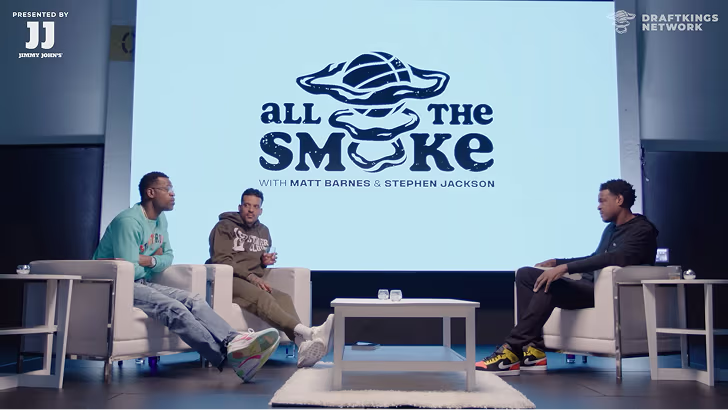
How All the Smoke makes hit compilations faster with OpusSearch

How All the Smoke makes hit compilations faster with OpusSearch

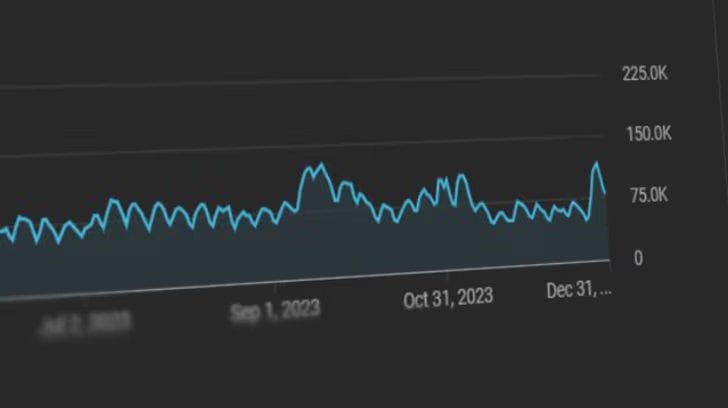
Growing a new channel to 1.5M views in 90 days without creating new videos

Growing a new channel to 1.5M views in 90 days without creating new videos

OpusClip 4.0 is here. Become a content powerhouse.

8 Best Free Caption Apps for YouTube Videos in 2026

Creators at a laptop, a podcast microphone and a phone, with a play badge, a CC tag, a Free pill and a views badge
No items found.
No items found.

Boost your social media growth with OpusClip

Create and post one short video every day for your social media and grow faster.

8 Best Free Caption Apps for YouTube Videos in 2026

Creators at a laptop, a podcast microphone and a phone, with a play badge, a CC tag, a Free pill and a views badge

OpusClip is the pick for free animated captions on YouTube Shorts cut from a long video: Free is $0 with a watermark, and clips come back with captions added. For captions on a whole YouTube upload, YouTube Studio's own automatic captions are the shortest path, YouTube Create captions and uploads from a phone, Clipchamp and Flixier hand over a caption file or a captioned video from the browser, and TurboScribe, Buzz and Kdenlive cover file-only and offline work. Items 2 to 8 are ordered by how few steps stand between the free tool and a captioned YouTube upload, from facts read on November 13, 2026.

Key takeaways

  • Best for free animated captions on Shorts cut from a long video: OpusClip. Free lists AI captions with an emoji and keyword highlighter and up to 1080p rendered clips, with a watermark.
  • Best for captions on a video that lives on YouTube: YouTube Studio. YouTube Help says automatic captions are published on the video when they are available, and Studio's caption editor fixes them.
  • Best for captioning and uploading from a phone: YouTube Create. YouTube Help calls the app free of charge and without ads, but says it cannot generate captions for clips longer than 60 seconds.
  • Best for a free captioned video plus an .SRT file: Clipchamp. Its subtitle page calls autocaptions free for all users with no stated limit on generating subtitles.
  • Best for short videos on a free plan that prints its caps: Flixier. Free lists 5 minutes of subtitles and 10 minutes of video export a month, with a watermark.
  • Best for a caption file only: TurboScribe and Buzz. TurboScribe's free plan allows 3 files a day of up to 30 minutes each; Buzz is open source and runs offline.
  • Best for a free editor with speech-to-text subtitles: Kdenlive. It is free and open source, but speech models have to be set up first.

Three ways a free caption app hands captions to YouTube

A caption tool only helps if its output lands on the upload. Besides the automatic captions YouTube generates, YouTube Help lists three ways to add captions in YouTube Studio: upload a caption file (with or without timing), auto-sync a transcript, or type them in. That leaves three hand-offs to compare.

  • YouTube makes the captions itself. YouTube Studio's automatic captions and the YouTube Create app need no hand-off.
  • A caption file goes into YouTube Studio. YouTube Help lists SubRip (.srt) and SubViewer (.sbv) as basic formats, which must be plain UTF-8 with no style markup recognized, and WebVTT among the advanced ones. Clipchamp, Flixier, TurboScribe, Buzz and Kdenlive list an SRT export.
  • The captions are rendered into the video. Styled captions that are part of the video image show wherever the video goes, as the pages for OpusClip, Clipchamp and Flixier describe their styled output. For the burn-in job on its own, see our open-caption burn-in guide.

A transcript with no timing also works: YouTube Help says Studio can synchronize the text to the video automatically when it is in a language its speech recognition supports and matches the spoken language, and does not recommend it for videos over an hour or with poor audio. For paid caption styles in tools such as CapCut, Submagic, VEED and Kapwing, see our auto caption generators guide.

How to choose

  • The video already lives on YouTube and a plain caption track is enough: start with YouTube Studio's automatic captions and its caption editor.
  • The video is a short vertical clip edited on a phone: YouTube Create, within its 60-second caption limit.
  • Shorts are being cut from a long recording and the captions should be styled: OpusClip; see our YouTube clip makers guide for the clipping step.
  • A finished video needs captions burned in without a watermark: Clipchamp's pricing page lists watermark-free exports on its Free plan.
  • Only a caption file is needed: Clipchamp, Flixier, TurboScribe, Buzz or Kdenlive, then upload it in YouTube Studio.
  • The recording is long: TurboScribe's free plan stops at 30 minutes a file and Flixier's at 5 minutes of subtitles a month; Clipchamp lists no limit, and Buzz and Kdenlive run on the creator's own computer.

At a glance

  • OpusClip: best for animated captions on Shorts cut from a long video; Free $0 with a watermark; Starter $15 a month (monthly billing only), Pro $29 a month or $14.50 a month billed annually.
  • YouTube Studio: best for captions on a video that lives on YouTube; YouTube Help's captions articles list no fee.
  • YouTube Create: best for captioning and uploading short clips from a phone; free of charge and without ads, per YouTube Help.
  • Clipchamp: best for a free captioned video plus an .SRT file; Free plan with watermark-free exports up to 1080p; Premium comes with Microsoft 365 Personal or Family.
  • Flixier: best for short videos on a capped free plan; Free $0 a month (watermark); Starter $19 per seat a month on the monthly toggle, $9 per seat a month billed yearly.
  • TurboScribe: best for a caption file only; Free plan (3 files a day); Unlimited $20 a month billed monthly, or $10 a month billed yearly.
  • Buzz: best for offline caption files; free, open source under an MIT license.
  • Kdenlive: best for a free editor that makes subtitles from speech; free and open source.

Free limits, caption files and the YouTube hand-off

The At a glance list covers best-for and paid prices; this table compares the free limit, the caption files each tool reads or writes and the route to a YouTube upload, as listed on each vendor's own pages on November 13, 2026.

ToolFree limit or cap as listedCaption filesRoute to a YouTube upload
OpusClipWatermark on clips; up to 1080p rendered clipsTakes your .srt at upload in place of its own transcriptExport the clip, then upload it to YouTube
YouTube StudioAutomatic captions may not generate if the video is too longUploads .srt, .sbv and more; downloads its own trackAdd or review captions in Studio, even at upload
YouTube CreateFree of charge; no captions for clips over 60 secondsNone described; captions are a layer you edit and styleExport, then tap Upload to YouTube in the app
ClipchampFree for all users; no limit on generating subtitlesDownloads .SRT onlyDownload the video and the .SRT; add the file in Studio
Flixier5 min of subtitles and 10 min of export a month; watermarkExports SRT, VTT, STL, SUB; imports your own SRT or VTTEmbed in the video or download an SRT to upload to YouTube
TurboScribe3 transcripts a day; 30-minute files; lower priorityDownloads SRT and VTT, plus DOCX, PDF, TXT and CSVUpload the SRT in YouTube Studio; no captioned video
BuzzNo plan or cap listed; MIT-licensed open sourceExports TXT, SRT and VTTUpload the SRT in YouTube Studio; works offline
KdenliveFree and open source; speech models installed firstImports ASS, SRT, VTT, SBV; exports ASS, SRTExport an SRT for Studio, or render with the subtitle track

1. OpusClip: Best for animated captions on Shorts cut from a long video

OpusClip's caption editor showing a transcript with highlighted keywords, greyed filler words and an Apply to everywhere option

Keyword highlights and word edits in OpusClip's caption editor. Source: OpusClip website

OpusClip is a clipping tool whose captions come with the job: a pasted link or an uploaded file goes in, and clips come back with captions added. The OpusClip captions page describes animated caption templates and text-based editing, and the pricing page lists AI captions with an emoji and keyword highlighter, up to 1080p rendered clips and a watermark on Free. The help center says clips on the Free plan carry an OpusClip brand logo watermark. The captions help article describes selecting a word or sentence to edit it, adjusting timestamps and dragging captions to a new position.

For a YouTube upload, the hand-off is the exported clip, and the pricing page lists AI captions with the rendered clips. The help center also describes going the other way: an SRT file added at submission is used to generate the captions instead of OpusClip's own transcript. When a full video should stay whole, the help center describes a Don't Clip option that generates a caption-only project.

Pricing: OpusClip's pricing page lists Free at $0 with a watermark, Starter at $15 a month (monthly billing only) and Pro at $29 a month, or $14.50 a month billed annually. Business is custom.

Considerations: OpusClip is built around clips, so it is not the shortest route to a plain caption track for a whole long-form upload: YouTube Studio or a file tool below is more direct. Free clips carry the watermark. OpusClip is a clipping tool, not a timeline editor.

  • Choose it if Shorts or other short clips are being cut from a longer video and animated, styled captions should come with them.
  • Skip it if all that is needed is a free caption track or an .srt for a long-form upload, or the free clip has to be watermark-free.

2. YouTube Studio: Best for captions on a video that already lives on YouTube

YouTube Help says YouTube can use speech recognition to create captions for videos automatically, on long-form videos and Shorts, in the languages its article lists. If automatic captions are available, they are published on the video automatically, though they may not be ready at upload because processing time depends on the audio. The article warns that quality may vary and that mispronunciations, accents, dialects and background noise can cause errors, so creators should always review them: in YouTube Studio, choose Subtitles, open the video, select More beside the captions, then edit or remove lines that were not transcribed correctly.

Studio is also the destination for every other tool in this guide. YouTube Help lists uploading a file, auto-syncing a transcript and typing captions as the ways to add them, and says captions can be added during the upload process. The editing article says changes to automatic captions create a new caption track, and that a track can be downloaded, edited as a file and uploaded again.

Pricing: YouTube Help's captions articles list no fee or plan requirement.

Considerations: The Help article names reasons automatic captions may be missing: the video is too long, the language is not supported, the sound quality is poor, there is a long silence at the start, or speakers overlap or several languages are used at once. Automatic captions are a track attached to the YouTube video, and Help describes no styled or burned-in version, so they stay on YouTube. A default setting replaces potentially inappropriate words in automatic captions with [ __ ] until it is switched off in Studio's channel advanced settings.

  • Choose it if the video is already on YouTube, or about to be uploaded there, and a plain caption track with a review pass is enough.
  • Skip it if captions need a styled look, have to be burned into the video, or must be reused on other platforms.

3. YouTube Create: Best for captioning and uploading short clips from a phone

YouTube Create's Captions panel on a phone with audio source, spoken language, translation language and preset style options above a Generate button

The Captions panel in YouTube Create, as shown in YouTube Help. Source: YouTube Help

YouTube Help describes YouTube Create as an app for editing long-form videos and Shorts, free of charge and without ads. It runs on Android phones with at least 4GB of RAM and on iPhone XR and newer models with iOS 17 or later, in the countries Help lists. To caption a project, open it, tap Captions, choose whether to transcribe all videos or only voiceovers recorded in the app, pick the language and tap Generate. Help says the captions capture tone and sound effects such as laughter and pauses. A wrong word is fixed by tapping it and typing, and the caption layer can be restyled (size, font, color, background, format, outline and shadow).

The hand-off is built in: export the project, tap Upload to YouTube, add the title, description and thumbnail, choose the privacy level and upload. Help says both long-form videos and Shorts can be uploaded from the app.

Pricing: YouTube Help lists the app as free of charge and without ads.

Considerations: YouTube Help says YouTube Create cannot generate captions for clips longer than 60 seconds. It is a phone app only, and the Help article describes no caption file export.

  • Choose it if short vertical videos are edited on a phone and go straight to YouTube.
  • Skip it if clips run past 60 seconds, the edit happens on a desktop, or a caption file is needed.

4. Clipchamp: Best for a free captioned video plus an .SRT file

Clipchamp's Captions panel with Turn off autocaptions and Download captions buttons above a timestamped transcript

Clipchamp's captions panel on its subtitle generator page. Source: Clipchamp website

Clipchamp is Microsoft's video editor, and its subtitle generator page describes four steps: upload or record a video, choose the subtitle language, adjust font, colors, size and alignment, then download the video and an .SRT transcript file. The page's FAQ says the autocaptions feature is free for all Clipchamp users and that there are no limits on generating subtitles for a video. The page also lists a one-click filter for offensive language and says the transcript can be edited.

For YouTube, the .SRT is the hand-off: YouTube Help lists SubRip (.srt) as a basic supported format, so the file Clipchamp downloads can go to YouTube Studio as a caption track. The FAQ says speech recognition detects one language at a time and that transcripts download only as .SRT. Clipchamp runs in the browser and, per its home page, as a Windows app.

Pricing: Clipchamp's pricing page lists a Free plan (sign in with a personal Microsoft account) that includes watermark-free video exports up to 1080p, and Premium through Microsoft 365 Personal and Family, which adds 4K exports, premium stock assets and a brand kit for a single brand. The page does not list Microsoft 365 prices.

Considerations: The subtitle page describes font, color, size and alignment styling, not animated word-by-word captions. The pricing page says free users cannot export videos that include premium assets, and transcripts download as .SRT only, not VTT.

  • Choose it if a free, watermark-free captioned video or an .SRT for YouTube Studio is the goal, on Windows or in the browser.
  • Skip it if animated caption styles, VTT downloads or captions in more than one language at once are needed.

5. Flixier: Best for short videos on a free plan that prints its caps

Flixier's Free plan card listing 10 minutes of video export, 5 minutes of subtitles a month, 720p resolution and a Flixier watermark

Flixier's Free plan card on its pricing page, which prints the monthly caps. Source: Flixier website

Flixier is a browser-based editor. Its pages describe generating subtitles from the timeline (right-click, then Generate subtitles), styling the font, color, position and animations, editing the text and timing, and then either embedding the subtitles in the video or exporting standalone SRT, VTT, STL or SUB files, a dual route Flixier says is compatible with YouTube. The tool page's FAQ says a generated, translated file can be downloaded as an SRT to upload to YouTube or any other platform, and that a creator's own SRT or VTT can be imported and adjusted. Flixier says it generates subtitles in over 100 languages.

Pricing: Flixier's pricing page lists Free at $0 a month with 10 minutes of video export and 5 minutes of subtitles a month, 720p resolution, 2 GB of storage and a Flixier watermark. Starter is $19 per seat a month on the monthly toggle, or $9 per seat a month ($108 billed yearly) on the yearly toggle, with 60 minutes of export, 120 minutes of subtitles, 1080p and no watermark. Business lists unlimited subtitle exports.

Considerations: Five minutes of subtitles a month covers a short video or two, and the watermark stays until a paid plan. The pricing page does not say whether the Free plan can download subtitle files, so check the export menu before building a workflow around an SRT.

  • Choose it if a short video needs captions generated, styled and exported from the browser and the free caps fit.
  • Skip it if videos run longer than a few minutes, or a watermark-free free export is required.

6. TurboScribe: Best for a free caption file from a recording of up to 30 minutes

TurboScribe's upload list showing files being transcribed, with progress percentages and a whale icon beside each file name

TurboScribe's home-page demo of its upload list. Source: TurboScribe website

TurboScribe is a transcription service rather than a caption editor: audio or video goes in and text comes out. Its pages list downloads as DOCX, PDF, TXT, CSV, and captions and subtitles (SRT, VTT). The FAQ says it supports 98+ languages, speaker recognition and translation of transcripts or subtitles into more than 130 languages, and the home page says it is powered by Whisper; those are the vendor's claims, not ours. For the transcript job on its own, see our AI transcript generators guide.

For YouTube, the file is the hand-off: an SRT can be uploaded in YouTube Studio, and a plain text transcript can go through Studio's auto-sync route, which YouTube Help says suits videos under an hour with good sound and clear speech. TurboScribe lists no captioned-video output.

Pricing: TurboScribe's home page lists Free as 100% free with 3 transcripts a day, uploads of up to 30 minutes each, one file at a time and lower priority. Unlimited is $20 a month billed monthly, or $10 a month ($120) billed yearly.

Considerations: The page lists SRT and VTT among the downloads but does not split formats by plan, so confirm the free export before relying on it. The captions are not styled or burned in, and a video over 30 minutes needs splitting on Free.

  • Choose it if a caption file for a recording of up to 30 minutes is the goal and the video itself does not need to change.
  • Skip it if styled or burned-in captions are needed, or recordings run past 30 minutes on a free plan.

7. Buzz: Best for offline caption files from a free open-source app

Buzz's desktop window listing three files with their Whisper model, a Transcribe task and statuses of queued, in progress and completed

Buzz's file list, from the project's own README screenshots. Source: Buzz GitHub repository

Buzz is an open-source desktop app that, per its GitHub README, transcribes and translates audio offline on the user's own computer, powered by OpenAI's Whisper. The feature list includes transcribing audio and video files, speaker identification and exporting transcripts to TXT, SRT and VTT. The README lists installers for macOS, Windows and Linux (Flatpak), and GPU acceleration options.

The SRT or VTT export is the hand-off to YouTube Studio's upload-a-file option. Because the README says processing is offline, nothing has to be sent to a third-party service before the caption file reaches Studio.

Pricing: No plan or price is listed; the repository shows an MIT license.

Considerations: The README says the current macOS build needs Apple silicon (the last version for Intel Macs is 1.4.5) and that the Windows installer is not signed, so Windows shows a warning at install. Buzz exports a transcript file, not a captioned video.

  • Choose it if offline caption files with no plan to pay for are wanted and installing an open-source app is fine.
  • Skip it if a browser-only tool, styled captions or a captioned video is needed.

8. Kdenlive: Best for a free editor that makes subtitles from speech

Kdenlive's Subtitles panel with a text box showing ASS style tags, a character count, position, end and duration fields and a style menu

Kdenlive's Subtitles panel, from the Kdenlive manual. Source: Kdenlive documentation

Kdenlive is, per its home page, a free and open-source video editor that works on Linux, Windows, macOS and BSD. Its manual describes automatic subtitling from speech, using VOSK or Whisper speech models, onto a subtitle track in the timeline, where each subtitle can be edited as text, resized on the timeline and styled in the Subtitle Manager. Subtitles import as ASS, SRT, VTT or SBV and export as ASS or SRT, and the manual says a render uses the active subtitle track.

For YouTube, the SRT export goes to Studio's upload-a-file option, or the video is rendered with the active subtitle track and uploaded as is.

Pricing: Kdenlive's home page calls it free and open source; there is no plan.

Considerations: The manual says speech to text must be configured and speech models installed before first use, and that its translation step can download a 9GB model and use all available RAM, CPU and disk access. Kdenlive is a full timeline editor, so it is the slowest route to a first caption file.

  • Choose it if a free timeline editor with offline speech-to-text subtitles and SRT export is wanted.
  • Skip it if a quick browser tool is enough, or captions need a look beyond ASS styling.

How we compared these tools

This guide is organised around free captions for YouTube videos. OpusClip is built for the captioned-clips part of that job, so it comes first. Items 2 to 8 follow one yardstick: how few steps stand between the free tool and a captioned YouTube upload, as each vendor's own pages describe them, with YouTube's own tools first, then browser tools, then file-only and offline tools. We compared the free limit as printed, the caption files each tool reads or writes, whether captions can be rendered into the video, and how the result reaches YouTube. Every fact about a vendor comes from that vendor's own pages or from YouTube Help, read on November 13, 2026, and vendor claims are attributed to the vendor. We did not run hands-on tests of the competitors in this list, so the order reflects documented capability, not a measured accuracy or speed comparison. Prices and caps change often, so check each page before relying on one.

Red flags to watch for

  • Watermarks on free exports. OpusClip's Free plan and Flixier's Free plan list a watermark; Clipchamp's pricing page lists watermark-free exports on its Free plan.
  • Monthly, daily or per-clip caps. Flixier Free lists 5 minutes of subtitles and 10 minutes of export a month, TurboScribe Free allows 3 files a day of up to 30 minutes, and YouTube Help says YouTube Create cannot generate captions for clips longer than 60 seconds.
  • Caption files cannot carry a style. YouTube Help says SubRip and SubViewer files are basic formats with no style markup recognized, so a styled look needs captions rendered into the video.
  • Automatic captions published without a review. YouTube Help says automatic captions might misrepresent the spoken content and should always be reviewed, and that editing them creates a new caption track.
  • Words replaced in automatic captions. YouTube's default setting swaps potentially inappropriate words for [ __ ] until it is turned off in Studio.
  • Premium assets block a free export. Clipchamp's pricing page says free users cannot export videos that include premium assets.
  • File-only tools leave the video untouched. TurboScribe and Buzz list transcript and subtitle downloads, so the caption track still has to be added in YouTube Studio.
  • The wrong spoken language. Clipchamp detects one language at a time, and YouTube Help says a transcript must be in the language spoken in the video for auto-sync.

Frequently asked questions

What are the best free caption apps for YouTube videos in 2026?

For Shorts cut from a long video, OpusClip is the pick: Free is $0 with a watermark and puts animated captions on the clip. For a video that lives on YouTube, YouTube Studio's automatic captions and caption editor are the shortest path, and YouTube Create captions short clips on a phone and uploads them. Clipchamp, Flixier, TurboScribe, Buzz and Kdenlive each export a caption file or a captioned video, with the free limits listed above. For paid animated styles, see our auto caption generators guide.

How do I add captions to a YouTube video for free?

In YouTube Studio, choose Subtitles, open the video, select Add language if needed, and under Subtitles select Add. YouTube Help then offers uploading a file (with or without timing), auto-syncing a transcript or typing the captions in, and says captions can also be added during the upload process. If automatic captions are available they are published on the video automatically, and Help says to review them. Another route is to render captions into the video with a tool such as Clipchamp first.

Does YouTube add captions automatically?

YouTube Help says YouTube can use speech recognition to create captions automatically, and that if automatic captions are available they are published on the video. They may not be ready when a video is uploaded, and Help lists reasons they may be missing, such as a long video, an unsupported language or poor sound. Help says to always review them.

Can I upload an SRT file to YouTube?

Yes. YouTube Help lists SubRip (.srt) and SubViewer (.sbv) as basic caption file formats, which must be plain UTF-8 with no style markup recognized, along with WebVTT and others. In Studio, choose Upload file, then With timing or Without timing. Clipchamp, Flixier, TurboScribe, Buzz and Kdenlive each list an SRT export.

Should captions be burned into the video or uploaded as a file?

Both are common. Captions rendered into the video are part of the image, so they show on every platform and can carry a styled look, as with OpusClip's animated templates. A caption file is a separate track that YouTube can show or hide, and YouTube Help says SubRip and SubViewer files carry no style markup. OpusClip's help center says a caption file added at submission replaces its own transcript. See our open-caption burn-in guide for the burned-in route.

Do free caption apps put a watermark on the video?

Some do. OpusClip's Free plan and Flixier's Free plan list a watermark, while Clipchamp's pricing page lists watermark-free exports on its Free plan. TurboScribe and Buzz hand over text and do not change the video, and YouTube Studio's captions are a track on the YouTube video, so none of those add a mark.

Can OpusClip add captions to a YouTube video for free?

OpusClip's pricing page lists Free at $0 with a watermark and AI captions with an emoji and keyword highlighter. It cuts captioned clips from a longer video rather than producing a caption track for a whole upload, so it suits Shorts from a long recording. See the OpusClip captions page for the captioning step, or our YouTube clip makers guide for the clipping step.

Ready to start streaming differently?

Opus is completely FREE for one year for all private beta users. You can get access to all our premium features during this period. We also offer free support for production, studio design, and content repurposing to help you grow.
Join the beta
Limited spots remaining

Try OPUS today

Try Opus Studio

Make your live stream your Magnum Opus