OpusClip 4.0 is here. Become a content powerhouse.

8 Best YouTube Clip Makers in 2026

November 5, 2026
Creators recording a podcast, reviewing short clips and showing a vertical video, with a Clip it button, a 9:16 tag, a views badge and a YouTube icon

OpusClip is our first pick for clipping a YouTube video: paste a link or connect a channel, and it finds the moments, scores clips on paid plans, adds captions, reframes to vertical and posts to YouTube. YouTube's own Studio tools are the best free route for hand-picked clips from your own videos. Vizard, Klap, Submagic and 2short.ai are the other link-based AI clippers, while Kapwing and VEED suit browser editing with manual trims. We ranked 8 tools by how a video gets in, how clips are picked and what happens next. Facts come from each vendor's own pages, read on November 5, 2026.

Key takeaways

  • Best for AI-found clips from your own YouTube videos: OpusClip. It scores clips on paid plans, can import new videos from a connected channel on Starter and Pro, and posts to YouTube.
  • Best free route for hand-picked clips from your own channel: YouTube's Studio tools, with AI suggestions in select countries and languages.
  • Best for AI or manual clipping from a pasted link: Vizard, which offers AI highlights or clipping by selecting transcript text.
  • Best for scored, reframed clips from a link: Klap, which lists a virality score and active-speaker reframing on every plan.
  • Best for caption-led clips from a YouTube URL: Submagic, whose Magic Clips takes a pasted URL.
  • Best for prompt-driven clips plus manual trims: Kapwing, with a text prompt and a separate YouTube trimmer.
  • Best for browser editing of a downloaded video: VEED, whose Clip Maker page says to upload the file.
  • Best low-cost, link-first clipper: 2short.ai, with a free plan and a $9.90 Lite plan; it needs a video that has captions.

How do I clip a YouTube video?

A "YouTube clipper" can mean three different things, and the right one depends on where the video lives. The first route is YouTube itself: on a channel you own, the Clips and Shorts tool in YouTube Studio cuts a segment out of a long video and publishes it as a separate video clip or a Short. The second route is an AI clipper: paste a YouTube link or upload the file, let the tool find the moments, then edit and export. OpusClip's clip from YouTube video tool works this way, and so do most tools in this list. The third route is a browser editor with manual in and out points, such as Kapwing's YouTube trimmer or VEED's cutter, which suits one specific quote rather than a batch.

Two cautions apply to every route. YouTube replaced its viewer-facing Clips button with Share at Timestamp in April 2026, so older tutorials that start there are out of date. And clip only videos you own or have permission to use; the rights section after the tool list covers what each vendor and YouTube say. For clips made specifically as Shorts, see our guide to the best YouTube Shorts makers.

How to choose

  • Several clips from each upload on your own channel: an AI clipper that takes a link, such as OpusClip, Vizard, Klap, Submagic or 2short.ai.
  • One hand-picked moment: YouTube's Studio tools or a browser trimmer such as Kapwing's.
  • A typed instruction to steer the search: OpusClip's ClipAnything prompts or Kapwing's text prompts.
  • Someone else's video: get permission first; OpusClip asks for channel ownership and VEED says to upload only videos you own.
  • A tight budget: compare free plans in At a glance, then check what a free export includes, since watermarks and resolution caps are the usual cost. Our guide to free AI tools for long videos goes deeper.

At a glance

  • OpusClip: best for AI-found clips from your own YouTube videos, with posting built in; paid plans from $15 a month; free plan yes (watermark, no editing).
  • YouTube's Studio tools: best for free, hand-picked clips and Shorts from your own channel; the help pages list no price.
  • Vizard: best for AI or manual clipping from a pasted link; Creator $29 a month ($14.50 billed yearly); free plan yes (720p export, watermark).
  • Klap: best for scored, reframed clips from a link; Basic $29 a month ($14.50 billed yearly); a free trial on 1 video, with no downloads or posting.
  • Submagic: best for caption-led clips from a YouTube URL; Starter $19 a month ($12 billed yearly) per member; a free trial, no credit card.
  • Kapwing: best for prompt-driven clips plus a manual YouTube trimmer; Pro $24 a month ($16 billed annually); free plan yes (watermark, 720p).
  • VEED: best for browser clipping and manual trims of a video you already own; Creator $12 per user per month billed yearly; the page says to start for free.
  • 2short.ai: best for a YouTube-link-first clipper with a low entry price; Lite $9.90 a month; free plan yes.

How a YouTube video gets in, how clips are picked and where they go

The At a glance list covers best-for, price and free plan; this table compares how each tool takes a YouTube video, how it picks the clips and what happens to a clip next, as listed on each vendor's own pages on November 5, 2026.

ToolHow a YouTube video gets inHow clips are pickedWhat happens next
OpusClipLink after an ownership check, or an upload; Auto Import for your own channelAI finds moments and scores them (Starter, Pro); prompts and a time range steer itEditor on Starter and up; posts to YouTube, TikTok and Instagram; Pro schedules
YouTube Studio toolsVideos on your own channel, opened in Studio under Clips and ShortsPick transcript text or timestamps; AI suggestions in select countriesPublish as a video clip or a Short through the standard upload dialog
VizardDrop a YouTube link or upload a fileAI finds highlights, or select transcript text to clip by handDownload as MP4 or publish directly to YouTube
KlapPaste a YouTube link or upload a video fileAI extracts topics; each clip gets a virality scoreSchedule and publish to TikTok, YouTube, Instagram, LinkedIn and Facebook
SubmagicPaste a YouTube URL or upload a video fileAI finds key moments and rates them with a virality scoreAdd captions and tweak clips, then post to social media
KapwingUpload a video or paste a YouTube linkText prompts for topics or quotes; a separate trimmer for manual cutsEdit in the studio, then publish directly to a YouTube account
VEEDUpload a file; the page says to download the video firstAI picks segments from your caption, goal and length settings; manual trim tooDownload, or open the editor for text, music and a brand logo
2short.aiPaste a YouTube link; Lite adds Google Drive and public URLsAI extracts engaging parts; needs a video that has captionsAdvanced editing and cropping, then export with brand logos and overlays

1. OpusClip: Best for AI-found clips from your own YouTube videos, with posting built in

OpusClip's Auto-import videos from YouTube dialog with an active channel connection and import settings for all new videos or specific playlists

OpusClip's Auto Import settings. Source: OpusClip help center

OpusClip's clip from YouTube video page says to drop a video link or upload a file, and the AI then picks the most engaging parts of the longer video and returns short clips. Each clip gets a Virality Score from 0 to 99 based on hook, flow, value and trend, sorted highest first by default, according to the help center, which says the score appears on Starter and Pro and not on Free. Two controls steer the search: ClipAnything accepts a typed prompt for specific moments, and Co-Pilot limits processing to a chosen start and end time.

What sets OpusClip apart for YouTube channels is Auto Import. On Starter and Pro, a connected channel can have new public videos processed automatically, from all new videos or chosen playlists, either with an email prompt or by creating projects with saved clip settings. The help center says it detects only your own public videos, so private and unlisted videos, Shorts and live streams are skipped. For publishing, the social account FAQ says Starter users can post in real time to YouTube, TikTok and Instagram, and Pro users can also schedule posts. Starter and Pro list an editor, with trimming by transcript text or timeline.

Pricing: OpusClip's pricing page lists Free at $0 (a watermark, no editing, and clips stop being exportable after 3 days), Starter at $15 a month (monthly billing only; auto-post to YouTube Shorts, TikTok and Instagram Reels; an editor; filler word and silence removal) and Pro at $29 a month, or $14.50 a month billed annually ($174 a year; a social media scheduler, 6 social account connections, export to Premiere Pro and DaVinci Resolve). Business is custom. Each plan lists a monthly credit allowance.

Considerations: Starting from a YouTube link means confirming channel ownership first, per the help center; for a client's channel, the owner can be invited to the team workspace, or another submission method can be used. The help center also says YouTube link uploads have had higher failure rates since YouTube's download policy changes, with a local upload as the fallback. The Free plan has no editing and no Virality Score, and OpusClip clips footage that already exists.

  • Choose it if the goal is several scored, captioned clips from each YouTube upload on a channel you own, with posting and optional automatic import.
  • Skip it if the video belongs to someone else and ownership cannot be verified, or a free plan with an editor is required.

2. YouTube's Studio tools: Best for free, hand-picked clips and Shorts from your own channel

YouTube Help steps for the Clips and Shorts tool in YouTube Studio, from Content and Videos to Create clip or Short

YouTube's help page for the Clips and Shorts tool in Studio. Source: YouTube Help Center

YouTube's help page for the video clips and Shorts tool says creators can cut engaging segments from their own long-form videos and publish them as separate video clips or Shorts. In YouTube Studio, the path is Content, then Videos, then the video, then Clips and Shorts, then Create clip or Short. A segment is chosen by selecting transcript text or entering timestamps in the timeline editor or, where available, by picking an AI-powered suggestion or an AI-generated outline of the transcript. The help page says AI suggestions are currently available in ten listed countries, including the United States, and seven listed languages, including English. The page adds that using your own content in a clip or Short is not penalized.

Viewers have a different story. TeamYouTube's April 16, 2026 announcement in the YouTube Help Community says Share at Timestamp replaces the Clips feature, that existing Clips stay viewable, and that setting an end time or adding a custom description is no longer available. YouTube's Clips help page still describes the older 5 to 60 second flow, so check the YouTube app before relying on a Clip button.

Pricing: YouTube's help pages list no price for the Studio clips and Shorts tool.

Considerations: The tool works on videos in a creator's own Studio, so it does not help with someone else's video, and the help page describes picking a segment from one video rather than bulk clipping, scoring or scheduling. AI suggestions depend on country and language, and the page notes that the Short preview can be lower resolution than the final video.

  • Choose it if the video is on your own channel, one or two clips are enough, and keeping everything inside YouTube matters.
  • Skip it if many clips should come out of every upload with scores and posting to several platforms, or the source is another creator's video.

3. Vizard: Best for AI or manual clipping from a pasted link
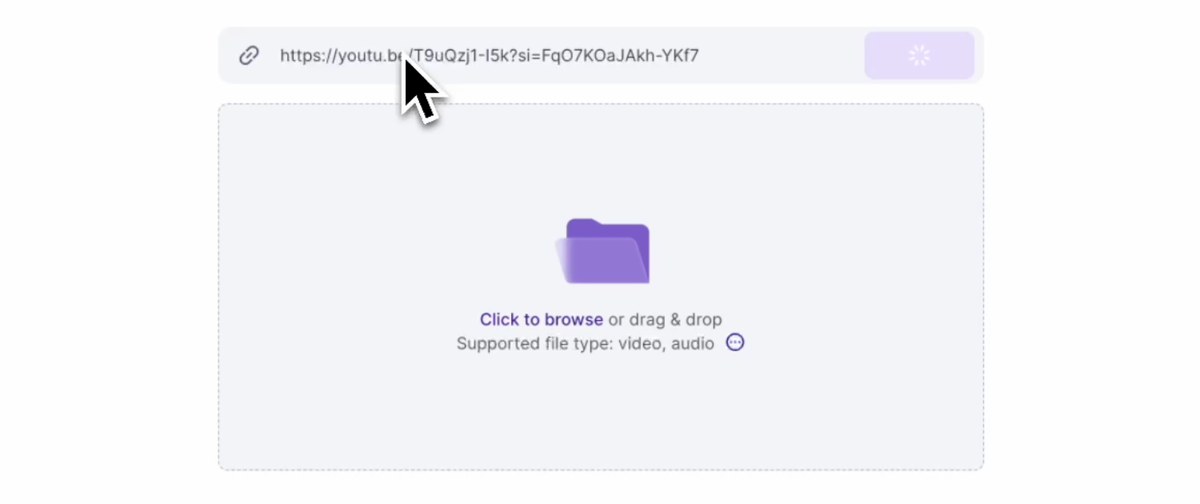
Vizard's project start screen with a YouTube link pasted into the link field above a drag and drop upload area

Starting a project from a YouTube link in Vizard. Source: Vizard website

Vizard's YouTube clip maker page says to drop a YouTube link and Vizard's AI identifies the best parts and turns them into clips. The page also describes a manual route: select a portion of the transcript to create a clip, or trim a video by deleting the matching text. Clips can be downloaded or published to YouTube directly from Vizard, and its FAQ says to check copyright and generally ask permission before using other people's YouTube footage.

Pricing: Vizard's pricing page lists Free at $0 (60 credits a month, AI-generated clips, 720p export, full video editor access, 3-day storage, 1 social account), Creator at $29 a month, shown as $14.50 a month billed yearly under a 50% off label ($174 a year; no watermark, 4K export, scheduled posts, 6 social accounts) and Business at $39 a month, or $19.50 billed yearly (20 social accounts, shared workspace, brand kit).

Considerations: The comparison table on the pricing page lists a 10-minute export length and a 60-minute upload on Free, against any export length and 600-minute uploads on the paid plans. The YouTube clip maker page says Free exports carry a Vizard watermark, and the pricing page lists no watermark from Creator. Free storage lasts 3 days. The page also describes YouTube Clips as 5 to 60 second clips that viewers can make, which YouTube's April 2026 announcement says were replaced, so treat that paragraph as dated.

  • Choose it if AI clipping and hand-picking from a transcript should live in one editor, with a free plan to try it.
  • Skip it if exports longer than 10 minutes, 4K or a watermark-free file are needed on a free plan.

4. Klap: Best for scored, reframed clips from a link
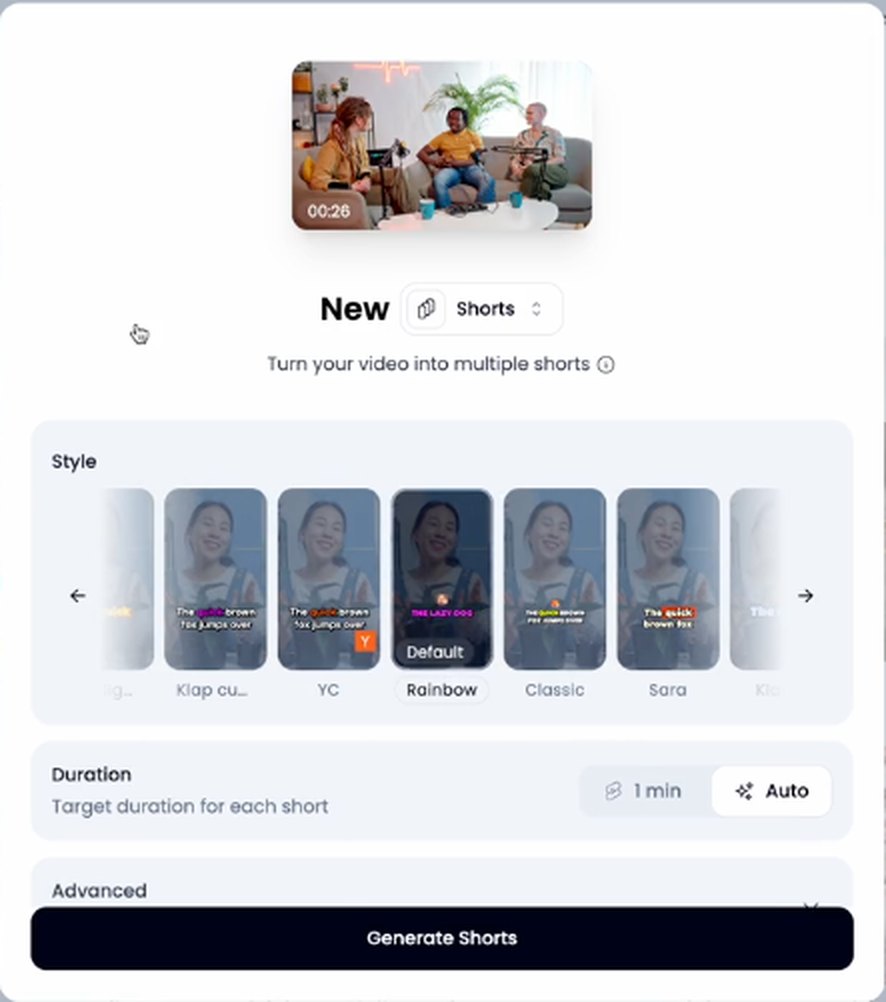
Klap's new shorts dialog with caption style thumbnails, a duration setting and a Generate Shorts button

Klap's dialog for turning a video into multiple shorts. Source: Klap website

Klap's home page says to paste a link to a YouTube video or upload a video file, and the AI extracts the best topics from a long video and edits them into clips. Its FAQ says every plan includes AI clipping with a virality score, active-speaker reframing and animated captions on each clip, plus scheduling and publishing to TikTok, YouTube, Instagram, LinkedIn and Facebook, unlimited social accounts, post analytics and an editor with b-roll and hook titles. The same FAQ says source videos can run up to 3 hours.

Klap bills by clips: each short it generates counts as one clip, and the FAQ says the length of the source video does not use up the plan.

Pricing: Klap's pricing page lists Basic at $29 a month ($14.50 a month billed yearly) for 100 clips a month, Pro at $79 a month ($39.50 billed yearly) for 300 clips and Pro+ at $189 a month ($94.50 billed yearly) for 1,000 clips. The page says to try Klap free on 1 video with no credit card, and the FAQ says downloading and posting clips need a paid plan.

Considerations: The free trial turns one video into clips that can be previewed and edited in Klap, but not downloaded or posted, so it shows quality without producing a usable file. Because plans count clips, a long video that yields many clips uses the allowance faster. The pages we read describe AI clipping and an editor, but no transcript-selection route for cutting one chosen quote.

  • Choose it if a link goes in and scored, reframed clips with posting to five networks should come out, and the clip count is the metric that matters.
  • Skip it if a free export is needed to judge the result, or one hand-picked quote is all that is wanted.

5. Submagic: Best for caption-led clips from a YouTube URL
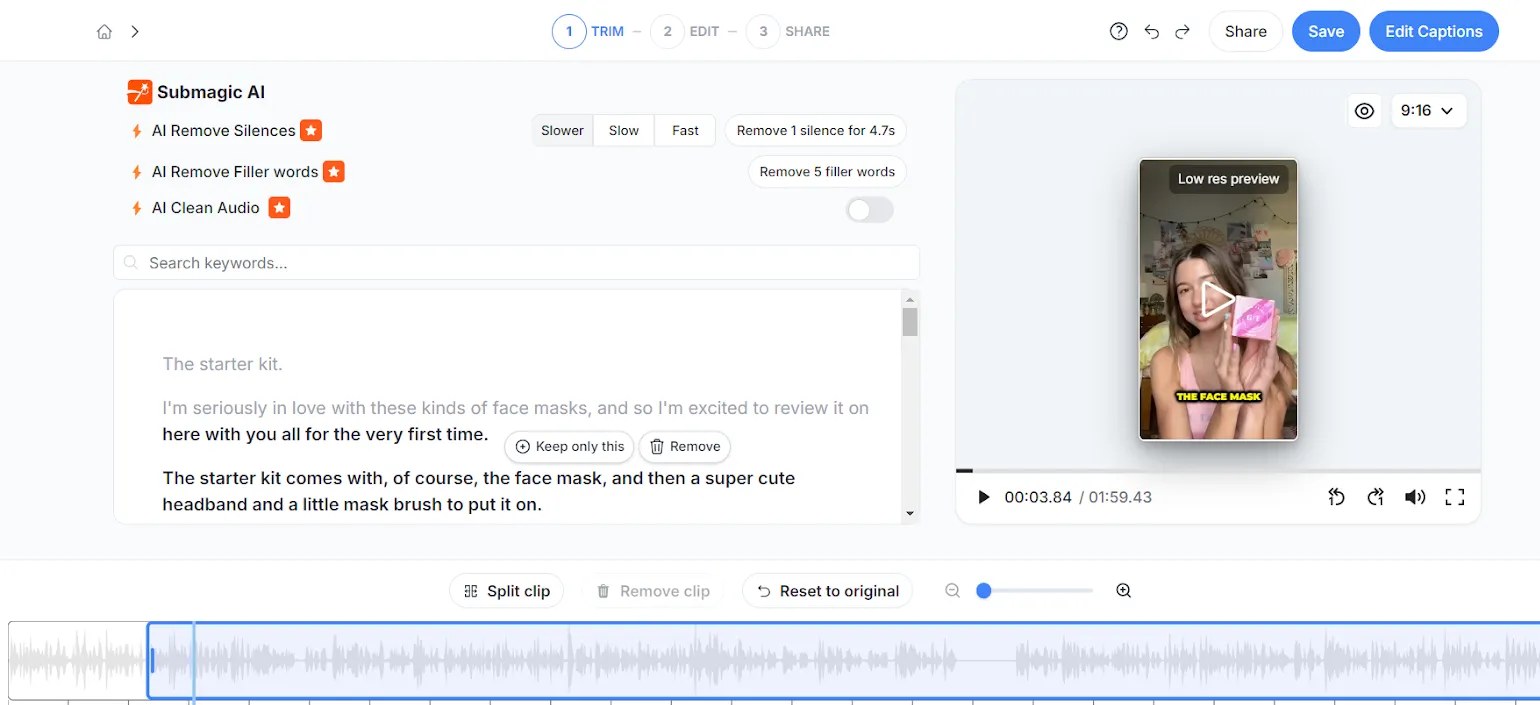
Submagic editor trim view with AI Remove Silences and Filler words options, a transcript, a vertical video preview and a waveform timeline

Submagic's trim view in its editor. Source: Submagic blog

Submagic's Magic Clips page says to paste a YouTube URL or upload a video file, after which the AI identifies key moments with a virality score and generates multiple clips to customize with captions and fonts. The page lists captions in 123 languages, auto b-roll, auto zoom, silence removal and a no-watermark export, and its pricing page lists a brand kit and publishing with analytics from Pro.

Pricing: Submagic's pricing page, read with its Monthly toggle, lists Starter at $19, Pro at $39 and Business at $69 per member per month ($12, $23 and $41 per member per month billed yearly), with 45, 120 and 300 credits. The page offers a free trial with no credit card required.

Considerations: The pricing page lists a video duration of 2 minutes on Starter, 5 minutes on Pro and 30 minutes on Business, and it does not say how that limit applies to the long source video that Magic Clips takes, so confirm the source-length limit before importing a long recording. Publishing to social accounts starts on Pro.

  • Choose it if the finished clips should lead with animated captions, in many languages, and a free trial is enough to check the look.
  • Skip it if the source is a long recording and the per-video duration limit has not been confirmed.

6. Kapwing: Best for prompt-driven clips plus a manual YouTube trimmer

Kapwing editor with a captioned video, a Resize Canvas panel offering 1:1, 16:9 and 9:16 sizes, and a subtitle timeline

The Kapwing editor with its Resize Canvas panel. Source: Kapwing website

Kapwing has two relevant tools. Its AI clip maker page for YouTube says to upload a video or paste a YouTube link, then describe the clips wanted in a text prompt, naming topics, quotes, moments or a shape such as 9:16 or 16:9. The page lists clip lengths from 10 seconds to 3 minutes and says every clip stays editable in the studio, with split, trim, subtitle styles and a Brand Kit. Kapwing's help article on the Repurpose tool says a video of at least 10 minutes is needed and the default output is 3 to 5 clips in mobile format with subtitles and a title.

The second tool is Kapwing's YouTube trimmer, which the page describes as an editing timeline for splitting, trimming and extracting key moments from content up to 2 hours long. That is the manual route, useful when the wanted clip is a known quote.

Pricing: Kapwing's pricing page lists Free at $0 (10 credits, unlimited exports with a watermark, exports up to 4 minutes, 720p, 5 GB of cloud storage) and Pro at $24 a month on the monthly view, or $16 a month on the annual view (1,000 credits a month, no Kapwing watermark, 4K export, exports up to 2 hours, Brand Kit and custom fonts, 200 GB).

Considerations: Free exports carry a Kapwing watermark at 720p and stop at 4 minutes, and the AI clip maker draws on credits. The Repurpose help article is dated December 17, 2025, so its 10-minute minimum may have changed. The page does not list a score for each clip.

  • Choose it if a team wants prompt-driven clips and hand trimming in one browser workspace with a Brand Kit.
  • Skip it if a score for each clip should rank the results, or a free watermark-free export is required.

7. VEED: Best for browser editing of a video that is already downloaded
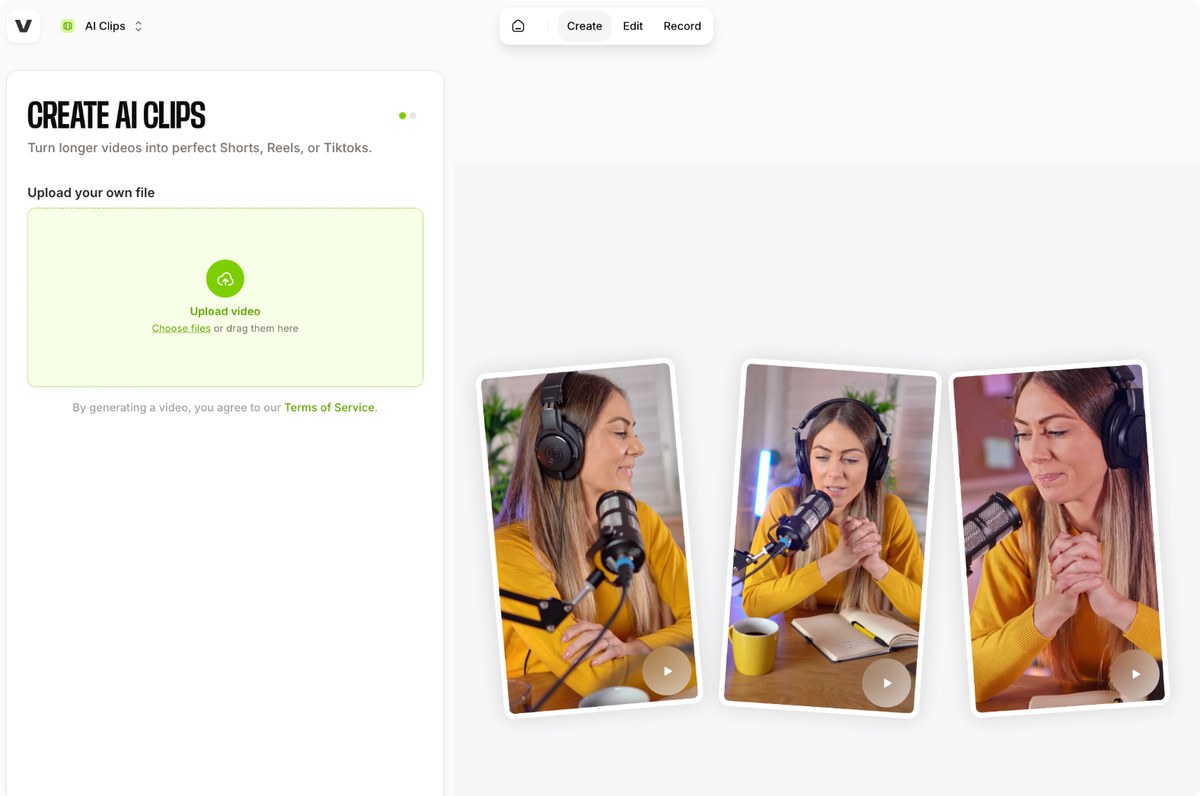
VEED's Create AI Clips screen with an Upload video area for a file and three vertical podcast-style clip previews

VEED's AI Clips upload screen. Source: VEED help center

VEED's YouTube Clip Maker page describes three steps: upload the video, choose the caption style, video goals and maximum clip length so the AI can pick the most compelling segments, then preview and download the clips or open the editor for stock music and a brand logo. The page also offers manual trims in a few clicks and a Magic Cut tool that removes ums and awkward pauses.

The page's FAQ is direct about import: asked whether the YouTube video has to be downloaded and uploaded again, it answers yes, and it says to upload only content you own. VEED's separate YouTube Shorts maker page mentions pasting a YouTube link, so the two pages describe the import differently; the Clip Maker page is the stricter reading.

Pricing: VEED's pricing page says to start for free and lists Creator at $12 per user per month billed yearly (6,000 credits, no watermark, unlimited auto subtitles) and Pro at $22 (18,000 credits, multiple Brand Kits, translation to 50+ languages). Enterprise is custom. The page showed yearly-billing prices when we read it.

Considerations: The pricing page does not itemize free-plan limits, and it lists no watermark as a Creator feature, so check what a free export includes before posting. AI features draw on credits. The download-then-upload step adds work, and the Shorts maker page notes that copyrighted source videos can lead to takedowns or penalties.

  • Choose it if the video file is already on hand and a browser editor with manual trims, subtitles and brand assets is the goal.
  • Skip it if a YouTube link should go in directly, or the free-plan limits must be known before starting.

8. 2short.ai: Best for a YouTube-link-first clipper with a low entry price

2short.ai editor panel with subtitle style presets, subtitle transition, word highlight and subtitle splitting options

2short.ai's subtitle settings panel. Source: 2short.ai website

2short.ai's FAQ says to copy a video link from YouTube and paste it into the app, after which the AI extracts the most engaging parts as short clips. The site lists center-stage facial tracking, animated subtitles, three aspect ratios, editing and cropping tools and brand logos on exports. Its FAQ gives one firm requirement: the tool can only process videos with captions, and the page says YouTube auto-generates captions for most videos.

Imports from Google Drive and public URLs are listed under the Lite plan.

Pricing: 2short.ai's pricing page lists Starter as free, Lite at $9.90 a month, Pro at $19.90 a month and Premium at $49.90 a month. Plans differ mainly in hours of AI video analysis (5 hours on Lite, 15 on Pro and 50 on Premium), and Pro and Premium list unlimited fast server-side exports. The page says every plan has full access to all features.

Considerations: The Free plan lists a monthly allowance of AI video analysis time, and the site gives two figures for it (30 minutes on the plan card, 15 minutes in a call-out), so confirm the allowance in the app. Videos without captions cannot be processed, and the page offers no manual transcript clipping route or per-clip score.

  • Choose it if the starting point is a YouTube link, the budget is small, and a free plan is wanted for a first try.
  • Skip it if the source video has no captions, or scores, team features or a long list of publishing networks are needed.

Clipping rights: what to check before clipping a YouTube video

These tools make it easy to clip any video, which is why vendor pages carry warnings. This section reports what each source says; it is not legal advice, and fair use depends on the facts.

  • YouTube's Terms of Service: they say users may not access, reproduce, download or otherwise use any content except as the service expressly authorizes, or with prior written permission from YouTube and, where applicable, the rights holders.
  • YouTube's monetization policy: its page says clips, compilations, commentary and reaction videos are reviewed under the reused content policy, and that borrowed content must be changed significantly to make it your own.
  • OpusClip: the help center says users must verify ownership of a YouTube video before submitting its link.
  • VEED: the Clip Maker page says to use only videos you own and never to download copyrighted material.
  • Vizard: the page says to check copyright when using other people's footage and generally to ask permission first.

The safe default is to clip your own videos, a client's videos with the owner's agreement, or footage you are licensed to use.

How we compared these tools

We compared each tool on five criteria: how a YouTube video gets in (link, upload or channel connection), how clips are picked (AI, prompt, transcript selection or manual trim), what happens to a clip next (editing, export, posting), the entry price and free offer, and how clearly the vendor documents its limits. Ranking favors tools that take a channel owner from a YouTube video to several postable clips with the fewest manual steps, which is why an AI clipper with channel import and posting sits first. YouTube's own tools sit second because they cost nothing extra and keep the clip inside YouTube, though the help page describes working one video at a time, and the other tools are placed where each is strongest.

All facts come from each vendor's own pricing page, product page or help center, and from YouTube's help pages and Terms of Service, read on November 5, 2026. We did not run hands-on tests of any competitor. We left out editors whose pages describe uploading a file rather than a YouTube link (CapCut's long video to shorts page lists Cloud, Google Drive and Dropbox imports, and Descript's YouTube clip maker page says to upload a video file). Prices change, so confirm on the vendor page before buying.

Red flags to watch for

  • Watermarks and export caps on free plans. OpusClip Free, Vizard Free and Kapwing Free add a watermark or limit the file, and Klap's free trial allows no download.
  • A "paste a link" button that needs more. OpusClip asks for channel ownership and notes higher failure rates for YouTube links, and VEED's Clip Maker page says to download and re-upload.
  • Source-length limits. Klap lists up to 3 hours, Kapwing's help article lists a 10-minute minimum for Repurpose, and Submagic's pricing page lists per-video durations of 2, 5 and 30 minutes.
  • Billing by clips or credits. Klap counts every generated clip, and Kapwing, VEED and Submagic draw AI features from credits.
  • Outdated YouTube advice. YouTube replaced viewer Clips with Share at Timestamp in April 2026, and some vendor pages still describe the old 5 to 60 second Clips.
  • No manual override. A tool that picks moments with no way to adjust the start and end leaves no fix for a clip that begins mid-sentence.
  • Clips from videos you do not own. VEED's page warns that uploading copyrighted content risks YouTube takedowns or penalties.

Frequently asked questions

What are the best YouTube clip makers?

It depends on where the video lives and how many clips are needed. For AI-found clips from your own channel's videos, OpusClip fits best in our ranking, with clip scoring, a prompt box, automatic import on Starter and Pro, and posting to YouTube. YouTube's own Studio tools are the free route for hand-picked clips, Vizard suits AI or manual clipping from a pasted link, Klap scored and reframed clips, Submagic caption-led clips, Kapwing prompts plus manual trims, VEED browser editing and 2short.ai a low-cost start. See OpusClip pricing for plan limits.

What is a YouTube clipper?

A YouTube clipper is a tool that cuts shorter clips out of a longer YouTube video. Some work by hand, with the start and end chosen manually, and AI clippers find the strongest moments and return several clips with captions and a vertical crop.

How do I clip a YouTube video?

On your own channel, open YouTube Studio, choose Content, then the video, then Clips and Shorts, and pick a segment from the transcript or by timestamps. For several clips at once, paste the link into an AI clipper or upload the file, let it propose clips, then edit and export. OpusClip's clip from YouTube video tool follows that flow.

What is the best AI clip generator for YouTube videos?

In our ranking, OpusClip leads for AI-found clips from a YouTube link or channel, because it scores clips, accepts prompts and imports new videos automatically on Starter and Pro. Vizard, Klap, Submagic and 2short.ai also take a link, and the best fit depends on free-plan limits, source-length limits and where clips are posted.

Does YouTube still have its Clips feature?

Not in the same form. TeamYouTube's April 16, 2026 announcement says Share at Timestamp replaces Clips, existing Clips stay viewable, and setting an end time or a custom description is no longer available. Creators can still make video clips and Shorts from their own videos in YouTube Studio.

Can I clip someone else's YouTube video?

Only with permission or a license. YouTube's Terms of Service restrict downloading and reusing content without authorization, OpusClip asks users to verify ownership before processing a YouTube link, and VEED and Vizard both tell users to own or have permission for the video.

Is there a free YouTube clip maker?

Yes, with limits. YouTube's Studio tools list no price, and Vizard, Kapwing, OpusClip and 2short.ai list Free plans, with watermarks, 720p exports or analysis-time allowances. Klap and Submagic offer free trials, and Klap's trial does not allow downloads. Our guide to free AI tools for long videos compares free offers in more detail.

Do I need to download a YouTube video before clipping it?

It depends on the tool. Vizard, Klap, Submagic, Kapwing and 2short.ai describe pasting a YouTube link, and OpusClip accepts a link after a channel ownership check, though its help center says a local upload is the fallback when links fail. VEED's Clip Maker page says the video must be downloaded and uploaded again. Download only videos you own. To turn finished clips into Shorts, see how to turn long form videos into YouTube Shorts at scale.
On this page

Use our Free Forever Plan

Find the moment. Skip the scrubbing.

From script to polished video — in one click.

Create and post one short video every day for free, and grow faster.

OpusSearch uses AI to surface the exact clip you need from hours of footage — in seconds, not afternoons.

Agent Opus runs the entire video pipeline for you: research, scriptwriting, storyboarding, motion, voice, and edit. Upload the idea, post the result.

8 Best YouTube Clip Makers in 2026

OpusClip is our first pick for clipping a YouTube video: paste a link or connect a channel, and it finds the moments, scores clips on paid plans, adds captions, reframes to vertical and posts to YouTube. YouTube's own Studio tools are the best free route for hand-picked clips from your own videos. Vizard, Klap, Submagic and 2short.ai are the other link-based AI clippers, while Kapwing and VEED suit browser editing with manual trims. We ranked 8 tools by how a video gets in, how clips are picked and what happens next. Facts come from each vendor's own pages, read on November 5, 2026.

Key takeaways

  • Best for AI-found clips from your own YouTube videos: OpusClip. It scores clips on paid plans, can import new videos from a connected channel on Starter and Pro, and posts to YouTube.
  • Best free route for hand-picked clips from your own channel: YouTube's Studio tools, with AI suggestions in select countries and languages.
  • Best for AI or manual clipping from a pasted link: Vizard, which offers AI highlights or clipping by selecting transcript text.
  • Best for scored, reframed clips from a link: Klap, which lists a virality score and active-speaker reframing on every plan.
  • Best for caption-led clips from a YouTube URL: Submagic, whose Magic Clips takes a pasted URL.
  • Best for prompt-driven clips plus manual trims: Kapwing, with a text prompt and a separate YouTube trimmer.
  • Best for browser editing of a downloaded video: VEED, whose Clip Maker page says to upload the file.
  • Best low-cost, link-first clipper: 2short.ai, with a free plan and a $9.90 Lite plan; it needs a video that has captions.

How do I clip a YouTube video?

A "YouTube clipper" can mean three different things, and the right one depends on where the video lives. The first route is YouTube itself: on a channel you own, the Clips and Shorts tool in YouTube Studio cuts a segment out of a long video and publishes it as a separate video clip or a Short. The second route is an AI clipper: paste a YouTube link or upload the file, let the tool find the moments, then edit and export. OpusClip's clip from YouTube video tool works this way, and so do most tools in this list. The third route is a browser editor with manual in and out points, such as Kapwing's YouTube trimmer or VEED's cutter, which suits one specific quote rather than a batch.

Two cautions apply to every route. YouTube replaced its viewer-facing Clips button with Share at Timestamp in April 2026, so older tutorials that start there are out of date. And clip only videos you own or have permission to use; the rights section after the tool list covers what each vendor and YouTube say. For clips made specifically as Shorts, see our guide to the best YouTube Shorts makers.

How to choose

  • Several clips from each upload on your own channel: an AI clipper that takes a link, such as OpusClip, Vizard, Klap, Submagic or 2short.ai.
  • One hand-picked moment: YouTube's Studio tools or a browser trimmer such as Kapwing's.
  • A typed instruction to steer the search: OpusClip's ClipAnything prompts or Kapwing's text prompts.
  • Someone else's video: get permission first; OpusClip asks for channel ownership and VEED says to upload only videos you own.
  • A tight budget: compare free plans in At a glance, then check what a free export includes, since watermarks and resolution caps are the usual cost. Our guide to free AI tools for long videos goes deeper.

At a glance

  • OpusClip: best for AI-found clips from your own YouTube videos, with posting built in; paid plans from $15 a month; free plan yes (watermark, no editing).
  • YouTube's Studio tools: best for free, hand-picked clips and Shorts from your own channel; the help pages list no price.
  • Vizard: best for AI or manual clipping from a pasted link; Creator $29 a month ($14.50 billed yearly); free plan yes (720p export, watermark).
  • Klap: best for scored, reframed clips from a link; Basic $29 a month ($14.50 billed yearly); a free trial on 1 video, with no downloads or posting.
  • Submagic: best for caption-led clips from a YouTube URL; Starter $19 a month ($12 billed yearly) per member; a free trial, no credit card.
  • Kapwing: best for prompt-driven clips plus a manual YouTube trimmer; Pro $24 a month ($16 billed annually); free plan yes (watermark, 720p).
  • VEED: best for browser clipping and manual trims of a video you already own; Creator $12 per user per month billed yearly; the page says to start for free.
  • 2short.ai: best for a YouTube-link-first clipper with a low entry price; Lite $9.90 a month; free plan yes.

How a YouTube video gets in, how clips are picked and where they go

The At a glance list covers best-for, price and free plan; this table compares how each tool takes a YouTube video, how it picks the clips and what happens to a clip next, as listed on each vendor's own pages on November 5, 2026.

ToolHow a YouTube video gets inHow clips are pickedWhat happens next
OpusClipLink after an ownership check, or an upload; Auto Import for your own channelAI finds moments and scores them (Starter, Pro); prompts and a time range steer itEditor on Starter and up; posts to YouTube, TikTok and Instagram; Pro schedules
YouTube Studio toolsVideos on your own channel, opened in Studio under Clips and ShortsPick transcript text or timestamps; AI suggestions in select countriesPublish as a video clip or a Short through the standard upload dialog
VizardDrop a YouTube link or upload a fileAI finds highlights, or select transcript text to clip by handDownload as MP4 or publish directly to YouTube
KlapPaste a YouTube link or upload a video fileAI extracts topics; each clip gets a virality scoreSchedule and publish to TikTok, YouTube, Instagram, LinkedIn and Facebook
SubmagicPaste a YouTube URL or upload a video fileAI finds key moments and rates them with a virality scoreAdd captions and tweak clips, then post to social media
KapwingUpload a video or paste a YouTube linkText prompts for topics or quotes; a separate trimmer for manual cutsEdit in the studio, then publish directly to a YouTube account
VEEDUpload a file; the page says to download the video firstAI picks segments from your caption, goal and length settings; manual trim tooDownload, or open the editor for text, music and a brand logo
2short.aiPaste a YouTube link; Lite adds Google Drive and public URLsAI extracts engaging parts; needs a video that has captionsAdvanced editing and cropping, then export with brand logos and overlays

1. OpusClip: Best for AI-found clips from your own YouTube videos, with posting built in

OpusClip's Auto-import videos from YouTube dialog with an active channel connection and import settings for all new videos or specific playlists

OpusClip's Auto Import settings. Source: OpusClip help center

OpusClip's clip from YouTube video page says to drop a video link or upload a file, and the AI then picks the most engaging parts of the longer video and returns short clips. Each clip gets a Virality Score from 0 to 99 based on hook, flow, value and trend, sorted highest first by default, according to the help center, which says the score appears on Starter and Pro and not on Free. Two controls steer the search: ClipAnything accepts a typed prompt for specific moments, and Co-Pilot limits processing to a chosen start and end time.

What sets OpusClip apart for YouTube channels is Auto Import. On Starter and Pro, a connected channel can have new public videos processed automatically, from all new videos or chosen playlists, either with an email prompt or by creating projects with saved clip settings. The help center says it detects only your own public videos, so private and unlisted videos, Shorts and live streams are skipped. For publishing, the social account FAQ says Starter users can post in real time to YouTube, TikTok and Instagram, and Pro users can also schedule posts. Starter and Pro list an editor, with trimming by transcript text or timeline.

Pricing: OpusClip's pricing page lists Free at $0 (a watermark, no editing, and clips stop being exportable after 3 days), Starter at $15 a month (monthly billing only; auto-post to YouTube Shorts, TikTok and Instagram Reels; an editor; filler word and silence removal) and Pro at $29 a month, or $14.50 a month billed annually ($174 a year; a social media scheduler, 6 social account connections, export to Premiere Pro and DaVinci Resolve). Business is custom. Each plan lists a monthly credit allowance.

Considerations: Starting from a YouTube link means confirming channel ownership first, per the help center; for a client's channel, the owner can be invited to the team workspace, or another submission method can be used. The help center also says YouTube link uploads have had higher failure rates since YouTube's download policy changes, with a local upload as the fallback. The Free plan has no editing and no Virality Score, and OpusClip clips footage that already exists.

  • Choose it if the goal is several scored, captioned clips from each YouTube upload on a channel you own, with posting and optional automatic import.
  • Skip it if the video belongs to someone else and ownership cannot be verified, or a free plan with an editor is required.

2. YouTube's Studio tools: Best for free, hand-picked clips and Shorts from your own channel

YouTube Help steps for the Clips and Shorts tool in YouTube Studio, from Content and Videos to Create clip or Short

YouTube's help page for the Clips and Shorts tool in Studio. Source: YouTube Help Center

YouTube's help page for the video clips and Shorts tool says creators can cut engaging segments from their own long-form videos and publish them as separate video clips or Shorts. In YouTube Studio, the path is Content, then Videos, then the video, then Clips and Shorts, then Create clip or Short. A segment is chosen by selecting transcript text or entering timestamps in the timeline editor or, where available, by picking an AI-powered suggestion or an AI-generated outline of the transcript. The help page says AI suggestions are currently available in ten listed countries, including the United States, and seven listed languages, including English. The page adds that using your own content in a clip or Short is not penalized.

Viewers have a different story. TeamYouTube's April 16, 2026 announcement in the YouTube Help Community says Share at Timestamp replaces the Clips feature, that existing Clips stay viewable, and that setting an end time or adding a custom description is no longer available. YouTube's Clips help page still describes the older 5 to 60 second flow, so check the YouTube app before relying on a Clip button.

Pricing: YouTube's help pages list no price for the Studio clips and Shorts tool.

Considerations: The tool works on videos in a creator's own Studio, so it does not help with someone else's video, and the help page describes picking a segment from one video rather than bulk clipping, scoring or scheduling. AI suggestions depend on country and language, and the page notes that the Short preview can be lower resolution than the final video.

  • Choose it if the video is on your own channel, one or two clips are enough, and keeping everything inside YouTube matters.
  • Skip it if many clips should come out of every upload with scores and posting to several platforms, or the source is another creator's video.

3. Vizard: Best for AI or manual clipping from a pasted link

Vizard's project start screen with a YouTube link pasted into the link field above a drag and drop upload area

Starting a project from a YouTube link in Vizard. Source: Vizard website

Vizard's YouTube clip maker page says to drop a YouTube link and Vizard's AI identifies the best parts and turns them into clips. The page also describes a manual route: select a portion of the transcript to create a clip, or trim a video by deleting the matching text. Clips can be downloaded or published to YouTube directly from Vizard, and its FAQ says to check copyright and generally ask permission before using other people's YouTube footage.

Pricing: Vizard's pricing page lists Free at $0 (60 credits a month, AI-generated clips, 720p export, full video editor access, 3-day storage, 1 social account), Creator at $29 a month, shown as $14.50 a month billed yearly under a 50% off label ($174 a year; no watermark, 4K export, scheduled posts, 6 social accounts) and Business at $39 a month, or $19.50 billed yearly (20 social accounts, shared workspace, brand kit).

Considerations: The comparison table on the pricing page lists a 10-minute export length and a 60-minute upload on Free, against any export length and 600-minute uploads on the paid plans. The YouTube clip maker page says Free exports carry a Vizard watermark, and the pricing page lists no watermark from Creator. Free storage lasts 3 days. The page also describes YouTube Clips as 5 to 60 second clips that viewers can make, which YouTube's April 2026 announcement says were replaced, so treat that paragraph as dated.

  • Choose it if AI clipping and hand-picking from a transcript should live in one editor, with a free plan to try it.
  • Skip it if exports longer than 10 minutes, 4K or a watermark-free file are needed on a free plan.

4. Klap: Best for scored, reframed clips from a link

Klap's new shorts dialog with caption style thumbnails, a duration setting and a Generate Shorts button

Klap's dialog for turning a video into multiple shorts. Source: Klap website

Klap's home page says to paste a link to a YouTube video or upload a video file, and the AI extracts the best topics from a long video and edits them into clips. Its FAQ says every plan includes AI clipping with a virality score, active-speaker reframing and animated captions on each clip, plus scheduling and publishing to TikTok, YouTube, Instagram, LinkedIn and Facebook, unlimited social accounts, post analytics and an editor with b-roll and hook titles. The same FAQ says source videos can run up to 3 hours.

Klap bills by clips: each short it generates counts as one clip, and the FAQ says the length of the source video does not use up the plan.

Pricing: Klap's pricing page lists Basic at $29 a month ($14.50 a month billed yearly) for 100 clips a month, Pro at $79 a month ($39.50 billed yearly) for 300 clips and Pro+ at $189 a month ($94.50 billed yearly) for 1,000 clips. The page says to try Klap free on 1 video with no credit card, and the FAQ says downloading and posting clips need a paid plan.

Considerations: The free trial turns one video into clips that can be previewed and edited in Klap, but not downloaded or posted, so it shows quality without producing a usable file. Because plans count clips, a long video that yields many clips uses the allowance faster. The pages we read describe AI clipping and an editor, but no transcript-selection route for cutting one chosen quote.

  • Choose it if a link goes in and scored, reframed clips with posting to five networks should come out, and the clip count is the metric that matters.
  • Skip it if a free export is needed to judge the result, or one hand-picked quote is all that is wanted.

5. Submagic: Best for caption-led clips from a YouTube URL

Submagic editor trim view with AI Remove Silences and Filler words options, a transcript, a vertical video preview and a waveform timeline

Submagic's trim view in its editor. Source: Submagic blog

Submagic's Magic Clips page says to paste a YouTube URL or upload a video file, after which the AI identifies key moments with a virality score and generates multiple clips to customize with captions and fonts. The page lists captions in 123 languages, auto b-roll, auto zoom, silence removal and a no-watermark export, and its pricing page lists a brand kit and publishing with analytics from Pro.

Pricing: Submagic's pricing page, read with its Monthly toggle, lists Starter at $19, Pro at $39 and Business at $69 per member per month ($12, $23 and $41 per member per month billed yearly), with 45, 120 and 300 credits. The page offers a free trial with no credit card required.

Considerations: The pricing page lists a video duration of 2 minutes on Starter, 5 minutes on Pro and 30 minutes on Business, and it does not say how that limit applies to the long source video that Magic Clips takes, so confirm the source-length limit before importing a long recording. Publishing to social accounts starts on Pro.

  • Choose it if the finished clips should lead with animated captions, in many languages, and a free trial is enough to check the look.
  • Skip it if the source is a long recording and the per-video duration limit has not been confirmed.

6. Kapwing: Best for prompt-driven clips plus a manual YouTube trimmer

Kapwing editor with a captioned video, a Resize Canvas panel offering 1:1, 16:9 and 9:16 sizes, and a subtitle timeline

The Kapwing editor with its Resize Canvas panel. Source: Kapwing website

Kapwing has two relevant tools. Its AI clip maker page for YouTube says to upload a video or paste a YouTube link, then describe the clips wanted in a text prompt, naming topics, quotes, moments or a shape such as 9:16 or 16:9. The page lists clip lengths from 10 seconds to 3 minutes and says every clip stays editable in the studio, with split, trim, subtitle styles and a Brand Kit. Kapwing's help article on the Repurpose tool says a video of at least 10 minutes is needed and the default output is 3 to 5 clips in mobile format with subtitles and a title.

The second tool is Kapwing's YouTube trimmer, which the page describes as an editing timeline for splitting, trimming and extracting key moments from content up to 2 hours long. That is the manual route, useful when the wanted clip is a known quote.

Pricing: Kapwing's pricing page lists Free at $0 (10 credits, unlimited exports with a watermark, exports up to 4 minutes, 720p, 5 GB of cloud storage) and Pro at $24 a month on the monthly view, or $16 a month on the annual view (1,000 credits a month, no Kapwing watermark, 4K export, exports up to 2 hours, Brand Kit and custom fonts, 200 GB).

Considerations: Free exports carry a Kapwing watermark at 720p and stop at 4 minutes, and the AI clip maker draws on credits. The Repurpose help article is dated December 17, 2025, so its 10-minute minimum may have changed. The page does not list a score for each clip.

  • Choose it if a team wants prompt-driven clips and hand trimming in one browser workspace with a Brand Kit.
  • Skip it if a score for each clip should rank the results, or a free watermark-free export is required.

7. VEED: Best for browser editing of a video that is already downloaded

VEED's Create AI Clips screen with an Upload video area for a file and three vertical podcast-style clip previews

VEED's AI Clips upload screen. Source: VEED help center

VEED's YouTube Clip Maker page describes three steps: upload the video, choose the caption style, video goals and maximum clip length so the AI can pick the most compelling segments, then preview and download the clips or open the editor for stock music and a brand logo. The page also offers manual trims in a few clicks and a Magic Cut tool that removes ums and awkward pauses.

The page's FAQ is direct about import: asked whether the YouTube video has to be downloaded and uploaded again, it answers yes, and it says to upload only content you own. VEED's separate YouTube Shorts maker page mentions pasting a YouTube link, so the two pages describe the import differently; the Clip Maker page is the stricter reading.

Pricing: VEED's pricing page says to start for free and lists Creator at $12 per user per month billed yearly (6,000 credits, no watermark, unlimited auto subtitles) and Pro at $22 (18,000 credits, multiple Brand Kits, translation to 50+ languages). Enterprise is custom. The page showed yearly-billing prices when we read it.

Considerations: The pricing page does not itemize free-plan limits, and it lists no watermark as a Creator feature, so check what a free export includes before posting. AI features draw on credits. The download-then-upload step adds work, and the Shorts maker page notes that copyrighted source videos can lead to takedowns or penalties.

  • Choose it if the video file is already on hand and a browser editor with manual trims, subtitles and brand assets is the goal.
  • Skip it if a YouTube link should go in directly, or the free-plan limits must be known before starting.

8. 2short.ai: Best for a YouTube-link-first clipper with a low entry price

2short.ai editor panel with subtitle style presets, subtitle transition, word highlight and subtitle splitting options

2short.ai's subtitle settings panel. Source: 2short.ai website

2short.ai's FAQ says to copy a video link from YouTube and paste it into the app, after which the AI extracts the most engaging parts as short clips. The site lists center-stage facial tracking, animated subtitles, three aspect ratios, editing and cropping tools and brand logos on exports. Its FAQ gives one firm requirement: the tool can only process videos with captions, and the page says YouTube auto-generates captions for most videos.

Imports from Google Drive and public URLs are listed under the Lite plan.

Pricing: 2short.ai's pricing page lists Starter as free, Lite at $9.90 a month, Pro at $19.90 a month and Premium at $49.90 a month. Plans differ mainly in hours of AI video analysis (5 hours on Lite, 15 on Pro and 50 on Premium), and Pro and Premium list unlimited fast server-side exports. The page says every plan has full access to all features.

Considerations: The Free plan lists a monthly allowance of AI video analysis time, and the site gives two figures for it (30 minutes on the plan card, 15 minutes in a call-out), so confirm the allowance in the app. Videos without captions cannot be processed, and the page offers no manual transcript clipping route or per-clip score.

  • Choose it if the starting point is a YouTube link, the budget is small, and a free plan is wanted for a first try.
  • Skip it if the source video has no captions, or scores, team features or a long list of publishing networks are needed.

Clipping rights: what to check before clipping a YouTube video

These tools make it easy to clip any video, which is why vendor pages carry warnings. This section reports what each source says; it is not legal advice, and fair use depends on the facts.

  • YouTube's Terms of Service: they say users may not access, reproduce, download or otherwise use any content except as the service expressly authorizes, or with prior written permission from YouTube and, where applicable, the rights holders.
  • YouTube's monetization policy: its page says clips, compilations, commentary and reaction videos are reviewed under the reused content policy, and that borrowed content must be changed significantly to make it your own.
  • OpusClip: the help center says users must verify ownership of a YouTube video before submitting its link.
  • VEED: the Clip Maker page says to use only videos you own and never to download copyrighted material.
  • Vizard: the page says to check copyright when using other people's footage and generally to ask permission first.

The safe default is to clip your own videos, a client's videos with the owner's agreement, or footage you are licensed to use.

How we compared these tools

We compared each tool on five criteria: how a YouTube video gets in (link, upload or channel connection), how clips are picked (AI, prompt, transcript selection or manual trim), what happens to a clip next (editing, export, posting), the entry price and free offer, and how clearly the vendor documents its limits. Ranking favors tools that take a channel owner from a YouTube video to several postable clips with the fewest manual steps, which is why an AI clipper with channel import and posting sits first. YouTube's own tools sit second because they cost nothing extra and keep the clip inside YouTube, though the help page describes working one video at a time, and the other tools are placed where each is strongest.

All facts come from each vendor's own pricing page, product page or help center, and from YouTube's help pages and Terms of Service, read on November 5, 2026. We did not run hands-on tests of any competitor. We left out editors whose pages describe uploading a file rather than a YouTube link (CapCut's long video to shorts page lists Cloud, Google Drive and Dropbox imports, and Descript's YouTube clip maker page says to upload a video file). Prices change, so confirm on the vendor page before buying.

Red flags to watch for

  • Watermarks and export caps on free plans. OpusClip Free, Vizard Free and Kapwing Free add a watermark or limit the file, and Klap's free trial allows no download.
  • A "paste a link" button that needs more. OpusClip asks for channel ownership and notes higher failure rates for YouTube links, and VEED's Clip Maker page says to download and re-upload.
  • Source-length limits. Klap lists up to 3 hours, Kapwing's help article lists a 10-minute minimum for Repurpose, and Submagic's pricing page lists per-video durations of 2, 5 and 30 minutes.
  • Billing by clips or credits. Klap counts every generated clip, and Kapwing, VEED and Submagic draw AI features from credits.
  • Outdated YouTube advice. YouTube replaced viewer Clips with Share at Timestamp in April 2026, and some vendor pages still describe the old 5 to 60 second Clips.
  • No manual override. A tool that picks moments with no way to adjust the start and end leaves no fix for a clip that begins mid-sentence.
  • Clips from videos you do not own. VEED's page warns that uploading copyrighted content risks YouTube takedowns or penalties.

Frequently asked questions

What are the best YouTube clip makers?

It depends on where the video lives and how many clips are needed. For AI-found clips from your own channel's videos, OpusClip fits best in our ranking, with clip scoring, a prompt box, automatic import on Starter and Pro, and posting to YouTube. YouTube's own Studio tools are the free route for hand-picked clips, Vizard suits AI or manual clipping from a pasted link, Klap scored and reframed clips, Submagic caption-led clips, Kapwing prompts plus manual trims, VEED browser editing and 2short.ai a low-cost start. See OpusClip pricing for plan limits.

What is a YouTube clipper?

A YouTube clipper is a tool that cuts shorter clips out of a longer YouTube video. Some work by hand, with the start and end chosen manually, and AI clippers find the strongest moments and return several clips with captions and a vertical crop.

How do I clip a YouTube video?

On your own channel, open YouTube Studio, choose Content, then the video, then Clips and Shorts, and pick a segment from the transcript or by timestamps. For several clips at once, paste the link into an AI clipper or upload the file, let it propose clips, then edit and export. OpusClip's clip from YouTube video tool follows that flow.

What is the best AI clip generator for YouTube videos?

In our ranking, OpusClip leads for AI-found clips from a YouTube link or channel, because it scores clips, accepts prompts and imports new videos automatically on Starter and Pro. Vizard, Klap, Submagic and 2short.ai also take a link, and the best fit depends on free-plan limits, source-length limits and where clips are posted.

Does YouTube still have its Clips feature?

Not in the same form. TeamYouTube's April 16, 2026 announcement says Share at Timestamp replaces Clips, existing Clips stay viewable, and setting an end time or a custom description is no longer available. Creators can still make video clips and Shorts from their own videos in YouTube Studio.

Can I clip someone else's YouTube video?

Only with permission or a license. YouTube's Terms of Service restrict downloading and reusing content without authorization, OpusClip asks users to verify ownership before processing a YouTube link, and VEED and Vizard both tell users to own or have permission for the video.

Is there a free YouTube clip maker?

Yes, with limits. YouTube's Studio tools list no price, and Vizard, Kapwing, OpusClip and 2short.ai list Free plans, with watermarks, 720p exports or analysis-time allowances. Klap and Submagic offer free trials, and Klap's trial does not allow downloads. Our guide to free AI tools for long videos compares free offers in more detail.

Do I need to download a YouTube video before clipping it?

It depends on the tool. Vizard, Klap, Submagic, Kapwing and 2short.ai describe pasting a YouTube link, and OpusClip accepts a link after a channel ownership check, though its help center says a local upload is the fallback when links fail. VEED's Clip Maker page says the video must be downloaded and uploaded again. Download only videos you own. To turn finished clips into Shorts, see how to turn long form videos into YouTube Shorts at scale.

Creator name

Creator type

Team size

Channels

linkYouTubefacebookXTikTok

Pain point

Time to see positive ROI

About the creator

Don't miss these

How Audacy Drove 1B+ Views by Taking a Tech-Forward Approach to Radio with OpusClip
No items found.

How Audacy Drove 1B+ Views by Taking a Tech-Forward Approach to Radio with OpusClip

How All the Smoke makes hit compilations faster with OpusSearch

How All the Smoke makes hit compilations faster with OpusSearch

Growing a new channel to 1.5M views in 90 days without creating new videos

Growing a new channel to 1.5M views in 90 days without creating new videos

OpusClip 4.0 is here. Become a content powerhouse.

8 Best YouTube Clip Makers in 2026

Creators recording a podcast, reviewing short clips and showing a vertical video, with a Clip it button, a 9:16 tag, a views badge and a YouTube icon
No items found.
No items found.

Boost your social media growth with OpusClip

Create and post one short video every day for your social media and grow faster.

8 Best YouTube Clip Makers in 2026

Creators recording a podcast, reviewing short clips and showing a vertical video, with a Clip it button, a 9:16 tag, a views badge and a YouTube icon

OpusClip is our first pick for clipping a YouTube video: paste a link or connect a channel, and it finds the moments, scores clips on paid plans, adds captions, reframes to vertical and posts to YouTube. YouTube's own Studio tools are the best free route for hand-picked clips from your own videos. Vizard, Klap, Submagic and 2short.ai are the other link-based AI clippers, while Kapwing and VEED suit browser editing with manual trims. We ranked 8 tools by how a video gets in, how clips are picked and what happens next. Facts come from each vendor's own pages, read on November 5, 2026.

Key takeaways

  • Best for AI-found clips from your own YouTube videos: OpusClip. It scores clips on paid plans, can import new videos from a connected channel on Starter and Pro, and posts to YouTube.
  • Best free route for hand-picked clips from your own channel: YouTube's Studio tools, with AI suggestions in select countries and languages.
  • Best for AI or manual clipping from a pasted link: Vizard, which offers AI highlights or clipping by selecting transcript text.
  • Best for scored, reframed clips from a link: Klap, which lists a virality score and active-speaker reframing on every plan.
  • Best for caption-led clips from a YouTube URL: Submagic, whose Magic Clips takes a pasted URL.
  • Best for prompt-driven clips plus manual trims: Kapwing, with a text prompt and a separate YouTube trimmer.
  • Best for browser editing of a downloaded video: VEED, whose Clip Maker page says to upload the file.
  • Best low-cost, link-first clipper: 2short.ai, with a free plan and a $9.90 Lite plan; it needs a video that has captions.

How do I clip a YouTube video?

A "YouTube clipper" can mean three different things, and the right one depends on where the video lives. The first route is YouTube itself: on a channel you own, the Clips and Shorts tool in YouTube Studio cuts a segment out of a long video and publishes it as a separate video clip or a Short. The second route is an AI clipper: paste a YouTube link or upload the file, let the tool find the moments, then edit and export. OpusClip's clip from YouTube video tool works this way, and so do most tools in this list. The third route is a browser editor with manual in and out points, such as Kapwing's YouTube trimmer or VEED's cutter, which suits one specific quote rather than a batch.

Two cautions apply to every route. YouTube replaced its viewer-facing Clips button with Share at Timestamp in April 2026, so older tutorials that start there are out of date. And clip only videos you own or have permission to use; the rights section after the tool list covers what each vendor and YouTube say. For clips made specifically as Shorts, see our guide to the best YouTube Shorts makers.

How to choose

  • Several clips from each upload on your own channel: an AI clipper that takes a link, such as OpusClip, Vizard, Klap, Submagic or 2short.ai.
  • One hand-picked moment: YouTube's Studio tools or a browser trimmer such as Kapwing's.
  • A typed instruction to steer the search: OpusClip's ClipAnything prompts or Kapwing's text prompts.
  • Someone else's video: get permission first; OpusClip asks for channel ownership and VEED says to upload only videos you own.
  • A tight budget: compare free plans in At a glance, then check what a free export includes, since watermarks and resolution caps are the usual cost. Our guide to free AI tools for long videos goes deeper.

At a glance

  • OpusClip: best for AI-found clips from your own YouTube videos, with posting built in; paid plans from $15 a month; free plan yes (watermark, no editing).
  • YouTube's Studio tools: best for free, hand-picked clips and Shorts from your own channel; the help pages list no price.
  • Vizard: best for AI or manual clipping from a pasted link; Creator $29 a month ($14.50 billed yearly); free plan yes (720p export, watermark).
  • Klap: best for scored, reframed clips from a link; Basic $29 a month ($14.50 billed yearly); a free trial on 1 video, with no downloads or posting.
  • Submagic: best for caption-led clips from a YouTube URL; Starter $19 a month ($12 billed yearly) per member; a free trial, no credit card.
  • Kapwing: best for prompt-driven clips plus a manual YouTube trimmer; Pro $24 a month ($16 billed annually); free plan yes (watermark, 720p).
  • VEED: best for browser clipping and manual trims of a video you already own; Creator $12 per user per month billed yearly; the page says to start for free.
  • 2short.ai: best for a YouTube-link-first clipper with a low entry price; Lite $9.90 a month; free plan yes.

How a YouTube video gets in, how clips are picked and where they go

The At a glance list covers best-for, price and free plan; this table compares how each tool takes a YouTube video, how it picks the clips and what happens to a clip next, as listed on each vendor's own pages on November 5, 2026.

ToolHow a YouTube video gets inHow clips are pickedWhat happens next
OpusClipLink after an ownership check, or an upload; Auto Import for your own channelAI finds moments and scores them (Starter, Pro); prompts and a time range steer itEditor on Starter and up; posts to YouTube, TikTok and Instagram; Pro schedules
YouTube Studio toolsVideos on your own channel, opened in Studio under Clips and ShortsPick transcript text or timestamps; AI suggestions in select countriesPublish as a video clip or a Short through the standard upload dialog
VizardDrop a YouTube link or upload a fileAI finds highlights, or select transcript text to clip by handDownload as MP4 or publish directly to YouTube
KlapPaste a YouTube link or upload a video fileAI extracts topics; each clip gets a virality scoreSchedule and publish to TikTok, YouTube, Instagram, LinkedIn and Facebook
SubmagicPaste a YouTube URL or upload a video fileAI finds key moments and rates them with a virality scoreAdd captions and tweak clips, then post to social media
KapwingUpload a video or paste a YouTube linkText prompts for topics or quotes; a separate trimmer for manual cutsEdit in the studio, then publish directly to a YouTube account
VEEDUpload a file; the page says to download the video firstAI picks segments from your caption, goal and length settings; manual trim tooDownload, or open the editor for text, music and a brand logo
2short.aiPaste a YouTube link; Lite adds Google Drive and public URLsAI extracts engaging parts; needs a video that has captionsAdvanced editing and cropping, then export with brand logos and overlays

1. OpusClip: Best for AI-found clips from your own YouTube videos, with posting built in

OpusClip's Auto-import videos from YouTube dialog with an active channel connection and import settings for all new videos or specific playlists

OpusClip's Auto Import settings. Source: OpusClip help center

OpusClip's clip from YouTube video page says to drop a video link or upload a file, and the AI then picks the most engaging parts of the longer video and returns short clips. Each clip gets a Virality Score from 0 to 99 based on hook, flow, value and trend, sorted highest first by default, according to the help center, which says the score appears on Starter and Pro and not on Free. Two controls steer the search: ClipAnything accepts a typed prompt for specific moments, and Co-Pilot limits processing to a chosen start and end time.

What sets OpusClip apart for YouTube channels is Auto Import. On Starter and Pro, a connected channel can have new public videos processed automatically, from all new videos or chosen playlists, either with an email prompt or by creating projects with saved clip settings. The help center says it detects only your own public videos, so private and unlisted videos, Shorts and live streams are skipped. For publishing, the social account FAQ says Starter users can post in real time to YouTube, TikTok and Instagram, and Pro users can also schedule posts. Starter and Pro list an editor, with trimming by transcript text or timeline.

Pricing: OpusClip's pricing page lists Free at $0 (a watermark, no editing, and clips stop being exportable after 3 days), Starter at $15 a month (monthly billing only; auto-post to YouTube Shorts, TikTok and Instagram Reels; an editor; filler word and silence removal) and Pro at $29 a month, or $14.50 a month billed annually ($174 a year; a social media scheduler, 6 social account connections, export to Premiere Pro and DaVinci Resolve). Business is custom. Each plan lists a monthly credit allowance.

Considerations: Starting from a YouTube link means confirming channel ownership first, per the help center; for a client's channel, the owner can be invited to the team workspace, or another submission method can be used. The help center also says YouTube link uploads have had higher failure rates since YouTube's download policy changes, with a local upload as the fallback. The Free plan has no editing and no Virality Score, and OpusClip clips footage that already exists.

  • Choose it if the goal is several scored, captioned clips from each YouTube upload on a channel you own, with posting and optional automatic import.
  • Skip it if the video belongs to someone else and ownership cannot be verified, or a free plan with an editor is required.

2. YouTube's Studio tools: Best for free, hand-picked clips and Shorts from your own channel

YouTube Help steps for the Clips and Shorts tool in YouTube Studio, from Content and Videos to Create clip or Short

YouTube's help page for the Clips and Shorts tool in Studio. Source: YouTube Help Center

YouTube's help page for the video clips and Shorts tool says creators can cut engaging segments from their own long-form videos and publish them as separate video clips or Shorts. In YouTube Studio, the path is Content, then Videos, then the video, then Clips and Shorts, then Create clip or Short. A segment is chosen by selecting transcript text or entering timestamps in the timeline editor or, where available, by picking an AI-powered suggestion or an AI-generated outline of the transcript. The help page says AI suggestions are currently available in ten listed countries, including the United States, and seven listed languages, including English. The page adds that using your own content in a clip or Short is not penalized.

Viewers have a different story. TeamYouTube's April 16, 2026 announcement in the YouTube Help Community says Share at Timestamp replaces the Clips feature, that existing Clips stay viewable, and that setting an end time or adding a custom description is no longer available. YouTube's Clips help page still describes the older 5 to 60 second flow, so check the YouTube app before relying on a Clip button.

Pricing: YouTube's help pages list no price for the Studio clips and Shorts tool.

Considerations: The tool works on videos in a creator's own Studio, so it does not help with someone else's video, and the help page describes picking a segment from one video rather than bulk clipping, scoring or scheduling. AI suggestions depend on country and language, and the page notes that the Short preview can be lower resolution than the final video.

  • Choose it if the video is on your own channel, one or two clips are enough, and keeping everything inside YouTube matters.
  • Skip it if many clips should come out of every upload with scores and posting to several platforms, or the source is another creator's video.

3. Vizard: Best for AI or manual clipping from a pasted link

Vizard's project start screen with a YouTube link pasted into the link field above a drag and drop upload area

Starting a project from a YouTube link in Vizard. Source: Vizard website

Vizard's YouTube clip maker page says to drop a YouTube link and Vizard's AI identifies the best parts and turns them into clips. The page also describes a manual route: select a portion of the transcript to create a clip, or trim a video by deleting the matching text. Clips can be downloaded or published to YouTube directly from Vizard, and its FAQ says to check copyright and generally ask permission before using other people's YouTube footage.

Pricing: Vizard's pricing page lists Free at $0 (60 credits a month, AI-generated clips, 720p export, full video editor access, 3-day storage, 1 social account), Creator at $29 a month, shown as $14.50 a month billed yearly under a 50% off label ($174 a year; no watermark, 4K export, scheduled posts, 6 social accounts) and Business at $39 a month, or $19.50 billed yearly (20 social accounts, shared workspace, brand kit).

Considerations: The comparison table on the pricing page lists a 10-minute export length and a 60-minute upload on Free, against any export length and 600-minute uploads on the paid plans. The YouTube clip maker page says Free exports carry a Vizard watermark, and the pricing page lists no watermark from Creator. Free storage lasts 3 days. The page also describes YouTube Clips as 5 to 60 second clips that viewers can make, which YouTube's April 2026 announcement says were replaced, so treat that paragraph as dated.

  • Choose it if AI clipping and hand-picking from a transcript should live in one editor, with a free plan to try it.
  • Skip it if exports longer than 10 minutes, 4K or a watermark-free file are needed on a free plan.

4. Klap: Best for scored, reframed clips from a link

Klap's new shorts dialog with caption style thumbnails, a duration setting and a Generate Shorts button

Klap's dialog for turning a video into multiple shorts. Source: Klap website

Klap's home page says to paste a link to a YouTube video or upload a video file, and the AI extracts the best topics from a long video and edits them into clips. Its FAQ says every plan includes AI clipping with a virality score, active-speaker reframing and animated captions on each clip, plus scheduling and publishing to TikTok, YouTube, Instagram, LinkedIn and Facebook, unlimited social accounts, post analytics and an editor with b-roll and hook titles. The same FAQ says source videos can run up to 3 hours.

Klap bills by clips: each short it generates counts as one clip, and the FAQ says the length of the source video does not use up the plan.

Pricing: Klap's pricing page lists Basic at $29 a month ($14.50 a month billed yearly) for 100 clips a month, Pro at $79 a month ($39.50 billed yearly) for 300 clips and Pro+ at $189 a month ($94.50 billed yearly) for 1,000 clips. The page says to try Klap free on 1 video with no credit card, and the FAQ says downloading and posting clips need a paid plan.

Considerations: The free trial turns one video into clips that can be previewed and edited in Klap, but not downloaded or posted, so it shows quality without producing a usable file. Because plans count clips, a long video that yields many clips uses the allowance faster. The pages we read describe AI clipping and an editor, but no transcript-selection route for cutting one chosen quote.

  • Choose it if a link goes in and scored, reframed clips with posting to five networks should come out, and the clip count is the metric that matters.
  • Skip it if a free export is needed to judge the result, or one hand-picked quote is all that is wanted.

5. Submagic: Best for caption-led clips from a YouTube URL

Submagic editor trim view with AI Remove Silences and Filler words options, a transcript, a vertical video preview and a waveform timeline

Submagic's trim view in its editor. Source: Submagic blog

Submagic's Magic Clips page says to paste a YouTube URL or upload a video file, after which the AI identifies key moments with a virality score and generates multiple clips to customize with captions and fonts. The page lists captions in 123 languages, auto b-roll, auto zoom, silence removal and a no-watermark export, and its pricing page lists a brand kit and publishing with analytics from Pro.

Pricing: Submagic's pricing page, read with its Monthly toggle, lists Starter at $19, Pro at $39 and Business at $69 per member per month ($12, $23 and $41 per member per month billed yearly), with 45, 120 and 300 credits. The page offers a free trial with no credit card required.

Considerations: The pricing page lists a video duration of 2 minutes on Starter, 5 minutes on Pro and 30 minutes on Business, and it does not say how that limit applies to the long source video that Magic Clips takes, so confirm the source-length limit before importing a long recording. Publishing to social accounts starts on Pro.

  • Choose it if the finished clips should lead with animated captions, in many languages, and a free trial is enough to check the look.
  • Skip it if the source is a long recording and the per-video duration limit has not been confirmed.

6. Kapwing: Best for prompt-driven clips plus a manual YouTube trimmer

Kapwing editor with a captioned video, a Resize Canvas panel offering 1:1, 16:9 and 9:16 sizes, and a subtitle timeline

The Kapwing editor with its Resize Canvas panel. Source: Kapwing website

Kapwing has two relevant tools. Its AI clip maker page for YouTube says to upload a video or paste a YouTube link, then describe the clips wanted in a text prompt, naming topics, quotes, moments or a shape such as 9:16 or 16:9. The page lists clip lengths from 10 seconds to 3 minutes and says every clip stays editable in the studio, with split, trim, subtitle styles and a Brand Kit. Kapwing's help article on the Repurpose tool says a video of at least 10 minutes is needed and the default output is 3 to 5 clips in mobile format with subtitles and a title.

The second tool is Kapwing's YouTube trimmer, which the page describes as an editing timeline for splitting, trimming and extracting key moments from content up to 2 hours long. That is the manual route, useful when the wanted clip is a known quote.

Pricing: Kapwing's pricing page lists Free at $0 (10 credits, unlimited exports with a watermark, exports up to 4 minutes, 720p, 5 GB of cloud storage) and Pro at $24 a month on the monthly view, or $16 a month on the annual view (1,000 credits a month, no Kapwing watermark, 4K export, exports up to 2 hours, Brand Kit and custom fonts, 200 GB).

Considerations: Free exports carry a Kapwing watermark at 720p and stop at 4 minutes, and the AI clip maker draws on credits. The Repurpose help article is dated December 17, 2025, so its 10-minute minimum may have changed. The page does not list a score for each clip.

  • Choose it if a team wants prompt-driven clips and hand trimming in one browser workspace with a Brand Kit.
  • Skip it if a score for each clip should rank the results, or a free watermark-free export is required.

7. VEED: Best for browser editing of a video that is already downloaded

VEED's Create AI Clips screen with an Upload video area for a file and three vertical podcast-style clip previews

VEED's AI Clips upload screen. Source: VEED help center

VEED's YouTube Clip Maker page describes three steps: upload the video, choose the caption style, video goals and maximum clip length so the AI can pick the most compelling segments, then preview and download the clips or open the editor for stock music and a brand logo. The page also offers manual trims in a few clicks and a Magic Cut tool that removes ums and awkward pauses.

The page's FAQ is direct about import: asked whether the YouTube video has to be downloaded and uploaded again, it answers yes, and it says to upload only content you own. VEED's separate YouTube Shorts maker page mentions pasting a YouTube link, so the two pages describe the import differently; the Clip Maker page is the stricter reading.

Pricing: VEED's pricing page says to start for free and lists Creator at $12 per user per month billed yearly (6,000 credits, no watermark, unlimited auto subtitles) and Pro at $22 (18,000 credits, multiple Brand Kits, translation to 50+ languages). Enterprise is custom. The page showed yearly-billing prices when we read it.

Considerations: The pricing page does not itemize free-plan limits, and it lists no watermark as a Creator feature, so check what a free export includes before posting. AI features draw on credits. The download-then-upload step adds work, and the Shorts maker page notes that copyrighted source videos can lead to takedowns or penalties.

  • Choose it if the video file is already on hand and a browser editor with manual trims, subtitles and brand assets is the goal.
  • Skip it if a YouTube link should go in directly, or the free-plan limits must be known before starting.

8. 2short.ai: Best for a YouTube-link-first clipper with a low entry price

2short.ai editor panel with subtitle style presets, subtitle transition, word highlight and subtitle splitting options

2short.ai's subtitle settings panel. Source: 2short.ai website

2short.ai's FAQ says to copy a video link from YouTube and paste it into the app, after which the AI extracts the most engaging parts as short clips. The site lists center-stage facial tracking, animated subtitles, three aspect ratios, editing and cropping tools and brand logos on exports. Its FAQ gives one firm requirement: the tool can only process videos with captions, and the page says YouTube auto-generates captions for most videos.

Imports from Google Drive and public URLs are listed under the Lite plan.

Pricing: 2short.ai's pricing page lists Starter as free, Lite at $9.90 a month, Pro at $19.90 a month and Premium at $49.90 a month. Plans differ mainly in hours of AI video analysis (5 hours on Lite, 15 on Pro and 50 on Premium), and Pro and Premium list unlimited fast server-side exports. The page says every plan has full access to all features.

Considerations: The Free plan lists a monthly allowance of AI video analysis time, and the site gives two figures for it (30 minutes on the plan card, 15 minutes in a call-out), so confirm the allowance in the app. Videos without captions cannot be processed, and the page offers no manual transcript clipping route or per-clip score.

  • Choose it if the starting point is a YouTube link, the budget is small, and a free plan is wanted for a first try.
  • Skip it if the source video has no captions, or scores, team features or a long list of publishing networks are needed.

Clipping rights: what to check before clipping a YouTube video

These tools make it easy to clip any video, which is why vendor pages carry warnings. This section reports what each source says; it is not legal advice, and fair use depends on the facts.

  • YouTube's Terms of Service: they say users may not access, reproduce, download or otherwise use any content except as the service expressly authorizes, or with prior written permission from YouTube and, where applicable, the rights holders.
  • YouTube's monetization policy: its page says clips, compilations, commentary and reaction videos are reviewed under the reused content policy, and that borrowed content must be changed significantly to make it your own.
  • OpusClip: the help center says users must verify ownership of a YouTube video before submitting its link.
  • VEED: the Clip Maker page says to use only videos you own and never to download copyrighted material.
  • Vizard: the page says to check copyright when using other people's footage and generally to ask permission first.

The safe default is to clip your own videos, a client's videos with the owner's agreement, or footage you are licensed to use.

How we compared these tools

We compared each tool on five criteria: how a YouTube video gets in (link, upload or channel connection), how clips are picked (AI, prompt, transcript selection or manual trim), what happens to a clip next (editing, export, posting), the entry price and free offer, and how clearly the vendor documents its limits. Ranking favors tools that take a channel owner from a YouTube video to several postable clips with the fewest manual steps, which is why an AI clipper with channel import and posting sits first. YouTube's own tools sit second because they cost nothing extra and keep the clip inside YouTube, though the help page describes working one video at a time, and the other tools are placed where each is strongest.

All facts come from each vendor's own pricing page, product page or help center, and from YouTube's help pages and Terms of Service, read on November 5, 2026. We did not run hands-on tests of any competitor. We left out editors whose pages describe uploading a file rather than a YouTube link (CapCut's long video to shorts page lists Cloud, Google Drive and Dropbox imports, and Descript's YouTube clip maker page says to upload a video file). Prices change, so confirm on the vendor page before buying.

Red flags to watch for

  • Watermarks and export caps on free plans. OpusClip Free, Vizard Free and Kapwing Free add a watermark or limit the file, and Klap's free trial allows no download.
  • A "paste a link" button that needs more. OpusClip asks for channel ownership and notes higher failure rates for YouTube links, and VEED's Clip Maker page says to download and re-upload.
  • Source-length limits. Klap lists up to 3 hours, Kapwing's help article lists a 10-minute minimum for Repurpose, and Submagic's pricing page lists per-video durations of 2, 5 and 30 minutes.
  • Billing by clips or credits. Klap counts every generated clip, and Kapwing, VEED and Submagic draw AI features from credits.
  • Outdated YouTube advice. YouTube replaced viewer Clips with Share at Timestamp in April 2026, and some vendor pages still describe the old 5 to 60 second Clips.
  • No manual override. A tool that picks moments with no way to adjust the start and end leaves no fix for a clip that begins mid-sentence.
  • Clips from videos you do not own. VEED's page warns that uploading copyrighted content risks YouTube takedowns or penalties.

Frequently asked questions

What are the best YouTube clip makers?

It depends on where the video lives and how many clips are needed. For AI-found clips from your own channel's videos, OpusClip fits best in our ranking, with clip scoring, a prompt box, automatic import on Starter and Pro, and posting to YouTube. YouTube's own Studio tools are the free route for hand-picked clips, Vizard suits AI or manual clipping from a pasted link, Klap scored and reframed clips, Submagic caption-led clips, Kapwing prompts plus manual trims, VEED browser editing and 2short.ai a low-cost start. See OpusClip pricing for plan limits.

What is a YouTube clipper?

A YouTube clipper is a tool that cuts shorter clips out of a longer YouTube video. Some work by hand, with the start and end chosen manually, and AI clippers find the strongest moments and return several clips with captions and a vertical crop.

How do I clip a YouTube video?

On your own channel, open YouTube Studio, choose Content, then the video, then Clips and Shorts, and pick a segment from the transcript or by timestamps. For several clips at once, paste the link into an AI clipper or upload the file, let it propose clips, then edit and export. OpusClip's clip from YouTube video tool follows that flow.

What is the best AI clip generator for YouTube videos?

In our ranking, OpusClip leads for AI-found clips from a YouTube link or channel, because it scores clips, accepts prompts and imports new videos automatically on Starter and Pro. Vizard, Klap, Submagic and 2short.ai also take a link, and the best fit depends on free-plan limits, source-length limits and where clips are posted.

Does YouTube still have its Clips feature?

Not in the same form. TeamYouTube's April 16, 2026 announcement says Share at Timestamp replaces Clips, existing Clips stay viewable, and setting an end time or a custom description is no longer available. Creators can still make video clips and Shorts from their own videos in YouTube Studio.

Can I clip someone else's YouTube video?

Only with permission or a license. YouTube's Terms of Service restrict downloading and reusing content without authorization, OpusClip asks users to verify ownership before processing a YouTube link, and VEED and Vizard both tell users to own or have permission for the video.

Is there a free YouTube clip maker?

Yes, with limits. YouTube's Studio tools list no price, and Vizard, Kapwing, OpusClip and 2short.ai list Free plans, with watermarks, 720p exports or analysis-time allowances. Klap and Submagic offer free trials, and Klap's trial does not allow downloads. Our guide to free AI tools for long videos compares free offers in more detail.

Do I need to download a YouTube video before clipping it?

It depends on the tool. Vizard, Klap, Submagic, Kapwing and 2short.ai describe pasting a YouTube link, and OpusClip accepts a link after a channel ownership check, though its help center says a local upload is the fallback when links fail. VEED's Clip Maker page says the video must be downloaded and uploaded again. Download only videos you own. To turn finished clips into Shorts, see how to turn long form videos into YouTube Shorts at scale.

Ready to start streaming differently?

Opus is completely FREE for one year for all private beta users. You can get access to all our premium features during this period. We also offer free support for production, studio design, and content repurposing to help you grow.
Join the beta
Limited spots remaining

Try OPUS today

Try Opus Studio

Make your live stream your Magnum Opus