OpusClip 4.0 is here. Become a content powerhouse.

8 Best Free AI Tools to Turn Long Videos Into Short Videos in 2026

November 4, 2026
Two creators recording a podcast and the same recording cut into three vertical clips, with a Clip it button, 16:9 and 9:16 tags and a views badge

OpusClip is our first pick among free AI tools that turn a long video into short videos: its Free plan takes a YouTube link or an uploaded file, finds clips, reframes them to vertical and adds captions, with clips rendered up to 1080p, a watermark, no editor and a 3-day window to export. The other seven free offers come from Vizard, Quso, Kapwing, CapCut, VEED, Descript and YouTube Studio's Clips and Shorts tool. We ranked 8 tools by how directly each is built to cut one long video into several short ones, then by how clearly the vendor states what its free offer includes and limits. Facts come from each vendor's own pages, read on November 4, 2026.

Key takeaways

  • Best overall free pick: OpusClip. Link or file in, captioned vertical clips out, with 1080p rendering listed on the Free plan. The trade-offs are a watermark and a 3-day export window.
  • Best for a no-signup first try: Vizard. Its home page says "Try it free. No sign up needed," and its free plan lists the full video editor.
  • Best when the video is already on YouTube: YouTube Studio. The Clips and Shorts tool sits inside the account, and its help page lists no plan, credit allowance or watermark.
  • "Free" always has limits. Every tool here adds at least one of a watermark, 720p export, a short storage window, a cap on video length or "limited" AI features on the free tier.
  • Read the type of free. A free plan with listed limits (OpusClip, Vizard, Quso, Kapwing, Descript) is different from "free to try" wording that leaves the limits unstated (VEED, CapCut).

What "free" means here

Three kinds of free offer appear in this list. A free plan is a $0 tier with listed limits, such as monthly credits, a watermark or a lower export resolution. A free-to-try tool is one whose own page calls it free but does not spell out the free-tier limits. A built-in tool is a feature of a platform that is already free to use, with no separate plan. We name which kind each tool is, and we left out any tool whose free offer we could not read on the vendor's own page. Several well-known clippers were dropped for that reason (see the method section). None of the tools below is unlimited, so the useful question is which limits a given project can live with.

At a glance

  • OpusClip: best for AI-picked clips rendered up to 1080p on a free plan; free plan yes (watermark, no editor, clips export for 3 days); paid from $15 a month (Starter, monthly billing only).
  • Vizard: best for a no-signup first try with the editor included; free plan yes (60 credits a month, 720p export, 3-day storage); Creator $29 a month, or $14.50 a month billed yearly.
  • Quso: best for free clips with TikTok publishing; free plan yes (75 credits a month, 720p with a watermark, 7-day data retention); Lite $29 a month.
  • Kapwing: best for describing the clips you want in a prompt; free plan yes (watermark, exports up to 4 minutes, 720p); Pro $16 a month on annual billing.
  • CapCut: best for a free clip generator in an all-purpose editor; free per CapCut's own page (check limits in the editor); Pro $19.99 a month.
  • VEED: best for scored clips and text-based trimming; free to try, with Pro needed for full access and watermark-free exports; see the pricing page for paid prices.
  • Descript: best for talking-head recordings that also need editing; free plan yes (1 hour of media a month, 720p, clip creation marked limited); Hobbyist $16 a month billed annually ($24 monthly).
  • YouTube Studio (Clips and Shorts): best for turning your own YouTube uploads into Shorts; built into YouTube Studio, with no plan listed on its help page.

1. OpusClip: Best for AI-picked clips rendered up to 1080p on a free plan
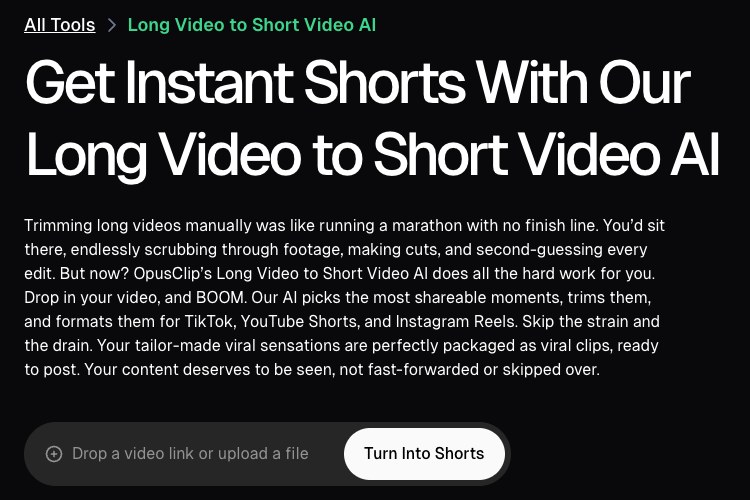
OpusClip's long video to short video tool page with a field to drop a video link or upload a file and a Turn Into Shorts button

OpusClip's long video to short video tool. Source: OpusClip website

OpusClip takes a long video (a podcast, webinar, interview, stream or lecture) from a pasted link or an uploaded file and returns short clips that are reframed for vertical and captioned. Our long video to short video tool is the shortest path: drop in a video link or file and get clips back. On the Free plan, OpusClip's pricing page lists AI clipping, auto reframe and AI captions with an emoji and keyword highlighter, and the help center says the Free plan imports from YouTube links and local files.

Paid plans add what Free leaves out. Per the pricing page, Starter adds the Virality Score (0 to 99), a text and timeline editor, filler and silence removal, auto-post to YouTube Shorts, TikTok and Instagram Reels, and watermark removal. Pro adds a social media scheduler, 9:16, 1:1 and 16:9 aspect ratios, and export to Adobe Premiere Pro and DaVinci Resolve. The help center says upgrading removes the watermark from earlier free projects automatically.

Pricing and free limits: OpusClip's pricing page labels the Free plan "Free forever" at $0: up to 1080p rendered clips, auto reframe, AI captions, a watermark, no editing, and clips that can no longer be exported after 3 days. Starter is $15 a month (monthly billing only) and Pro is $29 a month, or $14.50 a month billed annually ($174 a year). Business is custom. See the pricing page for the monthly allowance on each plan.

Considerations: The Free plan has no editor, and the help center says the Virality Score is for Starter and Pro users only. Exports carry the OpusClip watermark, and per the help center Free projects expire after 3 days (30 days on Starter and Pro), so clips need to be exported right away. Free fits testing the output on a video, not a standing publishing schedule.

  • Choose it if the goal is clips from a long recording at the highest rendered quality a free plan lists, with a clear path to editing, scheduling and watermark-free export later.
  • Skip it if the free clips must be watermark-free, or a free editor is needed to change captions and trims.

2. Vizard: Best for a no-signup first try with the editor included
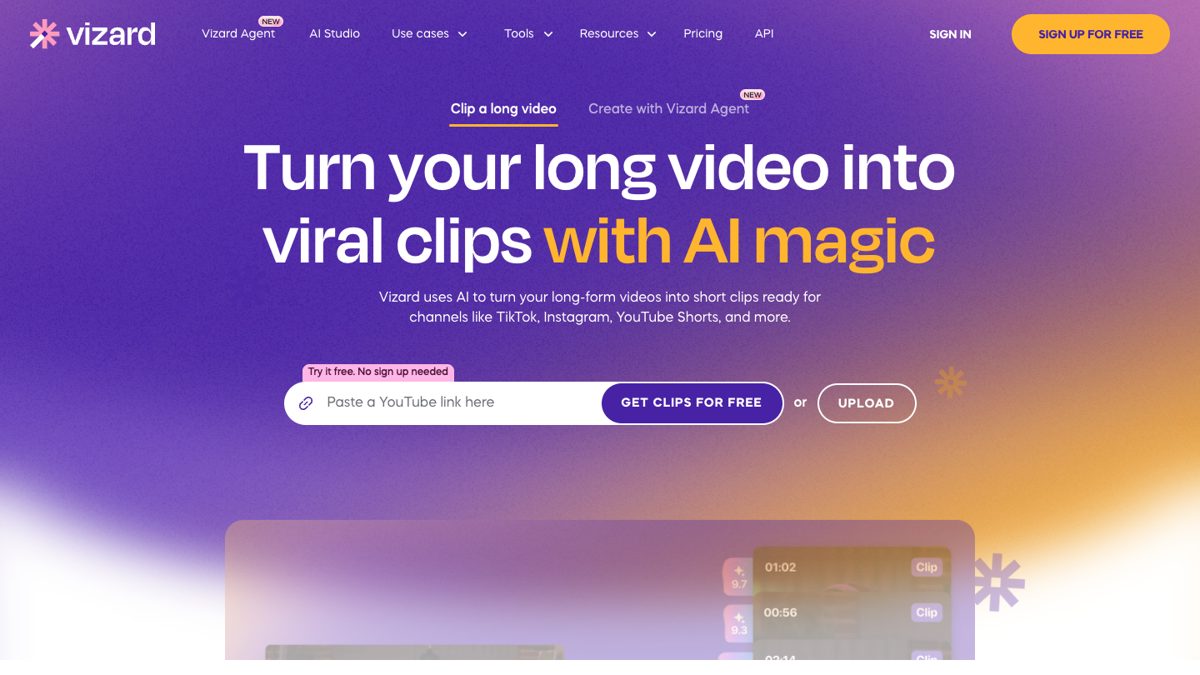
Vizard home page with a Paste a YouTube link field, a Get clips for free button and an Upload button

Vizard's home page. Source: Vizard website

Vizard is the closest like-for-like alternative to OpusClip for long-video clipping. Its home page puts a "Paste a YouTube link here" field next to an Upload button and says "Try it free. No sign up needed." The pricing page lists AI-generated clips, 720p export, full access to the video editor and 3-day storage on the Free plan, with one social media account.

Creator, the first paid tier, is described as "Everything in Free, plus" no watermark, 4K export, scheduled social posts, 6 social accounts and 100 GB of storage. Because the pricing page lists "No watermark" as a Creator addition, free exports should be expected to carry a watermark.

Pricing and free limits: Vizard's pricing page lists Free at $0 with 60 credits a month. Creator is $29 a month, or $14.50 a month billed yearly ($174 billed yearly), and Business is $39 a month, or $19.50 a month billed yearly, with extra seats at $5 a month. The paid cards say 1 credit equals 1 minute of uploaded video.

Considerations: The comparison table on the pricing page caps Free uploads at 60 minutes and 1 GB, free exports at 10 minutes, and storage at 3 days. Those caps rule out an hour-plus recording being clipped end to end on the free plan, and the 720p export is a step below OpusClip's listed 1080p.

  • Choose it if a quick no-signup test from a YouTube link is the goal and the free editor should be available for fixes.
  • Skip it if the source video runs longer than an hour or the clips must be watermark-free on a free plan.

3. Quso: Best for free clips with TikTok publishing built in
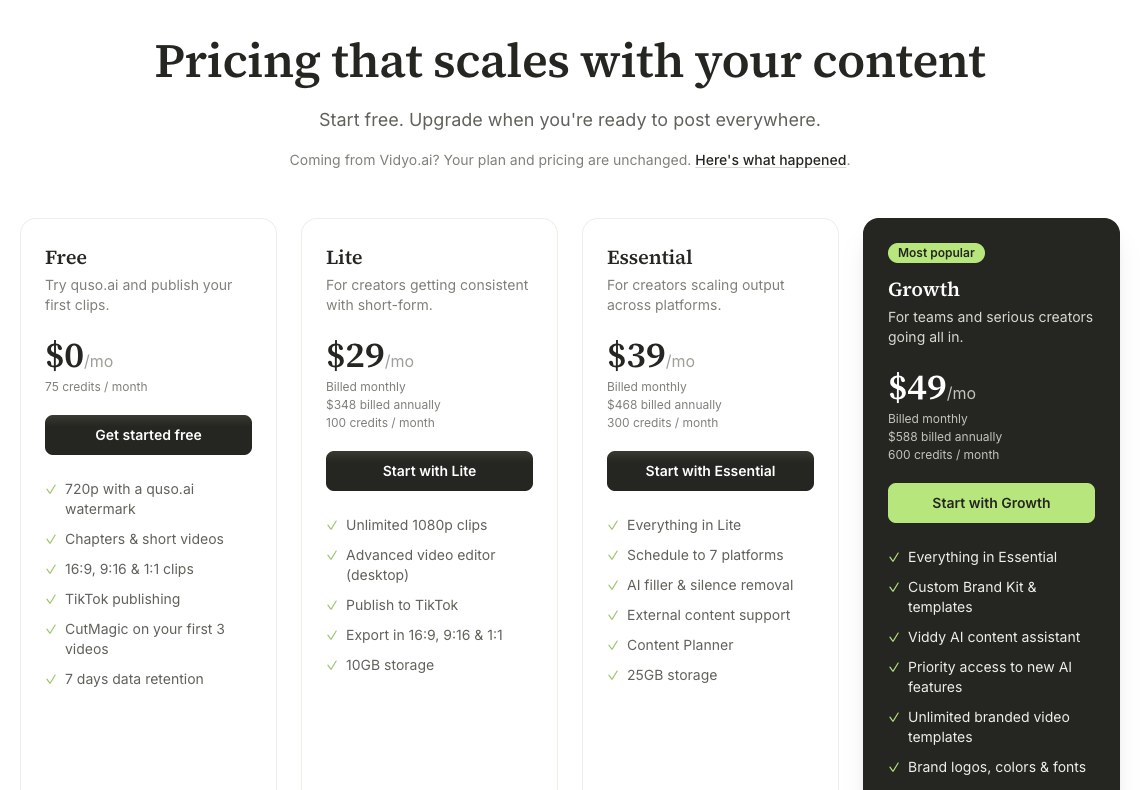
Quso pricing page showing the Free, Lite, Essential and Growth plans

Quso's pricing page with the Free plan on the left. Source: Quso website

Quso (the pricing page says "Coming from Vidyo.ai? Your plan and pricing are unchanged") describes its product as turning long videos into short-form clips with AI clip detection, auto-reframing and animated captions. The Free plan lists chapters and short videos, clips in 16:9, 9:16 and 1:1, TikTok publishing and its CutMagic tool on the first 3 videos.

The pricing FAQ explains credits this way: one credit is about one minute of processed video, and clipping, captioning and editing all draw from the monthly credits. That makes the free allowance easy to translate into minutes of source footage.

Pricing and free limits: Quso's pricing page lists Free at $0 with 75 credits a month, 720p with a quso.ai watermark and 7 days of data retention. Lite is $29 a month billed monthly (100 credits, unlimited 1080p clips, a desktop advanced editor, TikTok publishing), Essential is $39 a month (300 credits, scheduling to 7 platforms, AI filler and silence removal) and Growth is $49 a month (600 credits, brand kit and templates). The page also shows annual totals.

Considerations: On the pricing page, the first paid tier raises the monthly credits only from 75 to 100, so the step up from Free is mostly 1080p, the editor and no watermark rather than more clipping volume. At about one credit per minute, a few long videos use up the free allowance.

  • Choose it if free clips should be publishable to TikTok straight from the tool and a watermark is acceptable.
  • Skip it if exports must be watermark-free or 1080p without paying, or the source videos run long.

4. Kapwing: Best for describing the clips you want in a prompt
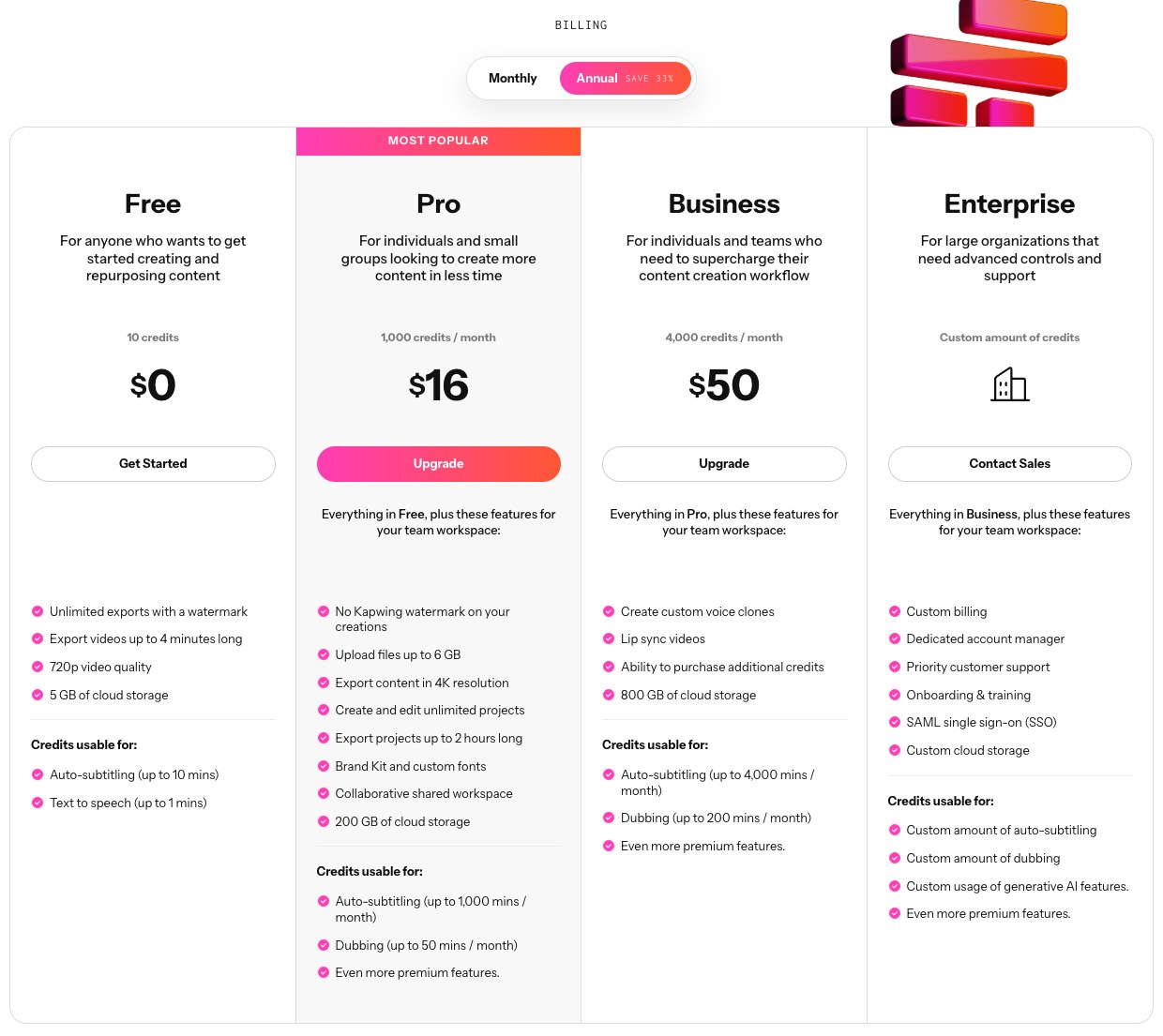
Kapwing pricing page showing the Free, Pro, Business and Enterprise plans with the Free plan limits

Kapwing's pricing page with the Free plan limits. Source: Kapwing website

Kapwing's Repurpose Studio (opened through its AI Clip Maker) turns one video into multiple clips. Its page says the AI analyzes the video, finds the best sections with topics and transcripts, and takes a short prompt about the topics to focus on and the length wanted, such as "15 seconds" or "3 minutes." Clips are resized for the destination platform and stay editable in Kapwing's editor, including trimming by cutting text from the transcript and adding subtitles.

Kapwing's FAQ on that page says Repurpose Studio is available for free, with some limits on features and video length for Free-plan users, and a small watermark on exports.

Pricing and free limits: Kapwing's pricing page lists Free at $0 with 10 credits, unlimited exports with a watermark, exports up to 4 minutes long, 720p video and 5 GB of storage, and its plan table lists a 30-minute monthly export limit. Pro is $16 a month on the annual view (the page says annual billing saves 33%) with 1,000 credits a month, no Kapwing watermark, 4K export, exports up to 2 hours and a Brand Kit. Business is $50 a month on the same view.

Considerations: The pricing page names auto-subtitling and text to speech as the credit uses on Free but does not say how the Clip Maker uses credits, so the number of clip jobs on a free account is unclear. The 4-minute export cap fits short clips but not a long cut.

  • Choose it if the clips should be described in plain language and then polished in a full browser editor.
  • Skip it if the free plan must produce watermark-free exports or a published allowance for clip jobs.

5. CapCut: Best for a free clip generator in an all-purpose editor
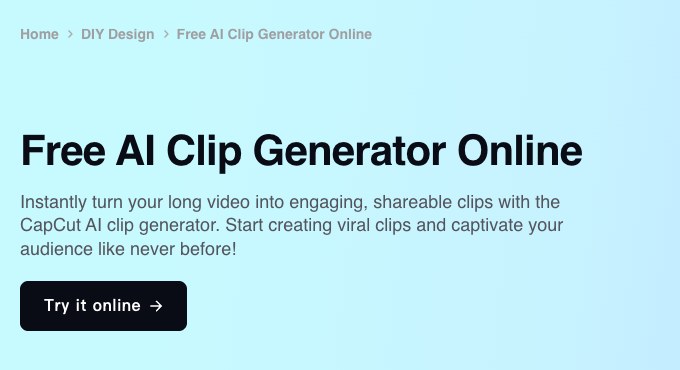
CapCut's Free AI Clip Generator Online page with a Try it online button

CapCut's AI clip generator page. Source: CapCut website

CapCut's AI clip generator page is titled "Free AI Clip Generator Online" and says it turns a long video into shareable clips. A second CapCut page describes the flow: upload from a computer, Google Drive or Dropbox, choose the clip durations and specific times wanted, and let the AI find highlights, cut the clips and generate captions. The same page lists smart cropping from 16:9 to 9:16 with subject tracking, and says clip length, captions and templates can be adjusted before export.

CapCut's own wording is the basis for "free" here: its AI clip page says all advanced features for generating AI short clips are free to use, including for commercial work, and its long-video-to-shorts page says the clips come without watermarks.

Pricing and free limits: CapCut's pricing page lists a Free plan with free templates and basic editing tools. Pro is $19.99 a month ($179.99 billed yearly), with 1,200 monthly AI credits and access to AI features, and the FAQ mentions a 7-day Pro free trial that may vary by region. The page notes that displayed pricing is for reference only.

Considerations: CapCut's pricing page does not say which AI features run on the Free plan, and its long-to-short page says account and feature availability should be checked in the editor. What a free account can run is therefore confirmed only after signing in, and we did not run it.

  • Choose it if an all-purpose editor with a built-in free clip generator is already part of the workflow.
  • Skip it if a documented free allowance (minutes or clip counts) is needed before committing.

6. VEED: Best for scored clips and text-based trimming
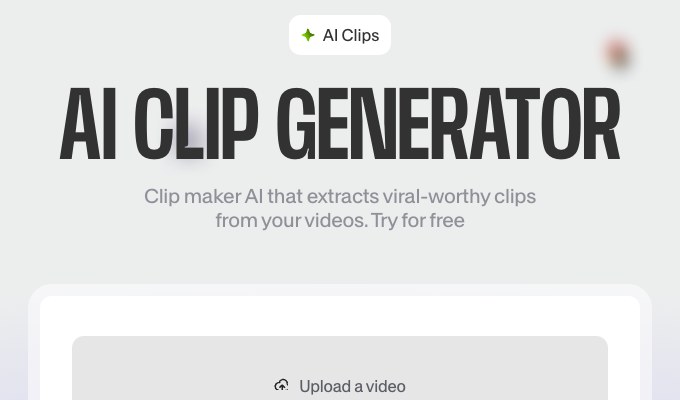
VEED's AI Clip Generator page with an Upload a video box

VEED's AI Clip Generator page. Source: VEED website

VEED's AI Clip Generator page says the tool extracts clips from long videos, either from an upload or from a described idea, with settings for format, length and caption style. Each clip gets scores for Flow, Impact, Clarity and Relevance out of 10, and a transcript-based editor lets a clip be extended by highlighting sentences or trimmed by removing text. Silence removal, filler-word cutting and captions are also listed.

The page says the AI needs spoken dialogue to find engaging moments, so it fits podcasts, webinars, interviews and training videos better than silent footage.

Pricing and free limits: VEED's AI clip page says the generator is free to try, and that a Pro plan gives full access to the clip generator, its AI tools and watermark-free exports. The pricing page has a "Start for free" button but does not list free-plan limits, so see the pricing page for current plan prices and what the free tier includes.

Considerations: The free offer is described as a trial of the tool rather than a plan with listed allowances, and "full access" sits behind Pro. The limits on free clip generation are not published on the pages we read.

  • Choose it if the videos are spoken-word and clip scoring plus text-based trimming would speed up the review.
  • Skip it if an exact free allowance is needed up front.

7. Descript: Best for talking-head recordings that also need editing
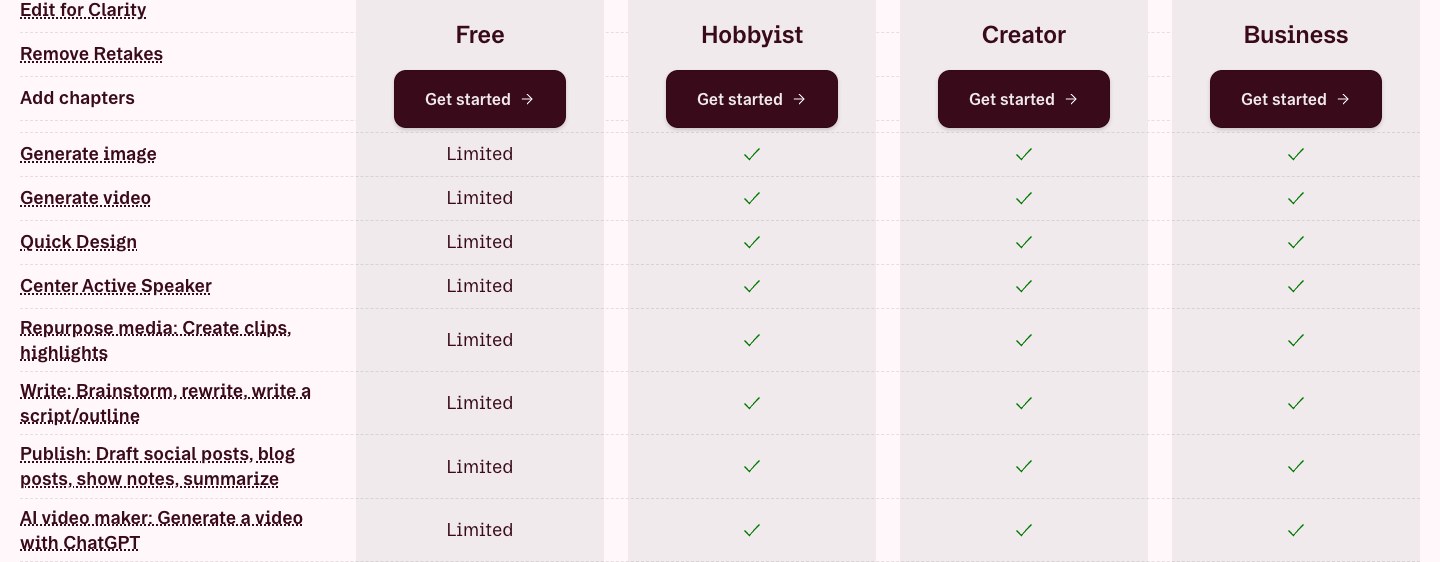
Descript plan comparison table showing clip creation marked Limited on the Free plan and included on paid plans

Descript's plan comparison, with clip creation marked Limited on Free. Source: Descript website

Descript is a text-based editor first: speech is transcribed, and editing the words edits the video. Its pricing page lists "Repurpose media: Create clips, highlights" under its AI features, described as Underlord (its AI co-editor) picking the most viral-worthy moments and making clips. It suits a long interview, tutorial or commentary recording that needs cleanup before it is cut down.

On the pricing table, that clip row says "Limited" on the Free plan and shows a check mark on Hobbyist, Creator and Business. The page does not define what "Limited" means.

Pricing and free limits: Descript's pricing page lists Free at $0 with 60 media minutes a month, 100 AI credits (one time) and 720p export, with watermark-free export not included. Hobbyist is $16 a month billed annually ($24 monthly) with 10 media hours, 400 AI credits a month and 1080p watermark-free export. Creator is $24 a month annually ($35 monthly) and Business is $50 annually ($65 monthly). Pricing is per person.

Considerations: Clip creation is one feature inside a full editor rather than the whole product, and with 1 hour of media a month on Free a long recording uses much of the allowance. The limit on free clip creation is not published.

  • Choose it if the long video is a talking recording that also needs transcript-based cleanup before or alongside clipping.
  • Skip it if the aim is a free tool that hands back finished vertical clips, or a clear free allowance for clipping.

8. YouTube Studio (Clips and Shorts): Best for turning your own YouTube uploads into Shorts
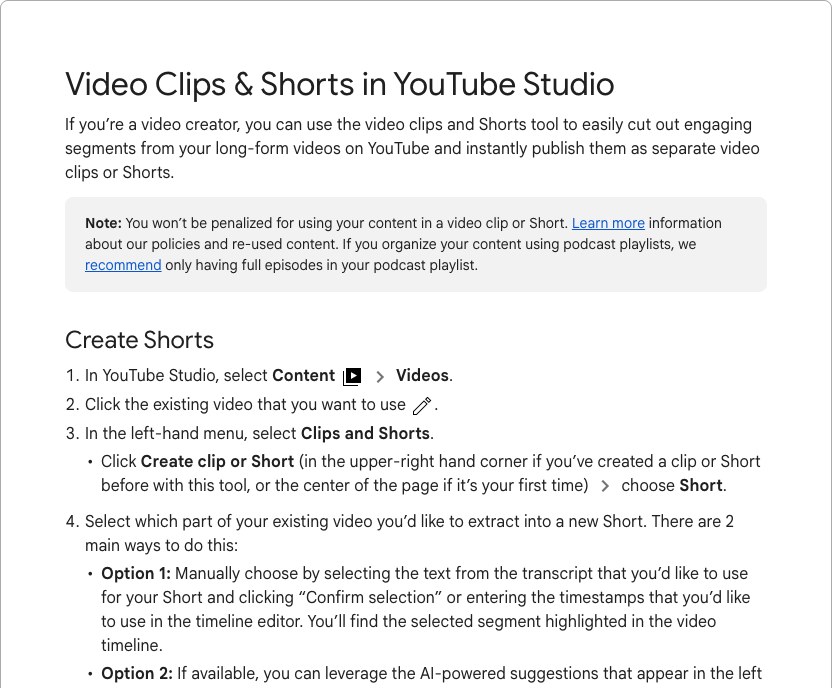
YouTube Help article on making Shorts from long videos with the Clips and Shorts tool in YouTube Studio

YouTube's help page for the Clips and Shorts tool. Source: YouTube Help

YouTube's help center describes a video clips and Shorts tool in YouTube Studio that cuts engaging segments out of a channel's long-form videos and publishes them as separate clips or Shorts. The steps on the help page are: Content, Videos, open the video, Clips and Shorts, Create clip or Short, then choose Short. The segment is picked by selecting transcript text, entering timestamps or, where available, choosing an AI-powered suggestion.

A preview shows autocaptions where available, which can be restyled or switched off, and "Create Draft" leads to the standard upload dialog. The help page says the source video is added as a related video unless the Short is private, unlisted or Made for Kids, and that creators are not penalized for using their own content in a clip or Short.

Pricing and free limits: This is a built-in tool rather than a plan. The help page describes it as part of YouTube Studio and lists no price, plan, credit allowance or watermark for it. It is the only option here that needs no separate account beyond the YouTube channel.

Considerations: It works on videos already on the channel. The AI suggestions and outlines are available only to creators in listed countries (Brazil, Canada, France, Germany, India, Mexico, South Korea, Spain, the United Kingdom and the United States) and in listed languages (English, French, German, Hindi, Korean, Portuguese and Spanish). As written on the help page, one selection makes one Short, so several Shorts mean repeating the steps.

  • Choose it if the long video is already on the channel and the Shorts should be posted from the same account.
  • Skip it if the source file is not on YouTube, or AI-suggested moments are needed outside the listed countries and languages.

How we compared these tools

We compared each tool on four criteria: how directly it is built to cut one long video into several short ones (AI picks the moments, not only a manual trimmer), what the free offer includes, how clearly the vendor documents the free limits (watermark, export resolution, storage window, length caps), and the price of the first paid tier. OpusClip ranks first because its Free plan is built around that job and lists 1080p rendering, where the Vizard, Quso, Kapwing and Descript free plans list 720p exports and the CapCut, VEED and YouTube pages do not state an export resolution.

All facts come from each vendor's own pricing page, help center or product pages, read on November 4, 2026. We did not run hands-on tests of any tool, so nothing here describes output quality. Where a vendor's page makes a free claim without listing limits (CapCut and VEED), we attribute the claim to the vendor. Where a page showed no price we could read (VEED), we say "see the pricing page." Several clippers were left out because their own pages did not show a free offer we could verify, including Klap and Submagic, whose pricing pages list no free plan. Prices and free tiers change often, so confirm on the vendor page before relying on a number.

How to choose

  • If one long video should become polished clips at the best free quality: start with OpusClip, and use the long video to short video tool to test it on a single recording.
  • If a no-signup test is wanted: start with Vizard from a YouTube link.
  • If the clips should go to TikTok from the same tool: look at Quso's free plan, which lists TikTok publishing.
  • If the clips should be requested in plain language: try Kapwing's Repurpose Studio.
  • If an all-purpose editor is already in use: check CapCut's clip generator, and confirm the free limits in the editor first.
  • If the video is spoken-word and scoring helps the review: try VEED's AI Clip Generator.
  • If the recording needs cleanup first: use Descript, and expect limited clip creation on the free plan.
  • If the video is already on YouTube: use the Clips and Shorts tool in YouTube Studio.

For a step-by-step walkthrough, see how to clip videos quickly with free AI tools and how to turn long videos into viral Shorts. For a wider list that includes desktop editors, see free video clipping and editing tools, and for scheduling the finished clips see the best tools to edit and schedule short-form video.

Red flags to watch for

  • Watermarks on free exports. OpusClip Free has a watermark, Quso Free exports 720p with a quso.ai watermark, Kapwing Free exports carry a watermark, Descript lists watermark-free export from Hobbyist, and VEED says watermark-free exports need Pro.
  • Short storage windows. OpusClip Free projects expire after 3 days, Vizard Free keeps storage for 3 days and Quso Free retains data for 7 days, so clips must be exported right away.
  • Length and size caps. Vizard Free uploads stop at 60 minutes and 1 GB and exports at 10 minutes, and Kapwing Free exports stop at 4 minutes.
  • Credits counted by minute. Vizard says 1 credit equals 1 minute of uploaded video on its paid cards, and Quso says one credit is about one minute of processed video, so long source files use a free allowance quickly.
  • "Limited" with no number. Descript marks clip creation as limited on Free without defining the limit, and CapCut and VEED describe free use without listing allowances.
  • Features that depend on region or language. YouTube's AI suggestions are listed for specific countries and languages only.
  • Free that is really a trial. A free trial or a "free to try" label is not the same as a free plan that renews every month.

Frequently asked questions

What are the best free AI tools to turn long videos into short videos?

OpusClip is our first pick, because its Free plan takes a link or file, finds clips, reframes them to vertical and captions them, and lists 1080p rendering. Vizard, Quso, Kapwing, CapCut, VEED, Descript and YouTube Studio's Clips and Shorts tool are the other free options in this list, and each one has a different limit (watermark, export resolution, storage window or length cap). See the OpusClip pricing page for plan details.

Is there a long video to short video AI that is free?

Yes, several have free tiers. OpusClip, Vizard, Quso, Kapwing and Descript list free plans, VEED and CapCut call their clip tools free to try or free to use on their own pages, and YouTube Studio's Clips and Shorts tool is built into the platform. The free offers are limited, so read the watermark, resolution and length caps before choosing. OpusClip's long video to short video tool is a quick way to try one.

How do I turn a long video into short videos for free?

Paste a link or upload the file in one of the tools above, pick clip settings such as length and format where offered, let the AI propose clips, review them, then export. On a free plan expect a watermark and a lower export resolution on most tools, and export quickly because storage windows can be as short as 3 days. For a longer walkthrough, see how to turn long videos into viral Shorts.

Do free long-video-to-shorts tools add a watermark?

Most do. On their own pages, OpusClip Free has a watermark, Quso Free exports 720p with a quso.ai watermark, Kapwing Free exports carry a watermark, Descript does not include watermark-free export on Free, and VEED says watermark-free exports need Pro. Vizard lists "No watermark" as a Creator addition. CapCut's long-video-to-shorts page says its clips come without watermarks, and YouTube's help page for its Clips and Shorts tool does not mention one.

How long a video can free plans handle?

It depends on the tool, and vendors count differently. Vizard Free lists uploads up to 60 minutes and 1 GB and exports up to 10 minutes. Kapwing Free lists exports up to 4 minutes. Descript Free gives 60 media minutes a month. Quso says one credit is about one minute of processed video and gives 75 credits a month on Free. For OpusClip, CapCut, VEED and YouTube Studio, see the vendor page for current limits.

Is OpusClip free?

OpusClip has a Free plan that its pricing page labels "Free forever": AI clipping, auto reframe and AI captions, with up to 1080p rendered clips, a watermark, no editing and a 3-day window to export. Paid plans start at $15 a month on Starter, which adds the editor, the Virality Score, auto-posting and watermark removal. See the pricing page for the current allowances.

Can free tools post the clips to TikTok, Reels or Shorts directly?

Some can. Quso Free lists TikTok publishing, and Vizard Free lists one connected social account with scheduling on Creator. OpusClip's pricing page lists posting to social media from Starter, and its Free plan lists no posting. YouTube Studio's Clips and Shorts tool publishes Shorts to the same channel through its upload dialog.

On this page

Use our Free Forever Plan

Find the moment. Skip the scrubbing.

From script to polished video — in one click.

Create and post one short video every day for free, and grow faster.

OpusSearch uses AI to surface the exact clip you need from hours of footage — in seconds, not afternoons.

Agent Opus runs the entire video pipeline for you: research, scriptwriting, storyboarding, motion, voice, and edit. Upload the idea, post the result.

8 Best Free AI Tools to Turn Long Videos Into Short Videos in 2026

OpusClip is our first pick among free AI tools that turn a long video into short videos: its Free plan takes a YouTube link or an uploaded file, finds clips, reframes them to vertical and adds captions, with clips rendered up to 1080p, a watermark, no editor and a 3-day window to export. The other seven free offers come from Vizard, Quso, Kapwing, CapCut, VEED, Descript and YouTube Studio's Clips and Shorts tool. We ranked 8 tools by how directly each is built to cut one long video into several short ones, then by how clearly the vendor states what its free offer includes and limits. Facts come from each vendor's own pages, read on November 4, 2026.

Key takeaways

  • Best overall free pick: OpusClip. Link or file in, captioned vertical clips out, with 1080p rendering listed on the Free plan. The trade-offs are a watermark and a 3-day export window.
  • Best for a no-signup first try: Vizard. Its home page says "Try it free. No sign up needed," and its free plan lists the full video editor.
  • Best when the video is already on YouTube: YouTube Studio. The Clips and Shorts tool sits inside the account, and its help page lists no plan, credit allowance or watermark.
  • "Free" always has limits. Every tool here adds at least one of a watermark, 720p export, a short storage window, a cap on video length or "limited" AI features on the free tier.
  • Read the type of free. A free plan with listed limits (OpusClip, Vizard, Quso, Kapwing, Descript) is different from "free to try" wording that leaves the limits unstated (VEED, CapCut).

What "free" means here

Three kinds of free offer appear in this list. A free plan is a $0 tier with listed limits, such as monthly credits, a watermark or a lower export resolution. A free-to-try tool is one whose own page calls it free but does not spell out the free-tier limits. A built-in tool is a feature of a platform that is already free to use, with no separate plan. We name which kind each tool is, and we left out any tool whose free offer we could not read on the vendor's own page. Several well-known clippers were dropped for that reason (see the method section). None of the tools below is unlimited, so the useful question is which limits a given project can live with.

At a glance

  • OpusClip: best for AI-picked clips rendered up to 1080p on a free plan; free plan yes (watermark, no editor, clips export for 3 days); paid from $15 a month (Starter, monthly billing only).
  • Vizard: best for a no-signup first try with the editor included; free plan yes (60 credits a month, 720p export, 3-day storage); Creator $29 a month, or $14.50 a month billed yearly.
  • Quso: best for free clips with TikTok publishing; free plan yes (75 credits a month, 720p with a watermark, 7-day data retention); Lite $29 a month.
  • Kapwing: best for describing the clips you want in a prompt; free plan yes (watermark, exports up to 4 minutes, 720p); Pro $16 a month on annual billing.
  • CapCut: best for a free clip generator in an all-purpose editor; free per CapCut's own page (check limits in the editor); Pro $19.99 a month.
  • VEED: best for scored clips and text-based trimming; free to try, with Pro needed for full access and watermark-free exports; see the pricing page for paid prices.
  • Descript: best for talking-head recordings that also need editing; free plan yes (1 hour of media a month, 720p, clip creation marked limited); Hobbyist $16 a month billed annually ($24 monthly).
  • YouTube Studio (Clips and Shorts): best for turning your own YouTube uploads into Shorts; built into YouTube Studio, with no plan listed on its help page.

1. OpusClip: Best for AI-picked clips rendered up to 1080p on a free plan

OpusClip's long video to short video tool page with a field to drop a video link or upload a file and a Turn Into Shorts button

OpusClip's long video to short video tool. Source: OpusClip website

OpusClip takes a long video (a podcast, webinar, interview, stream or lecture) from a pasted link or an uploaded file and returns short clips that are reframed for vertical and captioned. Our long video to short video tool is the shortest path: drop in a video link or file and get clips back. On the Free plan, OpusClip's pricing page lists AI clipping, auto reframe and AI captions with an emoji and keyword highlighter, and the help center says the Free plan imports from YouTube links and local files.

Paid plans add what Free leaves out. Per the pricing page, Starter adds the Virality Score (0 to 99), a text and timeline editor, filler and silence removal, auto-post to YouTube Shorts, TikTok and Instagram Reels, and watermark removal. Pro adds a social media scheduler, 9:16, 1:1 and 16:9 aspect ratios, and export to Adobe Premiere Pro and DaVinci Resolve. The help center says upgrading removes the watermark from earlier free projects automatically.

Pricing and free limits: OpusClip's pricing page labels the Free plan "Free forever" at $0: up to 1080p rendered clips, auto reframe, AI captions, a watermark, no editing, and clips that can no longer be exported after 3 days. Starter is $15 a month (monthly billing only) and Pro is $29 a month, or $14.50 a month billed annually ($174 a year). Business is custom. See the pricing page for the monthly allowance on each plan.

Considerations: The Free plan has no editor, and the help center says the Virality Score is for Starter and Pro users only. Exports carry the OpusClip watermark, and per the help center Free projects expire after 3 days (30 days on Starter and Pro), so clips need to be exported right away. Free fits testing the output on a video, not a standing publishing schedule.

  • Choose it if the goal is clips from a long recording at the highest rendered quality a free plan lists, with a clear path to editing, scheduling and watermark-free export later.
  • Skip it if the free clips must be watermark-free, or a free editor is needed to change captions and trims.

2. Vizard: Best for a no-signup first try with the editor included

Vizard home page with a Paste a YouTube link field, a Get clips for free button and an Upload button

Vizard's home page. Source: Vizard website

Vizard is the closest like-for-like alternative to OpusClip for long-video clipping. Its home page puts a "Paste a YouTube link here" field next to an Upload button and says "Try it free. No sign up needed." The pricing page lists AI-generated clips, 720p export, full access to the video editor and 3-day storage on the Free plan, with one social media account.

Creator, the first paid tier, is described as "Everything in Free, plus" no watermark, 4K export, scheduled social posts, 6 social accounts and 100 GB of storage. Because the pricing page lists "No watermark" as a Creator addition, free exports should be expected to carry a watermark.

Pricing and free limits: Vizard's pricing page lists Free at $0 with 60 credits a month. Creator is $29 a month, or $14.50 a month billed yearly ($174 billed yearly), and Business is $39 a month, or $19.50 a month billed yearly, with extra seats at $5 a month. The paid cards say 1 credit equals 1 minute of uploaded video.

Considerations: The comparison table on the pricing page caps Free uploads at 60 minutes and 1 GB, free exports at 10 minutes, and storage at 3 days. Those caps rule out an hour-plus recording being clipped end to end on the free plan, and the 720p export is a step below OpusClip's listed 1080p.

  • Choose it if a quick no-signup test from a YouTube link is the goal and the free editor should be available for fixes.
  • Skip it if the source video runs longer than an hour or the clips must be watermark-free on a free plan.

3. Quso: Best for free clips with TikTok publishing built in

Quso pricing page showing the Free, Lite, Essential and Growth plans

Quso's pricing page with the Free plan on the left. Source: Quso website

Quso (the pricing page says "Coming from Vidyo.ai? Your plan and pricing are unchanged") describes its product as turning long videos into short-form clips with AI clip detection, auto-reframing and animated captions. The Free plan lists chapters and short videos, clips in 16:9, 9:16 and 1:1, TikTok publishing and its CutMagic tool on the first 3 videos.

The pricing FAQ explains credits this way: one credit is about one minute of processed video, and clipping, captioning and editing all draw from the monthly credits. That makes the free allowance easy to translate into minutes of source footage.

Pricing and free limits: Quso's pricing page lists Free at $0 with 75 credits a month, 720p with a quso.ai watermark and 7 days of data retention. Lite is $29 a month billed monthly (100 credits, unlimited 1080p clips, a desktop advanced editor, TikTok publishing), Essential is $39 a month (300 credits, scheduling to 7 platforms, AI filler and silence removal) and Growth is $49 a month (600 credits, brand kit and templates). The page also shows annual totals.

Considerations: On the pricing page, the first paid tier raises the monthly credits only from 75 to 100, so the step up from Free is mostly 1080p, the editor and no watermark rather than more clipping volume. At about one credit per minute, a few long videos use up the free allowance.

  • Choose it if free clips should be publishable to TikTok straight from the tool and a watermark is acceptable.
  • Skip it if exports must be watermark-free or 1080p without paying, or the source videos run long.

4. Kapwing: Best for describing the clips you want in a prompt

Kapwing pricing page showing the Free, Pro, Business and Enterprise plans with the Free plan limits

Kapwing's pricing page with the Free plan limits. Source: Kapwing website

Kapwing's Repurpose Studio (opened through its AI Clip Maker) turns one video into multiple clips. Its page says the AI analyzes the video, finds the best sections with topics and transcripts, and takes a short prompt about the topics to focus on and the length wanted, such as "15 seconds" or "3 minutes." Clips are resized for the destination platform and stay editable in Kapwing's editor, including trimming by cutting text from the transcript and adding subtitles.

Kapwing's FAQ on that page says Repurpose Studio is available for free, with some limits on features and video length for Free-plan users, and a small watermark on exports.

Pricing and free limits: Kapwing's pricing page lists Free at $0 with 10 credits, unlimited exports with a watermark, exports up to 4 minutes long, 720p video and 5 GB of storage, and its plan table lists a 30-minute monthly export limit. Pro is $16 a month on the annual view (the page says annual billing saves 33%) with 1,000 credits a month, no Kapwing watermark, 4K export, exports up to 2 hours and a Brand Kit. Business is $50 a month on the same view.

Considerations: The pricing page names auto-subtitling and text to speech as the credit uses on Free but does not say how the Clip Maker uses credits, so the number of clip jobs on a free account is unclear. The 4-minute export cap fits short clips but not a long cut.

  • Choose it if the clips should be described in plain language and then polished in a full browser editor.
  • Skip it if the free plan must produce watermark-free exports or a published allowance for clip jobs.

5. CapCut: Best for a free clip generator in an all-purpose editor

CapCut's Free AI Clip Generator Online page with a Try it online button

CapCut's AI clip generator page. Source: CapCut website

CapCut's AI clip generator page is titled "Free AI Clip Generator Online" and says it turns a long video into shareable clips. A second CapCut page describes the flow: upload from a computer, Google Drive or Dropbox, choose the clip durations and specific times wanted, and let the AI find highlights, cut the clips and generate captions. The same page lists smart cropping from 16:9 to 9:16 with subject tracking, and says clip length, captions and templates can be adjusted before export.

CapCut's own wording is the basis for "free" here: its AI clip page says all advanced features for generating AI short clips are free to use, including for commercial work, and its long-video-to-shorts page says the clips come without watermarks.

Pricing and free limits: CapCut's pricing page lists a Free plan with free templates and basic editing tools. Pro is $19.99 a month ($179.99 billed yearly), with 1,200 monthly AI credits and access to AI features, and the FAQ mentions a 7-day Pro free trial that may vary by region. The page notes that displayed pricing is for reference only.

Considerations: CapCut's pricing page does not say which AI features run on the Free plan, and its long-to-short page says account and feature availability should be checked in the editor. What a free account can run is therefore confirmed only after signing in, and we did not run it.

  • Choose it if an all-purpose editor with a built-in free clip generator is already part of the workflow.
  • Skip it if a documented free allowance (minutes or clip counts) is needed before committing.

6. VEED: Best for scored clips and text-based trimming

VEED's AI Clip Generator page with an Upload a video box

VEED's AI Clip Generator page. Source: VEED website

VEED's AI Clip Generator page says the tool extracts clips from long videos, either from an upload or from a described idea, with settings for format, length and caption style. Each clip gets scores for Flow, Impact, Clarity and Relevance out of 10, and a transcript-based editor lets a clip be extended by highlighting sentences or trimmed by removing text. Silence removal, filler-word cutting and captions are also listed.

The page says the AI needs spoken dialogue to find engaging moments, so it fits podcasts, webinars, interviews and training videos better than silent footage.

Pricing and free limits: VEED's AI clip page says the generator is free to try, and that a Pro plan gives full access to the clip generator, its AI tools and watermark-free exports. The pricing page has a "Start for free" button but does not list free-plan limits, so see the pricing page for current plan prices and what the free tier includes.

Considerations: The free offer is described as a trial of the tool rather than a plan with listed allowances, and "full access" sits behind Pro. The limits on free clip generation are not published on the pages we read.

  • Choose it if the videos are spoken-word and clip scoring plus text-based trimming would speed up the review.
  • Skip it if an exact free allowance is needed up front.

7. Descript: Best for talking-head recordings that also need editing

Descript plan comparison table showing clip creation marked Limited on the Free plan and included on paid plans

Descript's plan comparison, with clip creation marked Limited on Free. Source: Descript website

Descript is a text-based editor first: speech is transcribed, and editing the words edits the video. Its pricing page lists "Repurpose media: Create clips, highlights" under its AI features, described as Underlord (its AI co-editor) picking the most viral-worthy moments and making clips. It suits a long interview, tutorial or commentary recording that needs cleanup before it is cut down.

On the pricing table, that clip row says "Limited" on the Free plan and shows a check mark on Hobbyist, Creator and Business. The page does not define what "Limited" means.

Pricing and free limits: Descript's pricing page lists Free at $0 with 60 media minutes a month, 100 AI credits (one time) and 720p export, with watermark-free export not included. Hobbyist is $16 a month billed annually ($24 monthly) with 10 media hours, 400 AI credits a month and 1080p watermark-free export. Creator is $24 a month annually ($35 monthly) and Business is $50 annually ($65 monthly). Pricing is per person.

Considerations: Clip creation is one feature inside a full editor rather than the whole product, and with 1 hour of media a month on Free a long recording uses much of the allowance. The limit on free clip creation is not published.

  • Choose it if the long video is a talking recording that also needs transcript-based cleanup before or alongside clipping.
  • Skip it if the aim is a free tool that hands back finished vertical clips, or a clear free allowance for clipping.

8. YouTube Studio (Clips and Shorts): Best for turning your own YouTube uploads into Shorts

YouTube Help article on making Shorts from long videos with the Clips and Shorts tool in YouTube Studio

YouTube's help page for the Clips and Shorts tool. Source: YouTube Help

YouTube's help center describes a video clips and Shorts tool in YouTube Studio that cuts engaging segments out of a channel's long-form videos and publishes them as separate clips or Shorts. The steps on the help page are: Content, Videos, open the video, Clips and Shorts, Create clip or Short, then choose Short. The segment is picked by selecting transcript text, entering timestamps or, where available, choosing an AI-powered suggestion.

A preview shows autocaptions where available, which can be restyled or switched off, and "Create Draft" leads to the standard upload dialog. The help page says the source video is added as a related video unless the Short is private, unlisted or Made for Kids, and that creators are not penalized for using their own content in a clip or Short.

Pricing and free limits: This is a built-in tool rather than a plan. The help page describes it as part of YouTube Studio and lists no price, plan, credit allowance or watermark for it. It is the only option here that needs no separate account beyond the YouTube channel.

Considerations: It works on videos already on the channel. The AI suggestions and outlines are available only to creators in listed countries (Brazil, Canada, France, Germany, India, Mexico, South Korea, Spain, the United Kingdom and the United States) and in listed languages (English, French, German, Hindi, Korean, Portuguese and Spanish). As written on the help page, one selection makes one Short, so several Shorts mean repeating the steps.

  • Choose it if the long video is already on the channel and the Shorts should be posted from the same account.
  • Skip it if the source file is not on YouTube, or AI-suggested moments are needed outside the listed countries and languages.

How we compared these tools

We compared each tool on four criteria: how directly it is built to cut one long video into several short ones (AI picks the moments, not only a manual trimmer), what the free offer includes, how clearly the vendor documents the free limits (watermark, export resolution, storage window, length caps), and the price of the first paid tier. OpusClip ranks first because its Free plan is built around that job and lists 1080p rendering, where the Vizard, Quso, Kapwing and Descript free plans list 720p exports and the CapCut, VEED and YouTube pages do not state an export resolution.

All facts come from each vendor's own pricing page, help center or product pages, read on November 4, 2026. We did not run hands-on tests of any tool, so nothing here describes output quality. Where a vendor's page makes a free claim without listing limits (CapCut and VEED), we attribute the claim to the vendor. Where a page showed no price we could read (VEED), we say "see the pricing page." Several clippers were left out because their own pages did not show a free offer we could verify, including Klap and Submagic, whose pricing pages list no free plan. Prices and free tiers change often, so confirm on the vendor page before relying on a number.

How to choose

  • If one long video should become polished clips at the best free quality: start with OpusClip, and use the long video to short video tool to test it on a single recording.
  • If a no-signup test is wanted: start with Vizard from a YouTube link.
  • If the clips should go to TikTok from the same tool: look at Quso's free plan, which lists TikTok publishing.
  • If the clips should be requested in plain language: try Kapwing's Repurpose Studio.
  • If an all-purpose editor is already in use: check CapCut's clip generator, and confirm the free limits in the editor first.
  • If the video is spoken-word and scoring helps the review: try VEED's AI Clip Generator.
  • If the recording needs cleanup first: use Descript, and expect limited clip creation on the free plan.
  • If the video is already on YouTube: use the Clips and Shorts tool in YouTube Studio.

For a step-by-step walkthrough, see how to clip videos quickly with free AI tools and how to turn long videos into viral Shorts. For a wider list that includes desktop editors, see free video clipping and editing tools, and for scheduling the finished clips see the best tools to edit and schedule short-form video.

Red flags to watch for

  • Watermarks on free exports. OpusClip Free has a watermark, Quso Free exports 720p with a quso.ai watermark, Kapwing Free exports carry a watermark, Descript lists watermark-free export from Hobbyist, and VEED says watermark-free exports need Pro.
  • Short storage windows. OpusClip Free projects expire after 3 days, Vizard Free keeps storage for 3 days and Quso Free retains data for 7 days, so clips must be exported right away.
  • Length and size caps. Vizard Free uploads stop at 60 minutes and 1 GB and exports at 10 minutes, and Kapwing Free exports stop at 4 minutes.
  • Credits counted by minute. Vizard says 1 credit equals 1 minute of uploaded video on its paid cards, and Quso says one credit is about one minute of processed video, so long source files use a free allowance quickly.
  • "Limited" with no number. Descript marks clip creation as limited on Free without defining the limit, and CapCut and VEED describe free use without listing allowances.
  • Features that depend on region or language. YouTube's AI suggestions are listed for specific countries and languages only.
  • Free that is really a trial. A free trial or a "free to try" label is not the same as a free plan that renews every month.

Frequently asked questions

What are the best free AI tools to turn long videos into short videos?

OpusClip is our first pick, because its Free plan takes a link or file, finds clips, reframes them to vertical and captions them, and lists 1080p rendering. Vizard, Quso, Kapwing, CapCut, VEED, Descript and YouTube Studio's Clips and Shorts tool are the other free options in this list, and each one has a different limit (watermark, export resolution, storage window or length cap). See the OpusClip pricing page for plan details.

Is there a long video to short video AI that is free?

Yes, several have free tiers. OpusClip, Vizard, Quso, Kapwing and Descript list free plans, VEED and CapCut call their clip tools free to try or free to use on their own pages, and YouTube Studio's Clips and Shorts tool is built into the platform. The free offers are limited, so read the watermark, resolution and length caps before choosing. OpusClip's long video to short video tool is a quick way to try one.

How do I turn a long video into short videos for free?

Paste a link or upload the file in one of the tools above, pick clip settings such as length and format where offered, let the AI propose clips, review them, then export. On a free plan expect a watermark and a lower export resolution on most tools, and export quickly because storage windows can be as short as 3 days. For a longer walkthrough, see how to turn long videos into viral Shorts.

Do free long-video-to-shorts tools add a watermark?

Most do. On their own pages, OpusClip Free has a watermark, Quso Free exports 720p with a quso.ai watermark, Kapwing Free exports carry a watermark, Descript does not include watermark-free export on Free, and VEED says watermark-free exports need Pro. Vizard lists "No watermark" as a Creator addition. CapCut's long-video-to-shorts page says its clips come without watermarks, and YouTube's help page for its Clips and Shorts tool does not mention one.

How long a video can free plans handle?

It depends on the tool, and vendors count differently. Vizard Free lists uploads up to 60 minutes and 1 GB and exports up to 10 minutes. Kapwing Free lists exports up to 4 minutes. Descript Free gives 60 media minutes a month. Quso says one credit is about one minute of processed video and gives 75 credits a month on Free. For OpusClip, CapCut, VEED and YouTube Studio, see the vendor page for current limits.

Is OpusClip free?

OpusClip has a Free plan that its pricing page labels "Free forever": AI clipping, auto reframe and AI captions, with up to 1080p rendered clips, a watermark, no editing and a 3-day window to export. Paid plans start at $15 a month on Starter, which adds the editor, the Virality Score, auto-posting and watermark removal. See the pricing page for the current allowances.

Can free tools post the clips to TikTok, Reels or Shorts directly?

Some can. Quso Free lists TikTok publishing, and Vizard Free lists one connected social account with scheduling on Creator. OpusClip's pricing page lists posting to social media from Starter, and its Free plan lists no posting. YouTube Studio's Clips and Shorts tool publishes Shorts to the same channel through its upload dialog.

Creator name

Creator type

Team size

Channels

linkYouTubefacebookXTikTok

Pain point

Time to see positive ROI

About the creator

Don't miss these

How Audacy Drove 1B+ Views by Taking a Tech-Forward Approach to Radio with OpusClip
No items found.

How Audacy Drove 1B+ Views by Taking a Tech-Forward Approach to Radio with OpusClip

How All the Smoke makes hit compilations faster with OpusSearch

How All the Smoke makes hit compilations faster with OpusSearch

Growing a new channel to 1.5M views in 90 days without creating new videos

Growing a new channel to 1.5M views in 90 days without creating new videos

OpusClip 4.0 is here. Become a content powerhouse.

8 Best Free AI Tools to Turn Long Videos Into Short Videos in 2026

Two creators recording a podcast and the same recording cut into three vertical clips, with a Clip it button, 16:9 and 9:16 tags and a views badge
No items found.
No items found.

Boost your social media growth with OpusClip

Create and post one short video every day for your social media and grow faster.

8 Best Free AI Tools to Turn Long Videos Into Short Videos in 2026

Two creators recording a podcast and the same recording cut into three vertical clips, with a Clip it button, 16:9 and 9:16 tags and a views badge

OpusClip is our first pick among free AI tools that turn a long video into short videos: its Free plan takes a YouTube link or an uploaded file, finds clips, reframes them to vertical and adds captions, with clips rendered up to 1080p, a watermark, no editor and a 3-day window to export. The other seven free offers come from Vizard, Quso, Kapwing, CapCut, VEED, Descript and YouTube Studio's Clips and Shorts tool. We ranked 8 tools by how directly each is built to cut one long video into several short ones, then by how clearly the vendor states what its free offer includes and limits. Facts come from each vendor's own pages, read on November 4, 2026.

Key takeaways

  • Best overall free pick: OpusClip. Link or file in, captioned vertical clips out, with 1080p rendering listed on the Free plan. The trade-offs are a watermark and a 3-day export window.
  • Best for a no-signup first try: Vizard. Its home page says "Try it free. No sign up needed," and its free plan lists the full video editor.
  • Best when the video is already on YouTube: YouTube Studio. The Clips and Shorts tool sits inside the account, and its help page lists no plan, credit allowance or watermark.
  • "Free" always has limits. Every tool here adds at least one of a watermark, 720p export, a short storage window, a cap on video length or "limited" AI features on the free tier.
  • Read the type of free. A free plan with listed limits (OpusClip, Vizard, Quso, Kapwing, Descript) is different from "free to try" wording that leaves the limits unstated (VEED, CapCut).

What "free" means here

Three kinds of free offer appear in this list. A free plan is a $0 tier with listed limits, such as monthly credits, a watermark or a lower export resolution. A free-to-try tool is one whose own page calls it free but does not spell out the free-tier limits. A built-in tool is a feature of a platform that is already free to use, with no separate plan. We name which kind each tool is, and we left out any tool whose free offer we could not read on the vendor's own page. Several well-known clippers were dropped for that reason (see the method section). None of the tools below is unlimited, so the useful question is which limits a given project can live with.

At a glance

  • OpusClip: best for AI-picked clips rendered up to 1080p on a free plan; free plan yes (watermark, no editor, clips export for 3 days); paid from $15 a month (Starter, monthly billing only).
  • Vizard: best for a no-signup first try with the editor included; free plan yes (60 credits a month, 720p export, 3-day storage); Creator $29 a month, or $14.50 a month billed yearly.
  • Quso: best for free clips with TikTok publishing; free plan yes (75 credits a month, 720p with a watermark, 7-day data retention); Lite $29 a month.
  • Kapwing: best for describing the clips you want in a prompt; free plan yes (watermark, exports up to 4 minutes, 720p); Pro $16 a month on annual billing.
  • CapCut: best for a free clip generator in an all-purpose editor; free per CapCut's own page (check limits in the editor); Pro $19.99 a month.
  • VEED: best for scored clips and text-based trimming; free to try, with Pro needed for full access and watermark-free exports; see the pricing page for paid prices.
  • Descript: best for talking-head recordings that also need editing; free plan yes (1 hour of media a month, 720p, clip creation marked limited); Hobbyist $16 a month billed annually ($24 monthly).
  • YouTube Studio (Clips and Shorts): best for turning your own YouTube uploads into Shorts; built into YouTube Studio, with no plan listed on its help page.

1. OpusClip: Best for AI-picked clips rendered up to 1080p on a free plan

OpusClip's long video to short video tool page with a field to drop a video link or upload a file and a Turn Into Shorts button

OpusClip's long video to short video tool. Source: OpusClip website

OpusClip takes a long video (a podcast, webinar, interview, stream or lecture) from a pasted link or an uploaded file and returns short clips that are reframed for vertical and captioned. Our long video to short video tool is the shortest path: drop in a video link or file and get clips back. On the Free plan, OpusClip's pricing page lists AI clipping, auto reframe and AI captions with an emoji and keyword highlighter, and the help center says the Free plan imports from YouTube links and local files.

Paid plans add what Free leaves out. Per the pricing page, Starter adds the Virality Score (0 to 99), a text and timeline editor, filler and silence removal, auto-post to YouTube Shorts, TikTok and Instagram Reels, and watermark removal. Pro adds a social media scheduler, 9:16, 1:1 and 16:9 aspect ratios, and export to Adobe Premiere Pro and DaVinci Resolve. The help center says upgrading removes the watermark from earlier free projects automatically.

Pricing and free limits: OpusClip's pricing page labels the Free plan "Free forever" at $0: up to 1080p rendered clips, auto reframe, AI captions, a watermark, no editing, and clips that can no longer be exported after 3 days. Starter is $15 a month (monthly billing only) and Pro is $29 a month, or $14.50 a month billed annually ($174 a year). Business is custom. See the pricing page for the monthly allowance on each plan.

Considerations: The Free plan has no editor, and the help center says the Virality Score is for Starter and Pro users only. Exports carry the OpusClip watermark, and per the help center Free projects expire after 3 days (30 days on Starter and Pro), so clips need to be exported right away. Free fits testing the output on a video, not a standing publishing schedule.

  • Choose it if the goal is clips from a long recording at the highest rendered quality a free plan lists, with a clear path to editing, scheduling and watermark-free export later.
  • Skip it if the free clips must be watermark-free, or a free editor is needed to change captions and trims.

2. Vizard: Best for a no-signup first try with the editor included

Vizard home page with a Paste a YouTube link field, a Get clips for free button and an Upload button

Vizard's home page. Source: Vizard website

Vizard is the closest like-for-like alternative to OpusClip for long-video clipping. Its home page puts a "Paste a YouTube link here" field next to an Upload button and says "Try it free. No sign up needed." The pricing page lists AI-generated clips, 720p export, full access to the video editor and 3-day storage on the Free plan, with one social media account.

Creator, the first paid tier, is described as "Everything in Free, plus" no watermark, 4K export, scheduled social posts, 6 social accounts and 100 GB of storage. Because the pricing page lists "No watermark" as a Creator addition, free exports should be expected to carry a watermark.

Pricing and free limits: Vizard's pricing page lists Free at $0 with 60 credits a month. Creator is $29 a month, or $14.50 a month billed yearly ($174 billed yearly), and Business is $39 a month, or $19.50 a month billed yearly, with extra seats at $5 a month. The paid cards say 1 credit equals 1 minute of uploaded video.

Considerations: The comparison table on the pricing page caps Free uploads at 60 minutes and 1 GB, free exports at 10 minutes, and storage at 3 days. Those caps rule out an hour-plus recording being clipped end to end on the free plan, and the 720p export is a step below OpusClip's listed 1080p.

  • Choose it if a quick no-signup test from a YouTube link is the goal and the free editor should be available for fixes.
  • Skip it if the source video runs longer than an hour or the clips must be watermark-free on a free plan.

3. Quso: Best for free clips with TikTok publishing built in

Quso pricing page showing the Free, Lite, Essential and Growth plans

Quso's pricing page with the Free plan on the left. Source: Quso website

Quso (the pricing page says "Coming from Vidyo.ai? Your plan and pricing are unchanged") describes its product as turning long videos into short-form clips with AI clip detection, auto-reframing and animated captions. The Free plan lists chapters and short videos, clips in 16:9, 9:16 and 1:1, TikTok publishing and its CutMagic tool on the first 3 videos.

The pricing FAQ explains credits this way: one credit is about one minute of processed video, and clipping, captioning and editing all draw from the monthly credits. That makes the free allowance easy to translate into minutes of source footage.

Pricing and free limits: Quso's pricing page lists Free at $0 with 75 credits a month, 720p with a quso.ai watermark and 7 days of data retention. Lite is $29 a month billed monthly (100 credits, unlimited 1080p clips, a desktop advanced editor, TikTok publishing), Essential is $39 a month (300 credits, scheduling to 7 platforms, AI filler and silence removal) and Growth is $49 a month (600 credits, brand kit and templates). The page also shows annual totals.

Considerations: On the pricing page, the first paid tier raises the monthly credits only from 75 to 100, so the step up from Free is mostly 1080p, the editor and no watermark rather than more clipping volume. At about one credit per minute, a few long videos use up the free allowance.

  • Choose it if free clips should be publishable to TikTok straight from the tool and a watermark is acceptable.
  • Skip it if exports must be watermark-free or 1080p without paying, or the source videos run long.

4. Kapwing: Best for describing the clips you want in a prompt

Kapwing pricing page showing the Free, Pro, Business and Enterprise plans with the Free plan limits

Kapwing's pricing page with the Free plan limits. Source: Kapwing website

Kapwing's Repurpose Studio (opened through its AI Clip Maker) turns one video into multiple clips. Its page says the AI analyzes the video, finds the best sections with topics and transcripts, and takes a short prompt about the topics to focus on and the length wanted, such as "15 seconds" or "3 minutes." Clips are resized for the destination platform and stay editable in Kapwing's editor, including trimming by cutting text from the transcript and adding subtitles.

Kapwing's FAQ on that page says Repurpose Studio is available for free, with some limits on features and video length for Free-plan users, and a small watermark on exports.

Pricing and free limits: Kapwing's pricing page lists Free at $0 with 10 credits, unlimited exports with a watermark, exports up to 4 minutes long, 720p video and 5 GB of storage, and its plan table lists a 30-minute monthly export limit. Pro is $16 a month on the annual view (the page says annual billing saves 33%) with 1,000 credits a month, no Kapwing watermark, 4K export, exports up to 2 hours and a Brand Kit. Business is $50 a month on the same view.

Considerations: The pricing page names auto-subtitling and text to speech as the credit uses on Free but does not say how the Clip Maker uses credits, so the number of clip jobs on a free account is unclear. The 4-minute export cap fits short clips but not a long cut.

  • Choose it if the clips should be described in plain language and then polished in a full browser editor.
  • Skip it if the free plan must produce watermark-free exports or a published allowance for clip jobs.

5. CapCut: Best for a free clip generator in an all-purpose editor

CapCut's Free AI Clip Generator Online page with a Try it online button

CapCut's AI clip generator page. Source: CapCut website

CapCut's AI clip generator page is titled "Free AI Clip Generator Online" and says it turns a long video into shareable clips. A second CapCut page describes the flow: upload from a computer, Google Drive or Dropbox, choose the clip durations and specific times wanted, and let the AI find highlights, cut the clips and generate captions. The same page lists smart cropping from 16:9 to 9:16 with subject tracking, and says clip length, captions and templates can be adjusted before export.

CapCut's own wording is the basis for "free" here: its AI clip page says all advanced features for generating AI short clips are free to use, including for commercial work, and its long-video-to-shorts page says the clips come without watermarks.

Pricing and free limits: CapCut's pricing page lists a Free plan with free templates and basic editing tools. Pro is $19.99 a month ($179.99 billed yearly), with 1,200 monthly AI credits and access to AI features, and the FAQ mentions a 7-day Pro free trial that may vary by region. The page notes that displayed pricing is for reference only.

Considerations: CapCut's pricing page does not say which AI features run on the Free plan, and its long-to-short page says account and feature availability should be checked in the editor. What a free account can run is therefore confirmed only after signing in, and we did not run it.

  • Choose it if an all-purpose editor with a built-in free clip generator is already part of the workflow.
  • Skip it if a documented free allowance (minutes or clip counts) is needed before committing.

6. VEED: Best for scored clips and text-based trimming

VEED's AI Clip Generator page with an Upload a video box

VEED's AI Clip Generator page. Source: VEED website

VEED's AI Clip Generator page says the tool extracts clips from long videos, either from an upload or from a described idea, with settings for format, length and caption style. Each clip gets scores for Flow, Impact, Clarity and Relevance out of 10, and a transcript-based editor lets a clip be extended by highlighting sentences or trimmed by removing text. Silence removal, filler-word cutting and captions are also listed.

The page says the AI needs spoken dialogue to find engaging moments, so it fits podcasts, webinars, interviews and training videos better than silent footage.

Pricing and free limits: VEED's AI clip page says the generator is free to try, and that a Pro plan gives full access to the clip generator, its AI tools and watermark-free exports. The pricing page has a "Start for free" button but does not list free-plan limits, so see the pricing page for current plan prices and what the free tier includes.

Considerations: The free offer is described as a trial of the tool rather than a plan with listed allowances, and "full access" sits behind Pro. The limits on free clip generation are not published on the pages we read.

  • Choose it if the videos are spoken-word and clip scoring plus text-based trimming would speed up the review.
  • Skip it if an exact free allowance is needed up front.

7. Descript: Best for talking-head recordings that also need editing

Descript plan comparison table showing clip creation marked Limited on the Free plan and included on paid plans

Descript's plan comparison, with clip creation marked Limited on Free. Source: Descript website

Descript is a text-based editor first: speech is transcribed, and editing the words edits the video. Its pricing page lists "Repurpose media: Create clips, highlights" under its AI features, described as Underlord (its AI co-editor) picking the most viral-worthy moments and making clips. It suits a long interview, tutorial or commentary recording that needs cleanup before it is cut down.

On the pricing table, that clip row says "Limited" on the Free plan and shows a check mark on Hobbyist, Creator and Business. The page does not define what "Limited" means.

Pricing and free limits: Descript's pricing page lists Free at $0 with 60 media minutes a month, 100 AI credits (one time) and 720p export, with watermark-free export not included. Hobbyist is $16 a month billed annually ($24 monthly) with 10 media hours, 400 AI credits a month and 1080p watermark-free export. Creator is $24 a month annually ($35 monthly) and Business is $50 annually ($65 monthly). Pricing is per person.

Considerations: Clip creation is one feature inside a full editor rather than the whole product, and with 1 hour of media a month on Free a long recording uses much of the allowance. The limit on free clip creation is not published.

  • Choose it if the long video is a talking recording that also needs transcript-based cleanup before or alongside clipping.
  • Skip it if the aim is a free tool that hands back finished vertical clips, or a clear free allowance for clipping.

8. YouTube Studio (Clips and Shorts): Best for turning your own YouTube uploads into Shorts

YouTube Help article on making Shorts from long videos with the Clips and Shorts tool in YouTube Studio

YouTube's help page for the Clips and Shorts tool. Source: YouTube Help

YouTube's help center describes a video clips and Shorts tool in YouTube Studio that cuts engaging segments out of a channel's long-form videos and publishes them as separate clips or Shorts. The steps on the help page are: Content, Videos, open the video, Clips and Shorts, Create clip or Short, then choose Short. The segment is picked by selecting transcript text, entering timestamps or, where available, choosing an AI-powered suggestion.

A preview shows autocaptions where available, which can be restyled or switched off, and "Create Draft" leads to the standard upload dialog. The help page says the source video is added as a related video unless the Short is private, unlisted or Made for Kids, and that creators are not penalized for using their own content in a clip or Short.

Pricing and free limits: This is a built-in tool rather than a plan. The help page describes it as part of YouTube Studio and lists no price, plan, credit allowance or watermark for it. It is the only option here that needs no separate account beyond the YouTube channel.

Considerations: It works on videos already on the channel. The AI suggestions and outlines are available only to creators in listed countries (Brazil, Canada, France, Germany, India, Mexico, South Korea, Spain, the United Kingdom and the United States) and in listed languages (English, French, German, Hindi, Korean, Portuguese and Spanish). As written on the help page, one selection makes one Short, so several Shorts mean repeating the steps.

  • Choose it if the long video is already on the channel and the Shorts should be posted from the same account.
  • Skip it if the source file is not on YouTube, or AI-suggested moments are needed outside the listed countries and languages.

How we compared these tools

We compared each tool on four criteria: how directly it is built to cut one long video into several short ones (AI picks the moments, not only a manual trimmer), what the free offer includes, how clearly the vendor documents the free limits (watermark, export resolution, storage window, length caps), and the price of the first paid tier. OpusClip ranks first because its Free plan is built around that job and lists 1080p rendering, where the Vizard, Quso, Kapwing and Descript free plans list 720p exports and the CapCut, VEED and YouTube pages do not state an export resolution.

All facts come from each vendor's own pricing page, help center or product pages, read on November 4, 2026. We did not run hands-on tests of any tool, so nothing here describes output quality. Where a vendor's page makes a free claim without listing limits (CapCut and VEED), we attribute the claim to the vendor. Where a page showed no price we could read (VEED), we say "see the pricing page." Several clippers were left out because their own pages did not show a free offer we could verify, including Klap and Submagic, whose pricing pages list no free plan. Prices and free tiers change often, so confirm on the vendor page before relying on a number.

How to choose

  • If one long video should become polished clips at the best free quality: start with OpusClip, and use the long video to short video tool to test it on a single recording.
  • If a no-signup test is wanted: start with Vizard from a YouTube link.
  • If the clips should go to TikTok from the same tool: look at Quso's free plan, which lists TikTok publishing.
  • If the clips should be requested in plain language: try Kapwing's Repurpose Studio.
  • If an all-purpose editor is already in use: check CapCut's clip generator, and confirm the free limits in the editor first.
  • If the video is spoken-word and scoring helps the review: try VEED's AI Clip Generator.
  • If the recording needs cleanup first: use Descript, and expect limited clip creation on the free plan.
  • If the video is already on YouTube: use the Clips and Shorts tool in YouTube Studio.

For a step-by-step walkthrough, see how to clip videos quickly with free AI tools and how to turn long videos into viral Shorts. For a wider list that includes desktop editors, see free video clipping and editing tools, and for scheduling the finished clips see the best tools to edit and schedule short-form video.

Red flags to watch for

  • Watermarks on free exports. OpusClip Free has a watermark, Quso Free exports 720p with a quso.ai watermark, Kapwing Free exports carry a watermark, Descript lists watermark-free export from Hobbyist, and VEED says watermark-free exports need Pro.
  • Short storage windows. OpusClip Free projects expire after 3 days, Vizard Free keeps storage for 3 days and Quso Free retains data for 7 days, so clips must be exported right away.
  • Length and size caps. Vizard Free uploads stop at 60 minutes and 1 GB and exports at 10 minutes, and Kapwing Free exports stop at 4 minutes.
  • Credits counted by minute. Vizard says 1 credit equals 1 minute of uploaded video on its paid cards, and Quso says one credit is about one minute of processed video, so long source files use a free allowance quickly.
  • "Limited" with no number. Descript marks clip creation as limited on Free without defining the limit, and CapCut and VEED describe free use without listing allowances.
  • Features that depend on region or language. YouTube's AI suggestions are listed for specific countries and languages only.
  • Free that is really a trial. A free trial or a "free to try" label is not the same as a free plan that renews every month.

Frequently asked questions

What are the best free AI tools to turn long videos into short videos?

OpusClip is our first pick, because its Free plan takes a link or file, finds clips, reframes them to vertical and captions them, and lists 1080p rendering. Vizard, Quso, Kapwing, CapCut, VEED, Descript and YouTube Studio's Clips and Shorts tool are the other free options in this list, and each one has a different limit (watermark, export resolution, storage window or length cap). See the OpusClip pricing page for plan details.

Is there a long video to short video AI that is free?

Yes, several have free tiers. OpusClip, Vizard, Quso, Kapwing and Descript list free plans, VEED and CapCut call their clip tools free to try or free to use on their own pages, and YouTube Studio's Clips and Shorts tool is built into the platform. The free offers are limited, so read the watermark, resolution and length caps before choosing. OpusClip's long video to short video tool is a quick way to try one.

How do I turn a long video into short videos for free?

Paste a link or upload the file in one of the tools above, pick clip settings such as length and format where offered, let the AI propose clips, review them, then export. On a free plan expect a watermark and a lower export resolution on most tools, and export quickly because storage windows can be as short as 3 days. For a longer walkthrough, see how to turn long videos into viral Shorts.

Do free long-video-to-shorts tools add a watermark?

Most do. On their own pages, OpusClip Free has a watermark, Quso Free exports 720p with a quso.ai watermark, Kapwing Free exports carry a watermark, Descript does not include watermark-free export on Free, and VEED says watermark-free exports need Pro. Vizard lists "No watermark" as a Creator addition. CapCut's long-video-to-shorts page says its clips come without watermarks, and YouTube's help page for its Clips and Shorts tool does not mention one.

How long a video can free plans handle?

It depends on the tool, and vendors count differently. Vizard Free lists uploads up to 60 minutes and 1 GB and exports up to 10 minutes. Kapwing Free lists exports up to 4 minutes. Descript Free gives 60 media minutes a month. Quso says one credit is about one minute of processed video and gives 75 credits a month on Free. For OpusClip, CapCut, VEED and YouTube Studio, see the vendor page for current limits.

Is OpusClip free?

OpusClip has a Free plan that its pricing page labels "Free forever": AI clipping, auto reframe and AI captions, with up to 1080p rendered clips, a watermark, no editing and a 3-day window to export. Paid plans start at $15 a month on Starter, which adds the editor, the Virality Score, auto-posting and watermark removal. See the pricing page for the current allowances.

Can free tools post the clips to TikTok, Reels or Shorts directly?

Some can. Quso Free lists TikTok publishing, and Vizard Free lists one connected social account with scheduling on Creator. OpusClip's pricing page lists posting to social media from Starter, and its Free plan lists no posting. YouTube Studio's Clips and Shorts tool publishes Shorts to the same channel through its upload dialog.

Ready to start streaming differently?

Opus is completely FREE for one year for all private beta users. You can get access to all our premium features during this period. We also offer free support for production, studio design, and content repurposing to help you grow.
Join the beta
Limited spots remaining

Try OPUS today

Try Opus Studio

Make your live stream your Magnum Opus