No items found.
7 Best Budget AI Video Editing Software in 2026
OpusClip is the pick for turning a long recording into captioned short clips cheaply, with Starter at $15 a month on monthly billing. We rank Clipchamp first for a free editor with AI tools and no watermark, then Descript for editing by transcript, Gling for cutting silences and bad takes, OpusClip, CapCut for an all-round editor, Kapwing for a browser editor and DaVinci Resolve for a free pro editor. One yardstick set the order: the AI editing each vendor lists at $240 or less over 12 months and the catches in its free or cheap tier. Prices were read on each vendor's page on November 6, 2026.
Key takeaways
- Best budget AI video editing software overall: Clipchamp. Its pricing page marks AI video editing tools and watermark-free exports as included on Free, with exports up to 1080p.
- Best for editing by transcript: Descript. Hobbyist is $24 a month, or $16 a month on annual billing, with 1080p watermark-free export and Underlord, its AI co-editor.
- Best for cutting silences and bad takes: Gling. Plus is $20 a month, or $10 a month paid annually ($120 a year), the lowest 12-month price of the standalone paid plans here.
- Best for turning long recordings into captioned short clips: OpusClip. Starter is $15 a month (monthly billing only), and the pricing page lists AI clipping with Virality Score, animated captions, filler and silence removal and watermark removal on it.
- Best all-round editor with a free start: CapCut. Pro is $19.99 a month or $179.99 a year and lists 1,200 monthly AI credits.
- Best for a browser editor: Kapwing. Pro is $24 a month, or $16 a month on its annual view; the free plan adds a watermark and exports at 720p.
- Best for a free pro editor and one price for AI tools: DaVinci Resolve. The free version is $0, and Studio, which adds the AI Neural Engine, is listed at $236.
What counts as budget AI video editing software
Budget is a number here, not a feeling. We set the line at $240 over 12 months, or $20 a month, and applied it to every tool. For each editor we took the lowest paid plan the vendor lists, used the cheapest billing option on its page, multiplied it out to 12 months and printed the billing basis next to the price. A free plan also counts when its limits are stated. All seven editors pass, and the arithmetic is below.
- Clipchamp Premium: its paid features come with Microsoft 365 Personal at $9.99 a month ($119.88 over 12 months) or $99.99 a year.
- Descript Hobbyist: $24 a month ($288 over 12 months) or $16 a month on annual billing ($192).
- Gling Plus: $20 a month ($240 over 12 months) or $10 a month paid annually ($120).
- OpusClip Starter: $15 a month on monthly billing only, so $180 over 12 months. Pro billed annually is $174 a year.
- CapCut Pro: $19.99 a month ($239.88 over 12 months) or $179.99 a year.
- Kapwing Pro: $24 a month ($288 over 12 months) or $16 a month on its annual view ($192).
- DaVinci Resolve Studio: $236 as listed, with a free version at $0.
Price alone does not set the order, and the sums show why. On month-to-month billing, OpusClip Starter at $15 is the lowest of the five standalone subscriptions (CapCut Pro $19.99, Gling Plus $20, Descript and Kapwing $24). Microsoft 365 Personal, which carries Clipchamp's paid features, is $9.99 a month but is a bundle with Office apps. Gling Plus is lower on annual billing, at $120 a year, and Clipchamp, CapCut and DaVinci Resolve have free versions at $0. Descript Hobbyist and Kapwing Pro are above the line on monthly billing ($288) and pass only on annual billing ($192).
How to choose
Start with the job, then check what the cheap or free tier of that tool leaves out.
- If the job is short posts from long recordings: OpusClip picks and captions the clips. For free-only options in that job, see our guide to free AI tools that turn long videos into short ones.
- If the job is cleaning up talking-head footage: Gling cuts silences, bad takes and filler words, and Descript does the same by editing the transcript.
- If the budget is zero: Clipchamp, CapCut and the free version of DaVinci Resolve cost $0, and our free video clipping and editing tools guide covers more of them.
- If paying once beats a subscription: DaVinci Resolve Studio is listed at a single price of $236.
- If the work has to happen in a browser: Kapwing, Clipchamp and CapCut's online editor run there.
- If exports must be 4K: Descript lists 4K from Creator, Kapwing's pricing page lists it on Pro, Clipchamp lists it on Premium, and DaVinci Resolve's free version goes up to Ultra HD.
For the wider market, including pricier tools, see our ranking of the best AI video editors.
At a glance
- Clipchamp: best for a free editor with AI tools; free plan yes (no watermark, up to 1080p); Premium features come with Microsoft 365 Personal at $99.99 a year or $9.99 a month, per Microsoft's plans page.
- Descript: best for editing by transcript; Hobbyist $24 a month, or $16 a month on annual billing ($192 a year), per person; free plan yes (720p export).
- Gling: best for cutting silences and bad takes; Plus $20 a month, or $10 a month paid annually ($120 a year); free plan yes (watermark, 1 hour of AI-edited media a month).
- OpusClip: best for captioned short clips from long recordings; Starter $15 a month (monthly billing only, about $180 over 12 months), Pro $29 a month or $14.50 a month billed annually ($174 a year); free plan yes (watermark, no editing), per the pricing page.
- CapCut: best for an all-round editor with a free start; Pro $19.99 a month or $179.99 a year, with final prices shown after sign-in; free plan yes; 7-day Pro trial.
- Kapwing: best for a browser editor; Pro $24 a month, or $16 a month on its annual view ($192 a year); free plan yes (watermark, 720p, 4-minute exports); no free trial for paid plans.
- DaVinci Resolve: best for a free pro editor; free version yes; Studio listed at $236 (marked down from $295), not as a monthly plan.
Free-plan limits, platforms and AI features compared
The At a glance list carries best-for and prices; this table compares what each free plan limits, where each editor runs and which AI editing features each vendor lists, as listed on each vendor's own pages on November 6, 2026.
| Editor | Free plan limits the vendor lists | Runs on | AI editing the vendor lists |
|---|---|---|---|
| Clipchamp | No watermark on exports, up to 1080p HD | Browser app and Windows desktop app | AI editing tools, AI audio cleanup (silences, filler words) and AI subtitles, included on Free |
| Descript | 720p local export; watermark-free export starts on Hobbyist | Mac and Windows apps plus a web version | Underlord AI co-editor, Studio Sound, Remove Filler Words and Create Clips on Hobbyist |
| Gling | Unlimited exports with a watermark, 1 hour of AI-edited media a month | Desktop app (its page says designed exclusively for desktop) | Cuts bad takes, silences and filler words; AI captions, auto framing and multicam editing |
| OpusClip | Watermark, no editing, renders up to 1080p, clips stop being exportable after 3 days | Web app, iOS and Android apps; the Android app has no editor, per its help page | AI clip finding with Virality Score, animated captions, filler and silence removal on Starter |
| CapCut | Web editor page says no watermark; the pages we read list no free export resolution | Desktop, online, tablet and mobile apps | Auto subtitles on the web editor; Pro lists 1,200 monthly AI credits |
| Kapwing | Watermark on every export, 720p, exports up to 4 minutes | In the browser | Smart Cut silence removal, auto-subtitling and Clean Audio, with larger allowances on Pro |
| DaVinci Resolve | 8-bit video up to 60fps at up to Ultra HD 3840 x 2160 | Mac, Windows and Linux desktop | Studio adds the DaVinci AI Neural Engine and text based editing on top of the free version |
1. Clipchamp: Best for a free editor with AI tools and no watermark
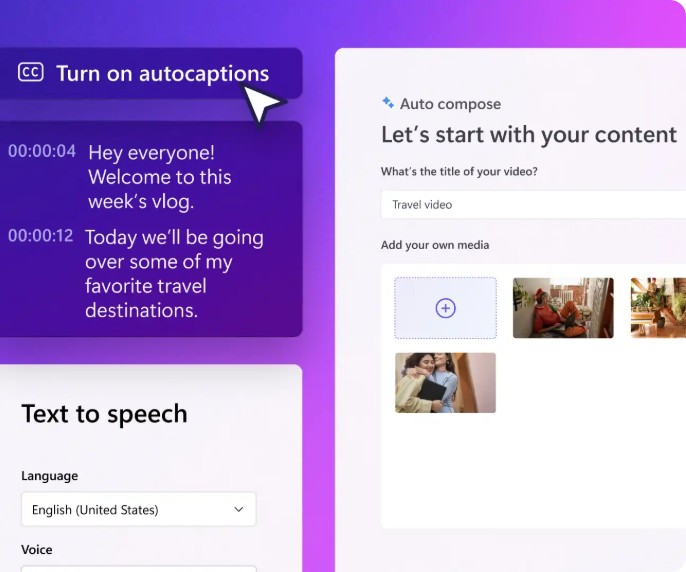
Clipchamp's AI captions, text to speech and Auto compose panels. Source: Clipchamp website
Clipchamp is Microsoft's video editor, available in the browser and as a Windows app. Its pricing page marks AI video editing tools, AI audio editing tools, watermark-free exports and exports up to 1080p HD as included on Free, and its home page describes AI audio tools that remove background noise, unwanted pauses and silences and filler words, plus an AI subtitle generator and an AI voiceover generator. Free needs a personal Microsoft account, per the page.
Pricing: Clipchamp's pricing page lists Free and Premium, and says Premium features (4K UHD exports, premium stock assets and a brand kit tool for a single brand) come with Microsoft 365 Personal or Family. Microsoft's plans page, read the same day, lists Microsoft 365 Personal at $99.99 a year or $9.99 a month, and Family at $129.99 a year or $12.99 a month. Those plans bundle Office apps and cloud storage, so the Clipchamp part is not priced on its own. Over 12 months Personal is $99.99 on yearly billing or $119.88 on monthly billing, by our arithmetic.
Considerations: Free has no brand kit and tops out at 1080p, and the pages we read list Premium only as part of Microsoft 365. The AI tools listed are for cleanup, subtitles and voiceover; none of the pages we read describes picking short clips from a long recording.
- Choose it if the budget is zero, the work is trimming, cleanup and subtitles, and a watermark-free 1080p export is enough.
- Skip it if the plan needs 4K exports or a brand kit without buying Microsoft 365, or the job is pulling clips out of long recordings.
2. Descript: Best for editing video by editing its transcript
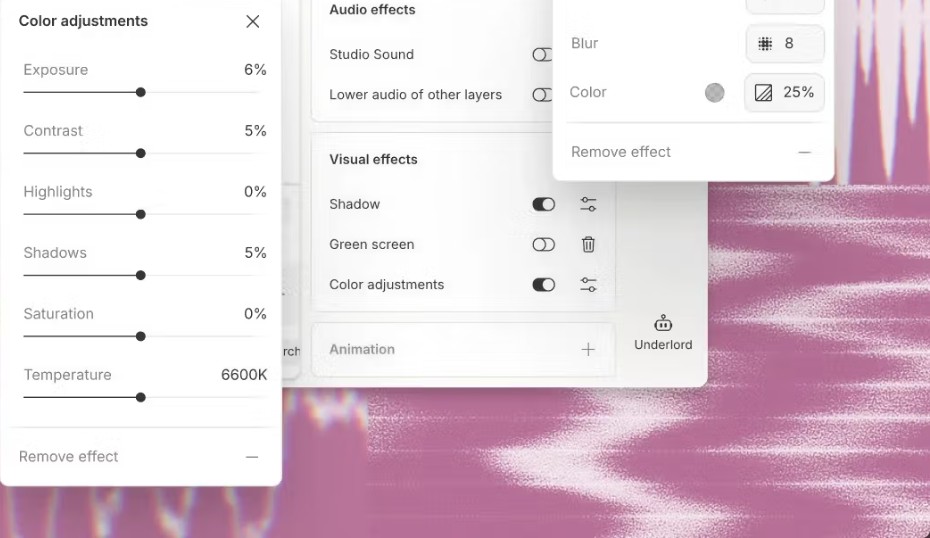
Descript's properties and color adjustment panels. Source: Descript website
Descript edits video by editing the transcript: its home page describes cutting filler words and retakes in a click, with the timeline available when needed, and Underlord as its AI co-editor. The Hobbyist card lists 10 media hours and 400 AI credits a month, 1080p watermark-free export, access to Underlord and AI tools including Studio Sound, Remove Filler Words and Create Clips. Descript says it works on Mac and Windows, with a web version as well.
Pricing: Descript's pricing page lists Free at $0 (1 hour of media a month, 100 one-time AI credits, 720p local export, with Underlord and most AI tools marked Limited), Hobbyist at $24 a month or $16 a month on its annual view, per person, and Creator at $35 a month or $24 on the annual view, with 4K export. Hobbyist is $288 over 12 months on monthly billing and $192 on annual billing, by our arithmetic.
Considerations: Watermark-free export starts on Hobbyist, and 4K starts on Creator. AI work is metered in credits (400 a month on Hobbyist), and the $16 price needs yearly billing, because the $24 monthly rate is above the $20 line.
- Choose it if the recordings are talk-heavy and editing by text beats scrubbing a timeline.
- Skip it if 4K export on the lowest plan matters, or the goal is short clips found automatically from long recordings.
3. Gling: Best for cutting silences and bad takes from spoken video
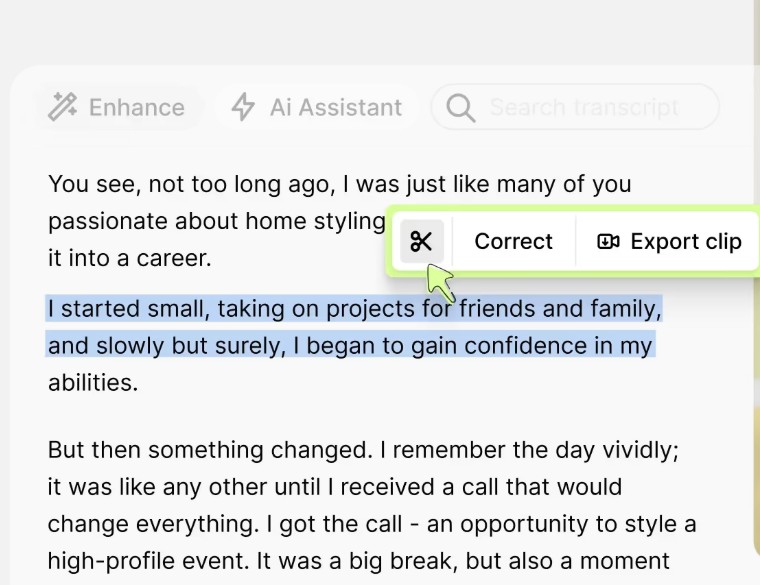
Gling's transcript-based trimmer. Source: Gling website
Gling is an AI editor aimed at YouTube creators. Its home page says to upload a raw recording, after which Gling transcribes it, finds the bad takes and silences and cuts them automatically. The result can be refined by editing the text or the timeline, then exported as MP4 or MP3 with SRT captions, or as a timeline for Final Cut, DaVinci or Premiere. Its pricing page also lists filler-word removal, AI captions, auto framing (zoom in and out), multicam editing, AI B-rolls and speech audio enhancement. Gling's pages describe a desktop app (one says it is designed exclusively for desktop) and, on another page, a free online editor in the browser.
Pricing: Gling's pricing page lists Free at $0 (1 hour of AI-edited media a month and unlimited exports with a watermark), Plus at $20 a month on monthly billing or $10 a month paid annually (10 hours of AI-edited media a month, or 300 words of generated video from a link, watermark-free), Pro at $40 a month and Elite at $100 a month. Plus is $240 over 12 months on monthly billing and $120 on annual billing, by our arithmetic.
Considerations: The page's FAQ says the free version cannot export to Premiere, Final Cut or Resolve, another page says editor timelines need a paid desktop plan, and AI-edited hours are capped each month on every plan.
- Choose it if the footage is spoken (talking head, tutorial, podcast video) and the pain is cutting silences and retakes by hand at the lowest 12-month price of the standalone paid plans here.
- Skip it if the goal is a timeline editor with effects and color tools, or short clips ranked from a long recording.
4. OpusClip: Best for AI-cut short clips from long recordings on a small plan
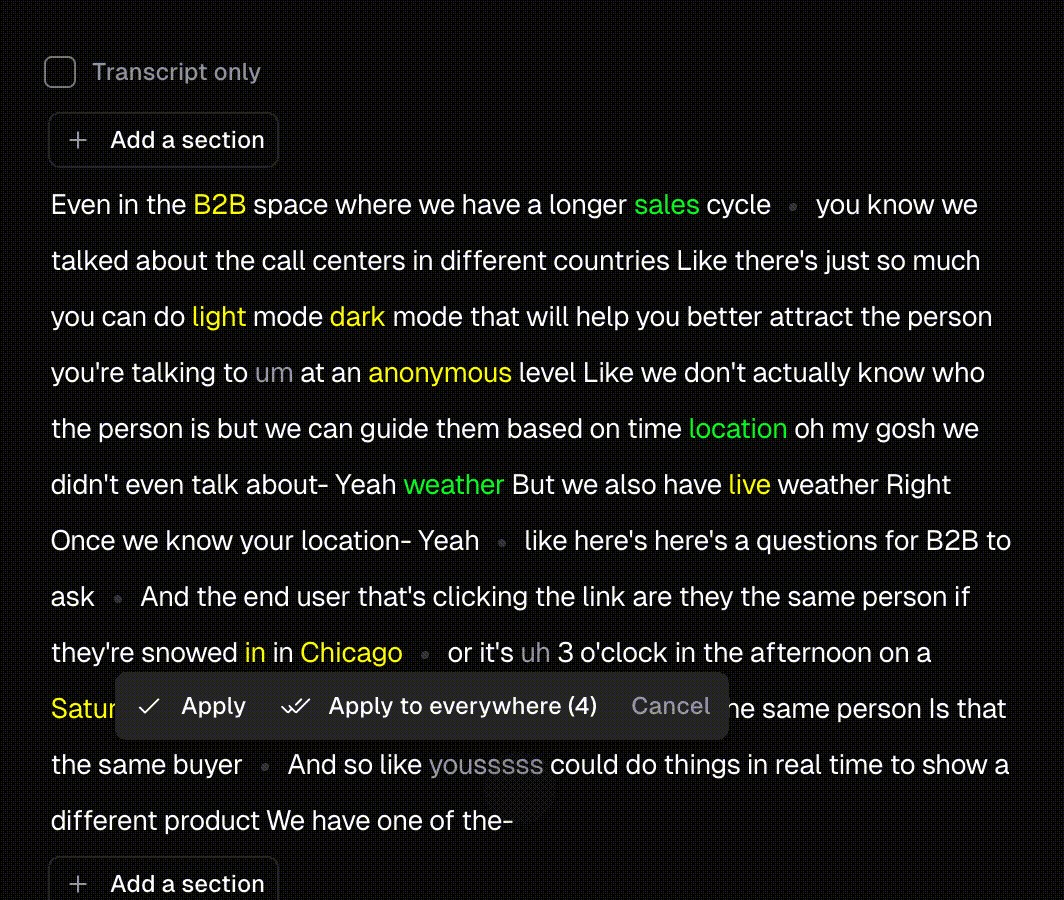
OpusClip's caption and transcript editor. Source: OpusClip website
OpusClip takes a long video, such as a podcast, webinar or interview, from a pasted link or an uploaded file and returns short clips, each with a Virality Score, captions and an AI reframe. The pricing page lists, on Starter, AI clipping with Virality Score, AI animated captions in 20+ languages, auto post to YouTube Shorts, TikTok and Instagram Reels (or download), an editor, filler and silence removal, and watermark removal. The AI does most of the first cut, and the help center says paid plans remove the watermark from Free projects. To try the clipping step on its own, see our long video to short video tool.
Pricing: OpusClip's pricing page lists Free at $0 (a watermark, no editing, renders up to 1080p, and clips stop being exportable after 3 days), Starter at $15 a month (monthly billing only) and Pro at $29 a month, or $14.50 a month billed annually ($174 a year). By our arithmetic that is about $180 over 12 months for Starter and $174 for annual Pro, so annual Pro is the lower 12-month price. On month-to-month billing, Starter's $15 is the lowest of the five standalone subscriptions compared here (CapCut Pro $19.99, Gling Plus $20, Descript and Kapwing $24), though Gling is lower on annual billing, Microsoft 365 ($9.99 a month) carries Clipchamp's paid features, and three editors here have free versions. Pro adds the social media scheduler, export to Premiere Pro and DaVinci Resolve, custom fonts and speech enhancement. On monthly plans, credits expire after 60 days, so they roll over for one additional month, per the help center.
Considerations: OpusClip works from video that already exists and does not replace a full timeline editor. The Free plan has no editing at all, Starter cannot be bought annually, and the help center says the Android app has no editor and points to a desktop browser for full editing.
- Choose it if the raw material is long recordings, the goal is short captioned clips, and the plan has to stay near $15 a month.
- Skip it if the job is cutting footage on a timeline or finishing color and audio, which a timeline editor such as DaVinci Resolve fits better.
5. CapCut: Best for an all-round editor with a free start
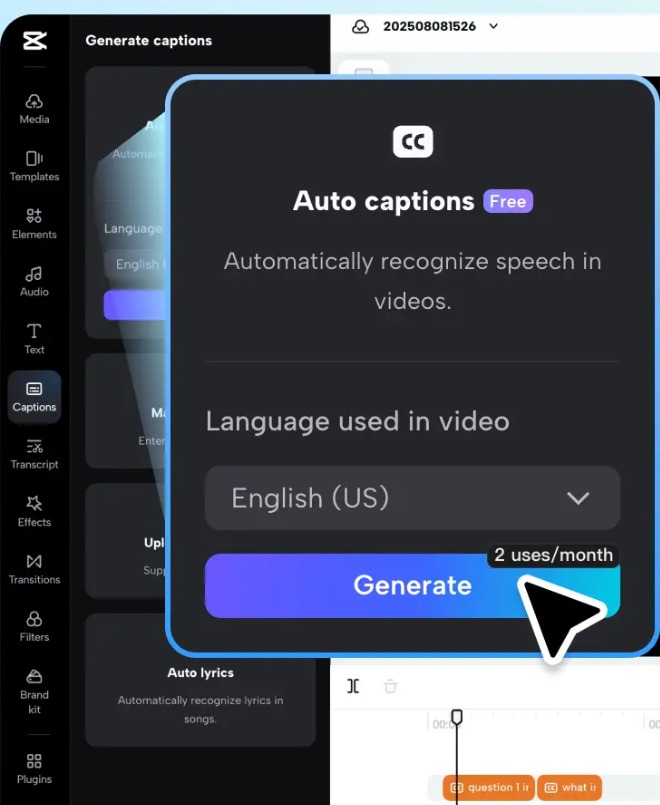
CapCut's web editor with the Auto captions card. Source: CapCut website
CapCut runs as a desktop app, in the browser, on tablets and on phones, per the product list on its pages. Its pricing page lists Free with free templates and basic editing tools, and its web editor page says the online editor makes video without a watermark and uses AI to auto-generate subtitles. CapCut's navigation also lists EditPilot, described as turning a direction into edits on the timeline.
Pricing: CapCut's pricing page lists Pro at $19.99 a month or $179.99 a year, with a 7-day free trial, 1,200 monthly AI credits, access to AI features, premium templates and 1 TB of storage. The page says displayed pricing is for reference only and that final pricing and offers show after sign-in. Over 12 months that is $239.88 on monthly billing and $179.99 on yearly billing, by our arithmetic.
Considerations: The pricing page lists no export resolution for Free, and AI work draws on credits: Pro lists 1,200 a month, and the page does not say what one AI feature costs. The editor mock-up on CapCut's caption page labels Auto captions as Free with a 2 uses a month badge, a limit the pricing page does not list, so check it when signing up.
- Choose it if an editor that works on phone, tablet and desktop with a free start and optional AI credits.
- Skip it if predictable AI costs matter most, since credits, trial offers and final prices depend on sign-in.
6. Kapwing: Best for a no-install browser editor
Kapwing is a browser-based editor. Its pricing page lists auto-subtitling, Smart Cut (which removes silences) and Clean Audio among its smart tools, with larger monthly allowances on Pro than on Free, and its help center names the auto-subtitler, background removers, Smart Cut and Clean Audio among the Pro plan's AI tools. Pro also lists no watermark, Brand Kit and custom fonts, and a shared workspace.
Pricing: Kapwing's pricing page lists Free at $0 (10 credits, unlimited exports with a watermark, exports up to 4 minutes, 720p, 5 GB of storage) and Pro at $24 a month on its Monthly view or $16 a month on its Annual view, which the page says saves 33%. Pro lists 1,000 credits a month, no watermark, exports up to 2 hours and 200 GB of storage. The page opens on the annual view, and its FAQ says there is no free trial for paid plans. Pro is $288 over 12 months on monthly billing and $192 on annual billing, by our arithmetic.
Considerations: Free projects are stored for 3 days, per the pricing page's storage row. Kapwing's own pages disagree on Pro's export resolution: the pricing page lists 4K, while a help center article describes Pro exports as HD (1080p).
- Choose it if the work happens in a browser, and subtitles and silence removal are the AI steps that matter.
- Skip it if free exports must be watermark-free, or the plan has to stay under $20 a month on monthly billing.
7. DaVinci Resolve: Best for a free pro editor and one price for AI tools
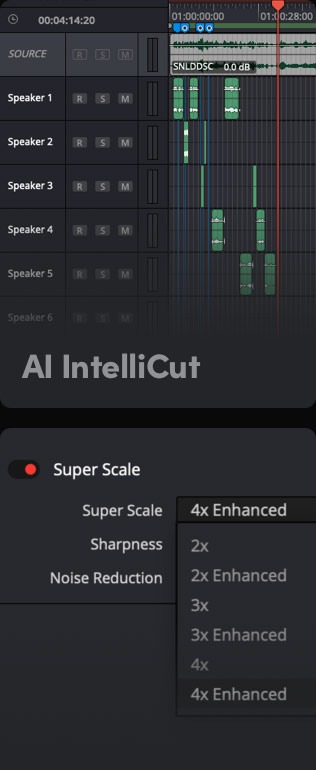
DaVinci Resolve's AI IntelliCut and Super Scale panels. Source: Blackmagic Design website
DaVinci Resolve is Blackmagic Design's editing, color, effects and audio application for Mac, Windows and Linux. Blackmagic's page says the free version works with virtually all 8-bit video formats at up to 60fps in resolutions as high as Ultra HD 3840 x 2160, and includes multi-user collaboration and HDR grading. Studio includes everything in the free version plus the DaVinci AI Neural Engine, more Resolve FX, temporal and AI spatial noise reduction, text based editing and magic mask.
Pricing: Blackmagic's page lists the free version at $0 and DaVinci Resolve Studio at $236 with a Buy Online button, marked "Was $295 Now $236" with a Save 20% tag. The page shows one price rather than a monthly plan, and does not say how long the markdown lasts. At $236, Studio costs about as much as 12 months of CapCut Pro on monthly billing ($239.88), by our arithmetic.
Considerations: Resolve is a full professional timeline editor, so learning time is the real cost for a quick social cut. The AI features sit in Studio, not in the free version, and the pages we read do not describe picking clips from a long recording.
- Choose it if the goal is to own a professional editor, pay once for Studio and edit on a desktop computer.
- Skip it if the job is automatic clips from long recordings, or the work has to happen in a browser or on a phone.
How we compared these tools
We ordered all seven by one yardstick: how much AI editing the vendor lists on its free plan or on the lowest paid plan that passes the budget line, and how few catches that tier carries. Catches are a watermark, a resolution or length cap, credits that meter AI, AI that sits in a higher tier, a price that depends on billing or sign-in, and no hand-off to other editors. Price sets the budget line and is printed for every tool, but it does not set the order. Here is where each editor landed.
- 1. Clipchamp: AI editing tools, silence and filler-word cleanup and AI subtitles are listed on Free, which exports without a watermark at up to 1080p. Catches: no brand kit on Free, and 4K and the brand kit only inside Microsoft 365.
- 2. Descript: Hobbyist lists Underlord, Studio Sound, filler-word removal and clip creation with 1080p watermark-free export. Catches: the $24 monthly rate is above the line, AI is metered in credits, and Free marks most AI tools Limited.
- 3. Gling: it lists bad-take, silence and filler-word cutting, AI captions, auto framing and speech enhancement. Catches: Free has a watermark, 1 hour of AI-edited media a month and no hand-off to timeline editors, and the focus is spoken video.
- 4. OpusClip: Starter lists AI clip selection, animated captions, filler and silence removal and posting to three networks. Catches: Free has a watermark and no editing, Starter is monthly only, monthly-plan credits expire after 60 days, and it finds clips rather than editing on a timeline.
- 5. CapCut: a free web editor with no watermark and auto subtitles; Pro lists 1,200 monthly AI credits. Catches: prices are for reference until sign-in, no free export resolution is listed, and AI is metered in credits.
- 6. Kapwing: it lists Smart Cut, auto-subtitling and Clean Audio in a browser editor. Catches stack up: Free has a watermark, 720p and 4-minute exports, the $24 monthly Pro rate is above the line, AI uses credits, and its pages disagree on Pro's export resolution.
- 7. DaVinci Resolve: the free version lists no AI editing; the AI Neural Engine and text based editing are in Studio at $236. Catches: AI is gated to Studio, and it is a full timeline editor with a learning curve.
All facts come from each vendor's own pricing page, product pages and help center, read on November 6, 2026. Where a page loads its figures with a script we read the rendered page, with the Monthly and Annual views both read where a toggle exists. Where two pages from the same vendor disagree (Kapwing on Pro's export resolution, Gling on desktop versus browser) we say so. We did not run hands-on tests of any competitor, and documented features say nothing about how well a feature works. We left out tools whose prices we could not read from the vendor's own page that day. Prices change, so confirm on the vendor's page before buying.
Red flags to watch for
- Watermarks on free exports. OpusClip Free, Gling Free and Kapwing Free add a watermark, and Descript lists watermark-free export from Hobbyist. Clipchamp's pricing page and CapCut's web editor page say their exports carry none.
- Quality and length caps on free plans. Kapwing Free caps exports at 4 minutes and 720p, Descript Free exports at 720p, OpusClip Free clips stop being exportable after 3 days, and Gling Free covers 1 hour of AI-edited media a month.
- Prices that depend on billing. Kapwing's page opens on its annual view, Descript and Gling show annual prices beside monthly ones, OpusClip Starter is monthly only, and CapCut says final prices show after sign-in.
- AI behind a higher tier. DaVinci Resolve's AI Neural Engine is in Studio, Descript marks Underlord as Limited on Free, and CapCut and Kapwing meter AI work in credits.
- Bundles priced as one thing. Clipchamp's paid features come only inside Microsoft 365 on the pages we read, so the price is for Office apps and storage too.
- Credits that expire. OpusClip credits on monthly plans expire after 60 days, so unused credits roll over for one additional month.
- No hand-off on free. Gling's free version cannot export to Premiere, Final Cut or Resolve, so a rough cut stays in Gling.
- No manual override. A tool that cuts, crops or captions automatically with no way to edit the result leaves no fix for a bad cut or a wrong caption.
Frequently asked questions
What is the best budget AI video editing software?
It depends on the job, and we rank Clipchamp first overall: a free editor with AI tools and no watermark. Descript follows for editing by transcript, Gling for cutting silences and bad takes, OpusClip for turning long recordings into captioned short clips at $15 a month, CapCut for an all-round editor, Kapwing for a browser editor and DaVinci Resolve for a free pro editor. See OpusClip pricing for the plans.
What is the cheapest AI video editor?
Three editors here have a free version: Clipchamp, CapCut and DaVinci Resolve. Among paid plans, by our arithmetic over 12 months: Microsoft 365 Personal (which carries Clipchamp Premium) is $99.99 on yearly billing, Gling Plus is $120 on annual billing, CapCut Pro is $179.99 on yearly billing, OpusClip Starter is $180, Descript Hobbyist and Kapwing Pro are $192 on annual billing, and DaVinci Resolve Studio is listed at $236. On month-to-month billing the standalone plans run $15 (OpusClip Starter), $19.99 (CapCut Pro), $20 (Gling Plus) and $24 (Descript Hobbyist and Kapwing Pro), against $9.99 for Microsoft 365 Personal, which bundles Office apps.
What is the best affordable AI video editing software?
For long recordings that need to become short posts, OpusClip at $15 a month on Starter, or $14.50 a month on annual Pro ($174 a year). For cleanup of talking-head video, Gling at $10 a month paid annually. For a browser editor, Kapwing Pro at $16 a month on its annual view. For wider options, see our ranking of the best AI video editors.
What is the best free or cheap AI video editor?
Free: Clipchamp lists AI tools, watermark-free exports and up to 1080p on its free plan, CapCut's web editor page says no watermark, and DaVinci Resolve's free version works up to Ultra HD. Cheap: OpusClip Starter at $15 a month, Gling Plus at $10 a month paid annually, or Descript Hobbyist at $16 a month annual. For free clip generators, see our free AI tools guide.
Is a free AI video editor good enough?
It can be, if the limits fit the job. Kapwing Free adds a watermark and caps exports at 4 minutes and 720p, Gling Free adds a watermark and covers 1 hour of AI-edited media a month, and OpusClip Free adds a watermark, has no editing and stops clips being exportable after 3 days. Clipchamp Free and CapCut's web editor say they export without a watermark. Check the free limits against the longest video the plan has to handle.
Is DaVinci Resolve Studio worth it compared with a subscription?
It depends on whether a timeline editor is wanted. Blackmagic's page lists Studio at $236, marked down from $295, with the AI Neural Engine and text based editing that the free version lacks. At $236 it costs about as much as 12 months of CapCut Pro on monthly billing ($239.88), by our arithmetic. It does not pick clips from long recordings, which is OpusClip's job.
What should I check before paying for a cheap AI video editor?
Check the billing basis (monthly or annual), the watermark and export limits on the free plan, whether the AI features sit in a higher tier or draw on credits, whether credits expire, and where the editor runs. Then read the plan's own page on the day of purchase, because prices and limits change.
Can OpusClip replace a full video editor on a small budget?
No. OpusClip turns long recordings into short captioned clips and posts them, and it does not replace a full timeline editor. Its Free plan has no editing, and Starter is $15 a month on monthly billing only. For timeline work on a small budget, DaVinci Resolve's free version or Clipchamp fit better, and OpusClip's Free plan is a way to try the clipping step first (see the plans).