Can ChatGPT Edit Videos? Yes, Here's How (2026)

October 7, 2026
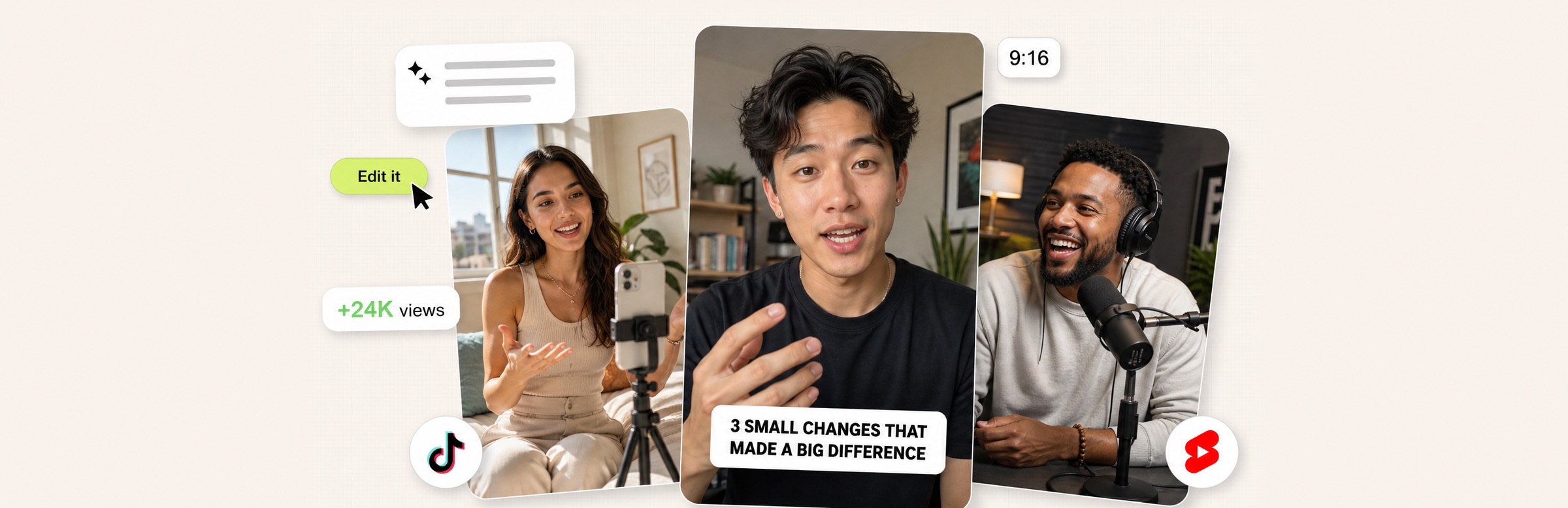
Three creators filming and podcasting, with a chat prompt, an Edit it button and a +24K views badge

Yes. ChatGPT can edit videos in 2026 once you add a video editing plugin from its official plugin store, such as AI Producer by OpusClip. On its own, ChatGPT can plan an edit, write your script and captions, and tell you where to cut, but it isn't a video editor. With the plugin installed, you upload raw footage in ChatGPT, describe the edit in plain words, and get back a finished cut with captions, B-roll, motion graphics and music. Most of that editing is free with your ChatGPT plan.

This guide covers what ChatGPT can and can't do with video by itself, what a plugin adds, how to edit your first video in ChatGPT step by step, what it costs, and which videos it handles best.

The short answer: yes, with a plugin

ChatGPT has a Plugins section in its sidebar, where you can browse and install plugins that connect it to other tools. A plugin gives ChatGPT abilities it doesn't have by default. A video editing plugin gives it a real editor: it can cut your footage, add captions and B-roll, and render a finished file, all from the chat where you describe what you want.

AI Producer by OpusClip is a video editing plugin in the official ChatGPT plugin store, and one of our picks for the best ChatGPT plugins in 2026. It's built for talking-head video, where one person speaks to camera, and it works the way a human producer would: it reads your footage and transcript, plans the cut, and builds it. You stay in charge of the direction.
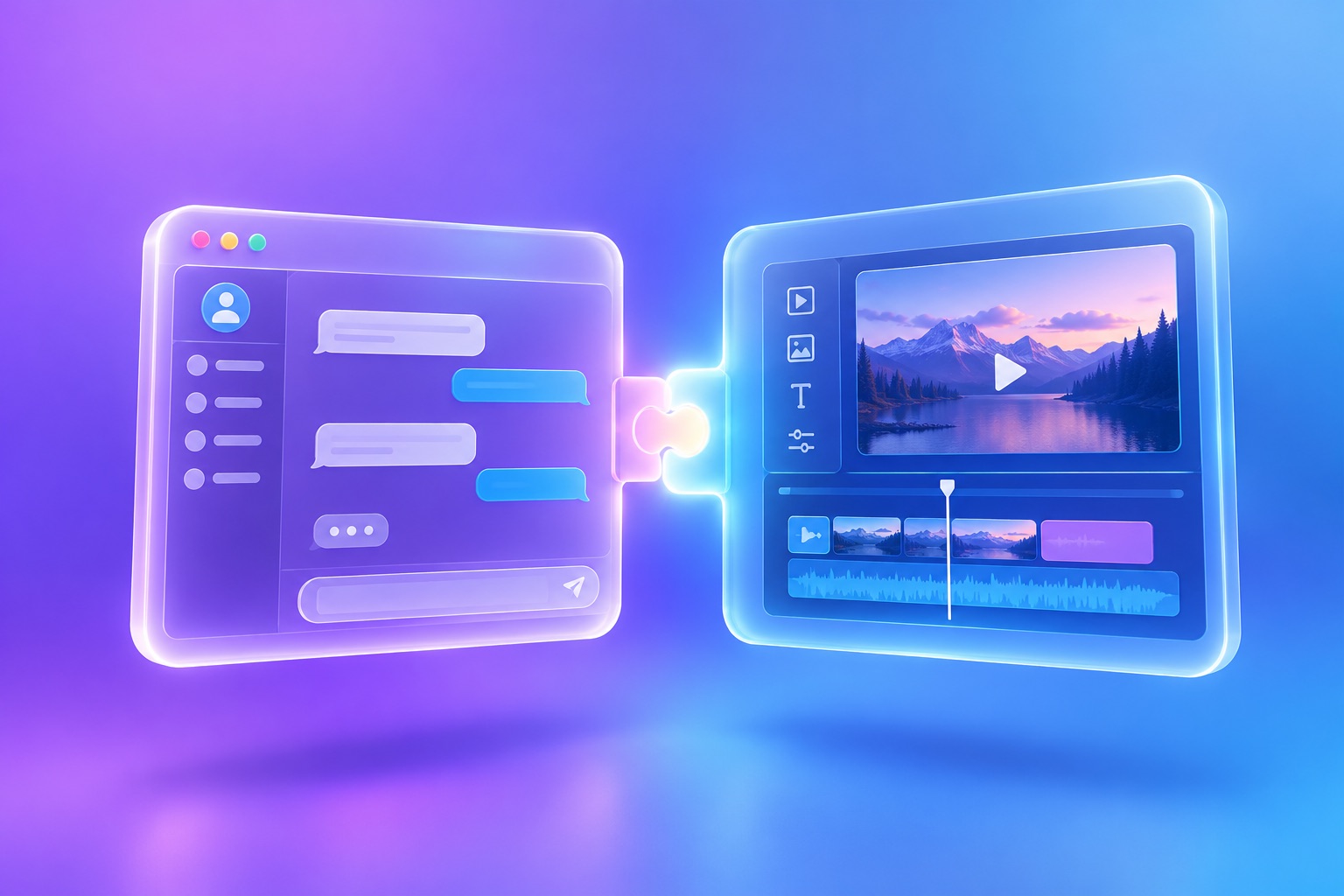
A chat window and a video editor panel joined by a glowing plug-in connector

What can ChatGPT do with video on its own?

Without a plugin, ChatGPT is a strong planning partner for video and a weak editor.

  • Write the words. Scripts, hooks, titles, descriptions and caption text. Our list of ChatGPT prompts for video scripts covers this part in depth.
  • Plan the edit. Paste in a transcript and it can suggest where to cut, what to trim, and where a visual would help.
  • Explain techniques. It can walk you through pacing, framing, caption styles or a specific effect in an editing app.

You can attach a video to a chat, and OpenAI says ChatGPT may analyze it, but it also warns that the analysis can be partial and can miss parts of the audio. What ChatGPT doesn't do by itself is the editing. There is no timeline, no caption styling, no B-roll library and no way to turn raw footage into a polished, captioned video ready to post. That gap is what a video editing plugin fills.

What changes when you add a video editing plugin?

With AI Producer installed, the same chat becomes an editing session. You upload a video, write a short brief, and the plugin applies the editing skills the brief calls for:

  • Rough cut. Removes filler words and pauses so the take keeps moving.
  • Captions. Word-synced subtitles under your speech, in a style you can change across the whole video.
  • Auto B-roll. Finds clips that match what you're saying and places them on the right words.
  • Motion graphics. Animated graphics drawn to match your words, plus floating overlays that share the frame with you.
  • Camera movement and auto layout. Zooms and transitions, and a frame that rebuilds itself around you.
  • Voice cleanup. Cleaner, more even speech by default.
  • Music and sound effects. Background music that turns itself down when you talk, and a sound where you land a point.
  • Scene restyle. A new background, redrawn by AI.

Sound effects, scene restyle and background music are in beta. Each change you ask for updates the same project instead of starting over. When the cut looks right, export renders an MP4 at up to 1080p and 30 fps, in 9:16, 16:9 or 1:1 to match your footage.
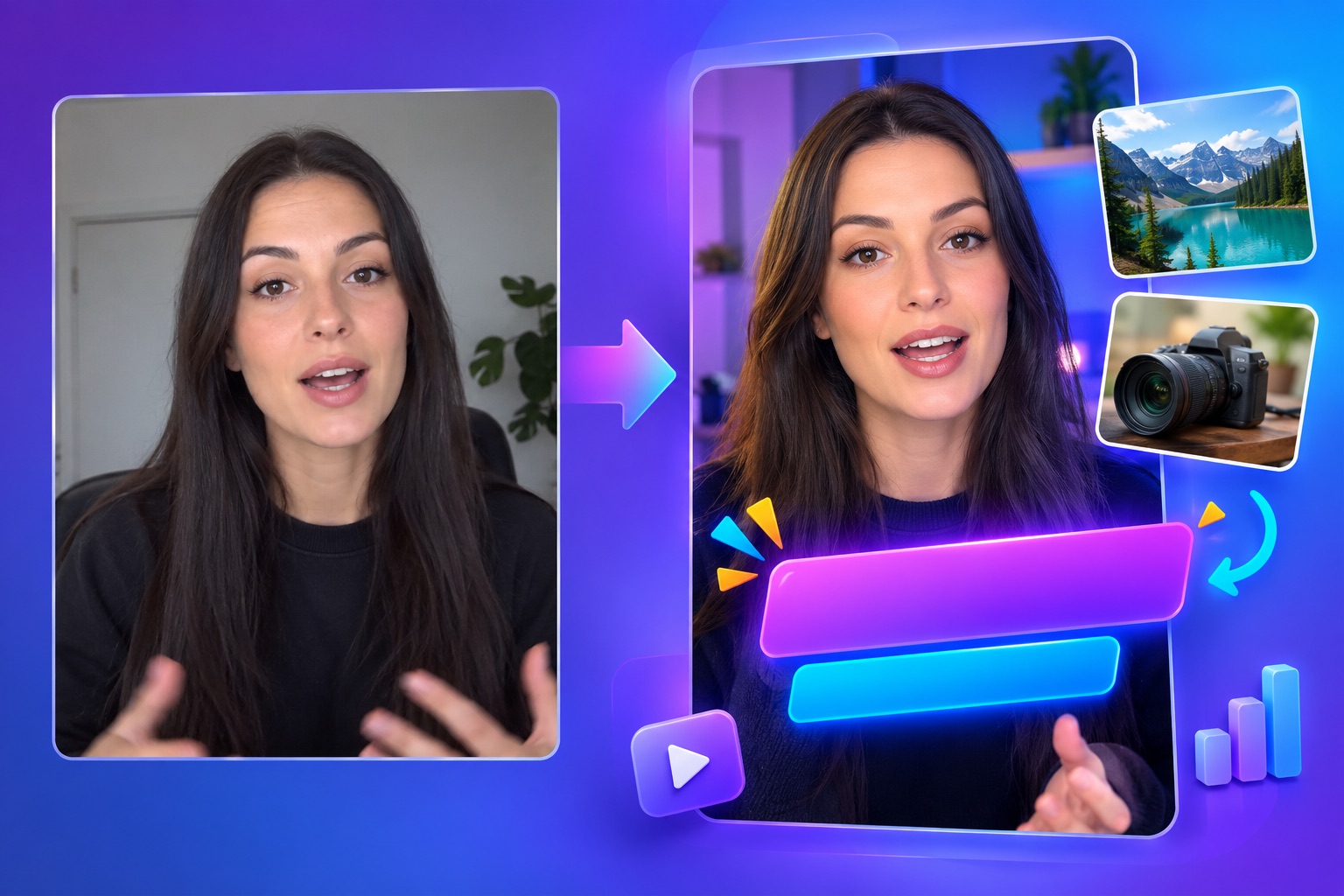
A plain talking-head video frame turning into a polished vertical video with captions and B-roll

How to edit a video in ChatGPT, step by step

  1. Open the ChatGPT desktop app. The plugin runs in Codex, which is built into the ChatGPT desktop app for Mac and Windows. Codex is part of every ChatGPT plan, but Free and Go plans get limited Codex use, so a paid plan is the practical choice for regular editing. A mobile version of the plugin is in development.
  2. Install AI Producer. Open Plugins in the ChatGPT sidebar, search for AI Producer, and click Install, or use the install link on the AI Producer plugin page. Sign in to AI Producer with your OpusClip account when asked. You only do this once.
  3. Start a chat and upload your footage. Switch to Codex, start a new chat, and attach a video of one person talking to camera. MP4, MOV and WebM files work, in vertical, horizontal or square.
  4. Describe the edit. Write it the way you'd brief an editor: the platform, the mood, and anything you don't want. Type @AI Producer by OpusClip to call the plugin directly, or just describe the edit. A short brief is fine, because the plugin reads the footage and transcript and fills in the rest.
  5. Review the first cut. Ask for changes in the same chat: bigger captions, no music, a tighter opening.
  6. Refine and export. Open the AI Producer preview for final adjustments, then export the finished MP4.

Not sure what to type? These prompts come straight from the plugin's store listing:

Turn this talking-head video into a polished short with captions and B-roll.
Remove awkward pauses, reframe the speaker, and add clean captions.
Create an editable first cut, then let me review it before export.

Once the first cut is ready, revisions are just as plain: "Make the captions bigger." "Take out the music." "Cut everything before I say 'so here is the idea'."

Four connected steps for editing in chat: upload, describe, review and export

What happens while ChatGPT edits your video?

The plugin works with you in the chat as the edit takes shape, instead of disappearing until a file appears:

  • It reads before it cuts. The plugin goes through your footage and transcript first, so the cut follows what you actually said.
  • It asks when a choice matters. Decision cards appear in the chat for things like caption style, with a preview of each option, so you pick instead of describing.
  • It shows the draft early. The first cut plays in the AI Producer preview as soon as it's ready, and every change you ask for updates that same project.
  • It keeps your preferences. You can save editing preferences in your own words, so you don't repeat the same instructions on every video.

Is editing videos in ChatGPT free?

Mostly, yes. In the AI Producer plugin, transcription, captions, B-roll search, voice enhancement, music and sound effects use no OpusClip credits, so you can stay on a free OpusClip plan and do your editing inside ChatGPT. Two things to know:

  • Your ChatGPT plan's limits. The plugin runs in Codex, and the editing work counts against your plan's Codex usage. Codex is included in every ChatGPT plan, with limited use on Free and Go and more room on paid plans.
  • AI scene restyle. Redrawing your background with AI uses OpusClip credits.

In practice, the ChatGPT plan you already have can double as a video editor, and you only spend OpusClip credits when you want an AI-generated background.

Why edit in ChatGPT instead of an editing app?

  • Nothing new to learn. You describe the result in words instead of learning a timeline, keyframes and export settings.
  • No extra subscription for most edits. If you pay for ChatGPT, the core editing costs nothing more.
  • One place for the whole job. You can write the script, plan the post and edit the video without switching apps.
  • Changes take one sentence. "Make the captions bigger" is faster than finding the right panel and slider.
  • Control when you want it. The AI Producer preview lets you refine the cut before you export.

A traditional editing app still makes sense for multi-camera shoots, long documentary-style projects and frame-precise work. For a talking-head clip you want to post today, a chat is the faster route.

Editing real footage vs. generating video

"Edit" and "generate" get mixed up a lot in AI video. AI Producer edits the footage you filmed: your face, your voice and your words stay yours, and the plugin cuts, captions and dresses them up. It doesn't invent a synthetic presenter or build a video from a text prompt alone. If you want viewers to trust the person on screen, that difference matters. AI-generated touches such as scene restyle are optional additions to your real footage.

What kinds of videos work best?

AI Producer is built for footage of one person talking to camera, which covers a lot of what people post:

  • Creator videos. Tips, opinions, reactions and stories filmed on a phone.
  • Founder and expert videos. Product updates, LinkedIn posts and explainers.
  • Solo podcast and course clips. A host speaking to camera, cut into something tighter.

Multi-camera edits and screen recordings aren't supported yet. If you're new to the format, our guide to talking-head videos covers filming and structure.
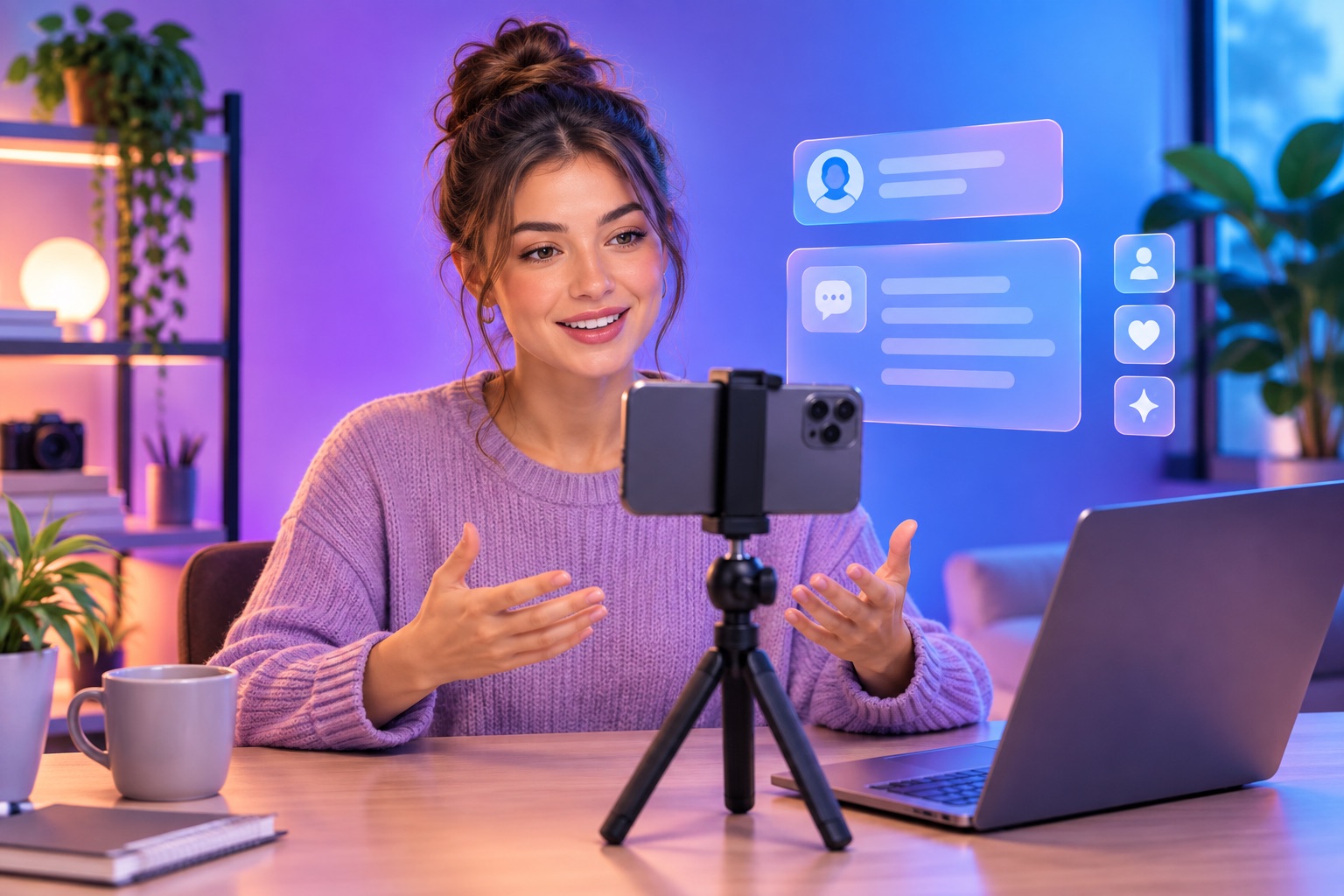
A creator filming a talking-head video on a phone tripod at a desk with a laptop open beside it

Tips for better edits in ChatGPT

  • Brief it like an editor. Name the platform, the audience and the feeling. For example: "Make it feel like a product launch: bold captions, a sound effect on each key point."
  • Say what you don't want. "Keep it plain. Captions only, no music." is a complete brief.
  • Give it a reference. A reference image of the look you want helps the plugin match your style.
  • Say where the video is going. The platform decides length, pacing and framing, so tell it up front.
  • Change one thing at a time. Small, specific requests land better than a list of ten.

Can other AI assistants edit videos?

The plugin approach isn't limited to the ChatGPT app. AI Producer's install guide also covers the Codex command-line app and Claude Code, so you can edit from the agent you already use. Codex in the ChatGPT desktop app is the main supported path today. If you want to turn long videos into short clips from Claude instead, see our guide to using Claude to edit your videos.

Troubleshooting the plugin

  • Clicking Install does nothing. Install opens the AI Producer page on chatgpt.com in a new tab. If no tab appears, allow pop-ups for the site and try again.
  • You don't see Codex. Codex is part of the ChatGPT desktop app for Mac and Windows. It isn't available in ChatGPT on the web or in the phone app, so do your editing from the desktop app.
  • You can't find it on your phone. The mobile plugin is still in development. Use the ChatGPT desktop app for now.
  • The edit isn't what you pictured. Add a reference image, name the platform, and ask for one change at a time.

Frequently asked questions

Can ChatGPT edit videos without a plugin?

Not into a finished video. ChatGPT can write scripts and captions and help you plan the cut, but it has no editing timeline. A video editing plugin such as AI Producer by OpusClip adds the editor.

Is there a free way to edit videos with ChatGPT?

Yes. In the AI Producer plugin, captions, B-roll, voice cleanup, music and sound effects use no OpusClip credits, and AI scene restyle is the exception. The editing counts against your ChatGPT plan's Codex usage, which is limited on Free and Go.

Which ChatGPT plan do I need?

Codex, where the plugin runs, is included in every ChatGPT plan, but Free and Go plans get limited use. For regular editing, a paid plan such as Plus gives the plugin more room to work.

Does it work in the ChatGPT mobile app?

Not yet. The plugin runs in the ChatGPT desktop app and the Codex command-line app today, and a mobile version is in development.

Can ChatGPT add captions to a video?

With the AI Producer plugin, yes. It adds word-synced captions, and you can change the caption style across the whole video by asking.

Can ChatGPT remove filler words and pauses?

Yes. The plugin's rough cut removes filler words and pauses before the rest of the edit is built.

Which AI chatbot can add B-roll and effects to my video?

ChatGPT, with the AI Producer plugin installed. It adds B-roll matched to what you say, motion graphics, music and sound effects to talking-head footage.

Can Claude edit videos?

AI Producer's install guide covers Claude Code as well as Codex, so the same editing can run from Claude Code. Codex in the ChatGPT desktop app is the main supported path.

Key takeaways

  • ChatGPT can edit videos in 2026 through plugins in its official plugin store.
  • On its own, ChatGPT plans and writes. A plugin like AI Producer by OpusClip does the actual edit.
  • You upload footage, describe the edit in chat, review the cut and export, without leaving ChatGPT.
  • Most editing in the plugin uses no OpusClip credits. It counts against your ChatGPT plan's Codex usage, and AI scene restyle uses credits.
  • It works best on talking-head footage of one person speaking to camera.

Edit your next video in ChatGPT

Install AI Producer by OpusClip in the ChatGPT desktop app, upload a talking-head clip, and ask for the edit you want. You can also add it straight from the ChatGPT plugin store. New to the idea of AI that edits for you? Start with what an AI producer is, or see how it fits into our AI video editor.
On this page

Use our Free Forever Plan

Find the moment. Skip the scrubbing.

From script to polished video — in one click.

Create and post one short video every day for free, and grow faster.

OpusSearch uses AI to surface the exact clip you need from hours of footage — in seconds, not afternoons.

Agent Opus runs the entire video pipeline for you: research, scriptwriting, storyboarding, motion, voice, and edit. Upload the idea, post the result.

Can ChatGPT Edit Videos? Yes, Here's How (2026)

Yes. ChatGPT can edit videos in 2026 once you add a video editing plugin from its official plugin store, such as AI Producer by OpusClip. On its own, ChatGPT can plan an edit, write your script and captions, and tell you where to cut, but it isn't a video editor. With the plugin installed, you upload raw footage in ChatGPT, describe the edit in plain words, and get back a finished cut with captions, B-roll, motion graphics and music. Most of that editing is free with your ChatGPT plan.

This guide covers what ChatGPT can and can't do with video by itself, what a plugin adds, how to edit your first video in ChatGPT step by step, what it costs, and which videos it handles best.

The short answer: yes, with a plugin

ChatGPT has a Plugins section in its sidebar, where you can browse and install plugins that connect it to other tools. A plugin gives ChatGPT abilities it doesn't have by default. A video editing plugin gives it a real editor: it can cut your footage, add captions and B-roll, and render a finished file, all from the chat where you describe what you want.

AI Producer by OpusClip is a video editing plugin in the official ChatGPT plugin store, and one of our picks for the best ChatGPT plugins in 2026. It's built for talking-head video, where one person speaks to camera, and it works the way a human producer would: it reads your footage and transcript, plans the cut, and builds it. You stay in charge of the direction.

A chat window and a video editor panel joined by a glowing plug-in connector

What can ChatGPT do with video on its own?

Without a plugin, ChatGPT is a strong planning partner for video and a weak editor.

  • Write the words. Scripts, hooks, titles, descriptions and caption text. Our list of ChatGPT prompts for video scripts covers this part in depth.
  • Plan the edit. Paste in a transcript and it can suggest where to cut, what to trim, and where a visual would help.
  • Explain techniques. It can walk you through pacing, framing, caption styles or a specific effect in an editing app.

You can attach a video to a chat, and OpenAI says ChatGPT may analyze it, but it also warns that the analysis can be partial and can miss parts of the audio. What ChatGPT doesn't do by itself is the editing. There is no timeline, no caption styling, no B-roll library and no way to turn raw footage into a polished, captioned video ready to post. That gap is what a video editing plugin fills.

What changes when you add a video editing plugin?

With AI Producer installed, the same chat becomes an editing session. You upload a video, write a short brief, and the plugin applies the editing skills the brief calls for:

  • Rough cut. Removes filler words and pauses so the take keeps moving.
  • Captions. Word-synced subtitles under your speech, in a style you can change across the whole video.
  • Auto B-roll. Finds clips that match what you're saying and places them on the right words.
  • Motion graphics. Animated graphics drawn to match your words, plus floating overlays that share the frame with you.
  • Camera movement and auto layout. Zooms and transitions, and a frame that rebuilds itself around you.
  • Voice cleanup. Cleaner, more even speech by default.
  • Music and sound effects. Background music that turns itself down when you talk, and a sound where you land a point.
  • Scene restyle. A new background, redrawn by AI.

Sound effects, scene restyle and background music are in beta. Each change you ask for updates the same project instead of starting over. When the cut looks right, export renders an MP4 at up to 1080p and 30 fps, in 9:16, 16:9 or 1:1 to match your footage.

A plain talking-head video frame turning into a polished vertical video with captions and B-roll

How to edit a video in ChatGPT, step by step

  1. Open the ChatGPT desktop app. The plugin runs in Codex, which is built into the ChatGPT desktop app for Mac and Windows. Codex is part of every ChatGPT plan, but Free and Go plans get limited Codex use, so a paid plan is the practical choice for regular editing. A mobile version of the plugin is in development.
  2. Install AI Producer. Open Plugins in the ChatGPT sidebar, search for AI Producer, and click Install, or use the install link on the AI Producer plugin page. Sign in to AI Producer with your OpusClip account when asked. You only do this once.
  3. Start a chat and upload your footage. Switch to Codex, start a new chat, and attach a video of one person talking to camera. MP4, MOV and WebM files work, in vertical, horizontal or square.
  4. Describe the edit. Write it the way you'd brief an editor: the platform, the mood, and anything you don't want. Type @AI Producer by OpusClip to call the plugin directly, or just describe the edit. A short brief is fine, because the plugin reads the footage and transcript and fills in the rest.
  5. Review the first cut. Ask for changes in the same chat: bigger captions, no music, a tighter opening.
  6. Refine and export. Open the AI Producer preview for final adjustments, then export the finished MP4.

Not sure what to type? These prompts come straight from the plugin's store listing:

Turn this talking-head video into a polished short with captions and B-roll.
Remove awkward pauses, reframe the speaker, and add clean captions.
Create an editable first cut, then let me review it before export.

Once the first cut is ready, revisions are just as plain: "Make the captions bigger." "Take out the music." "Cut everything before I say 'so here is the idea'."

Four connected steps for editing in chat: upload, describe, review and export

What happens while ChatGPT edits your video?

The plugin works with you in the chat as the edit takes shape, instead of disappearing until a file appears:

  • It reads before it cuts. The plugin goes through your footage and transcript first, so the cut follows what you actually said.
  • It asks when a choice matters. Decision cards appear in the chat for things like caption style, with a preview of each option, so you pick instead of describing.
  • It shows the draft early. The first cut plays in the AI Producer preview as soon as it's ready, and every change you ask for updates that same project.
  • It keeps your preferences. You can save editing preferences in your own words, so you don't repeat the same instructions on every video.

Is editing videos in ChatGPT free?

Mostly, yes. In the AI Producer plugin, transcription, captions, B-roll search, voice enhancement, music and sound effects use no OpusClip credits, so you can stay on a free OpusClip plan and do your editing inside ChatGPT. Two things to know:

  • Your ChatGPT plan's limits. The plugin runs in Codex, and the editing work counts against your plan's Codex usage. Codex is included in every ChatGPT plan, with limited use on Free and Go and more room on paid plans.
  • AI scene restyle. Redrawing your background with AI uses OpusClip credits.

In practice, the ChatGPT plan you already have can double as a video editor, and you only spend OpusClip credits when you want an AI-generated background.

Why edit in ChatGPT instead of an editing app?

  • Nothing new to learn. You describe the result in words instead of learning a timeline, keyframes and export settings.
  • No extra subscription for most edits. If you pay for ChatGPT, the core editing costs nothing more.
  • One place for the whole job. You can write the script, plan the post and edit the video without switching apps.
  • Changes take one sentence. "Make the captions bigger" is faster than finding the right panel and slider.
  • Control when you want it. The AI Producer preview lets you refine the cut before you export.

A traditional editing app still makes sense for multi-camera shoots, long documentary-style projects and frame-precise work. For a talking-head clip you want to post today, a chat is the faster route.

Editing real footage vs. generating video

"Edit" and "generate" get mixed up a lot in AI video. AI Producer edits the footage you filmed: your face, your voice and your words stay yours, and the plugin cuts, captions and dresses them up. It doesn't invent a synthetic presenter or build a video from a text prompt alone. If you want viewers to trust the person on screen, that difference matters. AI-generated touches such as scene restyle are optional additions to your real footage.

What kinds of videos work best?

AI Producer is built for footage of one person talking to camera, which covers a lot of what people post:

  • Creator videos. Tips, opinions, reactions and stories filmed on a phone.
  • Founder and expert videos. Product updates, LinkedIn posts and explainers.
  • Solo podcast and course clips. A host speaking to camera, cut into something tighter.

Multi-camera edits and screen recordings aren't supported yet. If you're new to the format, our guide to talking-head videos covers filming and structure.

A creator filming a talking-head video on a phone tripod at a desk with a laptop open beside it

Tips for better edits in ChatGPT

  • Brief it like an editor. Name the platform, the audience and the feeling. For example: "Make it feel like a product launch: bold captions, a sound effect on each key point."
  • Say what you don't want. "Keep it plain. Captions only, no music." is a complete brief.
  • Give it a reference. A reference image of the look you want helps the plugin match your style.
  • Say where the video is going. The platform decides length, pacing and framing, so tell it up front.
  • Change one thing at a time. Small, specific requests land better than a list of ten.

Can other AI assistants edit videos?

The plugin approach isn't limited to the ChatGPT app. AI Producer's install guide also covers the Codex command-line app and Claude Code, so you can edit from the agent you already use. Codex in the ChatGPT desktop app is the main supported path today. If you want to turn long videos into short clips from Claude instead, see our guide to using Claude to edit your videos.

Troubleshooting the plugin

  • Clicking Install does nothing. Install opens the AI Producer page on chatgpt.com in a new tab. If no tab appears, allow pop-ups for the site and try again.
  • You don't see Codex. Codex is part of the ChatGPT desktop app for Mac and Windows. It isn't available in ChatGPT on the web or in the phone app, so do your editing from the desktop app.
  • You can't find it on your phone. The mobile plugin is still in development. Use the ChatGPT desktop app for now.
  • The edit isn't what you pictured. Add a reference image, name the platform, and ask for one change at a time.

Frequently asked questions

Can ChatGPT edit videos without a plugin?

Not into a finished video. ChatGPT can write scripts and captions and help you plan the cut, but it has no editing timeline. A video editing plugin such as AI Producer by OpusClip adds the editor.

Is there a free way to edit videos with ChatGPT?

Yes. In the AI Producer plugin, captions, B-roll, voice cleanup, music and sound effects use no OpusClip credits, and AI scene restyle is the exception. The editing counts against your ChatGPT plan's Codex usage, which is limited on Free and Go.

Which ChatGPT plan do I need?

Codex, where the plugin runs, is included in every ChatGPT plan, but Free and Go plans get limited use. For regular editing, a paid plan such as Plus gives the plugin more room to work.

Does it work in the ChatGPT mobile app?

Not yet. The plugin runs in the ChatGPT desktop app and the Codex command-line app today, and a mobile version is in development.

Can ChatGPT add captions to a video?

With the AI Producer plugin, yes. It adds word-synced captions, and you can change the caption style across the whole video by asking.

Can ChatGPT remove filler words and pauses?

Yes. The plugin's rough cut removes filler words and pauses before the rest of the edit is built.

Which AI chatbot can add B-roll and effects to my video?

ChatGPT, with the AI Producer plugin installed. It adds B-roll matched to what you say, motion graphics, music and sound effects to talking-head footage.

Can Claude edit videos?

AI Producer's install guide covers Claude Code as well as Codex, so the same editing can run from Claude Code. Codex in the ChatGPT desktop app is the main supported path.

Key takeaways

  • ChatGPT can edit videos in 2026 through plugins in its official plugin store.
  • On its own, ChatGPT plans and writes. A plugin like AI Producer by OpusClip does the actual edit.
  • You upload footage, describe the edit in chat, review the cut and export, without leaving ChatGPT.
  • Most editing in the plugin uses no OpusClip credits. It counts against your ChatGPT plan's Codex usage, and AI scene restyle uses credits.
  • It works best on talking-head footage of one person speaking to camera.

Edit your next video in ChatGPT

Install AI Producer by OpusClip in the ChatGPT desktop app, upload a talking-head clip, and ask for the edit you want. You can also add it straight from the ChatGPT plugin store. New to the idea of AI that edits for you? Start with what an AI producer is, or see how it fits into our AI video editor.

Creator name

Creator type

Team size

Channels

linkYouTubefacebookXTikTok

Pain point

Time to see positive ROI

About the creator

Don't miss these

How Audacy Drove 1B+ Views by Taking a Tech-Forward Approach to Radio with OpusClip
No items found.

How Audacy Drove 1B+ Views by Taking a Tech-Forward Approach to Radio with OpusClip

How All the Smoke makes hit compilations faster with OpusSearch

How All the Smoke makes hit compilations faster with OpusSearch

Growing a new channel to 1.5M views in 90 days without creating new videos

Growing a new channel to 1.5M views in 90 days without creating new videos

Can ChatGPT Edit Videos? Yes, Here's How (2026)

Three creators filming and podcasting, with a chat prompt, an Edit it button and a +24K views badge
No items found.
No items found.

Boost your social media growth with OpusClip

Create and post one short video every day for your social media and grow faster.

Can ChatGPT Edit Videos? Yes, Here's How (2026)

Three creators filming and podcasting, with a chat prompt, an Edit it button and a +24K views badge

Yes. ChatGPT can edit videos in 2026 once you add a video editing plugin from its official plugin store, such as AI Producer by OpusClip. On its own, ChatGPT can plan an edit, write your script and captions, and tell you where to cut, but it isn't a video editor. With the plugin installed, you upload raw footage in ChatGPT, describe the edit in plain words, and get back a finished cut with captions, B-roll, motion graphics and music. Most of that editing is free with your ChatGPT plan.

This guide covers what ChatGPT can and can't do with video by itself, what a plugin adds, how to edit your first video in ChatGPT step by step, what it costs, and which videos it handles best.

The short answer: yes, with a plugin

ChatGPT has a Plugins section in its sidebar, where you can browse and install plugins that connect it to other tools. A plugin gives ChatGPT abilities it doesn't have by default. A video editing plugin gives it a real editor: it can cut your footage, add captions and B-roll, and render a finished file, all from the chat where you describe what you want.

AI Producer by OpusClip is a video editing plugin in the official ChatGPT plugin store, and one of our picks for the best ChatGPT plugins in 2026. It's built for talking-head video, where one person speaks to camera, and it works the way a human producer would: it reads your footage and transcript, plans the cut, and builds it. You stay in charge of the direction.

A chat window and a video editor panel joined by a glowing plug-in connector

What can ChatGPT do with video on its own?

Without a plugin, ChatGPT is a strong planning partner for video and a weak editor.

  • Write the words. Scripts, hooks, titles, descriptions and caption text. Our list of ChatGPT prompts for video scripts covers this part in depth.
  • Plan the edit. Paste in a transcript and it can suggest where to cut, what to trim, and where a visual would help.
  • Explain techniques. It can walk you through pacing, framing, caption styles or a specific effect in an editing app.

You can attach a video to a chat, and OpenAI says ChatGPT may analyze it, but it also warns that the analysis can be partial and can miss parts of the audio. What ChatGPT doesn't do by itself is the editing. There is no timeline, no caption styling, no B-roll library and no way to turn raw footage into a polished, captioned video ready to post. That gap is what a video editing plugin fills.

What changes when you add a video editing plugin?

With AI Producer installed, the same chat becomes an editing session. You upload a video, write a short brief, and the plugin applies the editing skills the brief calls for:

  • Rough cut. Removes filler words and pauses so the take keeps moving.
  • Captions. Word-synced subtitles under your speech, in a style you can change across the whole video.
  • Auto B-roll. Finds clips that match what you're saying and places them on the right words.
  • Motion graphics. Animated graphics drawn to match your words, plus floating overlays that share the frame with you.
  • Camera movement and auto layout. Zooms and transitions, and a frame that rebuilds itself around you.
  • Voice cleanup. Cleaner, more even speech by default.
  • Music and sound effects. Background music that turns itself down when you talk, and a sound where you land a point.
  • Scene restyle. A new background, redrawn by AI.

Sound effects, scene restyle and background music are in beta. Each change you ask for updates the same project instead of starting over. When the cut looks right, export renders an MP4 at up to 1080p and 30 fps, in 9:16, 16:9 or 1:1 to match your footage.

A plain talking-head video frame turning into a polished vertical video with captions and B-roll

How to edit a video in ChatGPT, step by step

  1. Open the ChatGPT desktop app. The plugin runs in Codex, which is built into the ChatGPT desktop app for Mac and Windows. Codex is part of every ChatGPT plan, but Free and Go plans get limited Codex use, so a paid plan is the practical choice for regular editing. A mobile version of the plugin is in development.
  2. Install AI Producer. Open Plugins in the ChatGPT sidebar, search for AI Producer, and click Install, or use the install link on the AI Producer plugin page. Sign in to AI Producer with your OpusClip account when asked. You only do this once.
  3. Start a chat and upload your footage. Switch to Codex, start a new chat, and attach a video of one person talking to camera. MP4, MOV and WebM files work, in vertical, horizontal or square.
  4. Describe the edit. Write it the way you'd brief an editor: the platform, the mood, and anything you don't want. Type @AI Producer by OpusClip to call the plugin directly, or just describe the edit. A short brief is fine, because the plugin reads the footage and transcript and fills in the rest.
  5. Review the first cut. Ask for changes in the same chat: bigger captions, no music, a tighter opening.
  6. Refine and export. Open the AI Producer preview for final adjustments, then export the finished MP4.

Not sure what to type? These prompts come straight from the plugin's store listing:

Turn this talking-head video into a polished short with captions and B-roll.
Remove awkward pauses, reframe the speaker, and add clean captions.
Create an editable first cut, then let me review it before export.

Once the first cut is ready, revisions are just as plain: "Make the captions bigger." "Take out the music." "Cut everything before I say 'so here is the idea'."

Four connected steps for editing in chat: upload, describe, review and export

What happens while ChatGPT edits your video?

The plugin works with you in the chat as the edit takes shape, instead of disappearing until a file appears:

  • It reads before it cuts. The plugin goes through your footage and transcript first, so the cut follows what you actually said.
  • It asks when a choice matters. Decision cards appear in the chat for things like caption style, with a preview of each option, so you pick instead of describing.
  • It shows the draft early. The first cut plays in the AI Producer preview as soon as it's ready, and every change you ask for updates that same project.
  • It keeps your preferences. You can save editing preferences in your own words, so you don't repeat the same instructions on every video.

Is editing videos in ChatGPT free?

Mostly, yes. In the AI Producer plugin, transcription, captions, B-roll search, voice enhancement, music and sound effects use no OpusClip credits, so you can stay on a free OpusClip plan and do your editing inside ChatGPT. Two things to know:

  • Your ChatGPT plan's limits. The plugin runs in Codex, and the editing work counts against your plan's Codex usage. Codex is included in every ChatGPT plan, with limited use on Free and Go and more room on paid plans.
  • AI scene restyle. Redrawing your background with AI uses OpusClip credits.

In practice, the ChatGPT plan you already have can double as a video editor, and you only spend OpusClip credits when you want an AI-generated background.

Why edit in ChatGPT instead of an editing app?

  • Nothing new to learn. You describe the result in words instead of learning a timeline, keyframes and export settings.
  • No extra subscription for most edits. If you pay for ChatGPT, the core editing costs nothing more.
  • One place for the whole job. You can write the script, plan the post and edit the video without switching apps.
  • Changes take one sentence. "Make the captions bigger" is faster than finding the right panel and slider.
  • Control when you want it. The AI Producer preview lets you refine the cut before you export.

A traditional editing app still makes sense for multi-camera shoots, long documentary-style projects and frame-precise work. For a talking-head clip you want to post today, a chat is the faster route.

Editing real footage vs. generating video

"Edit" and "generate" get mixed up a lot in AI video. AI Producer edits the footage you filmed: your face, your voice and your words stay yours, and the plugin cuts, captions and dresses them up. It doesn't invent a synthetic presenter or build a video from a text prompt alone. If you want viewers to trust the person on screen, that difference matters. AI-generated touches such as scene restyle are optional additions to your real footage.

What kinds of videos work best?

AI Producer is built for footage of one person talking to camera, which covers a lot of what people post:

  • Creator videos. Tips, opinions, reactions and stories filmed on a phone.
  • Founder and expert videos. Product updates, LinkedIn posts and explainers.
  • Solo podcast and course clips. A host speaking to camera, cut into something tighter.

Multi-camera edits and screen recordings aren't supported yet. If you're new to the format, our guide to talking-head videos covers filming and structure.

A creator filming a talking-head video on a phone tripod at a desk with a laptop open beside it

Tips for better edits in ChatGPT

  • Brief it like an editor. Name the platform, the audience and the feeling. For example: "Make it feel like a product launch: bold captions, a sound effect on each key point."
  • Say what you don't want. "Keep it plain. Captions only, no music." is a complete brief.
  • Give it a reference. A reference image of the look you want helps the plugin match your style.
  • Say where the video is going. The platform decides length, pacing and framing, so tell it up front.
  • Change one thing at a time. Small, specific requests land better than a list of ten.

Can other AI assistants edit videos?

The plugin approach isn't limited to the ChatGPT app. AI Producer's install guide also covers the Codex command-line app and Claude Code, so you can edit from the agent you already use. Codex in the ChatGPT desktop app is the main supported path today. If you want to turn long videos into short clips from Claude instead, see our guide to using Claude to edit your videos.

Troubleshooting the plugin

  • Clicking Install does nothing. Install opens the AI Producer page on chatgpt.com in a new tab. If no tab appears, allow pop-ups for the site and try again.
  • You don't see Codex. Codex is part of the ChatGPT desktop app for Mac and Windows. It isn't available in ChatGPT on the web or in the phone app, so do your editing from the desktop app.
  • You can't find it on your phone. The mobile plugin is still in development. Use the ChatGPT desktop app for now.
  • The edit isn't what you pictured. Add a reference image, name the platform, and ask for one change at a time.

Frequently asked questions

Can ChatGPT edit videos without a plugin?

Not into a finished video. ChatGPT can write scripts and captions and help you plan the cut, but it has no editing timeline. A video editing plugin such as AI Producer by OpusClip adds the editor.

Is there a free way to edit videos with ChatGPT?

Yes. In the AI Producer plugin, captions, B-roll, voice cleanup, music and sound effects use no OpusClip credits, and AI scene restyle is the exception. The editing counts against your ChatGPT plan's Codex usage, which is limited on Free and Go.

Which ChatGPT plan do I need?

Codex, where the plugin runs, is included in every ChatGPT plan, but Free and Go plans get limited use. For regular editing, a paid plan such as Plus gives the plugin more room to work.

Does it work in the ChatGPT mobile app?

Not yet. The plugin runs in the ChatGPT desktop app and the Codex command-line app today, and a mobile version is in development.

Can ChatGPT add captions to a video?

With the AI Producer plugin, yes. It adds word-synced captions, and you can change the caption style across the whole video by asking.

Can ChatGPT remove filler words and pauses?

Yes. The plugin's rough cut removes filler words and pauses before the rest of the edit is built.

Which AI chatbot can add B-roll and effects to my video?

ChatGPT, with the AI Producer plugin installed. It adds B-roll matched to what you say, motion graphics, music and sound effects to talking-head footage.

Can Claude edit videos?

AI Producer's install guide covers Claude Code as well as Codex, so the same editing can run from Claude Code. Codex in the ChatGPT desktop app is the main supported path.

Key takeaways

  • ChatGPT can edit videos in 2026 through plugins in its official plugin store.
  • On its own, ChatGPT plans and writes. A plugin like AI Producer by OpusClip does the actual edit.
  • You upload footage, describe the edit in chat, review the cut and export, without leaving ChatGPT.
  • Most editing in the plugin uses no OpusClip credits. It counts against your ChatGPT plan's Codex usage, and AI scene restyle uses credits.
  • It works best on talking-head footage of one person speaking to camera.

Edit your next video in ChatGPT

Install AI Producer by OpusClip in the ChatGPT desktop app, upload a talking-head clip, and ask for the edit you want. You can also add it straight from the ChatGPT plugin store. New to the idea of AI that edits for you? Start with what an AI producer is, or see how it fits into our AI video editor.

Ready to start streaming differently?

Opus is completely FREE for one year for all private beta users. You can get access to all our premium features during this period. We also offer free support for production, studio design, and content repurposing to help you grow.
Join the beta
Limited spots remaining

Try OPUS today

Try Opus Studio

Make your live stream your Magnum Opus