OpusClip 4.0 is here. Become a content powerhouse.

How to Clip GTA 6 Streams With OpusClip's Clip Gaming Streams Recipe

November 24, 2026
·
Updated
November 24, 2026
Three creators reacting at a gaming desk, a podcast mic and a phone showing a captioned vertical clip, with TikTok and YouTube Shorts badges and a Clip it button

The fastest way to clip GTA 6 streams with OpusClip is the built-in Clip gaming streams Recipe. Paste a stream or VOD link, add a line about the moments you want, and click Create. The Recipe already has ClipAnything set to the Gaming content type, with captions and a headline turned on, so you get short vertical clips that put the facecam on top and the game below. This guide walks through each setting as it appears in the app today, then covers how to check clips before you post them.

OpusClip is an independent video tool. It is not affiliated with Rockstar Games or Take-Two Interactive, and this guide covers clipping footage you have the right to use, such as your own streams or a streamer's clips posted through a campaign that allows it.

What the Clip gaming streams Recipe does

A Recipe in OpusClip is a saved set of edits. You pick one, add a video, and every setting in it runs on that video. Clip gaming streams is a built-in Recipe. Its card in the app reads: "AI finds the clutch plays and reactions. Facecam on top, game below."

When you open it, these settings are already in place:

  • Clipping: on. The Recipe cuts the long video into short clips instead of editing it as one video.
  • AI picks: ClipAnything. ClipAnything is OpusClip's clipping model for any kind of video. It reads visual, audio and sentiment cues, so it can find moments that have little or no talking.
  • Content type: Gaming. Gaming has five narrative templates, all switched on: Funny moment, Clutch moment, Emotional clip, Pro tips and strategies, and Reaction moment.
  • Clip length: under 30 seconds and 30 to 59 seconds. Both ranges suit TikTok, YouTube Shorts and Instagram Reels.
  • Captions: on. Animated captions are added to every clip. You can switch to a different caption style before you start.
  • Auto hook: on, set to Headline. Each clip gets a headline over its opening. There are four headline styles: Editorial, Statement, Sunset and Classic.
  • Everything else: off. Motion graphics, AI emojis, B-roll, speech cleanup and the other edits stay off, so the Recipe does the clip job and nothing more.
OpusClip Clip gaming streams Recipe page with the video link box, Recipe and brand kit pickers, Clipping switched on, ClipAnything selected and the Gaming content type chosen

How to clip GTA 6 streams with the Recipe, step by step

Step 1: Open the Recipe

Go to clip.opus.pro/recipes/gaming-streams. If you are signed out, the link takes you to sign up or sign in and then brings you back to the Recipe. You can also open it from the Recipes list on your OpusClip dashboard.

Step 2: Add the stream

Paste a link in the "Drop a YouTube link" box, or click Upload or Google Drive. OpusClip takes links from supported sources including YouTube, Twitch and X. Uploaded files can run up to 10 hours, so a full launch-night VOD fits in one project. If a stream isn't on a supported site, download the VOD (only if you have the right to) and upload the file.

Step 3: Check the Gaming templates

Click the settings icon on the Gaming chip to open Gaming narrative templates. All five are on by default. Turn off any you don't want. For a GTA 6 tips page, you might keep only Pro tips and strategies. For a reaction page, keep Reaction moment, Funny moment and Clutch moment. Click Save.

Gaming narrative templates dialog in OpusClip with Funny moment, Clutch moment, Emotional clip, Pro tips and strategies, and Reaction moment all switched on

Step 4: Tell the AI which moments to keep

Below the content types, "Moments to include (optional)" takes a plain-English prompt. A specific prompt works better than a vague one. Some prompts that fit GTA 6 streams:

  • Reactions: "Moments where the streamer shouts, laughs hard or can't believe what happened."
  • Chases and close calls: "Police chases, crashes and escapes that end with a big reaction."
  • Tips: "Moments where the streamer explains a trick, a hidden spot or a faster way to do something."
  • First-time moments: "The first time the streamer sees a new area, car or mission, with their reaction."

Step 5: Pick a caption style, headline style and brand kit

Captions and Auto hook are already on. Scroll through the caption styles and pick one that reads well over busy gameplay. Then pick a headline style. If you post to your own page, choose your brand kit in the Brand kit picker. It holds your logo, intro, outro and caption style, so every clip comes out matching.

Essentials section of the OpusClip gaming Recipe with Captions switched on, caption style options, and Auto hook switched on with Headline selected

Step 6: Review the summary and click Create

The Summary panel on the right lists what the project will cost before anything runs. Under it, the page reminds you that by continuing you confirm you have the rights to use the video. Click Create and OpusClip processes the stream.

Step 7: Pick the clips worth posting

Each clip gets a Virality Score from 0 to 99, based on Hook, Flow and Trend. Sort by score to see the strongest picks first, or switch to chronological order to follow the stream's timeline. Open a clip in the editor to trim the start, fix a caption or change the headline before you export.

Save it as your own GTA 6 Recipe

Once your settings work, save them so the next stream takes one click. Change any setting on the built-in Recipe and click Save next to "Save your Recipe updates?". Give it a name like "GTA 6 reactions" and it appears under My custom Recipes. This creates a new Recipe and leaves the built-in one as it was. The help center has the full steps for custom Recipes.

Recipe vs clipping GTA 6 by hand

  • Clip gaming streams Recipe: one link in, a set of captioned vertical clips out, with the moments picked by ClipAnything and ranked by Virality Score. Best when you clip long streams often.
  • By hand in an editor: you scrub the VOD, cut each moment, reframe it to 9:16 and type or generate captions yourself. Full control, but a multi-hour stream takes hours to work through.
  • A do-it-yourself script with Claude Code: some GTA 6 repos on GitHub run ffmpeg and speech-to-text on your own machine. They are flexible, but you install and maintain the pipeline, and moment picking is only as good as the script. Our roundup of MCP servers and Claude skills for clipping GTA 6 streams compares them.

Run the same Recipe from Claude

The Recipe also runs through OpusClip's MCP server, so Claude, Claude Code or Cursor can start it for you. Claude lists the Recipes, asks OpusClip for a quote first, and starts the run only after you confirm. We wrote a copy-paste Claude prompt for clipping GTA 6 streams that does this, and our GTA 6 clipping with Claude page covers the connection setup.

Before you post GTA 6 clips

  • Use footage you have rights to. Clip your own streams, or a streamer's content only where they allow it, for example through a clipping campaign that lists them. Read each campaign's rules before you post. Our guide to Content Rewards explains how those campaigns work.
  • Credit the streamer. Name or tag the creator in the caption or post, as the campaign asks.
  • Add something of your own. A hook, a headline or a tip makes the clip yours rather than a plain re-upload.
  • Mark story spoilers. Plenty of viewers haven't finished the game. Say "spoiler" in the headline or keep story moments out of the clip.
  • Skip leaks and "play early" posts. They get taken down and can cost you the account.

Other GTA 6 tools from OpusClip

Frequently asked questions

Is there an OpusClip Recipe made for gaming streams?

Yes. Clip gaming streams is a built-in Recipe at clip.opus.pro/recipes/gaming-streams. It uses ClipAnything with the Gaming content type, cuts clips under 30 seconds and 30 to 59 seconds, and turns on captions and a headline.

Can OpusClip clip a GTA 6 Twitch VOD?

Yes. Twitch is one of the supported link sources, along with YouTube and X. You can also upload a file of up to 10 hours.

Which GTA 6 moments does the Recipe look for?

The Gaming content type has five templates: Funny moment, Clutch moment, Emotional clip, Pro tips and strategies, and Reaction moment. You can switch off any of them and add your own prompt under Moments to include.

Can I change the Recipe and keep my settings?

Yes. Change any setting, click Save when the app asks to save your Recipe updates, and name it. It is saved as a custom Recipe, and the built-in one stays the same.

Is OpusClip affiliated with Rockstar Games?

No. OpusClip is an independent video tool and is not affiliated with Rockstar Games or Take-Two Interactive. Only clip GTA 6 footage you have the right to use.

Can I run the gaming Recipe from Claude?

Yes. OpusClip's MCP server can list Recipes and run one on a video link. Claude asks for a quote first and starts the run only after you confirm. See our Claude prompt guide for GTA 6 streams.
On this page

Use our Free Forever Plan

Find the moment. Skip the scrubbing.

From script to polished video — in one click.

Create and post one short video every day for free, and grow faster.

OpusSearch uses AI to surface the exact clip you need from hours of footage — in seconds, not afternoons.

Agent Opus runs the entire video pipeline for you: research, scriptwriting, storyboarding, motion, voice, and edit. Upload the idea, post the result.

How to Clip GTA 6 Streams With OpusClip's Clip Gaming Streams Recipe

The fastest way to clip GTA 6 streams with OpusClip is the built-in Clip gaming streams Recipe. Paste a stream or VOD link, add a line about the moments you want, and click Create. The Recipe already has ClipAnything set to the Gaming content type, with captions and a headline turned on, so you get short vertical clips that put the facecam on top and the game below. This guide walks through each setting as it appears in the app today, then covers how to check clips before you post them.

OpusClip is an independent video tool. It is not affiliated with Rockstar Games or Take-Two Interactive, and this guide covers clipping footage you have the right to use, such as your own streams or a streamer's clips posted through a campaign that allows it.

What the Clip gaming streams Recipe does

A Recipe in OpusClip is a saved set of edits. You pick one, add a video, and every setting in it runs on that video. Clip gaming streams is a built-in Recipe. Its card in the app reads: "AI finds the clutch plays and reactions. Facecam on top, game below."

When you open it, these settings are already in place:

  • Clipping: on. The Recipe cuts the long video into short clips instead of editing it as one video.
  • AI picks: ClipAnything. ClipAnything is OpusClip's clipping model for any kind of video. It reads visual, audio and sentiment cues, so it can find moments that have little or no talking.
  • Content type: Gaming. Gaming has five narrative templates, all switched on: Funny moment, Clutch moment, Emotional clip, Pro tips and strategies, and Reaction moment.
  • Clip length: under 30 seconds and 30 to 59 seconds. Both ranges suit TikTok, YouTube Shorts and Instagram Reels.
  • Captions: on. Animated captions are added to every clip. You can switch to a different caption style before you start.
  • Auto hook: on, set to Headline. Each clip gets a headline over its opening. There are four headline styles: Editorial, Statement, Sunset and Classic.
  • Everything else: off. Motion graphics, AI emojis, B-roll, speech cleanup and the other edits stay off, so the Recipe does the clip job and nothing more.
OpusClip Clip gaming streams Recipe page with the video link box, Recipe and brand kit pickers, Clipping switched on, ClipAnything selected and the Gaming content type chosen

How to clip GTA 6 streams with the Recipe, step by step

Step 1: Open the Recipe

Go to clip.opus.pro/recipes/gaming-streams. If you are signed out, the link takes you to sign up or sign in and then brings you back to the Recipe. You can also open it from the Recipes list on your OpusClip dashboard.

Step 2: Add the stream

Paste a link in the "Drop a YouTube link" box, or click Upload or Google Drive. OpusClip takes links from supported sources including YouTube, Twitch and X. Uploaded files can run up to 10 hours, so a full launch-night VOD fits in one project. If a stream isn't on a supported site, download the VOD (only if you have the right to) and upload the file.

Step 3: Check the Gaming templates

Click the settings icon on the Gaming chip to open Gaming narrative templates. All five are on by default. Turn off any you don't want. For a GTA 6 tips page, you might keep only Pro tips and strategies. For a reaction page, keep Reaction moment, Funny moment and Clutch moment. Click Save.

Gaming narrative templates dialog in OpusClip with Funny moment, Clutch moment, Emotional clip, Pro tips and strategies, and Reaction moment all switched on

Step 4: Tell the AI which moments to keep

Below the content types, "Moments to include (optional)" takes a plain-English prompt. A specific prompt works better than a vague one. Some prompts that fit GTA 6 streams:

  • Reactions: "Moments where the streamer shouts, laughs hard or can't believe what happened."
  • Chases and close calls: "Police chases, crashes and escapes that end with a big reaction."
  • Tips: "Moments where the streamer explains a trick, a hidden spot or a faster way to do something."
  • First-time moments: "The first time the streamer sees a new area, car or mission, with their reaction."

Step 5: Pick a caption style, headline style and brand kit

Captions and Auto hook are already on. Scroll through the caption styles and pick one that reads well over busy gameplay. Then pick a headline style. If you post to your own page, choose your brand kit in the Brand kit picker. It holds your logo, intro, outro and caption style, so every clip comes out matching.

Essentials section of the OpusClip gaming Recipe with Captions switched on, caption style options, and Auto hook switched on with Headline selected

Step 6: Review the summary and click Create

The Summary panel on the right lists what the project will cost before anything runs. Under it, the page reminds you that by continuing you confirm you have the rights to use the video. Click Create and OpusClip processes the stream.

Step 7: Pick the clips worth posting

Each clip gets a Virality Score from 0 to 99, based on Hook, Flow and Trend. Sort by score to see the strongest picks first, or switch to chronological order to follow the stream's timeline. Open a clip in the editor to trim the start, fix a caption or change the headline before you export.

Save it as your own GTA 6 Recipe

Once your settings work, save them so the next stream takes one click. Change any setting on the built-in Recipe and click Save next to "Save your Recipe updates?". Give it a name like "GTA 6 reactions" and it appears under My custom Recipes. This creates a new Recipe and leaves the built-in one as it was. The help center has the full steps for custom Recipes.

Recipe vs clipping GTA 6 by hand

  • Clip gaming streams Recipe: one link in, a set of captioned vertical clips out, with the moments picked by ClipAnything and ranked by Virality Score. Best when you clip long streams often.
  • By hand in an editor: you scrub the VOD, cut each moment, reframe it to 9:16 and type or generate captions yourself. Full control, but a multi-hour stream takes hours to work through.
  • A do-it-yourself script with Claude Code: some GTA 6 repos on GitHub run ffmpeg and speech-to-text on your own machine. They are flexible, but you install and maintain the pipeline, and moment picking is only as good as the script. Our roundup of MCP servers and Claude skills for clipping GTA 6 streams compares them.

Run the same Recipe from Claude

The Recipe also runs through OpusClip's MCP server, so Claude, Claude Code or Cursor can start it for you. Claude lists the Recipes, asks OpusClip for a quote first, and starts the run only after you confirm. We wrote a copy-paste Claude prompt for clipping GTA 6 streams that does this, and our GTA 6 clipping with Claude page covers the connection setup.

Before you post GTA 6 clips

  • Use footage you have rights to. Clip your own streams, or a streamer's content only where they allow it, for example through a clipping campaign that lists them. Read each campaign's rules before you post. Our guide to Content Rewards explains how those campaigns work.
  • Credit the streamer. Name or tag the creator in the caption or post, as the campaign asks.
  • Add something of your own. A hook, a headline or a tip makes the clip yours rather than a plain re-upload.
  • Mark story spoilers. Plenty of viewers haven't finished the game. Say "spoiler" in the headline or keep story moments out of the clip.
  • Skip leaks and "play early" posts. They get taken down and can cost you the account.

Other GTA 6 tools from OpusClip

Frequently asked questions

Is there an OpusClip Recipe made for gaming streams?

Yes. Clip gaming streams is a built-in Recipe at clip.opus.pro/recipes/gaming-streams. It uses ClipAnything with the Gaming content type, cuts clips under 30 seconds and 30 to 59 seconds, and turns on captions and a headline.

Can OpusClip clip a GTA 6 Twitch VOD?

Yes. Twitch is one of the supported link sources, along with YouTube and X. You can also upload a file of up to 10 hours.

Which GTA 6 moments does the Recipe look for?

The Gaming content type has five templates: Funny moment, Clutch moment, Emotional clip, Pro tips and strategies, and Reaction moment. You can switch off any of them and add your own prompt under Moments to include.

Can I change the Recipe and keep my settings?

Yes. Change any setting, click Save when the app asks to save your Recipe updates, and name it. It is saved as a custom Recipe, and the built-in one stays the same.

Is OpusClip affiliated with Rockstar Games?

No. OpusClip is an independent video tool and is not affiliated with Rockstar Games or Take-Two Interactive. Only clip GTA 6 footage you have the right to use.

Can I run the gaming Recipe from Claude?

Yes. OpusClip's MCP server can list Recipes and run one on a video link. Claude asks for a quote first and starts the run only after you confirm. See our Claude prompt guide for GTA 6 streams.

Creator name

Creator type

Team size

Channels

linkYouTubefacebookXTikTok

Pain point

Time to see positive ROI

About the creator

Don't miss these

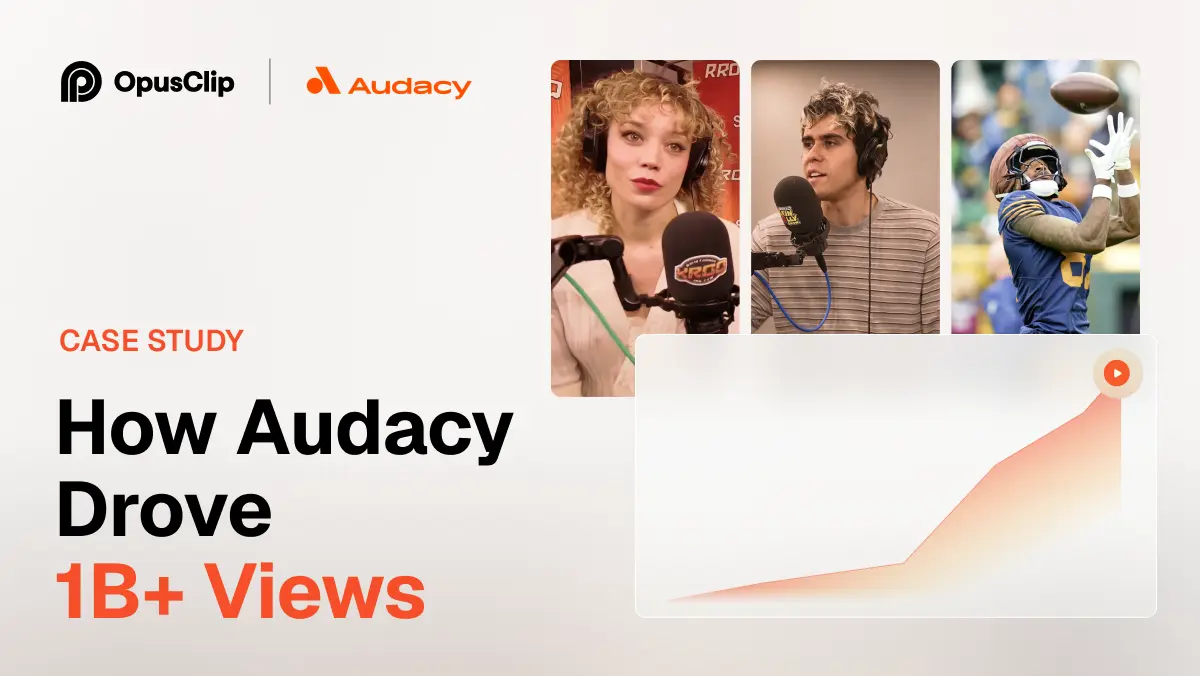
How Audacy Drove 1B+ Views by Taking a Tech-Forward Approach to Radio with OpusClip
No items found.

How Audacy Drove 1B+ Views by Taking a Tech-Forward Approach to Radio with OpusClip

How All the Smoke makes hit compilations faster with OpusSearch

How All the Smoke makes hit compilations faster with OpusSearch

Growing a new channel to 1.5M views in 90 days without creating new videos

Growing a new channel to 1.5M views in 90 days without creating new videos

OpusClip 4.0 is here. Become a content powerhouse.

How to Clip GTA 6 Streams With OpusClip's Clip Gaming Streams Recipe

Three creators reacting at a gaming desk, a podcast mic and a phone showing a captioned vertical clip, with TikTok and YouTube Shorts badges and a Clip it button
No items found.
No items found.

Boost your social media growth with OpusClip

Create and post one short video every day for your social media and grow faster.

How to Clip GTA 6 Streams With OpusClip's Clip Gaming Streams Recipe

Three creators reacting at a gaming desk, a podcast mic and a phone showing a captioned vertical clip, with TikTok and YouTube Shorts badges and a Clip it button

The fastest way to clip GTA 6 streams with OpusClip is the built-in Clip gaming streams Recipe. Paste a stream or VOD link, add a line about the moments you want, and click Create. The Recipe already has ClipAnything set to the Gaming content type, with captions and a headline turned on, so you get short vertical clips that put the facecam on top and the game below. This guide walks through each setting as it appears in the app today, then covers how to check clips before you post them.

OpusClip is an independent video tool. It is not affiliated with Rockstar Games or Take-Two Interactive, and this guide covers clipping footage you have the right to use, such as your own streams or a streamer's clips posted through a campaign that allows it.

What the Clip gaming streams Recipe does

A Recipe in OpusClip is a saved set of edits. You pick one, add a video, and every setting in it runs on that video. Clip gaming streams is a built-in Recipe. Its card in the app reads: "AI finds the clutch plays and reactions. Facecam on top, game below."

When you open it, these settings are already in place:

  • Clipping: on. The Recipe cuts the long video into short clips instead of editing it as one video.
  • AI picks: ClipAnything. ClipAnything is OpusClip's clipping model for any kind of video. It reads visual, audio and sentiment cues, so it can find moments that have little or no talking.
  • Content type: Gaming. Gaming has five narrative templates, all switched on: Funny moment, Clutch moment, Emotional clip, Pro tips and strategies, and Reaction moment.
  • Clip length: under 30 seconds and 30 to 59 seconds. Both ranges suit TikTok, YouTube Shorts and Instagram Reels.
  • Captions: on. Animated captions are added to every clip. You can switch to a different caption style before you start.
  • Auto hook: on, set to Headline. Each clip gets a headline over its opening. There are four headline styles: Editorial, Statement, Sunset and Classic.
  • Everything else: off. Motion graphics, AI emojis, B-roll, speech cleanup and the other edits stay off, so the Recipe does the clip job and nothing more.
OpusClip Clip gaming streams Recipe page with the video link box, Recipe and brand kit pickers, Clipping switched on, ClipAnything selected and the Gaming content type chosen

How to clip GTA 6 streams with the Recipe, step by step

Step 1: Open the Recipe

Go to clip.opus.pro/recipes/gaming-streams. If you are signed out, the link takes you to sign up or sign in and then brings you back to the Recipe. You can also open it from the Recipes list on your OpusClip dashboard.

Step 2: Add the stream

Paste a link in the "Drop a YouTube link" box, or click Upload or Google Drive. OpusClip takes links from supported sources including YouTube, Twitch and X. Uploaded files can run up to 10 hours, so a full launch-night VOD fits in one project. If a stream isn't on a supported site, download the VOD (only if you have the right to) and upload the file.

Step 3: Check the Gaming templates

Click the settings icon on the Gaming chip to open Gaming narrative templates. All five are on by default. Turn off any you don't want. For a GTA 6 tips page, you might keep only Pro tips and strategies. For a reaction page, keep Reaction moment, Funny moment and Clutch moment. Click Save.

Gaming narrative templates dialog in OpusClip with Funny moment, Clutch moment, Emotional clip, Pro tips and strategies, and Reaction moment all switched on

Step 4: Tell the AI which moments to keep

Below the content types, "Moments to include (optional)" takes a plain-English prompt. A specific prompt works better than a vague one. Some prompts that fit GTA 6 streams:

  • Reactions: "Moments where the streamer shouts, laughs hard or can't believe what happened."
  • Chases and close calls: "Police chases, crashes and escapes that end with a big reaction."
  • Tips: "Moments where the streamer explains a trick, a hidden spot or a faster way to do something."
  • First-time moments: "The first time the streamer sees a new area, car or mission, with their reaction."

Step 5: Pick a caption style, headline style and brand kit

Captions and Auto hook are already on. Scroll through the caption styles and pick one that reads well over busy gameplay. Then pick a headline style. If you post to your own page, choose your brand kit in the Brand kit picker. It holds your logo, intro, outro and caption style, so every clip comes out matching.

Essentials section of the OpusClip gaming Recipe with Captions switched on, caption style options, and Auto hook switched on with Headline selected

Step 6: Review the summary and click Create

The Summary panel on the right lists what the project will cost before anything runs. Under it, the page reminds you that by continuing you confirm you have the rights to use the video. Click Create and OpusClip processes the stream.

Step 7: Pick the clips worth posting

Each clip gets a Virality Score from 0 to 99, based on Hook, Flow and Trend. Sort by score to see the strongest picks first, or switch to chronological order to follow the stream's timeline. Open a clip in the editor to trim the start, fix a caption or change the headline before you export.

Save it as your own GTA 6 Recipe

Once your settings work, save them so the next stream takes one click. Change any setting on the built-in Recipe and click Save next to "Save your Recipe updates?". Give it a name like "GTA 6 reactions" and it appears under My custom Recipes. This creates a new Recipe and leaves the built-in one as it was. The help center has the full steps for custom Recipes.

Recipe vs clipping GTA 6 by hand

  • Clip gaming streams Recipe: one link in, a set of captioned vertical clips out, with the moments picked by ClipAnything and ranked by Virality Score. Best when you clip long streams often.
  • By hand in an editor: you scrub the VOD, cut each moment, reframe it to 9:16 and type or generate captions yourself. Full control, but a multi-hour stream takes hours to work through.
  • A do-it-yourself script with Claude Code: some GTA 6 repos on GitHub run ffmpeg and speech-to-text on your own machine. They are flexible, but you install and maintain the pipeline, and moment picking is only as good as the script. Our roundup of MCP servers and Claude skills for clipping GTA 6 streams compares them.

Run the same Recipe from Claude

The Recipe also runs through OpusClip's MCP server, so Claude, Claude Code or Cursor can start it for you. Claude lists the Recipes, asks OpusClip for a quote first, and starts the run only after you confirm. We wrote a copy-paste Claude prompt for clipping GTA 6 streams that does this, and our GTA 6 clipping with Claude page covers the connection setup.

Before you post GTA 6 clips

  • Use footage you have rights to. Clip your own streams, or a streamer's content only where they allow it, for example through a clipping campaign that lists them. Read each campaign's rules before you post. Our guide to Content Rewards explains how those campaigns work.
  • Credit the streamer. Name or tag the creator in the caption or post, as the campaign asks.
  • Add something of your own. A hook, a headline or a tip makes the clip yours rather than a plain re-upload.
  • Mark story spoilers. Plenty of viewers haven't finished the game. Say "spoiler" in the headline or keep story moments out of the clip.
  • Skip leaks and "play early" posts. They get taken down and can cost you the account.

Other GTA 6 tools from OpusClip

Frequently asked questions

Is there an OpusClip Recipe made for gaming streams?

Yes. Clip gaming streams is a built-in Recipe at clip.opus.pro/recipes/gaming-streams. It uses ClipAnything with the Gaming content type, cuts clips under 30 seconds and 30 to 59 seconds, and turns on captions and a headline.

Can OpusClip clip a GTA 6 Twitch VOD?

Yes. Twitch is one of the supported link sources, along with YouTube and X. You can also upload a file of up to 10 hours.

Which GTA 6 moments does the Recipe look for?

The Gaming content type has five templates: Funny moment, Clutch moment, Emotional clip, Pro tips and strategies, and Reaction moment. You can switch off any of them and add your own prompt under Moments to include.

Can I change the Recipe and keep my settings?

Yes. Change any setting, click Save when the app asks to save your Recipe updates, and name it. It is saved as a custom Recipe, and the built-in one stays the same.

Is OpusClip affiliated with Rockstar Games?

No. OpusClip is an independent video tool and is not affiliated with Rockstar Games or Take-Two Interactive. Only clip GTA 6 footage you have the right to use.

Can I run the gaming Recipe from Claude?

Yes. OpusClip's MCP server can list Recipes and run one on a video link. Claude asks for a quote first and starts the run only after you confirm. See our Claude prompt guide for GTA 6 streams.

Ready to start streaming differently?

Opus is completely FREE for one year for all private beta users. You can get access to all our premium features during this period. We also offer free support for production, studio design, and content repurposing to help you grow.
Join the beta
Limited spots remaining

Try OPUS today

Try Opus Studio

Make your live stream your Magnum Opus