No items found.
OpenAI Dots for Creators: 10 Video Jobs to Give Your First Dot
September 29, 2026
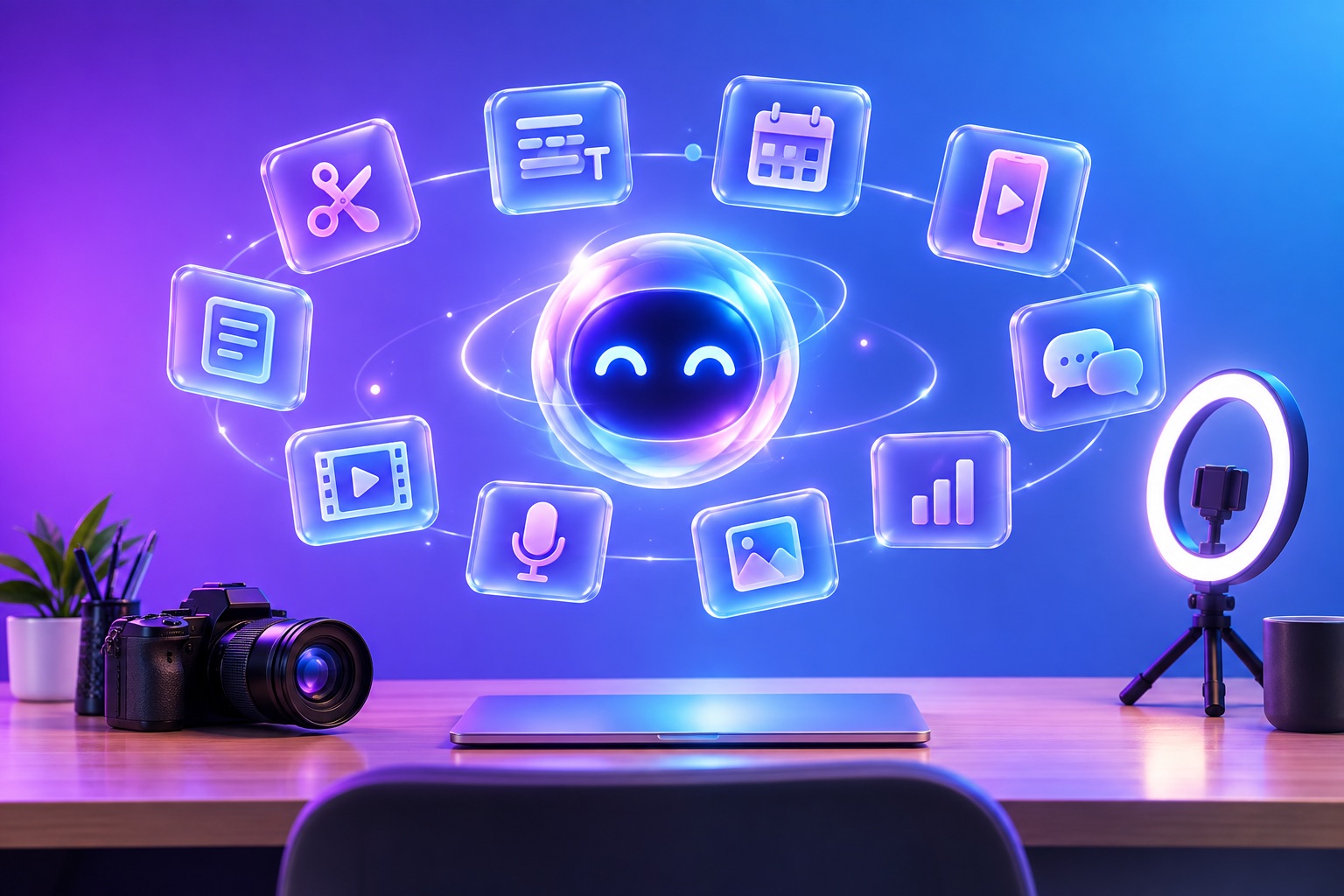
OpenAI Dots give creators an always-on assistant, and the most valuable jobs to hand one involve video. Paired with OpusClip, a Dot can clip long videos into shorts, fix captions, build a posting calendar, repurpose old uploads, and keep your channels active while you create. Below are 10 video jobs you can give your first Dot today, each with a prompt you can copy.
Dots launched at OpenAI DevDay on September 29, 2026. Each Dot has its own cloud computer and browser, works with the apps you connect, and keeps going when you close ChatGPT. The first Dot is included in ChatGPT Pro and Business Premium at launch. For video work, connect OpusClip first using our guide on how to connect OpusClip to OpenAI Dots.
OpenAI Dots for creators: what a Dot actually does
A Dot is not a chatbot you check in with. It is closer to a production assistant that takes a standing instruction and keeps carrying it out. According to OpenAI, Dots can monitor projects, respond to changing information, learn your preferences from feedback, work on several projects at once, and bring finished work back for approval. That maps directly onto the parts of a creator's week that repeat: clipping, captioning, posting, and keeping track of what performed.
10 OpenAI Dots use cases: video jobs to give your first Dot
Each use case below comes with one of our OpenAI Dots prompts for video. Paste it into your Dot and swap in your own details.
1. Clip every new long video into shorts
The highest-leverage job, and the one that makes an always-on AI agent for YouTubers worth it. When you publish a long video, the Dot sends it to OpusClip, keeps the strongest vertical clips, and queues them for your approval.
Whenever I publish a new video on [channel URL], send it to OpusClip and keep the 5 best vertical clips under 60 seconds with captions. Send me the shortlist and wait for approval.
Want the full playbook? See how to set up a Dot that clips every new podcast episode. It works for any long-form show, not only podcasts.
2. Build a week of posts from one video
One recording can fill a week. The Dot spreads approved clips across your accounts at the times your audience is active.
Take the approved clips from this week's video and schedule one per day at 9am Eastern to YouTube Shorts, TikTok, and Instagram Reels. Use a different clip on LinkedIn on Tuesday and Thursday.
3. Repurpose your back catalog
Old videos with proven ideas are the easiest wins. The Dot can work through your archive a few videos at a time, since OpusClip processes up to four projects at once.
Go through my 20 most-viewed videos from last year, four at a time. For each, pull the 3 best clips with OpusClip and add them to a collection called "Evergreen." Do not post anything.
4. Clean up captions across a batch
Caption errors on names and brand terms are common and tedious to fix. The Dot can read transcripts and apply fixes clip by clip.
Check the captions on every clip in my "This week" collection. Fix any misspelling of [guest name] and [product name], and highlight keywords in my brand color.
5. Tighten clips with plain-language edits
OpusClip accepts edits such as removing filler words and pauses, trimming or reordering sections, and moving captions, so the Dot can polish without a timeline.
For clips 2 and 4, remove filler words and long pauses, cut the first sentence, and move captions up so they clear the TikTok buttons.
6. Write platform-native captions and hashtags
The same clip needs different copy on each platform. OpusClip generates platform-specific titles, descriptions, and hashtags that the Dot can adapt to your voice.
Write a YouTube Shorts title, a TikTok caption with 3 hashtags, and a LinkedIn post for each approved clip. Match the tone of my last 10 posts.
7. Turn a livestream into highlights the same day
Streams are long and the best moments go stale fast. The Dot can pick them up as soon as the recording is available.
When my stream ends and the recording appears on [platform], clip it with OpusClip and send me the 5 best moments within the hour.
8. Keep your posting calendar full
Gaps kill momentum. The Dot can check your schedule and fill empty days from your evergreen collection.
Every Sunday, check my scheduled posts for the coming week. If any day has no post, fill it with an unused clip from my "Evergreen" collection and tell me what you added.
9. Make clips safe for every platform
Some audiences and platforms are stricter than others. OpusClip can bleep or mask flagged content before a clip goes out.
Before scheduling any clip to LinkedIn, run it through OpusClip's censor step to bleep profanity, then show me the result.
10. Deliver clips to your team or clients
For agencies and creators with editors, the Dot can package approved clips and share them.
Export HD download links for every clip in the "Client A - October" collection and send them to me in Slack with the post copy for each.
Which jobs to start with
- Start here: job 1 (auto-clipping) and job 6 (post copy). They save the most time and are easy to review.
- Add in week two: job 2 (weekly schedule) and job 8 (calendar gaps), once you trust the clip picks.
- Add when you have volume: job 3 (back catalog), job 4 (caption cleanup), and job 10 (team delivery).
- Use as needed: jobs 5, 7, and 9 for polishing, live content, and stricter platforms.
Rules that keep your Dot on brand
- Require approval for posting: Dots support custom rules that allow, block, or require approval for specific actions. Gate posting and scheduling until you trust the output.
- Use a brand template: set your caption style once in OpusClip so every clip looks consistent.
- Give feedback in words: Dots learn your preferences from feedback, so tell it why you rejected a clip, not just that you did.
- Watch usage: ask the Dot to report remaining OpusClip usage each week. Pro and Max API access includes 15 hours or 900 credits per workspace per month.
Why the video tool matters more than the agent
Any AI agent for content creators decides what to do, and the connected tool decides how good the result is. A general agent can click through websites or run scripts, but it cannot judge which moment in a two-hour video will hold attention, track a speaker for vertical framing, or time captions to the word on its own. That is why we built OpusClip to plug into agents directly. For a full comparison of options, read our guide to the best video editing bot for OpenAI Dots.
Frequently asked questions
What can OpenAI Dots do for creators?
Dots can run repeatable creator work in the background: clipping new videos into shorts, fixing captions, writing platform copy, filling a posting calendar, and repurposing old content. For video tasks they need a connected editing tool such as OpusClip.
Is OpenAI Dots free for creators?
At launch, the first Dot is included in ChatGPT Pro and Business Premium at no extra cost. OpusClip tools require an OpusClip Pro, Max, or Business plan.
Can a Dot run my social media accounts?
With OpusClip connected, a Dot can post and schedule clips to YouTube, TikTok, Instagram Reels, Facebook Pages, LinkedIn, X, Pinterest, Threads, and Bluesky. We recommend keeping approval on for your main accounts.
Do I need to know how to code?
No. You give a Dot instructions in plain language, and OpusClip connects through a sign-in, not an API key.
Can I have more than one Dot?
At launch, you get one primary Dot. OpenAI has said it plans to let people run teams of Dots in the future.