How to Connect OpusClip to OpenAI Dots: Setup Guide

September 29, 2026
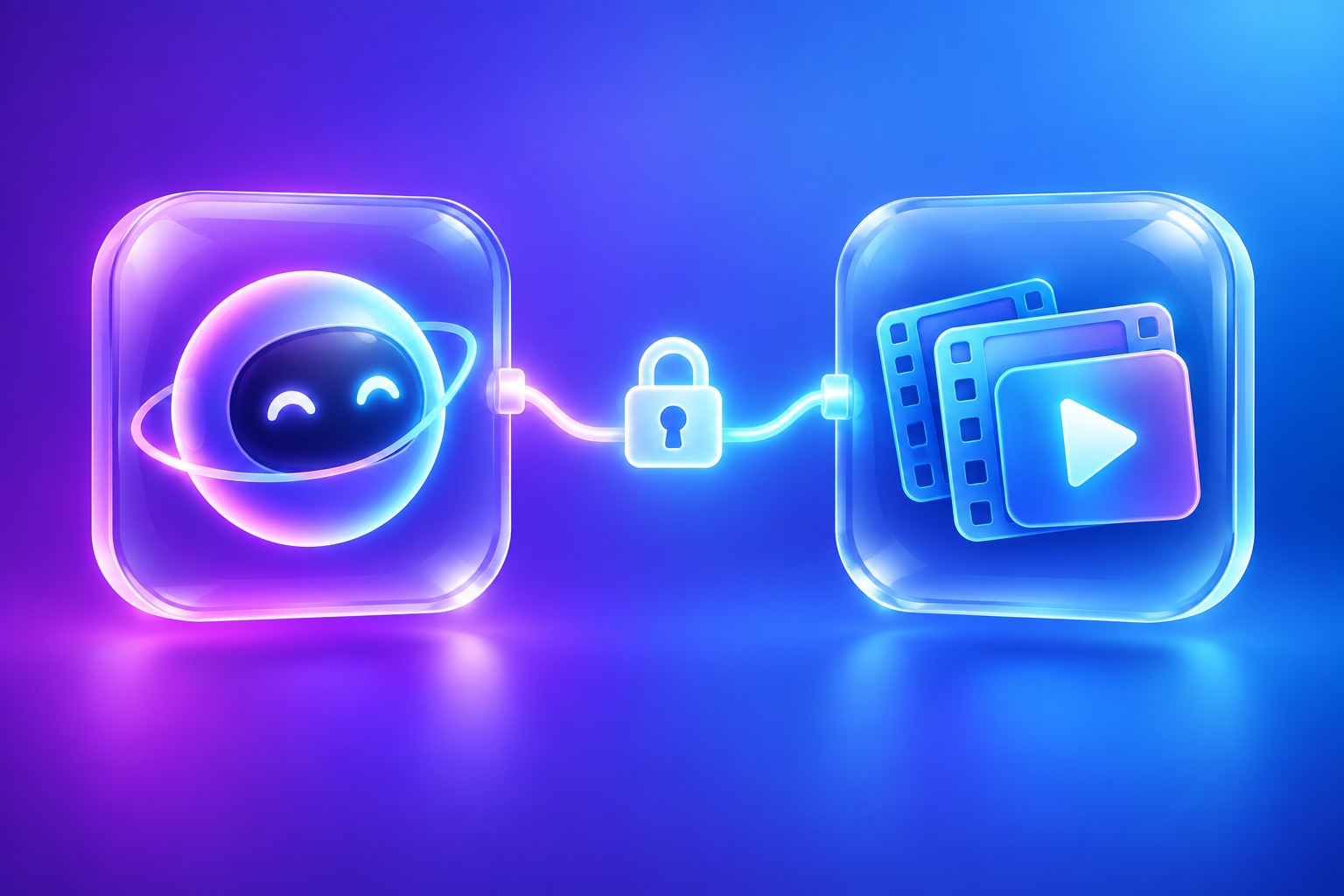
Two glowing app tiles joined by a bright connector line, one representing an AI agent and one a video clip

To connect OpusClip to OpenAI Dots, add OpusClip as an app in ChatGPT, sign in to your OpusClip account, and then give your Dot a video task in plain language. Dots use the apps you have connected in ChatGPT, so once OpusClip is linked, your Dot can clip, caption, edit, and schedule video for you around the clock. The whole setup takes about five minutes.

This guide covers what you need, the exact steps, the approval rules we recommend, and how to fix the most common connection errors.

Before you start: what you need

  • A ChatGPT plan that includes Dots: OpenAI includes the first Dot in Pro and Business Premium at launch. Enterprise, Edu, and Healthcare workspaces get beta access once an admin turns it on. OpenAI says Pro users in the European Economic Area, Switzerland, and the UK cannot use Dots yet, while Business Premium works in all supported ChatGPT regions.
  • A Dot of your own: if you have not set up OpenAI Dots yet, create your primary Dot in ChatGPT first. You can name and customize it.
  • An OpusClip account: any account can sign in and see the tool list. Running tools such as clipping or scheduling requires an OpusClip Pro, Max, or Business plan.
  • Social accounts linked in OpusClip (optional): connect YouTube, TikTok, Instagram, LinkedIn, and others in OpusClip first if you want your Dot to publish.

How to add apps to OpenAI Dots, and how Dots use them

Each Dot has its own cloud computer and browser, and it can use the apps you have connected. OpenAI says Dots reach more than 4,000 applications through its plugin ecosystem. Connecting an app gives the Dot a direct, structured way to use that service instead of clicking around a website, which makes tasks faster and much more reliable. In practice, OpenAI Dots plugins are the apps you connect in ChatGPT, so adding OpusClip to ChatGPT is what gives your Dot video skills.

OpusClip connects using the Model Context Protocol (MCP), the open standard that lets AI agents call tools in other products. If the acronym is new, here is what MCP means for video editing.

Step 1: Add OpusClip in ChatGPT

  1. Open ChatGPT and go to the apps (plugins) directory.
  2. Search for OpusClip and select the OpusClip ChatGPT app.
  3. Choose Connect.

If OpusClip does not appear in your workspace, an admin may need to allow it, or you can take the OpenAI Dots MCP route and add it as a custom connector using the hosted server address below. Custom connectors may require developer mode in your ChatGPT settings.

https://mcp.opus.pro/mcp

Step 2: Sign in and pick your workspace

ChatGPT opens the OpusClip sign-in screen. Sign in with the same method you used to create your OpusClip account (email, Google, or Apple). There is no API key to copy.

If you belong to more than one OpusClip workspace, choose carefully on the consent screen. The connection stays tied to the workspace you pick. To switch later, disconnect OpusClip and reconnect, choosing the other workspace.

Step 3: Confirm your Dot can see OpusClip

Send your Dot a quick check:

Which OpusClip workspace are you connected to, and how much of this month's usage is left?

The Dot should answer with your workspace name and usage. That confirms the connection works before you hand it real work.

Step 4: Set approval rules for publishing

This is the step most people skip, and it is the one that matters. Dots start with built-in rules for when to act alone and when to ask for approval, and you can add custom rules that allow, block, or require approval for specific actions.

We recommend this starting setup:

  • Allow: submitting videos, reading transcripts, editing clips, generating captions and social copy, and creating collections.
  • Require approval: posting a clip, scheduling a clip, and sharing a project publicly.
  • Block: nothing at first. Tighten if you share the Dot with a team.

With this setup, your Dot does all the editing unattended and only pings you when a clip is ready to go live.

Step 5: Give your Dot its first video job

Start with something small and concrete:

Clip this video with OpusClip and give me the 5 best vertical clips under 60 seconds, with captions. Remove filler words. Then draft a TikTok caption for each one and wait for my approval before scheduling. https://youtube.com/watch?v=...

OpusClip needs a few minutes to process a long video. Your Dot will check back on its own and report when the clips are ready, which is exactly how always-on agents are supposed to work.

What your Dot can do once OpusClip is connected

  • Clip: turn a video from YouTube, Vimeo, Google Drive, Dropbox, Zoom, Loom, and other sources into ranked short clips.
  • Edit: toggle captions, emoji, and keyword highlights; remove filler words and pauses; trim, split, reorder, or drop sections; restyle and move captions; dub a clip.
  • Inspect: read transcripts, describe clips, and check render status.
  • Organize: create collections and export HD download links.
  • Write: generate platform-specific titles, descriptions, and hashtags.
  • Publish: post now or schedule to YouTube, TikTok, Instagram Reels, Facebook Pages, LinkedIn, X, Pinterest, Threads, and Bluesky.

The complete list lives in our reference to every tool in the OpusClip MCP server.

Troubleshooting

  • Sign-in fails or says "No matching client": sign in with the same identity provider you used to create your OpusClip account.
  • "API access not enabled for this org": your OpusClip workspace needs a Pro, Max, or Business plan to run tools.
  • Repeated 401 errors: remove the OpusClip connection in ChatGPT and add it again.
  • 403 errors: the monthly usage cap (15 hours or 900 credits per workspace) has been reached. It resets on the first day of the next month (UTC).
  • 429 errors: four projects are already processing. Wait for one to finish; your Dot can retry on its own.
  • Wrong workspace: disconnect and reconnect, picking the right workspace on the consent screen.

Next steps

Once the connection works, turn it into an always-on routine. Our guide shows how to set up a Dot that clips every new podcast episode, and our roundup covers 10 video jobs to give your first Dot. If you are still choosing a tool, compare the options in our guide to the best video editing bot for OpenAI Dots.

Frequently asked questions

How do I connect OpusClip to OpenAI Dots?

Add OpusClip from the apps directory in ChatGPT, sign in to your OpusClip account, and choose your workspace. Your Dot can then use OpusClip in any task. If the app is not visible, add the hosted server https://mcp.opus.pro/mcp as a custom connector.

Do I need an API key?

No. OpusClip uses a secure sign-in when you connect, so there is no key to copy or store.

Is connecting OpusClip to a Dot free?

Connecting is free for any OpusClip account. Running tools such as clipping, editing, and scheduling requires an OpusClip Pro, Max, or Business plan, and uses credits like normal OpusClip projects.

Can my Dot post without asking me?

Only if you let it. Add a custom rule that requires approval for posting and scheduling, and your Dot will ask before anything goes live.

Does this work with Dots in Slack or Microsoft Teams?

Dots can be reached in ChatGPT, Slack, and Microsoft Teams. The OpusClip connection lives on the Dot, so you can ask for clips from whichever of those places you work in.
On this page

Use our Free Forever Plan

Find the moment. Skip the scrubbing.

From script to polished video — in one click.

Create and post one short video every day for free, and grow faster.

OpusSearch uses AI to surface the exact clip you need from hours of footage — in seconds, not afternoons.

Agent Opus runs the entire video pipeline for you: research, scriptwriting, storyboarding, motion, voice, and edit. Upload the idea, post the result.

How to Connect OpusClip to OpenAI Dots: Setup Guide

To connect OpusClip to OpenAI Dots, add OpusClip as an app in ChatGPT, sign in to your OpusClip account, and then give your Dot a video task in plain language. Dots use the apps you have connected in ChatGPT, so once OpusClip is linked, your Dot can clip, caption, edit, and schedule video for you around the clock. The whole setup takes about five minutes.

This guide covers what you need, the exact steps, the approval rules we recommend, and how to fix the most common connection errors.

Before you start: what you need

  • A ChatGPT plan that includes Dots: OpenAI includes the first Dot in Pro and Business Premium at launch. Enterprise, Edu, and Healthcare workspaces get beta access once an admin turns it on. OpenAI says Pro users in the European Economic Area, Switzerland, and the UK cannot use Dots yet, while Business Premium works in all supported ChatGPT regions.
  • A Dot of your own: if you have not set up OpenAI Dots yet, create your primary Dot in ChatGPT first. You can name and customize it.
  • An OpusClip account: any account can sign in and see the tool list. Running tools such as clipping or scheduling requires an OpusClip Pro, Max, or Business plan.
  • Social accounts linked in OpusClip (optional): connect YouTube, TikTok, Instagram, LinkedIn, and others in OpusClip first if you want your Dot to publish.

How to add apps to OpenAI Dots, and how Dots use them

Each Dot has its own cloud computer and browser, and it can use the apps you have connected. OpenAI says Dots reach more than 4,000 applications through its plugin ecosystem. Connecting an app gives the Dot a direct, structured way to use that service instead of clicking around a website, which makes tasks faster and much more reliable. In practice, OpenAI Dots plugins are the apps you connect in ChatGPT, so adding OpusClip to ChatGPT is what gives your Dot video skills.

OpusClip connects using the Model Context Protocol (MCP), the open standard that lets AI agents call tools in other products. If the acronym is new, here is what MCP means for video editing.

Step 1: Add OpusClip in ChatGPT

  1. Open ChatGPT and go to the apps (plugins) directory.
  2. Search for OpusClip and select the OpusClip ChatGPT app.
  3. Choose Connect.

If OpusClip does not appear in your workspace, an admin may need to allow it, or you can take the OpenAI Dots MCP route and add it as a custom connector using the hosted server address below. Custom connectors may require developer mode in your ChatGPT settings.

https://mcp.opus.pro/mcp

Step 2: Sign in and pick your workspace

ChatGPT opens the OpusClip sign-in screen. Sign in with the same method you used to create your OpusClip account (email, Google, or Apple). There is no API key to copy.

If you belong to more than one OpusClip workspace, choose carefully on the consent screen. The connection stays tied to the workspace you pick. To switch later, disconnect OpusClip and reconnect, choosing the other workspace.

Step 3: Confirm your Dot can see OpusClip

Send your Dot a quick check:

Which OpusClip workspace are you connected to, and how much of this month's usage is left?

The Dot should answer with your workspace name and usage. That confirms the connection works before you hand it real work.

Step 4: Set approval rules for publishing

This is the step most people skip, and it is the one that matters. Dots start with built-in rules for when to act alone and when to ask for approval, and you can add custom rules that allow, block, or require approval for specific actions.

We recommend this starting setup:

  • Allow: submitting videos, reading transcripts, editing clips, generating captions and social copy, and creating collections.
  • Require approval: posting a clip, scheduling a clip, and sharing a project publicly.
  • Block: nothing at first. Tighten if you share the Dot with a team.

With this setup, your Dot does all the editing unattended and only pings you when a clip is ready to go live.

Step 5: Give your Dot its first video job

Start with something small and concrete:

Clip this video with OpusClip and give me the 5 best vertical clips under 60 seconds, with captions. Remove filler words. Then draft a TikTok caption for each one and wait for my approval before scheduling. https://youtube.com/watch?v=...

OpusClip needs a few minutes to process a long video. Your Dot will check back on its own and report when the clips are ready, which is exactly how always-on agents are supposed to work.

What your Dot can do once OpusClip is connected

  • Clip: turn a video from YouTube, Vimeo, Google Drive, Dropbox, Zoom, Loom, and other sources into ranked short clips.
  • Edit: toggle captions, emoji, and keyword highlights; remove filler words and pauses; trim, split, reorder, or drop sections; restyle and move captions; dub a clip.
  • Inspect: read transcripts, describe clips, and check render status.
  • Organize: create collections and export HD download links.
  • Write: generate platform-specific titles, descriptions, and hashtags.
  • Publish: post now or schedule to YouTube, TikTok, Instagram Reels, Facebook Pages, LinkedIn, X, Pinterest, Threads, and Bluesky.

The complete list lives in our reference to every tool in the OpusClip MCP server.

Troubleshooting

  • Sign-in fails or says "No matching client": sign in with the same identity provider you used to create your OpusClip account.
  • "API access not enabled for this org": your OpusClip workspace needs a Pro, Max, or Business plan to run tools.
  • Repeated 401 errors: remove the OpusClip connection in ChatGPT and add it again.
  • 403 errors: the monthly usage cap (15 hours or 900 credits per workspace) has been reached. It resets on the first day of the next month (UTC).
  • 429 errors: four projects are already processing. Wait for one to finish; your Dot can retry on its own.
  • Wrong workspace: disconnect and reconnect, picking the right workspace on the consent screen.

Next steps

Once the connection works, turn it into an always-on routine. Our guide shows how to set up a Dot that clips every new podcast episode, and our roundup covers 10 video jobs to give your first Dot. If you are still choosing a tool, compare the options in our guide to the best video editing bot for OpenAI Dots.

Frequently asked questions

How do I connect OpusClip to OpenAI Dots?

Add OpusClip from the apps directory in ChatGPT, sign in to your OpusClip account, and choose your workspace. Your Dot can then use OpusClip in any task. If the app is not visible, add the hosted server https://mcp.opus.pro/mcp as a custom connector.

Do I need an API key?

No. OpusClip uses a secure sign-in when you connect, so there is no key to copy or store.

Is connecting OpusClip to a Dot free?

Connecting is free for any OpusClip account. Running tools such as clipping, editing, and scheduling requires an OpusClip Pro, Max, or Business plan, and uses credits like normal OpusClip projects.

Can my Dot post without asking me?

Only if you let it. Add a custom rule that requires approval for posting and scheduling, and your Dot will ask before anything goes live.

Does this work with Dots in Slack or Microsoft Teams?

Dots can be reached in ChatGPT, Slack, and Microsoft Teams. The OpusClip connection lives on the Dot, so you can ask for clips from whichever of those places you work in.

Creator name

Creator type

Team size

Channels

linkYouTubefacebookXTikTok

Pain point

Time to see positive ROI

About the creator

Don't miss these

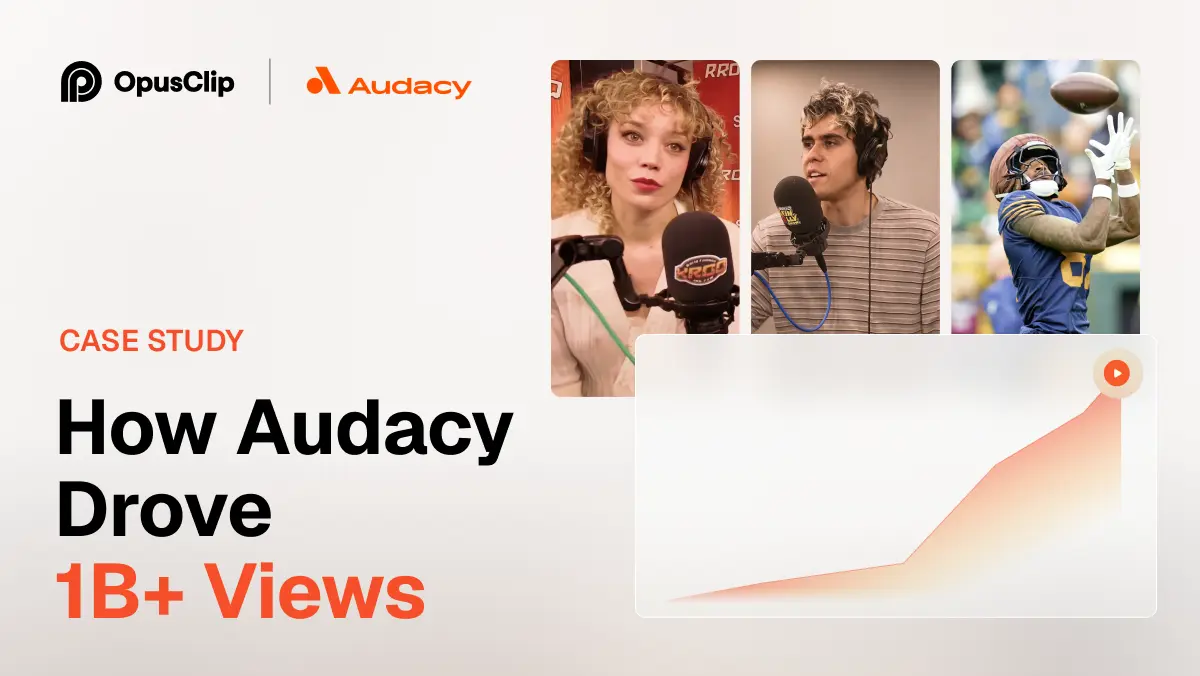
How Audacy Drove 1B+ Views by Taking a Tech-Forward Approach to Radio with OpusClip
No items found.

How Audacy Drove 1B+ Views by Taking a Tech-Forward Approach to Radio with OpusClip

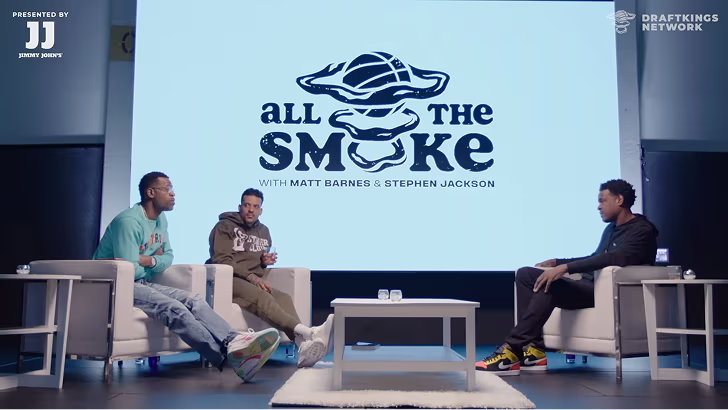
How All the Smoke makes hit compilations faster with OpusSearch

How All the Smoke makes hit compilations faster with OpusSearch

Growing a new channel to 1.5M views in 90 days without creating new videos

Growing a new channel to 1.5M views in 90 days without creating new videos

How to Connect OpusClip to OpenAI Dots: Setup Guide

Two glowing app tiles joined by a bright connector line, one representing an AI agent and one a video clip
No items found.
No items found.

Boost your social media growth with OpusClip

Create and post one short video every day for your social media and grow faster.

How to Connect OpusClip to OpenAI Dots: Setup Guide

Two glowing app tiles joined by a bright connector line, one representing an AI agent and one a video clip

To connect OpusClip to OpenAI Dots, add OpusClip as an app in ChatGPT, sign in to your OpusClip account, and then give your Dot a video task in plain language. Dots use the apps you have connected in ChatGPT, so once OpusClip is linked, your Dot can clip, caption, edit, and schedule video for you around the clock. The whole setup takes about five minutes.

This guide covers what you need, the exact steps, the approval rules we recommend, and how to fix the most common connection errors.

Before you start: what you need

  • A ChatGPT plan that includes Dots: OpenAI includes the first Dot in Pro and Business Premium at launch. Enterprise, Edu, and Healthcare workspaces get beta access once an admin turns it on. OpenAI says Pro users in the European Economic Area, Switzerland, and the UK cannot use Dots yet, while Business Premium works in all supported ChatGPT regions.
  • A Dot of your own: if you have not set up OpenAI Dots yet, create your primary Dot in ChatGPT first. You can name and customize it.
  • An OpusClip account: any account can sign in and see the tool list. Running tools such as clipping or scheduling requires an OpusClip Pro, Max, or Business plan.
  • Social accounts linked in OpusClip (optional): connect YouTube, TikTok, Instagram, LinkedIn, and others in OpusClip first if you want your Dot to publish.

How to add apps to OpenAI Dots, and how Dots use them

Each Dot has its own cloud computer and browser, and it can use the apps you have connected. OpenAI says Dots reach more than 4,000 applications through its plugin ecosystem. Connecting an app gives the Dot a direct, structured way to use that service instead of clicking around a website, which makes tasks faster and much more reliable. In practice, OpenAI Dots plugins are the apps you connect in ChatGPT, so adding OpusClip to ChatGPT is what gives your Dot video skills.

OpusClip connects using the Model Context Protocol (MCP), the open standard that lets AI agents call tools in other products. If the acronym is new, here is what MCP means for video editing.

Step 1: Add OpusClip in ChatGPT

  1. Open ChatGPT and go to the apps (plugins) directory.
  2. Search for OpusClip and select the OpusClip ChatGPT app.
  3. Choose Connect.

If OpusClip does not appear in your workspace, an admin may need to allow it, or you can take the OpenAI Dots MCP route and add it as a custom connector using the hosted server address below. Custom connectors may require developer mode in your ChatGPT settings.

https://mcp.opus.pro/mcp

Step 2: Sign in and pick your workspace

ChatGPT opens the OpusClip sign-in screen. Sign in with the same method you used to create your OpusClip account (email, Google, or Apple). There is no API key to copy.

If you belong to more than one OpusClip workspace, choose carefully on the consent screen. The connection stays tied to the workspace you pick. To switch later, disconnect OpusClip and reconnect, choosing the other workspace.

Step 3: Confirm your Dot can see OpusClip

Send your Dot a quick check:

Which OpusClip workspace are you connected to, and how much of this month's usage is left?

The Dot should answer with your workspace name and usage. That confirms the connection works before you hand it real work.

Step 4: Set approval rules for publishing

This is the step most people skip, and it is the one that matters. Dots start with built-in rules for when to act alone and when to ask for approval, and you can add custom rules that allow, block, or require approval for specific actions.

We recommend this starting setup:

  • Allow: submitting videos, reading transcripts, editing clips, generating captions and social copy, and creating collections.
  • Require approval: posting a clip, scheduling a clip, and sharing a project publicly.
  • Block: nothing at first. Tighten if you share the Dot with a team.

With this setup, your Dot does all the editing unattended and only pings you when a clip is ready to go live.

Step 5: Give your Dot its first video job

Start with something small and concrete:

Clip this video with OpusClip and give me the 5 best vertical clips under 60 seconds, with captions. Remove filler words. Then draft a TikTok caption for each one and wait for my approval before scheduling. https://youtube.com/watch?v=...

OpusClip needs a few minutes to process a long video. Your Dot will check back on its own and report when the clips are ready, which is exactly how always-on agents are supposed to work.

What your Dot can do once OpusClip is connected

  • Clip: turn a video from YouTube, Vimeo, Google Drive, Dropbox, Zoom, Loom, and other sources into ranked short clips.
  • Edit: toggle captions, emoji, and keyword highlights; remove filler words and pauses; trim, split, reorder, or drop sections; restyle and move captions; dub a clip.
  • Inspect: read transcripts, describe clips, and check render status.
  • Organize: create collections and export HD download links.
  • Write: generate platform-specific titles, descriptions, and hashtags.
  • Publish: post now or schedule to YouTube, TikTok, Instagram Reels, Facebook Pages, LinkedIn, X, Pinterest, Threads, and Bluesky.

The complete list lives in our reference to every tool in the OpusClip MCP server.

Troubleshooting

  • Sign-in fails or says "No matching client": sign in with the same identity provider you used to create your OpusClip account.
  • "API access not enabled for this org": your OpusClip workspace needs a Pro, Max, or Business plan to run tools.
  • Repeated 401 errors: remove the OpusClip connection in ChatGPT and add it again.
  • 403 errors: the monthly usage cap (15 hours or 900 credits per workspace) has been reached. It resets on the first day of the next month (UTC).
  • 429 errors: four projects are already processing. Wait for one to finish; your Dot can retry on its own.
  • Wrong workspace: disconnect and reconnect, picking the right workspace on the consent screen.

Next steps

Once the connection works, turn it into an always-on routine. Our guide shows how to set up a Dot that clips every new podcast episode, and our roundup covers 10 video jobs to give your first Dot. If you are still choosing a tool, compare the options in our guide to the best video editing bot for OpenAI Dots.

Frequently asked questions

How do I connect OpusClip to OpenAI Dots?

Add OpusClip from the apps directory in ChatGPT, sign in to your OpusClip account, and choose your workspace. Your Dot can then use OpusClip in any task. If the app is not visible, add the hosted server https://mcp.opus.pro/mcp as a custom connector.

Do I need an API key?

No. OpusClip uses a secure sign-in when you connect, so there is no key to copy or store.

Is connecting OpusClip to a Dot free?

Connecting is free for any OpusClip account. Running tools such as clipping, editing, and scheduling requires an OpusClip Pro, Max, or Business plan, and uses credits like normal OpusClip projects.

Can my Dot post without asking me?

Only if you let it. Add a custom rule that requires approval for posting and scheduling, and your Dot will ask before anything goes live.

Does this work with Dots in Slack or Microsoft Teams?

Dots can be reached in ChatGPT, Slack, and Microsoft Teams. The OpusClip connection lives on the Dot, so you can ask for clips from whichever of those places you work in.

Ready to start streaming differently?

Opus is completely FREE for one year for all private beta users. You can get access to all our premium features during this period. We also offer free support for production, studio design, and content repurposing to help you grow.
Join the beta
Limited spots remaining

Try OPUS today

Try Opus Studio

Make your live stream your Magnum Opus