No items found.
Turn Screen Recordings into Social Shorts with the OpusClip API
May 13, 2026
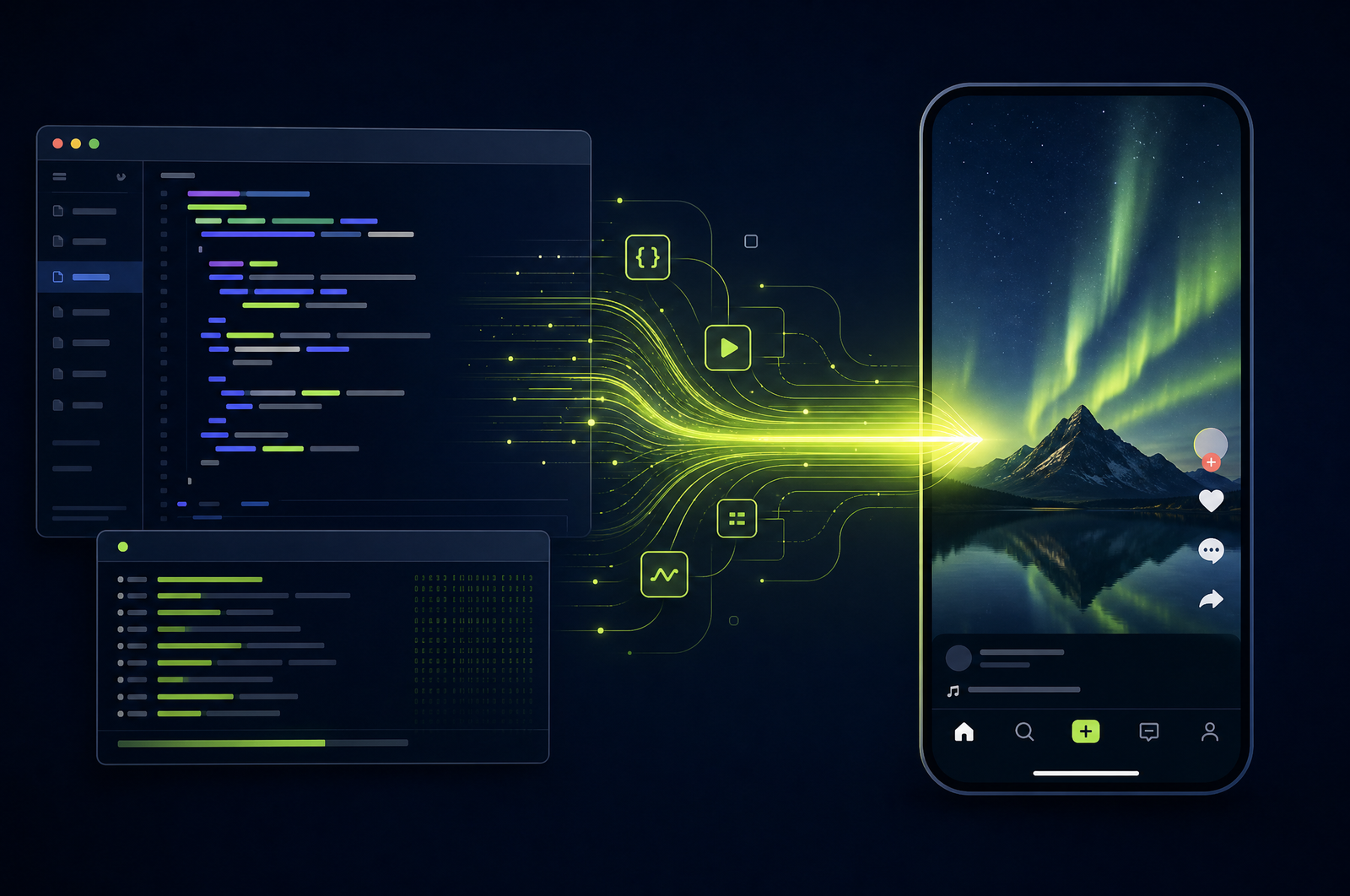
Screen recordings are everywhere in 2026 — product demos, tutorials, code walkthroughs, customer onboarding videos. They're the highest-converting marketing asset most B2B companies have. They're also almost never repurposed. The OpusClip API turns long screen recordings into snackable social shorts with smart cursor tracking, captioned narration, and platform-tuned output.
This guide is a developer-focused look at how screen-recording reframing differs from face-tracking reframing and how the OpusClip API supports both content types.
The OpusClip API is now publicly available — included on the free trial and the Pro plan, with no waitlist or sales call required. Get started at opus.pro/api, and find the full endpoint and parameter reference in the API docs.
Key takeaways
• Screen recordings need different reframing logic than talking-head video: saliency tracking (cursor, active region) instead of face tracking.
• Smart zoom — dynamically zooming into the active UI region — produces vertical output that feels hand-edited.
• Captioned narration is the highest single lever for tutorial-content performance on social.
• Works with output from Loom, ScreenStudio, Tella, OBS, ScreenFlow, Camtasia, or any standard MP4 screen recorder.
• The OpusClip API supports screen recordings as a first-class content type with saliency tracking and smart zoom built in.
Why screen recordings are underused as social content
Three reasons:
1. Production cost is already paid. Most B2B teams already record demos for sales, customer onboarding, and internal training. The content exists; it just isn't being distributed publicly.
2. Format match is excellent. Software products are inherently visual. A 30-60 second clip showing a feature working is more persuasive than 5 paragraphs of marketing copy.
3. The audience is right where you want them. Developers on YouTube and X. Designers on TikTok and Instagram. Operations folks on LinkedIn. Each platform has a meaningful audience for software demos.
Despite all that, most teams don't post screen-recording-based social content because manual editing is slow.
What a screen-recording clip pipeline does
Four stages:
1. Saliency analysis. Instead of face tracking, follow visual motion — cursor movement, highlighted text, UI changes. This identifies what the viewer's attention is on.
2. Clip selection. Same model as talking-head clip selection, but tuned for screen-recording signals (calibrated lower thresholds because the model is talking-head-tuned by default).
3. Smart zoom and reframe. When the cursor settles on a UI element, zoom in 1.5-2x to fill the vertical frame. When the cursor moves across the screen, zoom out.
4. Burn-in captions. Sound-off viewing is the norm on social. Captions are non-negotiable.
A good API ships all of these as one workflow.
What to consider when integrating
Saliency vs. face tracking. Default APIs tuned for talking heads will face-track on screen recordings and produce bad output. Confirm saliency mode is available.
Smart zoom intensity. Aggressive zoom can produce nausea-inducing motion on fast-moving content. Conservative zoom looks more like letterboxing. Tune per content type.
Cursor visibility. If your recording was made with cursor hidden, the saliency model loses its strongest signal. Always record with cursor highlighting on.
UI awareness. Some content has multiple panels (terminal + browser, IDE + preview). The API needs to handle these — either follow one panel or do side-by-side composition.
Speed-up of typing. Long typing sequences in a demo are boring. Look for APIs that detect and speed up typing without changing the audio.
Code rendering. Code on screen at 1080p source can be readable on phones; at 720p it's not. Source at 1080p minimum and use smart zoom to crop in.
Common use cases by team type
• Developer marketing. Product demo recordings → vertical clips for DevTwitter, YouTube Shorts, and dev TikTok.
• B2B SaaS. Customer onboarding videos → feature-explainer clips for marketing site and ads.
• Course creators. Tutorial recordings → social previews driving traffic back to courses.
• Design tools. Workflow demos → Instagram and TikTok content showcasing the product.
• Customer success. Internal training recordings → public-facing clips for marketing (with content review).
Common pitfalls
• Silent screen recordings. The clip selector needs spoken content. Silent demos won't produce clips. Add voiceover or use a cleanup step to skip silent segments.
• Hidden cursor. Lost saliency signal = poor reframe quality. Always record with cursor on.
• Window-switching mid-clip. Demos that switch between many apps in quick succession don't reframe cleanly. Set a minimum focus time per app.
• Tiny code that won't read on phones. Record at large zoom; let smart zoom adjust further if needed.
• Cmd+Tab transitions. Quick window switches confuse saliency tracking. Add 1-2 second holds on the new window after switching.
How the OpusClip API supports screen recordings
The OpusClip API is generally available. The screen-recording workflow is built around:
• Saliency tracking mode (cursor, UI changes, highlighted text)
• Smart zoom with configurable intensity
• Multi-panel handling (side-by-side composition for IDE + preview, terminal + browser)
• Detection and acceleration of unproductive typing
• Burn-in captions tuned for tutorial content (word-by-word reveal, highlight emphasis on technical terms)
Full endpoint and parameter reference lives in the API documentation; generate an API key from your OpusClip dashboard to start building.
FAQ
Does this work for Loom and Tella exports?
Yes — both export standard MP4 files that the API handles directly. For Loom specifically, the bubble-cam overlay is preserved automatically. See Turn Loom Recordings into Social Shorts for the Loom-specific pipeline.
Can the API skip parts where I'm fixing typos or doing throwaway typing?
Yes — typo detection and unproductive-typing skip is a standard configuration. The model detects backspace patterns and skips those segments.
What if my screen recording has multiple panels?
Smart zoom picks one focal region at a time. For dual-panel emphasis, you can set the reframer to split-screen composition that keeps both panels visible in vertical output.
Can I add my own intro/outro to each short?
Yes — pair clip generation with the render endpoint to prepend/append branded intros and outros. See Add Branded Intros and Outros.
How well does the API handle 720p screen recordings?
Acceptably, but with limits. Smart zoom past 1.5x on a 720p source produces visible pixelation. For best results, record at 1080p minimum.
Next steps
For Loom-specific pipelines, see Turn Loom Recordings into Social Shorts. For Zoom-specific workflows, see Convert Zoom Recordings to Social Clips. For full publishing automation, see Build a YouTube-to-TikTok Automation.