No items found.
AI B-Roll Generator: How to Add B-Roll to Videos Automatically
July 21, 2026
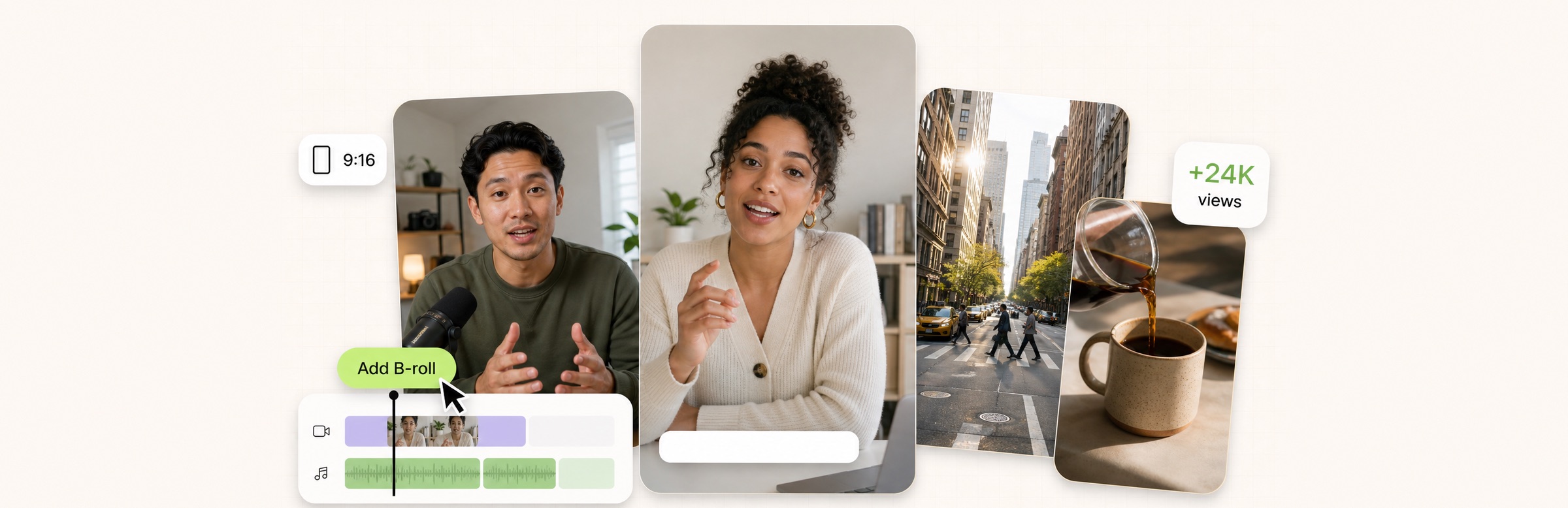
B-roll is the footage that plays over your voice — the supporting shots, clips, and visuals that cut away from your face to illustrate what you're saying. It's the single biggest thing separating a flat talking-head clip from something that looks produced. The catch has always been the work: finding relevant footage, cutting it in, and timing it to your words is slow, which is why most creators skip it. An AI B-roll generator removes that work — it reads what you're saying and adds the right supporting footage automatically.
This guide covers what B-roll is, how much to use, the types you can pull from, how it's added manually versus automatically, what an AI B-roll generator actually does under the hood, how to use it well, B-roll ideas by content type, and how our AI producer adds it for you as part of a full edit.
What is B-roll?
Every video has two layers. A-roll is your primary footage — you, talking to camera. B-roll is everything that cuts away from it: a product shot, a screen recording, stock footage of a city, an animated chart, a photo, a quick demo. When you say "our users doubled their output" and the screen briefly shows a rising graph, that graph is B-roll. It illustrates the point, adds visual variety, and covers the moment so the viewer never gets bored of a single static frame. The term comes from film, where the "A" reel held the main shots and the "B" reel held the cutaways an editor could drop in — the idea has just moved to short-form, where it matters more than ever because attention is measured in seconds.

Why B-roll matters
- Retention. Cutting to a relevant visual resets the viewer's attention. A single unbroken talking-head shot is one of the fastest ways to lose the scroll, and retention is the metric every platform's algorithm rewards most.
- Clarity. Showing the thing you're describing is more effective than describing it. B-roll does the explaining your words can't — a product in use, a before-and-after, a number on screen.
- Production value. B-roll is the cheapest way to make a phone recording look like it had a crew behind it. Two or three good cutaways change the whole perceived quality of a clip.
- Pacing. Cutaways hide edits and control rhythm, so a tightened take feels intentional rather than choppy. They give you somewhere to cut to when you remove filler.
How much B-roll should a video have?
There's no fixed ratio, but a useful rule for talking-head short-form is that B-roll should punctuate, not dominate. Cut away on the specific moments that benefit — a claim, a number, a product, a process — and return to your face in between, because the face-to-camera moments are what build trust. A common failure mode is covering the entire clip in stock footage; at that point you've made a stock-footage montage with a voiceover, not a creator video. As a rough guide, a sixty-second talking-head clip might use three to six short cutaways of two to four seconds each. Longer educational or tutorial content leans more heavily on B-roll (screen recordings, diagrams) because there's more to show.
Types of B-roll
- Stock footage. Licensed clips from libraries — the traditional source, huge selection, but the slowest to search and easy to make look generic.
- Original footage. Your own clips: the product, the workspace, the process, the result. The most authentic and on-brand option.
- Screen recordings. Essential for software, tutorials, data, and demos — often the single most useful B-roll for founders and educators.
- Motion graphics and text. Animated words, numbers, arrows, and shapes that emphasize a point or make a stat land.
- AI-generated clips. Short generated visuals for concepts you can't easily film — abstract ideas, impossible shots, stylized scenes.
- Photos and images. A single well-timed image — a screenshot, a chart, a headline — is often all a moment needs, and it's the fastest B-roll of all.
How to add B-roll manually (the slow way)
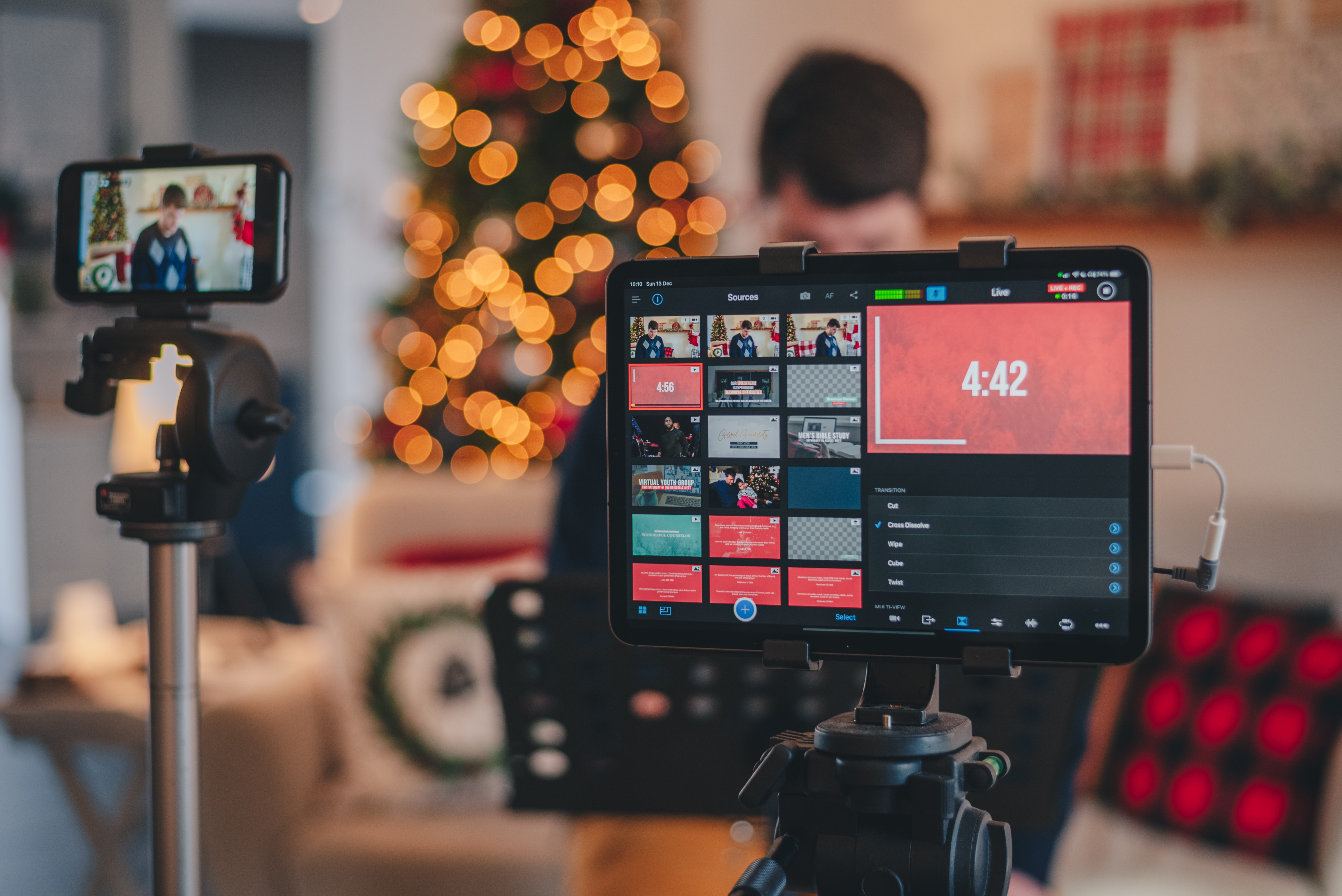
Done by hand, B-roll is a multi-step chore. You go through your transcript and mark the phrases that need illustrating. You search stock libraries or your own files for a clip that fits each one. You download the clips, import them, cut them into the timeline, trim them to length, and nudge each so it lands on the exact word. Then you adjust levels so any clip audio doesn't fight your voice, and you re-watch to make sure nothing drags. For a single sixty-second video that's easily thirty to sixty minutes of finicky work — which is precisely why so many otherwise-good talking-head videos never get any B-roll at all. The intent is there; the time isn't.
What an AI B-roll generator does
An AI B-roll generator collapses that whole chore into one pass. It transcribes your audio, analyzes the meaning of what you're saying, and detects the phrases that would benefit from a visual. For each one it either sources a relevant clip from a library or generates a matching visual, then places and times each clip on the right words automatically — so the cut lands exactly when you say the thing it illustrates. Instead of an hour of searching and trimming, you get a first cut with B-roll already in place, then adjust anything that missed. The good ones let you swap a clip in plain language ("change the B-roll at 0:12 to a screen recording") rather than digging back into a timeline, which is the difference between a tool that saves you time and one that just moves the work around.

AI-generated B-roll vs. stock B-roll
There are two ways an AI tool can supply B-roll, and they suit different needs. Sourced (stock) B-roll pulls real, licensed footage — ideal when you want something that clearly looks real (a real city, a real office, real hands typing). Generated B-roll creates a visual from scratch — useful for abstract concepts, stylized looks, or shots that would be impossible or expensive to film. In practice the strongest workflow uses both: real footage or your own clips for anything concrete, and generated visuals for the conceptual moments. The key is relevance either way — B-roll that doesn't match the words is worse than none, because it reads as filler and pulls attention away from your point.
How to use B-roll well
- Put it on the words that need it. Illustrate the specific noun, number, or moment — not every sentence.
- Keep it short. Two to four seconds is usually plenty. Long cutaways lose the thread and make viewers forget who's talking.
- Don't hide your face. In a talking-head video the trust comes from seeing you; B-roll should punctuate, not bury.
- Match the tone. The clip's energy, color, and pace should fit the moment, or it reads as random stock dropped in to fill space.
- Time it to the word. B-roll that lands a beat late feels broken. Landing the cut on the exact word it illustrates is what makes it feel produced.
- Don't overdo it. Wall-to-wall B-roll is as bad as none — it turns your video into someone else's footage.

B-roll ideas by content type
- Educational / how-to. Screen recordings, diagrams, animated steps, and text callouts that show each stage as you explain it.
- Product / SaaS. Screen captures of the product, UI close-ups, before-and-after results, and quick demos on the feature you're naming.
- Founder / thought leadership. Charts and numbers when you cite data, headlines or logos for social proof, and workspace or team shots for texture.
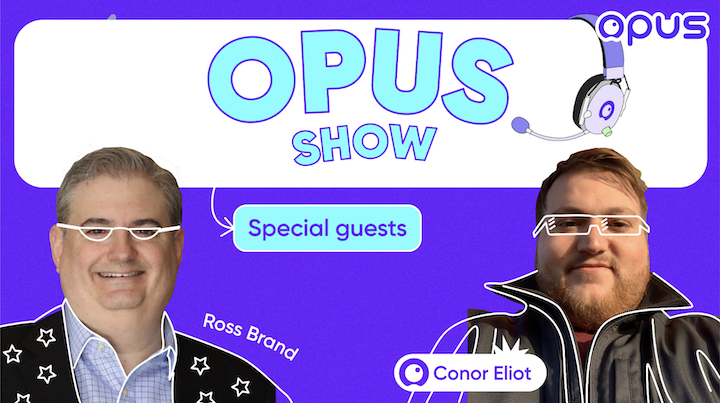
- Podcast clips. Guest names and titles as lower-thirds, topic-relevant cutaways on key points, and quote text on the sharpest lines.
B-roll for talking-head videos
Talking-head content is where B-roll earns the most, because the base shot is a person who isn't moving much. A few well-placed cutaways transform it from static to dynamic. This is also where automation matters most: if you're posting daily, you can't spend an hour per video sourcing clips. That's why our AI Producer adds B-roll as part of its automatic first edit — on your real footage — alongside captions, motion design, and music. For the full format playbook, see the complete guide to talking-head videos.
AI B-roll generator vs. stock libraries vs. manual editing
- AI B-roll generator. Detects the moments and places timed clips automatically. Fastest; best for volume and consistency, and the only option that scales to daily posting.
- Stock libraries. Huge selection, but you do all the searching, cutting, and timing yourself. Best when you want one very specific licensed clip.
- Fully manual with your own footage. Most control and most authentic, but the slowest. Best for bespoke, high-production work where every cut is deliberate.
Common B-roll mistakes
- Generic stock that doesn't match. A random office clip on an unrelated point reads as filler and cheapens the video.
- Covering your whole face-to-camera moment. You lose the connection that makes talking-head content work in the first place.
- Mistimed cuts. B-roll that lands a beat late feels broken; timing to the word is what sells it.
- Too much. If viewers forget there's a person presenting, you've over-cut.
- Loud clip audio. Forgetting to duck the audio on a sourced clip so it competes with your voice.
How AI Producer adds B-roll for you
Drop a raw talking-head clip into AI Producer by OpusClip and B-roll is handled as part of the automatic Fine Cut — detected, sourced, and timed to the phrases that need it — along with captions, motion design, music, and cleanup. Then you direct: swap a clip, move it, or remove it in plain language, or on the timeline. Because it works from your real footage, the person on screen is still you; the B-roll just makes your point land harder. If you've been searching for an AI video editor that adds B-roll without the hour of manual work, that's the job it does.
Key takeaways
- B-roll is the supporting footage that plays over your voice — the biggest single upgrade from "filmed" to "produced."
- It boosts retention, clarity, production value, and pacing, especially in talking-head video.
- Use it to punctuate, not dominate — roughly three to six short cutaways in a sixty-second clip, timed to the words that need them.
- Adding it manually takes 30–60 minutes a video; an AI B-roll generator detects the moments and places timed clips automatically.
- Sourced footage suits concrete shots, generated visuals suit abstract concepts — relevance matters more than source.
- AI Producer by OpusClip adds B-roll automatically on your real footage, then lets you direct swaps.
Add B-roll to your next video automatically
Stop hunting for stock clips. See how AI Producer by OpusClip adds timed B-roll to your real footage as part of a full edit — captions, motion, and music included. New to the category? Start with what an AI producer is, or read why we edit your real footage instead of generating an avatar.
Frequently asked questions
What is an AI B-roll generator?
An AI B-roll generator automatically adds supporting footage over your voice. It reads your transcript, detects the phrases that need a visual, sources or generates relevant clips, and times them to the right words — replacing the manual work of searching stock libraries and cutting clips into a timeline.
What is B-roll in a video?
B-roll is the supplementary footage that plays over your narration — product shots, screen recordings, stock clips, motion graphics, or photos — as opposed to A-roll, which is your primary footage of you talking to camera. B-roll illustrates your points and adds visual variety.
How do I add B-roll to a talking-head video?
Identify the phrases that need a visual, find or generate relevant clips, and cut them in timed to those words — keeping each cut short so your face stays on screen. An AI producer like AI Producer by OpusClip does this automatically as part of its edit, then lets you swap clips in plain language.
Is AI B-roll better than stock footage?
They serve different needs. Stock libraries offer a huge selection but require you to search, cut, and time everything yourself. An AI B-roll generator is faster and better for volume because it detects the moments and places timed clips automatically. Many workflows use AI first, then swap in specific stock where needed.