OpusClip 4.0 is here. Become a content powerhouse.

9 Best AI Tools for Video Creators in 2026
November 12, 2026
Creators editing on a laptop, showing a vertical video on a phone and filming with a camera and microphone, with a Clip it button, a views badge, a 9:16 tag and a YouTube icon

OpusClip is the pick for the clip stage of a video creator's workflow: it turns a long recording into short, captioned clips. The other stages have their own picks: vidIQ to plan, Claude to script, Runway to generate shots, Gling and DaVinci Resolve to cut and finish, Auphonic to polish audio, Canva for thumbnails and Publer to publish. The guide is organised by workflow stage, and the facts come from each vendor's own pages, read on November 12, 2026.

Key takeaways

  • Best for turning a long recording into short captioned clips: OpusClip. Its pricing page lists AI clipping and animated captions in 20+ languages, and its help center lists autoposting to YouTube, Instagram Reels and TikTok.
  • Best for planning videos from YouTube data: vidIQ. Its Free plan lists 150 AI credits a month, and its MCP connection works with Claude and ChatGPT.
  • Best for drafting scripts and outlines: Claude. Its help center says projects, which hold instructions and uploaded files, are on the Free plan, up to five.
  • Best for generating short shots from a prompt: Runway. Gen-4.5 takes a text prompt or an image and makes 2 to 10 second shots at 720p, and needs the Standard plan or higher.
  • Best for a fast rough cut of talking-head footage: Gling. It removes silences, filler words and bad takes, and its free plan watermarks exports and cannot export a timeline to an editor.
  • Best for finishing the main video on a full timeline: DaVinci Resolve. The free version edits up to Ultra HD at 60 fps, and its AI Neural Engine tools are listed as Studio features.
  • Best for cleaning up audio: Auphonic. Its Free plan covers 2 hours of processed audio a month, with a jingle added to free productions.
  • Best for thumbnails: Canva. Its YouTube thumbnail page lists templates and AI tools, and a design downloads as a JPEG or PNG.
  • Best for scheduling Shorts, Reels and TikToks: Publer. Its Free plan lists 3 social accounts and 10 scheduled posts per account.

The video creator's workflow: which tool owns which stage

No single tool owns every stage of making a video, so this guide splits the work into stages and names a pick for each. A creator can start at any stage: with footage already recorded, the work begins at the cut.

  • Plan and script: vidIQ for ideas and keywords, Claude for the script.
  • Make or generate footage: Runway for generated shots. Recording tools are outside this guide, and our guide to AI video tools for content creators covers tools that record.
  • Edit and clip: Gling for a rough cut, DaVinci Resolve for the full timeline, and OpusClip for turning the long result into short clips.
  • Caption and polish: OpusClip and Gling both list AI captions, and Auphonic handles the audio.
  • Package and publish: Canva for the thumbnail and Publer for the schedule.

How to choose

  • A long recording exists and short clips are the goal: OpusClip.
  • The next video is not decided: vidIQ for YouTube ideas and keywords, then Claude for the outline and script.
  • A scene cannot be filmed: Runway generates a short shot from a prompt or an image.
  • Raw talking-head footage is full of pauses and retakes: Gling, then DaVinci Resolve if the video needs a real timeline.
  • The sound is the problem: Auphonic.
  • The video needs a thumbnail: Canva.
  • Posts must go out on a schedule across channels: Publer.
  • Everything has to be free: DaVinci Resolve has a free version, and every other tool here lists a free plan or free tier with limits, so read the limits first.

At a glance

  • OpusClip: best for turning a long recording into short captioned clips; Starter $15 a month (monthly billing only), Pro $29 a month or $14.50 a month billed annually; free plan yes (clips carry a watermark).
  • vidIQ: best for planning videos from YouTube data; Boost $19 a month or $199 a year, per the page's one-channel US list prices; free plan yes (150 AI credits a month).
  • Claude: best for drafting scripts and outlines; Pro $20 a month billed monthly, or $17 a month with an annual subscription ($200 billed up front); free plan yes (limited usage every 5 hours and every week).
  • Runway: best for generating short shots from a prompt; Standard $12 a month billed annually (shown against $15); free plan yes (125 one-time credits).
  • Gling: best for a fast rough cut of talking-head footage; Plus $20 a month on the page's monthly view, or $10 a month on its annual view; free plan yes (1 hour of AI-edited media a month, watermarked exports).
  • DaVinci Resolve: best for finishing the main video on a full timeline; the free version is $0, and Studio is listed at $236 (marked down from $295); free version yes.
  • Auphonic: best for cleaning up audio; $13 a month on monthly billing, or $11 a month billed yearly ($132), for 9 hours of audio a month; free plan yes (2 hours a month, with a jingle).
  • Canva: best for thumbnails; Pro US$144 a year for one person; free plan yes (US$0, with limited access to AI).
  • Publer: best for scheduling Shorts, Reels and TikToks; Professional $5 a month, or $4 a month billed yearly; free plan yes (3 social accounts, 10 scheduled posts per account).

What each tool takes in and hands back at its stage

The At a glance list covers best-for, price and free plan; this table compares the workflow stage each tool covers, what goes in, what comes back and where it runs, as listed on each vendor's own pages on November 12, 2026.

ToolStage it coversWhat goes inWhat comes backWhere it runs
OpusClipClip and edit: long video to short clipsA video link or an uploaded fileShort clips with animated captions, reframed to 9:16, plus titles and descriptionsWeb app, plus a mobile app on the App Store
vidIQPlan and research: ideas, keywords, titlesYour YouTube channel, or a niche or keywordVideo ideas, keyword scores, title, script and thumbnail drafts, plus AI Coach tipsBrowser extension for YouTube and Instagram; MCP connection to Claude and ChatGPT
ClaudeScript and outline: writing and reasoning in chatA prompt, plus uploaded documents and project instructionsChat answers and finished files such as documents and slidesWeb, desktop and phone
RunwayGenerate video shots from a text prompt or an imageA text prompt, or text with an imageShots of 2 to 10 seconds at 720p, including a 9:16 optionCloud-based web platform; the Gen-4.5 page lists web availability
GlingRough cut: silences, filler words and bad takesRaw spoken footage, such as a talking-head video or tutorialA cleaned MP4, or a timeline for Premiere Pro, DaVinci Resolve or Final Cut ProOnline editor, plus a desktop app for timeline export
DaVinci ResolveEdit and finish: cut, color, effects and audioCamera footage from H.264 and H.265 to ProRes and Blackmagic RAWRendered video, SRT or VTT subtitles, and uploads to YouTube, TikTok, Vimeo and XDesktop app for Mac, Windows and Linux
AuphonicPolish audio: levels, noise, loudness and filler cutsAudio or video files, single or multitrackProcessed audio, plus cut lists for an audio or video editorWeb service, with API and command-line access
CanvaPackage: thumbnails and graphicsA template, an uploaded image or a text promptA thumbnail downloaded as a JPEG or PNGDesktop app for Mac and Windows, plus iOS, Android and Chromebook
PublerPublish and schedule posts, Shorts and ReelsA video or Short, a title and a captionA scheduled or auto-posted YouTube video or Short, public, private or unlistedWeb app, mobile app and browser extensions

1. OpusClip: Best for turning a long recording into short captioned clips

OpusClip's clipping settings with genre buttons: Let AI detect, Podcast, Lifestyle, Sports, Marketing and Webinar, Entertainment, News, and Informative and Educational

OpusClip's clipping settings. Source: OpusClip help center

OpusClip's AI video editor page describes two routes: long video to short clips, and raw talking-head footage to a finished video through its AI Producer agent. This guide uses the first. Its home page says to drop a video link or upload a file, and the AI video editor page says its AI finds the most engaging moments and turns them into short clips. The help center says each clip is framed for the vertical 9:16 screen with layouts called Fill, Fit and Split, with a manual reframe window for fixes, and captions can be corrected and re-timed in the editor, per the captions article.

For publishing, the social accounts article lists autoposting to YouTube, Instagram Reels, TikTok and several other platforms. For a hand-off, the DaVinci Resolve article says an XML export includes the original video, captions, auto reframe, B-roll and an SRT file for further editing there.

Pricing: OpusClip's pricing page, read November 12, 2026, lists Free at $0 (clips carry a watermark, and after 3 days the clips will no longer be exportable), Starter at $15 a month with monthly billing only, and Pro at $29 a month or $14.50 a month billed annually. Business is custom. Credits differ by plan, so see the pricing page for amounts.

Considerations: OpusClip starts from footage that already exists. It does not record the video, plan the topic or write the script, and it is not a replacement for a timeline editor, so a long video that needs a full edit belongs in an editor such as DaVinci Resolve first. The help center's Premiere article says the XML export is for Pro plan users.

  • Choose it if a podcast, stream, interview or talking-head video should become several captioned vertical clips, with posting from the same place.
  • Skip it if the work is planning, scripting or generating the video itself, or a multi-track timeline finish is the main job.

2. vidIQ: Best for planning videos from YouTube data

vidIQ's example panel for a 30-day sourdough experiment topic, with six title options each tagged with a style label and a character count

Example titles on vidIQ's generator page, shown with style labels and character counts. Source: vidIQ website

vidIQ's features page groups its tools by job: Daily Ideas, Most Viewed and Outliers for finding ideas, Keywords Research, a Title Generator, a Script Writer, a Thumbnail Maker and an AI Coach. Its home page says the AI Coach analyzes a channel and gives tailored growth plans, and that keyword research shows real search volume and competition scores. Its extension page describes a free browser extension for YouTube and Instagram.

vidIQ also describes an MCP connection that brings its data into Claude, ChatGPT and other assistants. The plans page says it is available on every plan, including Free, and that tool calls use the plan's AI credits.

Pricing: vidIQ's plans page, read November 12, 2026, lists Free at $0 with 150 AI credits a month, niche trends, content ideas and AI Coach tips. It shows Boost at $16.58 a month billed $199 per year, and a note gives one-channel US list prices of $19 a month or $199 a year for Boost and $49 a month or $468 a year for MAX. The note adds that local pricing may vary.

Considerations: vidIQ is built around YouTube, with Instagram added, so a creator who publishes mostly elsewhere gets less from it. Its AI features run on monthly credits, listed from 2,000 on Boost and 6,000 on MAX, so heavy use can run through them. It plans the video and does not make or cut one.

  • Choose it if the open question is what to make next, and the channel lives on YouTube.
  • Skip it if the problem is making or cutting the video, or most posts go to other platforms.

3. Claude: Best for drafting scripts and outlines
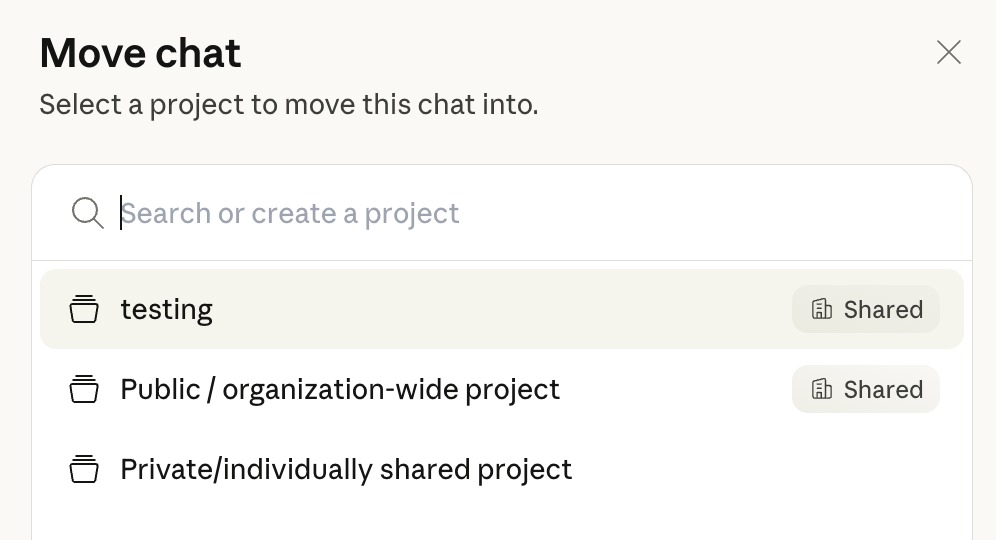
Claude's Move chat dialog with a search box and a list of projects, including testing, a public project and a private project

Claude's project picker, where a chat is filed into a project. Source: Claude Help Center

Claude's product page describes models for reasoning, coding and writing, and says Claude can connect to apps and tools and produce files such as documents and slides. Its help center explains projects: self-contained workspaces with their own chat histories and knowledge bases, where documents and context can be uploaded, plus project instructions that tailor responses, for example a more formal tone. A creator could keep one project per channel holding a style guide and past scripts. That is our suggestion, because Claude's pages describe no video-specific features.

vidIQ's pages describe an MCP connection to Claude, so channel data from the planning stage can feed a script chat.

Pricing: Claude's pricing page, read November 12, 2026, lists Free at $0 with limited usage every 5 hours and every week, Pro at $17 a month with an annual subscription ($200 billed up front) or $20 billed monthly, and Max at $100 a month. Usage limits apply on every plan. The help center says projects are available to all users, including Free, with a maximum of five projects on a free account.

Considerations: Claude does not shoot, edit or generate video: the pages we read describe chat, files, documents, slides and designs, not video work. A script still has to be checked against the facts and recorded by a person, and usage limits apply on every plan.

  • Choose it if the bottleneck is the outline or script, and one assistant should hold a channel's style guide and past scripts.
  • Skip it if the missing piece is footage, or the whole workflow has to stay inside a video editor.

4. Runway: Best for generating short shots from a prompt

Runway session panel with Image, Video and Audio tabs and a prompt box reading Describe your shot, beside an empty untitled session preview

Runway's session panel for generating shots. Source: Runway help center

Runway's home page describes Runway Creative as an all-in-one cloud-based creative platform for generating and editing video, images and audio in one workspace. Its help center says Gen-4.5 currently offers Text to Video and Image to Video control, makes shots of 2 to 10 seconds at 720p, lists a 9:16 aspect ratio (720x1280) beside 16:9 and 1:1, is listed for web, and needs the Standard plan or higher. Gen-4.5 costs 12 credits per second, so a 5-second shot is 60 credits and a 10-second shot is 120.

Pricing: Runway's pricing page, read November 12, 2026, lists Free at $0 with 125 one-time credits, Standard at $12 a month, billed annually and shown against $15 (the card says Save $36/year), with 625 credits a month, which it equates to 52 seconds of Gen-4.5, and higher Pro and Max plans. The Standard card lists no watermarks. The help center says Standard's monthly credits expire on the billing date.

Considerations: Runway generates footage; it does not cut a long recording into clips. Shots are short and credits are the limit, since 625 credits is 52 seconds of Gen-4.5 a month, so it suits cutaways and B-roll better than whole videos. Gen-4.5 needs a paid plan, and generated visuals should be checked frame by frame for details that do not match real life.

  • Choose it if a scene or cutaway cannot be filmed, or a still image should become a moving shot.
  • Skip it if the footage already exists, or the monthly volume of generated video is high.

5. Gling: Best for a fast rough cut of talking-head footage
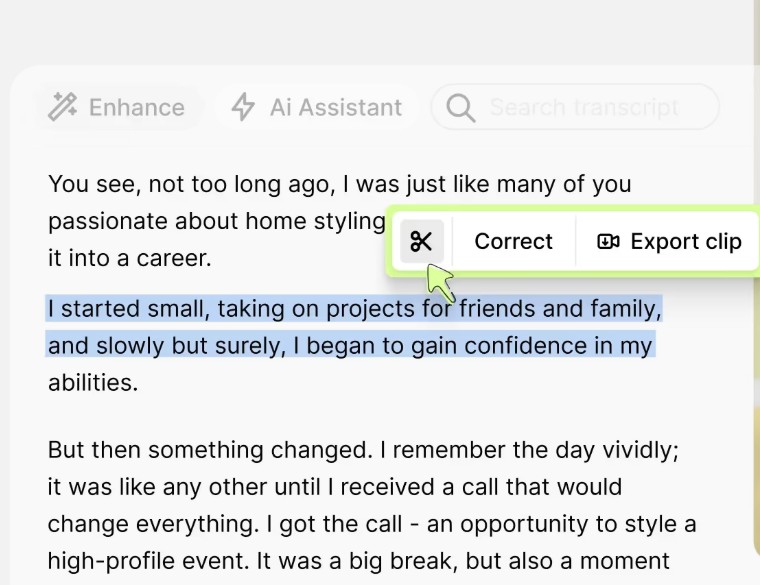
Gling transcript panel with a selected passage and a Correct and Export clip menu below Enhance and AI Assistant buttons

Gling's transcript-based trimmer. Source: Gling website

Gling's home page says to upload a raw recording, after which Gling transcribes it, finds the bad takes and silences, and cuts them automatically. Its Auto video editor page frames this as a cleanup pass for spoken footage such as a talking-head video, tutorial or recorded explanation, with the creator still choosing the pacing and the takes. The result exports as an MP4 or MP3 with SRT captions, or as an editor timeline for Premiere Pro, DaVinci Resolve or Final Cut Pro. The pricing page also lists AI captions, auto framing (zoom in and out), multicam editing, a YouTube title generator and YouTube chapters.

Pricing: Gling's pricing page, read November 12, 2026, lists Free at $0 with 1 hour of AI-edited media a month and watermarked exports, Plus at $20 a month on its monthly view or $10 a month on its annual view (10 hours of AI-edited media a month), and higher Pro and Elite plans.

Considerations: The pricing FAQ says the free version watermarks exports and cannot export to Premiere, Final Cut or Resolve, and the Auto video editor page says editor timeline exports need a paid desktop plan. Gling works from a transcript, so it is built for spoken footage. Its pages describe a cleanup pass, not a full editor.

  • Choose it if raw talking-head footage needs the dead air and retakes cut first, with the result going to DaVinci Resolve, Premiere or Final Cut.
  • Skip it if the footage has no speech, or a free plan must export timelines to an editor.

6. DaVinci Resolve: Best for finishing the main video on a full timeline
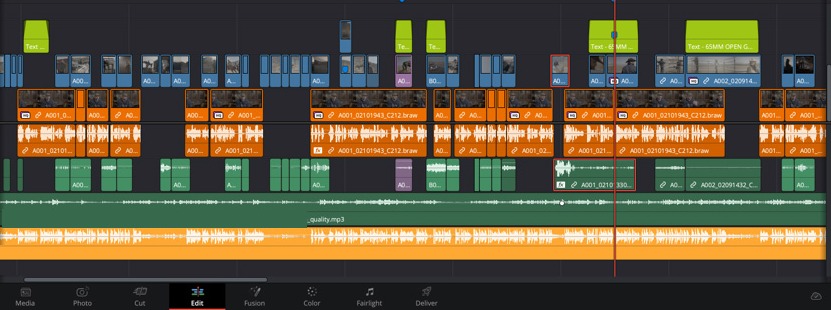
DaVinci Resolve Studio 21's Edit page timeline with stacked video and audio tracks, colored clips, waveforms and the page tabs along the bottom

The Edit page timeline in DaVinci Resolve Studio 21, with two clip labels masked. Source: Blackmagic Design website

Blackmagic Design's product page says DaVinci Resolve combines editing, color correction, visual effects, motion graphics and audio post production in one tool, for Mac, Windows and Linux. Its Studio page says the free version can edit and finish up to 60 fps in resolutions as high as Ultra HD 3840 x 2160, and that Studio adds the DaVinci Neural Engine features, which it lists as including magic mask, smart reframe, scene cut detection and Super Scale.

For short-form, the What's New page lists square and vertical project resolutions for TikTok, Instagram, X and YouTube Shorts, and a way to link social accounts and upload to YouTube, TikTok, Vimeo and X as a video exports.

Pricing: Blackmagic's product page, read November 12, 2026, lists DaVinci Resolve as a free download and DaVinci Resolve Studio at $236, shown as "Was $295 Now $236". The page does not say whether Studio is a one-time or recurring charge, so check the licence terms before buying.

Considerations: Resolve is organised into separate pages for media, cut, edit, Fusion, color and Fairlight, so there is more to learn than a cut. The pages we read describe no feature that picks social clips out of a long recording, so shorts from a long video start elsewhere. The AI tools named above are listed as Studio features, not part of the free version.

  • Choose it if the main video needs a real timeline, color and an audio mix, and a free version is welcome.
  • Skip it if the goal is many short clips from long recordings, or the machine is not a Mac, Windows or Linux desktop.

7. Auphonic: Best for cleaning up audio

Auphonic's Audio Algorithms panel with filtering, noise reduction, adaptive leveler, loudness normalization and automatic cutting controls

Auphonic's Audio Algorithms panel in the production form. Source: Auphonic help center

Auphonic's features page lists an Intelligent Leveler that balances levels between speakers, music and speech, noise and reverb reduction, filtering and enhancement, loudness targets (its example is -16 LUFS for podcasts), and automatic cutting of silences, coughs and filler words, with cut lists that can be exported to an audio or video editor. It says the leveler suits programs where speech is the main content, including film and videos and screencasts. The pricing page lists video support and audiograms, and API and command-line access, on every plan. Our guide to AI audio denoise and echo removal tools compares more options for the same job.

Pricing: Auphonic's pricing page, read November 12, 2026, says it is free for 2 hours of processed audio a month, with a jingle added to free productions. Recurring credits start at $13 a month on monthly billing, or $11 a month billed yearly ($132), for 9 hours a month, and one-time credits start at $12 for 5 hours.

Considerations: Auphonic works on the sound, not the picture, so it does not edit video. Pricing is by hours of audio processed, and the free plan limits multitrack productions to under 20 minutes and does not include multilingual speech recognition. The jingle on free productions rules it out for finished uploads on that plan.

  • Choose it if speech is noisy, uneven or too quiet, and the fix should be automatic and repeatable, with loudness targets.
  • Skip it if the problem is the picture, or a jingle in free output is not acceptable.

8. Canva: Best for thumbnails
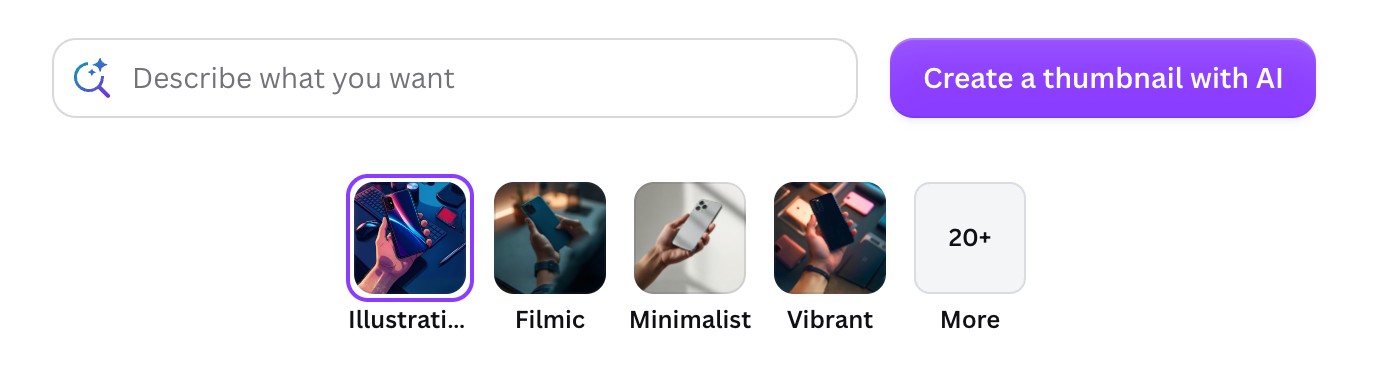
Canva's AI thumbnail maker prompt field reading Describe what you want, next to a style picker offering Illustration, Filmic, Minimalist, Vibrant and 20+ more

Canva's AI thumbnail prompt and style picker. Source: Canva website

Canva's YouTube thumbnail page says to search the YouTube Thumbnail design type, start from a template or an uploaded image, add text, and download the result as a JPEG or PNG. It lists Magic Studio AI tools: Magic Media, which turns words into images and videos, and Dream Lab are marked free, while Magic Edit, Magic Grab, Magic Expand and Magic Eraser are marked Pro. Our guide to AI YouTube thumbnail makers compares tools built for the same job.

Pricing: Canva's pricing page, read November 12, 2026, lists Free at US$0 and Pro at US$144 a year for one person, with Business at US$250 a year per person. It lists limited access to Standard and Premium AI on Free, and 10x more AI than Free on Pro.

Considerations: This guide uses Canva only for thumbnails, and its pricing page lists 1,000+ design types and a wider set of AI tools than that. The Pro-marked AI editing tools sit behind a paid plan, and a thumbnail is a design the creator still has to make, with no promise that it earns a click.

  • Choose it if thumbnails, channel art and graphics should come from one design tool with templates.
  • Skip it if the premium AI editing tools must be free, or thumbnails should be generated from the video itself.

9. Publer: Best for scheduling Shorts, Reels and TikToks

Publer's composer for a YouTube Short with a title field, post automatically or get a reminder choices, a Public menu and a Schedule button

Publer's composer for a YouTube Short, from its help center. Source: Publer Help Center

Publer's pricing page says it supports all post types including YouTube Shorts and Instagram Reels, and lists Facebook, Instagram, TikTok, YouTube, LinkedIn, Pinterest, Threads and Bluesky among its networks. Its help center says Publer can create YouTube videos, including Shorts, that are public, private or unlisted, and for a Short it offers to post automatically or through a reminder. Calendar view, a posting queue and drafts are listed on every plan. Our guide to tools that edit and schedule short-form video covers editors with built-in scheduling.

Pricing: Publer's pricing page, read November 12, 2026, lists Free at $0 (1 user, 3 social accounts except X, 10 scheduled posts per account, 25 saved drafts and 24-hour post history), Professional at $5 a month or $4 a month billed yearly, and Business at $10 a month or $8 a month billed yearly, which adds analytics and API and MCP access.

Considerations: Publer's help center says that if monetization is enabled on a YouTube account, it has to be activated manually for each post in YouTube Studio, because of a limitation in YouTube's API. The pricing page notes daily posting limits on paid plans, and the free plan keeps post history for only 24 hours. It schedules finished videos and does not make them.

  • Choose it if finished videos from several tools need one calendar across YouTube, Instagram and TikTok at a low price.
  • Skip it if OpusClip's own posting already covers the channels, or 10 scheduled posts per account is too few.

How we compared these tools

We compared each tool on five criteria: the workflow stage it covers, what goes in and what comes back, where it runs, the price and free offer with their billing basis, and the main limitation its own pages show. This guide is organised around the video creator's workflow, and OpusClip comes first because it is built for the stage where a long recording becomes short clips, which its AI video editor page, help center and pricing page document. It is not a planning, scripting, generating or timeline tool, which is why the other eight tools stay the picks for the other stages.

Items 2 to 9 follow one yardstick: where the tool sits in a video's life, from idea to publish. A few tools list features from neighbouring stages, such as vidIQ's script and thumbnail tools, and each sits where its main job is.

All facts come from each vendor's own pricing, product and help pages, read on November 12, 2026, and where a page loads its figures with a script we read the rendered page in a browser. We did not run hands-on tests of any tool, and this guide ranks no tool's output quality. Descript, Riverside, Submagic, Vizard and CapCut are compared in our guide to AI video tools for content creators, and this guide adds the stages around the edit. Prices change and some vendors show promotions, so confirm on the vendor's page before buying.

Red flags to watch for

  • Credits that run out or expire. vidIQ and Runway run on credits: vidIQ's reset monthly, Runway's Free 125 credits are one-time, and Standard's monthly credits expire on the billing date. Check how many seconds or actions a plan really buys.
  • Watermarks and export limits on free tiers. OpusClip's free clips carry a watermark and stop being exportable after 3 days, Gling's free exports are watermarked and cannot go to an editor, and Auphonic adds a jingle. Export one real video on the free tier before committing.
  • Overlap between stages. vidIQ lists script and thumbnail tools, Gling lists a title generator, Claude can draft the same script, and Canva covers far more than thumbnails. Paying for two tools that do the same job wastes money.
  • Prices that need a billing basis. Several pages show a per-month figure that is billed annually. Read the line under the price.
  • Generated footage that does not match real life. Check every generated shot for details that are wrong, and read each platform's own rules on AI-generated content before posting.
  • Posting limits. Publer notes daily posting limits on paid plans, and monetization on a YouTube post has to be activated by hand in YouTube Studio.
  • Vendor claims are not results. No tool here can promise views, and this guide prints no accuracy or performance figure.
  • No manual override. A tool that cuts, frames or writes with no way to edit the result leaves no fix for a bad cut.

Frequently asked questions

What are the best AI tools for video creators?

It depends on the stage. OpusClip is the pick for turning a long recording into short captioned clips, vidIQ for planning, Claude for scripts, Runway for generated shots, Gling and DaVinci Resolve for cutting and finishing, Auphonic for audio, Canva for thumbnails and Publer for scheduling. Tools that record, caption and clip are compared in our guide to AI video tools for content creators.

Which AI tool is best for editing videos?

It depends on the edit. Gling makes a rough cut by removing silences, filler words and bad takes, DaVinci Resolve finishes the main video on a full timeline, and OpusClip cuts a long video into short clips. OpusClip is not a replacement for a timeline editor.

What AI tool turns long videos into short clips?

OpusClip is the pick in this guide. A video link or an uploaded file goes in, its AI finds the most engaging moments, and each clip comes back framed for vertical with captions, per its AI video editor page and help center.

What are the best free AI tools for video creators?

DaVinci Resolve has a free version, and the others list free plans with limits: OpusClip (watermark), vidIQ (150 AI credits a month), Claude (limited usage), Runway (125 one-time credits), Gling (1 hour of AI-edited media a month, watermarked), Auphonic (2 hours of audio a month, with a jingle), Canva (US$0 with limited AI) and Publer (3 accounts, 10 scheduled posts per account).

Can AI make a video for me?

Partly. Runway's Gen-4.5 generates 2 to 10 second shots from a text prompt or an image, on the Standard plan or higher. The other tools here work on footage that already exists or on the plan around it, and OpusClip's AI Producer starts from real talking-head footage and, per its page, uses no avatars or generated speakers.

Which AI tools help with YouTube ideas and scripts?

vidIQ lists Daily Ideas, keyword research, a Script Writer and an AI Coach for YouTube, and Claude can draft an outline or script in a project that holds a channel's style guide. vidIQ's MCP connection brings its data into Claude.

How many AI tools does a video creator need?

Fewer than nine. Start with the stage that takes the most time, add a tool for it, and use free plans first. A creator with long recordings already made might start with OpusClip alone, while one who films from scratch may add vidIQ, Claude and Gling.
On this page

Use our Free Forever Plan

Find the moment. Skip the scrubbing.

From script to polished video — in one click.

Create and post one short video every day for free, and grow faster.

OpusSearch uses AI to surface the exact clip you need from hours of footage — in seconds, not afternoons.

Agent Opus runs the entire video pipeline for you: research, scriptwriting, storyboarding, motion, voice, and edit. Upload the idea, post the result.

9 Best AI Tools for Video Creators in 2026

OpusClip is the pick for the clip stage of a video creator's workflow: it turns a long recording into short, captioned clips. The other stages have their own picks: vidIQ to plan, Claude to script, Runway to generate shots, Gling and DaVinci Resolve to cut and finish, Auphonic to polish audio, Canva for thumbnails and Publer to publish. The guide is organised by workflow stage, and the facts come from each vendor's own pages, read on November 12, 2026.

Key takeaways

  • Best for turning a long recording into short captioned clips: OpusClip. Its pricing page lists AI clipping and animated captions in 20+ languages, and its help center lists autoposting to YouTube, Instagram Reels and TikTok.
  • Best for planning videos from YouTube data: vidIQ. Its Free plan lists 150 AI credits a month, and its MCP connection works with Claude and ChatGPT.
  • Best for drafting scripts and outlines: Claude. Its help center says projects, which hold instructions and uploaded files, are on the Free plan, up to five.
  • Best for generating short shots from a prompt: Runway. Gen-4.5 takes a text prompt or an image and makes 2 to 10 second shots at 720p, and needs the Standard plan or higher.
  • Best for a fast rough cut of talking-head footage: Gling. It removes silences, filler words and bad takes, and its free plan watermarks exports and cannot export a timeline to an editor.
  • Best for finishing the main video on a full timeline: DaVinci Resolve. The free version edits up to Ultra HD at 60 fps, and its AI Neural Engine tools are listed as Studio features.
  • Best for cleaning up audio: Auphonic. Its Free plan covers 2 hours of processed audio a month, with a jingle added to free productions.
  • Best for thumbnails: Canva. Its YouTube thumbnail page lists templates and AI tools, and a design downloads as a JPEG or PNG.
  • Best for scheduling Shorts, Reels and TikToks: Publer. Its Free plan lists 3 social accounts and 10 scheduled posts per account.

The video creator's workflow: which tool owns which stage

No single tool owns every stage of making a video, so this guide splits the work into stages and names a pick for each. A creator can start at any stage: with footage already recorded, the work begins at the cut.

  • Plan and script: vidIQ for ideas and keywords, Claude for the script.
  • Make or generate footage: Runway for generated shots. Recording tools are outside this guide, and our guide to AI video tools for content creators covers tools that record.
  • Edit and clip: Gling for a rough cut, DaVinci Resolve for the full timeline, and OpusClip for turning the long result into short clips.
  • Caption and polish: OpusClip and Gling both list AI captions, and Auphonic handles the audio.
  • Package and publish: Canva for the thumbnail and Publer for the schedule.

How to choose

  • A long recording exists and short clips are the goal: OpusClip.
  • The next video is not decided: vidIQ for YouTube ideas and keywords, then Claude for the outline and script.
  • A scene cannot be filmed: Runway generates a short shot from a prompt or an image.
  • Raw talking-head footage is full of pauses and retakes: Gling, then DaVinci Resolve if the video needs a real timeline.
  • The sound is the problem: Auphonic.
  • The video needs a thumbnail: Canva.
  • Posts must go out on a schedule across channels: Publer.
  • Everything has to be free: DaVinci Resolve has a free version, and every other tool here lists a free plan or free tier with limits, so read the limits first.

At a glance

  • OpusClip: best for turning a long recording into short captioned clips; Starter $15 a month (monthly billing only), Pro $29 a month or $14.50 a month billed annually; free plan yes (clips carry a watermark).
  • vidIQ: best for planning videos from YouTube data; Boost $19 a month or $199 a year, per the page's one-channel US list prices; free plan yes (150 AI credits a month).
  • Claude: best for drafting scripts and outlines; Pro $20 a month billed monthly, or $17 a month with an annual subscription ($200 billed up front); free plan yes (limited usage every 5 hours and every week).
  • Runway: best for generating short shots from a prompt; Standard $12 a month billed annually (shown against $15); free plan yes (125 one-time credits).
  • Gling: best for a fast rough cut of talking-head footage; Plus $20 a month on the page's monthly view, or $10 a month on its annual view; free plan yes (1 hour of AI-edited media a month, watermarked exports).
  • DaVinci Resolve: best for finishing the main video on a full timeline; the free version is $0, and Studio is listed at $236 (marked down from $295); free version yes.
  • Auphonic: best for cleaning up audio; $13 a month on monthly billing, or $11 a month billed yearly ($132), for 9 hours of audio a month; free plan yes (2 hours a month, with a jingle).
  • Canva: best for thumbnails; Pro US$144 a year for one person; free plan yes (US$0, with limited access to AI).
  • Publer: best for scheduling Shorts, Reels and TikToks; Professional $5 a month, or $4 a month billed yearly; free plan yes (3 social accounts, 10 scheduled posts per account).

What each tool takes in and hands back at its stage

The At a glance list covers best-for, price and free plan; this table compares the workflow stage each tool covers, what goes in, what comes back and where it runs, as listed on each vendor's own pages on November 12, 2026.

ToolStage it coversWhat goes inWhat comes backWhere it runs
OpusClipClip and edit: long video to short clipsA video link or an uploaded fileShort clips with animated captions, reframed to 9:16, plus titles and descriptionsWeb app, plus a mobile app on the App Store
vidIQPlan and research: ideas, keywords, titlesYour YouTube channel, or a niche or keywordVideo ideas, keyword scores, title, script and thumbnail drafts, plus AI Coach tipsBrowser extension for YouTube and Instagram; MCP connection to Claude and ChatGPT
ClaudeScript and outline: writing and reasoning in chatA prompt, plus uploaded documents and project instructionsChat answers and finished files such as documents and slidesWeb, desktop and phone
RunwayGenerate video shots from a text prompt or an imageA text prompt, or text with an imageShots of 2 to 10 seconds at 720p, including a 9:16 optionCloud-based web platform; the Gen-4.5 page lists web availability
GlingRough cut: silences, filler words and bad takesRaw spoken footage, such as a talking-head video or tutorialA cleaned MP4, or a timeline for Premiere Pro, DaVinci Resolve or Final Cut ProOnline editor, plus a desktop app for timeline export
DaVinci ResolveEdit and finish: cut, color, effects and audioCamera footage from H.264 and H.265 to ProRes and Blackmagic RAWRendered video, SRT or VTT subtitles, and uploads to YouTube, TikTok, Vimeo and XDesktop app for Mac, Windows and Linux
AuphonicPolish audio: levels, noise, loudness and filler cutsAudio or video files, single or multitrackProcessed audio, plus cut lists for an audio or video editorWeb service, with API and command-line access
CanvaPackage: thumbnails and graphicsA template, an uploaded image or a text promptA thumbnail downloaded as a JPEG or PNGDesktop app for Mac and Windows, plus iOS, Android and Chromebook
PublerPublish and schedule posts, Shorts and ReelsA video or Short, a title and a captionA scheduled or auto-posted YouTube video or Short, public, private or unlistedWeb app, mobile app and browser extensions

1. OpusClip: Best for turning a long recording into short captioned clips

OpusClip's clipping settings with genre buttons: Let AI detect, Podcast, Lifestyle, Sports, Marketing and Webinar, Entertainment, News, and Informative and Educational

OpusClip's clipping settings. Source: OpusClip help center

OpusClip's AI video editor page describes two routes: long video to short clips, and raw talking-head footage to a finished video through its AI Producer agent. This guide uses the first. Its home page says to drop a video link or upload a file, and the AI video editor page says its AI finds the most engaging moments and turns them into short clips. The help center says each clip is framed for the vertical 9:16 screen with layouts called Fill, Fit and Split, with a manual reframe window for fixes, and captions can be corrected and re-timed in the editor, per the captions article.

For publishing, the social accounts article lists autoposting to YouTube, Instagram Reels, TikTok and several other platforms. For a hand-off, the DaVinci Resolve article says an XML export includes the original video, captions, auto reframe, B-roll and an SRT file for further editing there.

Pricing: OpusClip's pricing page, read November 12, 2026, lists Free at $0 (clips carry a watermark, and after 3 days the clips will no longer be exportable), Starter at $15 a month with monthly billing only, and Pro at $29 a month or $14.50 a month billed annually. Business is custom. Credits differ by plan, so see the pricing page for amounts.

Considerations: OpusClip starts from footage that already exists. It does not record the video, plan the topic or write the script, and it is not a replacement for a timeline editor, so a long video that needs a full edit belongs in an editor such as DaVinci Resolve first. The help center's Premiere article says the XML export is for Pro plan users.

  • Choose it if a podcast, stream, interview or talking-head video should become several captioned vertical clips, with posting from the same place.
  • Skip it if the work is planning, scripting or generating the video itself, or a multi-track timeline finish is the main job.

2. vidIQ: Best for planning videos from YouTube data

vidIQ's example panel for a 30-day sourdough experiment topic, with six title options each tagged with a style label and a character count

Example titles on vidIQ's generator page, shown with style labels and character counts. Source: vidIQ website

vidIQ's features page groups its tools by job: Daily Ideas, Most Viewed and Outliers for finding ideas, Keywords Research, a Title Generator, a Script Writer, a Thumbnail Maker and an AI Coach. Its home page says the AI Coach analyzes a channel and gives tailored growth plans, and that keyword research shows real search volume and competition scores. Its extension page describes a free browser extension for YouTube and Instagram.

vidIQ also describes an MCP connection that brings its data into Claude, ChatGPT and other assistants. The plans page says it is available on every plan, including Free, and that tool calls use the plan's AI credits.

Pricing: vidIQ's plans page, read November 12, 2026, lists Free at $0 with 150 AI credits a month, niche trends, content ideas and AI Coach tips. It shows Boost at $16.58 a month billed $199 per year, and a note gives one-channel US list prices of $19 a month or $199 a year for Boost and $49 a month or $468 a year for MAX. The note adds that local pricing may vary.

Considerations: vidIQ is built around YouTube, with Instagram added, so a creator who publishes mostly elsewhere gets less from it. Its AI features run on monthly credits, listed from 2,000 on Boost and 6,000 on MAX, so heavy use can run through them. It plans the video and does not make or cut one.

  • Choose it if the open question is what to make next, and the channel lives on YouTube.
  • Skip it if the problem is making or cutting the video, or most posts go to other platforms.

3. Claude: Best for drafting scripts and outlines

Claude's Move chat dialog with a search box and a list of projects, including testing, a public project and a private project

Claude's project picker, where a chat is filed into a project. Source: Claude Help Center

Claude's product page describes models for reasoning, coding and writing, and says Claude can connect to apps and tools and produce files such as documents and slides. Its help center explains projects: self-contained workspaces with their own chat histories and knowledge bases, where documents and context can be uploaded, plus project instructions that tailor responses, for example a more formal tone. A creator could keep one project per channel holding a style guide and past scripts. That is our suggestion, because Claude's pages describe no video-specific features.

vidIQ's pages describe an MCP connection to Claude, so channel data from the planning stage can feed a script chat.

Pricing: Claude's pricing page, read November 12, 2026, lists Free at $0 with limited usage every 5 hours and every week, Pro at $17 a month with an annual subscription ($200 billed up front) or $20 billed monthly, and Max at $100 a month. Usage limits apply on every plan. The help center says projects are available to all users, including Free, with a maximum of five projects on a free account.

Considerations: Claude does not shoot, edit or generate video: the pages we read describe chat, files, documents, slides and designs, not video work. A script still has to be checked against the facts and recorded by a person, and usage limits apply on every plan.

  • Choose it if the bottleneck is the outline or script, and one assistant should hold a channel's style guide and past scripts.
  • Skip it if the missing piece is footage, or the whole workflow has to stay inside a video editor.

4. Runway: Best for generating short shots from a prompt

Runway session panel with Image, Video and Audio tabs and a prompt box reading Describe your shot, beside an empty untitled session preview

Runway's session panel for generating shots. Source: Runway help center

Runway's home page describes Runway Creative as an all-in-one cloud-based creative platform for generating and editing video, images and audio in one workspace. Its help center says Gen-4.5 currently offers Text to Video and Image to Video control, makes shots of 2 to 10 seconds at 720p, lists a 9:16 aspect ratio (720x1280) beside 16:9 and 1:1, is listed for web, and needs the Standard plan or higher. Gen-4.5 costs 12 credits per second, so a 5-second shot is 60 credits and a 10-second shot is 120.

Pricing: Runway's pricing page, read November 12, 2026, lists Free at $0 with 125 one-time credits, Standard at $12 a month, billed annually and shown against $15 (the card says Save $36/year), with 625 credits a month, which it equates to 52 seconds of Gen-4.5, and higher Pro and Max plans. The Standard card lists no watermarks. The help center says Standard's monthly credits expire on the billing date.

Considerations: Runway generates footage; it does not cut a long recording into clips. Shots are short and credits are the limit, since 625 credits is 52 seconds of Gen-4.5 a month, so it suits cutaways and B-roll better than whole videos. Gen-4.5 needs a paid plan, and generated visuals should be checked frame by frame for details that do not match real life.

  • Choose it if a scene or cutaway cannot be filmed, or a still image should become a moving shot.
  • Skip it if the footage already exists, or the monthly volume of generated video is high.

5. Gling: Best for a fast rough cut of talking-head footage

Gling transcript panel with a selected passage and a Correct and Export clip menu below Enhance and AI Assistant buttons

Gling's transcript-based trimmer. Source: Gling website

Gling's home page says to upload a raw recording, after which Gling transcribes it, finds the bad takes and silences, and cuts them automatically. Its Auto video editor page frames this as a cleanup pass for spoken footage such as a talking-head video, tutorial or recorded explanation, with the creator still choosing the pacing and the takes. The result exports as an MP4 or MP3 with SRT captions, or as an editor timeline for Premiere Pro, DaVinci Resolve or Final Cut Pro. The pricing page also lists AI captions, auto framing (zoom in and out), multicam editing, a YouTube title generator and YouTube chapters.

Pricing: Gling's pricing page, read November 12, 2026, lists Free at $0 with 1 hour of AI-edited media a month and watermarked exports, Plus at $20 a month on its monthly view or $10 a month on its annual view (10 hours of AI-edited media a month), and higher Pro and Elite plans.

Considerations: The pricing FAQ says the free version watermarks exports and cannot export to Premiere, Final Cut or Resolve, and the Auto video editor page says editor timeline exports need a paid desktop plan. Gling works from a transcript, so it is built for spoken footage. Its pages describe a cleanup pass, not a full editor.

  • Choose it if raw talking-head footage needs the dead air and retakes cut first, with the result going to DaVinci Resolve, Premiere or Final Cut.
  • Skip it if the footage has no speech, or a free plan must export timelines to an editor.

6. DaVinci Resolve: Best for finishing the main video on a full timeline

DaVinci Resolve Studio 21's Edit page timeline with stacked video and audio tracks, colored clips, waveforms and the page tabs along the bottom

The Edit page timeline in DaVinci Resolve Studio 21, with two clip labels masked. Source: Blackmagic Design website

Blackmagic Design's product page says DaVinci Resolve combines editing, color correction, visual effects, motion graphics and audio post production in one tool, for Mac, Windows and Linux. Its Studio page says the free version can edit and finish up to 60 fps in resolutions as high as Ultra HD 3840 x 2160, and that Studio adds the DaVinci Neural Engine features, which it lists as including magic mask, smart reframe, scene cut detection and Super Scale.

For short-form, the What's New page lists square and vertical project resolutions for TikTok, Instagram, X and YouTube Shorts, and a way to link social accounts and upload to YouTube, TikTok, Vimeo and X as a video exports.

Pricing: Blackmagic's product page, read November 12, 2026, lists DaVinci Resolve as a free download and DaVinci Resolve Studio at $236, shown as "Was $295 Now $236". The page does not say whether Studio is a one-time or recurring charge, so check the licence terms before buying.

Considerations: Resolve is organised into separate pages for media, cut, edit, Fusion, color and Fairlight, so there is more to learn than a cut. The pages we read describe no feature that picks social clips out of a long recording, so shorts from a long video start elsewhere. The AI tools named above are listed as Studio features, not part of the free version.

  • Choose it if the main video needs a real timeline, color and an audio mix, and a free version is welcome.
  • Skip it if the goal is many short clips from long recordings, or the machine is not a Mac, Windows or Linux desktop.

7. Auphonic: Best for cleaning up audio

Auphonic's Audio Algorithms panel with filtering, noise reduction, adaptive leveler, loudness normalization and automatic cutting controls

Auphonic's Audio Algorithms panel in the production form. Source: Auphonic help center

Auphonic's features page lists an Intelligent Leveler that balances levels between speakers, music and speech, noise and reverb reduction, filtering and enhancement, loudness targets (its example is -16 LUFS for podcasts), and automatic cutting of silences, coughs and filler words, with cut lists that can be exported to an audio or video editor. It says the leveler suits programs where speech is the main content, including film and videos and screencasts. The pricing page lists video support and audiograms, and API and command-line access, on every plan. Our guide to AI audio denoise and echo removal tools compares more options for the same job.

Pricing: Auphonic's pricing page, read November 12, 2026, says it is free for 2 hours of processed audio a month, with a jingle added to free productions. Recurring credits start at $13 a month on monthly billing, or $11 a month billed yearly ($132), for 9 hours a month, and one-time credits start at $12 for 5 hours.

Considerations: Auphonic works on the sound, not the picture, so it does not edit video. Pricing is by hours of audio processed, and the free plan limits multitrack productions to under 20 minutes and does not include multilingual speech recognition. The jingle on free productions rules it out for finished uploads on that plan.

  • Choose it if speech is noisy, uneven or too quiet, and the fix should be automatic and repeatable, with loudness targets.
  • Skip it if the problem is the picture, or a jingle in free output is not acceptable.

8. Canva: Best for thumbnails

Canva's AI thumbnail maker prompt field reading Describe what you want, next to a style picker offering Illustration, Filmic, Minimalist, Vibrant and 20+ more

Canva's AI thumbnail prompt and style picker. Source: Canva website

Canva's YouTube thumbnail page says to search the YouTube Thumbnail design type, start from a template or an uploaded image, add text, and download the result as a JPEG or PNG. It lists Magic Studio AI tools: Magic Media, which turns words into images and videos, and Dream Lab are marked free, while Magic Edit, Magic Grab, Magic Expand and Magic Eraser are marked Pro. Our guide to AI YouTube thumbnail makers compares tools built for the same job.

Pricing: Canva's pricing page, read November 12, 2026, lists Free at US$0 and Pro at US$144 a year for one person, with Business at US$250 a year per person. It lists limited access to Standard and Premium AI on Free, and 10x more AI than Free on Pro.

Considerations: This guide uses Canva only for thumbnails, and its pricing page lists 1,000+ design types and a wider set of AI tools than that. The Pro-marked AI editing tools sit behind a paid plan, and a thumbnail is a design the creator still has to make, with no promise that it earns a click.

  • Choose it if thumbnails, channel art and graphics should come from one design tool with templates.
  • Skip it if the premium AI editing tools must be free, or thumbnails should be generated from the video itself.

9. Publer: Best for scheduling Shorts, Reels and TikToks

Publer's composer for a YouTube Short with a title field, post automatically or get a reminder choices, a Public menu and a Schedule button

Publer's composer for a YouTube Short, from its help center. Source: Publer Help Center

Publer's pricing page says it supports all post types including YouTube Shorts and Instagram Reels, and lists Facebook, Instagram, TikTok, YouTube, LinkedIn, Pinterest, Threads and Bluesky among its networks. Its help center says Publer can create YouTube videos, including Shorts, that are public, private or unlisted, and for a Short it offers to post automatically or through a reminder. Calendar view, a posting queue and drafts are listed on every plan. Our guide to tools that edit and schedule short-form video covers editors with built-in scheduling.

Pricing: Publer's pricing page, read November 12, 2026, lists Free at $0 (1 user, 3 social accounts except X, 10 scheduled posts per account, 25 saved drafts and 24-hour post history), Professional at $5 a month or $4 a month billed yearly, and Business at $10 a month or $8 a month billed yearly, which adds analytics and API and MCP access.

Considerations: Publer's help center says that if monetization is enabled on a YouTube account, it has to be activated manually for each post in YouTube Studio, because of a limitation in YouTube's API. The pricing page notes daily posting limits on paid plans, and the free plan keeps post history for only 24 hours. It schedules finished videos and does not make them.

  • Choose it if finished videos from several tools need one calendar across YouTube, Instagram and TikTok at a low price.
  • Skip it if OpusClip's own posting already covers the channels, or 10 scheduled posts per account is too few.

How we compared these tools

We compared each tool on five criteria: the workflow stage it covers, what goes in and what comes back, where it runs, the price and free offer with their billing basis, and the main limitation its own pages show. This guide is organised around the video creator's workflow, and OpusClip comes first because it is built for the stage where a long recording becomes short clips, which its AI video editor page, help center and pricing page document. It is not a planning, scripting, generating or timeline tool, which is why the other eight tools stay the picks for the other stages.

Items 2 to 9 follow one yardstick: where the tool sits in a video's life, from idea to publish. A few tools list features from neighbouring stages, such as vidIQ's script and thumbnail tools, and each sits where its main job is.

All facts come from each vendor's own pricing, product and help pages, read on November 12, 2026, and where a page loads its figures with a script we read the rendered page in a browser. We did not run hands-on tests of any tool, and this guide ranks no tool's output quality. Descript, Riverside, Submagic, Vizard and CapCut are compared in our guide to AI video tools for content creators, and this guide adds the stages around the edit. Prices change and some vendors show promotions, so confirm on the vendor's page before buying.

Red flags to watch for

  • Credits that run out or expire. vidIQ and Runway run on credits: vidIQ's reset monthly, Runway's Free 125 credits are one-time, and Standard's monthly credits expire on the billing date. Check how many seconds or actions a plan really buys.
  • Watermarks and export limits on free tiers. OpusClip's free clips carry a watermark and stop being exportable after 3 days, Gling's free exports are watermarked and cannot go to an editor, and Auphonic adds a jingle. Export one real video on the free tier before committing.
  • Overlap between stages. vidIQ lists script and thumbnail tools, Gling lists a title generator, Claude can draft the same script, and Canva covers far more than thumbnails. Paying for two tools that do the same job wastes money.
  • Prices that need a billing basis. Several pages show a per-month figure that is billed annually. Read the line under the price.
  • Generated footage that does not match real life. Check every generated shot for details that are wrong, and read each platform's own rules on AI-generated content before posting.
  • Posting limits. Publer notes daily posting limits on paid plans, and monetization on a YouTube post has to be activated by hand in YouTube Studio.
  • Vendor claims are not results. No tool here can promise views, and this guide prints no accuracy or performance figure.
  • No manual override. A tool that cuts, frames or writes with no way to edit the result leaves no fix for a bad cut.

Frequently asked questions

What are the best AI tools for video creators?

It depends on the stage. OpusClip is the pick for turning a long recording into short captioned clips, vidIQ for planning, Claude for scripts, Runway for generated shots, Gling and DaVinci Resolve for cutting and finishing, Auphonic for audio, Canva for thumbnails and Publer for scheduling. Tools that record, caption and clip are compared in our guide to AI video tools for content creators.

Which AI tool is best for editing videos?

It depends on the edit. Gling makes a rough cut by removing silences, filler words and bad takes, DaVinci Resolve finishes the main video on a full timeline, and OpusClip cuts a long video into short clips. OpusClip is not a replacement for a timeline editor.

What AI tool turns long videos into short clips?

OpusClip is the pick in this guide. A video link or an uploaded file goes in, its AI finds the most engaging moments, and each clip comes back framed for vertical with captions, per its AI video editor page and help center.

What are the best free AI tools for video creators?

DaVinci Resolve has a free version, and the others list free plans with limits: OpusClip (watermark), vidIQ (150 AI credits a month), Claude (limited usage), Runway (125 one-time credits), Gling (1 hour of AI-edited media a month, watermarked), Auphonic (2 hours of audio a month, with a jingle), Canva (US$0 with limited AI) and Publer (3 accounts, 10 scheduled posts per account).

Can AI make a video for me?

Partly. Runway's Gen-4.5 generates 2 to 10 second shots from a text prompt or an image, on the Standard plan or higher. The other tools here work on footage that already exists or on the plan around it, and OpusClip's AI Producer starts from real talking-head footage and, per its page, uses no avatars or generated speakers.

Which AI tools help with YouTube ideas and scripts?

vidIQ lists Daily Ideas, keyword research, a Script Writer and an AI Coach for YouTube, and Claude can draft an outline or script in a project that holds a channel's style guide. vidIQ's MCP connection brings its data into Claude.

How many AI tools does a video creator need?

Fewer than nine. Start with the stage that takes the most time, add a tool for it, and use free plans first. A creator with long recordings already made might start with OpusClip alone, while one who films from scratch may add vidIQ, Claude and Gling.

Creator name

Creator type

Team size

Channels

linkYouTubefacebookXTikTok

Pain point

Time to see positive ROI

About the creator

Don't miss these

How Audacy Drove 1B+ Views by Taking a Tech-Forward Approach to Radio with OpusClip
No items found.

How Audacy Drove 1B+ Views by Taking a Tech-Forward Approach to Radio with OpusClip

How All the Smoke makes hit compilations faster with OpusSearch

How All the Smoke makes hit compilations faster with OpusSearch

Growing a new channel to 1.5M views in 90 days without creating new videos

Growing a new channel to 1.5M views in 90 days without creating new videos

OpusClip 4.0 is here. Become a content powerhouse.

9 Best AI Tools for Video Creators in 2026

Creators editing on a laptop, showing a vertical video on a phone and filming with a camera and microphone, with a Clip it button, a views badge, a 9:16 tag and a YouTube icon
No items found.
No items found.

Boost your social media growth with OpusClip

Create and post one short video every day for your social media and grow faster.

9 Best AI Tools for Video Creators in 2026

Creators editing on a laptop, showing a vertical video on a phone and filming with a camera and microphone, with a Clip it button, a views badge, a 9:16 tag and a YouTube icon

OpusClip is the pick for the clip stage of a video creator's workflow: it turns a long recording into short, captioned clips. The other stages have their own picks: vidIQ to plan, Claude to script, Runway to generate shots, Gling and DaVinci Resolve to cut and finish, Auphonic to polish audio, Canva for thumbnails and Publer to publish. The guide is organised by workflow stage, and the facts come from each vendor's own pages, read on November 12, 2026.

Key takeaways

  • Best for turning a long recording into short captioned clips: OpusClip. Its pricing page lists AI clipping and animated captions in 20+ languages, and its help center lists autoposting to YouTube, Instagram Reels and TikTok.
  • Best for planning videos from YouTube data: vidIQ. Its Free plan lists 150 AI credits a month, and its MCP connection works with Claude and ChatGPT.
  • Best for drafting scripts and outlines: Claude. Its help center says projects, which hold instructions and uploaded files, are on the Free plan, up to five.
  • Best for generating short shots from a prompt: Runway. Gen-4.5 takes a text prompt or an image and makes 2 to 10 second shots at 720p, and needs the Standard plan or higher.
  • Best for a fast rough cut of talking-head footage: Gling. It removes silences, filler words and bad takes, and its free plan watermarks exports and cannot export a timeline to an editor.
  • Best for finishing the main video on a full timeline: DaVinci Resolve. The free version edits up to Ultra HD at 60 fps, and its AI Neural Engine tools are listed as Studio features.
  • Best for cleaning up audio: Auphonic. Its Free plan covers 2 hours of processed audio a month, with a jingle added to free productions.
  • Best for thumbnails: Canva. Its YouTube thumbnail page lists templates and AI tools, and a design downloads as a JPEG or PNG.
  • Best for scheduling Shorts, Reels and TikToks: Publer. Its Free plan lists 3 social accounts and 10 scheduled posts per account.

The video creator's workflow: which tool owns which stage

No single tool owns every stage of making a video, so this guide splits the work into stages and names a pick for each. A creator can start at any stage: with footage already recorded, the work begins at the cut.

  • Plan and script: vidIQ for ideas and keywords, Claude for the script.
  • Make or generate footage: Runway for generated shots. Recording tools are outside this guide, and our guide to AI video tools for content creators covers tools that record.
  • Edit and clip: Gling for a rough cut, DaVinci Resolve for the full timeline, and OpusClip for turning the long result into short clips.
  • Caption and polish: OpusClip and Gling both list AI captions, and Auphonic handles the audio.
  • Package and publish: Canva for the thumbnail and Publer for the schedule.

How to choose

  • A long recording exists and short clips are the goal: OpusClip.
  • The next video is not decided: vidIQ for YouTube ideas and keywords, then Claude for the outline and script.
  • A scene cannot be filmed: Runway generates a short shot from a prompt or an image.
  • Raw talking-head footage is full of pauses and retakes: Gling, then DaVinci Resolve if the video needs a real timeline.
  • The sound is the problem: Auphonic.
  • The video needs a thumbnail: Canva.
  • Posts must go out on a schedule across channels: Publer.
  • Everything has to be free: DaVinci Resolve has a free version, and every other tool here lists a free plan or free tier with limits, so read the limits first.

At a glance

  • OpusClip: best for turning a long recording into short captioned clips; Starter $15 a month (monthly billing only), Pro $29 a month or $14.50 a month billed annually; free plan yes (clips carry a watermark).
  • vidIQ: best for planning videos from YouTube data; Boost $19 a month or $199 a year, per the page's one-channel US list prices; free plan yes (150 AI credits a month).
  • Claude: best for drafting scripts and outlines; Pro $20 a month billed monthly, or $17 a month with an annual subscription ($200 billed up front); free plan yes (limited usage every 5 hours and every week).
  • Runway: best for generating short shots from a prompt; Standard $12 a month billed annually (shown against $15); free plan yes (125 one-time credits).
  • Gling: best for a fast rough cut of talking-head footage; Plus $20 a month on the page's monthly view, or $10 a month on its annual view; free plan yes (1 hour of AI-edited media a month, watermarked exports).
  • DaVinci Resolve: best for finishing the main video on a full timeline; the free version is $0, and Studio is listed at $236 (marked down from $295); free version yes.
  • Auphonic: best for cleaning up audio; $13 a month on monthly billing, or $11 a month billed yearly ($132), for 9 hours of audio a month; free plan yes (2 hours a month, with a jingle).
  • Canva: best for thumbnails; Pro US$144 a year for one person; free plan yes (US$0, with limited access to AI).
  • Publer: best for scheduling Shorts, Reels and TikToks; Professional $5 a month, or $4 a month billed yearly; free plan yes (3 social accounts, 10 scheduled posts per account).

What each tool takes in and hands back at its stage

The At a glance list covers best-for, price and free plan; this table compares the workflow stage each tool covers, what goes in, what comes back and where it runs, as listed on each vendor's own pages on November 12, 2026.

ToolStage it coversWhat goes inWhat comes backWhere it runs
OpusClipClip and edit: long video to short clipsA video link or an uploaded fileShort clips with animated captions, reframed to 9:16, plus titles and descriptionsWeb app, plus a mobile app on the App Store
vidIQPlan and research: ideas, keywords, titlesYour YouTube channel, or a niche or keywordVideo ideas, keyword scores, title, script and thumbnail drafts, plus AI Coach tipsBrowser extension for YouTube and Instagram; MCP connection to Claude and ChatGPT
ClaudeScript and outline: writing and reasoning in chatA prompt, plus uploaded documents and project instructionsChat answers and finished files such as documents and slidesWeb, desktop and phone
RunwayGenerate video shots from a text prompt or an imageA text prompt, or text with an imageShots of 2 to 10 seconds at 720p, including a 9:16 optionCloud-based web platform; the Gen-4.5 page lists web availability
GlingRough cut: silences, filler words and bad takesRaw spoken footage, such as a talking-head video or tutorialA cleaned MP4, or a timeline for Premiere Pro, DaVinci Resolve or Final Cut ProOnline editor, plus a desktop app for timeline export
DaVinci ResolveEdit and finish: cut, color, effects and audioCamera footage from H.264 and H.265 to ProRes and Blackmagic RAWRendered video, SRT or VTT subtitles, and uploads to YouTube, TikTok, Vimeo and XDesktop app for Mac, Windows and Linux
AuphonicPolish audio: levels, noise, loudness and filler cutsAudio or video files, single or multitrackProcessed audio, plus cut lists for an audio or video editorWeb service, with API and command-line access
CanvaPackage: thumbnails and graphicsA template, an uploaded image or a text promptA thumbnail downloaded as a JPEG or PNGDesktop app for Mac and Windows, plus iOS, Android and Chromebook
PublerPublish and schedule posts, Shorts and ReelsA video or Short, a title and a captionA scheduled or auto-posted YouTube video or Short, public, private or unlistedWeb app, mobile app and browser extensions

1. OpusClip: Best for turning a long recording into short captioned clips

OpusClip's clipping settings with genre buttons: Let AI detect, Podcast, Lifestyle, Sports, Marketing and Webinar, Entertainment, News, and Informative and Educational

OpusClip's clipping settings. Source: OpusClip help center

OpusClip's AI video editor page describes two routes: long video to short clips, and raw talking-head footage to a finished video through its AI Producer agent. This guide uses the first. Its home page says to drop a video link or upload a file, and the AI video editor page says its AI finds the most engaging moments and turns them into short clips. The help center says each clip is framed for the vertical 9:16 screen with layouts called Fill, Fit and Split, with a manual reframe window for fixes, and captions can be corrected and re-timed in the editor, per the captions article.

For publishing, the social accounts article lists autoposting to YouTube, Instagram Reels, TikTok and several other platforms. For a hand-off, the DaVinci Resolve article says an XML export includes the original video, captions, auto reframe, B-roll and an SRT file for further editing there.

Pricing: OpusClip's pricing page, read November 12, 2026, lists Free at $0 (clips carry a watermark, and after 3 days the clips will no longer be exportable), Starter at $15 a month with monthly billing only, and Pro at $29 a month or $14.50 a month billed annually. Business is custom. Credits differ by plan, so see the pricing page for amounts.

Considerations: OpusClip starts from footage that already exists. It does not record the video, plan the topic or write the script, and it is not a replacement for a timeline editor, so a long video that needs a full edit belongs in an editor such as DaVinci Resolve first. The help center's Premiere article says the XML export is for Pro plan users.

  • Choose it if a podcast, stream, interview or talking-head video should become several captioned vertical clips, with posting from the same place.
  • Skip it if the work is planning, scripting or generating the video itself, or a multi-track timeline finish is the main job.

2. vidIQ: Best for planning videos from YouTube data

vidIQ's example panel for a 30-day sourdough experiment topic, with six title options each tagged with a style label and a character count

Example titles on vidIQ's generator page, shown with style labels and character counts. Source: vidIQ website

vidIQ's features page groups its tools by job: Daily Ideas, Most Viewed and Outliers for finding ideas, Keywords Research, a Title Generator, a Script Writer, a Thumbnail Maker and an AI Coach. Its home page says the AI Coach analyzes a channel and gives tailored growth plans, and that keyword research shows real search volume and competition scores. Its extension page describes a free browser extension for YouTube and Instagram.

vidIQ also describes an MCP connection that brings its data into Claude, ChatGPT and other assistants. The plans page says it is available on every plan, including Free, and that tool calls use the plan's AI credits.

Pricing: vidIQ's plans page, read November 12, 2026, lists Free at $0 with 150 AI credits a month, niche trends, content ideas and AI Coach tips. It shows Boost at $16.58 a month billed $199 per year, and a note gives one-channel US list prices of $19 a month or $199 a year for Boost and $49 a month or $468 a year for MAX. The note adds that local pricing may vary.

Considerations: vidIQ is built around YouTube, with Instagram added, so a creator who publishes mostly elsewhere gets less from it. Its AI features run on monthly credits, listed from 2,000 on Boost and 6,000 on MAX, so heavy use can run through them. It plans the video and does not make or cut one.

  • Choose it if the open question is what to make next, and the channel lives on YouTube.
  • Skip it if the problem is making or cutting the video, or most posts go to other platforms.

3. Claude: Best for drafting scripts and outlines

Claude's Move chat dialog with a search box and a list of projects, including testing, a public project and a private project

Claude's project picker, where a chat is filed into a project. Source: Claude Help Center

Claude's product page describes models for reasoning, coding and writing, and says Claude can connect to apps and tools and produce files such as documents and slides. Its help center explains projects: self-contained workspaces with their own chat histories and knowledge bases, where documents and context can be uploaded, plus project instructions that tailor responses, for example a more formal tone. A creator could keep one project per channel holding a style guide and past scripts. That is our suggestion, because Claude's pages describe no video-specific features.

vidIQ's pages describe an MCP connection to Claude, so channel data from the planning stage can feed a script chat.

Pricing: Claude's pricing page, read November 12, 2026, lists Free at $0 with limited usage every 5 hours and every week, Pro at $17 a month with an annual subscription ($200 billed up front) or $20 billed monthly, and Max at $100 a month. Usage limits apply on every plan. The help center says projects are available to all users, including Free, with a maximum of five projects on a free account.

Considerations: Claude does not shoot, edit or generate video: the pages we read describe chat, files, documents, slides and designs, not video work. A script still has to be checked against the facts and recorded by a person, and usage limits apply on every plan.

  • Choose it if the bottleneck is the outline or script, and one assistant should hold a channel's style guide and past scripts.
  • Skip it if the missing piece is footage, or the whole workflow has to stay inside a video editor.

4. Runway: Best for generating short shots from a prompt

Runway session panel with Image, Video and Audio tabs and a prompt box reading Describe your shot, beside an empty untitled session preview

Runway's session panel for generating shots. Source: Runway help center

Runway's home page describes Runway Creative as an all-in-one cloud-based creative platform for generating and editing video, images and audio in one workspace. Its help center says Gen-4.5 currently offers Text to Video and Image to Video control, makes shots of 2 to 10 seconds at 720p, lists a 9:16 aspect ratio (720x1280) beside 16:9 and 1:1, is listed for web, and needs the Standard plan or higher. Gen-4.5 costs 12 credits per second, so a 5-second shot is 60 credits and a 10-second shot is 120.

Pricing: Runway's pricing page, read November 12, 2026, lists Free at $0 with 125 one-time credits, Standard at $12 a month, billed annually and shown against $15 (the card says Save $36/year), with 625 credits a month, which it equates to 52 seconds of Gen-4.5, and higher Pro and Max plans. The Standard card lists no watermarks. The help center says Standard's monthly credits expire on the billing date.

Considerations: Runway generates footage; it does not cut a long recording into clips. Shots are short and credits are the limit, since 625 credits is 52 seconds of Gen-4.5 a month, so it suits cutaways and B-roll better than whole videos. Gen-4.5 needs a paid plan, and generated visuals should be checked frame by frame for details that do not match real life.

  • Choose it if a scene or cutaway cannot be filmed, or a still image should become a moving shot.
  • Skip it if the footage already exists, or the monthly volume of generated video is high.

5. Gling: Best for a fast rough cut of talking-head footage

Gling transcript panel with a selected passage and a Correct and Export clip menu below Enhance and AI Assistant buttons

Gling's transcript-based trimmer. Source: Gling website

Gling's home page says to upload a raw recording, after which Gling transcribes it, finds the bad takes and silences, and cuts them automatically. Its Auto video editor page frames this as a cleanup pass for spoken footage such as a talking-head video, tutorial or recorded explanation, with the creator still choosing the pacing and the takes. The result exports as an MP4 or MP3 with SRT captions, or as an editor timeline for Premiere Pro, DaVinci Resolve or Final Cut Pro. The pricing page also lists AI captions, auto framing (zoom in and out), multicam editing, a YouTube title generator and YouTube chapters.

Pricing: Gling's pricing page, read November 12, 2026, lists Free at $0 with 1 hour of AI-edited media a month and watermarked exports, Plus at $20 a month on its monthly view or $10 a month on its annual view (10 hours of AI-edited media a month), and higher Pro and Elite plans.

Considerations: The pricing FAQ says the free version watermarks exports and cannot export to Premiere, Final Cut or Resolve, and the Auto video editor page says editor timeline exports need a paid desktop plan. Gling works from a transcript, so it is built for spoken footage. Its pages describe a cleanup pass, not a full editor.

  • Choose it if raw talking-head footage needs the dead air and retakes cut first, with the result going to DaVinci Resolve, Premiere or Final Cut.
  • Skip it if the footage has no speech, or a free plan must export timelines to an editor.

6. DaVinci Resolve: Best for finishing the main video on a full timeline

DaVinci Resolve Studio 21's Edit page timeline with stacked video and audio tracks, colored clips, waveforms and the page tabs along the bottom

The Edit page timeline in DaVinci Resolve Studio 21, with two clip labels masked. Source: Blackmagic Design website

Blackmagic Design's product page says DaVinci Resolve combines editing, color correction, visual effects, motion graphics and audio post production in one tool, for Mac, Windows and Linux. Its Studio page says the free version can edit and finish up to 60 fps in resolutions as high as Ultra HD 3840 x 2160, and that Studio adds the DaVinci Neural Engine features, which it lists as including magic mask, smart reframe, scene cut detection and Super Scale.

For short-form, the What's New page lists square and vertical project resolutions for TikTok, Instagram, X and YouTube Shorts, and a way to link social accounts and upload to YouTube, TikTok, Vimeo and X as a video exports.

Pricing: Blackmagic's product page, read November 12, 2026, lists DaVinci Resolve as a free download and DaVinci Resolve Studio at $236, shown as "Was $295 Now $236". The page does not say whether Studio is a one-time or recurring charge, so check the licence terms before buying.

Considerations: Resolve is organised into separate pages for media, cut, edit, Fusion, color and Fairlight, so there is more to learn than a cut. The pages we read describe no feature that picks social clips out of a long recording, so shorts from a long video start elsewhere. The AI tools named above are listed as Studio features, not part of the free version.

  • Choose it if the main video needs a real timeline, color and an audio mix, and a free version is welcome.
  • Skip it if the goal is many short clips from long recordings, or the machine is not a Mac, Windows or Linux desktop.

7. Auphonic: Best for cleaning up audio

Auphonic's Audio Algorithms panel with filtering, noise reduction, adaptive leveler, loudness normalization and automatic cutting controls

Auphonic's Audio Algorithms panel in the production form. Source: Auphonic help center

Auphonic's features page lists an Intelligent Leveler that balances levels between speakers, music and speech, noise and reverb reduction, filtering and enhancement, loudness targets (its example is -16 LUFS for podcasts), and automatic cutting of silences, coughs and filler words, with cut lists that can be exported to an audio or video editor. It says the leveler suits programs where speech is the main content, including film and videos and screencasts. The pricing page lists video support and audiograms, and API and command-line access, on every plan. Our guide to AI audio denoise and echo removal tools compares more options for the same job.

Pricing: Auphonic's pricing page, read November 12, 2026, says it is free for 2 hours of processed audio a month, with a jingle added to free productions. Recurring credits start at $13 a month on monthly billing, or $11 a month billed yearly ($132), for 9 hours a month, and one-time credits start at $12 for 5 hours.

Considerations: Auphonic works on the sound, not the picture, so it does not edit video. Pricing is by hours of audio processed, and the free plan limits multitrack productions to under 20 minutes and does not include multilingual speech recognition. The jingle on free productions rules it out for finished uploads on that plan.

  • Choose it if speech is noisy, uneven or too quiet, and the fix should be automatic and repeatable, with loudness targets.
  • Skip it if the problem is the picture, or a jingle in free output is not acceptable.

8. Canva: Best for thumbnails

Canva's AI thumbnail maker prompt field reading Describe what you want, next to a style picker offering Illustration, Filmic, Minimalist, Vibrant and 20+ more

Canva's AI thumbnail prompt and style picker. Source: Canva website

Canva's YouTube thumbnail page says to search the YouTube Thumbnail design type, start from a template or an uploaded image, add text, and download the result as a JPEG or PNG. It lists Magic Studio AI tools: Magic Media, which turns words into images and videos, and Dream Lab are marked free, while Magic Edit, Magic Grab, Magic Expand and Magic Eraser are marked Pro. Our guide to AI YouTube thumbnail makers compares tools built for the same job.

Pricing: Canva's pricing page, read November 12, 2026, lists Free at US$0 and Pro at US$144 a year for one person, with Business at US$250 a year per person. It lists limited access to Standard and Premium AI on Free, and 10x more AI than Free on Pro.

Considerations: This guide uses Canva only for thumbnails, and its pricing page lists 1,000+ design types and a wider set of AI tools than that. The Pro-marked AI editing tools sit behind a paid plan, and a thumbnail is a design the creator still has to make, with no promise that it earns a click.

  • Choose it if thumbnails, channel art and graphics should come from one design tool with templates.
  • Skip it if the premium AI editing tools must be free, or thumbnails should be generated from the video itself.

9. Publer: Best for scheduling Shorts, Reels and TikToks

Publer's composer for a YouTube Short with a title field, post automatically or get a reminder choices, a Public menu and a Schedule button

Publer's composer for a YouTube Short, from its help center. Source: Publer Help Center

Publer's pricing page says it supports all post types including YouTube Shorts and Instagram Reels, and lists Facebook, Instagram, TikTok, YouTube, LinkedIn, Pinterest, Threads and Bluesky among its networks. Its help center says Publer can create YouTube videos, including Shorts, that are public, private or unlisted, and for a Short it offers to post automatically or through a reminder. Calendar view, a posting queue and drafts are listed on every plan. Our guide to tools that edit and schedule short-form video covers editors with built-in scheduling.

Pricing: Publer's pricing page, read November 12, 2026, lists Free at $0 (1 user, 3 social accounts except X, 10 scheduled posts per account, 25 saved drafts and 24-hour post history), Professional at $5 a month or $4 a month billed yearly, and Business at $10 a month or $8 a month billed yearly, which adds analytics and API and MCP access.

Considerations: Publer's help center says that if monetization is enabled on a YouTube account, it has to be activated manually for each post in YouTube Studio, because of a limitation in YouTube's API. The pricing page notes daily posting limits on paid plans, and the free plan keeps post history for only 24 hours. It schedules finished videos and does not make them.

  • Choose it if finished videos from several tools need one calendar across YouTube, Instagram and TikTok at a low price.
  • Skip it if OpusClip's own posting already covers the channels, or 10 scheduled posts per account is too few.

How we compared these tools

We compared each tool on five criteria: the workflow stage it covers, what goes in and what comes back, where it runs, the price and free offer with their billing basis, and the main limitation its own pages show. This guide is organised around the video creator's workflow, and OpusClip comes first because it is built for the stage where a long recording becomes short clips, which its AI video editor page, help center and pricing page document. It is not a planning, scripting, generating or timeline tool, which is why the other eight tools stay the picks for the other stages.

Items 2 to 9 follow one yardstick: where the tool sits in a video's life, from idea to publish. A few tools list features from neighbouring stages, such as vidIQ's script and thumbnail tools, and each sits where its main job is.

All facts come from each vendor's own pricing, product and help pages, read on November 12, 2026, and where a page loads its figures with a script we read the rendered page in a browser. We did not run hands-on tests of any tool, and this guide ranks no tool's output quality. Descript, Riverside, Submagic, Vizard and CapCut are compared in our guide to AI video tools for content creators, and this guide adds the stages around the edit. Prices change and some vendors show promotions, so confirm on the vendor's page before buying.

Red flags to watch for

  • Credits that run out or expire. vidIQ and Runway run on credits: vidIQ's reset monthly, Runway's Free 125 credits are one-time, and Standard's monthly credits expire on the billing date. Check how many seconds or actions a plan really buys.
  • Watermarks and export limits on free tiers. OpusClip's free clips carry a watermark and stop being exportable after 3 days, Gling's free exports are watermarked and cannot go to an editor, and Auphonic adds a jingle. Export one real video on the free tier before committing.
  • Overlap between stages. vidIQ lists script and thumbnail tools, Gling lists a title generator, Claude can draft the same script, and Canva covers far more than thumbnails. Paying for two tools that do the same job wastes money.
  • Prices that need a billing basis. Several pages show a per-month figure that is billed annually. Read the line under the price.
  • Generated footage that does not match real life. Check every generated shot for details that are wrong, and read each platform's own rules on AI-generated content before posting.
  • Posting limits. Publer notes daily posting limits on paid plans, and monetization on a YouTube post has to be activated by hand in YouTube Studio.
  • Vendor claims are not results. No tool here can promise views, and this guide prints no accuracy or performance figure.
  • No manual override. A tool that cuts, frames or writes with no way to edit the result leaves no fix for a bad cut.

Frequently asked questions

What are the best AI tools for video creators?

It depends on the stage. OpusClip is the pick for turning a long recording into short captioned clips, vidIQ for planning, Claude for scripts, Runway for generated shots, Gling and DaVinci Resolve for cutting and finishing, Auphonic for audio, Canva for thumbnails and Publer for scheduling. Tools that record, caption and clip are compared in our guide to AI video tools for content creators.

Which AI tool is best for editing videos?

It depends on the edit. Gling makes a rough cut by removing silences, filler words and bad takes, DaVinci Resolve finishes the main video on a full timeline, and OpusClip cuts a long video into short clips. OpusClip is not a replacement for a timeline editor.

What AI tool turns long videos into short clips?

OpusClip is the pick in this guide. A video link or an uploaded file goes in, its AI finds the most engaging moments, and each clip comes back framed for vertical with captions, per its AI video editor page and help center.

What are the best free AI tools for video creators?

DaVinci Resolve has a free version, and the others list free plans with limits: OpusClip (watermark), vidIQ (150 AI credits a month), Claude (limited usage), Runway (125 one-time credits), Gling (1 hour of AI-edited media a month, watermarked), Auphonic (2 hours of audio a month, with a jingle), Canva (US$0 with limited AI) and Publer (3 accounts, 10 scheduled posts per account).

Can AI make a video for me?

Partly. Runway's Gen-4.5 generates 2 to 10 second shots from a text prompt or an image, on the Standard plan or higher. The other tools here work on footage that already exists or on the plan around it, and OpusClip's AI Producer starts from real talking-head footage and, per its page, uses no avatars or generated speakers.

Which AI tools help with YouTube ideas and scripts?

vidIQ lists Daily Ideas, keyword research, a Script Writer and an AI Coach for YouTube, and Claude can draft an outline or script in a project that holds a channel's style guide. vidIQ's MCP connection brings its data into Claude.

How many AI tools does a video creator need?

Fewer than nine. Start with the stage that takes the most time, add a tool for it, and use free plans first. A creator with long recordings already made might start with OpusClip alone, while one who films from scratch may add vidIQ, Claude and Gling.

Ready to start streaming differently?

Opus is completely FREE for one year for all private beta users. You can get access to all our premium features during this period. We also offer free support for production, studio design, and content repurposing to help you grow.
Join the beta
Limited spots remaining

Try OPUS today

Try Opus Studio

Make your live stream your Magnum Opus