OpusClip 4.0 is here. Become a content powerhouse.

9 Best AI Video Tools for Content Creators in 2026

November 2, 2026
Creators recording and editing video on a phone, a podcast mic and a laptop, with a Clip it button, a 9:16 tag and a views badge

For a video-first creator, OpusClip is our first pick: it turns a long recording into short, captioned clips ranked by a Virality Score, and its paid plans post them to YouTube Shorts, TikTok and Instagram Reels. Descript is the pick for editing by transcript, Riverside for recording, Captions and Submagic for caption-led short videos, Vizard for budget clipping, and Kapwing, VEED and CapCut for browser or free manual editing. We ranked nine tools by the creator workflow they cover (record, edit, clip, caption, repurpose, schedule), then by price, free-tier limits and how clearly each vendor documents what it does. This list is about video; for writing, image and audio tools as well, see our wider AI tools for content creators guide.

Key takeaways

  • Best for clipping, captioning and posting from a long recording: OpusClip. It covers the clip, caption, repurpose and schedule steps in one place.
  • Best for editing by editing the transcript: Descript. It also lists a screen recorder and remote recording.
  • Best for recording the source footage: Riverside. Recording and editing sit under one plan.
  • Best for caption-led short videos: Submagic and Captions. Both are built around short vertical posts.
  • Best budget clipping: Vizard. Its free plan includes 60 credits a month.
  • Best free or browser-based manual editing: CapCut, Kapwing and VEED. Check watermarks and export caps before relying on a free tier.

How to choose

Start with the step of the workflow that eats most of your week, then match it to the tools built for that step.

  • If the bottleneck is turning one long video or podcast into many short clips, look for highlight detection, reframing and captions together: OpusClip, Vizard.
  • If the bottleneck is editing the main video, look for transcript editing or a timeline you can drive with AI: Descript, Kapwing, VEED, CapCut.
  • If the bottleneck is recording, look for a studio that records locally and edits afterwards: Riverside, Descript.
  • If the bottleneck is captions, look for caption styles you can tune and a clear per-video limit: Submagic, Captions, OpusClip.
  • If the bottleneck is posting consistently, look for a built-in scheduler and the platforms it supports: OpusClip, Vizard, Riverside.
  • If you edit on a phone, look for a mobile app: Captions and CapCut list one.

For narrower jobs, see our AI video editors roundup, our talking-head editing tools roundup, our edit-and-schedule roundup and our clipping platforms for creators guide.

At a glance

  • OpusClip: best for clipping long recordings into captioned shorts and posting them; paid plans from $15 a month; free plan yes (60 credits a month, with a watermark).
  • Descript: best for editing by editing the transcript; Hobbyist $16 a month billed annually ($24 monthly); free plan yes (60 media minutes a month).
  • Riverside: best for recording interviews and podcasts, with editing included; Pro $24 a month billed yearly ($35 monthly); 14-day free trial.
  • Captions: best for chat-based editing and post-ready clips from a phone; Max $24.99 a month (iOS pricing); a free version exists.
  • Submagic: best for caption-led short videos; from $12 a member a month billed yearly; no free plan listed.
  • Vizard: best for clipping on a free tier; Creator $14.50 a month billed yearly ($29 monthly); free plan yes (60 credits, 720p).
  • Kapwing: best for browser editing with a built-in recorder; Pro $16 a month; free plan yes (watermark, 4-minute exports).
  • VEED: best for browser editing with subtitles; Creator $10 per user a month billed yearly; free to start.
  • CapCut: best for free manual edits on phone, desktop and browser; Pro $19.99 a month; free plan yes (basic editing tools).

1. OpusClip: Best for clipping long recordings into captioned shorts and posting them
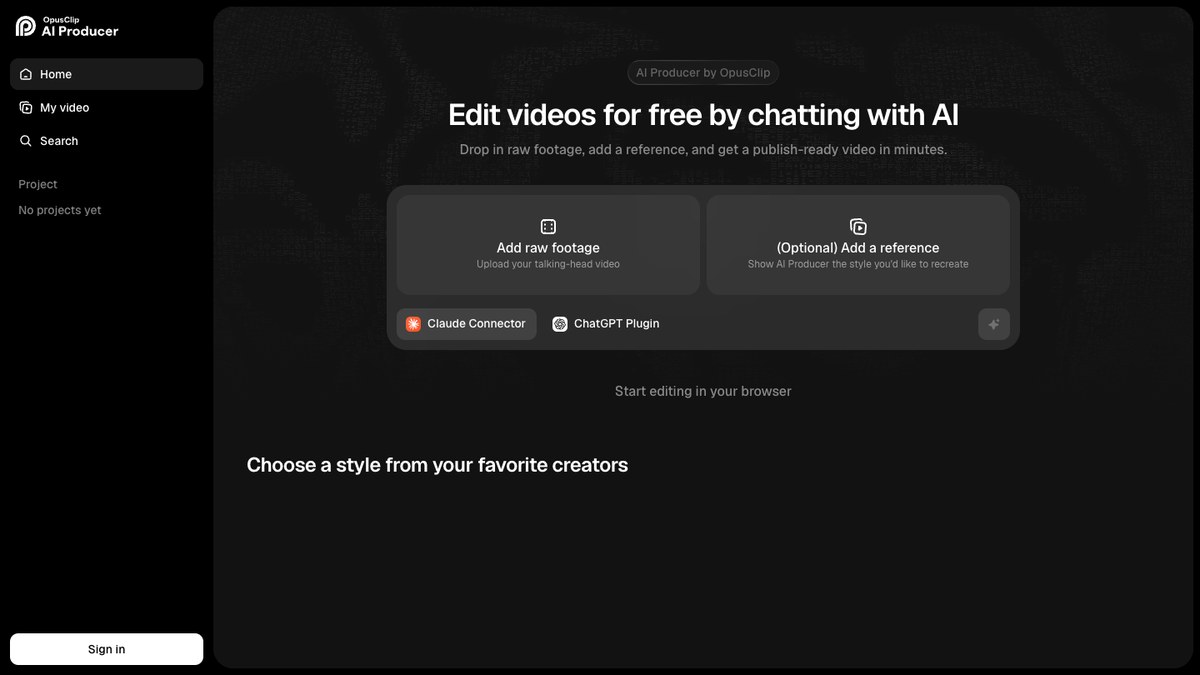
OpusClip AI Producer home screen with Add raw footage and Add a reference options

OpusClip's AI Producer start screen. Source: OpusClip

OpusClip takes a long video, such as a podcast, webinar or stream, and cuts it into short clips. Per its pricing page, every paid plan includes AI clipping with a Virality Score, animated captions in 20+ languages, an editor, a brand template and filler and silence removal. Starter lists auto-posting to YouTube Shorts, TikTok and Instagram Reels, or download. Pro adds a social media scheduler, AI B-Roll, multiple aspect ratios (9:16, 1:1 and 16:9), custom fonts, speech enhancement and export to Adobe Premiere Pro and DaVinci Resolve. See OpusClip's AI video editor for the product page.

For source footage, OpusClip's help center lists imports from YouTube, Zoom, Google Drive, Dropbox, Vimeo, Riverside, StreamYard, Loom and more, so it slots in after a recording tool. Its AI Producer is a separate entry point for raw footage of one person talking to camera: you ask for the edit in plain language through a Claude connector or a ChatGPT plugin. See what an AI Producer is for the longer explanation.

Pricing: Per opus.pro/pricing, Free is $0 with 60 credits a month, up to 1080p rendered clips, a watermark and no editing, and clips stop being exportable after 3 days. Starter is $15 a month (monthly billing only) with 150 credits. Pro is $29 a month, or $14.50 a month billed annually ($174), with 300 credits that roll over for 2 months and 6 social account connections. Business is custom. The page says Starter and Pro have a free trial with no credit card required.

Considerations: Bulk scheduling covers YouTube only, and caption translation before clipping targets English only. AI Producer works on footage of one person talking to camera; its page says multi-camera edits and screen recordings are not supported yet. OpusClip is a clip-and-publish tool, not a replacement for a full non-linear editor.

  • Choose it if your main raw material is long recordings and the goal is a steady flow of captioned shorts, posted from one place.
  • Skip it if you mostly need multi-track timeline editing or screen-recording edits.

2. Descript: Best for editing the main video by editing the transcript
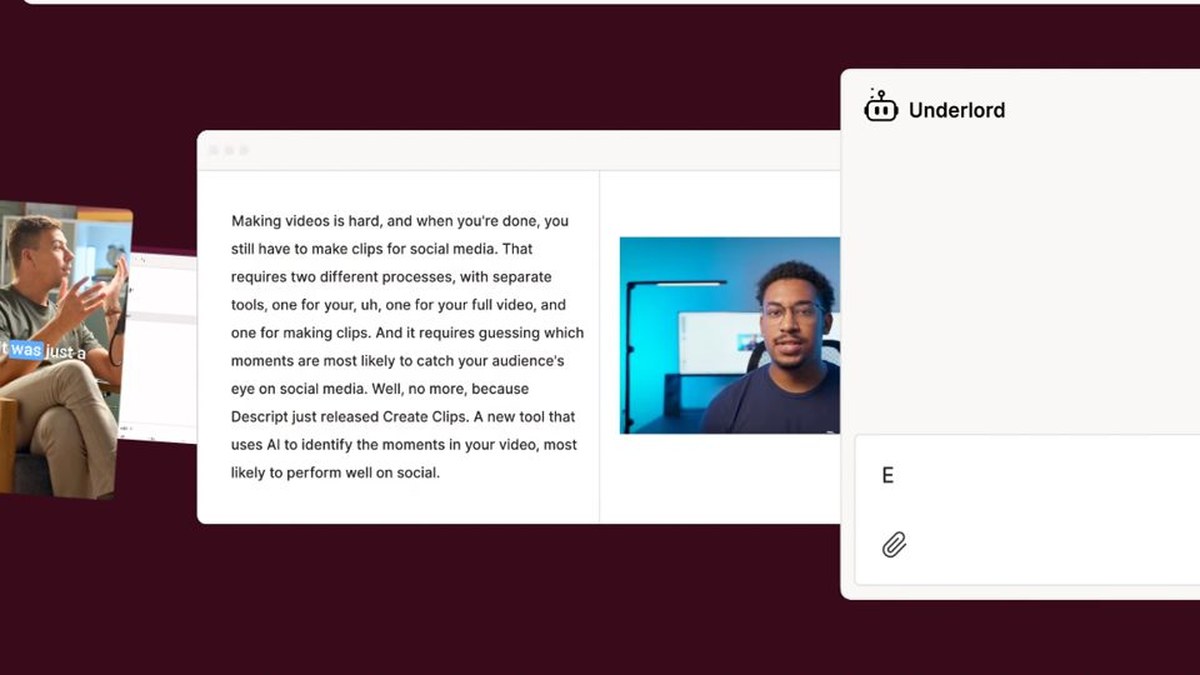
Descript Underlord AI co-editor chat next to a transcript and video preview

Underlord next to the transcript in Descript. Source: Descript website

Descript transcribes a recording and lets you cut, reorder and delete by editing the text, the way you would edit a document. Its pricing page lists Underlord, an AI video co-editor, along with Studio Sound, Remove Filler Words, Remove Retakes, Eye Contact, Create Clips and unlimited dynamic captions, and a feature table lists screen recording, remote recording and a publish step that drafts social posts and show notes.

It suits creators who want to read through the cut and control it, with AI handling the repetitive removals.

Pricing: Descript's pricing page lists Free with 60 media minutes a month and 100 one-time AI credits. Hobbyist is $16 per person a month on the annual toggle ($24 monthly), with 10 media hours, 400 AI credits a month and 1080p watermark-free export. Creator is $24 or $35 with 30 media hours, 800 credits and 4K export. Business is $50 or $65 with 40 media hours and 1,500 credits.

Considerations: Plans meter both media hours and AI credits, so heavy use of AI tools can hit the credit allowance, and the Free plan's credits are one-time. Its pricing page does not list auto-posting to short-form platforms.

  • Choose it if you want to control the cut of a long video or podcast by reading the transcript, or you mix screen and camera recordings.
  • Skip it if you want finished vertical posts with minimal direction, or a tool that schedules posts for you.

3. Riverside: Best for recording interviews and podcasts with editing included
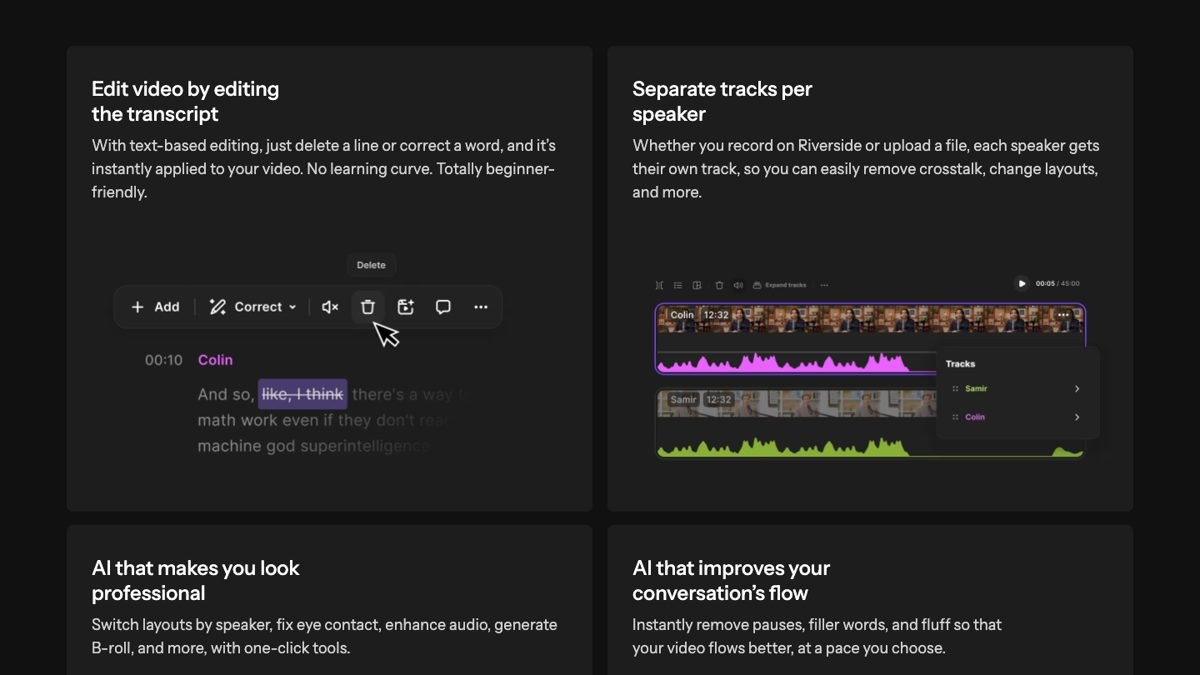
Riverside text-based editing and separate speaker tracks shown on its video editor page

Text-based editing and separate tracks in Riverside. Source: Riverside website

Riverside is a recording studio first. Its pricing page lists studio-quality video and sound, up to 4K video, separate tracks per participant, unlimited text-based editing, an AI editing and repurposing agent, AI b-roll, eye contact, silence and filler word removal, magic clips and audio enhancement. It also lists publishing to YouTube, Spotify, Apple, Instagram and LinkedIn, with social media scheduling on the Grow plan.

It suits creators who book guests or co-hosts and want recording, editing and clips under one plan. OpusClip imports Riverside links, so the two can also be used in sequence.

Pricing: Riverside's rendered pricing page shows Pro at $24 a month on yearly billing and $35 on monthly billing, with no watermark, up to 4K video and a 14-day free trial. Grow is $34 yearly ($45 monthly) and adds social media scheduling. Webinar is $79 yearly ($99 monthly). Pro includes 15 hours of separate track downloads.

Considerations: The editing tools sit inside a recording-and-hosting plan, so the price reflects the whole studio. One FAQ on the page quotes slightly different Pro prices than the plan cards, so check the figure at checkout.

  • Choose it if you record remote interviews or podcasts and want editing, clips and hosting under one plan.
  • Skip it if you only edit solo footage shot on a phone or camera.

4. Captions: Best for chat-based editing and post-ready clips from a phone
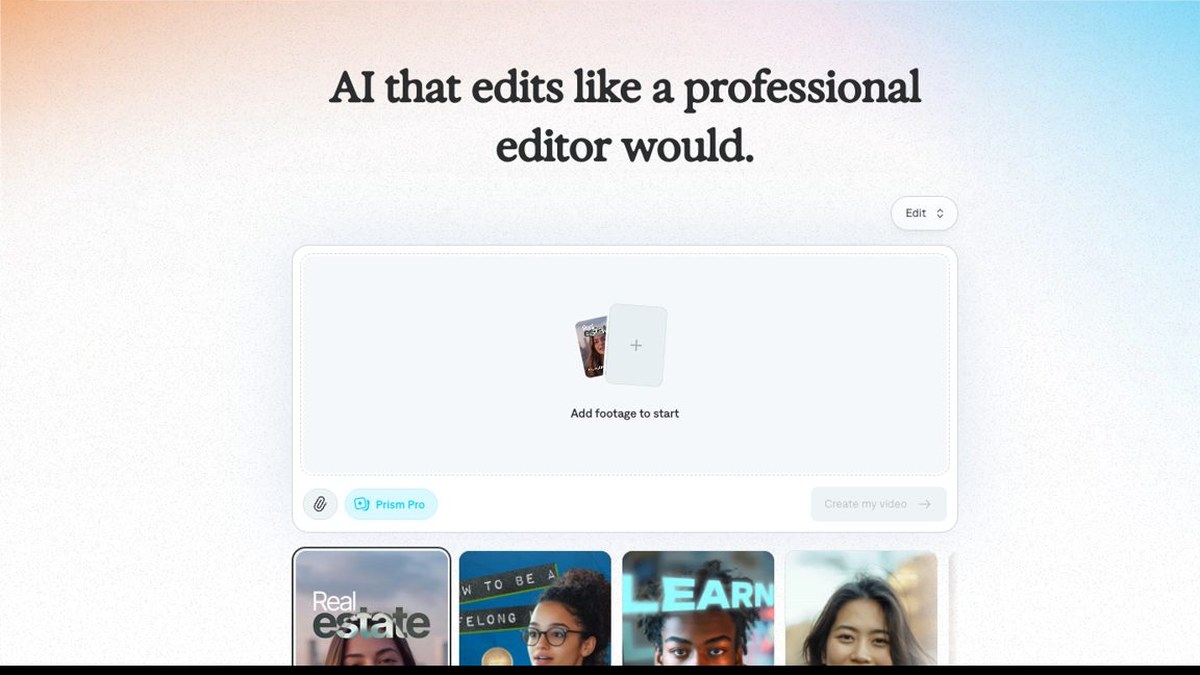
Captions app editor with the Add footage to start prompt

Starting an edit in Captions. Source: Captions website

Captions' pricing page lists a chat-based editor that handles changes for you, a library of curated AI Edit styles, a tool that turns a long video into a batch of post-ready clips, captions in 100+ languages and a teleprompter. It describes the paid plan as using generative AI to make new footage, AI actors and more, so it also covers footage you do not shoot yourself.

It suits creators who start on a phone and want to describe an edit instead of building it.

Pricing: Captions' page lists Max at $24.99 a month with 500 credits a month, and Frontier from $69.99 a month with 1,400 credits at the base tier. Its FAQ says a free version exists. The page states that features and prices reflect iOS plans only.

Considerations: Because the page shows iOS pricing only, confirm what you pay in the app or at checkout. Heavy use depends on a monthly credit allowance.

  • Choose it if you want to direct edits in chat from a phone and post short vertical video.
  • Skip it if you need a desktop timeline, long-form editing or a price you can confirm on the web before buying.

5. Submagic: Best for caption-led short videos with styled captions
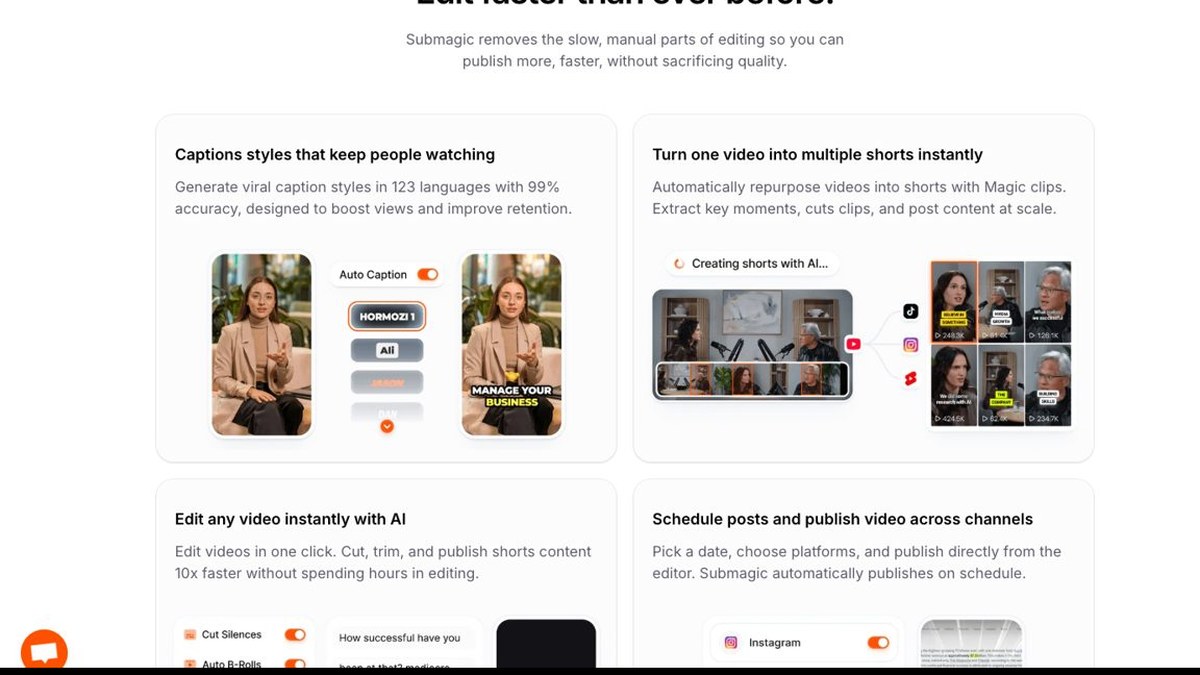
Submagic feature cards for caption styles, repurposing and scheduling

Submagic's caption and repurposing features. Source: Submagic website

Submagic's pricing page lists AI auto captions, free b-rolls and audio and text-based trimming on Starter. Pro adds AI auto zooms, AI removal of bad takes and silences, AI clean audio, publishing and analytics for social, and a brand kit. Business adds 4K at 60 fps. Its site also lists magic clips for turning a long video into shorts.

It suits creators whose raw footage is a talking-head recording and whose main need is styled captions and a quick turnaround.

Pricing: Submagic's pricing page lists Starter at $12 a member a month billed yearly (45 credits, about 15 videos, 2 minutes per video), Pro at $23 (120 credits, 40 videos, 5 minutes) and Business at $41 (300 credits, 100 videos, 30 minutes). Starter exports 1080p at 30 fps and all plans are watermark-free. The page shows yearly pricing by default, so see the page for monthly billing, and it lists no free plan, though its header says no credit card is required to try it.

Considerations: Per-video length caps (2 minutes on Starter, 5 on Pro) matter if the source is long, and credits are consumed per video.

  • Choose it if the goal is short, caption-styled videos from a talking-head recording and you are comfortable paying per video credit.
  • Skip it if you need a free plan, long-form output or a full timeline editor.

6. Vizard: Best for clipping long videos on a free tier

Vizard home page with a paste-a-YouTube-link box to turn a long video into clips

Starting from a YouTube link in Vizard. Source: Vizard website

Vizard turns a long video into short clips. Its pricing page lists AI-generated clips, a full video editor on every plan, auto subtitling, subtitle translation and brand templates, and on paid plans scheduled social posts. Its header also lists a Vizard Agent. It suits podcasters, coaches and agencies whose raw footage is a long recording and whose output is a batch of shorts.

One credit equals one minute of video, which makes the monthly allowance easy to plan against.

Pricing: Vizard's pricing page lists Free at $0 with 60 credits a month, 720p export, a 10-minute export length, 3-day storage and 1 social account. Creator is $29 a month, or $14.50 a month billed yearly ($174), with no watermark, 4K export, scheduling and 6 social accounts. Business is $39 a month, or $19.50 yearly ($234), with 20 social accounts, a brand kit and unlimited storage, plus $5 a month per added team seat.

Considerations: The output is a set of clips, not a re-edit of the full video, and credits are tied to minutes of video. Free exports are 720p and capped at 10 minutes.

  • Choose it if your source is a long recording and you want shorts on a tight budget.
  • Skip it if you need to edit the whole recording into one polished video or edit screen recordings.

7. Kapwing: Best for browser editing with a built-in screen and camera recorder
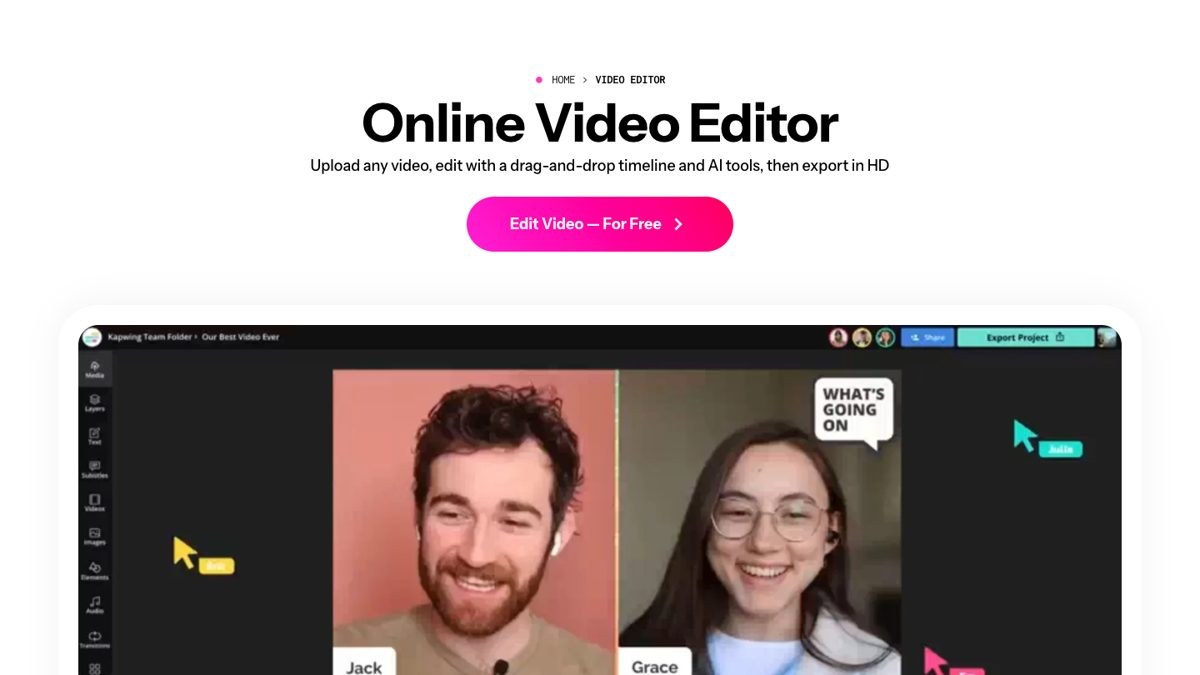
Kapwing online video editor showing a timeline edit of two people on camera

The Kapwing online video editor. Source: Kapwing website

Kapwing's pricing page lists recording of screen, camera and audio inside the editor, and its tool menu lists Smart Cut (automatic silence removal), Clip Maker, Repurpose Studio, Clean Audio, a B-Roll Generator and an AI Video Editor. It suits creators and small teams who record a tutorial or talk in the browser and want to edit, caption and resize it in the same place.

The editor runs in the browser, so there is nothing to install.

Pricing: Kapwing's pricing page lists Free at $0 with 10 credits, a watermark, exports up to 4 minutes long and 720p. Pro is $16 a month (the page has a billing toggle that saves 33%) with 1,000 credits a month, no watermark, 4K export, exports up to 2 hours and a Brand Kit with custom fonts. Business is $50 a month with 4,000 credits.

Considerations: The free plan watermarks exports and caps them at 4 minutes, and AI tools such as auto-subtitling and dubbing draw on monthly credit or minute allowances.

  • Choose it if your footage starts as a screen or camera recording and you want a browser timeline with AI cleanup.
  • Skip it if you want a tool that picks clips and posts them for you.

8. VEED: Best for browser editing with subtitles and a teleprompter
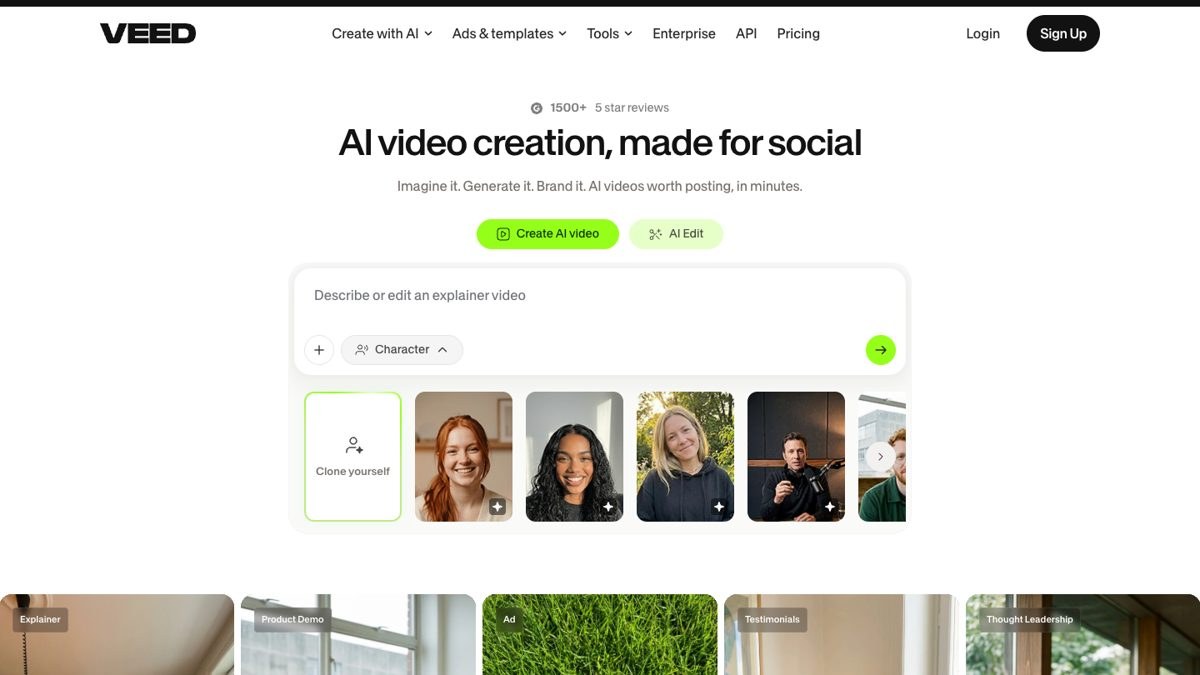
VEED home page with the AI video creation prompt box and AI Edit tab

VEED's AI video creation entry point. Source: VEED website

VEED's site lists a video editor, an auto subtitle generator, a video caption generator, an online teleprompter, Eye Contact AI, background-noise removal and a video translator. That combination suits creators who record a talk to camera and want subtitles and cleanup without installing software.

Its paid plans bundle AI credits for generation tools alongside the editor.

Pricing: VEED's rendered pricing page shows Creator at $10 per user a month billed yearly (6,000 credits, no watermark, 1080p exports, subtitles up to 120 hours a year) and Pro at $19 (18,000 credits, 4K export, 50 GB of storage, translation to 50+ languages, multiple brand kits and unlimited auto subtitles). Enterprise is custom. The page says to start for free, and monthly prices were not shown in the view we read.

Considerations: Plans are charged per user and credits are metered, so teams should estimate a normal month before choosing a tier.

  • Choose it if you want one browser tool for subtitles, teleprompter and light edits.
  • Skip it if you want clips picked and posted for you from a long recording.

9. CapCut: Best for free manual edits on phone, desktop and browser
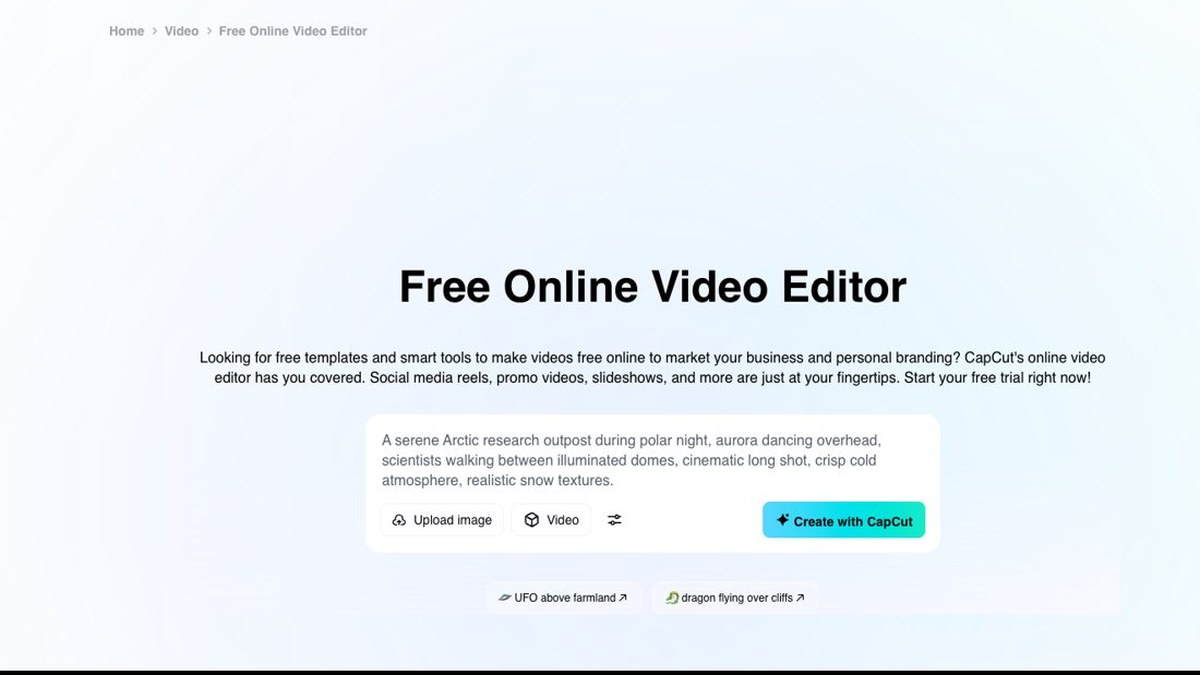
CapCut free online video editor prompt box on its tools page

CapCut's online video editor page. Source: CapCut website

CapCut's pricing page lists CapCut Desktop, CapCut Online, CapCut Pad and CapCut Mobile, and its feature menu lists auto captions, caption templates, speech recognition, text to speech, voice enhancement and noise reduction. It suits creators who want to make the cuts themselves with a large template library and add captions and audio cleanup automatically.

Its Pro plan also bundles AI generation credits.

Pricing: CapCut's pricing page lists Free at $0 with free templates and basic editing tools, Pro at $19.99 a month (1,200 monthly AI credits, all premium templates and 1 TB of storage) and Teams at $12.49 a month per seat with a brand kit. The page notes that displayed pricing is for reference only and the final price appears after signing in.

Considerations: We found no automatic clip picking or scheduler on the pricing page, so repurposing a long video stays largely manual. Confirm the price at checkout.

  • Choose it if you want a free, template-led editor on every device and are happy to make the edits by hand.
  • Skip it if you want the tool to find the best moments in a long video for you.

How we compared these tools

We compared each tool on the creator workflow it covers (record, edit, clip, caption, repurpose, schedule), what its own pages say it does automatically, price and free-tier limits, watermarks and export caps, and its main limitation. Every fact comes from that vendor's own pricing page, help center or site, read on November 2, 2026. Where a pricing page loads its figures with JavaScript, we read the rendered page in a browser, and we flag where a billing period was not shown.

We did not run hands-on trials of the competing tools. This is a comparison of published pricing and documented features, not a lab review. Prices change often and some pages show promotions, so check the vendor's page before buying.

Red flags to watch for

Watermarks on free exports

OpusClip and Kapwing list watermarks on their free plans. Trial test: export a finished video before deciding the free plan is enough.

Output length caps

Kapwing Free caps exports at 4 minutes, Vizard Free at 10 minutes and Submagic Starter at 2 minutes per video. Trial test: run your normal-length recording, not a short demo clip.

Credits that expire or meter heavily

OpusClip Pro credits roll over for 2 months, Descript's Free AI credits are one-time, and Captions and Submagic plans run on monthly credits. Trial test: estimate a normal month of output against the allowance, not a single project.

No way to override the AI

Automatic clip picks and cuts are a starting point. Trial test: check that you can trim a clip, fix a caption and swap a scene before export.

Platform limits on scheduling

Schedulers differ in which platforms they post to and how many accounts they connect. Trial test: connect the accounts you actually use before paying for a scheduler.

Prices you cannot confirm

Captions' page shows iOS prices only, CapCut's page says displayed pricing is for reference only, and some pricing pages default to yearly billing. Trial test: check the price at checkout before comparing plans.

Frequently asked questions

What are the best AI tools for content creators?

For video creators, OpusClip is our first pick because it clips, captions and posts short videos from a long recording. Descript, Riverside, Captions, Submagic, Vizard, Kapwing, VEED and CapCut cover other steps. For writing, image and audio tools as well, see our wider AI tools for content creators guide.

What are the top AI tools for creators who make short-form video?

OpusClip, Submagic, Captions and Vizard are built around short vertical posts. OpusClip lists auto-posting to YouTube Shorts, TikTok and Instagram Reels from its Starter plan; see OpusClip pricing.

Which AI tool is best for repurposing long videos into shorts?

OpusClip and Vizard both turn long recordings into clips with captions. OpusClip adds a Virality Score and a social scheduler on Pro, and Vizard has a free plan with 60 credits a month at 720p.

What is the best free AI video tool for creators?

CapCut Free, Vizard Free (60 credits, 720p), Kapwing Free (watermark) and OpusClip Free (60 credits, watermark) are the free starting points. Check watermarks and export limits first.

Which AI tools can schedule short-form videos?

OpusClip lists a social media scheduler on Pro, Vizard lists scheduling on Creator, Riverside lists social media scheduling on Grow and Submagic lists publishing and analytics on Pro. See our edit-and-schedule roundup.

Which AI tool adds captions to videos?

Submagic, Captions, OpusClip, VEED, Kapwing, CapCut and Descript all list automatic captions or subtitles. OpusClip lists animated captions in 20+ languages and Captions lists 100+ languages.

Do creators need more than one AI video tool?

Often yes. A common stack is a recording tool, an editor and a clipping tool. OpusClip imports links from Riverside, YouTube, Zoom and others, so it can sit after your recorder. See our AI video editors roundup.

Do AI tools replace a human editor?

Not for complex timelines. These tools automate repetitive cuts, captions and formatting; OpusClip is not a replacement for a full non-linear editor, though Pro can export projects to Premiere Pro and DaVinci Resolve for further editing.
On this page

Use our Free Forever Plan

Find the moment. Skip the scrubbing.

From script to polished video — in one click.

Create and post one short video every day for free, and grow faster.

OpusSearch uses AI to surface the exact clip you need from hours of footage — in seconds, not afternoons.

Agent Opus runs the entire video pipeline for you: research, scriptwriting, storyboarding, motion, voice, and edit. Upload the idea, post the result.

9 Best AI Video Tools for Content Creators in 2026

For a video-first creator, OpusClip is our first pick: it turns a long recording into short, captioned clips ranked by a Virality Score, and its paid plans post them to YouTube Shorts, TikTok and Instagram Reels. Descript is the pick for editing by transcript, Riverside for recording, Captions and Submagic for caption-led short videos, Vizard for budget clipping, and Kapwing, VEED and CapCut for browser or free manual editing. We ranked nine tools by the creator workflow they cover (record, edit, clip, caption, repurpose, schedule), then by price, free-tier limits and how clearly each vendor documents what it does. This list is about video; for writing, image and audio tools as well, see our wider AI tools for content creators guide.

Key takeaways

  • Best for clipping, captioning and posting from a long recording: OpusClip. It covers the clip, caption, repurpose and schedule steps in one place.
  • Best for editing by editing the transcript: Descript. It also lists a screen recorder and remote recording.
  • Best for recording the source footage: Riverside. Recording and editing sit under one plan.
  • Best for caption-led short videos: Submagic and Captions. Both are built around short vertical posts.
  • Best budget clipping: Vizard. Its free plan includes 60 credits a month.
  • Best free or browser-based manual editing: CapCut, Kapwing and VEED. Check watermarks and export caps before relying on a free tier.

How to choose

Start with the step of the workflow that eats most of your week, then match it to the tools built for that step.

  • If the bottleneck is turning one long video or podcast into many short clips, look for highlight detection, reframing and captions together: OpusClip, Vizard.
  • If the bottleneck is editing the main video, look for transcript editing or a timeline you can drive with AI: Descript, Kapwing, VEED, CapCut.
  • If the bottleneck is recording, look for a studio that records locally and edits afterwards: Riverside, Descript.
  • If the bottleneck is captions, look for caption styles you can tune and a clear per-video limit: Submagic, Captions, OpusClip.
  • If the bottleneck is posting consistently, look for a built-in scheduler and the platforms it supports: OpusClip, Vizard, Riverside.
  • If you edit on a phone, look for a mobile app: Captions and CapCut list one.

For narrower jobs, see our AI video editors roundup, our talking-head editing tools roundup, our edit-and-schedule roundup and our clipping platforms for creators guide.

At a glance

  • OpusClip: best for clipping long recordings into captioned shorts and posting them; paid plans from $15 a month; free plan yes (60 credits a month, with a watermark).
  • Descript: best for editing by editing the transcript; Hobbyist $16 a month billed annually ($24 monthly); free plan yes (60 media minutes a month).
  • Riverside: best for recording interviews and podcasts, with editing included; Pro $24 a month billed yearly ($35 monthly); 14-day free trial.
  • Captions: best for chat-based editing and post-ready clips from a phone; Max $24.99 a month (iOS pricing); a free version exists.
  • Submagic: best for caption-led short videos; from $12 a member a month billed yearly; no free plan listed.
  • Vizard: best for clipping on a free tier; Creator $14.50 a month billed yearly ($29 monthly); free plan yes (60 credits, 720p).
  • Kapwing: best for browser editing with a built-in recorder; Pro $16 a month; free plan yes (watermark, 4-minute exports).
  • VEED: best for browser editing with subtitles; Creator $10 per user a month billed yearly; free to start.
  • CapCut: best for free manual edits on phone, desktop and browser; Pro $19.99 a month; free plan yes (basic editing tools).

1. OpusClip: Best for clipping long recordings into captioned shorts and posting them

OpusClip AI Producer home screen with Add raw footage and Add a reference options

OpusClip's AI Producer start screen. Source: OpusClip

OpusClip takes a long video, such as a podcast, webinar or stream, and cuts it into short clips. Per its pricing page, every paid plan includes AI clipping with a Virality Score, animated captions in 20+ languages, an editor, a brand template and filler and silence removal. Starter lists auto-posting to YouTube Shorts, TikTok and Instagram Reels, or download. Pro adds a social media scheduler, AI B-Roll, multiple aspect ratios (9:16, 1:1 and 16:9), custom fonts, speech enhancement and export to Adobe Premiere Pro and DaVinci Resolve. See OpusClip's AI video editor for the product page.

For source footage, OpusClip's help center lists imports from YouTube, Zoom, Google Drive, Dropbox, Vimeo, Riverside, StreamYard, Loom and more, so it slots in after a recording tool. Its AI Producer is a separate entry point for raw footage of one person talking to camera: you ask for the edit in plain language through a Claude connector or a ChatGPT plugin. See what an AI Producer is for the longer explanation.

Pricing: Per opus.pro/pricing, Free is $0 with 60 credits a month, up to 1080p rendered clips, a watermark and no editing, and clips stop being exportable after 3 days. Starter is $15 a month (monthly billing only) with 150 credits. Pro is $29 a month, or $14.50 a month billed annually ($174), with 300 credits that roll over for 2 months and 6 social account connections. Business is custom. The page says Starter and Pro have a free trial with no credit card required.

Considerations: Bulk scheduling covers YouTube only, and caption translation before clipping targets English only. AI Producer works on footage of one person talking to camera; its page says multi-camera edits and screen recordings are not supported yet. OpusClip is a clip-and-publish tool, not a replacement for a full non-linear editor.

  • Choose it if your main raw material is long recordings and the goal is a steady flow of captioned shorts, posted from one place.
  • Skip it if you mostly need multi-track timeline editing or screen-recording edits.

2. Descript: Best for editing the main video by editing the transcript

Descript Underlord AI co-editor chat next to a transcript and video preview

Underlord next to the transcript in Descript. Source: Descript website

Descript transcribes a recording and lets you cut, reorder and delete by editing the text, the way you would edit a document. Its pricing page lists Underlord, an AI video co-editor, along with Studio Sound, Remove Filler Words, Remove Retakes, Eye Contact, Create Clips and unlimited dynamic captions, and a feature table lists screen recording, remote recording and a publish step that drafts social posts and show notes.

It suits creators who want to read through the cut and control it, with AI handling the repetitive removals.

Pricing: Descript's pricing page lists Free with 60 media minutes a month and 100 one-time AI credits. Hobbyist is $16 per person a month on the annual toggle ($24 monthly), with 10 media hours, 400 AI credits a month and 1080p watermark-free export. Creator is $24 or $35 with 30 media hours, 800 credits and 4K export. Business is $50 or $65 with 40 media hours and 1,500 credits.

Considerations: Plans meter both media hours and AI credits, so heavy use of AI tools can hit the credit allowance, and the Free plan's credits are one-time. Its pricing page does not list auto-posting to short-form platforms.

  • Choose it if you want to control the cut of a long video or podcast by reading the transcript, or you mix screen and camera recordings.
  • Skip it if you want finished vertical posts with minimal direction, or a tool that schedules posts for you.

3. Riverside: Best for recording interviews and podcasts with editing included

Riverside text-based editing and separate speaker tracks shown on its video editor page

Text-based editing and separate tracks in Riverside. Source: Riverside website

Riverside is a recording studio first. Its pricing page lists studio-quality video and sound, up to 4K video, separate tracks per participant, unlimited text-based editing, an AI editing and repurposing agent, AI b-roll, eye contact, silence and filler word removal, magic clips and audio enhancement. It also lists publishing to YouTube, Spotify, Apple, Instagram and LinkedIn, with social media scheduling on the Grow plan.

It suits creators who book guests or co-hosts and want recording, editing and clips under one plan. OpusClip imports Riverside links, so the two can also be used in sequence.

Pricing: Riverside's rendered pricing page shows Pro at $24 a month on yearly billing and $35 on monthly billing, with no watermark, up to 4K video and a 14-day free trial. Grow is $34 yearly ($45 monthly) and adds social media scheduling. Webinar is $79 yearly ($99 monthly). Pro includes 15 hours of separate track downloads.

Considerations: The editing tools sit inside a recording-and-hosting plan, so the price reflects the whole studio. One FAQ on the page quotes slightly different Pro prices than the plan cards, so check the figure at checkout.

  • Choose it if you record remote interviews or podcasts and want editing, clips and hosting under one plan.
  • Skip it if you only edit solo footage shot on a phone or camera.

4. Captions: Best for chat-based editing and post-ready clips from a phone

Captions app editor with the Add footage to start prompt

Starting an edit in Captions. Source: Captions website

Captions' pricing page lists a chat-based editor that handles changes for you, a library of curated AI Edit styles, a tool that turns a long video into a batch of post-ready clips, captions in 100+ languages and a teleprompter. It describes the paid plan as using generative AI to make new footage, AI actors and more, so it also covers footage you do not shoot yourself.

It suits creators who start on a phone and want to describe an edit instead of building it.

Pricing: Captions' page lists Max at $24.99 a month with 500 credits a month, and Frontier from $69.99 a month with 1,400 credits at the base tier. Its FAQ says a free version exists. The page states that features and prices reflect iOS plans only.

Considerations: Because the page shows iOS pricing only, confirm what you pay in the app or at checkout. Heavy use depends on a monthly credit allowance.

  • Choose it if you want to direct edits in chat from a phone and post short vertical video.
  • Skip it if you need a desktop timeline, long-form editing or a price you can confirm on the web before buying.

5. Submagic: Best for caption-led short videos with styled captions

Submagic feature cards for caption styles, repurposing and scheduling

Submagic's caption and repurposing features. Source: Submagic website

Submagic's pricing page lists AI auto captions, free b-rolls and audio and text-based trimming on Starter. Pro adds AI auto zooms, AI removal of bad takes and silences, AI clean audio, publishing and analytics for social, and a brand kit. Business adds 4K at 60 fps. Its site also lists magic clips for turning a long video into shorts.

It suits creators whose raw footage is a talking-head recording and whose main need is styled captions and a quick turnaround.

Pricing: Submagic's pricing page lists Starter at $12 a member a month billed yearly (45 credits, about 15 videos, 2 minutes per video), Pro at $23 (120 credits, 40 videos, 5 minutes) and Business at $41 (300 credits, 100 videos, 30 minutes). Starter exports 1080p at 30 fps and all plans are watermark-free. The page shows yearly pricing by default, so see the page for monthly billing, and it lists no free plan, though its header says no credit card is required to try it.

Considerations: Per-video length caps (2 minutes on Starter, 5 on Pro) matter if the source is long, and credits are consumed per video.

  • Choose it if the goal is short, caption-styled videos from a talking-head recording and you are comfortable paying per video credit.
  • Skip it if you need a free plan, long-form output or a full timeline editor.

6. Vizard: Best for clipping long videos on a free tier

Vizard home page with a paste-a-YouTube-link box to turn a long video into clips

Starting from a YouTube link in Vizard. Source: Vizard website

Vizard turns a long video into short clips. Its pricing page lists AI-generated clips, a full video editor on every plan, auto subtitling, subtitle translation and brand templates, and on paid plans scheduled social posts. Its header also lists a Vizard Agent. It suits podcasters, coaches and agencies whose raw footage is a long recording and whose output is a batch of shorts.

One credit equals one minute of video, which makes the monthly allowance easy to plan against.

Pricing: Vizard's pricing page lists Free at $0 with 60 credits a month, 720p export, a 10-minute export length, 3-day storage and 1 social account. Creator is $29 a month, or $14.50 a month billed yearly ($174), with no watermark, 4K export, scheduling and 6 social accounts. Business is $39 a month, or $19.50 yearly ($234), with 20 social accounts, a brand kit and unlimited storage, plus $5 a month per added team seat.

Considerations: The output is a set of clips, not a re-edit of the full video, and credits are tied to minutes of video. Free exports are 720p and capped at 10 minutes.

  • Choose it if your source is a long recording and you want shorts on a tight budget.
  • Skip it if you need to edit the whole recording into one polished video or edit screen recordings.

7. Kapwing: Best for browser editing with a built-in screen and camera recorder

Kapwing online video editor showing a timeline edit of two people on camera

The Kapwing online video editor. Source: Kapwing website

Kapwing's pricing page lists recording of screen, camera and audio inside the editor, and its tool menu lists Smart Cut (automatic silence removal), Clip Maker, Repurpose Studio, Clean Audio, a B-Roll Generator and an AI Video Editor. It suits creators and small teams who record a tutorial or talk in the browser and want to edit, caption and resize it in the same place.

The editor runs in the browser, so there is nothing to install.

Pricing: Kapwing's pricing page lists Free at $0 with 10 credits, a watermark, exports up to 4 minutes long and 720p. Pro is $16 a month (the page has a billing toggle that saves 33%) with 1,000 credits a month, no watermark, 4K export, exports up to 2 hours and a Brand Kit with custom fonts. Business is $50 a month with 4,000 credits.

Considerations: The free plan watermarks exports and caps them at 4 minutes, and AI tools such as auto-subtitling and dubbing draw on monthly credit or minute allowances.

  • Choose it if your footage starts as a screen or camera recording and you want a browser timeline with AI cleanup.
  • Skip it if you want a tool that picks clips and posts them for you.

8. VEED: Best for browser editing with subtitles and a teleprompter

VEED home page with the AI video creation prompt box and AI Edit tab

VEED's AI video creation entry point. Source: VEED website

VEED's site lists a video editor, an auto subtitle generator, a video caption generator, an online teleprompter, Eye Contact AI, background-noise removal and a video translator. That combination suits creators who record a talk to camera and want subtitles and cleanup without installing software.

Its paid plans bundle AI credits for generation tools alongside the editor.

Pricing: VEED's rendered pricing page shows Creator at $10 per user a month billed yearly (6,000 credits, no watermark, 1080p exports, subtitles up to 120 hours a year) and Pro at $19 (18,000 credits, 4K export, 50 GB of storage, translation to 50+ languages, multiple brand kits and unlimited auto subtitles). Enterprise is custom. The page says to start for free, and monthly prices were not shown in the view we read.

Considerations: Plans are charged per user and credits are metered, so teams should estimate a normal month before choosing a tier.

  • Choose it if you want one browser tool for subtitles, teleprompter and light edits.
  • Skip it if you want clips picked and posted for you from a long recording.

9. CapCut: Best for free manual edits on phone, desktop and browser

CapCut free online video editor prompt box on its tools page

CapCut's online video editor page. Source: CapCut website

CapCut's pricing page lists CapCut Desktop, CapCut Online, CapCut Pad and CapCut Mobile, and its feature menu lists auto captions, caption templates, speech recognition, text to speech, voice enhancement and noise reduction. It suits creators who want to make the cuts themselves with a large template library and add captions and audio cleanup automatically.

Its Pro plan also bundles AI generation credits.

Pricing: CapCut's pricing page lists Free at $0 with free templates and basic editing tools, Pro at $19.99 a month (1,200 monthly AI credits, all premium templates and 1 TB of storage) and Teams at $12.49 a month per seat with a brand kit. The page notes that displayed pricing is for reference only and the final price appears after signing in.

Considerations: We found no automatic clip picking or scheduler on the pricing page, so repurposing a long video stays largely manual. Confirm the price at checkout.

  • Choose it if you want a free, template-led editor on every device and are happy to make the edits by hand.
  • Skip it if you want the tool to find the best moments in a long video for you.

How we compared these tools

We compared each tool on the creator workflow it covers (record, edit, clip, caption, repurpose, schedule), what its own pages say it does automatically, price and free-tier limits, watermarks and export caps, and its main limitation. Every fact comes from that vendor's own pricing page, help center or site, read on November 2, 2026. Where a pricing page loads its figures with JavaScript, we read the rendered page in a browser, and we flag where a billing period was not shown.

We did not run hands-on trials of the competing tools. This is a comparison of published pricing and documented features, not a lab review. Prices change often and some pages show promotions, so check the vendor's page before buying.

Red flags to watch for

Watermarks on free exports

OpusClip and Kapwing list watermarks on their free plans. Trial test: export a finished video before deciding the free plan is enough.

Output length caps

Kapwing Free caps exports at 4 minutes, Vizard Free at 10 minutes and Submagic Starter at 2 minutes per video. Trial test: run your normal-length recording, not a short demo clip.

Credits that expire or meter heavily

OpusClip Pro credits roll over for 2 months, Descript's Free AI credits are one-time, and Captions and Submagic plans run on monthly credits. Trial test: estimate a normal month of output against the allowance, not a single project.

No way to override the AI

Automatic clip picks and cuts are a starting point. Trial test: check that you can trim a clip, fix a caption and swap a scene before export.

Platform limits on scheduling

Schedulers differ in which platforms they post to and how many accounts they connect. Trial test: connect the accounts you actually use before paying for a scheduler.

Prices you cannot confirm

Captions' page shows iOS prices only, CapCut's page says displayed pricing is for reference only, and some pricing pages default to yearly billing. Trial test: check the price at checkout before comparing plans.

Frequently asked questions

What are the best AI tools for content creators?

For video creators, OpusClip is our first pick because it clips, captions and posts short videos from a long recording. Descript, Riverside, Captions, Submagic, Vizard, Kapwing, VEED and CapCut cover other steps. For writing, image and audio tools as well, see our wider AI tools for content creators guide.

What are the top AI tools for creators who make short-form video?

OpusClip, Submagic, Captions and Vizard are built around short vertical posts. OpusClip lists auto-posting to YouTube Shorts, TikTok and Instagram Reels from its Starter plan; see OpusClip pricing.

Which AI tool is best for repurposing long videos into shorts?

OpusClip and Vizard both turn long recordings into clips with captions. OpusClip adds a Virality Score and a social scheduler on Pro, and Vizard has a free plan with 60 credits a month at 720p.

What is the best free AI video tool for creators?

CapCut Free, Vizard Free (60 credits, 720p), Kapwing Free (watermark) and OpusClip Free (60 credits, watermark) are the free starting points. Check watermarks and export limits first.

Which AI tools can schedule short-form videos?

OpusClip lists a social media scheduler on Pro, Vizard lists scheduling on Creator, Riverside lists social media scheduling on Grow and Submagic lists publishing and analytics on Pro. See our edit-and-schedule roundup.

Which AI tool adds captions to videos?

Submagic, Captions, OpusClip, VEED, Kapwing, CapCut and Descript all list automatic captions or subtitles. OpusClip lists animated captions in 20+ languages and Captions lists 100+ languages.

Do creators need more than one AI video tool?

Often yes. A common stack is a recording tool, an editor and a clipping tool. OpusClip imports links from Riverside, YouTube, Zoom and others, so it can sit after your recorder. See our AI video editors roundup.

Do AI tools replace a human editor?

Not for complex timelines. These tools automate repetitive cuts, captions and formatting; OpusClip is not a replacement for a full non-linear editor, though Pro can export projects to Premiere Pro and DaVinci Resolve for further editing.

Creator name

Creator type

Team size

Channels

linkYouTubefacebookXTikTok

Pain point

Time to see positive ROI

About the creator

Don't miss these

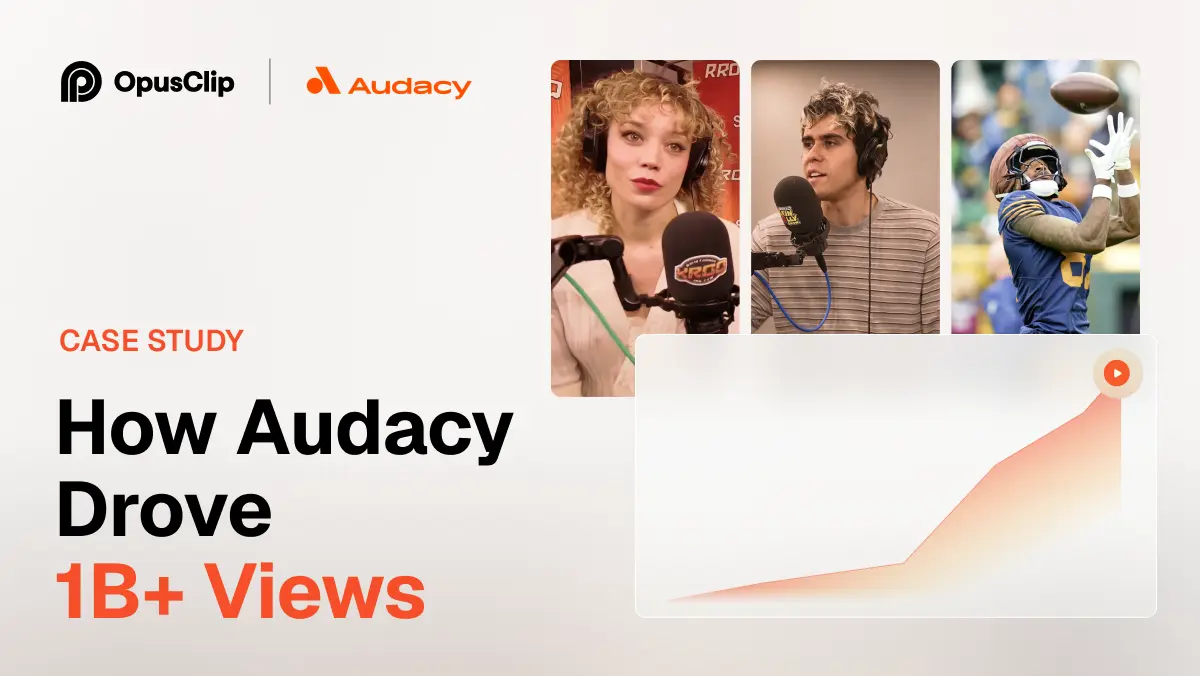
How Audacy Drove 1B+ Views by Taking a Tech-Forward Approach to Radio with OpusClip
No items found.

How Audacy Drove 1B+ Views by Taking a Tech-Forward Approach to Radio with OpusClip

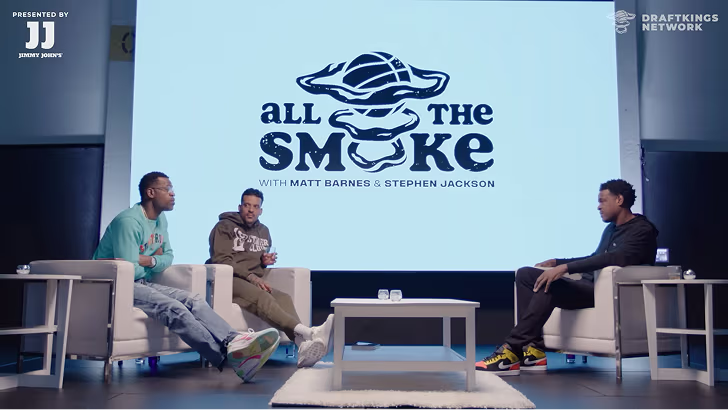
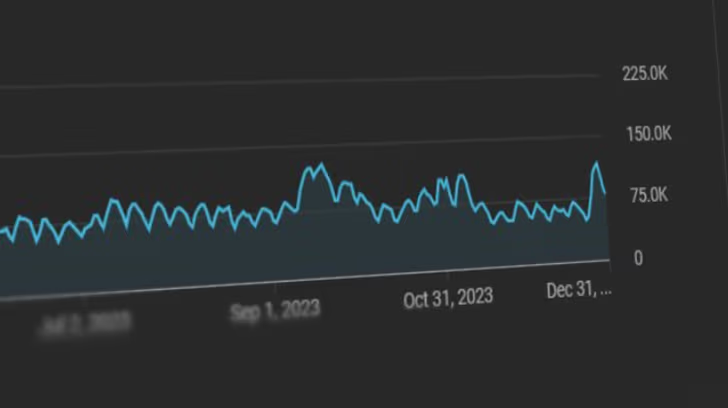
How All the Smoke makes hit compilations faster with OpusSearch

How All the Smoke makes hit compilations faster with OpusSearch

Growing a new channel to 1.5M views in 90 days without creating new videos

Growing a new channel to 1.5M views in 90 days without creating new videos

OpusClip 4.0 is here. Become a content powerhouse.

9 Best AI Video Tools for Content Creators in 2026

Creators recording and editing video on a phone, a podcast mic and a laptop, with a Clip it button, a 9:16 tag and a views badge
No items found.
No items found.

Boost your social media growth with OpusClip

Create and post one short video every day for your social media and grow faster.

9 Best AI Video Tools for Content Creators in 2026

Creators recording and editing video on a phone, a podcast mic and a laptop, with a Clip it button, a 9:16 tag and a views badge

For a video-first creator, OpusClip is our first pick: it turns a long recording into short, captioned clips ranked by a Virality Score, and its paid plans post them to YouTube Shorts, TikTok and Instagram Reels. Descript is the pick for editing by transcript, Riverside for recording, Captions and Submagic for caption-led short videos, Vizard for budget clipping, and Kapwing, VEED and CapCut for browser or free manual editing. We ranked nine tools by the creator workflow they cover (record, edit, clip, caption, repurpose, schedule), then by price, free-tier limits and how clearly each vendor documents what it does. This list is about video; for writing, image and audio tools as well, see our wider AI tools for content creators guide.

Key takeaways

  • Best for clipping, captioning and posting from a long recording: OpusClip. It covers the clip, caption, repurpose and schedule steps in one place.
  • Best for editing by editing the transcript: Descript. It also lists a screen recorder and remote recording.
  • Best for recording the source footage: Riverside. Recording and editing sit under one plan.
  • Best for caption-led short videos: Submagic and Captions. Both are built around short vertical posts.
  • Best budget clipping: Vizard. Its free plan includes 60 credits a month.
  • Best free or browser-based manual editing: CapCut, Kapwing and VEED. Check watermarks and export caps before relying on a free tier.

How to choose

Start with the step of the workflow that eats most of your week, then match it to the tools built for that step.

  • If the bottleneck is turning one long video or podcast into many short clips, look for highlight detection, reframing and captions together: OpusClip, Vizard.
  • If the bottleneck is editing the main video, look for transcript editing or a timeline you can drive with AI: Descript, Kapwing, VEED, CapCut.
  • If the bottleneck is recording, look for a studio that records locally and edits afterwards: Riverside, Descript.
  • If the bottleneck is captions, look for caption styles you can tune and a clear per-video limit: Submagic, Captions, OpusClip.
  • If the bottleneck is posting consistently, look for a built-in scheduler and the platforms it supports: OpusClip, Vizard, Riverside.
  • If you edit on a phone, look for a mobile app: Captions and CapCut list one.

For narrower jobs, see our AI video editors roundup, our talking-head editing tools roundup, our edit-and-schedule roundup and our clipping platforms for creators guide.

At a glance

  • OpusClip: best for clipping long recordings into captioned shorts and posting them; paid plans from $15 a month; free plan yes (60 credits a month, with a watermark).
  • Descript: best for editing by editing the transcript; Hobbyist $16 a month billed annually ($24 monthly); free plan yes (60 media minutes a month).
  • Riverside: best for recording interviews and podcasts, with editing included; Pro $24 a month billed yearly ($35 monthly); 14-day free trial.
  • Captions: best for chat-based editing and post-ready clips from a phone; Max $24.99 a month (iOS pricing); a free version exists.
  • Submagic: best for caption-led short videos; from $12 a member a month billed yearly; no free plan listed.
  • Vizard: best for clipping on a free tier; Creator $14.50 a month billed yearly ($29 monthly); free plan yes (60 credits, 720p).
  • Kapwing: best for browser editing with a built-in recorder; Pro $16 a month; free plan yes (watermark, 4-minute exports).
  • VEED: best for browser editing with subtitles; Creator $10 per user a month billed yearly; free to start.
  • CapCut: best for free manual edits on phone, desktop and browser; Pro $19.99 a month; free plan yes (basic editing tools).

1. OpusClip: Best for clipping long recordings into captioned shorts and posting them

OpusClip AI Producer home screen with Add raw footage and Add a reference options

OpusClip's AI Producer start screen. Source: OpusClip

OpusClip takes a long video, such as a podcast, webinar or stream, and cuts it into short clips. Per its pricing page, every paid plan includes AI clipping with a Virality Score, animated captions in 20+ languages, an editor, a brand template and filler and silence removal. Starter lists auto-posting to YouTube Shorts, TikTok and Instagram Reels, or download. Pro adds a social media scheduler, AI B-Roll, multiple aspect ratios (9:16, 1:1 and 16:9), custom fonts, speech enhancement and export to Adobe Premiere Pro and DaVinci Resolve. See OpusClip's AI video editor for the product page.

For source footage, OpusClip's help center lists imports from YouTube, Zoom, Google Drive, Dropbox, Vimeo, Riverside, StreamYard, Loom and more, so it slots in after a recording tool. Its AI Producer is a separate entry point for raw footage of one person talking to camera: you ask for the edit in plain language through a Claude connector or a ChatGPT plugin. See what an AI Producer is for the longer explanation.

Pricing: Per opus.pro/pricing, Free is $0 with 60 credits a month, up to 1080p rendered clips, a watermark and no editing, and clips stop being exportable after 3 days. Starter is $15 a month (monthly billing only) with 150 credits. Pro is $29 a month, or $14.50 a month billed annually ($174), with 300 credits that roll over for 2 months and 6 social account connections. Business is custom. The page says Starter and Pro have a free trial with no credit card required.

Considerations: Bulk scheduling covers YouTube only, and caption translation before clipping targets English only. AI Producer works on footage of one person talking to camera; its page says multi-camera edits and screen recordings are not supported yet. OpusClip is a clip-and-publish tool, not a replacement for a full non-linear editor.

  • Choose it if your main raw material is long recordings and the goal is a steady flow of captioned shorts, posted from one place.
  • Skip it if you mostly need multi-track timeline editing or screen-recording edits.

2. Descript: Best for editing the main video by editing the transcript

Descript Underlord AI co-editor chat next to a transcript and video preview

Underlord next to the transcript in Descript. Source: Descript website

Descript transcribes a recording and lets you cut, reorder and delete by editing the text, the way you would edit a document. Its pricing page lists Underlord, an AI video co-editor, along with Studio Sound, Remove Filler Words, Remove Retakes, Eye Contact, Create Clips and unlimited dynamic captions, and a feature table lists screen recording, remote recording and a publish step that drafts social posts and show notes.

It suits creators who want to read through the cut and control it, with AI handling the repetitive removals.

Pricing: Descript's pricing page lists Free with 60 media minutes a month and 100 one-time AI credits. Hobbyist is $16 per person a month on the annual toggle ($24 monthly), with 10 media hours, 400 AI credits a month and 1080p watermark-free export. Creator is $24 or $35 with 30 media hours, 800 credits and 4K export. Business is $50 or $65 with 40 media hours and 1,500 credits.

Considerations: Plans meter both media hours and AI credits, so heavy use of AI tools can hit the credit allowance, and the Free plan's credits are one-time. Its pricing page does not list auto-posting to short-form platforms.

  • Choose it if you want to control the cut of a long video or podcast by reading the transcript, or you mix screen and camera recordings.
  • Skip it if you want finished vertical posts with minimal direction, or a tool that schedules posts for you.

3. Riverside: Best for recording interviews and podcasts with editing included

Riverside text-based editing and separate speaker tracks shown on its video editor page

Text-based editing and separate tracks in Riverside. Source: Riverside website

Riverside is a recording studio first. Its pricing page lists studio-quality video and sound, up to 4K video, separate tracks per participant, unlimited text-based editing, an AI editing and repurposing agent, AI b-roll, eye contact, silence and filler word removal, magic clips and audio enhancement. It also lists publishing to YouTube, Spotify, Apple, Instagram and LinkedIn, with social media scheduling on the Grow plan.

It suits creators who book guests or co-hosts and want recording, editing and clips under one plan. OpusClip imports Riverside links, so the two can also be used in sequence.

Pricing: Riverside's rendered pricing page shows Pro at $24 a month on yearly billing and $35 on monthly billing, with no watermark, up to 4K video and a 14-day free trial. Grow is $34 yearly ($45 monthly) and adds social media scheduling. Webinar is $79 yearly ($99 monthly). Pro includes 15 hours of separate track downloads.

Considerations: The editing tools sit inside a recording-and-hosting plan, so the price reflects the whole studio. One FAQ on the page quotes slightly different Pro prices than the plan cards, so check the figure at checkout.

  • Choose it if you record remote interviews or podcasts and want editing, clips and hosting under one plan.
  • Skip it if you only edit solo footage shot on a phone or camera.

4. Captions: Best for chat-based editing and post-ready clips from a phone

Captions app editor with the Add footage to start prompt

Starting an edit in Captions. Source: Captions website

Captions' pricing page lists a chat-based editor that handles changes for you, a library of curated AI Edit styles, a tool that turns a long video into a batch of post-ready clips, captions in 100+ languages and a teleprompter. It describes the paid plan as using generative AI to make new footage, AI actors and more, so it also covers footage you do not shoot yourself.

It suits creators who start on a phone and want to describe an edit instead of building it.

Pricing: Captions' page lists Max at $24.99 a month with 500 credits a month, and Frontier from $69.99 a month with 1,400 credits at the base tier. Its FAQ says a free version exists. The page states that features and prices reflect iOS plans only.

Considerations: Because the page shows iOS pricing only, confirm what you pay in the app or at checkout. Heavy use depends on a monthly credit allowance.

  • Choose it if you want to direct edits in chat from a phone and post short vertical video.
  • Skip it if you need a desktop timeline, long-form editing or a price you can confirm on the web before buying.

5. Submagic: Best for caption-led short videos with styled captions

Submagic feature cards for caption styles, repurposing and scheduling

Submagic's caption and repurposing features. Source: Submagic website

Submagic's pricing page lists AI auto captions, free b-rolls and audio and text-based trimming on Starter. Pro adds AI auto zooms, AI removal of bad takes and silences, AI clean audio, publishing and analytics for social, and a brand kit. Business adds 4K at 60 fps. Its site also lists magic clips for turning a long video into shorts.

It suits creators whose raw footage is a talking-head recording and whose main need is styled captions and a quick turnaround.

Pricing: Submagic's pricing page lists Starter at $12 a member a month billed yearly (45 credits, about 15 videos, 2 minutes per video), Pro at $23 (120 credits, 40 videos, 5 minutes) and Business at $41 (300 credits, 100 videos, 30 minutes). Starter exports 1080p at 30 fps and all plans are watermark-free. The page shows yearly pricing by default, so see the page for monthly billing, and it lists no free plan, though its header says no credit card is required to try it.

Considerations: Per-video length caps (2 minutes on Starter, 5 on Pro) matter if the source is long, and credits are consumed per video.

  • Choose it if the goal is short, caption-styled videos from a talking-head recording and you are comfortable paying per video credit.
  • Skip it if you need a free plan, long-form output or a full timeline editor.

6. Vizard: Best for clipping long videos on a free tier

Vizard home page with a paste-a-YouTube-link box to turn a long video into clips

Starting from a YouTube link in Vizard. Source: Vizard website

Vizard turns a long video into short clips. Its pricing page lists AI-generated clips, a full video editor on every plan, auto subtitling, subtitle translation and brand templates, and on paid plans scheduled social posts. Its header also lists a Vizard Agent. It suits podcasters, coaches and agencies whose raw footage is a long recording and whose output is a batch of shorts.

One credit equals one minute of video, which makes the monthly allowance easy to plan against.

Pricing: Vizard's pricing page lists Free at $0 with 60 credits a month, 720p export, a 10-minute export length, 3-day storage and 1 social account. Creator is $29 a month, or $14.50 a month billed yearly ($174), with no watermark, 4K export, scheduling and 6 social accounts. Business is $39 a month, or $19.50 yearly ($234), with 20 social accounts, a brand kit and unlimited storage, plus $5 a month per added team seat.

Considerations: The output is a set of clips, not a re-edit of the full video, and credits are tied to minutes of video. Free exports are 720p and capped at 10 minutes.

  • Choose it if your source is a long recording and you want shorts on a tight budget.
  • Skip it if you need to edit the whole recording into one polished video or edit screen recordings.

7. Kapwing: Best for browser editing with a built-in screen and camera recorder

Kapwing online video editor showing a timeline edit of two people on camera

The Kapwing online video editor. Source: Kapwing website

Kapwing's pricing page lists recording of screen, camera and audio inside the editor, and its tool menu lists Smart Cut (automatic silence removal), Clip Maker, Repurpose Studio, Clean Audio, a B-Roll Generator and an AI Video Editor. It suits creators and small teams who record a tutorial or talk in the browser and want to edit, caption and resize it in the same place.

The editor runs in the browser, so there is nothing to install.

Pricing: Kapwing's pricing page lists Free at $0 with 10 credits, a watermark, exports up to 4 minutes long and 720p. Pro is $16 a month (the page has a billing toggle that saves 33%) with 1,000 credits a month, no watermark, 4K export, exports up to 2 hours and a Brand Kit with custom fonts. Business is $50 a month with 4,000 credits.

Considerations: The free plan watermarks exports and caps them at 4 minutes, and AI tools such as auto-subtitling and dubbing draw on monthly credit or minute allowances.

  • Choose it if your footage starts as a screen or camera recording and you want a browser timeline with AI cleanup.
  • Skip it if you want a tool that picks clips and posts them for you.

8. VEED: Best for browser editing with subtitles and a teleprompter

VEED home page with the AI video creation prompt box and AI Edit tab

VEED's AI video creation entry point. Source: VEED website

VEED's site lists a video editor, an auto subtitle generator, a video caption generator, an online teleprompter, Eye Contact AI, background-noise removal and a video translator. That combination suits creators who record a talk to camera and want subtitles and cleanup without installing software.

Its paid plans bundle AI credits for generation tools alongside the editor.

Pricing: VEED's rendered pricing page shows Creator at $10 per user a month billed yearly (6,000 credits, no watermark, 1080p exports, subtitles up to 120 hours a year) and Pro at $19 (18,000 credits, 4K export, 50 GB of storage, translation to 50+ languages, multiple brand kits and unlimited auto subtitles). Enterprise is custom. The page says to start for free, and monthly prices were not shown in the view we read.

Considerations: Plans are charged per user and credits are metered, so teams should estimate a normal month before choosing a tier.

  • Choose it if you want one browser tool for subtitles, teleprompter and light edits.
  • Skip it if you want clips picked and posted for you from a long recording.

9. CapCut: Best for free manual edits on phone, desktop and browser

CapCut free online video editor prompt box on its tools page

CapCut's online video editor page. Source: CapCut website

CapCut's pricing page lists CapCut Desktop, CapCut Online, CapCut Pad and CapCut Mobile, and its feature menu lists auto captions, caption templates, speech recognition, text to speech, voice enhancement and noise reduction. It suits creators who want to make the cuts themselves with a large template library and add captions and audio cleanup automatically.

Its Pro plan also bundles AI generation credits.

Pricing: CapCut's pricing page lists Free at $0 with free templates and basic editing tools, Pro at $19.99 a month (1,200 monthly AI credits, all premium templates and 1 TB of storage) and Teams at $12.49 a month per seat with a brand kit. The page notes that displayed pricing is for reference only and the final price appears after signing in.

Considerations: We found no automatic clip picking or scheduler on the pricing page, so repurposing a long video stays largely manual. Confirm the price at checkout.

  • Choose it if you want a free, template-led editor on every device and are happy to make the edits by hand.
  • Skip it if you want the tool to find the best moments in a long video for you.

How we compared these tools

We compared each tool on the creator workflow it covers (record, edit, clip, caption, repurpose, schedule), what its own pages say it does automatically, price and free-tier limits, watermarks and export caps, and its main limitation. Every fact comes from that vendor's own pricing page, help center or site, read on November 2, 2026. Where a pricing page loads its figures with JavaScript, we read the rendered page in a browser, and we flag where a billing period was not shown.

We did not run hands-on trials of the competing tools. This is a comparison of published pricing and documented features, not a lab review. Prices change often and some pages show promotions, so check the vendor's page before buying.

Red flags to watch for

Watermarks on free exports

OpusClip and Kapwing list watermarks on their free plans. Trial test: export a finished video before deciding the free plan is enough.

Output length caps

Kapwing Free caps exports at 4 minutes, Vizard Free at 10 minutes and Submagic Starter at 2 minutes per video. Trial test: run your normal-length recording, not a short demo clip.

Credits that expire or meter heavily

OpusClip Pro credits roll over for 2 months, Descript's Free AI credits are one-time, and Captions and Submagic plans run on monthly credits. Trial test: estimate a normal month of output against the allowance, not a single project.

No way to override the AI

Automatic clip picks and cuts are a starting point. Trial test: check that you can trim a clip, fix a caption and swap a scene before export.

Platform limits on scheduling

Schedulers differ in which platforms they post to and how many accounts they connect. Trial test: connect the accounts you actually use before paying for a scheduler.

Prices you cannot confirm

Captions' page shows iOS prices only, CapCut's page says displayed pricing is for reference only, and some pricing pages default to yearly billing. Trial test: check the price at checkout before comparing plans.

Frequently asked questions

What are the best AI tools for content creators?

For video creators, OpusClip is our first pick because it clips, captions and posts short videos from a long recording. Descript, Riverside, Captions, Submagic, Vizard, Kapwing, VEED and CapCut cover other steps. For writing, image and audio tools as well, see our wider AI tools for content creators guide.

What are the top AI tools for creators who make short-form video?

OpusClip, Submagic, Captions and Vizard are built around short vertical posts. OpusClip lists auto-posting to YouTube Shorts, TikTok and Instagram Reels from its Starter plan; see OpusClip pricing.

Which AI tool is best for repurposing long videos into shorts?

OpusClip and Vizard both turn long recordings into clips with captions. OpusClip adds a Virality Score and a social scheduler on Pro, and Vizard has a free plan with 60 credits a month at 720p.

What is the best free AI video tool for creators?

CapCut Free, Vizard Free (60 credits, 720p), Kapwing Free (watermark) and OpusClip Free (60 credits, watermark) are the free starting points. Check watermarks and export limits first.

Which AI tools can schedule short-form videos?

OpusClip lists a social media scheduler on Pro, Vizard lists scheduling on Creator, Riverside lists social media scheduling on Grow and Submagic lists publishing and analytics on Pro. See our edit-and-schedule roundup.

Which AI tool adds captions to videos?

Submagic, Captions, OpusClip, VEED, Kapwing, CapCut and Descript all list automatic captions or subtitles. OpusClip lists animated captions in 20+ languages and Captions lists 100+ languages.

Do creators need more than one AI video tool?

Often yes. A common stack is a recording tool, an editor and a clipping tool. OpusClip imports links from Riverside, YouTube, Zoom and others, so it can sit after your recorder. See our AI video editors roundup.

Do AI tools replace a human editor?

Not for complex timelines. These tools automate repetitive cuts, captions and formatting; OpusClip is not a replacement for a full non-linear editor, though Pro can export projects to Premiere Pro and DaVinci Resolve for further editing.

Ready to start streaming differently?

Opus is completely FREE for one year for all private beta users. You can get access to all our premium features during this period. We also offer free support for production, studio design, and content repurposing to help you grow.
Join the beta
Limited spots remaining

Try OPUS today

Try Opus Studio

Make your live stream your Magnum Opus